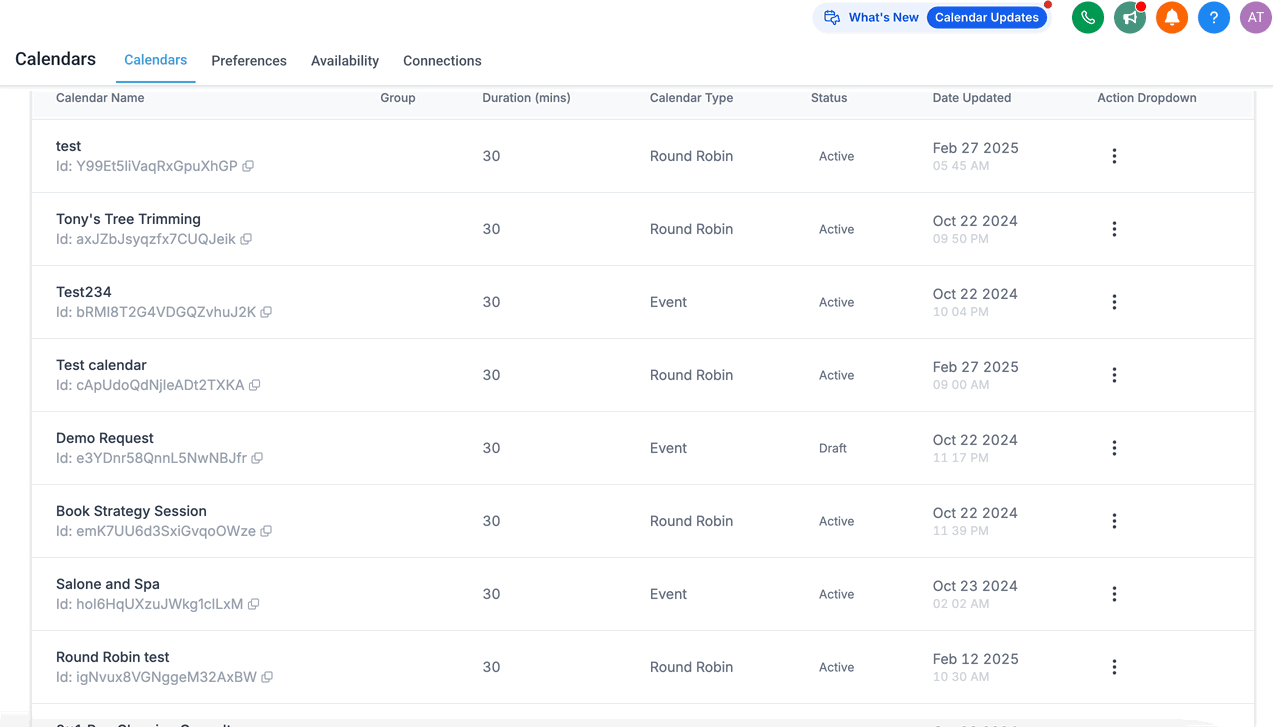
A Round Robin calendar automatically spreads appointment bookings across a group of providers or staff members instead of sending every booking to one person. It is the calendar type most med spas use for consult and treatment bookings whenever more than one provider can take the appointment. You create and manage Round Robin calendars from Calendars > Calendar Settings in Aesthetix CRM.
When a patient requests an appointment, Aesthetix CRM checks the availability of the team members assigned to that calendar and assigns the booking to one of them automatically. At least one team member must be assigned to a Round Robin calendar for it to accept bookings. If no assigned team member is available at the requested time, the system will not let a patient book that slot, so patients only ever see times when someone can actually see them.
If your calendar allows more than one appointment per time slot, availability is based on slot capacity rather than a single yes/no. Each confirmed appointment uses up one unit of that slot's capacity, and if an appointment spans multiple slots, each affected slot loses one unit of capacity. A slot only closes once its full capacity is used, so a single overlapping booking no longer blocks every slot it touches.
Round Robin calendars are useful anytime patients can be seen by more than one provider: general consults, injectables, laser and skin treatments, or any service your team covers as a group. Benefits include:
Efficient scheduling. Appointments are assigned automatically instead of manually.
Balanced workload. Bookings are spread out so no single provider gets overloaded.
Faster booking. The next available provider is offered instead of forcing patients to wait on one person's calendar.
Flexibility for patients. Patients can pick any open slot rather than being locked to one provider's schedule.
Room to grow. As your team grows, Round Robin scales appointment volume without you having to manually balance bookings.
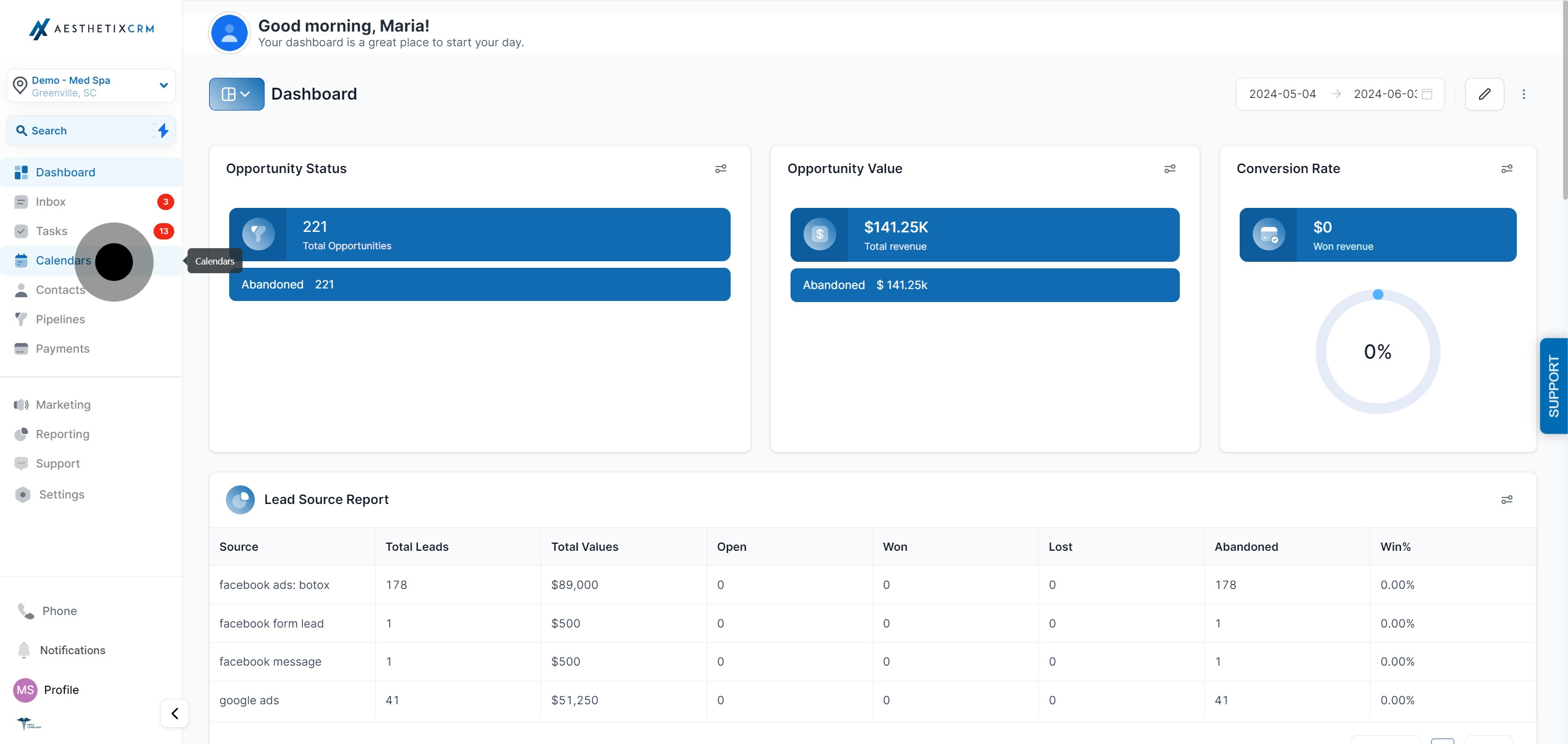
Click on Calendar in the left navigation.
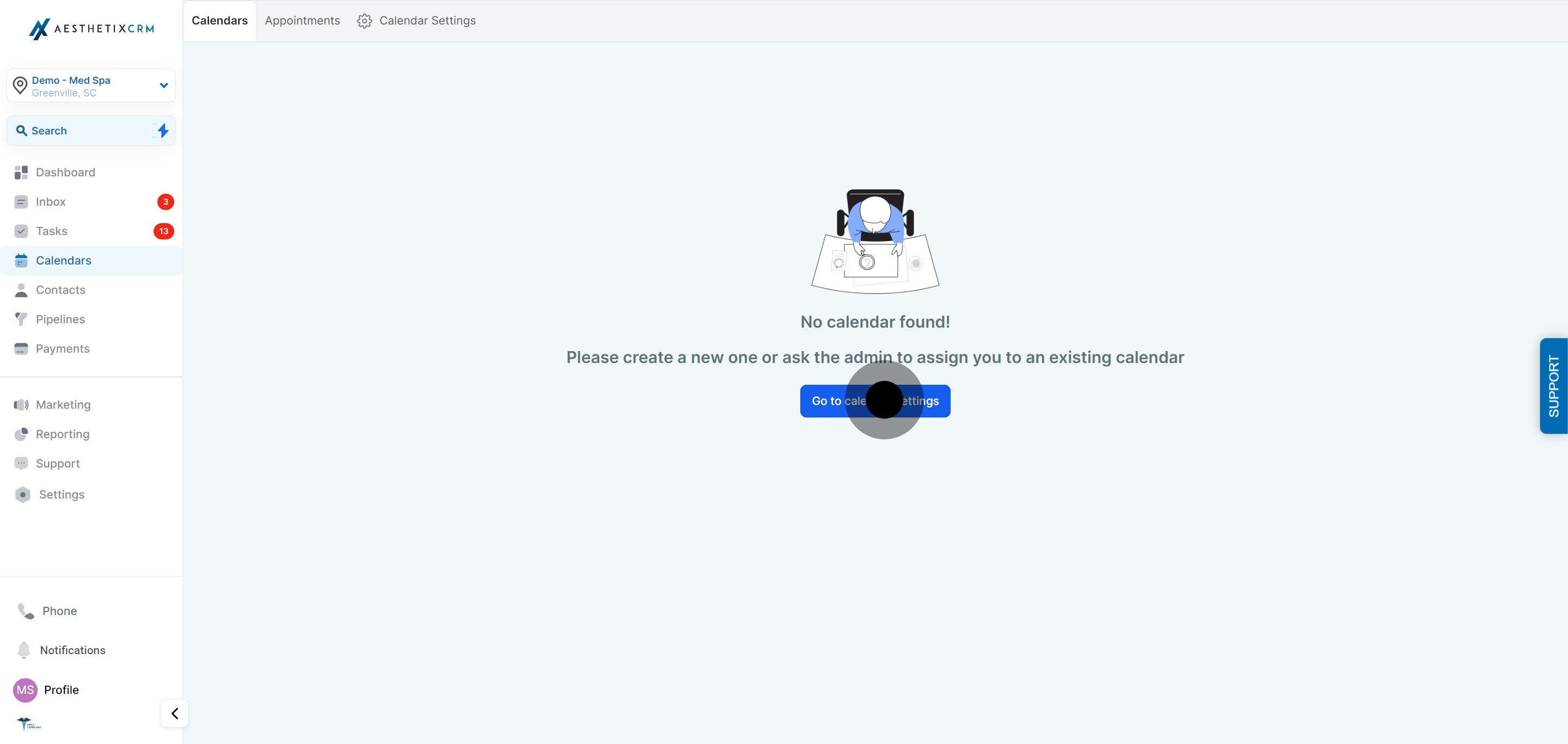
Select Go to Calendar Settings.
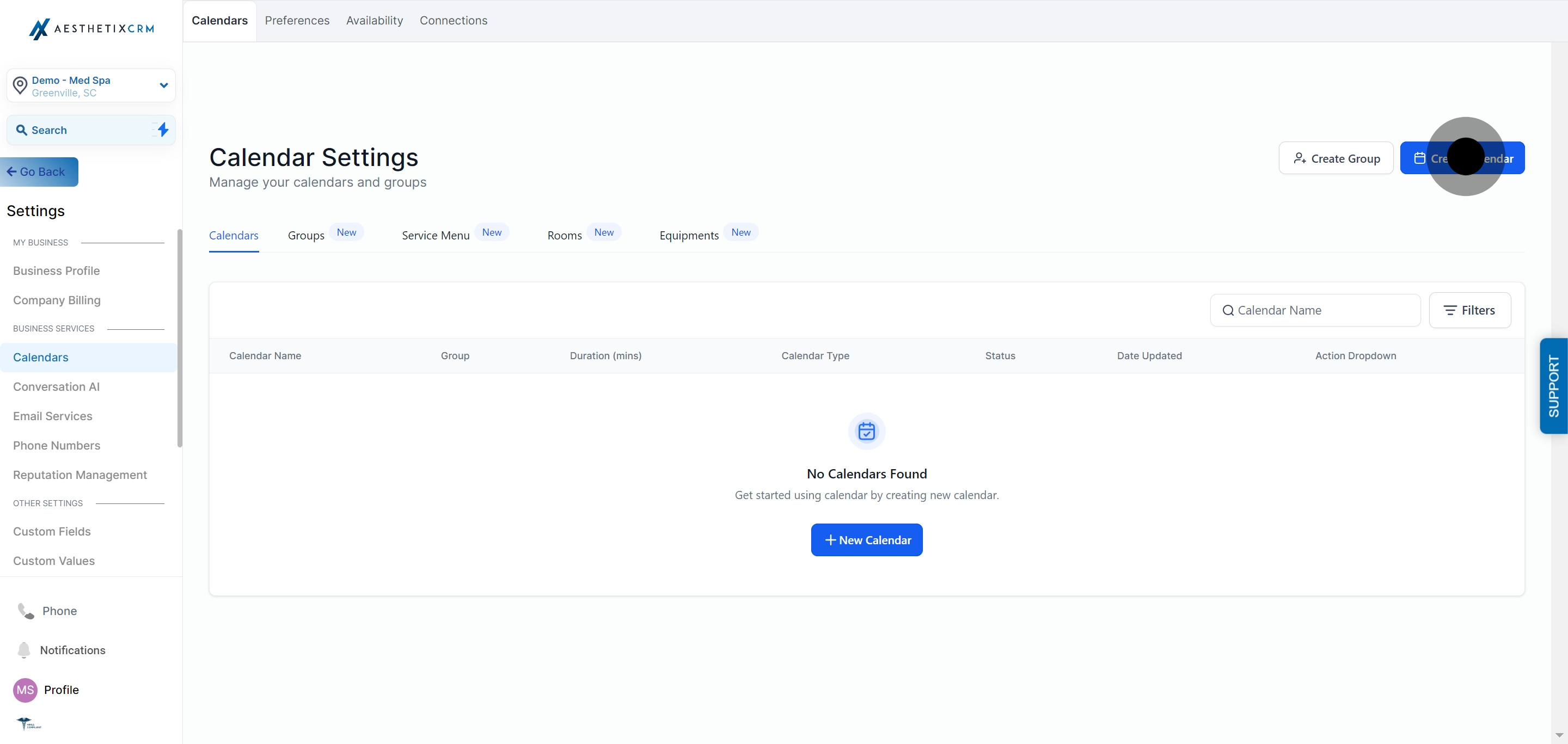
Click Create Calendar.
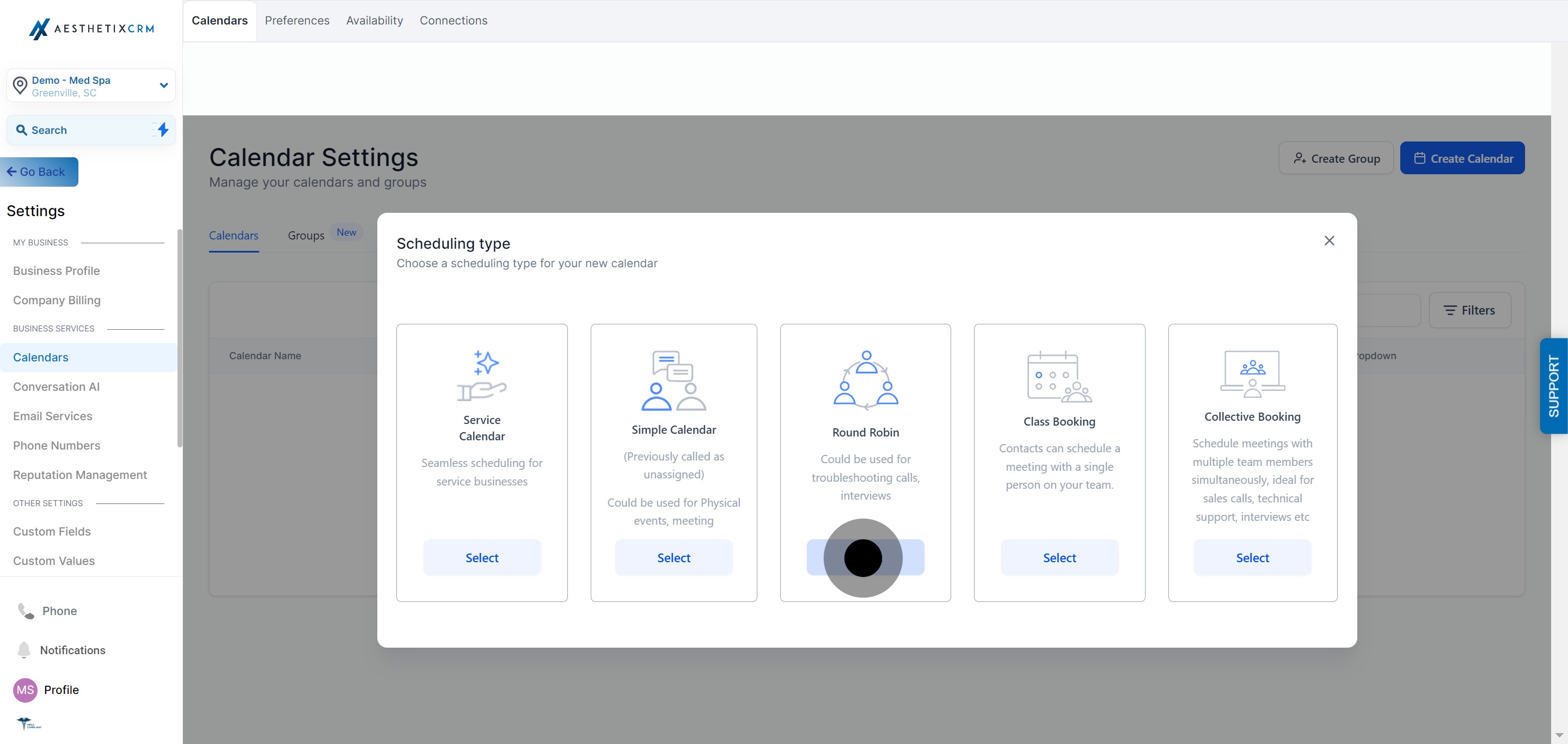
Choose Round Robin from the calendar type options and select it.
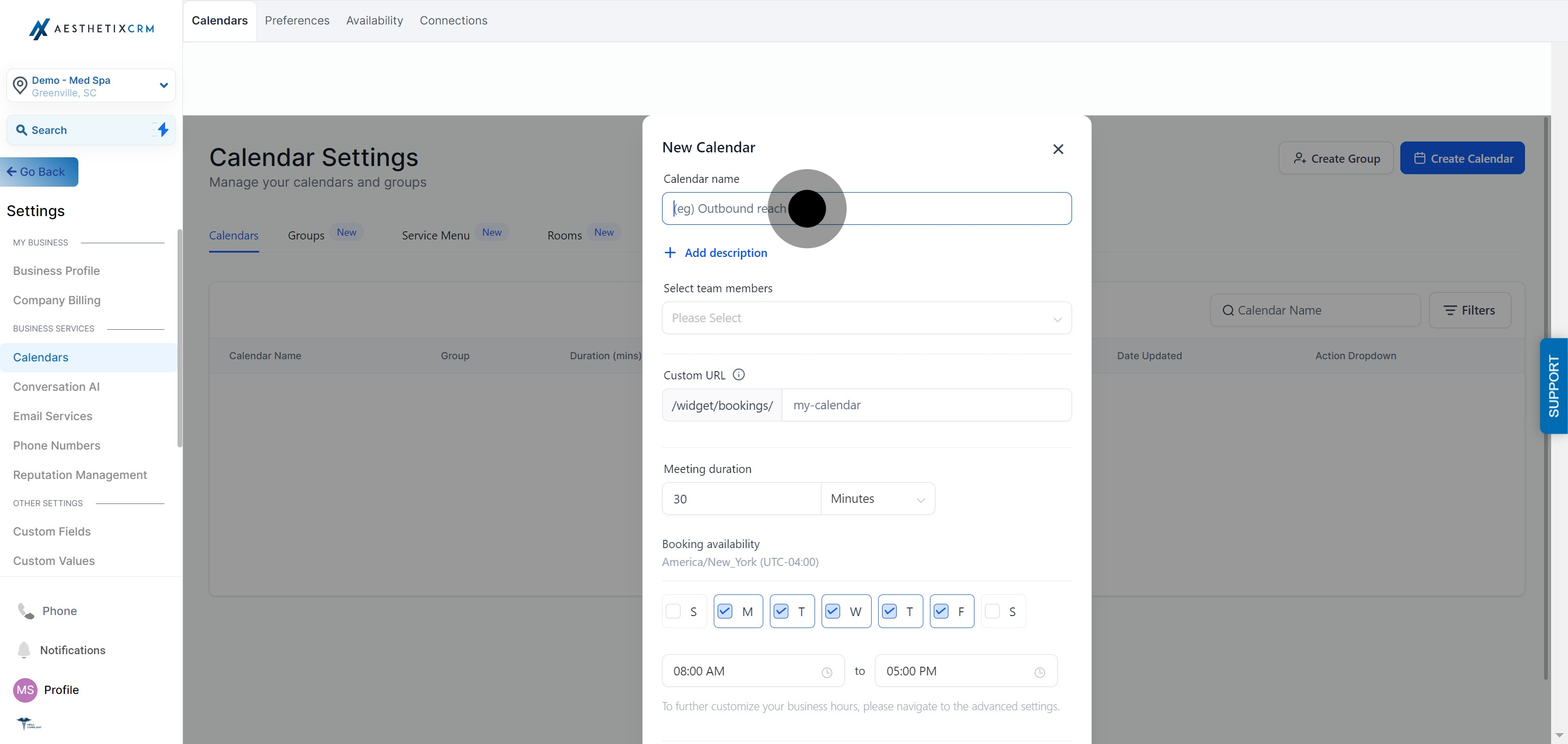
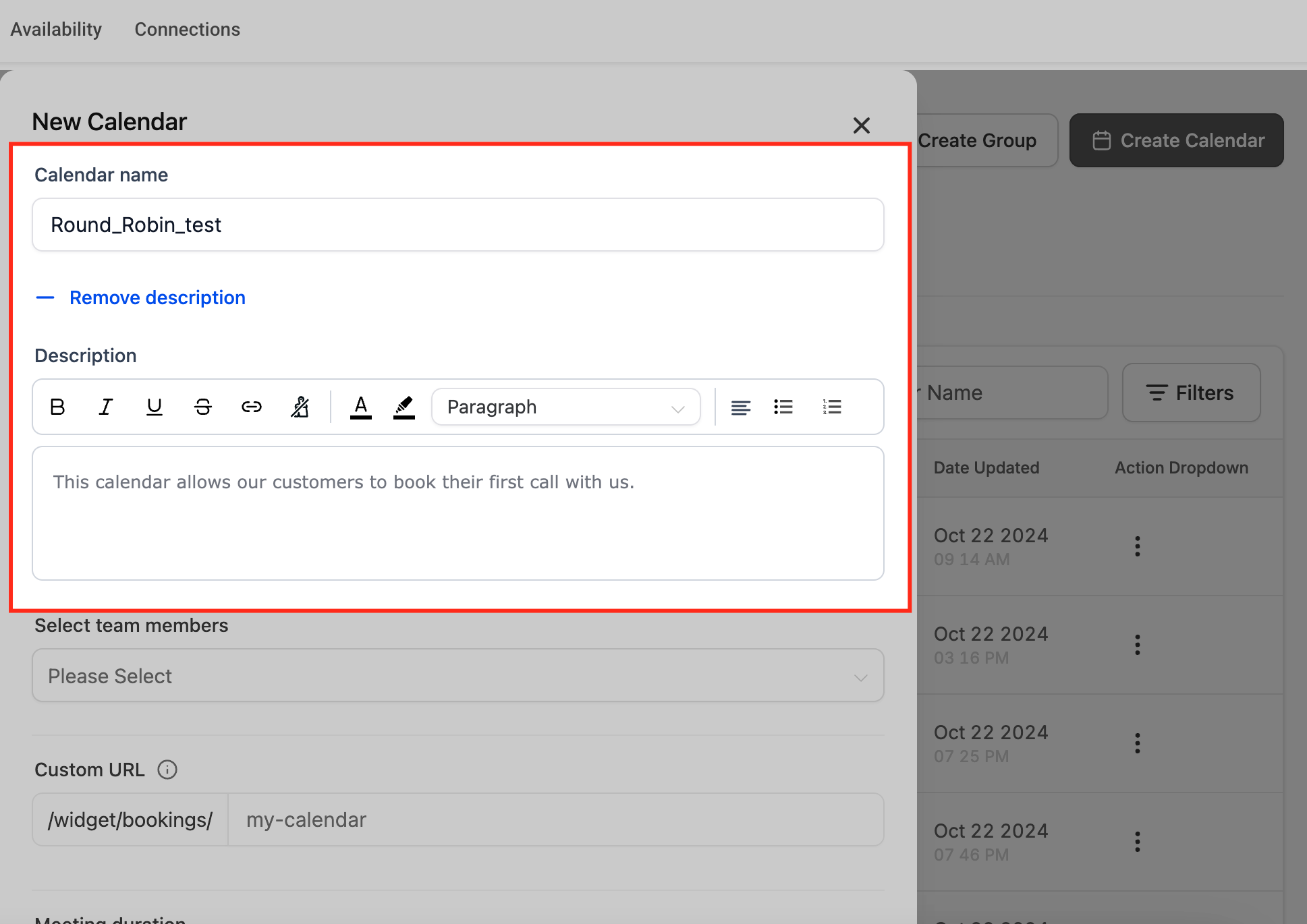
Enter your Calendar Name in the field provided.
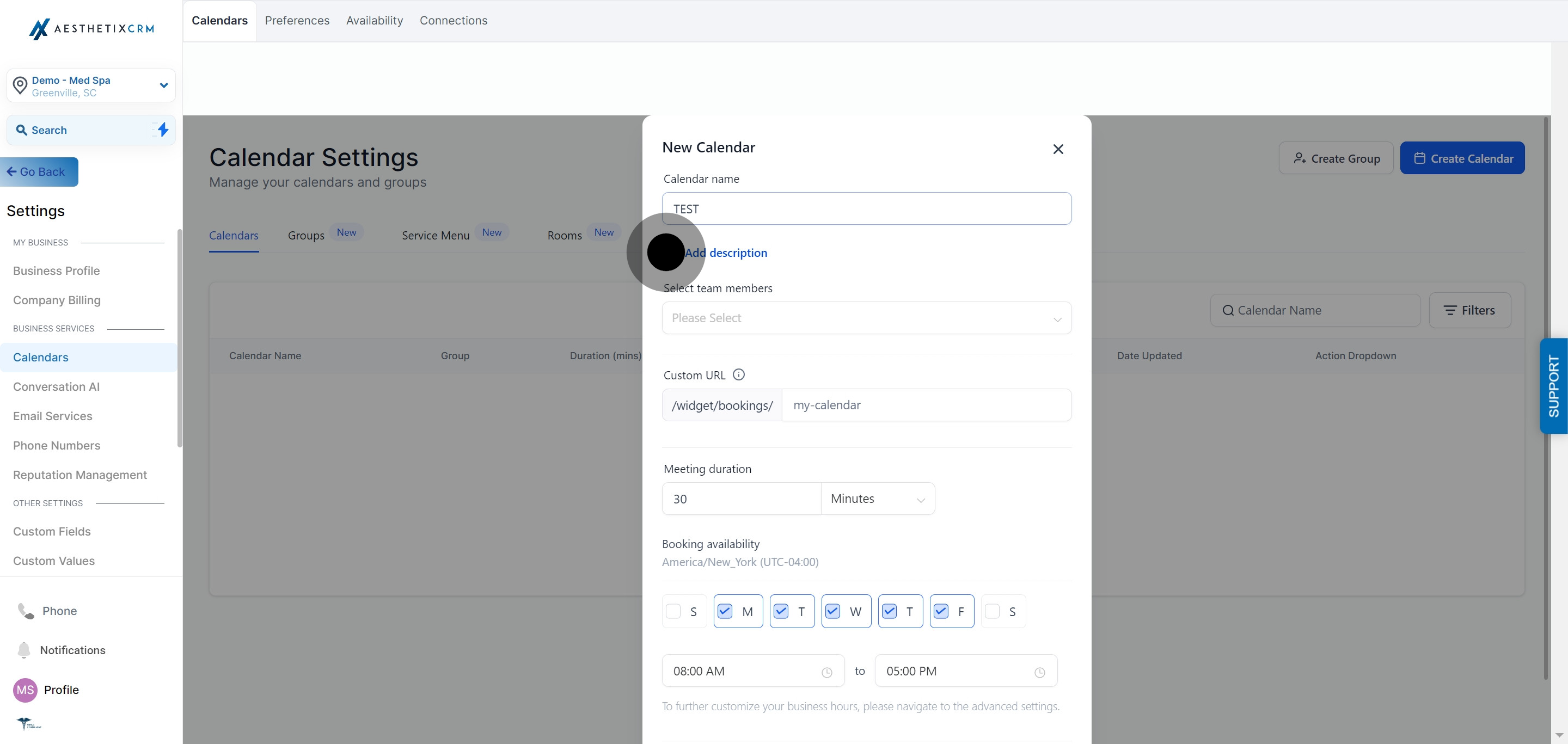
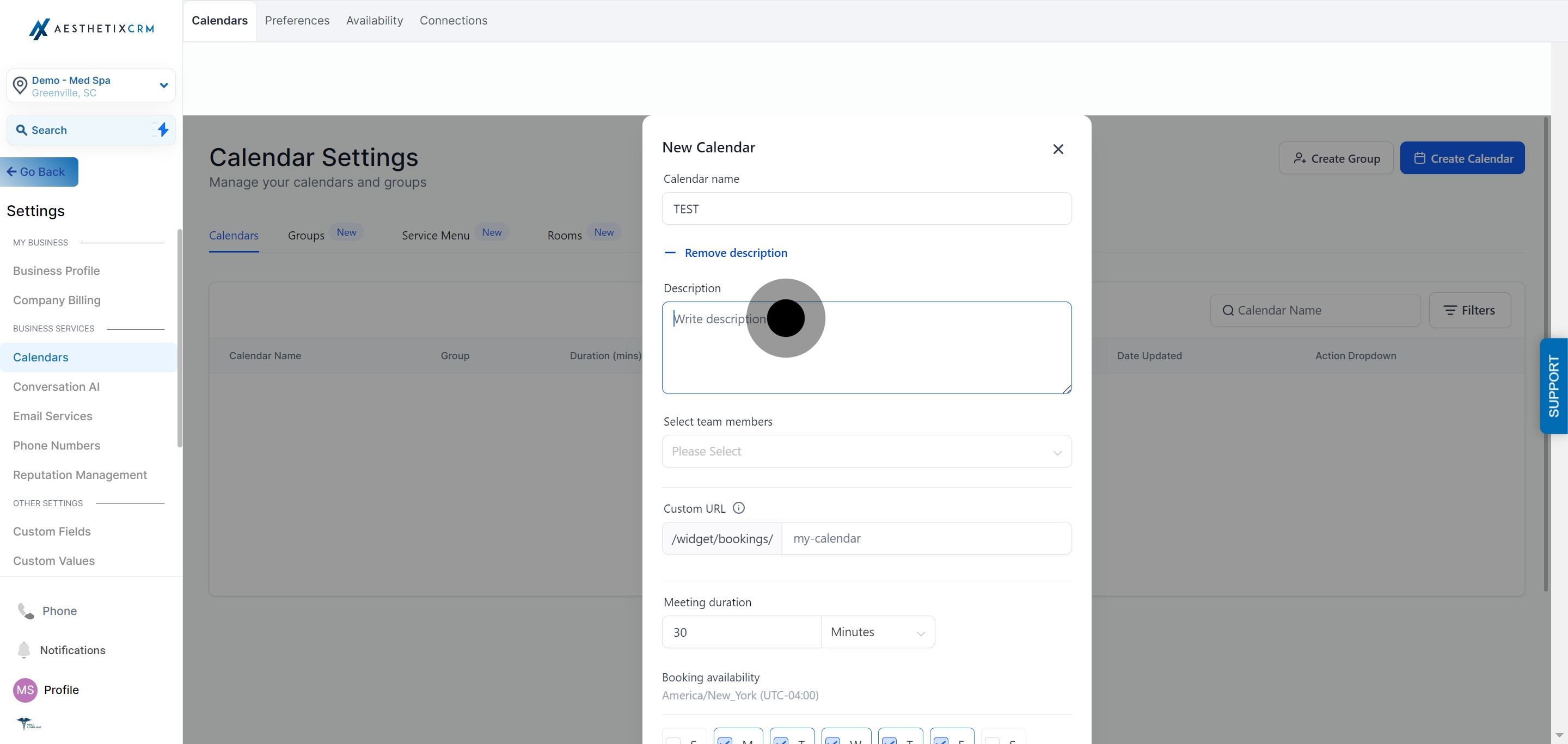
Click Add Description and write a short description of what the calendar is for. This helps you and your team remember its purpose later.
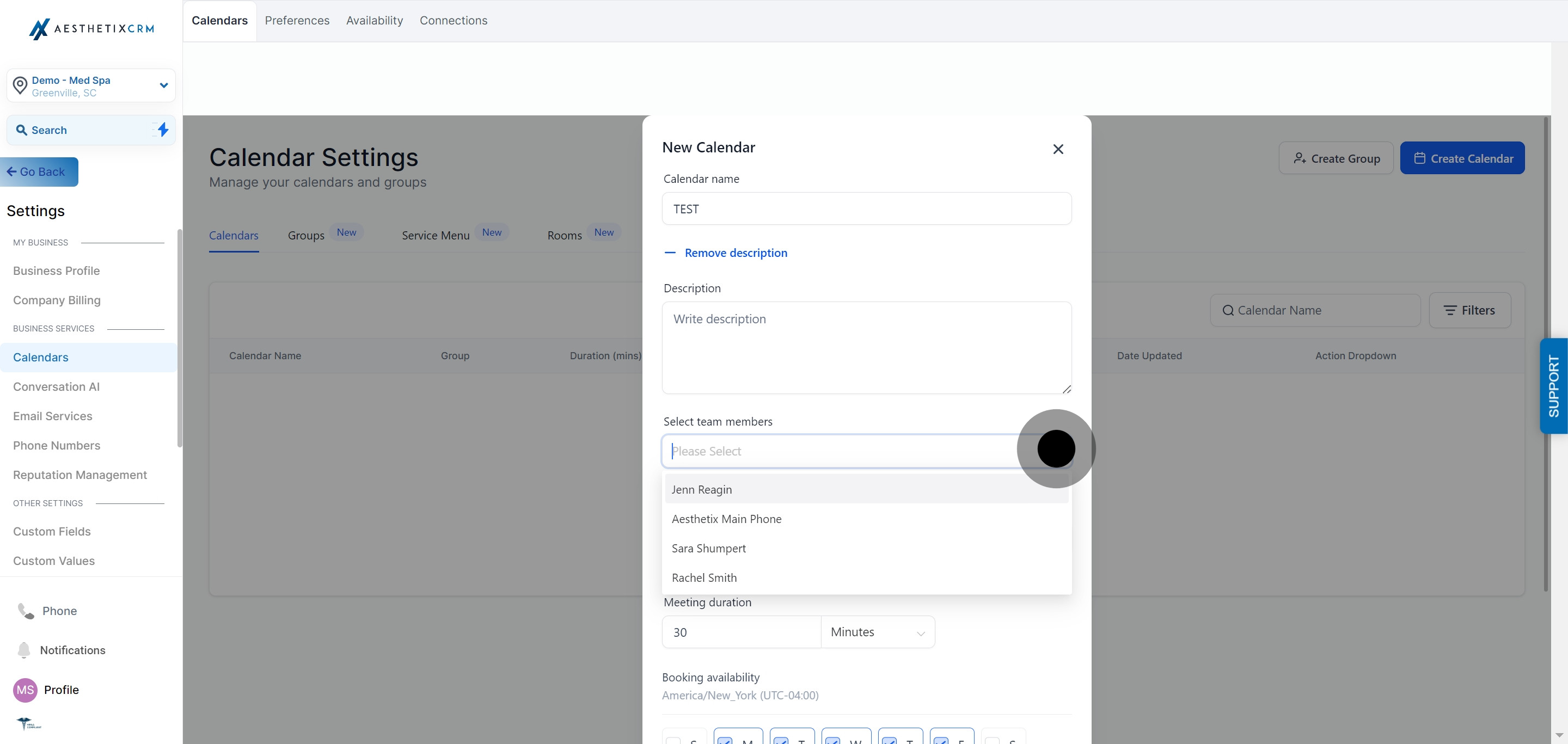
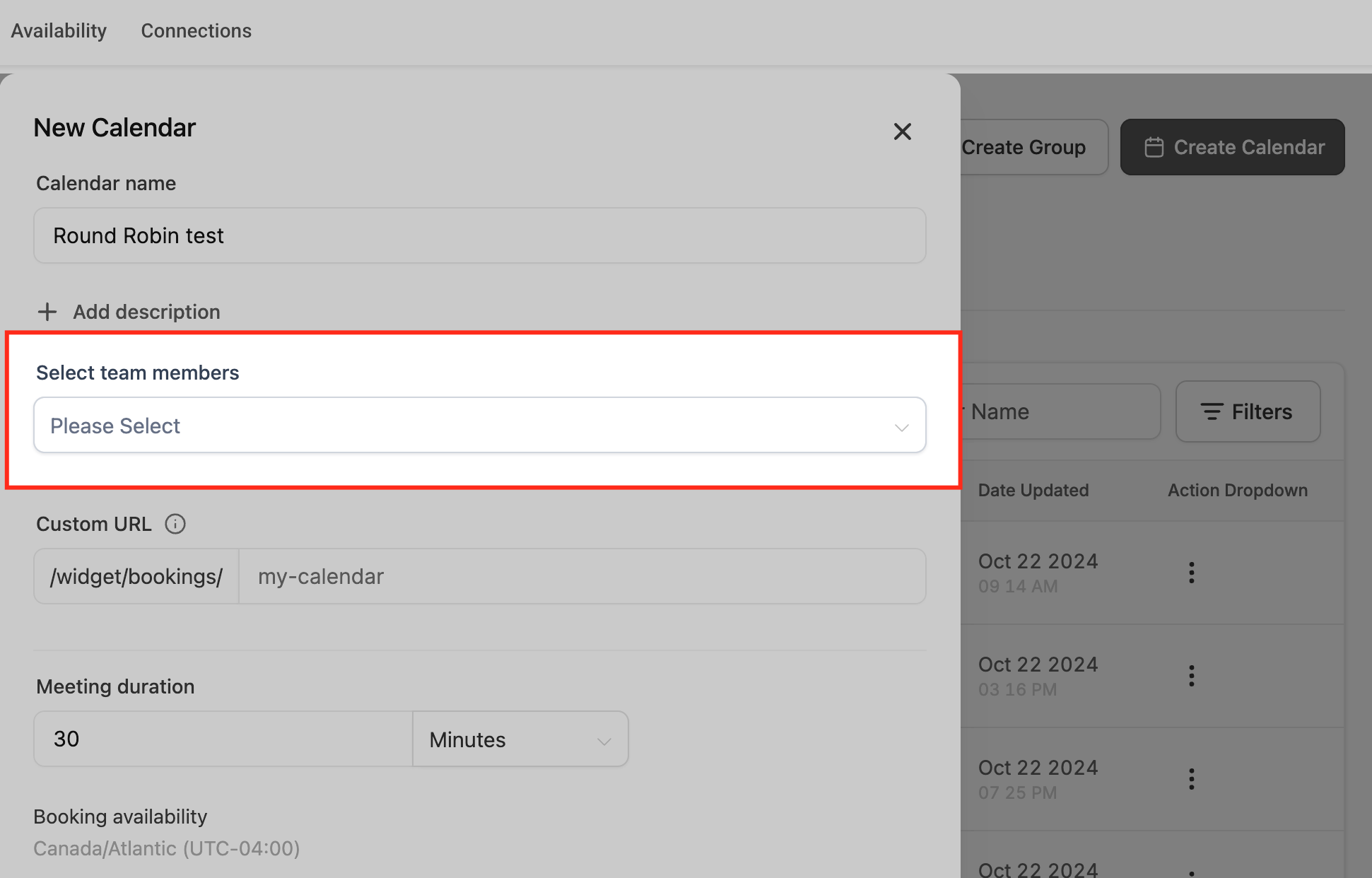
Under Team Members, select every provider or staff member who should receive bookings through this calendar.
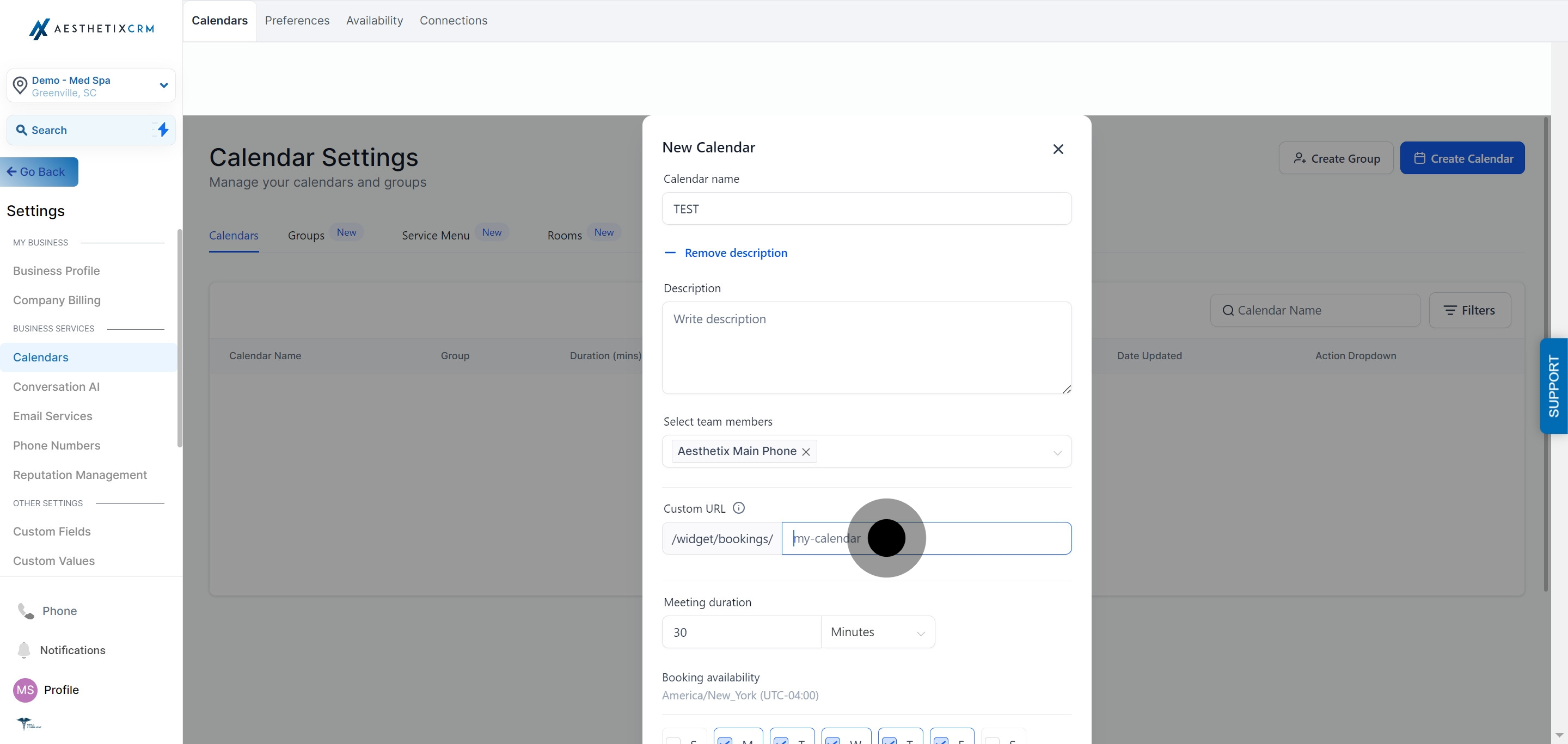
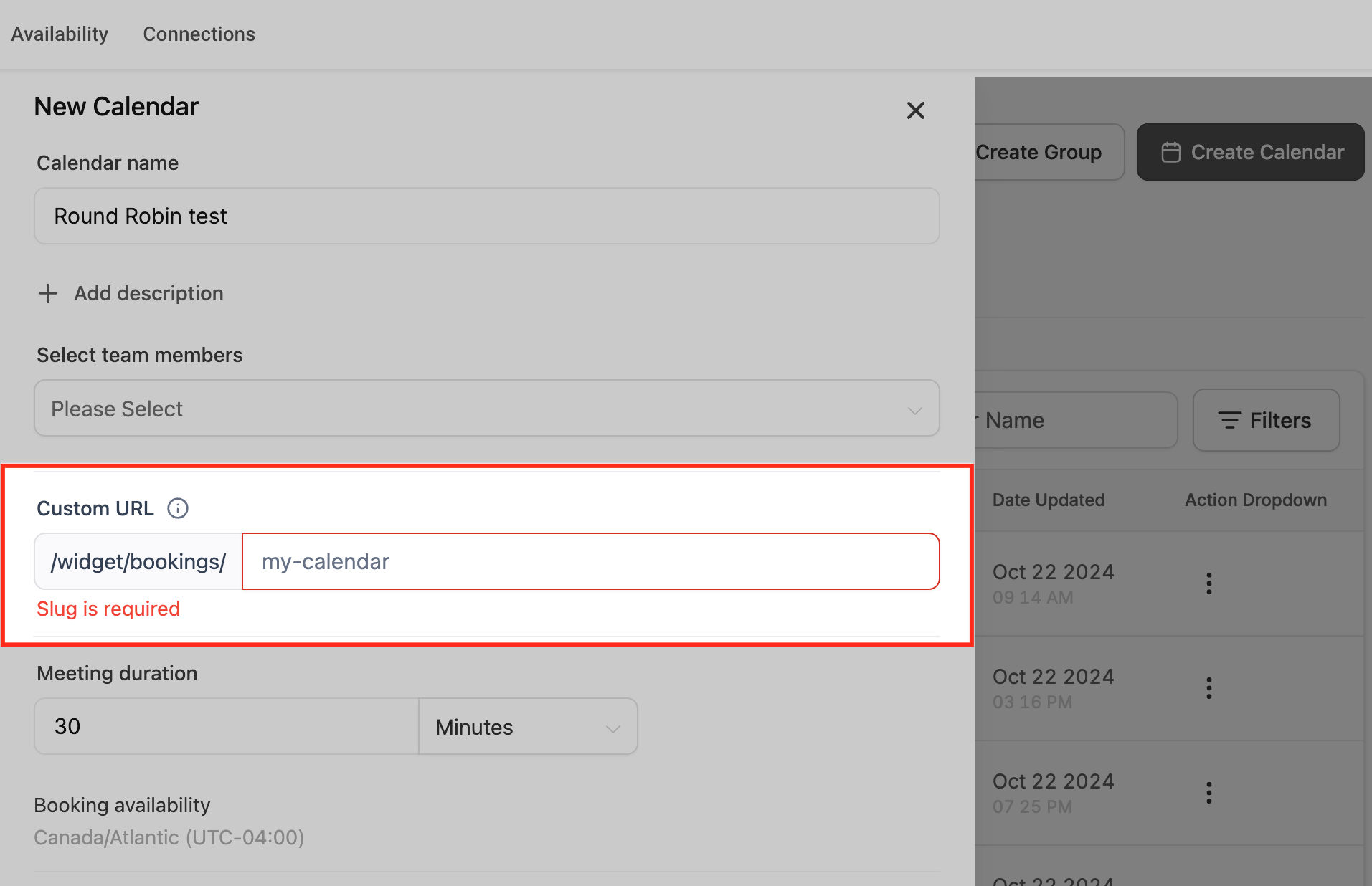
Review the Custom URL. Aesthetix CRM generates a URL slug from the calendar name automatically. You can edit it, and the system checks that your chosen slug is available before saving; if it's already taken, you'll see a message and can adjust it until you find one that's free.
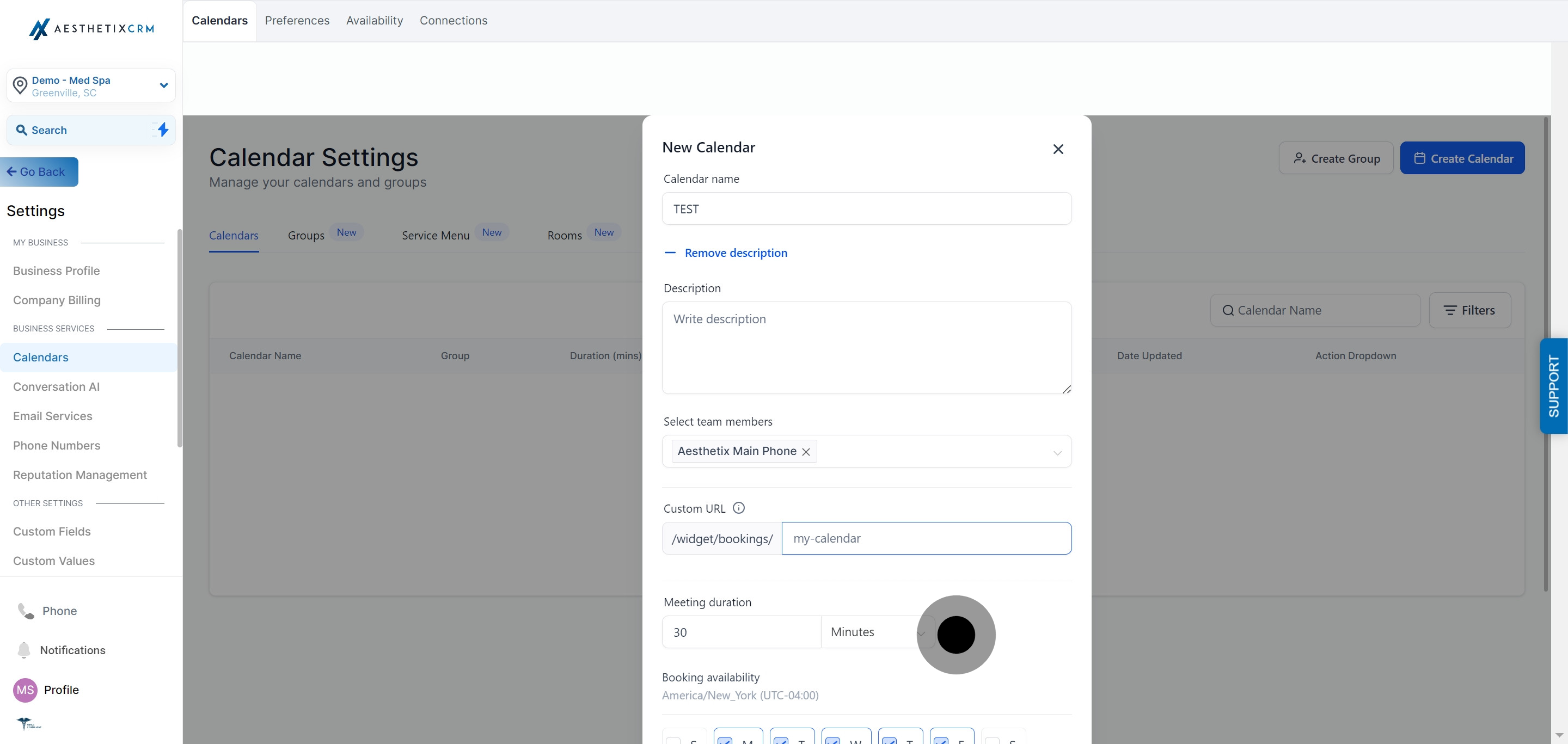
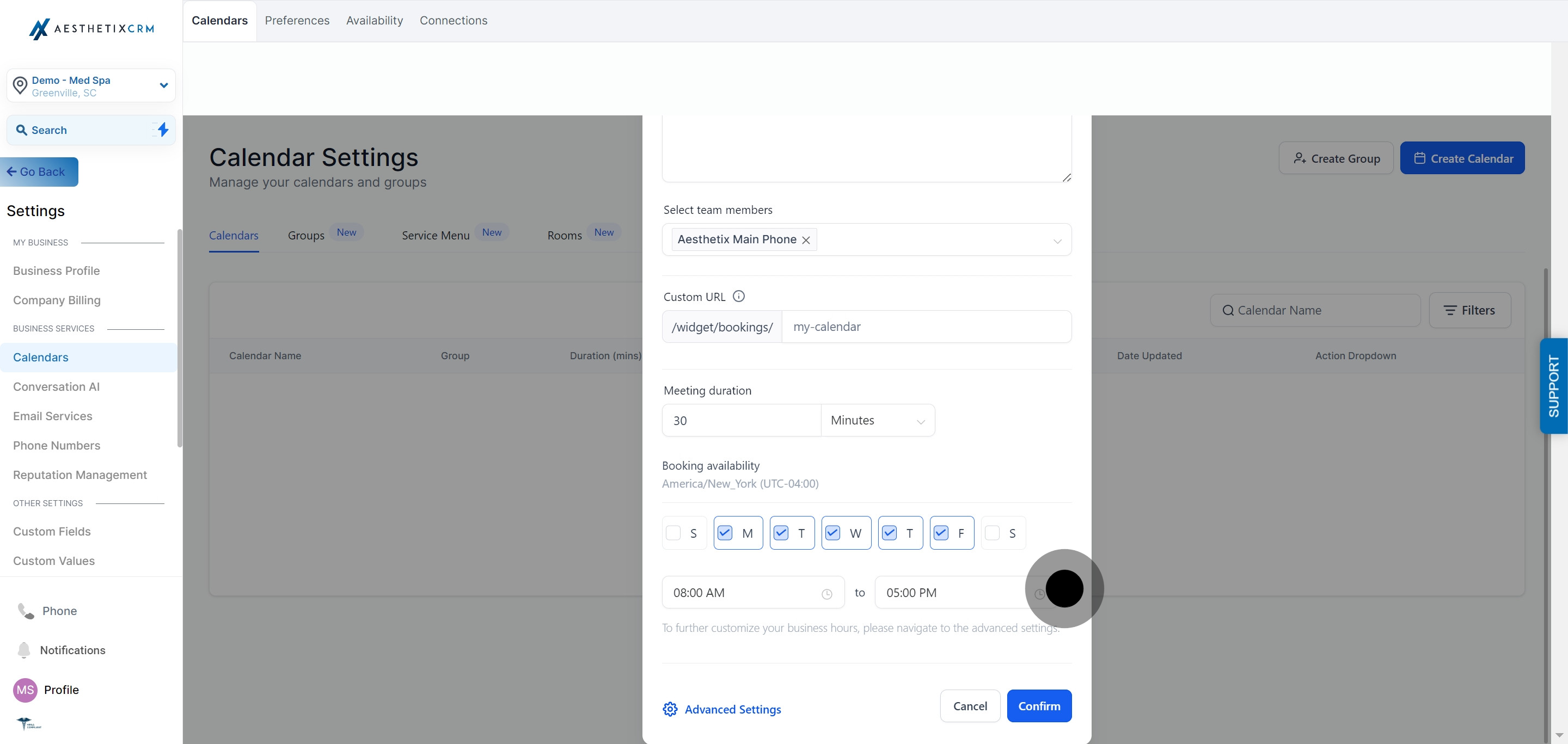
Set the Meeting Duration, in minutes or hours, based on how long the appointment type actually takes.
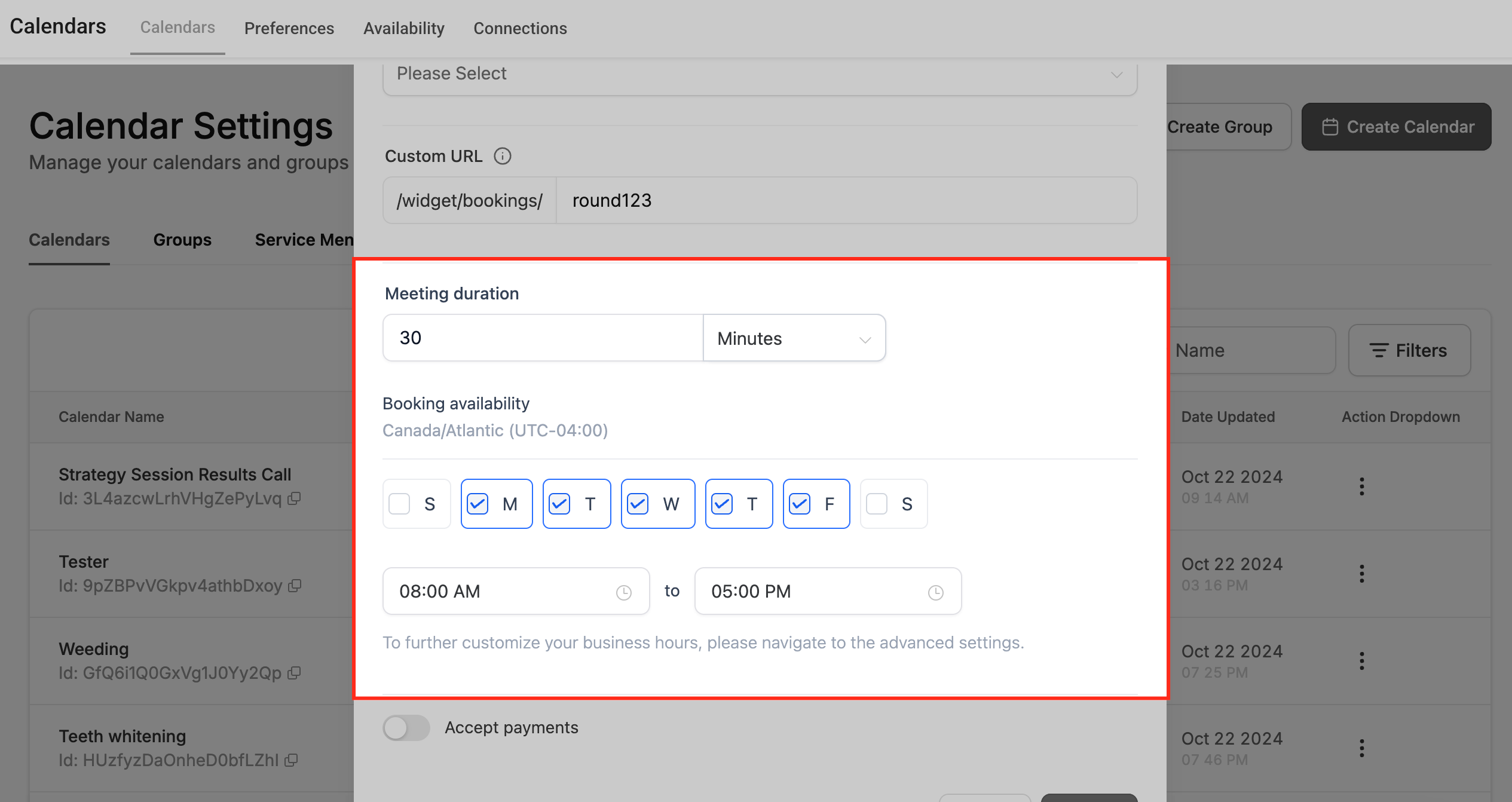
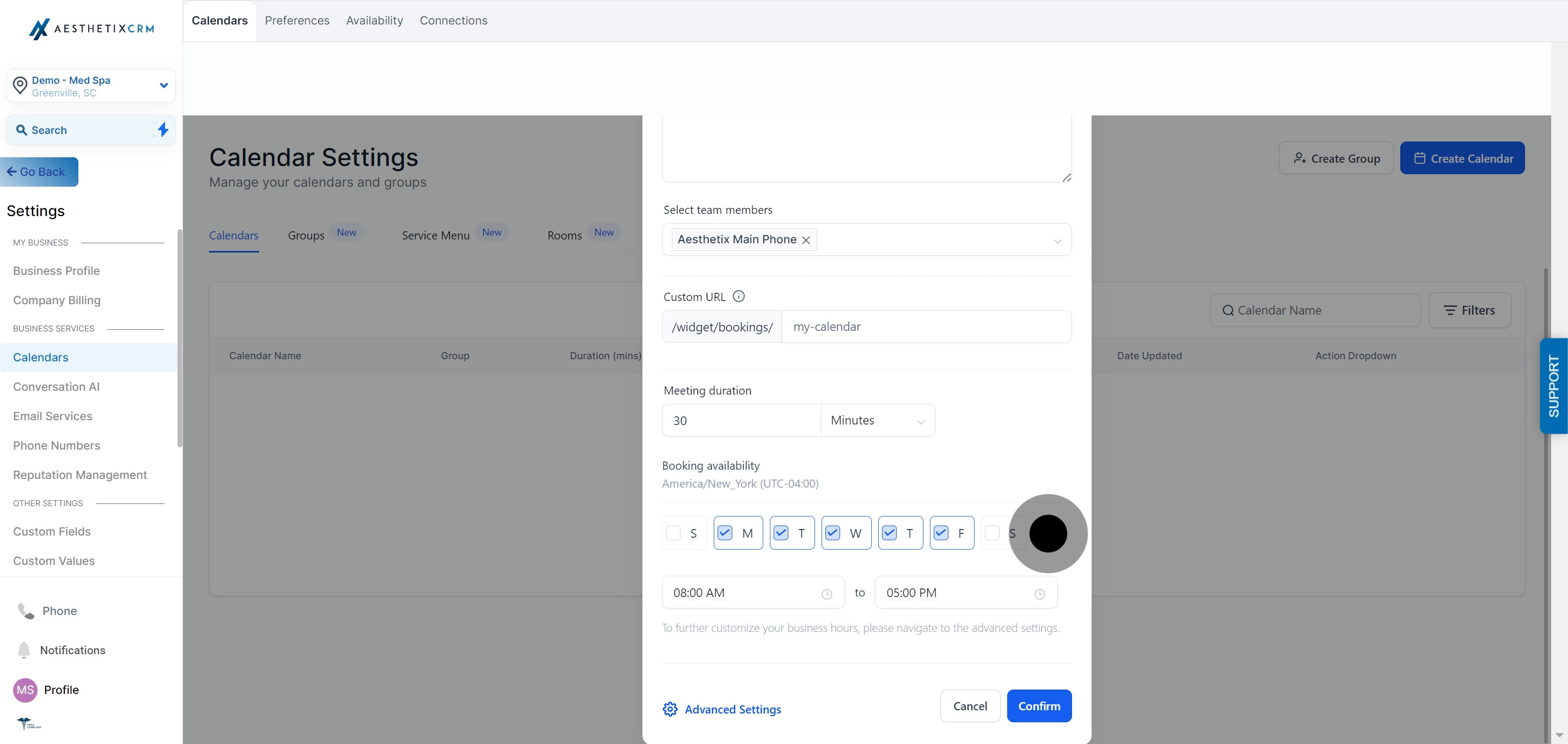
Set the Booking Availability, either the provider's individual working hours or a company-wide schedule, and enter the start time and end time.
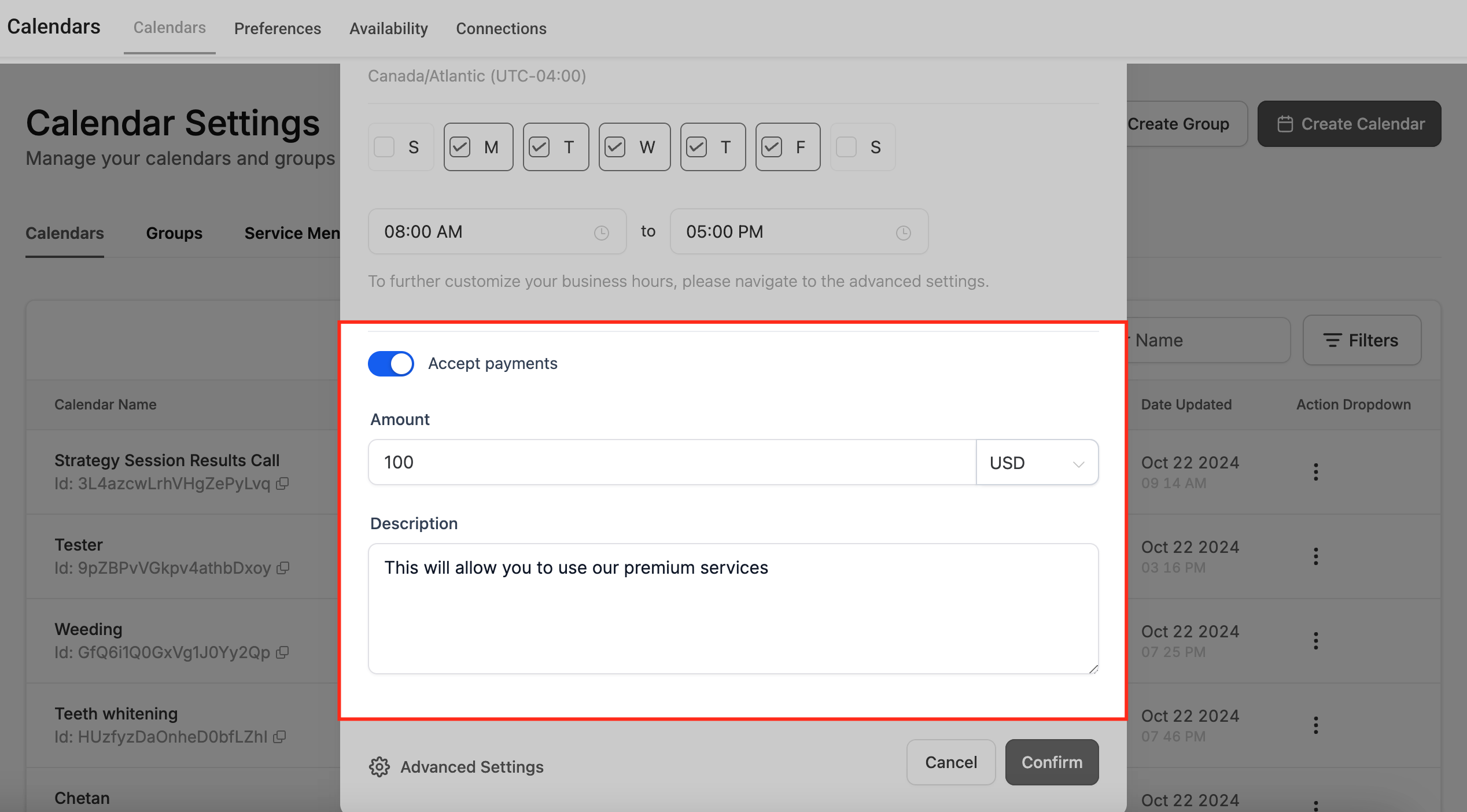
If this calendar should collect payment at the time of booking, open the Accept Payments tab and toggle it on. Choose your currency and add a custom payment description so patients understand what they're being charged for before they confirm.
Tip: If you take payment on any calendar, consider connecting AX Pay, Aesthetix CRM's built-in payment processor. AX Pay offers better rates than Stripe and keeps your booking-to-payment flow inside one system. See the AX Pay help article for setup details.
Click Confirm (or Save) to finish creating your Round Robin calendar.
Once saved, you can preview the calendar or reopen it any time from Calendars, clicking the three dots next to the calendar and choosing Edit.
Round Robin calendars support two distribution methods. You choose one under the calendar's team settings, and it controls how bookings are handed out among your assigned providers.
This method assigns each new booking to whichever assigned team member is available at the requested time. If more than one team member is free, the one with the higher priority level (see below) is offered first.
Best for practices that want patients seen as soon as possible: urgent add-ons, walk-in-style consults, or any service where speed matters more than perfectly even workloads.
This method rotates bookings so that appointments are spread evenly across the team over time, regardless of who happens to be free first.
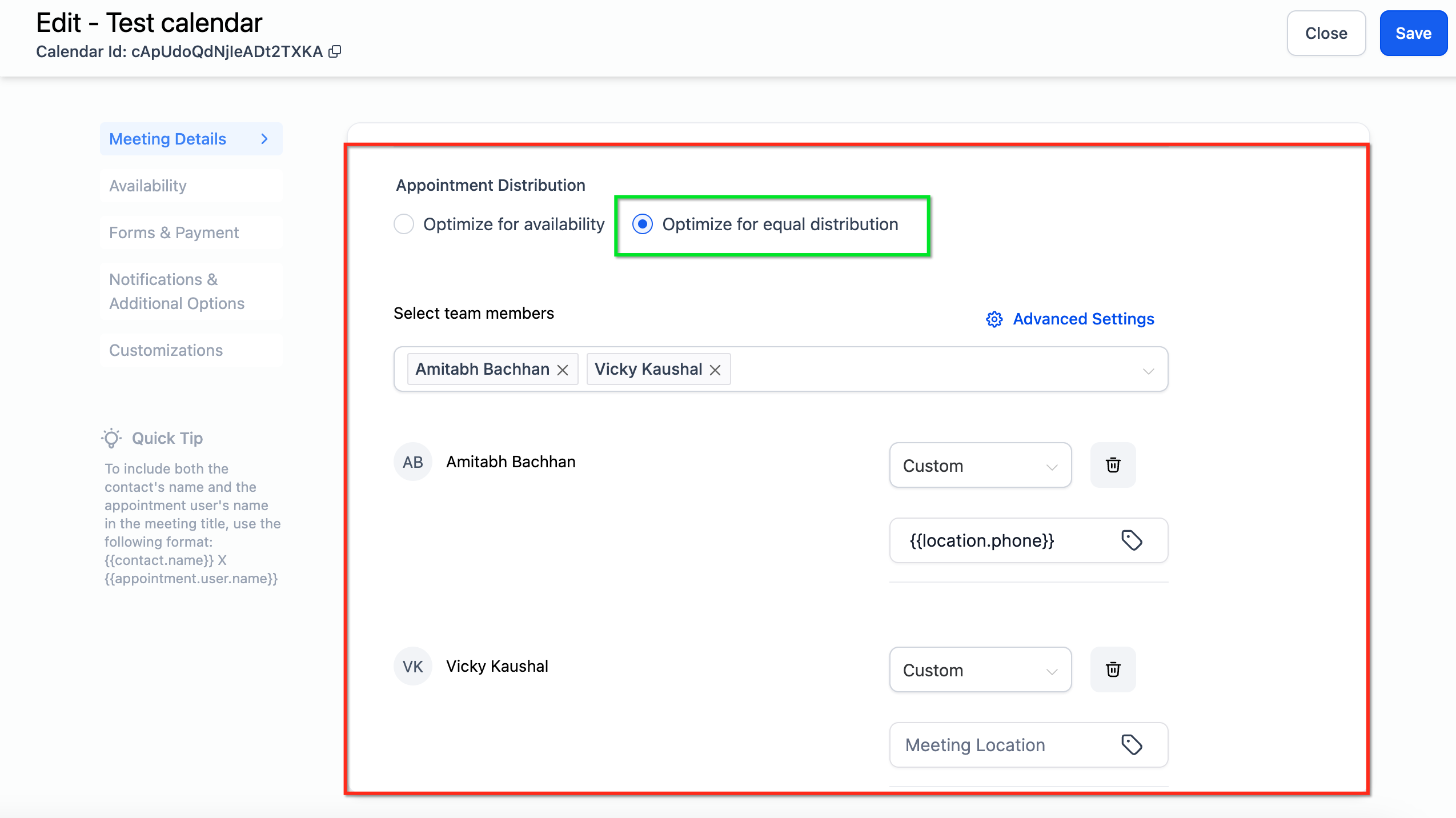
Best for consult-heavy services or teams where you want every provider to end up with roughly the same number of appointments.
How it works: Aesthetix CRM counts each team member's Round Robin bookings within the current calendar month. New bookings go to whoever has the fewest appointments that month. No team member can get more than 3 appointments ahead of another; once a provider is 3 or more bookings ahead, their availability is temporarily hidden from new bookings until the rest of the team catches up.
For example, if Provider A has 3 appointments this month and Provider B has 0, Provider A's availability is hidden. Once Provider B books 1 appointment, Provider A becomes eligible again. If Provider A then books another (making it 4 to 1), they are hidden again.
This logic only applies when patients book with "Any Available" selected. If a patient books directly with a specific team member, that booking goes through regardless of the current distribution count.
A few things reset or affect the count:
Adding or removing a team member from the calendar resets the meeting count for everyone.
Switching from Equal Distribution to Optimize for Availability and back also resets the count.
At booking time, the system checks each team member's appointment count for the month, assigns the booking to whoever has the fewest, and uses your team's predefined order as a tiebreaker if counts are equal. If the selected team member turns out to be unavailable at that exact time, the system moves to the next eligible member.
Best practices for Equal Distribution:
Turn off Allow Staff Selection so the system, not the patient, controls assignment and true equal distribution is maintained.
Equal Distribution works best when your team members have similar or overlapping availability, so the system has room to rotate bookings fairly.
You can assign a priority level to each team member on a Round Robin calendar. When multiple team members are available for the same slot, priority decides who gets offered first.
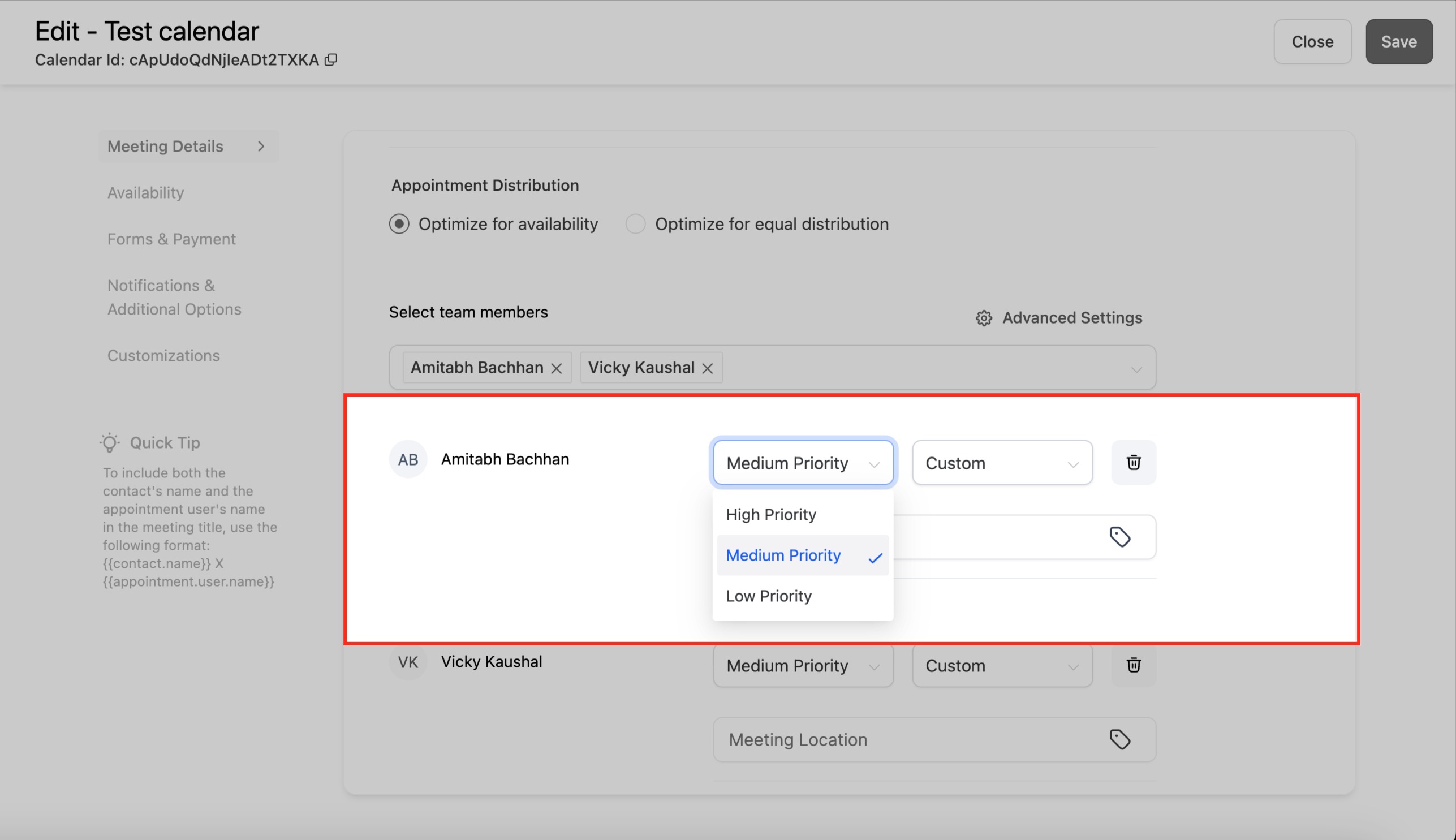
Priority Level | What it does |
|---|---|
High | Selected first if available. |
Medium | Selected only if no high-priority member is available. |
Low | Selected only if no high or medium-priority member is available. |
Each team member on a Round Robin calendar can have a preferred meeting location, which controls what patients see when they book.
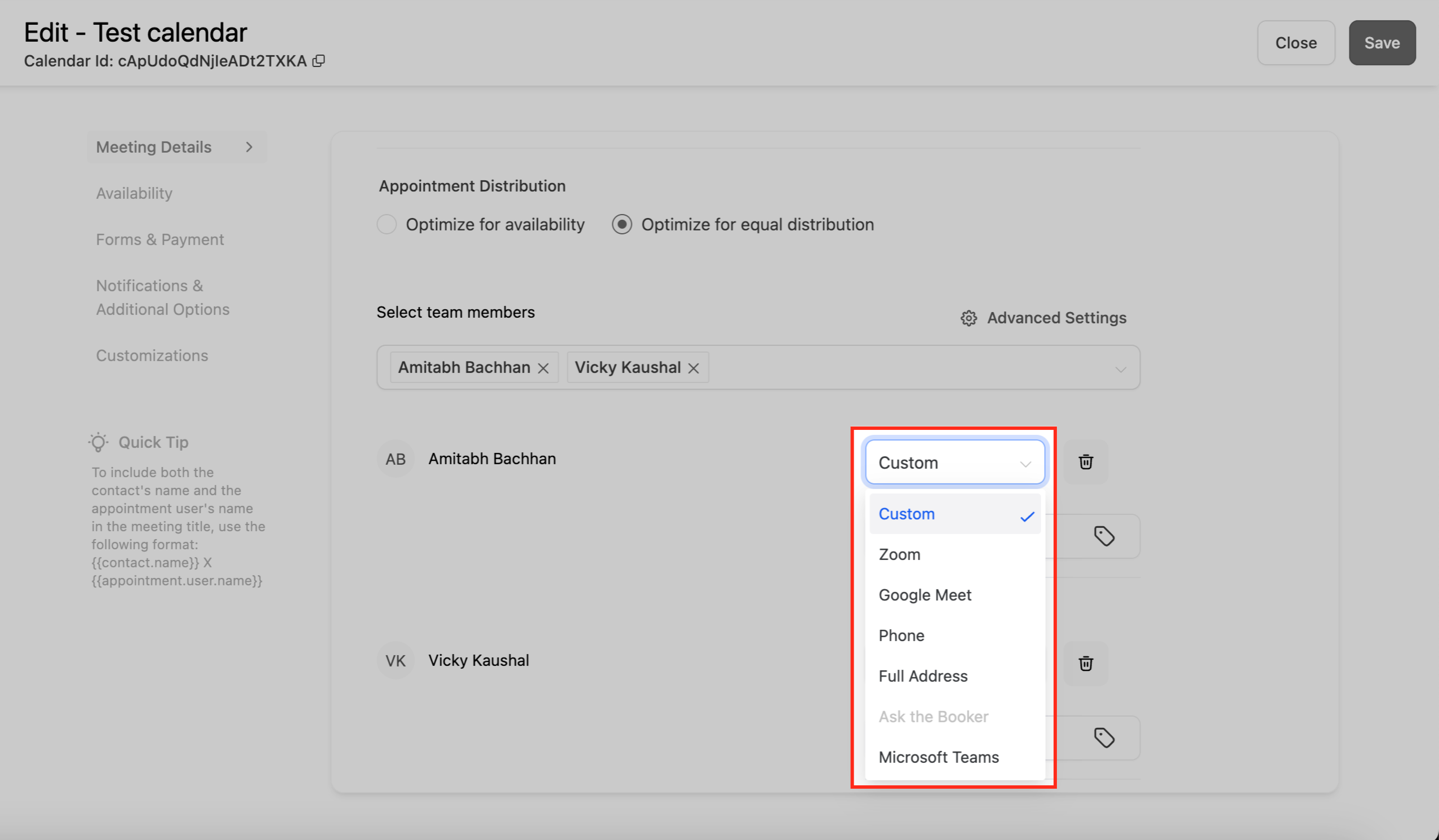
Location Option | Use for |
|---|---|
Zoom | Virtual consults over Zoom. |
Google Meet | Virtual consults over Google Meet. |
Phone | Phone consults. |
Full Address | In-office or in-person appointments. |
Ask the Booker | Let the patient specify where the meeting should happen. |
Microsoft Teams | Virtual consults over Microsoft Teams. |
Two terms matter here: the Appointment Owner is the team member assigned to a specific booked appointment, and the Assigned User is the contact's designated user in the CRM, generally the provider that patient normally works with.
Reschedule preferences determine how a booking is reassigned when a patient changes their appointment.
Go to Calendars, and select your Round Robin calendar.
Click Meeting Details, then select Team Members.
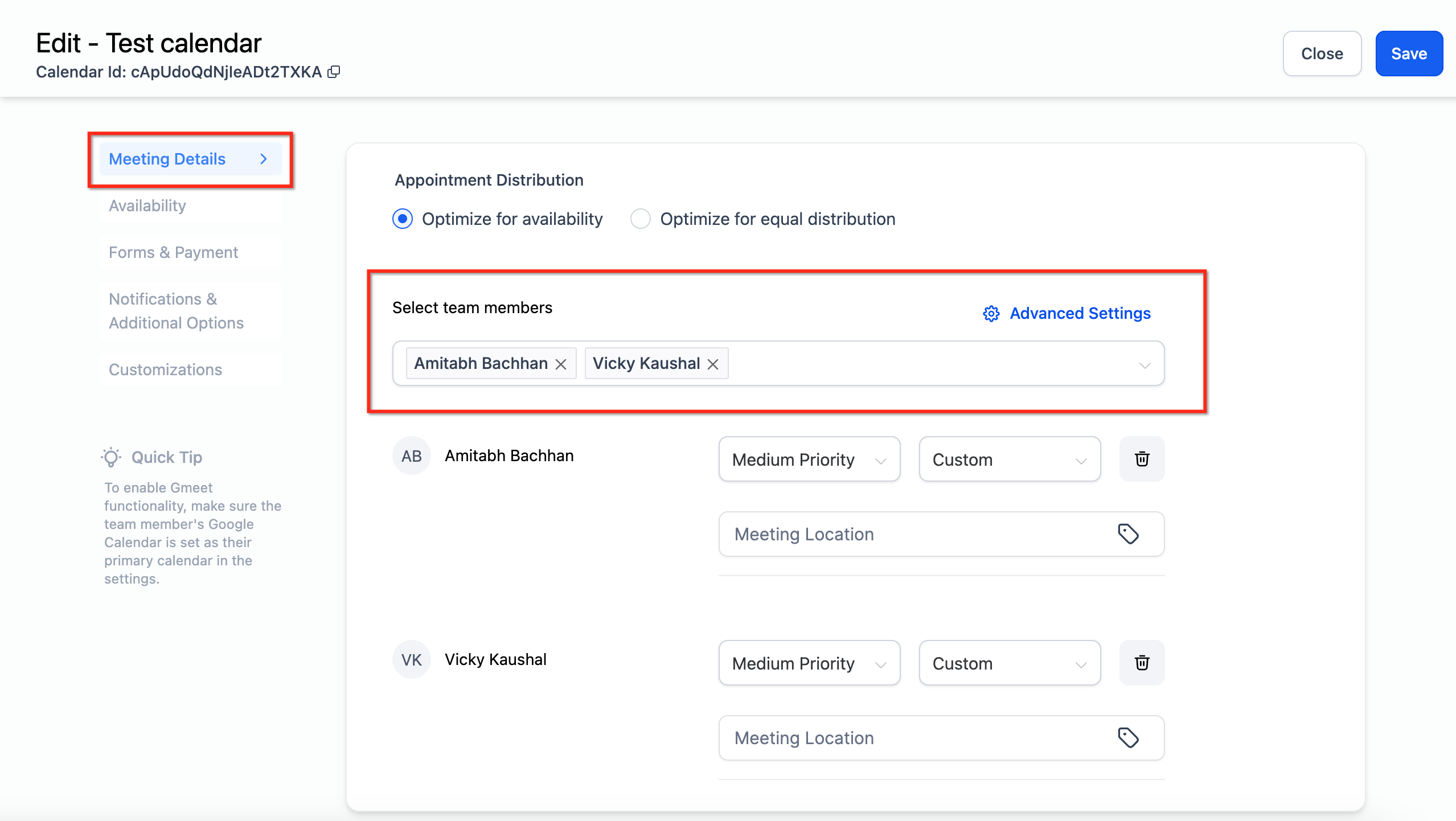
Open Advanced Settings to configure reschedule preferences.
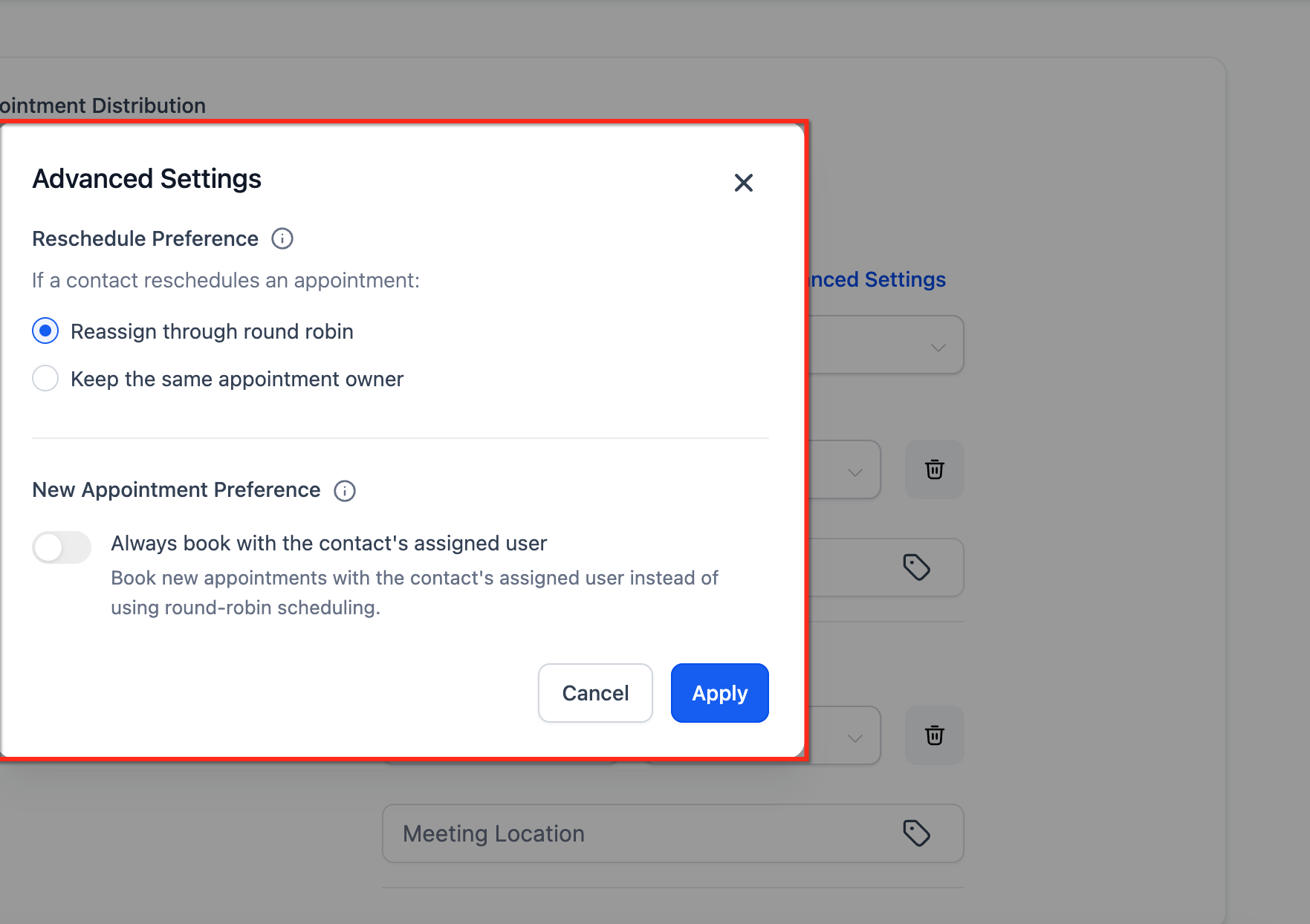
Choose one of two options:
Reassign Through Round Robin: a rescheduled appointment is reassigned to any team member based on the Round Robin algorithm, exactly like a new booking.
Keep Same Appointment Owner: only the original provider's open slots are shown when the patient reschedules. For example, if Provider A was the original provider, only Provider A's available times appear on the reschedule link.
Turn off Allow Staff Selection if you want to prevent patients from changing the assigned provider themselves on the booking widget.
This setting lets new bookings favor a patient's existing assigned provider instead of pure Round Robin. If a patient has an assigned provider, that provider is given preference; otherwise the booking falls back to Round Robin.
Tip: Turn off Allow Staff Selection to prevent patients from changing the staff member on the booking widget.
To use this setting:
The patient must already have an assigned user on their contact record.
The booking form must be first in the booking widget's step order (reorder it from the Forms & Payments tab).
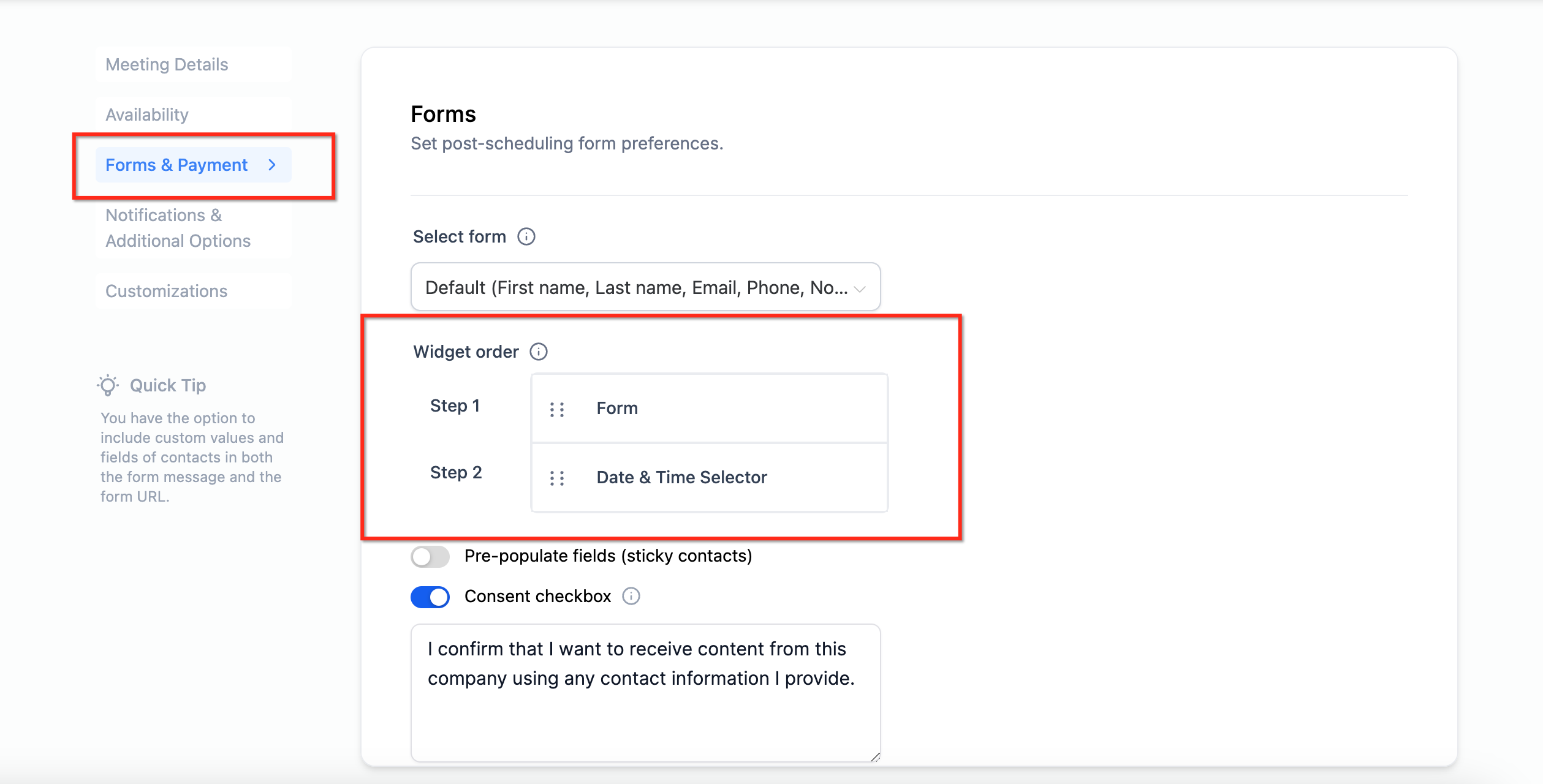
Enable it under Meeting Details > Team Members > Advanced Settings by toggling Always Book with Assigned User on.
When a patient fills out the form first, Aesthetix CRM checks their email or phone against your contact records to find their assigned user, then follows one of three paths:
No assigned user: the booking goes through standard Round Robin assignment.
Assigned user is not on this calendar: the booking still goes through Round Robin among the providers who are on this calendar.
Assigned user is on this calendar: that provider's open slots are shown, and the appointment books directly with them.
If this setting is off, every new booking runs through standard Round Robin instead.
Found under the calendar's Notifications and Additional Options tab:
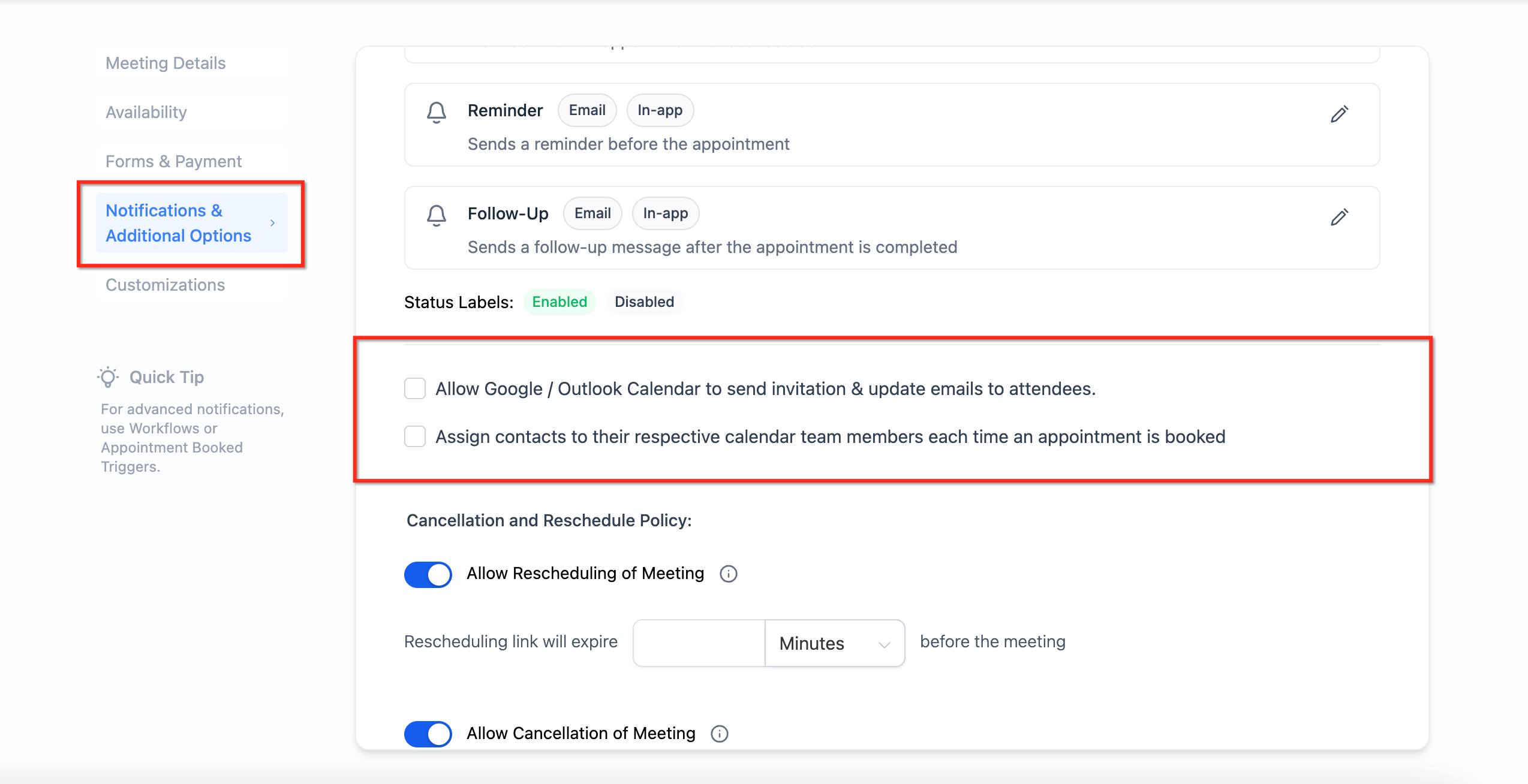
Assign Contacts to Their Respective Calendar Team Members: when a patient books with a specific provider, the patient's contact record is automatically assigned to that provider, keeping future communication with the same person.
Automatically Assign a Contact's Future Appointments to the Same Team Member: once a patient books with a provider, all of that patient's future bookings default to the same provider, which helps with continuity of care.
Best practices: keep team availability up to date for accurate distribution, review Advanced Settings periodically as your team changes, and keep settings consistent across your calendars to avoid conflicts.
Staff Member Selection adds a dropdown to your booking widget so patients can pick which team member they want, instead of being auto-assigned. It works with the Round Robin calendar type and requires the newer booking widget style rather than the classic one.
This is especially useful for med spas: patients often want the same injector, aesthetician, or provider they saw before, and giving them the choice up front improves satisfaction and retention. If a patient's preferred provider is unavailable at a chosen time, the widget shows a message and suggests the next available slots. It also works during rescheduling, so a patient can keep their original provider or switch to someone else.
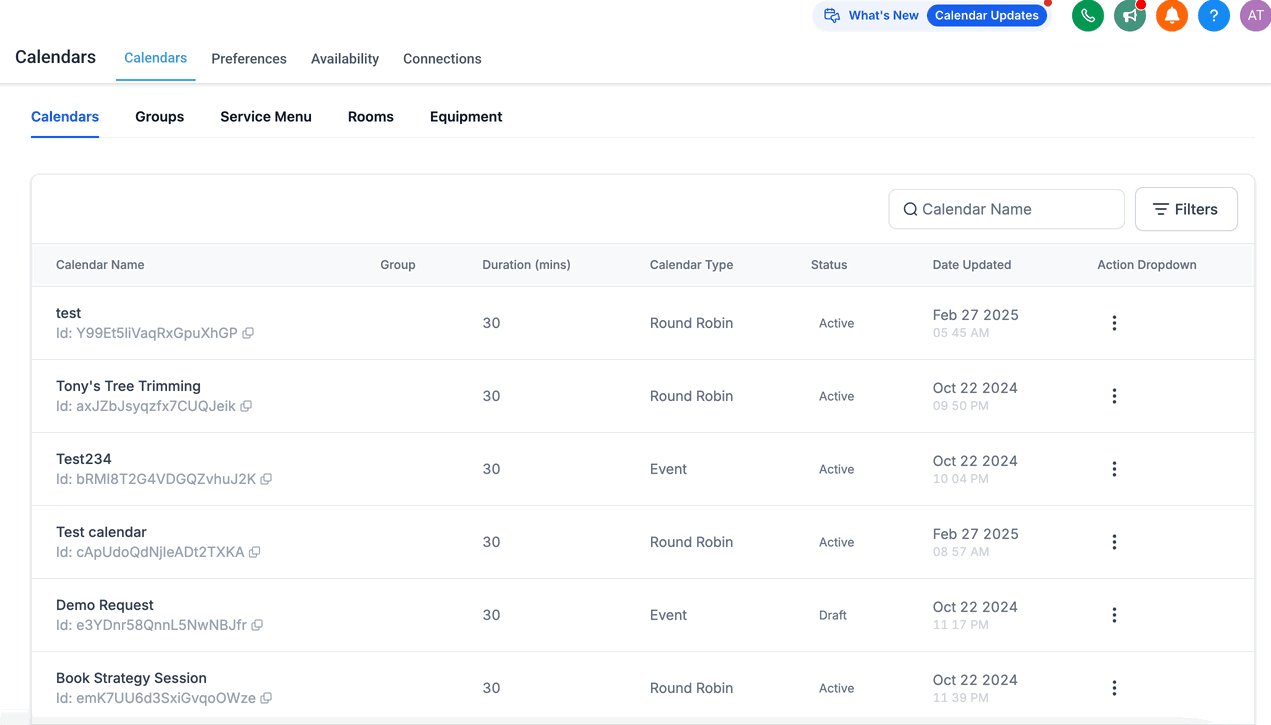
Go to Calendars, click the three dots on the calendar you want to update, and choose Edit. If you are creating a new calendar for this, make sure to select the Round Robin booking type and add every team member you want available on it first.
Open the Team and Event Settings tab and toggle on Allow staff selection during booking.
Confirm the calendar's widget type is set to the newer widget style; the classic widget does not support staff selection.
Click Save, then close the calendar settings.
Open the calendar and click Copy Scheduling Link.
Open that link. Patients will see a dropdown listing the team members you added to the calendar, and they can select whichever one they'd like to book with.
From the contact's Appointments tab: open the appointment, click Edit, choose a different team member from the dropdown, and save. The appointment reassigns to the new provider.
From the Appointments tab in the Calendars menu: open the appointment, choose a new team member from the dropdown, and save the change the same way.
Patient self-reschedule: patients get a reschedule link with their confirmation. Following it opens the booking widget, where they can pick a different staff member along with a new date and time based on that provider's availability.
What happens if no team member is available at a requested time? The patient will not see that slot as bookable and will be prompted to pick another date or time.
Can I manually assign a specific appointment to a specific team member instead of letting Round Robin decide? Yes. You can override an automatic assignment from the appointment's edit screen, or reassign it later from the contact's Appointments tab.
Can I prioritize certain providers over others? Yes, through the High/Medium/Low priority levels described above. Round Robin does not support prioritizing by specific patient, only by provider priority and the Availability or Equal Distribution method you choose.
Can I charge patients when they book? Yes. Turn on Accept Payments in the calendar's setup to require payment at the time of booking. Consider using AX Pay, Aesthetix CRM's own payment processor, for better rates than Stripe.
Can I change the distribution method after the calendar is already set up? Yes, you can switch between Optimize for Availability and Optimize for Equal Distribution any time in the calendar's settings. Note that switching methods resets the monthly meeting count used for Equal Distribution.
Can I remove a team member from the rotation without deleting the calendar? Yes. Open the calendar's Team Members settings and remove them; they will stop receiving new bookings, and staff selection will no longer show them as an option.
Why can't I see all my team members in the dropdown when booking manually from a contact record? The Team Member dropdown on a contact's Appointments tab only shows users who are assigned to the calendar tied to that appointment. Add every relevant provider under Calendars > Select the Calendar > Team Members so they all appear.
What happens if a staff member leaves the practice or is temporarily out? Remove them from the Round Robin calendar's team members. They will no longer appear in the staff-selection dropdown and won't receive new bookings until you add them back.
Does Aesthetix CRM support calendar sync so I don't get double-booked on Google or Outlook? Yes, calendar sync with Google, Outlook, iCloud, and similar external calendars is set up separately under Connections; a synced external calendar's busy times are respected by your Round Robin availability.
Does AI appointment booking work with Round Robin calendars? Yes, as long as the Round Robin calendar is a native Aesthetix CRM calendar. AI-driven booking through the AI Employee only works with native calendars, not calendars synced from an EMR.
