Aesthetix CRM's Conversational AI (part of AI Employee) can book service appointments directly inside a chat conversation instead of only handing a patient a booking link. When your Service Calendars are configured correctly, the AI can walk a patient through choosing a treatment, selecting a provider, and confirming a time, all without leaving the conversation. This guide covers the calendar-side setup that makes AI booking possible. For the deeper mechanics of building and prompting the AI Employee bot itself, see the Conversational AI guides in the AI Employee collection.
AI booking only works with native Service Calendars created inside Aesthetix CRM. It cannot book into calendars that sync from an EMR, since the EMR system manages that scheduling data outside Aesthetix CRM's calendar engine. If your practice books consults or treatments through an EMR-linked calendar, AI booking is not available for those appointment types, patients will need to use your standard booking flow instead. Confirm your calendar is a native Service Calendar before enabling this feature.
These three pieces work together, and it helps to know the difference before you set up AI booking.
Feature | Purpose |
|---|---|
Service Calendars | The calendar type used to manage service-based scheduling in Aesthetix CRM. |
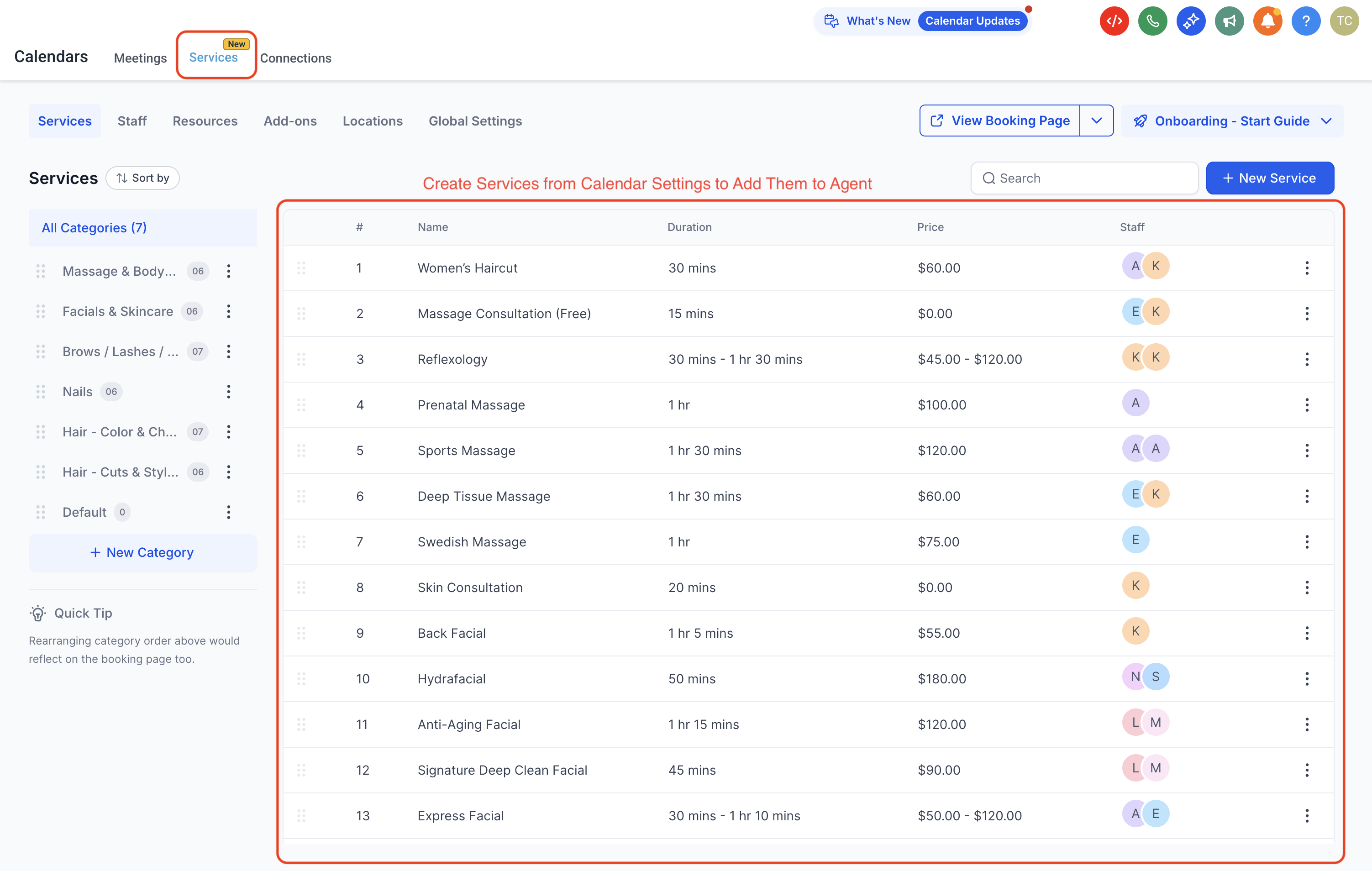
Services | The individual treatment options patients can book, including any variations, add-ons, or resources tied to that treatment. |
Service Menus | An optional way to display multiple services together in one branded booking experience, while each service still connects back to its own Service Calendar. |
Service Menus are not required to use AI booking. They're just an organizational layer for practices offering many treatments.
Once your services and Service Calendars are configured, Conversational AI can work with:
Public-facing services only. Private services aren't available for AI booking. If a treatment shouldn't be booked by patients through chat, keep it marked private.
Staff selection. If a service already has provider or staff selection configured, the AI can offer that same choice during the conversation.
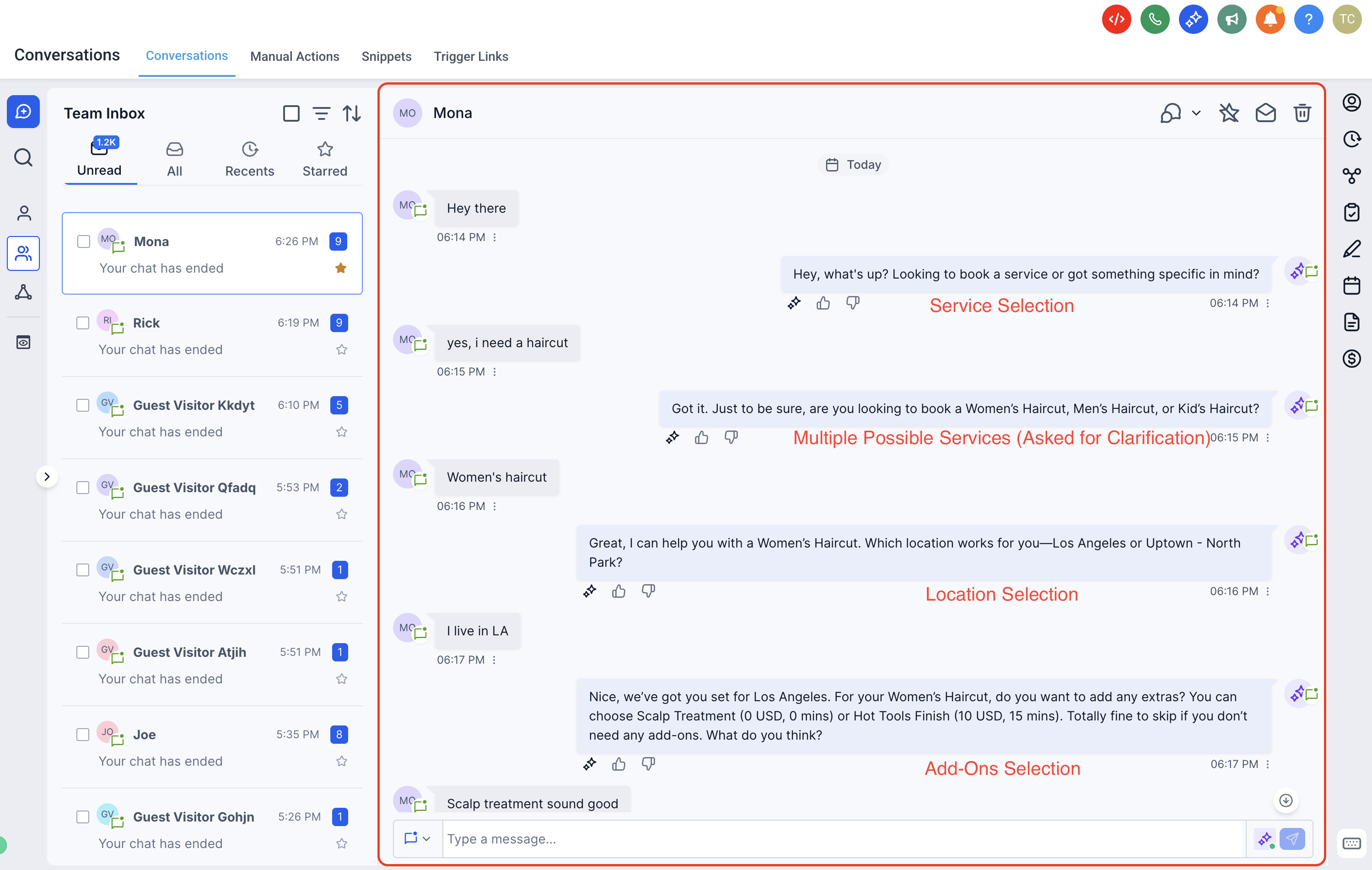
Add-ons and variations. Treatment variations (like different session lengths or upgraded protocols) and add-ons can be included in the conversational booking flow if they're already set up on the service.
Service-based routing. The AI maps what a patient describes in plain language to the correct service option, as long as your service names and descriptions are clear and distinct.
Keep in mind that the AI does not collect online payment during the booking conversation itself. If a service requires prepayment or a deposit, that still happens through your standard payment flow once the appointment is booked or confirmed.
Tip: If you take payment for consults or treatments booked this way, consider routing checkout through AX Pay, Aesthetix CRM's built-in payment processor, which offers better rates than Stripe. See the AX Pay guide for setup details.
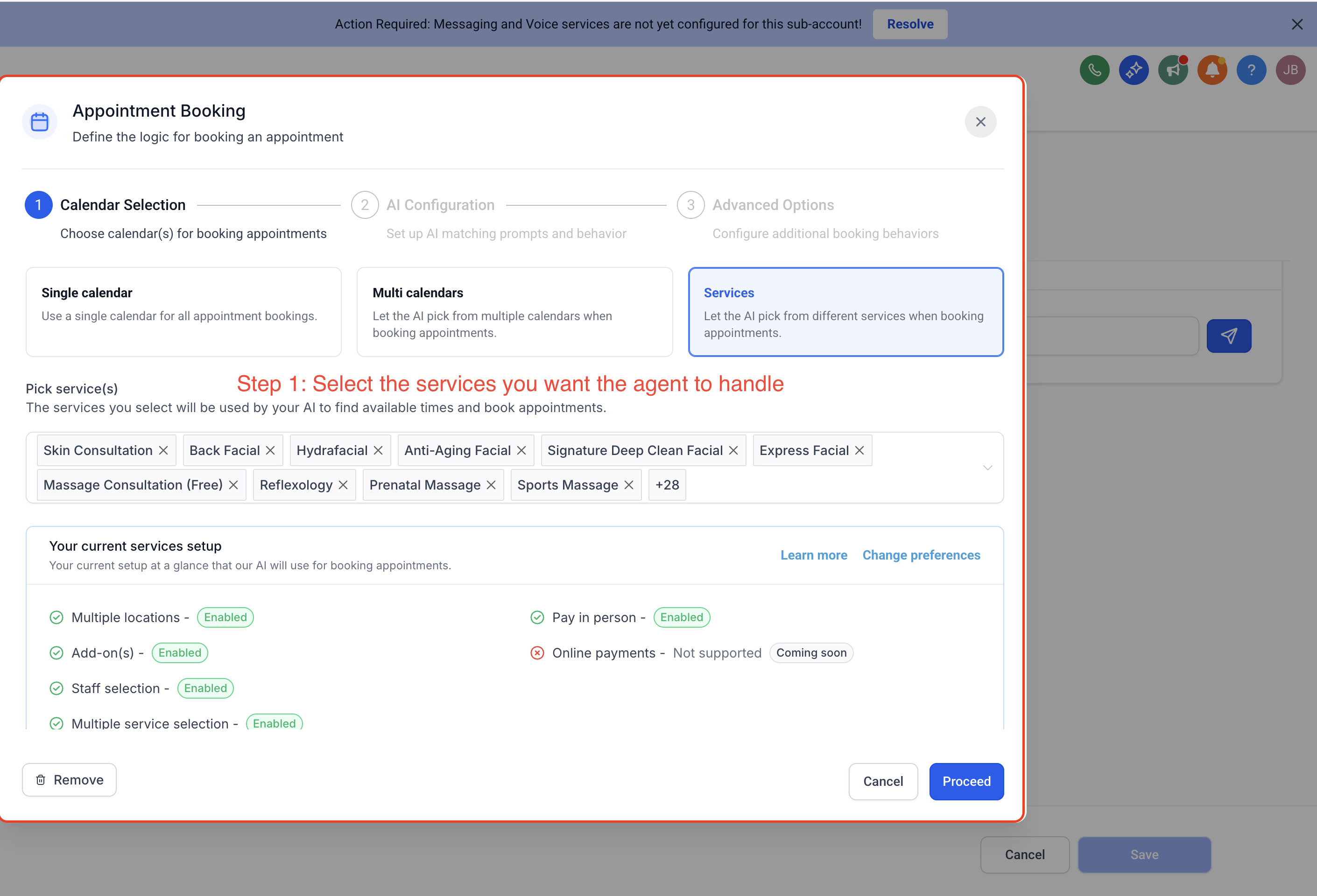
You choose exactly which services the AI is allowed to handle, so booking automation stays limited to treatments that are ready for a conversational flow. Narrowing the list also improves accuracy, since the AI has fewer, more clearly defined options to match against.
To improve booking accuracy:
Use clear, distinct service names so similar treatments aren't confused with each other.
Write service descriptions that make each option easy to tell apart.
Use service and calendar descriptions for intent classification (helping the AI recognize what a patient is asking for), not for patient-facing explanations.
Save the patient-facing language, like how you'd describe or recommend a treatment, for the AI's prompt instead of the service description.
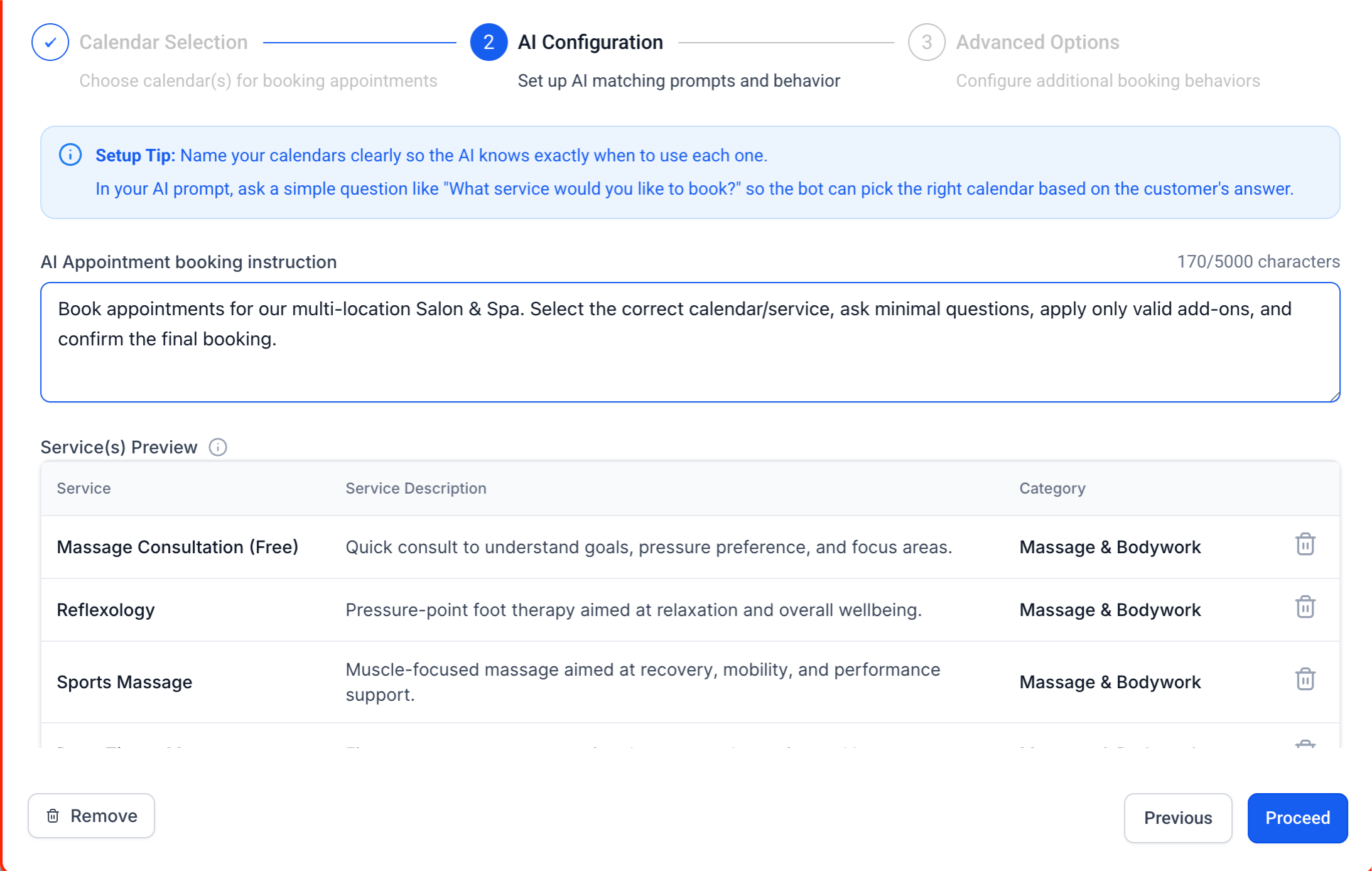
Custom instructions shape how the AI handles the booking conversation itself so it matches your practice's policies and patient expectations. These live in the bot's prompt setup inside AI Employee, not in the calendar or service configuration. You can use them to have the AI:
Ask clarifying questions before offering appointment times.
Explain the difference between similar treatments in patient-friendly language.
Follow qualification steps or booking rules specific to a treatment.
Share policy reminders, such as cancellation windows, before confirming.
Collect any details you want on file before the appointment is booked.
For the full walkthrough of building and prompting your bot, see the Conversational AI setup guide in the AI Employee collection.
Complete these steps in order. The AI can only book what's already configured correctly on the calendar side, so setting up services first prevents confusing or incorrect bookings later.
Configure your services and Service Calendars. Set up every treatment you want patients to be able to book, including provider/staff assignment, add-ons, variations, resources, and duration. Do this before turning on AI booking.
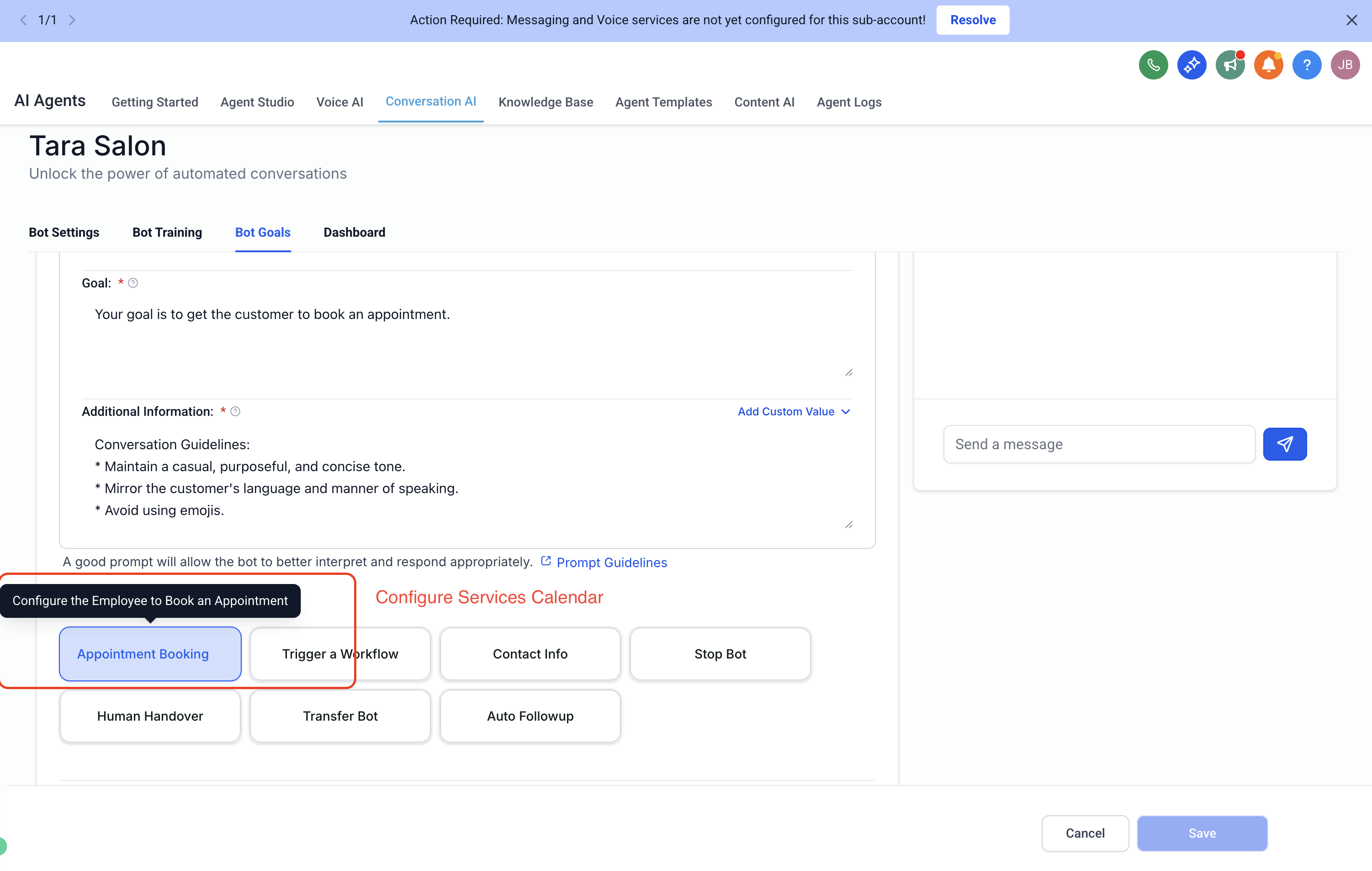
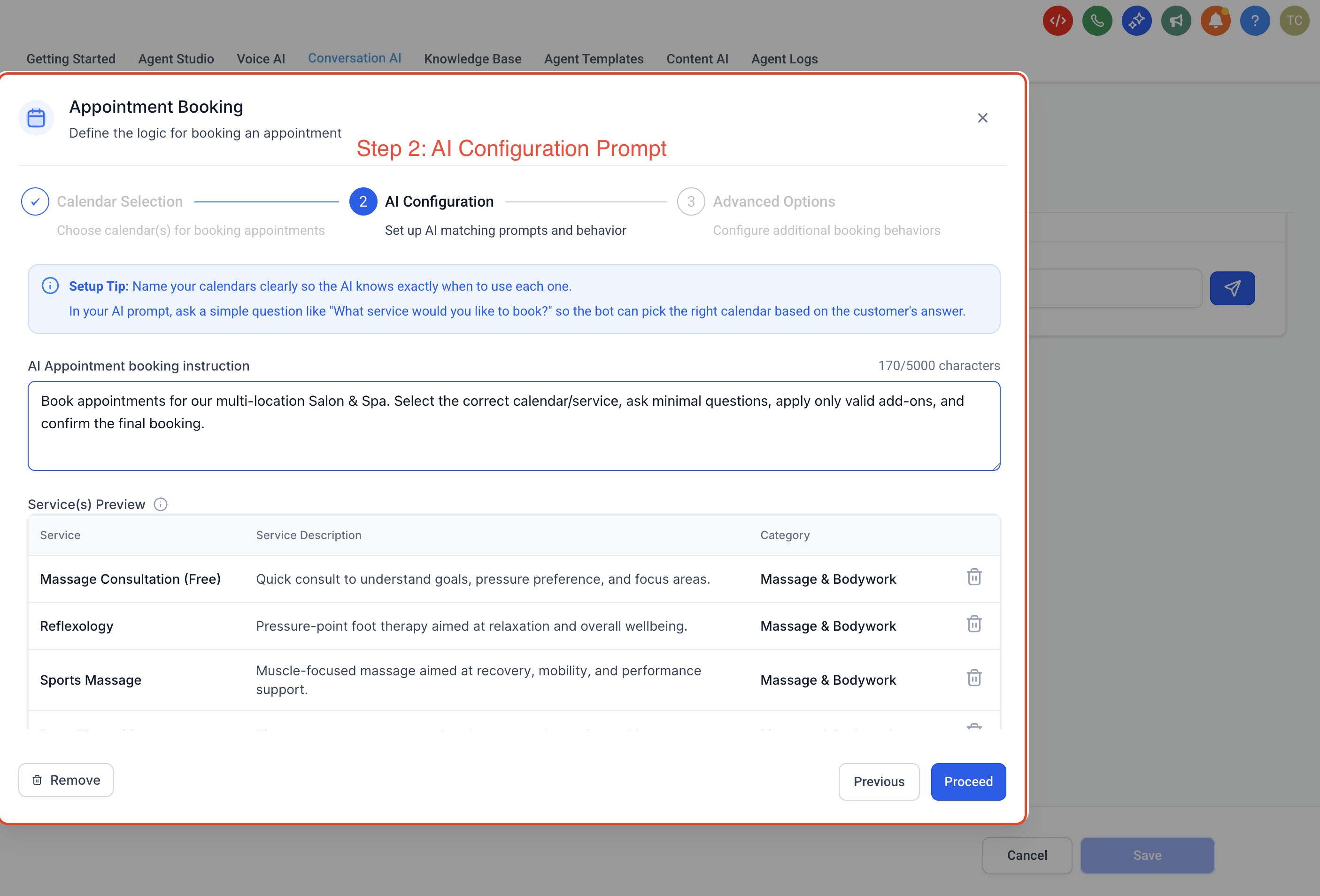
Turn on appointment booking in Conversational AI. In your AI Employee bot's prompt-based configuration, open the appointment booking settings, select the Services option, and choose which public-facing services the AI should be allowed to book.
Add booking guidance to the bot's prompt. Use the prompt and any custom booking instructions to tell the AI how to talk about your treatments, ask clarifying questions, and handle situations where a patient isn't sure which service they need.
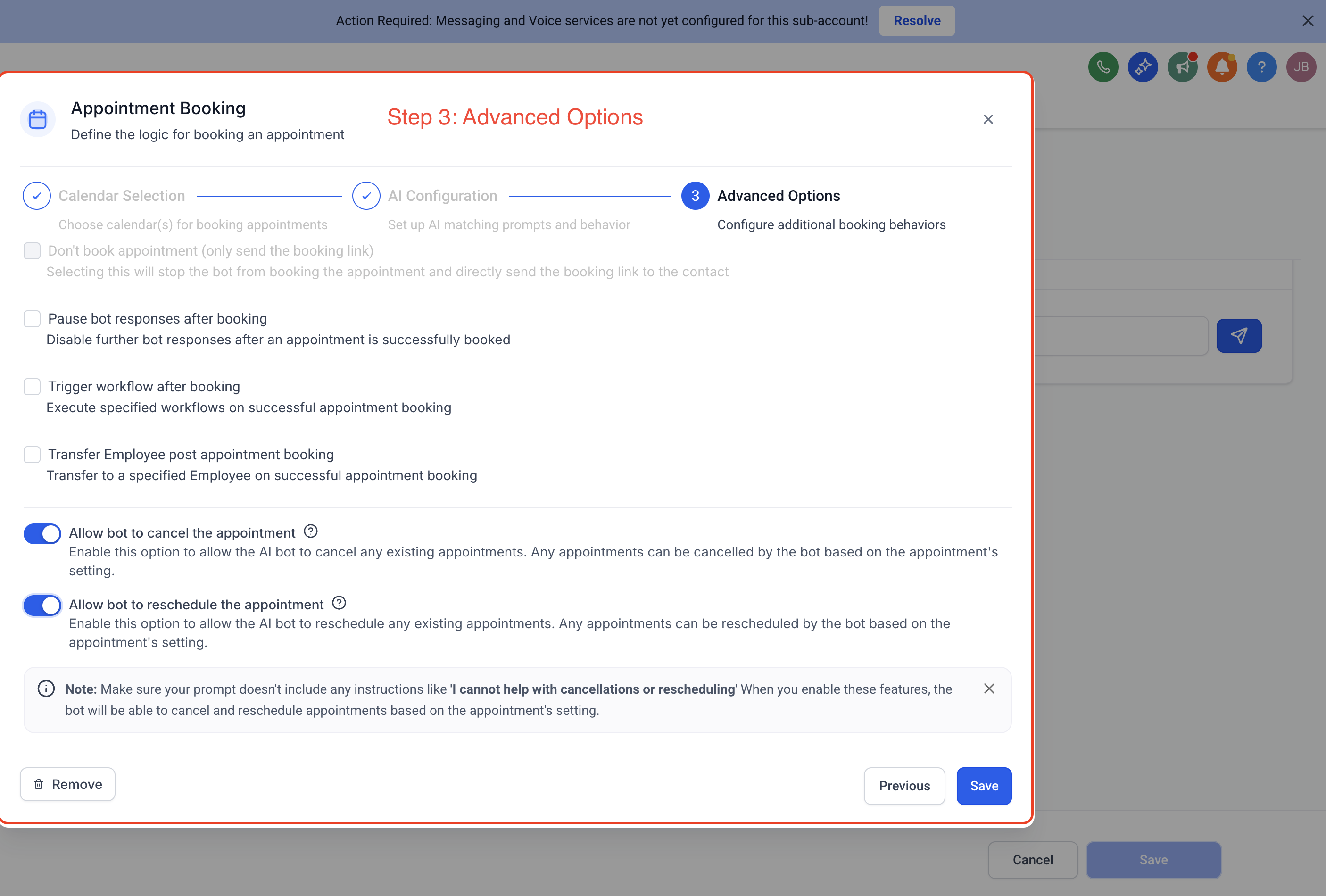
Review additional booking actions. Decide which related actions you want the AI to support, such as rescheduling, canceling, sending a booking link instead of booking directly, triggering a workflow, or transferring the conversation to a team member.
Test the booking experience. Run test conversations to confirm the AI recognizes the right services, handles treatment details correctly, and creates the booking as expected. Testing matters most when you have multiple services with similar names or overlapping use cases.
Booking conversations can surface patient-identifying details and, depending on your prompt, information about the treatment being booked. Keep custom booking instructions focused on scheduling logistics rather than clinical details, and avoid asking the AI to collect or restate sensitive health information in the chat.
Do I need Services or Service Calendars configured before enabling AI booking? Yes. Set up the treatments you want to offer first. That service setup is the foundation Conversational AI relies on to book correctly.
Can the AI book onto an EMR-linked calendar? No. AI booking only works with native Service Calendars in Aesthetix CRM, not calendars synced from an EMR.
Can the AI book private services? No. Only public-facing services can be booked through this flow. Private services are excluded.
Does the AI collect payment during the booking conversation? No. Online payment isn't collected by the AI during the booking flow itself. Any prepayment or deposit still runs through your normal checkout process.
Can I control which services the AI is allowed to book? Yes. During setup you select the specific public-facing services the AI should manage, so it never books treatments you haven't approved for chat.
Do I need a Service Menu to use AI booking? No. Service Menus are optional for organizing multiple treatments together, but they aren't required for AI booking to work.
What should I check if the AI keeps booking the wrong service? Review the services you've selected, make service names and descriptions more distinct, and tighten the prompt instructions guiding the AI's recommendations.
Can the booking flow include add-ons and variations? Yes, as long as those add-ons or variations are already configured on the service itself.
Can Conversational AI also reschedule or cancel appointments? Yes, depending on which additional booking actions you've enabled during setup.
Where do I manage the AI's prompt and conversation behavior? That lives in AI Employee's Conversational AI setup, separate from your calendar and service configuration covered here.
