Rooms let you assign specific treatment spaces (injection rooms, laser suites, consult rooms) to a Service Calendar so bookings automatically account for room capacity. Once a room has been added to a Service Calendar, you can edit its details, activate it, disable it, or delete it entirely from Settings.
All room management happens in the same place: Settings > Calendars > Rooms.
Use this when a room's name, description, or other details need to change (for example, a room gets renamed or repurposed).
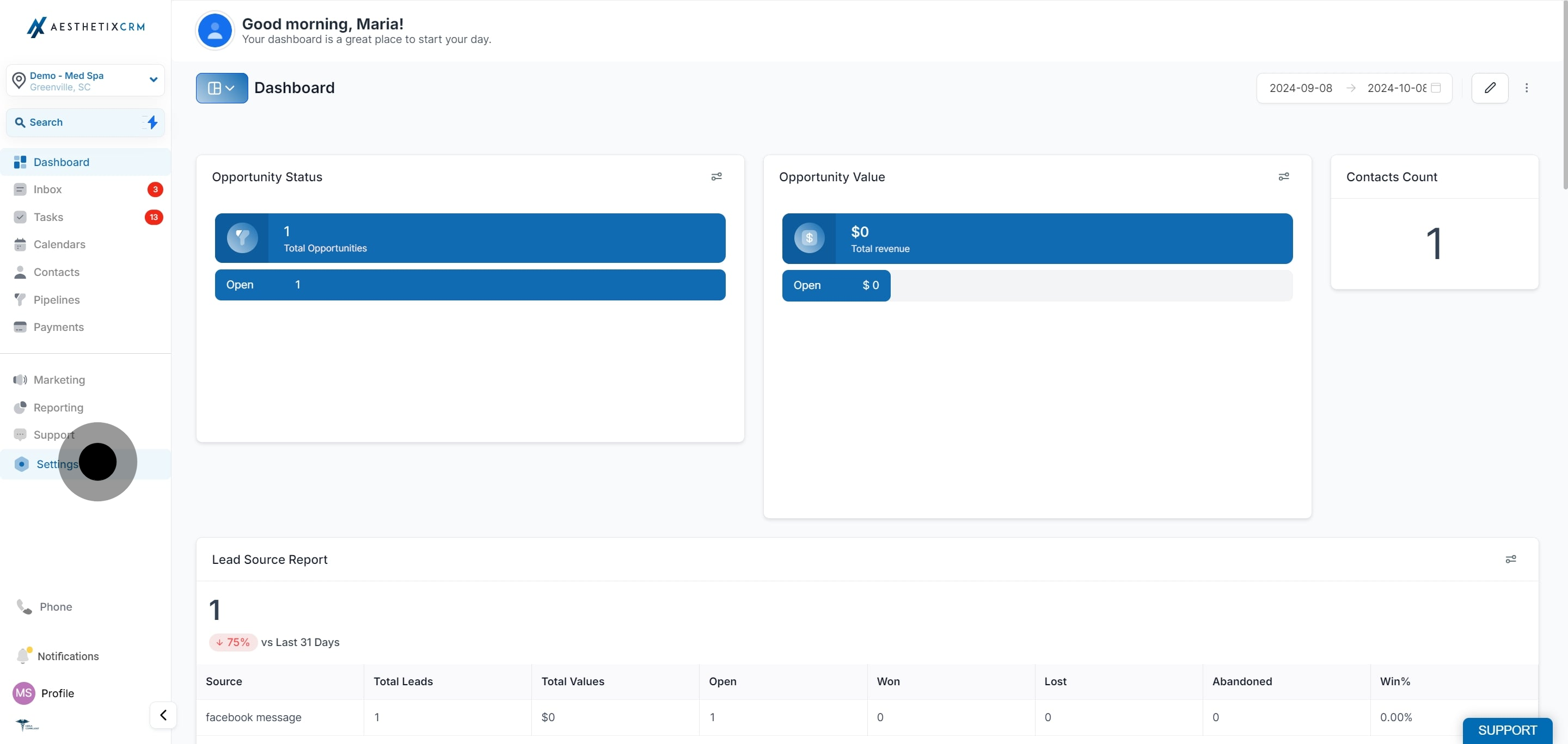
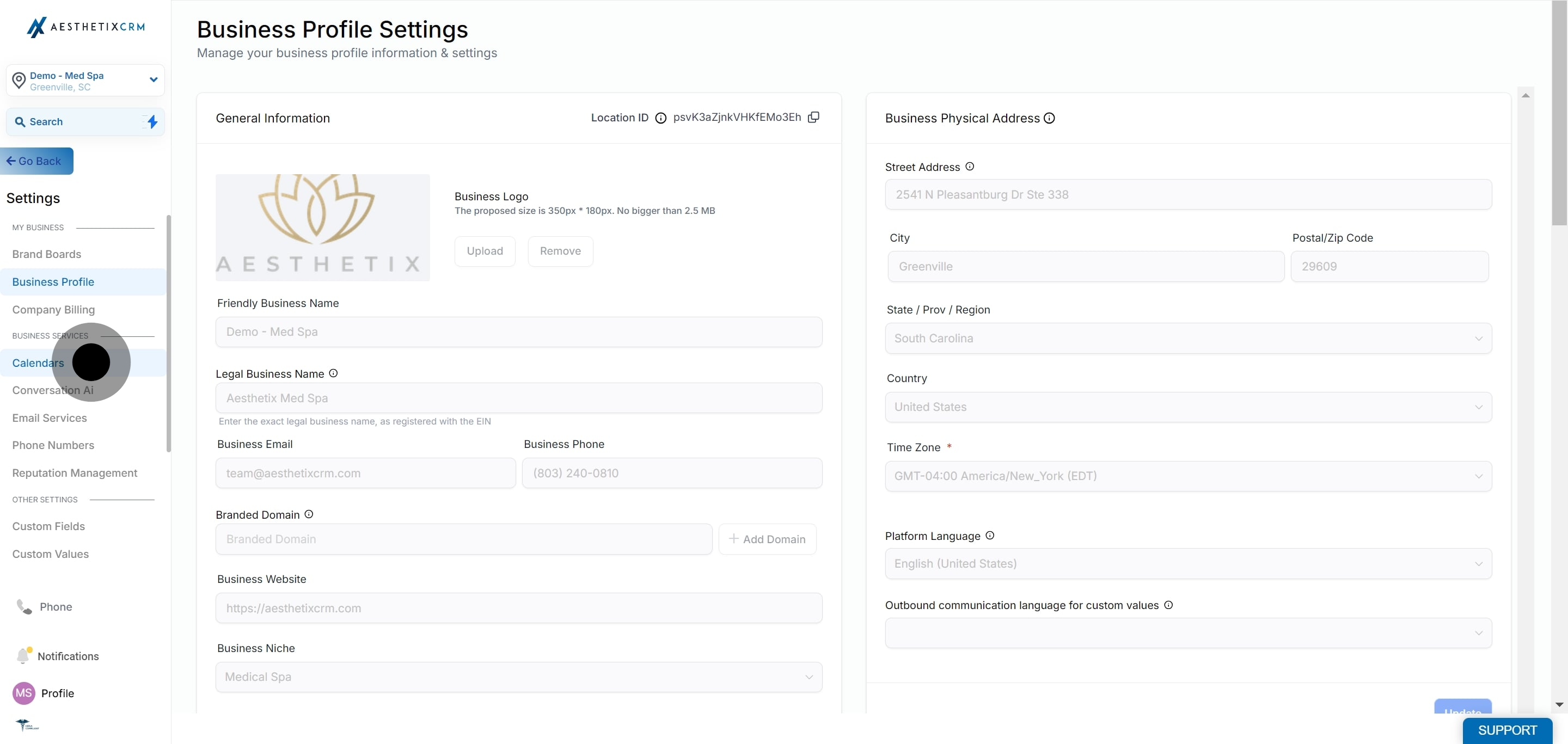
Click Settings.
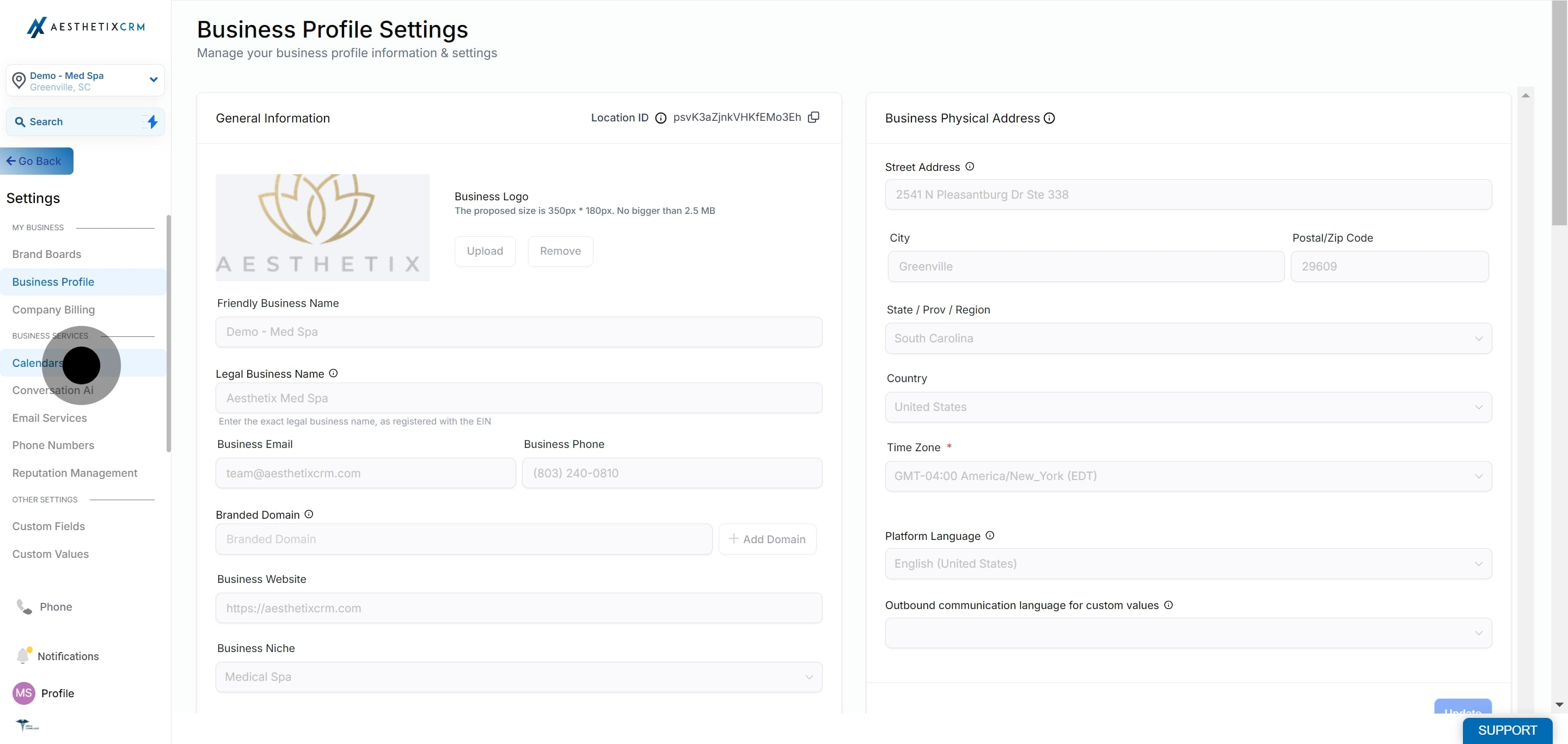
Click on Calendars.
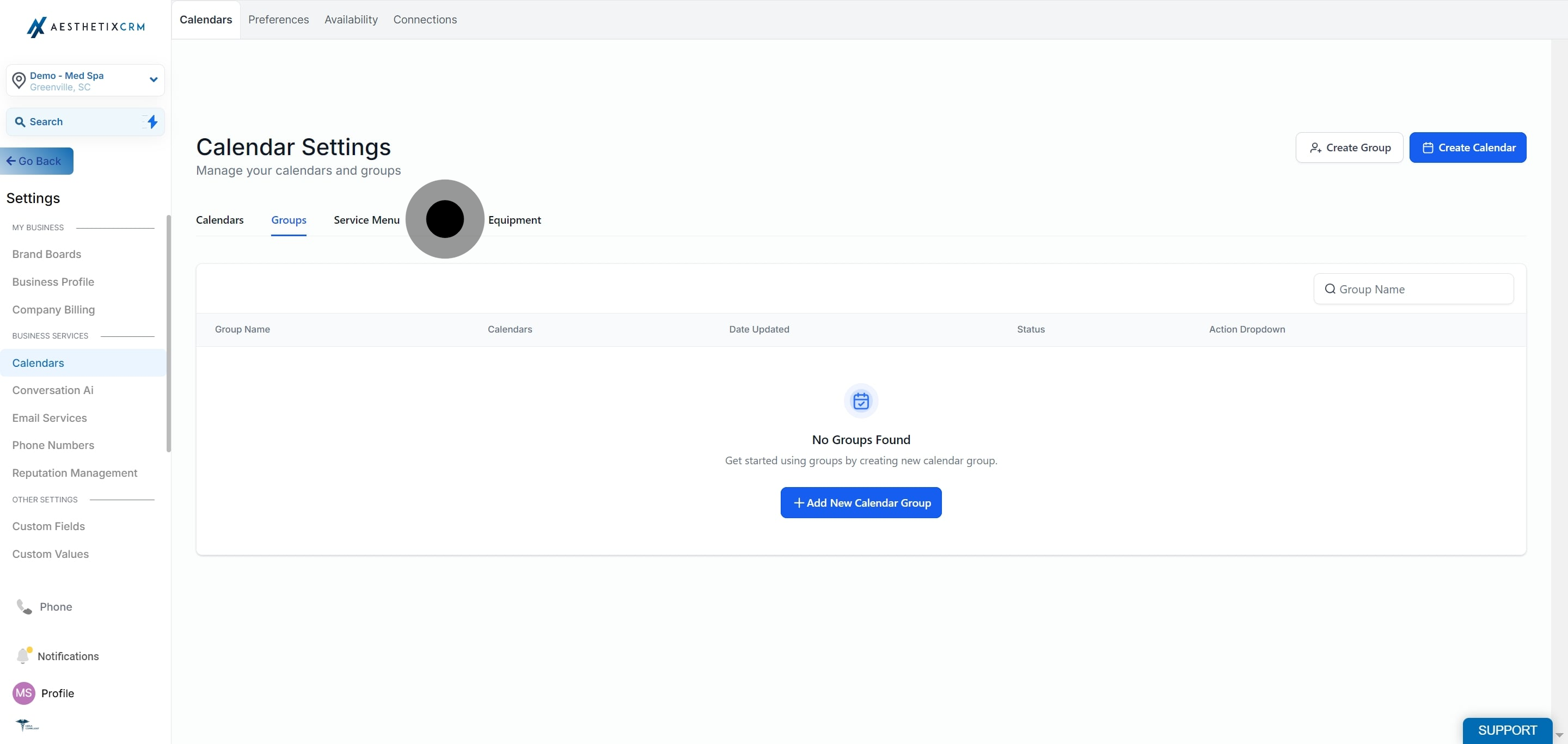
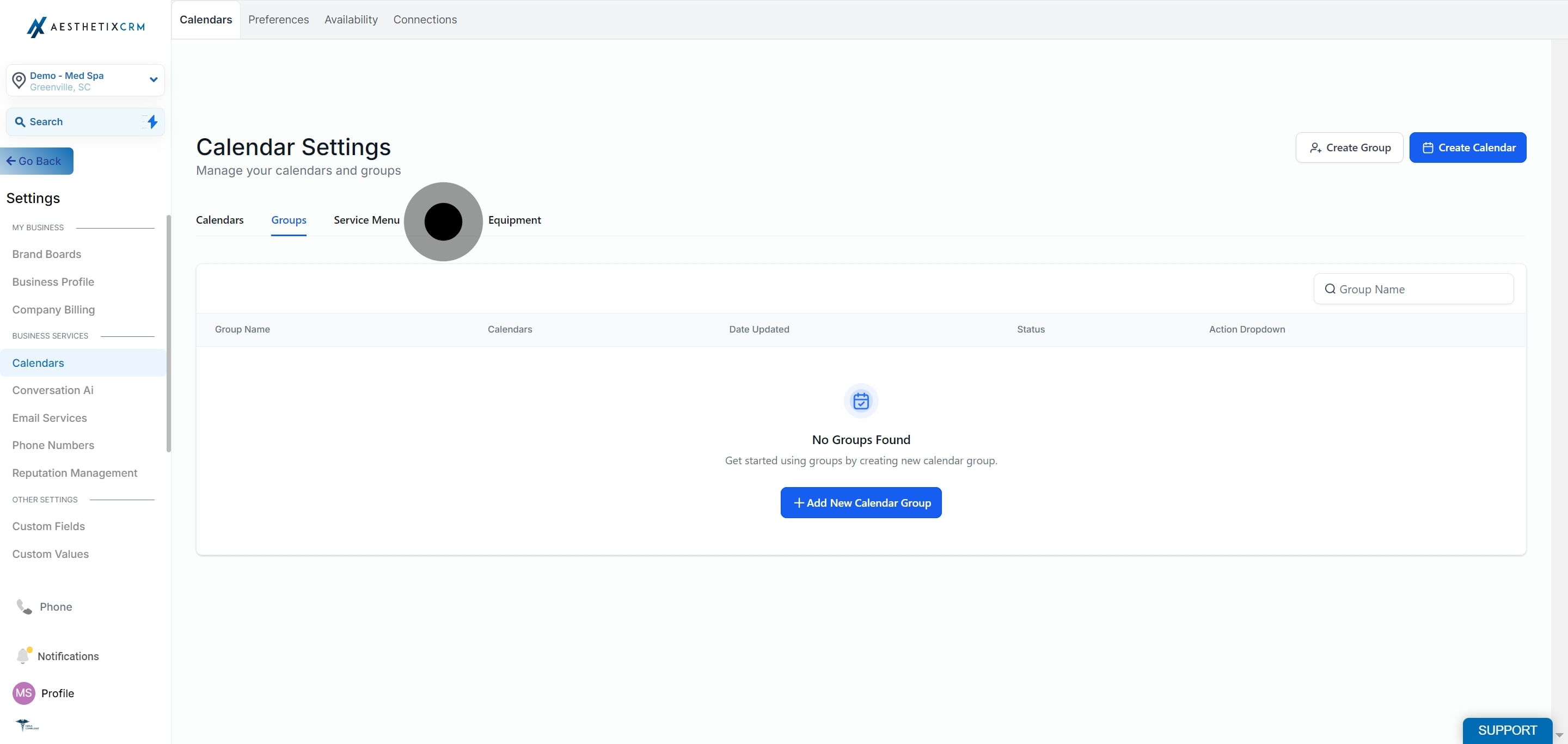
Click on Rooms.
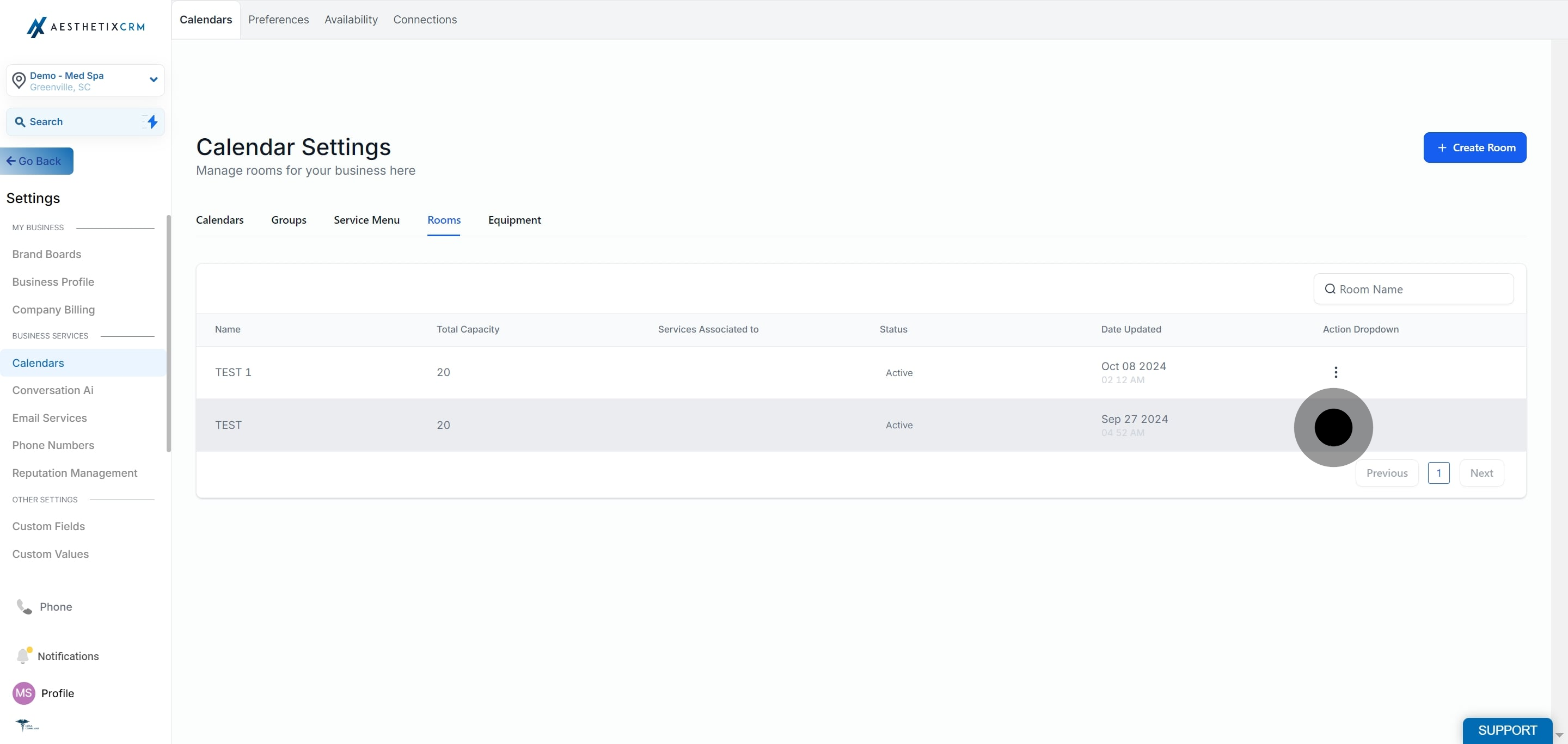
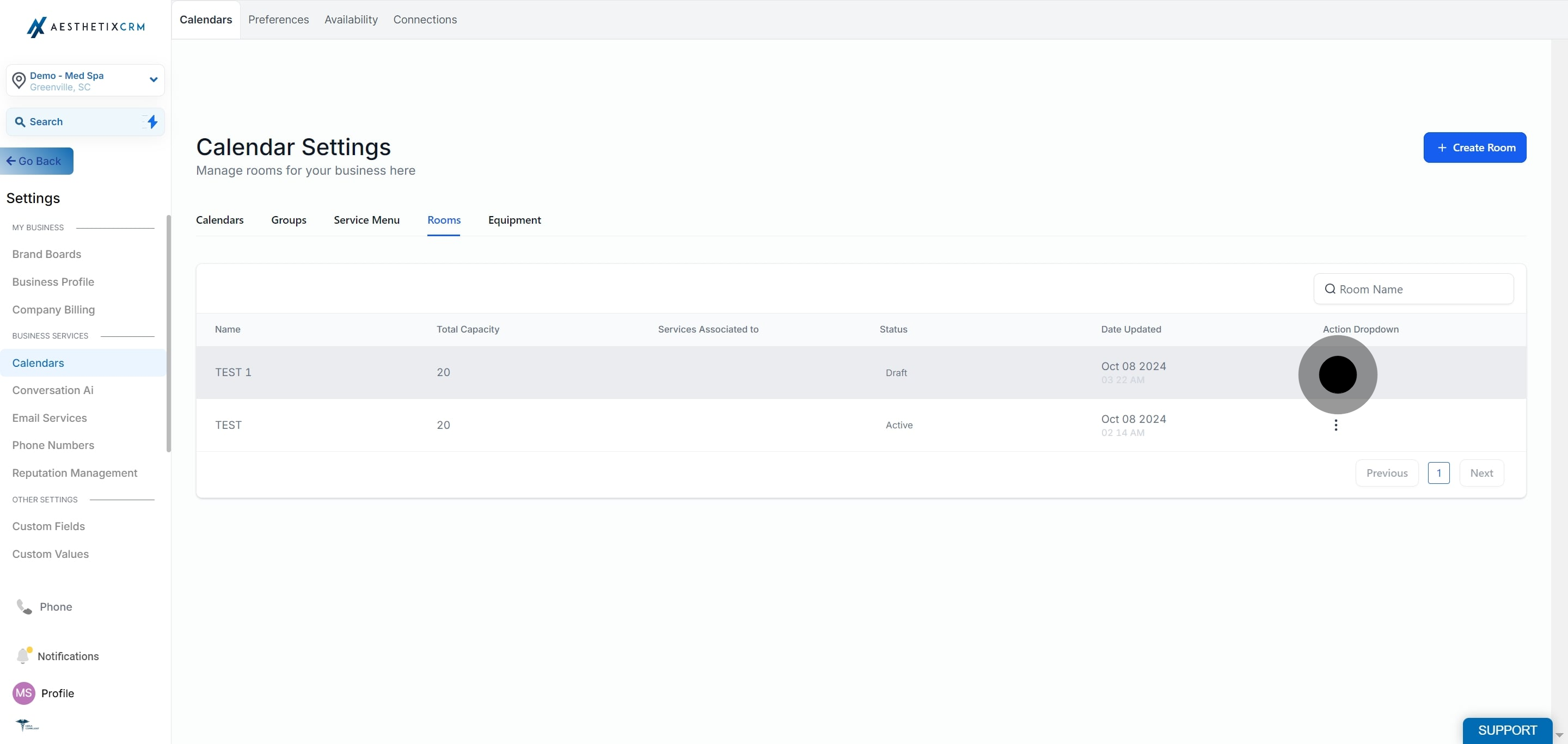
Select the room you want to edit and click the three dots next to it.
Click on Edit.
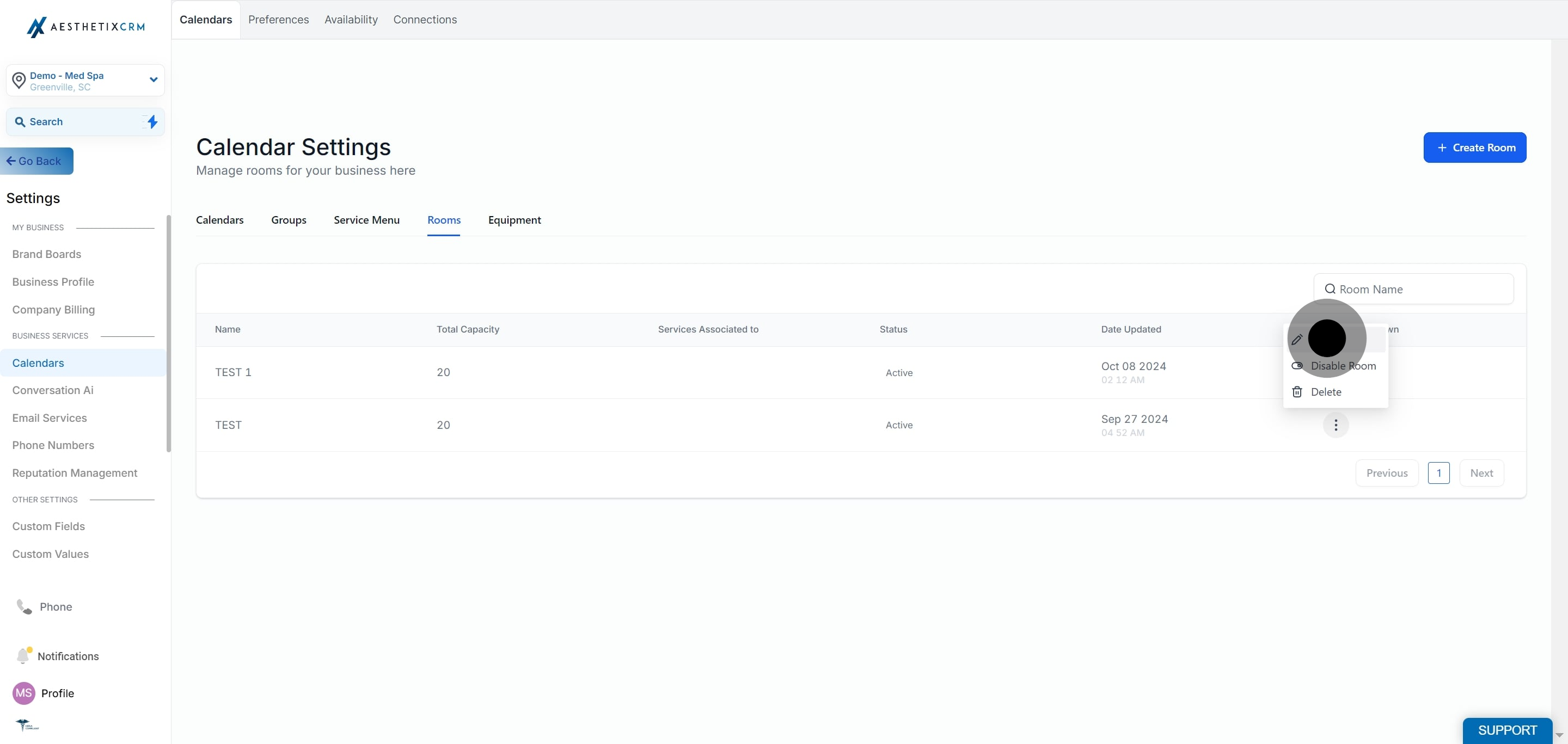
Make the necessary changes.
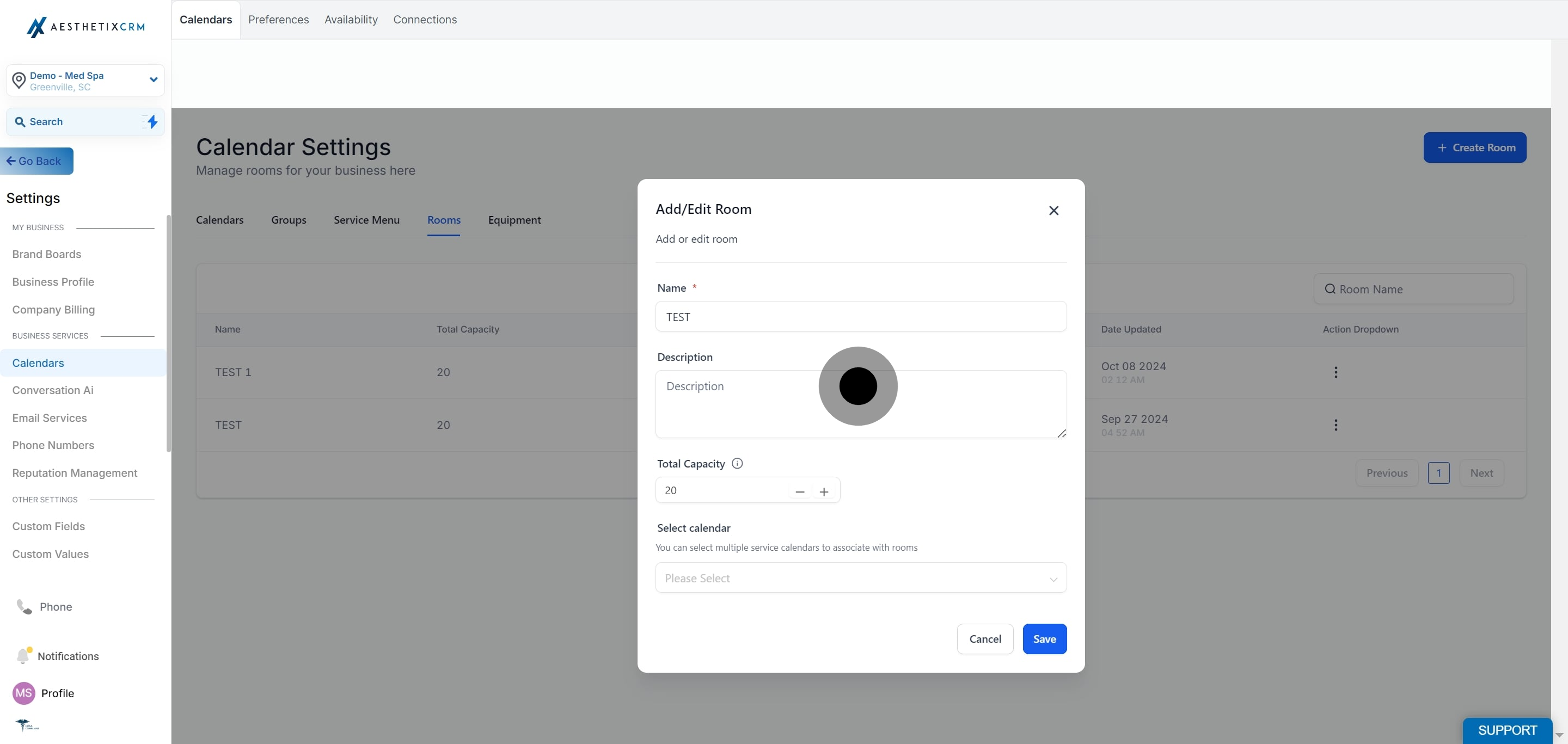
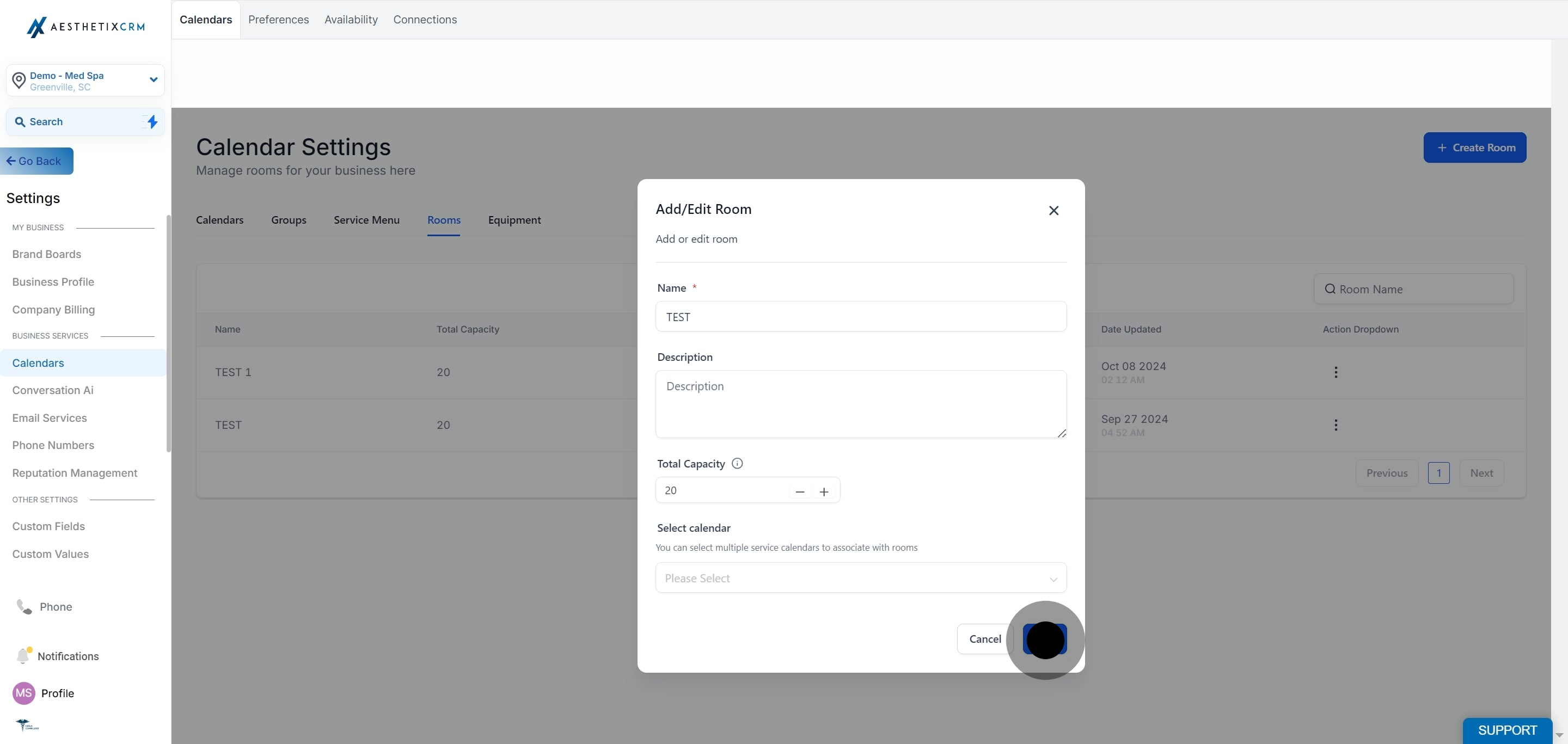
Click Save to apply your changes.
Rooms that are currently disabled won't appear as an option when staff assign a room to a service or appointment. Activate a room to bring it back into rotation.
Click Settings.
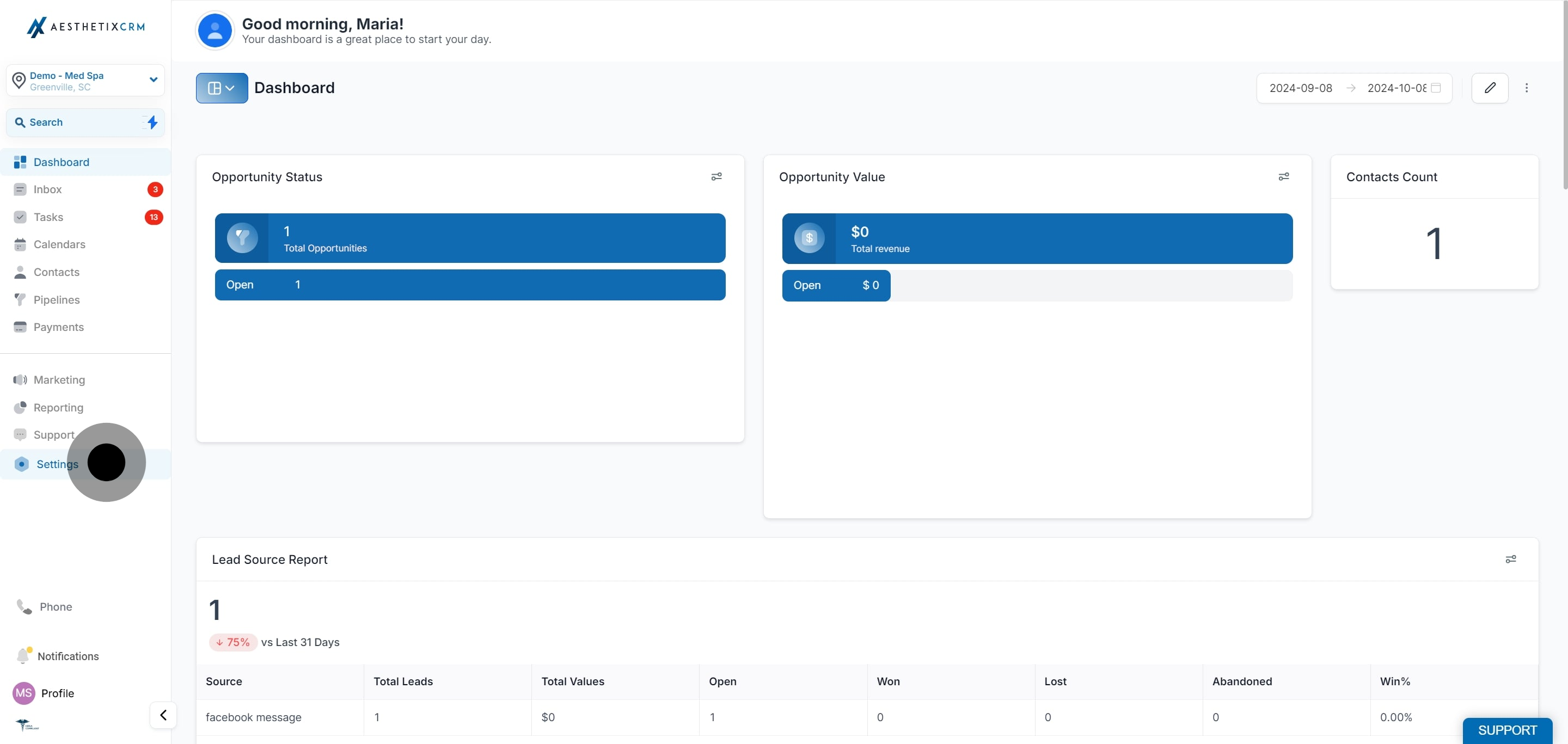
Click on Calendars.
Click on Rooms.
Select the room you want to activate and click the three dots next to it.
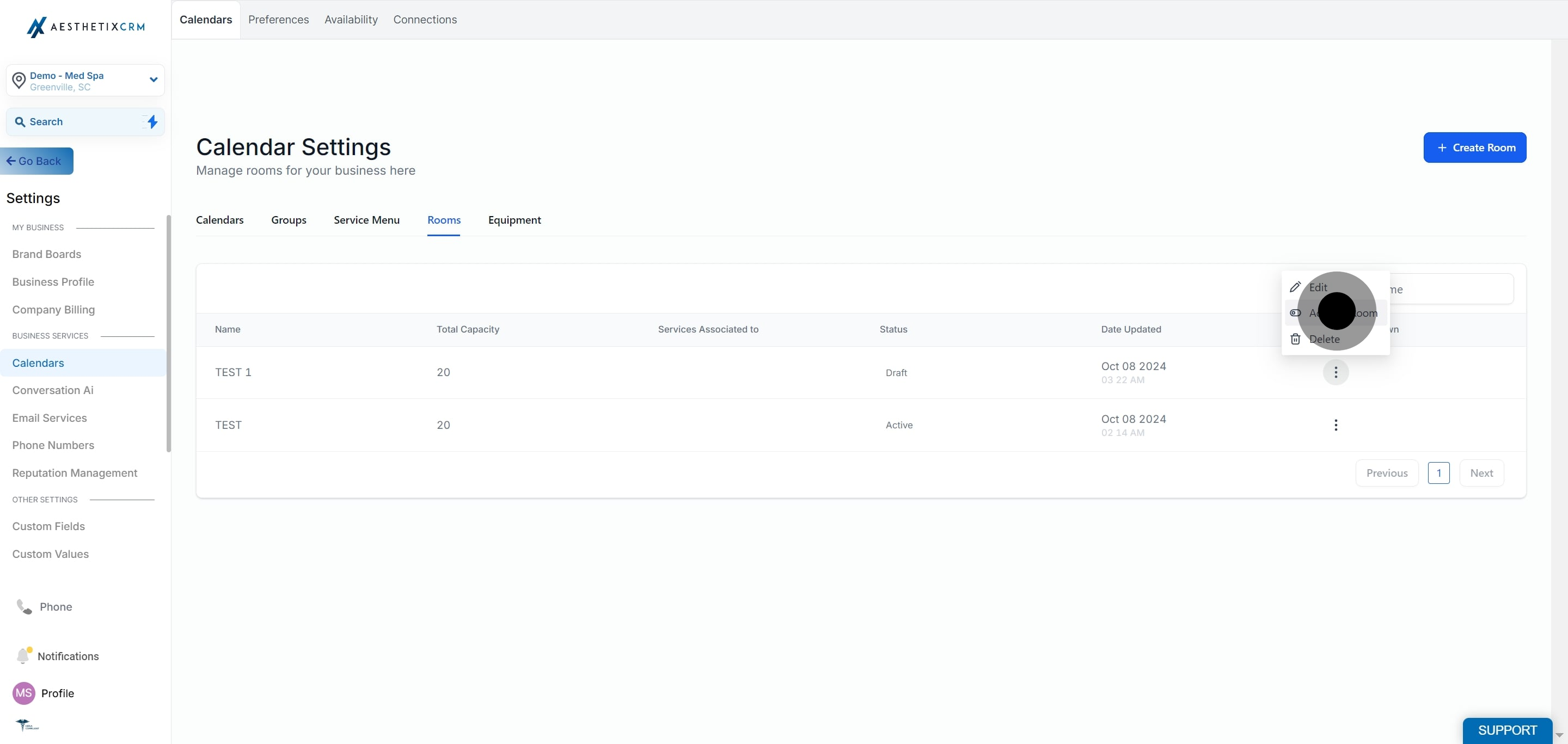
Click on Activate Room.
Click on Save.
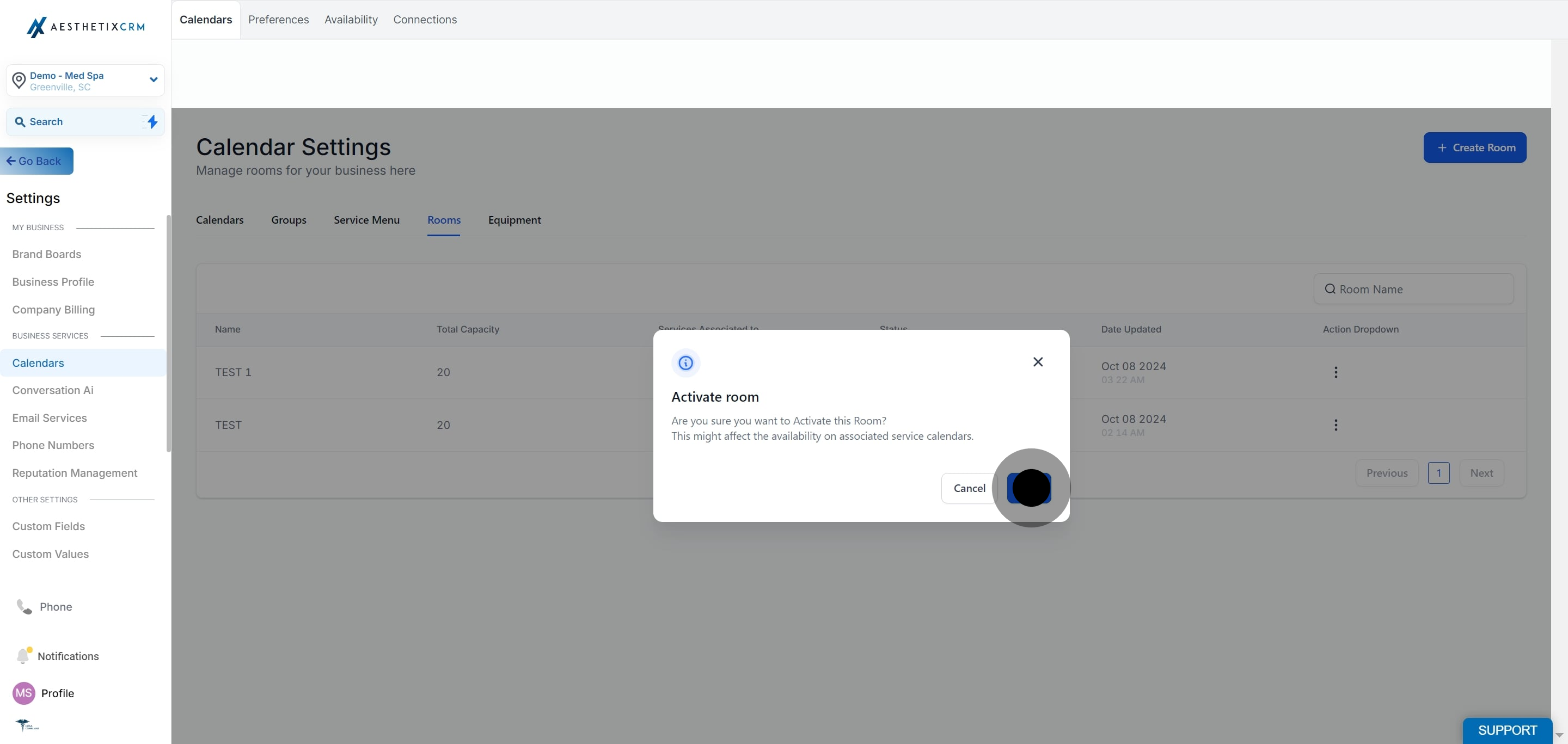
Disable a room when it's temporarily out of service (under renovation, equipment down for maintenance, etc.) without deleting it and losing its history.
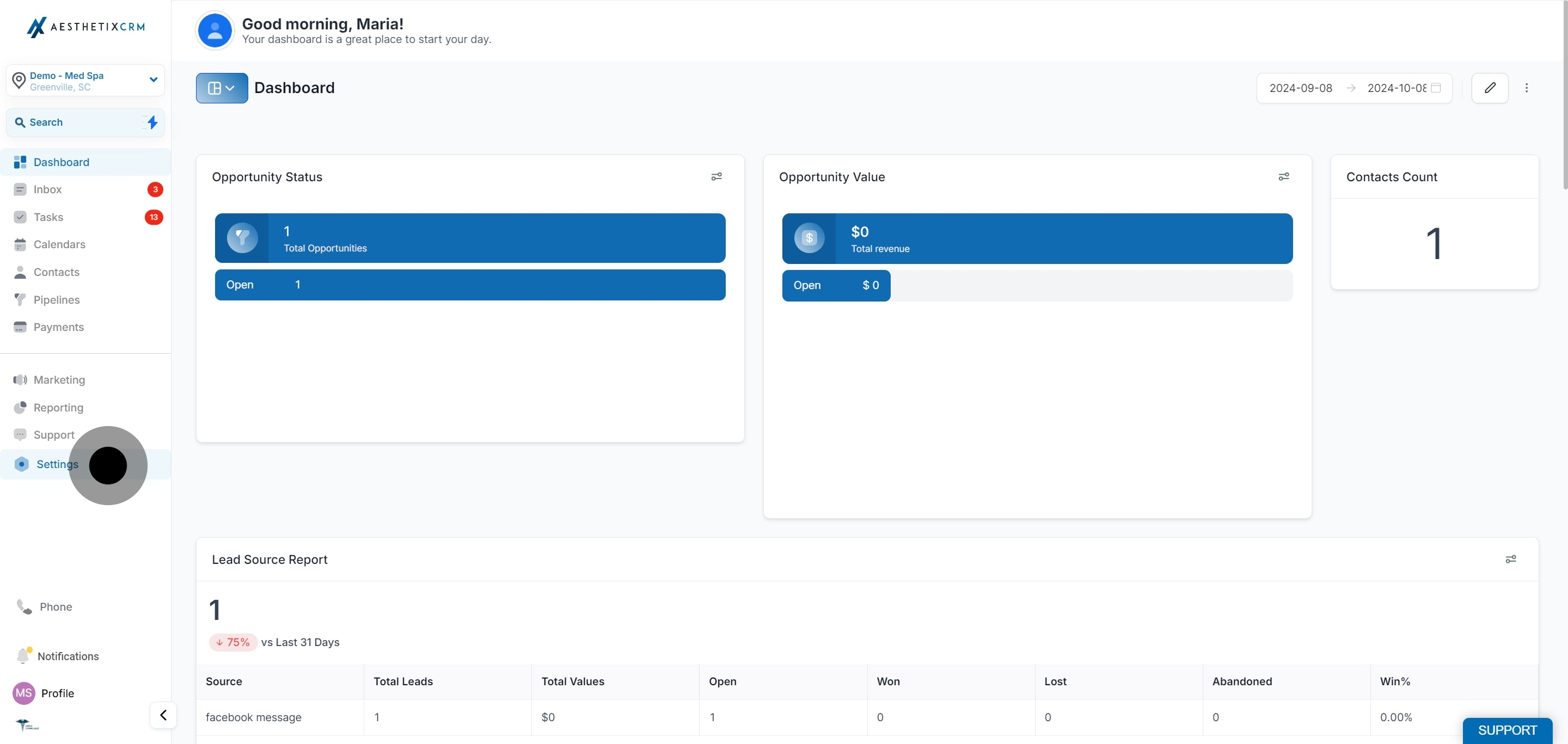
Click on Settings.
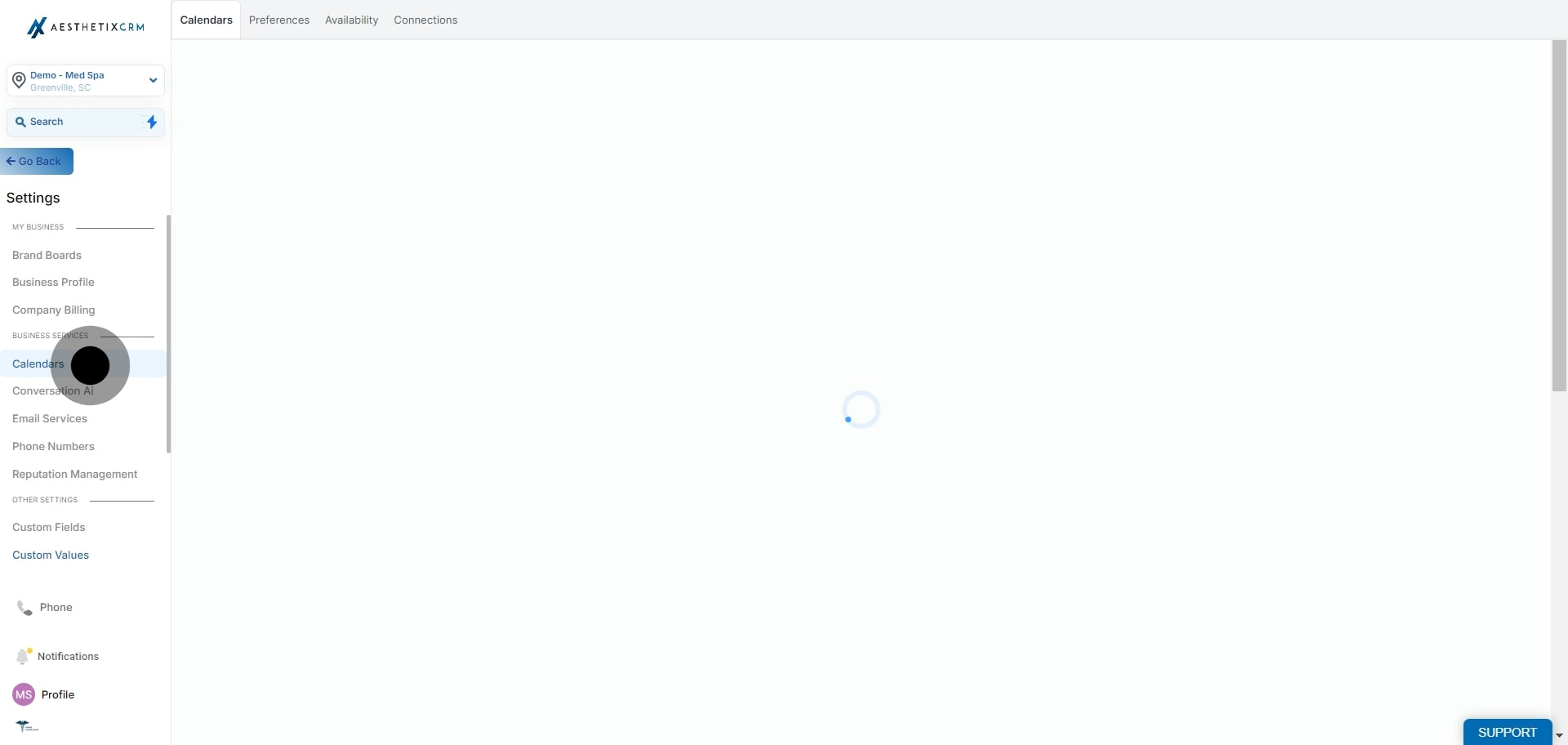
Click on Calendars.
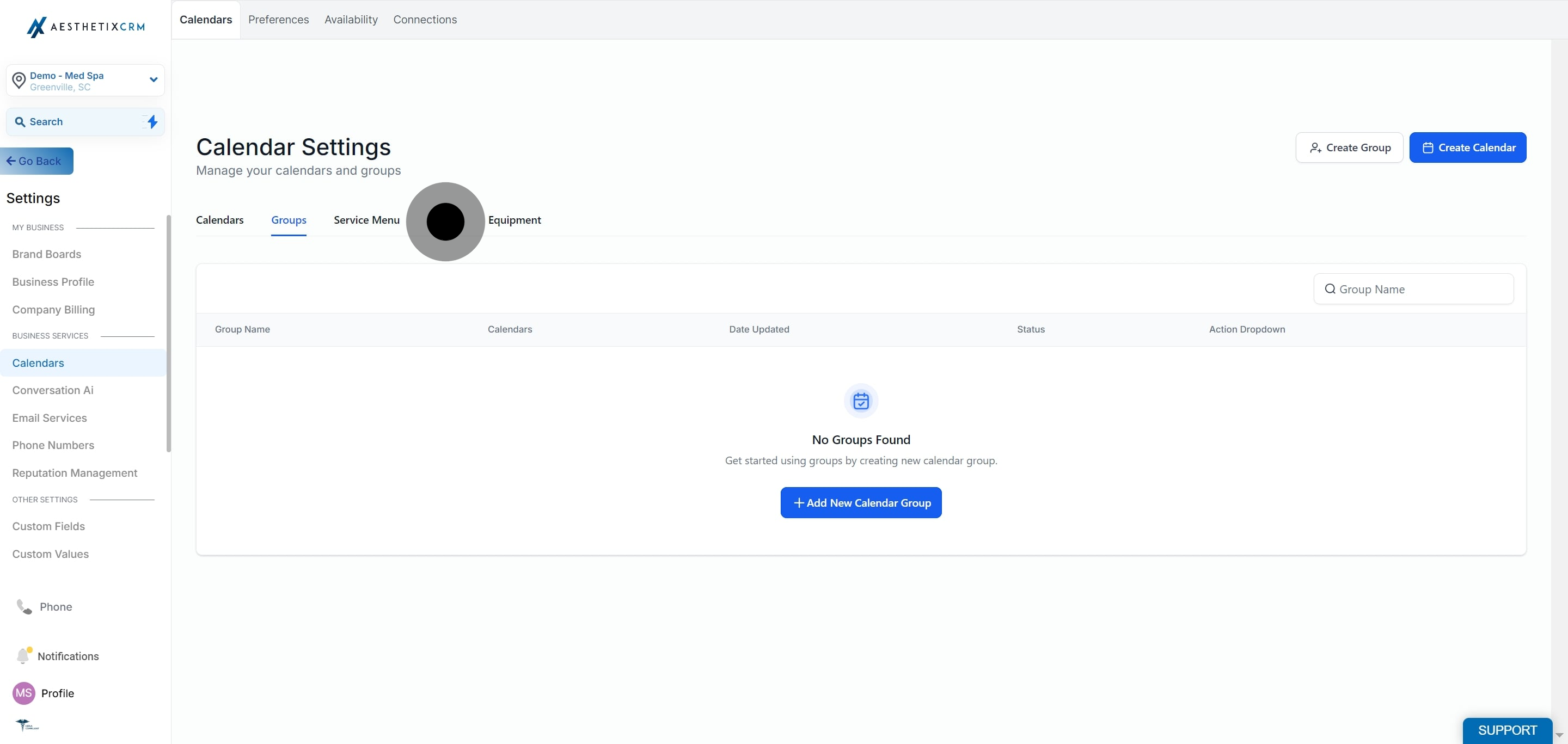
Click on Rooms.
Select the room you want to disable, click the three dots next to it, and click Disable Room.
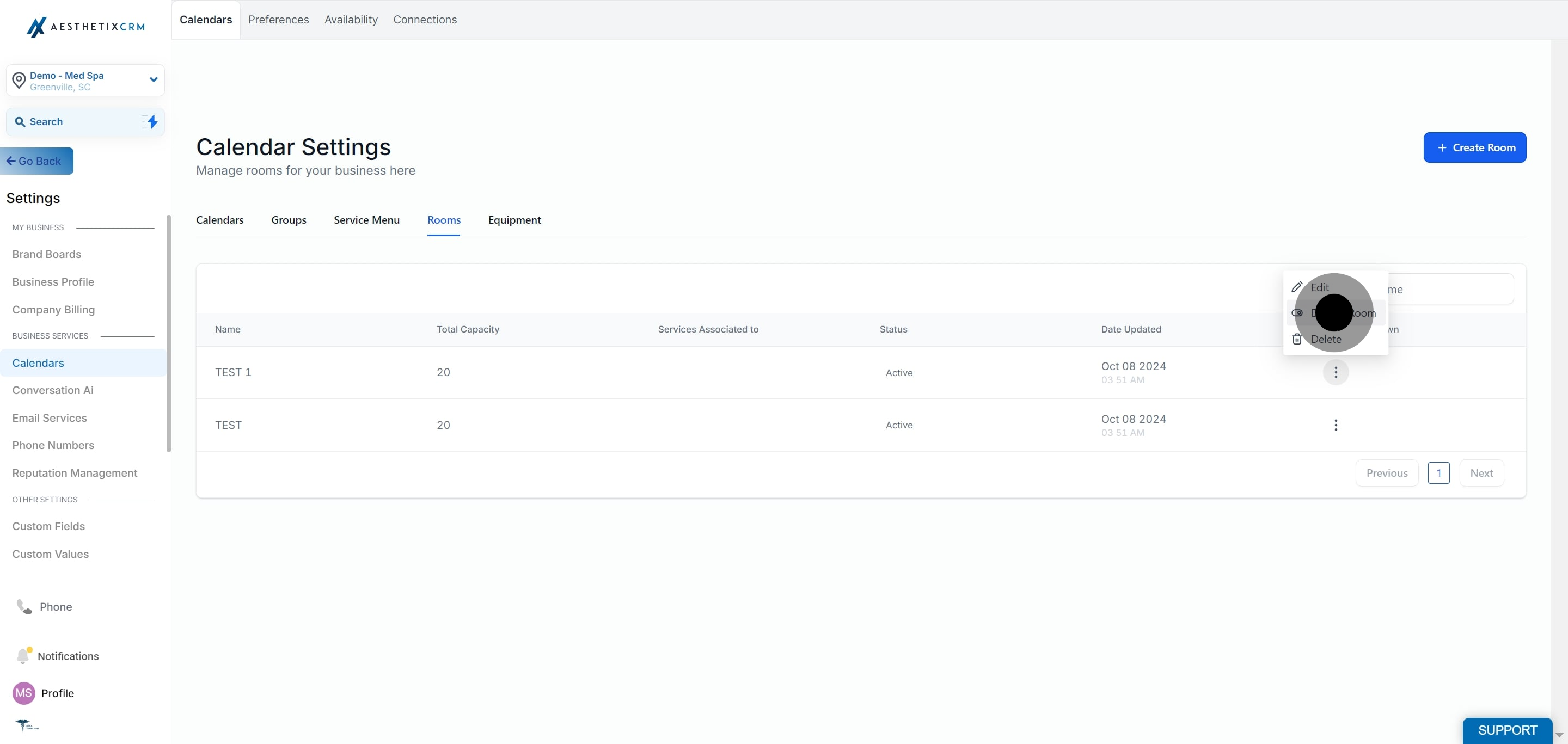
Click on Save.
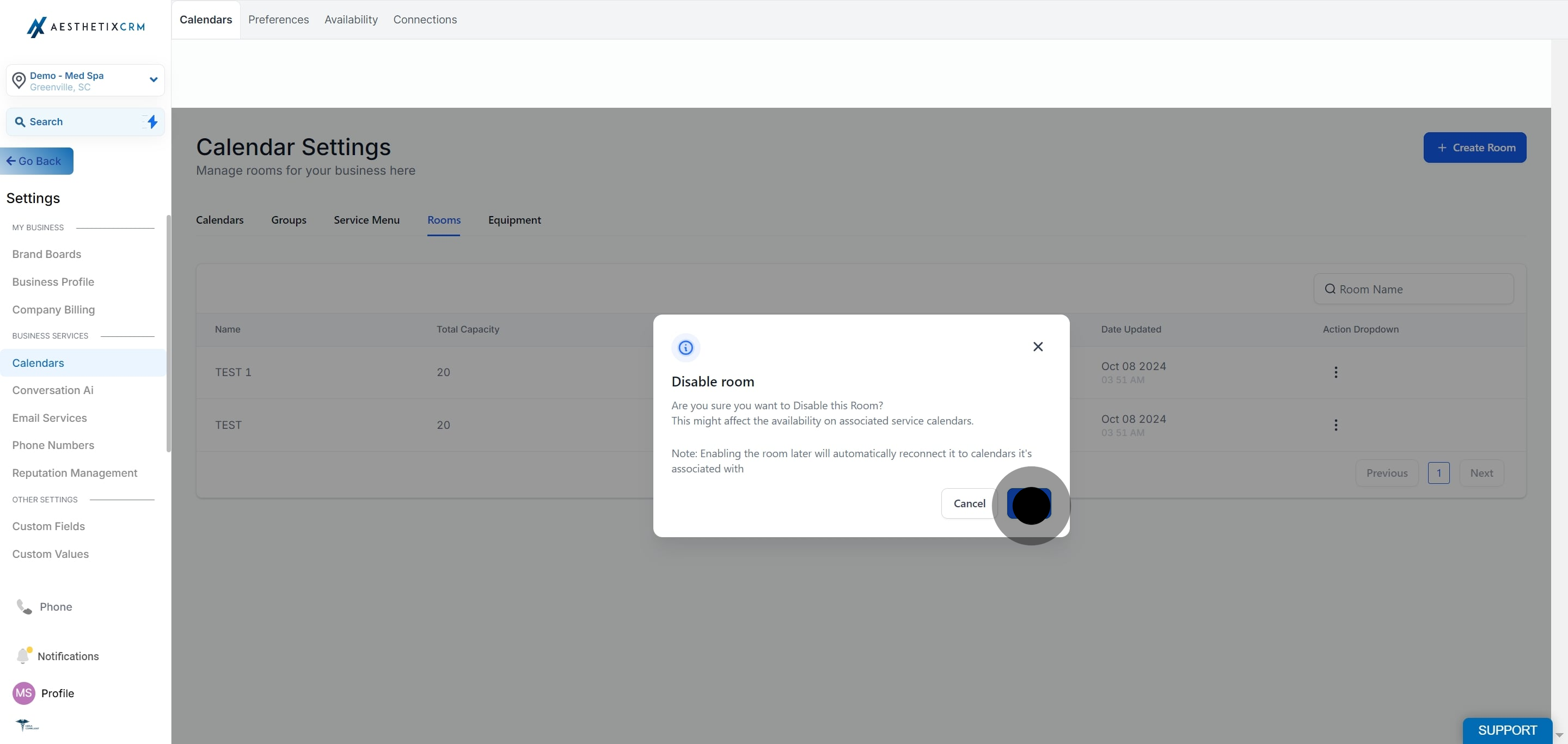
A disabled room stays in your Rooms list, so you can reactivate it later instead of recreating it from scratch.
Delete a room only when you're certain it won't be needed again. Deleting is permanent, unlike disabling.
Click Settings.
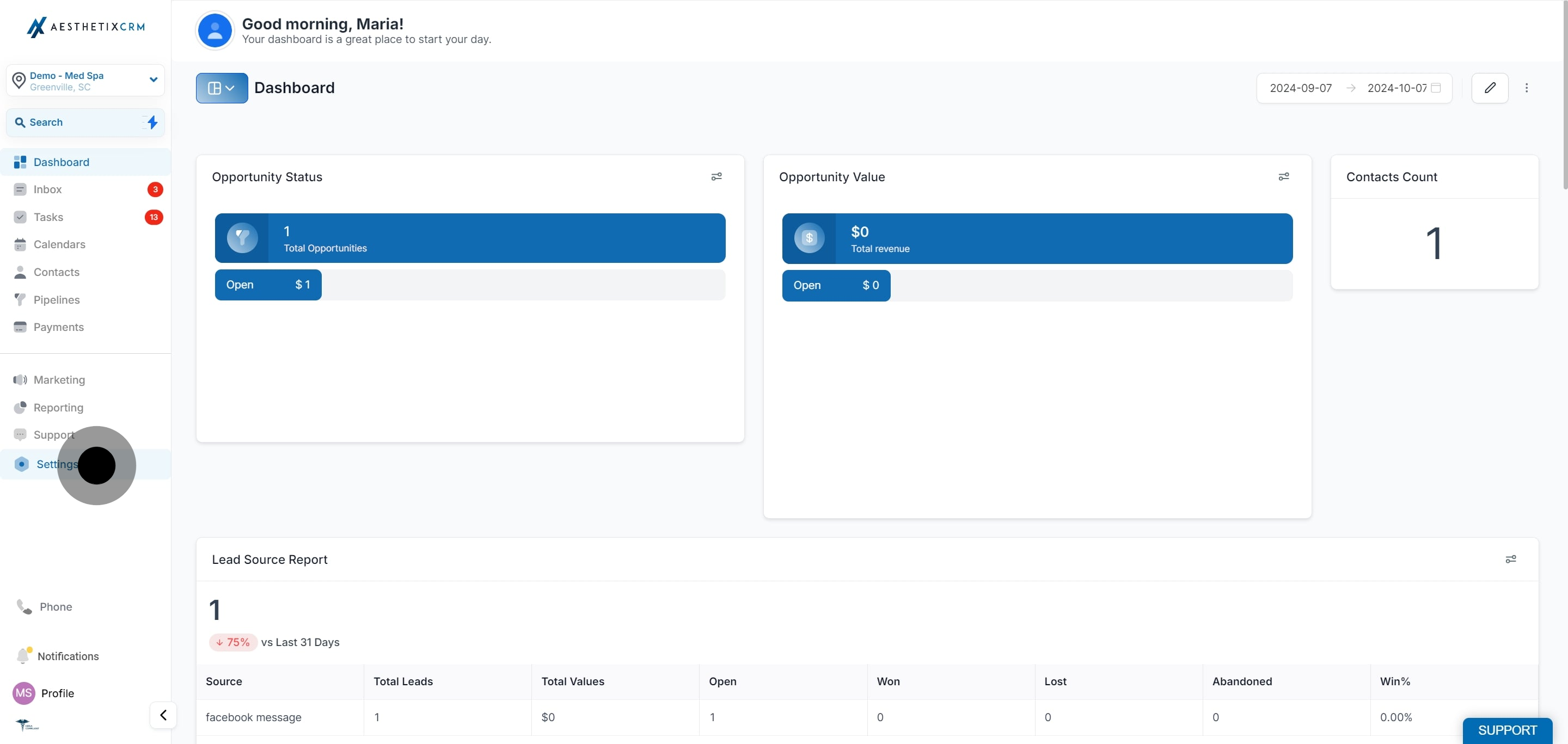
Click on Calendars.
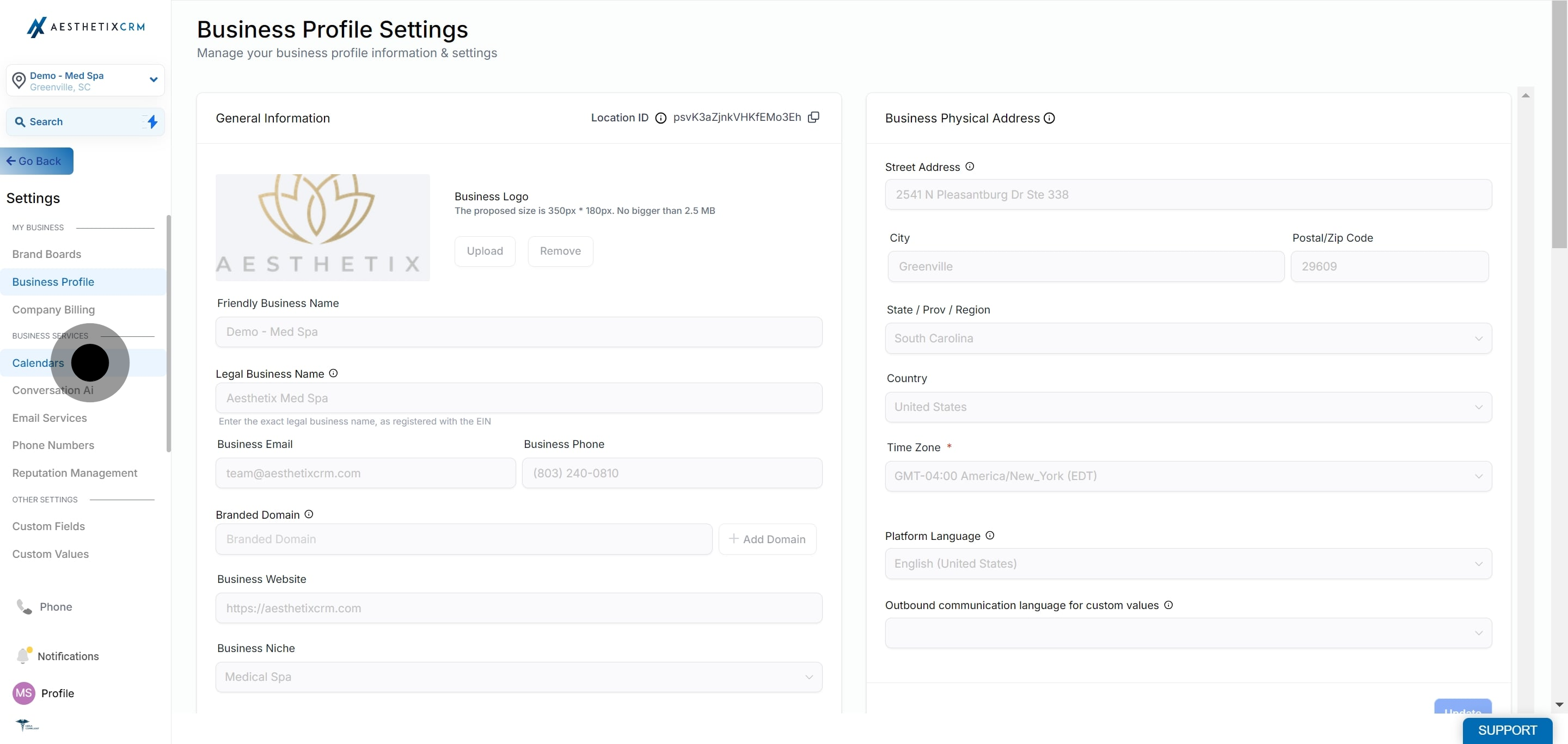
Click on Rooms.
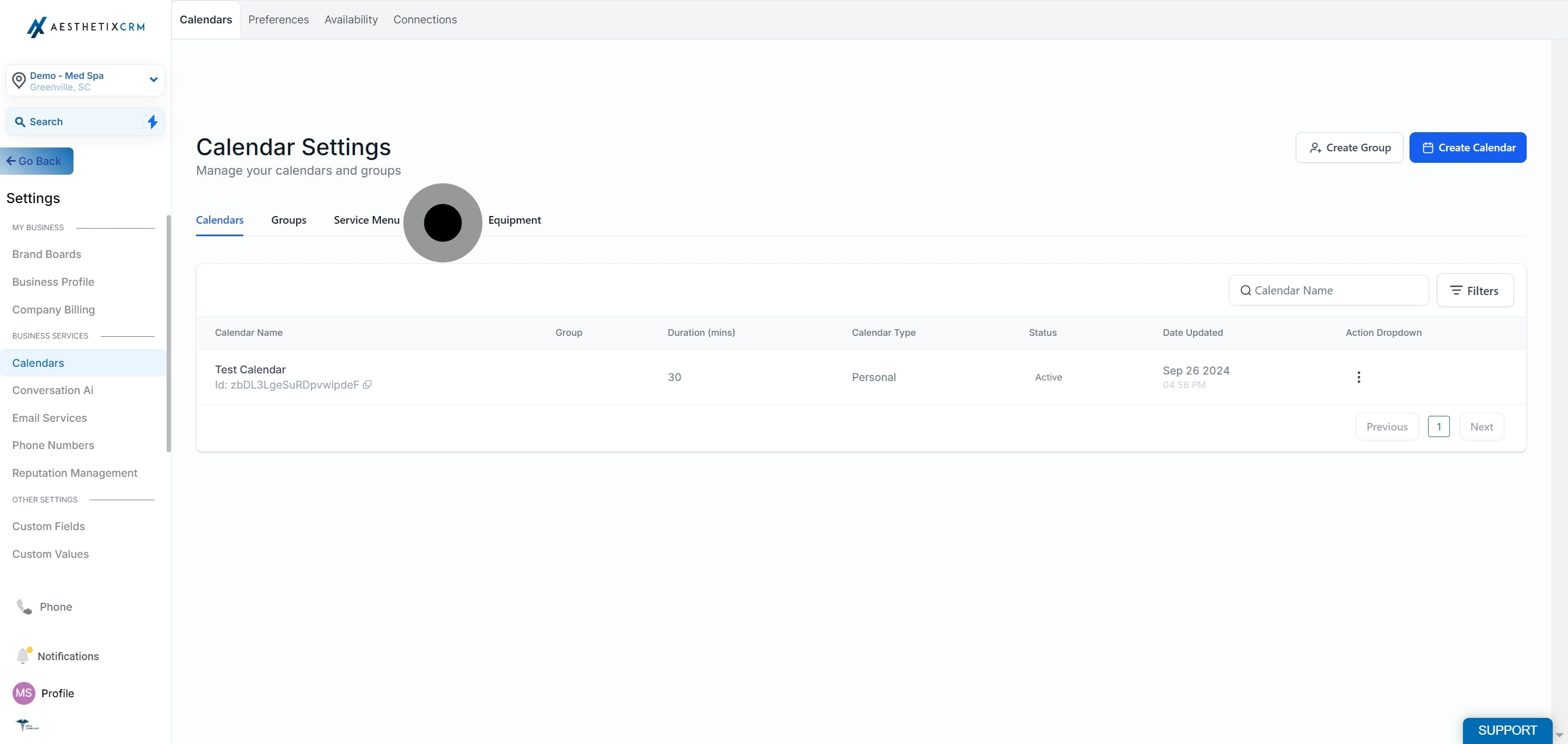
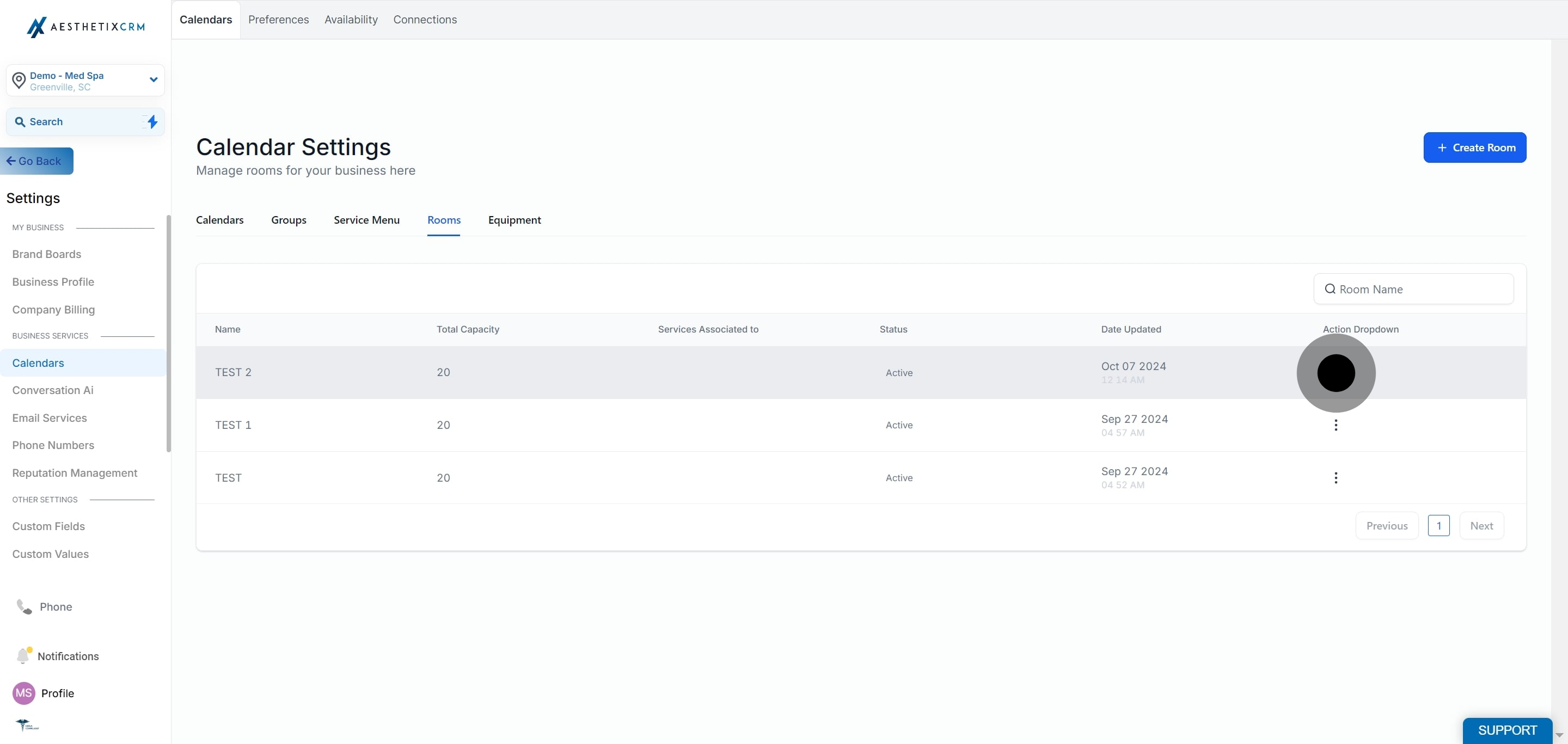
Select the room you want to delete and click the three dots next to it.
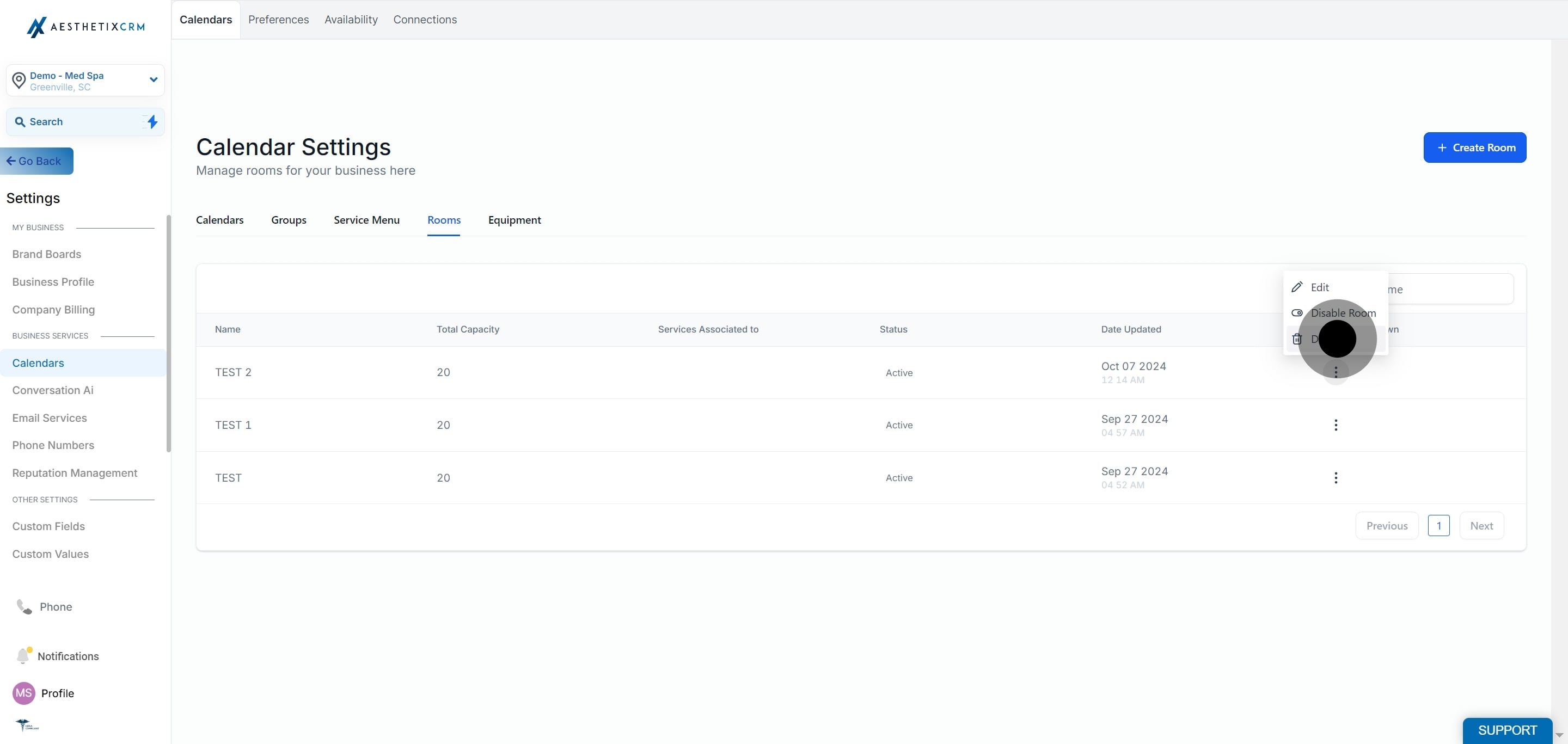
Click on Delete.
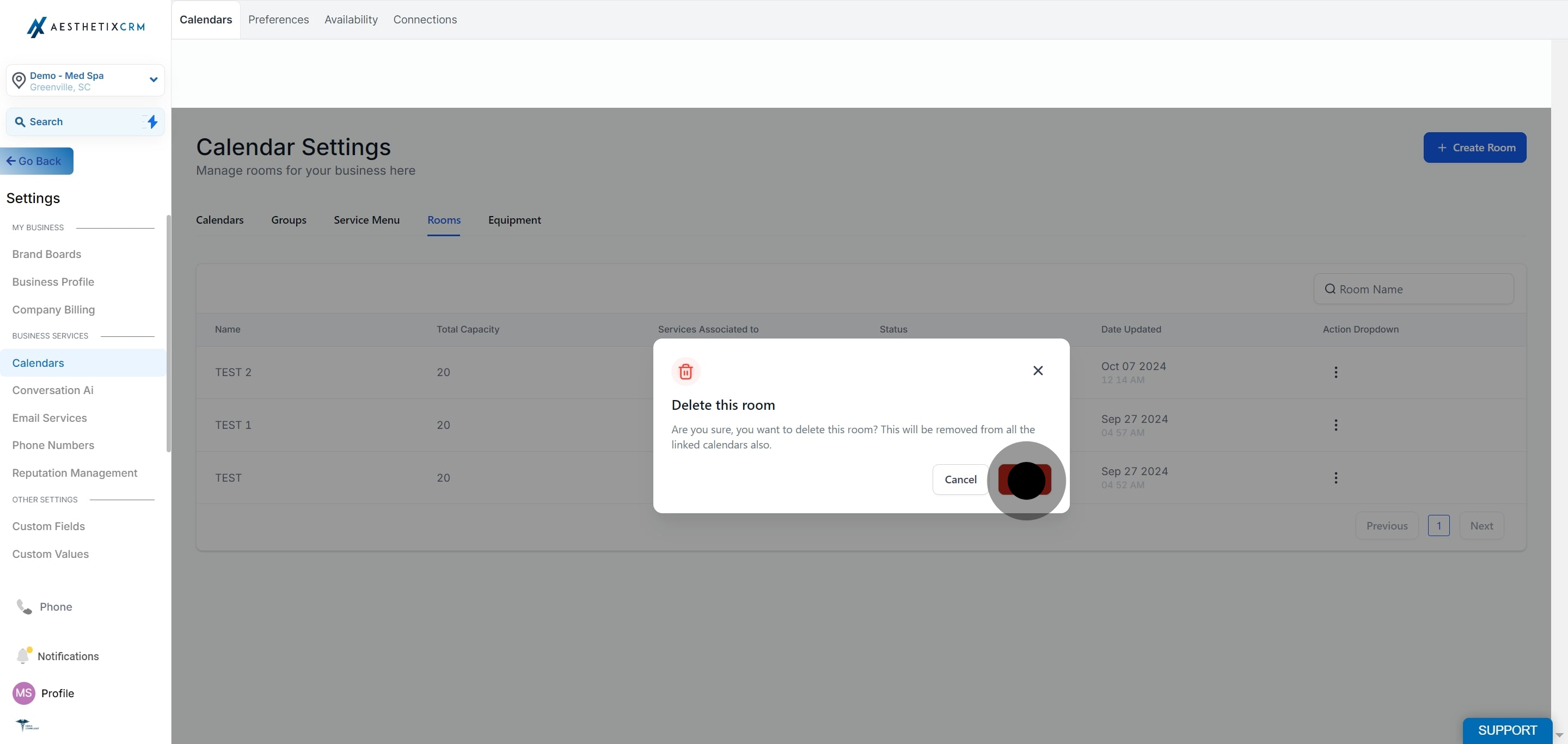
Confirm by clicking Delete again.
Once a room is deleted, it no longer appears in Rooms and can't be assigned to any Service Calendar. If you only need it out of rotation temporarily, disable it instead.
What's the difference between disabling and deleting a room? Disabling removes a room from active use while keeping its record and settings intact, so you can reactivate it later. Deleting removes the room permanently and can't be undone.
Where do I manage rooms? Go to Settings > Calendars > Rooms. From there you can edit, activate, disable, or delete any room tied to your Service Calendars.
Can I rename a room without losing its bookings? Yes. Editing a room's name or details through Settings > Calendars > Rooms > Edit doesn't affect existing or upcoming appointments already assigned to that room.
Will disabling a room cancel appointments already booked there? No. Existing bookings stay in place. Disabling only prevents the room from being selected for new bookings going forward.
Why can't I select a room when booking an appointment? The room is likely disabled. Check Settings > Calendars > Rooms and activate it if it should be available.
Do rooms apply to all calendar types? Rooms are used with Service Calendars, which are the primary calendar type for med spa treatment scheduling. Check your specific calendar's settings to confirm room assignment is enabled.
Can I have multiple rooms active on the same Service Calendar? Yes. Add and activate as many rooms as your practice has treatment spaces, and each can be assigned independently as appointments are booked.
What happens if I delete a room that's assigned to upcoming appointments? The room assignment is removed from your Rooms list, but the appointment itself is not canceled. We recommend reassigning or disabling a room instead of deleting it if it still has upcoming bookings.
