Rooms and Equipment let you treat your physical spaces and devices as bookable resources, right alongside your providers. Once they're set up, Aesthetix CRM checks staff availability, room availability, and equipment availability together every time a patient books, so you never end up with two consults booked in the same room or two treatments competing for the same laser. You manage this feature in Calendars > Calendar Settings.
A Room represents any physical space in your practice where a service happens. For a med spa this could be an injection room, a laser suite, a facial treatment room, or a private consult room.
Equipment represents the tools and devices your providers use to deliver a service. Think of a laser device, a hyperfacial machine, a body contouring unit, or a microneedling device. Equipment can be anything from a specialized machine to a single reusable chair or bed.
This feature is built for service-based businesses that operate out of physical locations and rely on specific rooms or devices to deliver treatments, which makes it a natural fit for med spas, dermatology offices, and plastic surgery practices.
Once a room or piece of equipment is linked to a Service Calendar, every booking on that calendar automatically reserves the room and/or equipment along with the provider's time. When a patient (or your front desk) books an appointment, Aesthetix CRM checks:
Whether the provider is available
Whether the assigned room is available
Whether the required equipment is available
If any one of those is already booked for that time slot, the slot won't show as open. This keeps your treatment rooms and devices from being double-booked even when multiple providers or multiple service calendars share the same physical resource.
Rooms and Equipment is off by default and needs to be enabled per account.
Go to Calendars > Calendar Settings.
Open Preferences > In App Preferences.
Toggle on Rooms and Equipment.
Once enabled, two new tabs appear in your calendar settings: Rooms and Equipment.
Go to Calendars > Calendar Settings > Rooms.
Click Create Room.
Enter the room details:
Room Name: a name your team will recognize, such as "Injection Room 1" or "Laser Suite."
Description: a short note on what the room is used for.
Room Capacity: the maximum number of appointments that can be booked in that room at the same time.
Associate Calendars: select every Service Calendar that should draw on this room.
Whenever an appointment is booked on any calendar tied to that room, the room is booked automatically along with it. For example, if your "Botox Consult" and "Filler Consult" service calendars are both associated with the same "Injection Room 1" and you set the room capacity to 2, then two appointments can run in that room at the same time, one from each calendar. If both slots are already taken, no further bookings will show as available in that room, regardless of which calendar the patient is booking through.
Go to Calendars > Calendar Settings > Equipment.
Click Create Equipment.
Enter the equipment details:
Equipment Name: a name your team will recognize, such as "CoolSculpting Unit" or "IPL Laser."
Description: a short note describing the equipment.
Total Quantity: how many units of this equipment you own.
Out of Service Quantity: how many units are currently broken, in repair, or otherwise unavailable. This is automatically subtracted from your bookable total.
Select Calendar: choose which Service Calendars use this equipment.
Keep in mind that each Service Calendar can only be linked to one piece of equipment. A single piece of equipment, on the other hand, can be linked to multiple calendars. For example, a "Laser Machine" can be connected to both your "Laser Hair Removal" and "Skin Resurfacing" service calendars, but neither of those calendars can also be assigned a second machine.
Once rooms and equipment are set up and associated with your Service Calendars, they show up automatically wherever appointments are created or reviewed:
In the appointment details view, you'll see which room is assigned and which piece of equipment is booked for that appointment, so your team can see resource assignments at a glance.
When booking or editing a Service Calendar appointment in the app, a room dropdown appears, letting your front desk staff pick the specific room for that visit when a calendar has more than one associated.
This keeps resource assignment visible right inside the appointment record instead of requiring a separate spreadsheet or whiteboard to track which room or device is in use.
If you use the AI Employee to handle patient booking, keep in mind AI-driven booking only works with native Aesthetix CRM calendars, not calendars synced from an EMR. Appointments the AI books on a native Service Calendar still respect your room and equipment assignments the same way a manually booked appointment would.
Rooms and equipment protect your physical resources, but you can also prevent scheduling conflicts on your own personal calendar. If you've connected a third-party calendar (Google, Outlook, or iCloud), Aesthetix CRM can read events from that calendar and block off those times so patients can't book you when you're already busy elsewhere.
You configure this under Settings > My Profile. There are two related settings:
Primary Calendar: the third-party calendar Aesthetix CRM writes new appointments to.
Check for Conflicts: any additional connected calendars you want read-only, so their events block your availability without appointments being written to them.
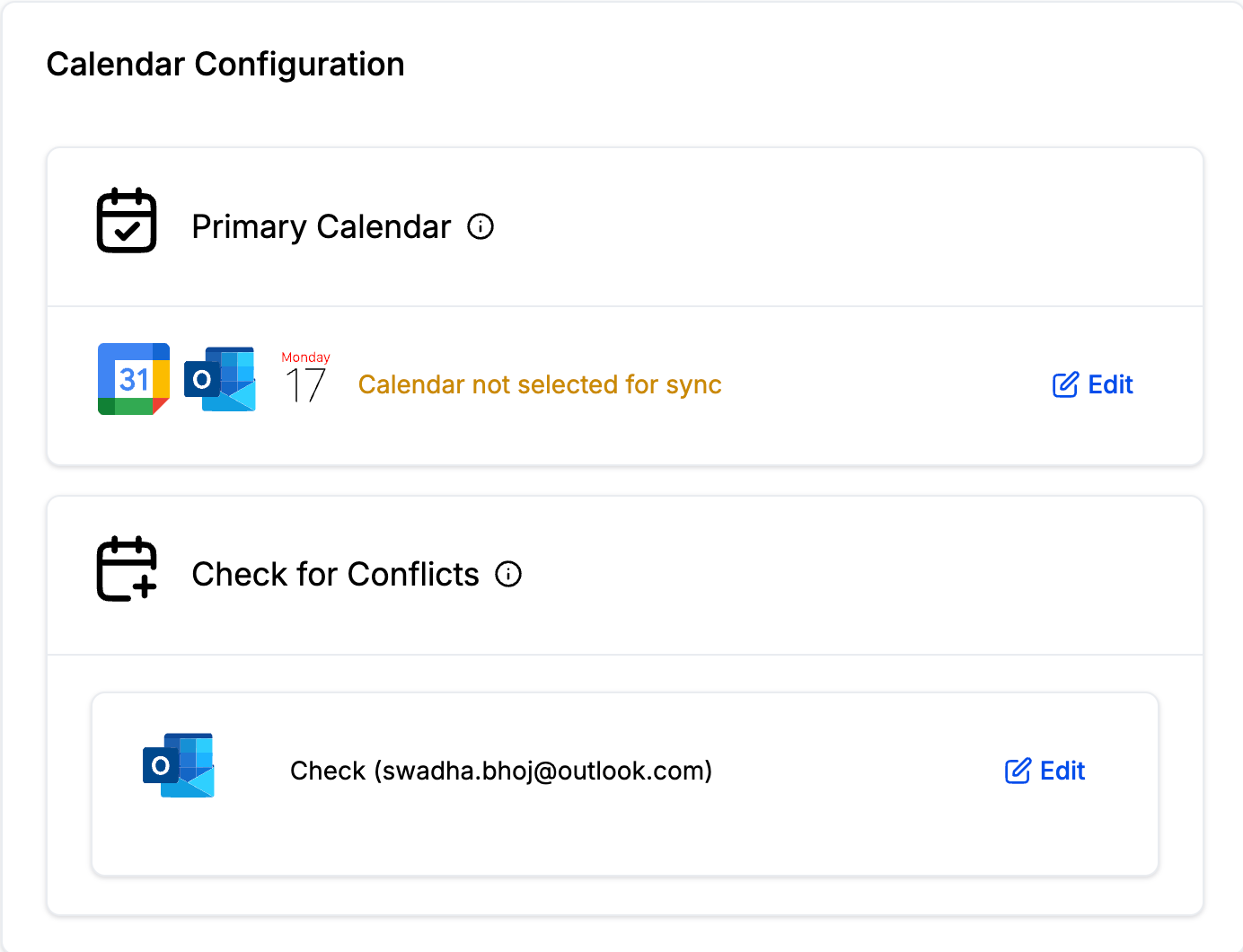
Any calendar selected under Check for Conflicts is scanned for existing events, and those time blocks are treated as unavailable for new bookings. Aesthetix CRM does not create appointments in a Check for Conflicts calendar, it only reads from it. If a calendar is already set as your Primary Calendar, it won't also appear as an option under Check for Conflicts, since it's already covered.
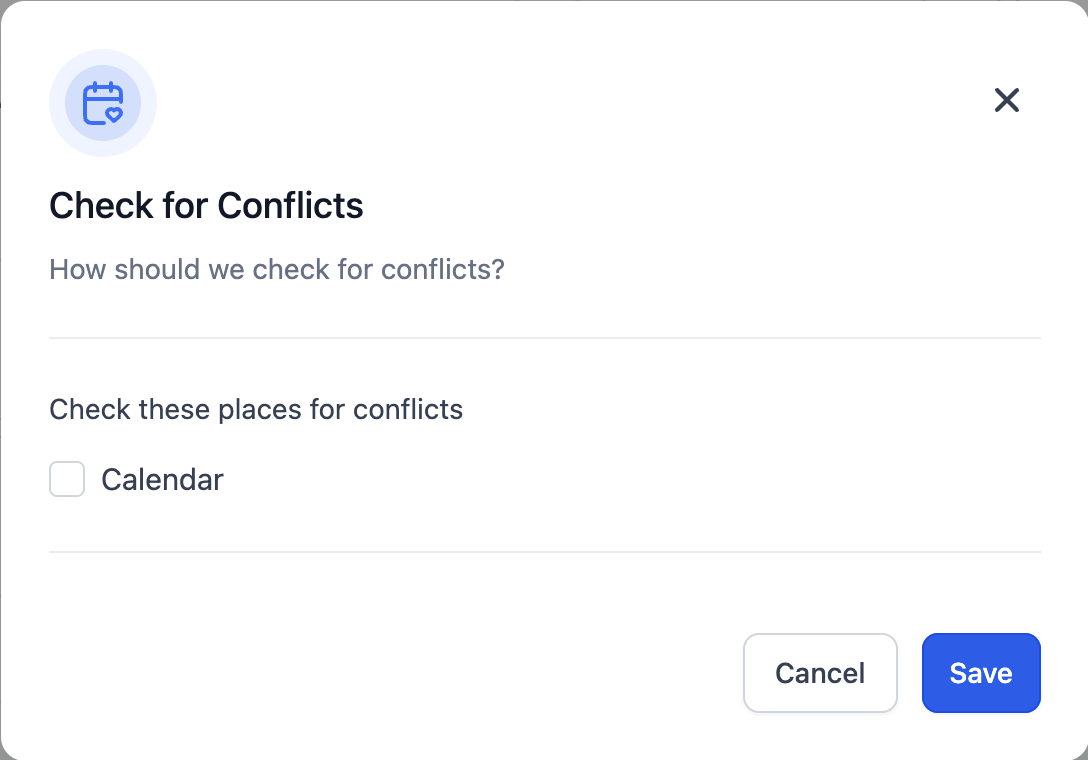
For the full walkthrough of connecting Google, Outlook, iCloud, Zoom, or Calendly, see the calendar sync guides in the Connections section.
Do I need to enable Rooms and Equipment before I can use it? Yes. It's off by default. Turn it on under Calendars > Calendar Settings > Preferences > In App Preferences before the Rooms and Equipment tabs will appear.
Can one calendar use more than one piece of equipment? No. Each Service Calendar can only be linked to a single piece of equipment, though that same equipment can be linked to multiple calendars.
Can multiple calendars share the same room? Yes. Multiple Service Calendars can be associated with the same room, and the room's capacity setting determines how many of those appointments can overlap at once.
What happens if a room's capacity is full? Once the number of simultaneous bookings reaches the room's capacity, no further appointments will show as available in that room, even if a provider is technically free.
How do I account for equipment that's broken or in for repair? Enter the affected units under Out of Service Quantity when you create or edit the equipment. That number is automatically subtracted from your total bookable quantity.
Where do I see which room or equipment is assigned to an appointment? Open the appointment's details view. Assigned rooms and equipment are listed there alongside the provider and appointment time.
Can my front desk change which room is used for a booking? Yes. When a Service Calendar has more than one associated room, a room dropdown appears in the in-app appointment modal so staff can pick the specific room at booking time.
Does Rooms and Equipment work with AI-driven appointment booking? Yes, as long as the appointment is booked on a native Service Calendar. AI Employee booking automation only works with native calendars, not calendars synced from an EMR, but any appointment it books on a native calendar still respects your room and equipment assignments.
Is checking for conflicts with my personal calendar the same feature as Rooms and Equipment? No, they're separate. Rooms and Equipment manages your physical resources. Check for Conflicts reads your connected Google, Outlook, or iCloud calendar to block times you're already busy. Both work together to prevent double-booking, one for resources and one for your personal schedule.
Do intake forms or patient details connect to room and equipment assignments? Rooms and equipment track resource availability, not patient data. Any patient intake information collected before an appointment is handled through Forms and appears in the appointment or contact record separately.
