A Service Menu brings all of your practice's bookable services together on one branded scheduling page. Instead of sending patients to a separate link for every treatment, you group related Service Calendars into categories (Injectables, Skincare, Laser, and so on) and let patients pick what they need from a single page. You build and manage Service Menus in Aesthetix CRM under Calendars > Calendar Settings.
A Service Menu is a centralized scheduling page that lists multiple services in one branded interface, letting patients book several appointment types in a single flow. Each service on the menu connects to its own Service Calendar, so you keep full control over availability, staff assignment, pricing, and duration behind the scenes, while patients see one clean, categorized menu.
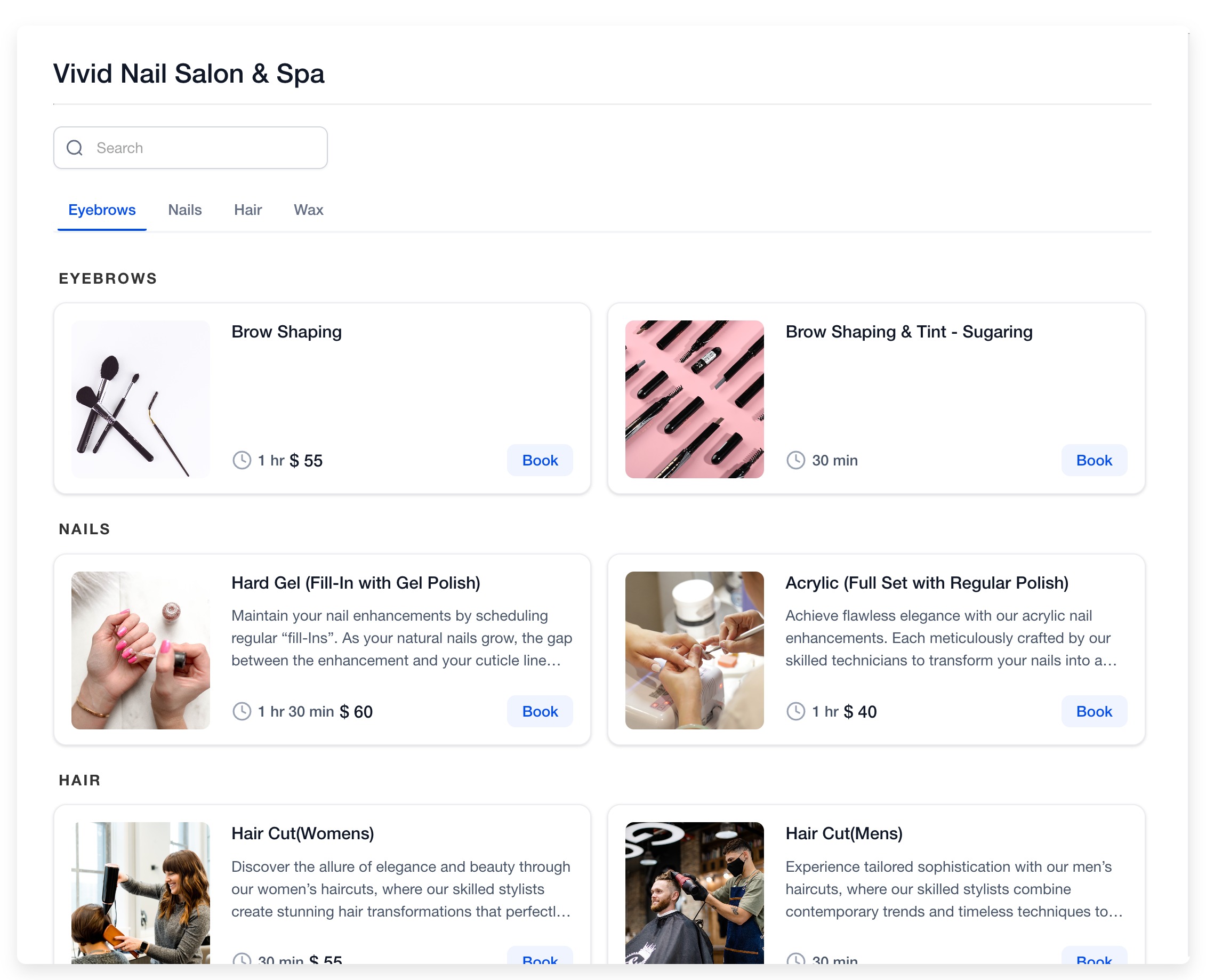
For example, a med spa might group Botox, Dysport, and filler consults under an "Injectables" category, facials and chemical peels under "Skincare," and IPL or laser hair removal under "Laser." Patients choose the category and service they want and book straight through, without needing to know which calendar or provider sits behind it.
Service Menus work well for any practice offering more than one type of appointment or working with multiple providers, including:
Med spas and aesthetic clinics
Dermatology and skincare practices
Injectables and body-contouring providers
Multi-provider practices where patients may need to pick a preferred injector or aesthetician
Practices that bundle consults with treatments (for example, a consult plus a same-day treatment slot)
Centralized booking experience. Every bookable service lives on one page instead of scattered links, so patients don't have to hunt for the right calendar.
Optional staff selection. You can let patients choose their preferred provider at booking time, or leave staff assignment to your internal routing.
Organized categories. Calendar Groups let you cluster related services (Injectables, Skincare, Laser) under clear category tabs on the booking widget.
Independent calendar configuration. Each service keeps its own calendar settings: staff, availability windows, duration, and buffer times, even though it appears alongside other services on the shared menu.
Flexible booking. Depending on how you configure the menu, patients can book a single service or multiple services (and even guests) in one booking session.
Before you build a Service Menu, set up the pieces it pulls from:
Create a Service Calendar for each service you offer. A Service Calendar is the calendar type built for service-based businesses: it lets you define the treatment, assign staff, set duration and pricing, and control availability. Create one calendar per bookable service (for example, separate calendars for "Botox Consult," "Chemical Peel," and "Laser Hair Removal, Full Face").
Create a Calendar Group for each category. Groups are the categories patients see on the menu. Only calendars assigned to a group can be included in a Service Menu, so create groups such as "Injectables," "Skincare," and "Laser" before you build the menu, then assign each Service Calendar to its matching group.
If a service calendar isn't showing up when you build your menu, check that it has been added to a group first.
In the left navigation, go to Calendars.
Click Calendar Settings, then open the Preferences tab.
Go to the Account Preference section under Preferences.
Find the Services section and turn on the Service Menu toggle.
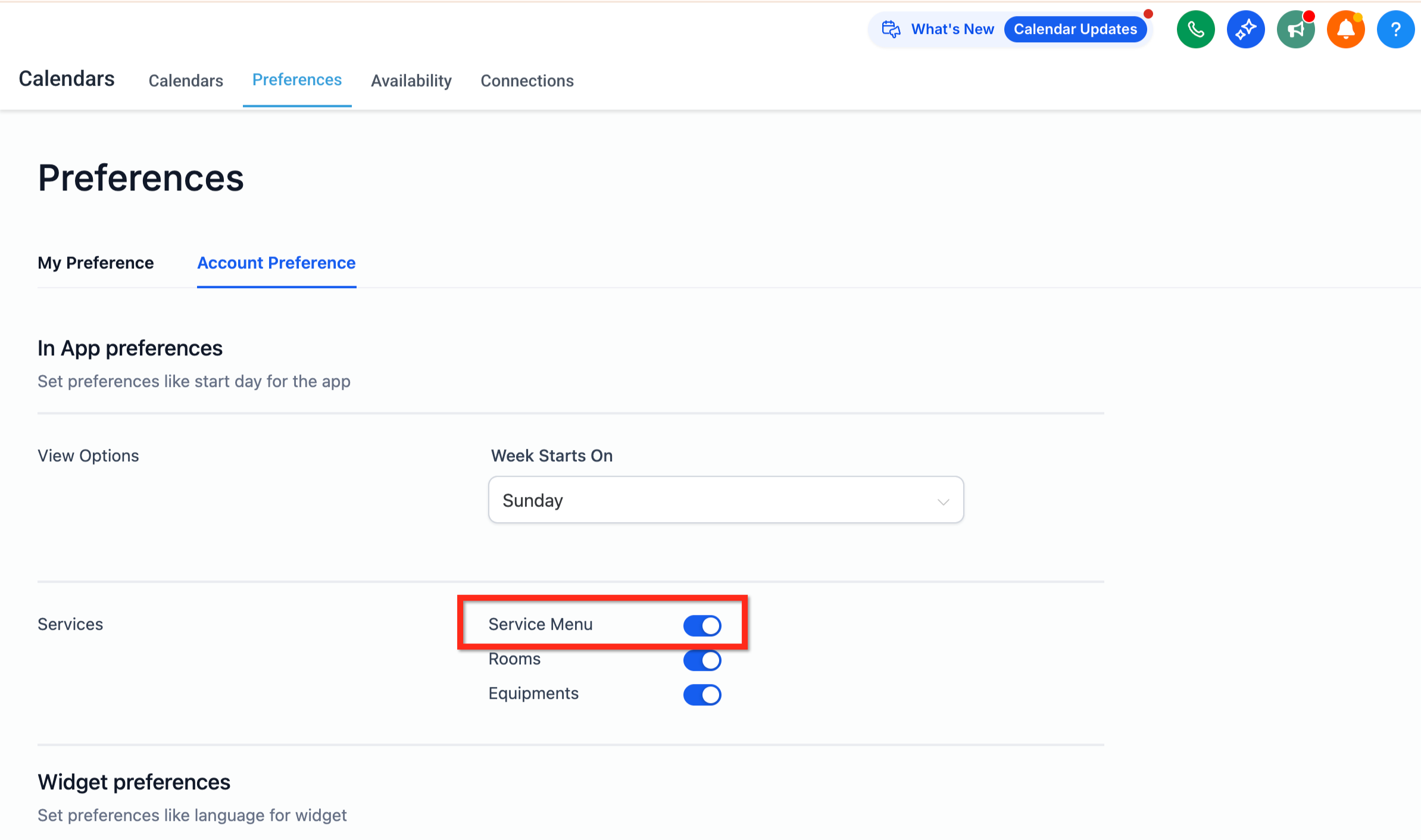
Once the feature is enabled and your Service Calendars and Groups are ready, build the menu itself.
Go to Settings > Calendars.
Open the Service Menu tab under Calendar Settings.
Click Create Service Menu in the top right corner.
Fill in the menu details:
Name: the title patients see at the top of the menu (for example, "Book a Treatment").
Description: an optional summary shown to patients.
Slug URL: the custom URL segment for this menu's booking link.
Form: if you want to collect more than the standard First Name, Last Name, Email, and Phone, select a custom intake form here. Build the form itself in Forms first if you need something beyond the default fields.
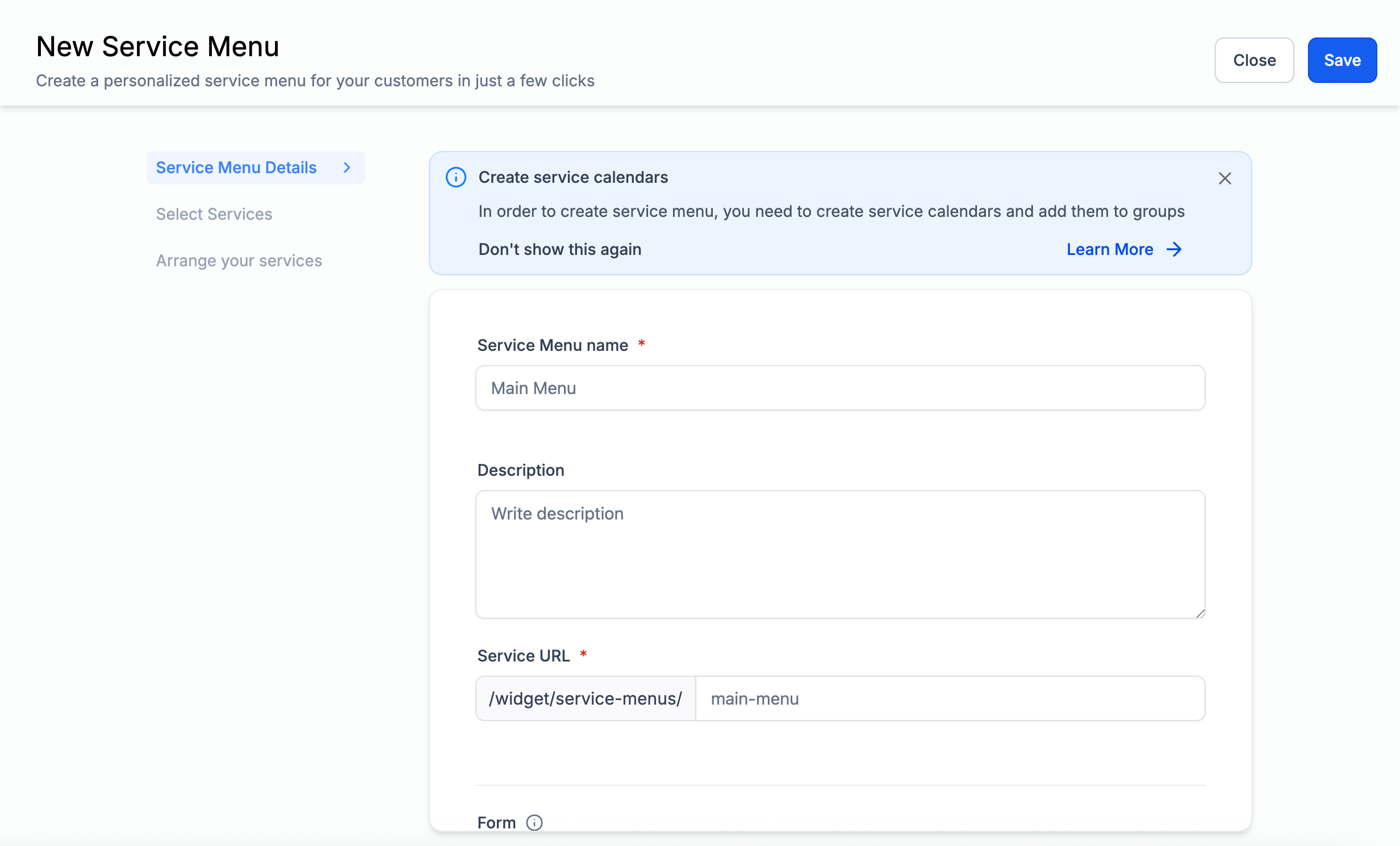
You can also configure additional booking behavior while creating the menu:
Toggle a consent checkbox on or off, and customize the consent message.
Show a thank-you message after booking, or redirect patients to an external URL instead.
Allow or block bookers from adding additional guests to the appointment.
Limit patients to booking only one service per visit, instead of multiple.
Decide whether patients can select their preferred staff member.
Add custom code to adjust the look and feel of the menu page.
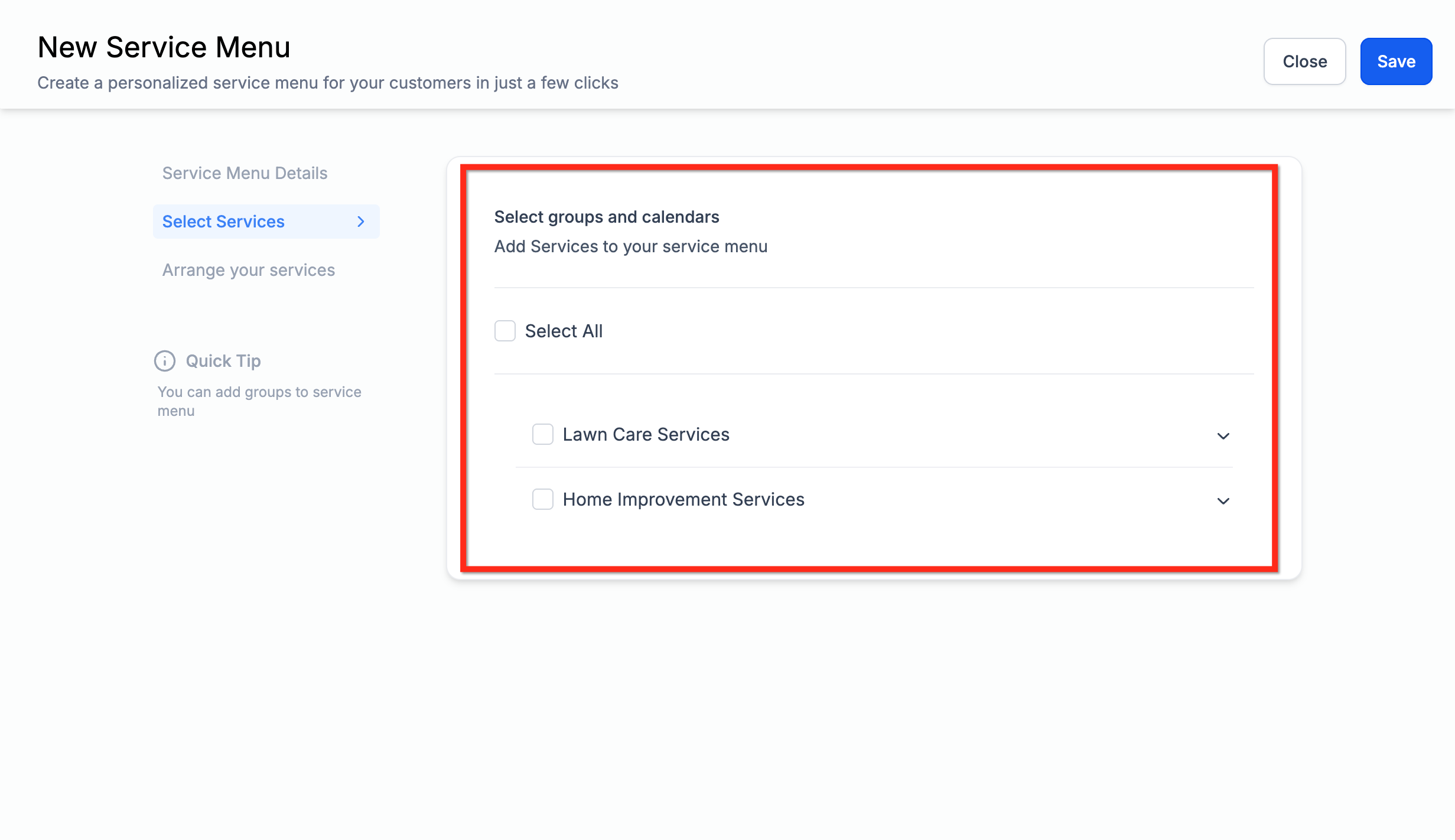
From the Service Menu editor, open the Select Services tab.
Use the checkboxes to choose which services (and which groups) should appear on this menu. Only calendars already assigned to a group show up here, so double-check your groups if a service is missing.
Drag and drop services to set the order they appear in on the menu.
You can also set the order that categories (groups) appear in, so your most-booked treatments show first.
Save your changes.
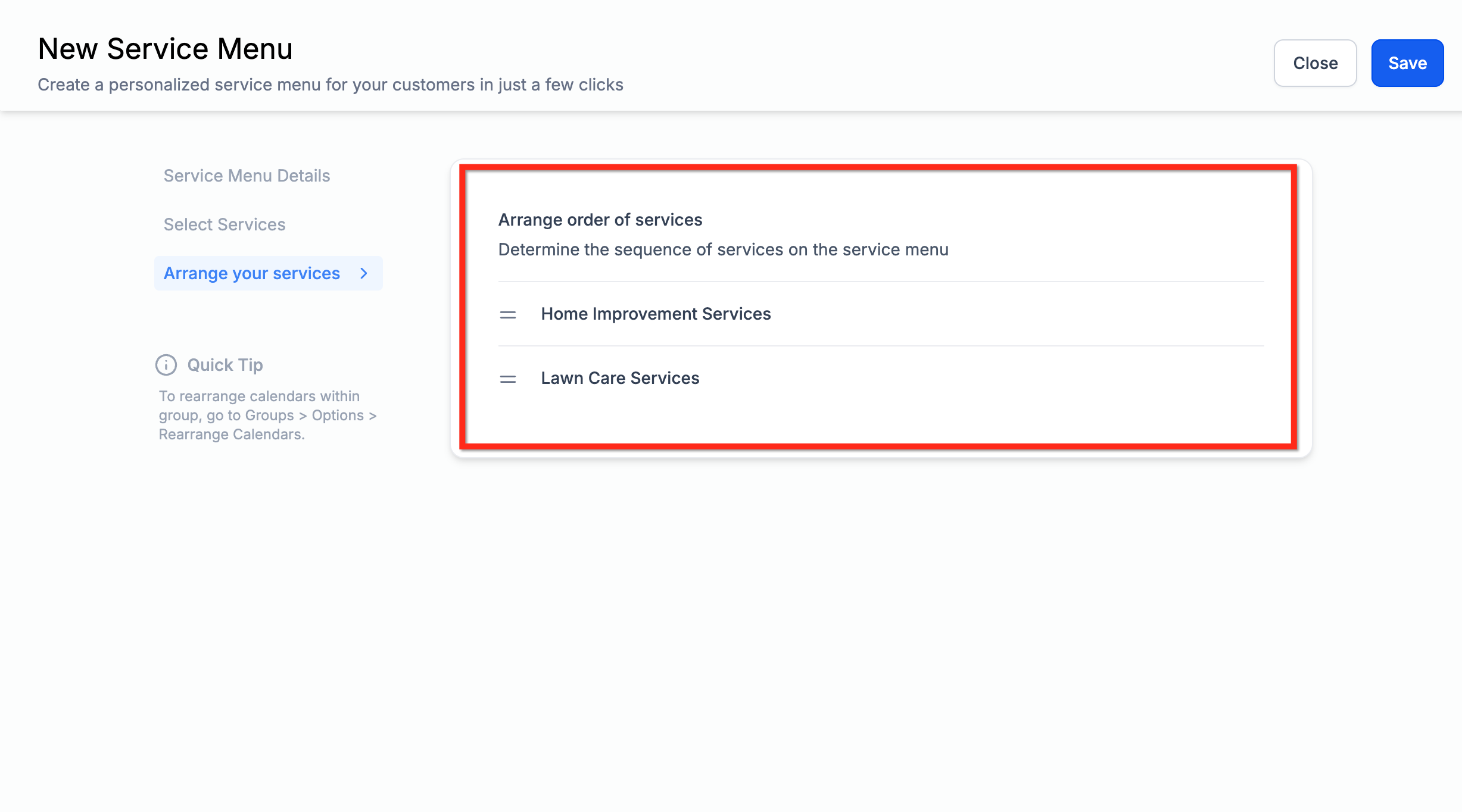
If you later want to reorder services within a single group without opening the full menu editor, go to the Groups tab, click the three dots next to the group, and select Rearrange Calendars.
If you need to turn the feature off:
Go to Calendar Settings.
Click Preferences.
Under In-App Preferences, toggle Service Menu off.
Once disabled, the Service Menu tab under Calendar Settings is no longer accessible, though your individual Service Calendars and Groups remain intact for future use.
Once your Service Menu is saved, Aesthetix CRM gives you a scheduling link you can share directly with patients by text, email, or in a booking confirmation. If you want the menu embedded directly on a page rather than linked out, add it as a calendar element on your website or funnel page in Funnels/Websites.
The current Service Menu has a few restrictions to plan around:
Payment provider: payment collection through the Service Menu is limited compared to booking through an individual Service Calendar directly. If you take deposits or full payment at booking, confirm your payment provider is supported before relying on the menu for paid bookings.
No card-on-file: patient card details are not saved for future use when booking through the Service Menu.
No in-app payments: payment collection is not available through the mobile app version of the Service Menu.
No coupon codes: discounts and coupon codes cannot be applied at checkout on the Service Menu.
Taking payment at booking? If your Service Menu collects deposits or payment in full, consider routing payments through AX Pay, Aesthetix CRM's built-in payment provider. AX Pay offers better rates than Stripe and keeps your patient payment data inside the same platform as your booking flow. See the AX Pay help article for setup details.
Service Calendars hold the actual availability, staff, pricing, and duration for each treatment on your menu; build and edit them before assembling a Service Menu.
Groups (categories) control how services are clustered and labeled on the menu; manage them from the Groups tab in Calendar Settings.
Forms is where you build any custom intake form you want attached to a menu booking.
AI Employee can automate appointment booking through your native calendars, including services on a Service Menu; that automation is documented separately.
Funnels/Websites is where you embed a Service Menu directly into a page instead of just sharing the link.
Can I create more than one Service Menu? Yes. You can build multiple menus using different Calendar Groups, for example a separate menu for a specific location or provider.
Are Service Menus mobile-friendly? Yes. They are fully responsive and display correctly on phones and tablets.
Can patients book more than one service at a time? Yes, unless you enable the "limit to one service" option when building the menu.
Can patients book for a guest as well as themselves? Yes, if you leave the guest booking option enabled when creating the menu. You can disable it if you only want patients booking for themselves.
How do I reorder the services or categories on my menu? Drag and drop services while editing the Service Menu, or use "Rearrange Calendars" from the Groups tab to reorder services within a single group.
Can I track conversions or add analytics to my menu? Yes. Use the custom code field in the menu editor to add tracking pixels or scripts.
What happens if a service calendar isn't showing up when I build my menu? Confirm the calendar has been assigned to a Calendar Group first. Only grouped calendars are available to select on a Service Menu.
Can I collect a custom intake form when a patient books through the menu? Yes. Select a custom form in the menu's Form field if you need to collect more than name, email, and phone at booking.
Does disabling the Service Menu delete my Service Calendars or Groups? No. Turning off the Service Menu feature only removes access to the Service Menu tab. Your individual Service Calendars and Groups stay intact and remain bookable on their own.
