Aesthetix CRM lets you create multiple calendars, each with its own scheduling type, so patients book the right kind of appointment every time. Calendars live under Calendar in your account, and you can set up as many as your practice needs: one for consults, one for laser treatments, one for group skincare classes, and so on. This guide walks through creating a new calendar and choosing a scheduling type, then points you to the dedicated guide for each type.
Click on Calendar.
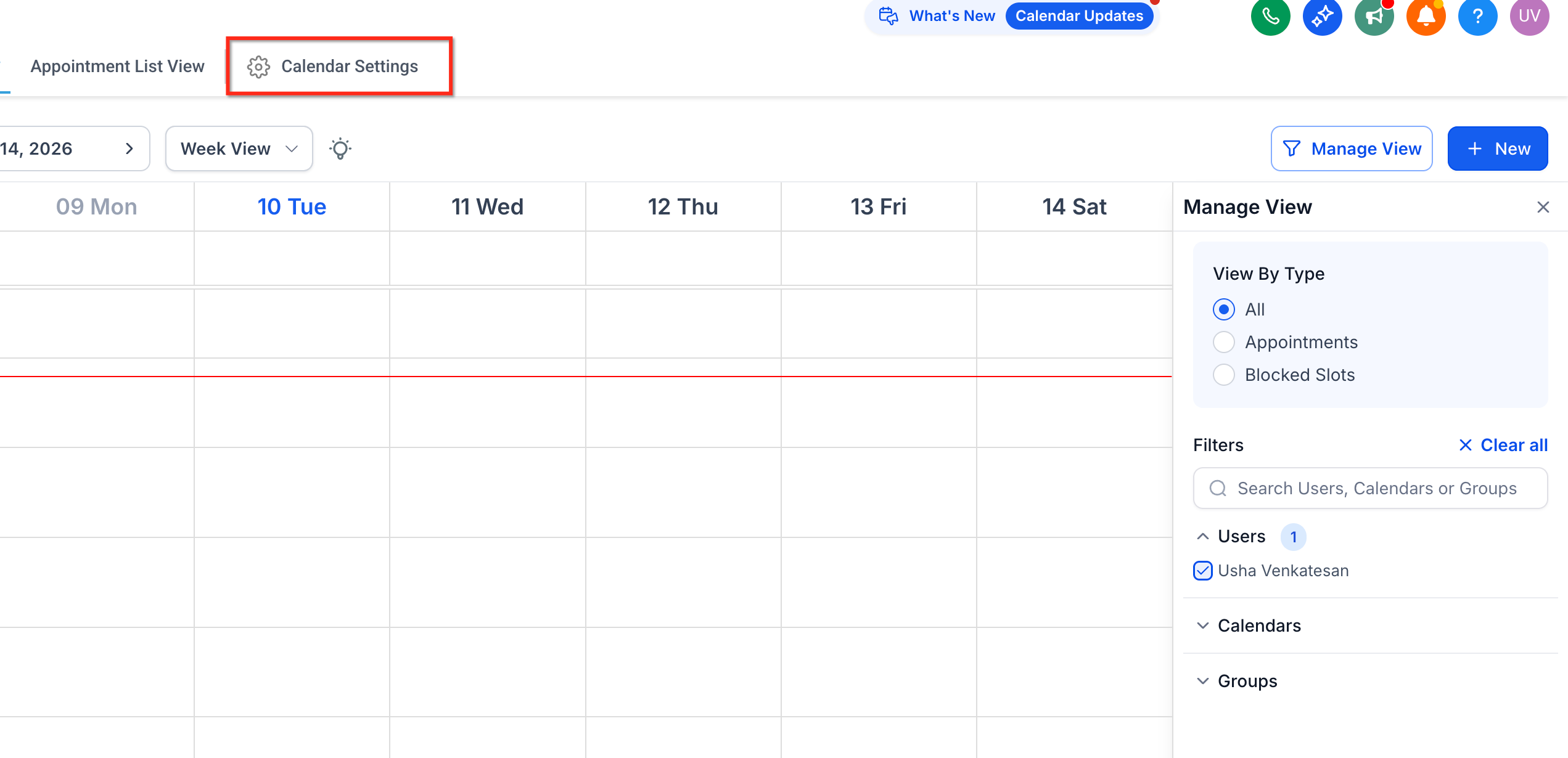
Navigate to Calendar Settings by clicking Go to Calendar Settings.
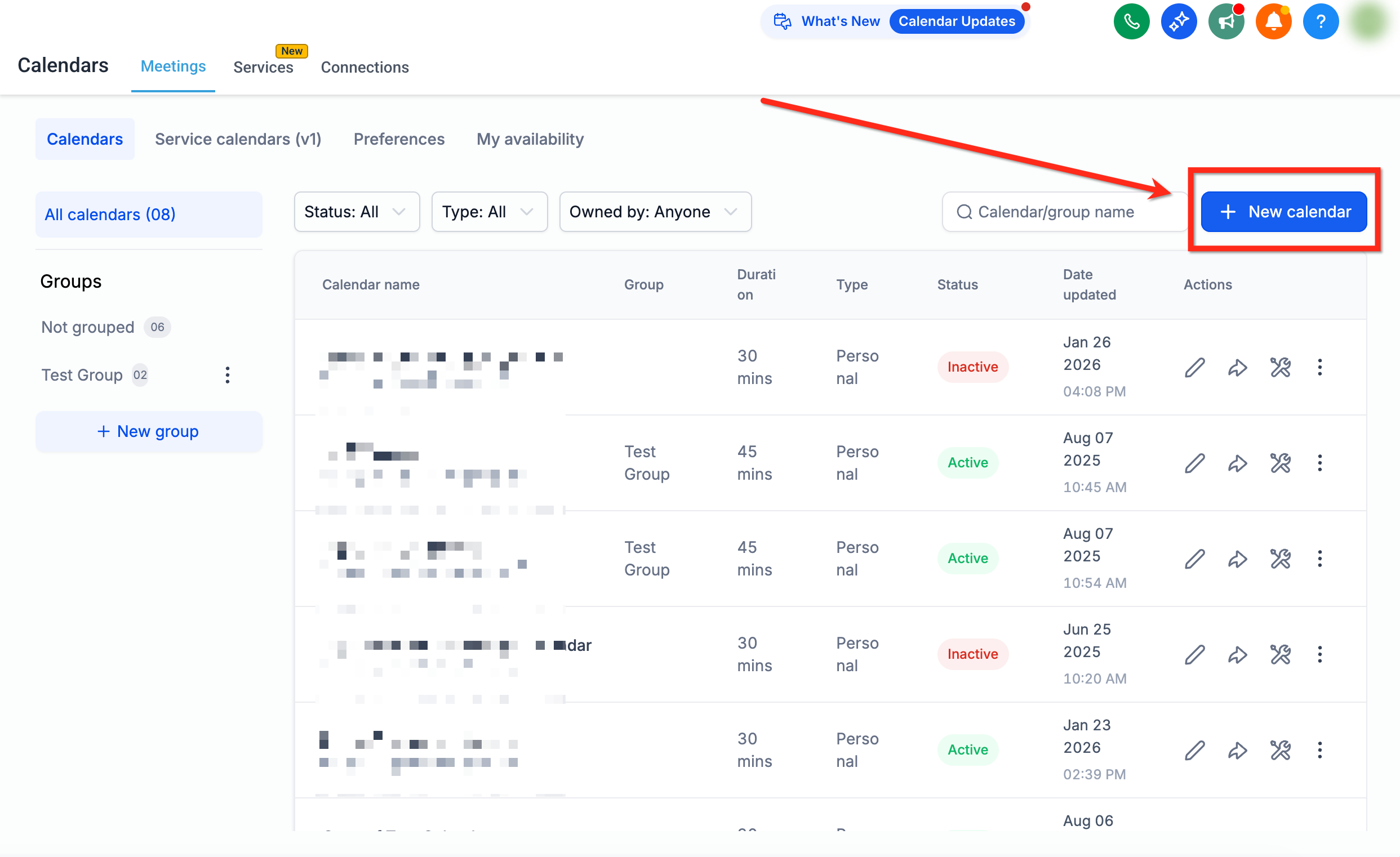
Click Create Calendar.
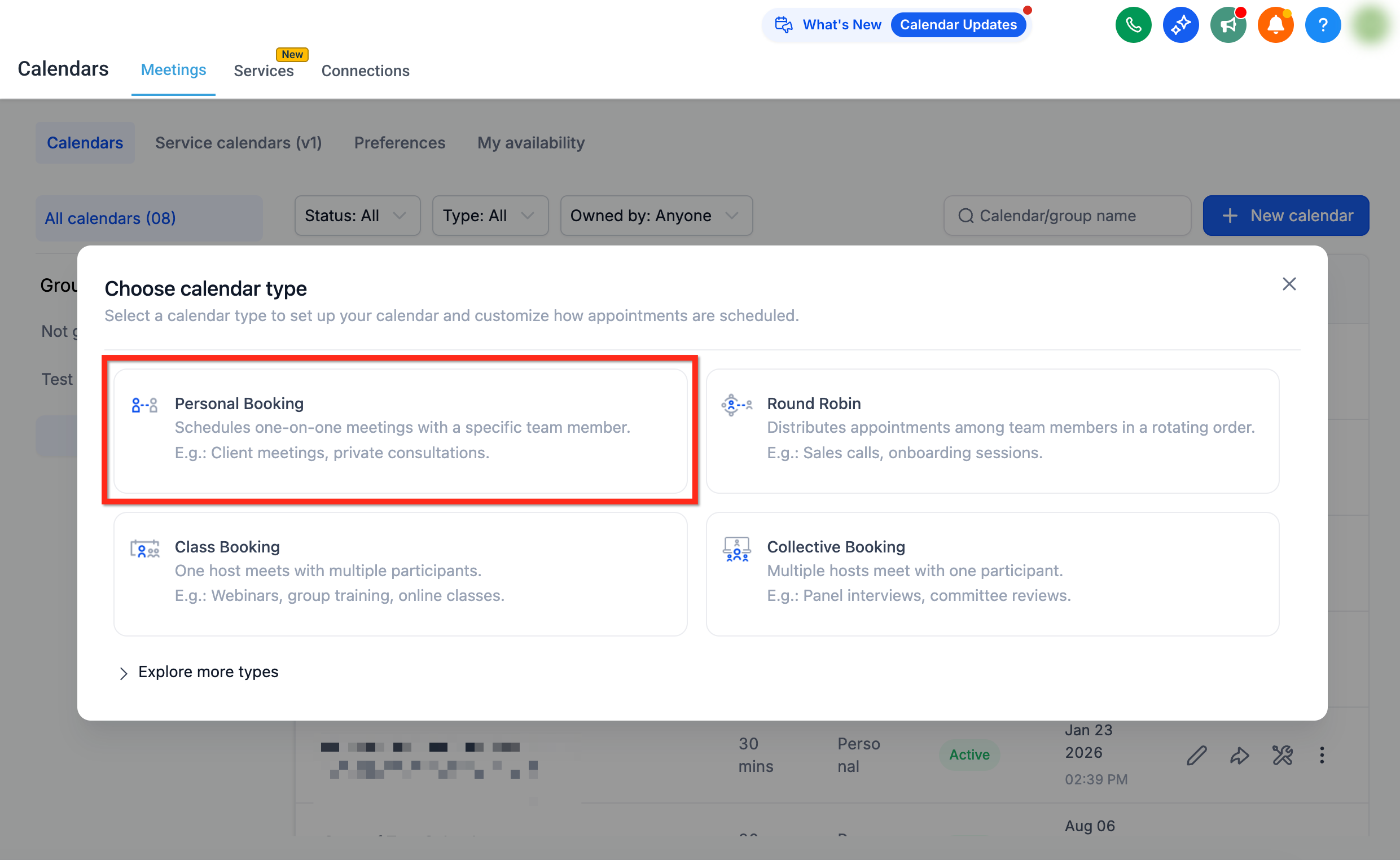
Select a scheduling type for your new calendar from the options provided.
The scheduling type you pick determines how the calendar behaves: who gets assigned, whether multiple patients can book the same slot, and whether one provider or several need to be available. Choose carefully, since switching a calendar's type after it is already in use usually means rebuilding it rather than flipping a setting.
Type | How it books | Good fit for a med spa |
|---|---|---|
Service Calendar | Patient books a specific service; Aesthetix CRM assigns an available provider, room, or piece of equipment tied to that service | Injectables, facials, laser treatments, or any service where several providers or rooms can fill the slot |
Personal Booking Calendar | One provider, one patient, one slot | Consult calls, follow-ups with a specific provider, or a solo practitioner's schedule |
Round Robin | Distributes bookings evenly across a group of team members | Front-desk consult requests you want spread fairly across your intake team |
Collective Booking | Requires two or more team members to be free at the same time before a slot is open | Procedures that need a provider and an assistant, or a joint consult with two specialists |
Class Booking Calendar | Multiple patients book into the same time slot, up to a capacity you set | Group skincare classes, wellness workshops, or seminar-style events |
Event Calendar | A single scheduled event patients register for, not tied to one-on-one availability | Open houses, product launch events, or webinars |
For the majority of aesthetic practices, Service Calendars are the right starting point. They let patients book a treatment (not a person), and Aesthetix CRM handles assigning the right provider, room, or device behind the scenes. This keeps your schedule flexible as you add staff or equipment, and it is the type we recommend building out first. See the dedicated Service Calendars guide for full setup detail, including how to attach staff, rooms, and equipment as bookable resources.
Each of the other types has its own setup guide with the specific fields and rules that apply to it:
Personal Booking Calendars are the simplest option: one provider's availability, one appointment at a time. See the Personal Booking Calendars guide.
Round Robin and Collective calendars both involve multiple team members, but they behave differently: Round Robin rotates bookings across the group, while Collective requires everyone in the group to be free before the slot shows as open. See the Round Robin and Collective Calendars guides.
Class Booking Calendars let several patients reserve the same slot, with a capacity limit you control. See the Class Booking Calendars guide.
Event Calendars are built for one-off or recurring events rather than ongoing appointment booking. See the Event Calendars guide.
AI-driven appointment booking (through your AI Employee) only works with these native calendar types. If your practice books appointments directly inside an EMR calendar, the AI Employee cannot see or book into that calendar, so route AI-driven scheduling through a native Aesthetix CRM calendar instead.
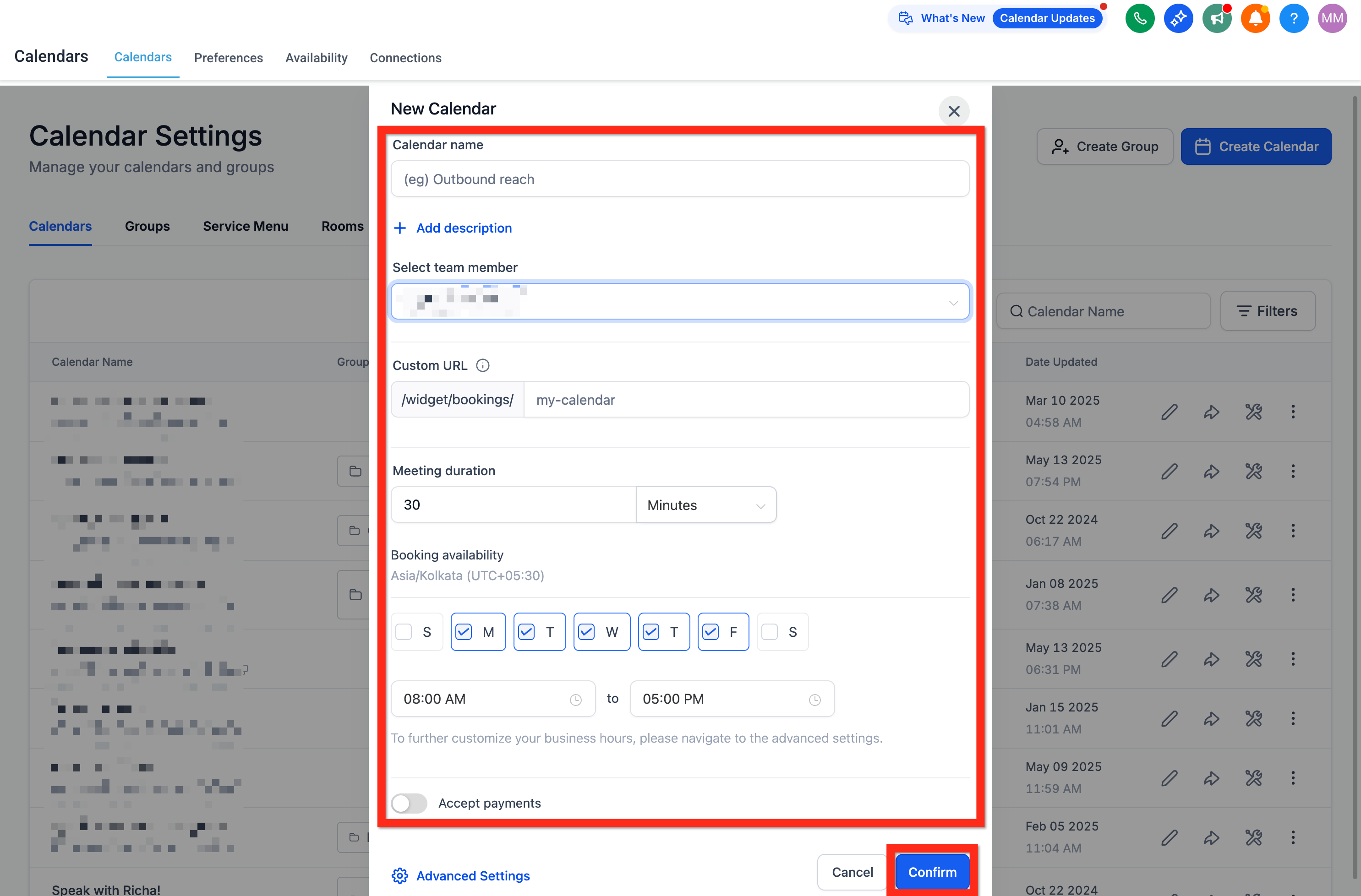
Once you pick a type, the configuration screen is organized into the same sections no matter which one you chose: Basic details, Staff & location, Availability, Booking rules, and Advanced settings.
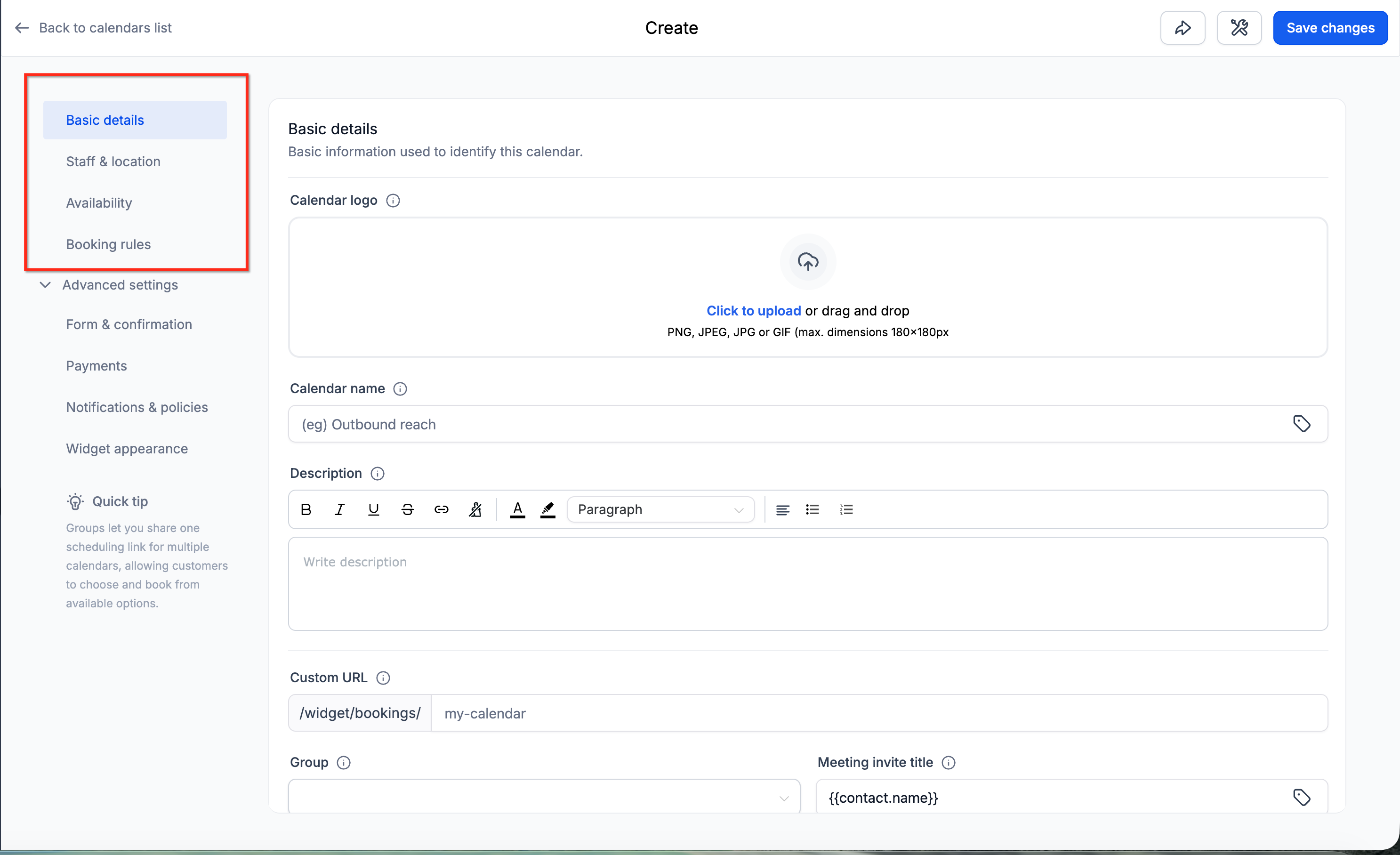
Fill in a friendly calendar name, assign the host or staff pool, review the custom booking URL, set appointment duration, and define your available hours. Click Confirm when you're done.
Even a solo practice should confirm its provider is added as staff before publishing a calendar.
Navigate to Settings > My Staff.
Click Add User.
Add the provider and save.
You can assign specific permissions to each staff member from the same screen.
Automated reminders cut down on missed appointments without any manual follow-up.
Navigate to Automation.
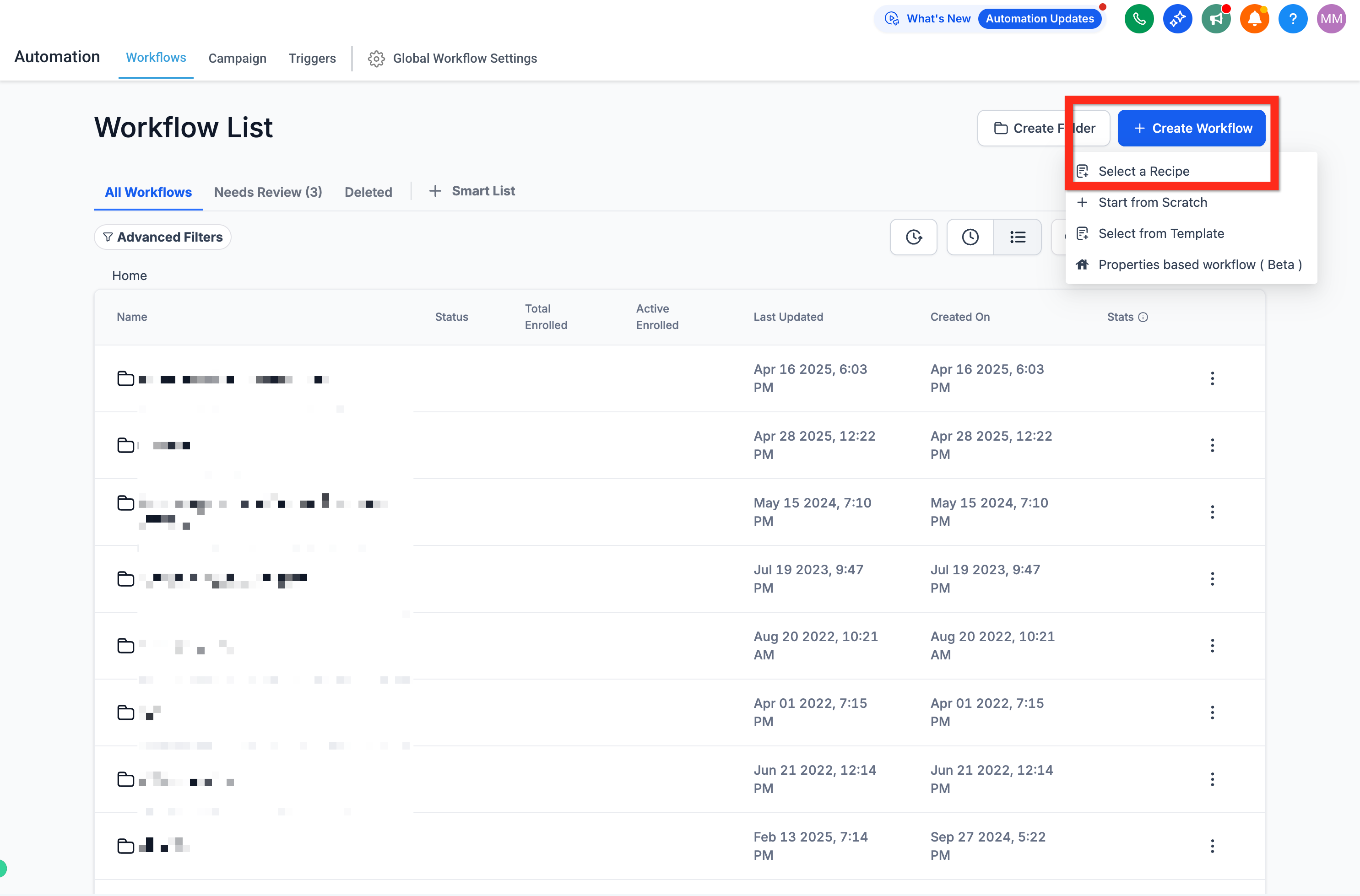
Click Create Workflow and select Recipe.
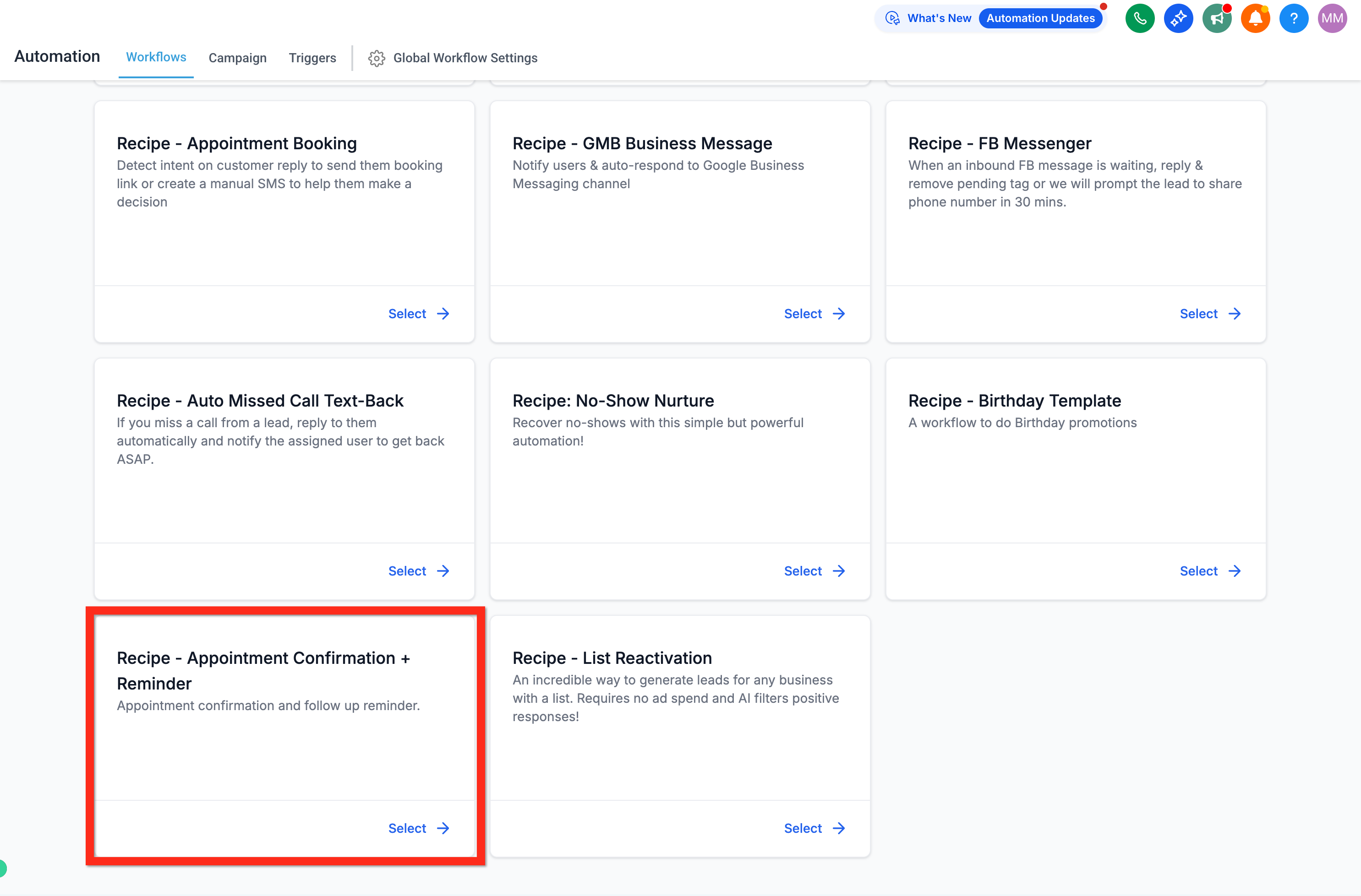
Choose the Appointment Confirmation + Reminder recipe.
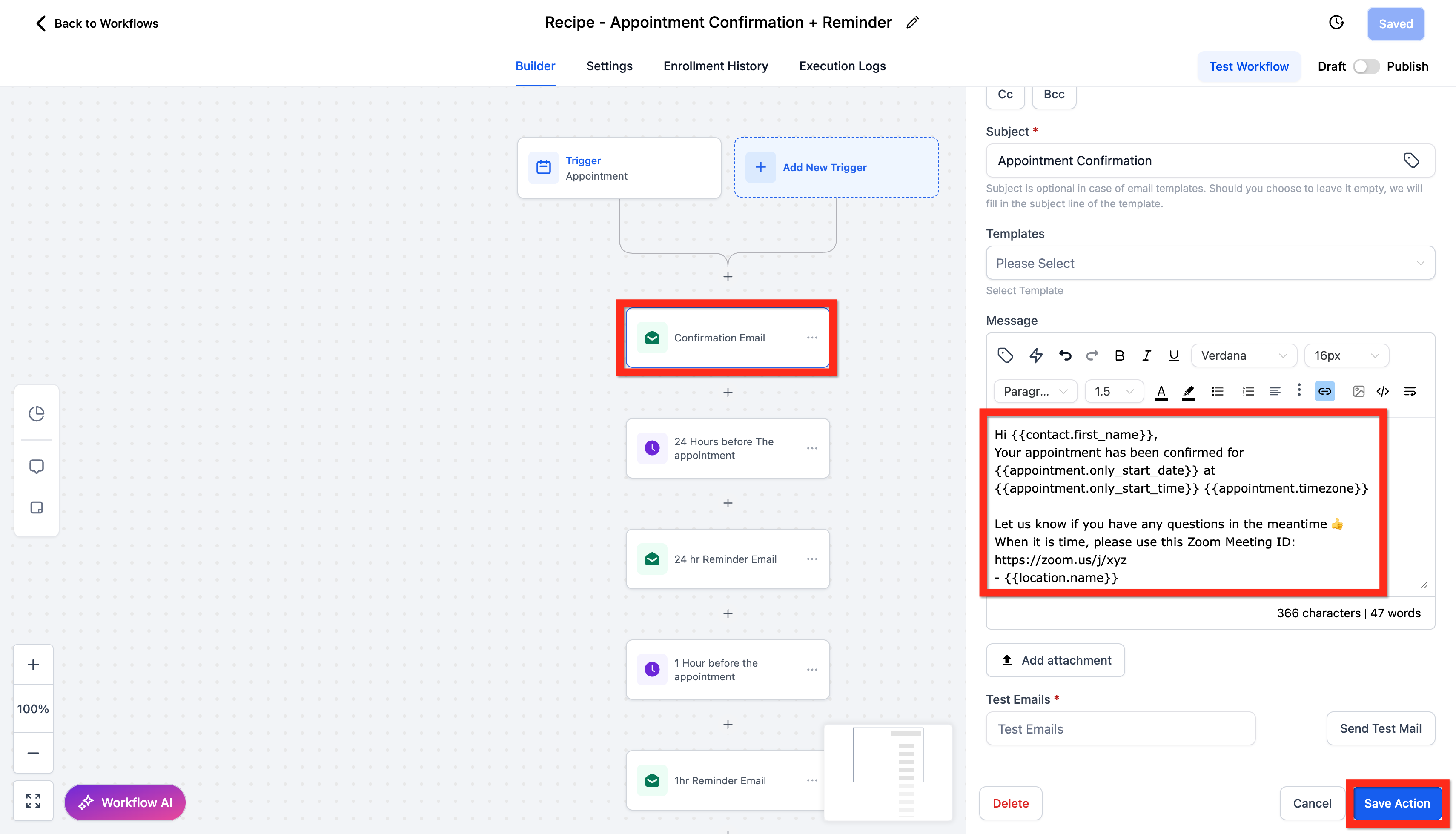
Edit the confirmation email action, update your meeting link if the appointment happens over video (Zoom, Google Meet, and similar), and click Save Action.
Review the workflow's actions, then click Publish and Save.
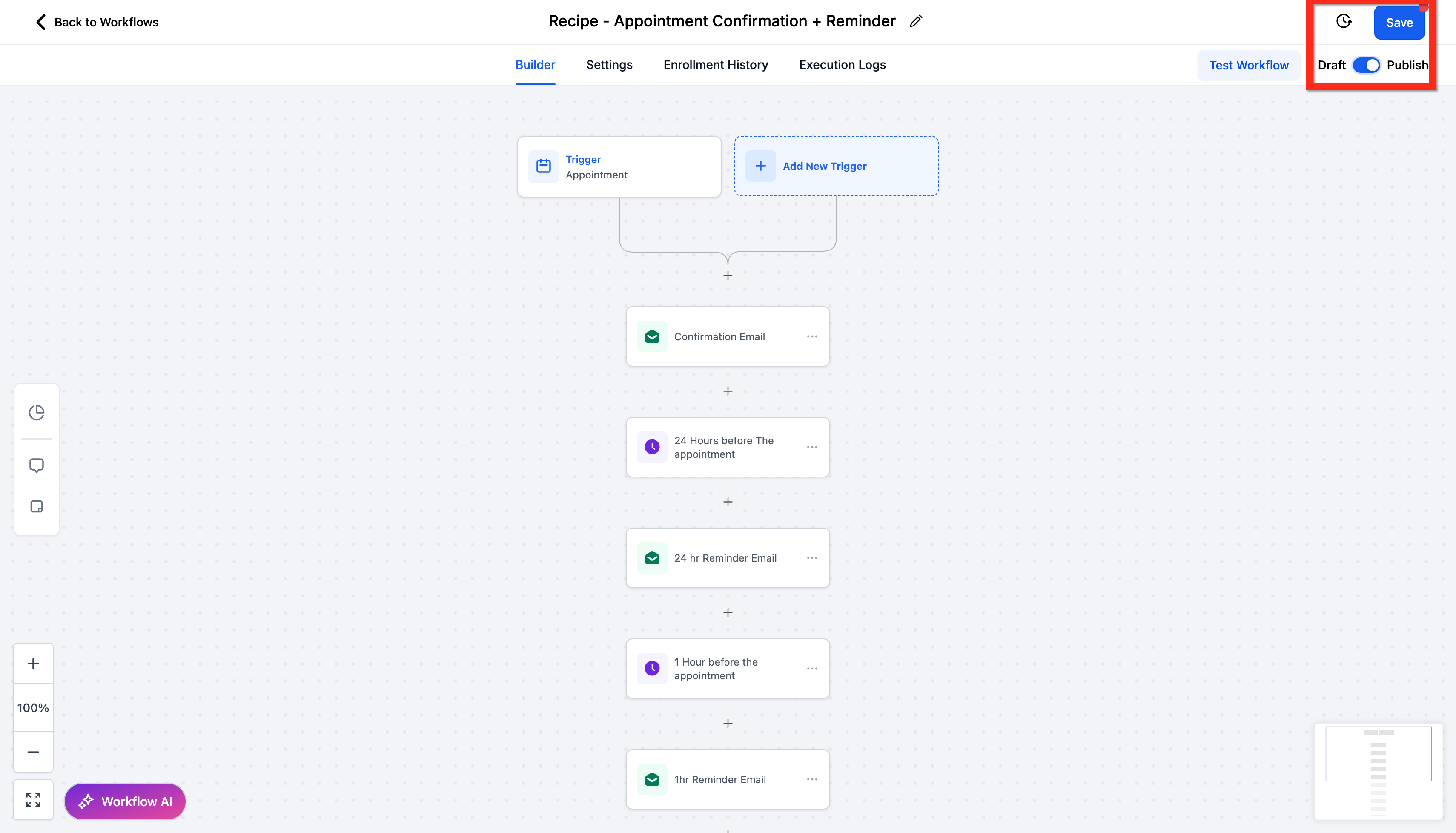
If a required field is missing when you save, Aesthetix CRM automatically scrolls to it and highlights it, switching tabs for you if the field lives on a different tab.
If a provider wants their bookings mirrored into a personal calendar, or wants a video link generated automatically, connect those tools from the calendar's Connections tab.
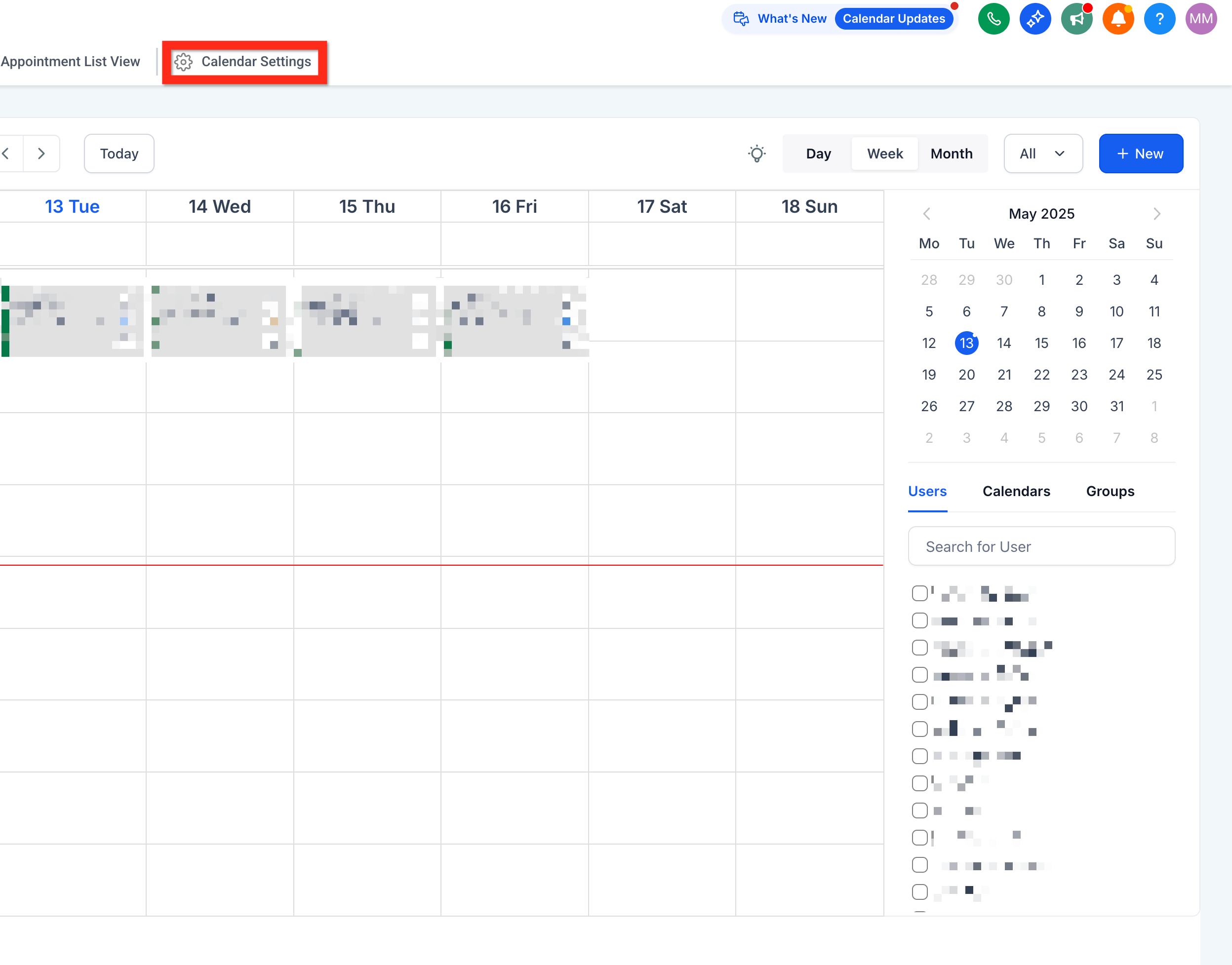
Navigate to Calendars > Calendar Settings.
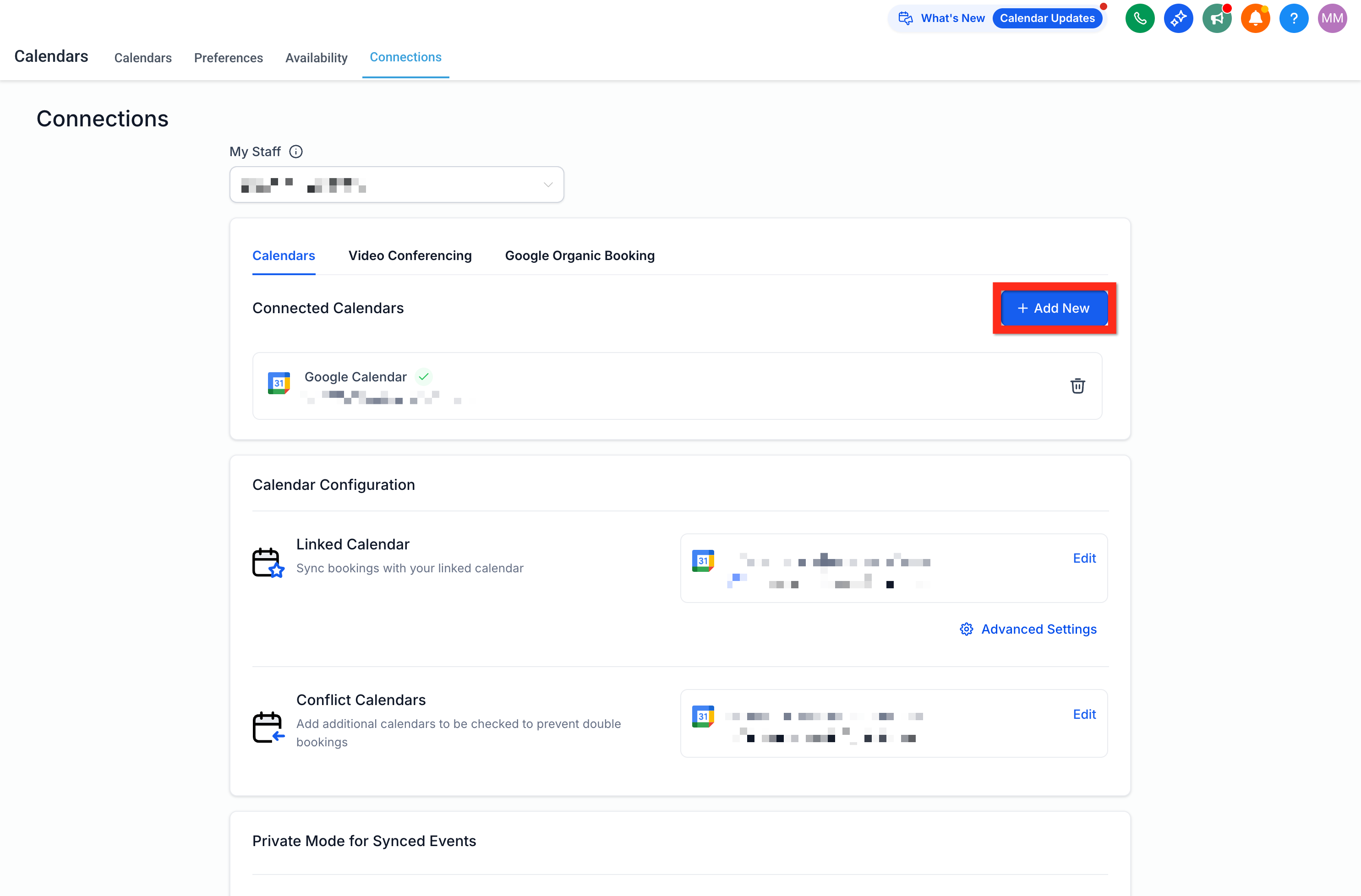
Select the Connections tab and click Add New to connect a personal calendar.
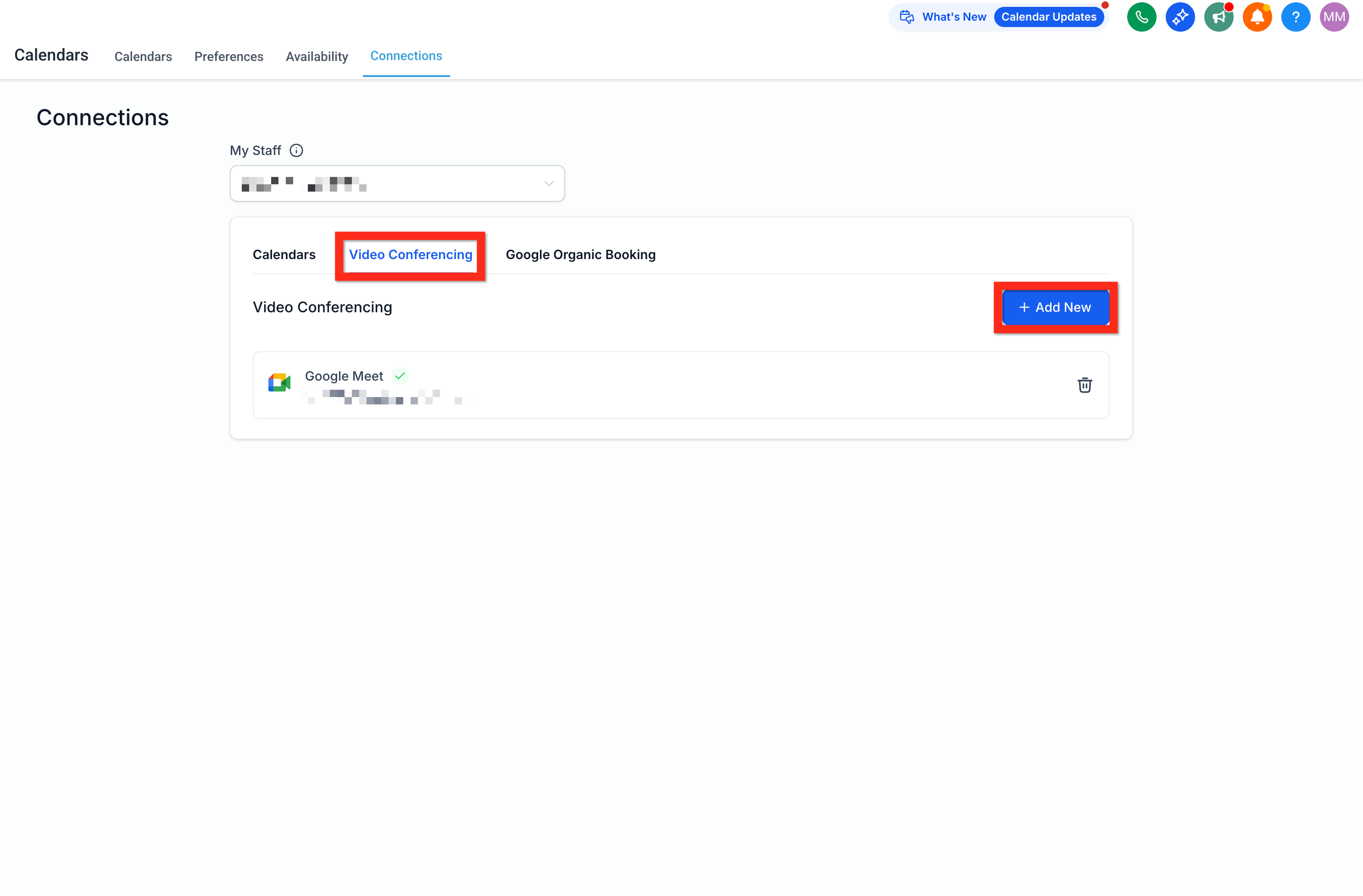
Select the Video Conferencing tab and click Add New to link a preferred conferencing tool.
For the full list of supported calendar and video-conferencing connections (Google, Outlook, iCloud, Zoom, Calendly, and more) and how to troubleshoot a sync, see the Calendar Connections guide.
Copy the calendar link or embed code from the calendar's settings.
Open the calendar you're editing and click Share in the top-right header to copy your booking link, generate a one-time link, grab the embed code, or preview the calendar exactly as a patient would see it.
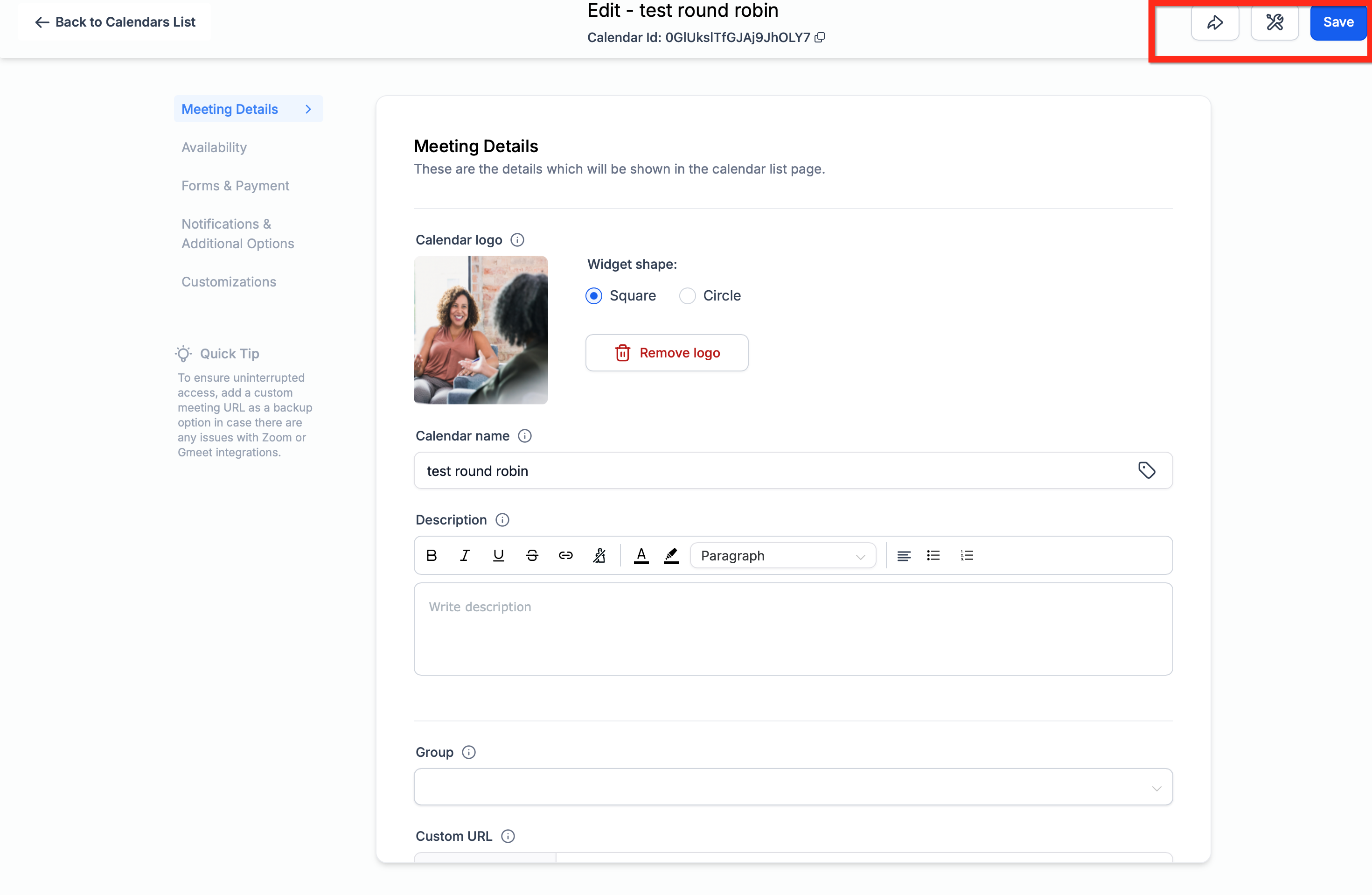
To place a calendar directly on your website or a landing page, use the embed code with your Funnels & Websites builder rather than only sharing the raw link. To collect patient details before the booking step (insurance info, symptoms, consent), attach an intake form to the calendar; see the Forms collection for building and attaching forms.
Personal Booking, Round Robin, Collective, and Event Calendars can offer more than one appointment length at once, so you don't need a separate calendar for a 30 minute consult versus a 60 minute one. Add up to three duration options to the calendar's Booking rules, and mark one as the default, the length that's selected first when a patient opens the booking page. Patients can switch to any other configured duration before picking a time, and Aesthetix CRM automatically refreshes the available time slots to only show times that fit the length they chose.
Changing a calendar's duration options later doesn't touch appointments that are already booked. Those keep their original length, calendar event, and reminders; only new bookings use whichever durations are currently configured. The same duration choices are available if a patient reschedules, and if their original length is no longer offered, they'll be asked to pick from what's currently available. This works across web and mobile booking pages, embedded booking widgets, and in-app booking.
To set it up:
Go to Calendar > Calendar Settings, find the calendar, and click Edit.
Open Booking rules and find Meeting duration.
Click Add another duration, enter the length, and repeat until you have up to three options.
Click Set as default beside the duration you want selected first on the booking page.
Review your options and click Save changes.
Some scheduling types, particularly Service Calendars, can require a deposit or full payment before a patient's slot is confirmed. This is a good way to cut down on no-shows for higher-value treatments.
Tip: If you're collecting payment at booking, consider routing it through AX Pay, Aesthetix CRM's own payment processor, which offers better rates than Stripe. See the AX Pay guide to get set up.
Appointment bookings routinely capture patient names, contact details, and sometimes the reason for the visit. Treat this information as protected health information (PHI): limit calendar access to staff who need it, and avoid putting sensitive treatment details in publicly visible calendar titles or reminder messages.
Which scheduling type should I start with? For most med spas, a Service Calendar is the right default. It lets patients book a treatment and Aesthetix CRM assigns an available provider, room, or piece of equipment automatically.
What's the real difference between Round Robin and Collective calendars? Round Robin spreads bookings across a group of team members one at a time, so no single person gets overloaded. Collective requires every person in the group to be free before a slot opens, which fits appointments that need two providers in the room together.
Can multiple patients book the same time slot? Only on a Class Booking Calendar. You set a capacity, and patients book into the same session until it's full, which works well for group classes or workshops.
What is a Personal Booking Calendar for? It's built for one provider and one patient at a time, such as a solo practitioner's schedule or a specific provider's follow-up slots.
Can I switch a calendar from one scheduling type to another later? Not directly. Once a calendar is active, changing its fundamental type usually means creating a new calendar with the correct type and moving your settings, staff, and links over rather than editing the existing one in place.
Do all calendar types support automated reminders? Yes. Reminders are set up through a workflow recipe and apply regardless of which scheduling type the calendar uses.
Can I require payment before a patient's appointment is confirmed? Yes, calendars can be configured to collect a deposit or full payment at booking. We recommend using AX Pay for better processing rates than Stripe.
Does AI appointment booking work with every calendar type? The AI Employee can book into any native Aesthetix CRM calendar type, but it cannot see or book into an EMR calendar. Keep AI-driven booking on a native calendar.
Can I embed a calendar on my website? Yes. Copy the embed code from the Share menu and place it on a page using the Funnels & Websites builder, or share the raw booking link directly with patients.
How do I connect a provider's Google or Outlook calendar? Open the calendar's Connections tab and add the personal calendar connection from there. Full setup steps for each supported provider are in the Calendar Connections guide.
Can one calendar offer more than one appointment length? Yes, on Personal Booking, Round Robin, Collective, and Event Calendars. Add up to three duration options in the calendar's Booking rules and mark one as the default; patients choose the length that works for them and only see times that fit it.
If I change a calendar's duration options, what happens to appointments already on the books? Nothing changes for them. Existing appointments keep their original length, calendar event, and reminders. Only new bookings use whichever duration options are currently configured on the calendar.
