Calendars is where your practice manages appointment scheduling inside Aesthetix CRM. You will find it in the left sidebar under Calendars. From here you can view every calendar your practice uses, filter the schedule by staff or service, and control how appointments sync with your own Google, Outlook, or iCloud calendar.
Many Aesthetix CRM practices book patient visits directly through their EMR, and that workflow stays untouched. Native calendars inside Aesthetix CRM still matter, though: they are what your AI Employee uses to book and reschedule appointments automatically, and they power any booking widgets, forms, or funnels you publish outside your EMR. If you plan to use AI-driven appointment booking, set it up against a native calendar, not your EMR.
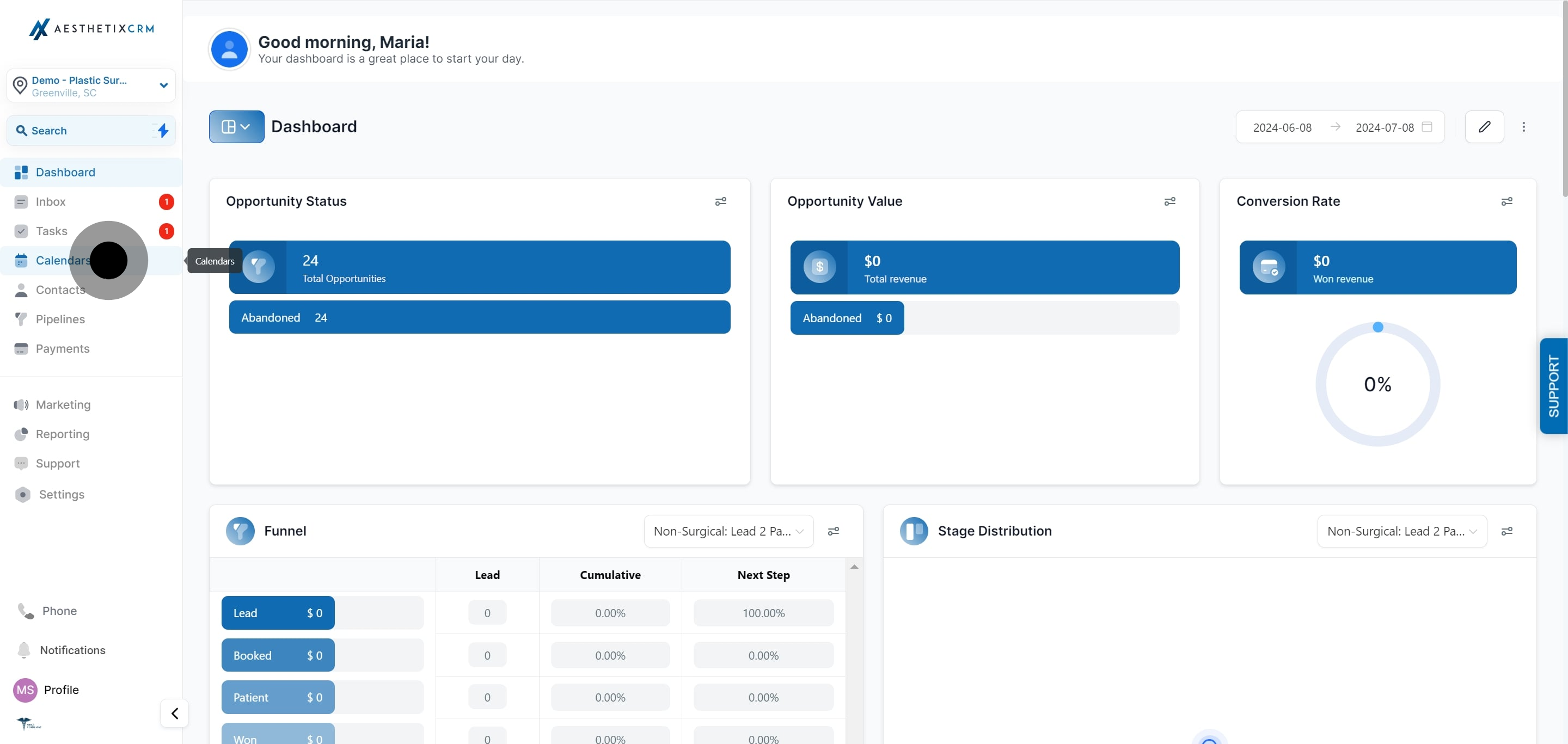
Open the Calendars tab from the left sidebar to reach the scheduling view.
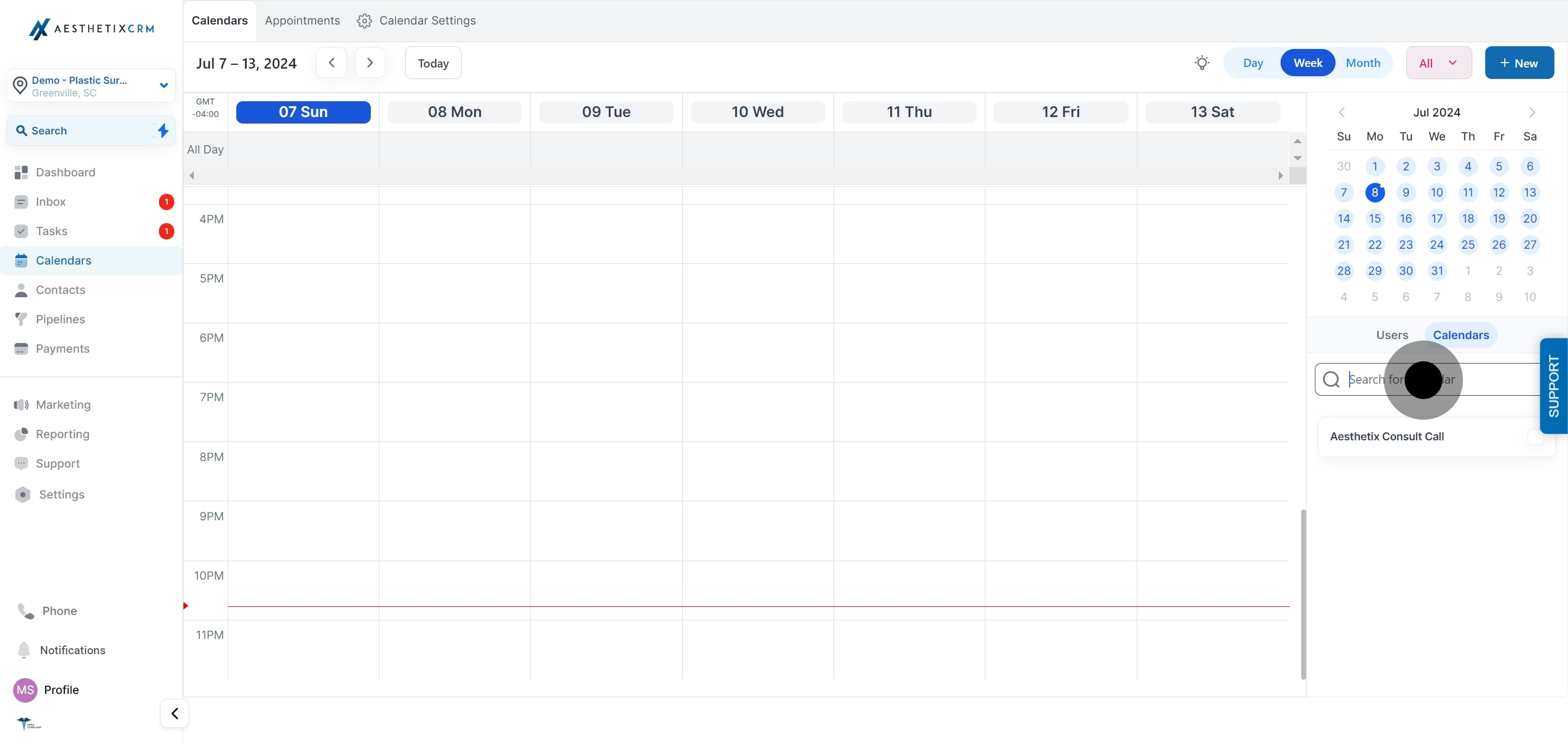
Every calendar your practice has created is listed here. Select the one you want to review or manage.
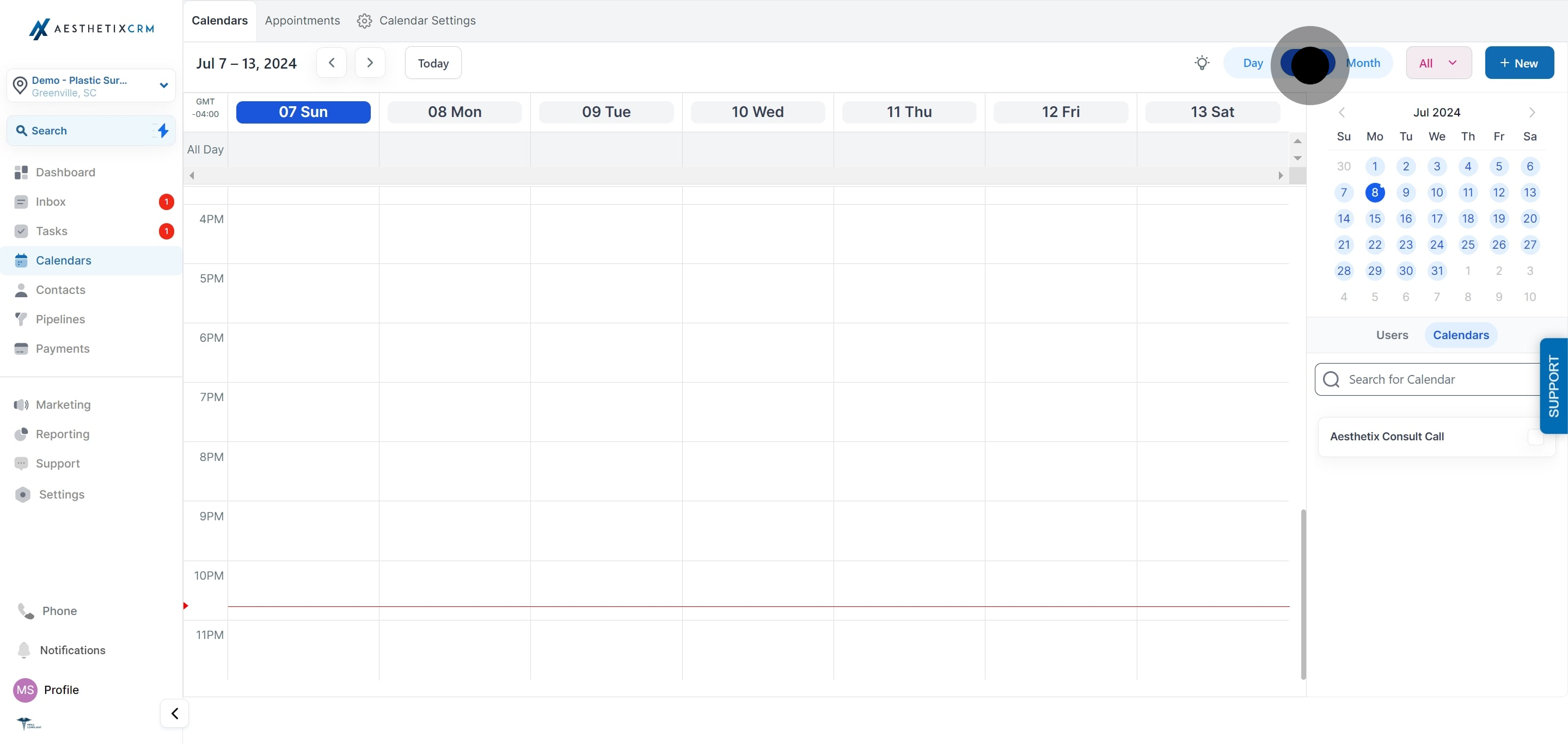
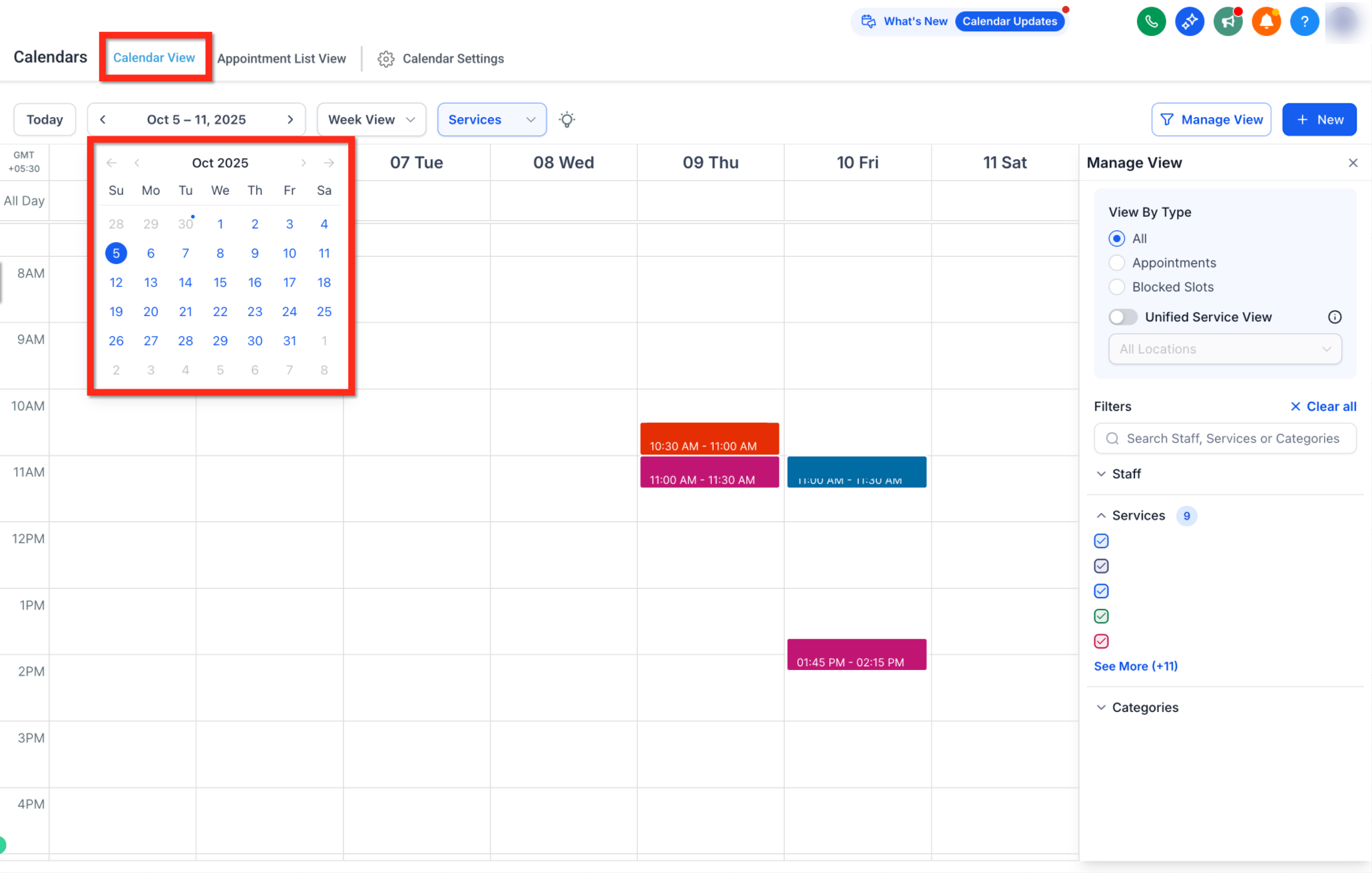
Switch between day, week, and month views to see as much or as little of your schedule as you need.
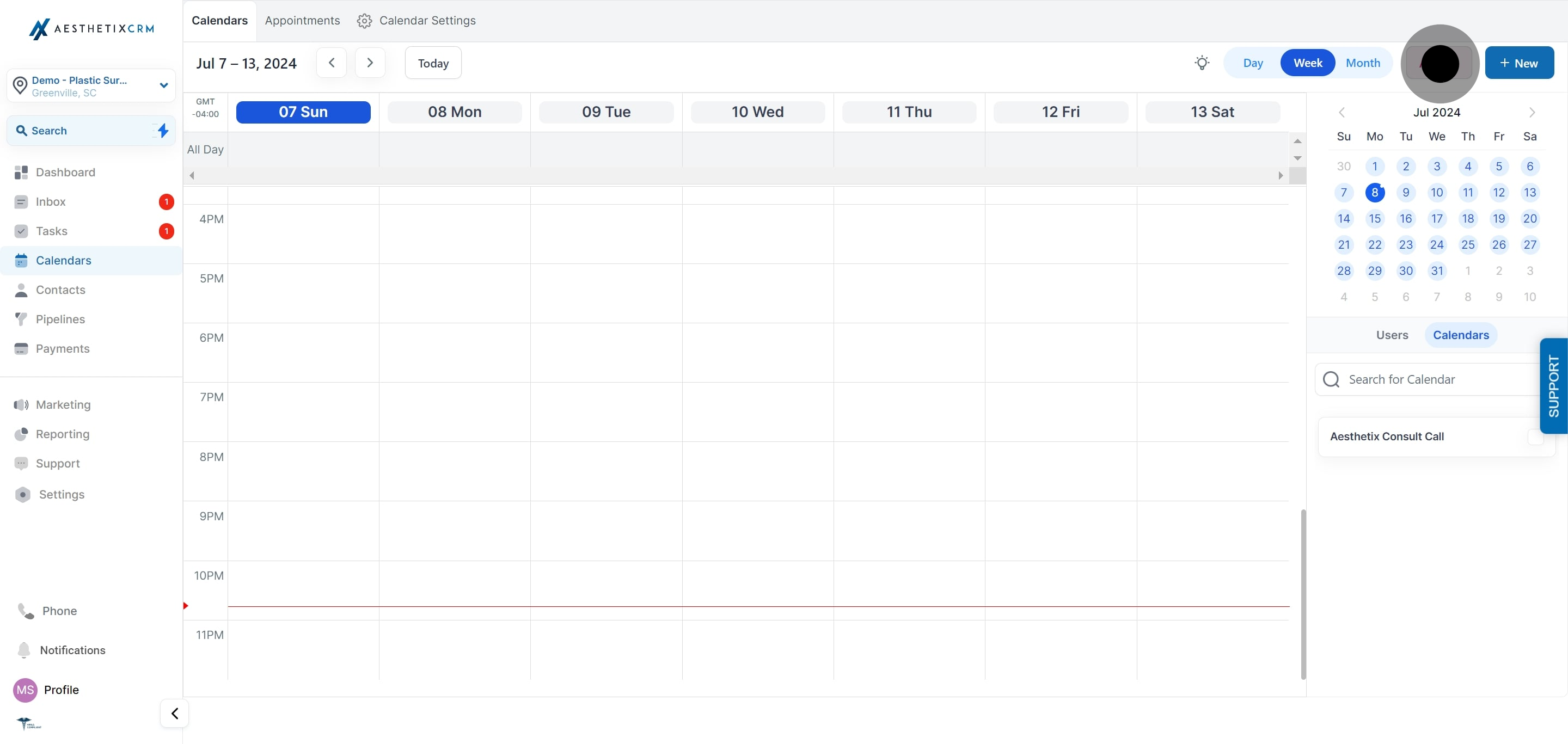
Narrow the schedule down to a specific staff member, calendar, or appointment status so you are only looking at what's relevant.
Create additional calendars for new providers, rooms, or services directly from this view.
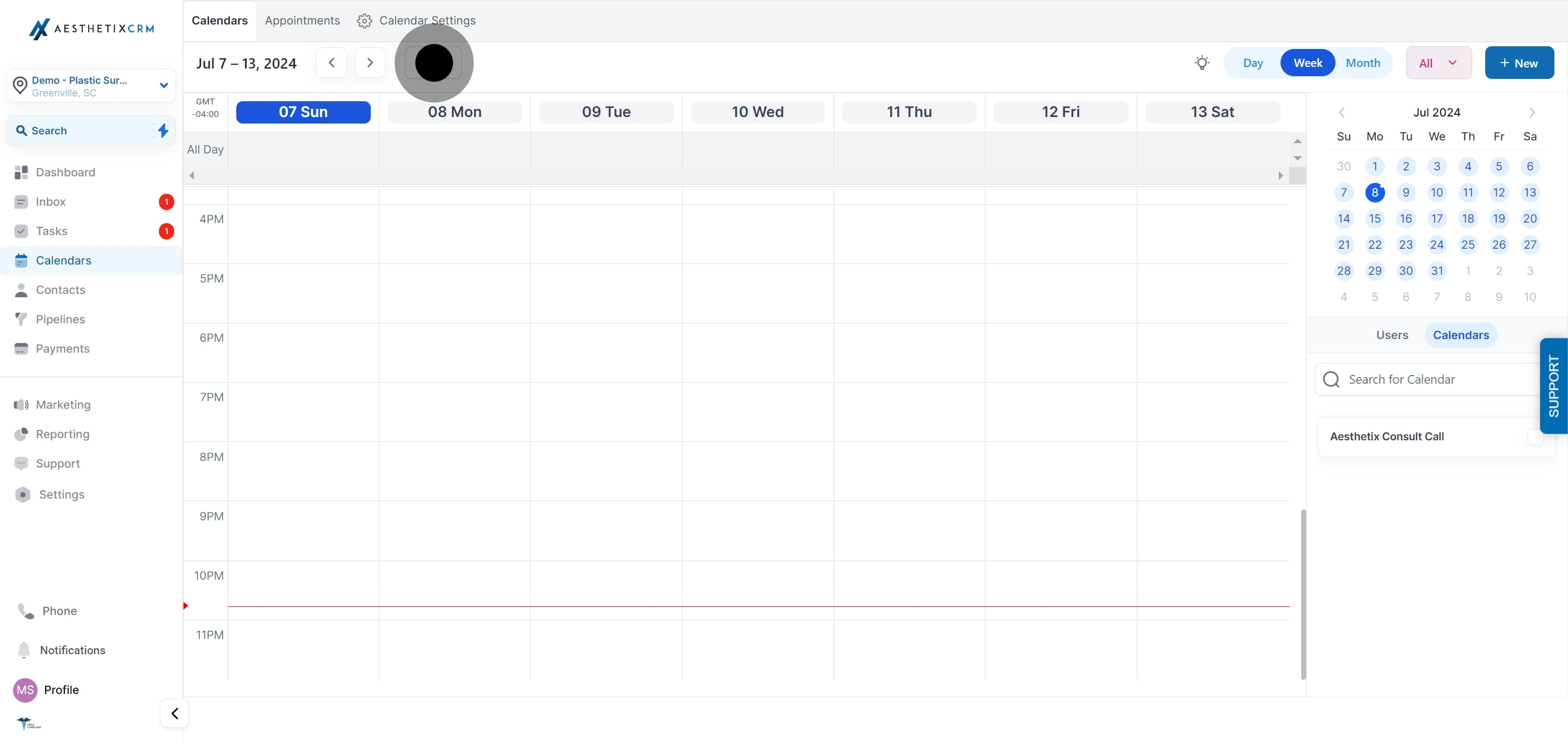
Use the "Today" quick action to snap the schedule back to the current date at any time.
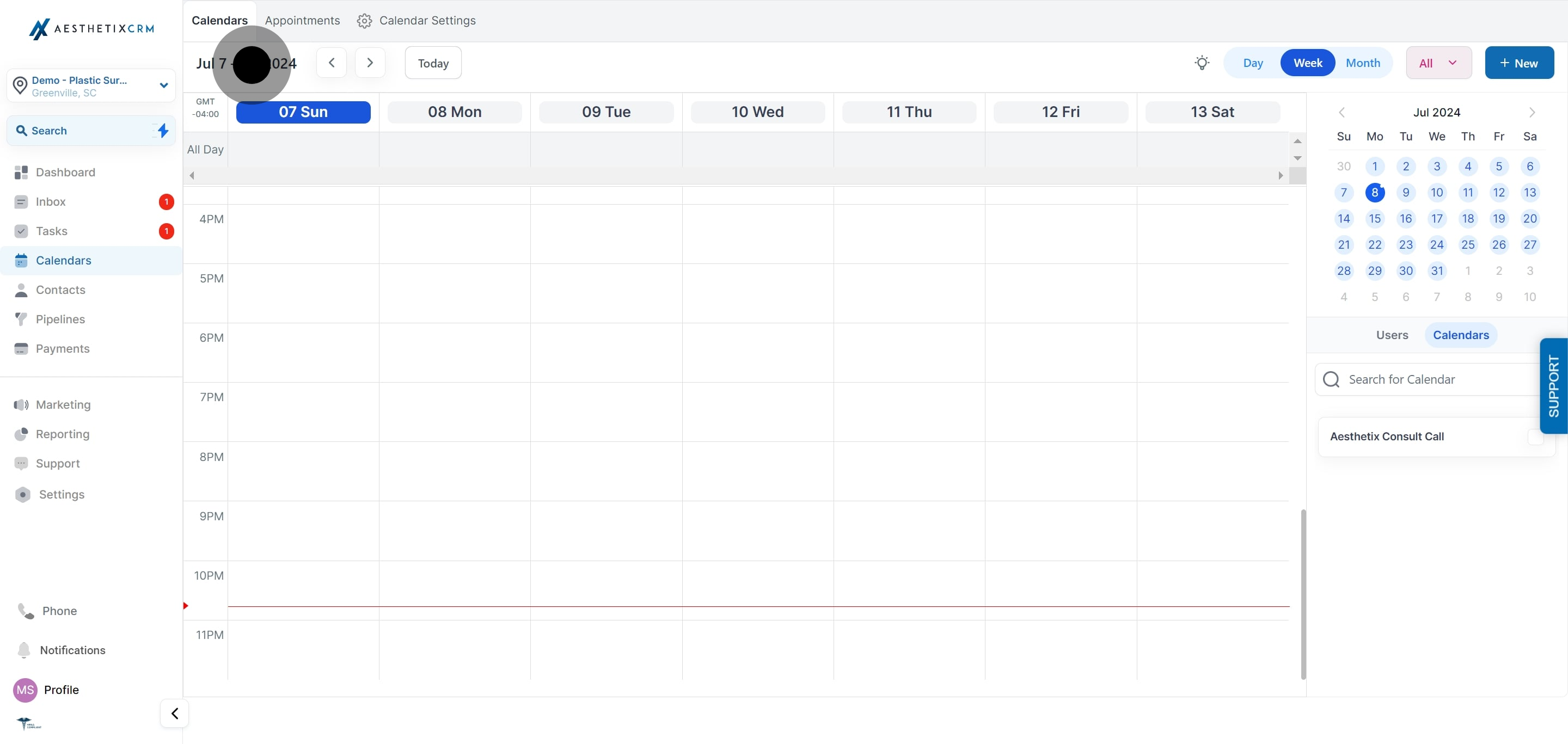
Step forward or backward through the calendar (for example, week to week) using the arrows next to the current date range.
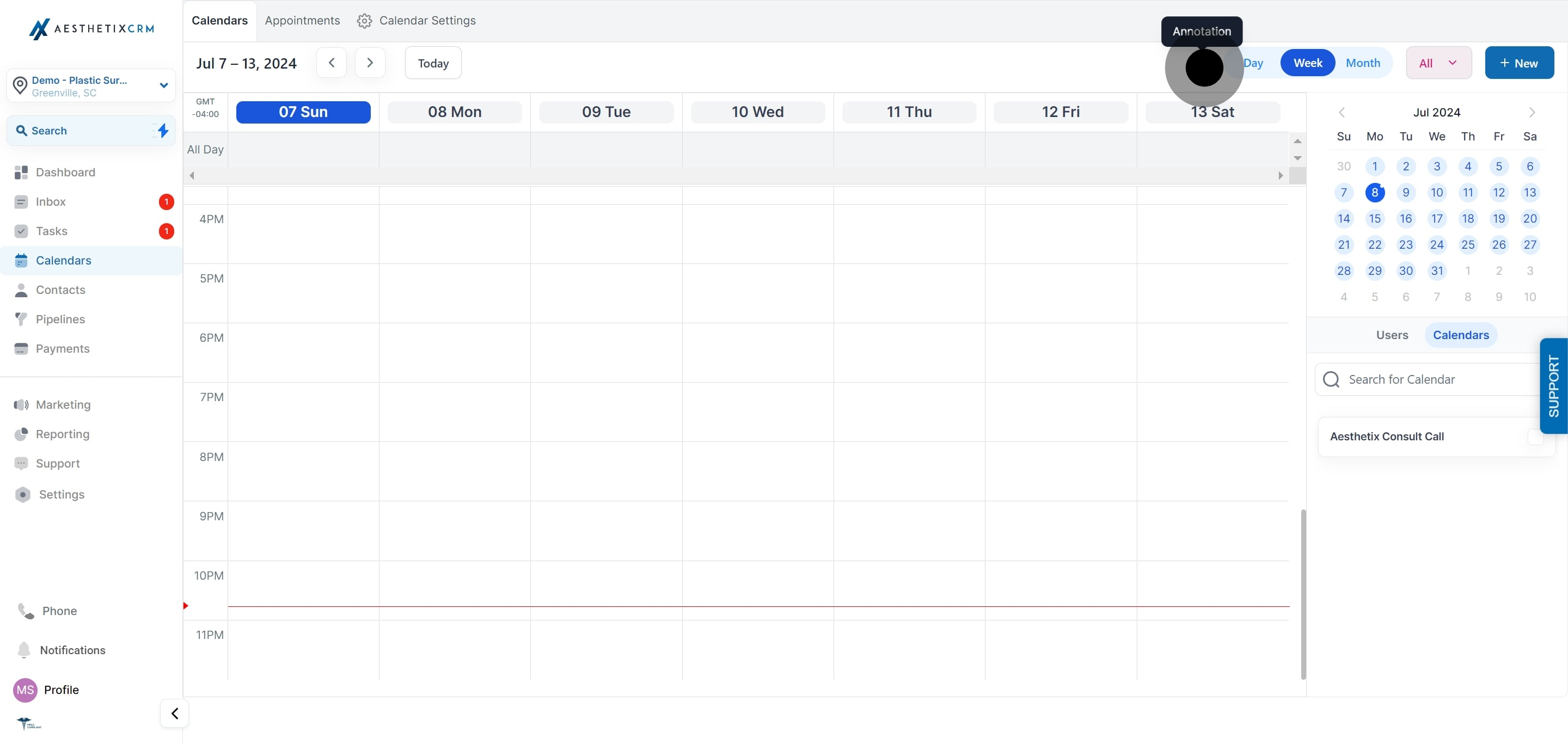
Drop a note directly on the calendar to flag something for your team, such as a staff day off or a room closure.
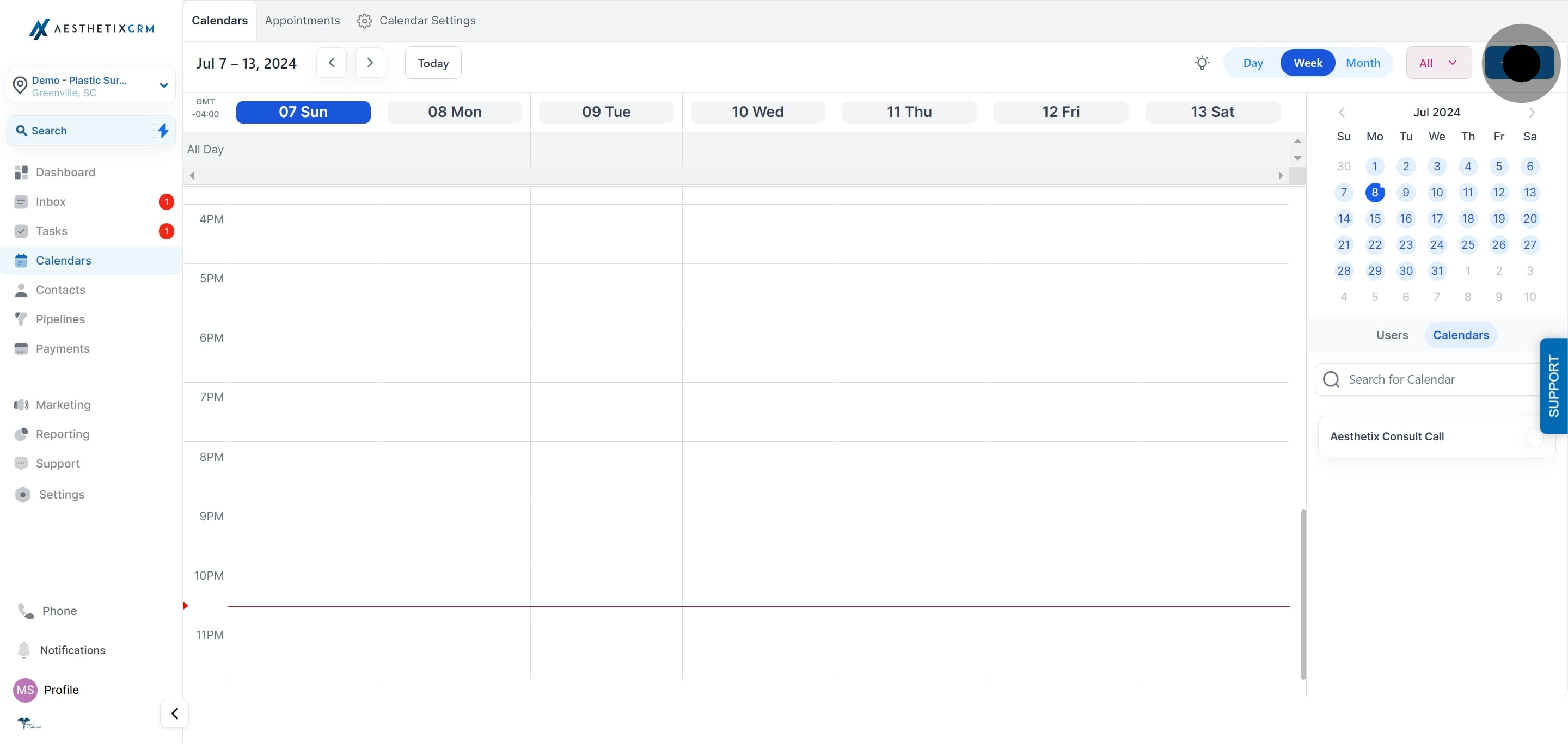
Confirm your selection to apply it to the calendar view.
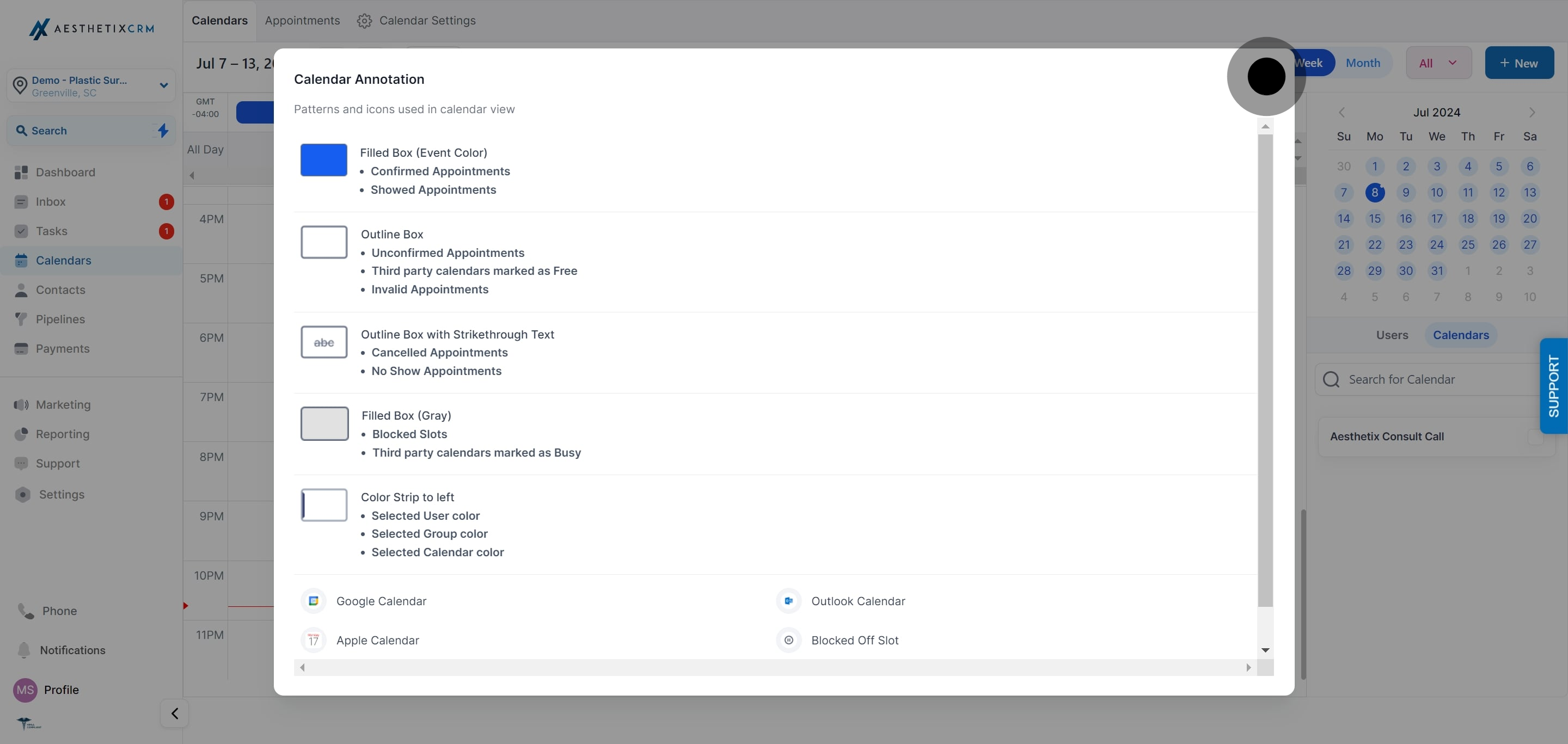
Because your calendar view can display patient names and appointment details, limit calendar access to the staff who genuinely need it, and be mindful of who can see your screen when the calendar is open. This keeps you aligned with HIPAA's data minimization principle.
Aesthetix CRM organizes scheduling into a few distinct calendar types, and the main Calendar view adapts its layout, filters, and navigation depending on which type you are looking at.
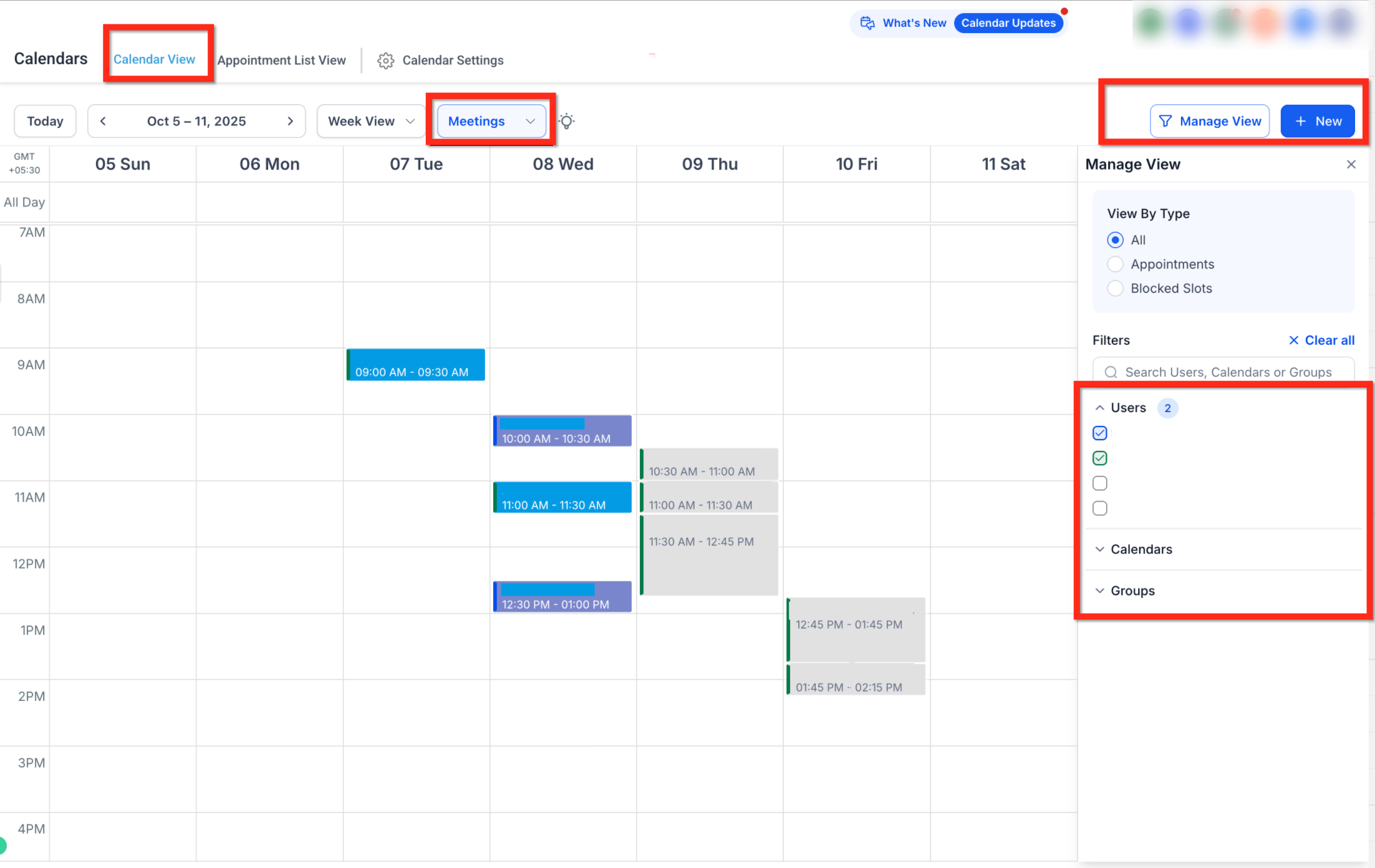
Individual and group calendars: This covers personal calendars, round robin, collective, class, service menu, and legacy service calendars. Use these for one-on-one bookings, staff rotation, group classes, or any scenario where several providers share a single booking link.
Service Calendars: Built specifically for service-based scheduling, with support for service variations, add-ons, and staff-specific pricing. For most med spas and aesthetics practices, Service Calendars are the primary calendar type: they map cleanly to treatment menus, provider assignments, and add-on services like numbing cream or extra units of neurotoxin.
Rentals: A calendar type designed for rental-based businesses (studios, venues, equipment). It is still in development and is not relevant to a typical med-spa scheduling setup.
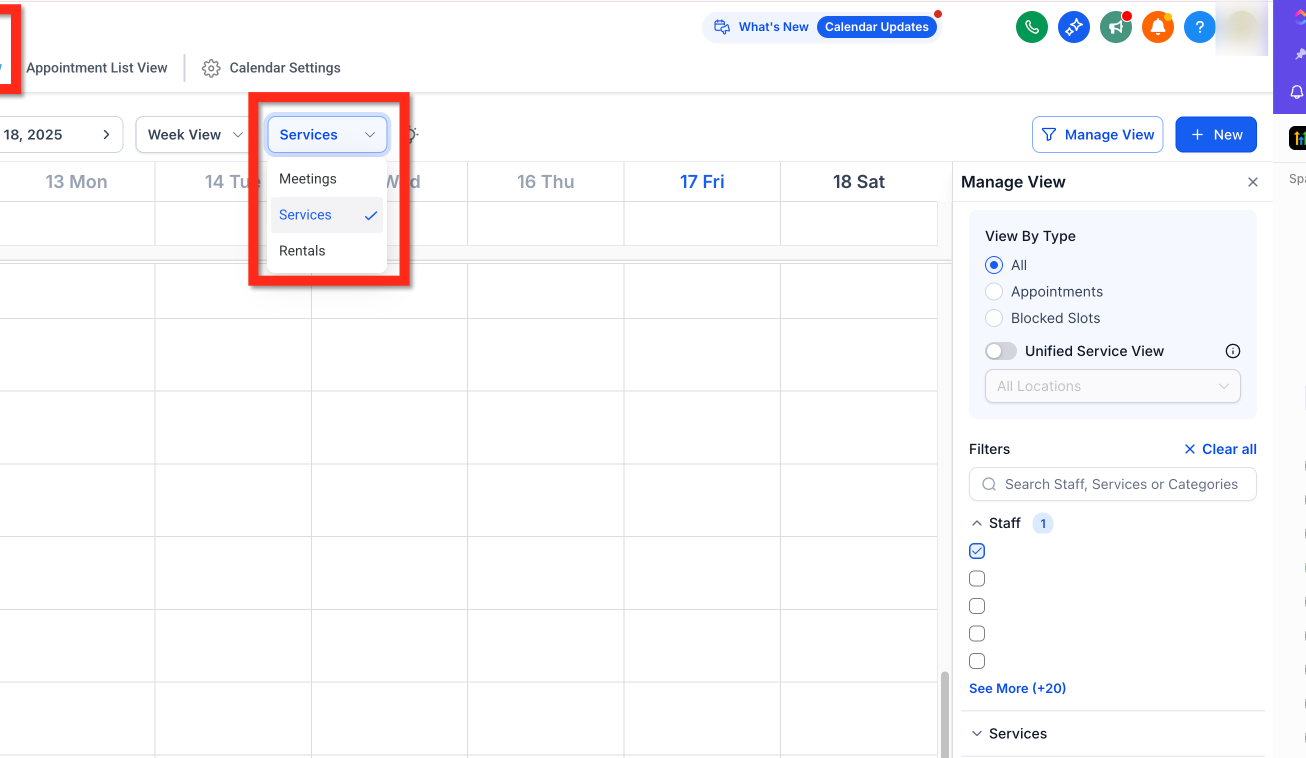
If your practice uses more than one of these calendar types, a dropdown appears at the top of the Calendar view so you can switch between them. If you only use one type, the dropdown stays hidden to keep the layout simple.
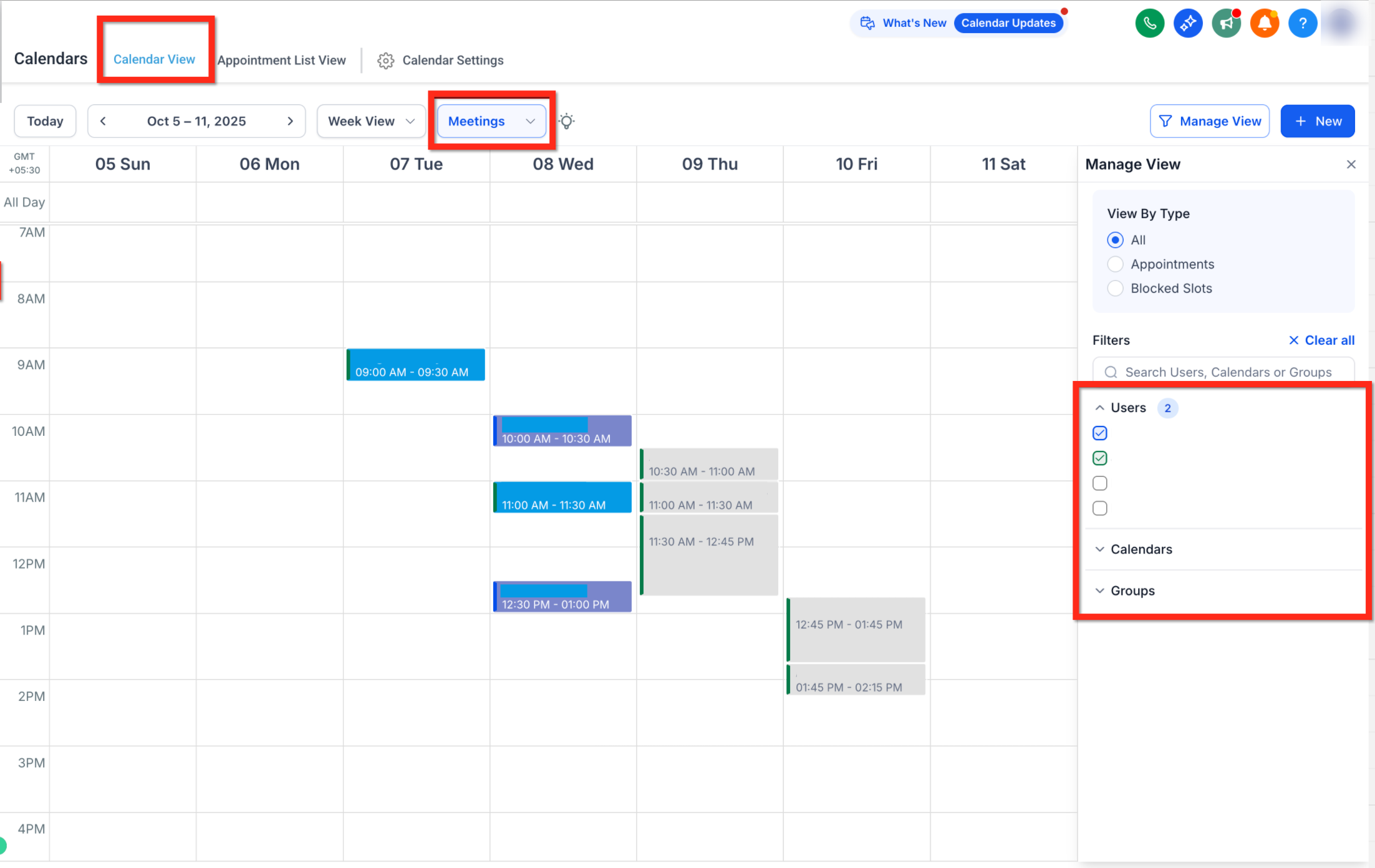
The filter panel on the right side of the Calendar view changes depending on which scheduling type you're viewing, so you only see filters that are actually relevant.
For individual and group calendars, you can filter by:
Users
Calendars
Groups
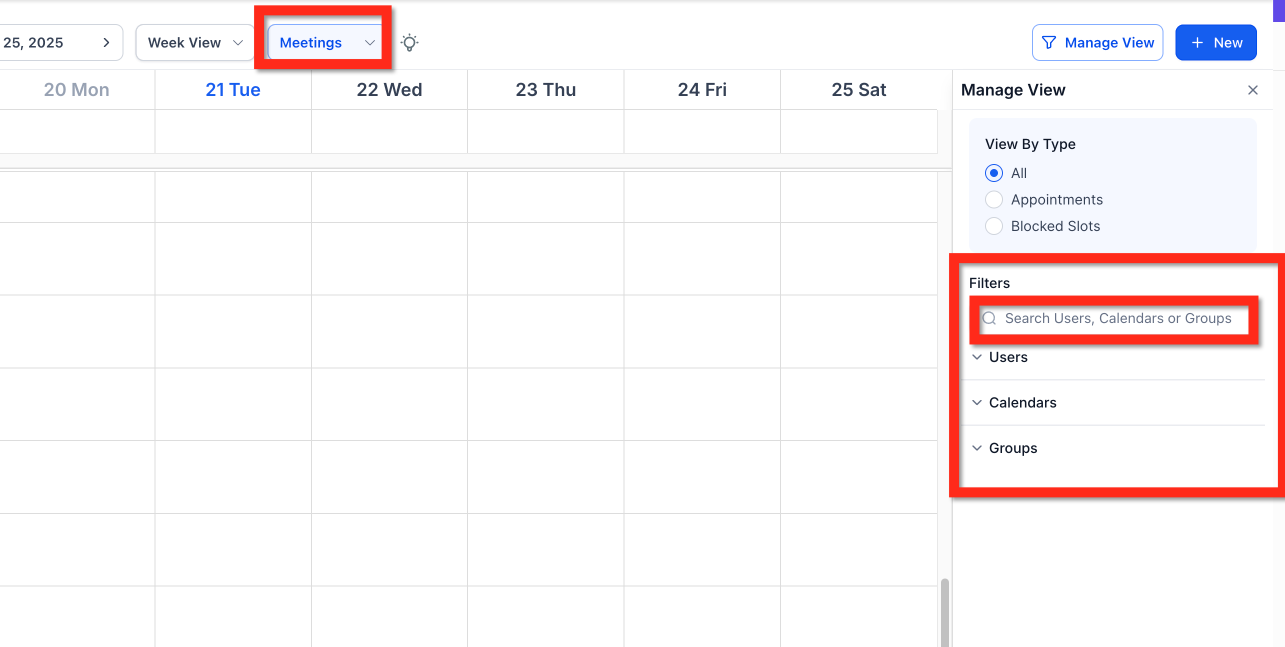
For Service Calendars, you can filter by:
Staff
Services
Categories
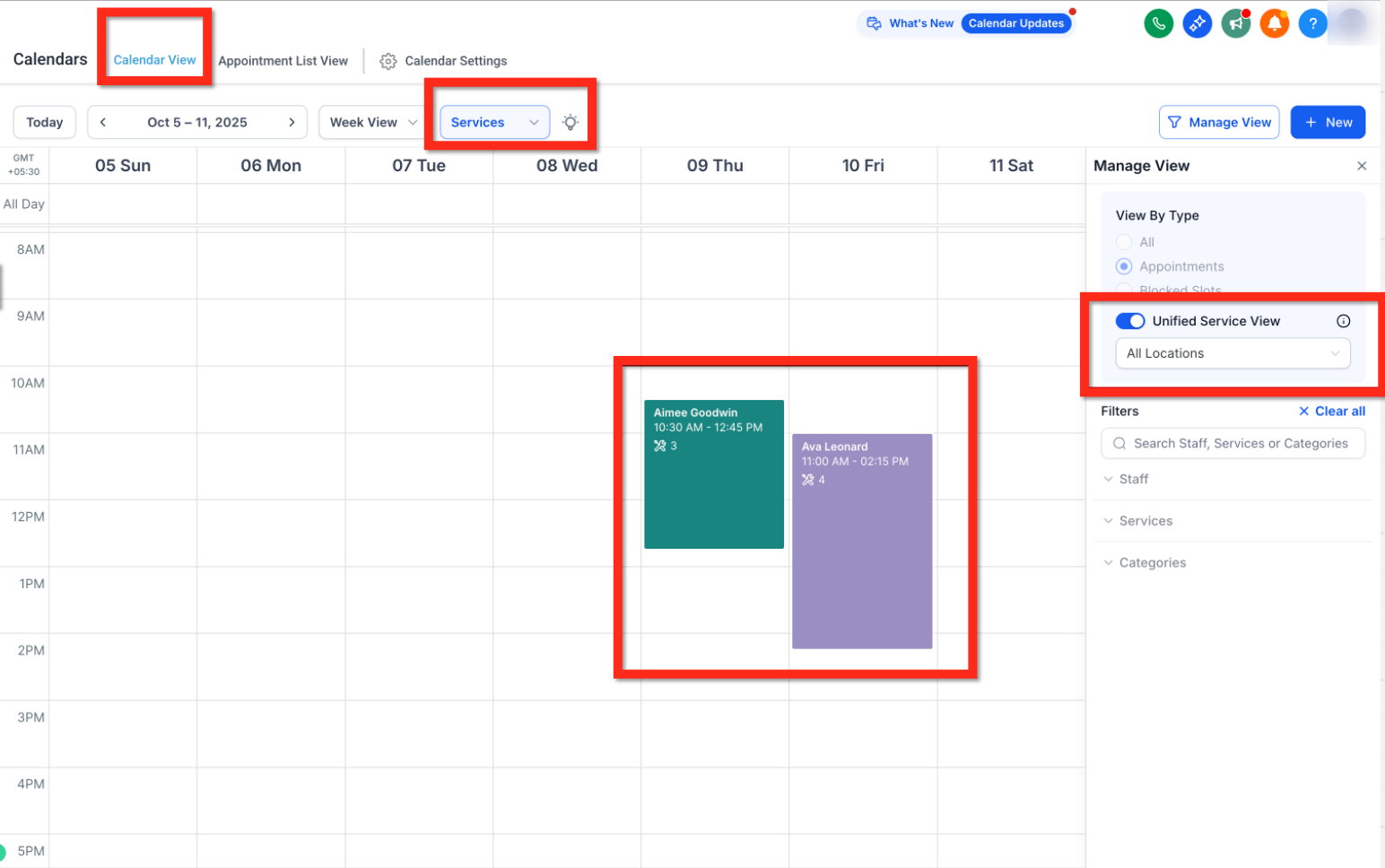
Location (when Unified Service View is turned on)
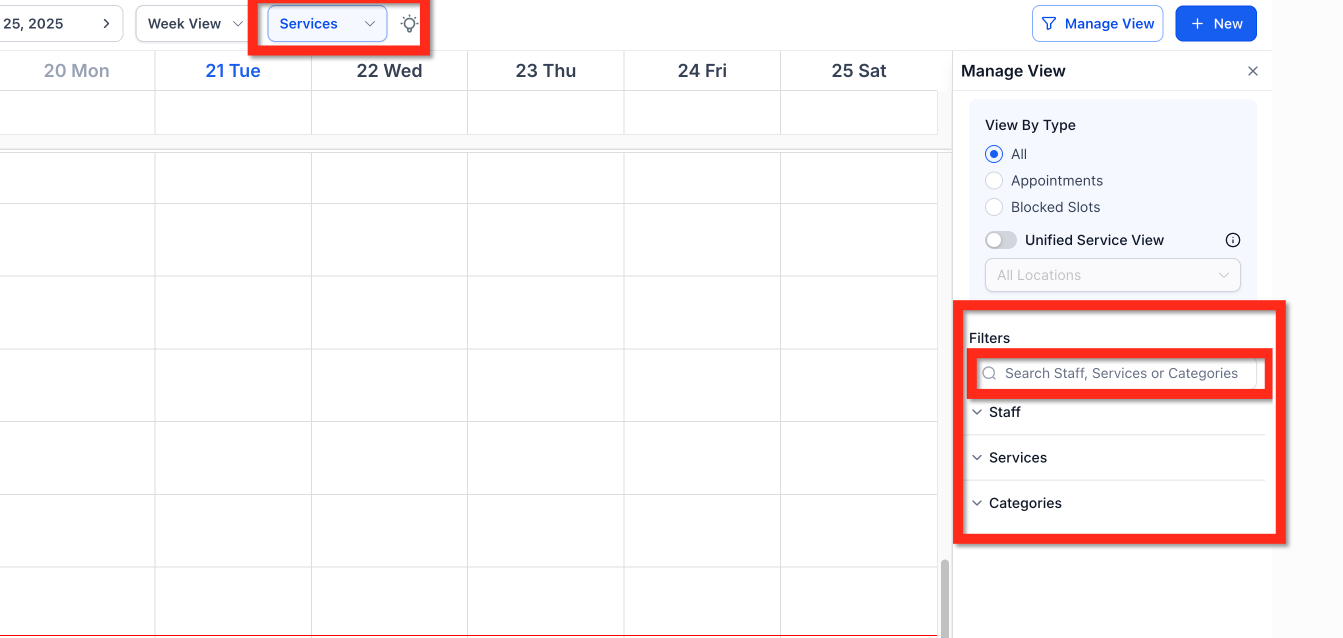
Turning on Unified Service View groups every service-based booking, across all your providers, into a single timeline. This gives you a full picture of your service schedule at a glance, so you can spot overlapping appointments, confirm staff assignments, and find open time slots without clicking through separate calendars.
If your front desk handles a high volume of bookings, you can free up screen space by collapsing the filter panel:
Click Manage View in the top right corner of the Calendar view.
Hide or show the right-side filter panel as needed.
Adjust your browser zoom or window size to fit more appointments on screen.
This setting is specific to your own login and does not change what other staff members see.
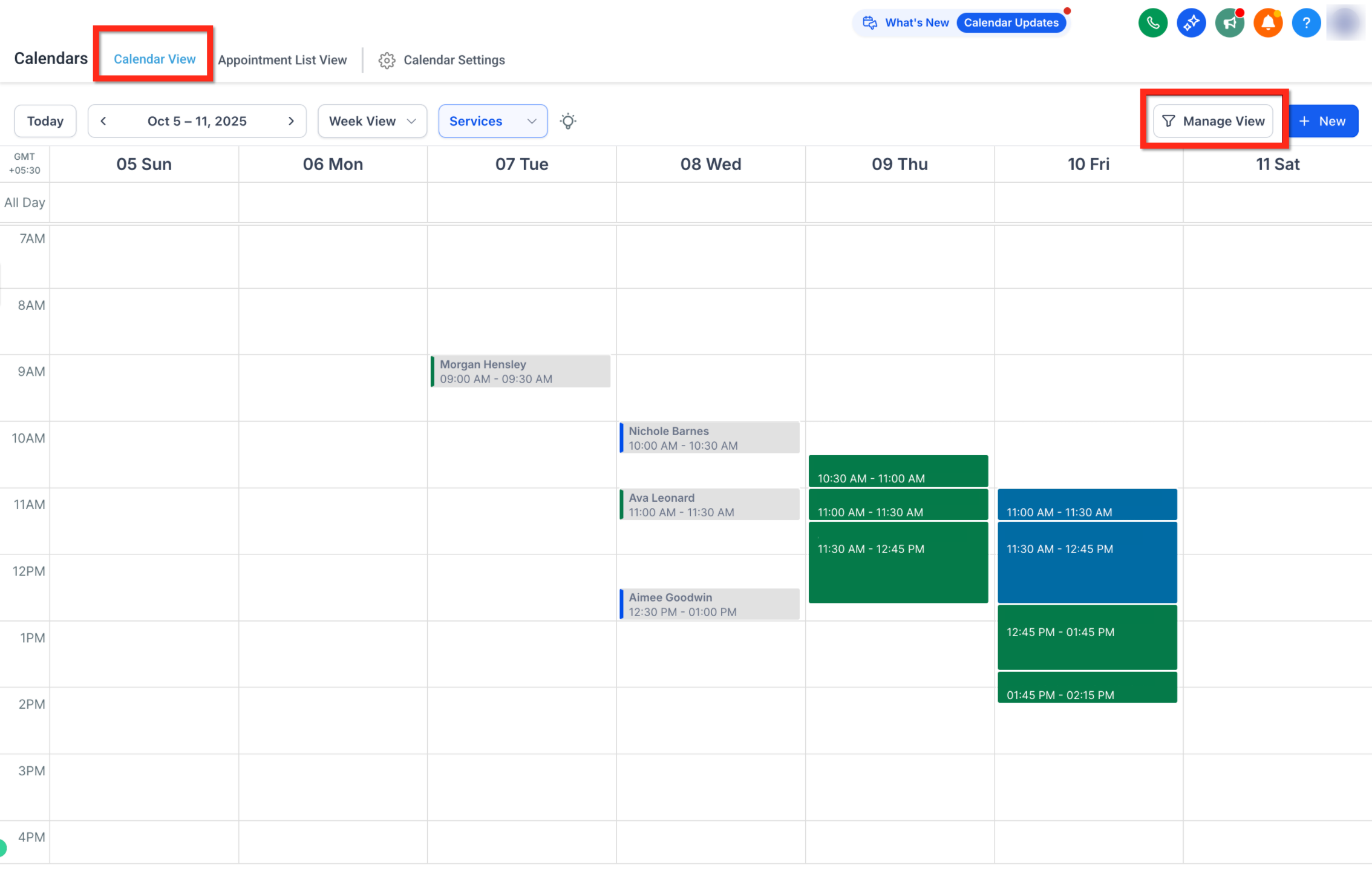
If you configure buffer time on a service (padding before or after an appointment, for example to reset a treatment room), you can display that padding directly on the Day and Week calendar views:
Open Calendars and switch to Day view or Week view.
Click Manage View in the top right corner.
Turn on Show buffer time.
Configured pre-buffer and post-buffer periods appear as visually distinct blocks around each appointment, so you can see at a glance how much time is reserved before or after a booking. This only changes what you see on the calendar, it does not change the appointment itself or its scheduling rules. Turn Show buffer time back off whenever you want to hide these blocks again.
A small month-view calendar sits just below the main date header. Click the date to expand or collapse it, giving you a quick way to jump to a different day or month without losing your place in the current week or day view.
For calendars used by teams or groups (round robin, collective, class, and Service Calendars), appointments assigned to a specific staff member can sync both ways with that person's Google, Outlook, or iCloud calendar. Each staff member configures this individually under Settings > My Profile.
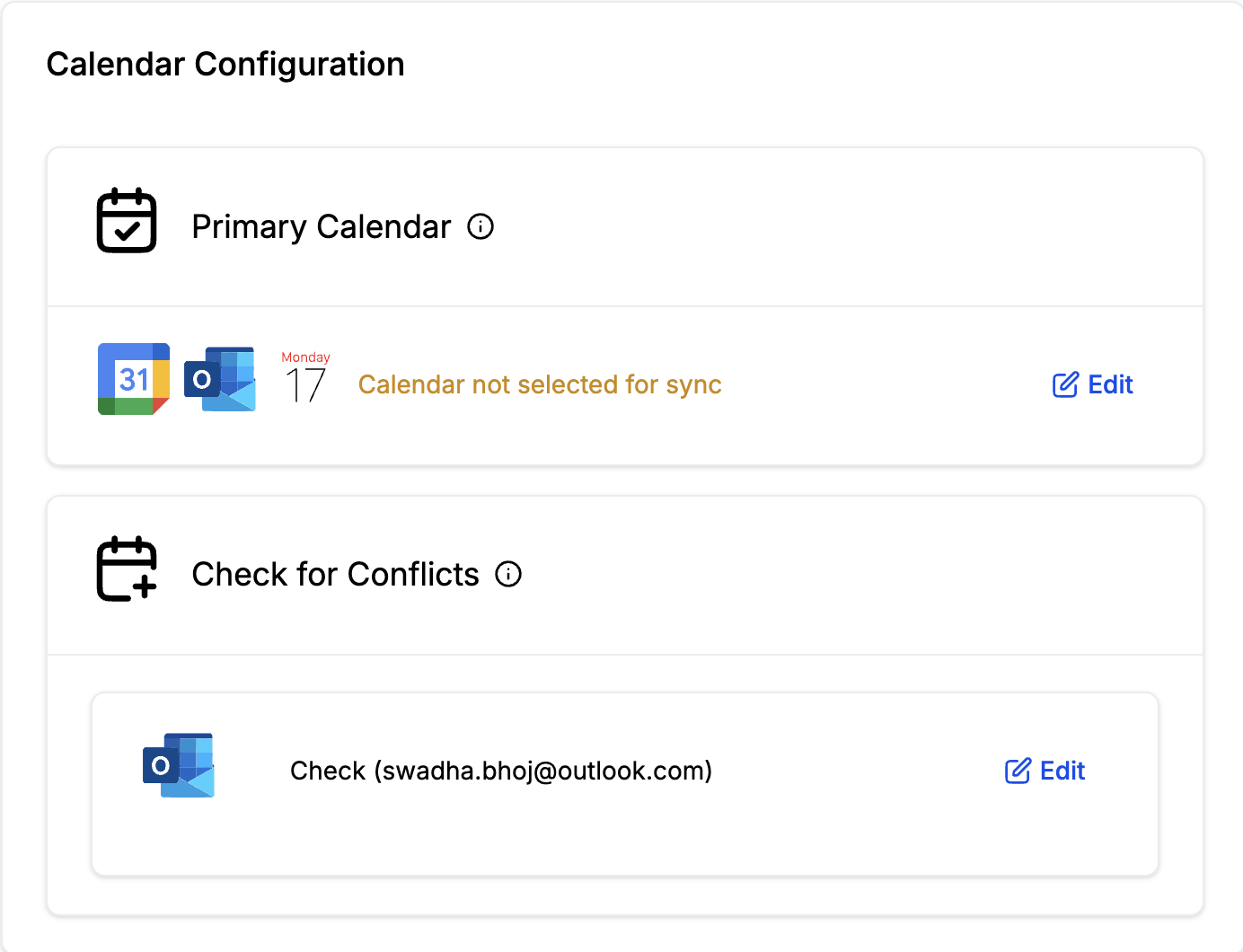
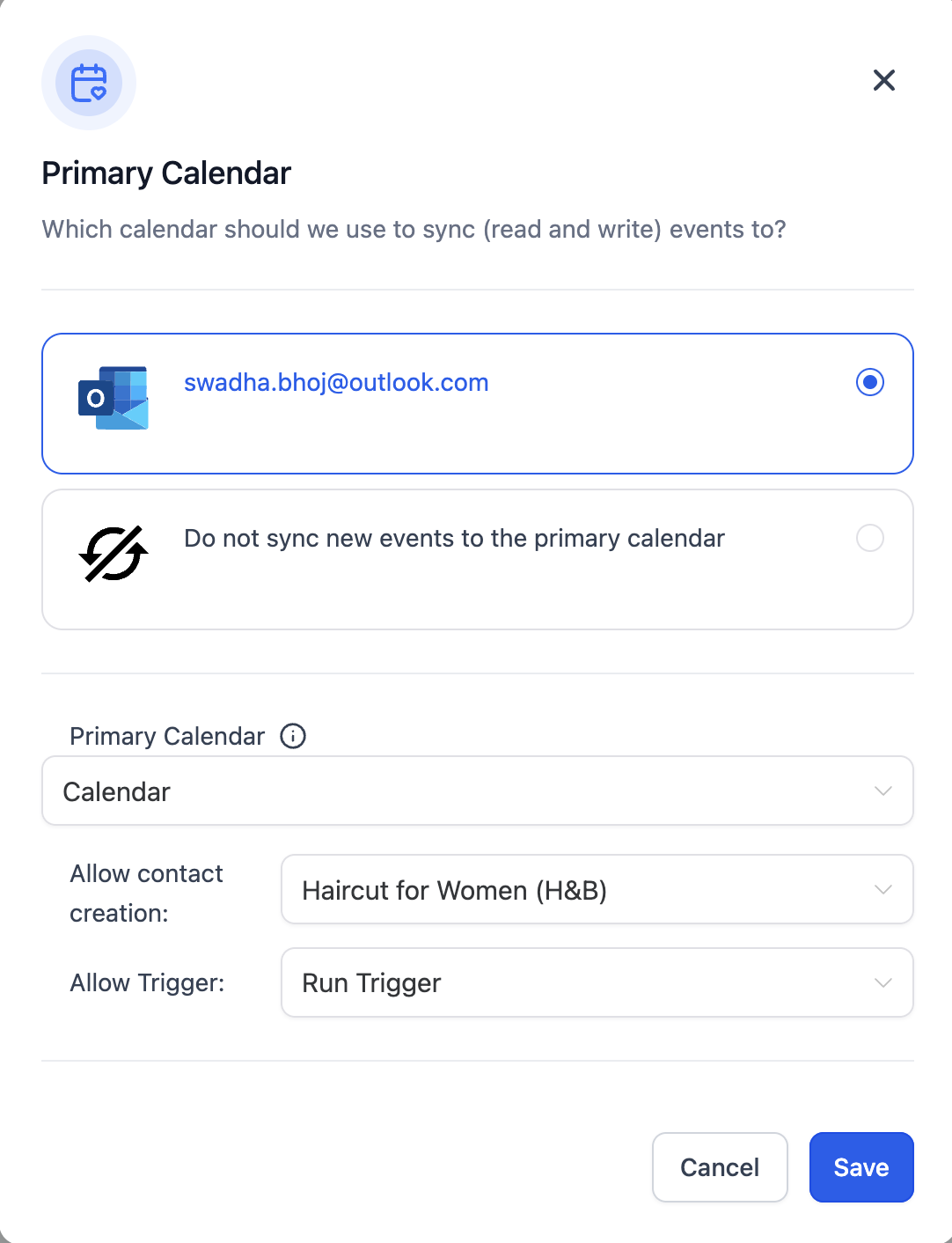
Primary Calendar: This is the calendar responsible for pushing your Aesthetix CRM appointments out to Google, Outlook, or iCloud, and for reading events back in from those third-party calendars. Any third-party calendar you've already connected under your profile will appear in this dropdown.
Check for Conflicts: Calendars marked here are checked for double-booking, even if they aren't your Primary Calendar.
Allow Contact Creation: Turn this on if you want events created in Google or Outlook (that include attendees) to automatically generate a contact and appointment in Aesthetix CRM. Choose which calendar those appointments should land in from the dropdown. Leave this set to None if you don't want external calendar events creating new appointments.
Allow Trigger: This option only appears once you've selected a calendar for Allow Contact Creation. It controls whether appointments created through this two-way sync are allowed to fire workflow triggers. Recurring events created this way are excluded either way.
For step-by-step instructions on connecting Google, Outlook, iCloud, or Zoom to a calendar, see the calendar sync guides in the Connections section. If you're setting up automated booking through your AI Employee, make sure the calendar it books against is a native Aesthetix CRM calendar rather than your EMR, since AI booking cannot read or write to EMR schedules.
Do I need to move my existing calendars to use the new Calendar view? No. Every calendar you already have appears automatically under the individual/group view. If you set up a Service Calendar, it shows up under the Service Calendars view once you enable that type.
Why don't I see a dropdown to switch between calendar types? The switcher only appears once your practice has more than one scheduling type in use. If you only use Service Calendars, for example, the view stays locked to that type and the dropdown stays hidden.
Can I still drag and drop appointments to reschedule them? Yes. Dragging, dropping, rescheduling, and canceling appointments works the same way it always has, regardless of which calendar type you're viewing.
Does hiding the filter panel with Manage View change what my staff sees? No. That setting only affects your own login. Other team members can show or hide their own filter panel independently.
Will Google Calendar sync work with Service Calendars? Third-party calendar sync (Google, Outlook, iCloud) currently applies to individual and group calendars. Service Calendars are managed directly inside Aesthetix CRM.
We book most patient visits through our EMR. Do we still need a native calendar? Yes, if you want to use AI-driven booking, publish an online booking widget, or embed scheduling on your website or in a funnel. Your EMR workflow can continue running alongside a native calendar set up for those automated use cases.
What's the difference between Primary Calendar and Check for Conflicts? Your Primary Calendar is the one that actively pushes appointments to your connected Google, Outlook, or iCloud calendar. Check for Conflicts is broader: any calendar checked there is scanned for double-bookings, whether or not it's your Primary Calendar.
If I turn on Allow Contact Creation, will every calendar event become an appointment? Only events that include attendees and land on the calendar you selected in the dropdown. Recurring events are excluded from this sync.
Is the Rentals calendar type available yet? Not yet. It's still in development and isn't relevant to typical med-spa or aesthetics-practice scheduling at this time.
Can I see buffer time directly on the calendar? Yes. In Day or Week view, open Manage View and turn on Show buffer time to display pre-buffer and post-buffer blocks around each appointment. This is a display setting only, it does not change the appointment or its scheduling rules.
