When a patient or prospect comes in through one of your affiliate partners (a referring provider, a brand ambassador, or a patient in your referral program), you don't want that lead sitting unassigned. Aesthetix CRM's Workflows let you automatically credit the right affiliate, notify your team, and keep every referred lead moving, without any manual data entry. This guide covers the two building blocks that make it happen: the Lead Created trigger and the Add Leads Under an Affiliate action, both found inside the workflow builder under Marketing > Workflows.
For a full walkthrough of building workflows from scratch (triggers, actions, filters, testing, and publishing in general), see the Workflows collection. Setting up affiliate campaigns and adding affiliates themselves is covered in the other Affiliate Manager guides. This article focuses on the automation layer that connects the two.
The Lead Created trigger starts a workflow the moment a new lead is referred by an affiliate, giving you an instant automation opportunity the second a prospective patient enters your pipeline. You can apply the trigger across all affiliate campaigns, or filter it to fire only for a specific campaign.
From the left menu, click Marketing.
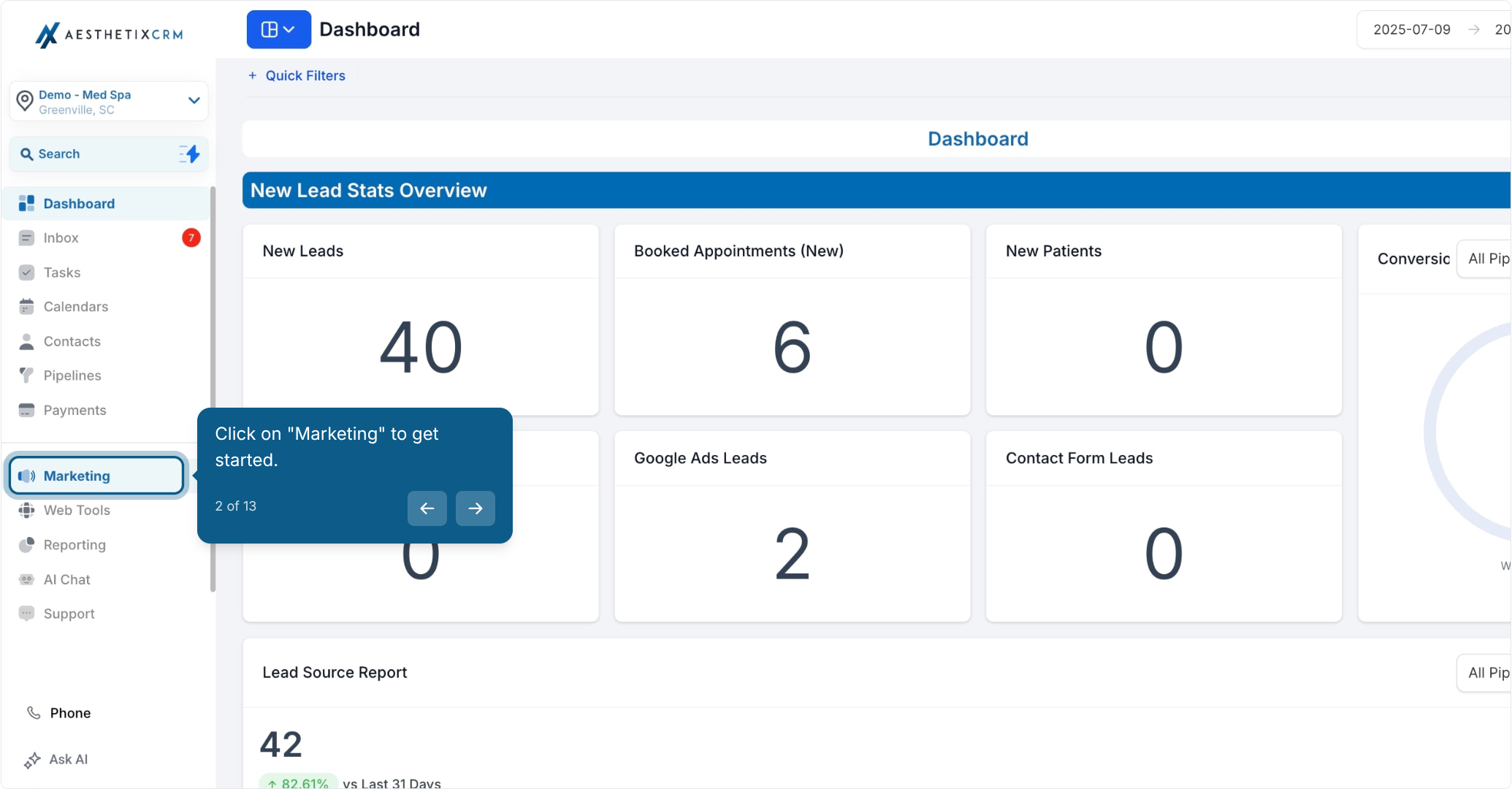
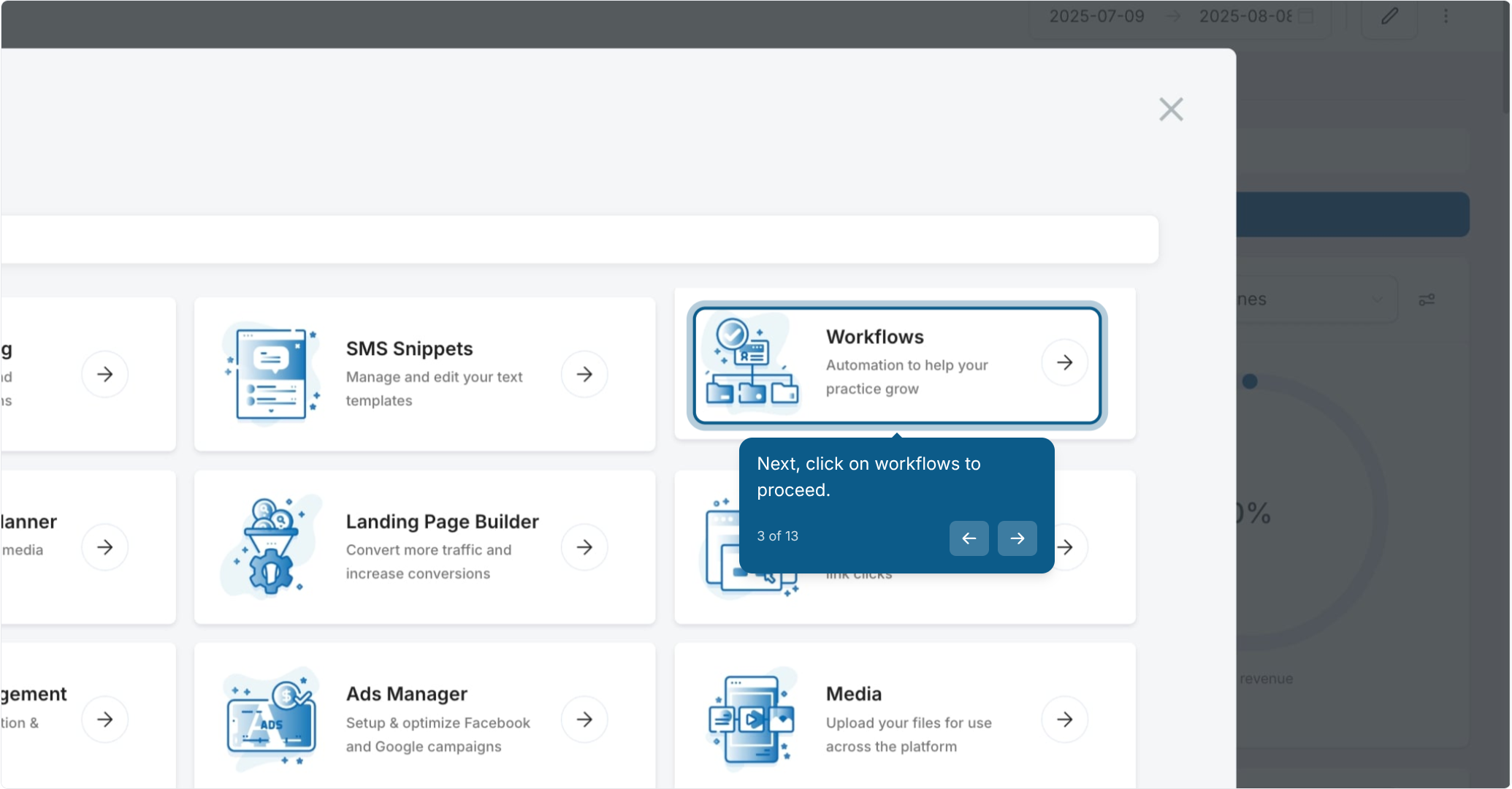
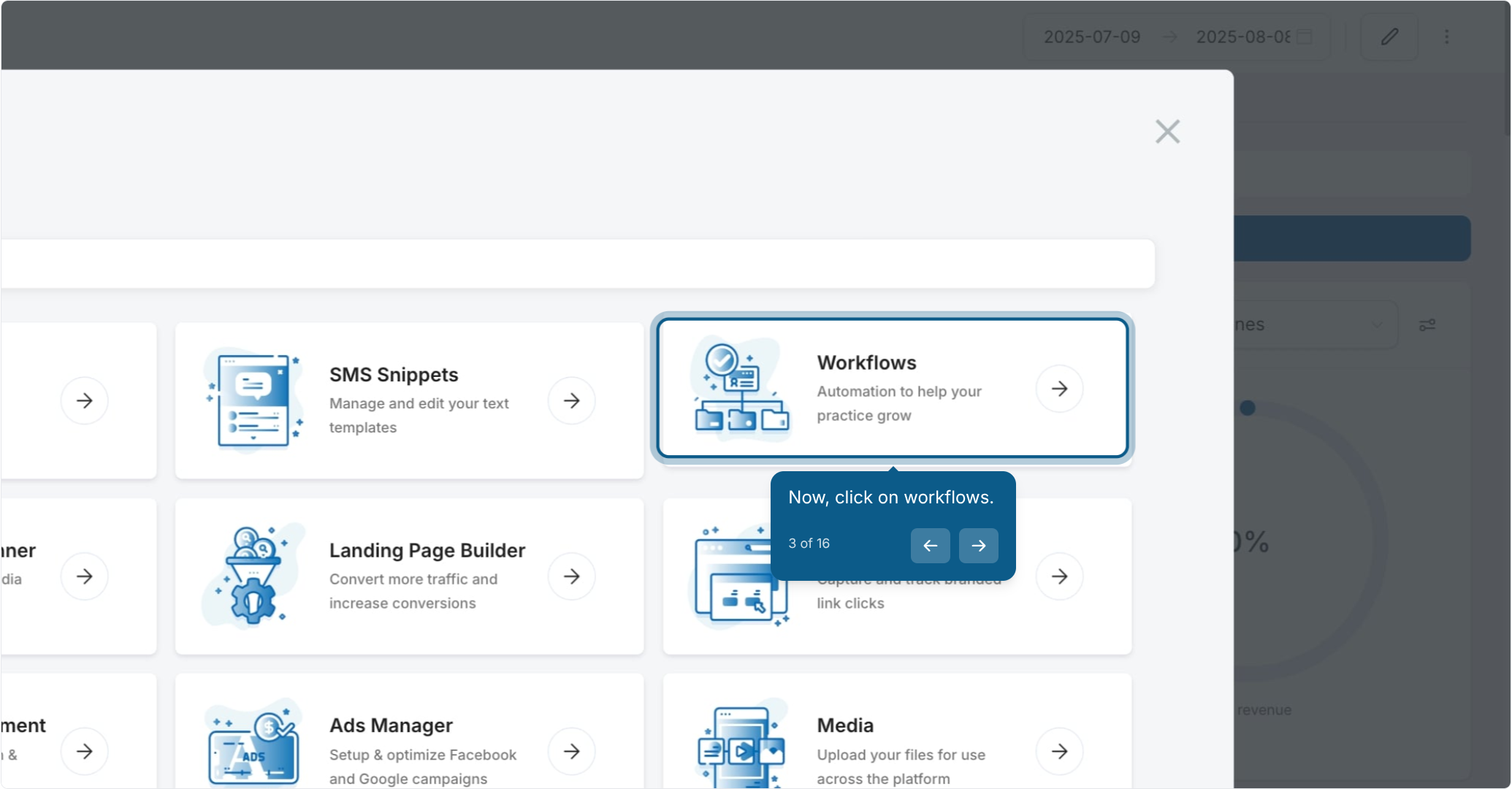
Click Workflows.
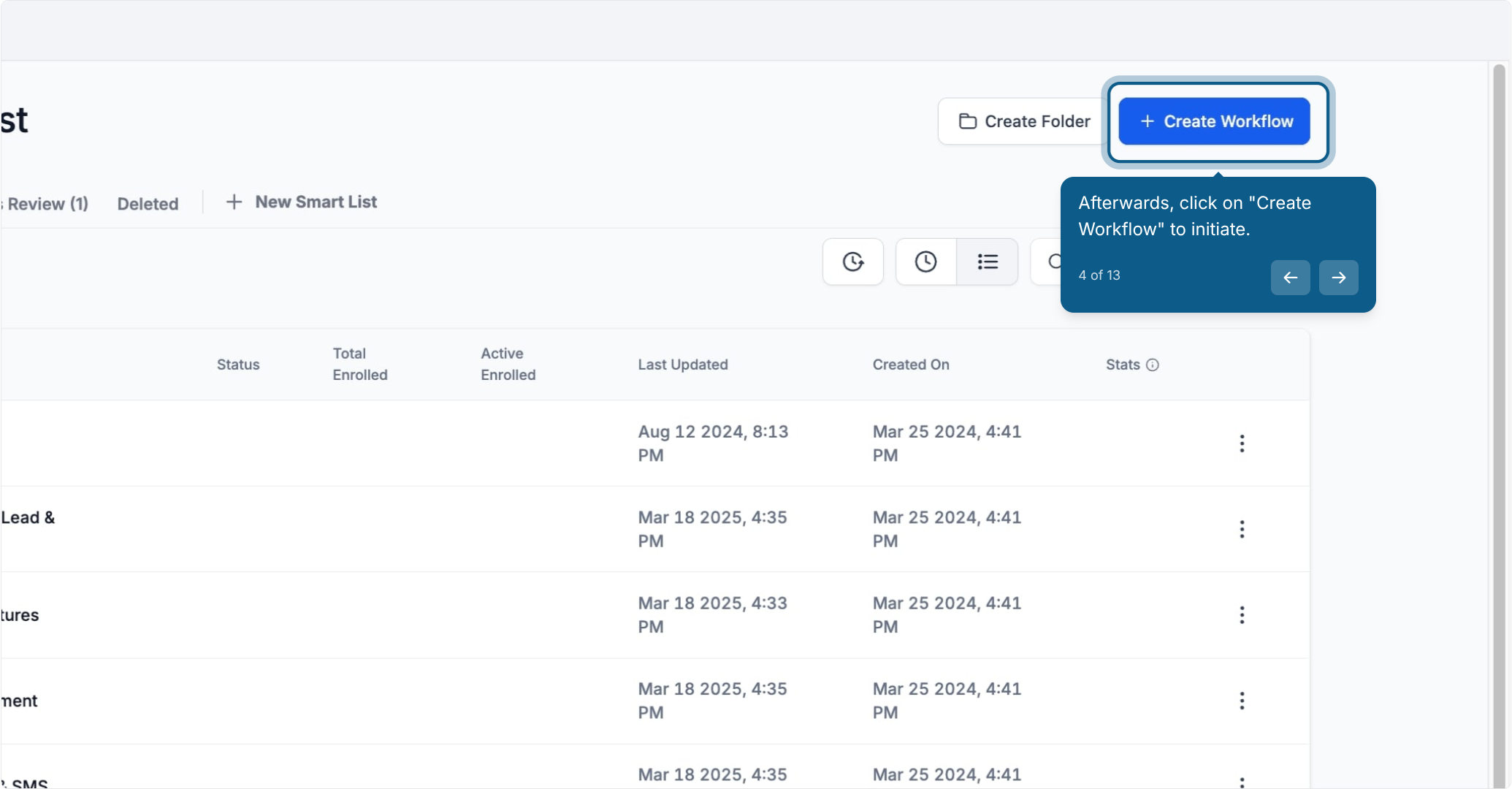
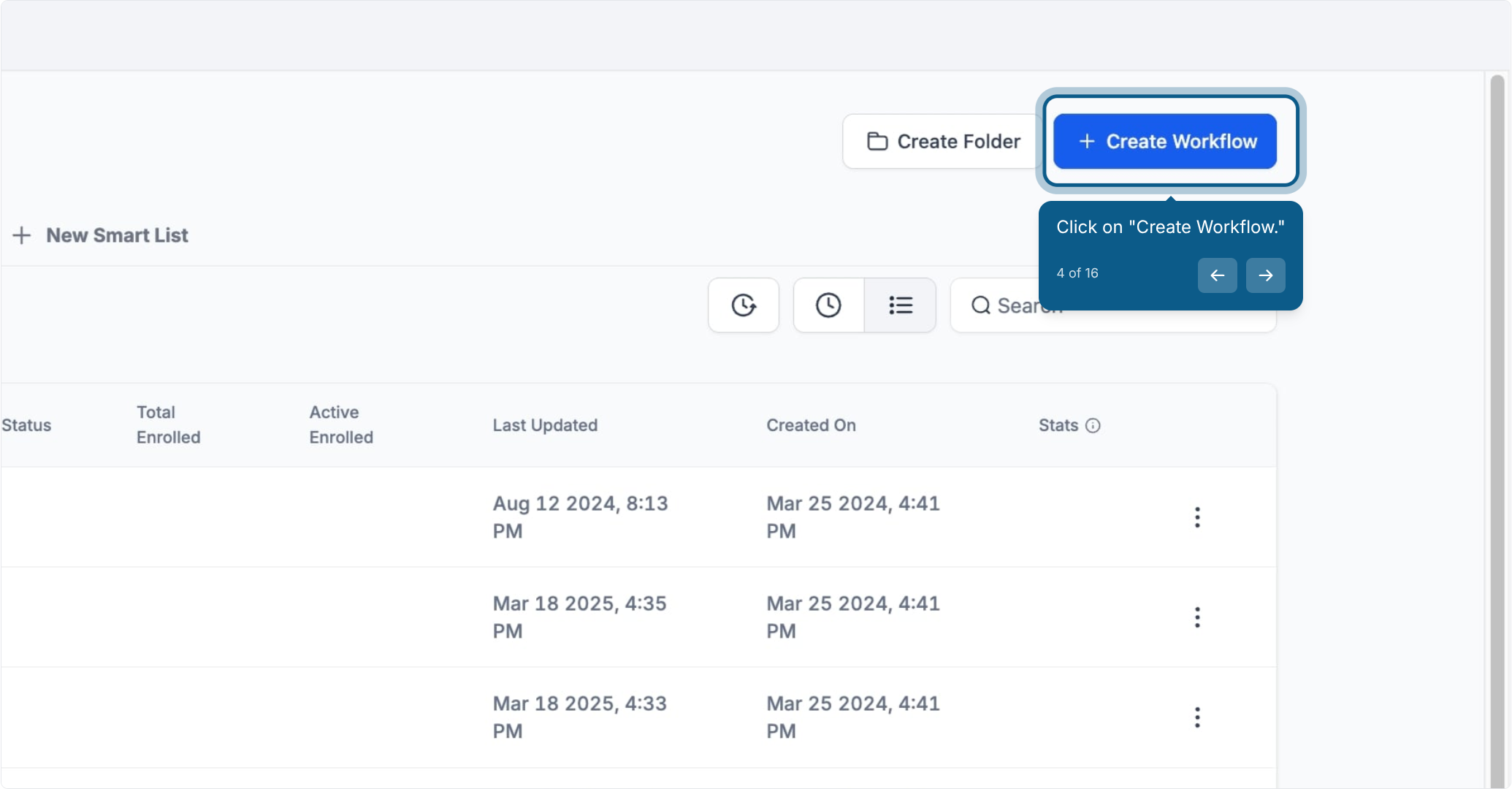
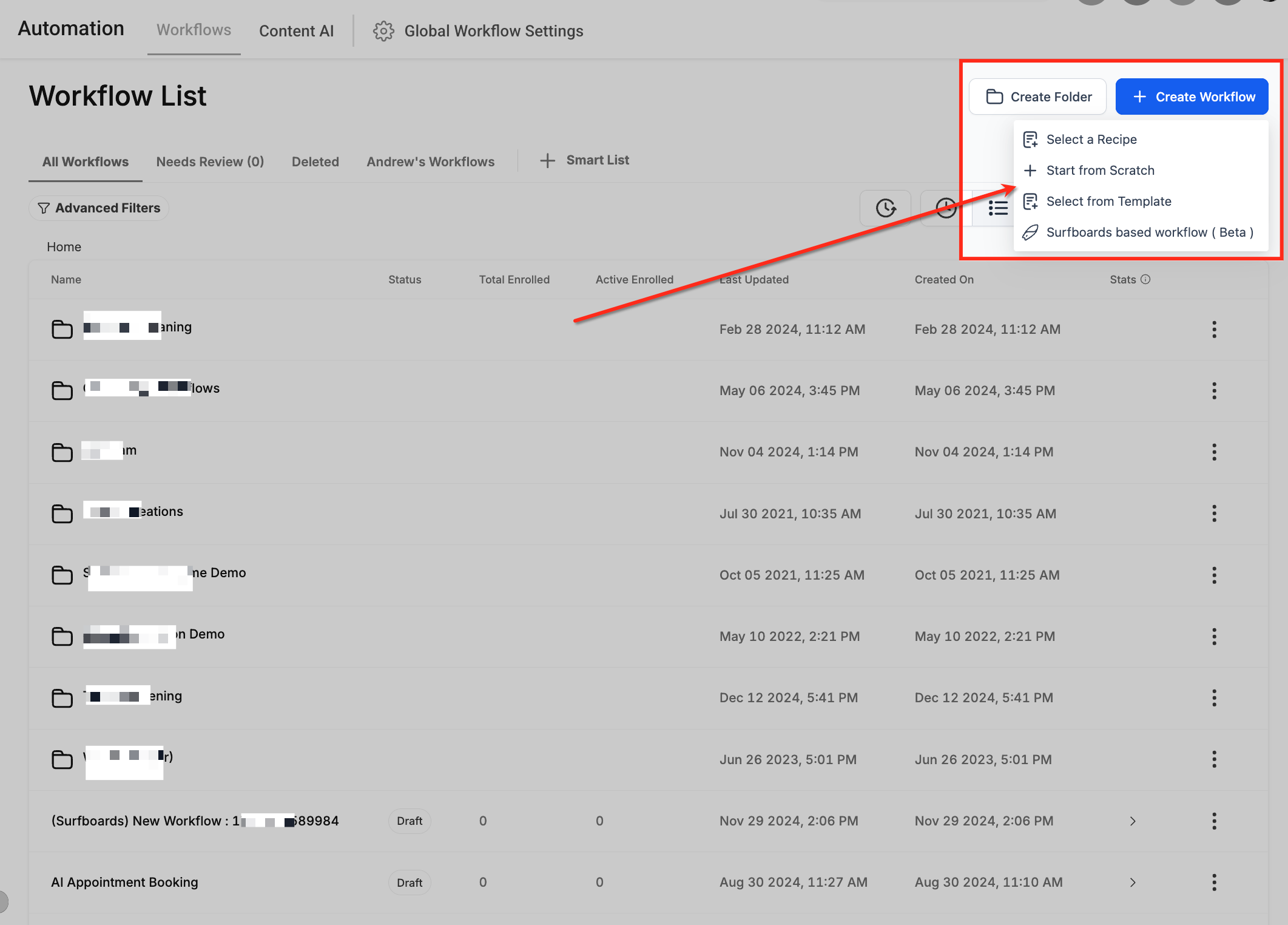
Click Create Workflow.
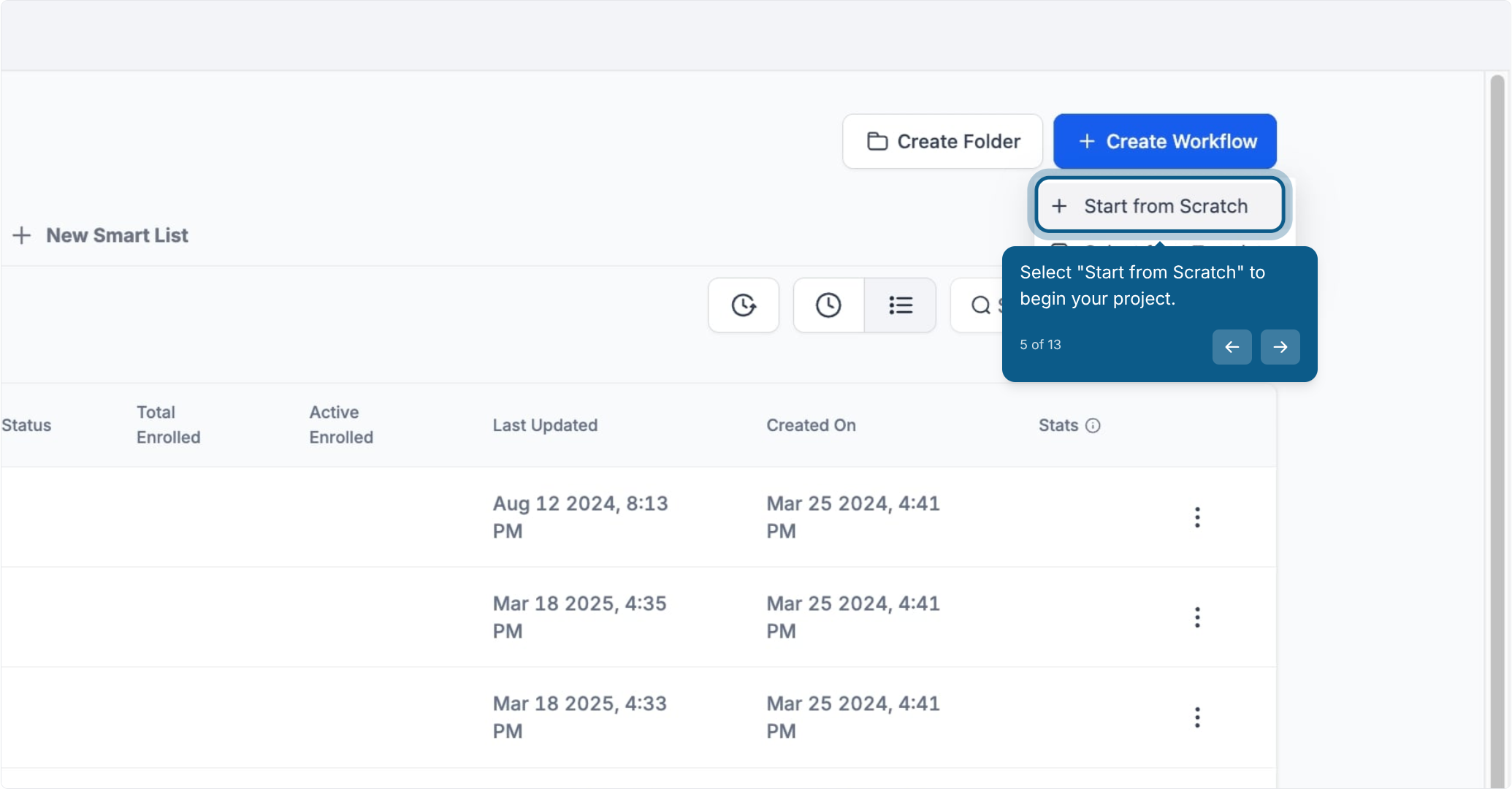
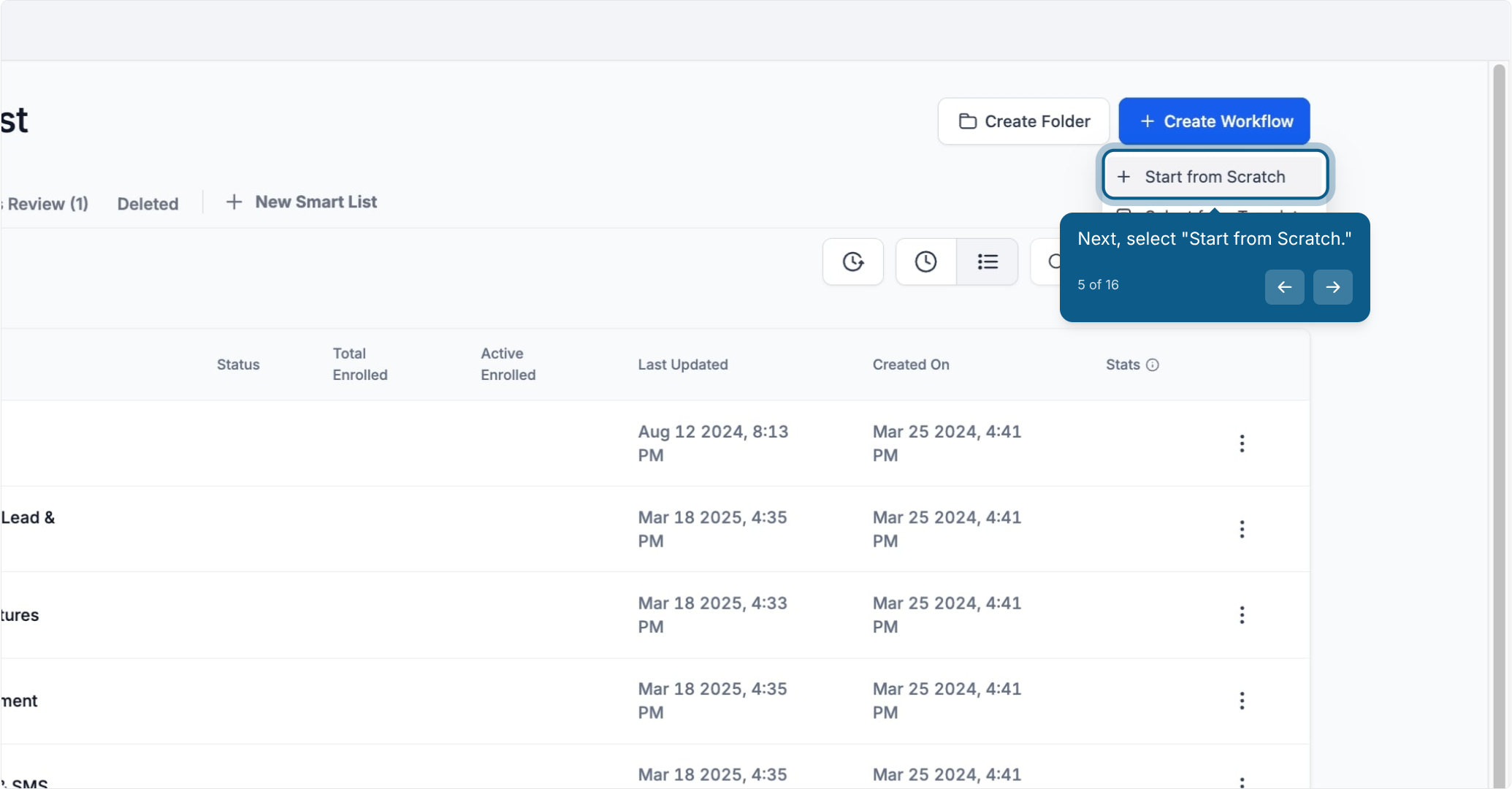
Select Start from Scratch.
Click the + to add a new trigger.
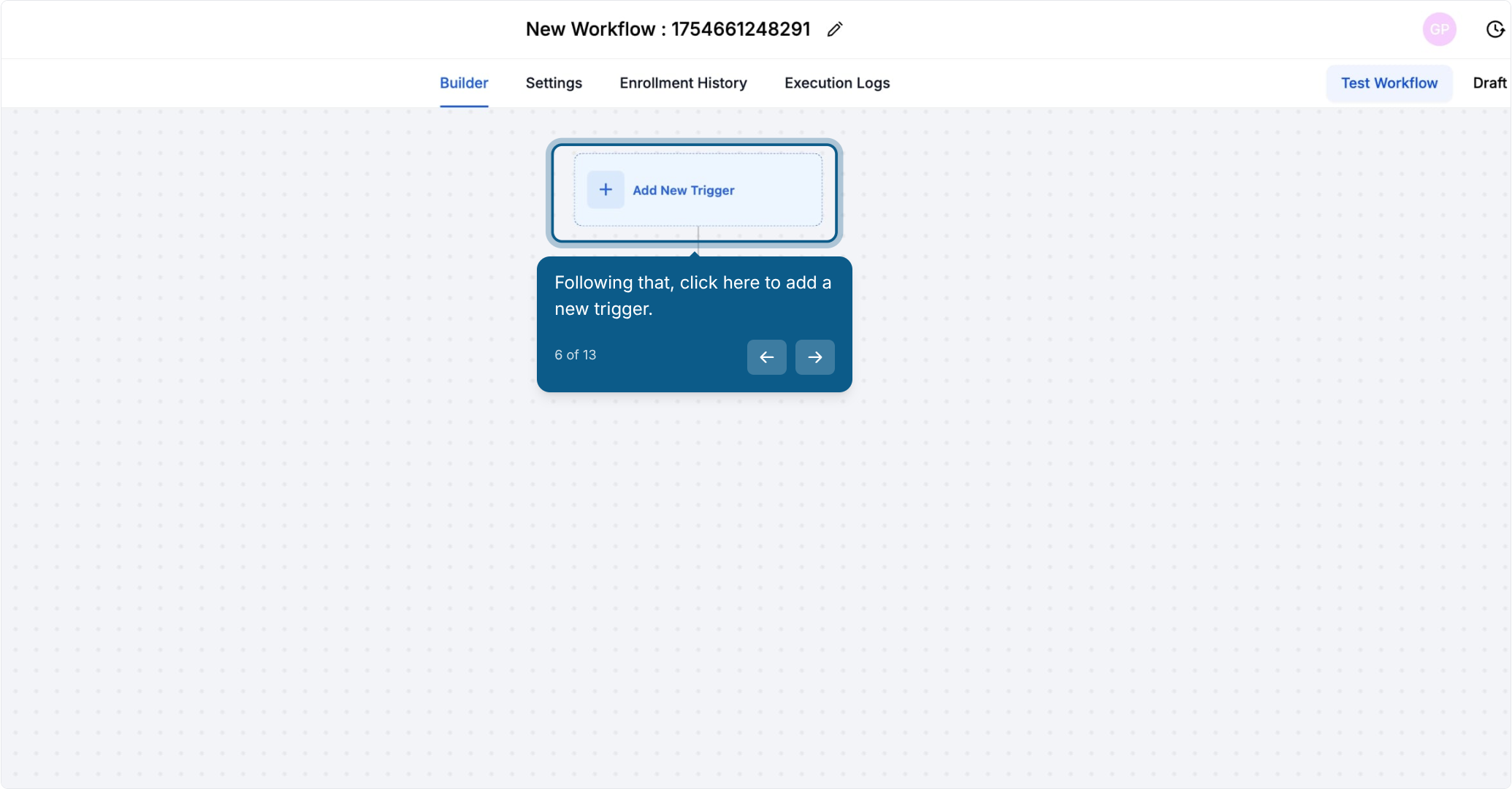
Use the search field to find the trigger you need.
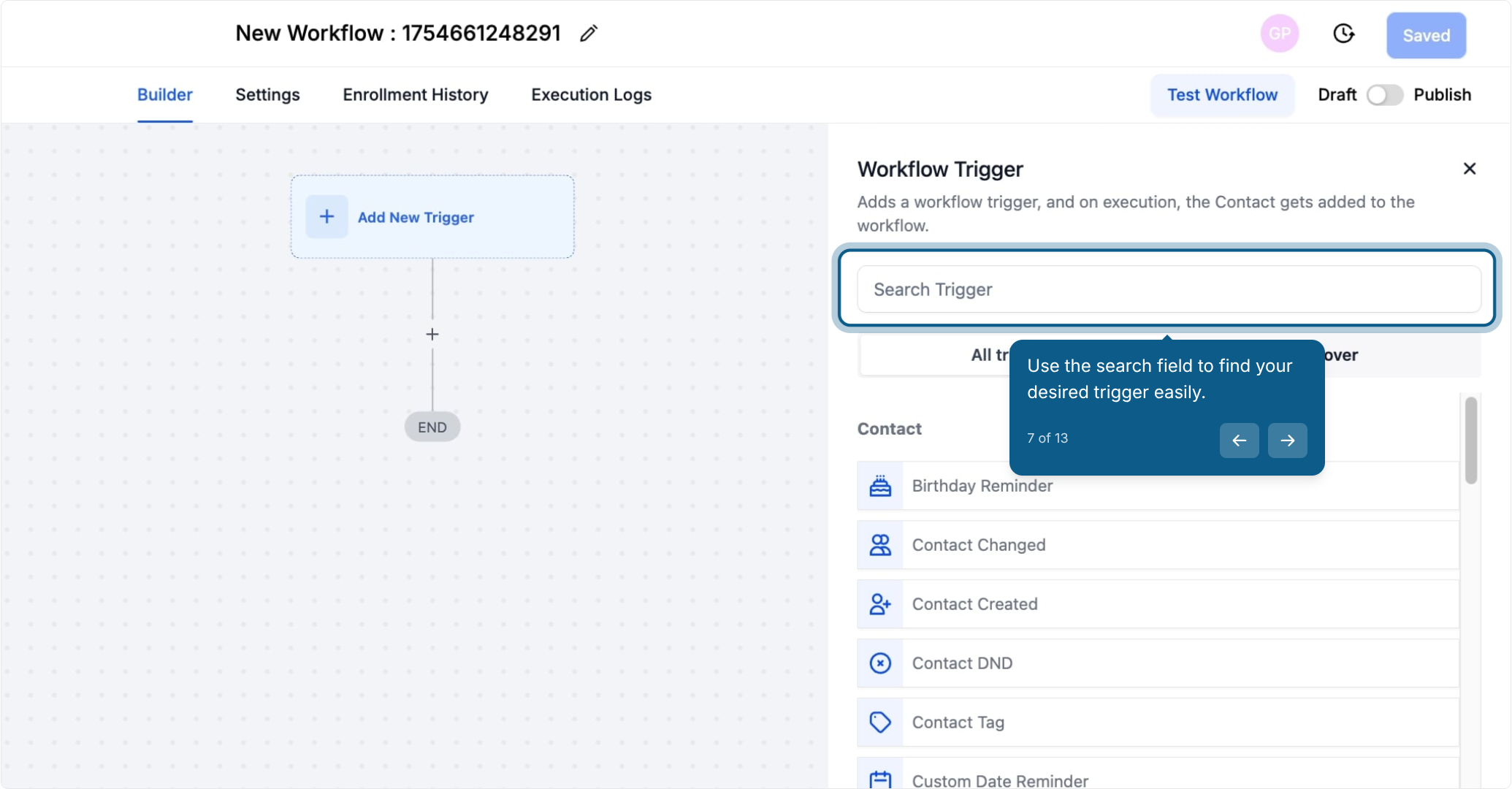
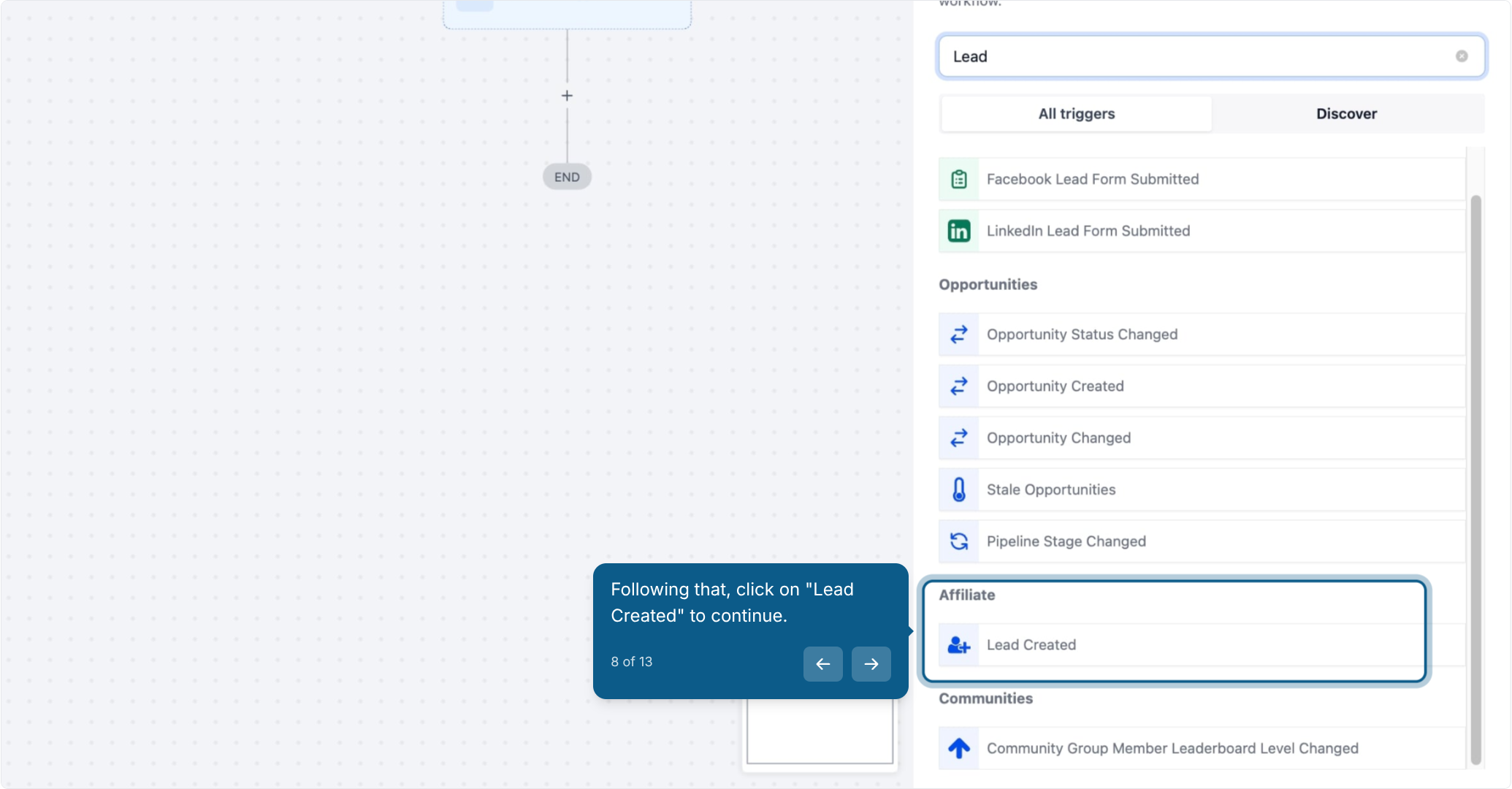
Select Lead Created.
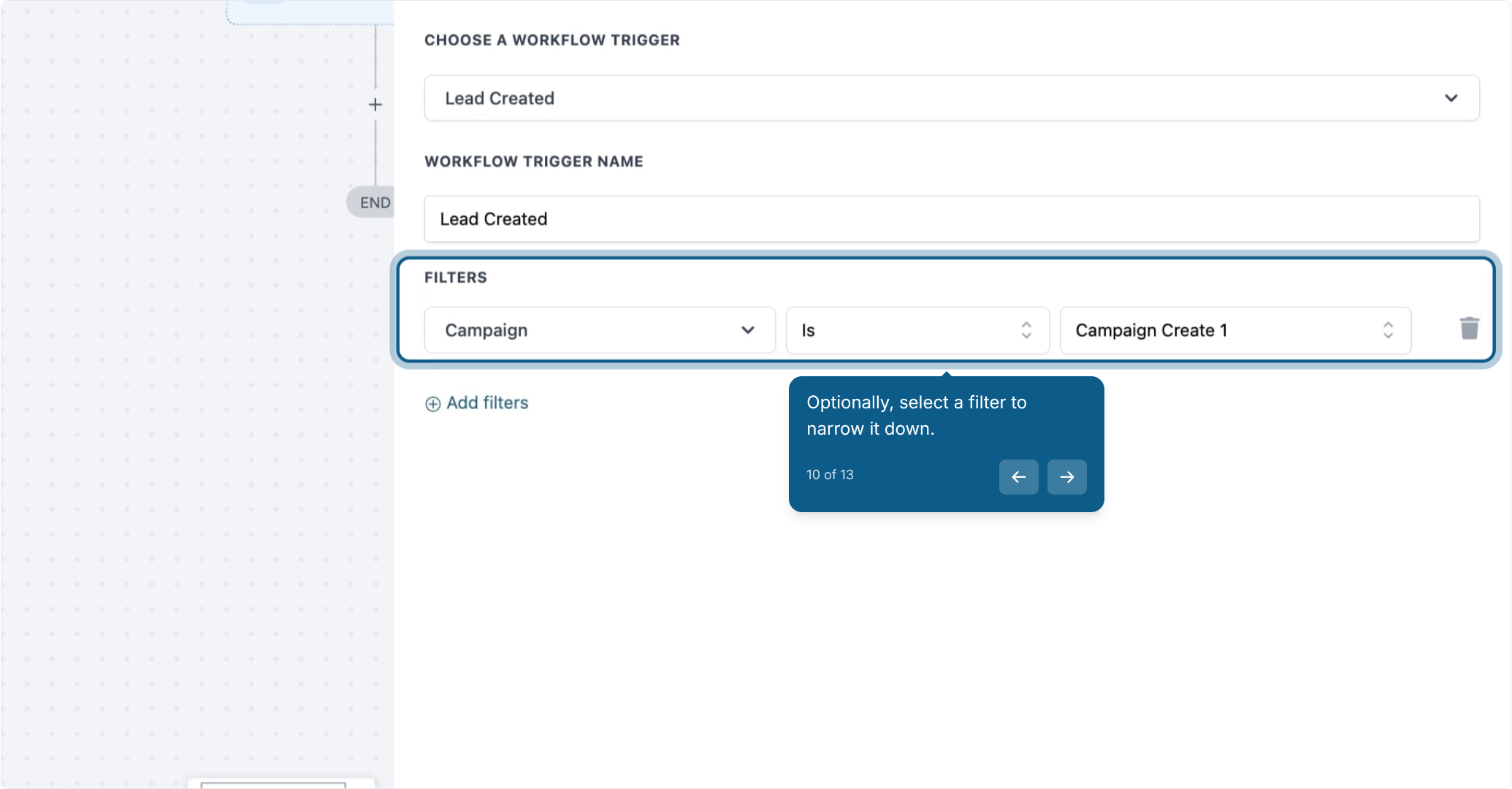
Click to add a filter if you want to narrow the trigger down.
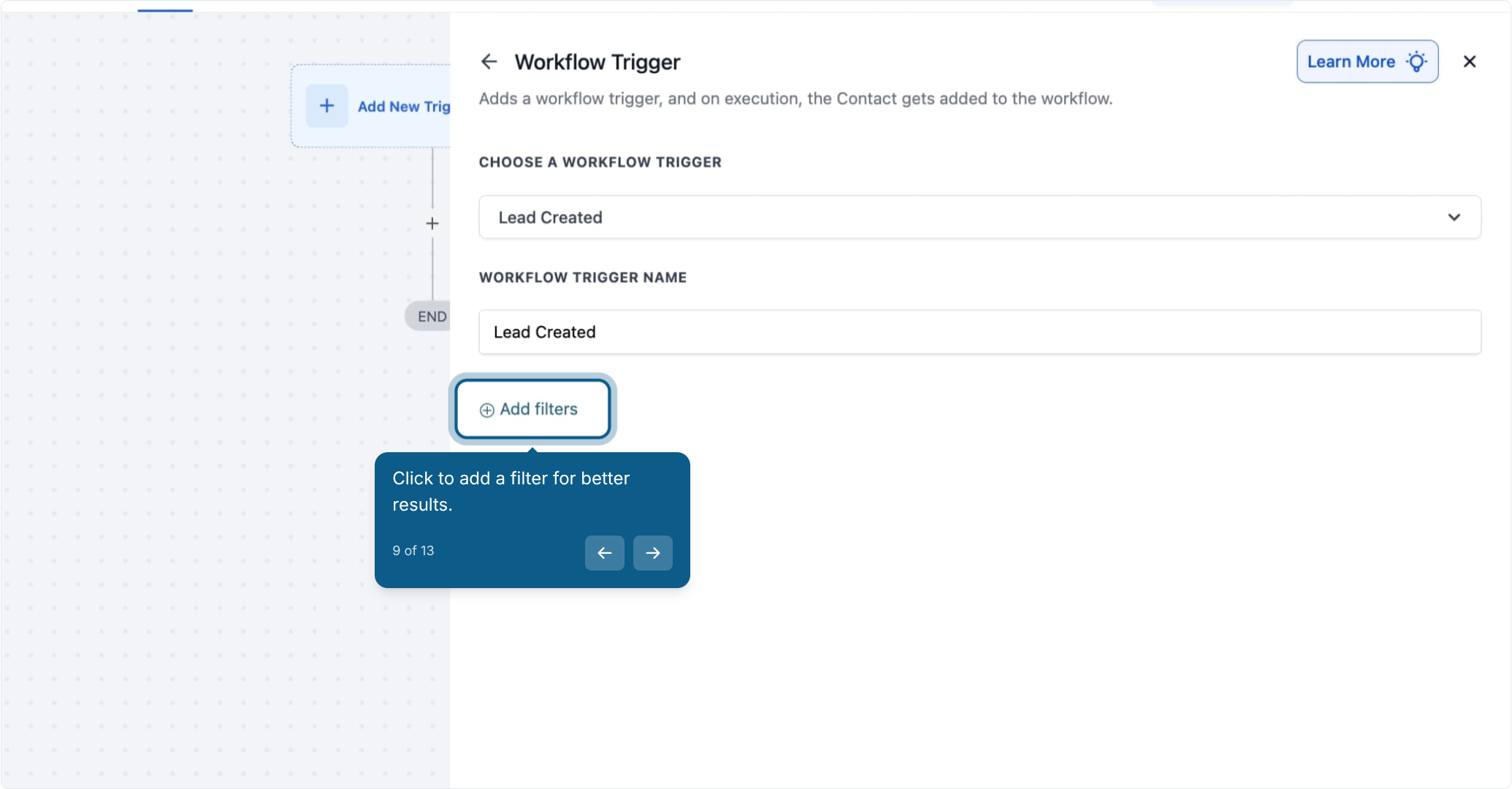
Optionally, select a filter, such as a specific campaign, so the trigger only fires for leads referred through that campaign.
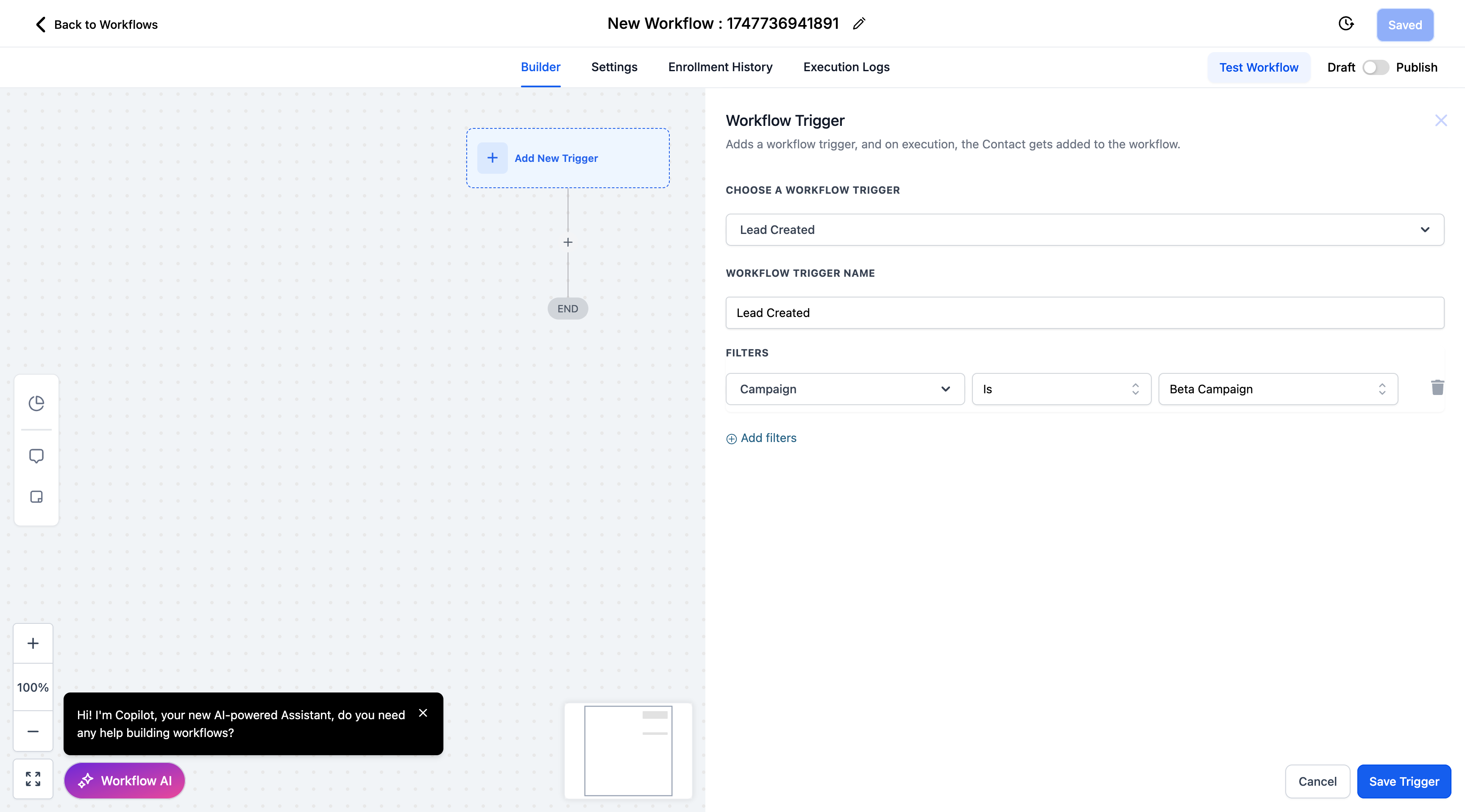
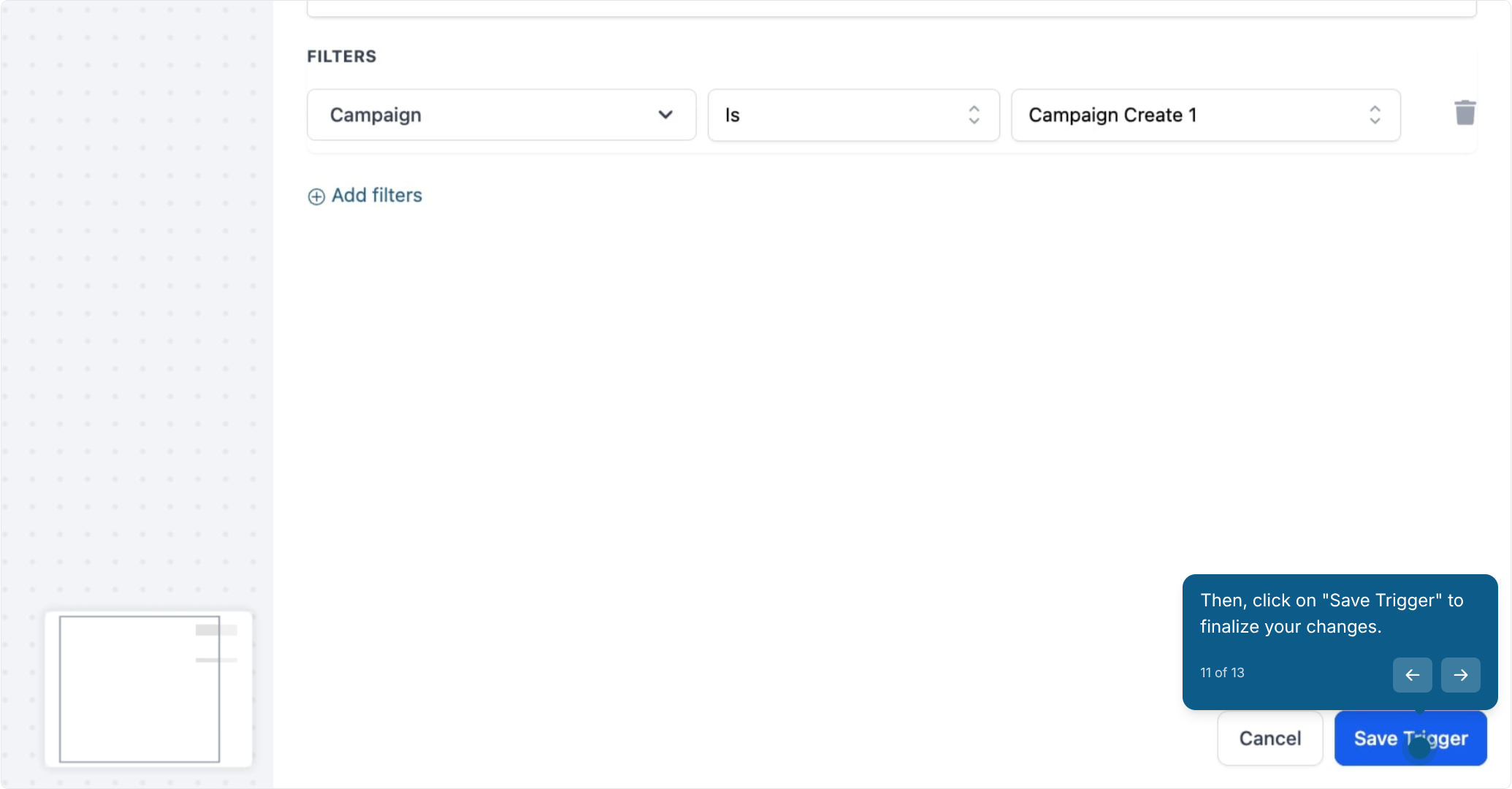
Click Save Trigger.
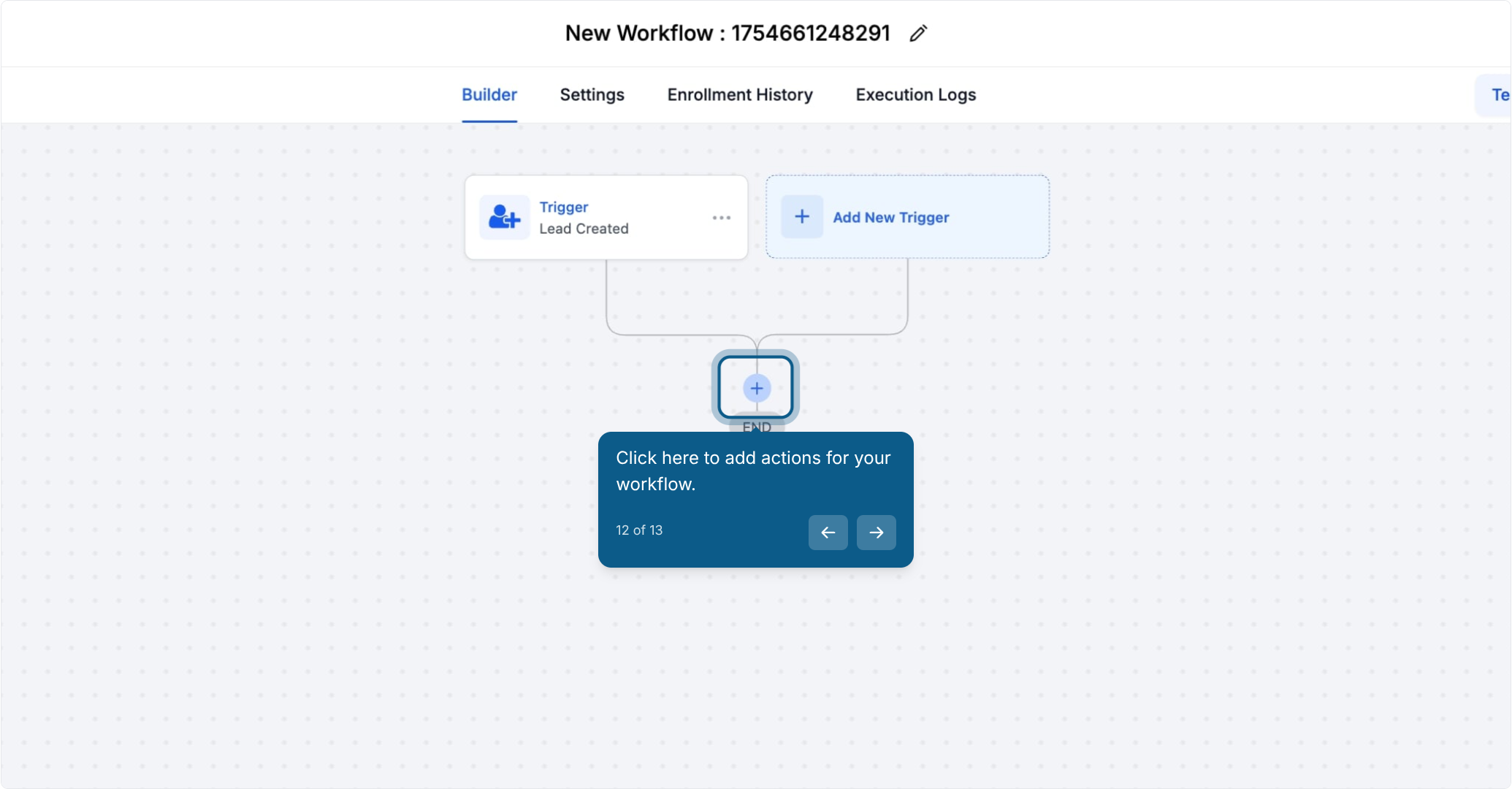
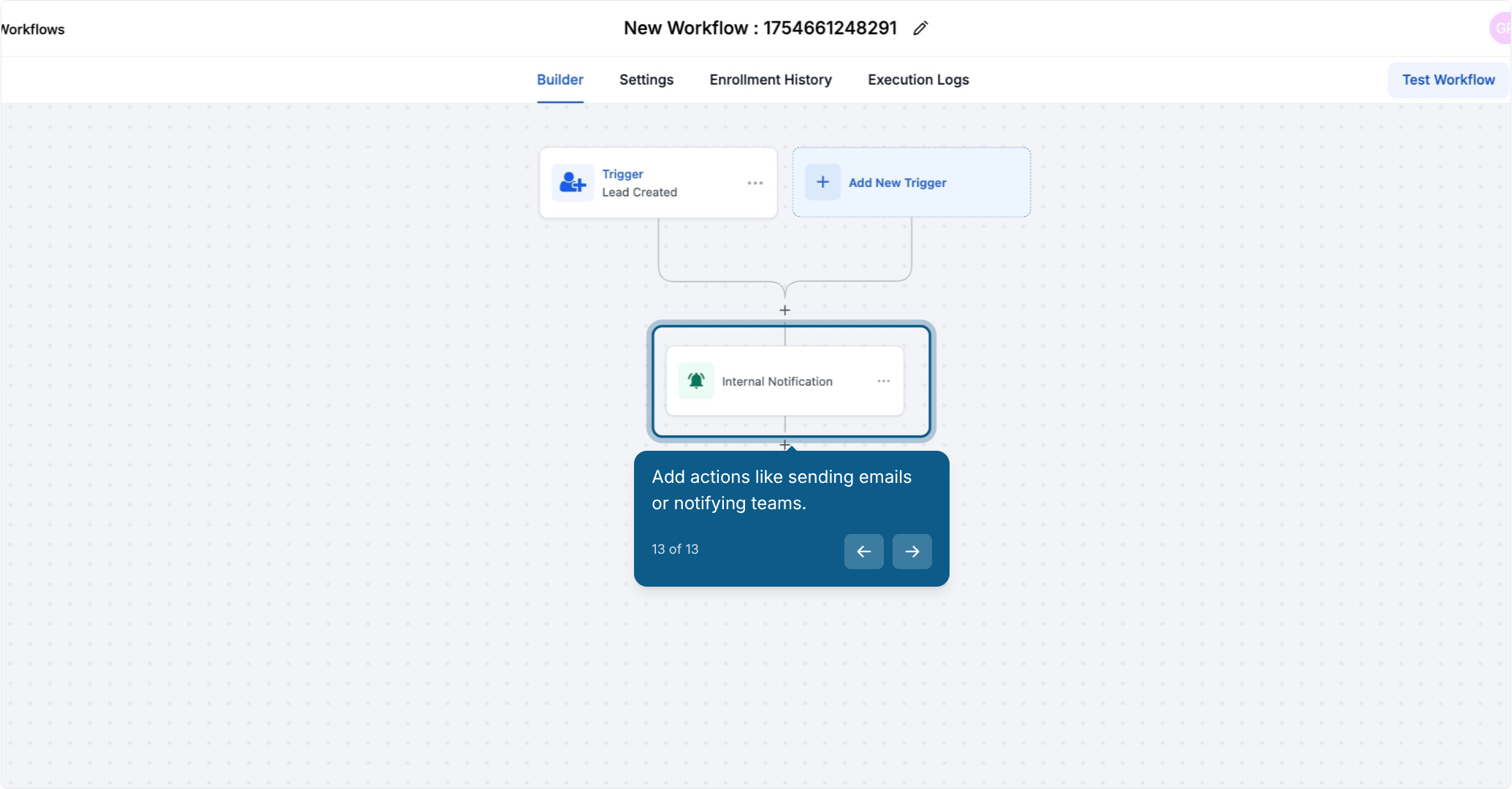
Click the + to add actions to the workflow.
Add your actions. Common choices are sending a "thank you" or "congrats" email to the affiliate and notifying your internal team about the new lead.
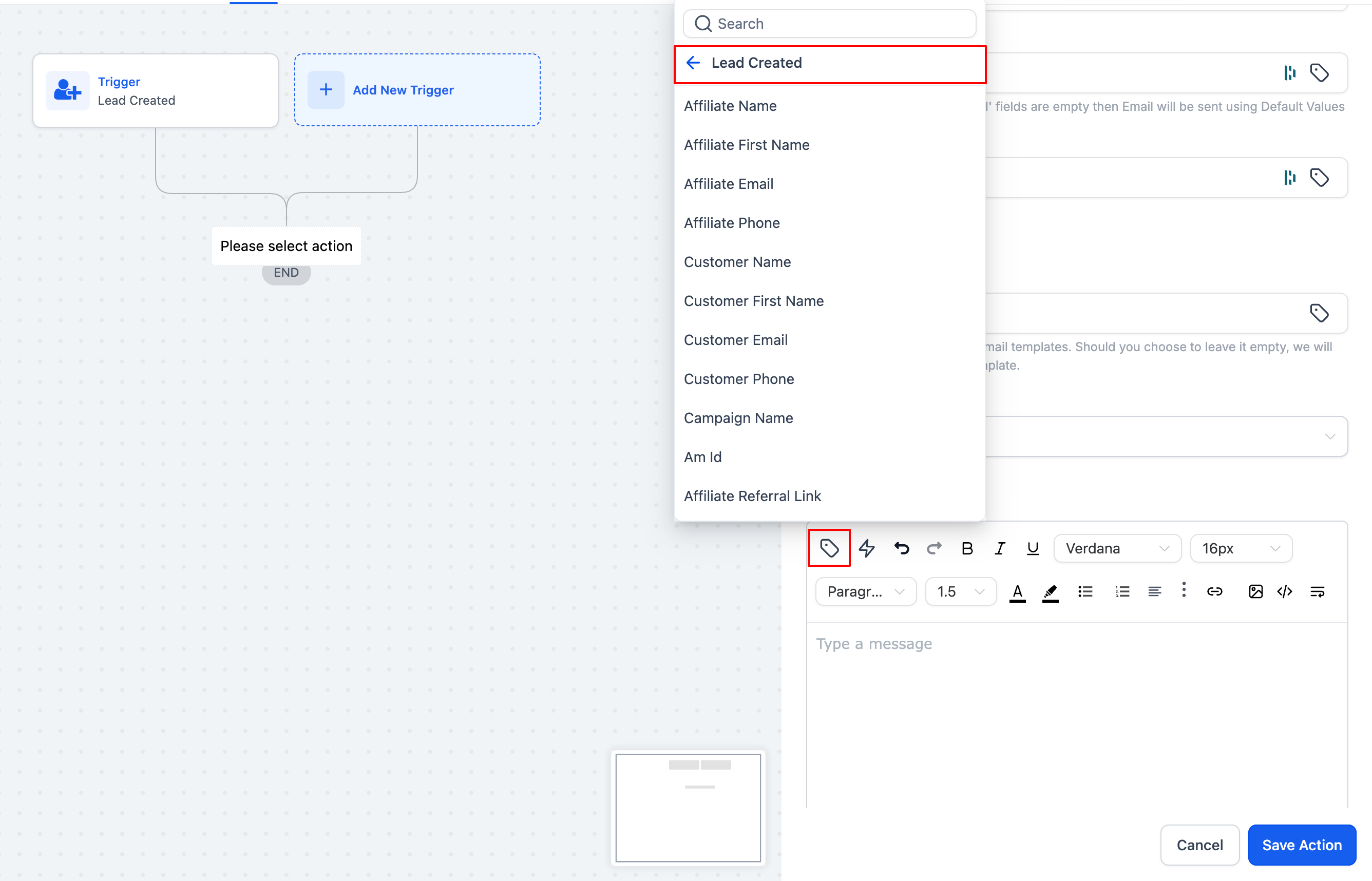
Use custom values from the Lead Created trigger inside your emails and internal messages, such as the affiliate's name or the campaign the lead came through.
Save and publish your workflow.
Send a "Congrats!" email to affiliates the moment they generate a lead.
Alert your front desk or sales team about new affiliate-referred leads so follow-up doesn't slip.
Automatically tag affiliate leads for a dedicated nurture sequence.
The Add Leads Under an Affiliate action assigns a contact (lead) to an affiliate and their associated campaign, making sure your affiliates are correctly credited for the patients they refer. You can choose from three assignment methods depending on how the lead was captured.
Automation: Leads are assigned to the correct affiliate without any manual data entry.
Accuracy: Assignment syncs directly with your campaign data, preventing crediting errors.
Flexibility: Choose Manual, Auto-Track via Attribution, or Custom Mapping depending on your setup.
Integration: Works with your existing workflow triggers, intake forms, and affiliate tracking links.
Scalability: Handles a growing affiliate or referral-partner network without extra staff time.
From the left menu, click Marketing.
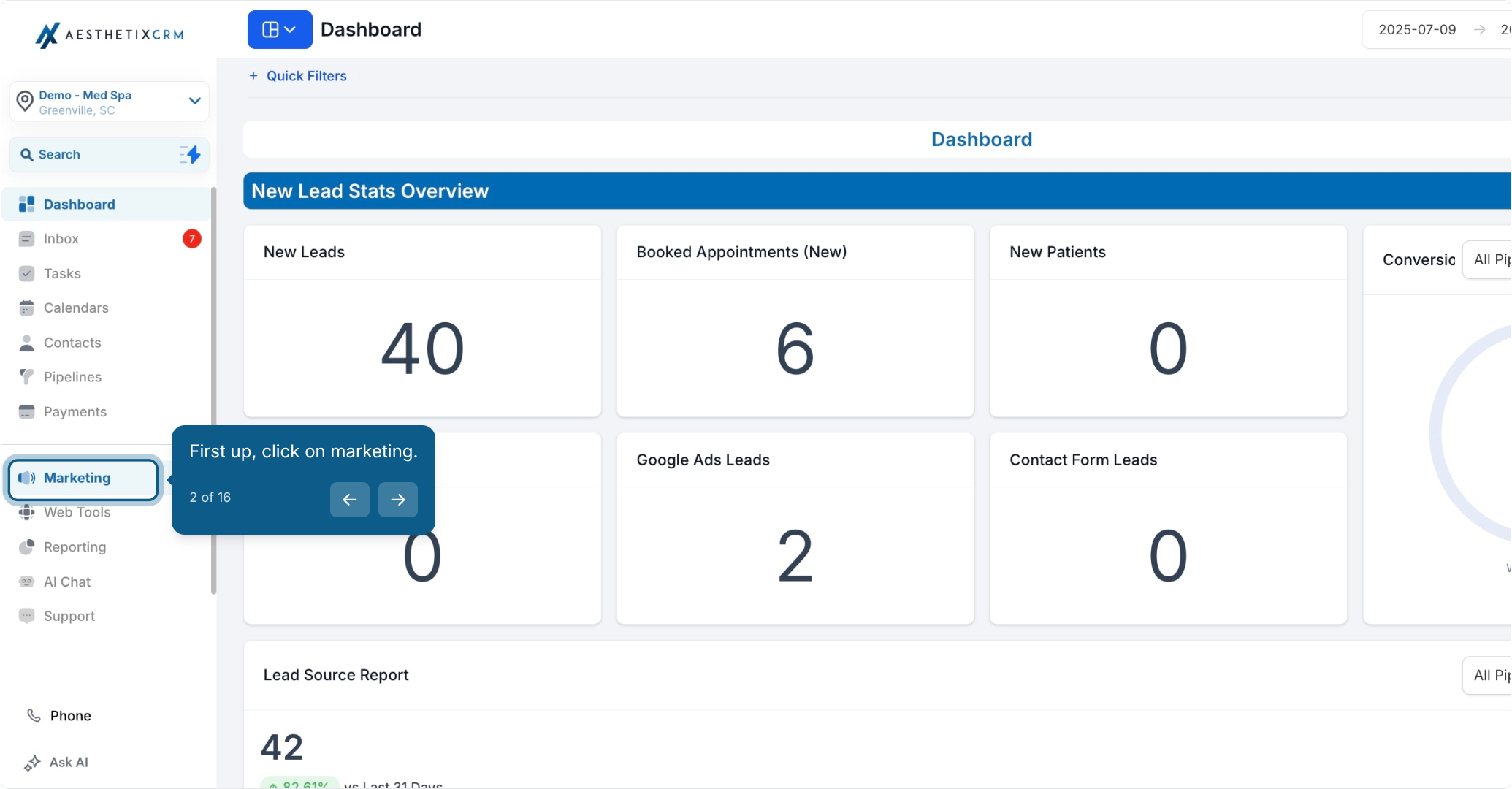
Click Workflows.
Click Create Workflow.
Before adding the affiliate action, make sure your workflow has a trigger, such as Form Submitted (when a prospective patient completes an intake or contact form) or Tag Added (when a specific tag is applied to a contact). Without a trigger, no leads will enter the workflow and the action will never fire.
Select Start from Scratch.
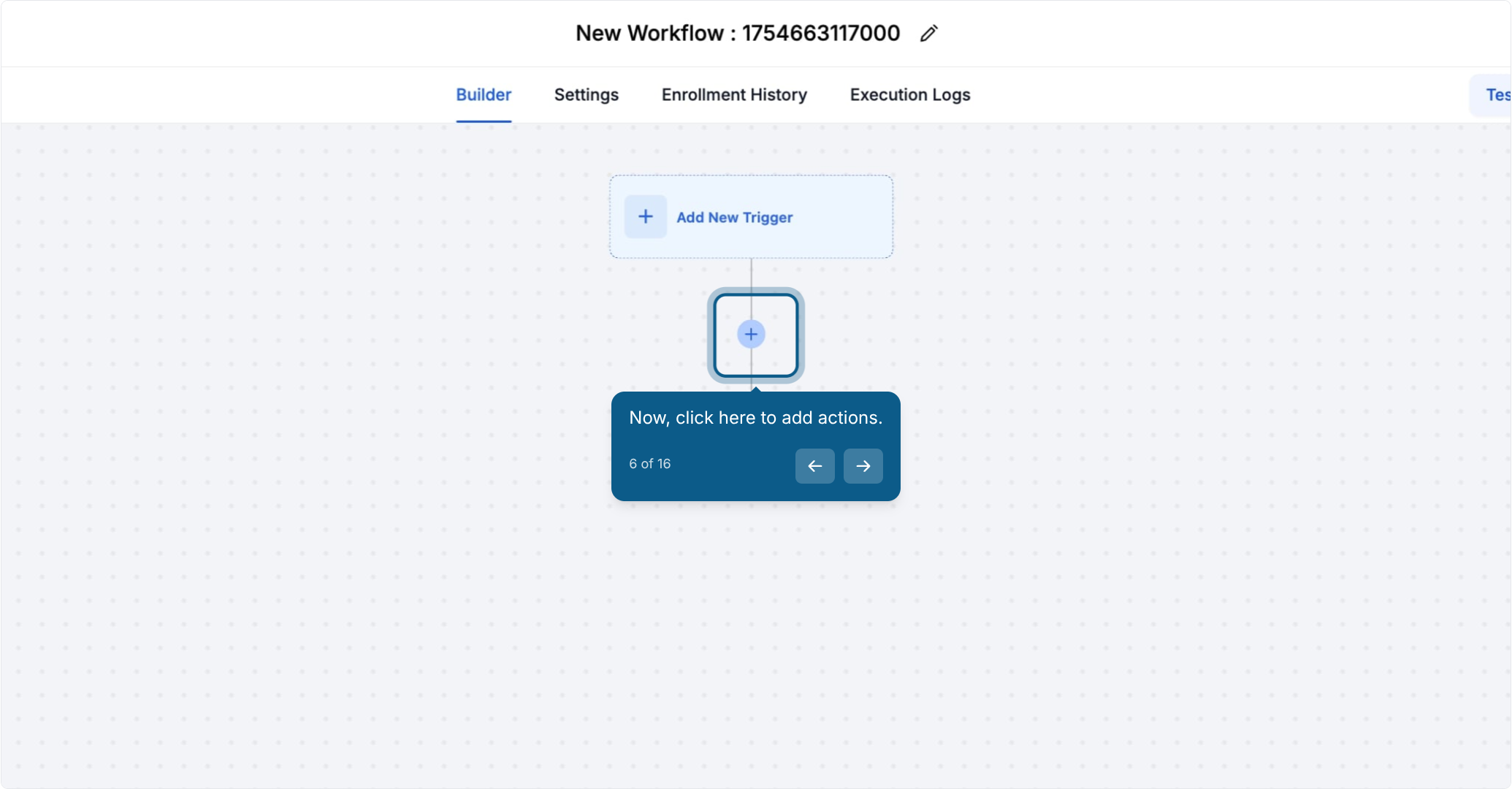
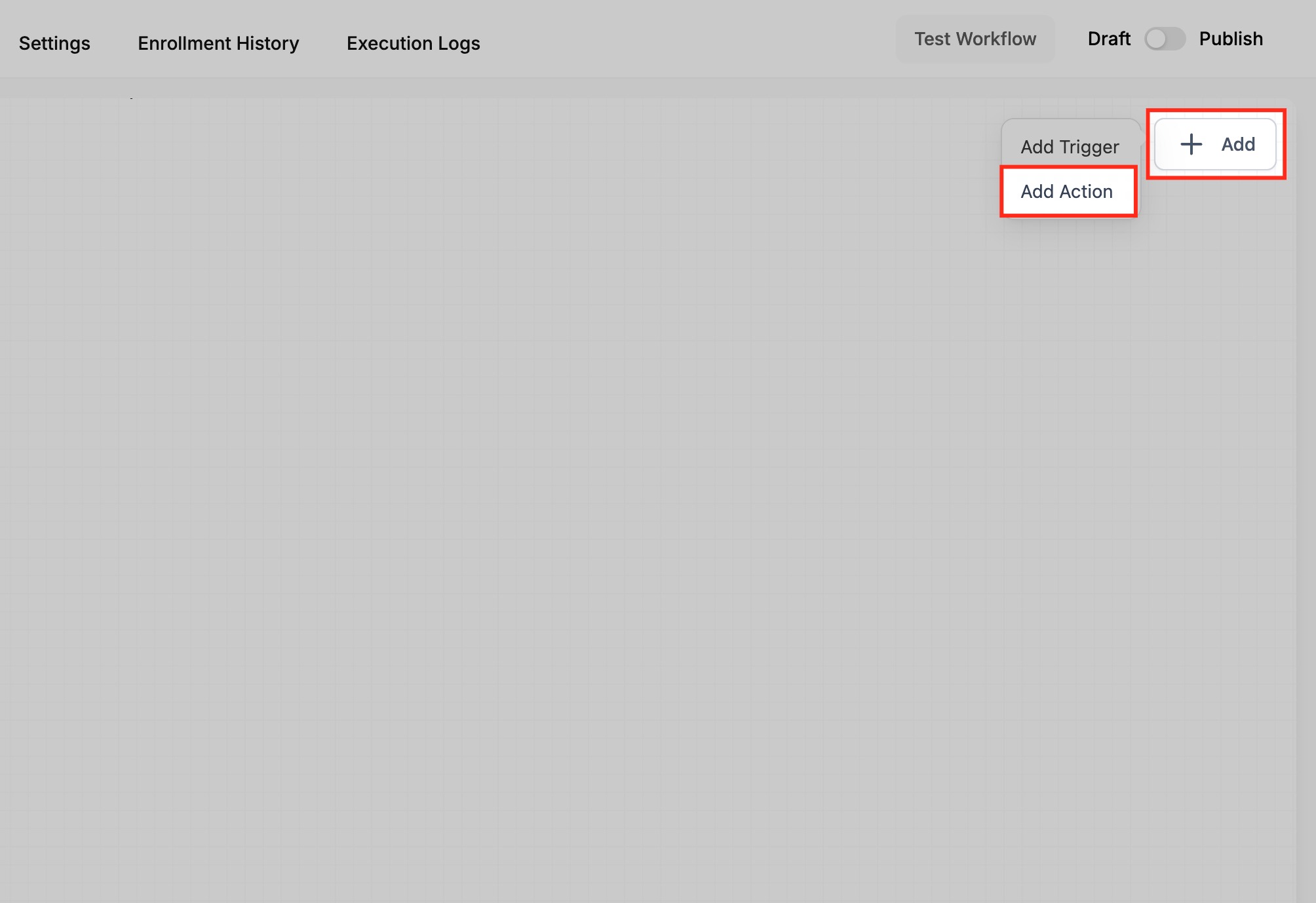
Click the + to add actions to the workflow.
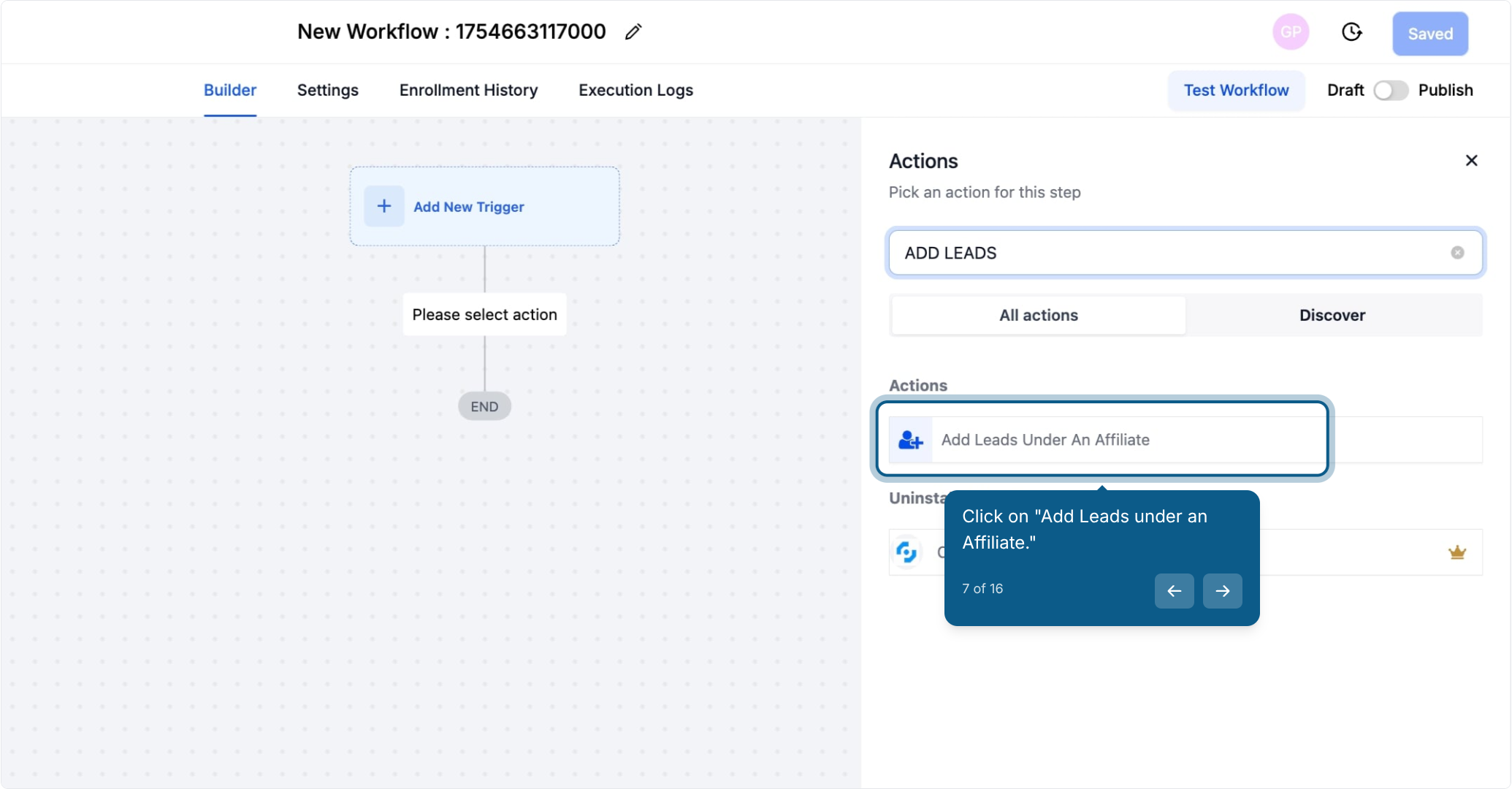
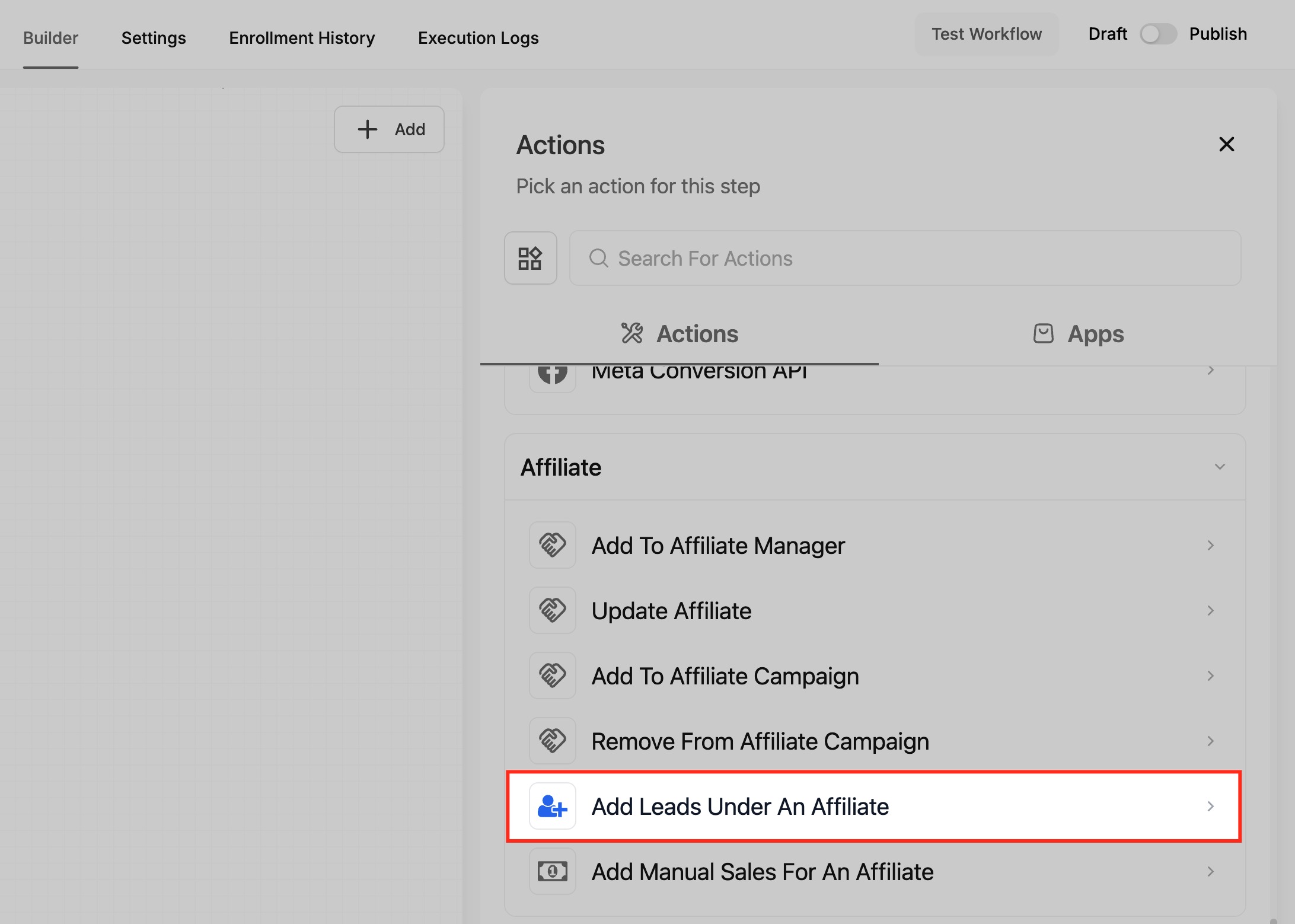
Scroll to the Affiliate section and click Add Leads Under an Affiliate.
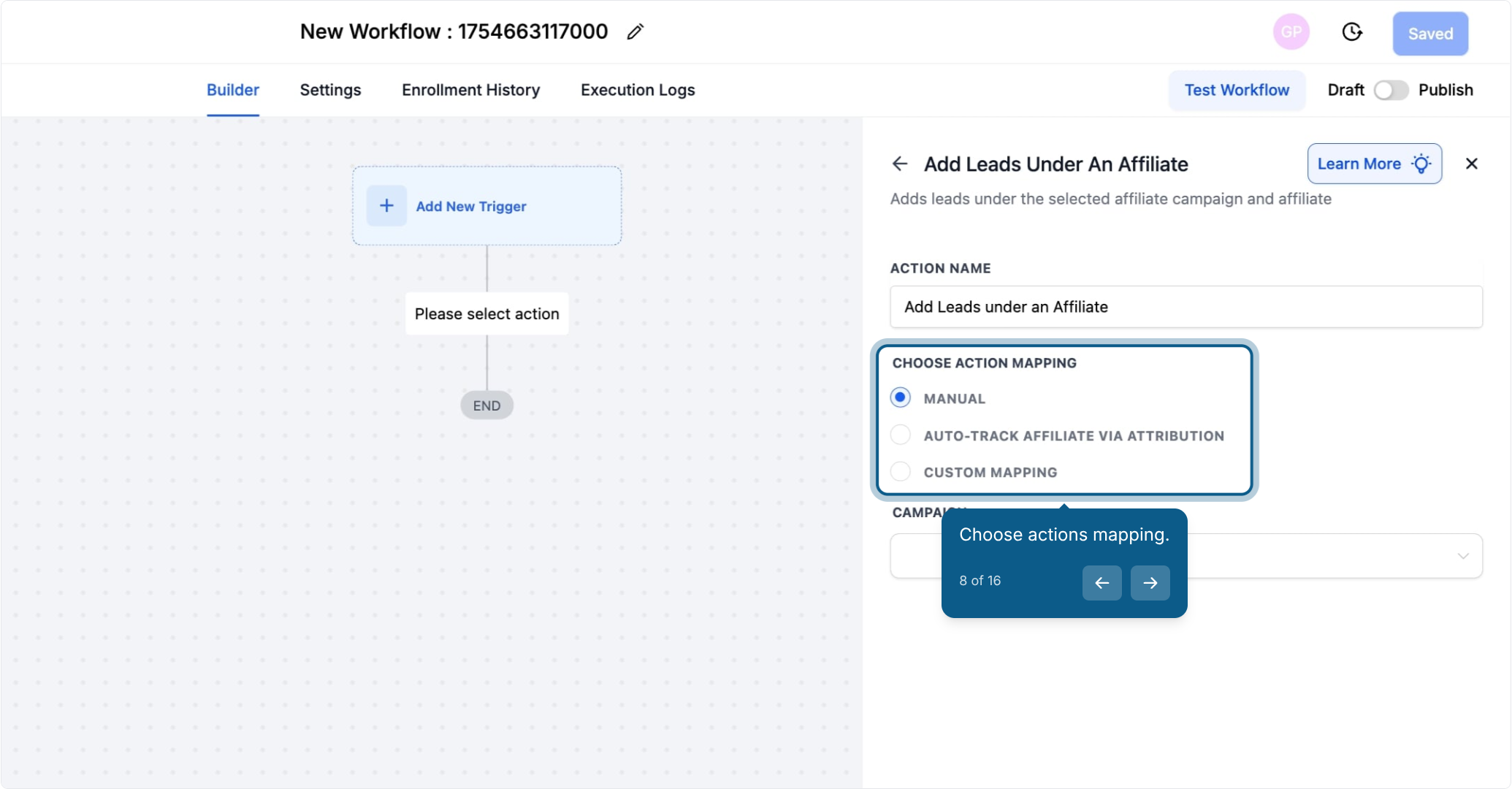
Choose your action mapping, this is where you pick one of the three assignment methods below.
Method | Best For | How It Works |
|---|---|---|
Manual | Form submissions, internal routing, admin decisions | You pick the campaign and affiliate directly |
Auto-Track via Attribution | Traffic driven by affiliate tracking links | The |
Custom Mapping | API pushes, third-party systems, hidden form fields | A custom field or workflow variable supplies the affiliate ID |
Manually assign a lead to a known affiliate in a specific campaign. This is best for form submissions, internal routing, or cases where you want an admin to make the call.
Click Manual under Choose Action Mapping.
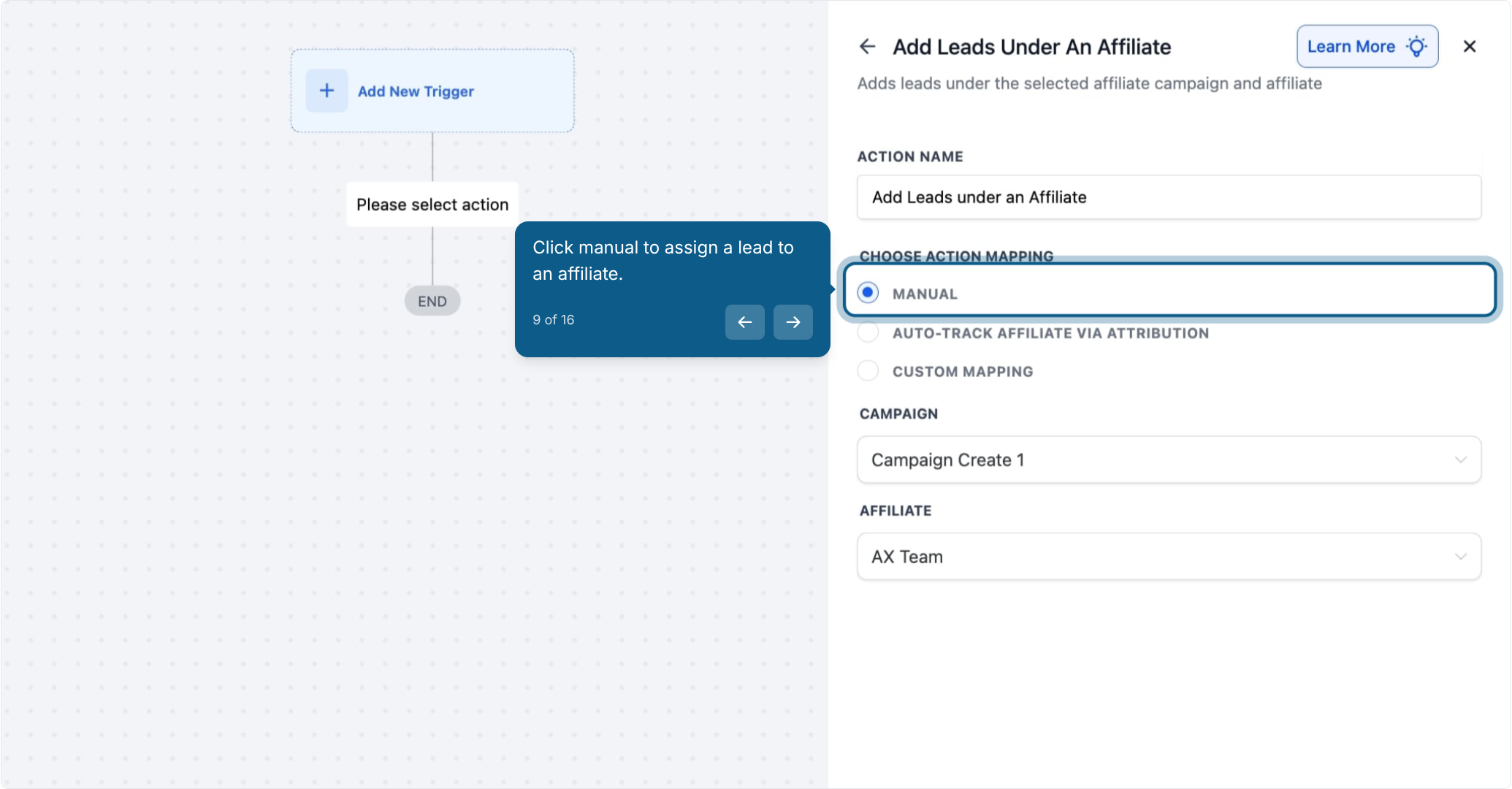
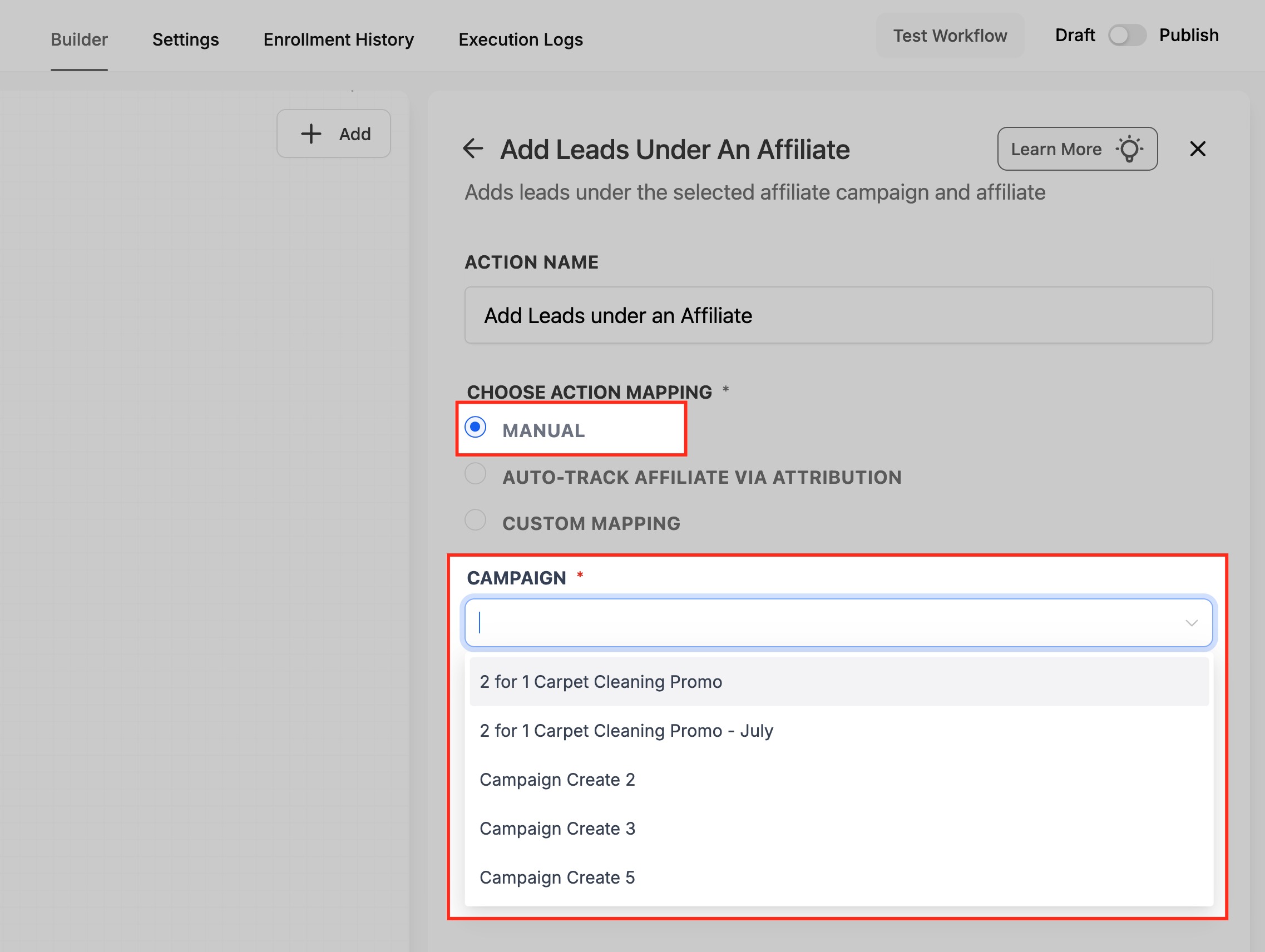
Select a Campaign from the dropdown. The system will display the affiliates linked to that campaign.
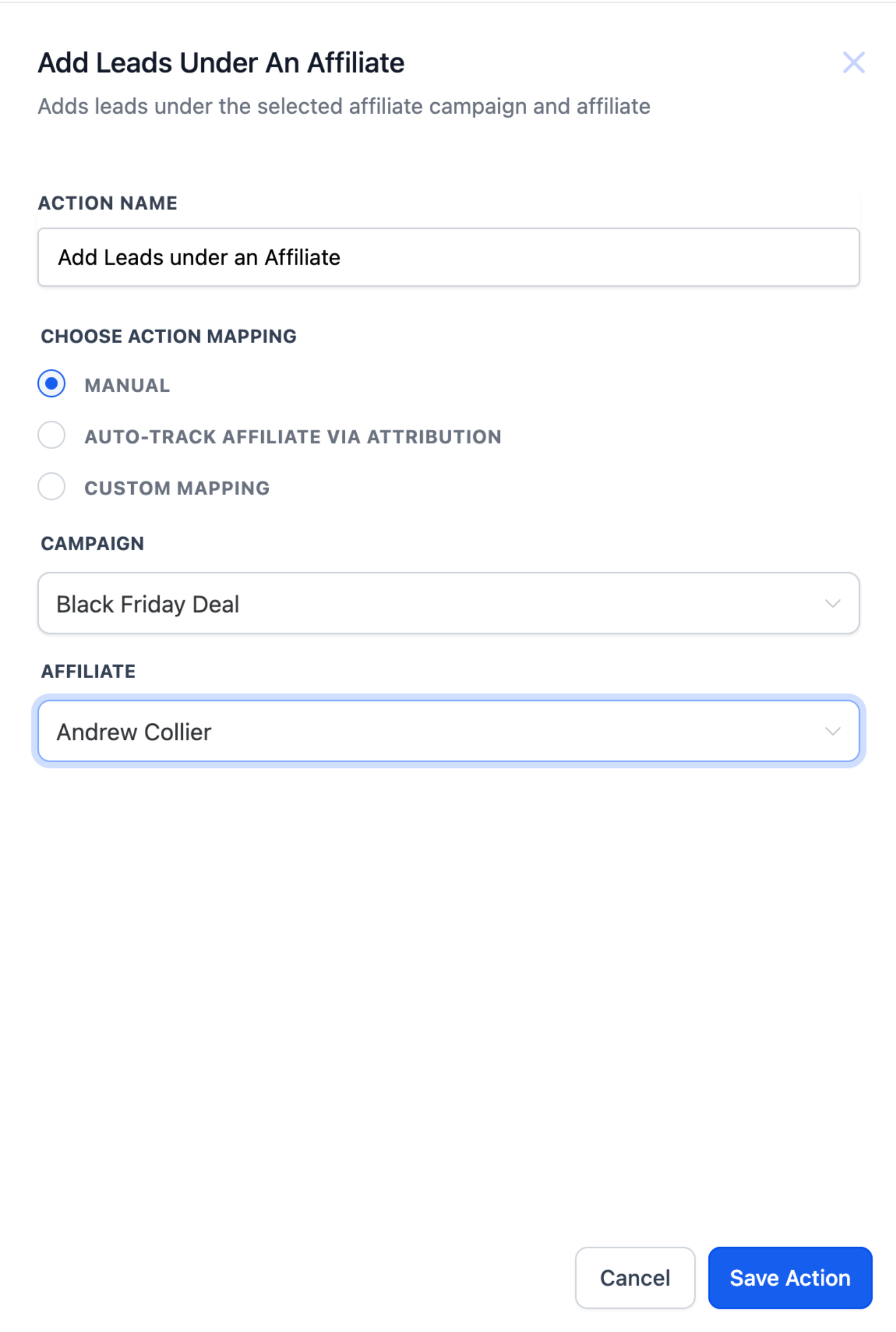
Select the desired Affiliate from the list, then save.
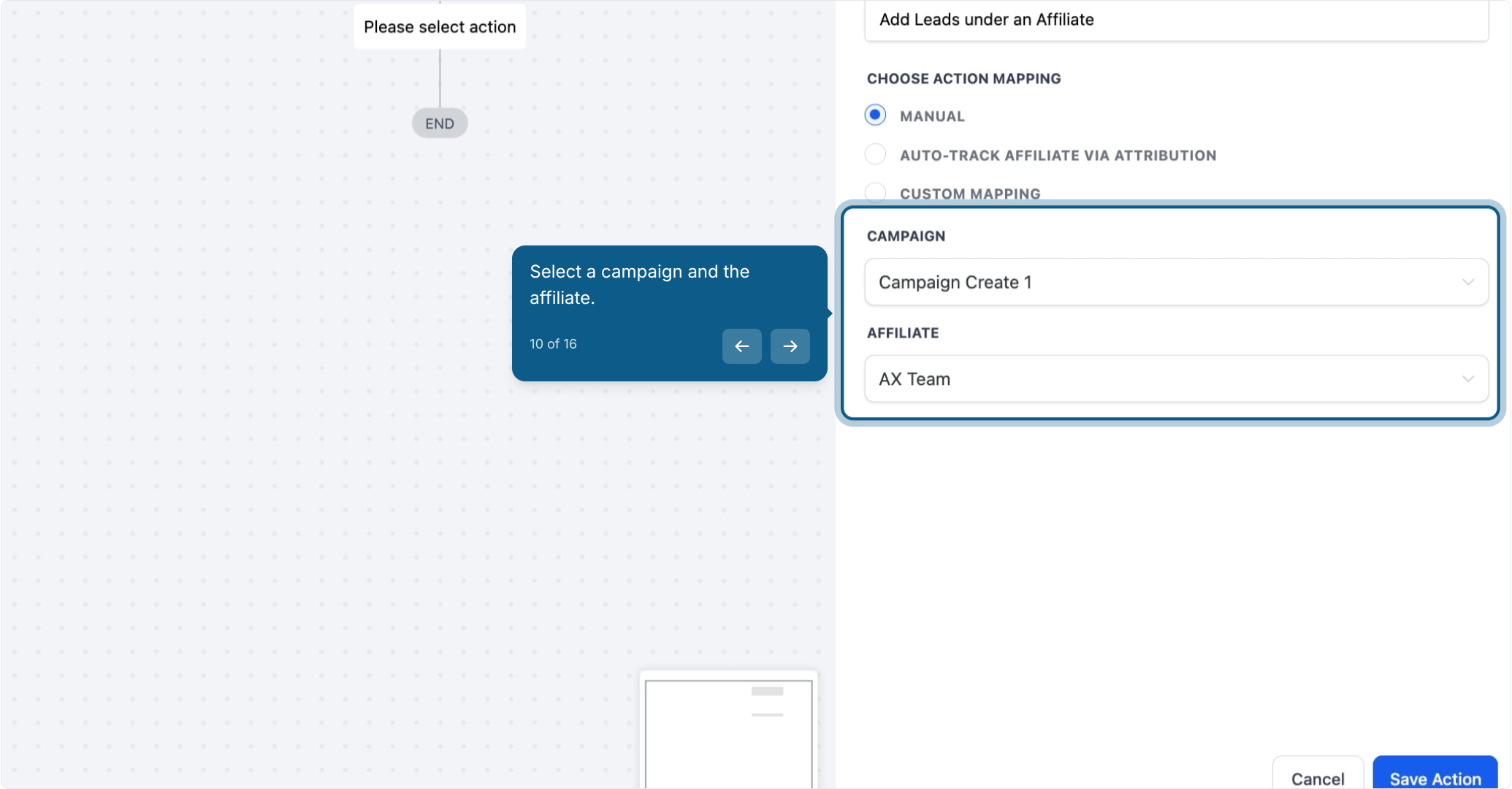
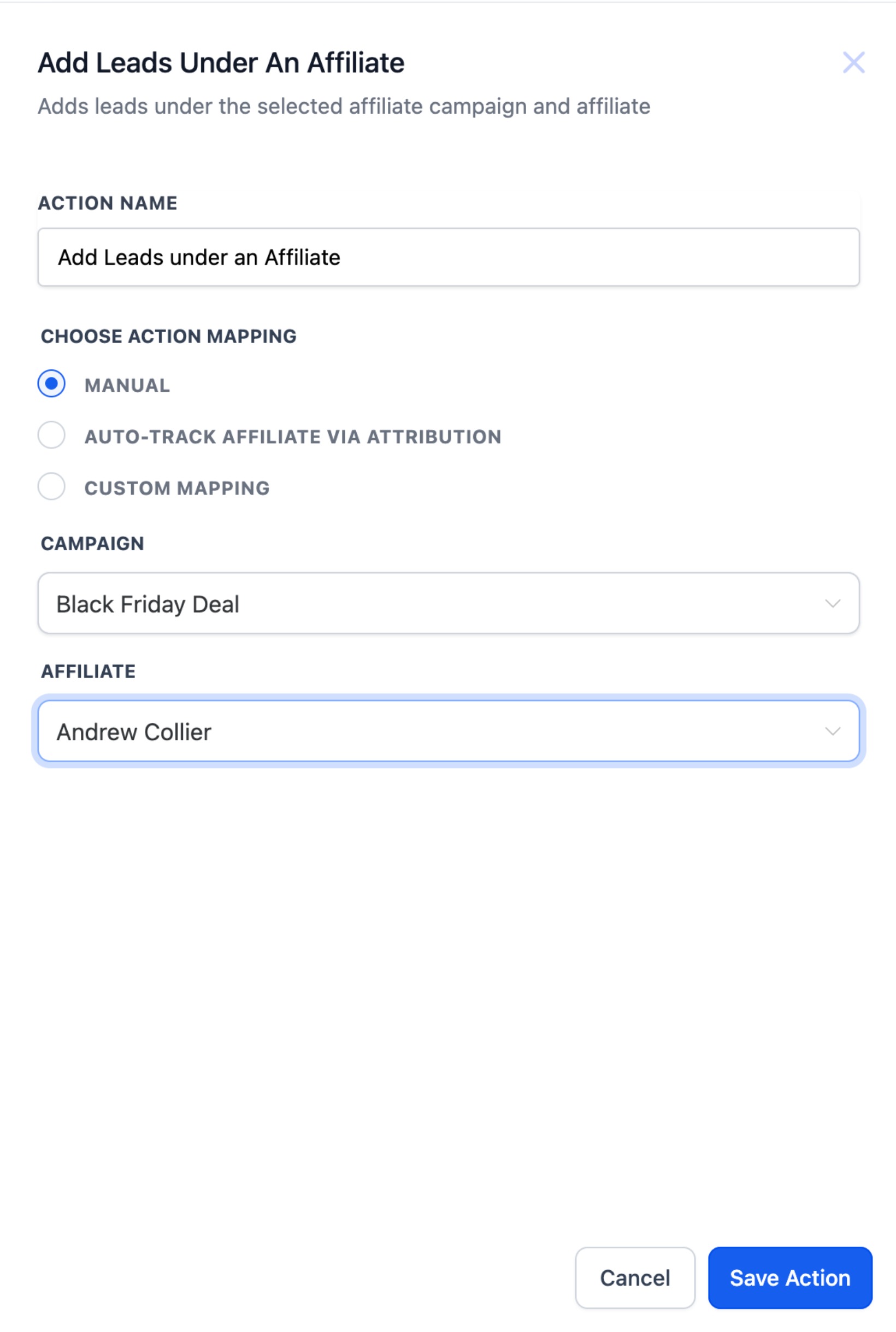
Every lead that enters this workflow is now automatically assigned to the affiliate you chose.
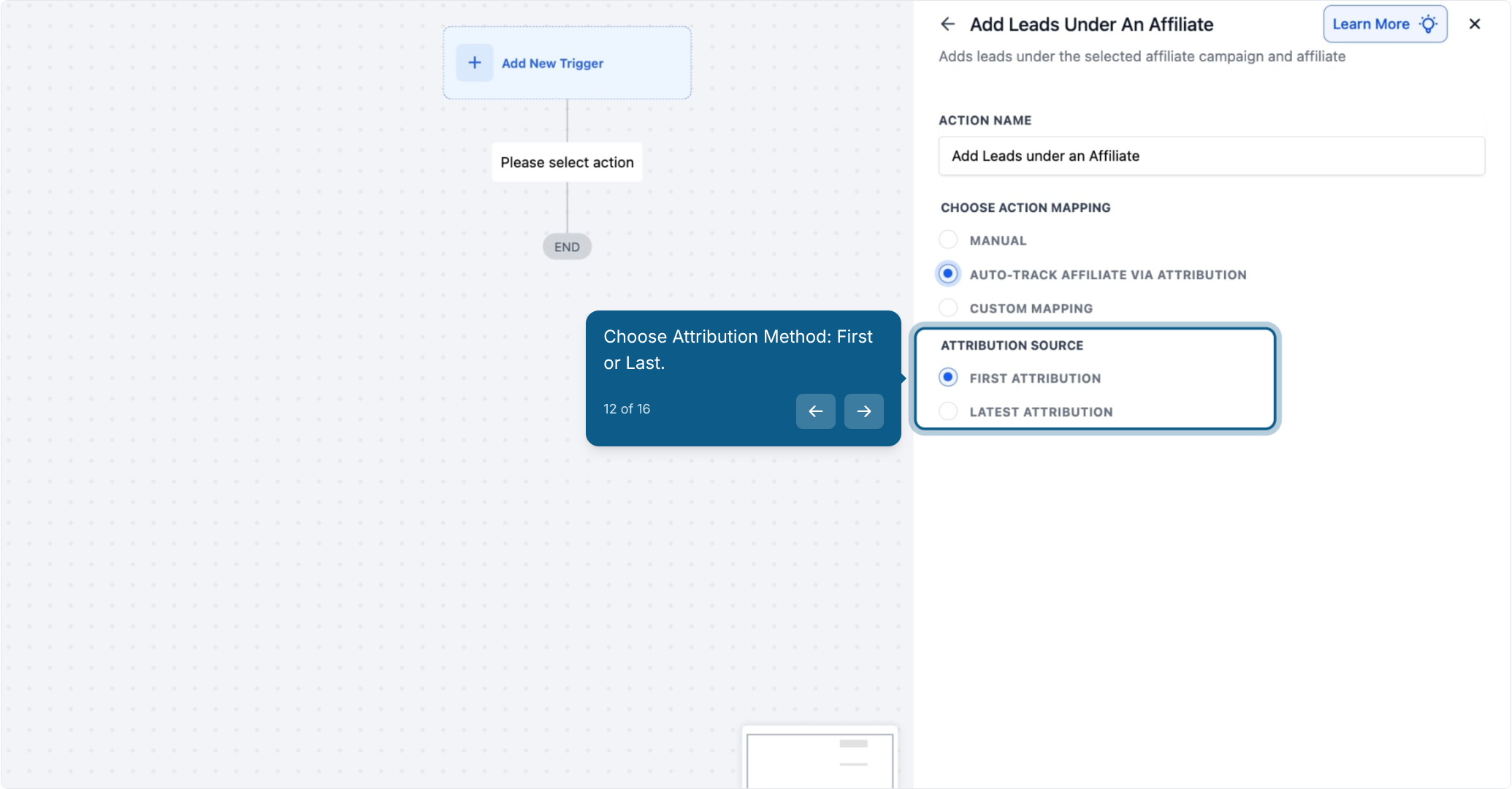
Automatically assign leads using the am_id parameter passed in the URL, for example when a prospective patient clicks an affiliate's tracking link (https://yourdomain.com/?am_id=1234). Aesthetix CRM captures that ID and credits the correct affiliate without any manual step. This method is best for setups where affiliates share trackable links to drive traffic.
Click Auto-Track Affiliate via Attribution under Choose Action Mapping.
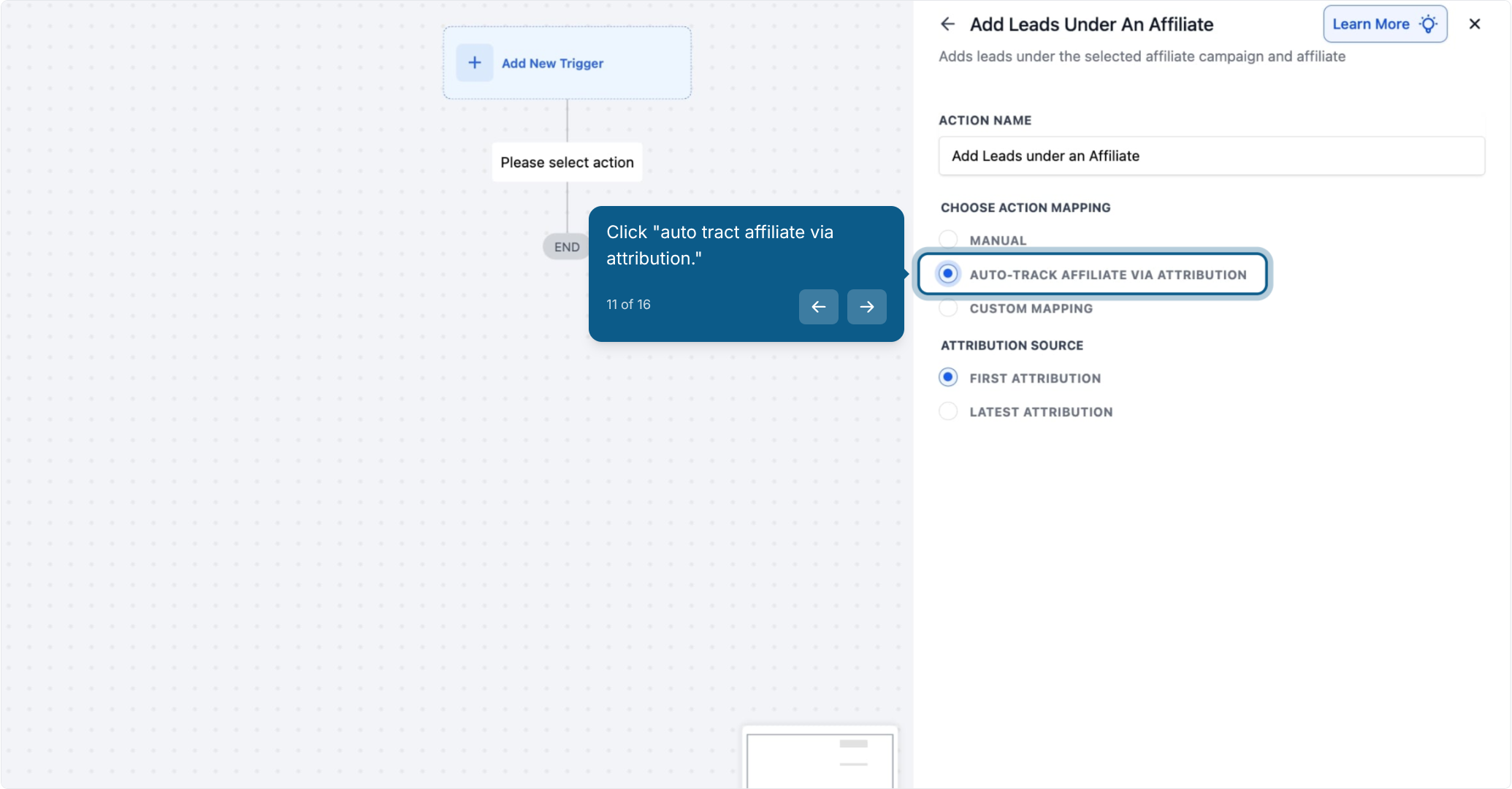
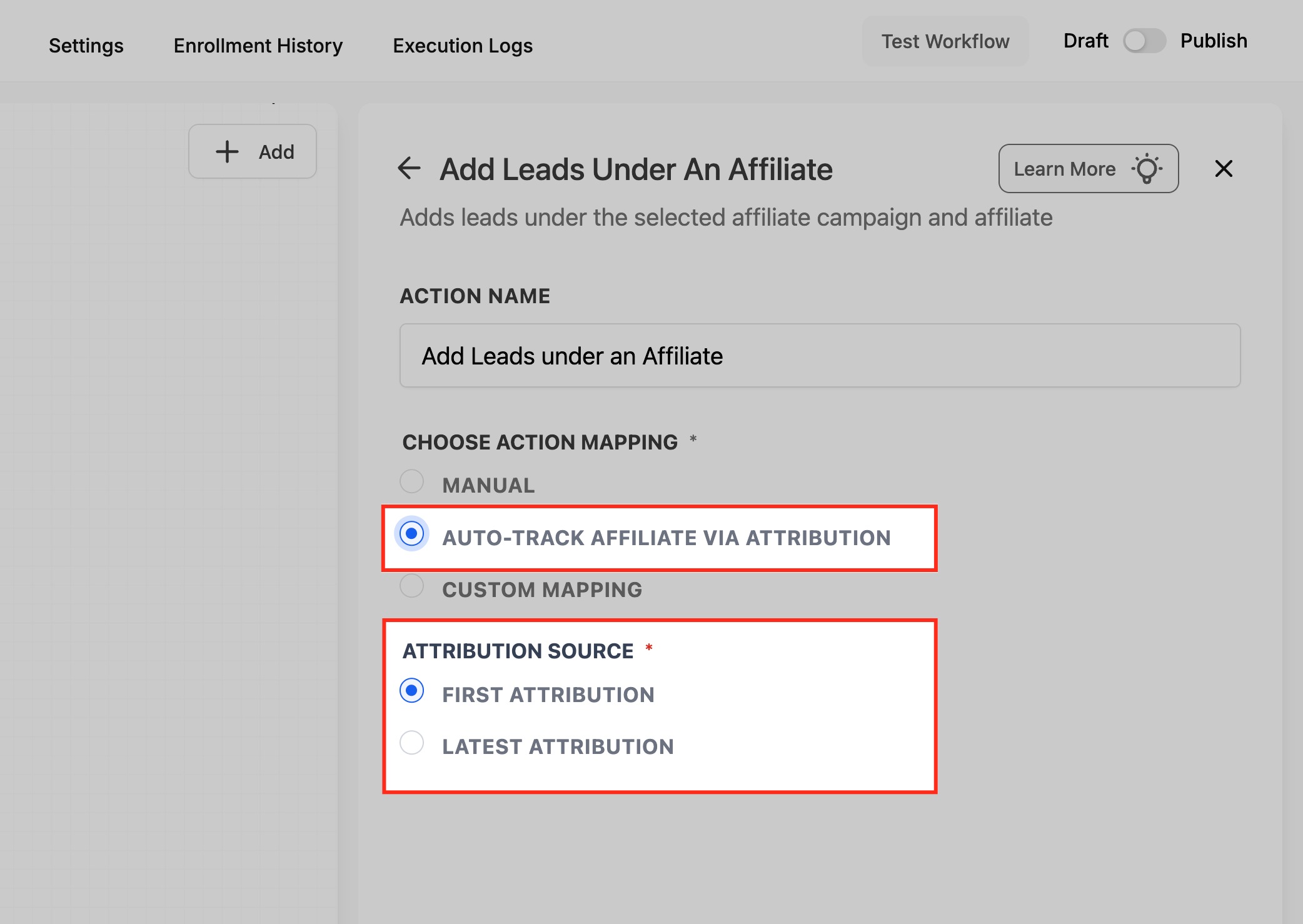
Choose your Attribution Source:
First Attribution: Credits the first affiliate who referred the contact.
Latest Attribution: Credits the most recent affiliate interaction before conversion.
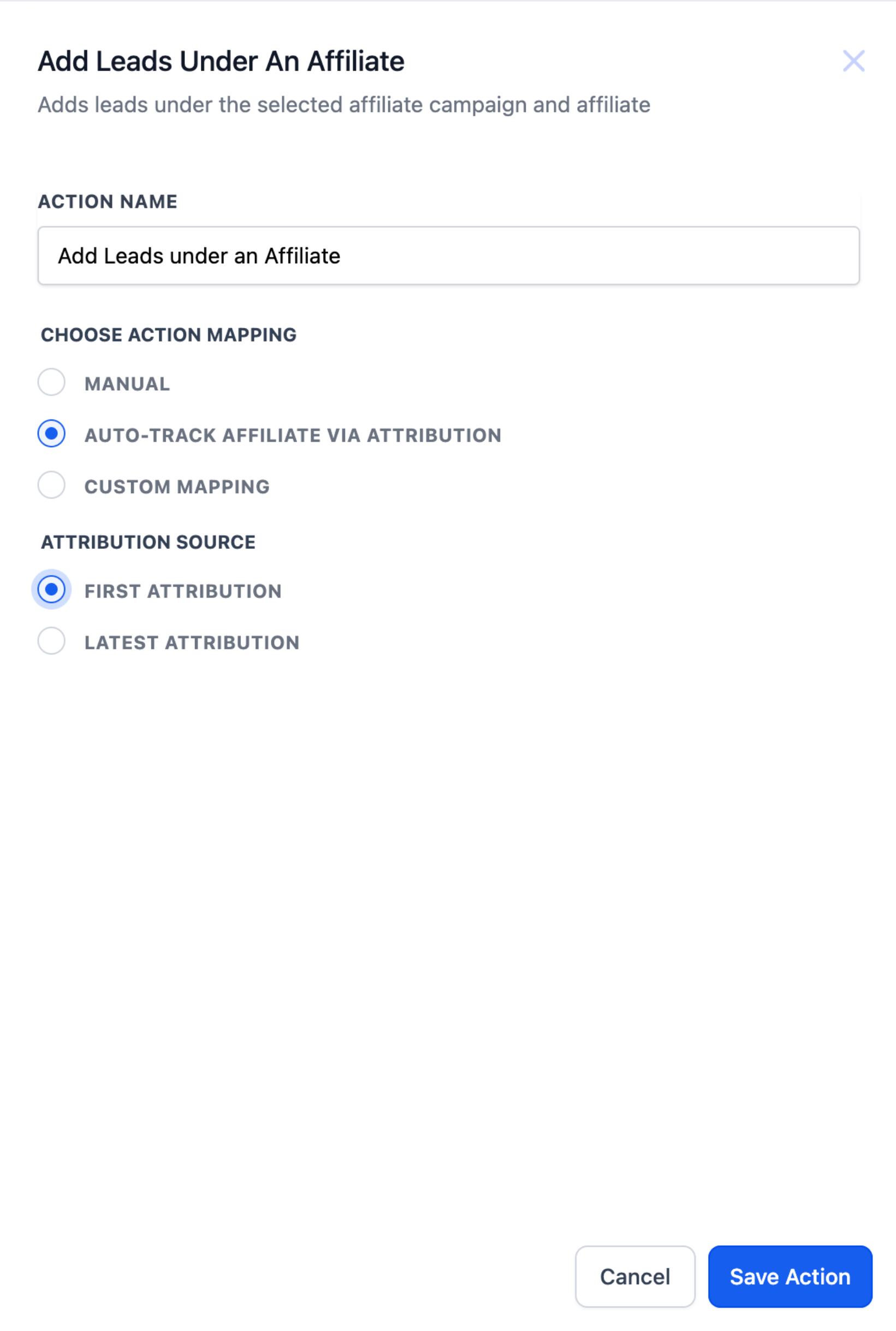
Save the configuration. Just make sure the am_id parameter is being passed earlier in the funnel, such as on the form or landing page URL the lead first lands on.
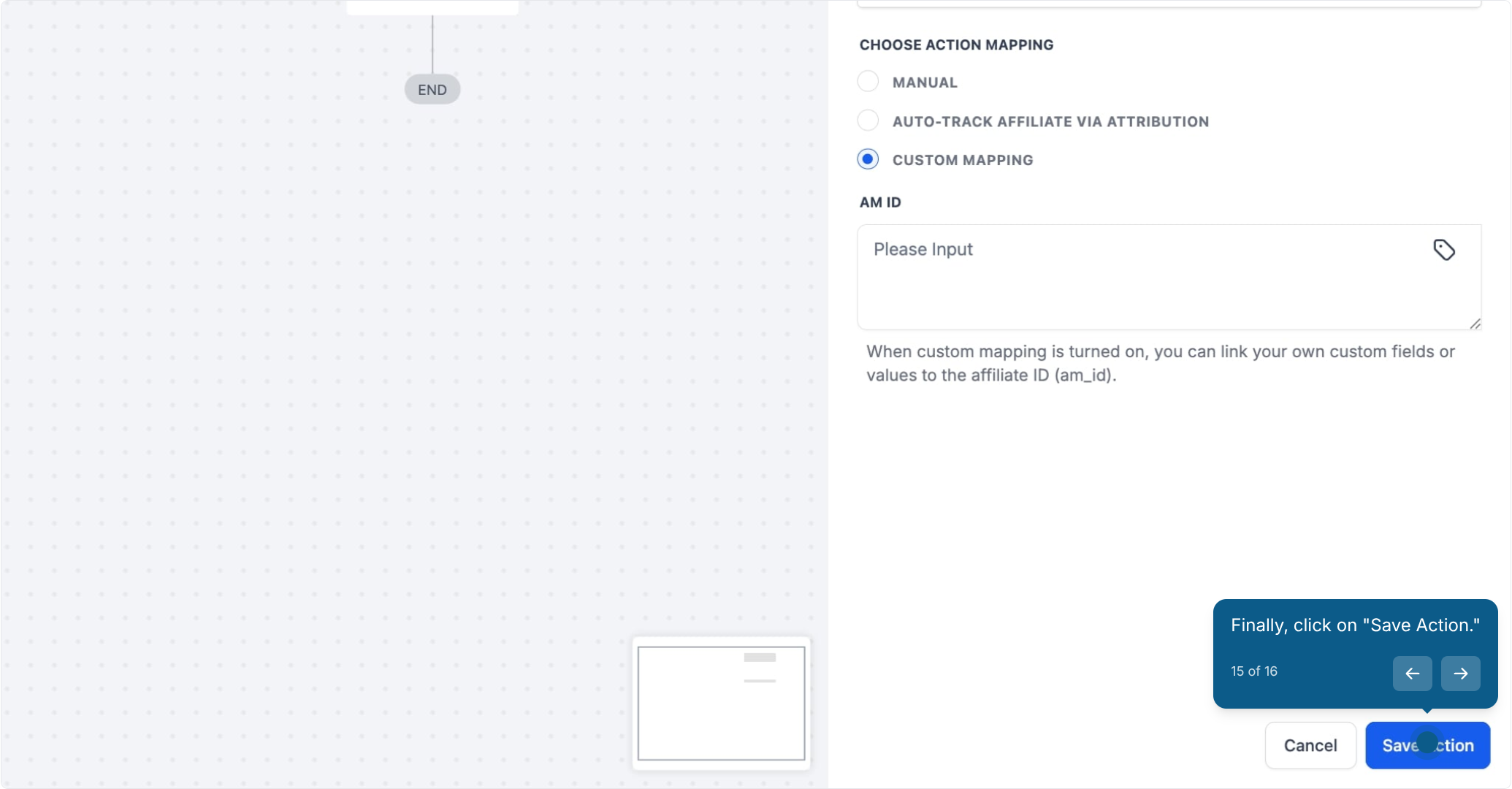
Use Custom Mapping if the affiliate ID is stored in a custom field or passed as a workflow variable rather than a URL parameter. This is the right choice for API integrations, third-party systems, or hidden fields on a form.
Click Custom Mapping under Choose Action Mapping.
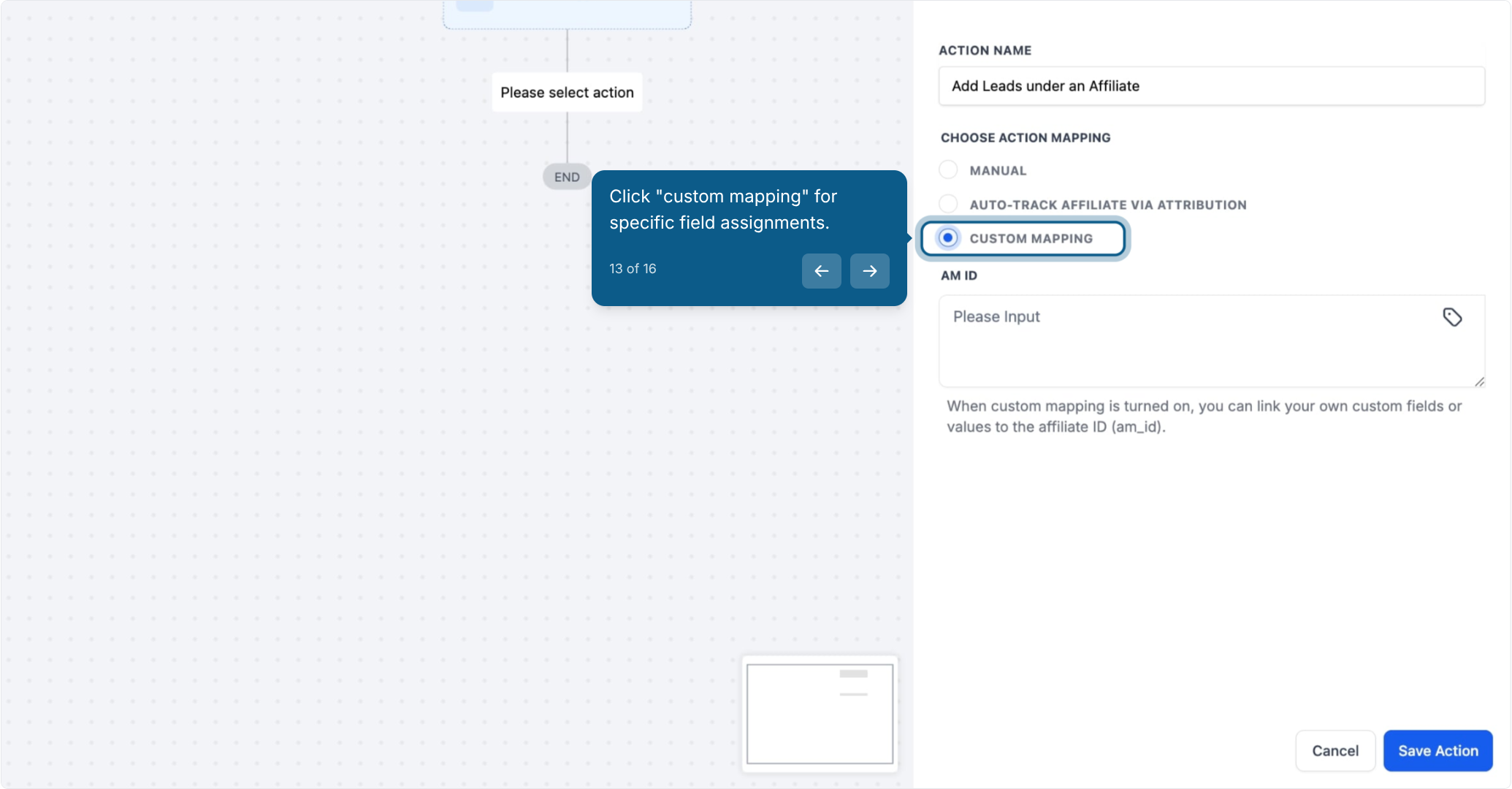
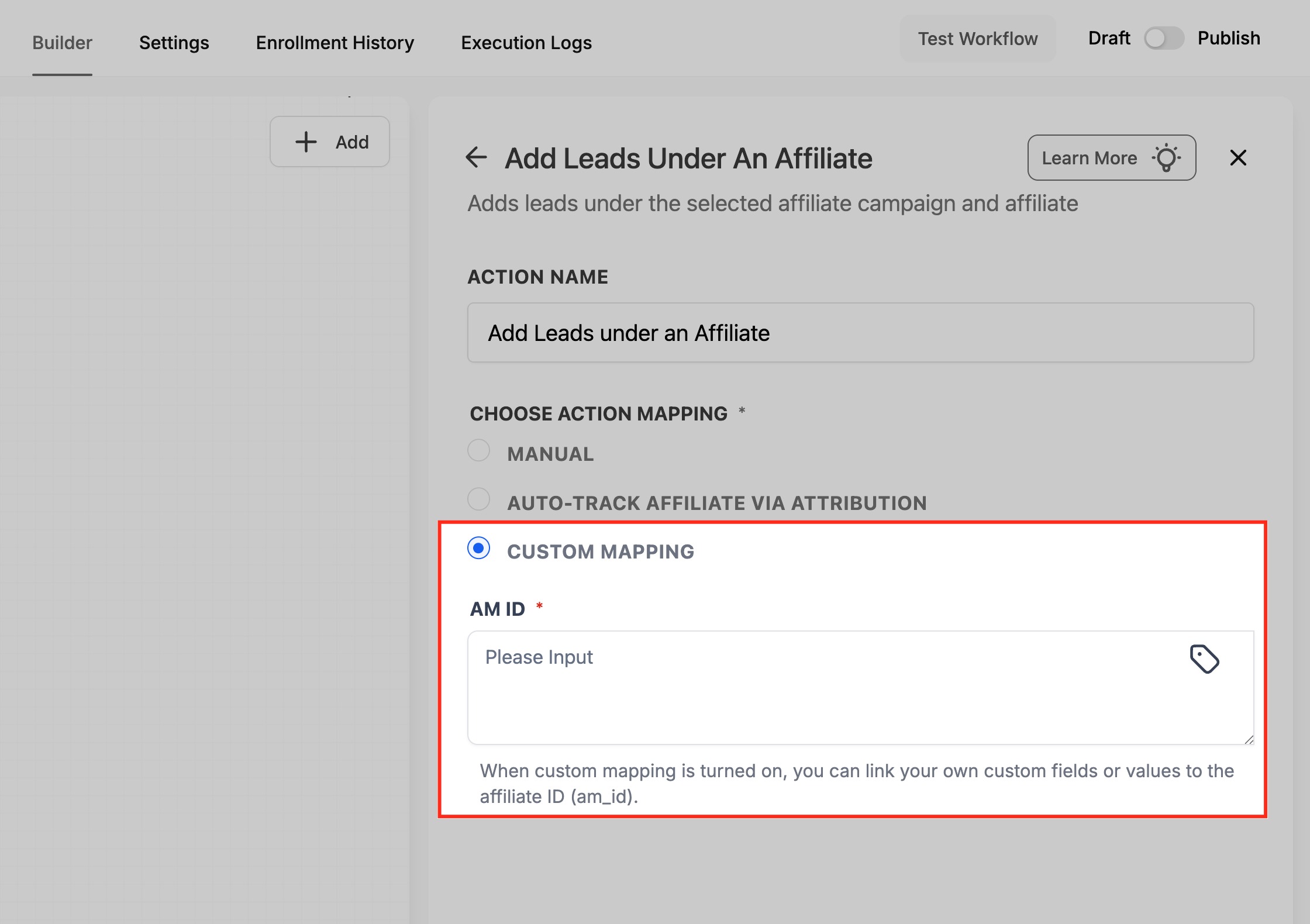
Enter the mapping source, either a custom field (for example {{contact.custom_field.am_id}}) or a workflow variable (for example {{workflow.am_id}}).
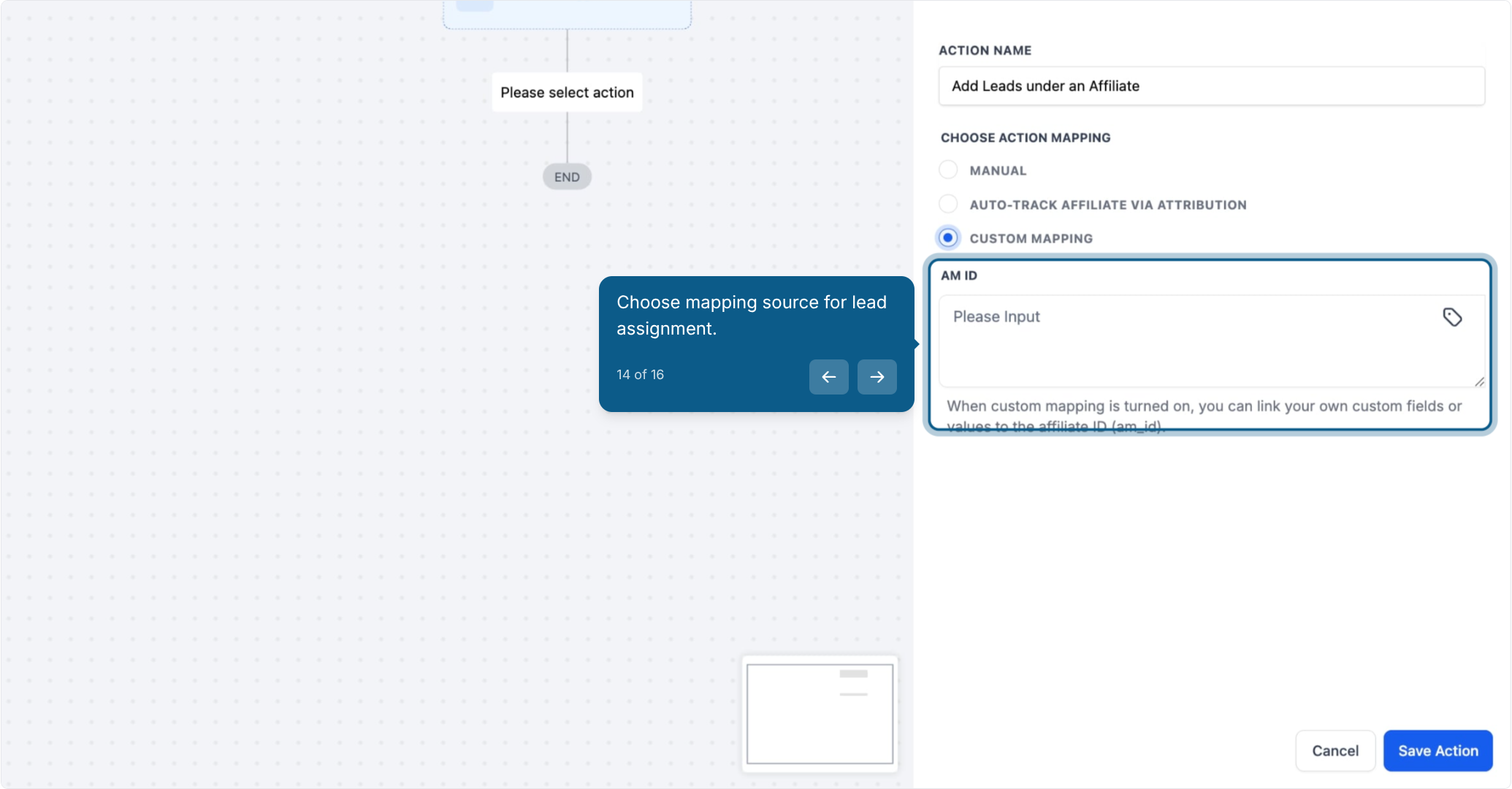
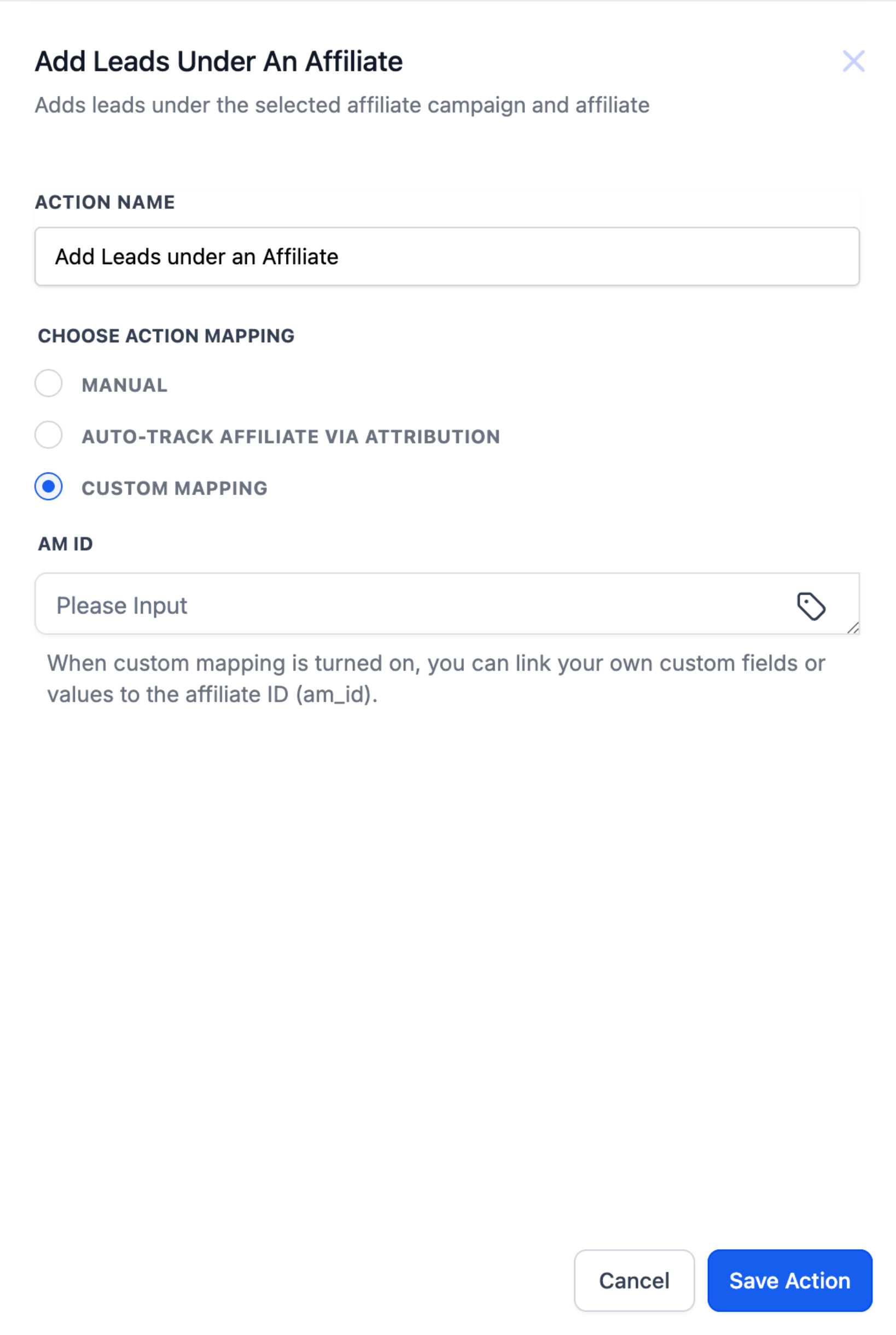
The system reads the value and assigns the lead to the matching affiliate record automatically.
Click Save Action once your assignment method is configured.
Your action is now added to the workflow.
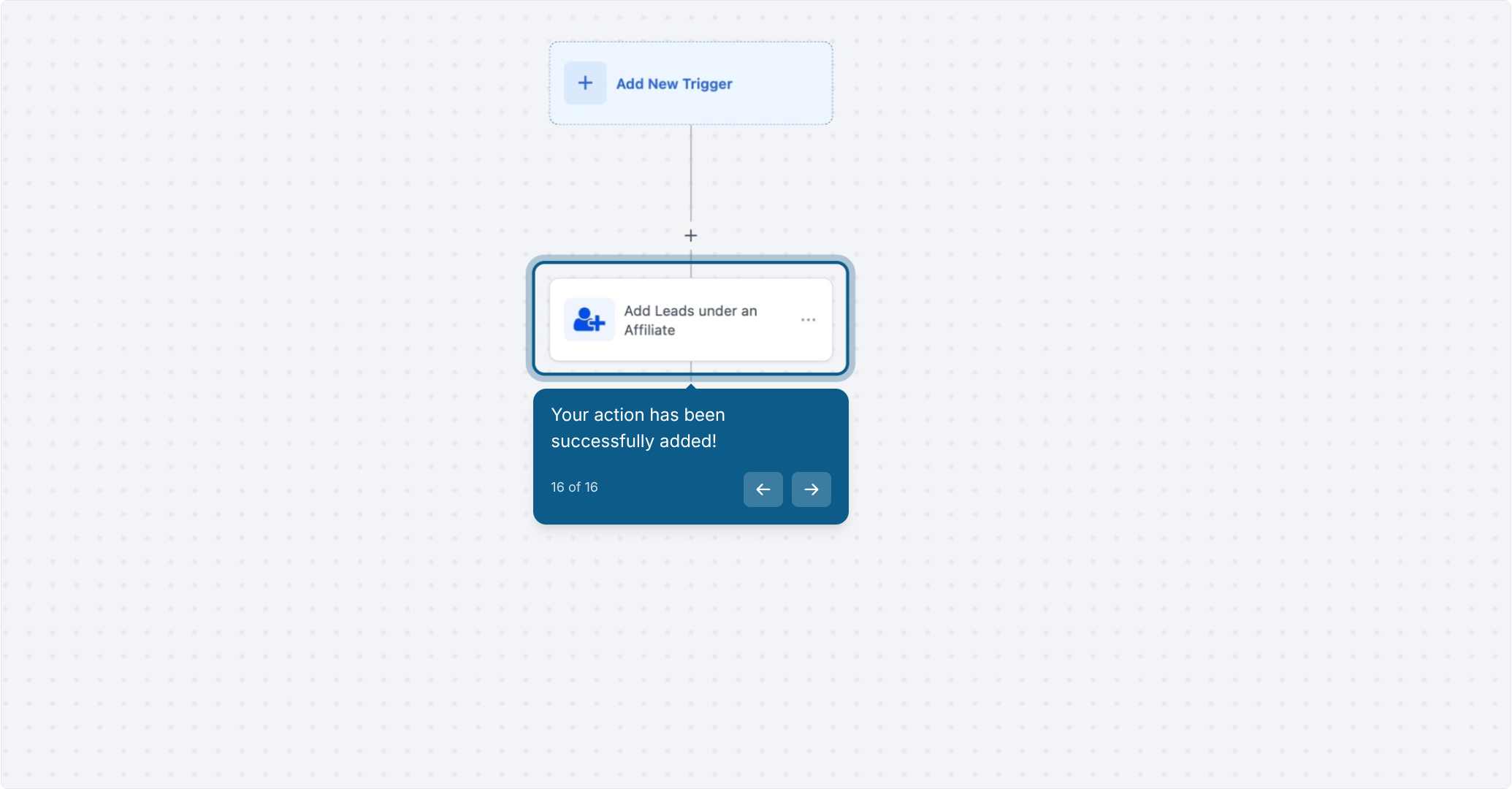
Before turning the workflow on, click Test Workflow to simulate a lead entering it, then review the execution logs to confirm the affiliate assignment worked as expected.
Once you've confirmed it's working, toggle the workflow from Draft to Publish to make it live.
Reward lead generation: A prospective patient fills out a form, the system assigns them to the affiliate who shared the link, and a "Congrats!" email goes out automatically.
Custom lead nurturing: Leads from a specific funnel are routed to the affiliate responsible for that campaign, so follow-up stays personal and conversion rates improve.
Simplify administrative work: Replace manual lead assignment with automation, which matters most once you're managing more than a handful of referral partners.
What happens if no matching affiliate is found for an am_id? The workflow completes without assigning the lead. Double-check that the am_id in the URL actually corresponds to an affiliate that exists in the campaign you're targeting.
Can I manually override an automatically assigned affiliate? Yes. You can reassign a lead to a different affiliate at any time from within Affiliate Manager if a correction is needed.
Does this action require a sale or reward to work? No. You can assign a lead to an affiliate even if no reward or commission is involved yet. Rewards and commissions are only triggered when a qualifying purchase or booked treatment happens through that affiliate's link.
How is First Attribution different from Latest Attribution? First Attribution credits whichever affiliate referred the contact initially. Latest Attribution credits the most recent affiliate interaction before the lead converted.
Can I assign multiple affiliates to one lead? No. A lead can only be assigned to one affiliate per campaign, which keeps crediting and commission tracking accurate.
How can I test this workflow before turning it on? Use the Test Workflow feature with sample data to confirm the lead gets assigned to the correct affiliate before you publish.
Can the Lead Created trigger notify more than one person? Yes. Add as many notification or email actions as you need, for example one to the affiliate and a separate one to your front desk or sales team.
Do I need to set up a campaign before I can assign leads to it? Yes. The campaign and its affiliates need to exist in Affiliate Manager first. Once they do, they'll show up as options when you configure Manual assignment or when the system matches an am_id automatically.
