Workflows can automatically enroll, update, and remove affiliates as part of your practice's referral program, without any manual list management. These four actions live in the Workflow Builder's action list and let you convert contacts into affiliates, assign them to specific campaigns, change their status, or take them out of a campaign whenever a trigger fires, such as a tag being added or a form being submitted.
All four actions are added the same way, from inside a workflow. Here's how to add "Add To Affiliate Manager" as an example; the other three actions follow the identical path.
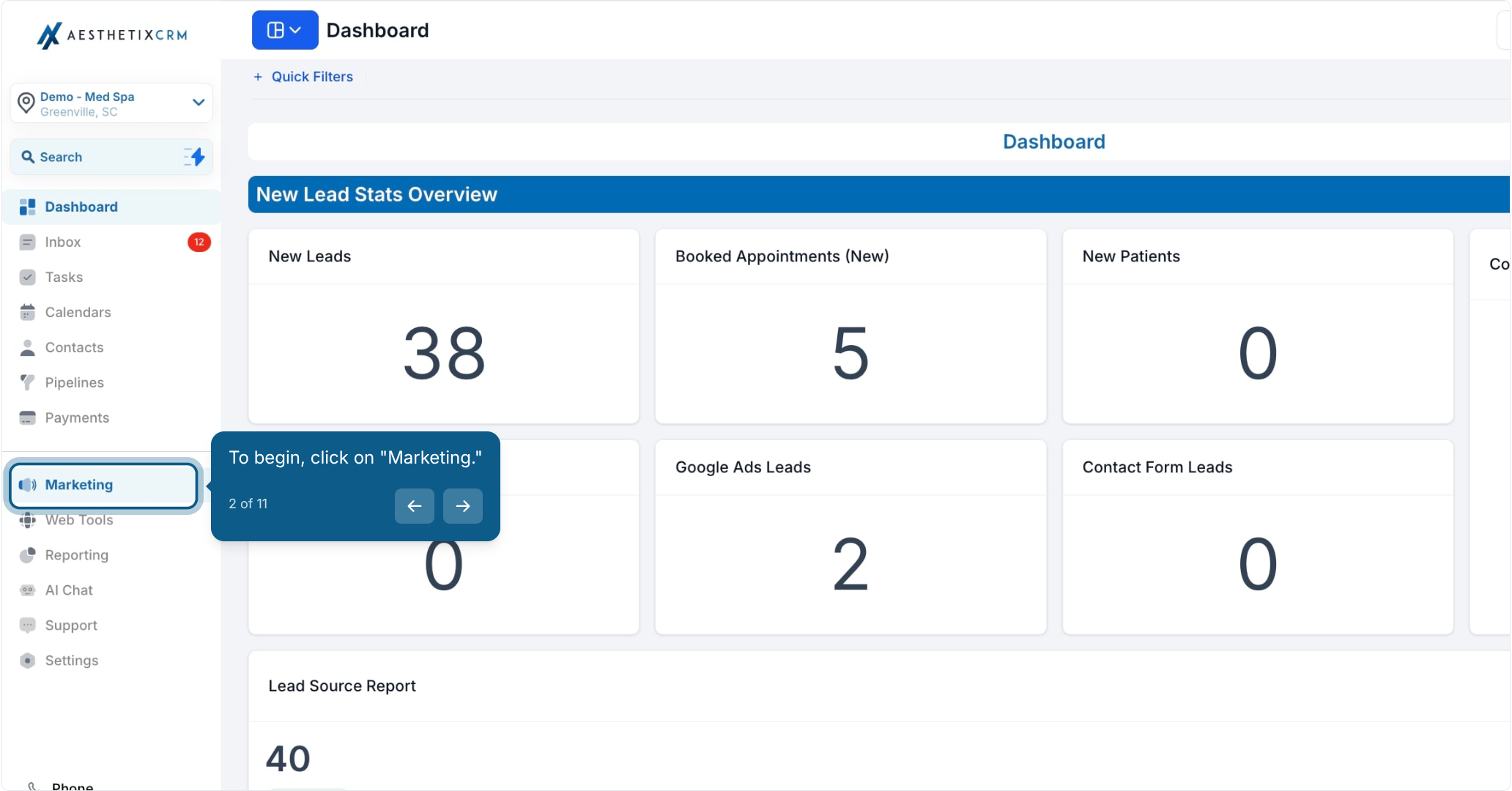
From the left menu, click "Marketing."
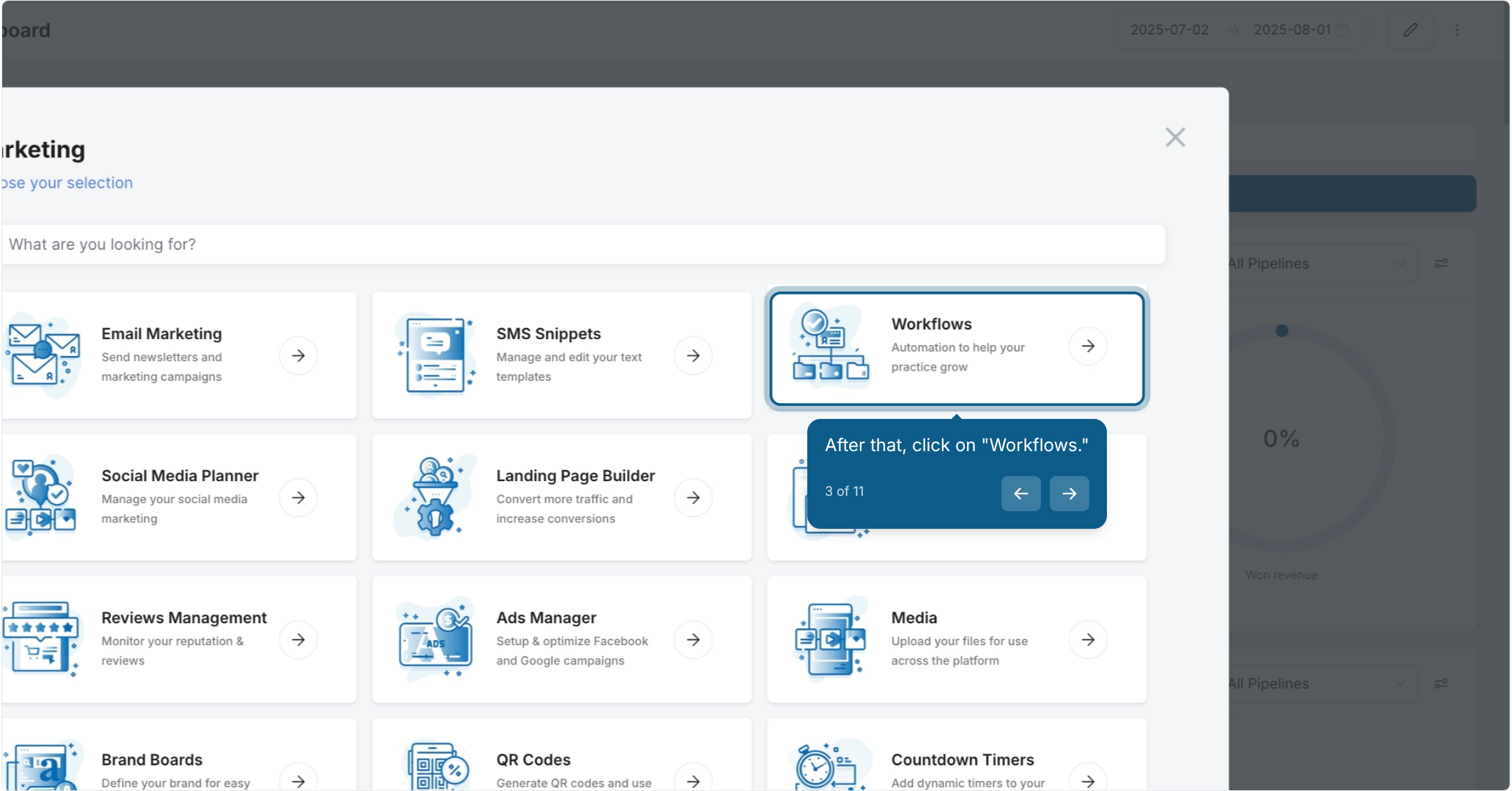
Click "Workflows."
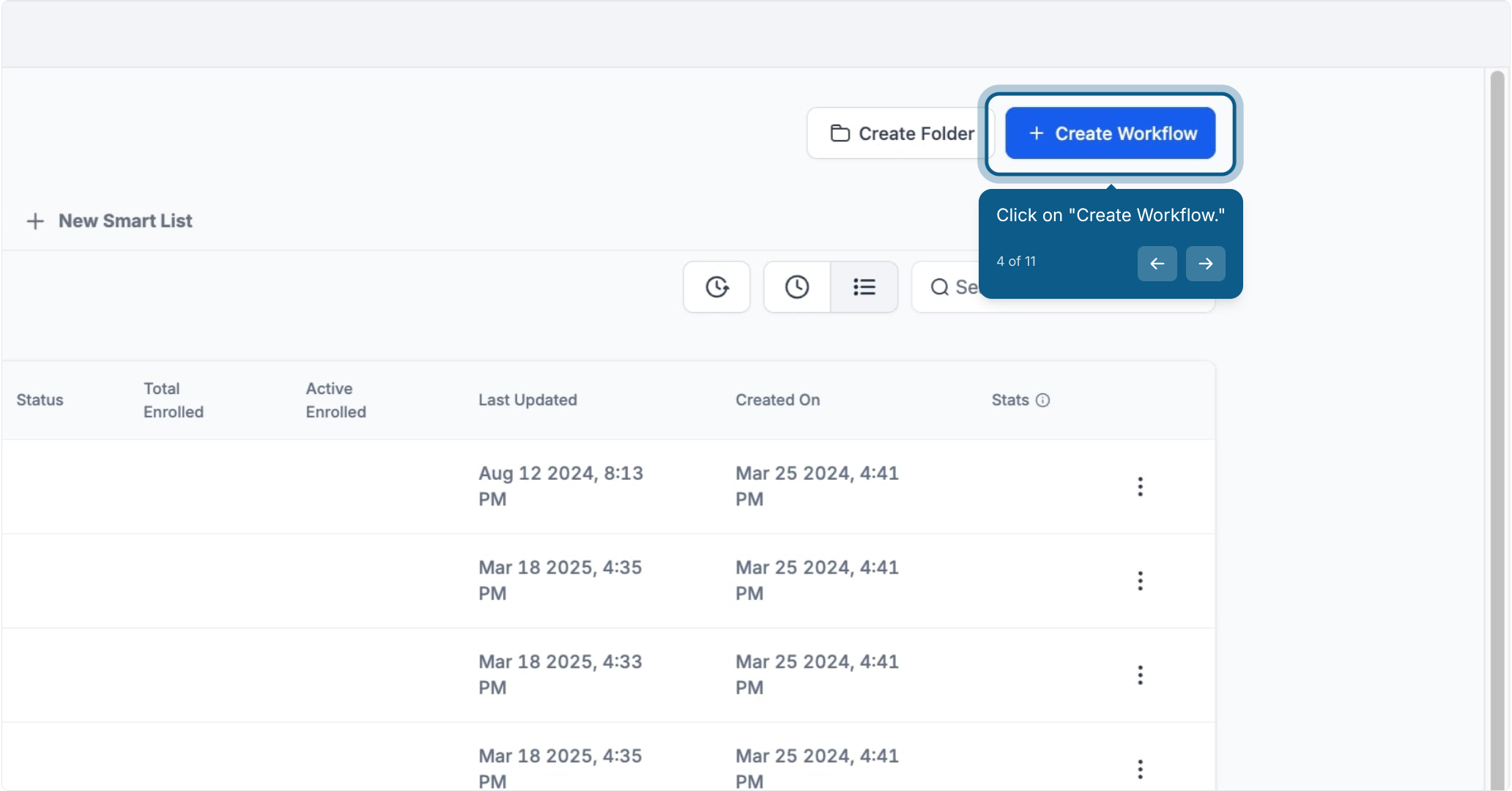
Click "Create Workflow."
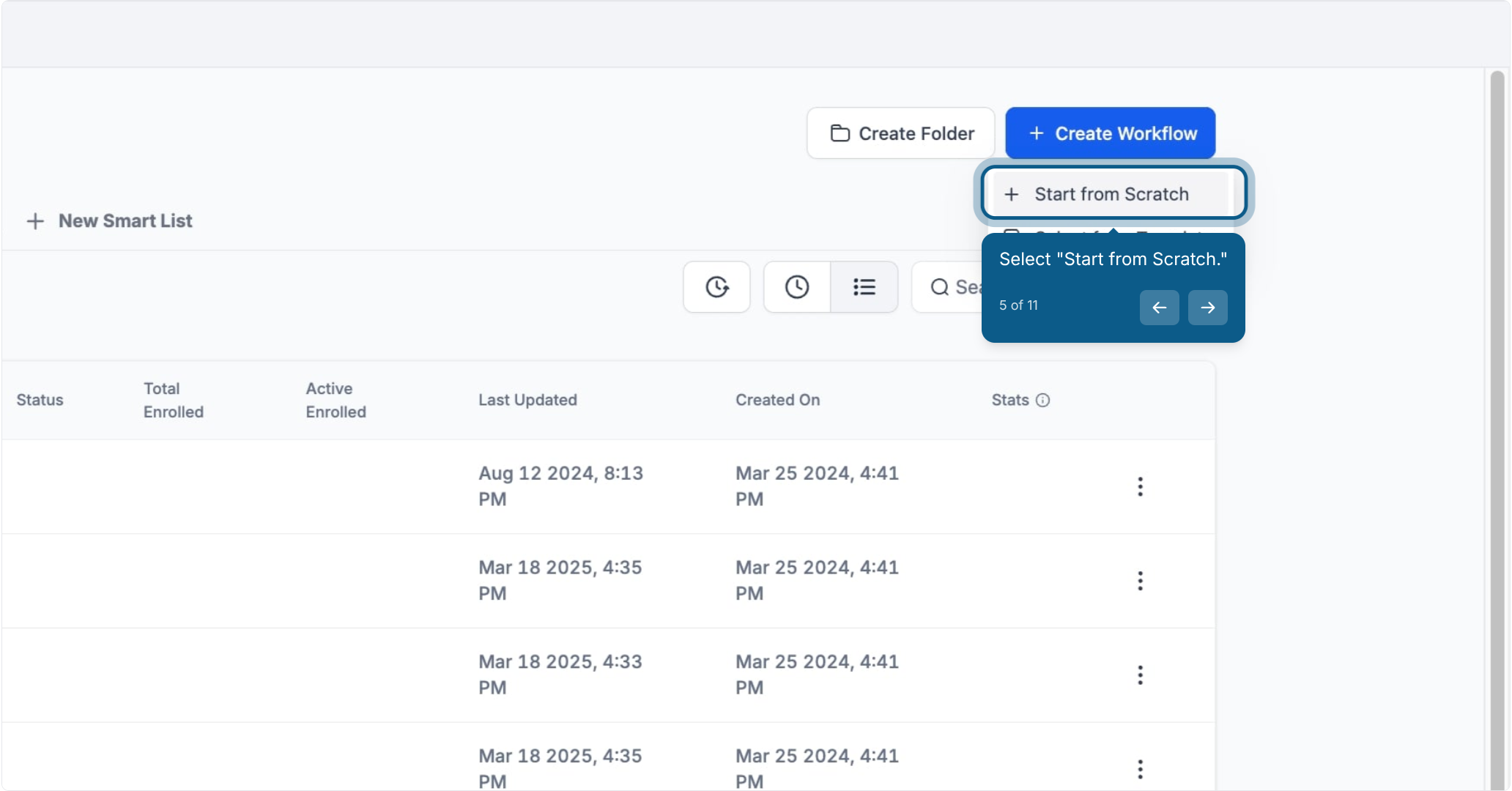
Select "Start from Scratch."
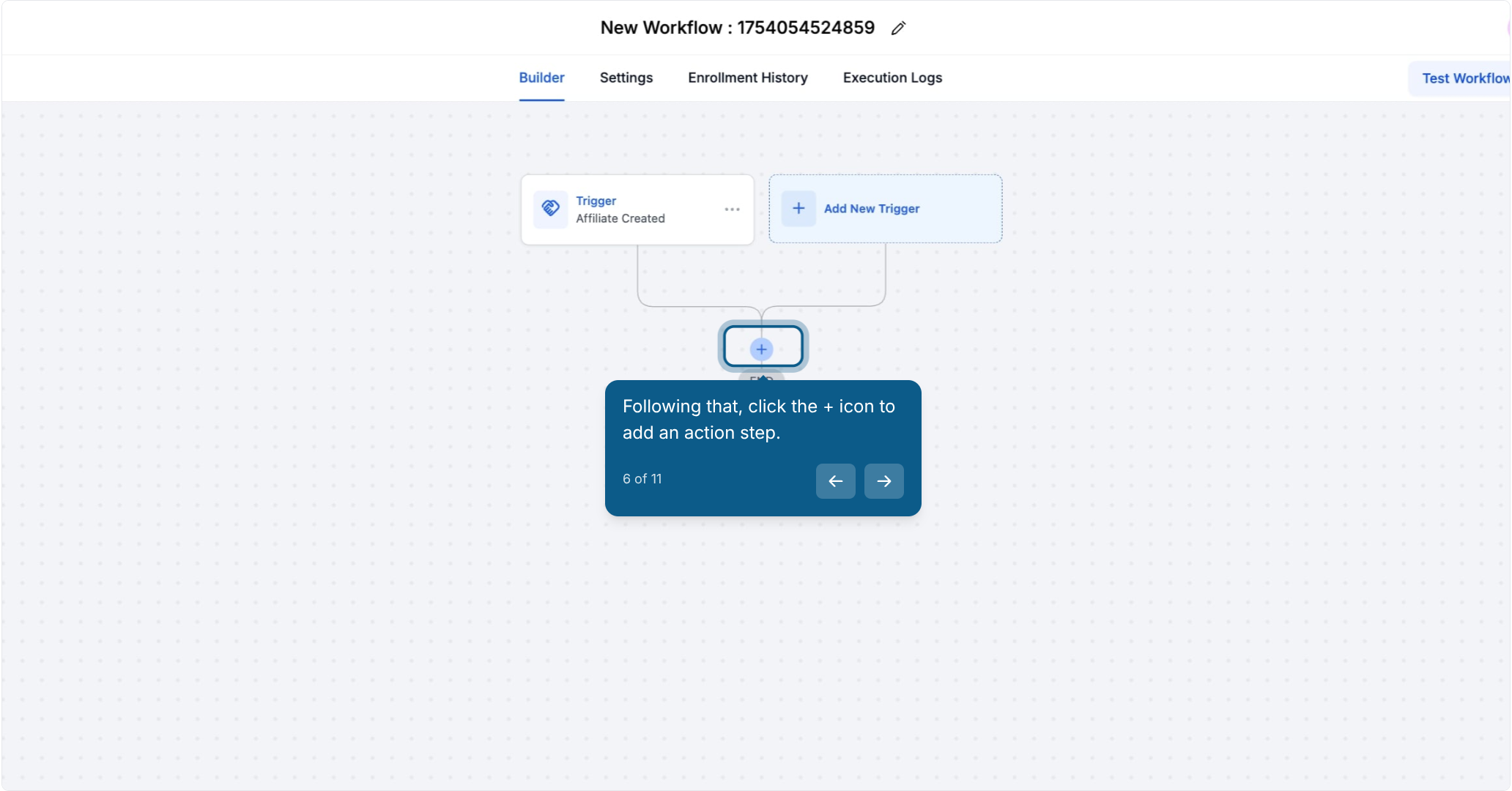
Click the + icon to add an action step.
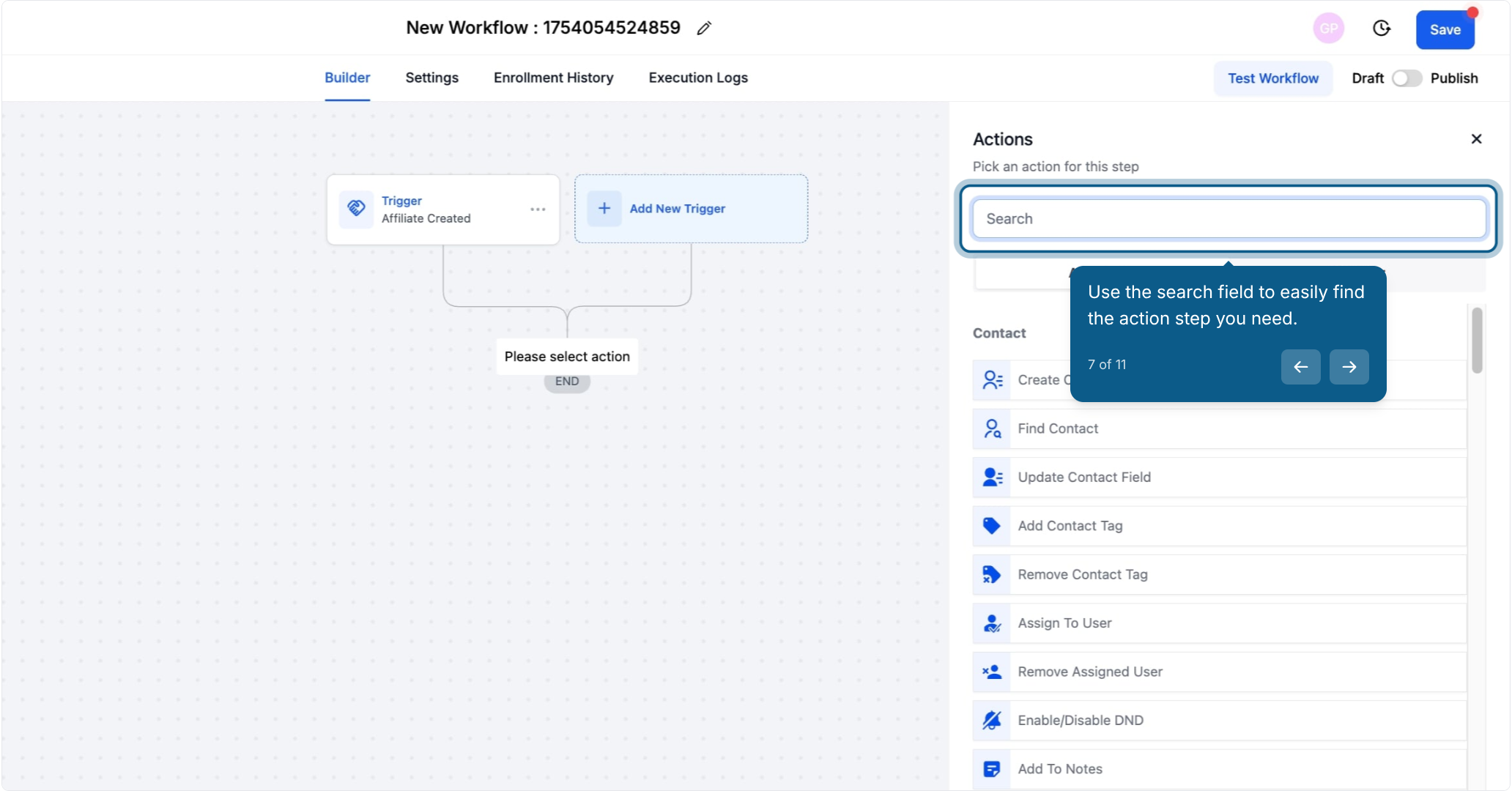
Use the search field to find the action you need. Type "affiliate" to see all four actions at once.
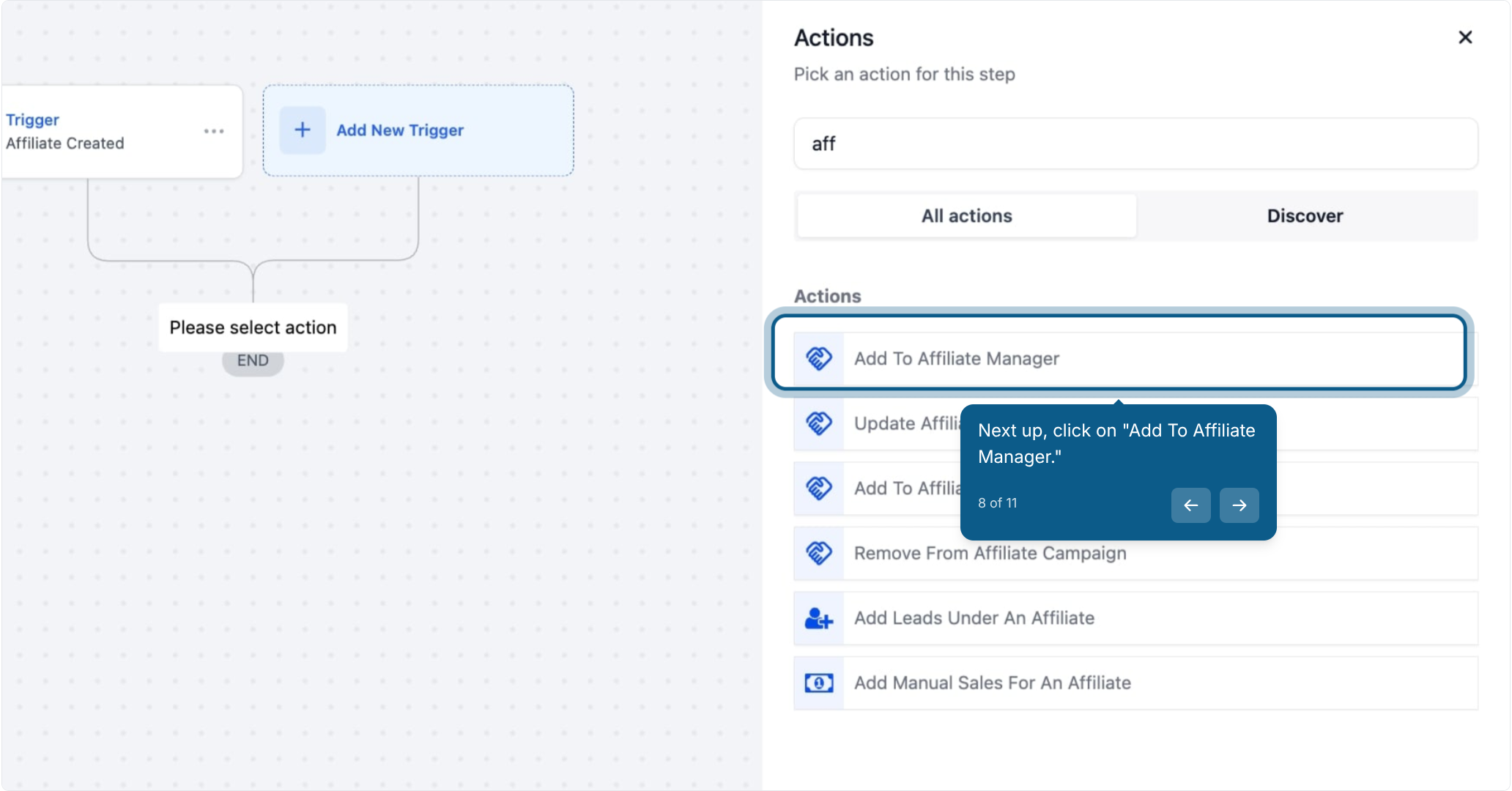
Click the action you want to add. In this example, click "Add To Affiliate Manager."
Add To Affiliate Manager automatically adds a contact to the Affiliates list in the Affiliate Manager, with their status set to active.
As soon as the workflow runs, the contact becomes an active affiliate in your account.
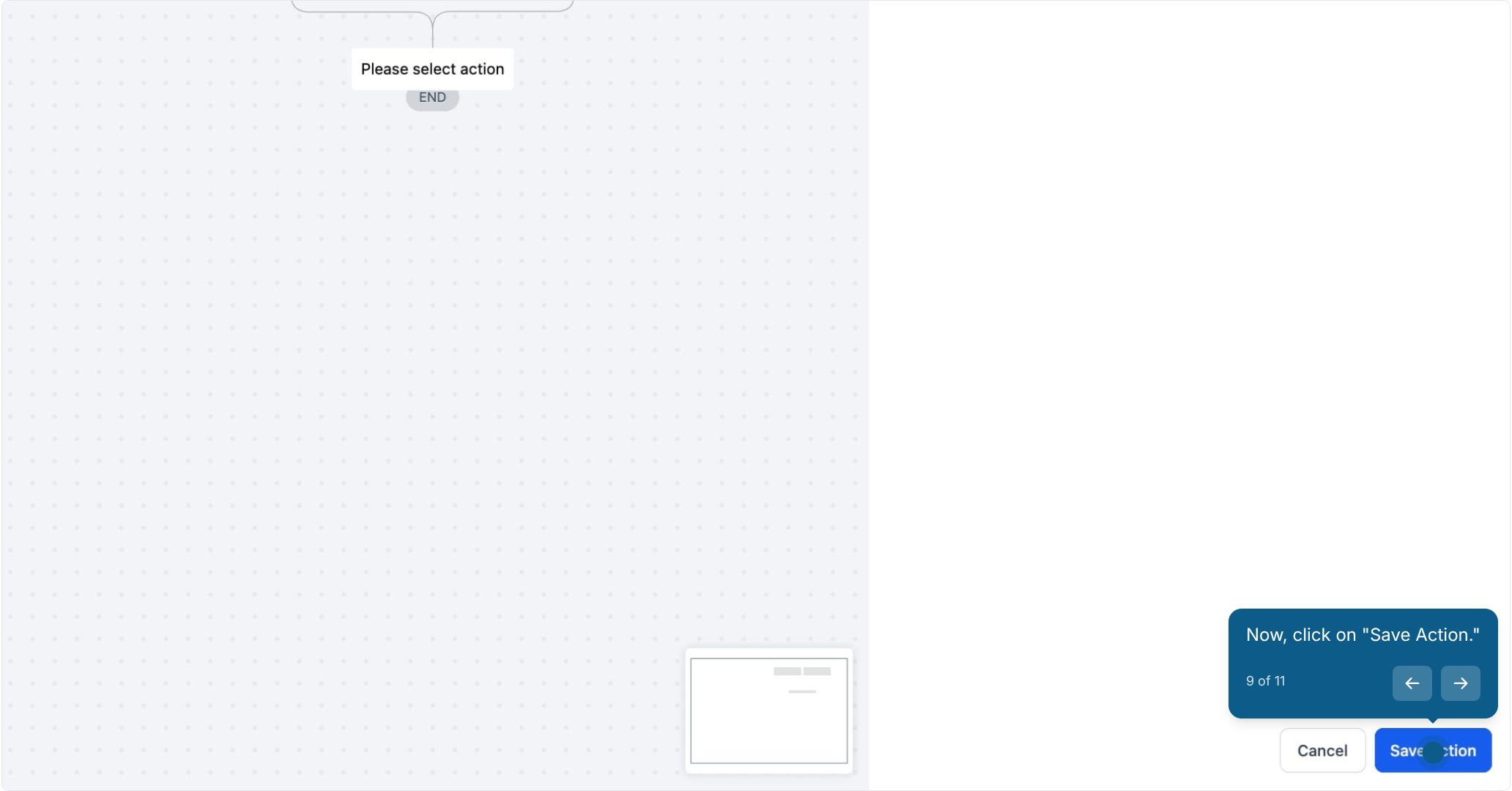
Click "Save Action."
The action step is added to your workflow.
Example: When a potential partner signs up, they're immediately added to your list of active affiliates, so there's no delay in onboarding them.
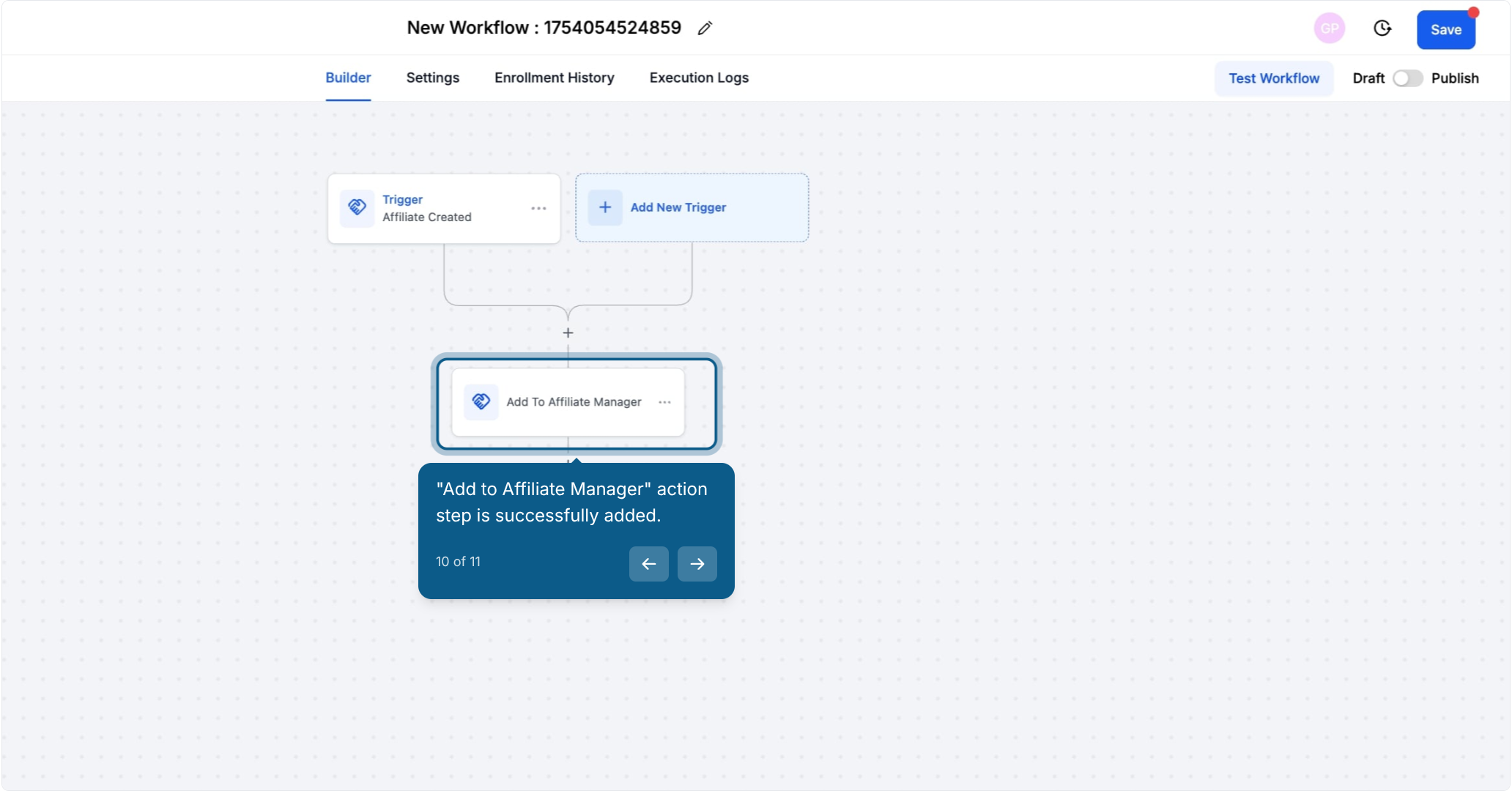
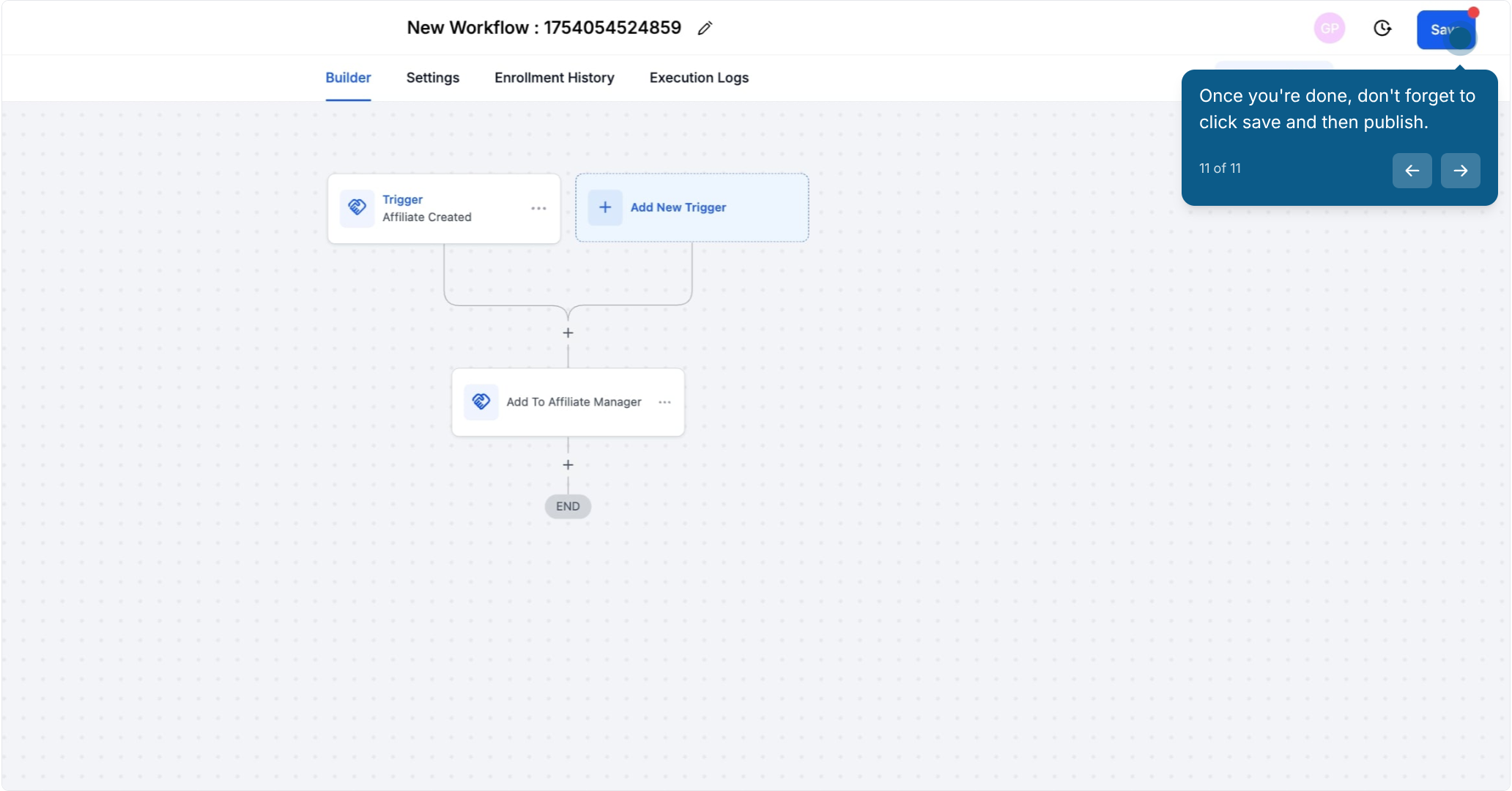
When you're done building the workflow, click Save, then Publish.
Use this same flow (Marketing, then Workflows, then Create Workflow, the + icon, and the search field) whenever you want to add any of the four actions below to a workflow.
Adds a contact to the Affiliates list in the Affiliate Manager, with status set to active by default. Use this to enroll existing contacts or patients as affiliates.
Setup:
Choose "Add To Affiliate Manager" from the action list.
Name the action something descriptive, such as "Convert contacts to affiliates."
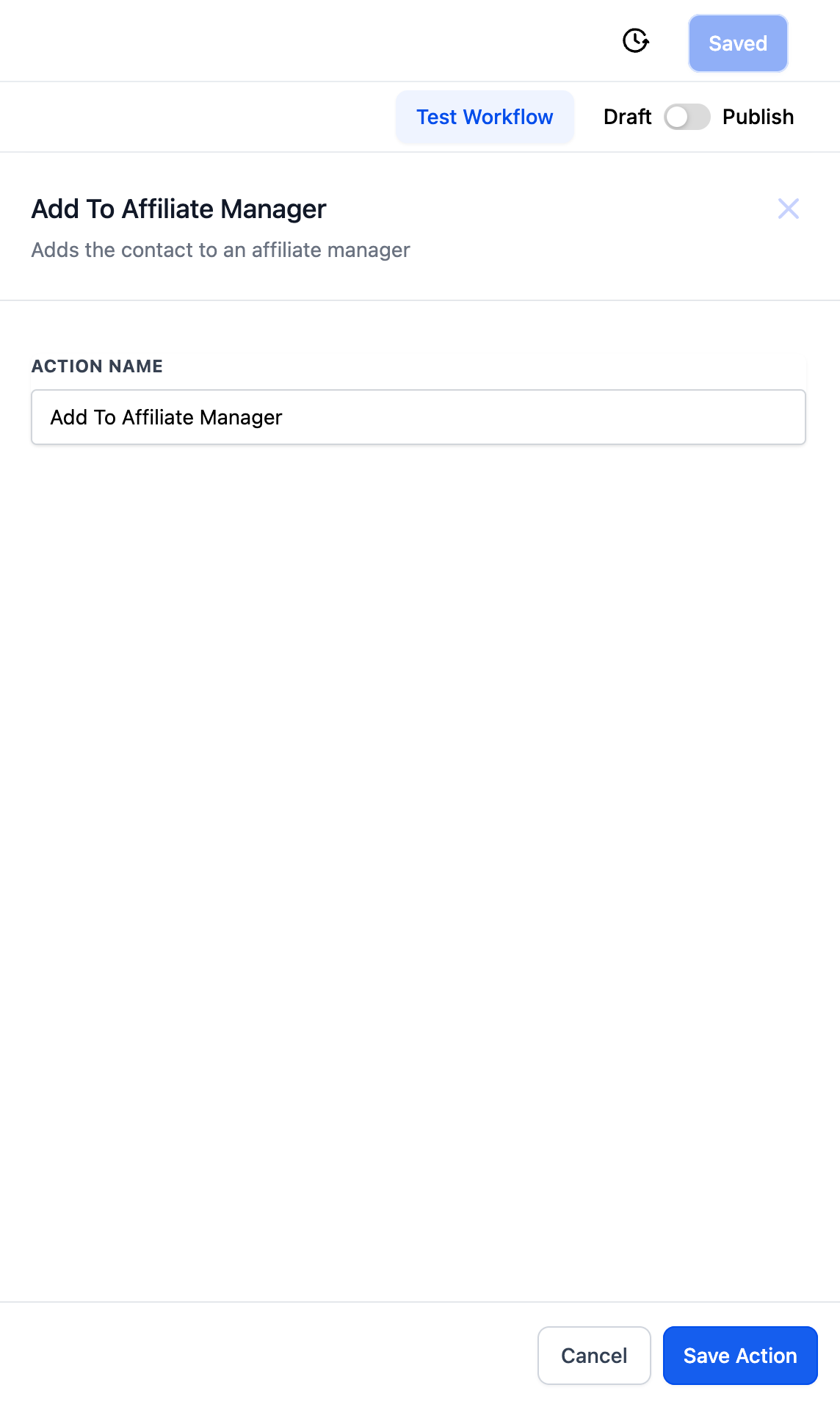
Example: A practice wants to recruit patients who reply to a social post or otherwise show interest in referring friends. Tag those contacts "Affiliate," then build a workflow with a Contact Changed trigger filtered to that tag, followed by the Add To Affiliate Manager action. Every contact tagged "Affiliate" is automatically converted into an active affiliate.
Adds a contact to a specific affiliate campaign as an active affiliate. Use this when you're running more than one referral campaign and want new affiliates routed to the right one automatically.
Setup:
Choose "Add To Affiliate Campaign" from the action list.
Name the action, such as "Enroll affiliates in Spring Referral Campaign."
From the dropdown, select the affiliate campaign the new affiliates should join.
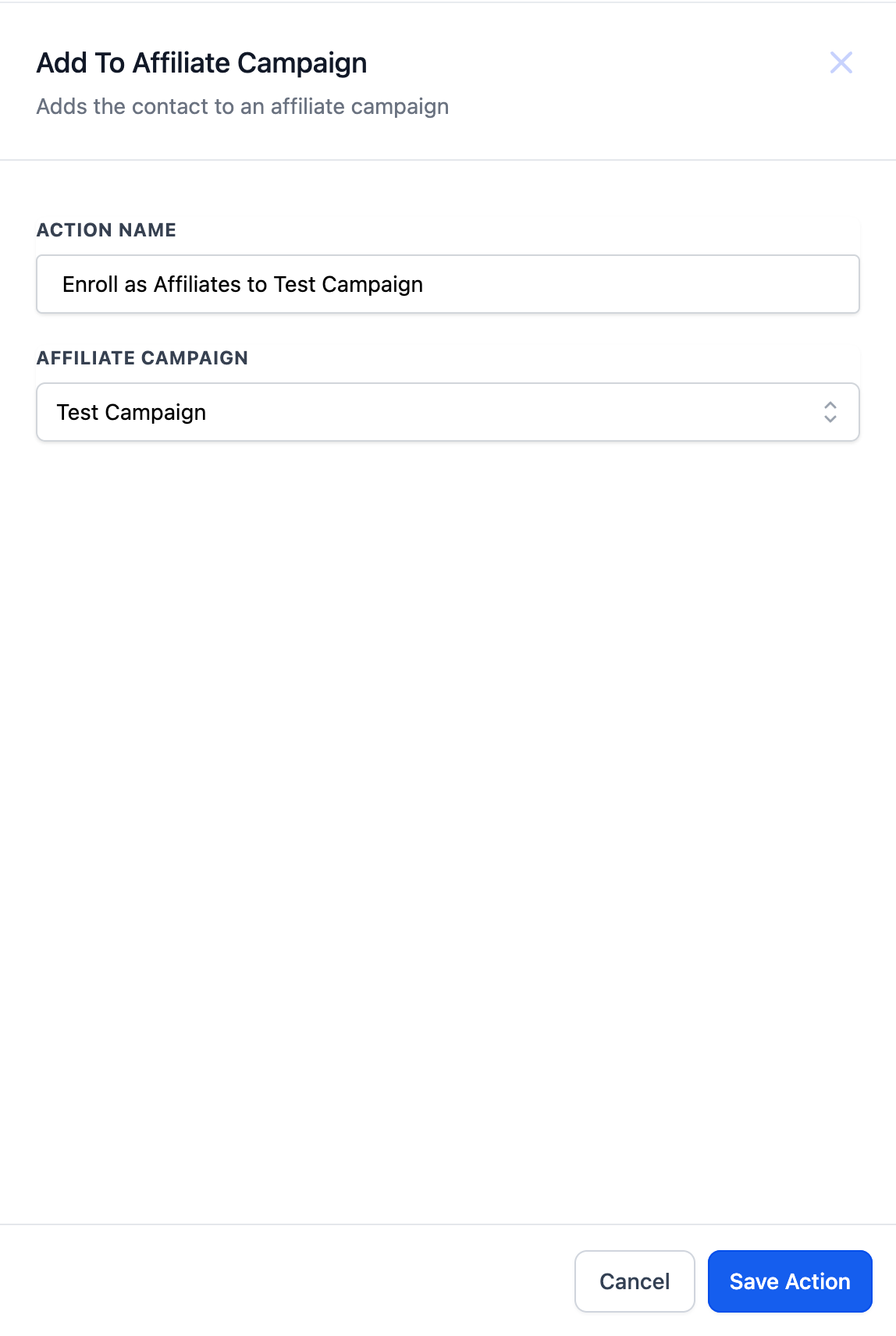
Example: A practice wants patients who reply to a post to be enrolled in a specific "Spring Referral Campaign." Tag those contacts "Affiliate," then build a workflow with a Contact Changed trigger filtered to that tag, followed by Add To Affiliate Campaign with the Spring Referral Campaign selected. The affiliate can now start referring patients and earning commissions on that campaign.
Changes an affiliate's status to either active or inactive. Use this to pause or reactivate an affiliate without removing them from the system entirely.
Setup:
Choose "Update Affiliate" from the action list.
Name the action, such as "Mark affiliate as inactive."
Select the status you want to change the affiliate to: active or inactive.
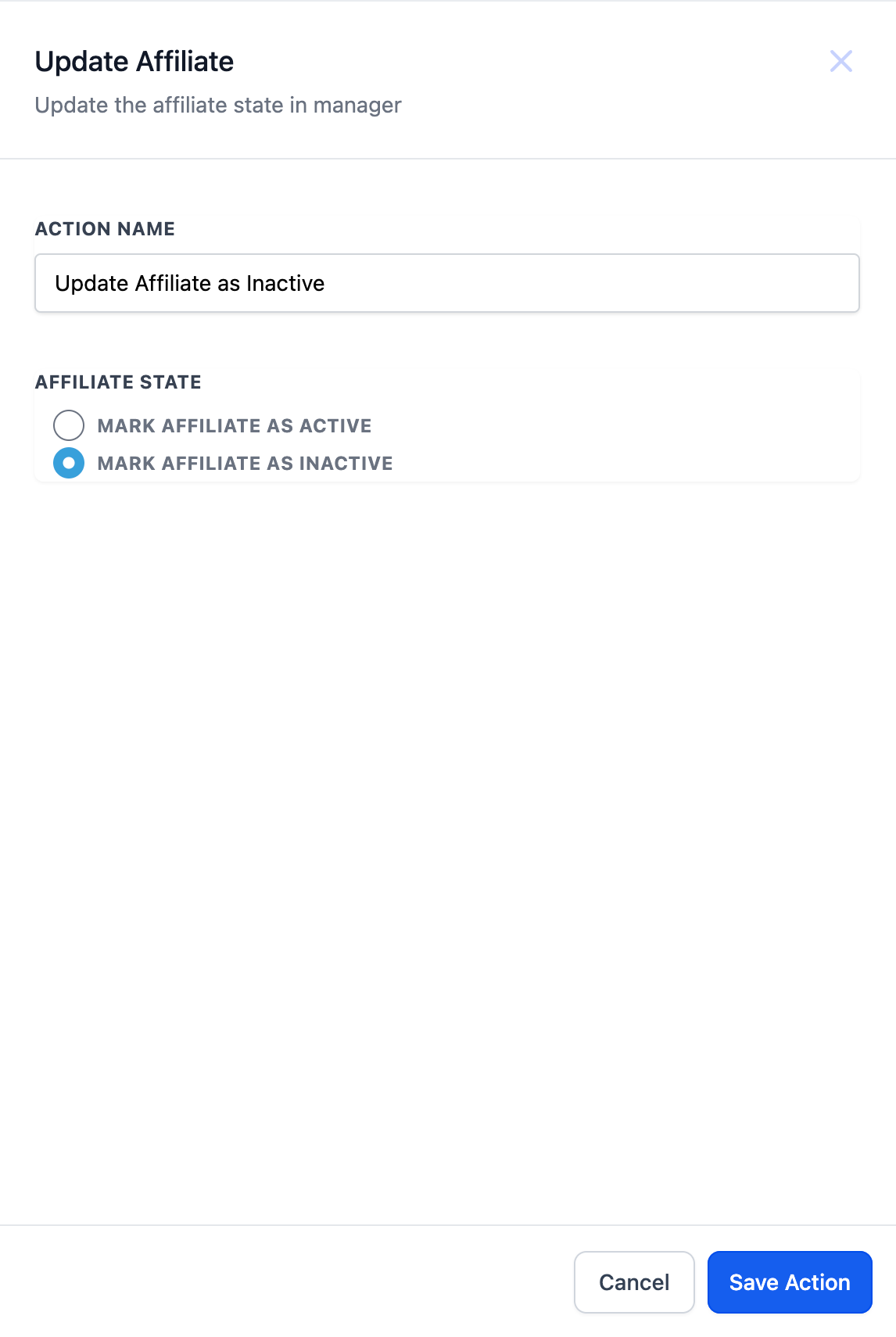
Example: A practice wants to keep its active affiliate list current. Affiliates who want to step down fill out an "Affiliate Exit Form." A workflow with a Form Submitted trigger, filtered to that form, followed by the Update Affiliate action set to inactive, automatically marks the affiliate's profile inactive so they can no longer generate commissions.
Removes an affiliate from a specific affiliate campaign, chosen from a dropdown. The affiliate stays in your overall Affiliate Manager, but no longer belongs to that campaign.
Setup:
Choose "Remove From Affiliate Campaign" from the action list.
Name the action, such as "Remove from Spring Referral Campaign."
From the dropdown, select the campaign to remove the affiliate from.
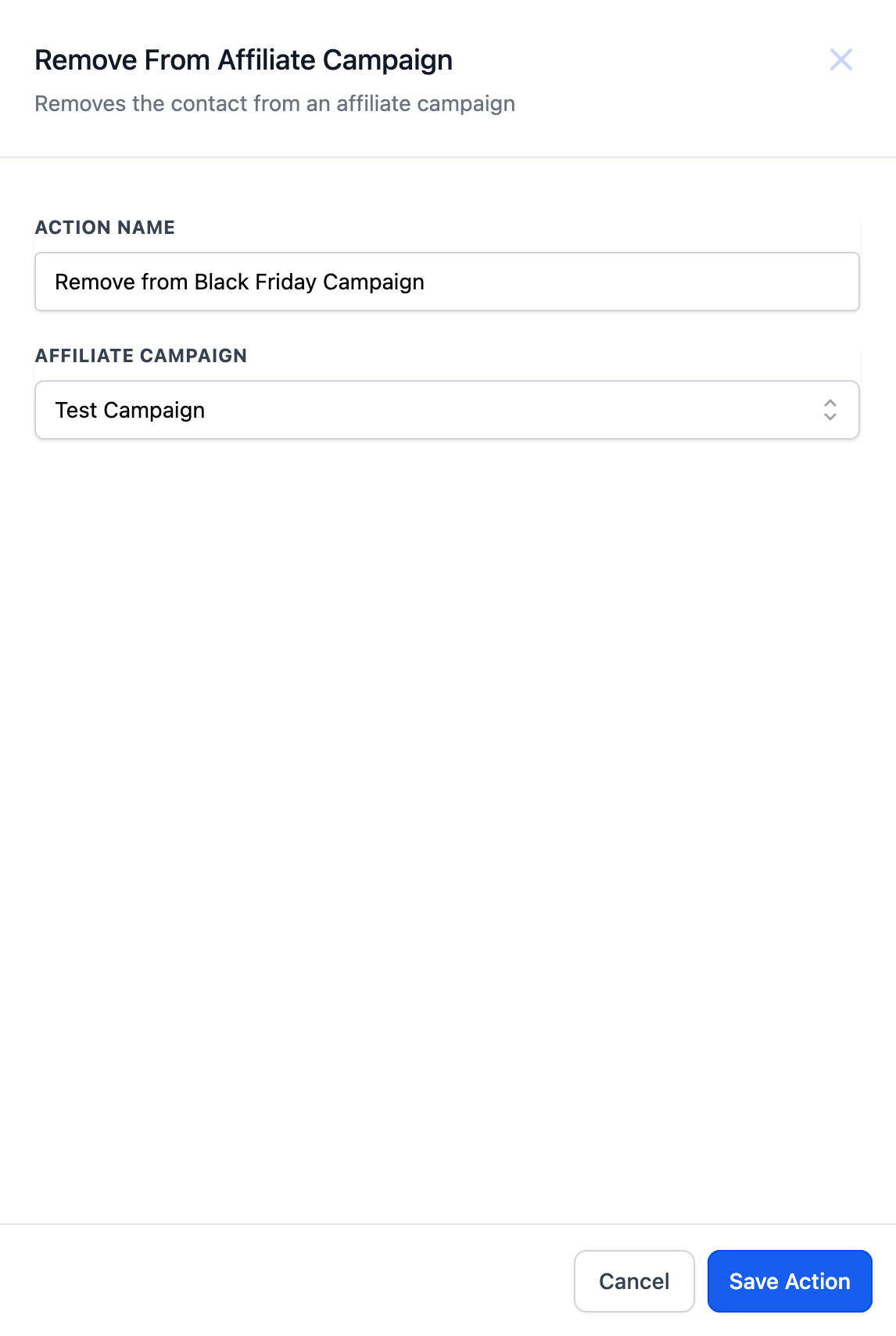
Example: A practice runs a seasonal referral campaign and wants participants removed once they opt out. Affiliates fill out an "Affiliate Exit Form." A workflow with a Form Submitted trigger, filtered to that form, followed by Remove From Affiliate Campaign with the campaign selected, removes the affiliate's access to that campaign's referral link so they can no longer generate commissions from it.
Where do I find these four affiliate actions? They're all added the same way: open a workflow, click the + icon to add an action step, and search for "affiliate" to see Add To Affiliate Manager, Add To Affiliate Campaign, Update Affiliate, and Remove From Affiliate Campaign.
Do I need to add a contact to the Affiliate Manager before I can add them to a campaign? Not necessarily. Add To Affiliate Campaign enrolls a contact as an affiliate in that specific campaign on its own. Many practices use Add To Affiliate Manager first to establish a contact as a general affiliate, then use Add To Affiliate Campaign to route them into specific campaigns.
What status does a new affiliate get by default? Active. Both Add To Affiliate Manager and Add To Affiliate Campaign set the new affiliate's status to active automatically.
Does Update Affiliate remove someone from the Affiliate Manager? No, it only changes their status between active and inactive. An inactive affiliate stays in your records but can no longer generate commissions until reactivated.
Does Remove From Affiliate Campaign delete the affiliate entirely? No, it only removes them from the selected campaign. They remain listed in your Affiliate Manager and can still belong to other campaigns.
What triggers can I use with these actions? Any workflow trigger works, but the most common are Contact Changed for tag-based enrollment and Form Submitted for exit or opt-out forms. The full set of trigger options is documented in the Workflows Actions collection.
Can I combine several of these actions in one workflow? Yes. For example, you could trigger on a form submission, remove the affiliate from one campaign, and then add them to a different campaign in the same workflow.
Where can I see the full list of workflow actions available for affiliates? Check the Workflows Actions collection for the complete catalog of actions, including these four and any others that apply to affiliate contacts.
