The New Affiliate Sale trigger starts a workflow every time an affiliate in your practice's referral program completes a sale, whether it's a one-time purchase, a recurring sale, or a sale you tracked manually. You'll find it under Marketing > Workflows when you add a new trigger to any workflow.
This trigger fires automatically whenever a tracked affiliate sale closes. You can use it to:
Congratulate the affiliate on the sale
Notify the customer who purchased
Assign a follow-up task to your team
Segment or tag contacts who came from an affiliate
Trigger any other automation tied to affiliate activity
Because it fires on real sale events, it removes the need to manually track and follow up on every affiliate-driven purchase.
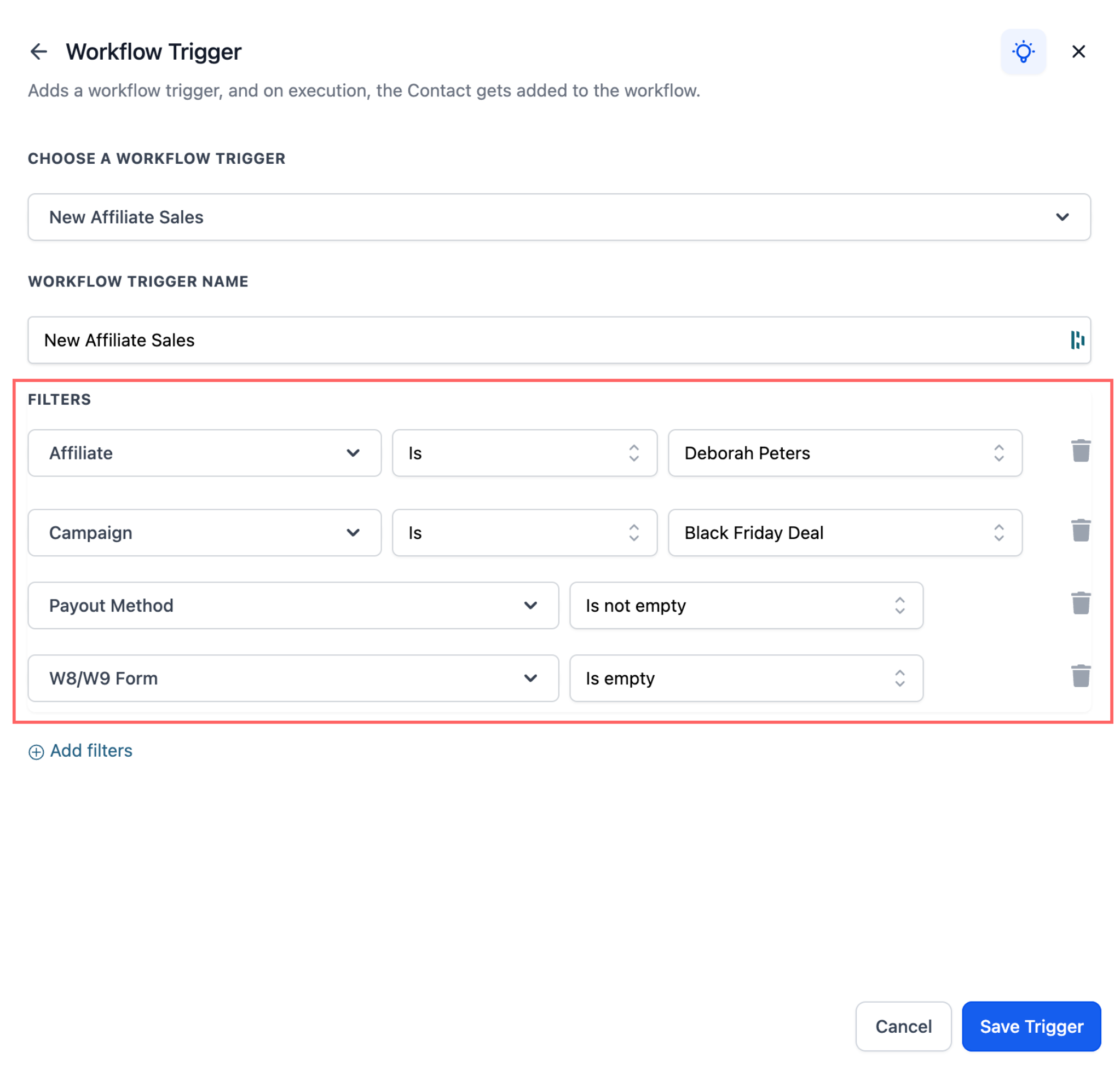
Add filters to the trigger so it only fires for the sales you care about:
Filter | What it does |
|---|---|
Affiliate filter | Target sales from one or more specific affiliates |
Campaign filter | Trigger only for sales tied to selected campaigns |
Payout method check | Trigger only if the affiliate has (or has not) added a payout method |
Tax form check | Trigger based on whether the affiliate has submitted their tax forms |
These filters let you build more targeted automations, for example, reminding only affiliates who haven't added a payout method, or excluding a specific campaign from a congratulations sequence.
From the left menu, click Marketing.
Click Workflows.
Click Create Workflow.
Click Start from Scratch.
Click Add New Trigger.
Use the search field to find the trigger you want, then click New Affiliate Sale.
Click Add Filters and apply any of the optional filters (affiliate, campaign, payout method, tax form).
Click Save Trigger. The trigger is added to your workflow.
Build out your follow-up actions (email, SMS, task, tag, and so on), then click Save and Publish.
For the full list of actions you can pair with this trigger, see the Workflows collection.
Workflows always run "on" a primary record. With the New Affiliate Sale trigger, the workflow commonly starts on the customer/buyer side of the sale, so standard actions like Send Email or Send SMS will message the buyer contact, not the affiliate, unless you specifically choose an affiliate-directed action.
To reach the affiliate instead (congratulations, reminders, status updates), use a workflow action built for affiliates, such as an internal notification aimed at your team about the sale, or another affiliate-specific communication action available in your workflow's action list.
Why: Keeps affiliates motivated to keep promoting your practice.
How: After the trigger fires, add an internal notification action so your team is alerted to the new affiliate sale and can follow up directly with the affiliate. Note that this action notifies your team internally; it does not automatically email the affiliate.
Example message: "Congrats on your new sale! Keep it going, your commissions are growing."
Why: Reduces payout delays and support requests.
Example: Use the payout method filter to catch affiliates who haven't added their payout details yet, then send a reminder: "Update your payout method to receive your commission."
Why: Segments affiliate-driven patients and leads for future campaigns.
Example: Add a tag such as "Affiliate Customer" to every contact who purchases through an affiliate link, so you can report on and market to that group separately.
Some practices expect the New Affiliate Sale trigger to automatically switch the workflow over to the affiliate's own community profile so points or leaderboard rewards can be granted directly. Workflows don't automatically swap the primary record mid-flow, so rewarding affiliate community points isn't automatic from this trigger alone.
If you mainly need to communicate with affiliates, add an affiliate-directed communication action right after the trigger. If you need to reliably grant community points, build a separate workflow step that confirms the target is the affiliate's own record before applying a points or leaderboard action.
Does the New Affiliate Sale trigger fire for recurring sales, not just one-time purchases? Yes. It fires for one-time, recurring, and manually tracked affiliate sales.
Can I limit the trigger to a single affiliate or campaign? Yes. Use the Affiliate filter to target specific affiliates and the Campaign filter to limit the trigger to sales from selected campaigns.
Will a Send Email action message the affiliate or the buyer? By default it messages the buyer/customer contact, since the workflow runs on the buyer's record. To reach the affiliate, use an affiliate-directed or internal notification action instead.
How do I remind affiliates who haven't added a payout method? Add the Payout method check filter set to "has not added," then follow it with a reminder action such as an email or task for your team to follow up.
Can I require a submitted tax form before the trigger fires? Yes. The Tax form check filter lets you trigger only for affiliates who have (or have not) submitted their tax forms.
Where do I find the full list of actions I can pair with this trigger? Actions like email, SMS, tag, task, and internal notification live in your workflow's action list, documented in the Workflows collection.
Why didn't my affiliate get community leaderboard points from this trigger? Workflows run on a primary record, and this trigger typically runs on the buyer, not the affiliate. To grant points reliably, build a workflow path that confirms the target is the affiliate's record before applying the points action.
Do I need to build a new workflow from scratch to use this trigger? No. You can add the New Affiliate Sale trigger to a new workflow started from scratch or to an existing workflow, as long as you add it as a trigger and save.
Is this trigger only available in Affiliate Manager? The trigger itself is added from within Workflows, but it's specific to affiliate sale activity generated through your practice's Affiliate Manager referral program.
