The Affiliate Enrolled in Campaign trigger starts a workflow the moment an affiliate is added to a specific affiliate campaign in Aesthetix CRM, whether that enrollment happens automatically (through a sign-up form or funnel) or manually (your team adds them directly inside Affiliate Manager). It's the trigger most practices use to automate affiliate onboarding: welcome emails, portal login links, internal alerts to your team, and campaign-based tagging.
This trigger only appears in the workflow builder if Affiliate Manager is enabled and at least one affiliate campaign exists on your account. If you don't see it under the trigger list, go to Settings > Affiliate Manager and turn on the toggle, then create a campaign under the Affiliate Manager tab.
This is a trigger reference. For the full workflow builder trigger taxonomy and how triggers fit into the broader automation categories, see the Workflows Triggers guide; this article covers only what's specific to affiliate enrollment.
Once the trigger fires, you get access to a set of affiliate-specific custom values you can drop into any step later in the workflow:
Affiliate Name
Affiliate Email
Affiliate Phone
Campaign Name
Total Revenue
Commission Earned
Referral Link
Portal Link
Magic Login Link
These values only populate when the workflow is actually triggered by a real affiliate enrollment. If you test a workflow without a genuine enrollment event, the fields will come through blank.
Seamless onboarding. Automatically send a welcome email or SMS with login links, campaign details, and next steps as soon as a new affiliate or referral partner joins, no manual setup required.
Dynamic affiliate data. Custom values like name, contact info, revenue earned, and portal links can be inserted directly into your messages without you having to look them up.
Internal visibility. Add an internal notification step so your team knows the moment a new affiliate joins a campaign and can follow up personally.
Campaign-level segmentation. Tag affiliates based on the campaign they enrolled in for more targeted messaging and reporting later.
Scales with your referral program. Once configured, onboarding and internal notifications run automatically as your affiliate or patient-referral program grows.
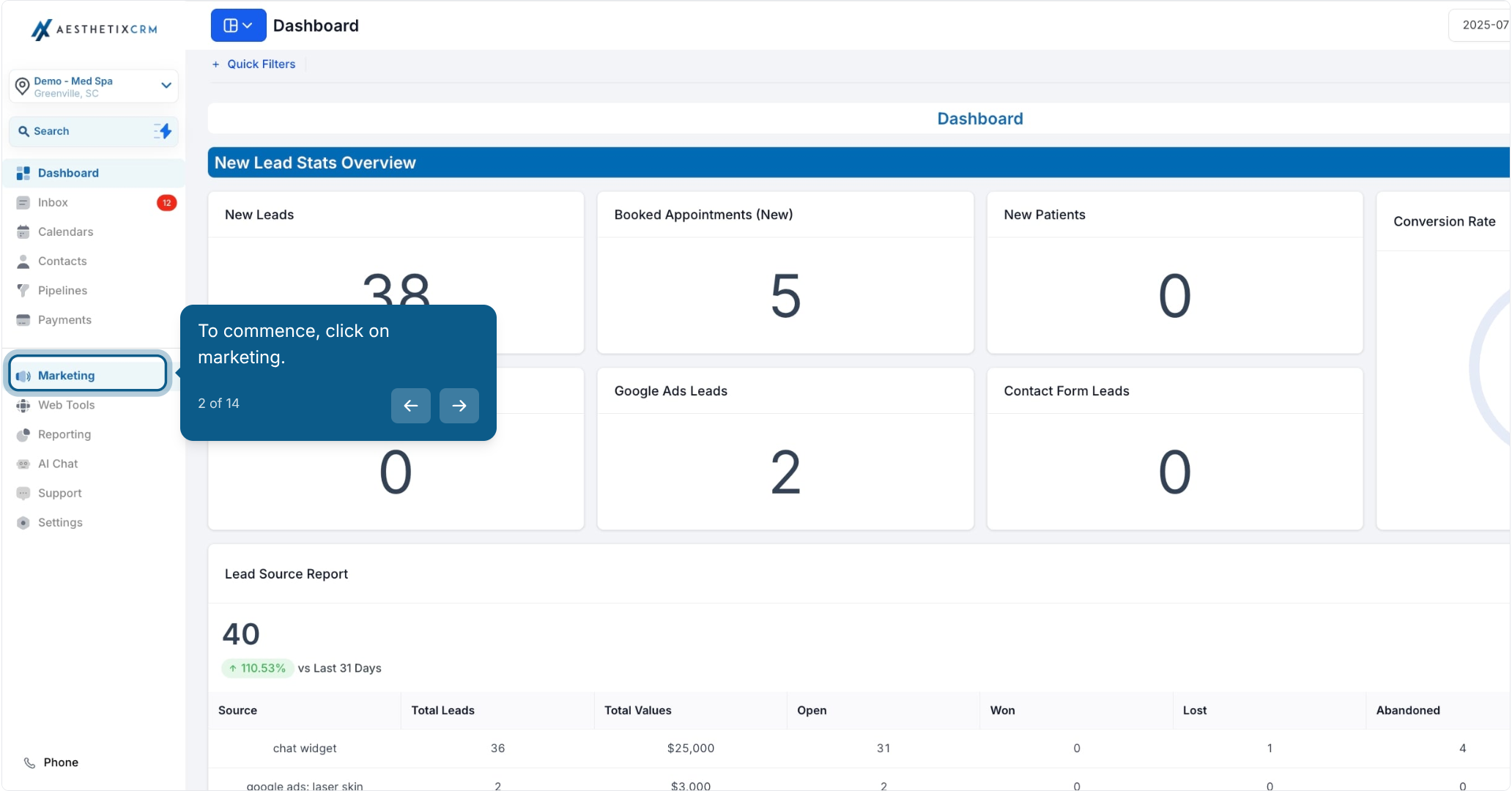
From the left menu, go to Marketing.
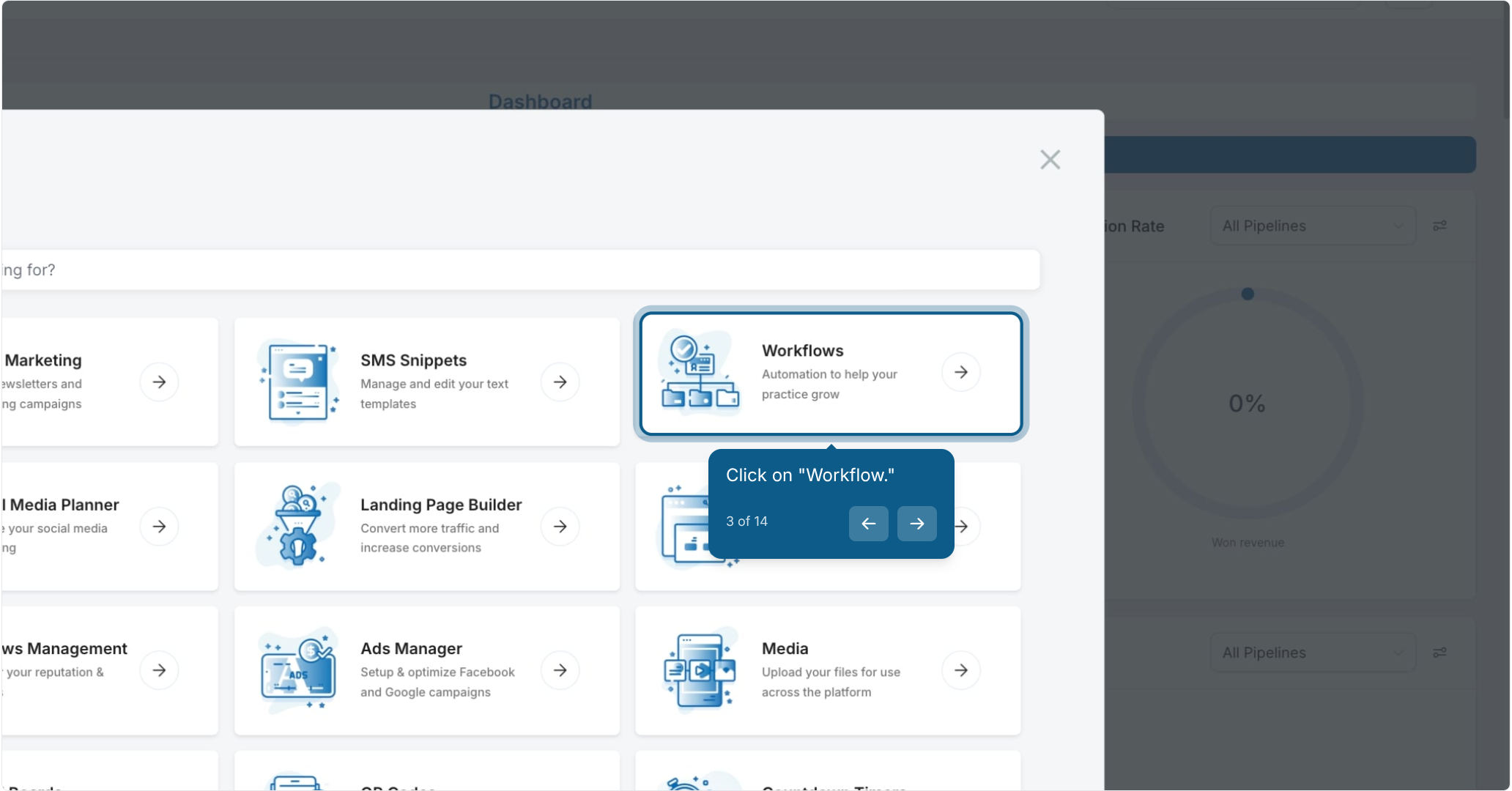
Click Workflow.
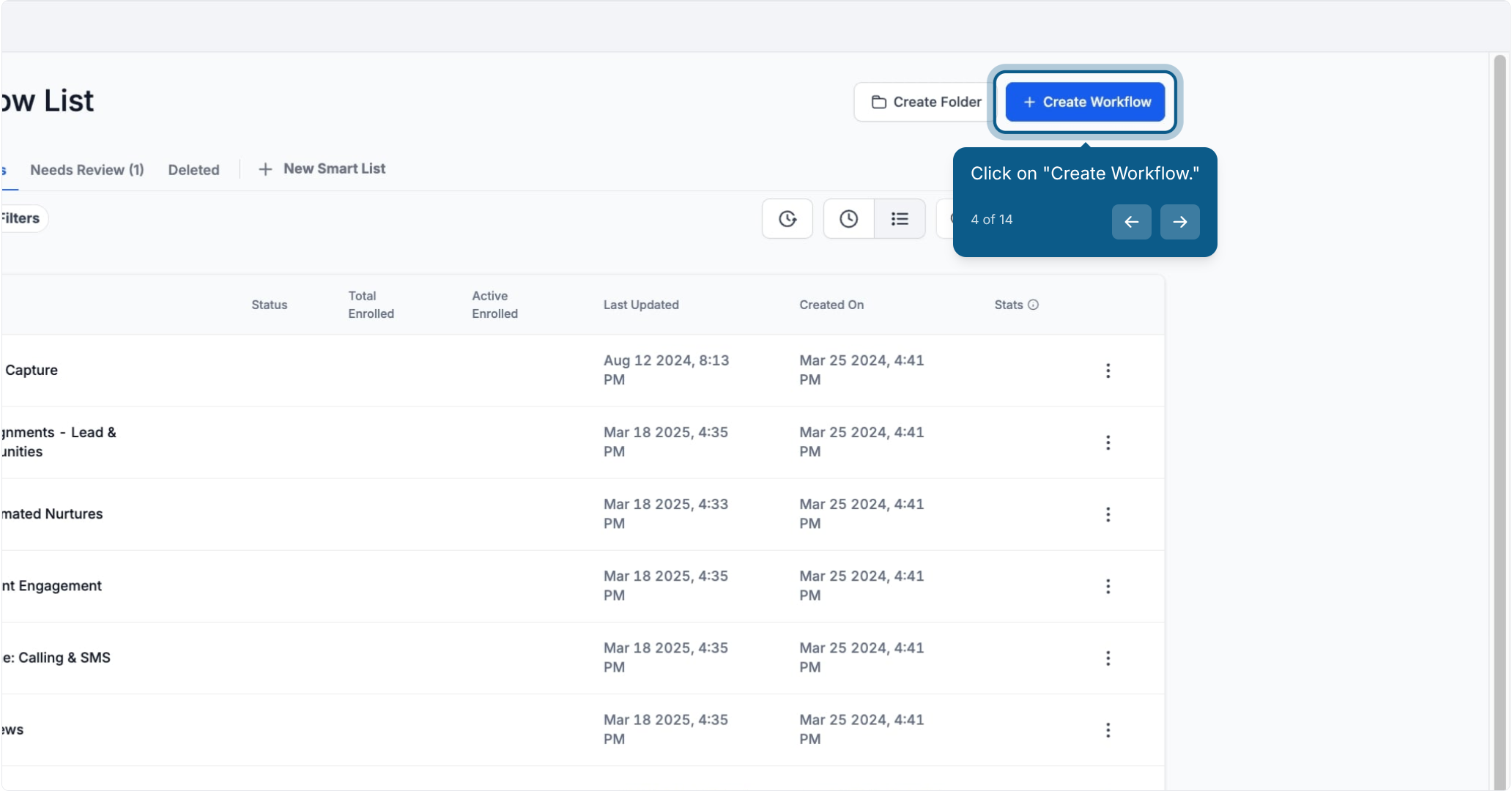
Click Create Workflow.
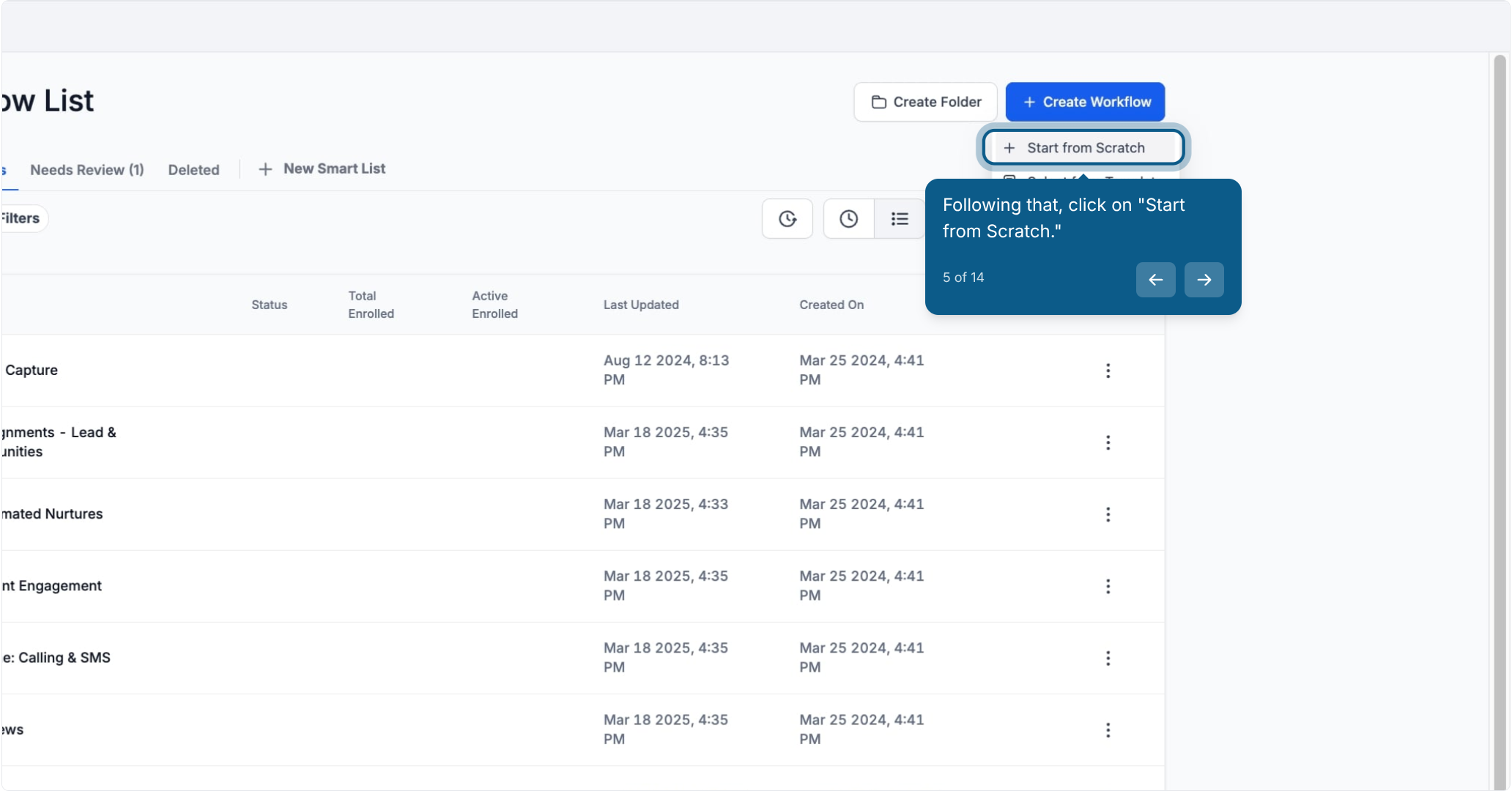
Choose Start from Scratch.
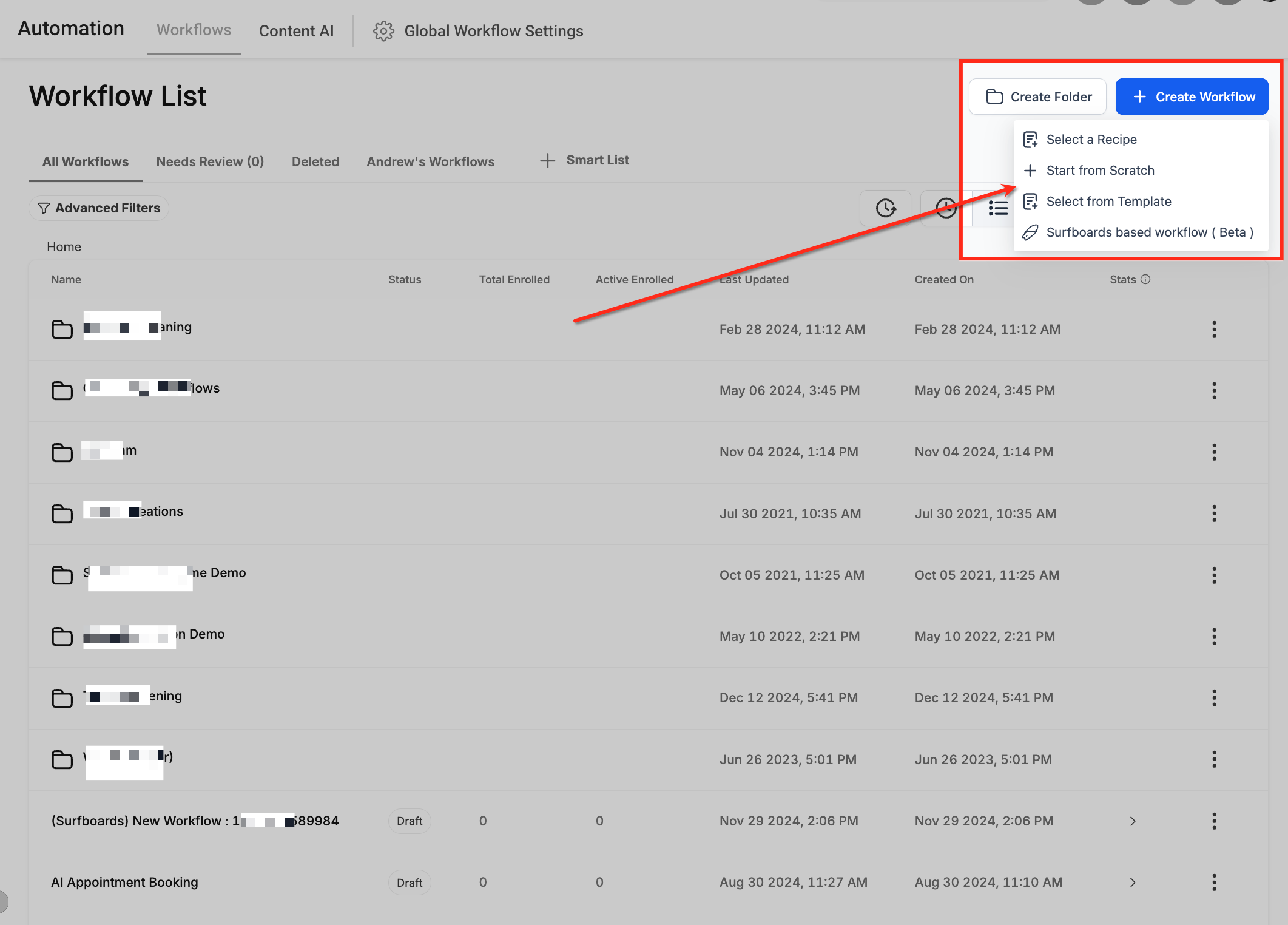
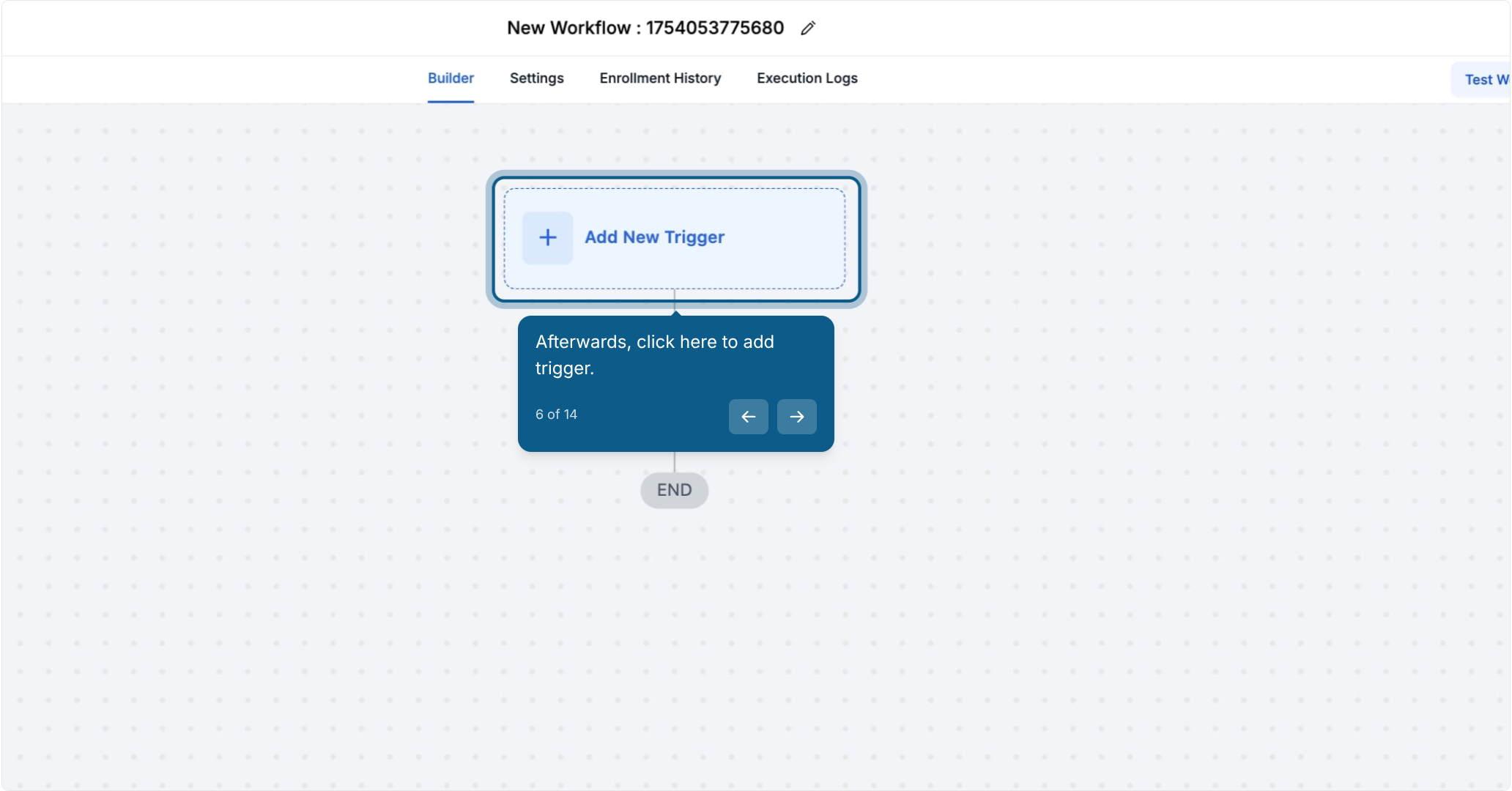
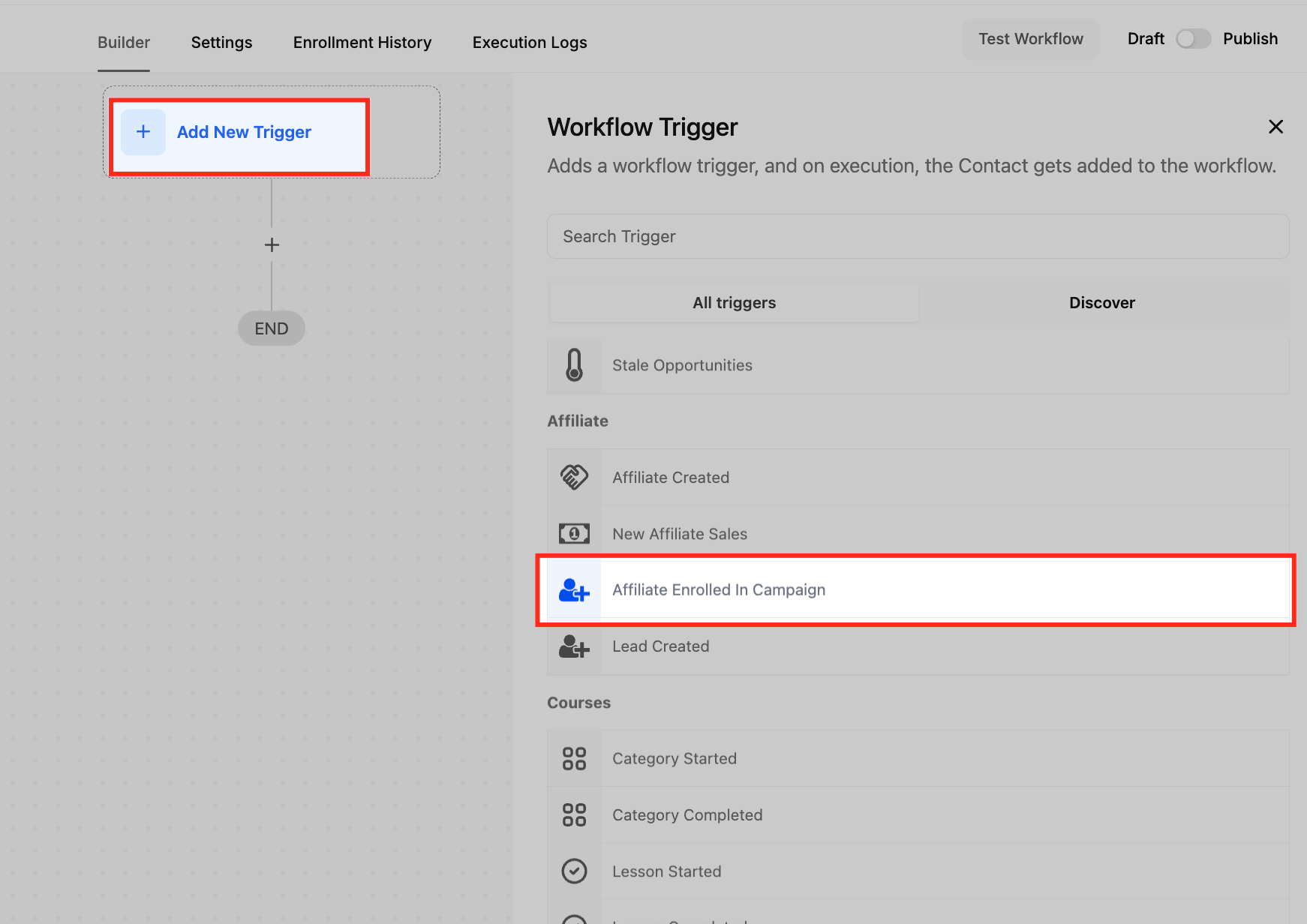
Click + Add Trigger.
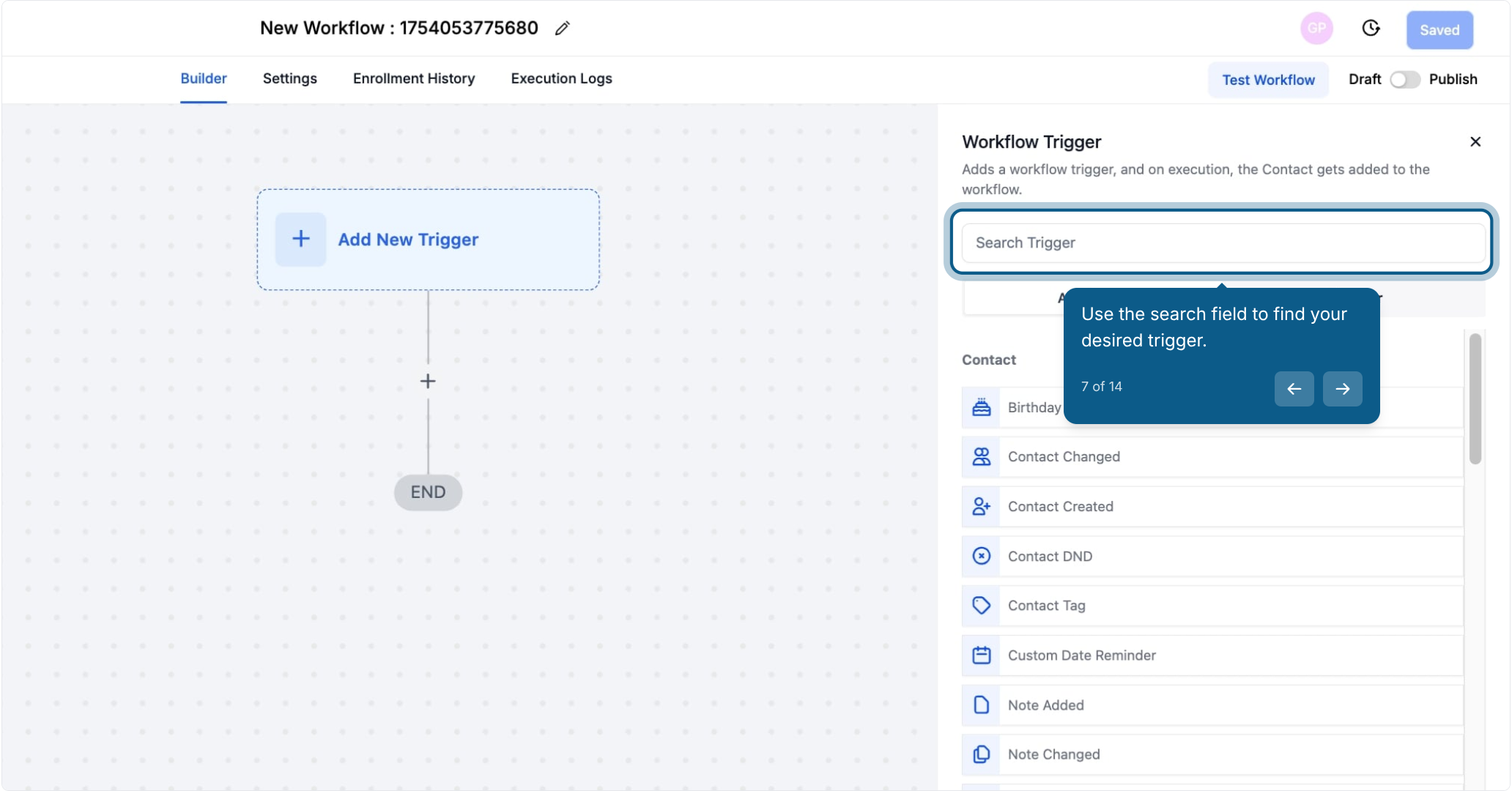
Use the search field to find the trigger.
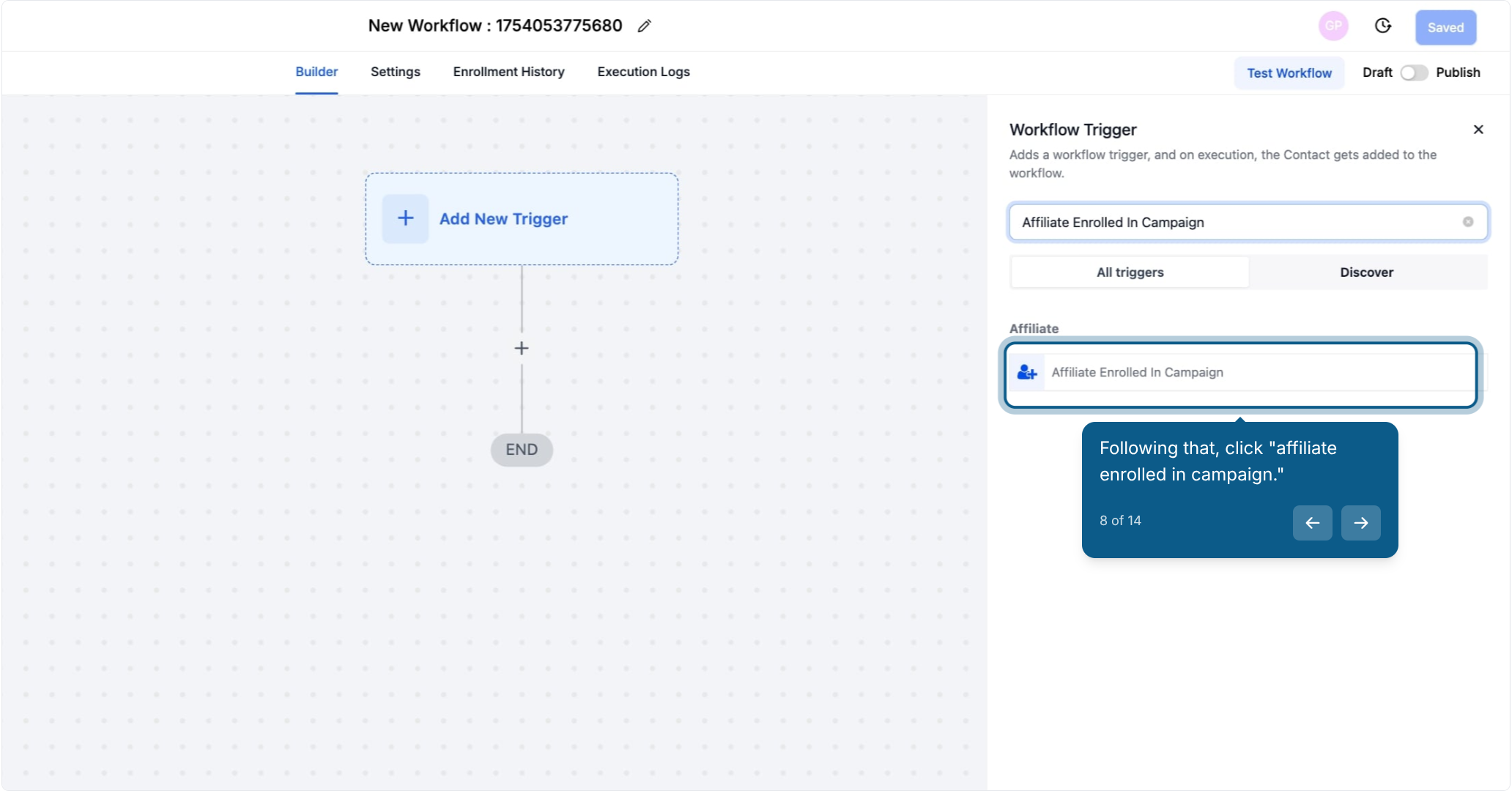
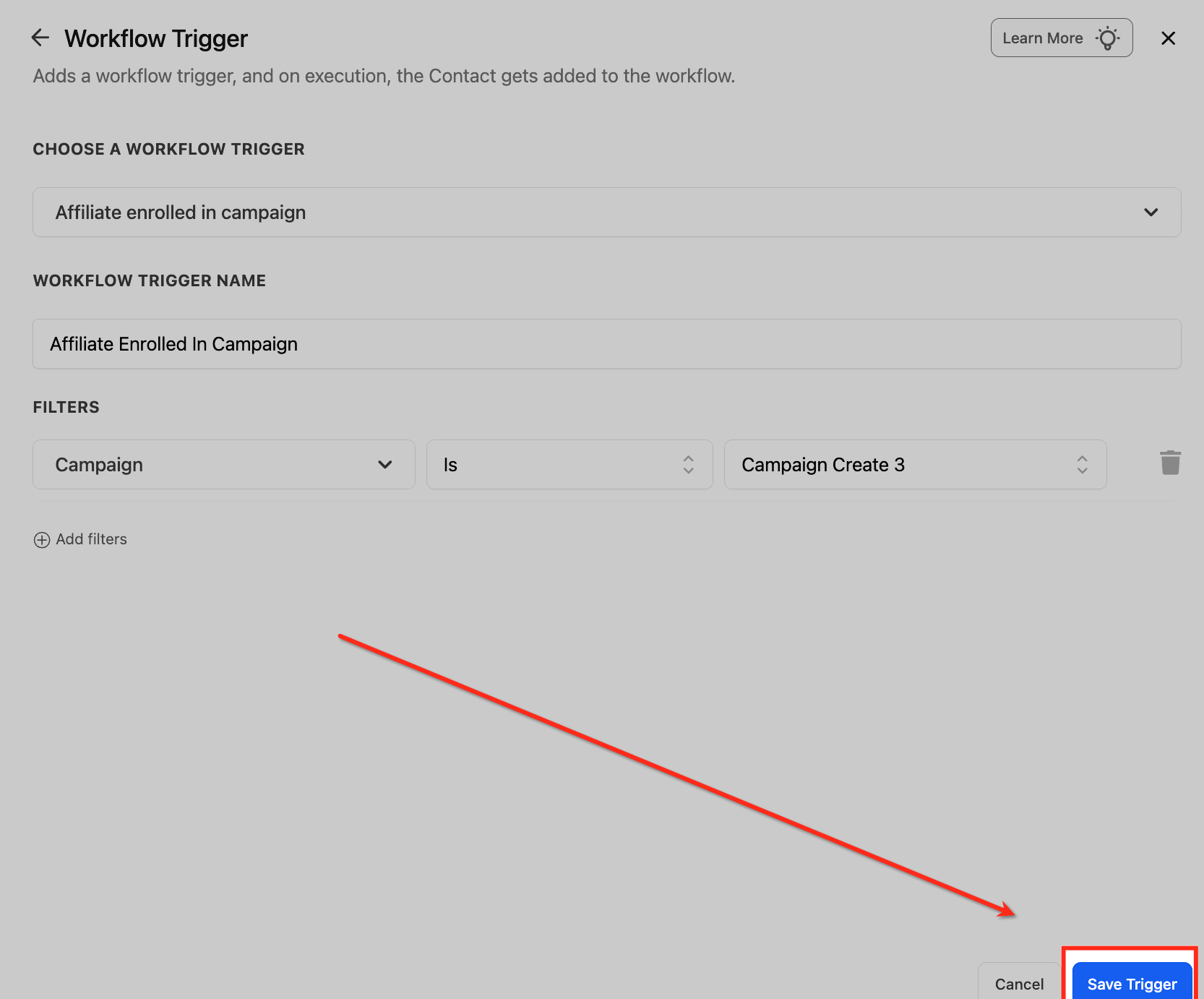
Select Affiliate Enrolled in Campaign from the results. This is the trigger that fires when an affiliate joins a specific campaign.
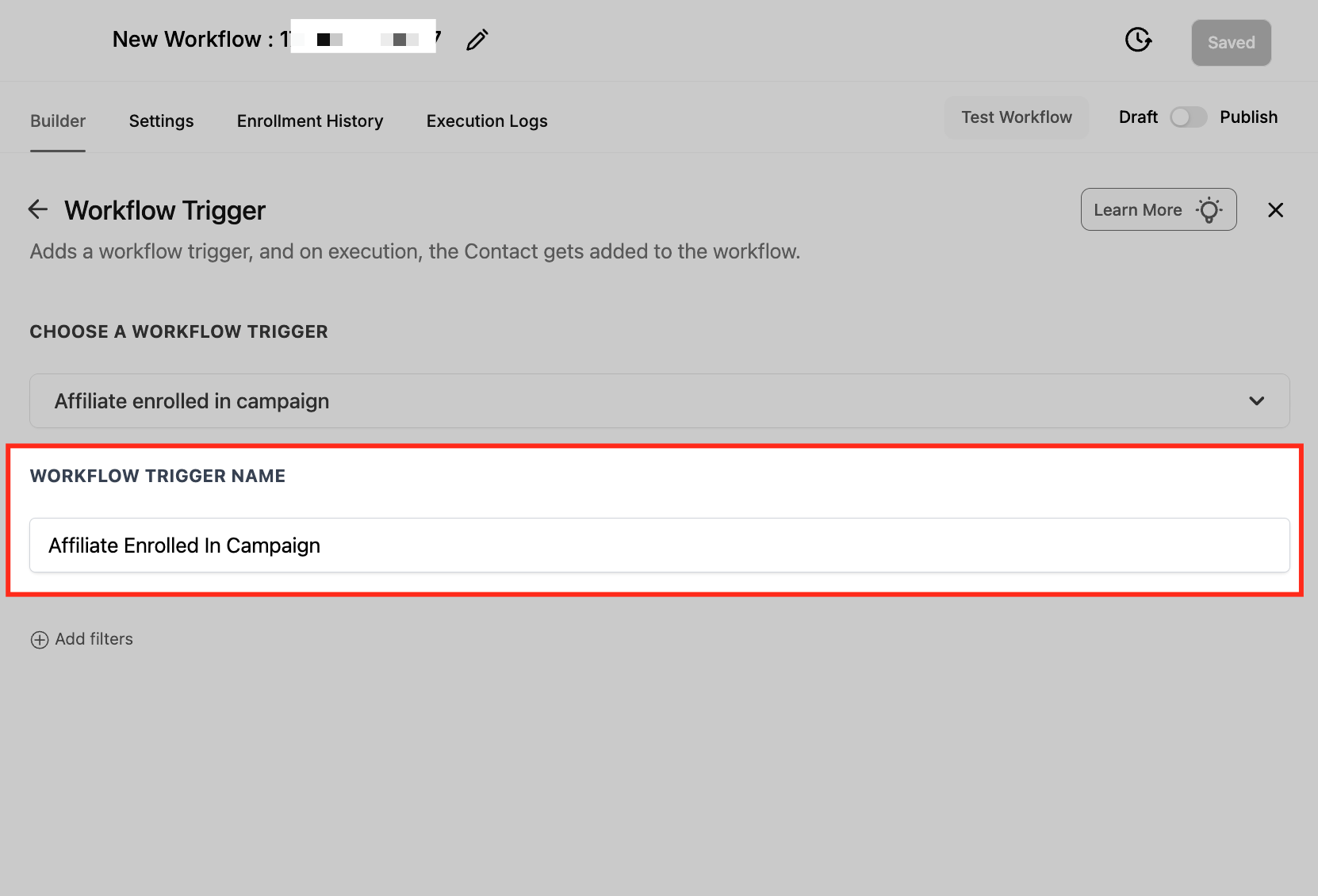
Give the trigger a clear name, such as "Affiliate Enrolled in Campaign," so it's easy to identify later if you're managing several workflows.
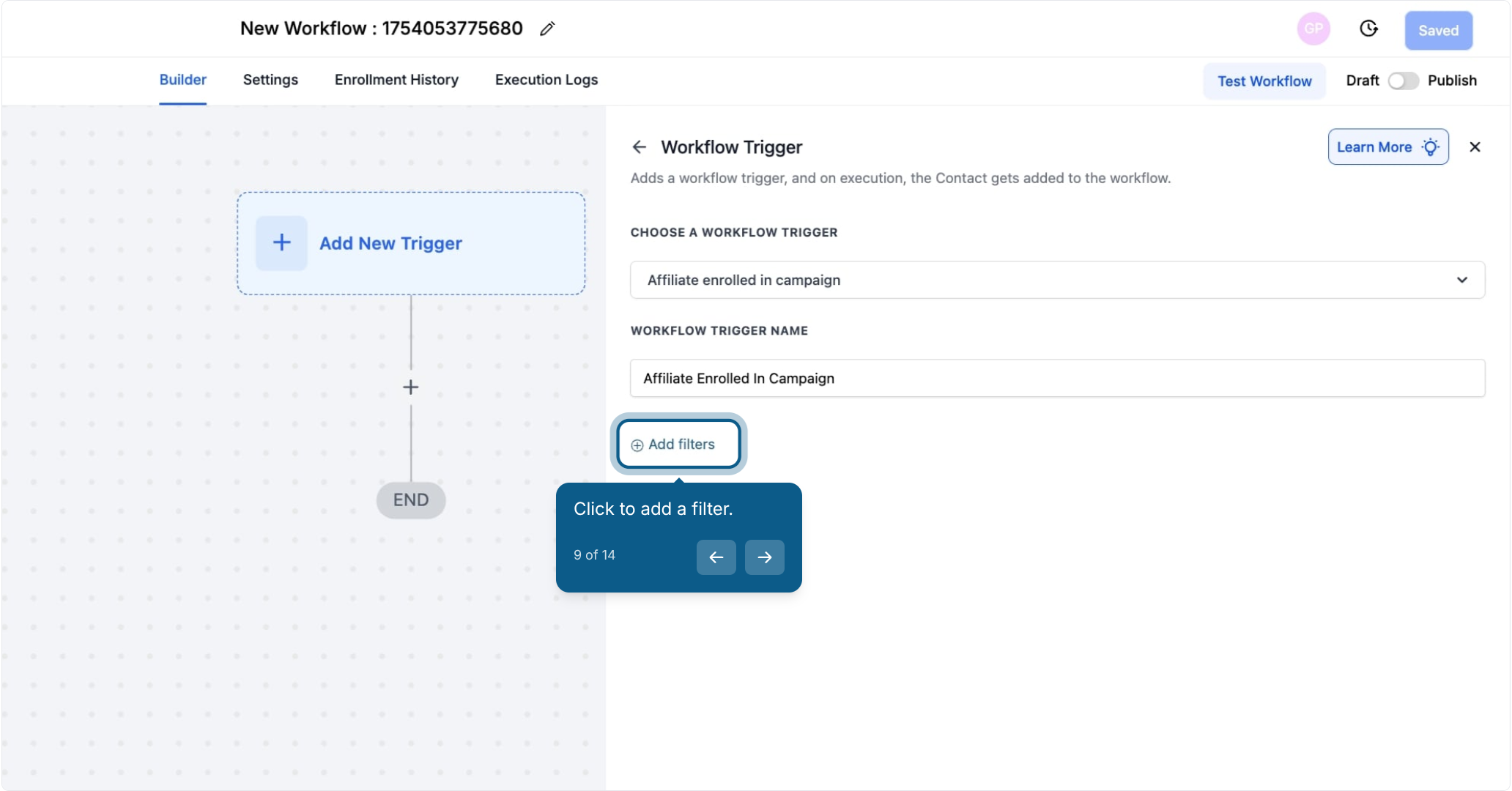
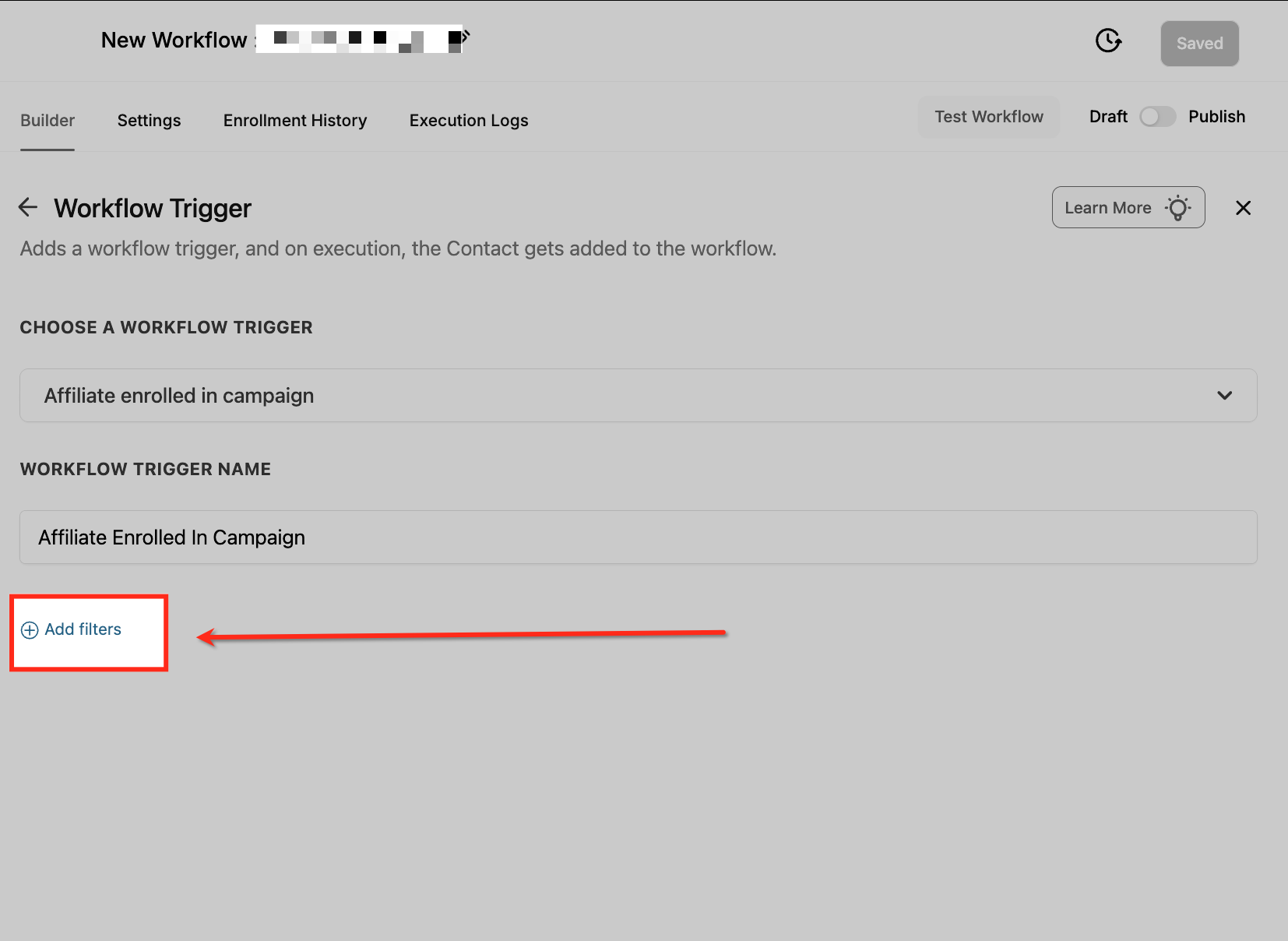
Click Add filters to narrow down when the trigger should activate. Filters let you apply conditions like campaign name or custom attributes so only relevant enrollments start the workflow.
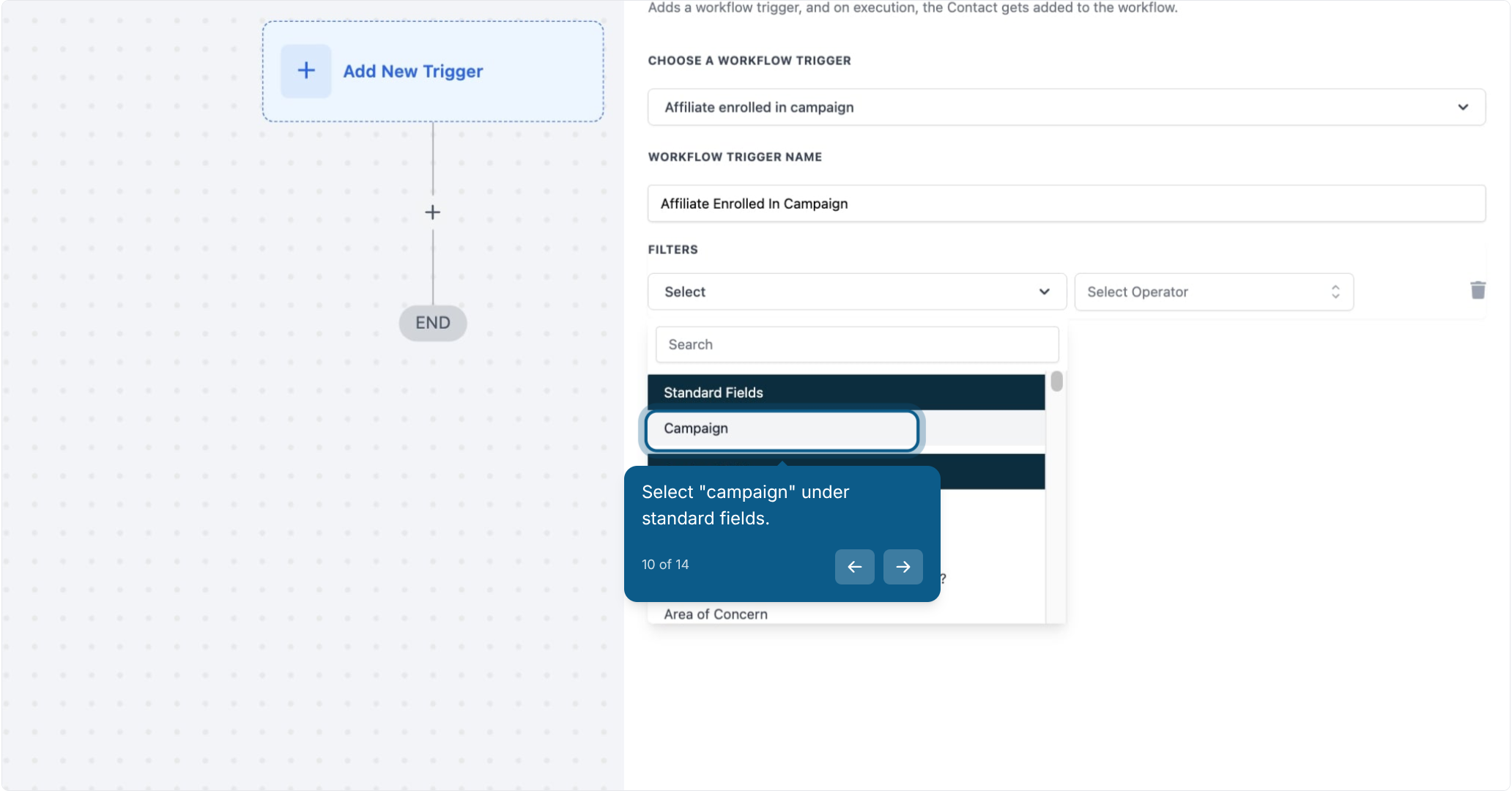
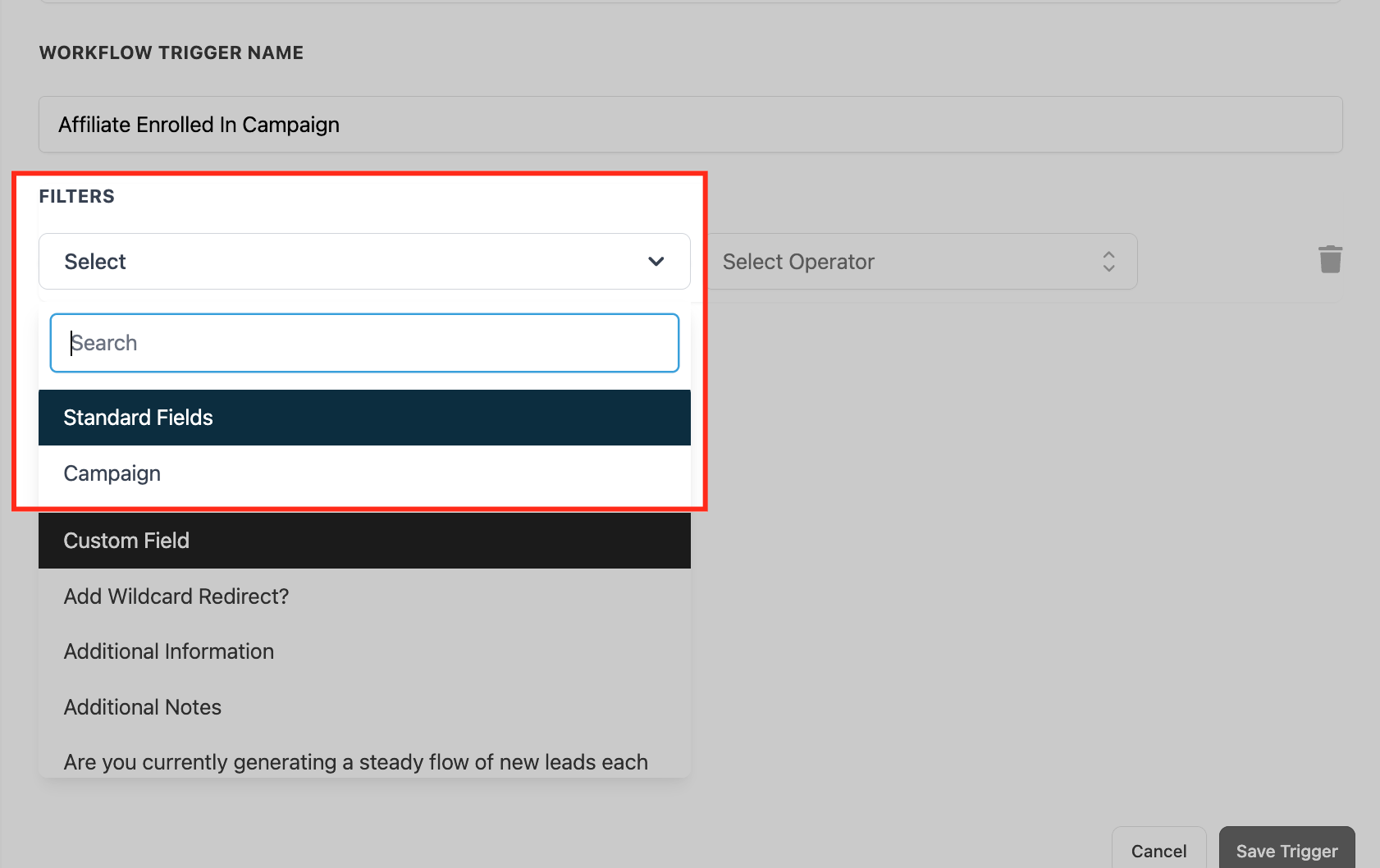
Select Campaign under Standard Fields. You can filter on Standard Fields (like campaign) or custom attributes to control exactly which enrollments should activate the trigger.
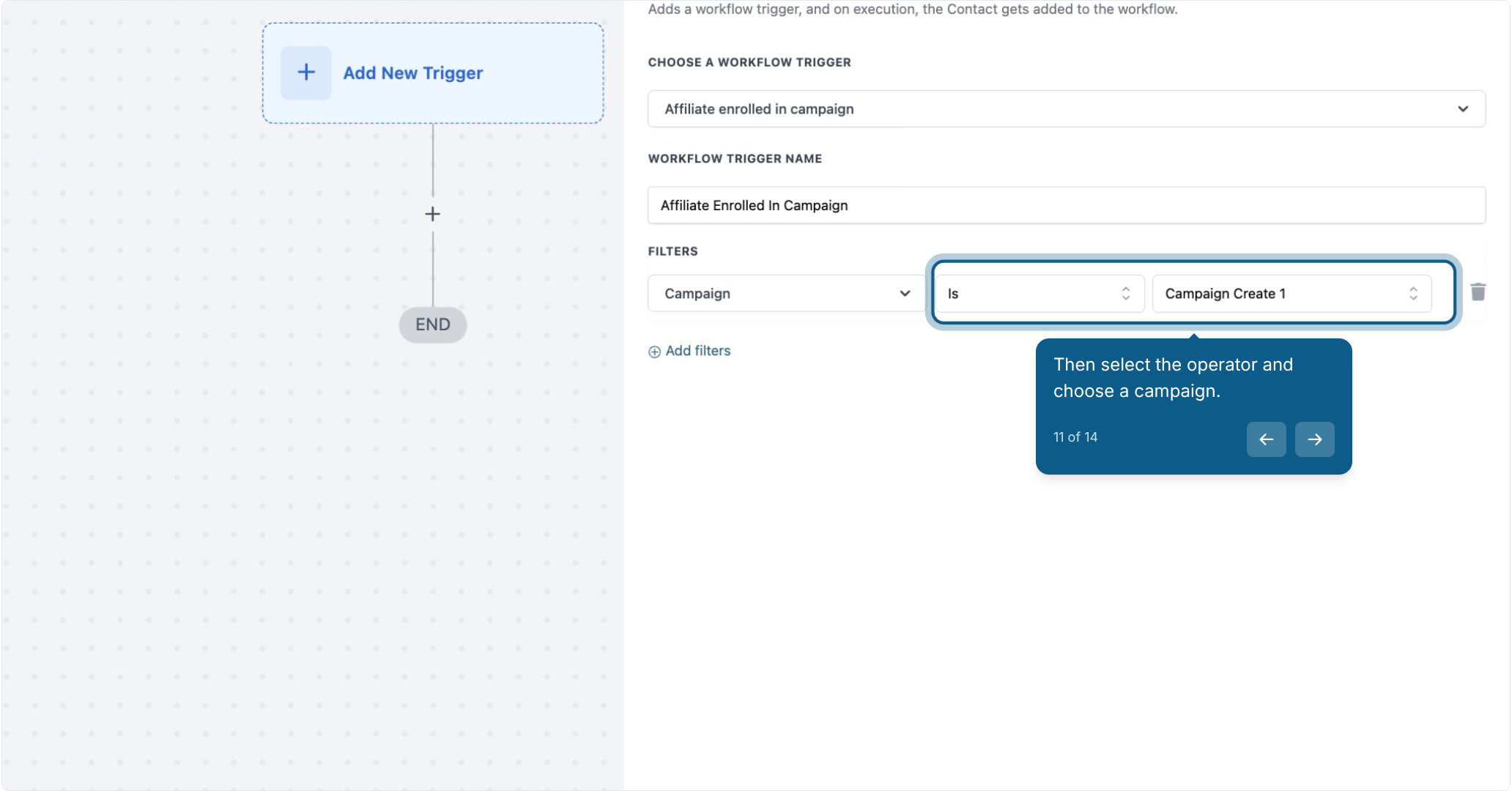
Choose the operator and select the specific campaign you want this trigger to respond to.
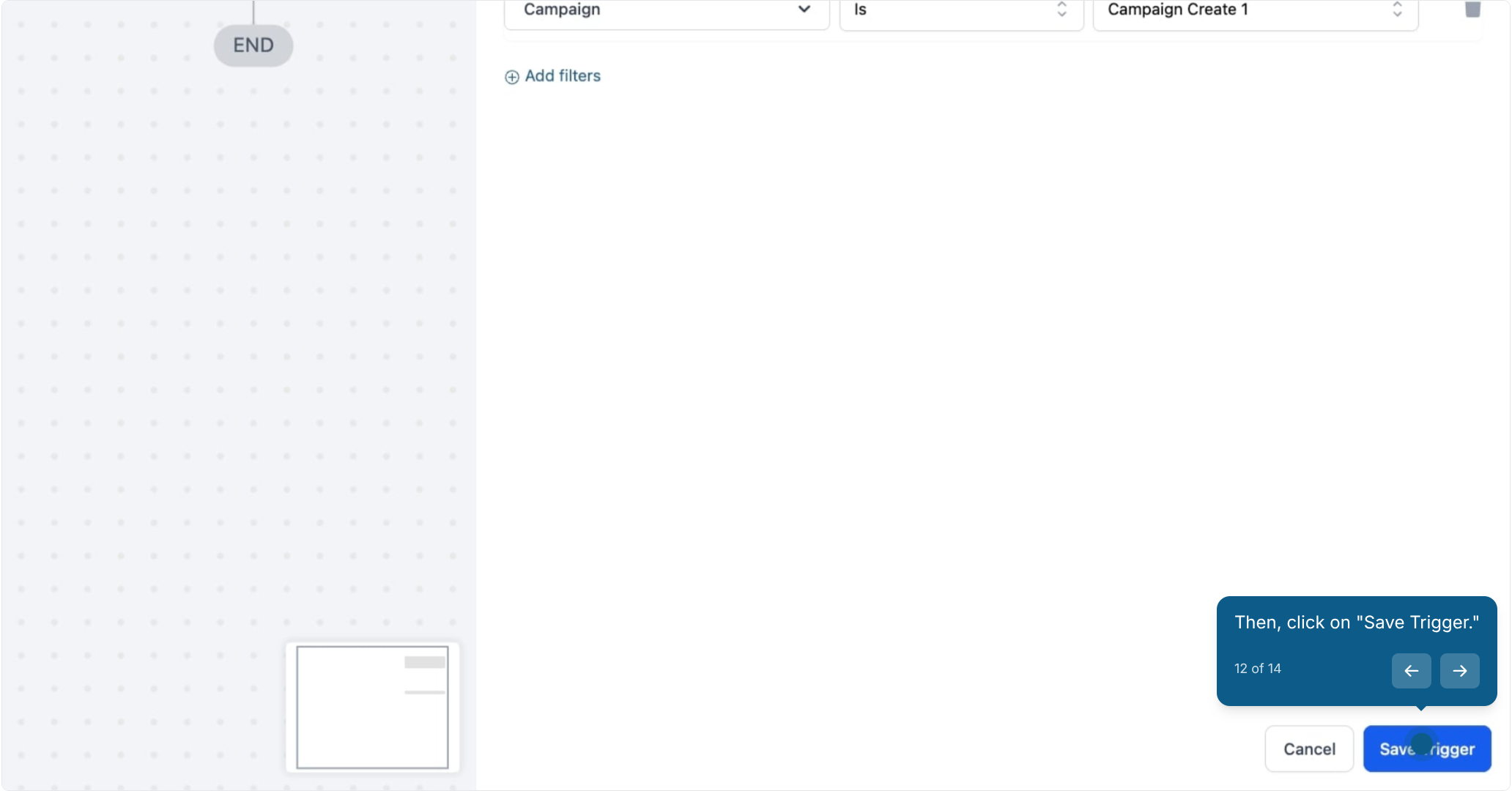
Click Save Trigger. This finalizes the configuration so the workflow only fires for affiliates enrolled in the campaign you selected.
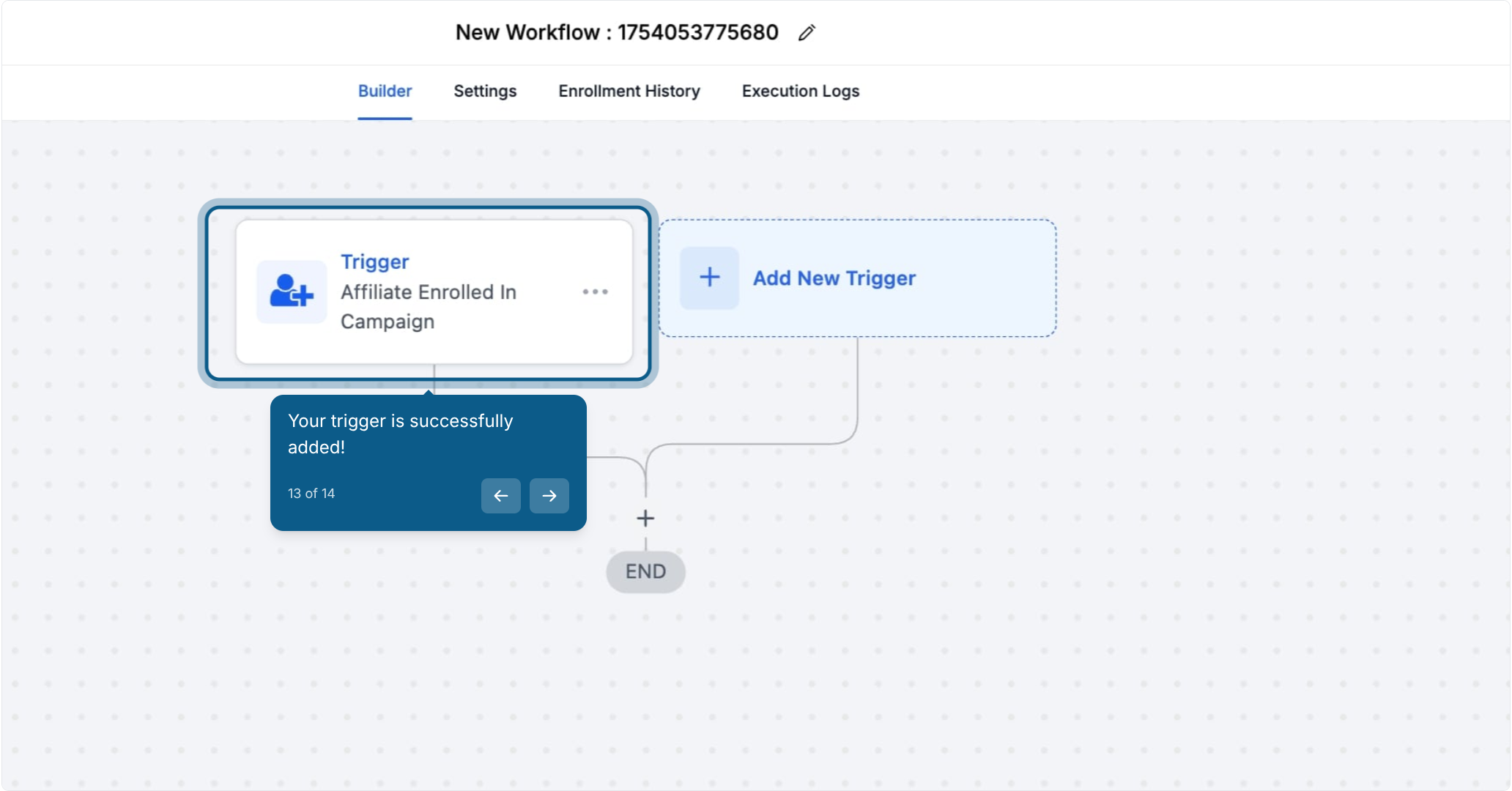
Your trigger is added.
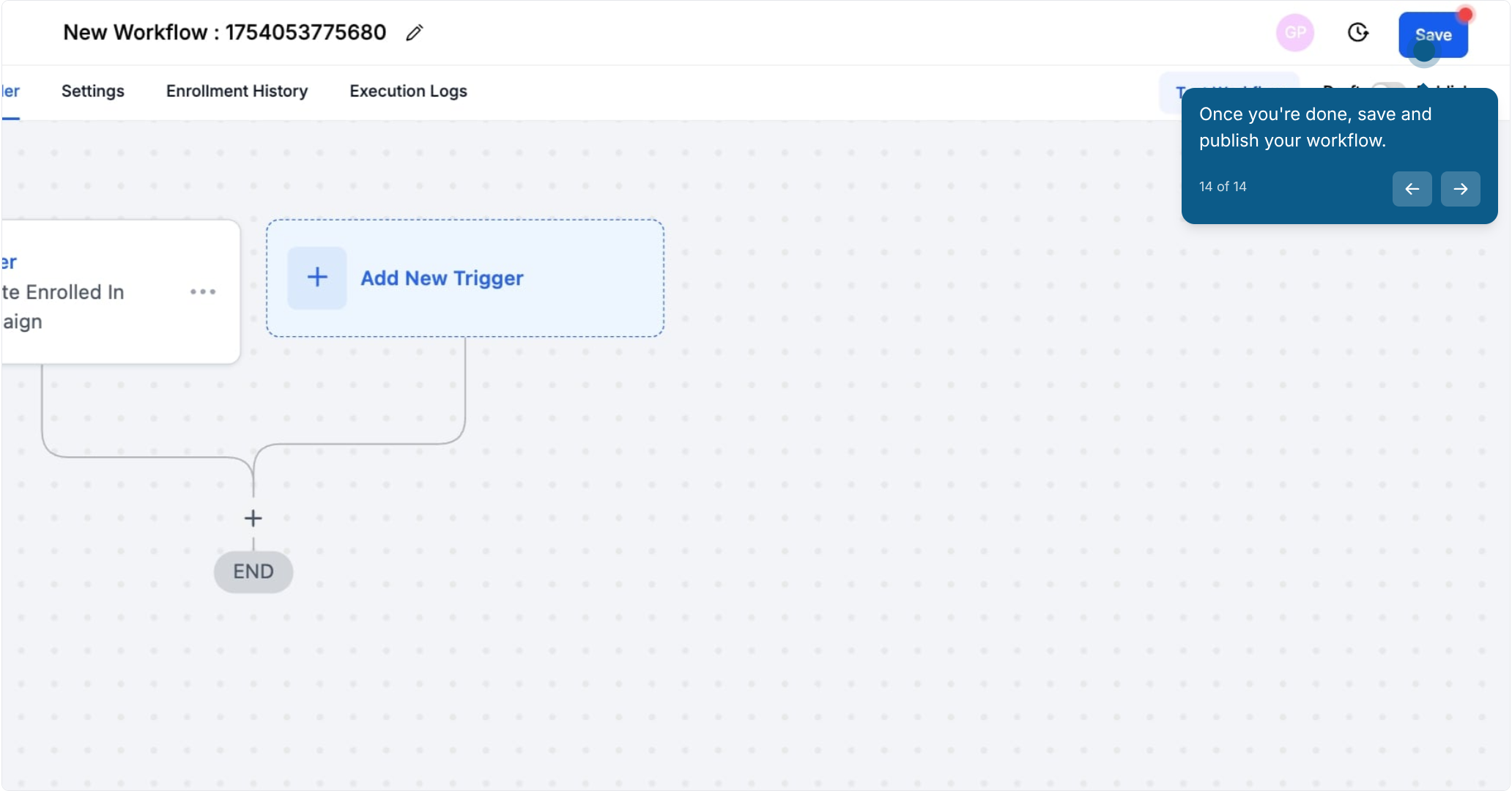
Save and publish the workflow.
Adding a filter is optional but recommended once you're running more than one affiliate campaign. Without a filter, the trigger fires for enrollment into any campaign on the account. With a Campaign filter, you can build a different onboarding path for each program, for example one welcome sequence for a "Patient Referral Program" and a different one for a seasonal promotion, all from separate workflows or branches inside the same workflow using conditional logic.
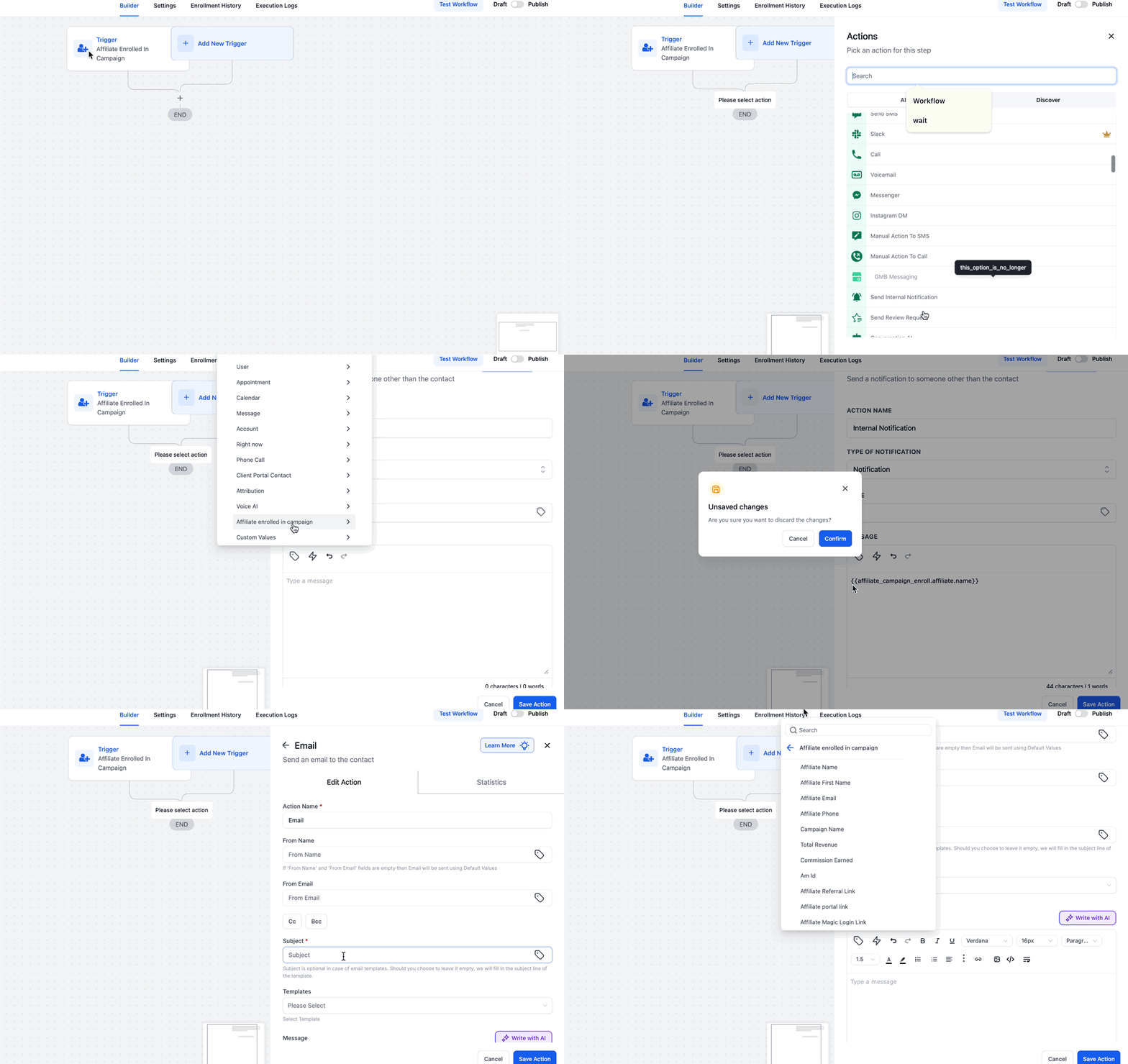
Once the trigger and any filters are set, build out the rest of the workflow using the affiliate custom values listed above. A few common patterns:
Internal notification. Alert your team with Affiliate Name, Affiliate Email, Affiliate Phone, and Campaign Name so whoever handles affiliate relationships has full context on the new enrollment.
Welcome SMS. Send the affiliate a short text with their name and campaign details, including the Magic Login Link so they can get into their portal right away.
Welcome email. Include the Referral Link, Total Revenue, and Commission Earned, and hyperlink the Portal Link. This is also a good place to attach your program terms or guidelines.
Segmentation tag. Apply a tag tied to the campaign name (for example "Spring Promo Affiliate") so you can target that group in future campaigns or reporting without re-filtering every time.
Why isn't "Affiliate Enrolled in Campaign" showing up in my trigger list? The trigger only appears if Affiliate Manager is enabled and at least one affiliate campaign has been created. Go to Settings > Affiliate Manager, turn on the toggle, then create a campaign under the Affiliate Manager tab. Once both are in place, the trigger appears in the workflow builder under the Affiliate category.
Can I onboard affiliates differently depending on which campaign they joined? Yes. Add a Campaign filter to the trigger, or use conditional branches and tags inside the workflow, so each campaign gets its own welcome sequence and messaging.
Why are my affiliate custom values (referral link, magic login link, etc.) showing up blank? Custom values only populate when the workflow is actually run by a real affiliate enrollment event. If you're testing with a workflow that hasn't fired from a genuine enrollment, those fields will be empty. Test with a real affiliate record that has actually joined a campaign.
Does the trigger fire if I add an affiliate manually? Yes. It fires whether the affiliate enrolled automatically (through a form, funnel, or sign-up link) or was added manually by your team inside Affiliate Manager. Either path counts as an enrollment and will run the workflow if it matches any filters you've set.
Do I have to add filters? No. Filters are optional. Without one, the trigger fires for enrollment into any campaign. Add a Campaign filter when you want the workflow to respond only to a specific program.
Can this trigger fire more than once for the same affiliate? It fires each time the affiliate is enrolled in a campaign that matches your filter. If the same affiliate joins multiple campaigns, the trigger fires separately for each enrollment that meets the criteria.
Where do I find the full list of workflow trigger categories? The Affiliate category is one of several trigger categories in the workflow builder alongside Contact, Appointments, Opportunities, Payments, and others. See the Workflows Triggers guide for the complete builder taxonomy.
What's the difference between the Referral Link and the Portal Link? The Referral Link is what the affiliate shares with prospective patients to track referrals back to their campaign. The Portal Link (along with the Magic Login Link) gives the affiliate access to their own dashboard to check revenue, commission, and performance.
