Auto Payouts lets you pay your affiliates and referral partners directly from Aesthetix CRM using PayPal, instead of sending commissions manually outside the platform. You'll find it under Affiliate Manager > Payouts. PayPal is currently the only supported payout method for Auto Payouts.
Before you can pay affiliates through Auto Payouts, you'll need:
A PayPal Business account
Payouts enabled on that PayPal account (covered in Step 2 below)
Each affiliate's PayPal account linked in Aesthetix CRM so their commission has somewhere to land
Connect your practice's PayPal Business account to Aesthetix CRM once, and every future payout run uses that same connection.
Go to the PayPal Developers page.
Log in to the developer dashboard by clicking Log into dashboard in the top-right corner.
In the dashboard, click My Account in the top-right corner.
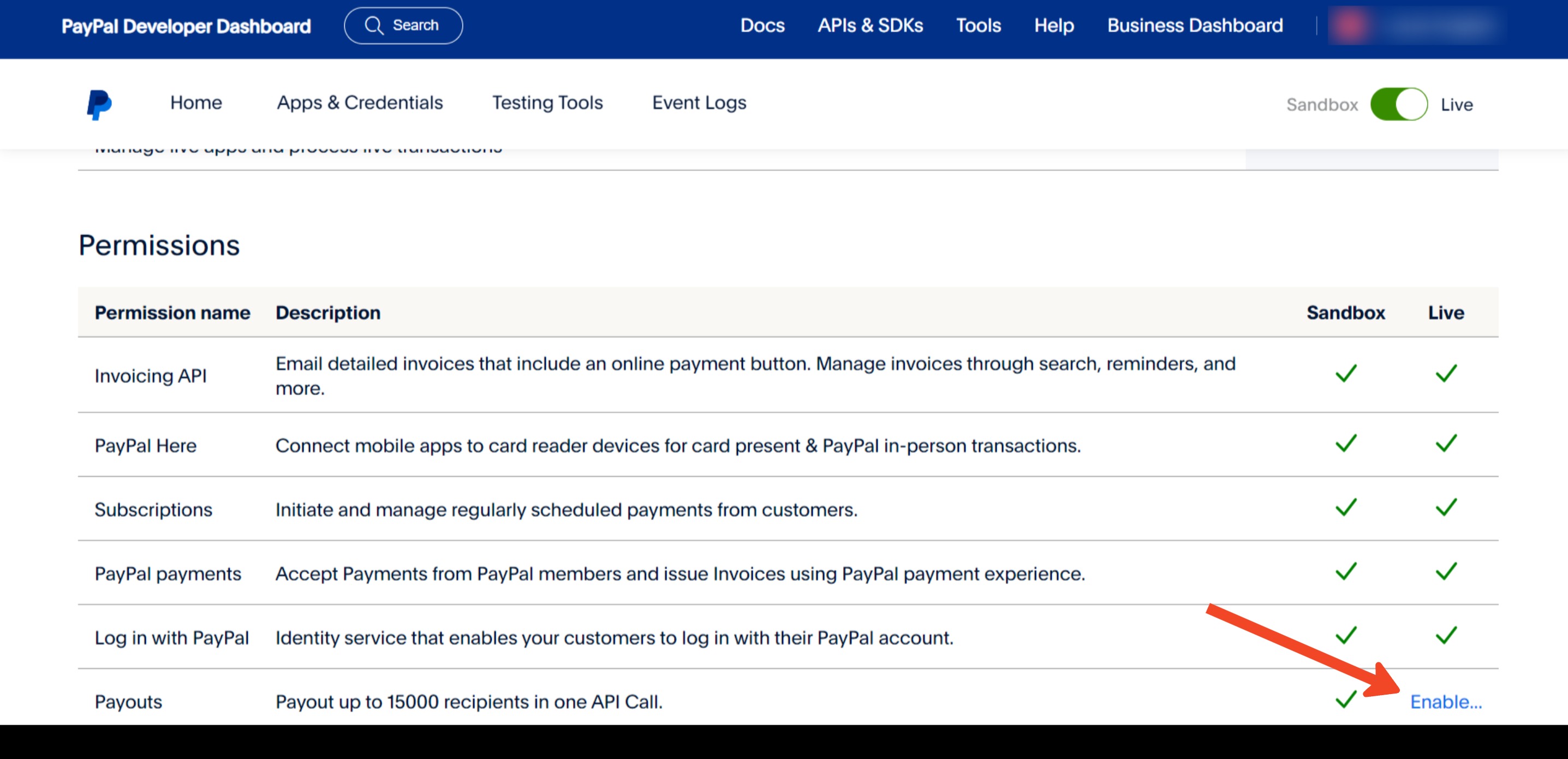
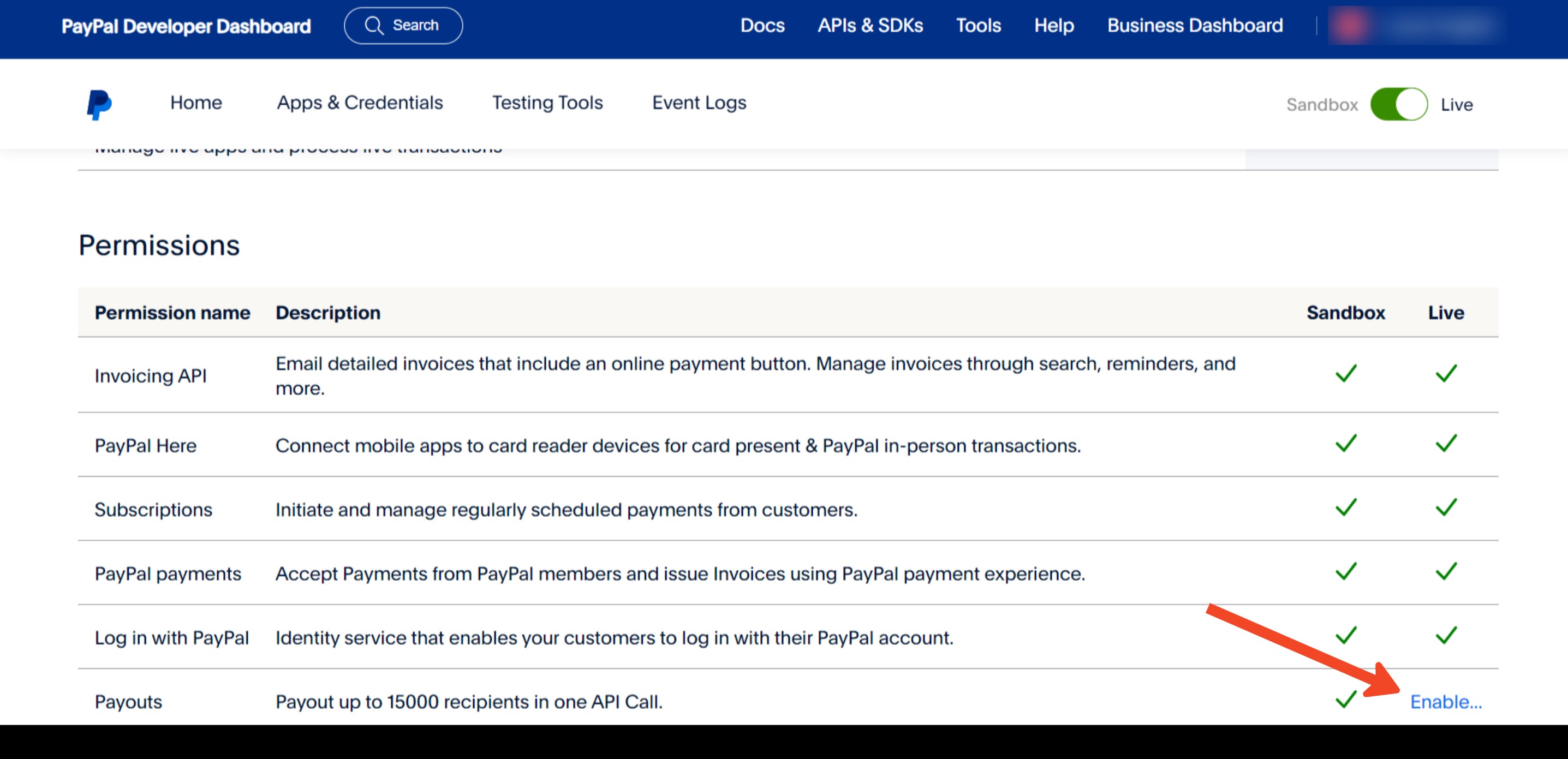
Scroll down to the Permissions table and check whether "Payouts" has a green checkmark under the Live column.
If it doesn't, click Enable and follow the prompts. You may need to contact PayPal directly to get the Payouts API turned on for your account.
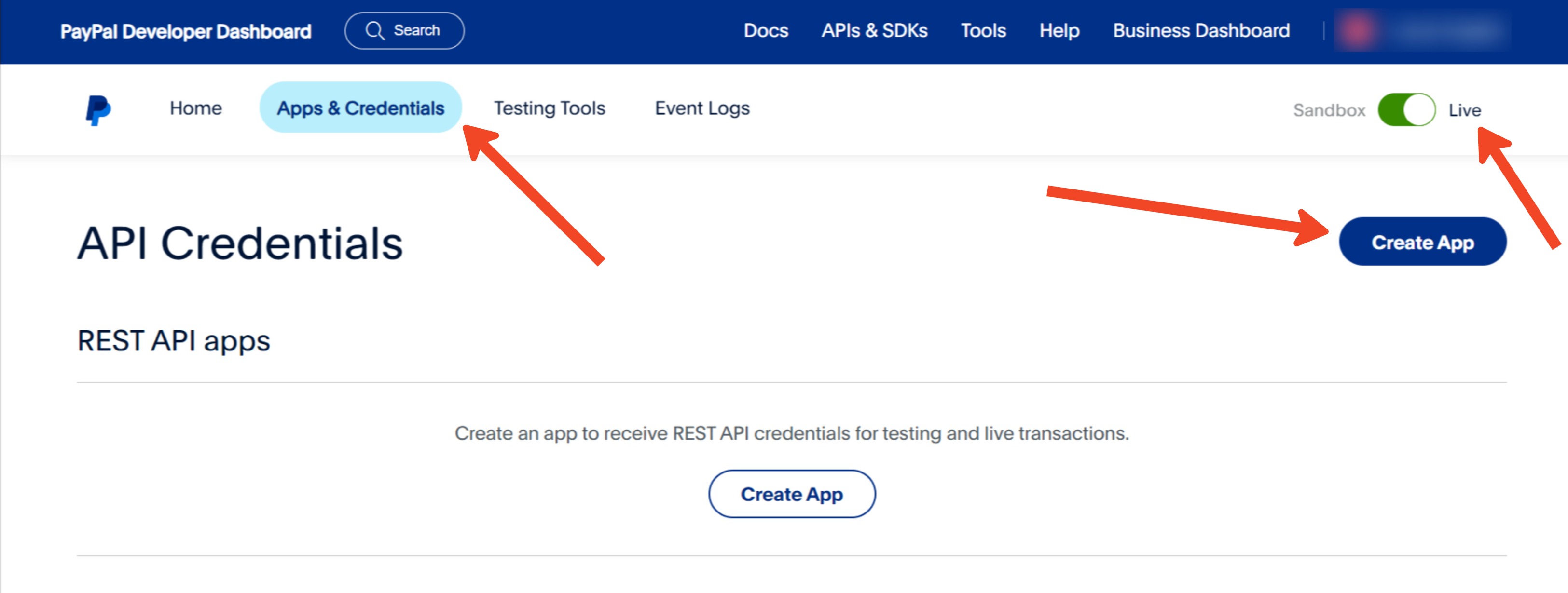
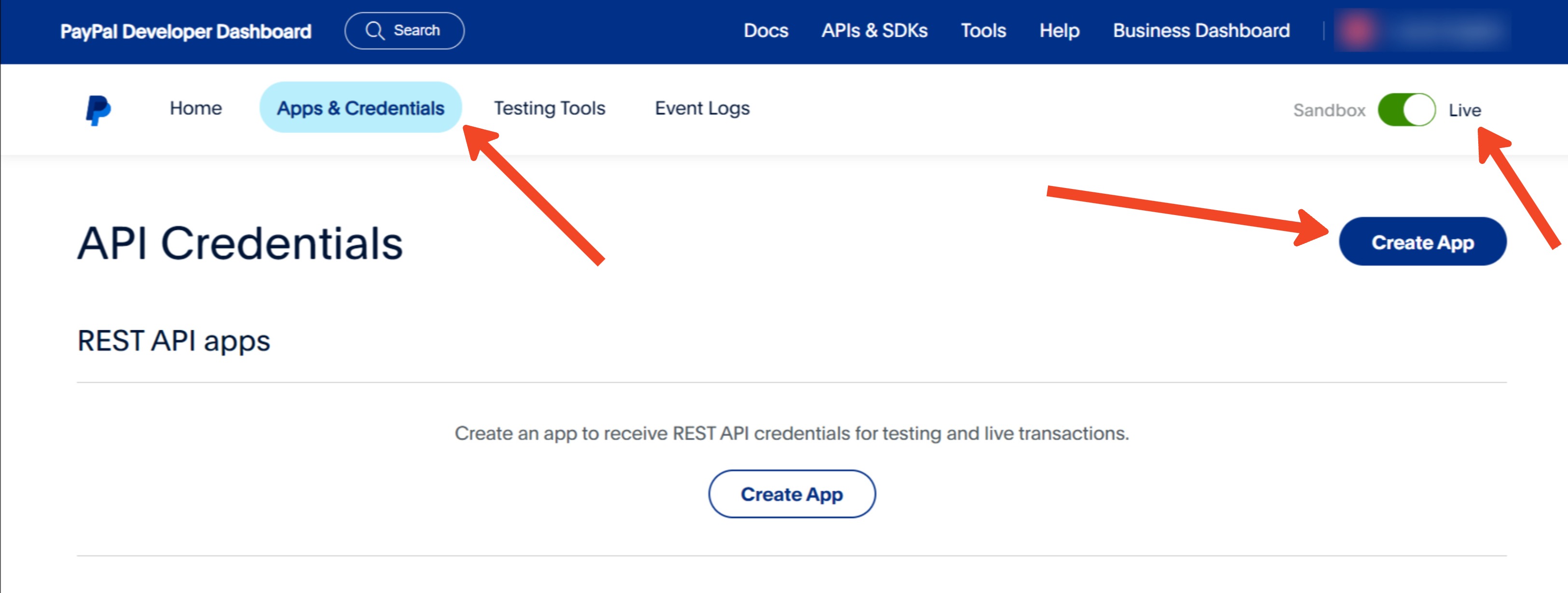
In the left-hand menu, click Apps and Credentials.
Click Live, then Create App.
Enter "Aesthetix CRM Payouts" (or a similar name) as the app name and click Create App.
If you already have an app created for this purpose, you can skip this step.
Note: If you see a "Live/Sandbox" toggle at the top-right after creating the app, make sure "Live" is selected before continuing.
After creating the app, PayPal provides a Client ID and Secret Key.
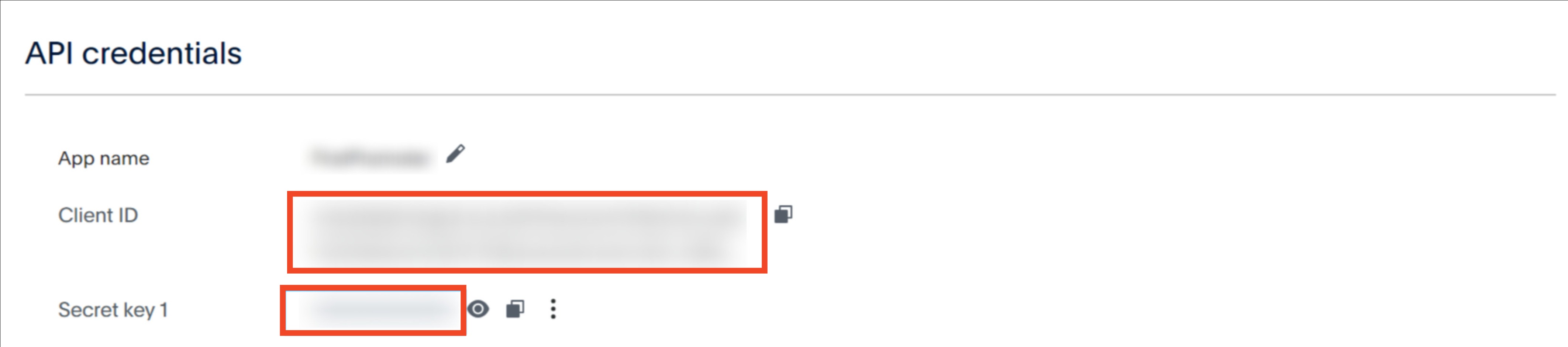
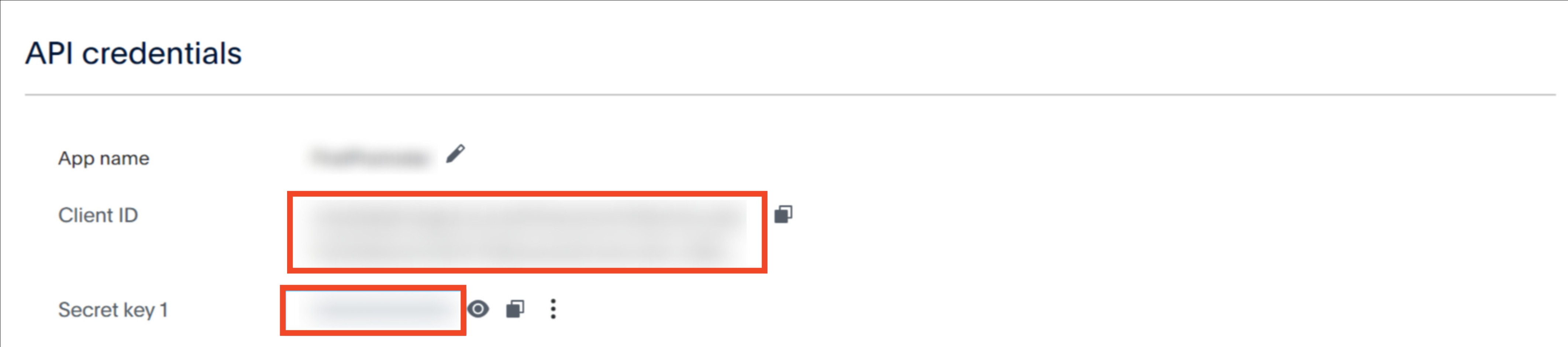
Keep these handy. You'll need both to connect Aesthetix CRM to PayPal in the next step.
In Aesthetix CRM, navigate to the Payment Integration page.
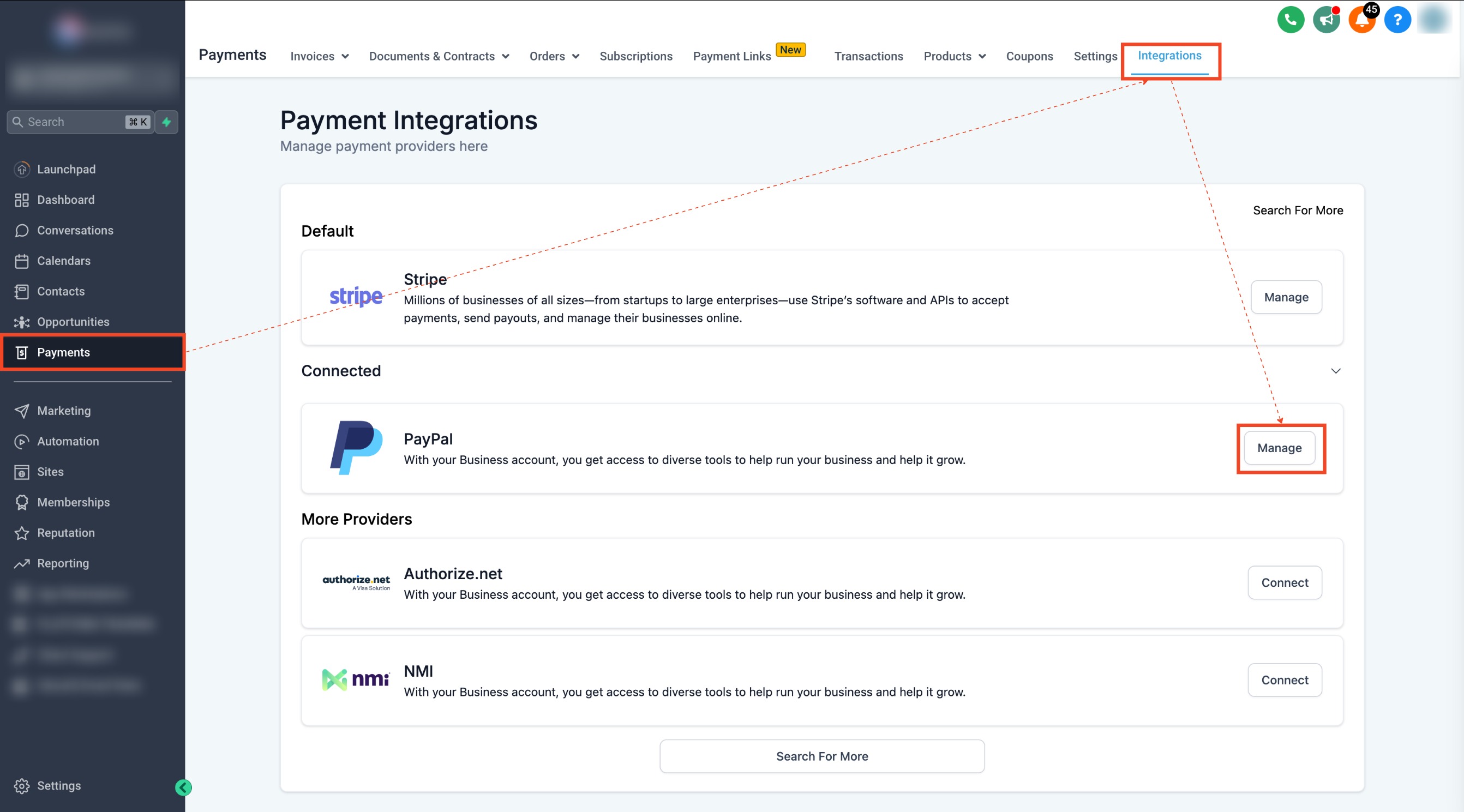
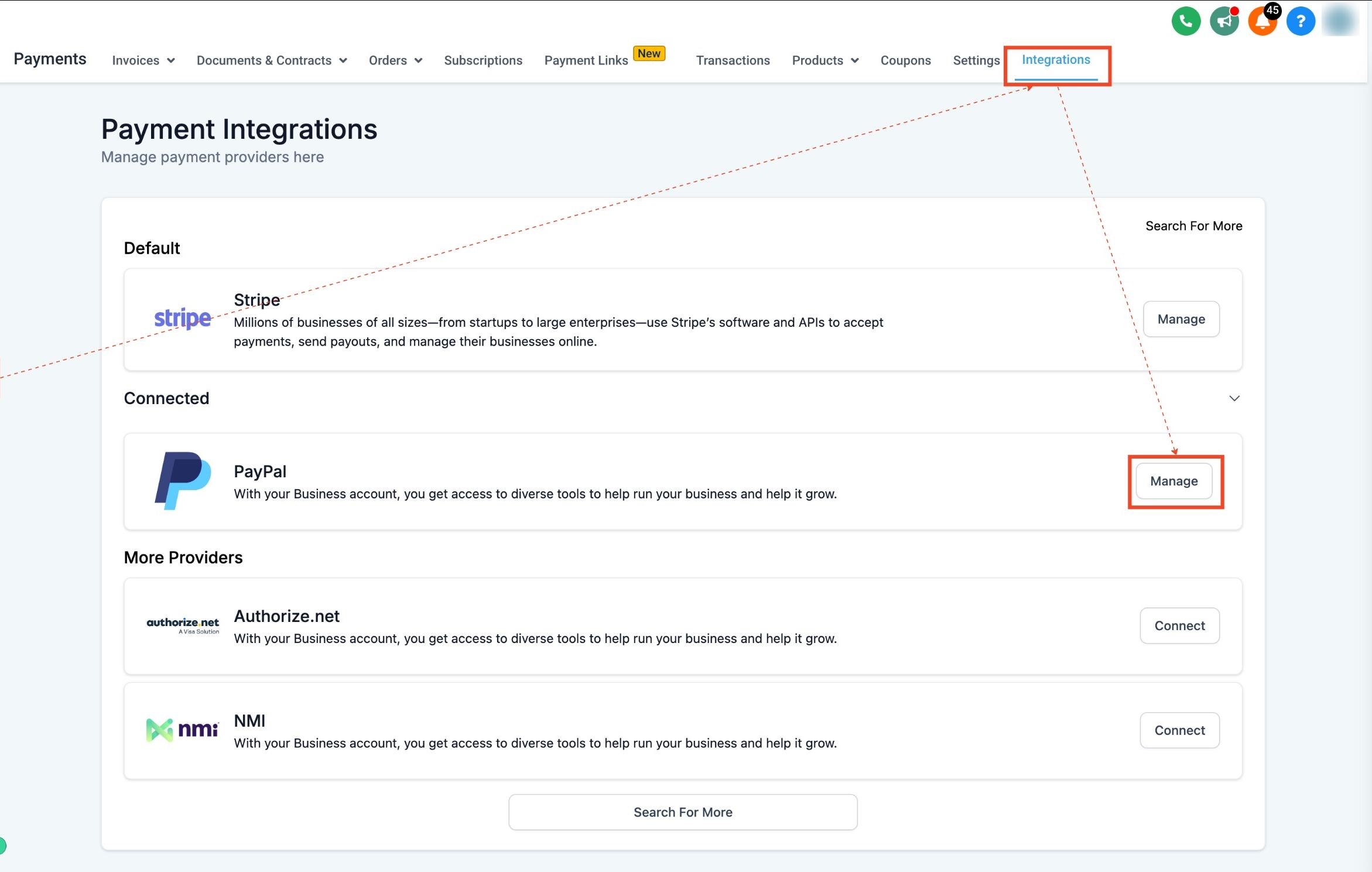
Scroll down to PayPal and click Manage.
Enter your Live Client ID and Secret Key from Step 4.
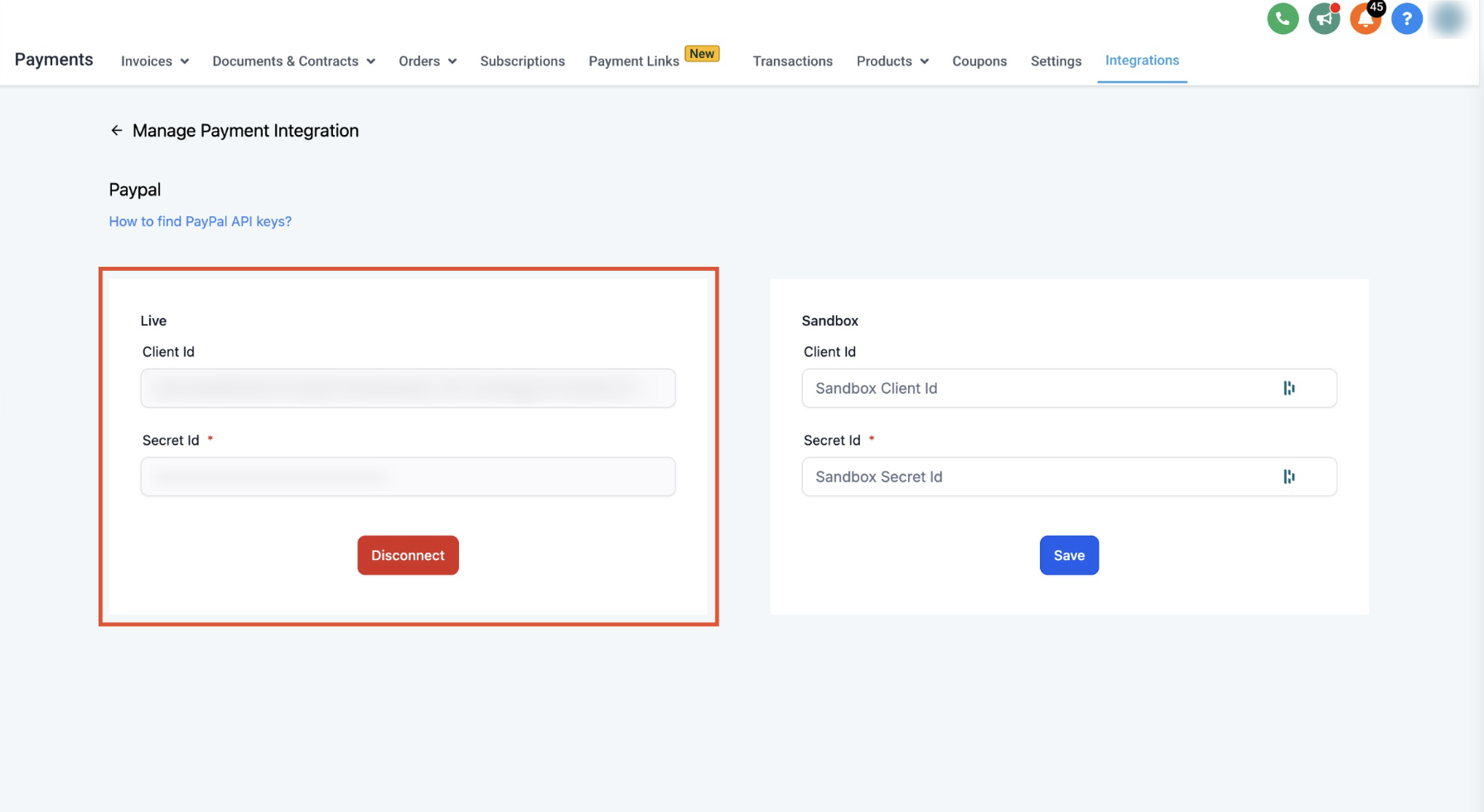
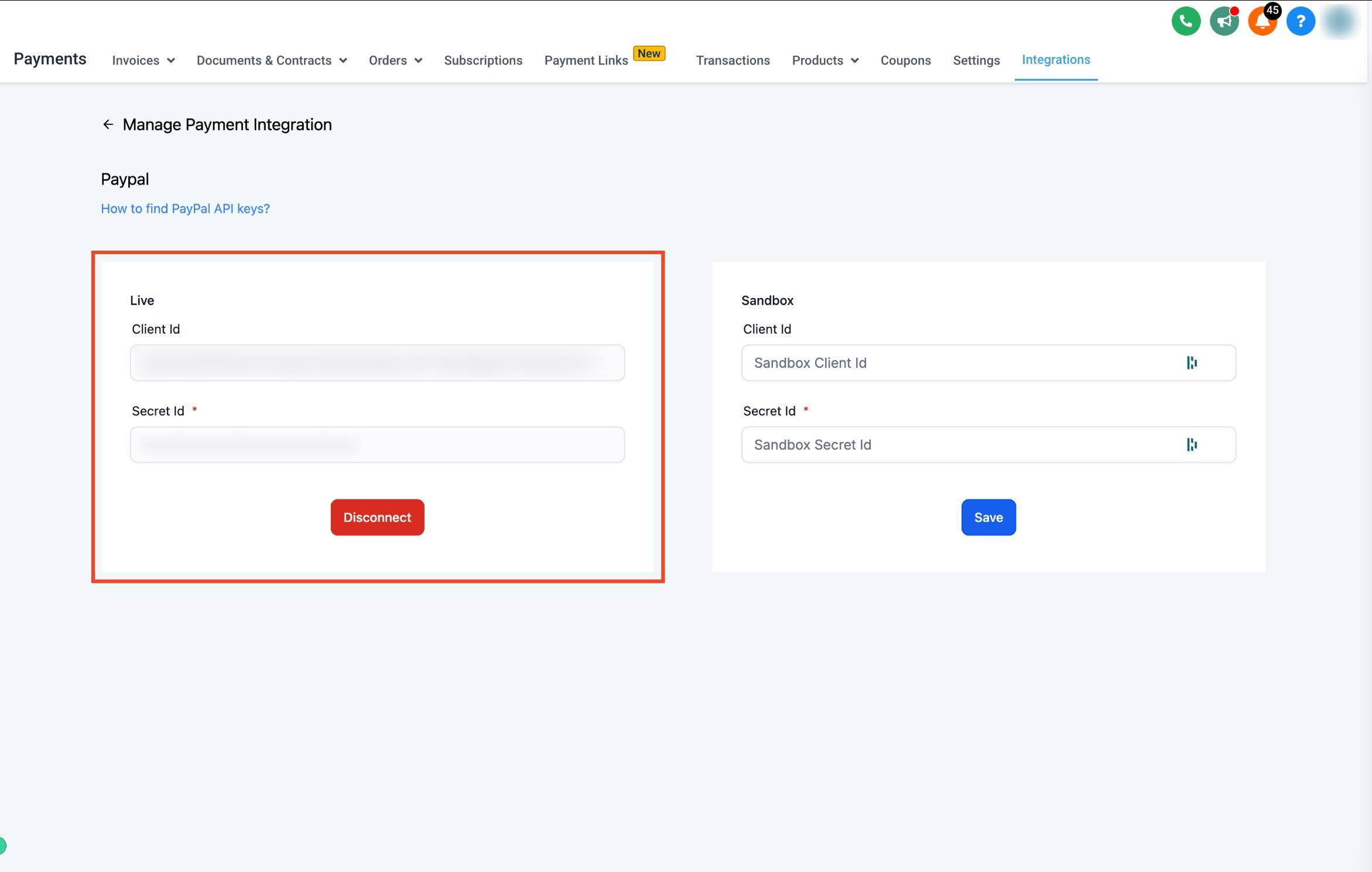
If you want to test the connection first, repeat the process with sandbox credentials, making sure "Sandbox" is selected on PayPal's Apps and Credentials page.
Once PayPal is connected, you can pay approved commissions to one or several affiliates at once.
In Affiliate Manager, go to the Payouts page.
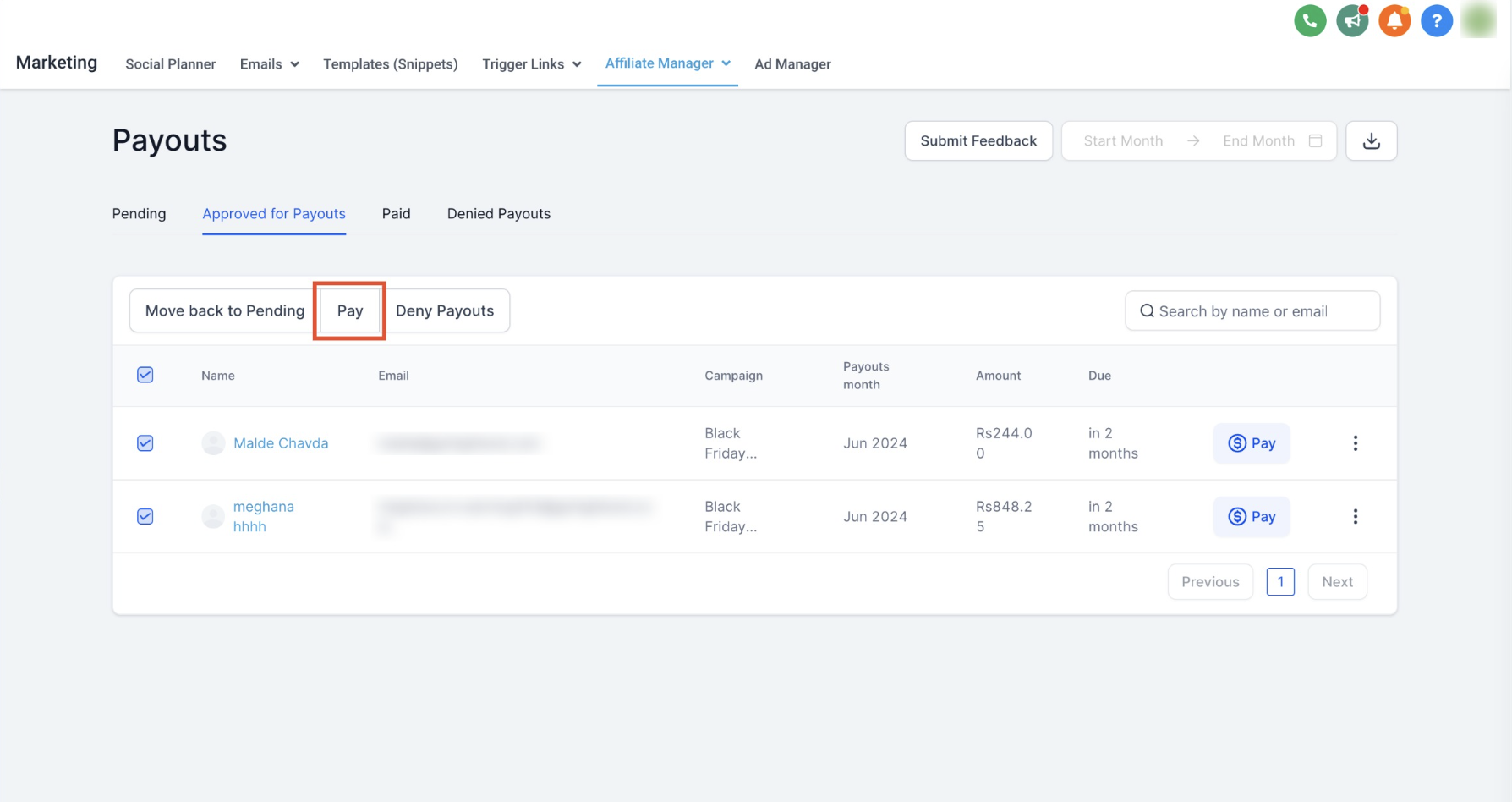
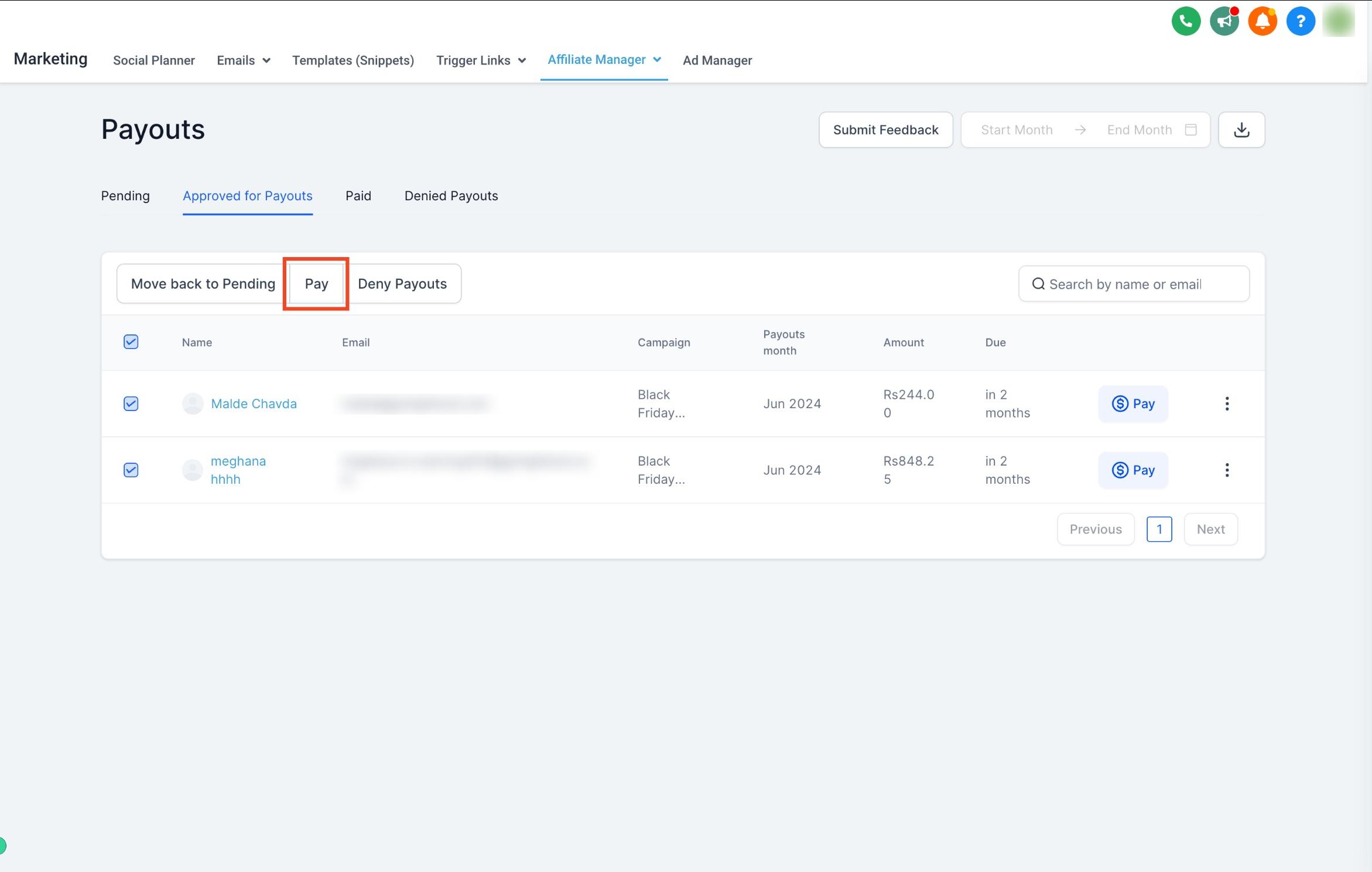
Switch to the Approved for Payouts tab to see the list of commissions that have been approved and are waiting to be paid out.
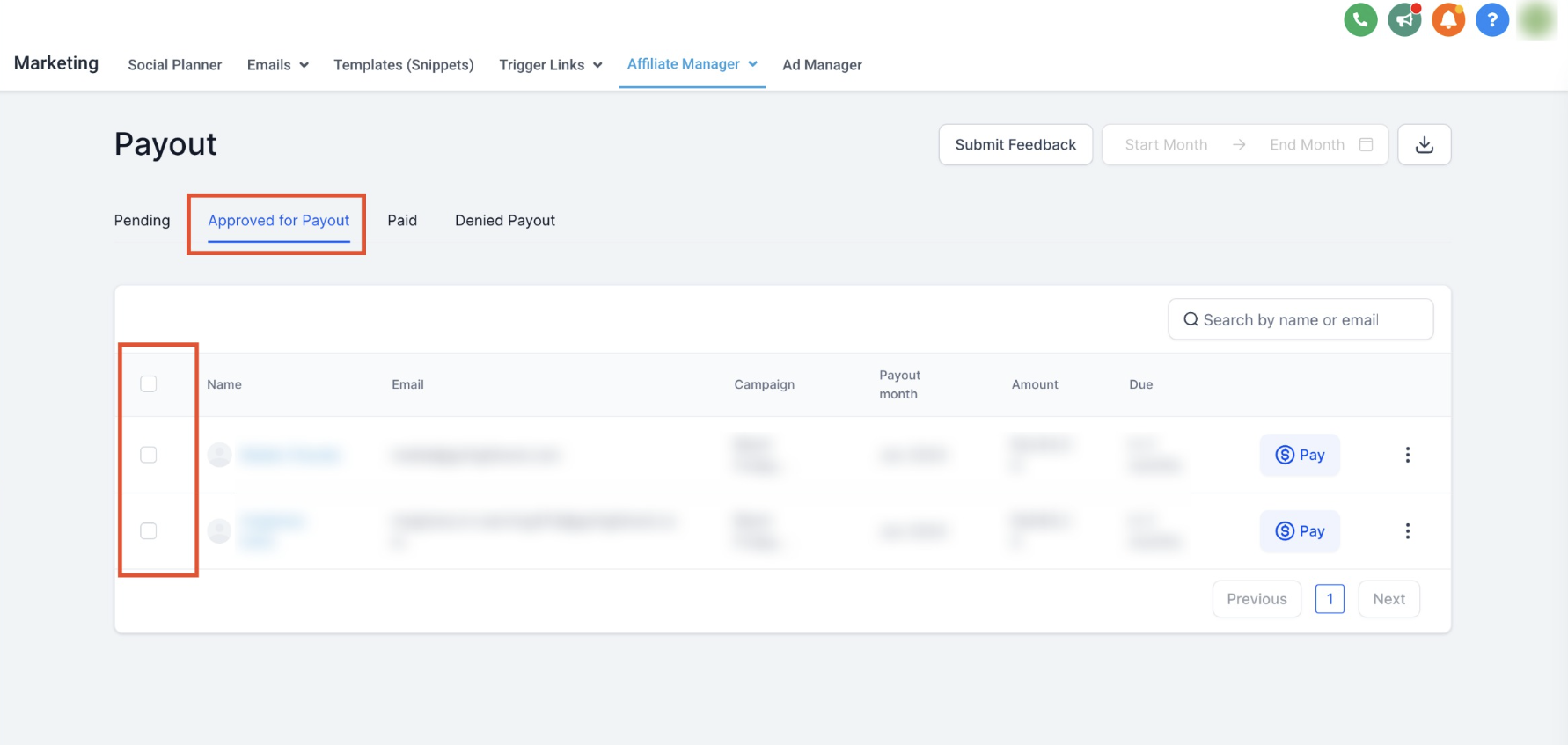
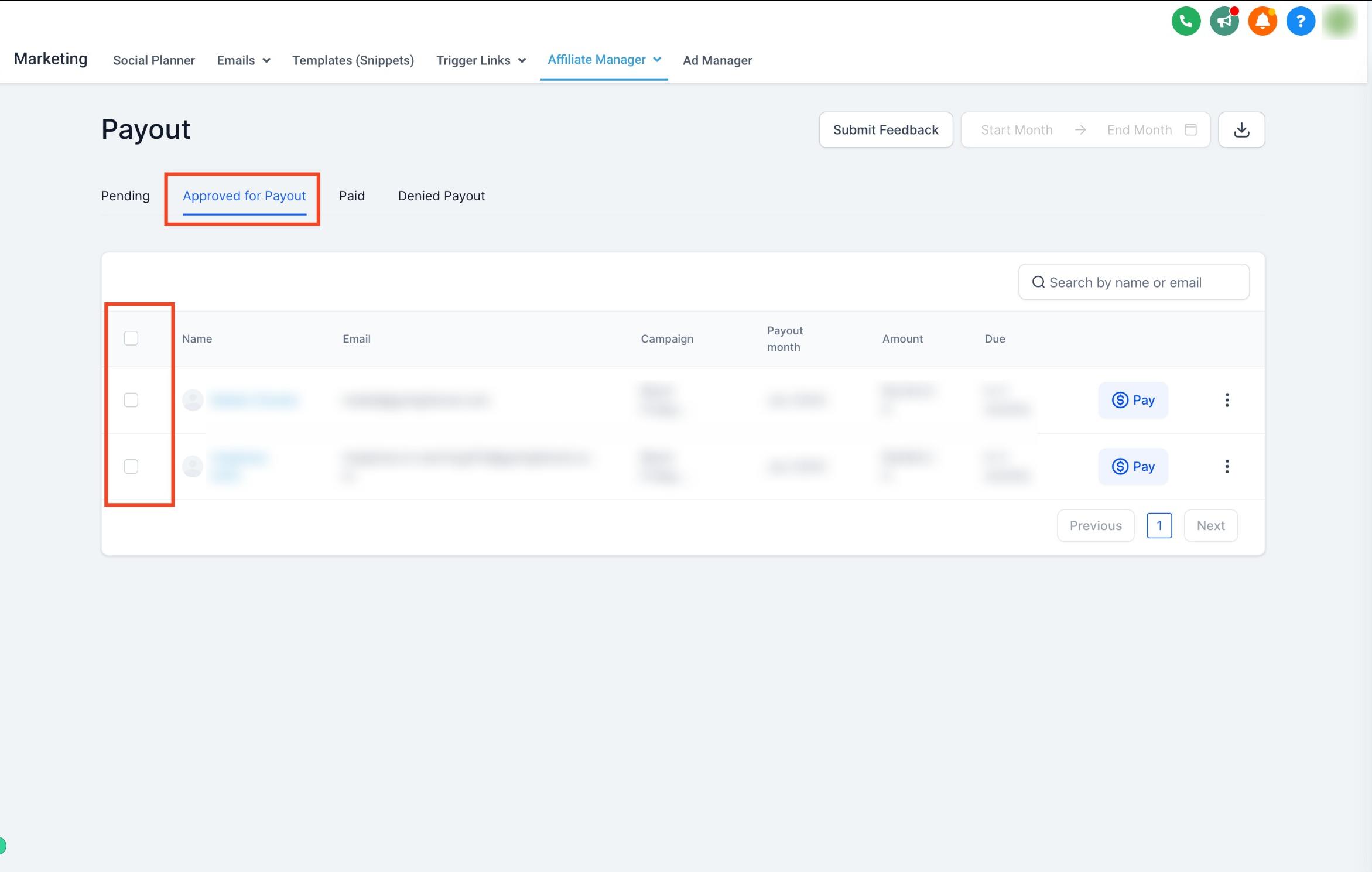
Check the box next to the payouts or affiliate names you want to pay.
With affiliates selected, click Pay to pay them all together.
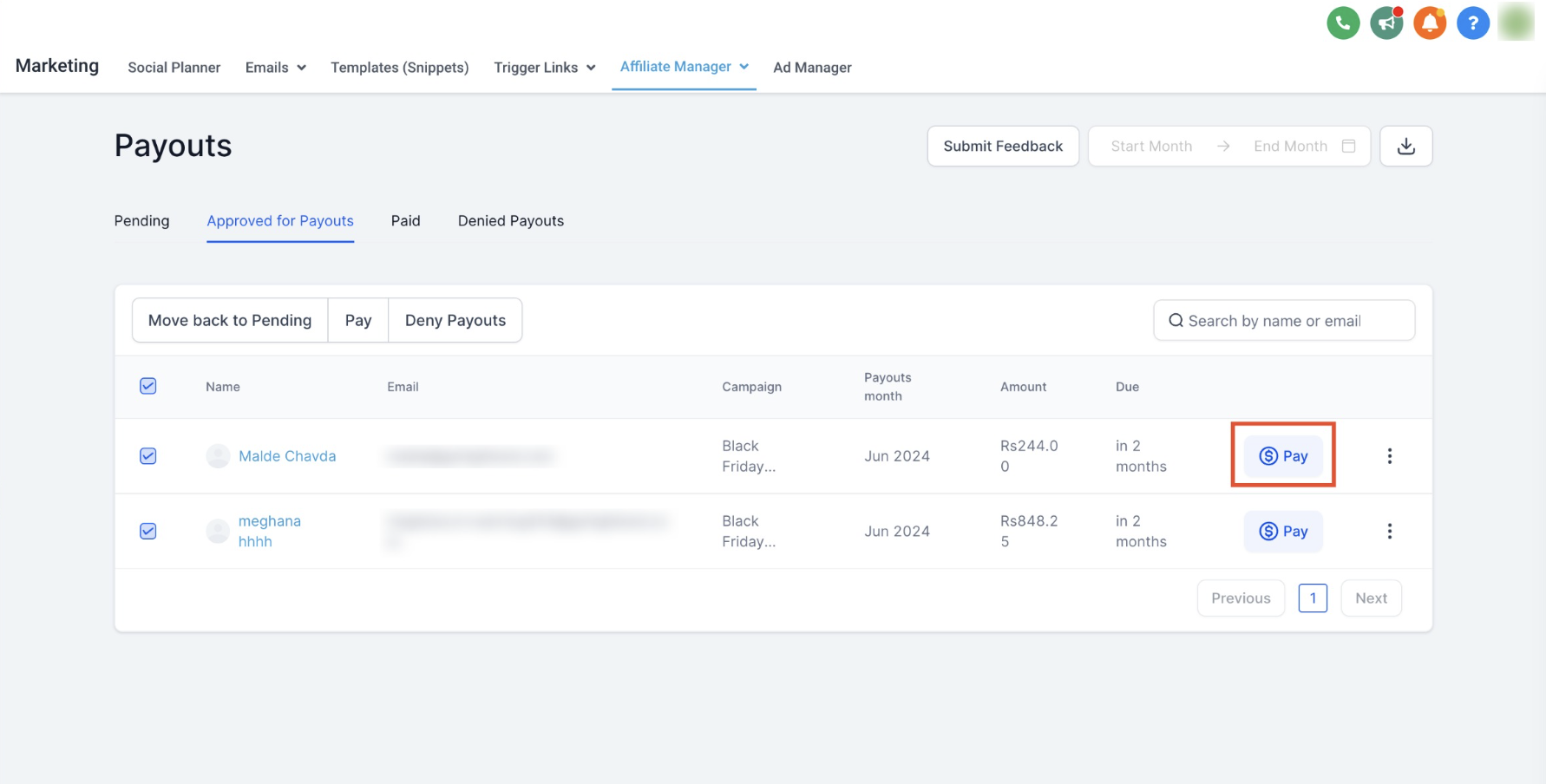
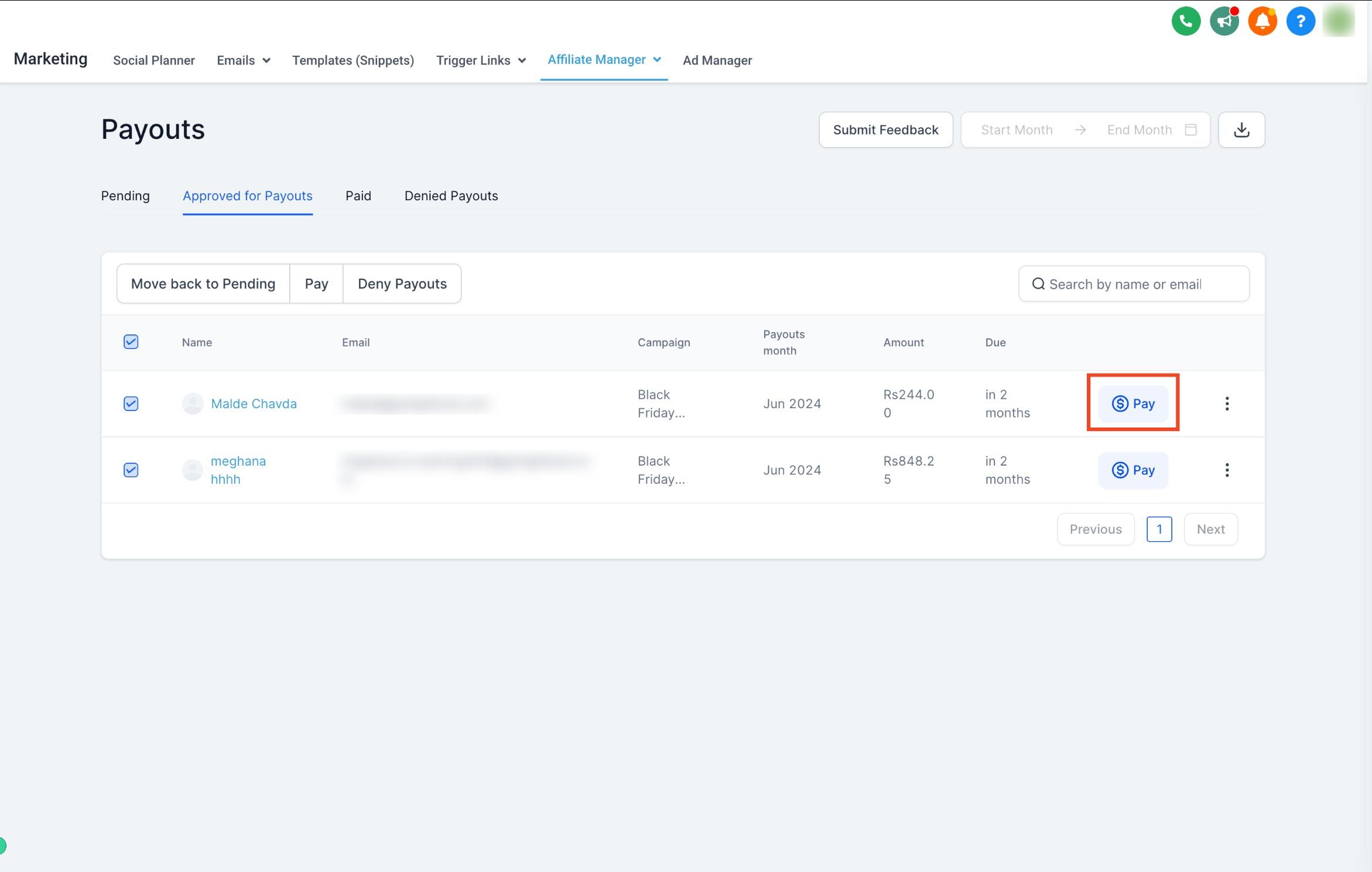
Or click the blue Pay icon next to a single affiliate's name to pay them individually.
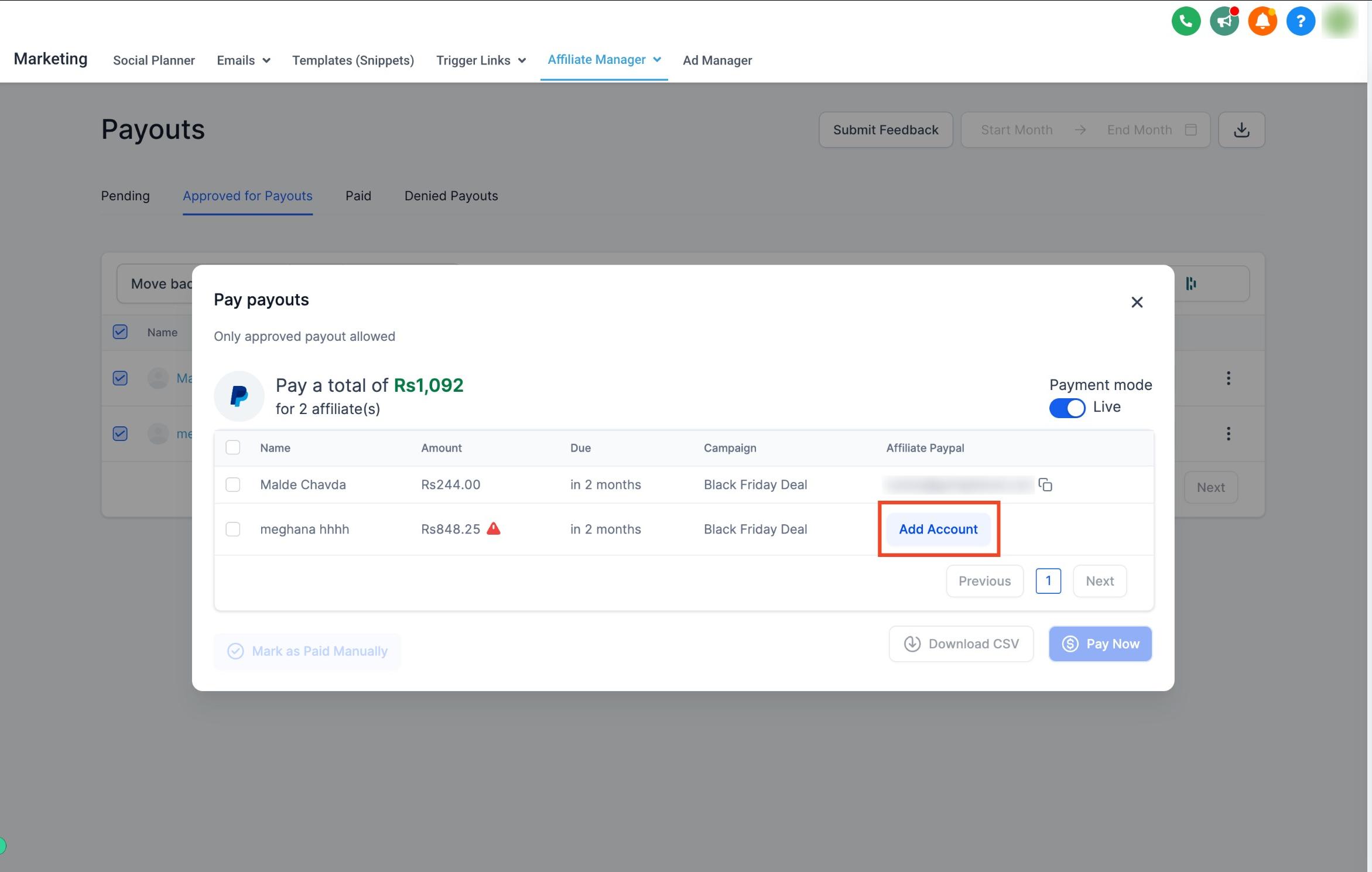
Review the selected payouts and confirm the details before sending.
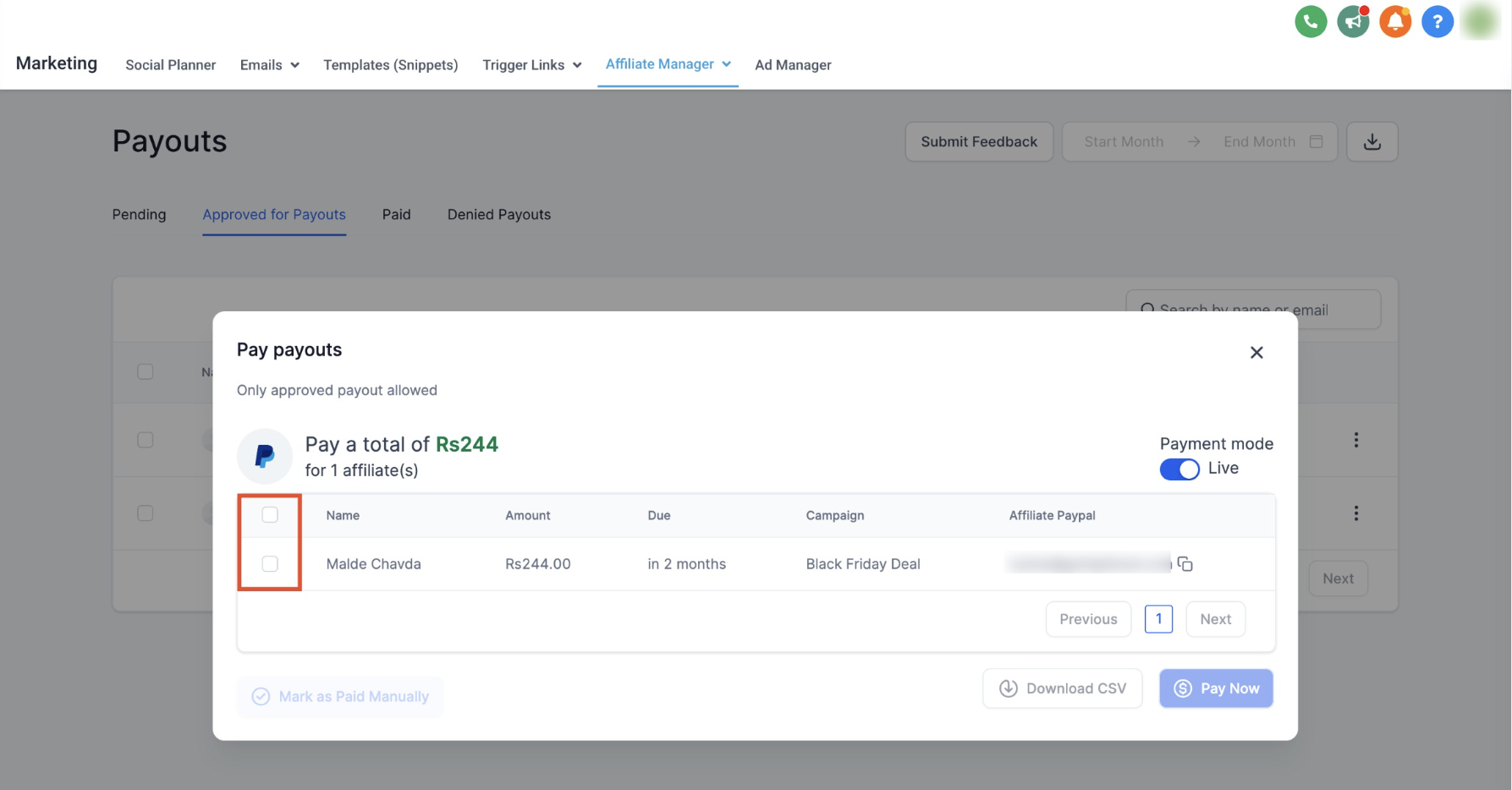
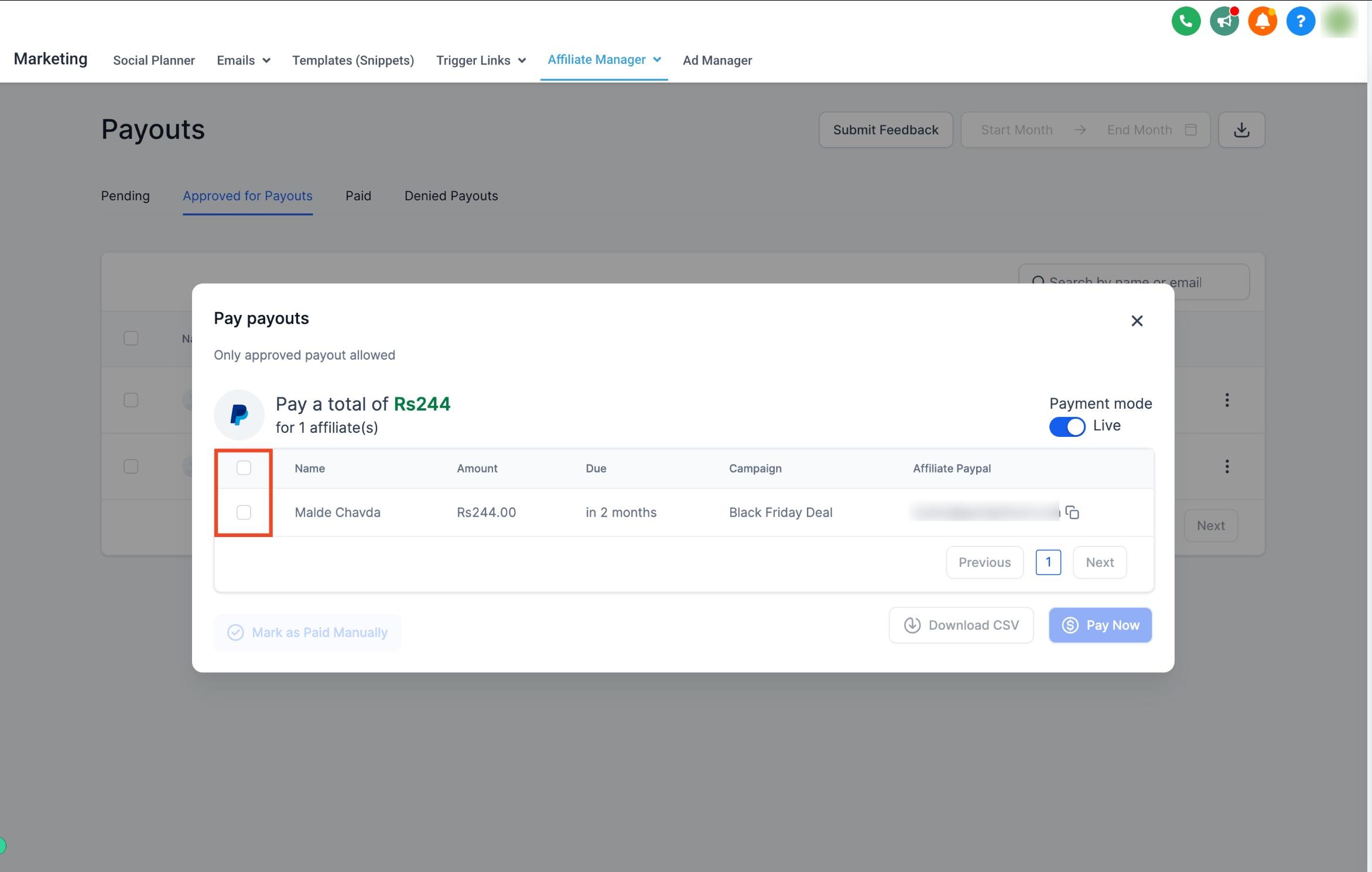
Click Pay Now to send the transfer.
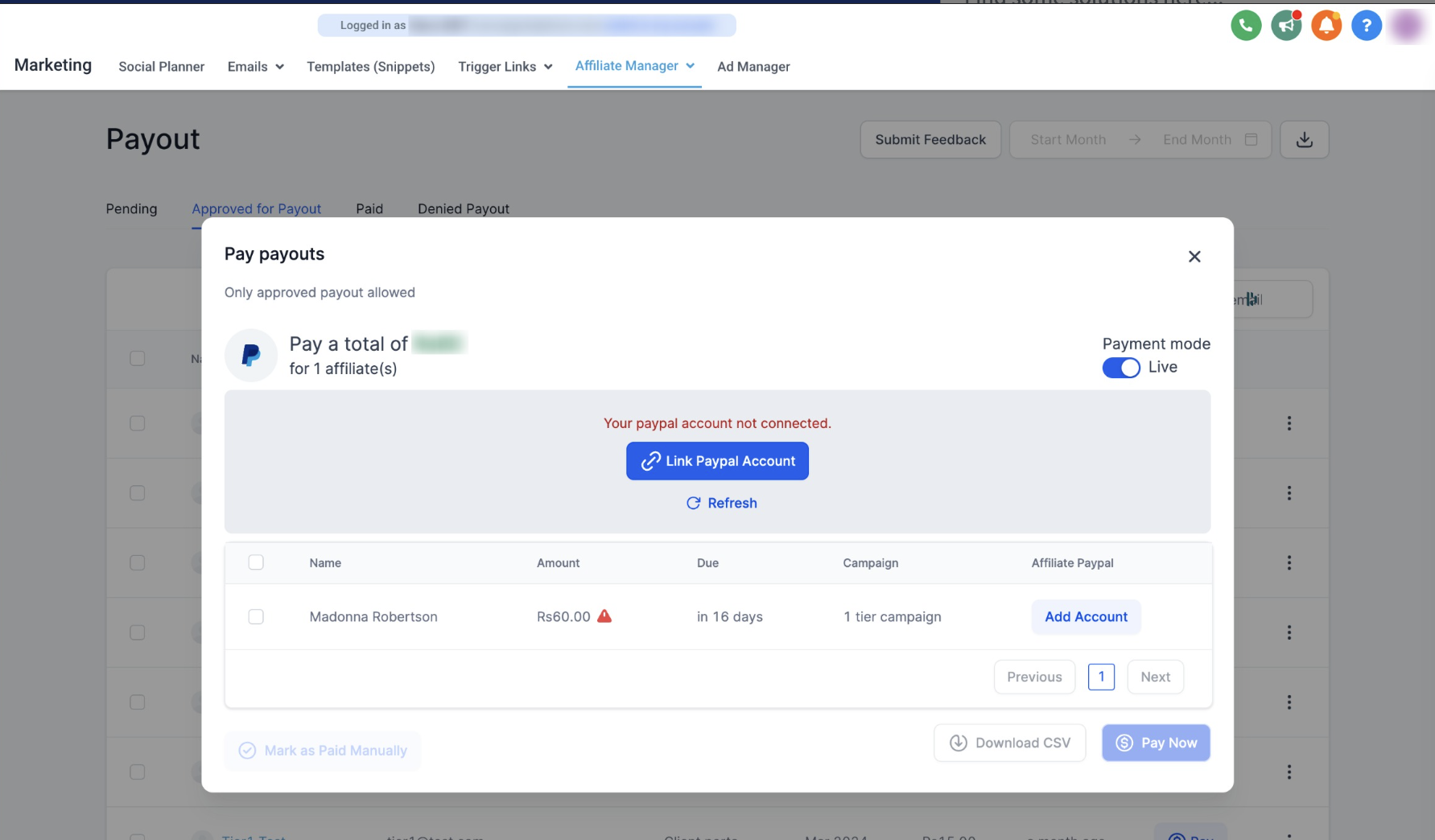
Important: If your PayPal Business account isn't linked yet, you'll see an error prompting you to link it before the payout can go through.
Once you click Pay Now, successful payouts move to the Paid tab.
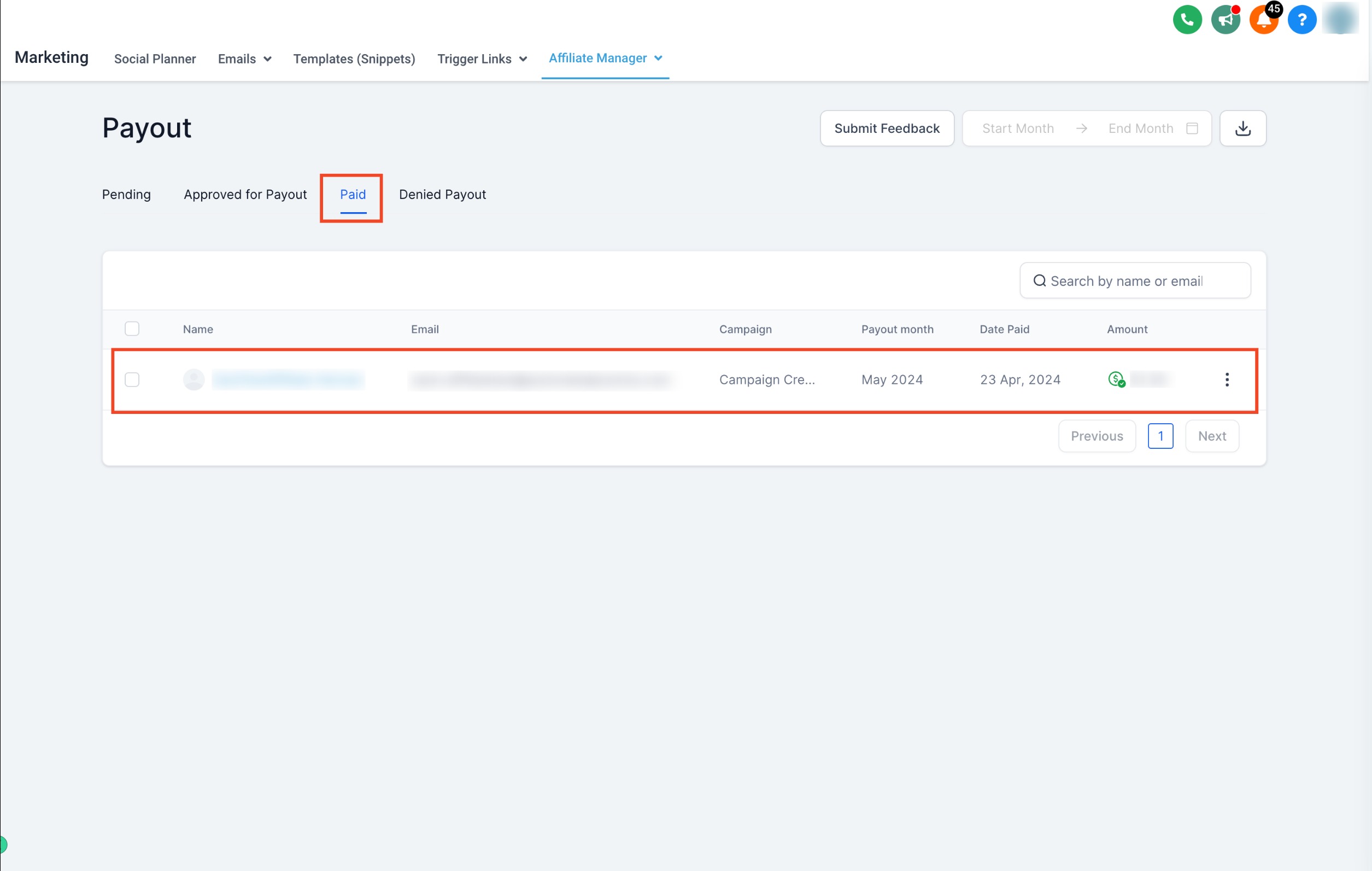
PayPal can take a little time to process payments, so a payout may show as "Pending" for a bit. Refresh the page to check for updates.
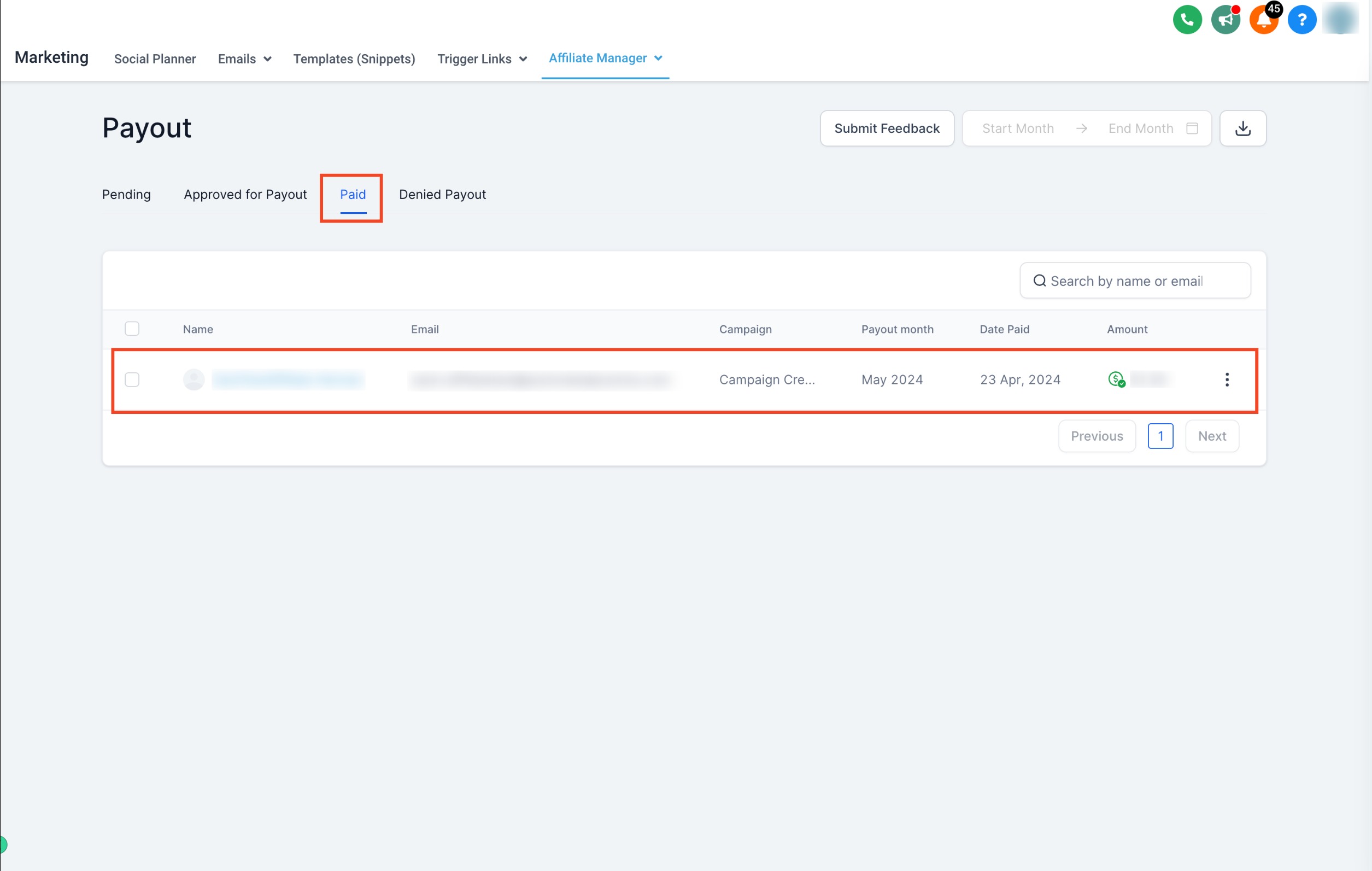
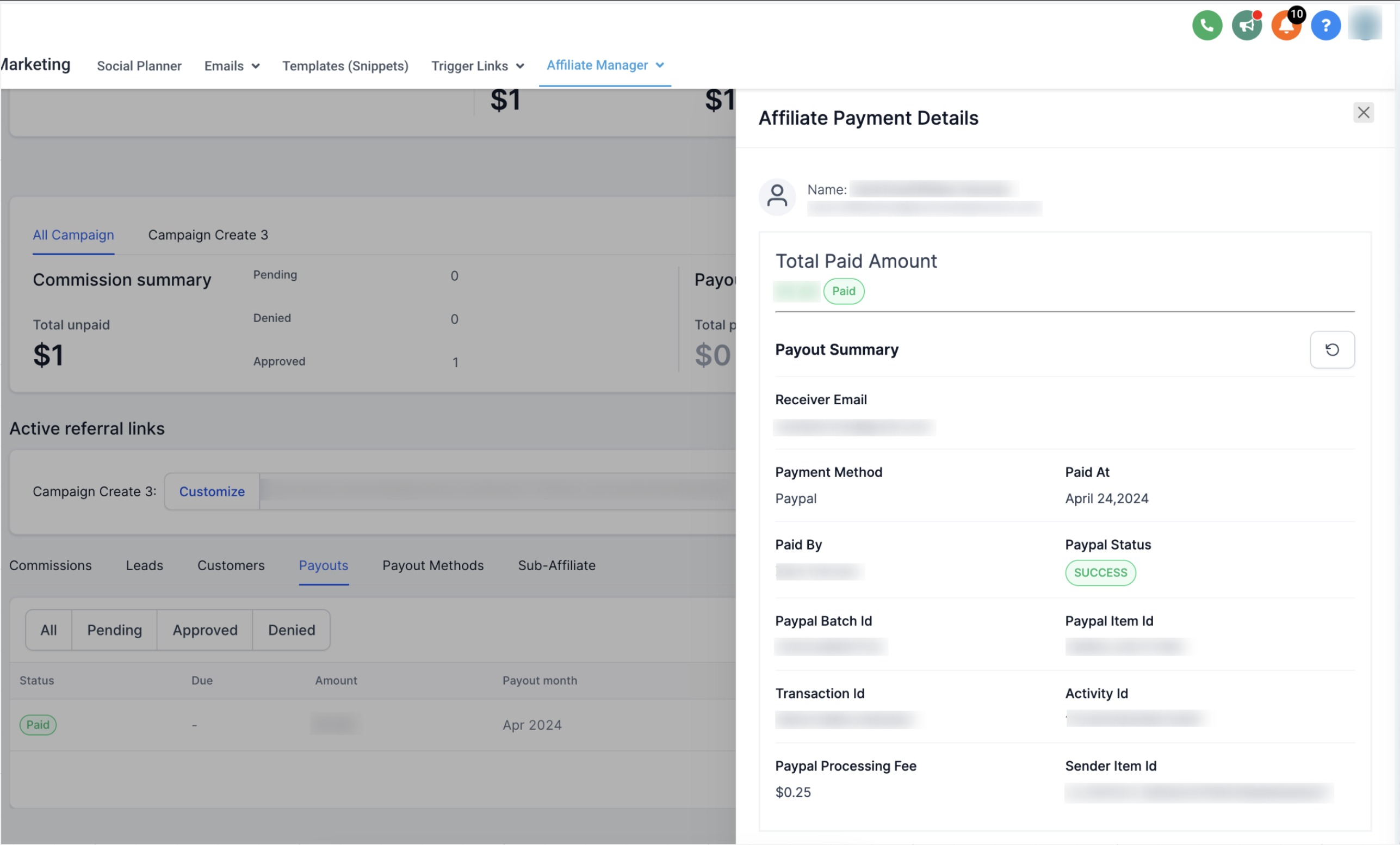
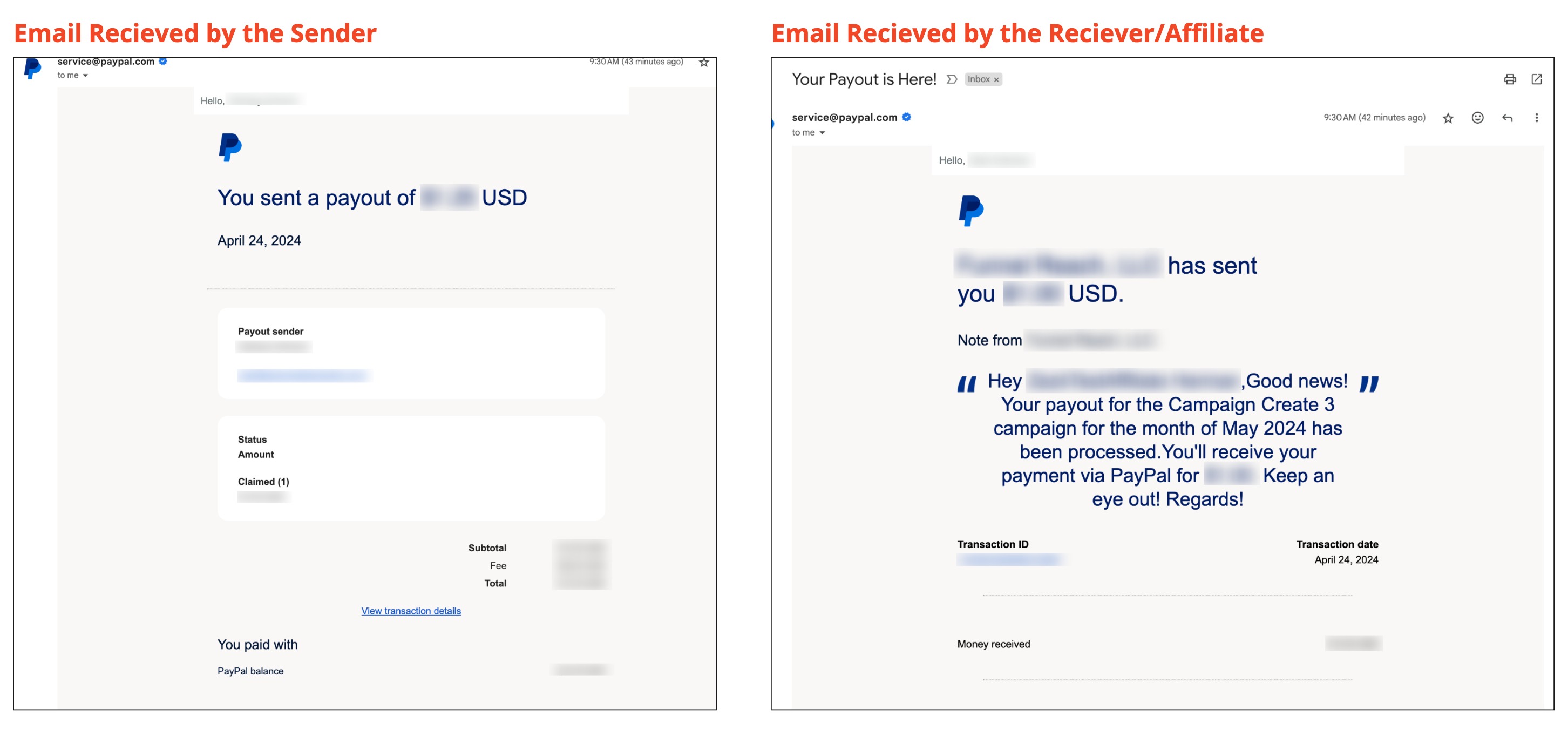
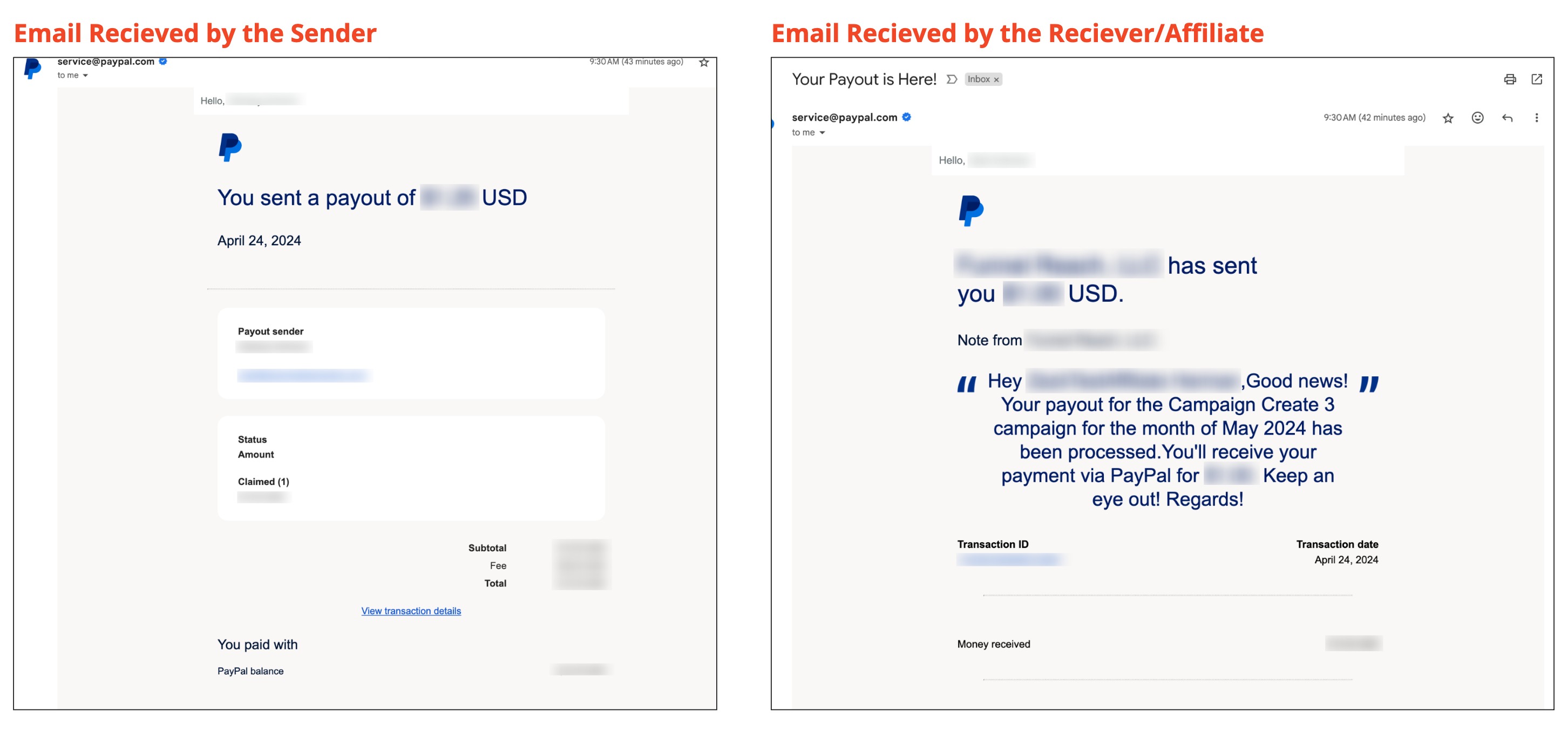
Once the payout completes, both you (as the sender) and the affiliate (as the receiver) get a confirmation email from PayPal.
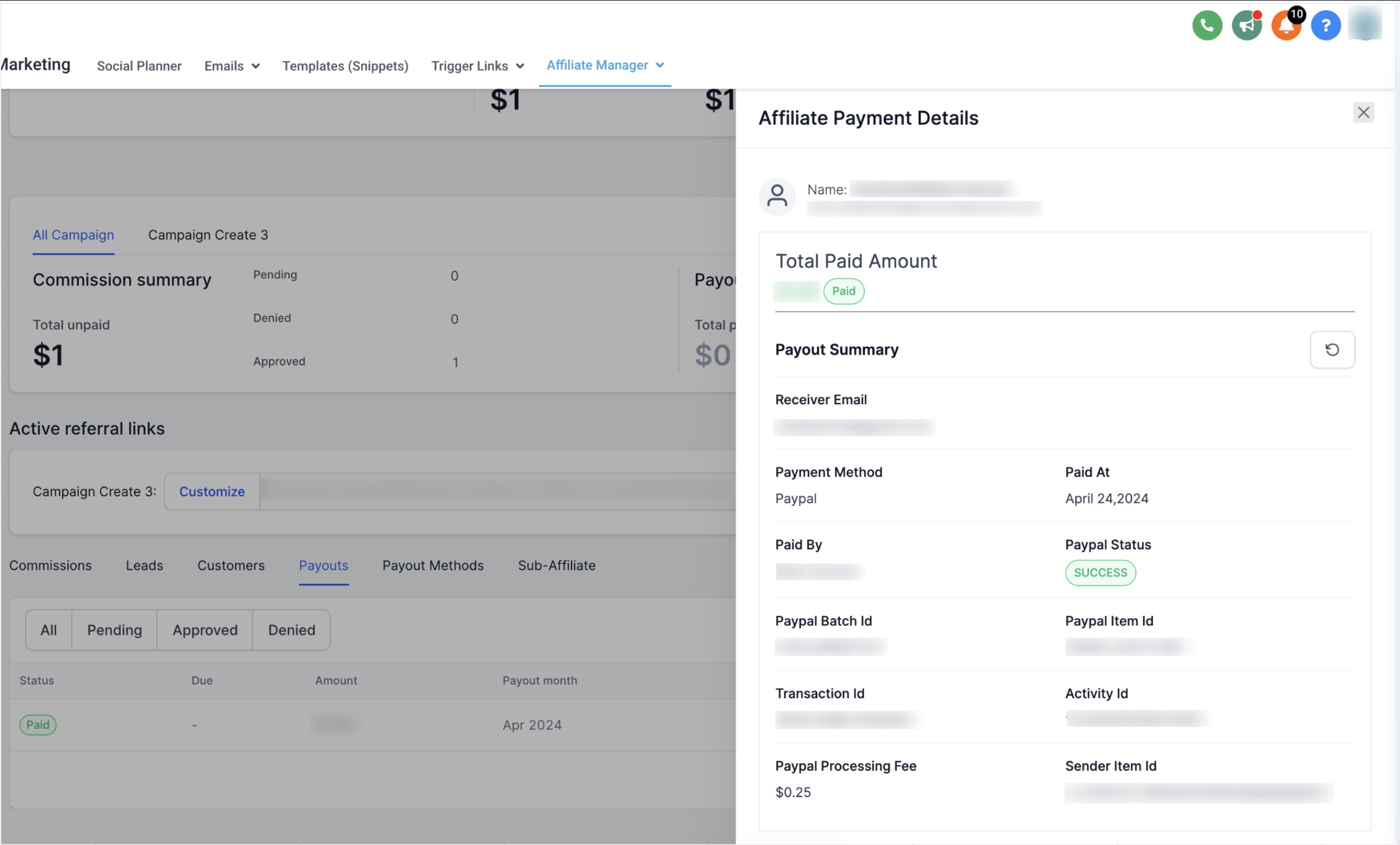
Auto Payouts can only send money to an affiliate once their PayPal account is linked in Aesthetix CRM, so it's worth confirming this before you run a payout batch.
Affiliates typically add their PayPal email address from their own affiliate portal profile, under their payout or payment settings.
As the account admin, you can also open an affiliate's profile in Affiliate Manager and confirm or update the PayPal email on file for them.
If a payout fails or an affiliate is missing from the Approved for Payouts list, double-check that their PayPal email is entered correctly and matches an active PayPal account. A typo here is the most common reason a payout won't go through.
Affiliate commission rules, approval automation, and notifications tied to a payout are configured in Workflows rather than in Auto Payouts itself. If you want an automatic notification or task created whenever a payout is sent, set that up as a workflow triggered off the payout event.
Which payment method does Auto Payouts support? PayPal is currently the only supported method for Auto Payouts. If an affiliate prefers a different payment method, you'll need to pay them manually outside of Aesthetix CRM.
Do I need a PayPal Business account? Yes. A personal PayPal account can't be used for Auto Payouts. You'll need a PayPal Business account with the Payouts API enabled.
Why can't I enable Payouts on my PayPal account? Some PayPal Business accounts need to have the Payouts API turned on directly by PayPal before the Enable option in the Permissions table will work. If clicking Enable doesn't resolve it, contact PayPal support.
What happens if an affiliate's PayPal account isn't linked? You'll see an error when you try to pay them, and the payout won't go through until their PayPal email is added and linked in Aesthetix CRM.
Can I pay multiple affiliates at the same time? Yes. Select as many affiliates or payouts as you'd like from the Approved for Payouts tab and click Pay to send them all in one batch.
How long does a payout take to complete? Processing time depends on PayPal. A payout may sit in "Pending" status briefly after you click Pay Now. Refresh the Payouts page to see the current status.
Will I get confirmation that a payout was successful? Yes. Once a payout completes, both you and the affiliate receive a confirmation email from PayPal, and the payout moves to the Paid tab in Aesthetix CRM.
Can I test the PayPal connection before going live? Yes. Use sandbox credentials from PayPal's Apps and Credentials page and make sure "Sandbox" is selected there while testing.
Does Auto Payouts work for one-time payouts or recurring ones? Auto Payouts pays whatever commissions are currently marked Approved for Payouts at the time you run it. It isn't a recurring, scheduled payout; you decide when to review and send a batch.
Where do I manage the commission rules that generate these payouts? Commission structures and payout approval logic are set up elsewhere in Affiliate Manager and Workflows. This guide covers connecting PayPal and sending the payouts themselves once commissions are approved.
