Affiliate payouts are the amounts your practice owes affiliates for each patient or product sale made through their referral link. This guide covers how commissions are tracked, how payout terms work, and how to move payouts through their stages inside the Affiliate Manager.
Commissions are the foundation of payouts. An affiliate earns a commission whenever a sale is made through their unique referral link, and the commission percentage depends on the campaign they're promoting. Understanding how commissions tie back to payouts helps keep your payout management transparent for every affiliate on your program.
A few key points to keep in mind:
Commission tracking: Commissions are tracked through sales processed via Stripe. The system does not automatically track refunds for one-time products or subscriptions, so you'll want to review payouts manually if a patient requests a refund.
Subscription cancellations: As the Affiliate Manager administrator, you can choose to issue payments 15, 30, or 60 days after the sale to give yourself enough time to handle potential cancellations. If a subscription is canceled, the lead moves to the churned category, but it can be reactivated later if the patient resubscribes.
One-time and recurring commissions: Commissions can be one-time or recurring, depending on the product or service sold through Stripe.
Coupons and discounts: If a discount is applied at checkout, the commission is calculated based on the discounted amount, not the original price.
AX Pay tip: If you're processing affiliate product sales through Stripe today, consider switching your checkout to AX Pay, Aesthetix CRM's built-in payment provider. AX Pay offers better rates than Stripe and keeps your payment processing native to your account. See the AX Pay help article for setup details.
Payout terms set a delay between when a commission is earned and when it's actually paid out. This gives your practice a buffer to handle refunds before money goes out the door. For example, if you offer a 30-day refund window on a treatment package, you can set a NET-30 payout term so commissions are only paid after that window closes.
Supported payout terms:
Term | When it pays |
|---|---|
NET-7 | 7 days after month end |
NET-15 | 15 days after month end |
NET-30 | 30 days after month end |
NET-45 | 45 days after month end |
NET-60 | 60 days after month end |
NET-90 | 90 days after month end |
You can configure payout terms in two places:
Campaign > Additional Settings, to set a term for a specific campaign.
Global Settings, to set a default term across your affiliate program.
Affiliates can also see the payout term that applies to them from inside their affiliate portal, so there's no confusion about when to expect payment.
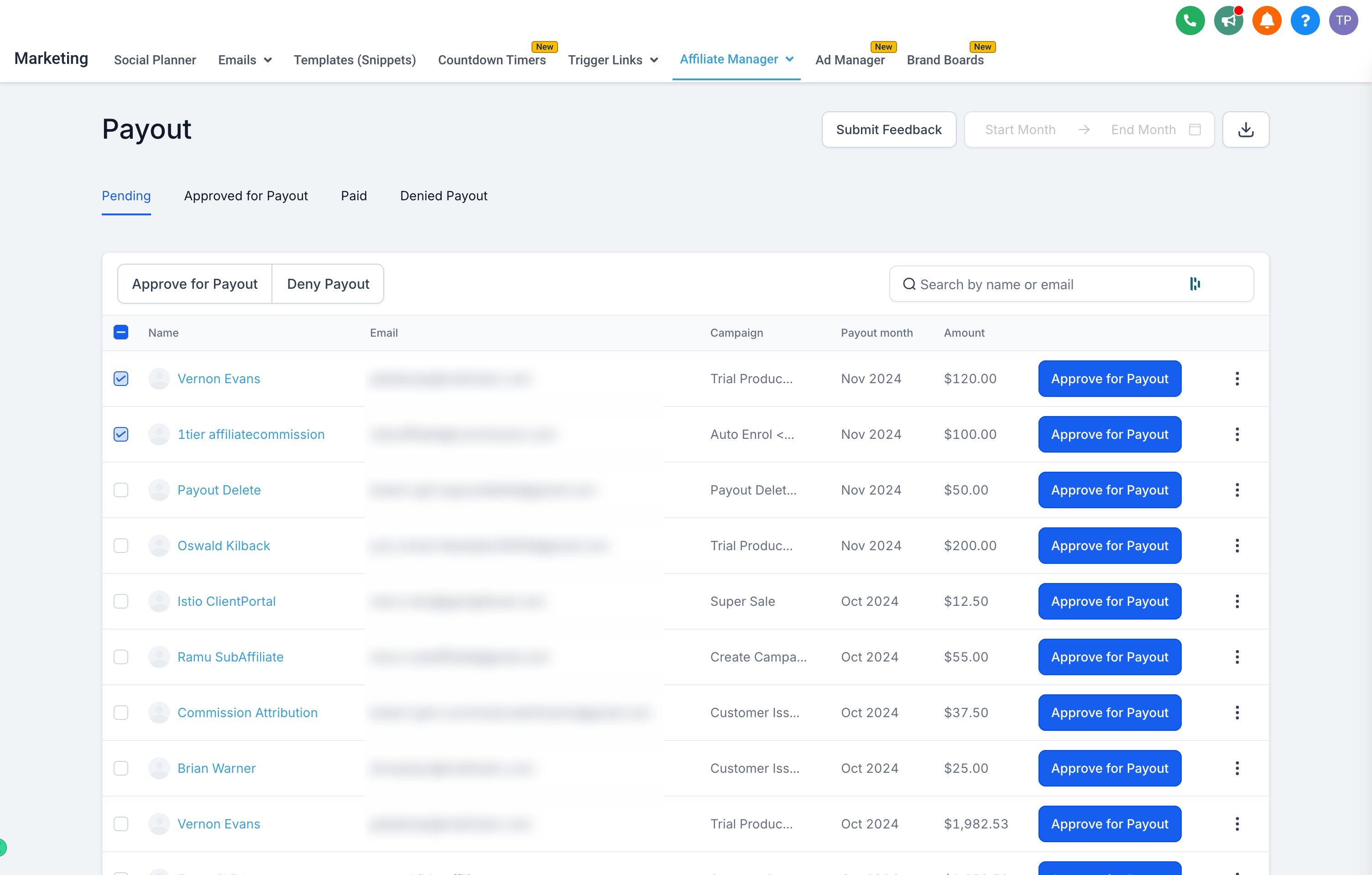
Payouts are generated in the Pending tab on the 1st of every month. Each payout shows a "Due" date, which reflects when the affiliate should be paid based on the payout term set at the campaign level. This monthly generation cycle gives you flexibility to review, approve, and pay out affiliates on your own schedule rather than paying out every sale the moment it happens, which helps you absorb refunds or disputes before funds go out.
The Payouts screen has four sub-tabs that represent the different stages a payout moves through.
Displays all pending payouts for each campaign, organized month by month.
As the affiliate program owner, you review and approve eligible payouts by clicking the three-dot menu to see the breakdown at the campaign and month level.
If a payout isn't applicable (for example, the sale was refunded), select Deny Payout to move that entry to the Denied Payouts tab.
Once a payout is approved from the Pending tab, it moves here.
You can export the list of affiliates and their owed amounts, upload it to your payment gateway, and mark each payout as "Paid" once payment has been processed.
You can also move a payout back to Pending if you need to double-check something before paying it out.
Lists every affiliate who has received a payout, along with the transaction date.
Payouts in this tab cannot be modified. Paid is the final status for a payout.
Any payout you deny appears here.
Payouts can be denied from either the Pending tab or the Approved for Payout tab.
With these stages, you can track a commission from the moment it's earned through approval and final payment, while giving yourself enough runway to handle cancellations, refunds, and disputes along the way. Paying affiliates out is covered separately, along with the payment gateways your practice can use to send those payments.
How are affiliate commissions calculated? Commissions are based on sales processed through Stripe. If a discount or coupon was applied at checkout, the commission is calculated on the discounted amount, not the full price.
Does the system automatically track refunds against commissions? No. Refunds for one-time products or subscriptions are not automatically tracked, so you should review pending payouts manually before approving them if a refund may have occurred.
What happens to a commission if a patient cancels their subscription? The lead moves to the churned category. The commission tied to that subscription stops accruing, but the lead can be reactivated later if the patient resubscribes.
What's the difference between a payout term and a payout status? The payout term (NET-7 through NET-90) controls the delay between when a commission is earned and when it becomes due. The payout status (Pending, Approved for Payout, Paid, or Denied Payouts) tracks where that specific payout is in your review and payment process.
Where do I set the payout term for a campaign? Set it under Campaign > Additional Settings for a specific campaign, or under Global Settings for a default that applies across your affiliate program. Affiliates can also view their applicable term inside their own portal.
Can I move a payout back to Pending after approving it? Yes. From the Approved for Payout tab, you can move a payout back to Pending if you need to review it further before it's paid.
Can I un-deny a payout? Denied payouts stay in the Denied Payouts tab. If you need to reverse a denial, review the entry from that tab and work with your team on how to reissue it, since a Paid status cannot be edited once set.
When do new payouts appear in the Payouts tab? Payouts are generated on the 1st of every month in the Pending tab, each showing a "Due" date based on the payout term configured for that campaign.
Can I change a payout after it's marked Paid? No. Paid is the final status and payouts cannot be modified once they reach it, so double-check the amount and affiliate details before marking a payout as Paid.
Should I use AX Pay or Stripe for affiliate product sales? Commission tracking works through Stripe today, but if your practice is choosing a payment provider for checkout, AX Pay offers better processing rates than Stripe and keeps payments inside your Aesthetix CRM account. See the AX Pay help article to learn more.
