Once your patient and partner referral program starts generating commissions, you pay your affiliates from the Payouts page inside Affiliate Manager. You can pay affiliates using any method you choose, as long as you mark each payout as completed, but Aesthetix CRM offers two built-in options that make the process faster and easier to track.
Auto Payouts via PayPal (fastest): Pay affiliates directly from the Aesthetix CRM dashboard using the PayPal Payouts API. After a one-time setup, you can pay multiple affiliates at once without logging in to PayPal or manually marking anything as paid.
Bank Payments (manual): Pay affiliates through your bank or any other method you prefer, then mark those payouts as paid inside Aesthetix CRM so your records stay accurate.
Handling affiliate payouts happens in two stages:
Generating payouts: Aesthetix CRM automatically generates payouts based on the commission rules you've set up for each campaign. You don't need to calculate anything manually.
Paying affiliates and marking payouts as paid: You choose between automated PayPal payouts or a manual method, then confirm the payout in Aesthetix CRM once affiliates have been paid.
The PayPal Payouts API is the quickest and most cost-effective way to pay multiple affiliates at once. After a one-time setup connecting your PayPal account, you can securely pay affiliates without ever leaving Aesthetix CRM. This option is ideal if most of your referral partners already have PayPal accounts on file.
If you'd rather pay affiliates through your bank or another manual method, Aesthetix CRM lets you process the payout and then mark it as paid so your commission records are always accurate.
Go to the Payouts page: Head to the Payouts section inside Affiliate Manager.
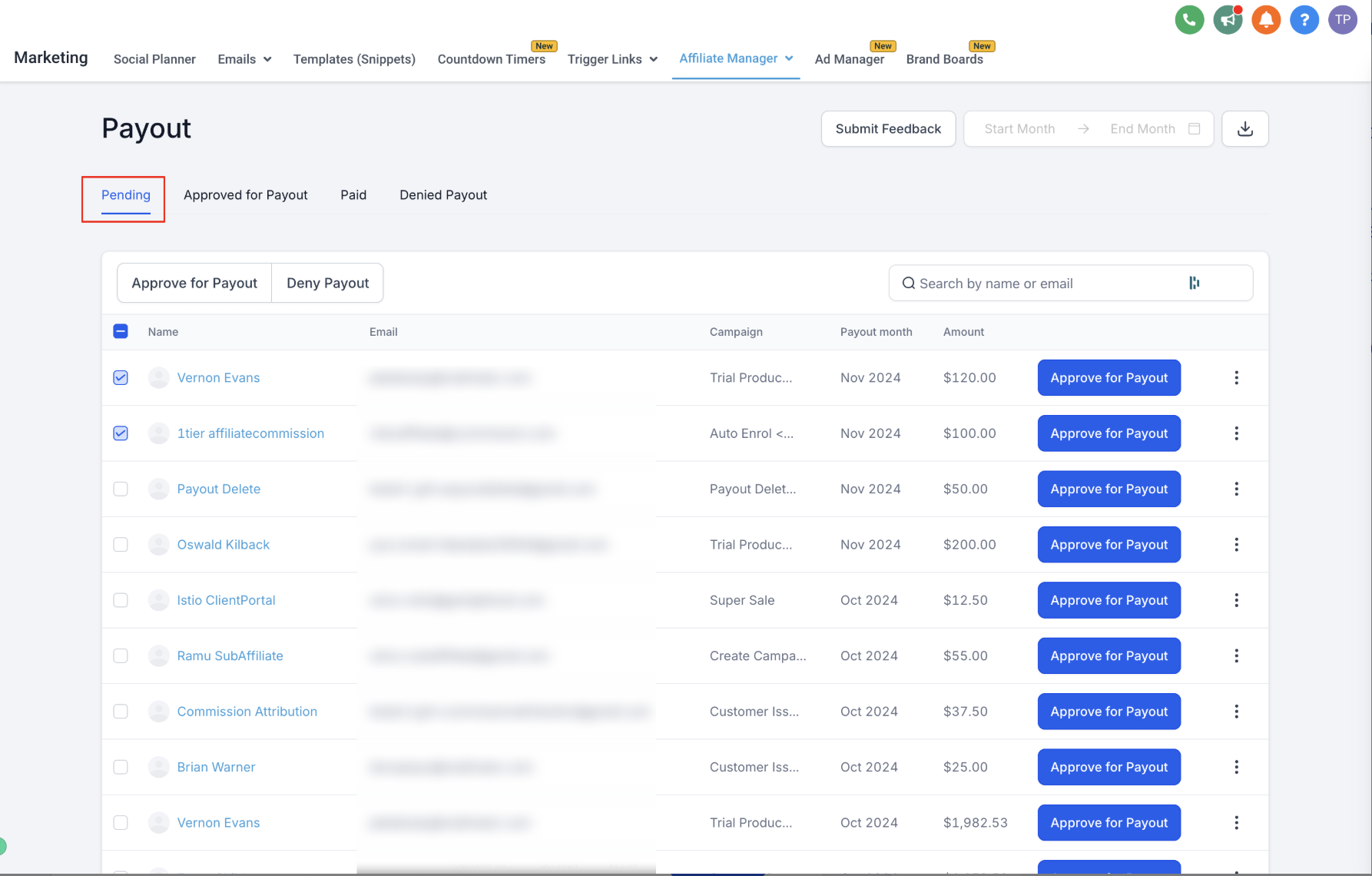
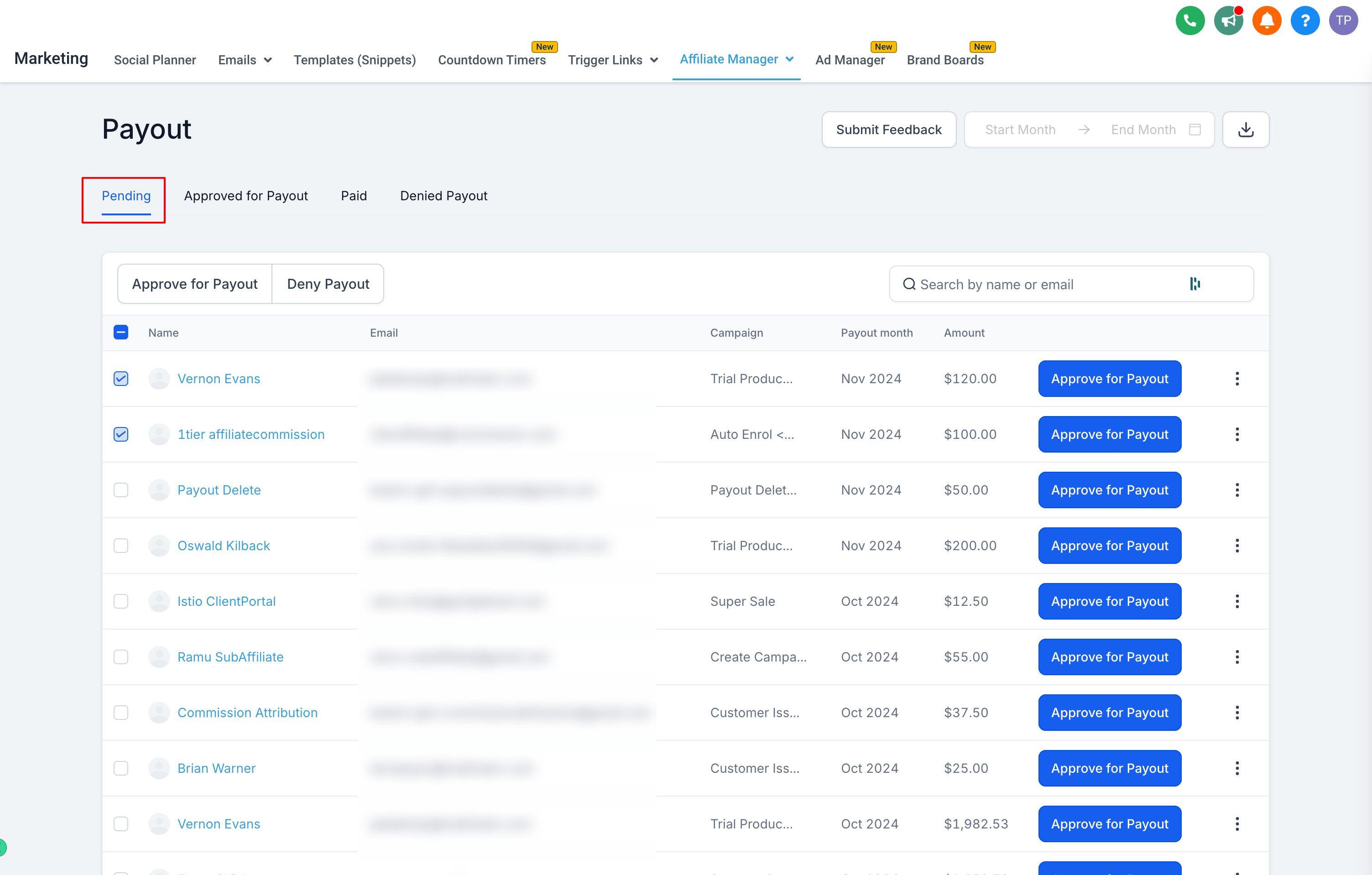
Approve payouts: In the Pending tab, review and approve the payouts you want to process.
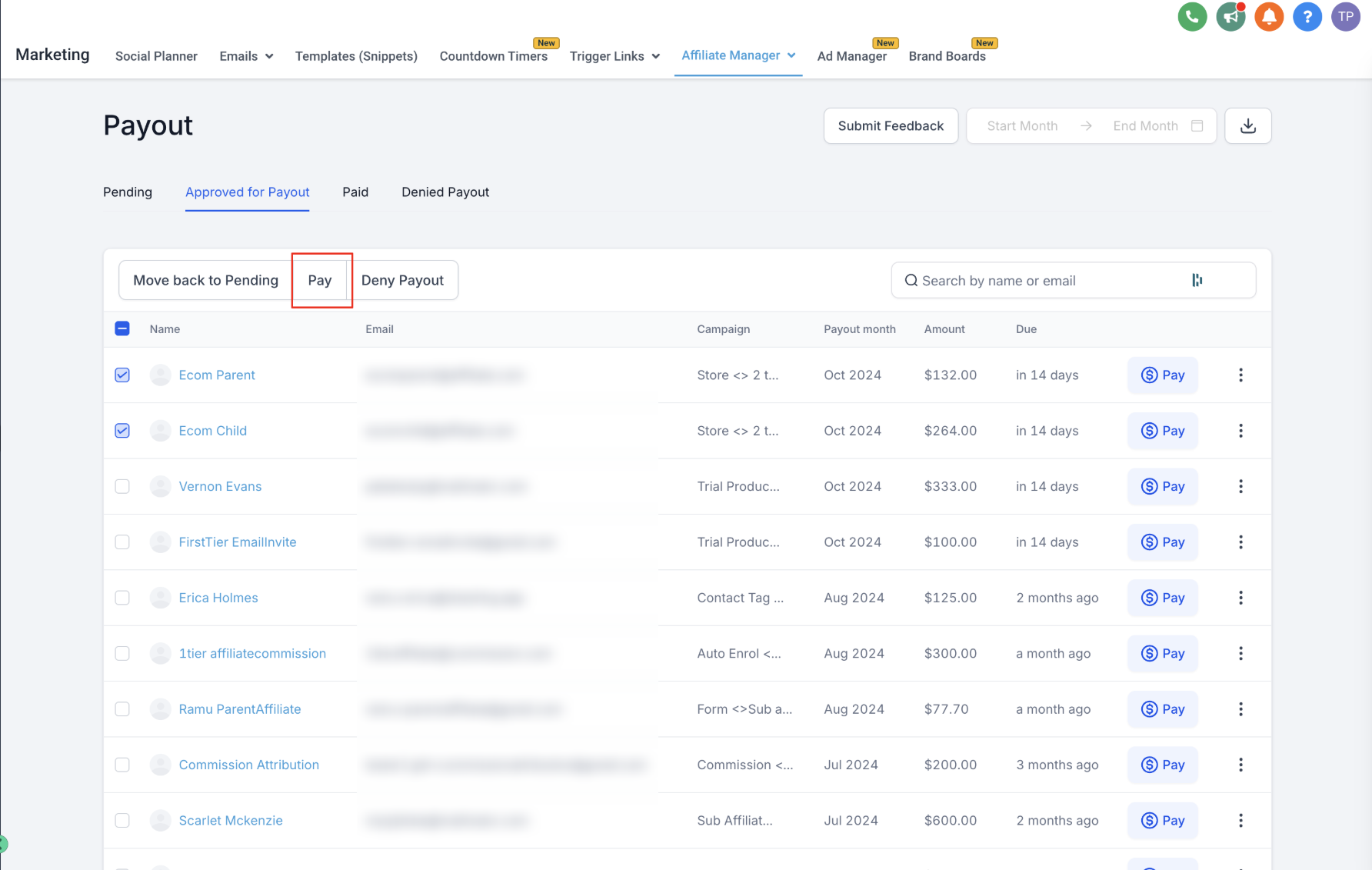
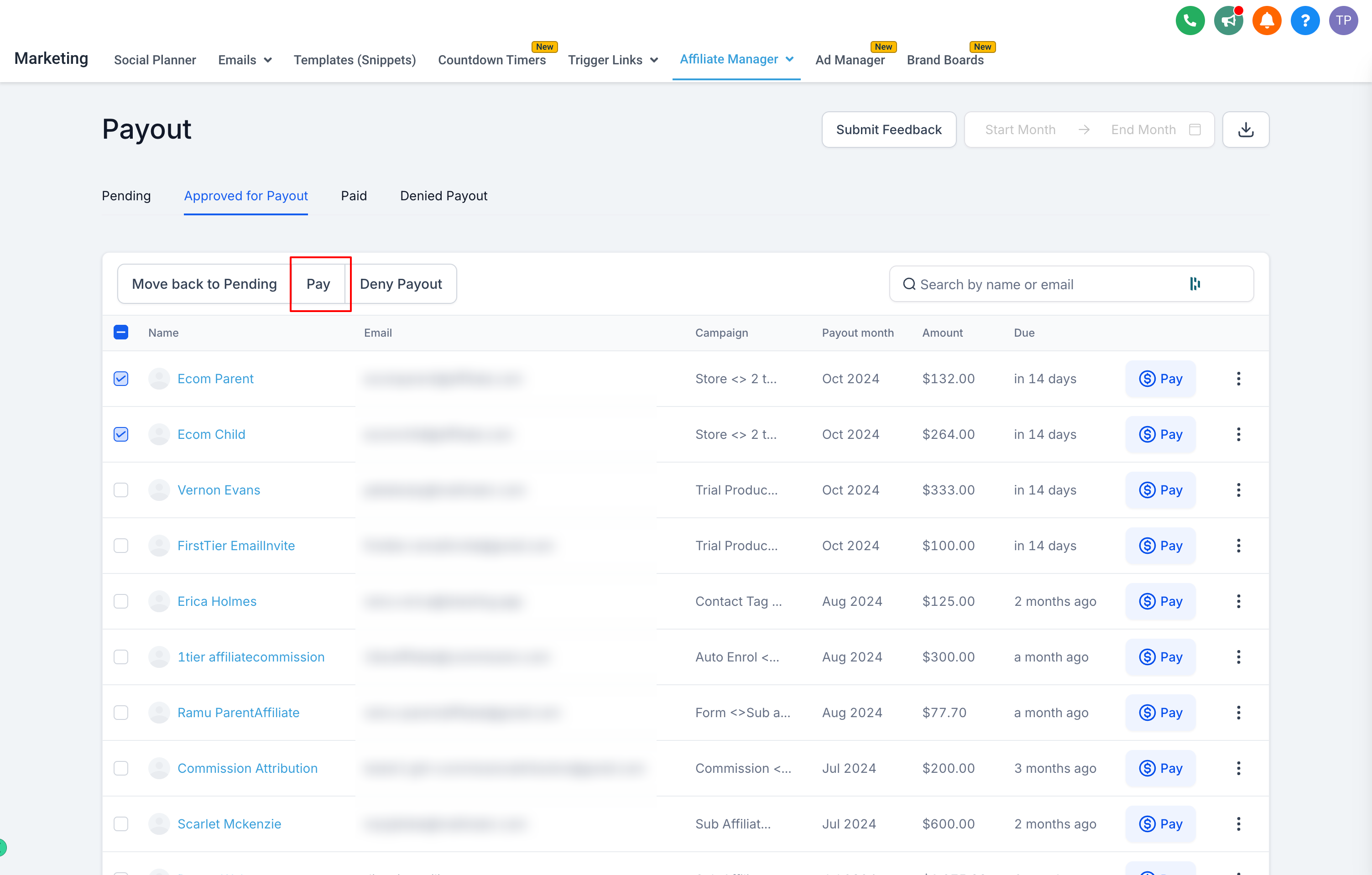
Switch to the Approved for Payout tab: This tab lists every payout you've approved and are ready to send.
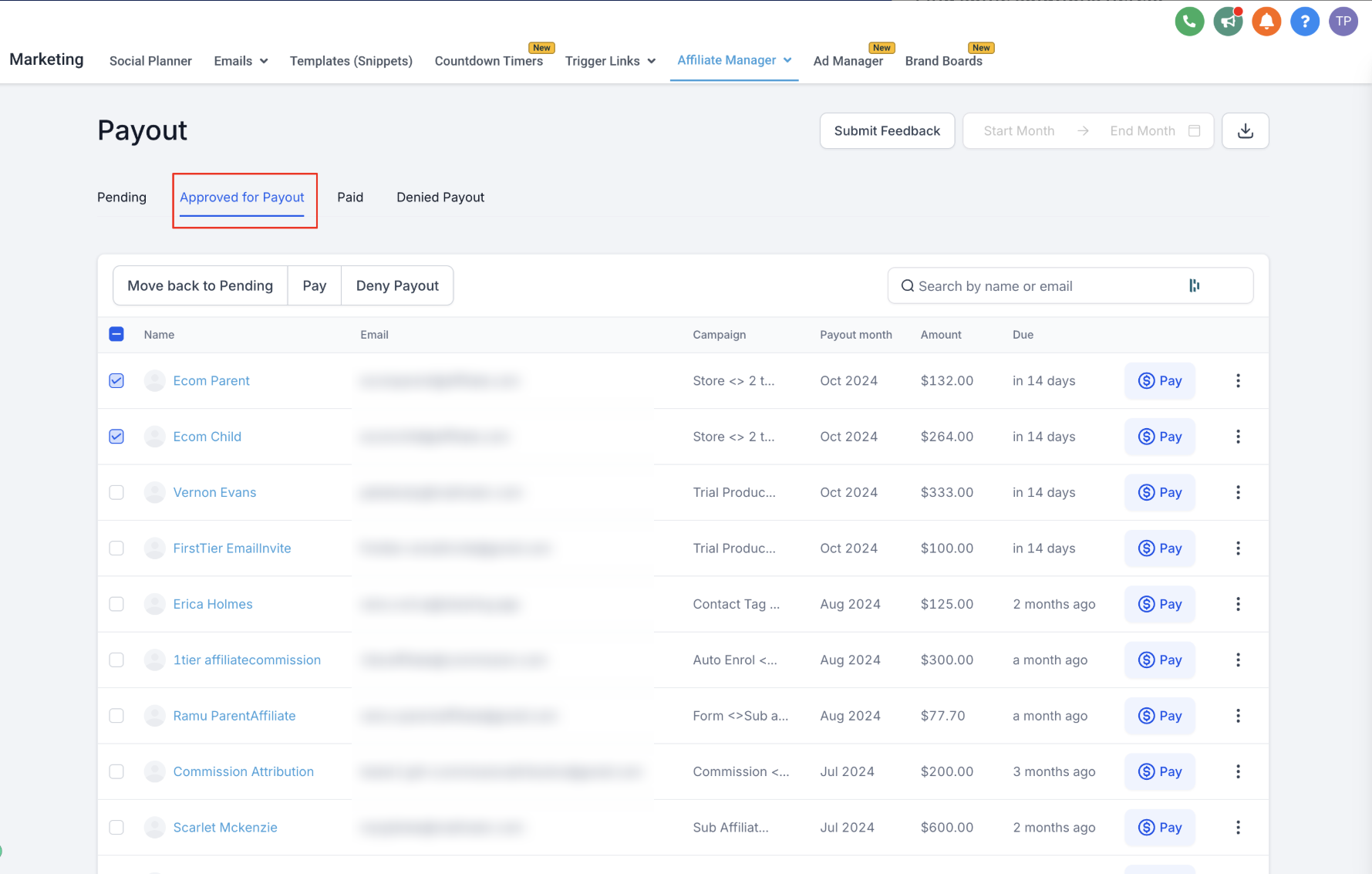
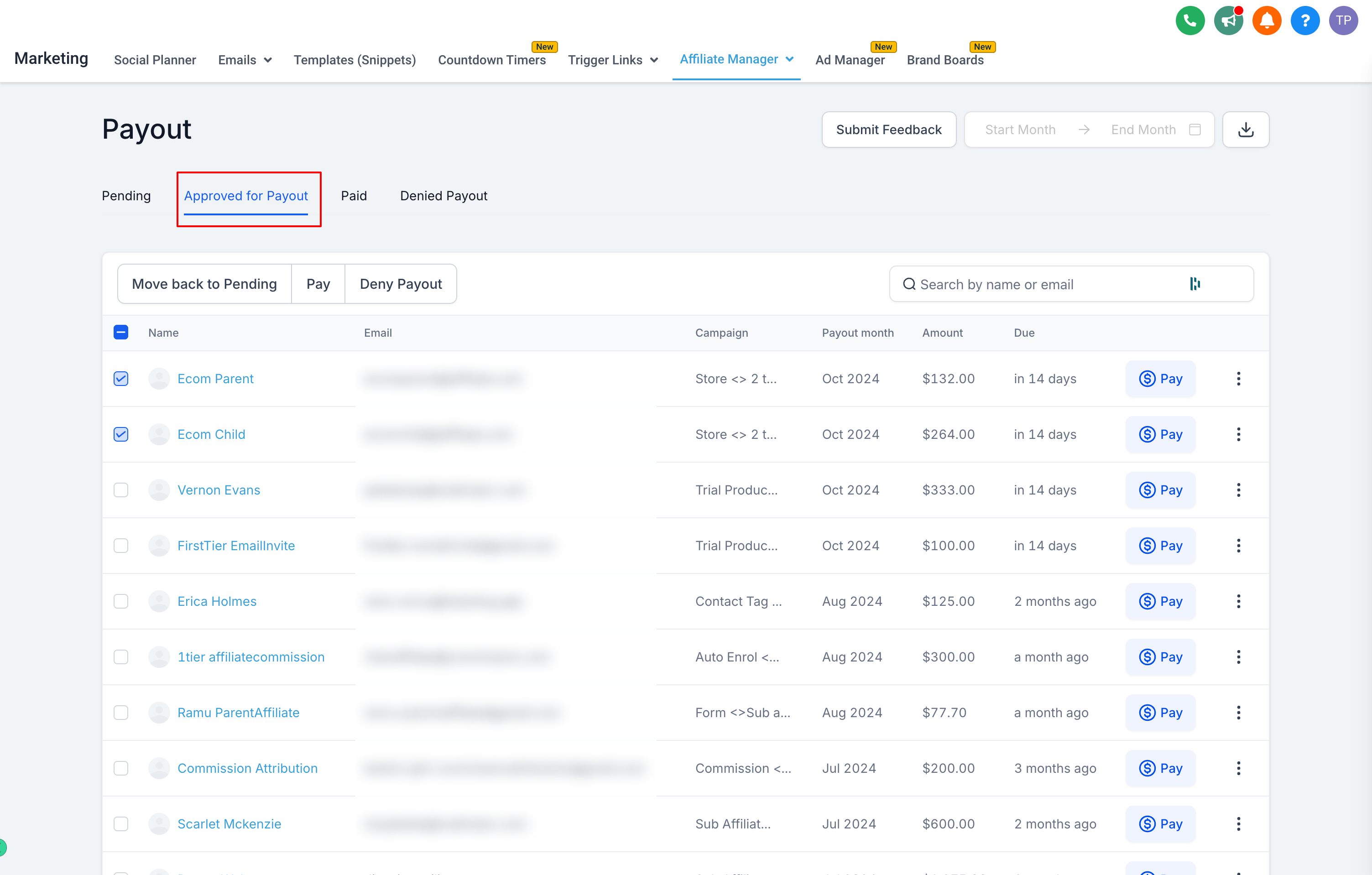
Select payouts: Choose individual payouts, or use the mass-select option to choose all of them at once.
Click "Pay": After selecting the payouts you want to process, click Pay.
Switch to the Bank tab and select affiliates: Choose the affiliates you want to pay by bank transfer.
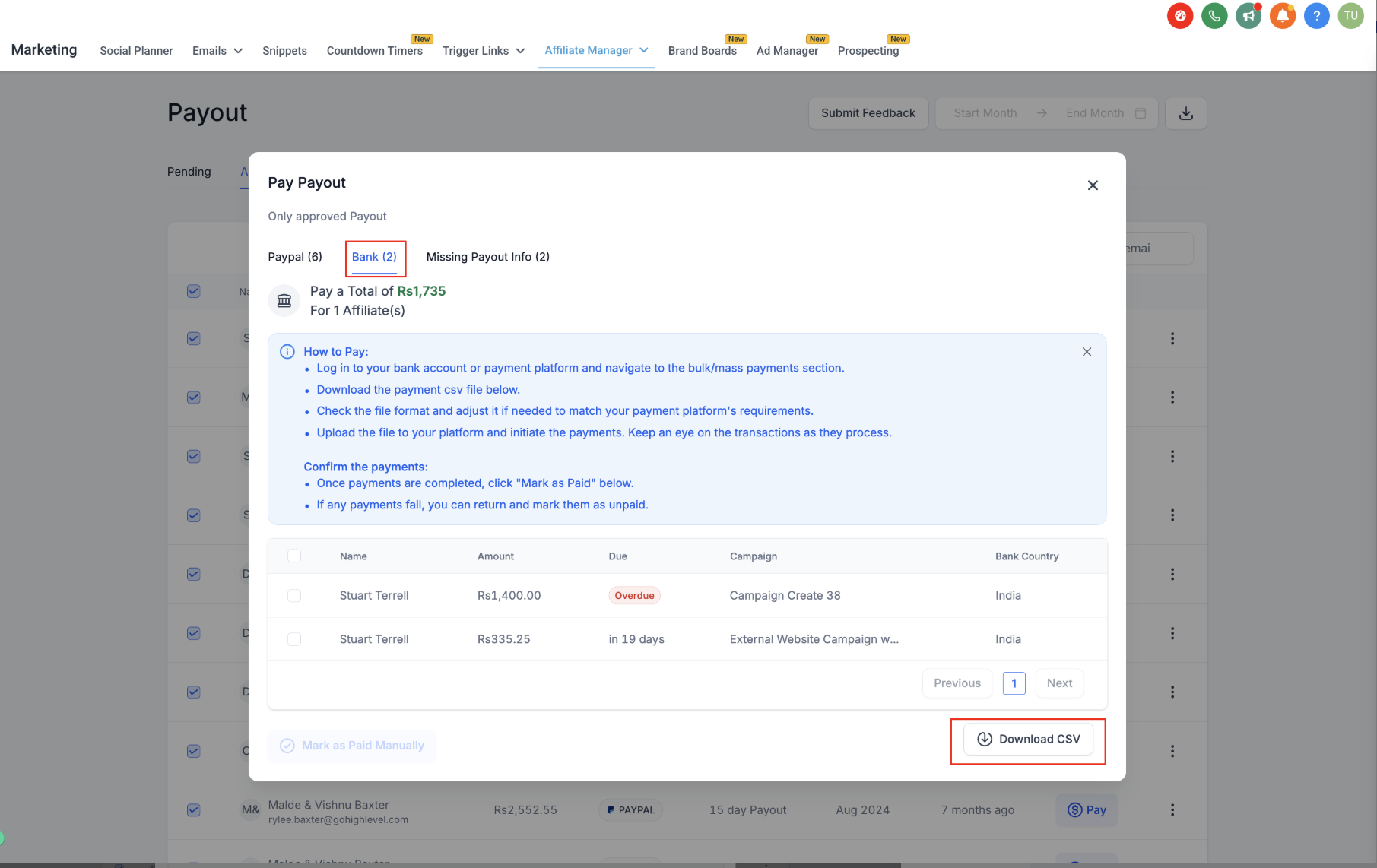
Download the CSV: Follow the on-screen steps to export a CSV of the selected payouts and use it to send payment through your bank.
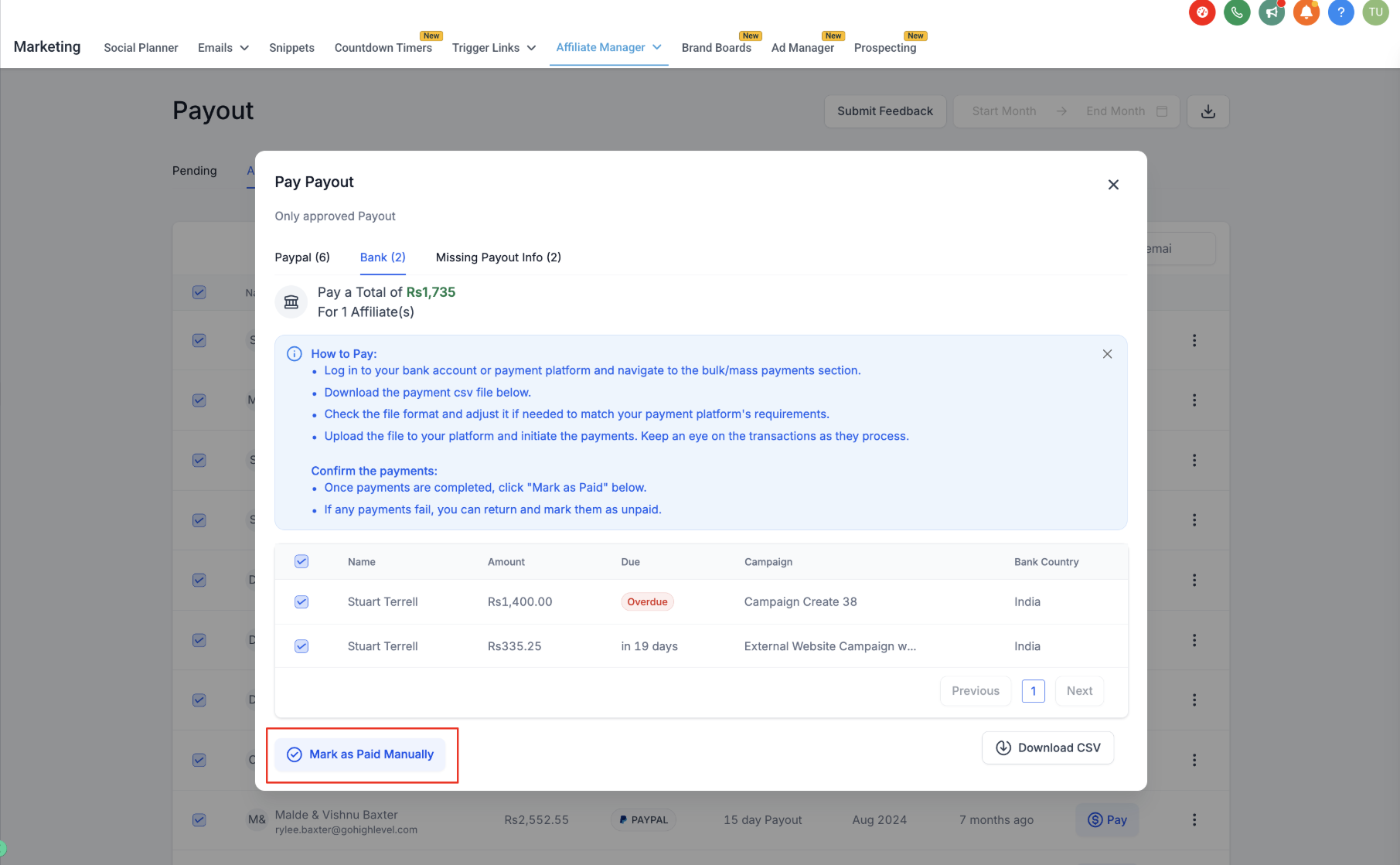
Mark the payouts as paid: Once the bank transfers are complete, come back to Aesthetix CRM and click Mark as Paid.
By following these steps, you can ensure timely, well-documented payments for your affiliates, whether you use the automated PayPal option or handle payouts manually through your bank.
You can control which payout methods (PayPal, bank transfer) are available to your affiliates so they only see the options you actually support.
Go to Affiliate Manager > Settings.
Click Affiliate Portal Settings > Configure Payout Methods.
Select the payout methods you want to enable.
Save your changes.
Affiliates will only see the payout methods you've enabled, which keeps their experience simple and avoids confusion over how they'll get paid.
Do I have to use PayPal to pay my affiliates? No. You can pay affiliates using any provider or method you prefer, as long as you mark the payout as paid inside Aesthetix CRM once the affiliate has actually been paid.
How are payout amounts calculated? Payouts are generated automatically based on the commission rules you set up for each campaign in Affiliate Manager. You don't need to calculate commissions by hand.
What's the fastest way to pay a large number of affiliates? Auto Payouts via PayPal is the quickest option. After a one-time setup, you can pay multiple affiliates at once directly from the Aesthetix CRM dashboard without logging in to PayPal separately.
What happens if I pay an affiliate by bank transfer but forget to mark the payout as paid? The payout will continue to show as outstanding in Aesthetix CRM, which can make your commission records inaccurate. Always mark payouts as paid once the funds have actually been sent.
Can I approve some payouts and leave others pending? Yes. The Pending tab lets you review each payout individually and approve only the ones you're ready to process.
Can affiliates choose how they get paid? Only from the payout methods you've enabled for them. Use Affiliate Manager > Settings > Affiliate Portal Settings > Configure Payout Methods to control which options (PayPal, bank transfer) affiliates can see.
Is there a way to pay affiliates in bulk? Yes. In the Approved for Payout tab you can mass-select all approved payouts and pay them together, whether through PayPal or by exporting a CSV for bank payments.
Do commissions get generated automatically, or do I have to create them manually? Commissions and their related payouts are generated automatically according to the commission settings on each campaign, so you don't need to build payouts by hand.
