Campaign Quick Actions let you manage your referral program straight from the list views in Affiliate Manager, without clicking into a full campaign or affiliate profile every time. From a single three-dot menu you can edit, clone, save as a draft, or delete a campaign, and you can add, remove, suspend, unsuspend, or move an affiliate between campaigns in just a couple of clicks. This is the fastest way to keep your patient and partner referral program organized as it grows.
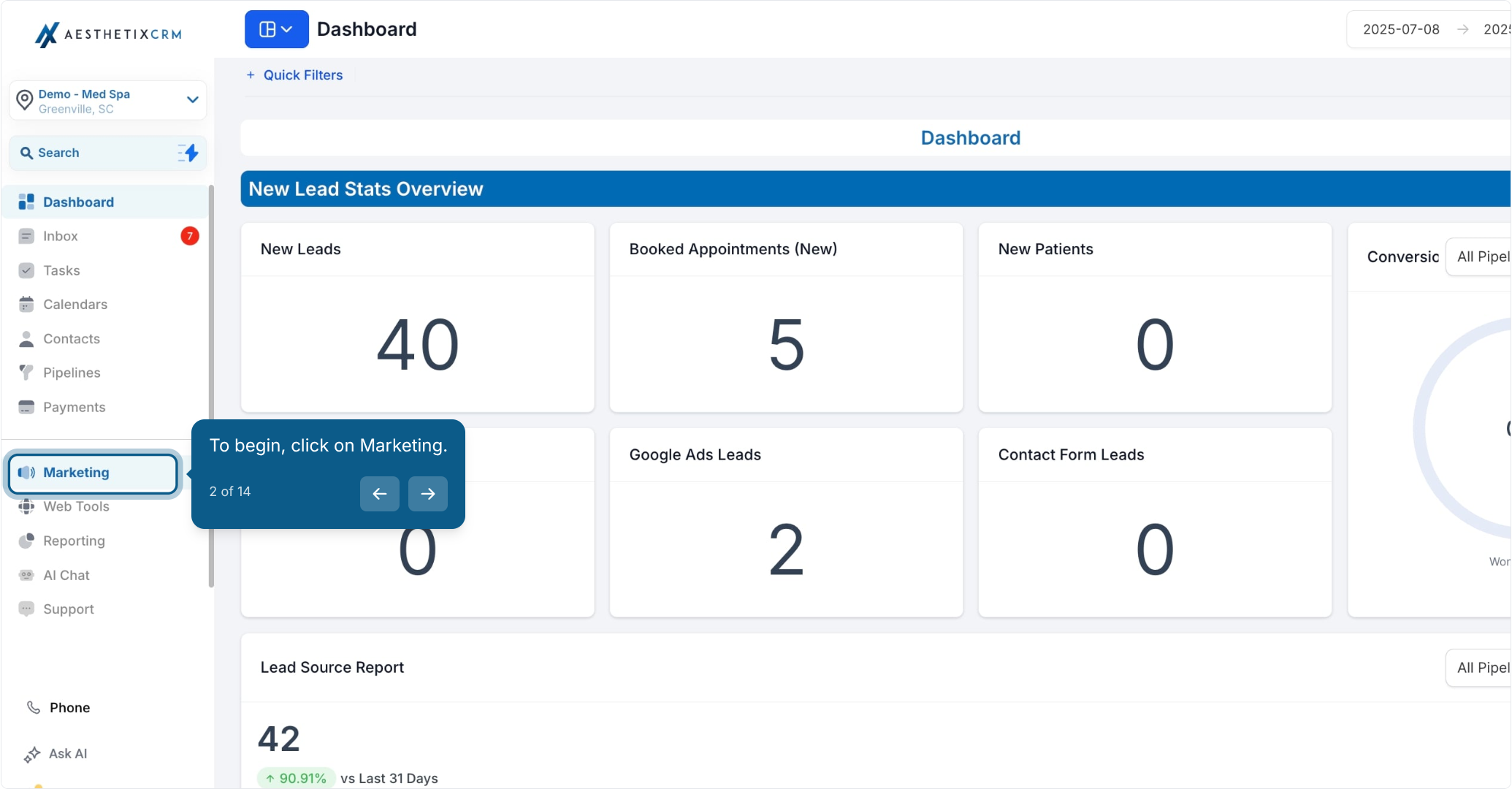
Click on Marketing.
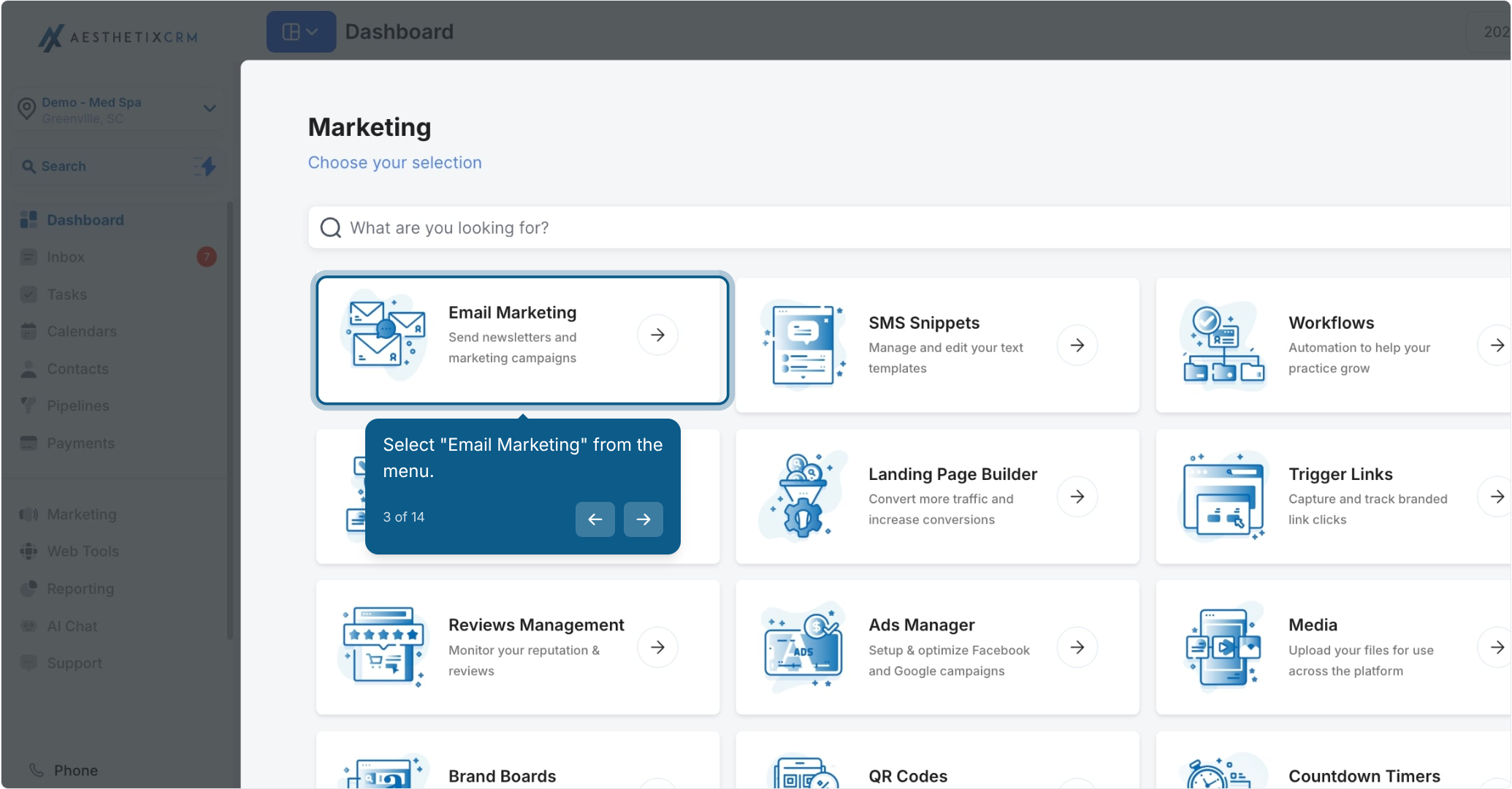
Select Email Marketing from the menu.
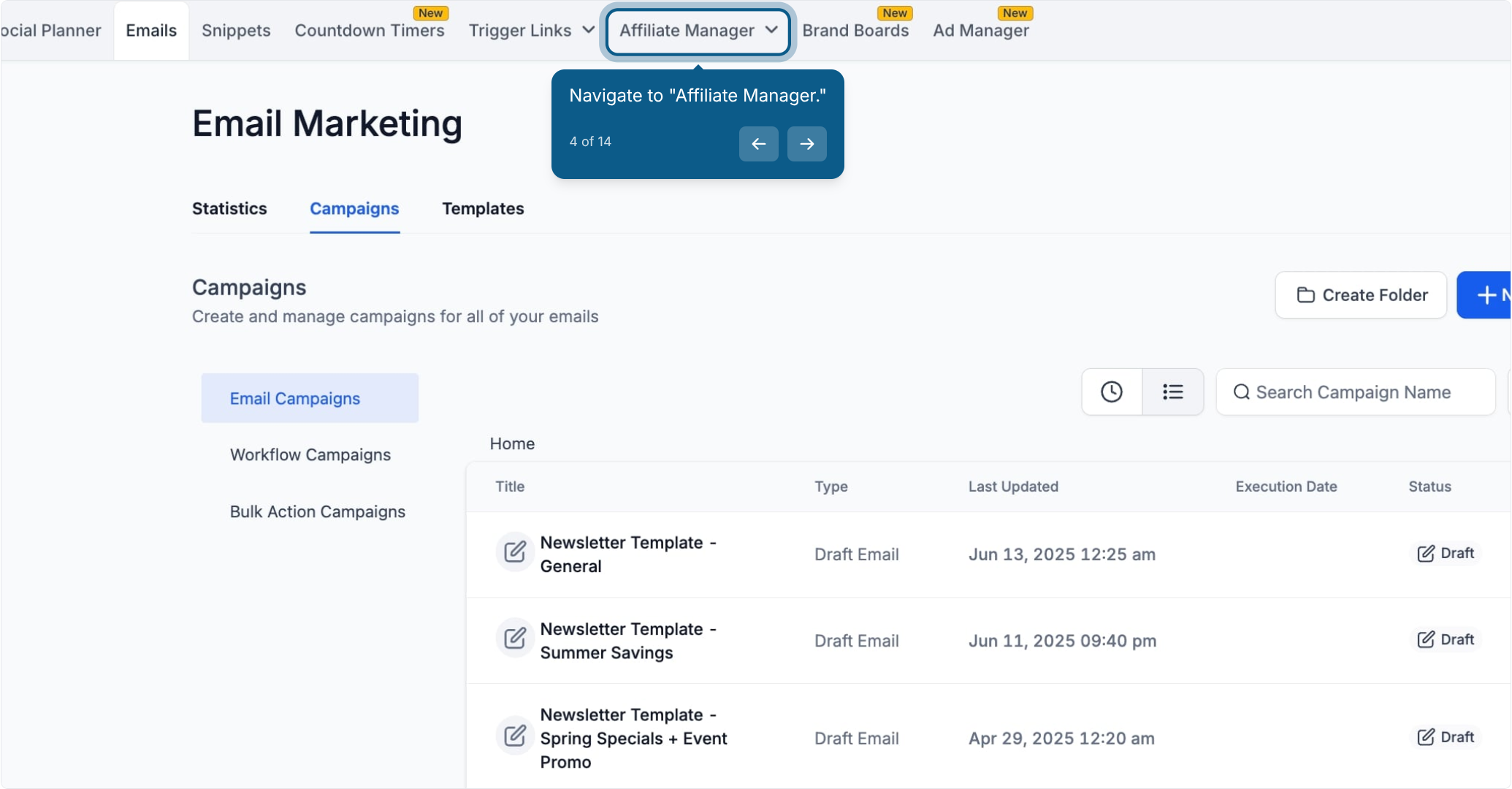
Navigate to Affiliate Manager.
From here you have two tabs to work with: Campaign, where you manage the campaigns themselves, and Affiliate, where you manage which campaigns each affiliate belongs to.
Use these quick actions when you need to edit, duplicate, or retire a campaign itself, for example when you are rolling out a new patient referral promotion or reusing the structure of an existing one.
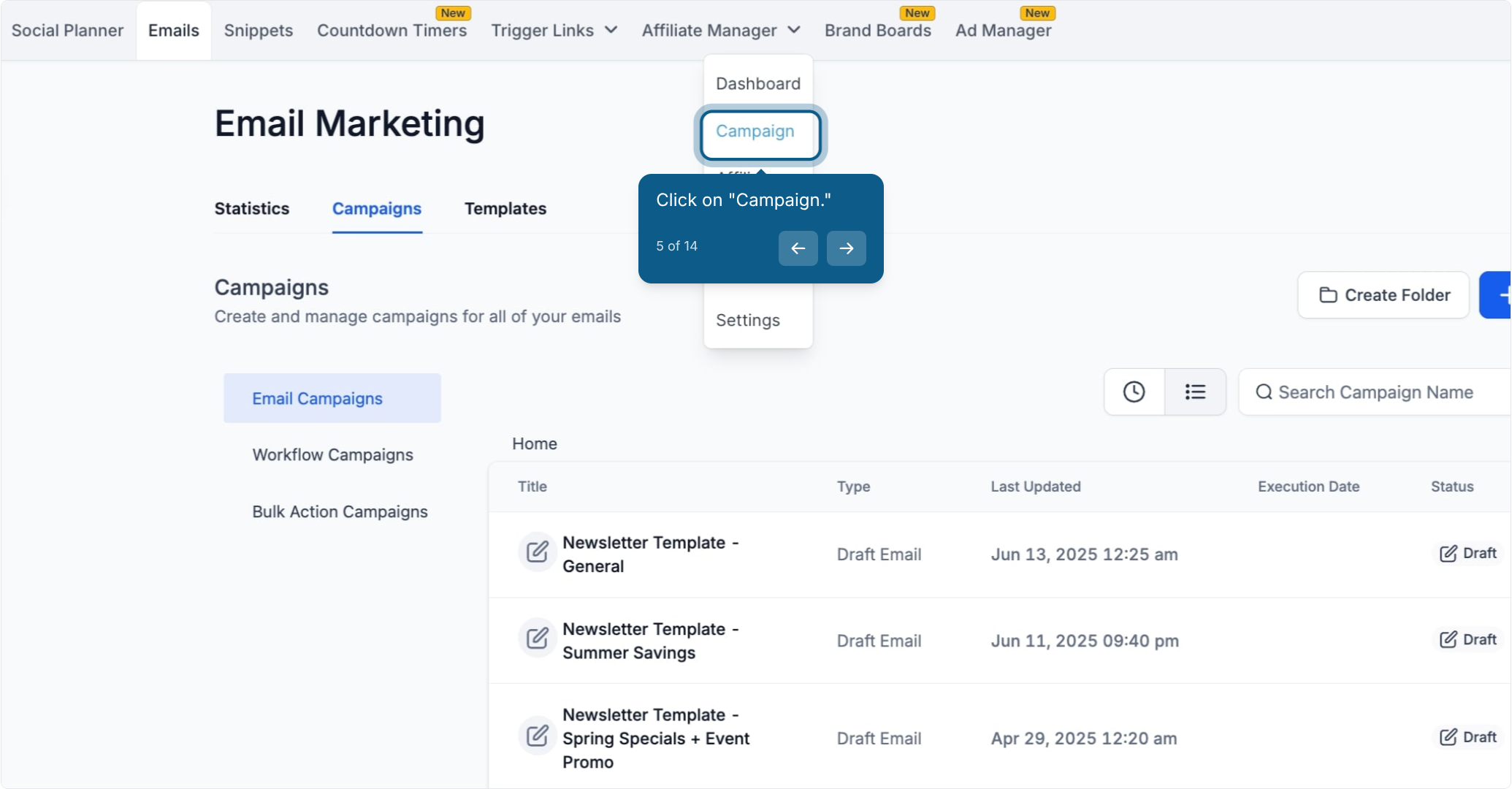
Click on Campaign.
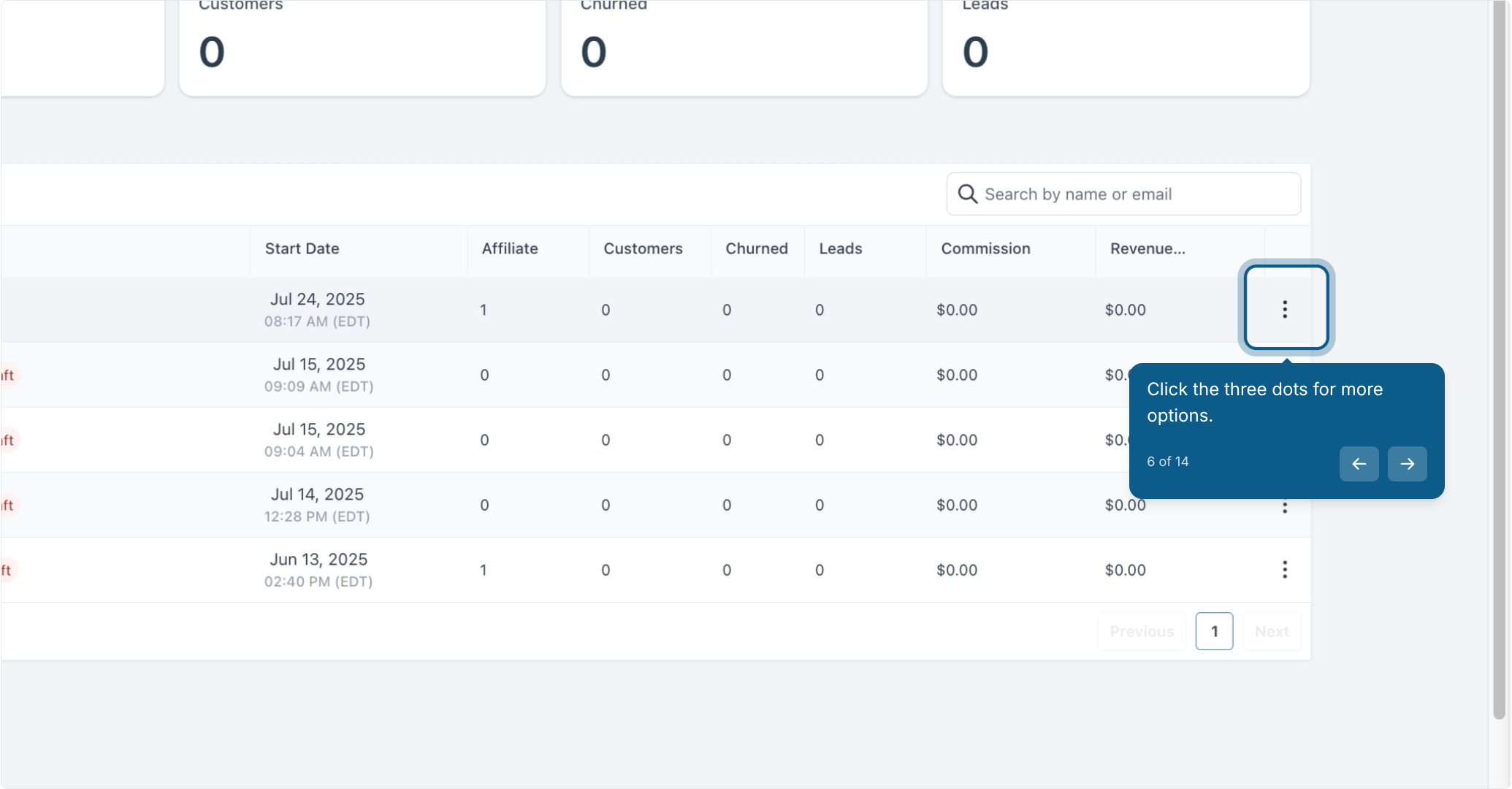
Click the three dots next to the campaign you want to manage for more options.
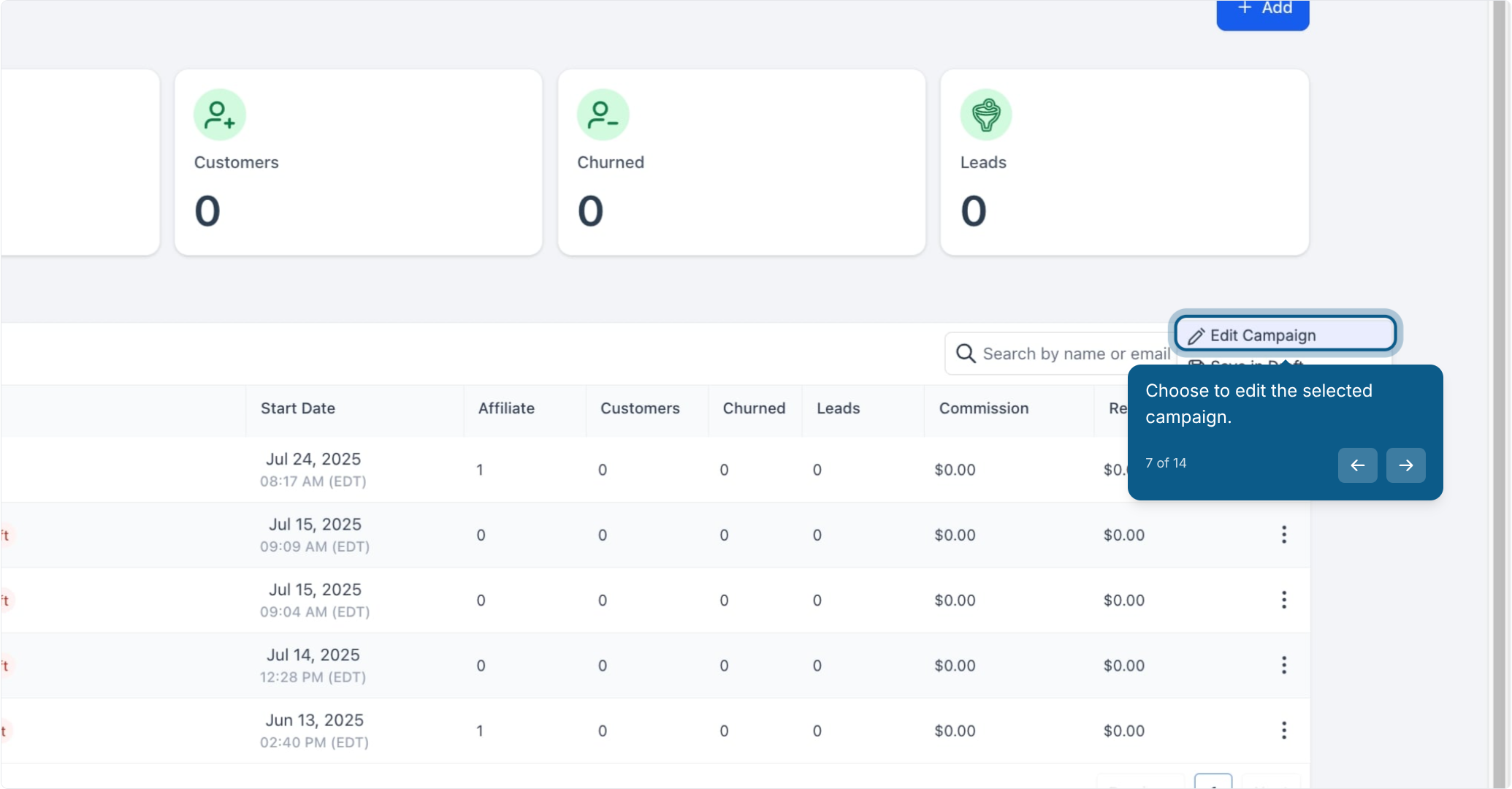
Choose Edit to open and update the selected campaign.
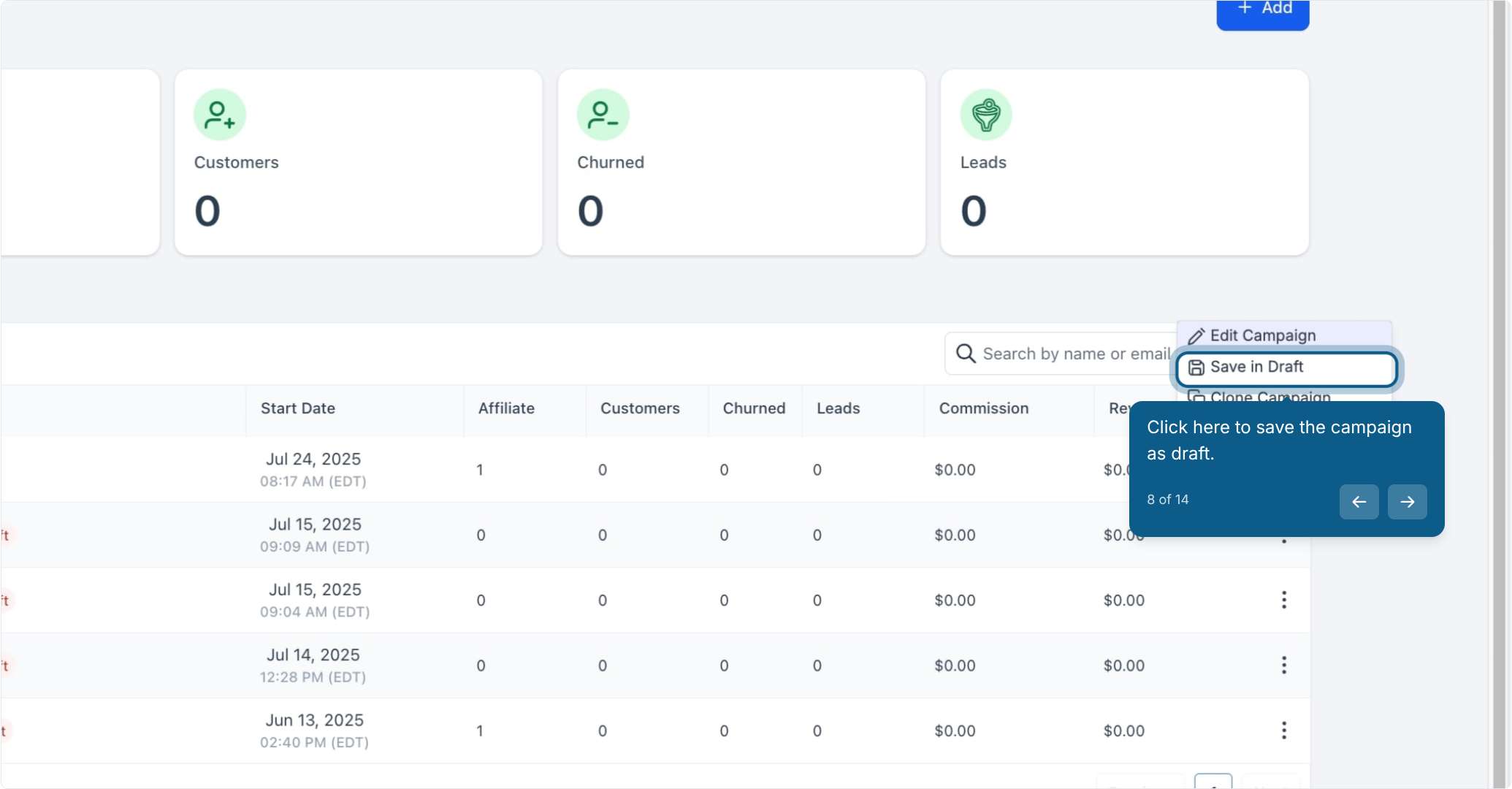
While editing, click here to save the campaign as a draft instead of publishing it right away.
Cloning is useful when you want a new campaign with the same commission rules and settings as an existing one, for example a seasonal version of your standing referral offer.
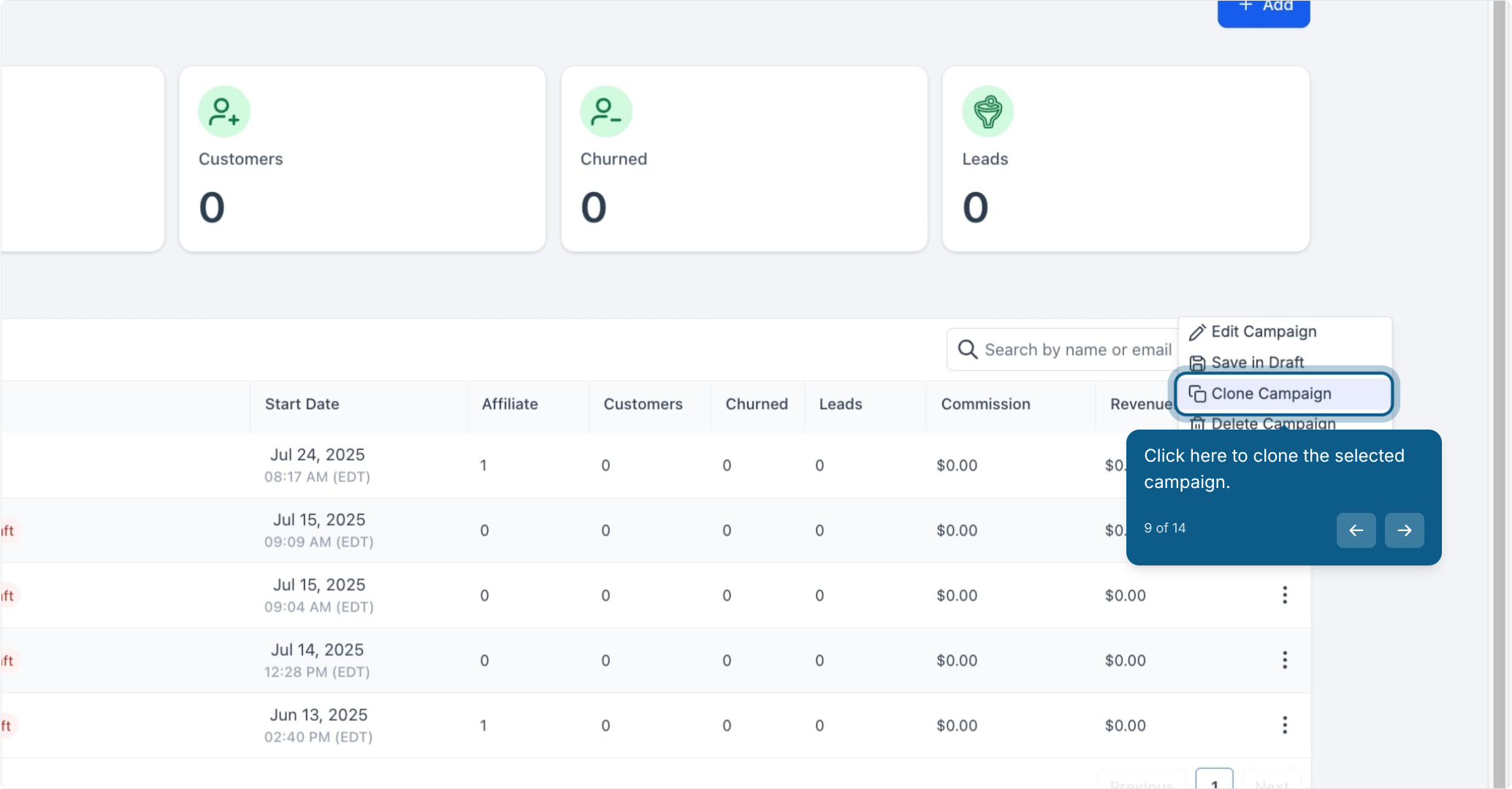
Click here to clone the selected campaign.
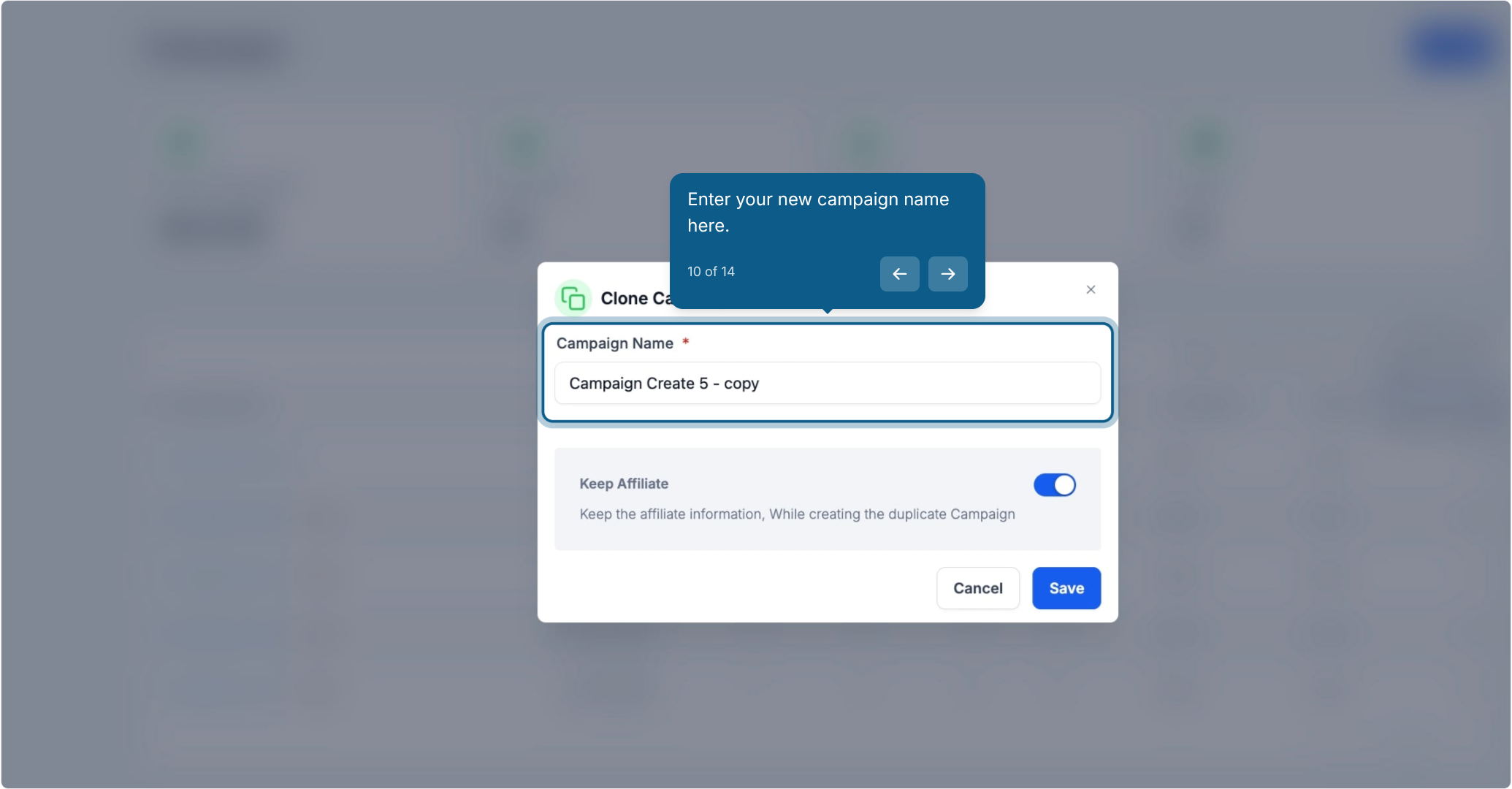
Enter a name for your new campaign.
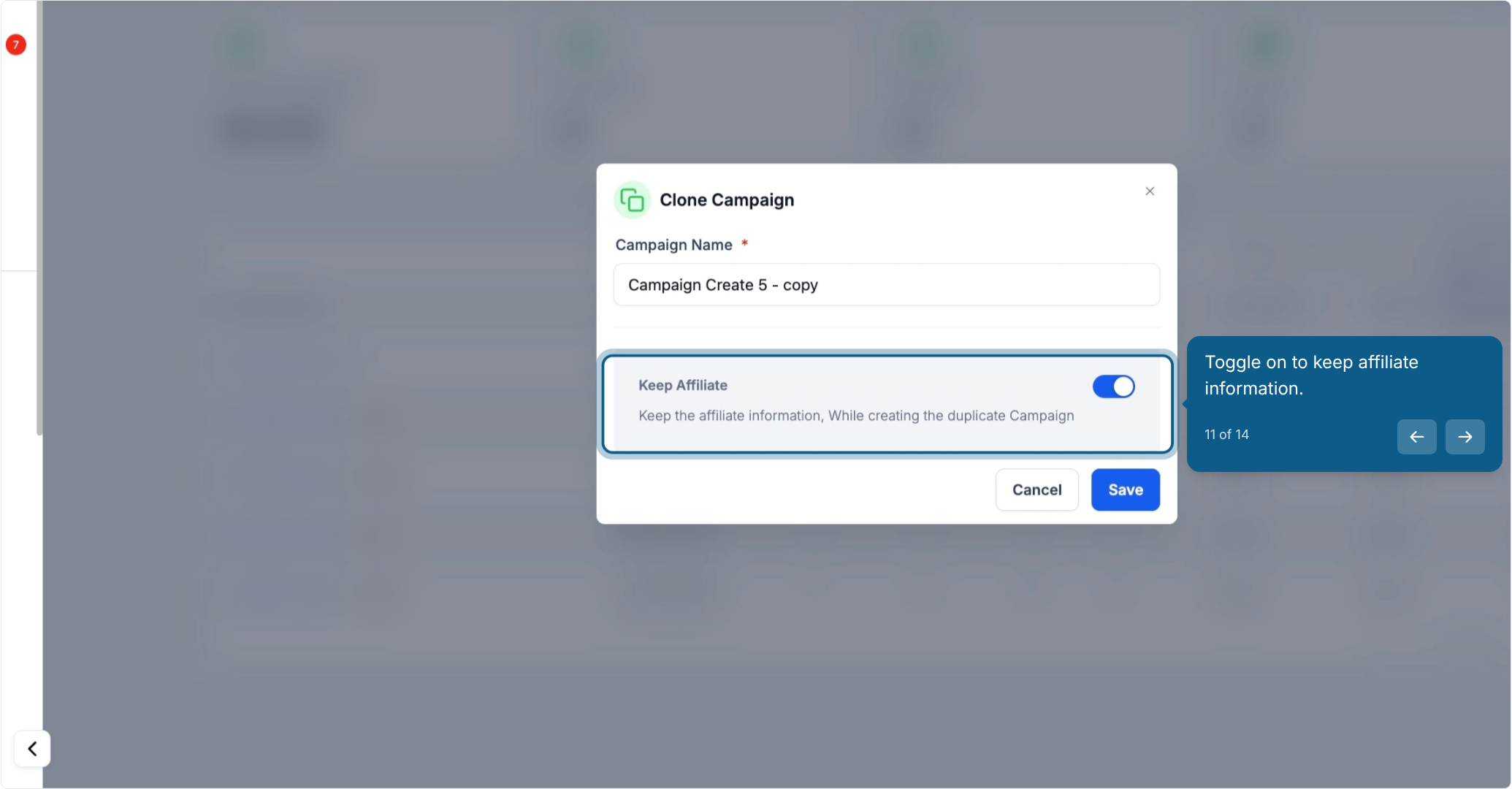
Toggle this on if you want to carry over the existing affiliates and their information into the new campaign.
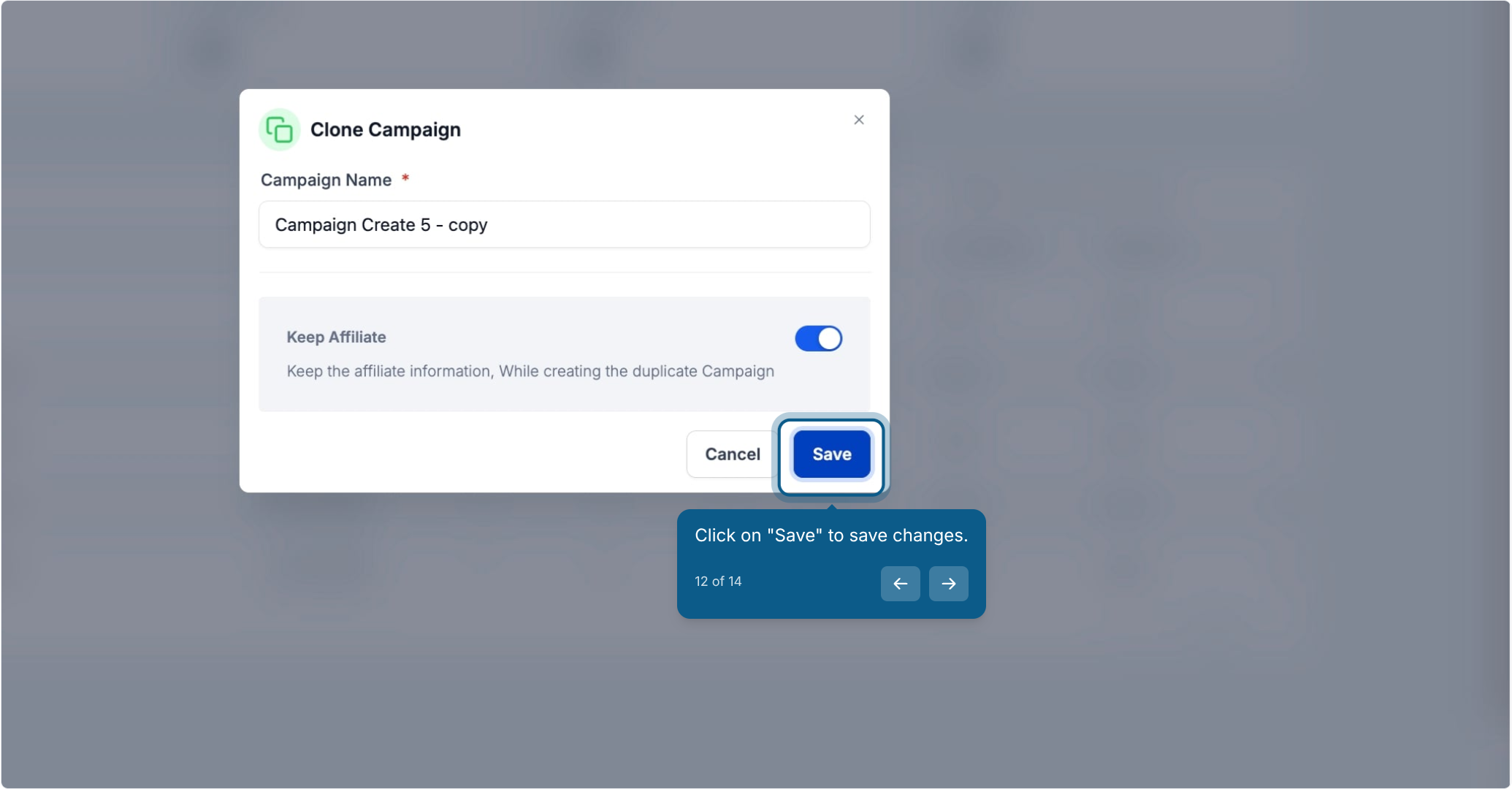
Click Save to save your changes.
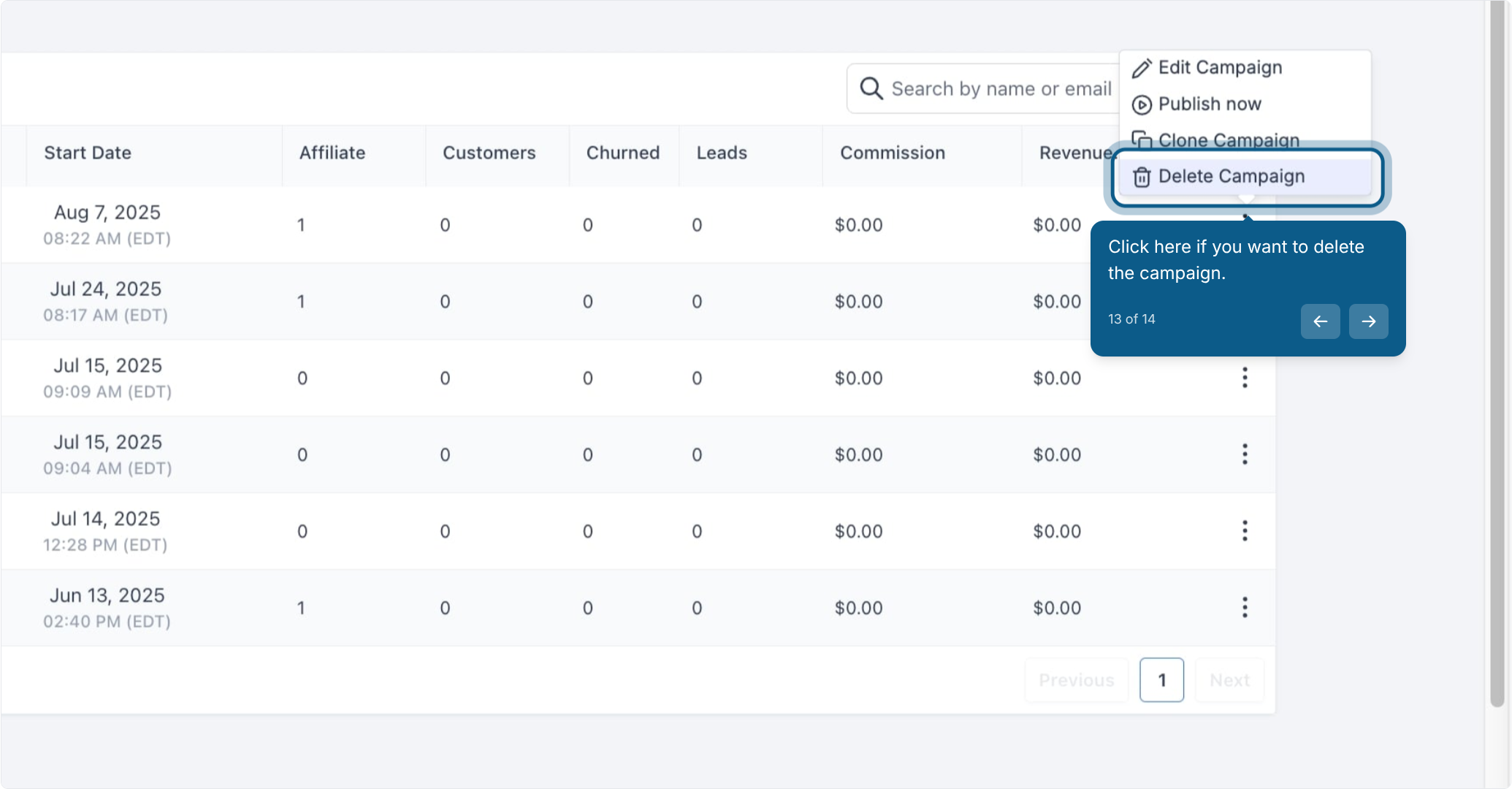
Click here if you want to delete the campaign.
To confirm deletion, click Delete.
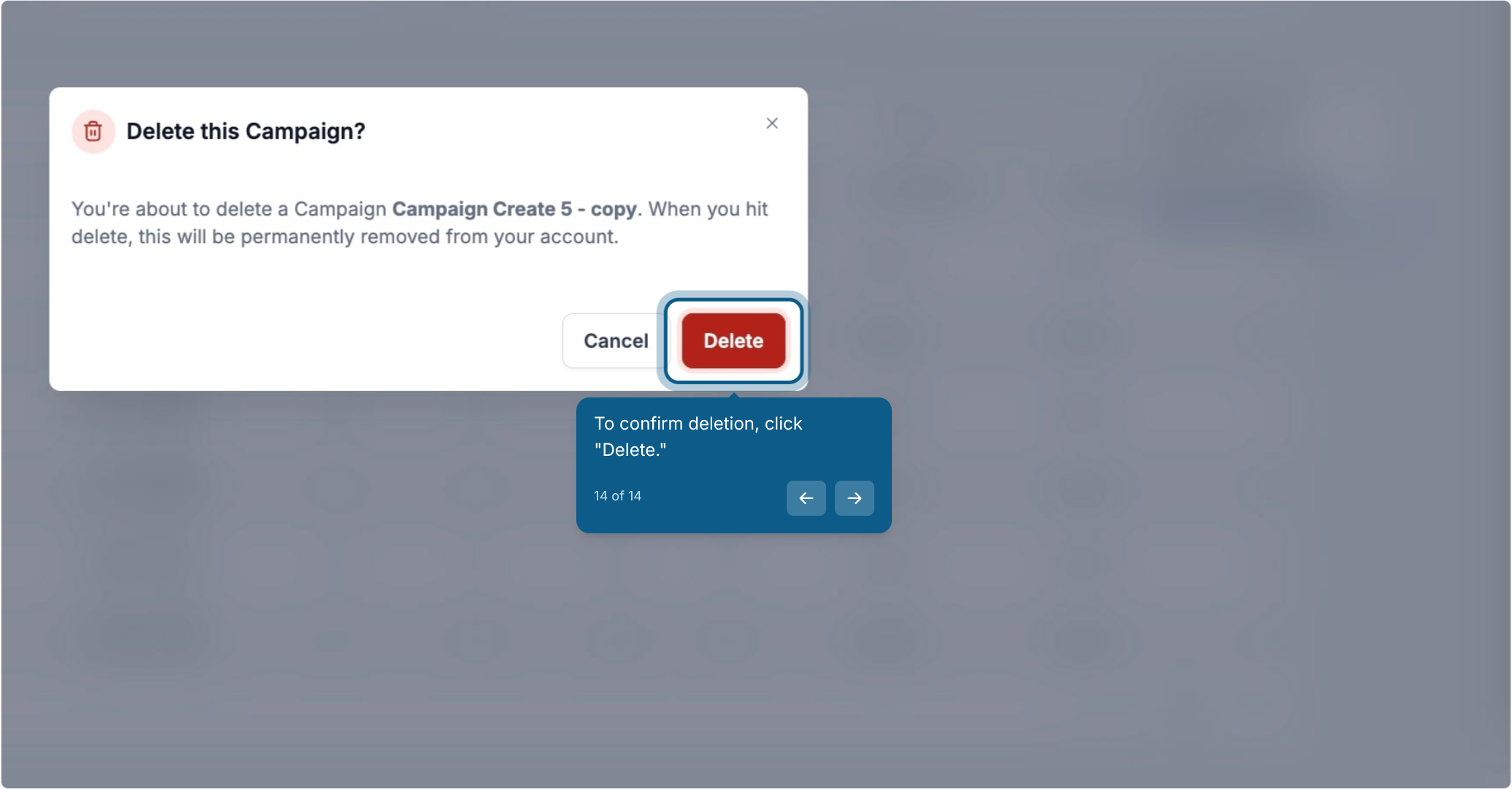
Deleting a campaign is permanent, so make sure you no longer need its history or reporting before confirming.
Use these quick actions when you need to change which campaign an affiliate is tied to, without opening their full profile. This is the fastest way to reassign a referring patient, provider, or partner when your program structure changes.
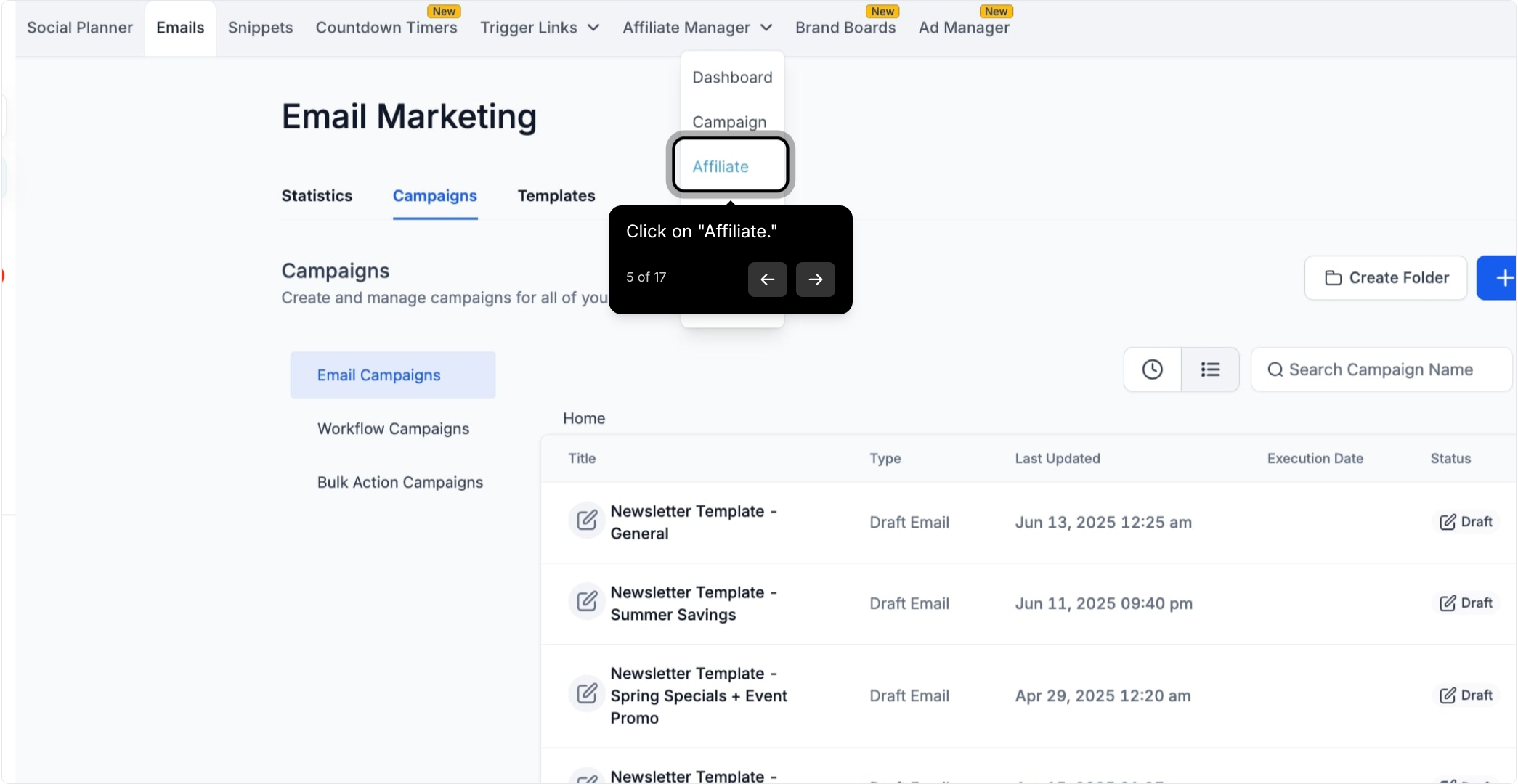
Click on Affiliate.
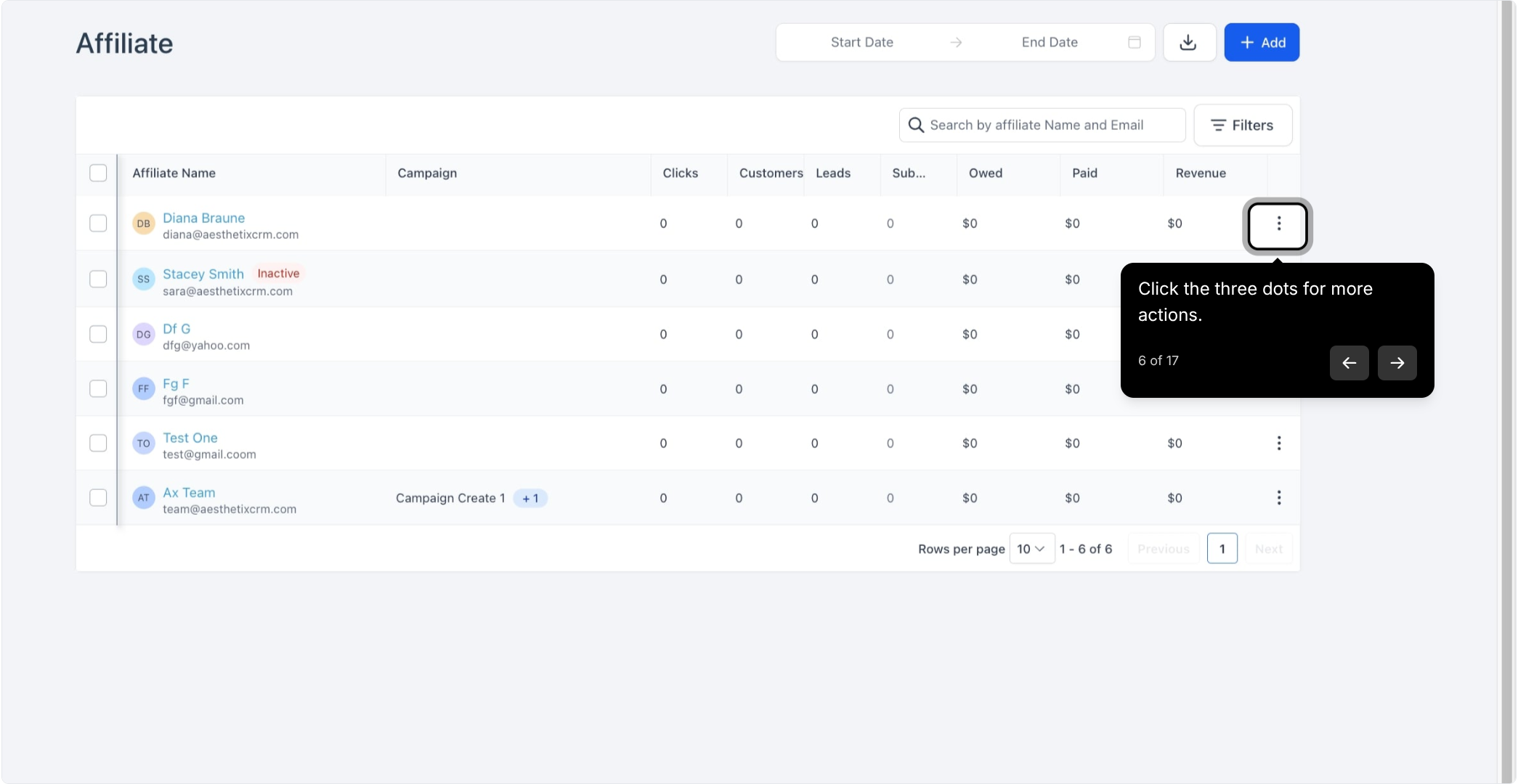
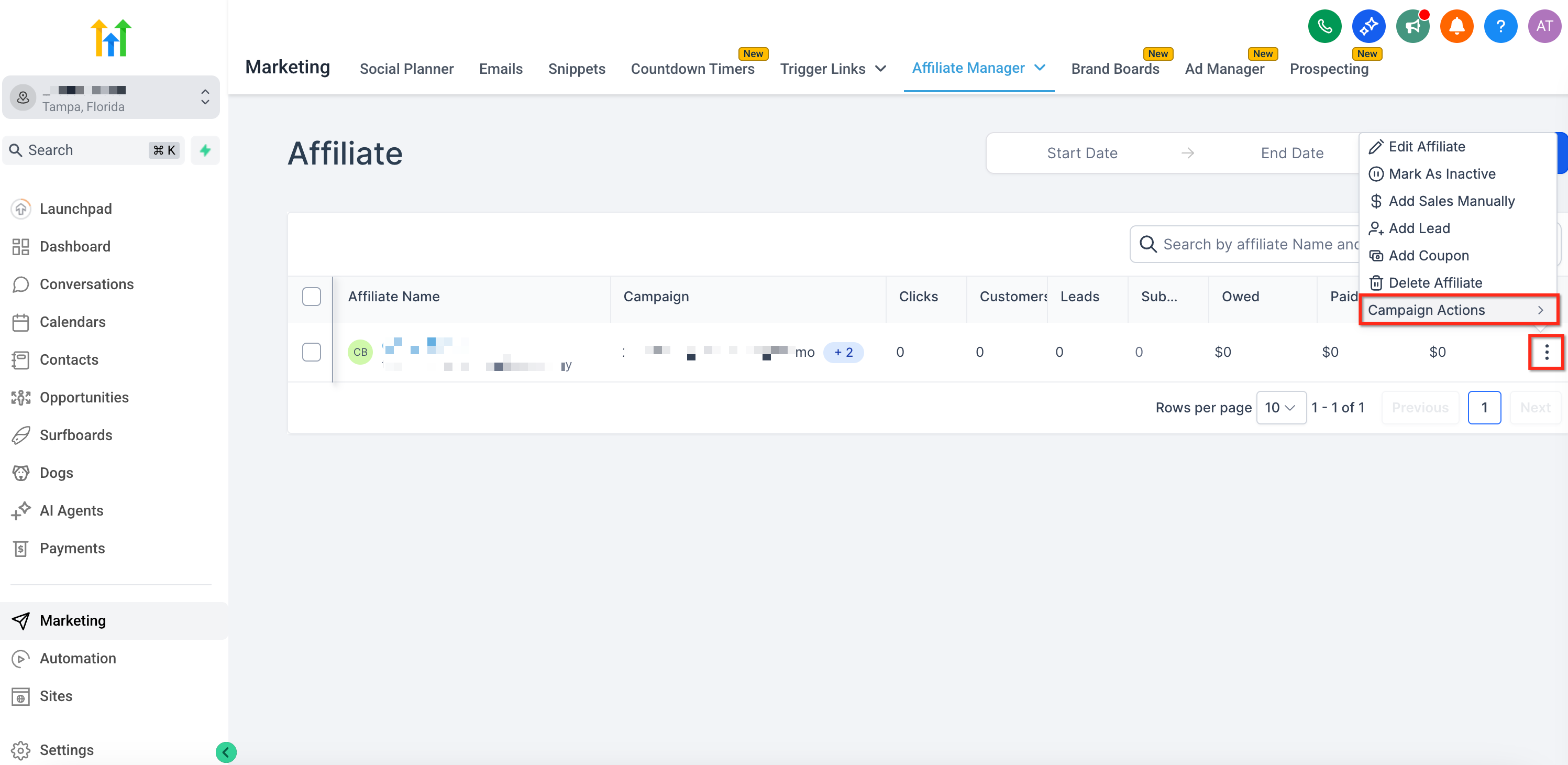
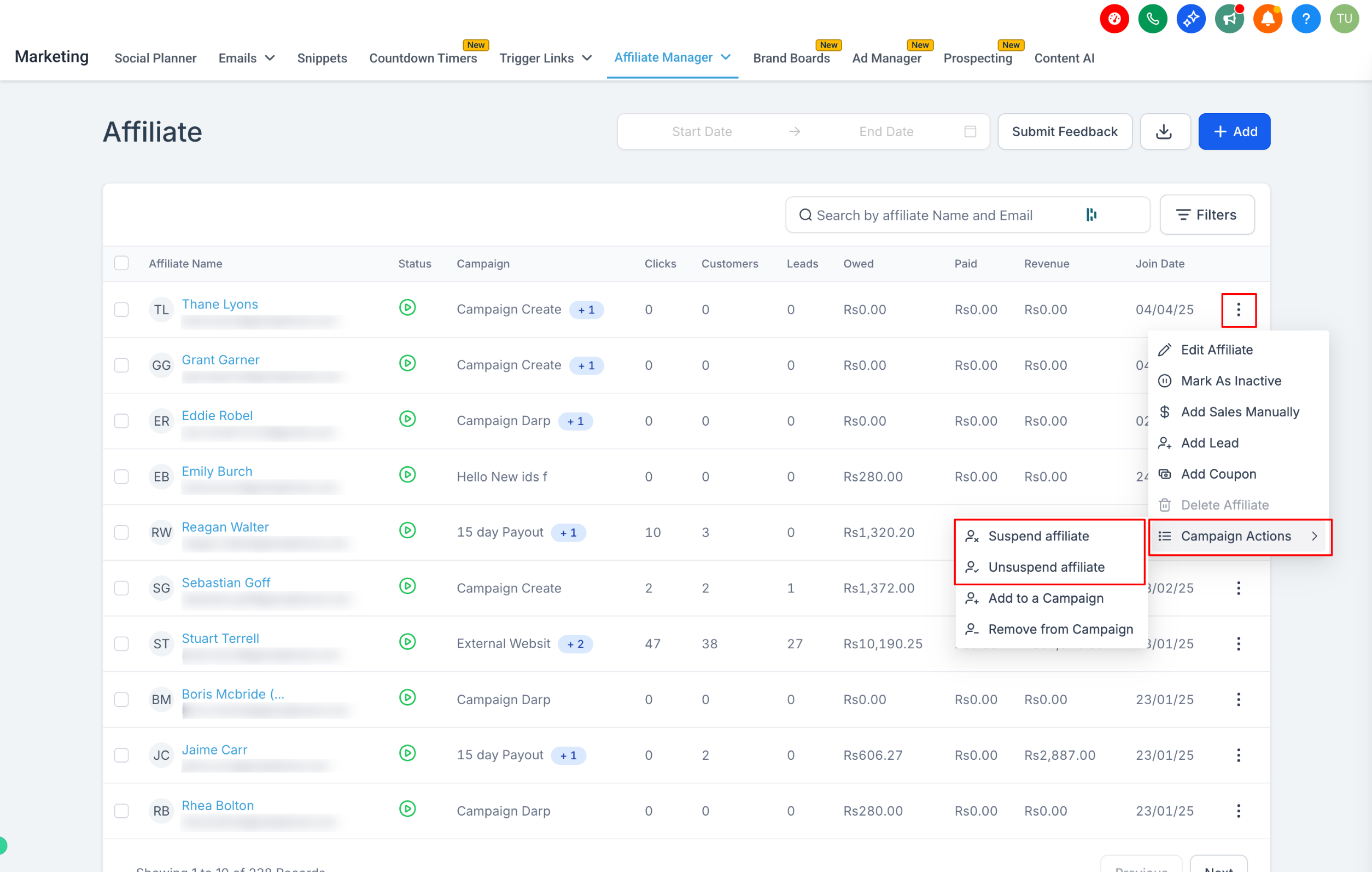
Click the three dots next to the affiliate you want to manage for more actions.
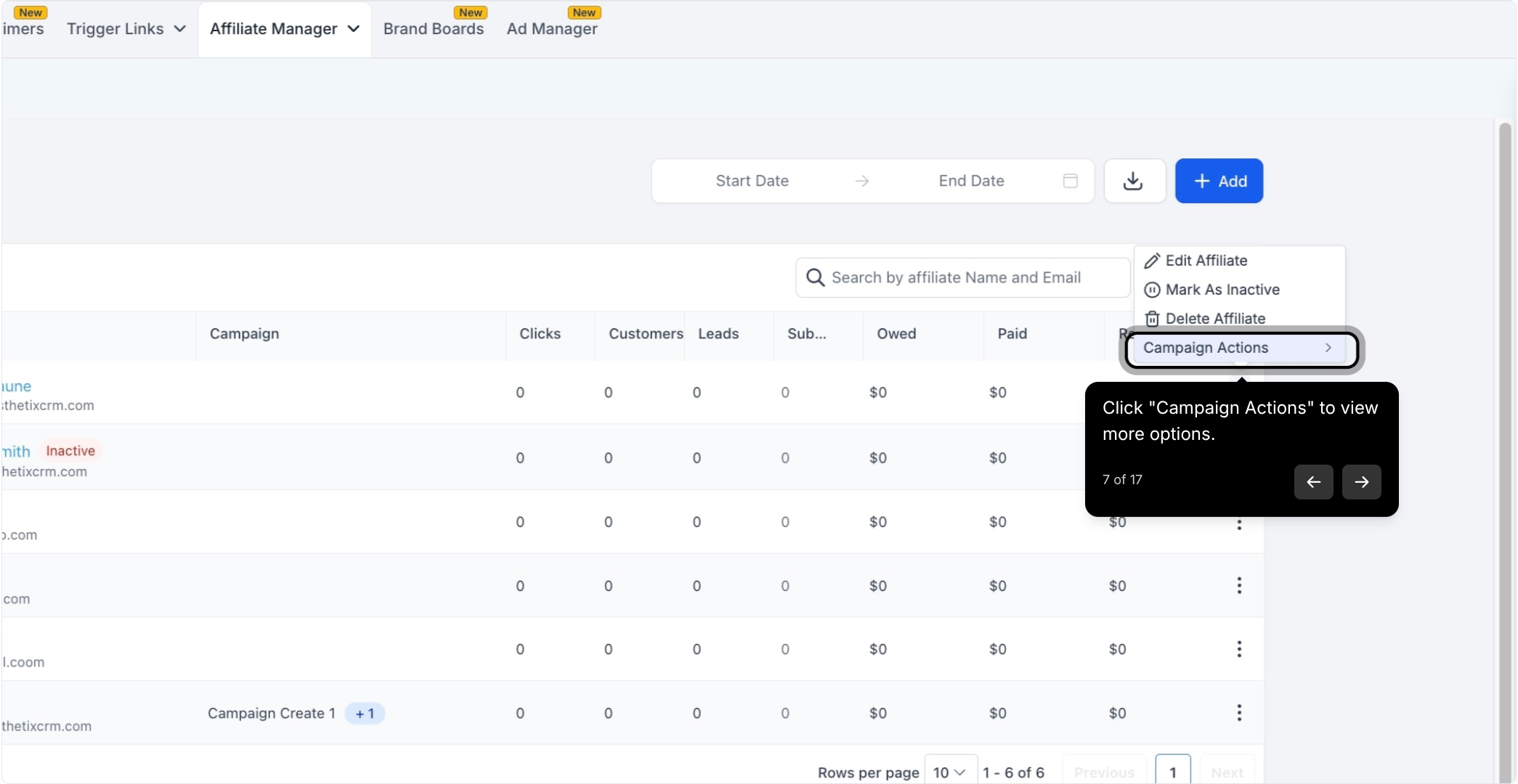
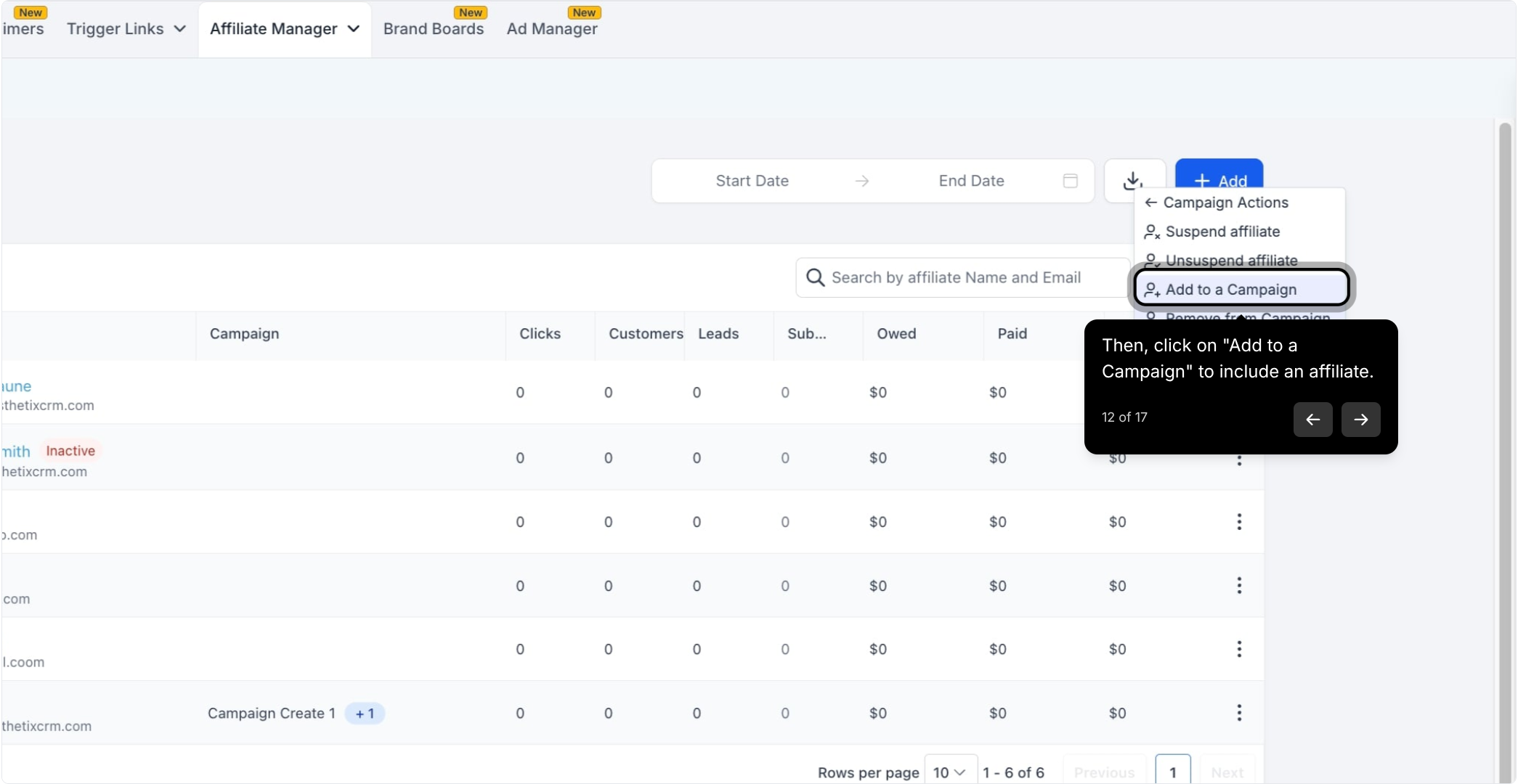
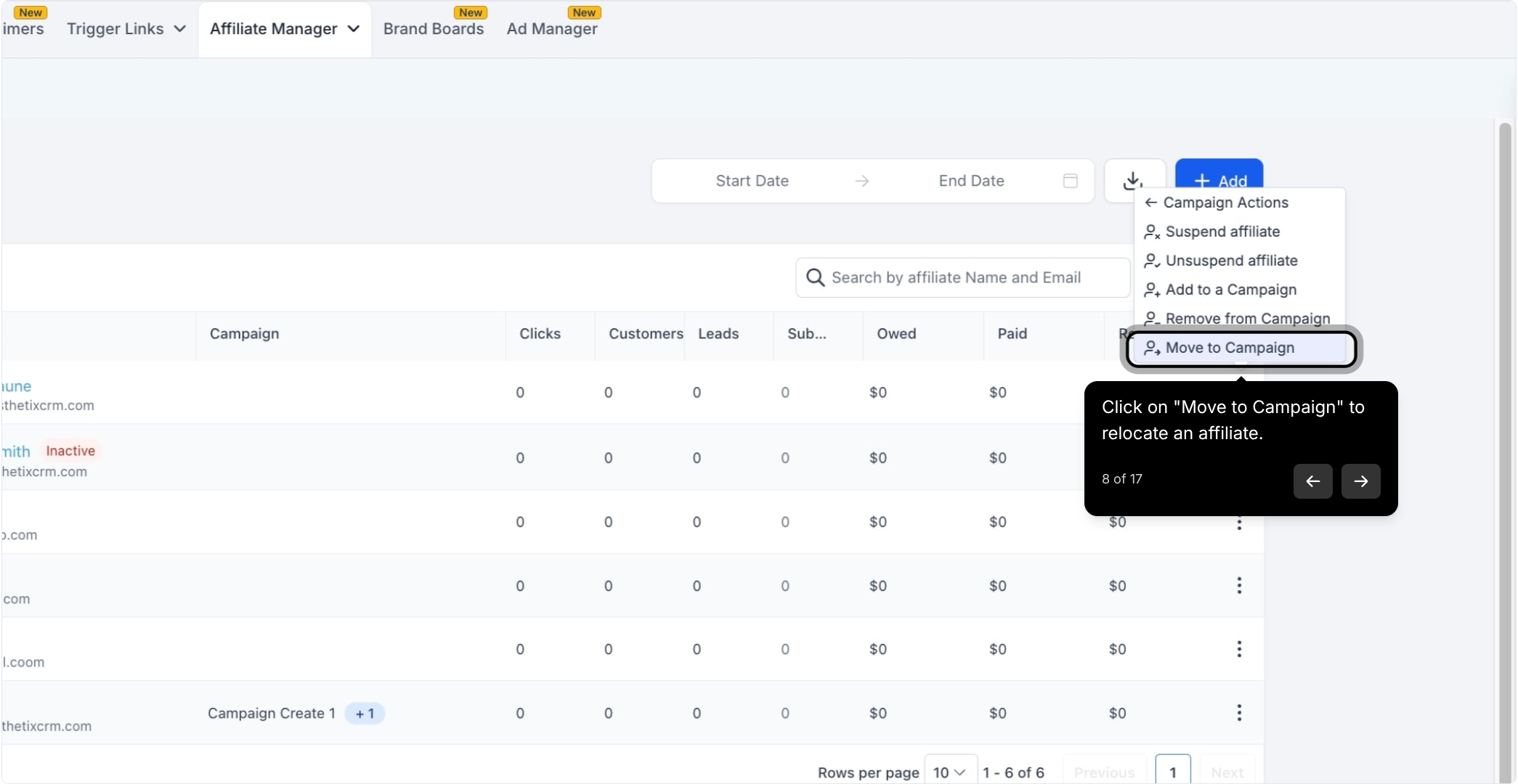
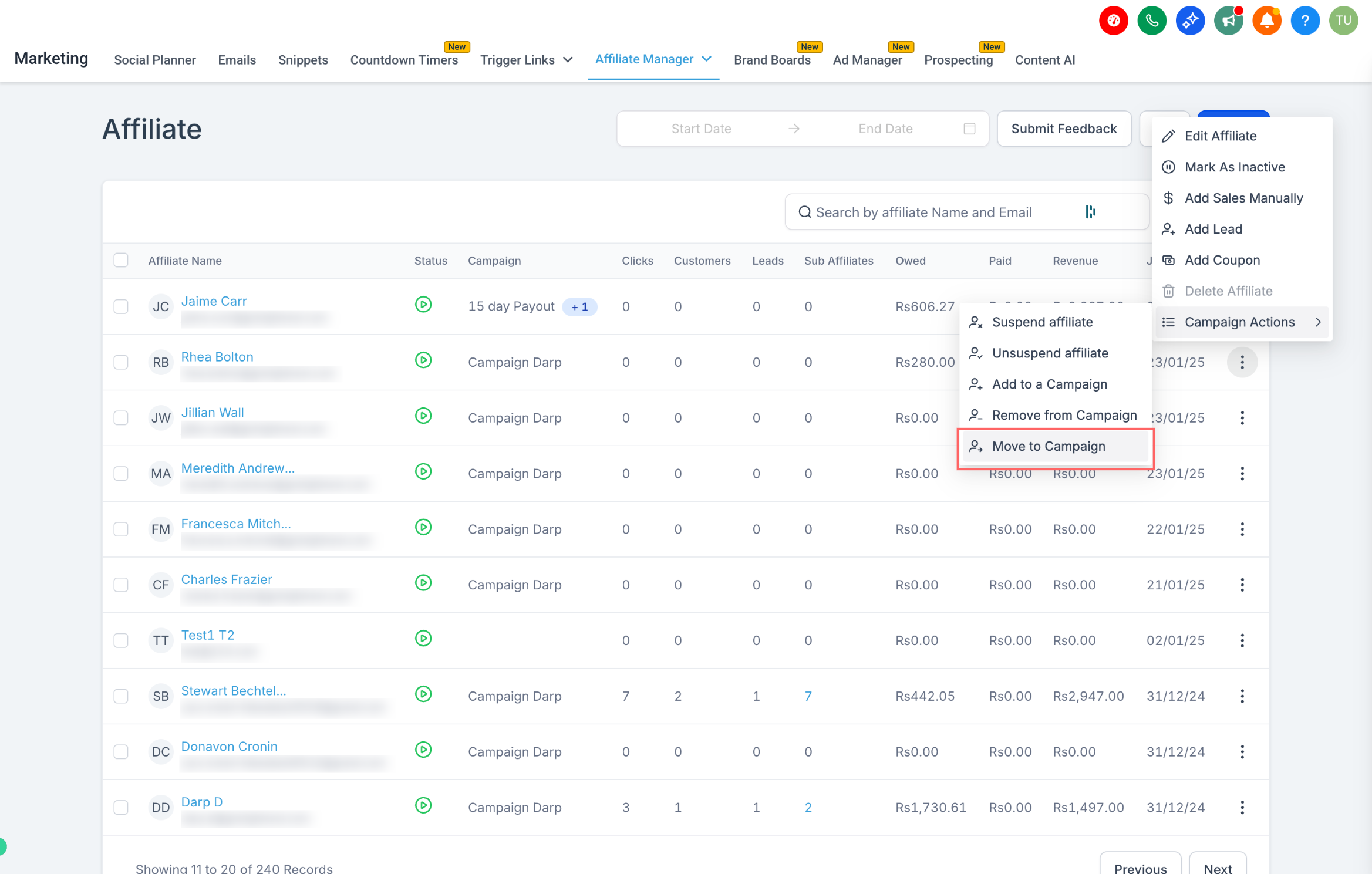
Click Campaign Actions to view the available options: Add to Campaign, Remove from Campaign, Suspend Affiliate, Unsuspend Affiliate, and Move to Campaign.
Click on Add to a Campaign to include the affiliate in a campaign.
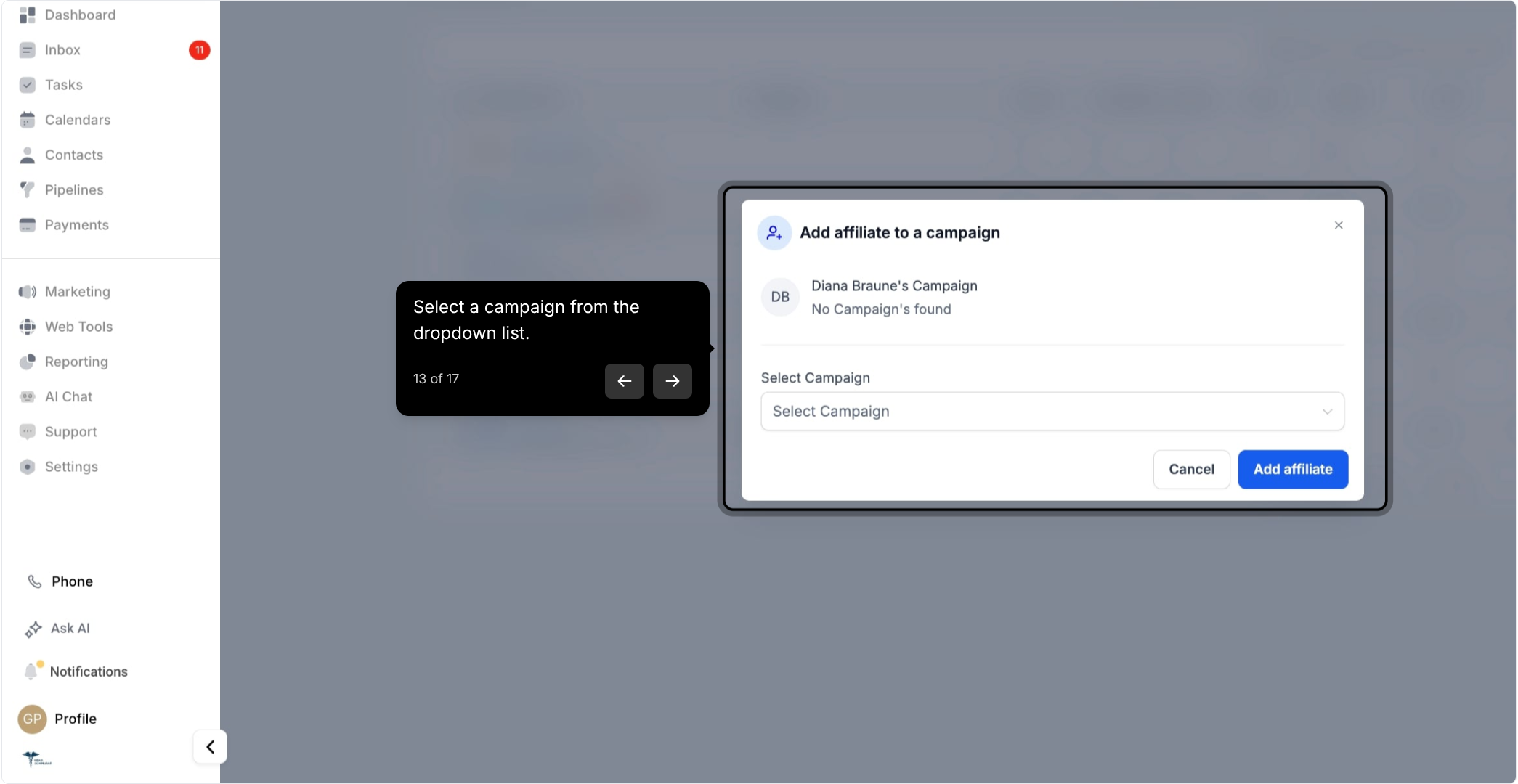
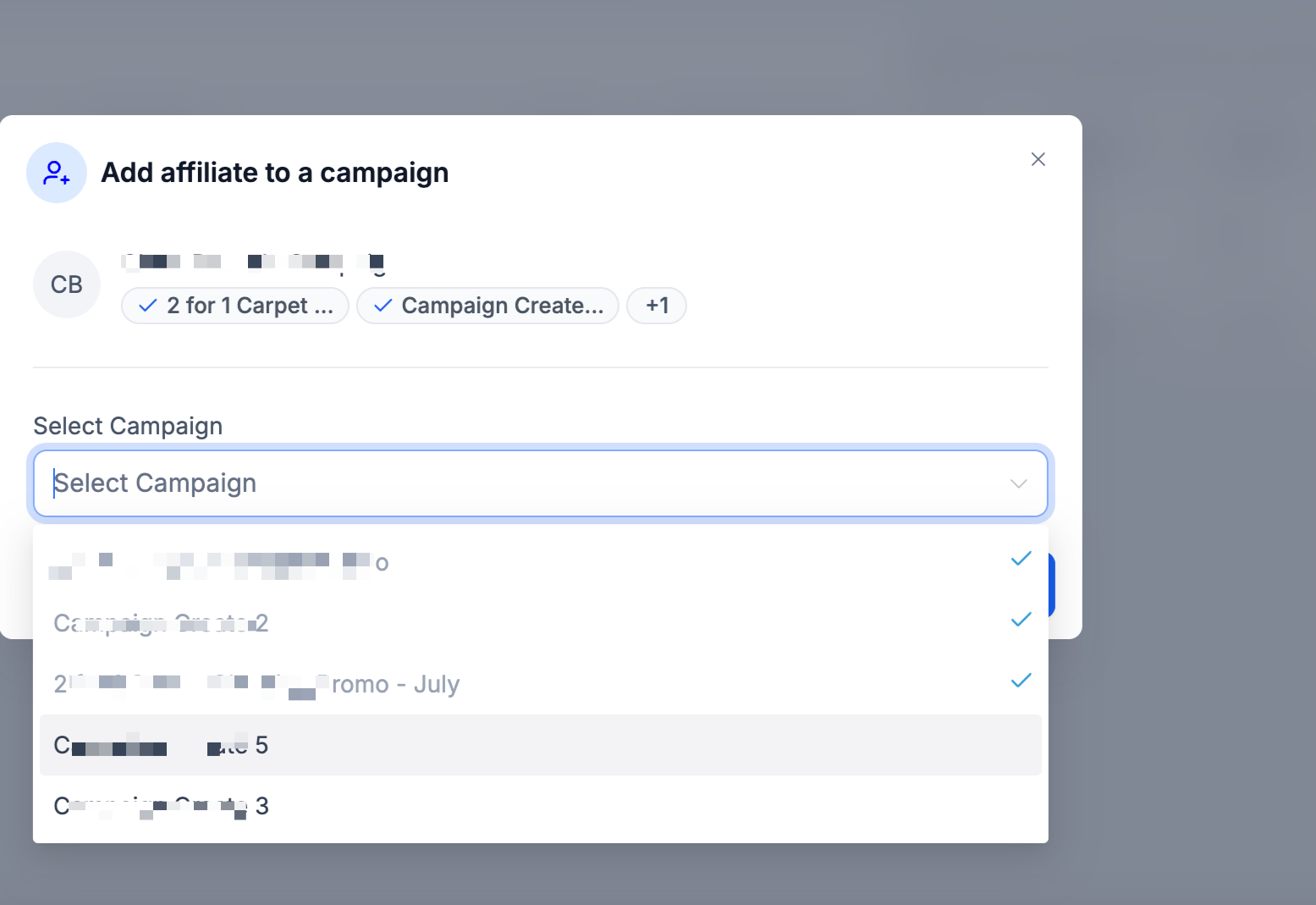
Select a campaign from the dropdown list.
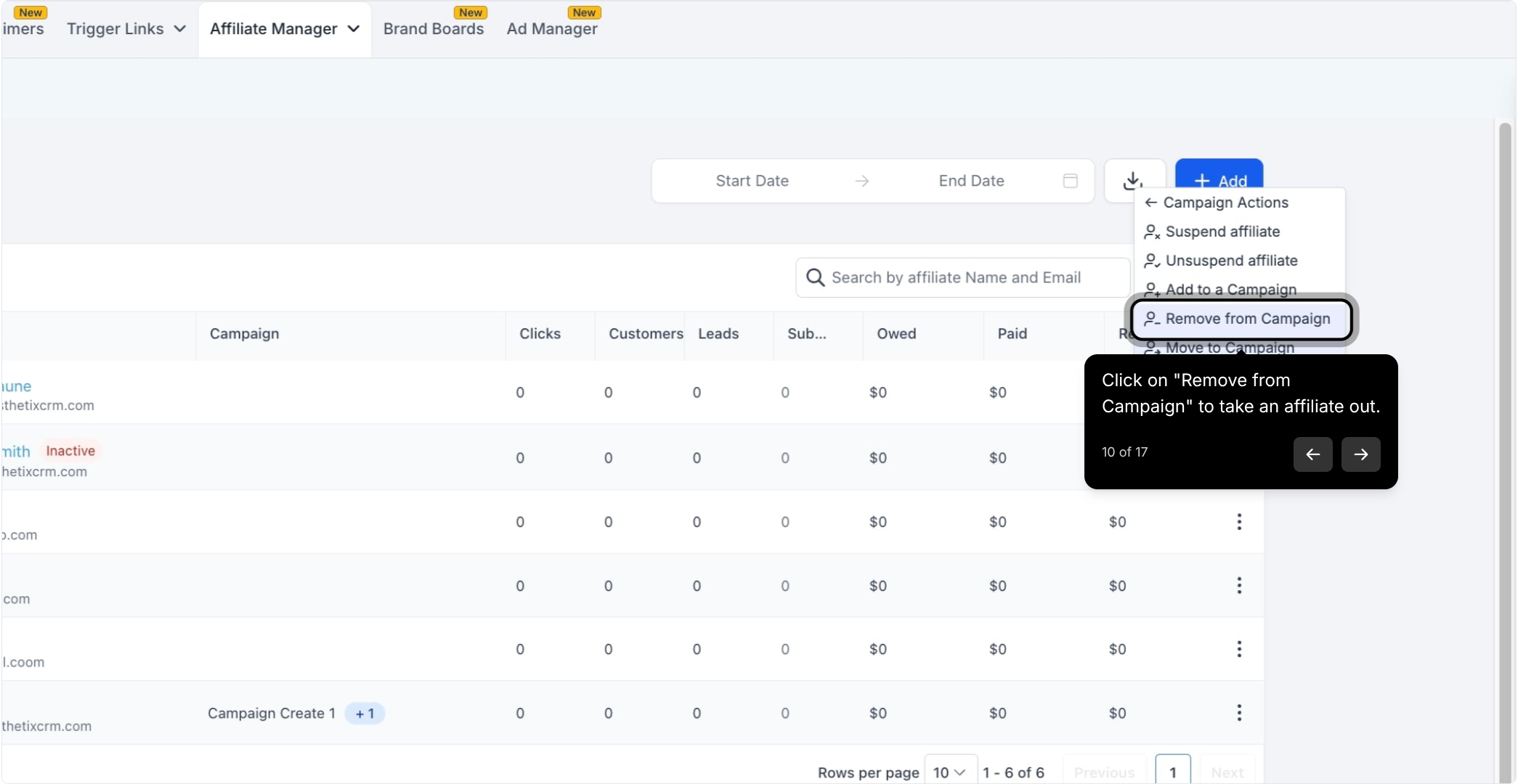
Click on Remove from Campaign to take an affiliate out.
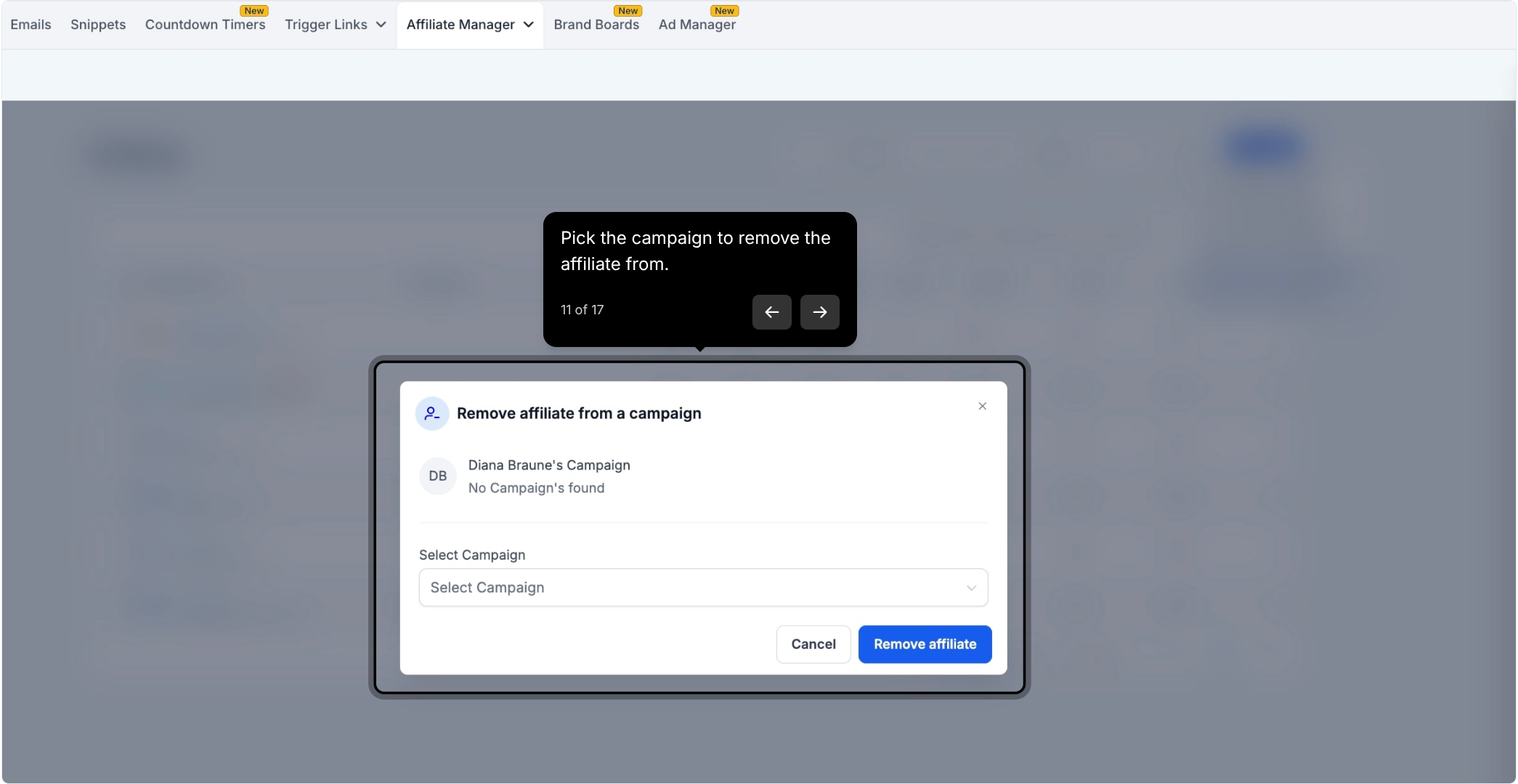
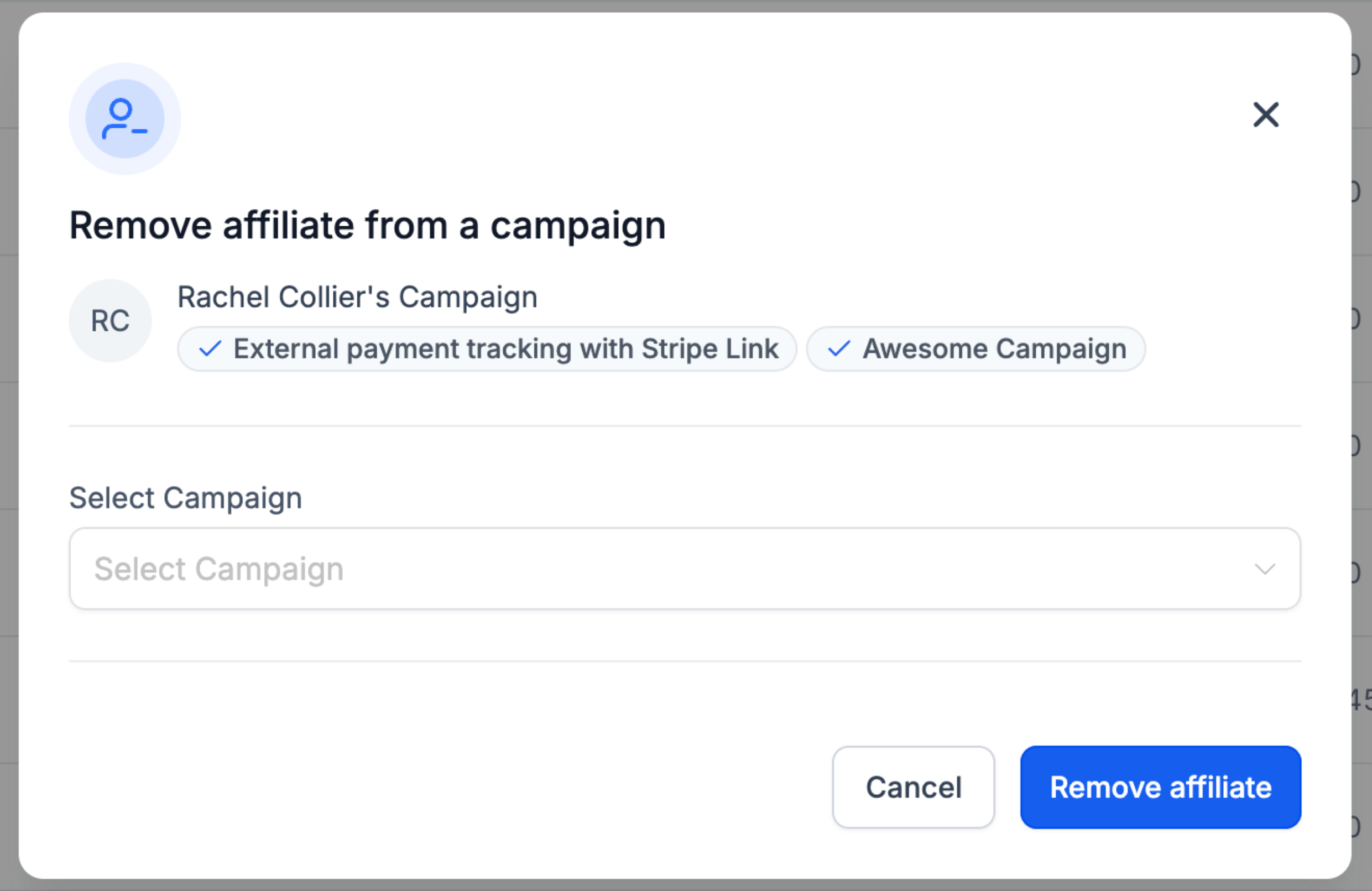
Pick the campaign you want to remove the affiliate from.
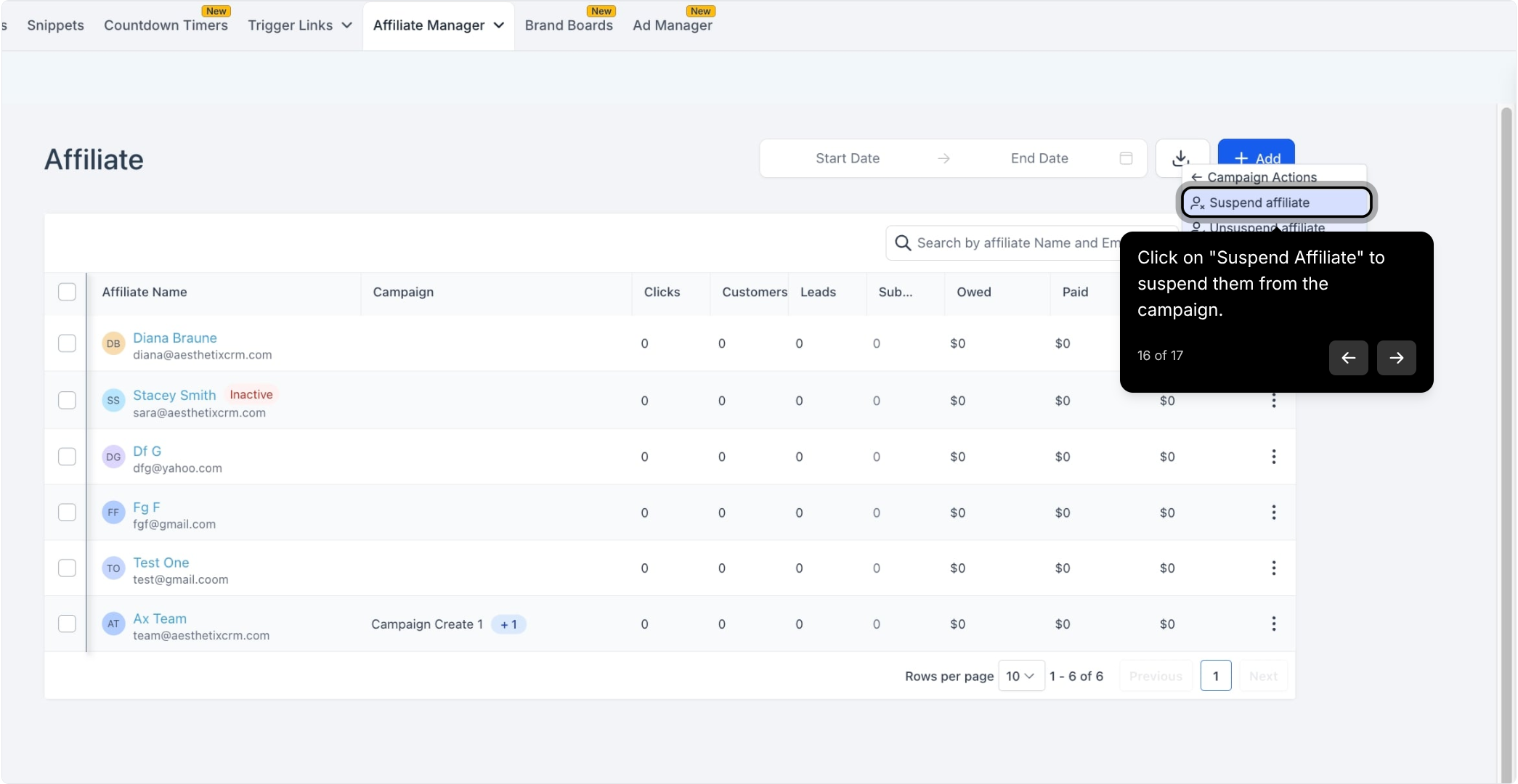
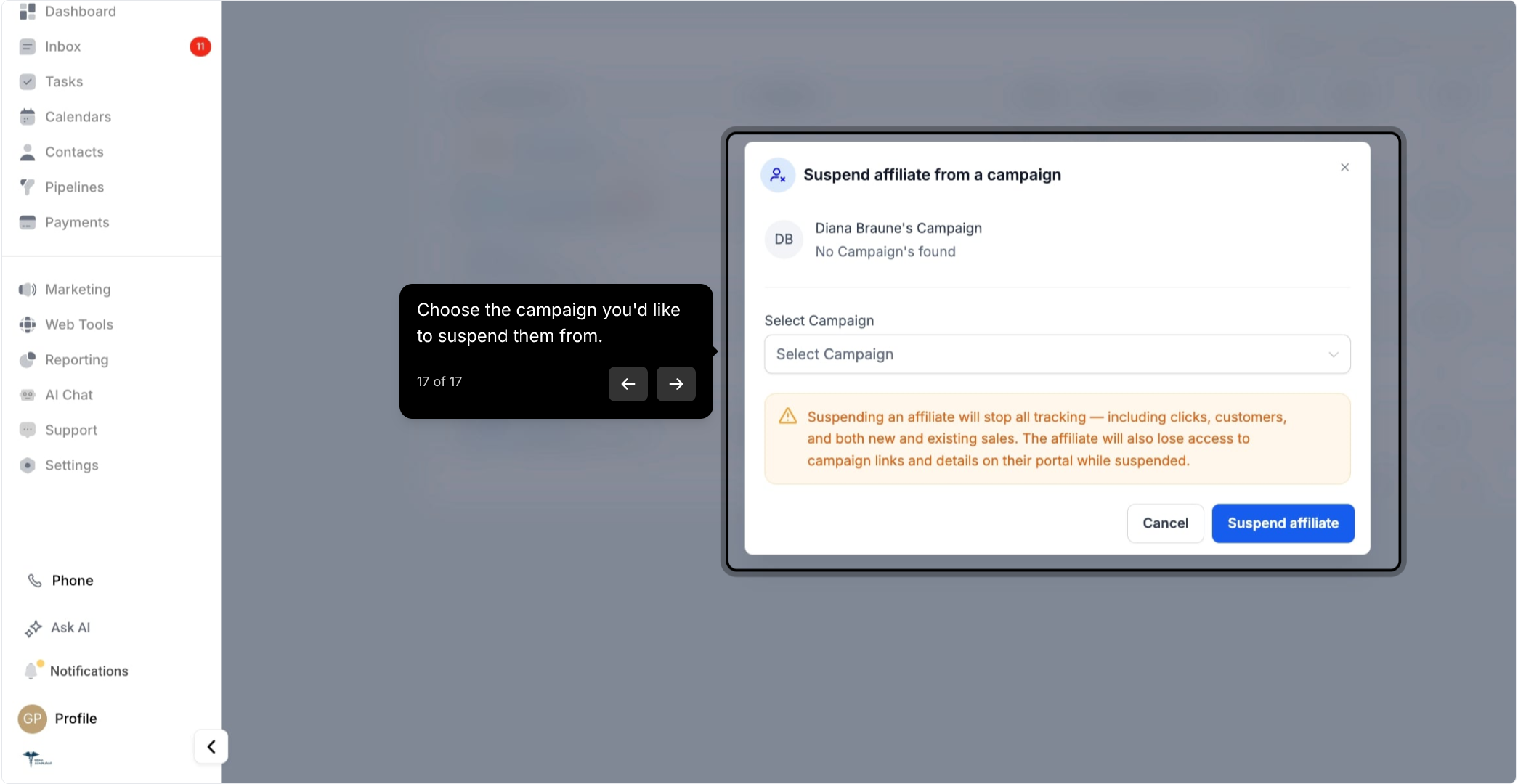
Click on Suspend Affiliate to suspend them from a campaign.
Choose the campaign you'd like to suspend them from.
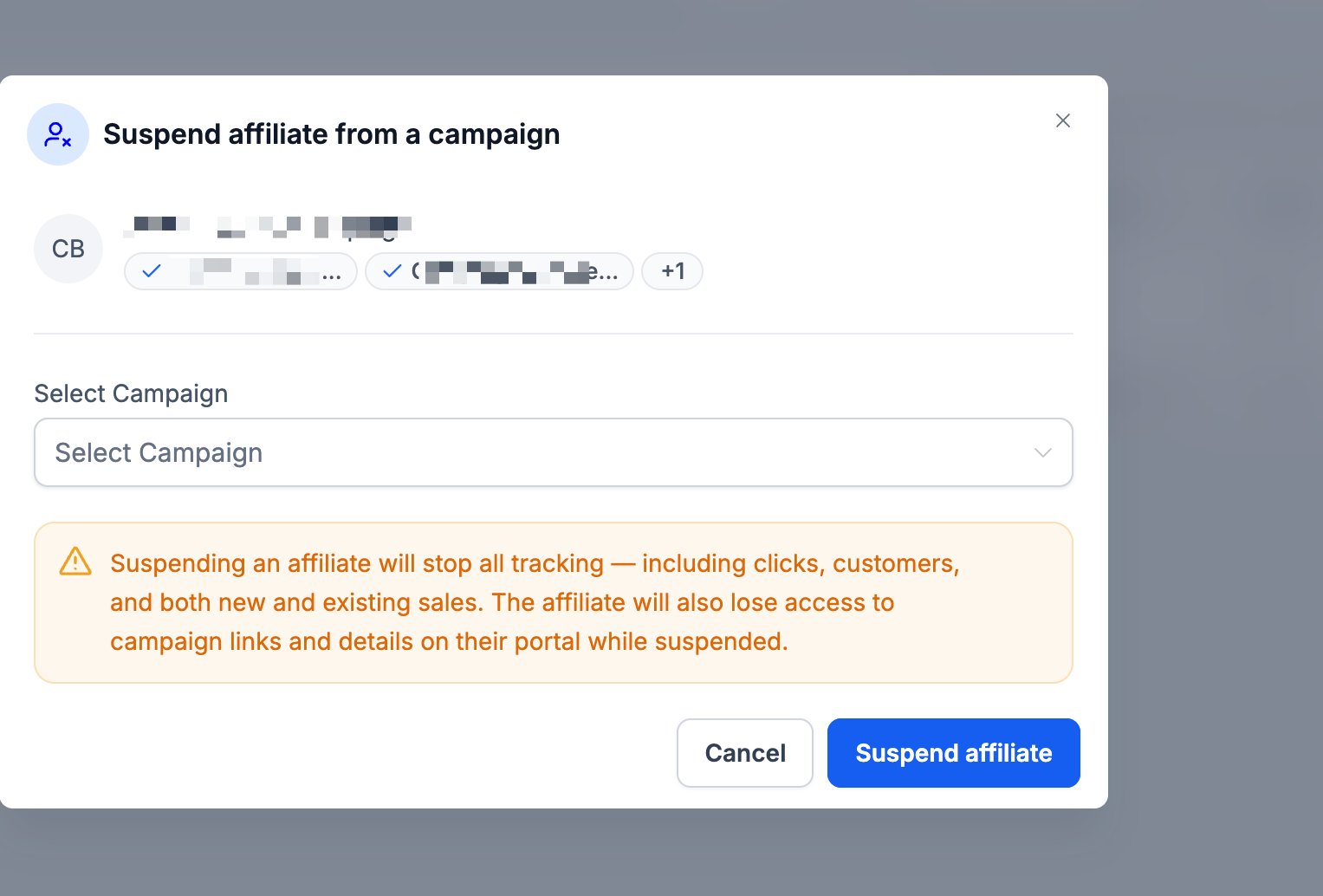
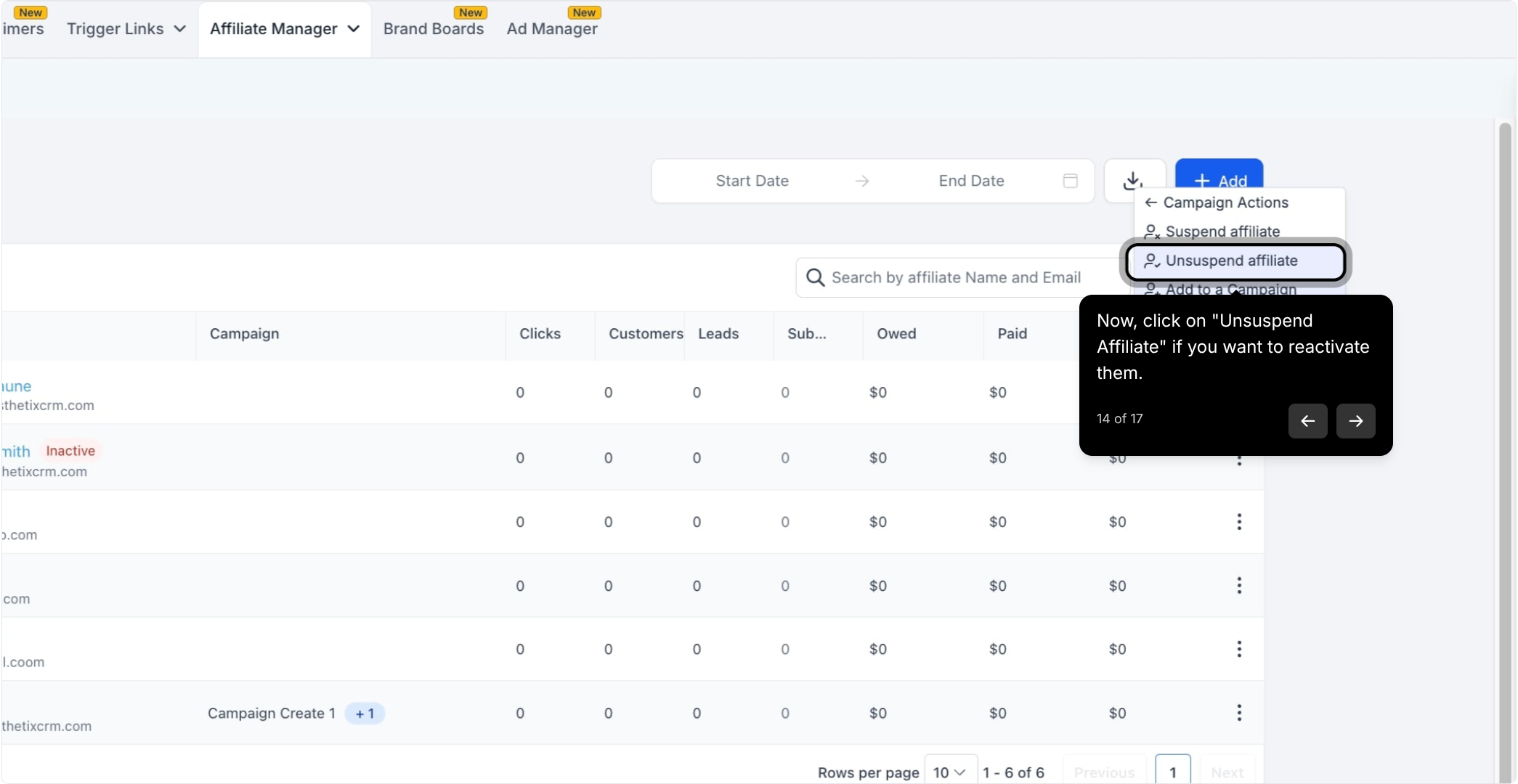
To bring an affiliate back, click Unsuspend Affiliate and select the campaign the same way.
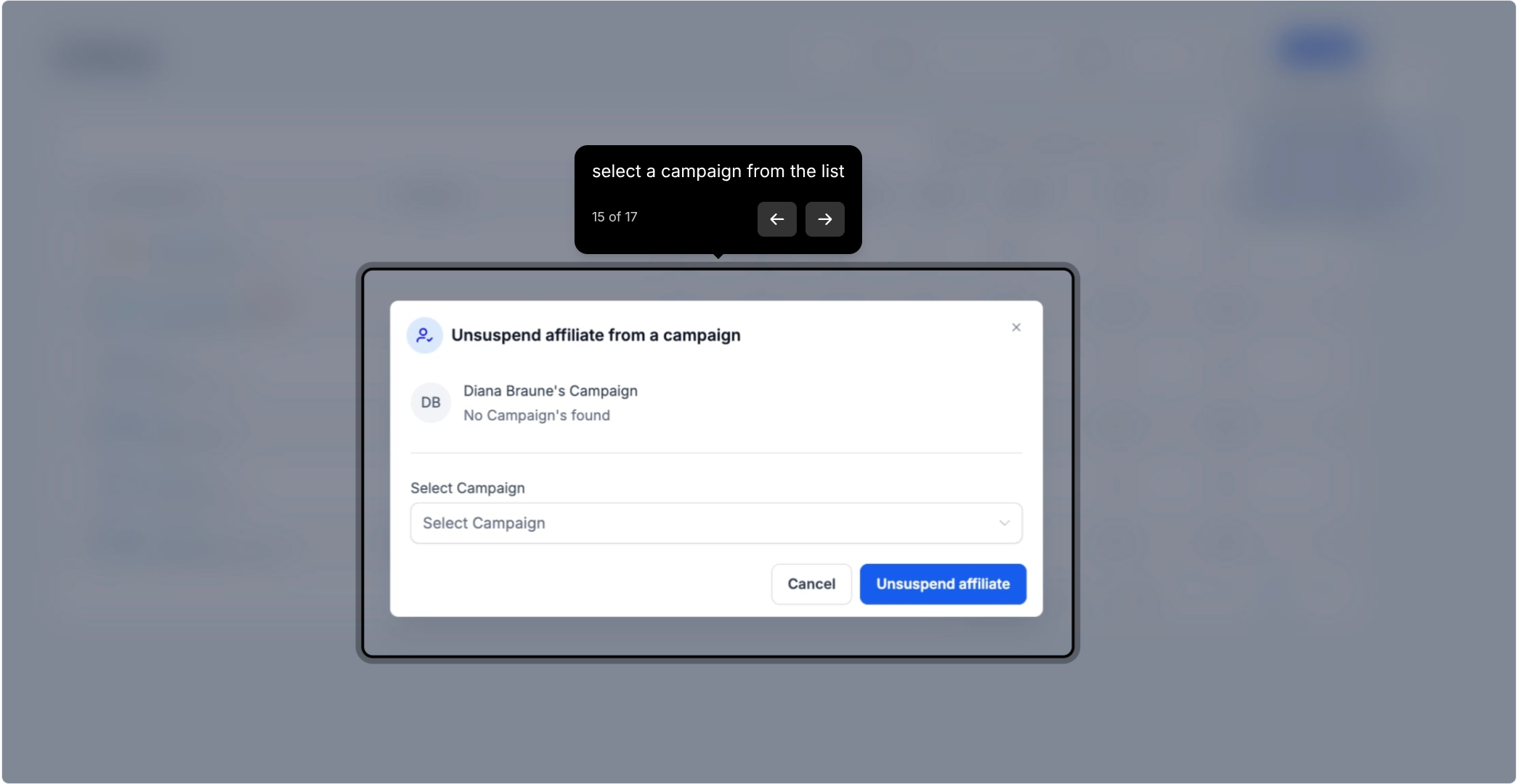
While an affiliate is suspended:
You cannot manually add leads, assign commissions, or import past activity for them.
Their referral links stop tracking new activity.
Once unsuspended:
The affiliate's existing referral links start working again automatically, with no extra setup needed.
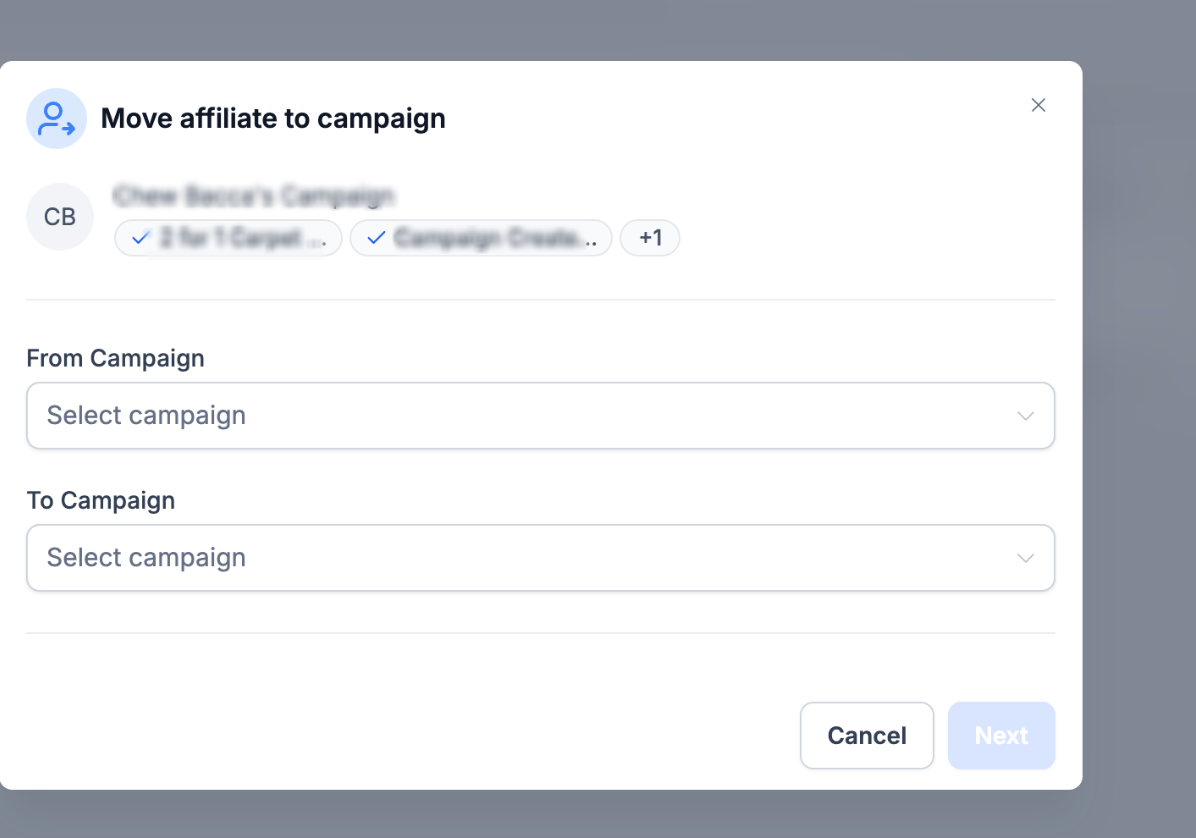
Click Move to Campaign.
Select the campaign you're moving from and the campaign you're moving the affiliate to.
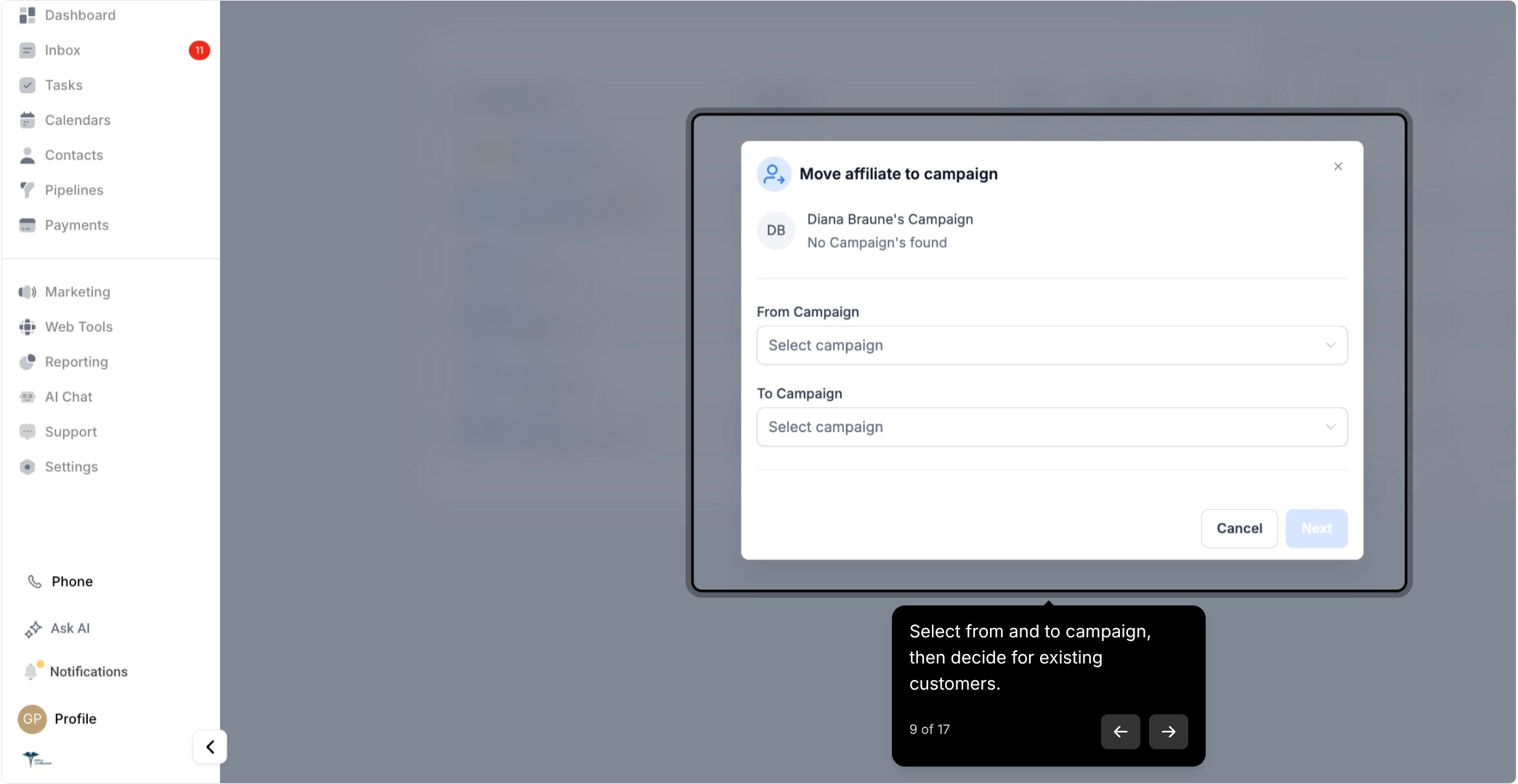
Decide what happens to the affiliate's existing customers:
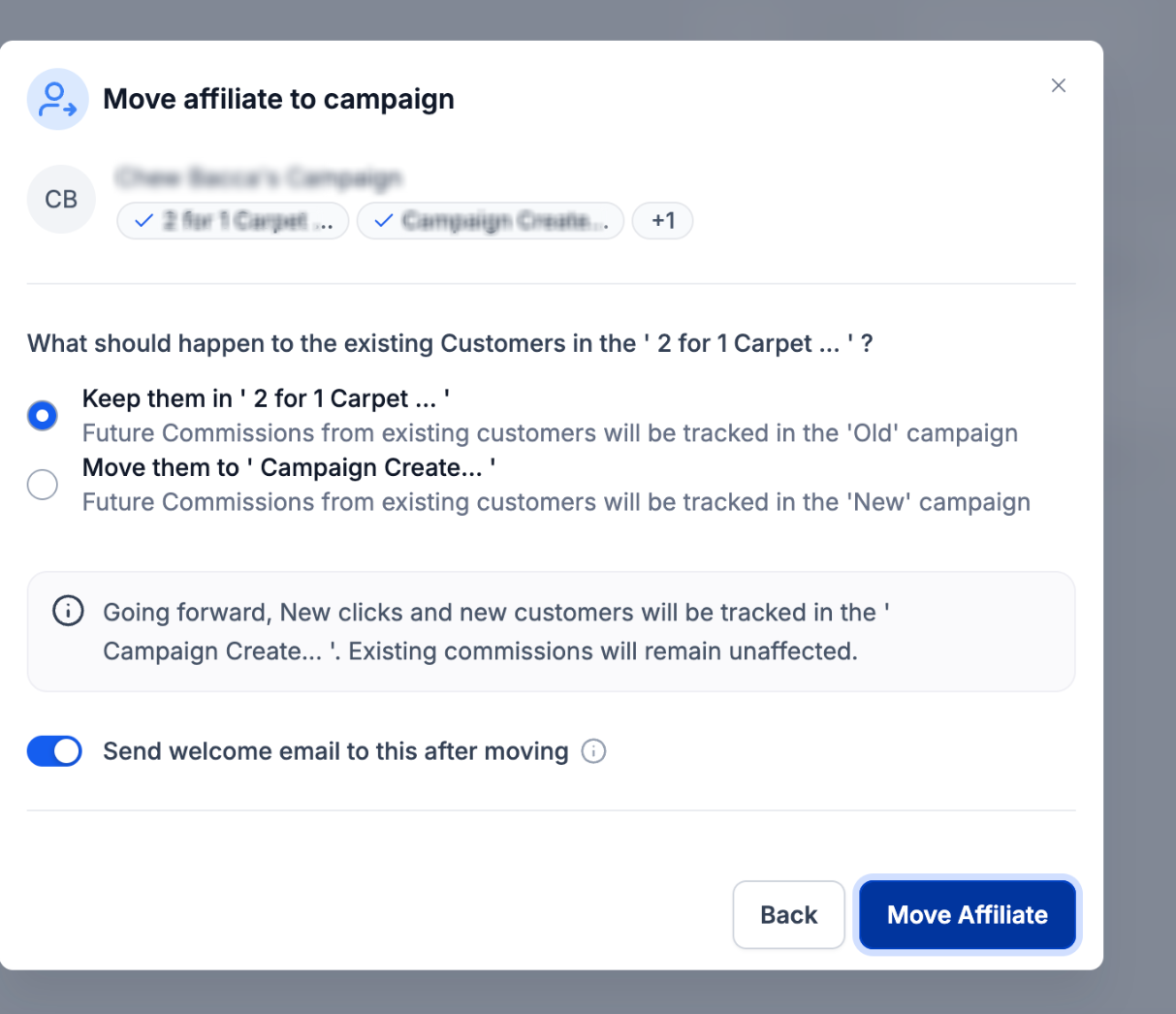
Keep them in the old campaign: existing customers and their recurring commissions stay under the current campaign.
Move them to the new campaign: future commissions from those existing customers now follow the new campaign's rules.
Choose whether to send the campaign's welcome email to the affiliate. If the target campaign has welcome emails turned off, none will be sent even if you enable this toggle. If the campaign has welcome emails turned on, you can disable it here just for this move. Once you've made your selections, click Move Affiliate to complete the action.
Affiliate campaign moves take effect immediately, so double-check the from and to campaigns and the existing-customer choice before confirming.
If you want a workflow to fire automatically whenever an affiliate is added, removed, suspended, or moved between campaigns, for example to notify your team or send a follow-up email, set that up in Workflows using the affiliate-related triggers and actions rather than re-creating that logic here.
Can I undo a "Move to Campaign" action? There's no one-click undo. You can manually reverse it by moving the affiliate back to their original campaign.
Will affiliates get an email notification when they're moved or suspended? Only moves can trigger a welcome email, and only if the target campaign has welcome emails enabled and you leave the toggle on. Suspending or unsuspending does not send a notification email on its own.
Can I apply Quick Campaign Actions to multiple affiliates at once? No, Quick Campaign Actions work on one affiliate or one campaign at a time. For bulk changes across many affiliates, use a workflow or handle them manually one by one.
Does suspending an affiliate affect their referral links? Yes. While suspended, their links stop tracking new referrals. Once you unsuspend them, the same links start working again automatically.
What's the difference between "Save as Draft" and deleting a campaign? Saving as a draft keeps the campaign in your account but unpublished, so you can finish setting it up later. Deleting removes the campaign permanently.
If I clone a campaign, do the original affiliates come with it? Only if you turn on the toggle to keep affiliate information when cloning. Leave it off to start the new campaign with no affiliates attached.
Can I remove an affiliate from one campaign while they stay active in another? Yes. Removing an affiliate from a campaign only affects that specific campaign. If they belong to other campaigns, those assignments are untouched.
Where do I set up the commission rules a campaign uses? Commission rules and other campaign settings are configured when you create or edit the campaign itself. Quick Actions only handle assignment, status, and campaign management, not the underlying commission structure.
