
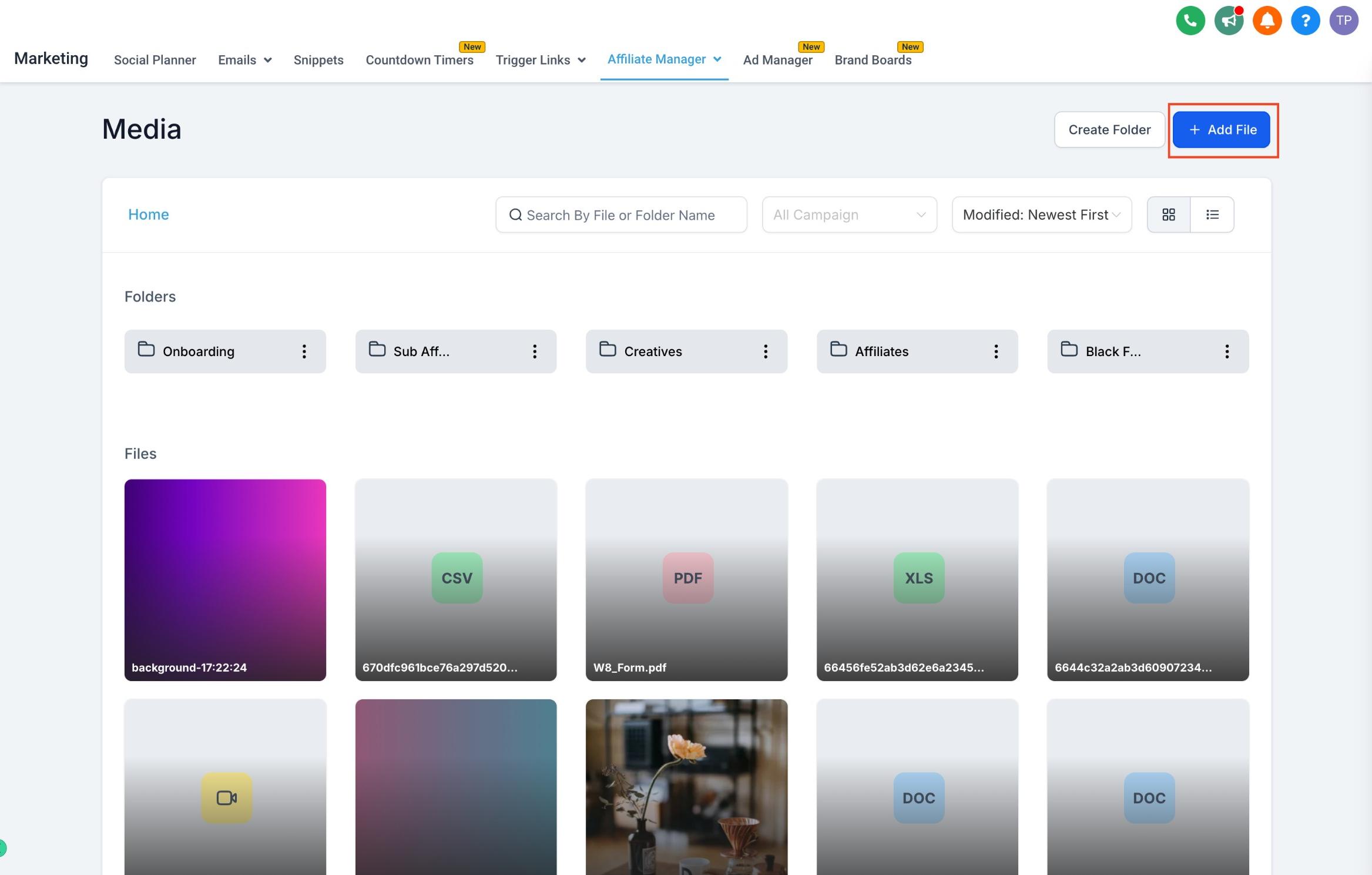
The Media Library in Affiliate Manager gives your affiliates and referral partners a ready-made set of promotional assets, such as banners, social graphics, and logos, that they can grab and use right away. Instead of asking each partner to request creative files individually, you upload everything once and control exactly which campaigns can see it. You'll find it under Affiliate Manager > Media.
What the Media Library Does
Cleaner, more intuitive interface. Media assets are organized in a simple grid so you (and your affiliates) can find what's needed quickly.
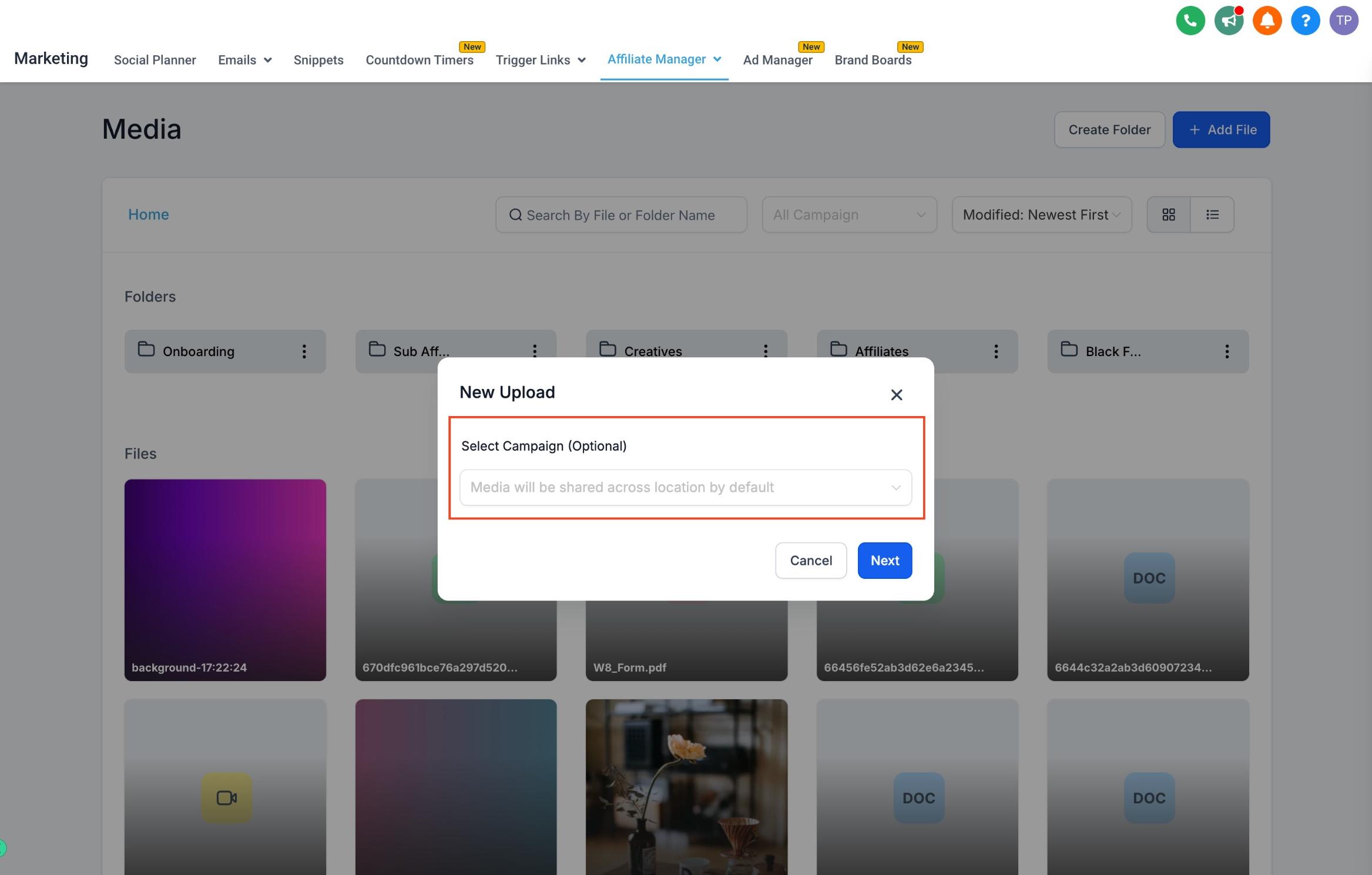
Campaign-specific media management. Assign an image or file to a single campaign, or make it available across every campaign your practice runs. This keeps affiliates from seeing creatives that don't apply to the program they're part of.
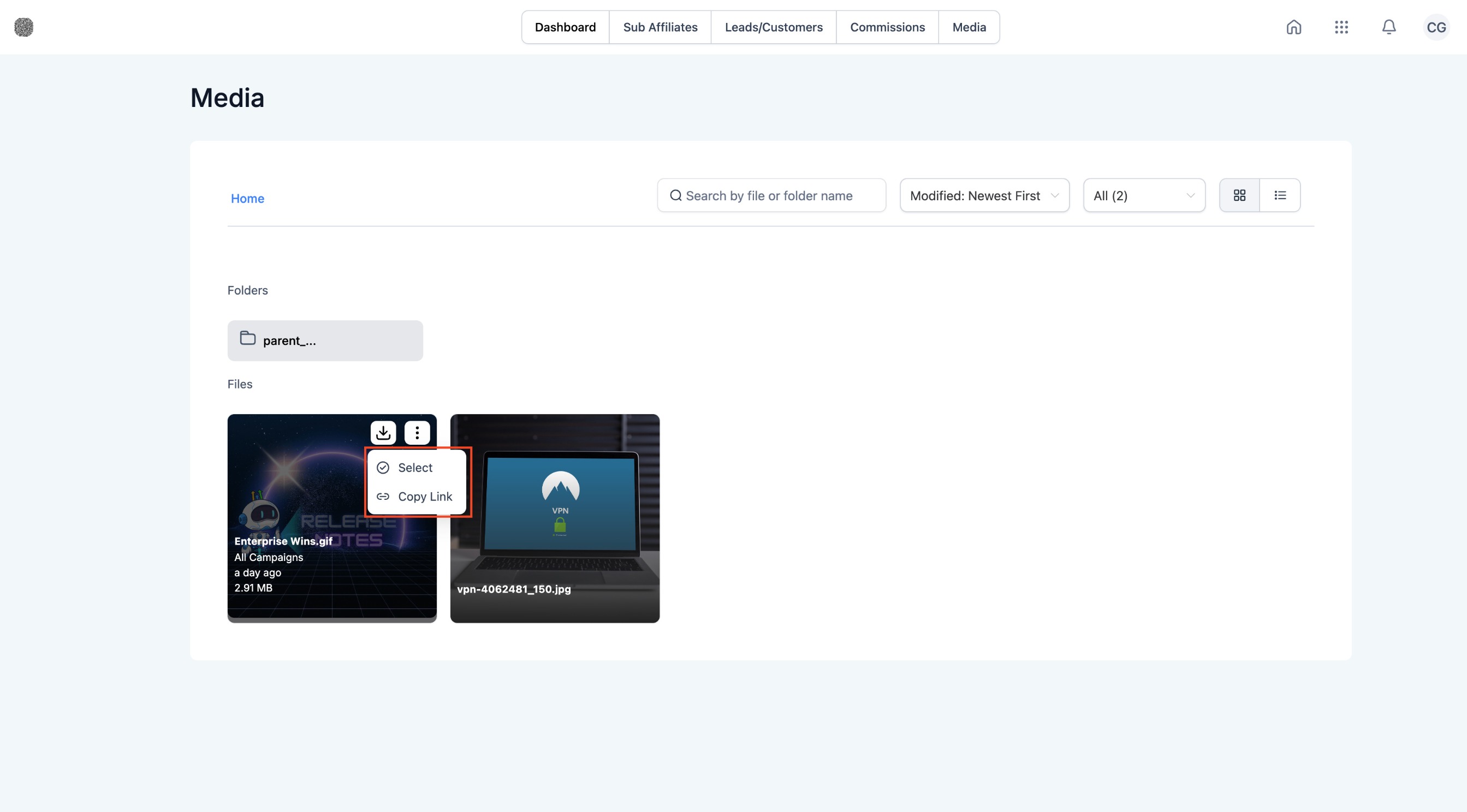
Quick copy and download actions. Affiliates can copy a media link or download an asset directly from their Affiliate Portal, without emailing your team to ask for files.
Adding Media to the Library
Go to Affiliate Manager and select Media.
Click Add File to upload a new media asset (banner, image, logo, or other promotional file).
Choose whether to link the asset to a specific campaign or make it available across all campaigns.
Save your changes. The asset is now ready for affiliates to use.
Why a Shared Media Library Helps Your Referral Program
Faster turnaround. Uploading assets once and organizing them by campaign cuts down the back-and-forth of sending files to individual partners.
Targeted access. Linking media to a specific campaign means affiliates only see the creatives relevant to what they're actually promoting, which reduces confusion about which banner or offer to use.
Better affiliate experience. Easy copy and download options make it simple for partners to grab what they need and start sharing, which keeps your referral program active and your brand assets consistent.
A well-stocked media library is especially useful for practices running seasonal promotions or new-patient referral offers: keep the current campaign's assets pinned to that campaign so affiliates always know they're using the right creative. For the automations that notify affiliates or track their activity when new media goes live, see the Workflows collection, where affiliate-related triggers and actions are documented.
Frequently Asked Questions
Who can see the assets I upload to the Media Library? Only affiliates you've approved for the campaign(s) the asset is linked to, or all affiliates if you mark the asset as available across every campaign.
What file types can I upload? You can upload standard image and banner file types (such as JPG and PNG) for affiliates to use in their promotions. Keep files reasonably sized so they load quickly for partners downloading them.
Can I link the same asset to more than one campaign? Yes. When adding or editing a media asset, you can choose to make it available to all campaigns instead of restricting it to just one, so you don't have to upload duplicate copies.
How do affiliates actually use these assets? Affiliates log in to their Affiliate Portal, browse the Media Library, and either copy the media link or download the file directly to use in their own posts, emails, or ads.
Do I need to notify affiliates when I add new media? The library itself doesn't send notifications automatically. If you want affiliates alerted when new creatives are available, set up a notification through your affiliate workflow automations.
Can I remove or replace an asset once it's uploaded? Yes. You can update the Media Library at any time, such as swapping out a seasonal banner for a new one or removing an asset that's no longer relevant to a campaign.
Is there a limit to how many assets I can upload? There's no fixed limit called out for typical use, but keep the library organized and remove outdated creatives so affiliates aren't sorting through clutter.
Does uploading media here affect my main Aesthetix CRM Media Storage? The Affiliate Manager Media Library is a separate, campaign-focused space for affiliate creatives. It's distinct from your general media storage used elsewhere in the account.