Aesthetix CRM includes Courses and Memberships as part of the Client Portal, so your practice can enroll patients in online programs and manage member access automatically. This reference documents the Workflow actions that grant and revoke course and membership access. Use these actions inside a workflow to enroll a patient in a course, or to remove their access, based on any trigger or condition you choose.
Each action below explains what it does, how to configure it, what it needs in place beforehand, and a med-spa example. To start a workflow on membership or course activity, see the companion Membership and Course Triggers reference. To create the courses, offers, and memberships these actions depend on, see the Courses collection.
Both actions reference offers that you build ahead of time under Memberships and Offers. You cannot create a new offer from inside a workflow, so set up the offer first, then point the action at it.
A brief HIPAA note: when an enrollment or revocation action is followed by an email or text to a patient, treat the patient's name and contact details with the same care used elsewhere in Aesthetix CRM, and avoid putting treatment specifics in subject lines or unsecured messages.
What it does: The Course Grant Offer action automates granting a contact access to a specific course, with or without a payment gateway. It enrolls the patient in a designated course automatically, removing manual work. This is ideal for onboarding new patients, delivering educational content, or providing exclusive training and aftercare programs. You can grant access in response to any trigger or condition, such as a new contact being created, a form submission, or a milestone being reached.
Configuration steps:
In your workflow, select Course Grant Offer from the list of actions.
Give the action a descriptive name, such as "Grant Access to Aftercare Course."
Select the offer you want to grant access to. This offer can be free or placed behind a payment gateway, and it can include a discount.
Confirm your course and offer are configured under Memberships and products, where you set the course details, theme, and offers.
Set the trigger and conditions that will run this action, such as completing a registration form, reaching a milestone, or creating a new contact.
Optionally, add a follow-up step, such as an email to the patient with the course details and a button linking to the course.
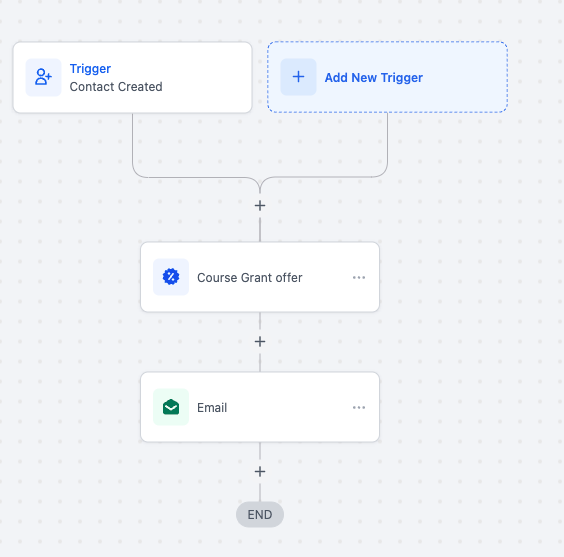
Prerequisites: The offer must already exist under Memberships and Offers. The action references existing offers only. If you want the patient to receive login instructions or a course link, add an email step after this action using a prebuilt template from the email builder.
Downstream behavior: After the action runs, the patient is enrolled and later steps continue with the same contact record. If you grant the same course offer to a contact who already has it, Aesthetix CRM will not duplicate the enrollment or reset their progress. Any follow-up steps, such as sending an email, will still run unless you add conditions to prevent it.
Med-spa example: When a new patient contact is created, the workflow grants them access to your "New Patient Skincare Basics" course through a free "Monthly subscription" offer, then sends an email with the course details and a call-to-action button so they can start right away.
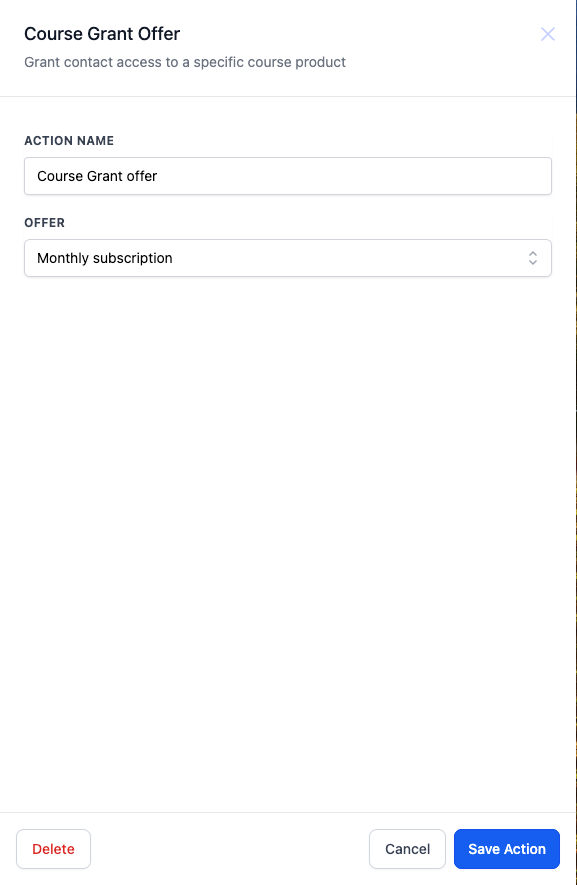
What it does: The Course Revoke Offer action automates removing a contact's access to a specific course. Use it to manage subscriptions, expire access, or remove educational content when a condition is met, such as an expired subscription, a failed payment, or a course completion.
Configuration steps:
In your workflow, select Course Revoke Offer from the list of actions.
Give the action a descriptive name, such as "Revoke Access to Aftercare Course."
Select the offer you want to revoke access from, such as "Monthly subscription."
Set the triggers and conditions that activate this action, for example a failed payment, a subscription cancellation, or a specific date.
Optionally, add follow-up steps such as an email notifying the patient of the change, or a tag for future follow-up.
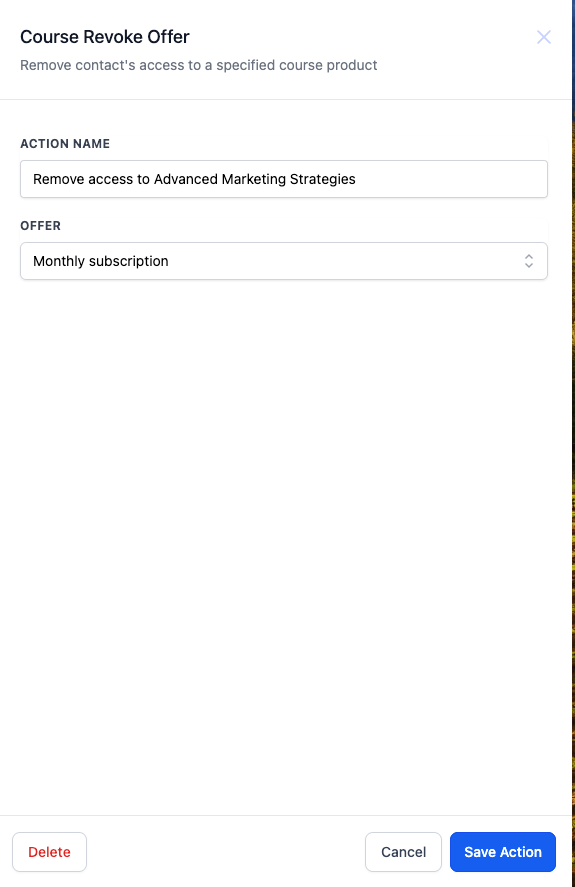
Prerequisites: The offer being revoked must already exist under Memberships and Offers, and the contact should currently hold access to it for the revocation to have an effect.
Downstream behavior: After the action runs, the patient's access to the course is removed, and later steps continue with the same contact record. This ensures only active members retain access to the content.
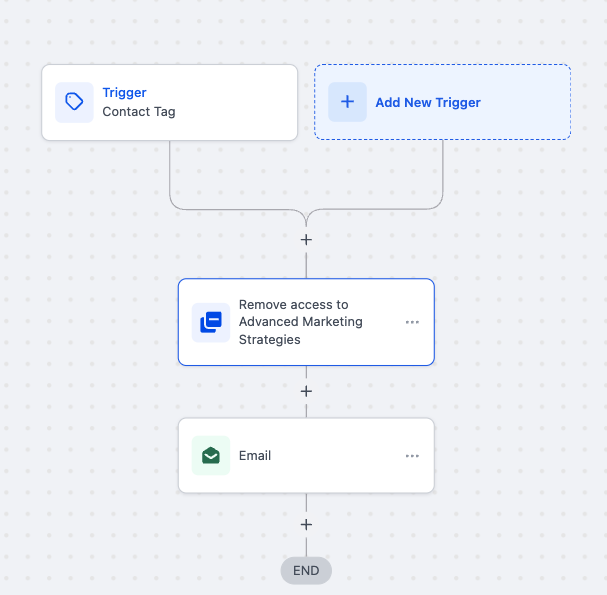
Med-spa example: When a patient's contact tag changes to "expired," the workflow revokes their access to your "Advanced Home Care" course and sends an email letting them know how to renew, so only current members keep access.
What it does: The Issue Badge action automates awarding a recognition badge to a contact when workflow conditions are met, eliminating manual tracking and ensuring timely acknowledgment. Use it inside workflows triggered by events such as course completions, purchases, form submissions, or custom field updates. Combine the action with filters and conditions so a badge is only awarded when specific criteria are met, such as reaching a score threshold or completing multiple activities.
Configuration steps:
In your workflow, select Issue Badge from the list of actions.
Give the action a descriptive name, such as "Award New Patient Badge."
Select the badge you want to issue. The badge must already be created under your community's Gamification & Rewards settings.
Set the trigger and conditions that will run this action, such as a course completion, a purchase, a form submission, or a custom field update.
Optionally, add filters or conditions so the badge is only issued once specific criteria are met, such as a score threshold or completing multiple activities.
Optionally, add a follow-up step, such as a congratulatory email or text letting the patient know they earned the badge.
Prerequisites: The badge must already exist under your community's Gamification & Rewards settings. See the Gamification: points, badges & leaderboards guide in the Courses collection for how to create and configure badges. The Issue Badge action references existing badges only, it cannot create a new one.
Downstream behavior: After the action runs, the badge is awarded to the contact and later steps continue with the same contact record. Because the Badge Issued trigger fires whenever a badge is awarded, regardless of how, issuing a badge through this action can also start a separate workflow built on that trigger. Any follow-up steps in the current workflow still run unless you add conditions to prevent it.
Med-spa example: When a patient completes your "New Patient Skincare Basics" course, the workflow awards a "Skincare Graduate" badge, then sends a congratulatory email that includes a loyalty discount toward their next in-office treatment.
Do I need to create the offer before using these actions? Yes. The offer must be created in advance under Memberships and Offers. Both actions reference existing offers, and you cannot create a new offer directly from the workflow.
Can I grant access to a course without a payment gateway? Yes. Create an offer with no paywall under Memberships and Offers, then grant it. This is useful for free onboarding, aftercare education, or internal training content.
What happens if access is granted again to a contact who already has it? Aesthetix CRM will not duplicate the enrollment or reset the patient's progress. They keep their existing access without disruption. However, any follow-up steps in the workflow, such as sending an email, will still run unless you add conditions to prevent it.
Will patients receive login details automatically after access is granted? Not automatically. To give patients login instructions or a course link, add an email step after the Course Grant Offer action using a prebuilt email template.
What triggers should I pair with these actions? Course Grant Offer pairs well with triggers like Contact Created or a form submission. Course Revoke Offer pairs well with a tag change, a failed payment, a subscription cancellation, or a date-based condition.
Where do I build the course itself? Courses are built in the Client Portal under Memberships and products. See the Courses collection for step-by-step setup.
Can I notify the patient when I revoke access? Yes. Add an email or SMS step after the Course Revoke Offer action, and optionally tag the contact for future follow-up.
Do I need to create the badge before using the Issue Badge action? Yes. Like offers, badges must be created in advance under your community's Gamification & Rewards settings. The Issue Badge action can only reference badges that already exist.
Can I start a separate workflow whenever a badge is issued? Yes. The Badge Issued trigger, covered in the companion Membership and Course Triggers reference, starts a workflow any time a specified badge is awarded to a contact, whether it was issued manually or through the Issue Badge action.
