Aesthetix CRM includes Courses and Memberships and Communities as part of the Client Portal, so your practice can sell or grant access to online programs, member offers, and community groups. This reference documents every Workflow trigger that fires on membership, course, and community activity. Use these triggers to start a workflow the moment a patient signs up for an offer, completes a course, joins a group, or changes their leaderboard level.
Each trigger below explains what it fires on, the filters you can configure, the data it makes available to later workflow steps, and a med-spa example. To build the automation that runs after a trigger, see the companion Membership and Course Actions reference. For details on creating the courses, offers, and communities these triggers depend on, see the Courses collection.
Every trigger follows the same setup pattern: open the Workflow Builder, add a trigger, choose the trigger from the list, give it a clear name, and set any filters. Test with sample data, then publish the workflow. Because most of these triggers fire on a per-event basis, a contact who repeats an action (for example, being granted the same offer twice) will re-enter the workflow each time. Add wait steps, If/Else conditions, or tags to prevent redundant actions when needed.
A brief HIPAA note: when a course completion or membership event kicks off patient-facing emails or texts, treat the patient's name and contact details as you would anywhere else in Aesthetix CRM and avoid placing treatment specifics in subject lines or unsecured channels.
What it fires on: This trigger, labeled New Signup, activates when a contact purchases or signs up for a membership offer, service, or product such as a community group for the first time. It is built for welcoming new members, delivering onboarding information, or rewarding sign-ups. If the contact has already been granted access to that membership offer or community group by other means, the trigger will not fire, since it is designed to catch only genuinely new sign-ups.
Configuration and filters:
Field | Description | Required |
|---|---|---|
Workflow Trigger Name | A name for the trigger so you can identify it later. | Yes |
Offer | The specific offer the sign-up relates to, such as a discount or a particular membership. Leave blank to fire on any offer. | No |
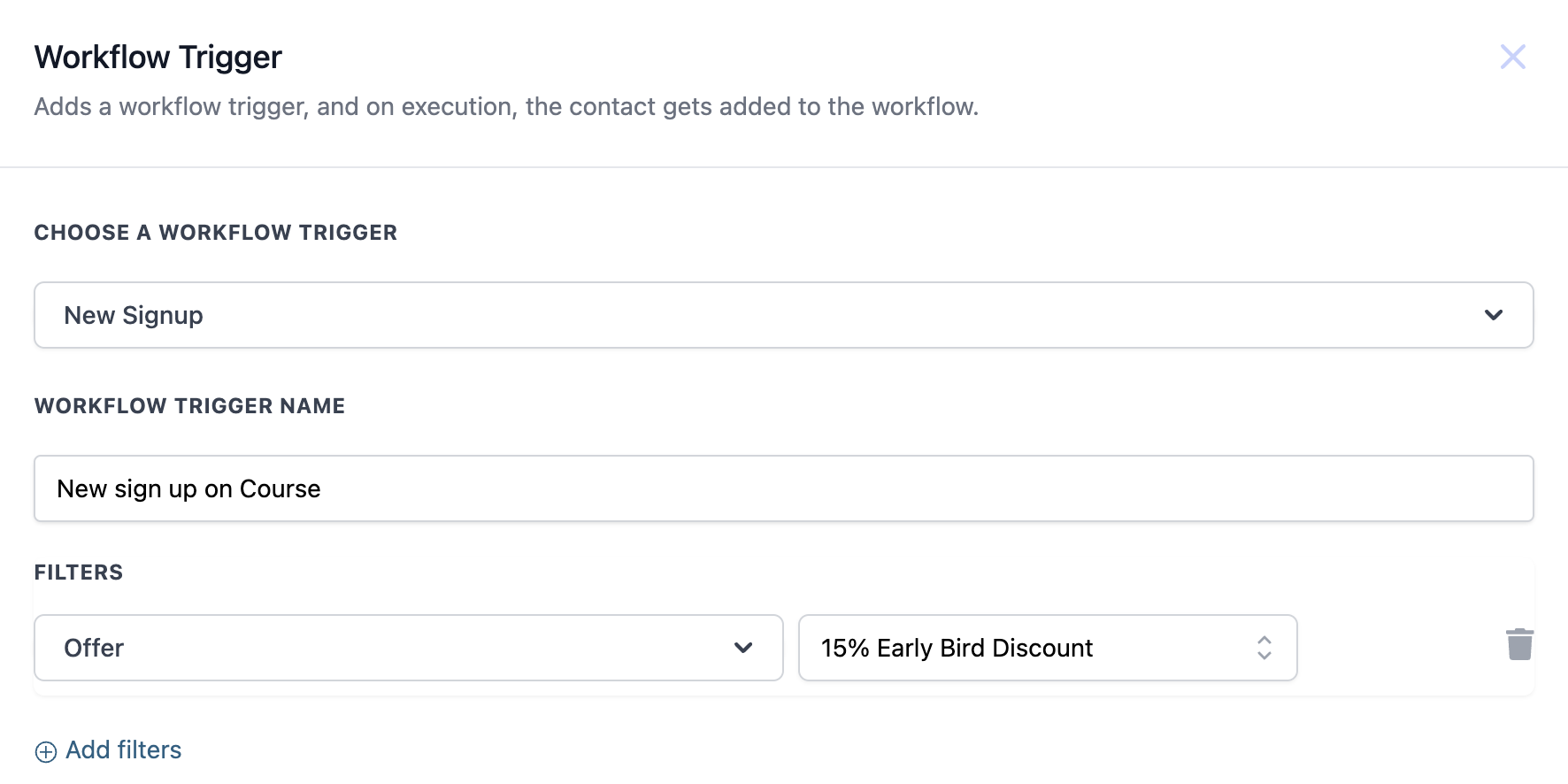
Data available to later steps: The full contact record enters the workflow, so any step can reference the patient's standard and custom fields. The offer the contact signed up for is available for branching, so you can route different offers to different onboarding paths.
Med-spa example: A patient signs up for your "VIP Skincare Membership" using the "15% Early Bird Discount" offer. The trigger fires, an onboarding email goes out with next steps, and an "Early Bird" tag is applied for future segmentation.
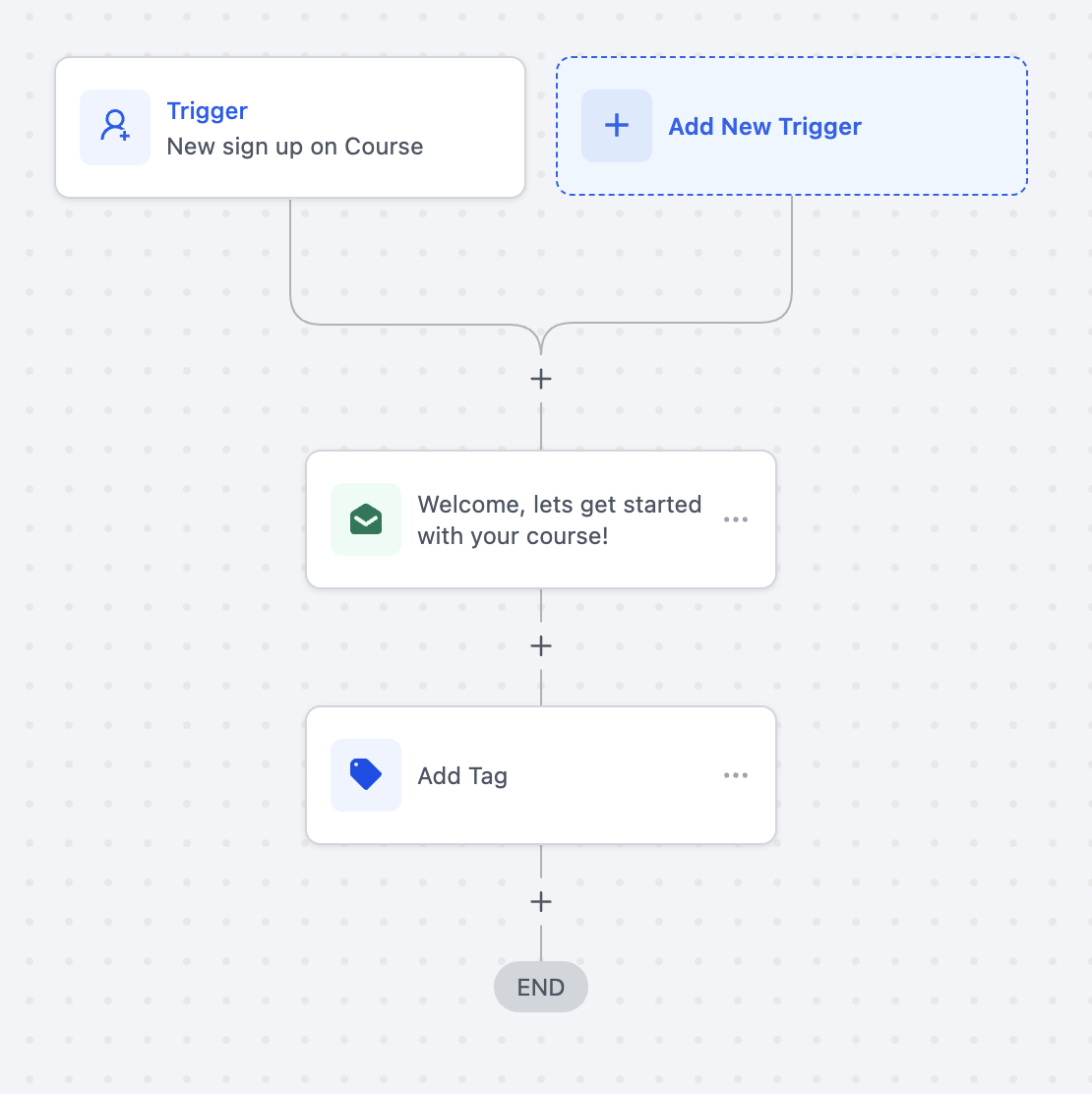
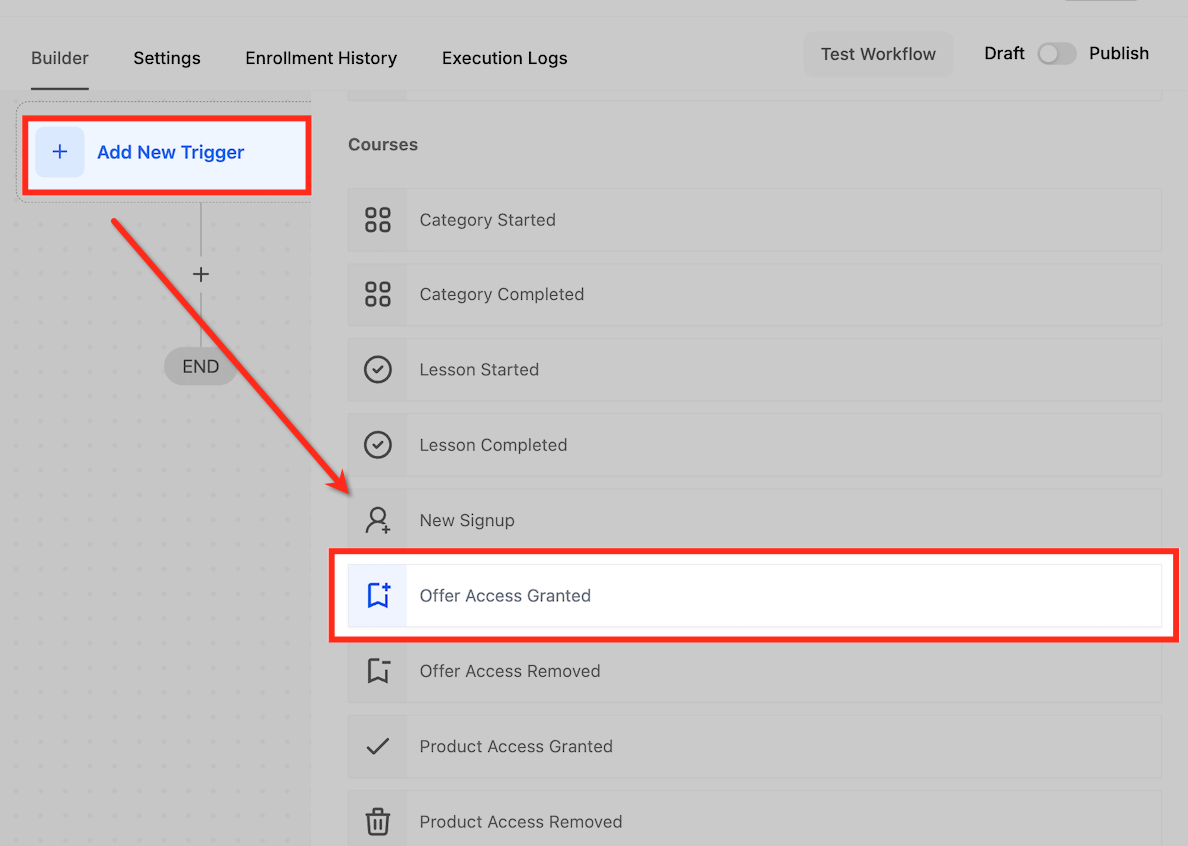
What it fires on: This trigger activates whenever a contact is granted access to a specified offer, whether through a purchase, a manual grant, or a workflow action. It is ideal for onboarding, internal notifications, and CRM updates the moment access is given.
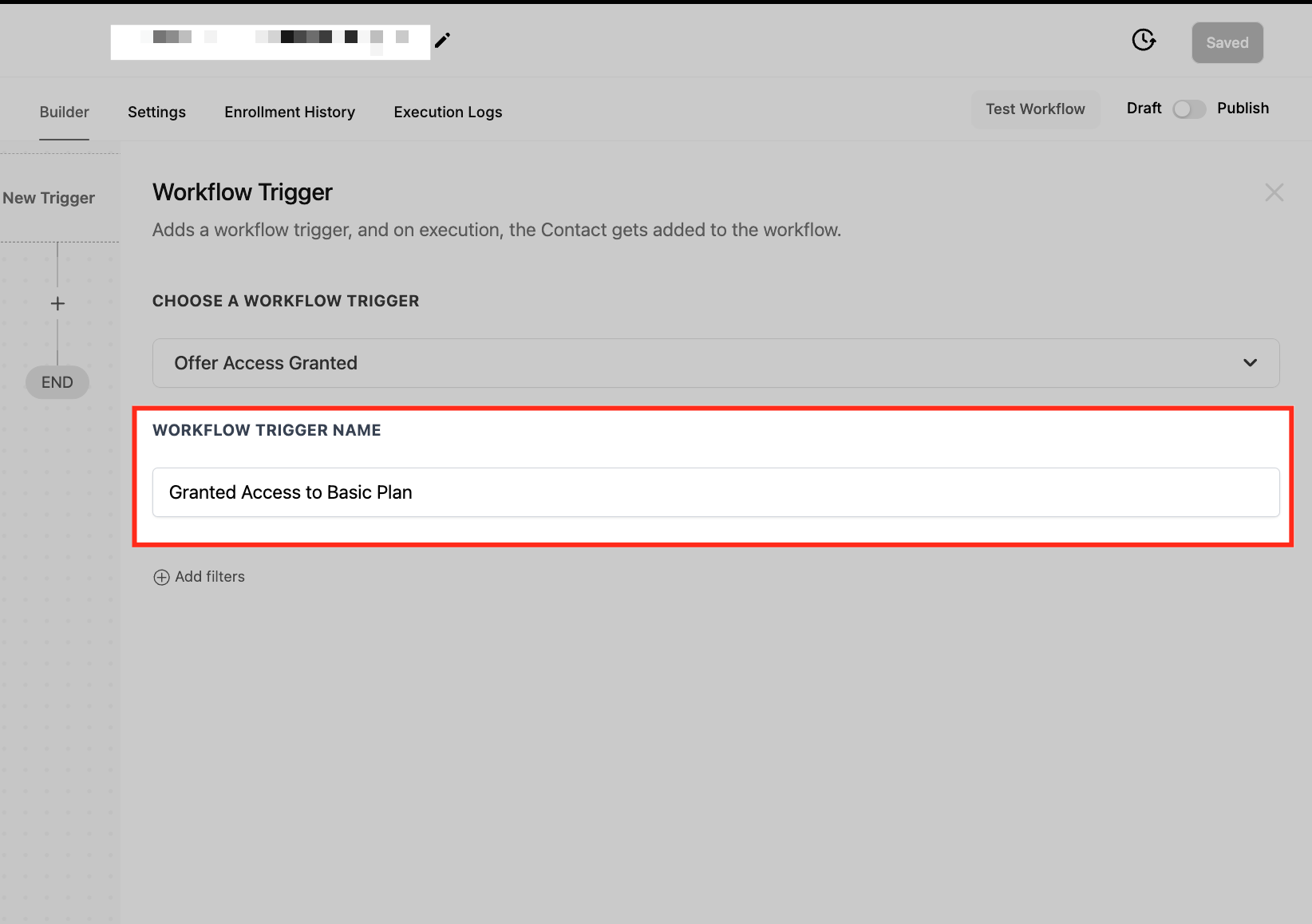
Configuration and filters: Add the trigger, give it a descriptive name such as "15% Discount Access Granted," then set the Offer filter to the specific offer (for example, "Early Bird Discount") that should activate the workflow. Leave the filter open to fire on any offer.
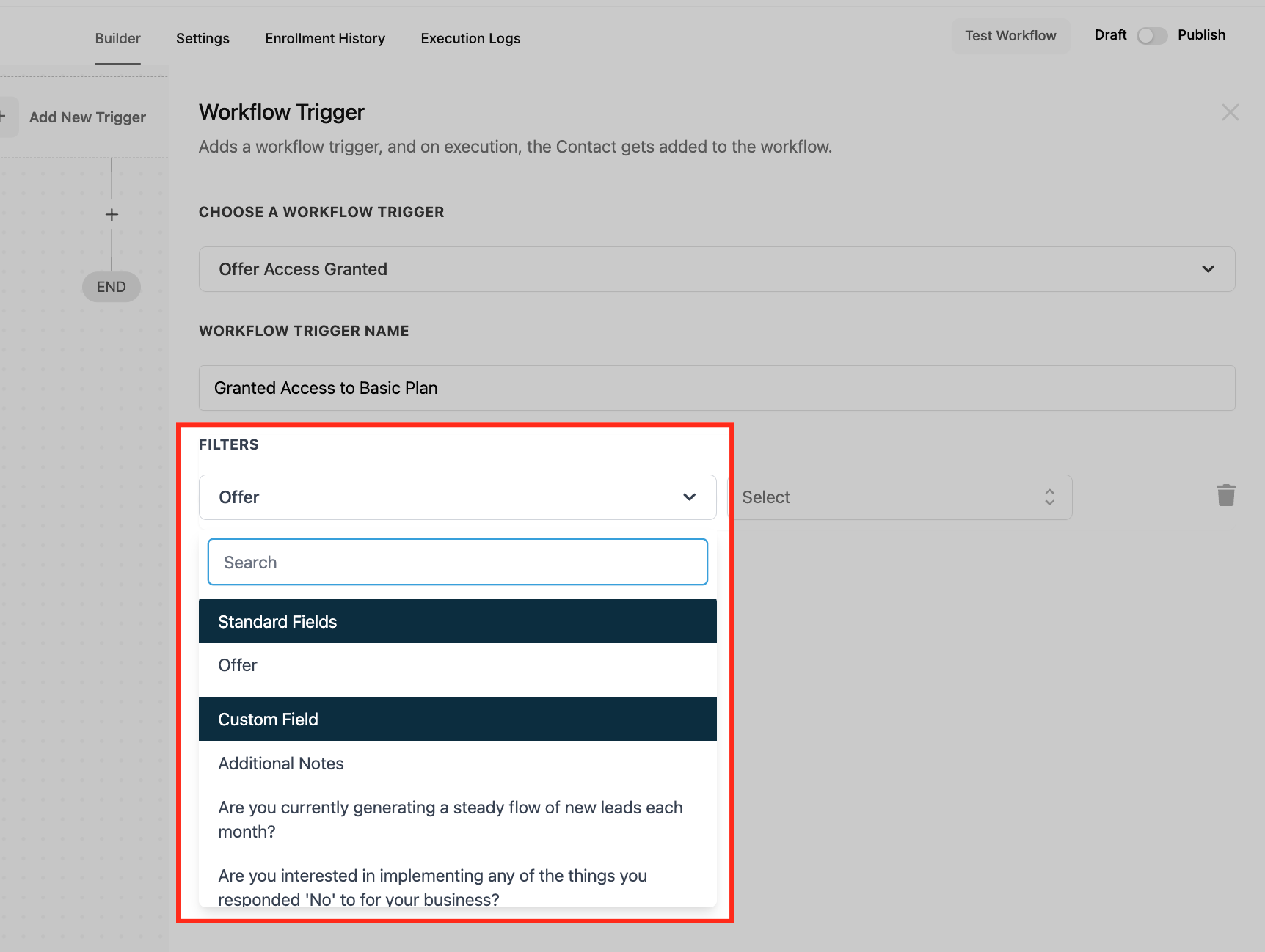
Data available to later steps: The contact record and the specific offer that was granted are available downstream, so you can personalize communications and branch by offer.
Med-spa example: When a patient is granted access to your "Premium Membership" offer, the workflow sends a personalized welcome email with membership details and onboarding information. A separate branch can notify the assigned provider or front-desk staff to follow up.
Note: Because the trigger fires each time access is granted, use conditions or cooldowns to avoid redundant workflows if the same offer can be granted more than once. It combines well with other triggers such as Tag Added or Opportunity Status Changed.
What it fires on: This trigger activates when a contact's access to a specific offer is revoked, whether manually, through an expired subscription, or by a workflow action. Use it to notify the contact, update their record, or alert your team when access ends.
Configuration and filters: Add the trigger and name it descriptively, such as "15% Discount Access Revoked." Set the Offer filter to the exact offer whose removal should fire the workflow. You can add multiple offers or broaden the criteria to cover several offers at once.
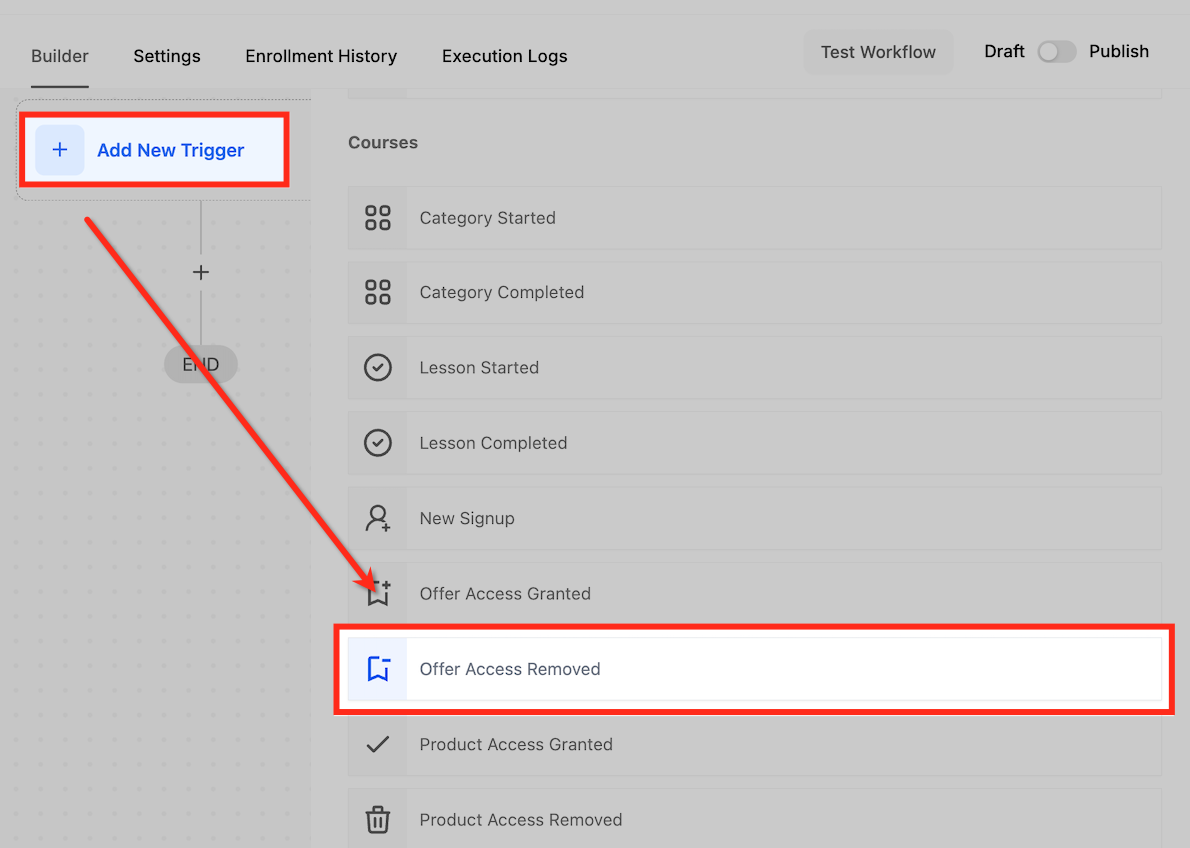
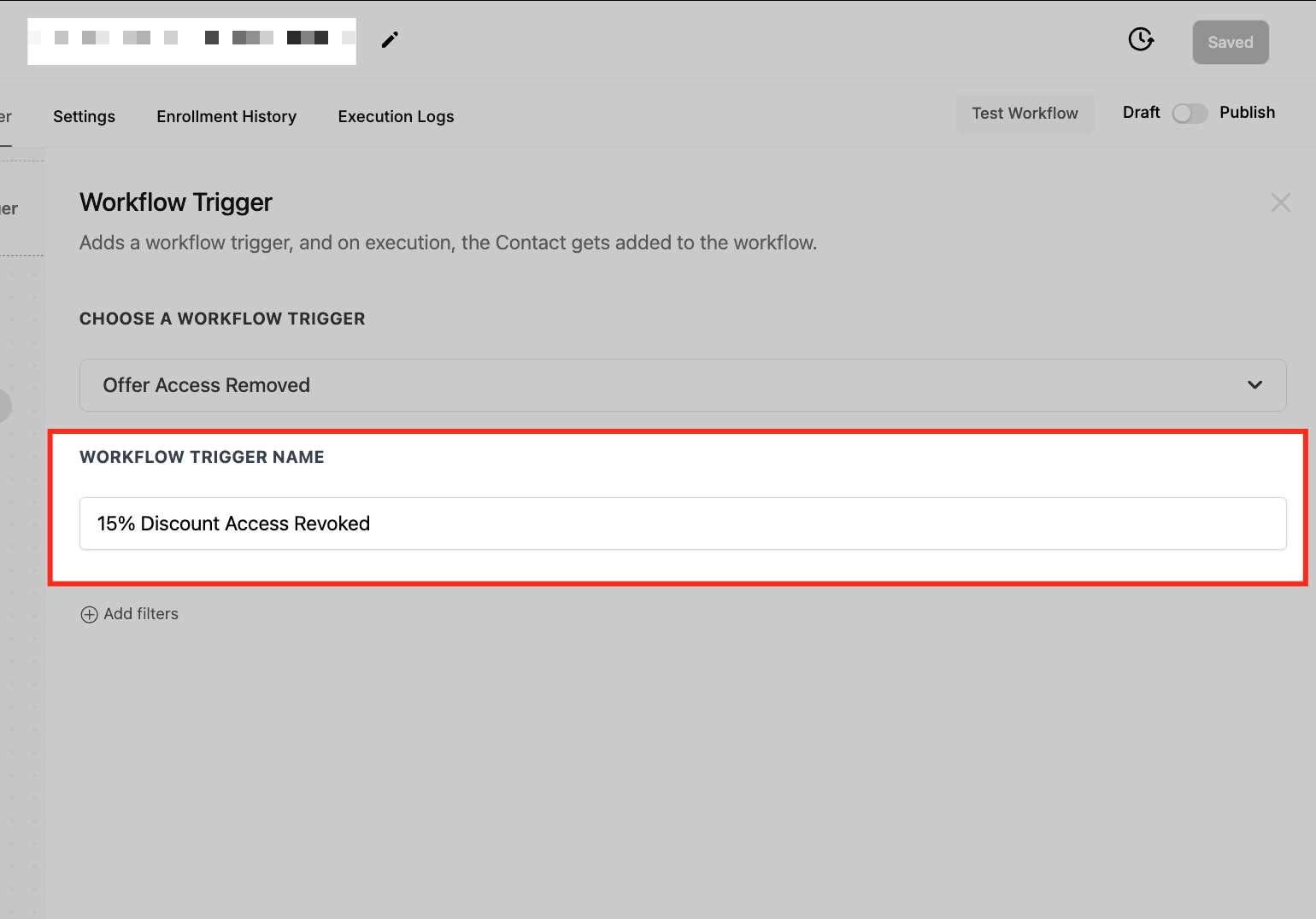
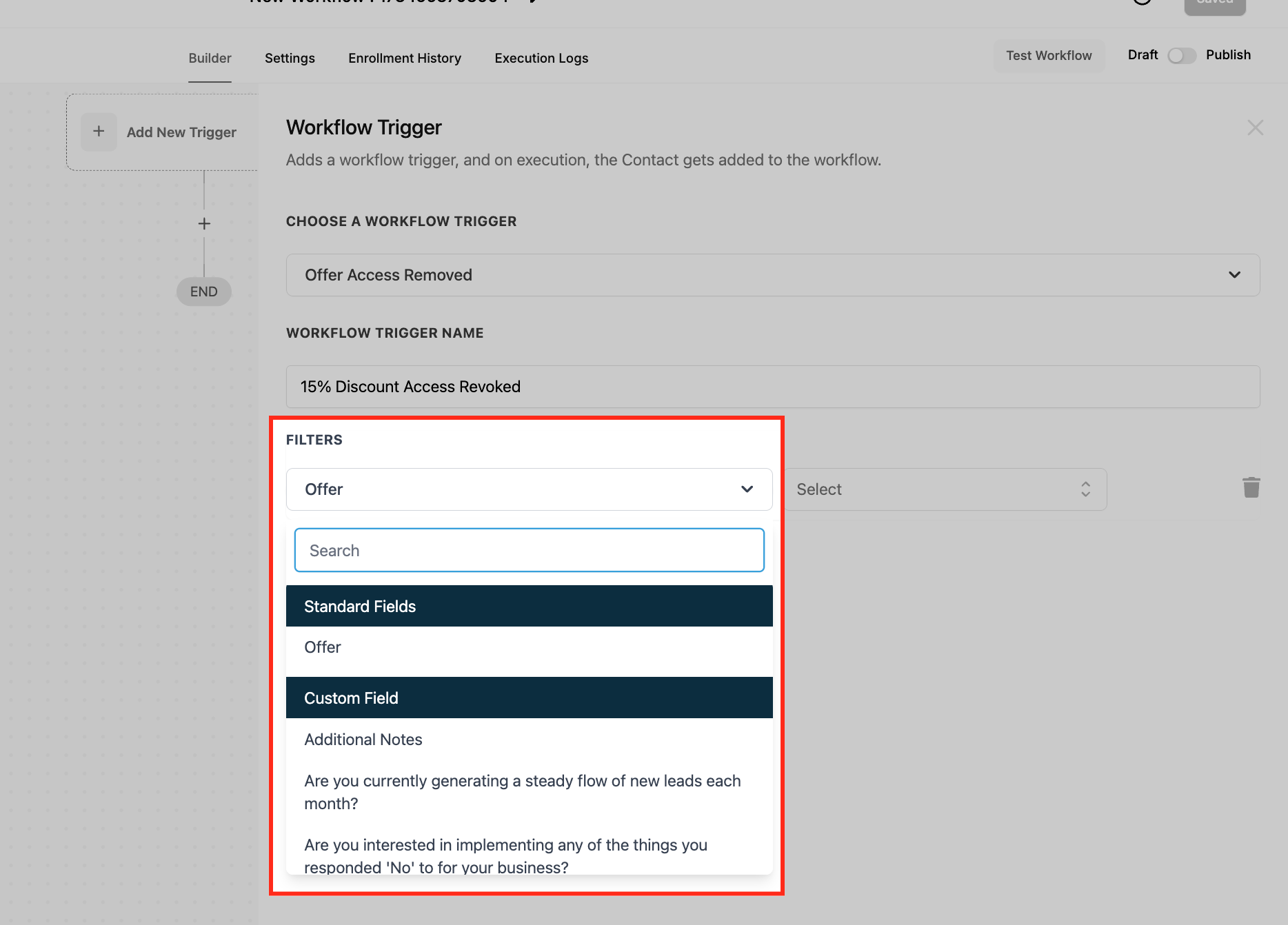
Data available to later steps: The contact record and the offer that was removed are available downstream for personalization and branching.
Med-spa example: When a patient's access to your "Premium Membership" is removed, the workflow notifies your support team so they can reach out with renewal options, and updates the patient's record with a tag for accurate reporting.
Note: The trigger fires each time access is removed, so design workflows with conditions to avoid duplicate actions. Test with sample data to confirm it targets the correct offer.
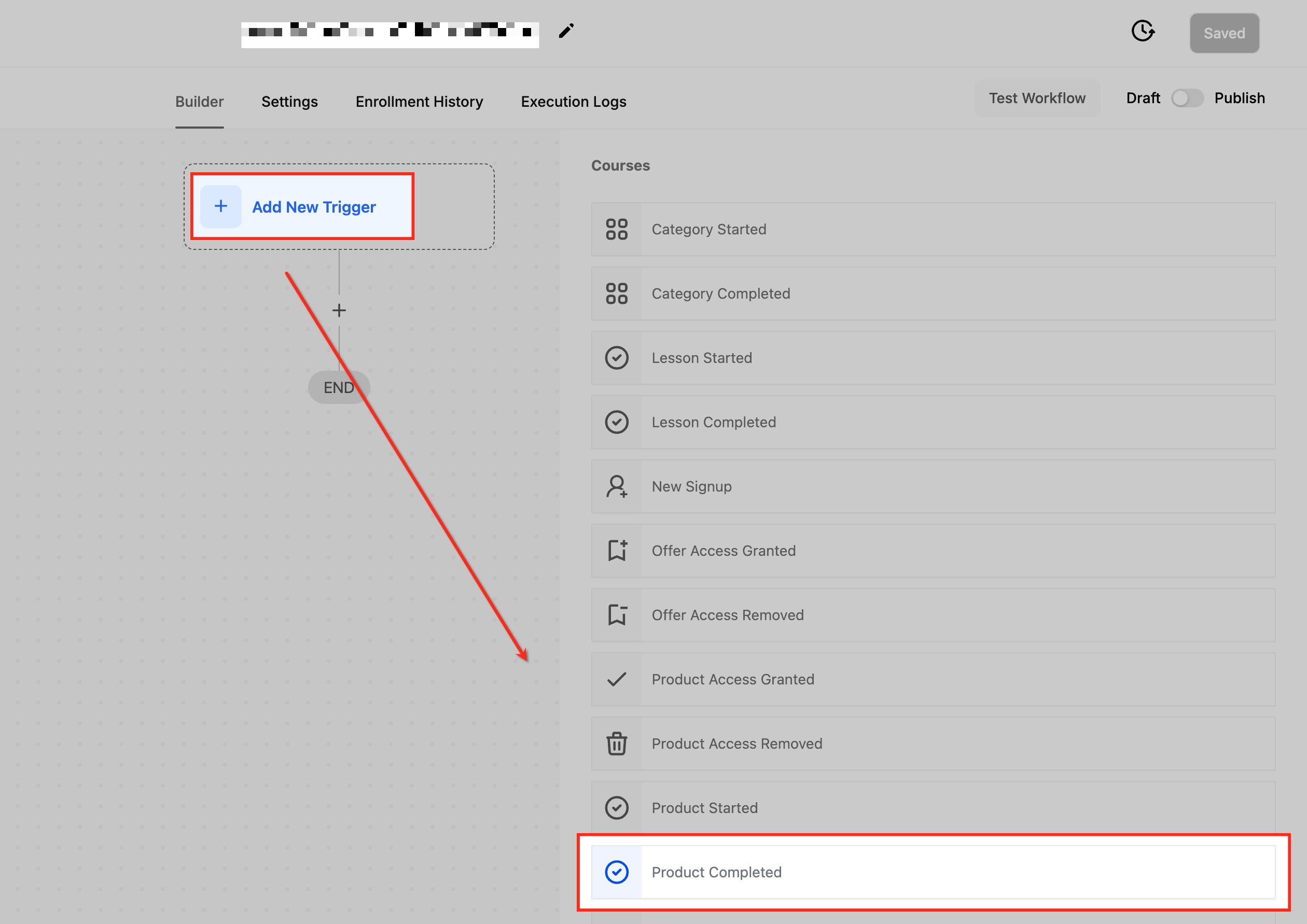
What it fires on: This trigger activates when a contact successfully completes a product, such as an online course, a program, or a service delivered through Memberships. It is built for follow-up communications, feedback collection, certificates, and upsells after completion.
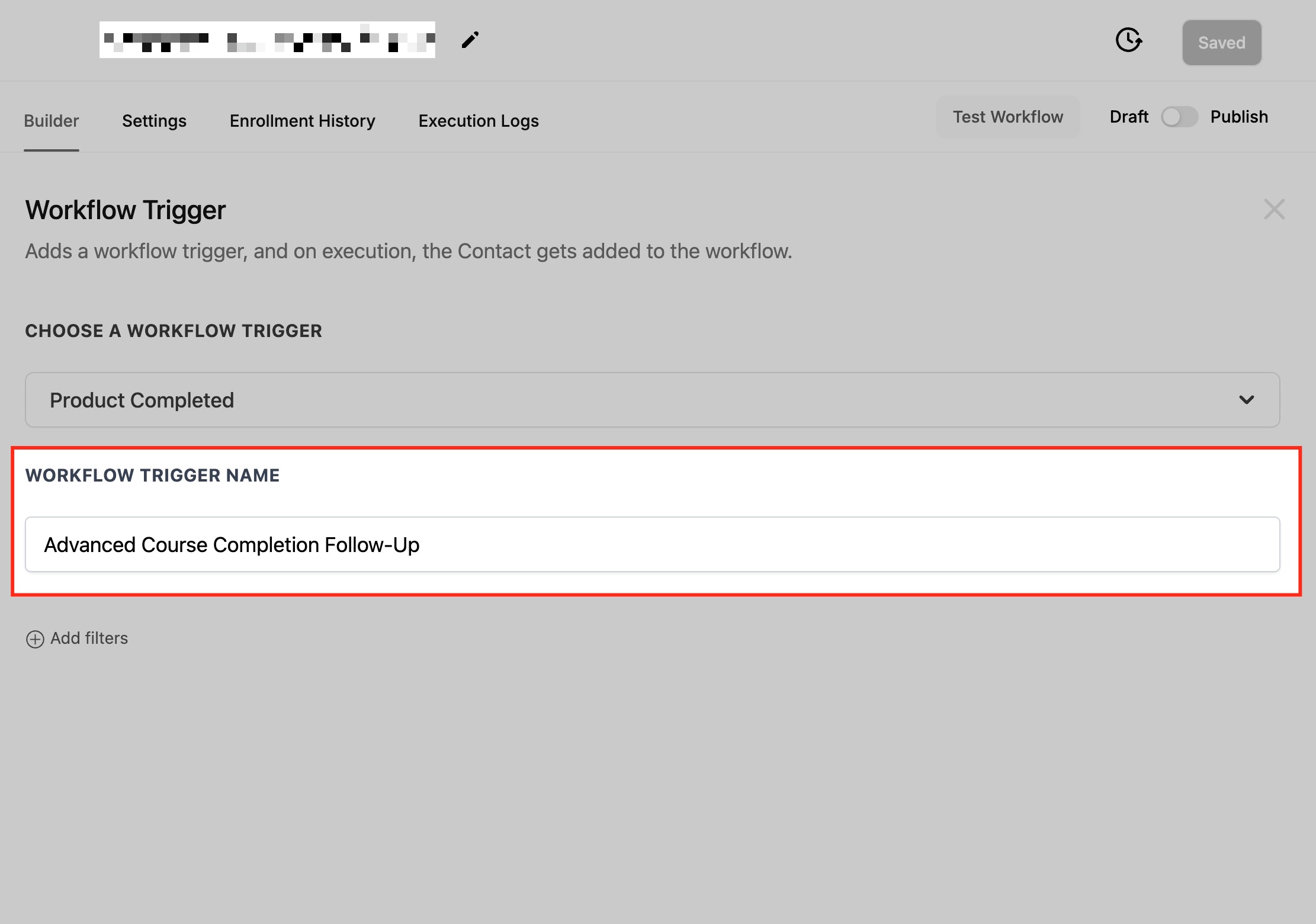
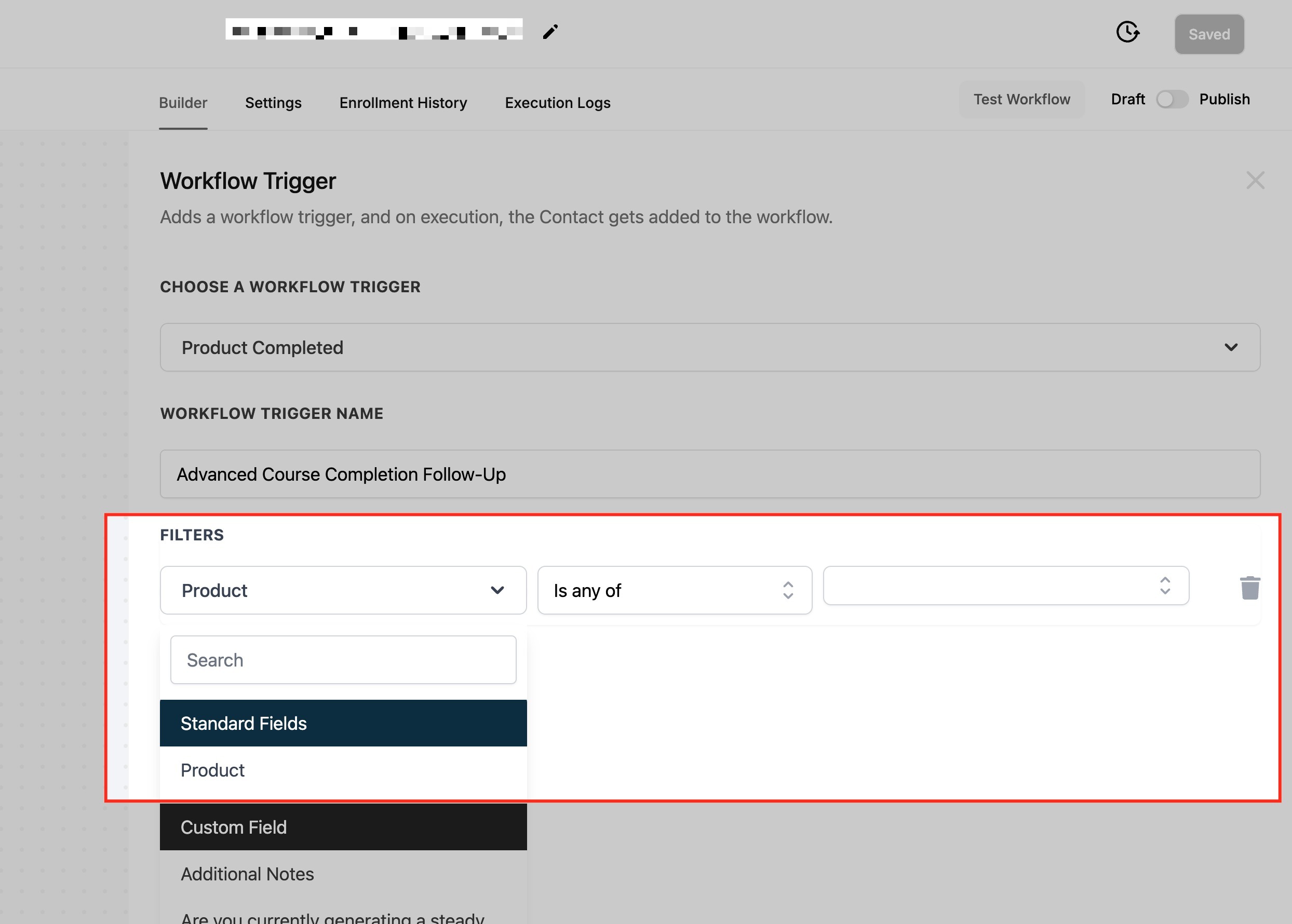
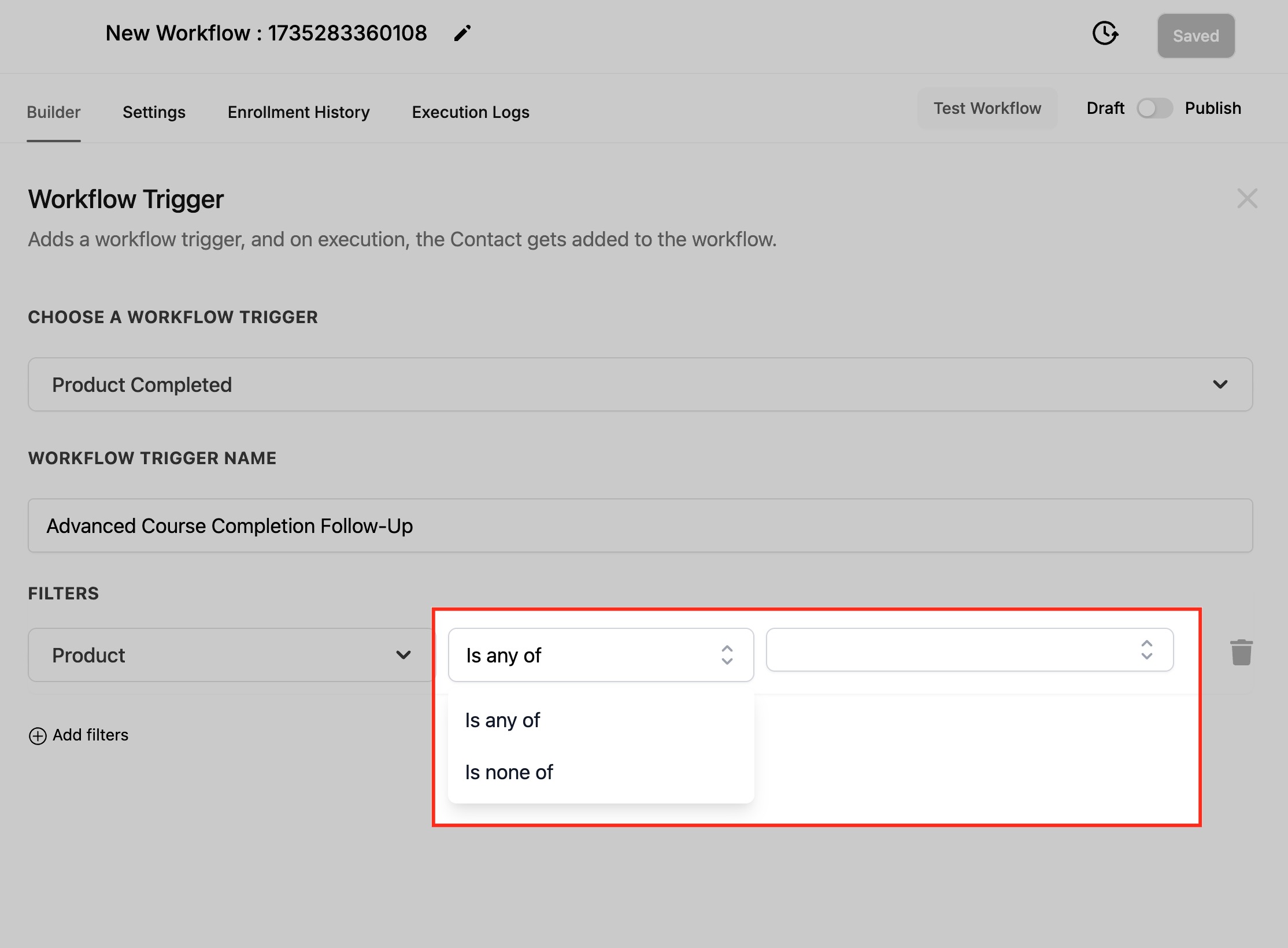
Configuration and filters:
Product: Specify the product or products that will activate the workflow upon completion.
Operator: Use "Is any of" to include specific products, or "Is none of" to exclude certain products.
Data available to later steps: The contact record and the completed product are available downstream, so you can tailor messages, surveys, and offers to the specific program the patient finished.
Med-spa example: A patient completes your "Post-Treatment Skincare Course." The workflow sends a congratulatory email with a short feedback survey and a discount code for a related program, such as an "Advanced Home Care" course. Separate workflows or branches can handle renewal reminders or notify staff for high-value programs.
Note: The trigger fires each time a product is completed. Use conditions or cooldown periods to avoid redundant actions, and set up separate workflows or filters when different products need different follow-ups.
What it fires on: This trigger initiates a workflow when a contact completes a specified category of products or courses, rather than a single product. It is valuable for tracking progress across a group of related courses and automating follow-ups such as completion emails, certificates, or next-step recommendations. Optional filters ensure the workflow runs only when the relevant category is completed.
Configuration and filters: After opening the Workflow Builder, choose Category Completed from the trigger list, give it a descriptive name such as "Course Completion Trigger," and set filters to target particular product or course categories.
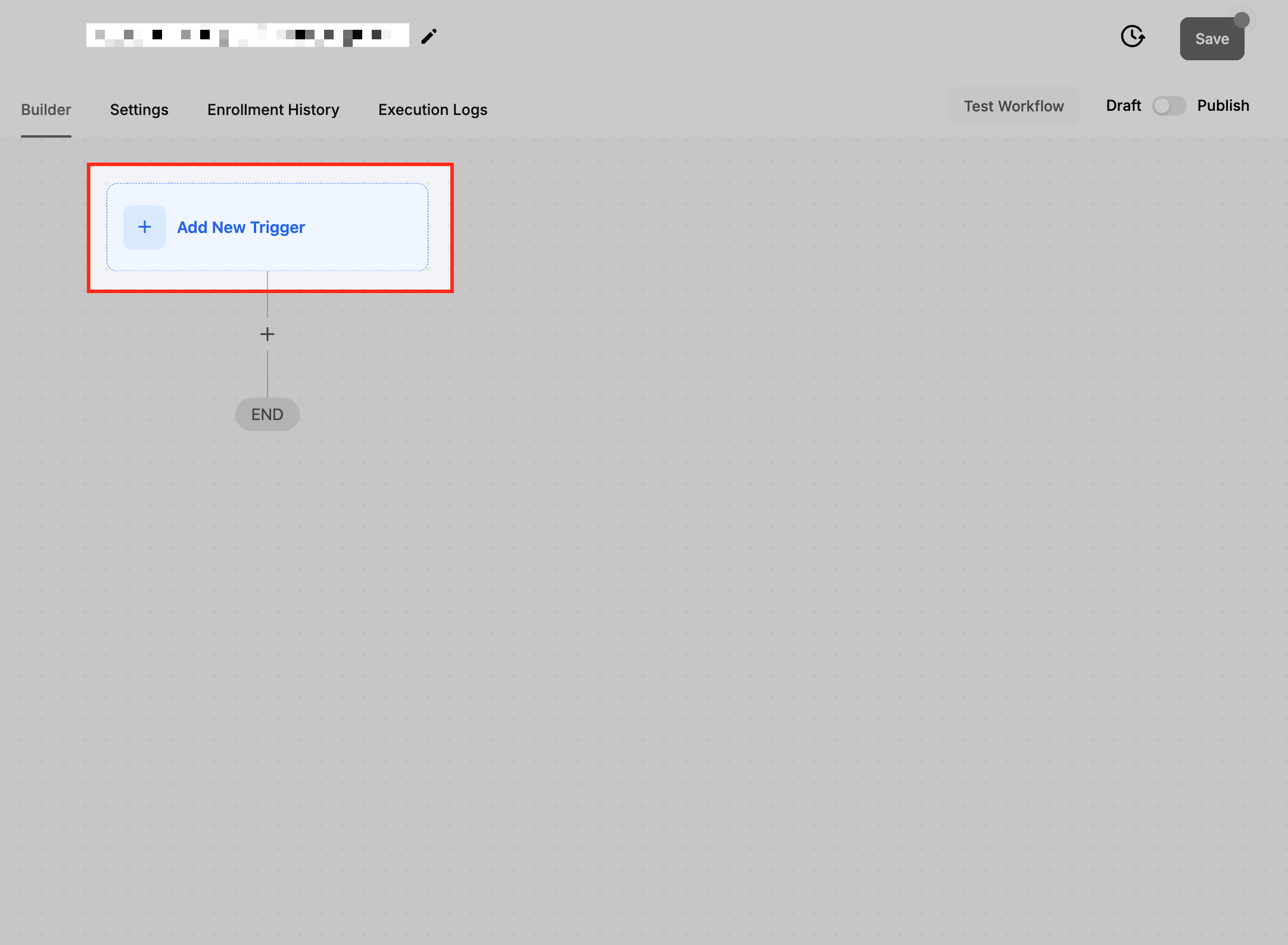
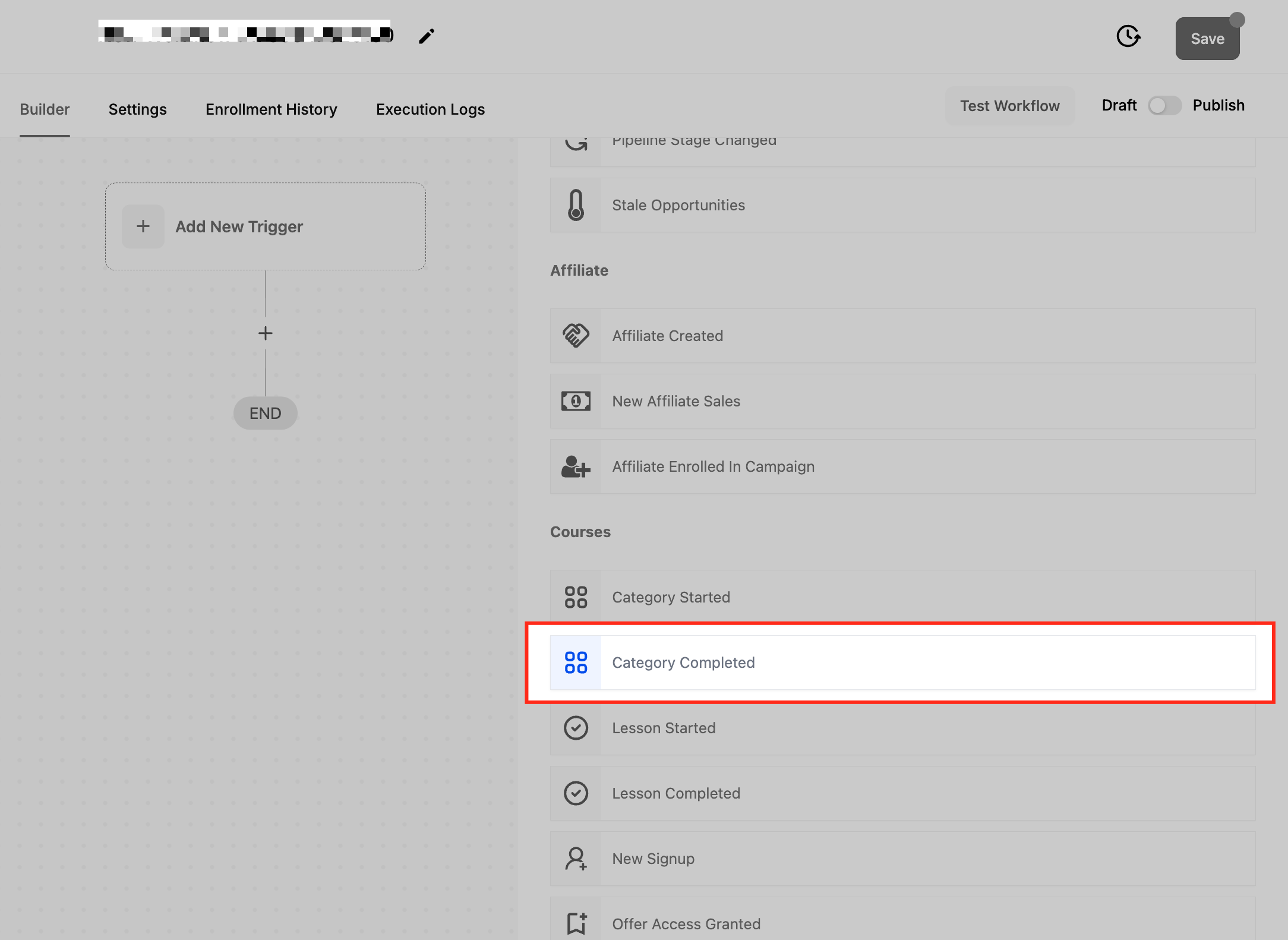
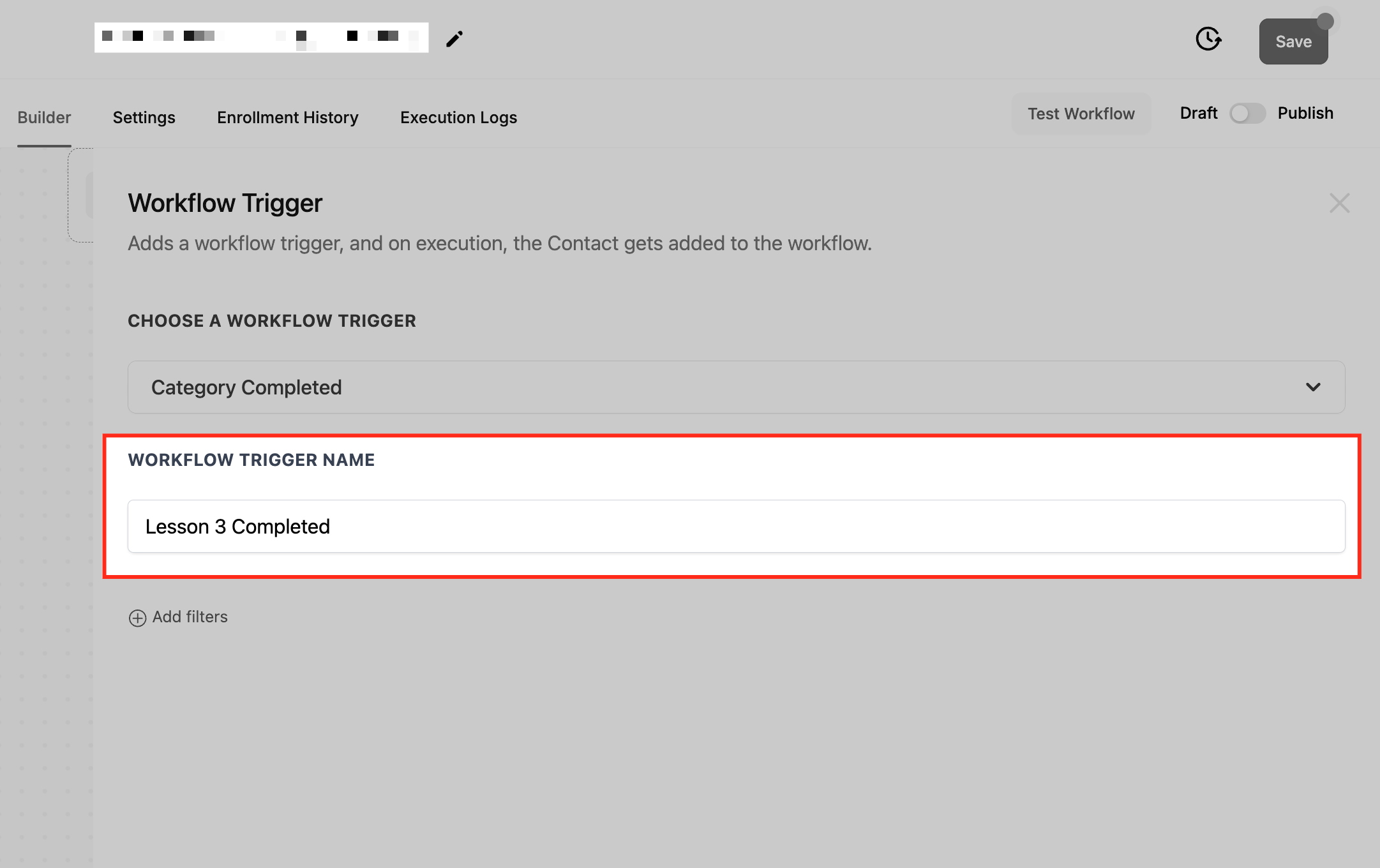
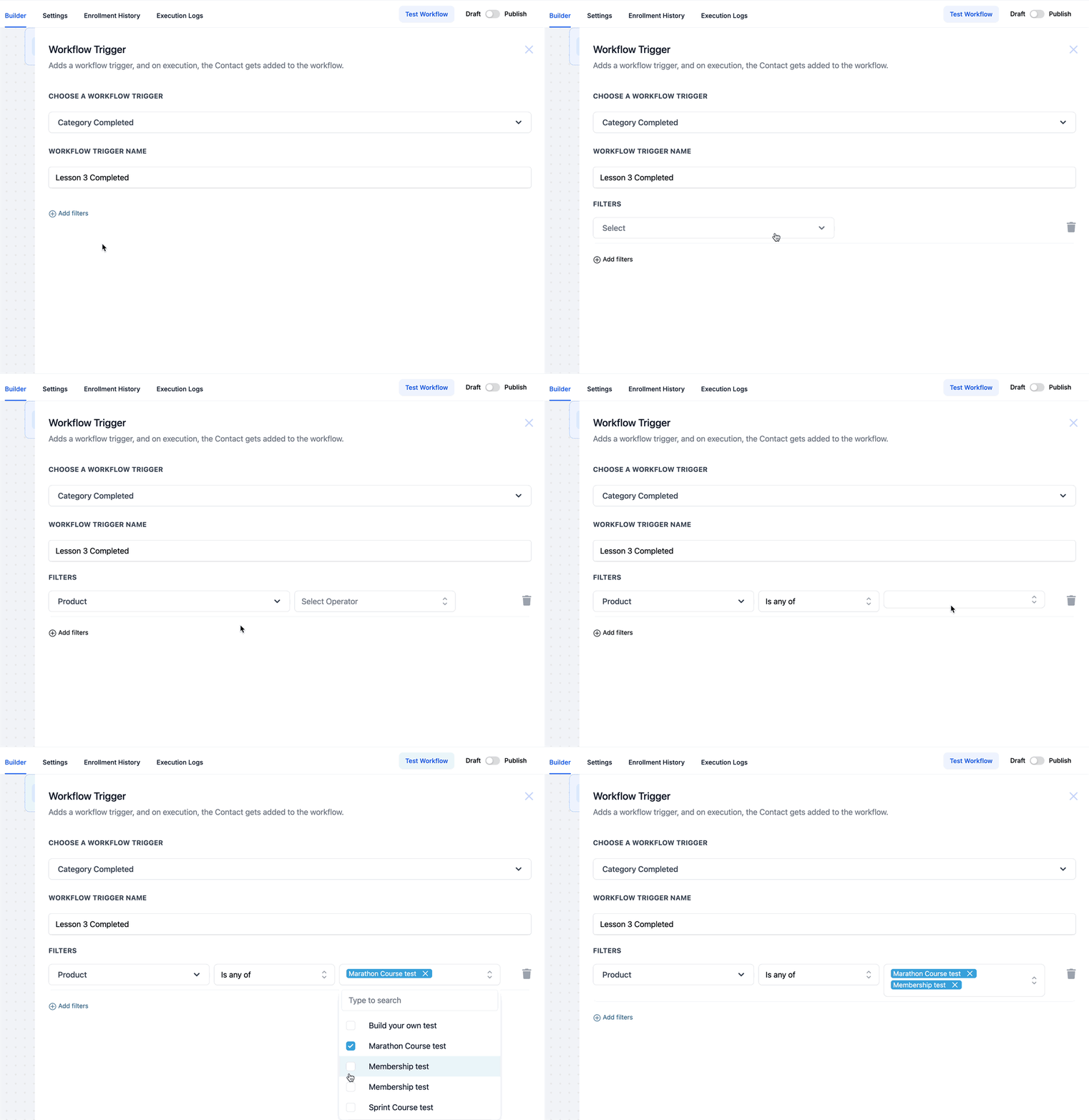
Data available to later steps: The contact record and the completed category are available downstream. If a contact completes multiple categories at once, the trigger can activate the workflow separately for each category when filters are configured correctly.
Med-spa example: Your practice offers a "New Patient Education" category containing several short courses on injectables, skincare, and aftercare. When a patient finishes the whole category, the workflow sends a congratulatory email and notifies the provider for a personalized follow-up call.
Note: The trigger activates each time the completion criteria are met, so no completion is missed. It can be combined with other triggers, and you can narrow it to specific products or subcategories using filters.
What it fires on: This trigger activates when a contact is granted access to a specific group within a Community. Use it to welcome new group members and keep them engaged with timely updates.
Configuration and filters: In the Workflow Builder, create a workflow and select Group Access Granted as the trigger. Specify which group the access applies to, then add the actions you want to automate, such as a welcome message. Test in a controlled environment, then save and activate.
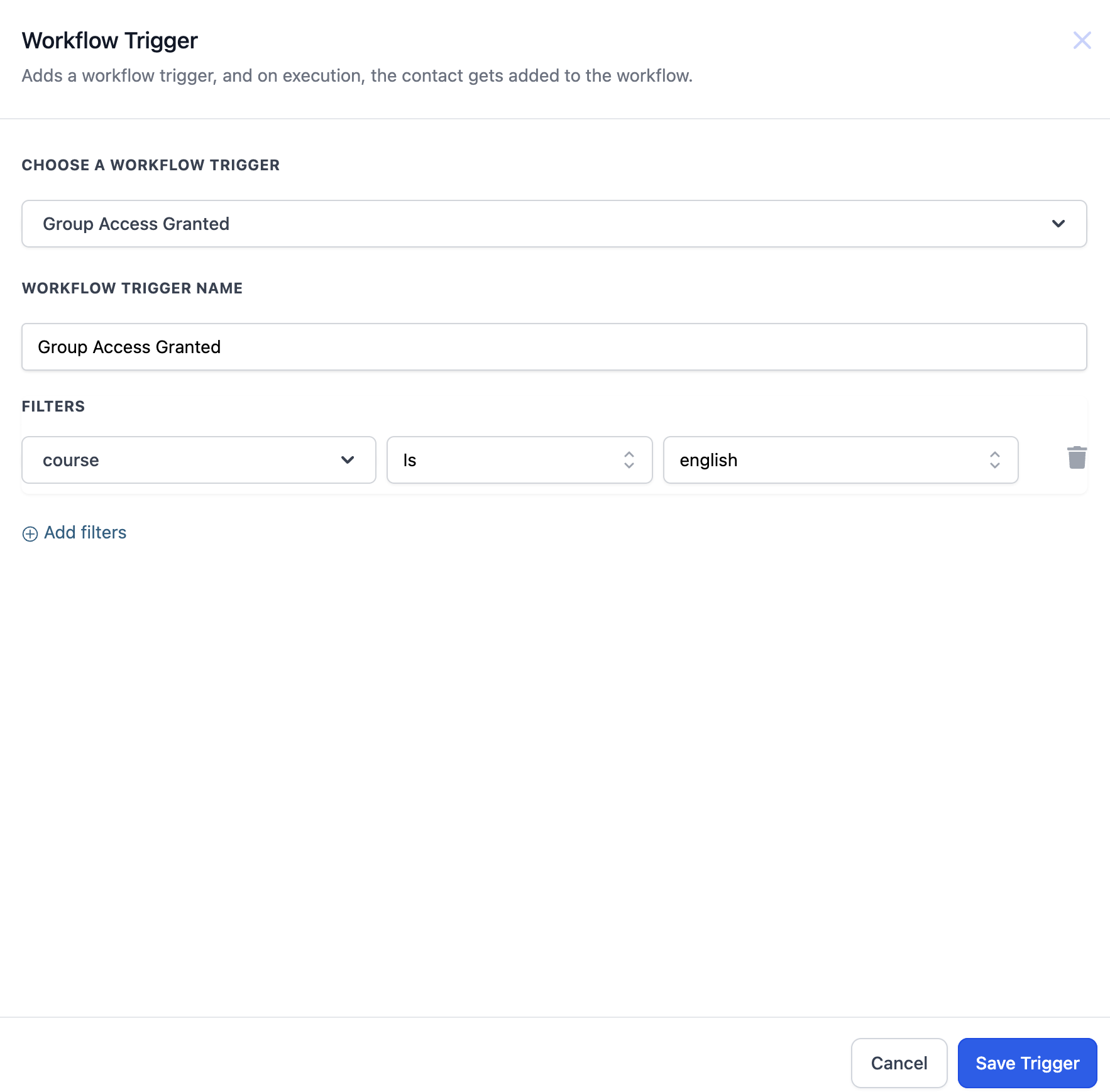
Data available to later steps: The contact record and the group they were granted access to are available downstream for personalization.
Med-spa example: When a new member joins your practice's "Skincare Insiders" community, a workflow automatically grants them access to the "Treatment Q&A" group, sends a welcome message, and points them to upcoming live sessions.
What it fires on: This trigger activates when a contact's access to a specific group within a Community is revoked. Use it to notify the member and update their records when their group access ends.
Configuration and filters: Create a workflow and select Group Access Revoked as the trigger. Specify which group the revocation applies to, then add follow-up actions such as notifications or record updates. Test, save, and activate.
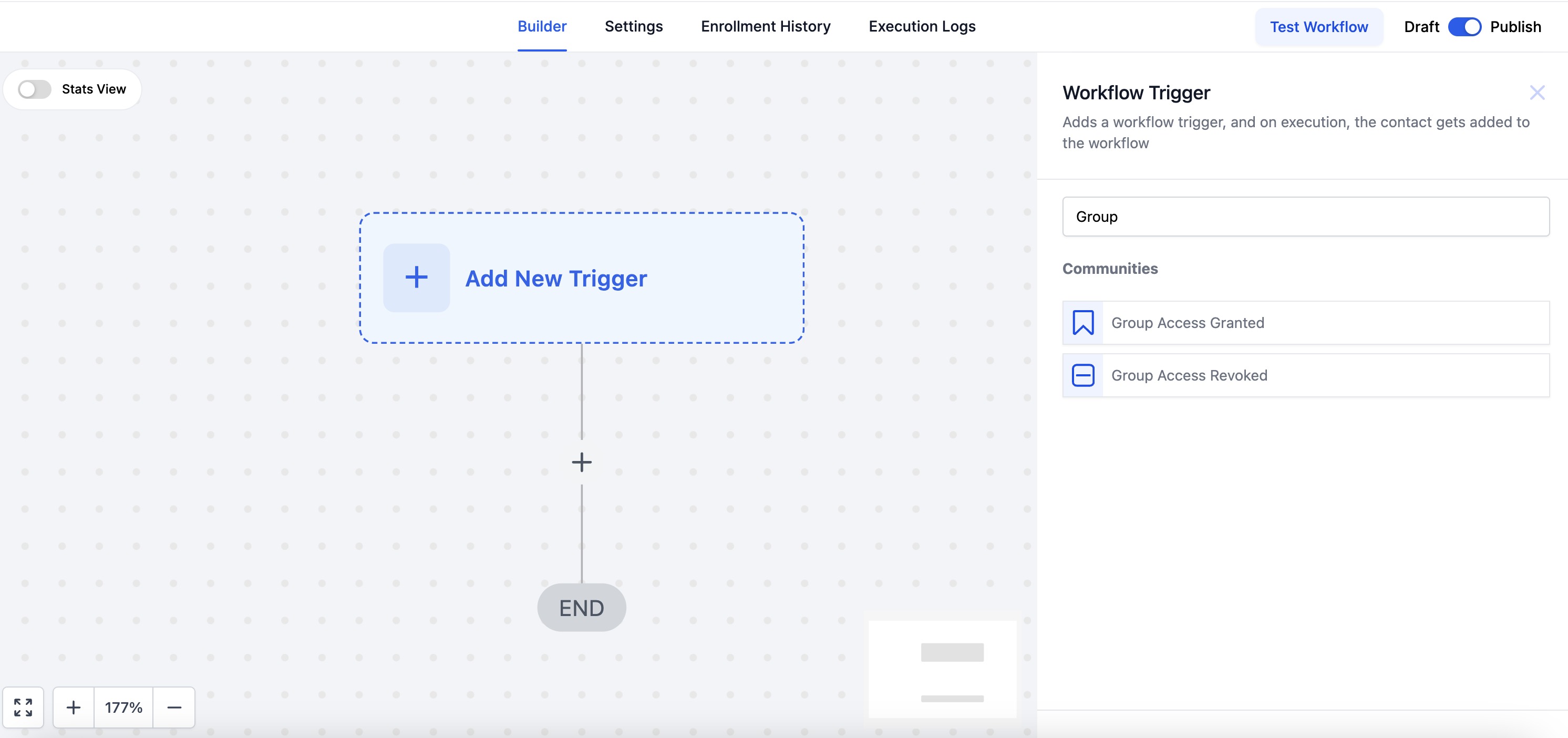
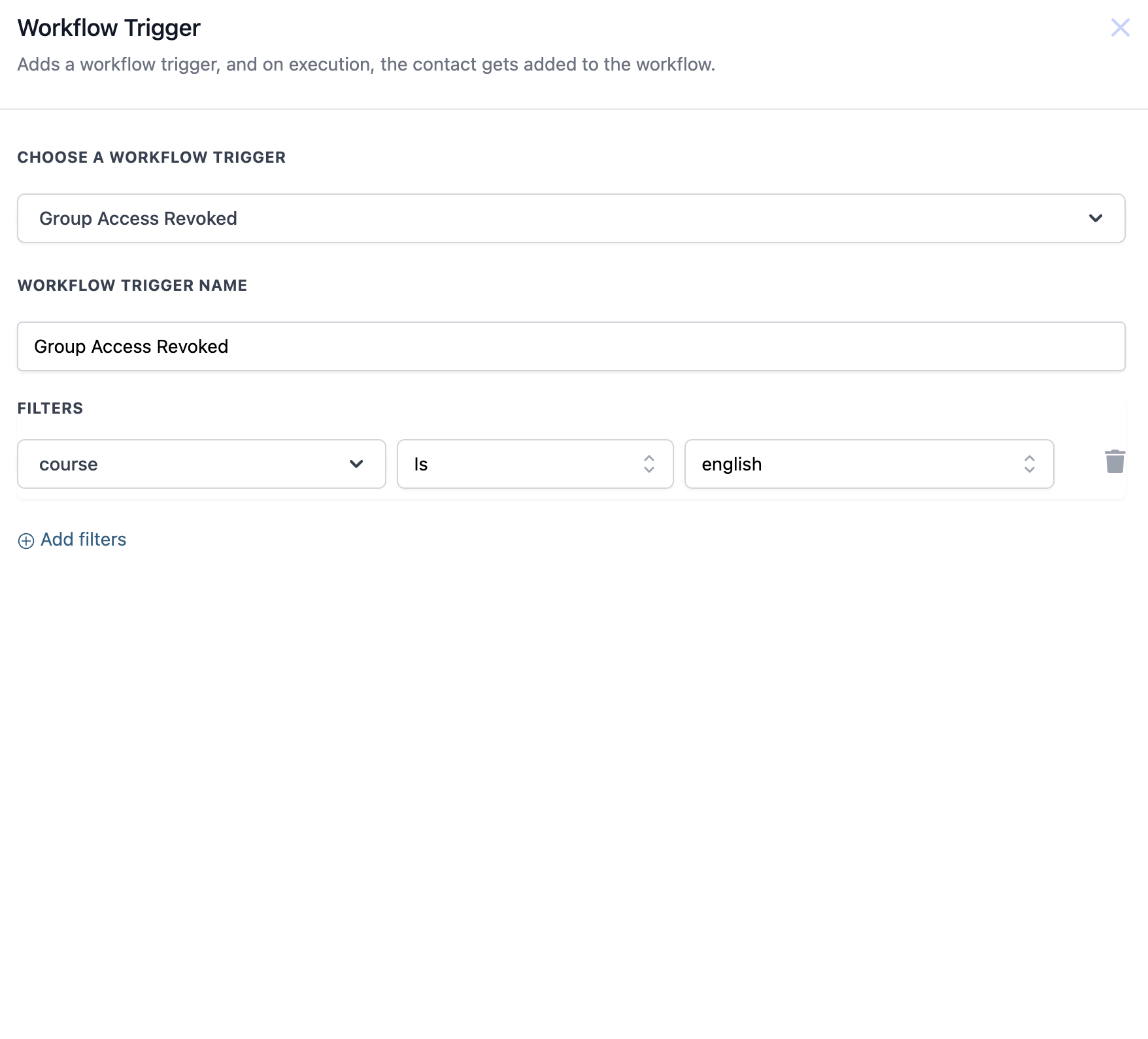
Data available to later steps: The contact record and the group whose access was revoked are available downstream.
Med-spa example: If a member repeatedly violates your community guidelines, a workflow can revoke their access to the "Exclusive Offers" group so they no longer receive member-only promotions, and log the change on their contact record.
What it fires on: This trigger activates when a member is granted access to a specific private channel inside a Community group. It lets you automate updates and onboarding for members who reach a more exclusive tier of your community.
Configuration and filters: Create a workflow and select Private Channel Access Granted as the trigger. Specify the group and the private channel the access applies to. Only private channels are selectable, so make sure the relevant private channel exists first.
Data available to later steps: The contact record, the group, and the private channel involved are available downstream.
Med-spa example: When a patient upgrades to your "VIP Members" tier and is granted access to the "VIP Perks" private channel, a workflow welcomes them and shares the exclusive booking link for member-only events.
What it fires on: This trigger activates when a member's access to a specific private channel inside a Community group is revoked, while the member can remain part of the broader group.
Configuration and filters: Create a workflow and select Private Channel Access Revoked as the trigger, then specify the group and private channel.
Data available to later steps: The contact record, the group, and the private channel involved are available downstream.
Med-spa example: When a patient's VIP membership lapses, a workflow revokes their "VIP Perks" private channel access while keeping them in the main community, and sends a friendly note about renewing to regain the perks.
What it does: This action grants a member access to a specific private channel within a Community group. If the member is not already part of the group, this action adds them to the group and then to the channel you choose.
Configuration and filters: Add the action to your workflow, then specify which group and which private channel to grant access to. Only private channels appear as selectable options, so confirm the private channel exists before configuring.
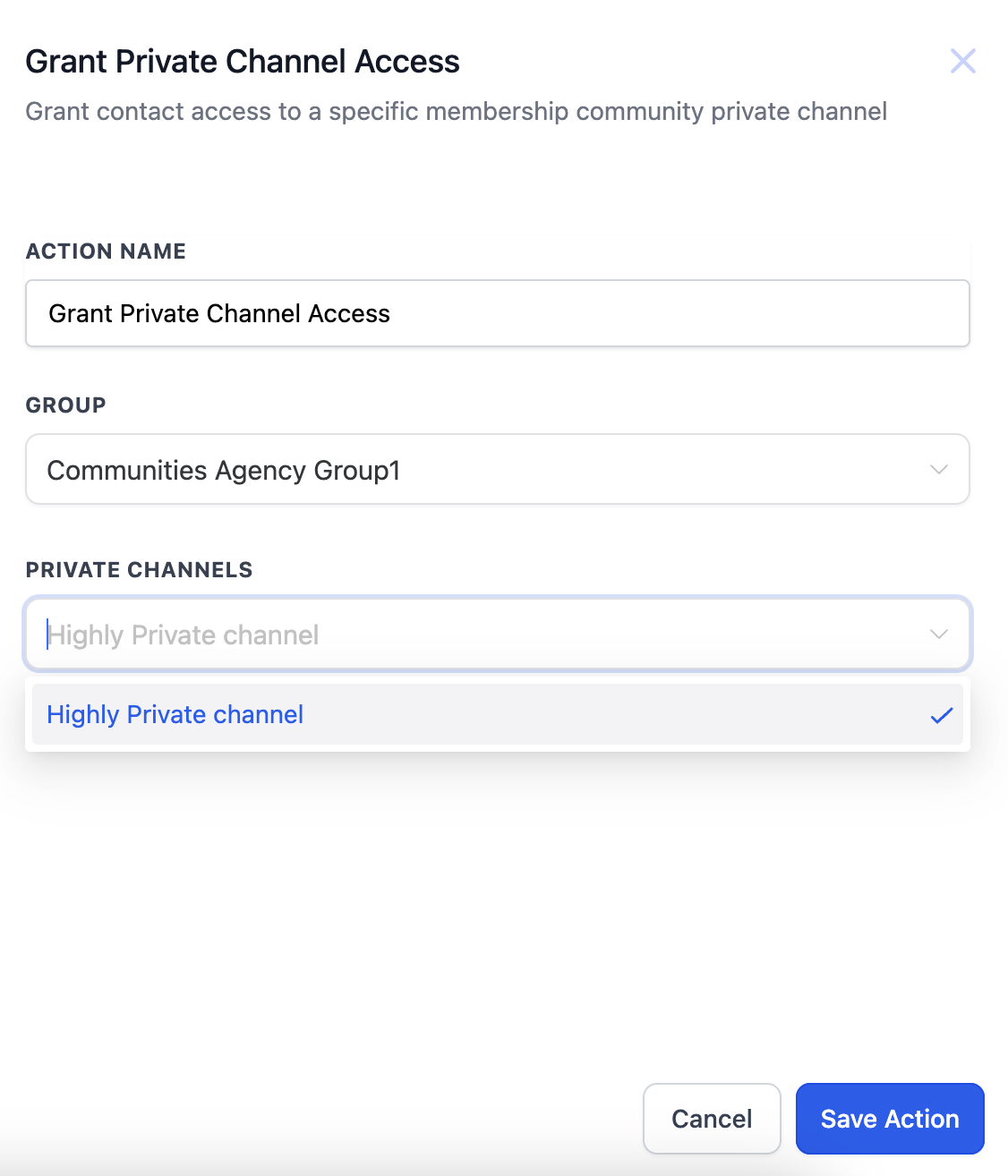
Data available to later steps: After the action runs, the member is part of the group and channel, and later steps can continue with the same contact record.
Med-spa example: When a patient purchases your annual membership, this action grants them access to the "Annual VIP" private channel, automatically adding them to the parent community group so they immediately see member updates.
What it does: This action revokes a member's access to a specific private channel within a Community group while keeping them part of the group. Use it to remove a perk without removing the member entirely.
Configuration and filters: Add the action to your workflow and specify the group and private channel to revoke access from.
Data available to later steps: After the action runs, later steps continue with the same contact record, now without the private channel access.
Med-spa example: When a patient downgrades from your VIP tier, this action removes their "VIP Perks" private channel access but leaves them in the general community so they still receive standard updates.
What it fires on: This trigger, listed as User Group Gamification Level Changed, activates when a member's leaderboard level changes within a Community group. Use it to celebrate progress and reward engagement.
Configuration and filters: In the Workflow Setup page, choose the trigger, then configure filters to specify which groups and which levels it applies to. This ensures the workflow runs only when your chosen conditions are met.
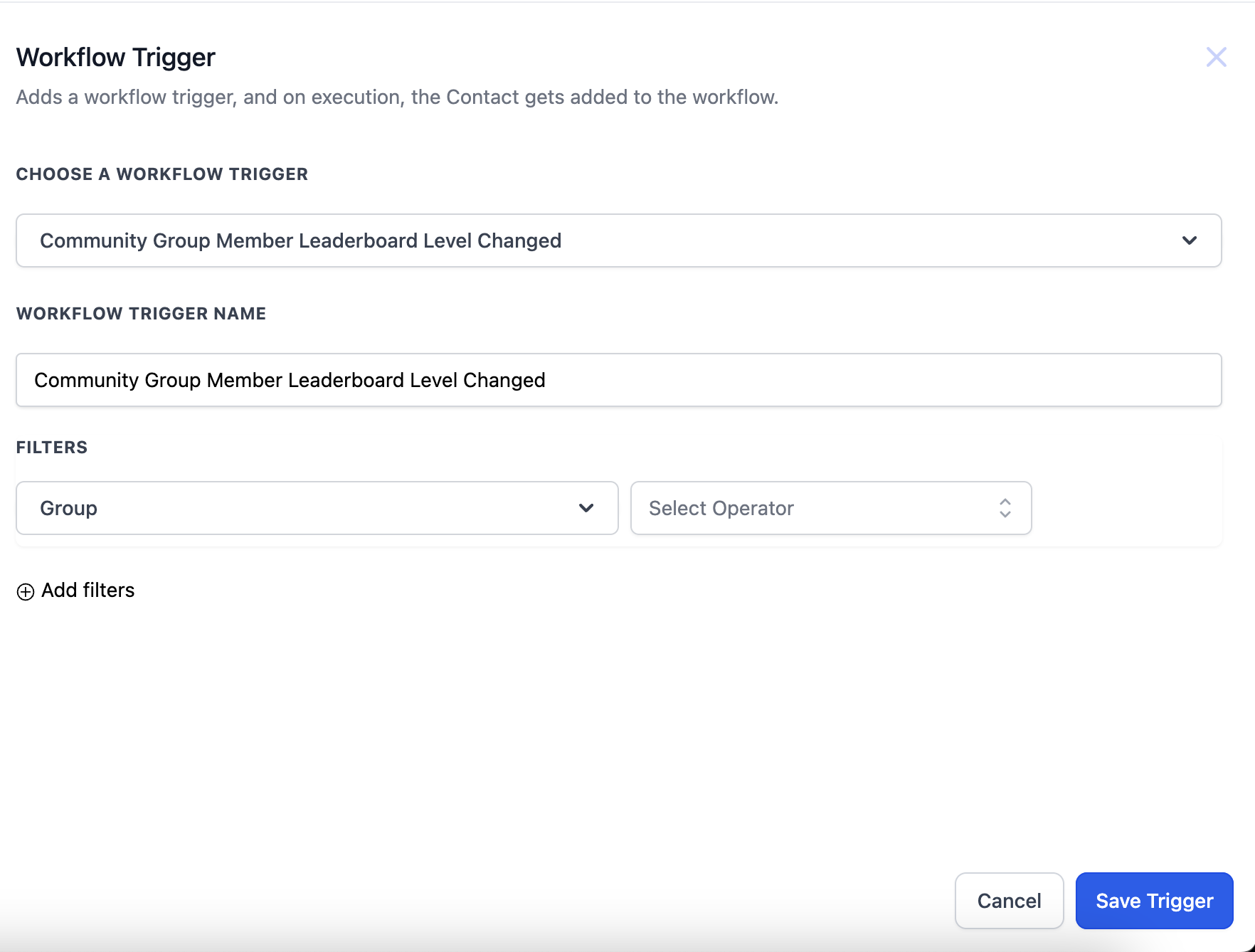
Data available to later steps: The contact record and the new leaderboard level are available downstream, so you can tailor rewards or messages to the level reached.
Med-spa example: When an active community member reaches a new leaderboard level, a workflow sends a congratulatory message and grants a small perk, such as a coupon toward their next treatment.
What it does: This action grants leaderboard points to a member for completing a desired action, helping them climb the community leaderboard. You configure the number of points and the group they apply to.
Configuration and filters: Add the "Grant community group leaderboard points" action, set the number of points to award, and use the dropdown to select which group the points apply to, so only members of that group are awarded points. If the member is not part of the selected group, the workflow execution will fail, so pair this action with a check that the contact belongs to the group.
Data available to later steps: After the action runs, the member's updated point total is reflected in the community, and later steps continue with the same contact record.
Med-spa example: When a patient books a follow-up treatment through your community, a workflow grants them leaderboard points, nudging them up the leaderboard and toward loyalty rewards you have set for top members.
What it fires on: This trigger activates whenever a specified badge is awarded to a contact, regardless of how it was issued: manually by your team, through the Issue Badge workflow action, or by any other method. Use it to launch a recognition follow-up the moment a patient earns an achievement.
Configuration and filters: Add the trigger to a workflow and select the specific badge that should activate it. Because each badge usually calls for its own follow-up, build a separate workflow with this trigger for every badge you want to celebrate rather than leaving the filter open.
Data available to later steps: The contact record and the badge that was issued are available downstream, so later steps can personalize a congratulatory message, apply a tag, update a custom field, move the contact to a new pipeline stage, or enroll them in a follow-up course.
Med-spa example: A patient earns a "Skincare Graduate" badge after finishing your full "New Patient Education" category. The trigger fires, sends a congratulatory email with a discount code for an "Advanced Home Care" course, and notifies the assigned provider to follow up at the patient's next visit.
Note: A contact can only be awarded a given badge once, so this trigger will not fire twice for the same badge on the same contact. You can build multiple workflows off the same badge in this trigger to cover different follow-up scenarios, such as one path for the patient and a separate internal notification for staff.
What it does: This action awards a selected badge to whichever contact reaches it in a workflow. Add it as a step in any workflow, including ones started by a course completion, a purchase, a form submission, or a custom field update, so recognition happens automatically instead of being granted by hand.
Configuration and filters: Add the "Issue Badge" action to your workflow and choose the badge to award from the dropdown, which lists the active badges you've configured for your courses and communities. Pair the action with earlier If/Else conditions or filters so a badge is only issued once specific criteria are met, such as a quiz score threshold or completion of several related activities.
Data available to later steps: After the action runs, the contact holds the badge, and later steps continue with the same contact record. If the contact already has that badge, the action completes without issuing a duplicate.
Med-spa example: A patient completes every course in your "New Patient Education" category. An Issue Badge action awards the "Skincare Graduate" badge, and a separate workflow built on the Badge Issued trigger sends the congratulatory follow-up.
Note: You can add more than one Issue Badge action to the same workflow to award different badges at different stages or under different conditions. Set up the badge itself in your course or community's badge setup before it will appear in this dropdown.
Where do these triggers live in Aesthetix CRM? They appear in the Workflow Builder trigger list. The membership, course, offer, and community items these triggers reference are set up in the Courses and Memberships and Communities areas of the Client Portal.
What is the difference between Product Completed and Category Completed? Product Completed fires when a contact finishes a single product or course. Category Completed fires when a contact finishes an entire category of related products or courses, which is useful for multi-course programs.
Why did my New Signup trigger not fire for a contact? The New Signup trigger only fires for a genuinely new sign-up. If the contact already had access to that membership offer or community group through another method, the trigger will not activate.
What happens if the same offer is granted or removed multiple times? The Offer Access Granted and Offer Access Removed triggers fire each time the event occurs. Use If/Else conditions, wait steps, or tags to avoid running the same actions redundantly.
Can I combine these triggers with other triggers in one workflow? Yes. These triggers can be combined with others such as Tag Added, Contact Created, or Opportunity Status Changed to build more advanced automations.
Why does my leaderboard points action fail? The Grant Community Group Leaderboard Points action requires the contact to already be a member of the selected group. If they are not, execution fails. Confirm group membership earlier in the workflow.
Do I need to build the course, offer, or community first? Yes. Create your courses, offers, and community groups in the Client Portal before referencing them in these triggers. See the Courses collection for setup steps.
Can a private channel action add someone to a group? Yes. The Grant Private Channel Access action adds the member to the parent group if they are not already in it, then grants the private channel access. The Revoke Private Channel Access action removes only the channel access and keeps the member in the group.
Can I issue more than one badge in the same workflow? Yes. Add multiple Issue Badge actions to the same workflow to award different badges at different stages or under different conditions within that workflow.
Does the Badge Issued trigger fire for badges granted manually? Yes. It activates whenever the selected badge is issued, whether your team granted it by hand, the Issue Badge action awarded it, or it was issued by any other method.
What happens if a workflow tries to issue a badge the contact already has? The workflow continues without creating a duplicate. Each badge can only be awarded once per contact, and the CRM enforces that automatically.
Do I need to create the badge itself before using it in a workflow? Yes. Set up the badge in your course or community's badge configuration first. Only badges that already exist there will appear in the Issue Badge action dropdown or be selectable in the Badge Issued trigger.
