Order bumps and upsells let you offer patients relevant add-ons at the moment they are most ready to buy, directly through the payment step on your forms. A med spa might attach a take-home skincare kit to a treatment package as a bump, then present a membership upgrade as a one-click upsell right after the initial purchase. Both raise your average order value without complicating the checkout experience.
This guide covers two related features. An order bump appears on the original form checkout as an optional add-on. An order upsell appears after the initial purchase, on the next funnel step, and charges with a single click using the payment details already captured. Both live on the Sell Products payment element in your forms. For processors, receipts, refunds, and payment setup, see the Payments collection.
Tip: Before you sell on a form, connect a payment provider. We recommend AX Pay, our native processor, which offers better rates than Stripe. See the AX Pay Overview and Setup Guide.
Order bumps embed upsell options directly inside your form's checkout. By placing a bump product alongside your main offering, you capture extra value through an engaging, customizable prompt that patients can accept with a single checkbox, without leaving the form.
Higher revenue per submission by presenting relevant add-ons at checkout.
Classic and Modern bump styles so you can match the look of your form.
Multiple templates designed to draw attention and drive conversions.
Full visual customization of colors, icons, highlight text, and price displays.
Support for multiple bump products so you can expand your upsell strategy.
Smart recurring rules that allow only one recurring product per form.
Flexible activation to toggle bumps on or off and rearrange them anytime.
Order bumps are added through the Sell Products element in the form builder.
In the left sidebar, click Sites, select Forms, then click Builder.
Click Add Form.
Choose Start from Scratch or select a Template, then click Create.
In the element bar, drag the Sell Products element onto the form canvas.
Click the Sell Products element.
In the right-side panel, click Add Product.
If you have not created a product yet, click the link to open the product creation page and set one up. If you already have products, use the Please select the product dropdown.
For Product Type, select Main Product.
Toggle Description, Image, and Quantity to show or hide them.
Click Add Product to insert it.
Click Add Product again.
Create a new product or select an existing one from the dropdown.
For Product Type, select Bump Product.
Add a compelling headline, such as offering an add-on treatment or product.
Enable or disable the image.
Upload a new image, or let the system pull one from the product record.
Under Order Bump Style, pick Modern or Classic.
Use Select Template to choose Template 1, 2, or 3.
In Highlight Text, enter an attention-grabbing snippet, such as "Add this with one click."
Choose an Icon to display next to the highlight text.
Toggle Show Price or Hide Price for the bump.
Customize the background, highlight text, headline, and offer text colors.
Under Layout Settings, choose a single, two, or three column layout.
For Product Selection, allow single or multiple selections.
Toggle Footer Info, such as a "100% secure and safe payments" note.
Choose to hide or keep the placeholder text.
Click Save in the top-right corner to store your changes.
An order upsell presents an additional offer right after a patient completes a form purchase. It reuses the payment details from the first purchase, so the patient can accept with a single click, without re-entering payment or personal information. This is a frictionless way to raise average order value at the moment engagement is highest.
Higher average order value by offering a relevant add-on right after purchase.
Frictionless checkout, since patients never re-enter payment or personal details.
Works with multiple product types, including standard sell and bump products.
Reusable forms, so you can use the same form across multiple funnels.
Automation-friendly, because each purchase, primary and upsell, triggers the Order Submitted automation for precise targeting.
Sell Product element: Connects your form to the product being purchased and captures the payment token that the upsell reuses. It must be configured correctly for the upsell flow to work.
Upsell Button: The trigger that processes the one-click purchase. Place a Button element on the upsell step, set its action to sell the upsell product, and when clicked it charges instantly using the captured payment token.
Order Summary element: Shows the patient a clear breakdown of what they bought, including the main product and any accepted upsells. Add it on the upsell confirmation or final thank-you page.
Order upsells must be built inside Funnels using native Form elements. They do not work on standalone Websites.
Use native Form elements so the payment token passes to the next step.
Keep the upsell steps on the same domain to avoid third-party cookie issues.
Avoid long Wait steps in Order Submitted workflows if you rely on upsells.
Make sure inventory-enabled products have enough stock so upsells do not fail.
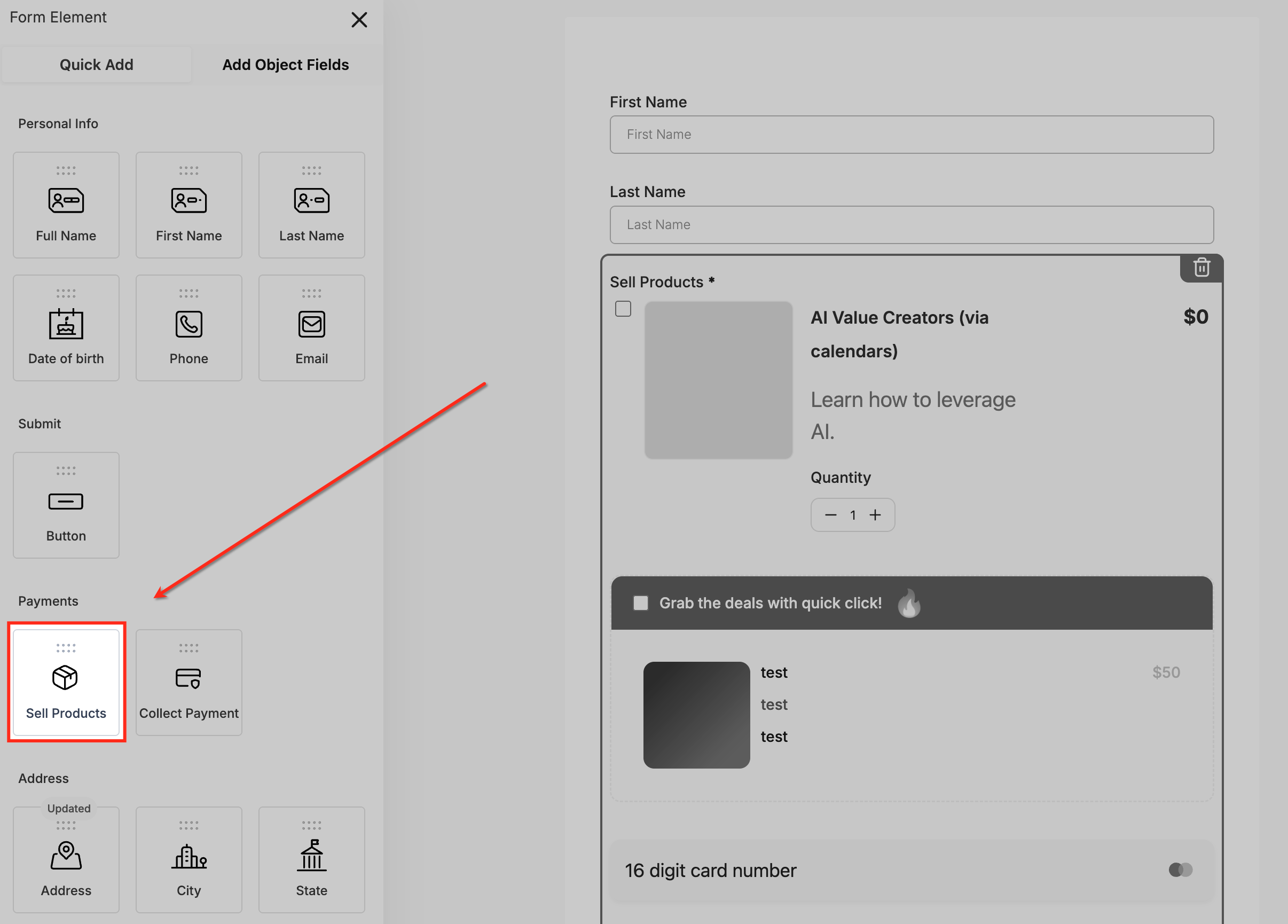
In the form builder, drag the Sell Products element from the Payments section onto your form. This lets the form collect payment details and generate the token needed for one-click upsells.
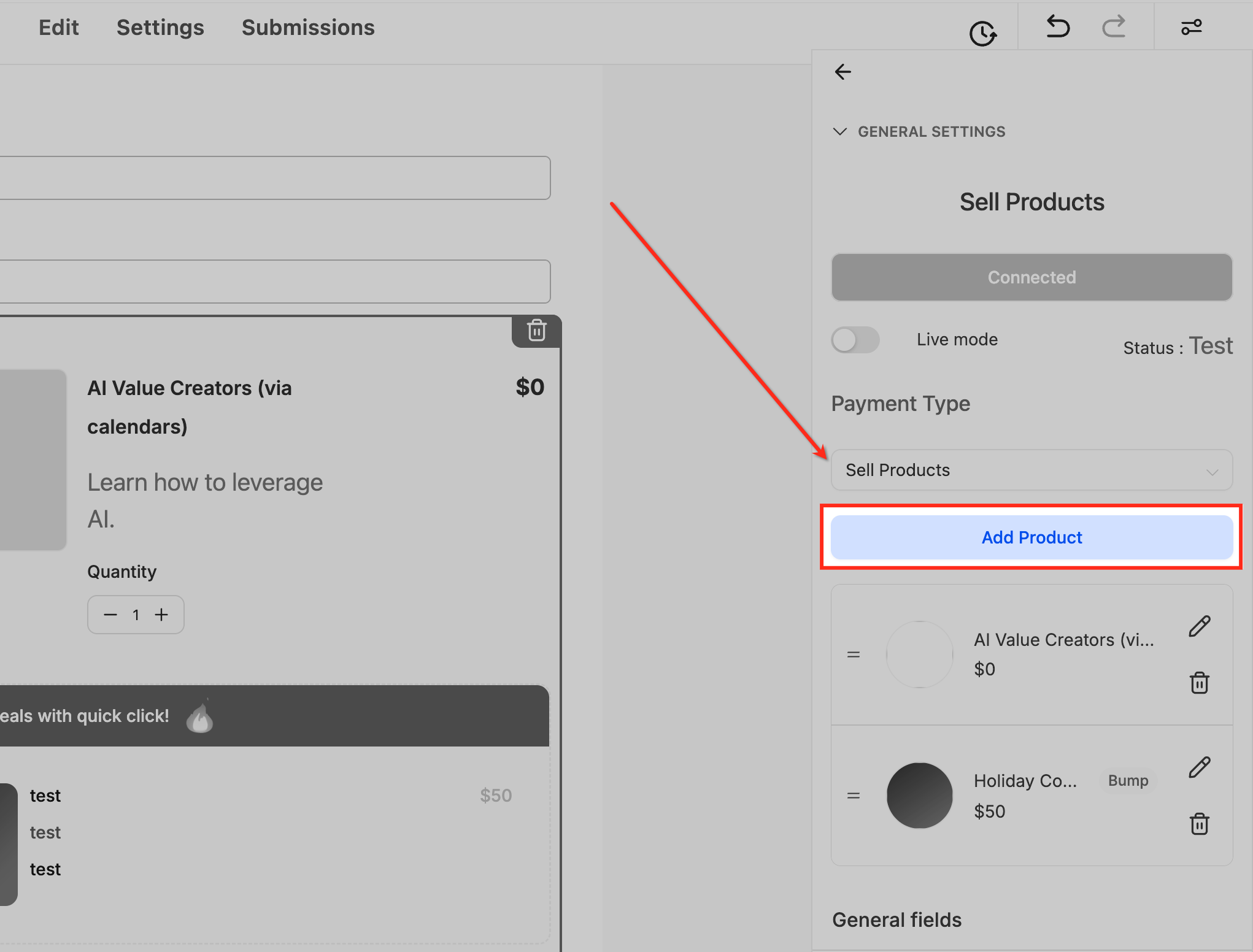
Click Add Product in the Sell Products settings panel to attach the item that will be purchased on the primary submission.
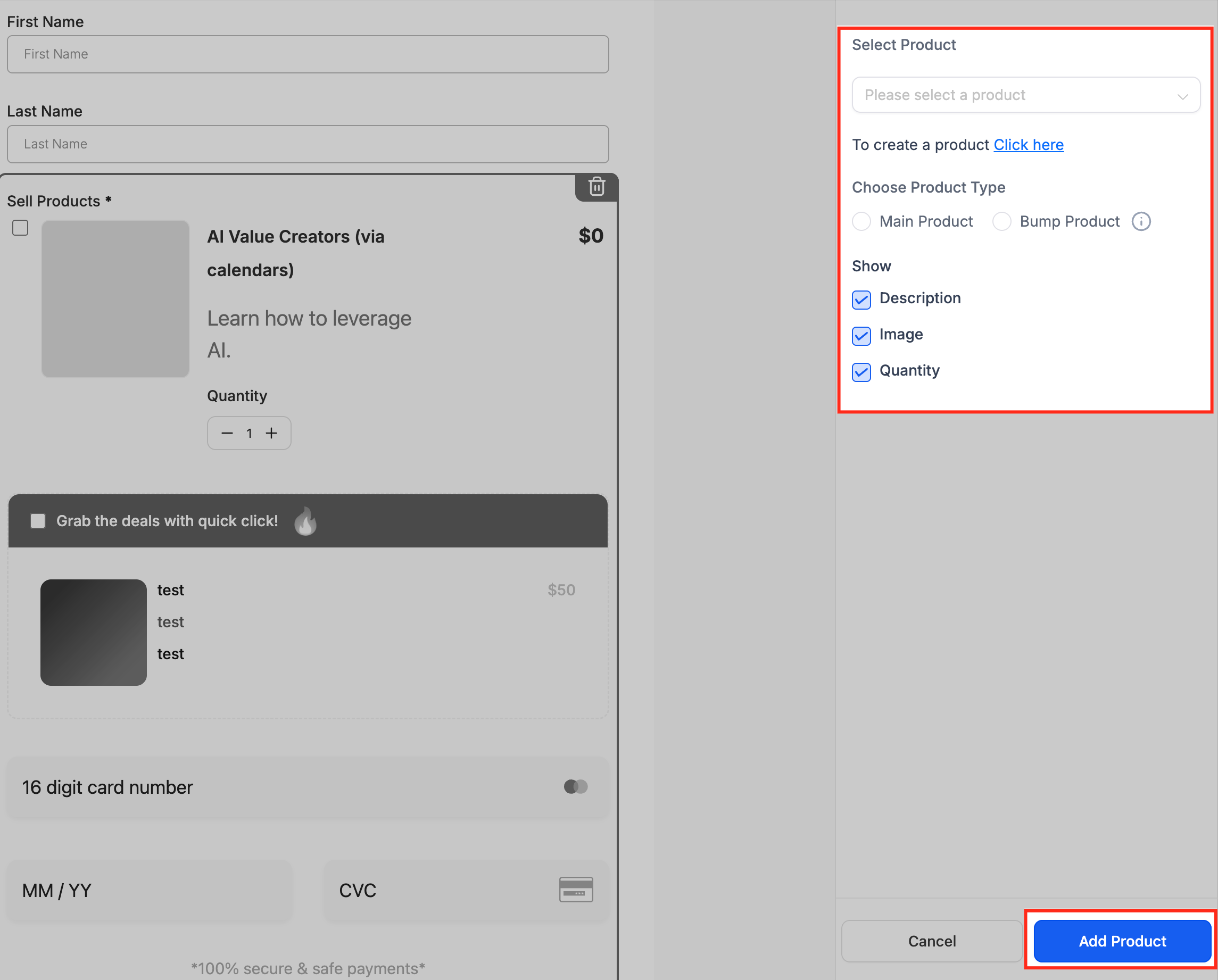
In the product selection sidebar, choose an existing product or create a new one, set whether it is a main product or bump offer, and decide which display elements appear on the form.
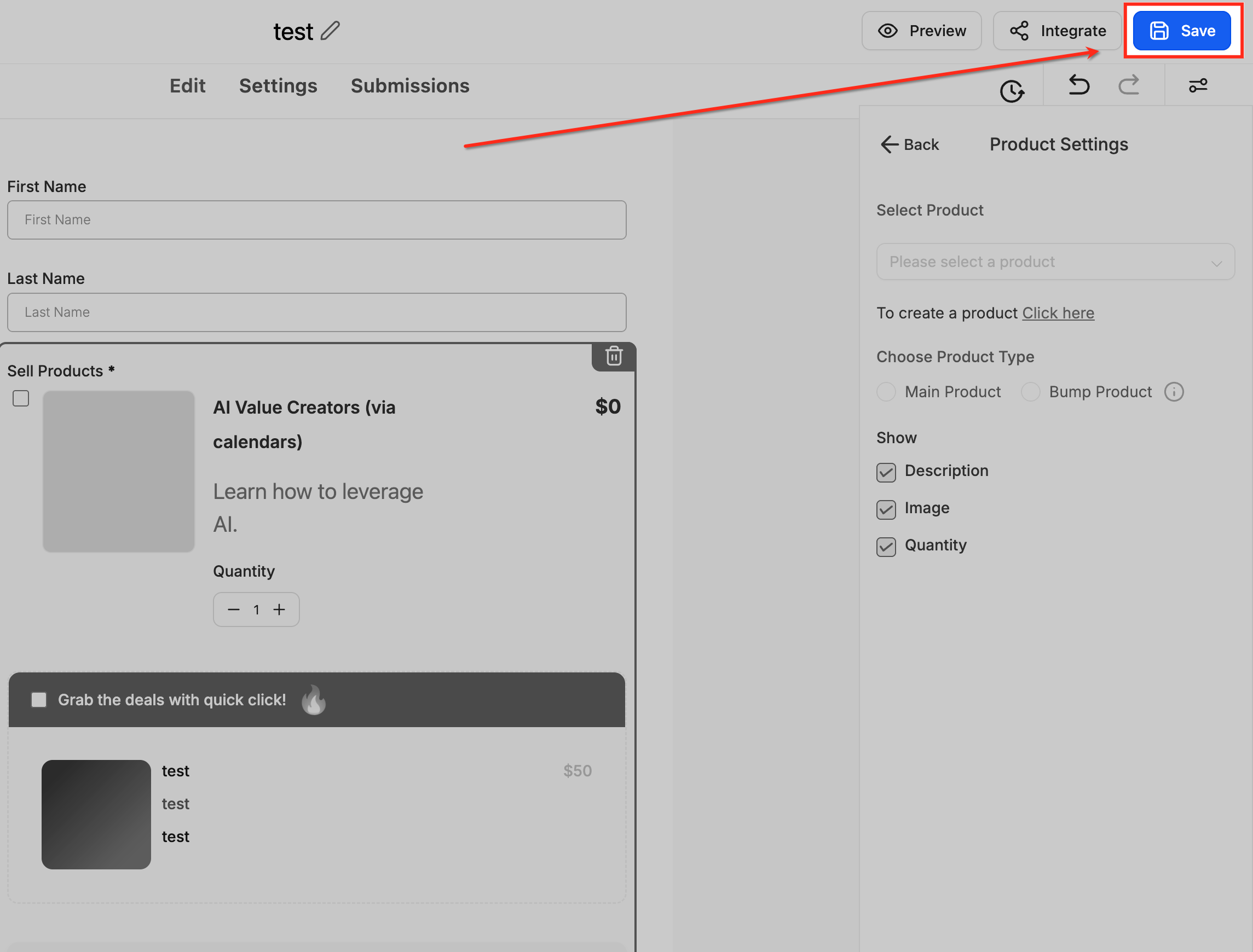
Click Save to apply the product to your form so the checkout can process the initial transaction before the upsell flow.
In the funnel builder's Elements panel, add the Form element and insert your configured form. This connects the primary purchase step to the next stage of the upsell sequence.
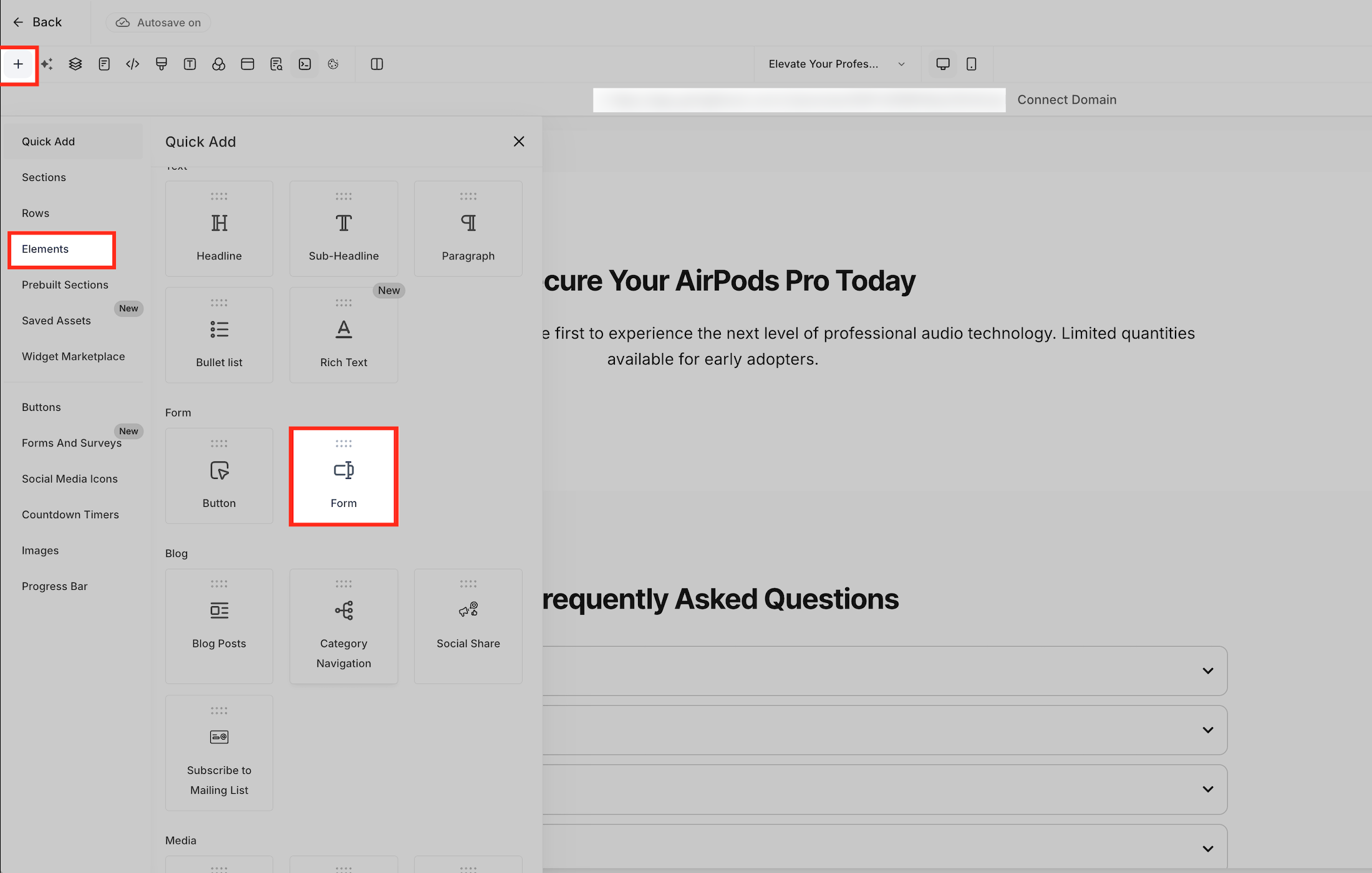
In the Form element's Button Actions settings, select Go to Next Step as the redirect after submission, so patients advance immediately to the upsell page once their initial purchase completes.
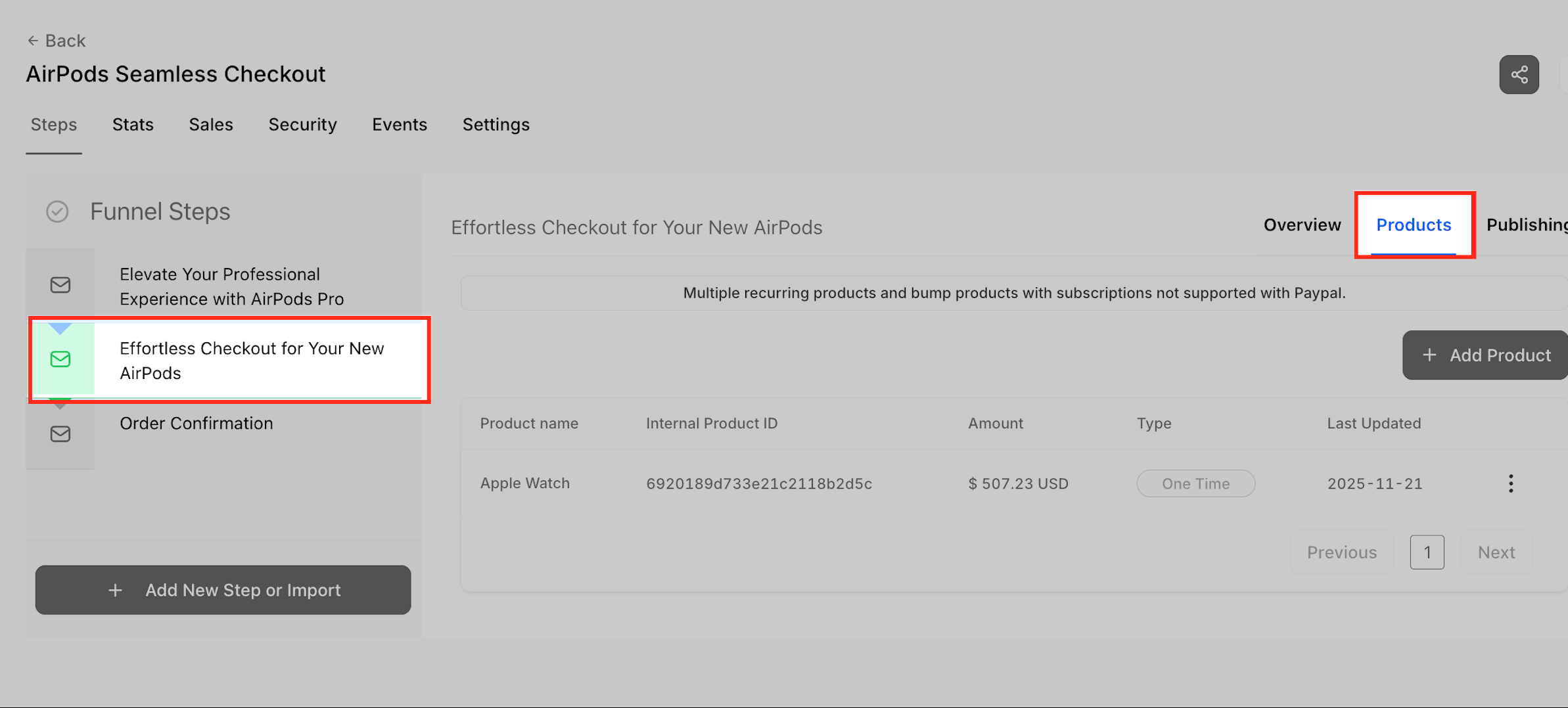
In the funnel step's Products tab, verify the item linked to the primary checkout so the upsell logic aligns with the initial order.
In the button settings, link the button to a one-click up or down sell product action and choose the upsell product. The system then processes the upgrade instantly using the captured payment token.
From the Order Elements menu, place the Order Confirmation component on the final page of the funnel to show a clear summary of the completed purchase, including any accepted upsells.
Can I add more than one bump product to a single form?
Yes. You can include multiple bump products on the same form for several upsell opportunities without disrupting the main product flow.
Can both the main product and a bump product be recurring?
No. Only one product per form can be recurring, either the main product or a single bump, but not both. This keeps the payment logic consistent.
What happens if I do not include a main product?
Bump products will not appear unless a main product is present. Always add a main product first to activate bump visibility.
How is an upsell different from an order bump?
An order bump appears on the original form checkout as an optional add-on, while an upsell appears after the initial purchase on the next funnel step and charges with one click.
Which payment providers work with bumps and upsells?
Bumps and upsells work with supported providers such as AX Pay, Stripe, PayPal, Square, Authorize.net, and NMI. We recommend AX Pay for its better rates.
Does the upsell create a second charge?
Patients see two charges, but both appear in the same order record and on a unified receipt.
Can automations fire only when the upsell is purchased?
Yes. Use the Order Submitted trigger with a product filter to target the specific upsell product.
Do order upsells work on Websites?
No. Upsells only work in Funnels using native Form elements, not on standalone Websites.
Can a patient change the upsell quantity?
No. The Upsell Button always sells exactly one unit.
Does inventory affect upsells?
Yes. If inventory tracking is enabled and the product is out of stock, the upsell cannot be purchased.
