Our WordPress plugin, named the LeadConnector (LC) plugin, lets you embed and manage key Aesthetix CRM features directly inside your WordPress site. It keeps your live chat, booking calendars, reviews, surveys, quizzes, and dynamic content in sync with your CRM, so you avoid switching platforms or hand-managing embed codes.
When you provision a new WordPress site through Aesthetix CRM hosting, the plugin is installed automatically during setup. If you connect an existing WordPress site, you install and authorize the plugin yourself, as described below.
This guide covers what the plugin does, how to confirm it is connected, and how to reconnect it. For designing the chat widget itself, see the Chat Widget collection. Developers who want event notifications between WordPress and Aesthetix CRM can also review the Webhooks documentation.
The plugin bridges WordPress and Aesthetix CRM so your team can place CRM experiences directly on your site. It lets you:
Enable, disable, and switch chat widgets from the WordPress admin.
Embed Calendars, Review Widgets, Surveys, and Quizzes that stay configured in Aesthetix CRM.
Display live Custom Values, such as promotions or business details, using shortcodes.
See a Plugin Status indicator in Aesthetix CRM so you can confirm the connection without logging in to WordPress.
Receive in-dashboard alerts on hosted sites if a hosting payment fails.
Because the plugin is officially maintained, you get fewer code pastes, fewer third-party dependencies, and reliable syncing back to your account for analytics and follow-up.
On sites provisioned through Aesthetix CRM hosting, the plugin auto-installs during setup, so there is nothing to add manually. Automatic installation applies to newly provisioned sites.
To connect an existing WordPress site, make sure you are on plugin version 3.5.0 or higher, then:
In your WordPress admin, open the Aesthetix CRM (LeadConnector) settings and select Connect Account.
Authorize your Aesthetix CRM login. The consent screen names LeadConnector because that is the underlying integration provider, so it is expected and safe.
Choose the account you want to connect and grant access.
Once connected, the plugin syncs automatically and shows a confirmation that it is connected.
If the plugin ever disconnects, use the same Connect Account flow to reconnect through the secure authorization screen.
You can confirm whether the plugin is connected without logging in to WordPress.
Go to Sites → WordPress in Aesthetix CRM.
Open the hosted WordPress site you want to check.
Find the Plugin Status indicator for the LeadConnector plugin.
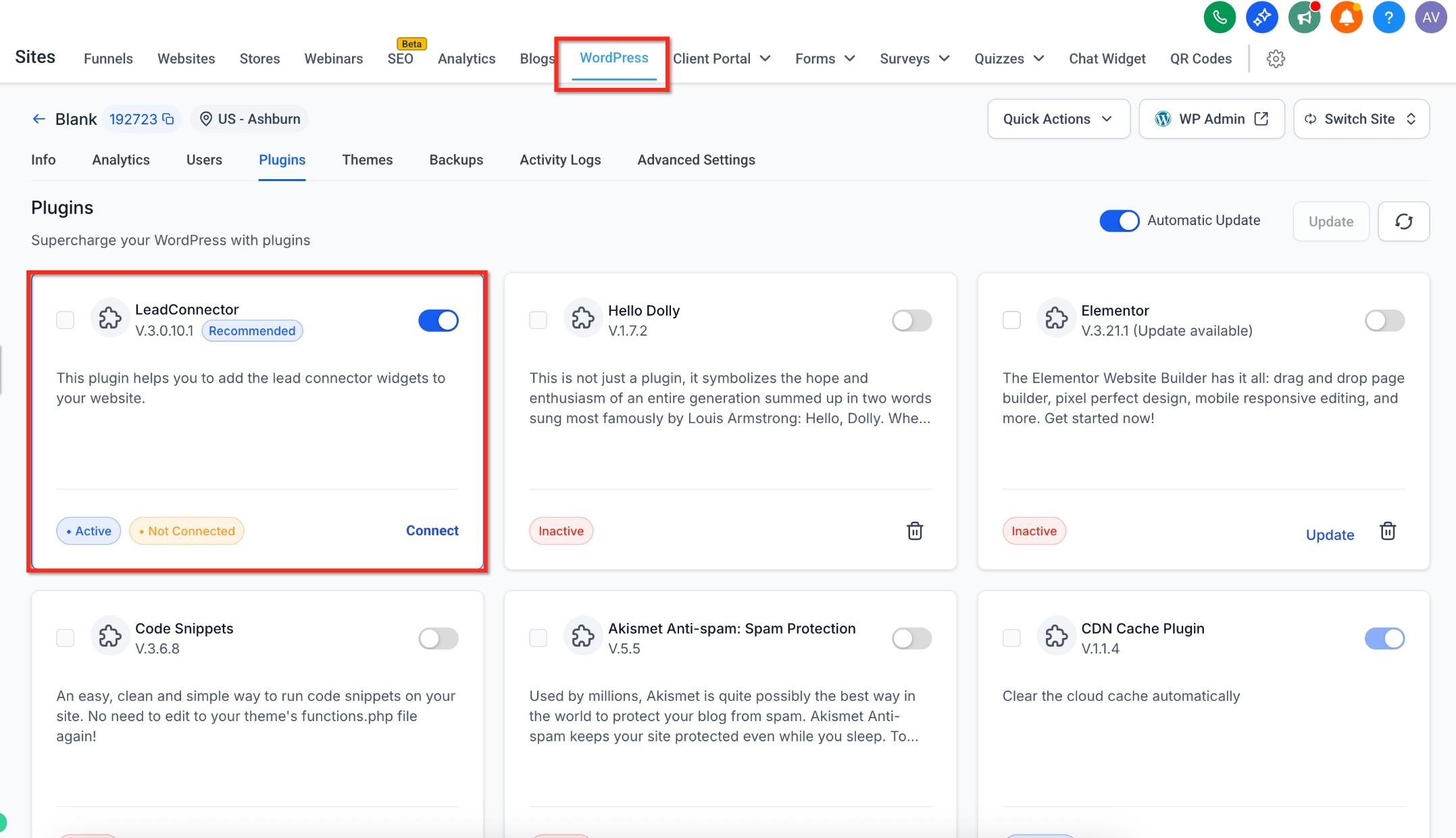
Review the state shown, which may be Connected, Not Connected, Installed, Connected and Active, or Connected and Not Active.
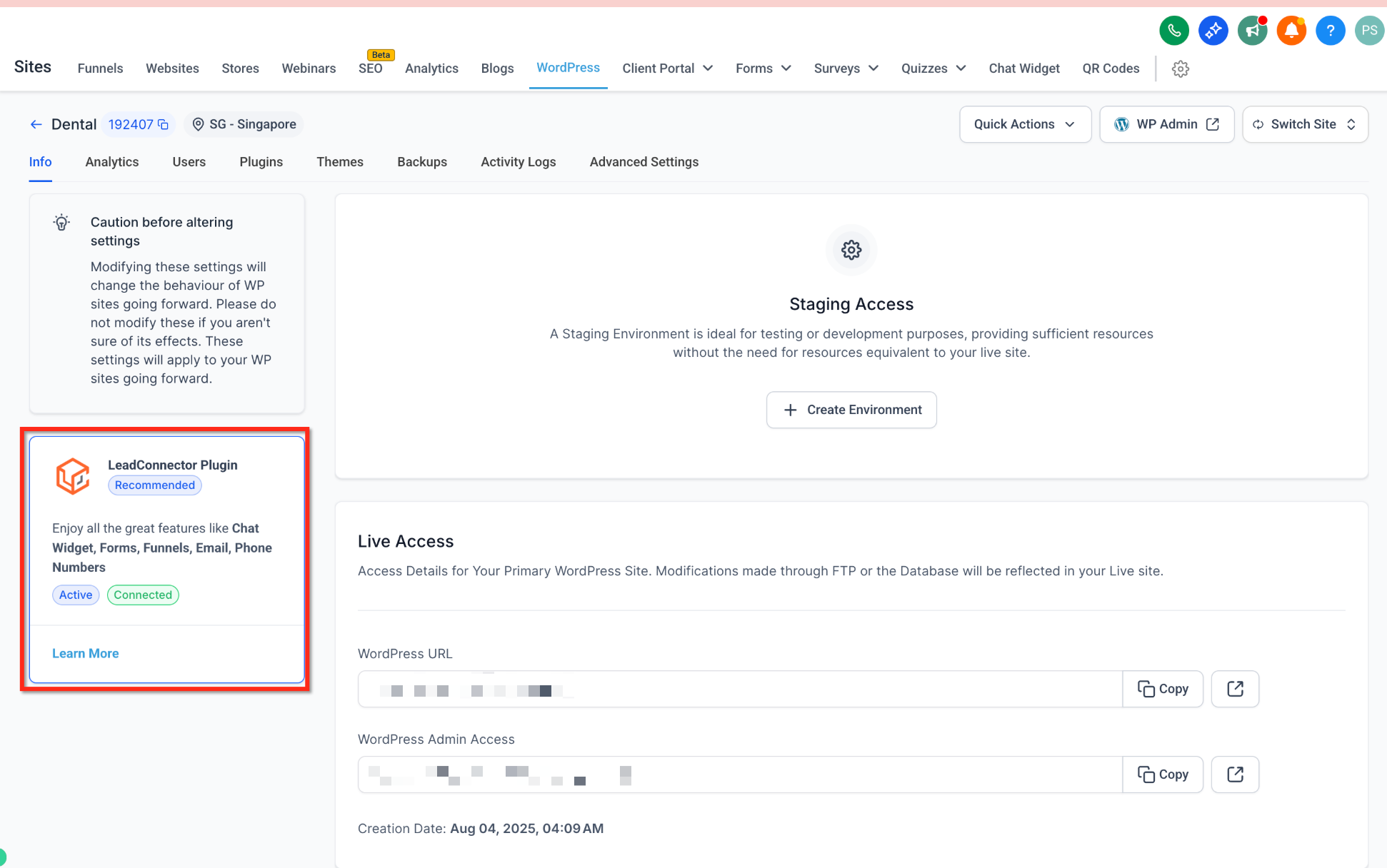
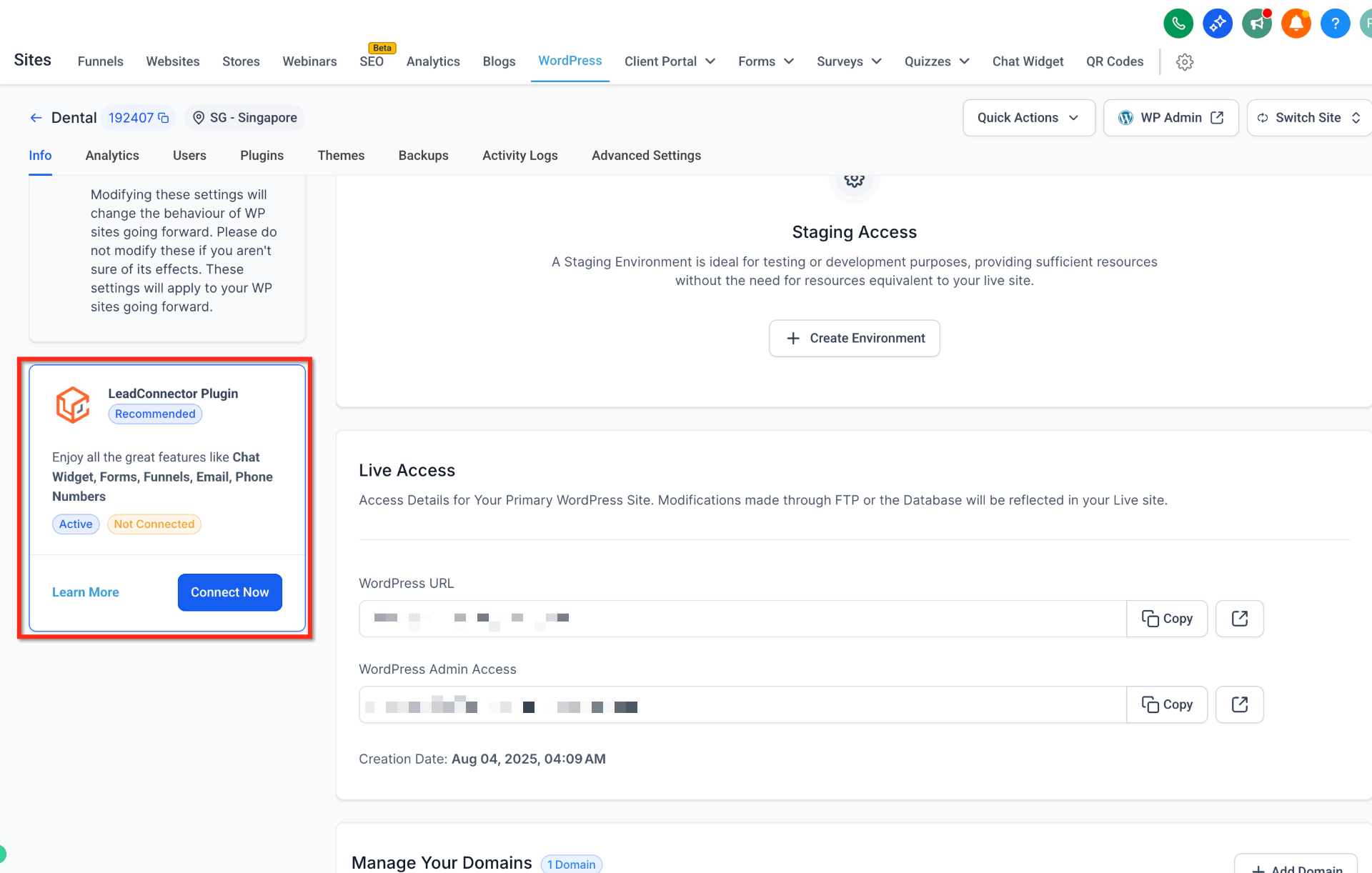
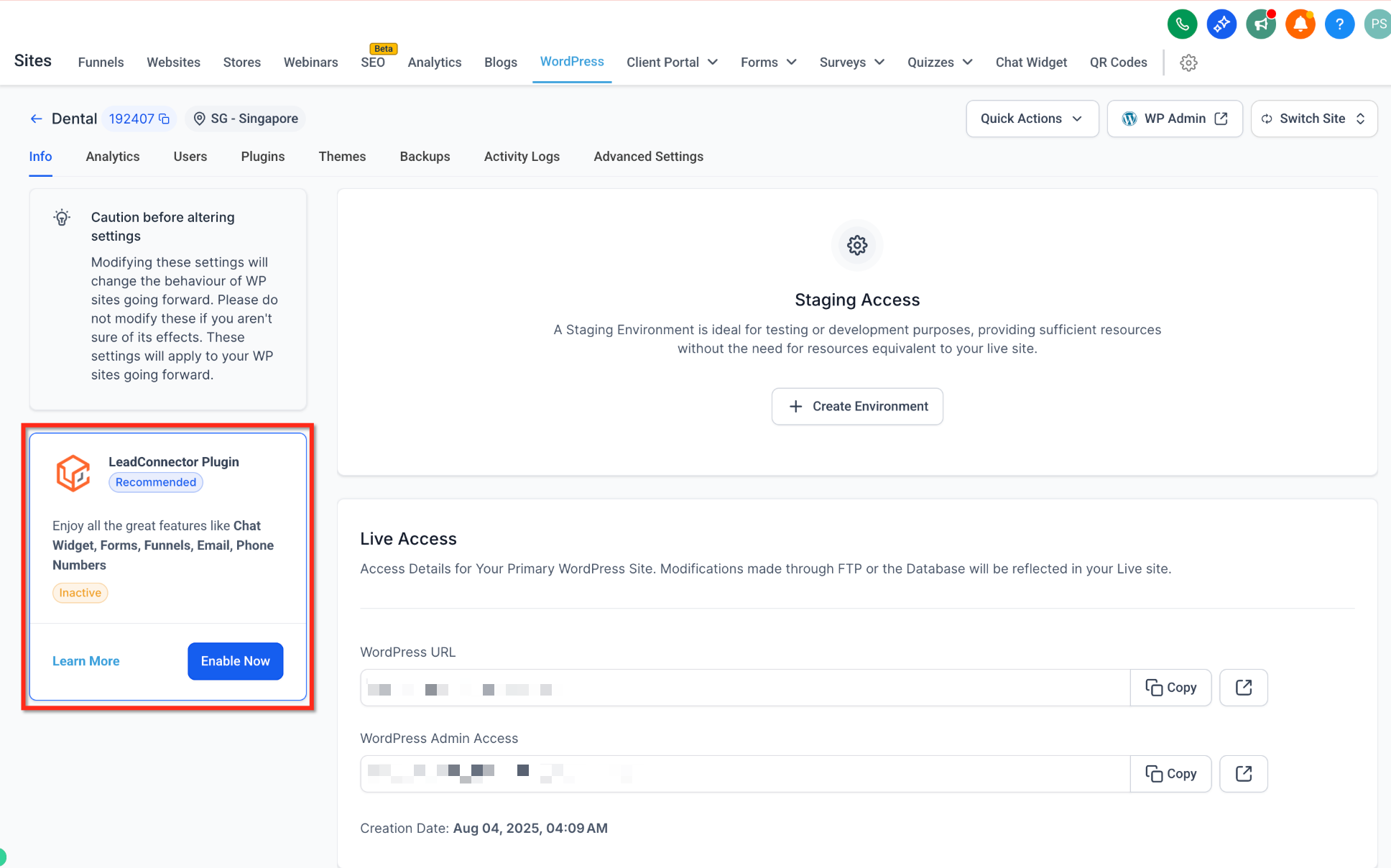
When you change the selected chat widget in Aesthetix CRM, the plugin reliably reflects the current selection on your site.
You can control chat widget visibility and behavior from the plugin settings without copying and pasting embed codes.
Enable or disable chat widgets directly within the WordPress admin.
Use the dropdown selector to choose from multiple chat widgets, with one active at a time.
The selected widget auto-syncs with your Aesthetix CRM dashboard so the two stay consistent.
To design the widget content, greeting, and appearance, use the Chat Widget collection in Aesthetix CRM. The plugin simply controls which widget appears on your WordPress pages.
The Custom Values integration lets you show live Aesthetix CRM data inside WordPress pages or posts using shortcodes. It brings the same personalization you use in funnels, emails, and automations to WordPress, with no coding required.
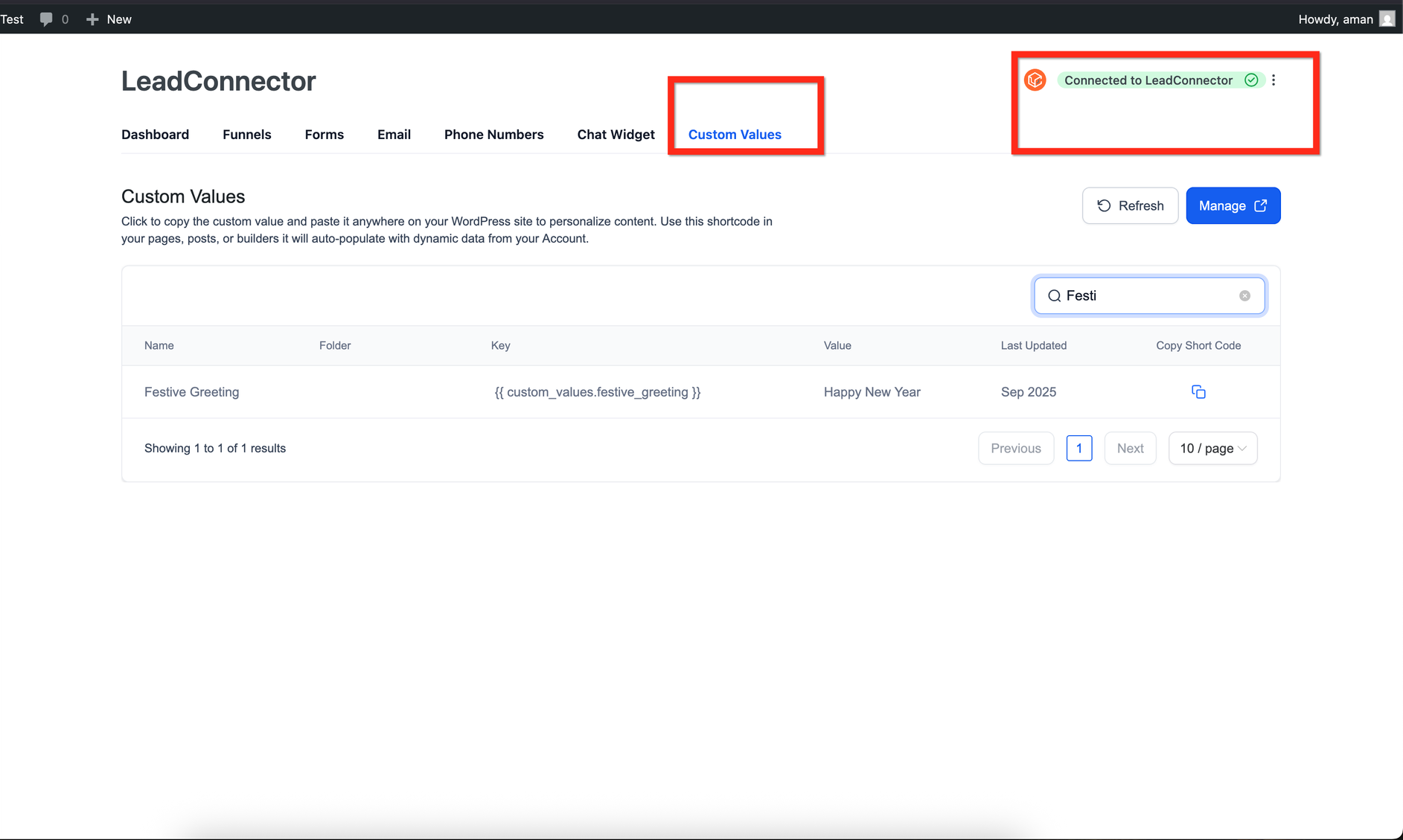
Once connected through secure authorization, the plugin fetches all system and custom Custom Values, stores them locally for fast access, and resyncs automatically every 12 hours. A manual Sync Now option is also available.
To display a value, paste a shortcode into your content:
[hl_custom_value name="custom_values.your_key"]For example:
Wish You a Very [hl_custom_value name="custom_values.festive_greeting"]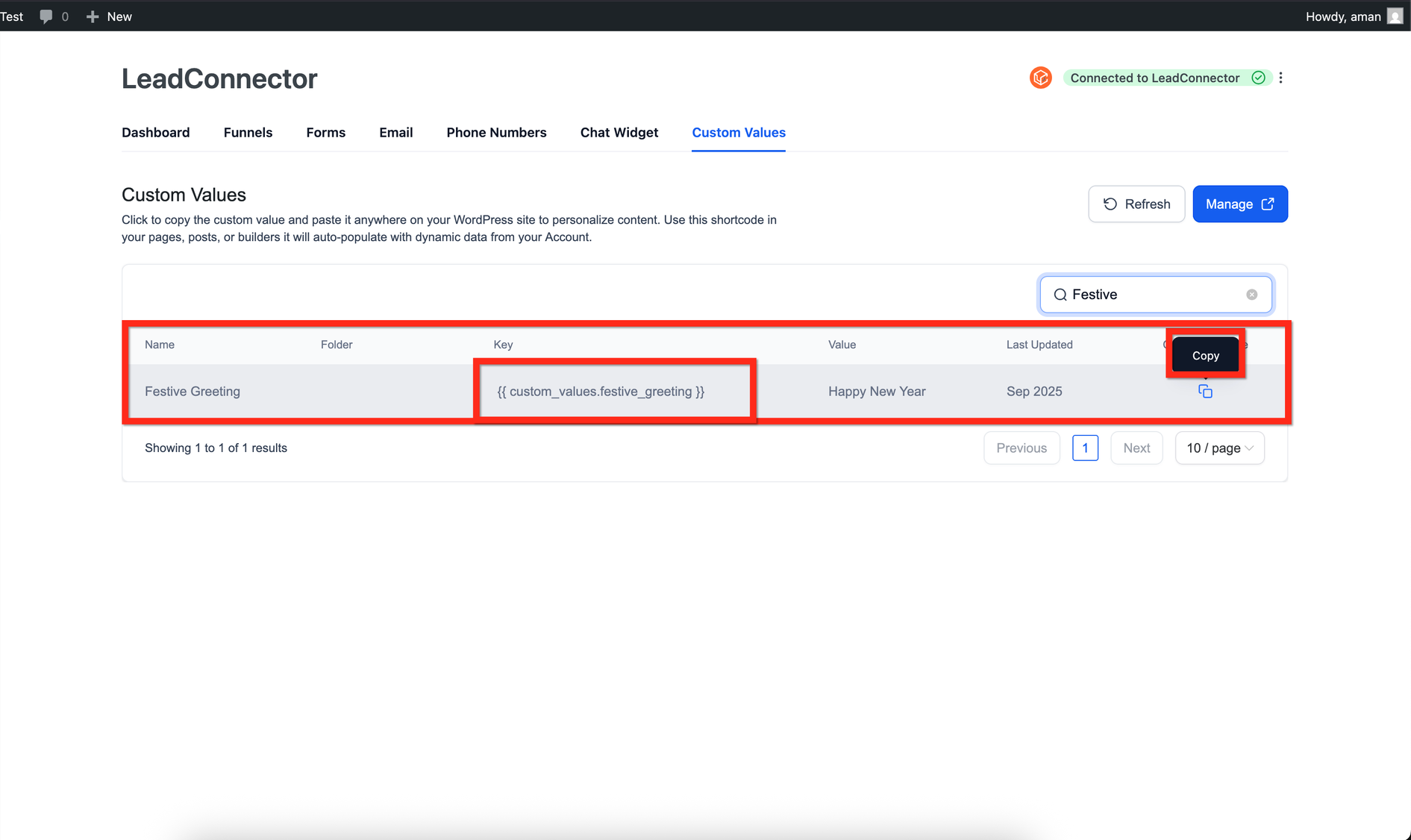
Shortcodes work in Elementor, Divi, Bricks, Beaver Builder, Gutenberg, or the Classic Editor, or any builder that supports native WordPress shortcodes. Inside WordPress, open the Custom Values section to view synced keys, copy shortcodes in one click, trigger a manual resync, and filter by folders that match your Aesthetix CRM structure.
If you use a caching plugin, stale data can appear unless you apply proper cache rules. Enable "Purge cache on resync" if caching is active, avoid caching pages that display contact-specific values, and always resync after updating values in Aesthetix CRM.
The plugin lets you place four more Aesthetix CRM products directly on your WordPress pages. Each one is built and configured in Aesthetix CRM and rendered on WordPress through a block or shortcode, so submissions and bookings flow back to your account.
Review Widgets: Showcase patient reviews on landing, service, and pricing pages to build trust. Build the widget in Aesthetix CRM, then in WordPress → LeadConnector → Reviews, pick the widget and copy its shortcode.
Calendars: Let visitors book directly on your site. Create the calendar in Aesthetix CRM, then in WordPress → LeadConnector → Calendars, select the calendar and paste its shortcode where you want scheduling available. Appointments route back to your account.
Surveys: Collect structured intake or feedback. Build the survey in Aesthetix CRM, then copy its embed from WordPress → LeadConnector → Surveys. Responses and analytics stay in Aesthetix CRM.
Quizzes: Drive engagement and lead capture. Create the quiz in Aesthetix CRM, embed it from WordPress → LeadConnector → Quizzes, and use the outcomes to segment contacts and trigger automations.
All submissions, bookings, and results are stored in Aesthetix CRM. WordPress only displays the embed, so your data and analytics stay centralized. You can add multiple embeds to a page by placing each with its own block or shortcode.
If a patient completes an intake survey or booking on your WordPress page, that submission carries protected health information into your CRM. Treat those threads and records with the same privacy safeguards you apply to any patient data.
If you host your WordPress site through Aesthetix CRM, the plugin shows clear alerts in your WordPress admin dashboard whenever a hosting payment fails, so you can resolve billing issues without leaving your work environment.
To confirm the feature is active:
Log in to your WordPress admin dashboard.
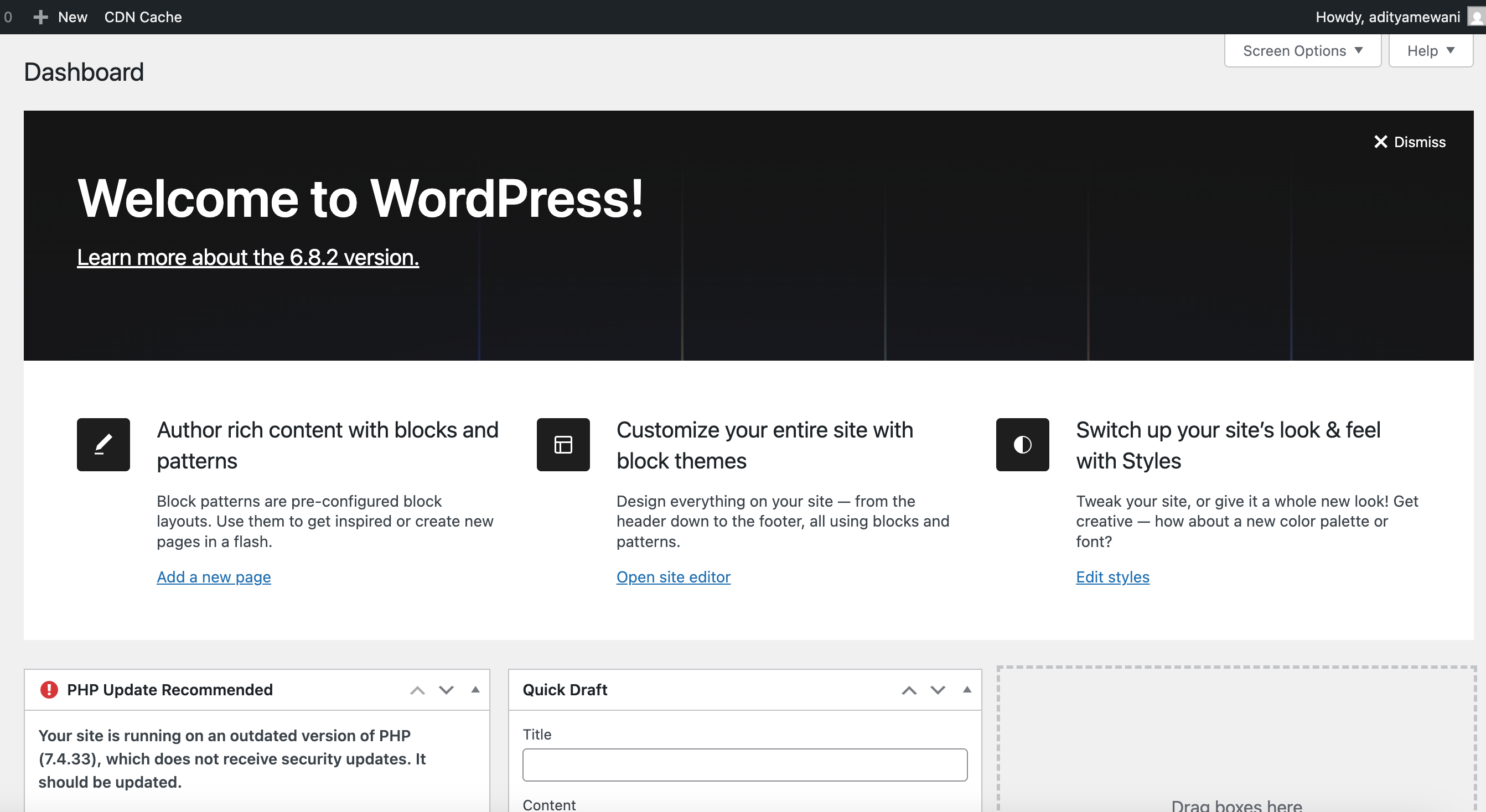
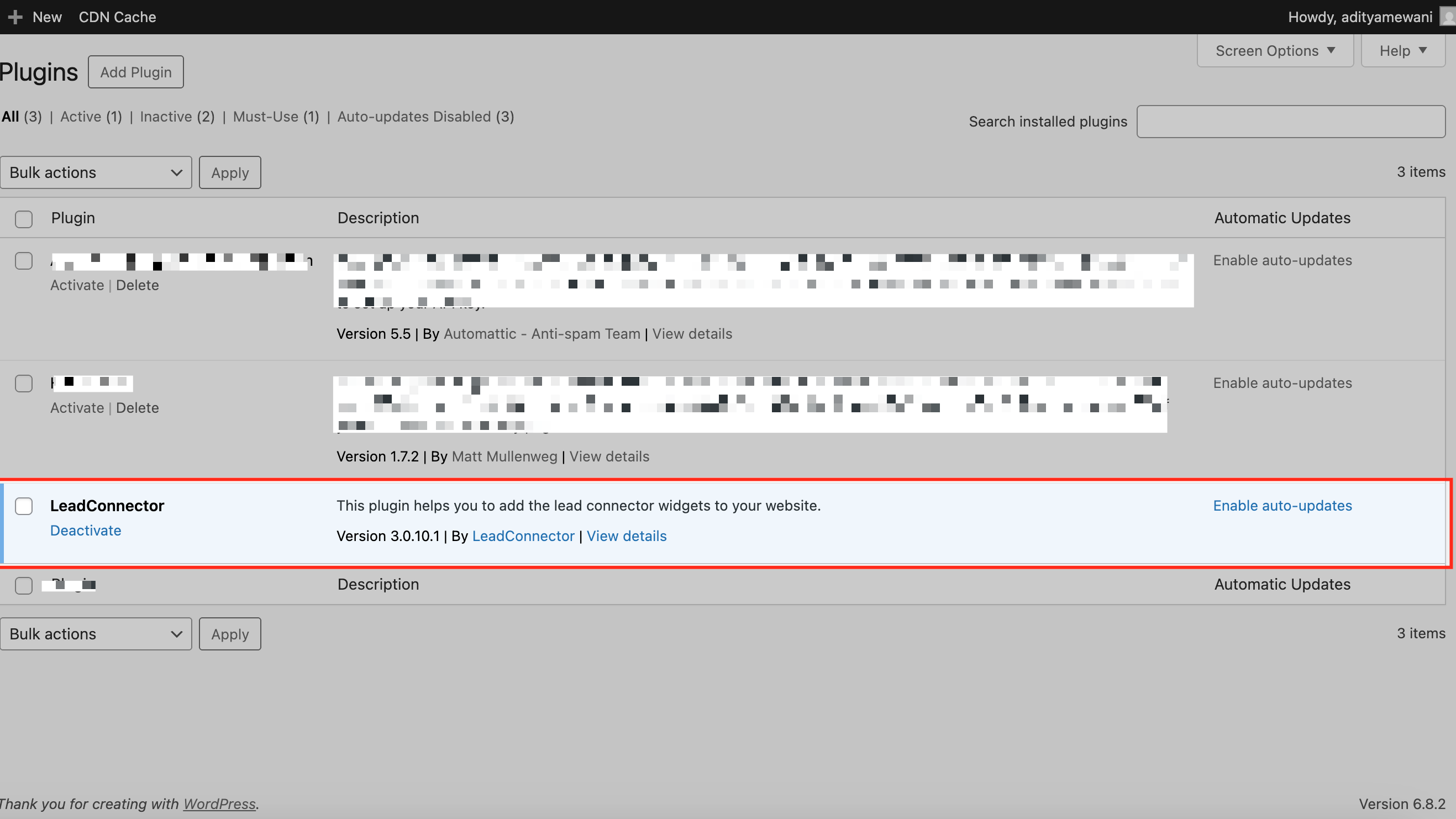
Go to Plugins → Installed Plugins and confirm the LeadConnector plugin is installed and activated.
No further setup is needed. Alerts trigger automatically when a payment fails.
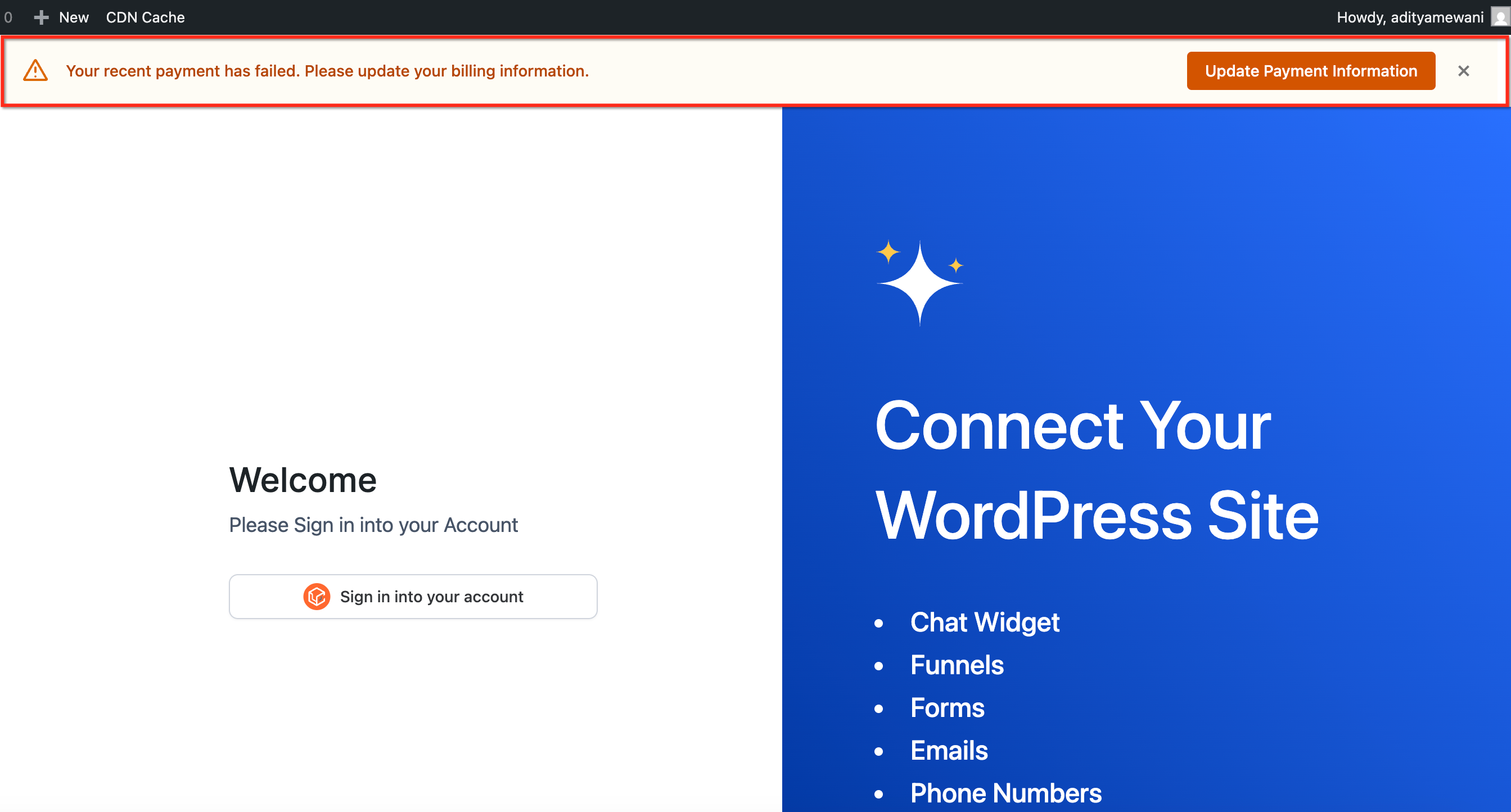
After a failed payment, alerts remain active for a 3-day grace period during which your site stays fully accessible. You can dismiss an alert temporarily, but it returns on page reload or your next login until the issue is resolved. If the balance stays unpaid, hosting escalation follows over the following weeks and can ultimately cancel the subscription and remove the site, so resolve billing issues promptly.
For sites hosted through Aesthetix CRM, you can review, update, and manage the plugins and themes already installed on your site directly from Aesthetix CRM, without opening native WordPress for routine changes.
Activate: Enable an installed plugin or theme.
Deactivate: Disable it without deleting it.
Delete: Remove it from the site.
Update: Update it to the latest available version.
Each item lists its Current Version and Available Version, so you can see at a glance what needs updating. Aesthetix CRM does not support downgrading a plugin or theme from this dashboard; if you need an older version, install it manually through native WordPress.
This dashboard manages items you already have installed. To add a brand-new plugin, either select it during WordPress site creation or install it through native WordPress under Plugins → Add New; it then becomes available to manage here.
If your hosted site uses Staging, test plugin and theme changes there before they affect your live site. Changes made in Staging do not go live until you publish Staging to Live. Changes made directly in Live affect the production site immediately, so use Staging first for larger updates or when troubleshooting.
To manage a plugin or theme:
Go to Sites → WordPress and click Manage Website on the site you want to update.
Confirm whether you are working in Live or Staging.
Open Plugins or Themes and locate the item you want to manage.
Review its Current Version and Available Version, and update it if a newer version is available.
Open the action menu to Activate, Deactivate, or Delete the item.
Review your website after making changes.
If your WordPress site breaks after a plugin change, the built-in WordPress Plugin Troubleshooter helps you isolate the culprit, even during a fatal error like the White Screen of Death. It disables and re-enables active plugins in smart batches until it finds the one causing the issue, then lets you deactivate it in one click.
To run it:
In Aesthetix CRM, go to Sites → WordPress.
On the site you want to fix, click Manage Website.
In the top-right of the site manager, open the Quick actions dropdown and click Troubleshoot site.
In the Find issues panel, click Start the process.
When prompted, select only the plugins essential to your site's core functionality, then click Confirm plugins. The tool begins inspecting plugins.
Click Continue when prompted. If broken plugins are found, click Deactivate the plugin to resolve the issue.
On the results screen, confirm whether the site is fixed. If it still is not, choose Still broken to keep troubleshooting, or restart the process and adjust which plugins you marked as essential.
Keep the plugin updated to the latest version from your WordPress admin so you always benefit from performance and reliability improvements.
How do I install the plugin?
On sites provisioned through Aesthetix CRM hosting, the plugin installs automatically during setup, and automatic installation applies to newly provisioned sites. For an existing site, install the plugin and use Connect Account in the WordPress admin to authorize your account.
How do I reconnect the plugin if it disconnects?
Open the plugin settings in your WordPress admin and select Connect Account again, then authorize through the secure consent screen. The Plugin Status indicator in Aesthetix CRM confirms once you are reconnected.
Can I activate more than one chat widget at a time?
No. You can choose from multiple widgets, but only one can be selected and embedded at a time.
Will my site reflect updates I make to the widget in Aesthetix CRM?
Yes. The widget configuration syncs reliably whenever you change it in the dashboard.
Where are submissions, bookings, and quiz results stored?
In Aesthetix CRM. WordPress displays the embed, while the data and analytics stay in your connected account.
Does it support contact-level Custom Values?
Yes, if the visitor is tracked by cookie or URL parameter. Otherwise the value renders as a general account-level value.
Will the plugin slow down my site?
No. Custom Values are cached locally and refreshed only during sync operations, so page loads stay fast.
Can one WordPress site connect to more than one Aesthetix CRM account?
Each WordPress install connects to a single account. Use a multisite setup if you manage multiple locations or brands.
Does it work with Elementor and Divi?
Yes. Use the shortcode element or widget in your page builder, or embed via Gutenberg blocks where applicable.
Can I install a new plugin from the Managing Plugins and Themes dashboard?
No. That dashboard manages plugins and themes you already have installed. Add a new plugin during WordPress site creation or through native WordPress, then manage it from Aesthetix CRM afterward.
Can I downgrade a plugin or theme from Aesthetix CRM?
No. The dashboard only supports updating to the latest available version. To use an older version, install it manually through native WordPress.
