Buttons and links do more than look good. In the Aesthetix CRM page builder, you can make a button, text link, image, or SVG start a phone call, open a text message, compose an email, download a file, or reveal and hide elements on the page. These actions remove friction for prospective patients, especially on mobile, and make it effortless for someone to reach your practice or grab a resource with a single tap.
Clickable actions let a visitor instantly call, text, or email you. When configured correctly, a click opens the visitor's phone dialer, SMS app, or default email client with your details pre-filled.
One-tap contact: Visitors call, text, or email without copying or typing anything.
Higher mobile engagement: Mobile visitors are far more likely to tap a clickable action.
Time-saving: Auto-fills the phone number, message body, or email address.
Automation-ready: Pair with trigger links to launch follow-up workflows.
Flexible design: Add these actions to text links or button elements.
Highlight the text in the funnel or website builder.
Click the link icon.
Enter your link using the format tel:+1234567890.
Click Save, then preview and test it on a mobile device.
Highlight the text in the funnel or website builder.
Click the link icon.
Enter your link using the format mailto:[email protected].
Click Save, then preview and test the link.
Click the button in the funnel or website builder.
On the right, under Button Actions, use the Link to dropdown to select Call.
Enter the phone number.
Click Save, then preview and test the button.
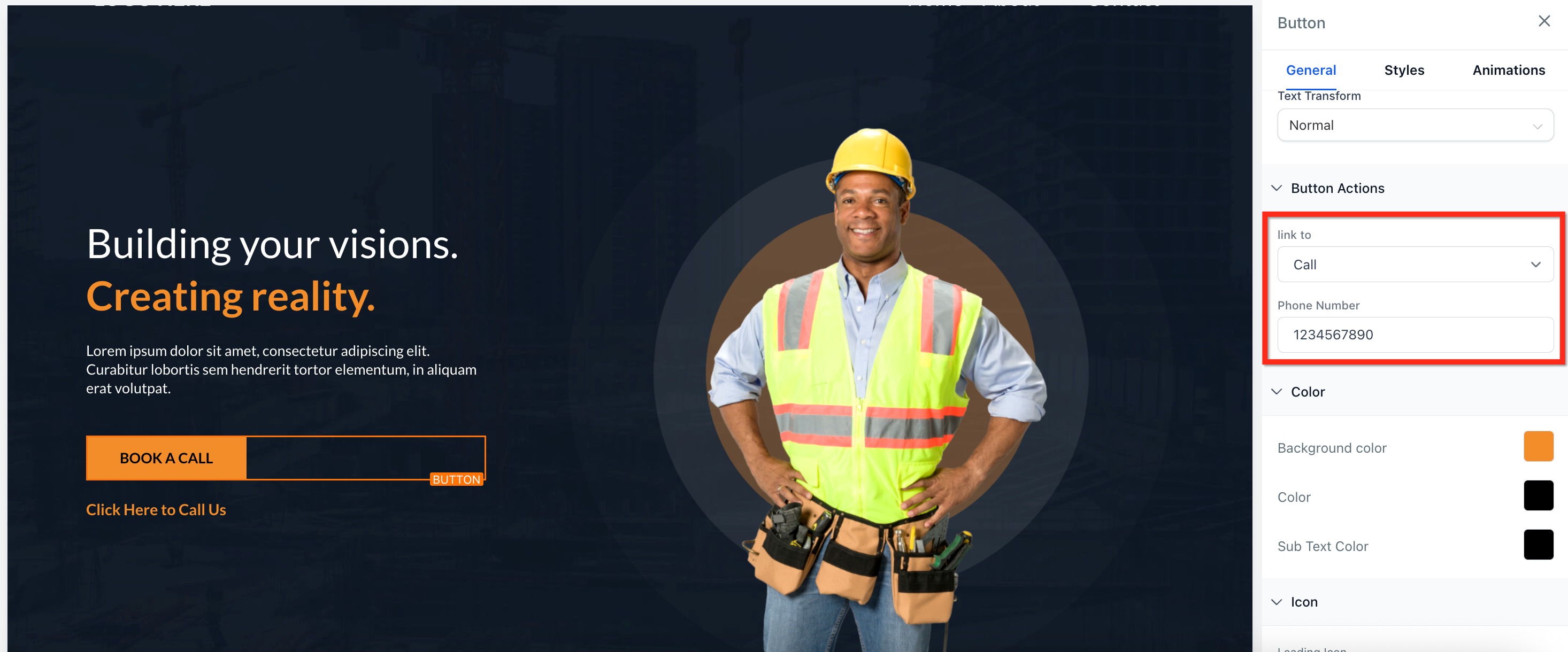
Click the button in the funnel or website builder.
On the right, under Button Actions, use the Link to dropdown to select SMS.
Enter the phone number.
Click Save, then preview and test the button.
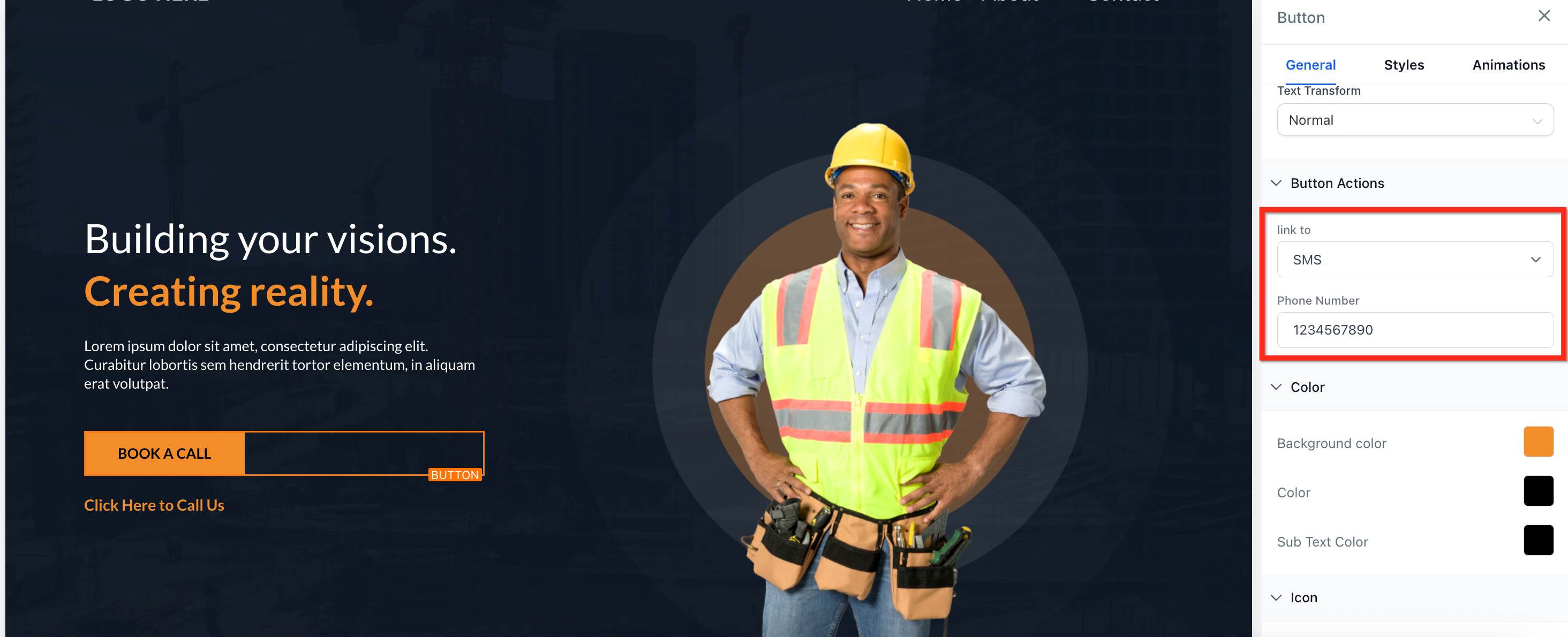
Click the button in the funnel or website builder.
On the right, under Button Actions, use the Link to dropdown to select Email.
Enter the email address.
Click Save, then preview and test the button.
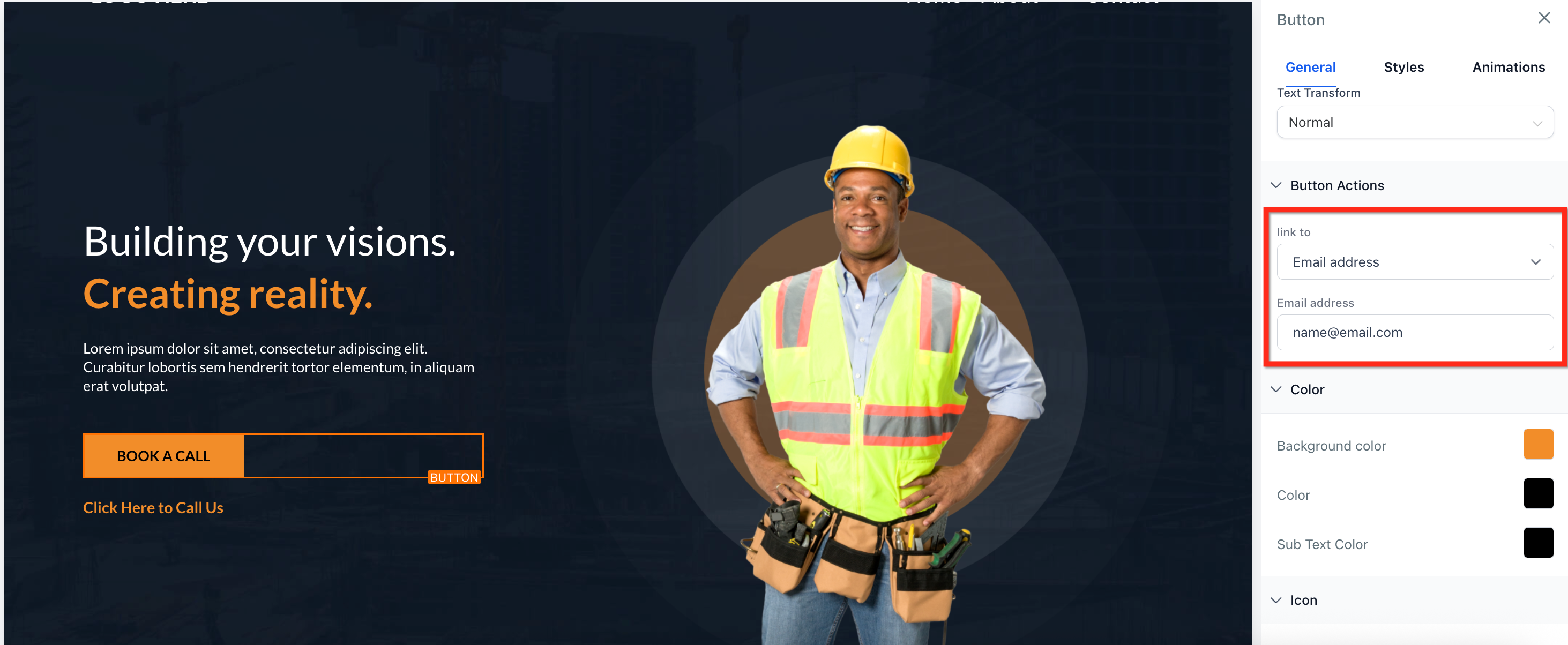
The Download File action lets a visitor download a file, such as a PDF, image, or ZIP, when they click a button, image, or SVG. It is ideal for lead magnets like a pre-treatment care guide, a pricing sheet, or an aftercare PDF, delivered instantly without any code or third-party service.
Works on buttons, images, and SVGs.
Each element links to a single file. To offer several files, combine them into one ZIP.
The file must live in your Aesthetix CRM media library. Standard media library size limits apply.
Supported file types include anything the media picker accepts, such as PDF, PNG, JPG, MP3, MP4, DOCX, XLSX, and ZIP.
You can set a custom file name so the download looks clean and on-brand.
Open your funnel or website in the editor. Click Sites, choose the Websites or Funnels tab, open the item, go to the page or step, and click Edit to launch the builder.
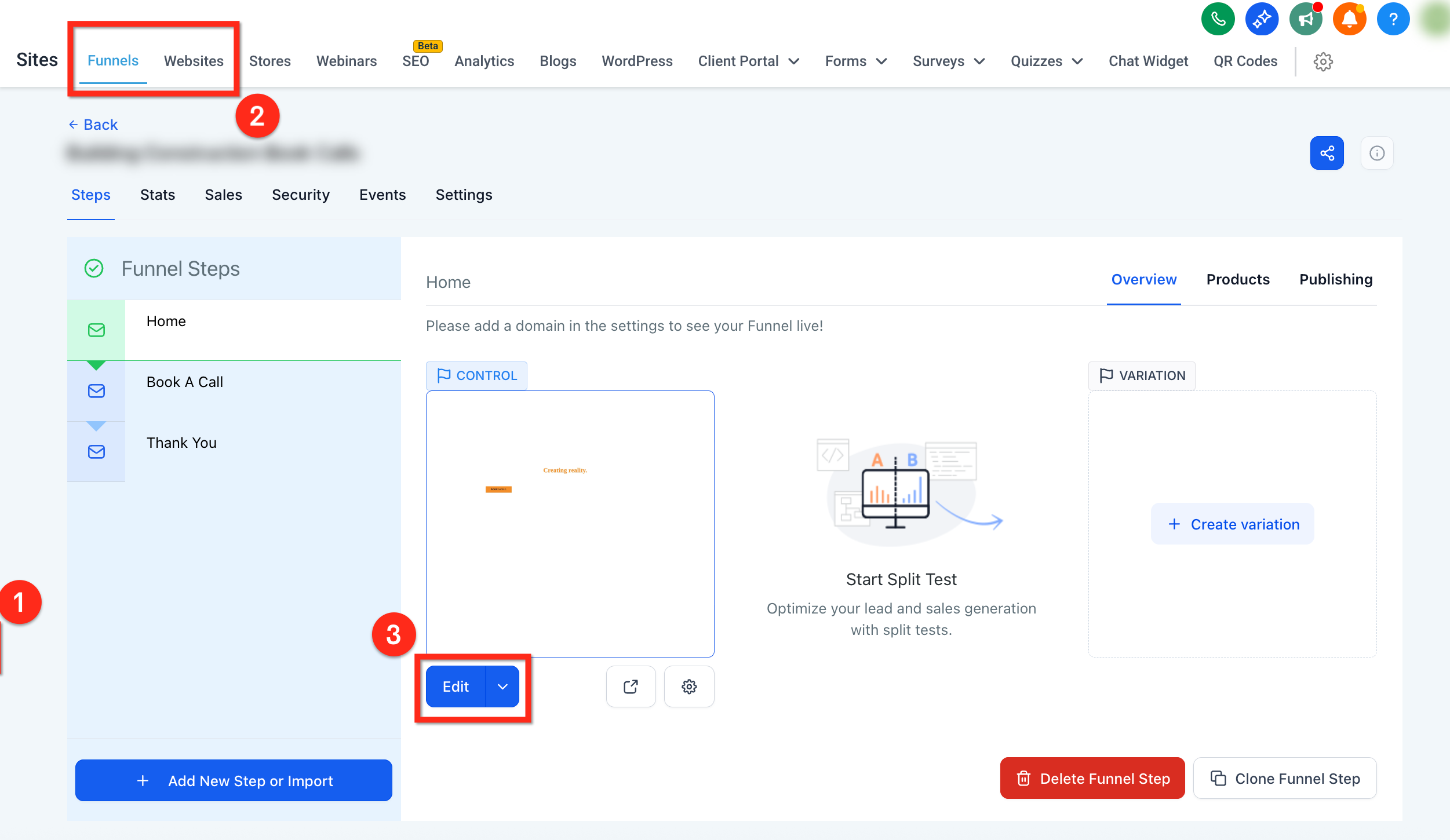
Select the button, image, or SVG you want to make downloadable, then set the download action in the Settings panel:
Buttons: Under Button Actions, use the Link To dropdown to select Download File.
Images: Use the Image Action dropdown to choose Download File.
SVGs: Use the SVG Action dropdown to choose Download File.
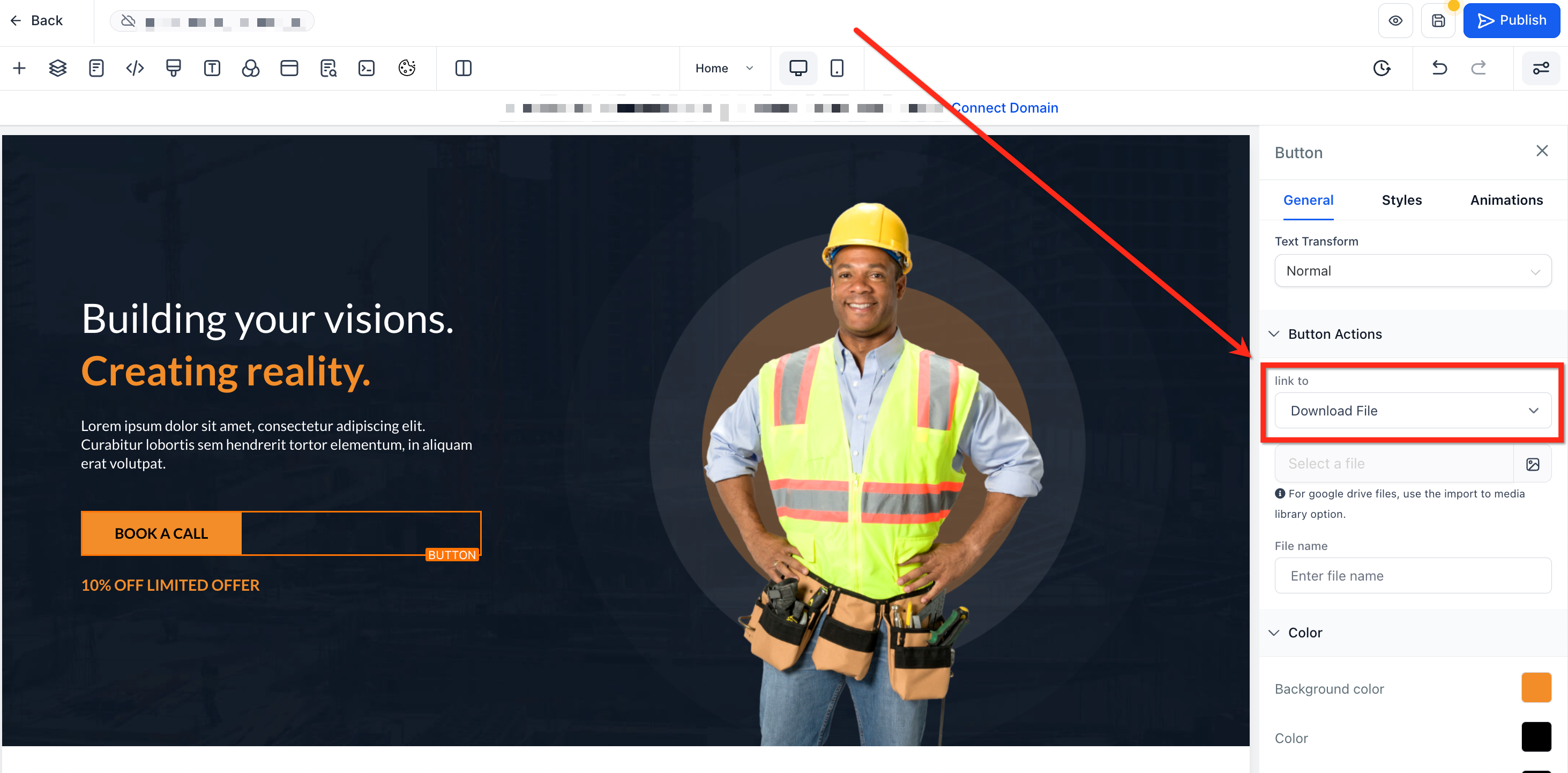
Toggle Download on and click Link File (or Select File) to open the media picker.
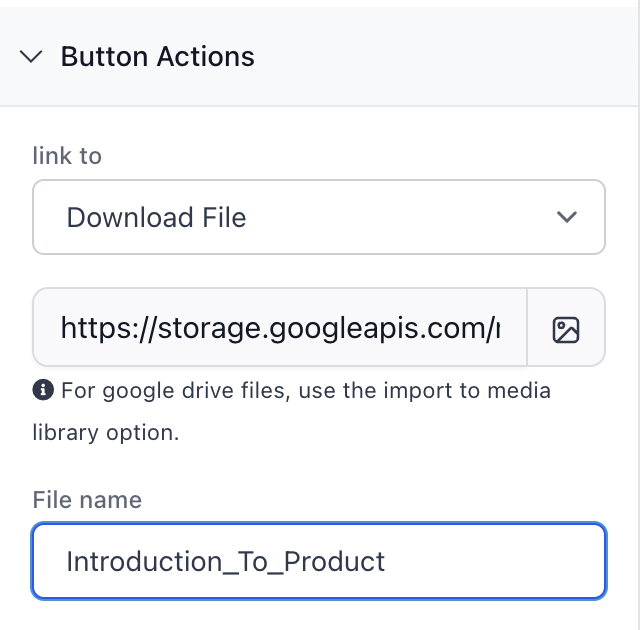
Select or upload your file from the media library.
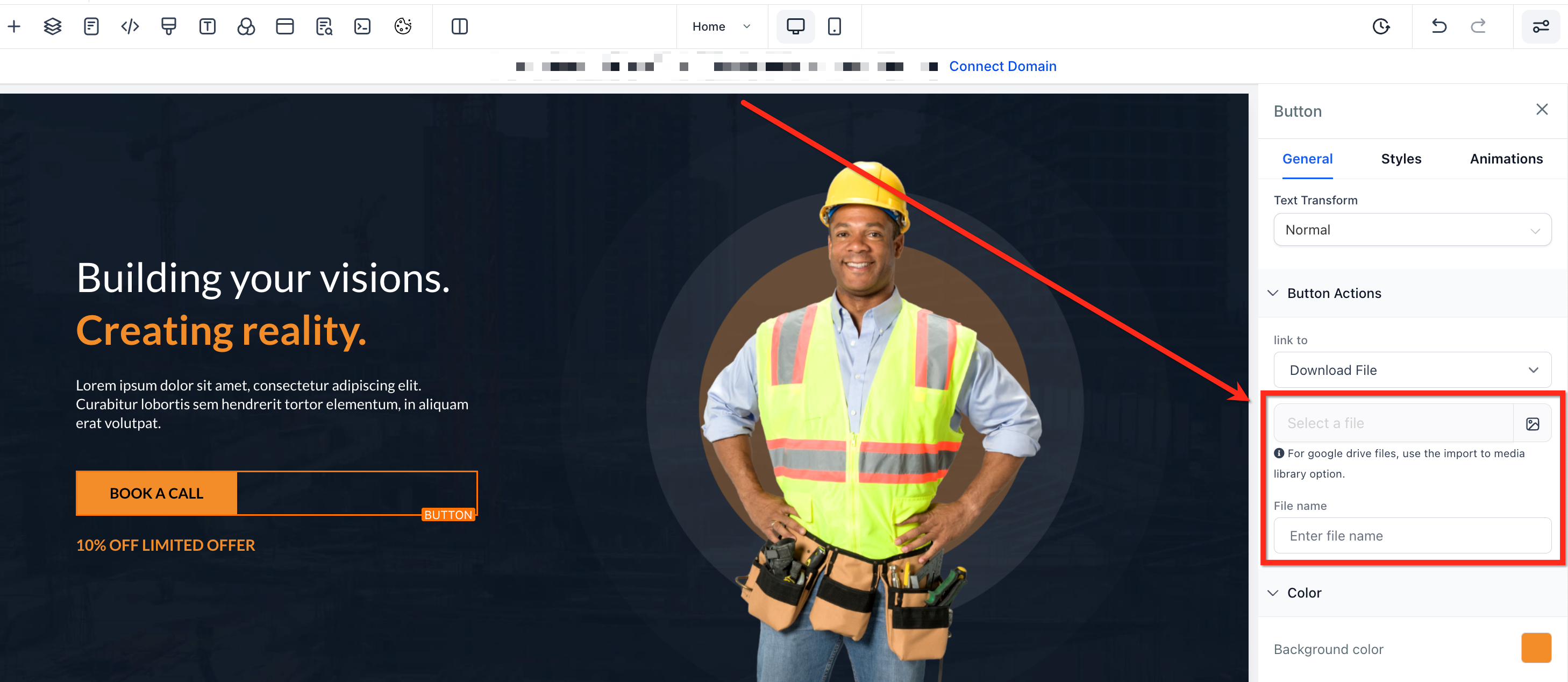
Optionally, use the File Name box to set a custom, branded name (for example, changing file_123.pdf to 2025_Pricing_Guide.pdf), then save and preview.
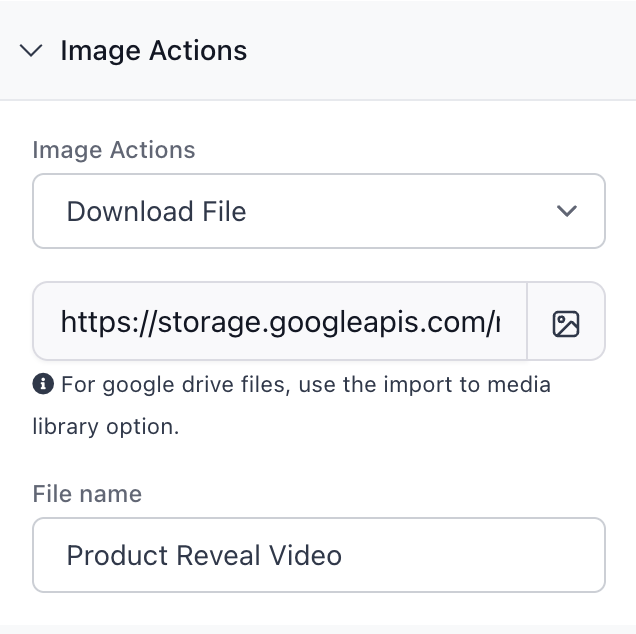
Use descriptive file names, such as Aftercare_Checklist.pdf, to reinforce your brand.
Compress large images or videos so downloads are fast.
Label the call to action clearly, such as Download Recipe PDF, so visitors know what they will receive.
Only link final versions. Replacing or deleting a file in the media library can break saved download links.
If nothing happens on click, confirm the action is enabled and a file is attached. If you see a broken link, verify the file still exists in the media library.
The Show and Hide Elements action lets a button dynamically reveal or hide elements on both mobile and desktop, adding an interactive layer to a page, such as expanding an FAQ answer or revealing a special offer.
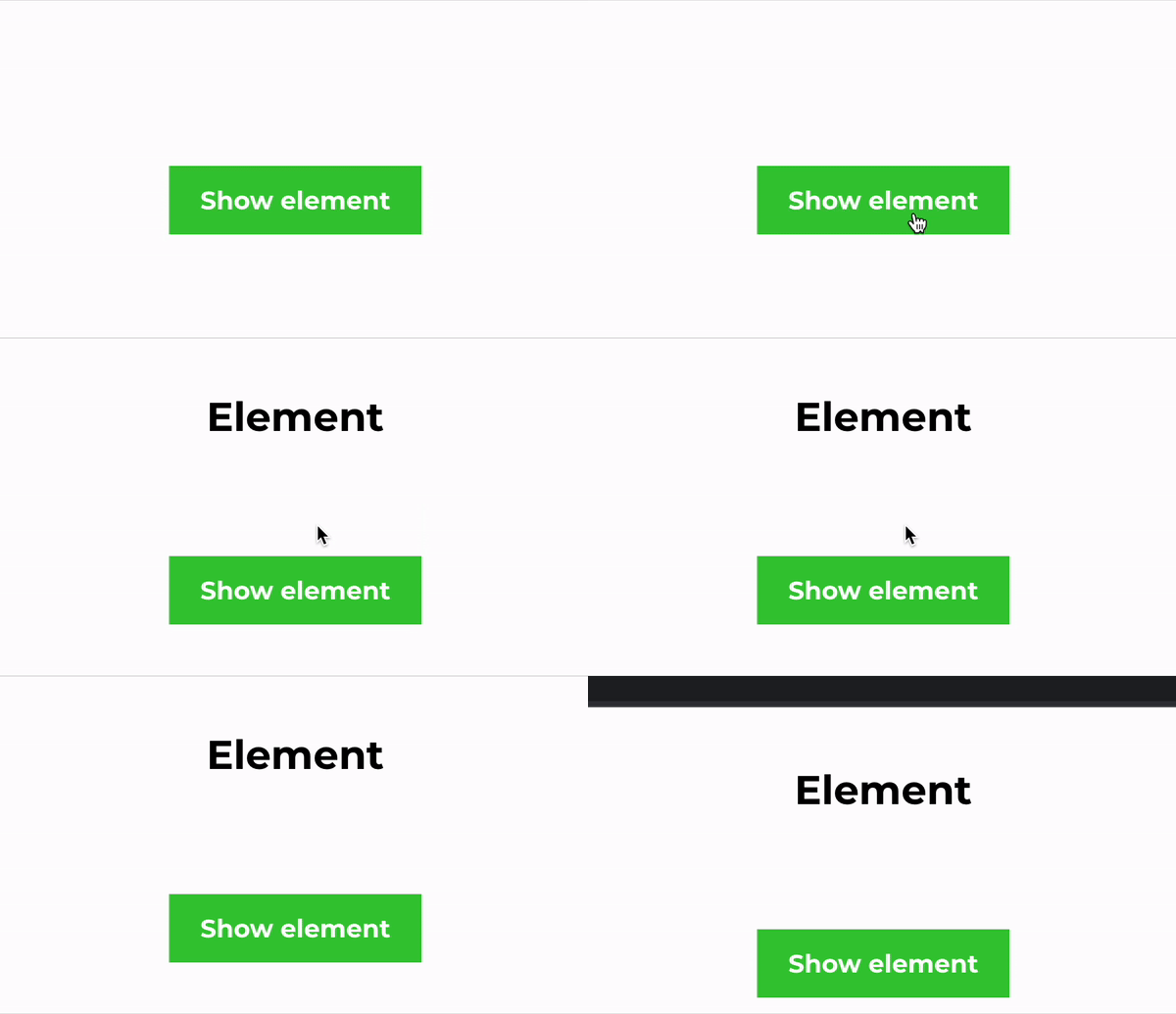
Important: To show an element, that element must first be hidden. If nothing appears in the Show Elements dropdown, hide an element first.
In the funnel or website builder, choose the button element you want to use.
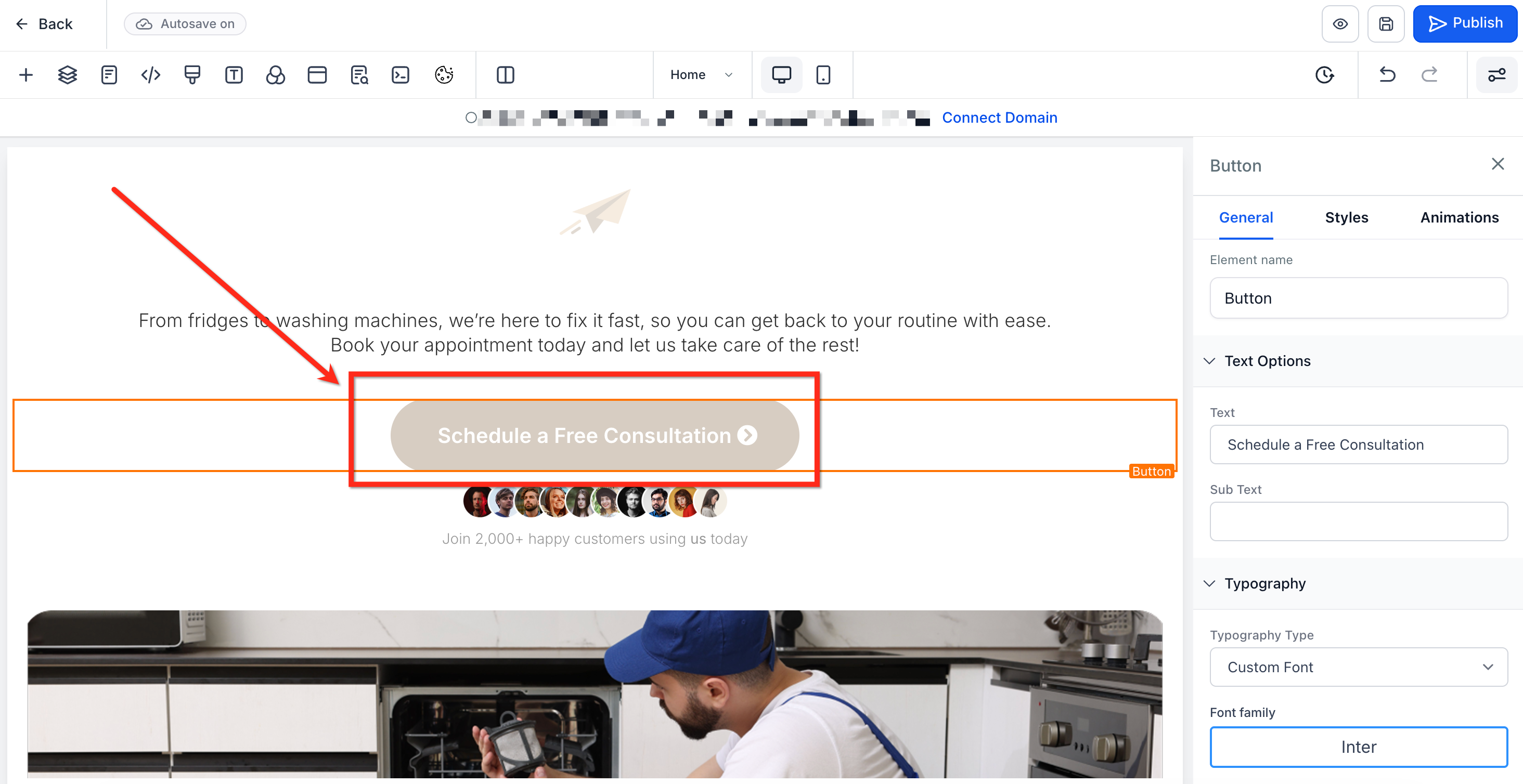
On the right, find the element settings. Under General, scroll down to Button Actions. In the Link To dropdown, select Hide & Show Elements.
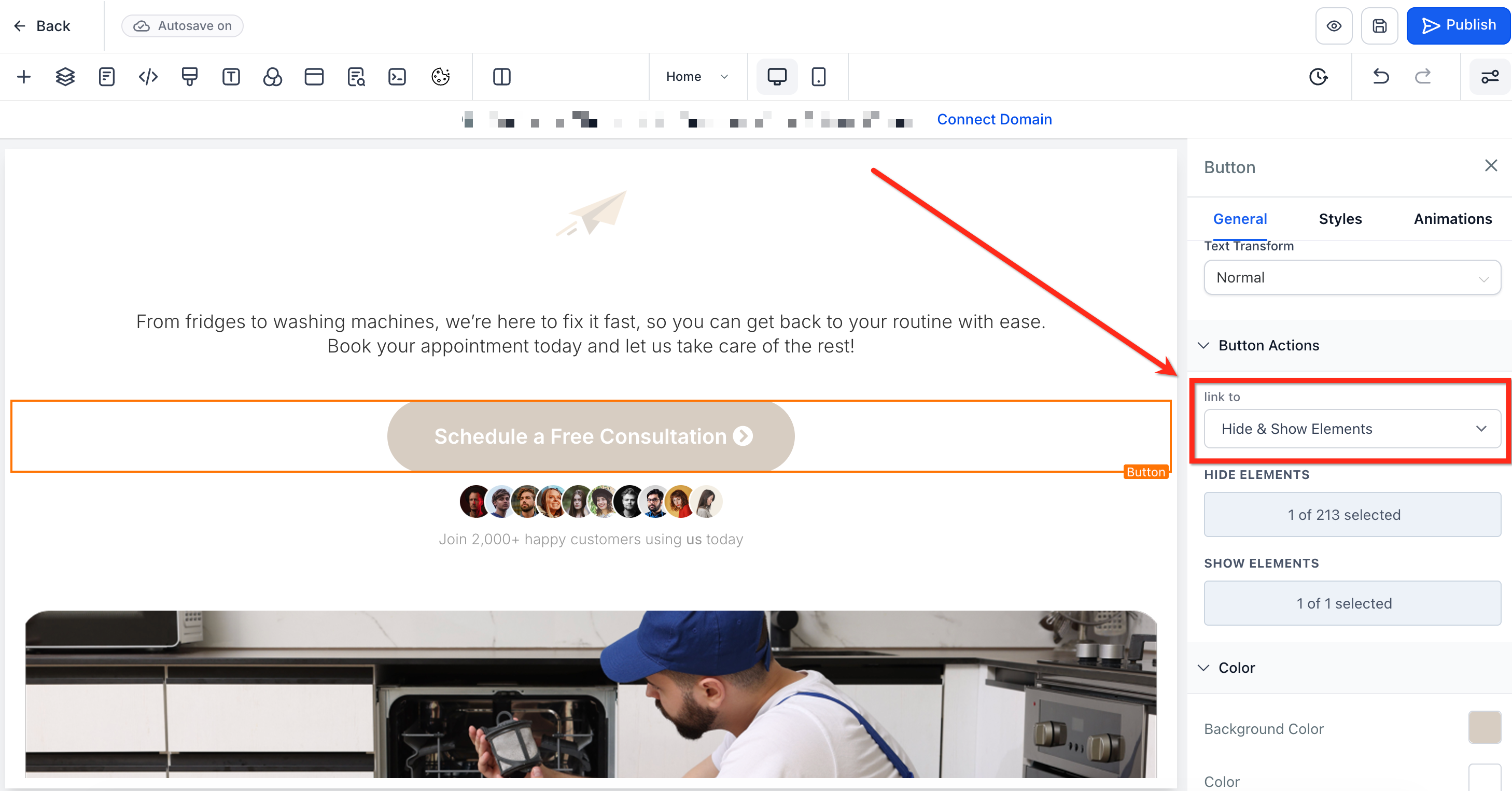
Click Hide Elements to open a dropdown listing all elements on the page. Choose the element, section, column, or column rows you want to hide when the button is clicked.
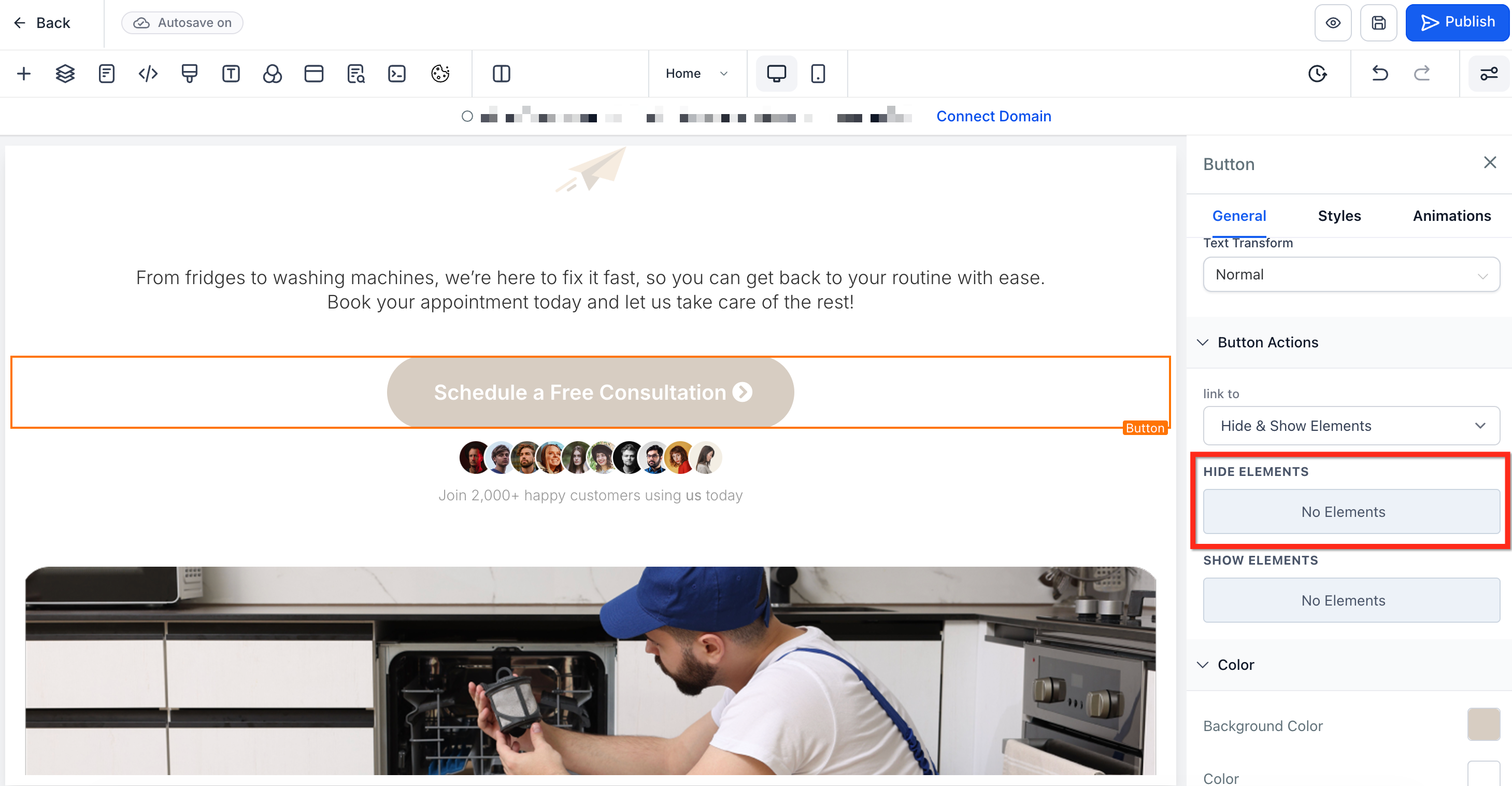
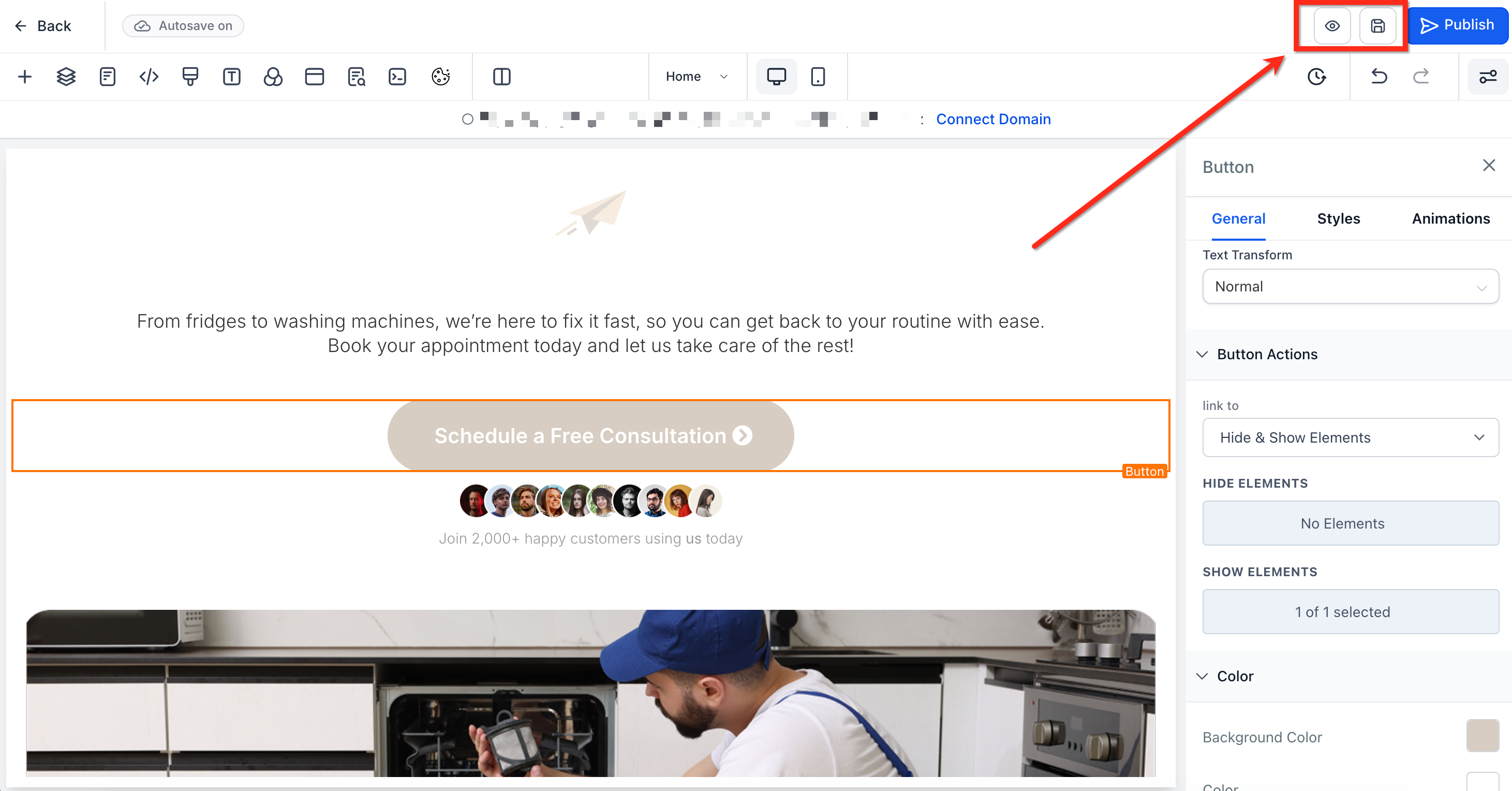
Then click Save to keep your changes, or Preview to test.
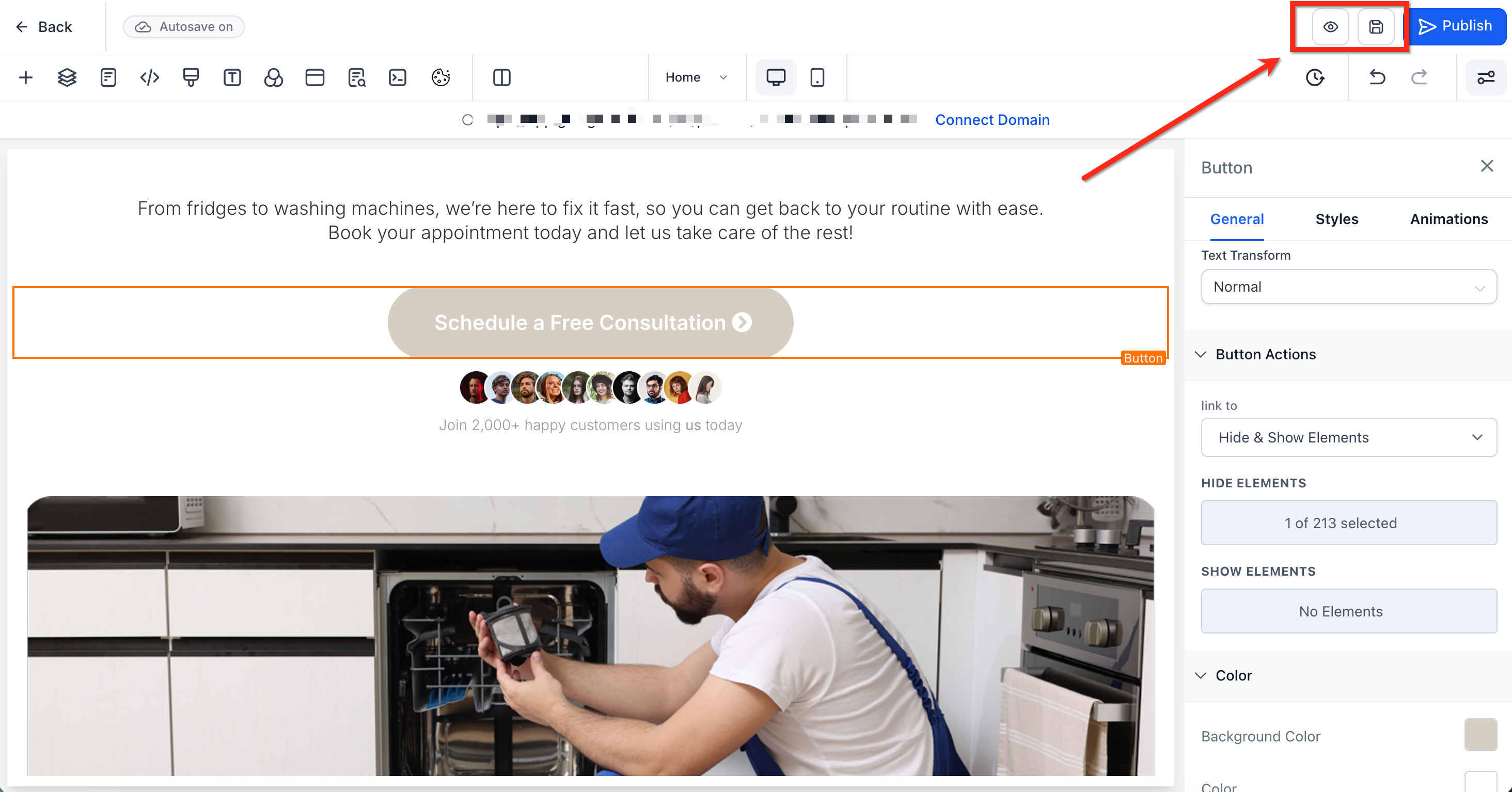
To show an element on click, that element first has to be hidden by default.
Select the element you want to reveal. In the left-side settings, go to the Styles tab and scroll to Visibility.
Click both the mobile and desktop visibility buttons to hide the element in both views. When hidden, the icons appear gray.
Choose your button, open Button Actions, and set Link To to Hide & Show Elements as above. Click Show Elements and choose the hidden element, section, column, or column rows to reveal on click.
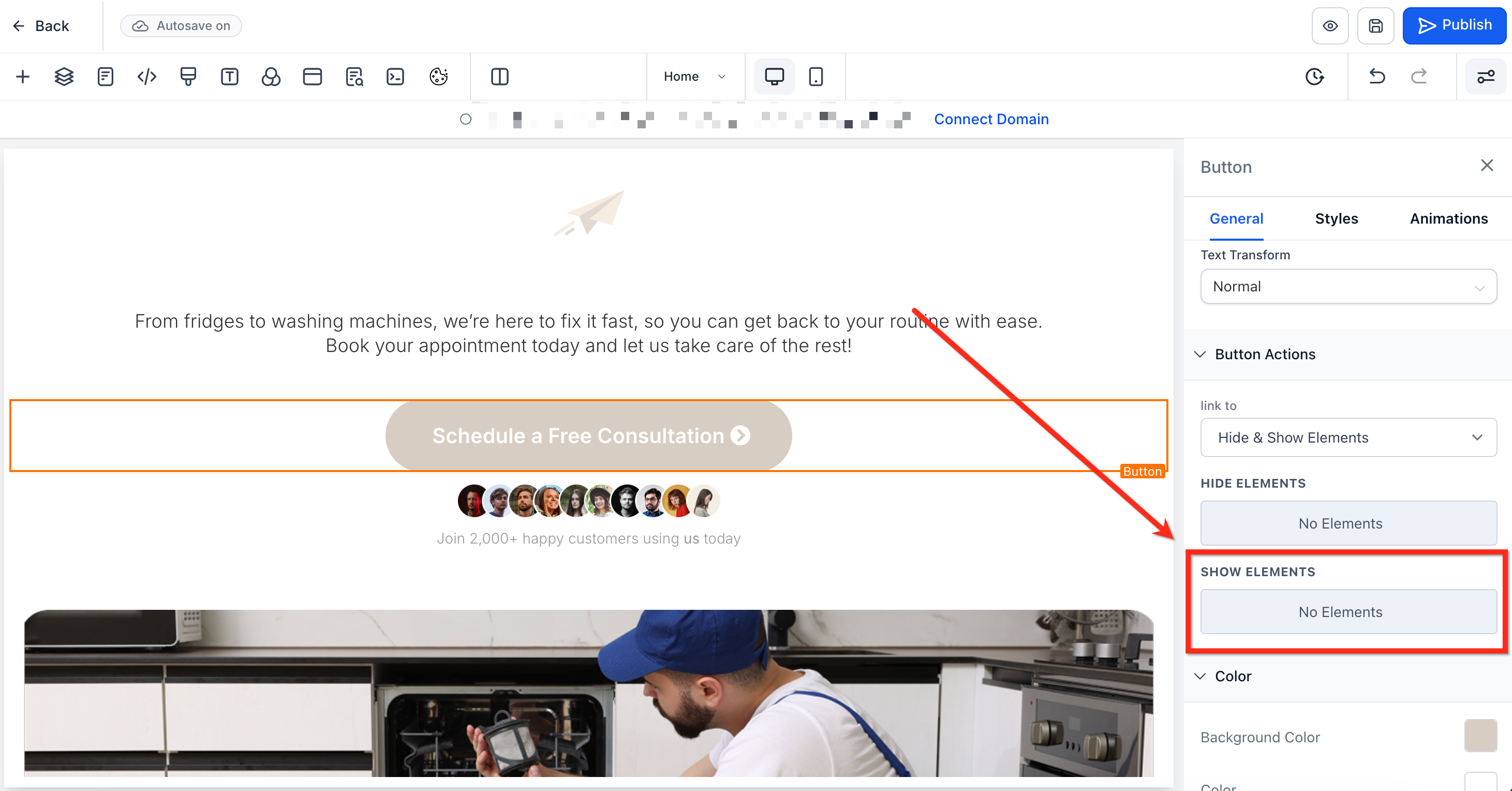
Click Save to keep your changes, or Preview to test.
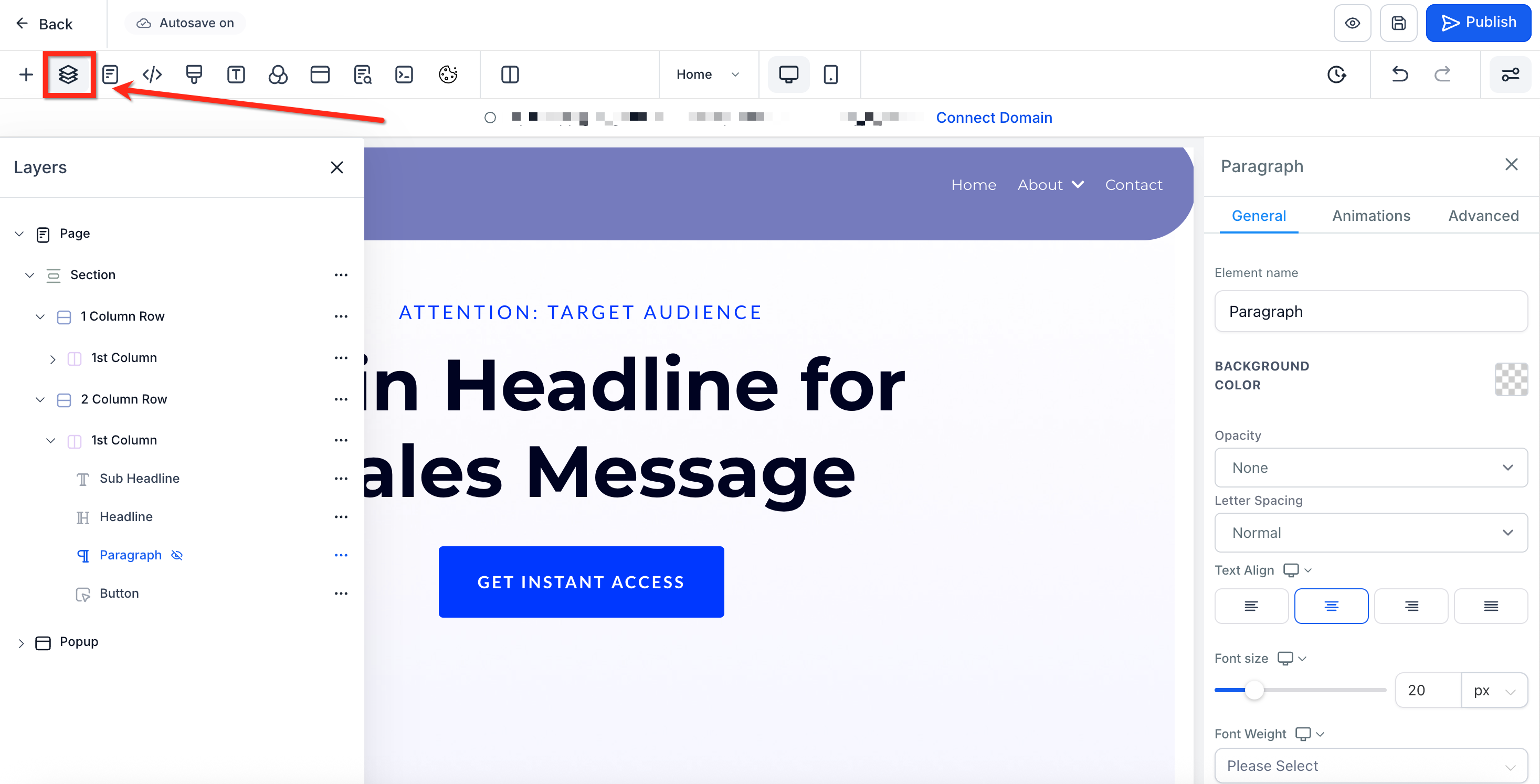
If you hid an element on both desktop and mobile, you cannot see or click it on the canvas, but you can still reach it through the Layers panel. Click the Layers icon in the top left of the builder, find the hidden element in the list, click its name to select it, then click the visibility toggle (eye icon) in the top bar to turn it back on.
How can I track clicks on click-to actions? Use trigger links to track clicks and launch follow-up workflows based on them.
What happens if a visitor's device does not support a click-to link?
If the device does not support the protocol, such as sms: on a desktop, nothing happens on click. Test your links across devices and include fallback contact information.
Can one link perform more than one action, like call and text? No. Each link performs a single action. To offer multiple options, use separate links or buttons for each.
Can I put a click-to action on an image or icon? Yes. You can hyperlink images or icons in the builder using the same formats, which is useful for visual calls to action like a phone or message icon.
Can I attach more than one file to a download element? No. Each element links to a single file. Combine multiple files into one ZIP if needed.
Do I need Dropbox or Google Drive for downloads? No. Upload the file to your Aesthetix CRM media library and link it. The Download File action handles delivery with no third-party service.
Can I track who downloads a file? Downloads are not tracked individually. For tracking, pair the download with a form submission and an automation trigger.
Why does my Show Elements dropdown appear empty? An element must be hidden before it can be shown. Hide an element first, and it will appear in the Show Elements list.
