You can send a complete email package in one message by attaching files directly from the Aesthetix CRM Email Builder. Instead of asking patients to click out to a separate link, you deliver your email and its supporting documents together. This is ideal for aftercare instructions, pre-treatment prep sheets, price lists, membership brochures, event flyers, and intake forms.
This guide covers where to attach files, how they reach recipients, and the size limits to keep in mind.
Simple workflow: Attach files right before sending or scheduling, without leaving the Email Builder.
Fewer clicks for recipients: Attachments are available directly from the inbox.
Everything in one message: Deliver your email and supporting documents, such as PDFs and images, together.
Great for common use cases: Perfect for brochures, price sheets, aftercare docs, membership details, and forms.
Control over what recipients receive: Everyone gets the exact file version you intended instead of a link that might point to an outdated file.
HIPAA note: Mass email is marketing, not a secure channel for protected health information. Do not attach anything that contains a specific patient's health details, treatment records, or identifiers. General, non-patient-specific documents such as aftercare instruction PDFs, service menus, and price sheets are fine to attach to a campaign.
Follow these steps to find the Attach Files button and add attachments in the Email Builder.
Go to Marketing → Emails → Campaigns → + New, or open the email campaign you are editing.
Open the email in the Email Builder and finish designing your content.
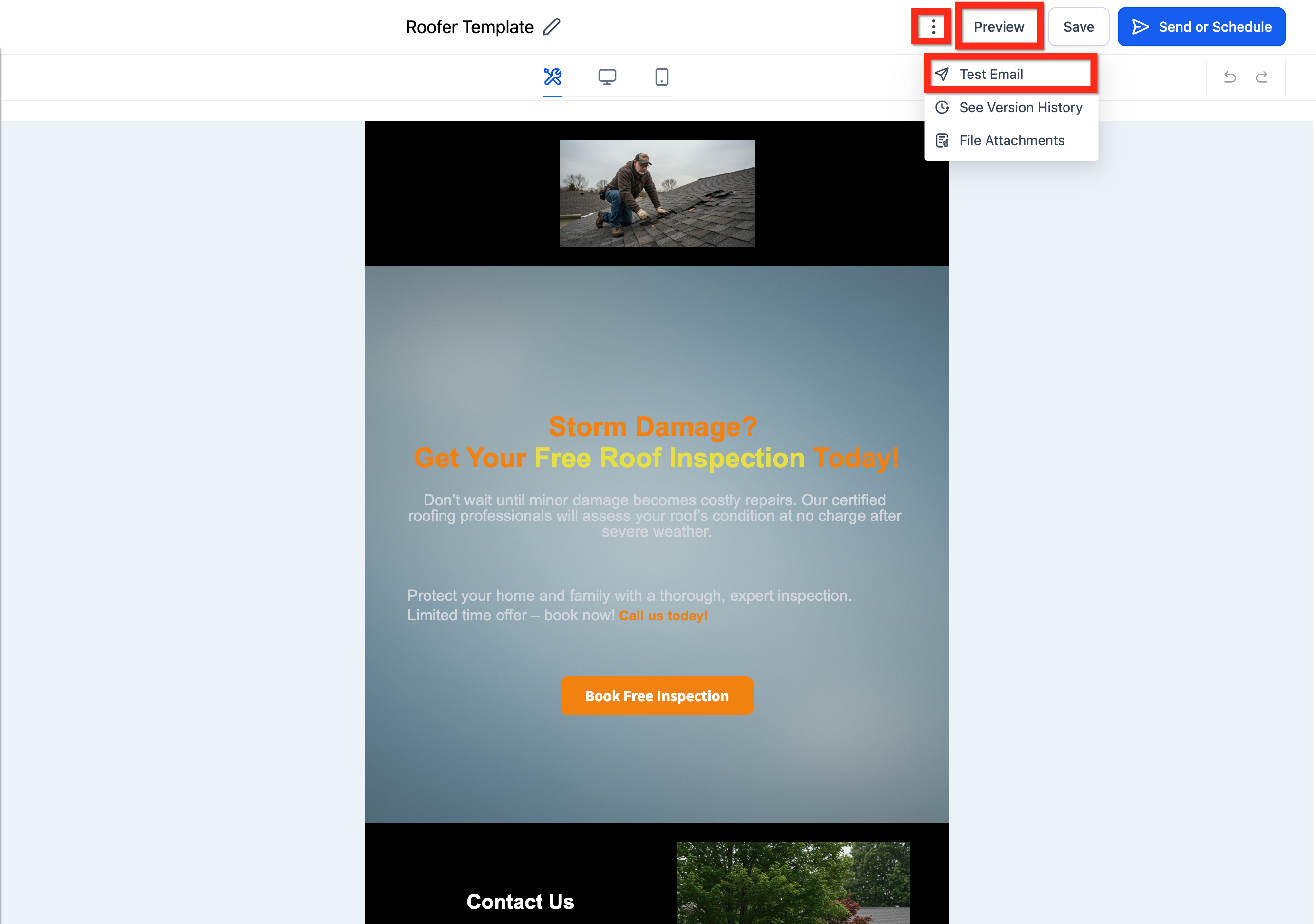
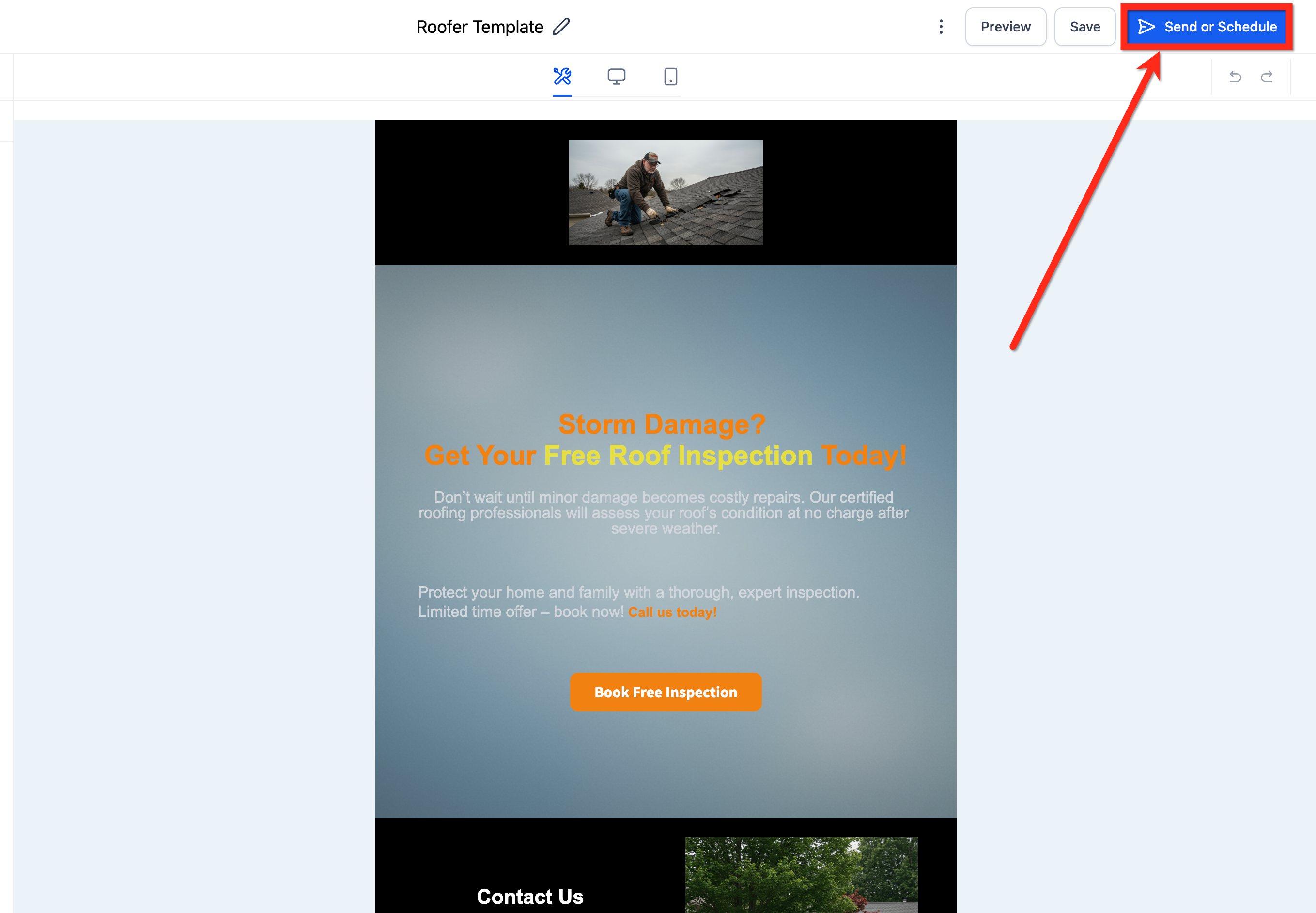
Click Send or Schedule.
On the Send or Schedule screen, click Attach Files at the top of the screen.
Upload or select the file or files you want to attach.
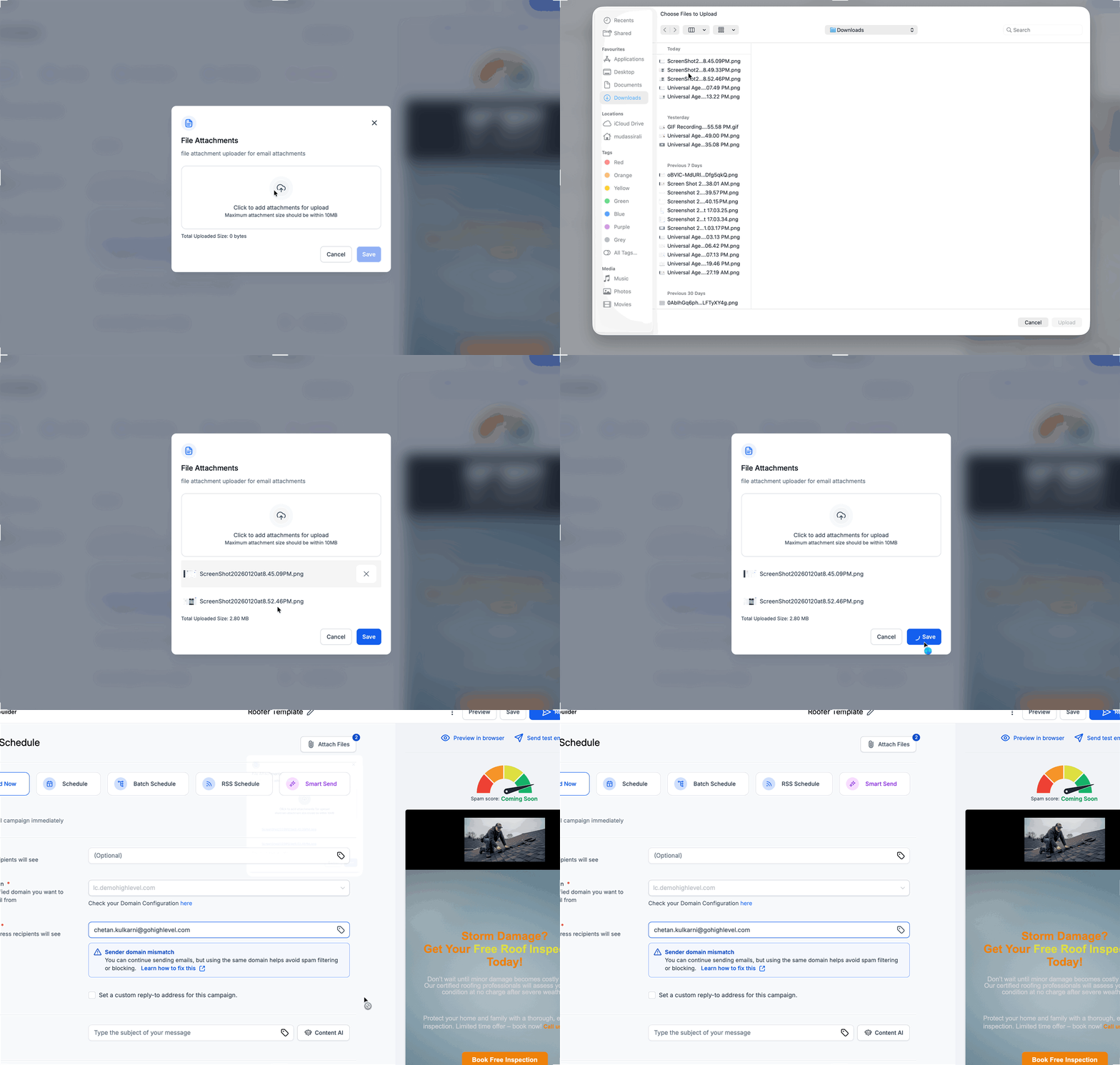
Confirm the attachments are added, then choose a delivery option: Send Now, Schedule, Batch Schedule, RSS Schedule, or Smart Send.
Note: The Email Builder supports multiple attachments up to 10 MB total.
Attachment limits also depend on the recipient's email provider, and exceeding a provider's limit can cause an email to bounce. Common provider limits include:
Email Provider | Max Attachment Size |
|---|---|
Gmail | 25 MB |
Yahoo Mail | 25 MB |
Outlook.com | 10 MB |
For larger files, host the file and share a link instead of attaching it directly. Hosting a larger file and linking to it keeps your email lightweight and helps deliverability, which matters most when reaching a large patient list.
Send a test first. Attachments do not appear inside the email body preview. Use Send test email to confirm the attachment shows up correctly in the recipient's inbox.
Watch deliverability. Large attachments or uncommon file types can increase the chance of spam filtering. When deliverability is a priority, link to a hosted file instead of attaching it.
Use common file types. PDFs and standard image formats are the safest choice for broad delivery.
Can I attach multiple files? Yes. You can attach multiple files as long as you stay within the supported attachment limits.
Will attachments affect deliverability? They can. Large attachments or uncommon file types may increase the chance of spam filtering or delivery issues. If deliverability is a priority, host the file and include a link instead.
Why do I not see the attachment in the email body preview? Attachments do not display inside the email body. They appear as attachments in the recipient's email client. Send a test email to confirm the attachment appears correctly.
What file types should I use? Stick to PDFs and standard image formats for the best delivery results across email providers.
Can I attach patient records or treatment notes? No. Do not attach protected health information to a marketing campaign. Attach only general, non-patient-specific documents such as aftercare PDFs, service menus, and price sheets.
What if my file is larger than the limits allow? Host the file elsewhere and include a link in the email instead of attaching it directly. This keeps the email small and improves deliverability.
