Many people overlook a large share of the emails they receive, so a well-timed resend gives your campaign a second chance to be seen. Resending an email to contacts who did not open it the first time can meaningfully lift engagement, but it needs to be done carefully. Sent too often or too soon, repeat emails can trigger complaints, unsubscribes, and damage to your sender reputation. This guide shows how to resend to unopened contacts and how to do it well.
For automated multi-step follow-up, see Email Sequences. For click-based follow-ups, use the Workflows area.
A resend has two objectives that must stay in balance:
Increase engagement with your campaigns by reaching people who missed the first send.
Protect your reputation by not generating complaints and unsubscribes.
Timing matters. Resend within a short window of the original send to minimize the risk of unsubscribes and complaints. The supported resend window is 12 hours to 10 days, which balances maximum engagement against minimum complaints.
Choose impactful emails. Resend your strongest emails, since they are less likely to draw negative feedback. Resending works best for campaigns that regularly see open rates above 20 percent.
Change the subject line. A fresh subject line catches attention and keeps the message from looking repetitive.
Resend only once. Multiple attempts annoy recipients and can harm your sender reputation.
Go to the Email Marketing section.
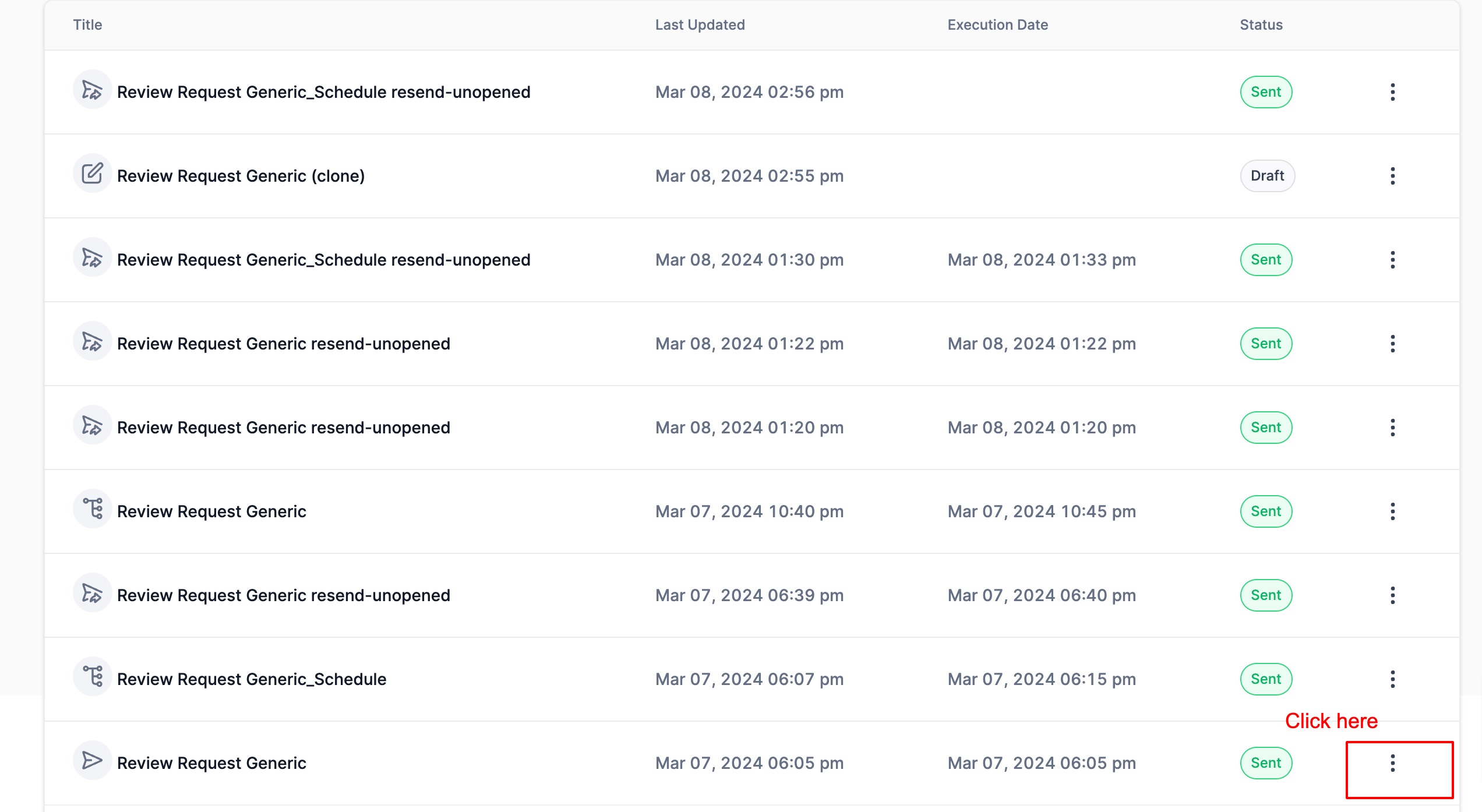
Locate the campaign you want to resend and click the three-dot menu for options.
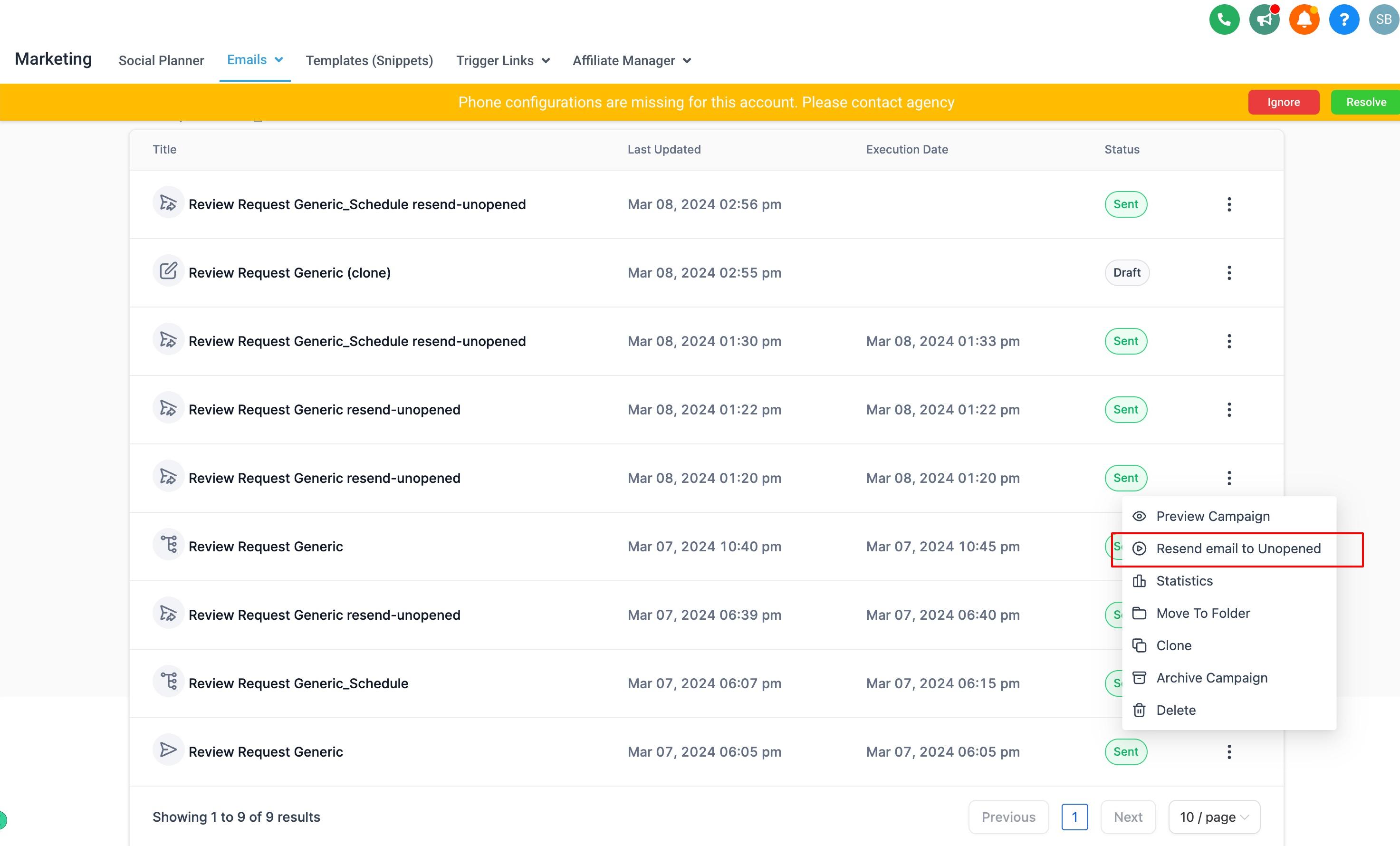
Choose Resend email to Unopened.
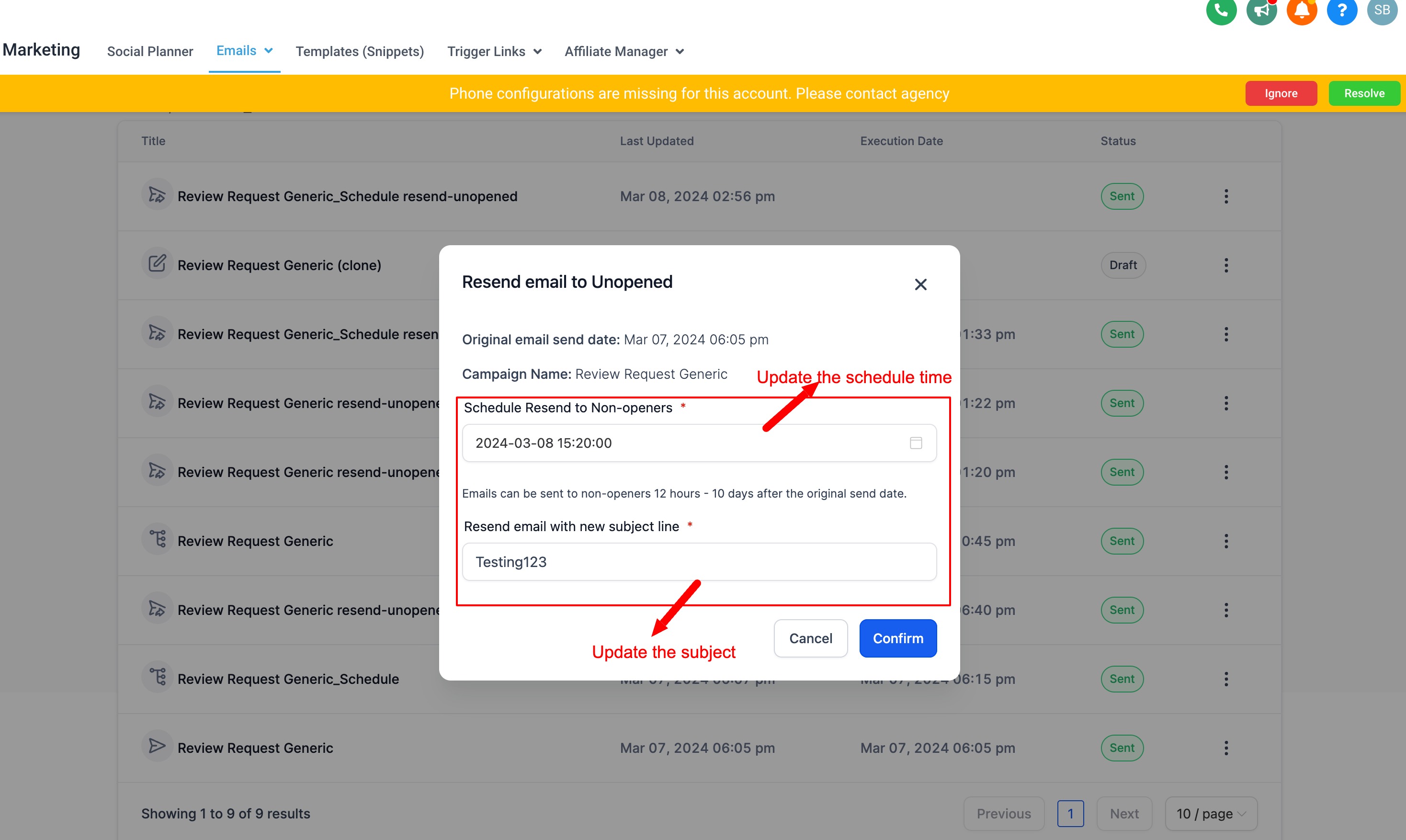
Set the schedule time and enter a subject line for the resent campaign.
Confirm. A new campaign with the same content is scheduled and will send only to contacts who did not open the original.
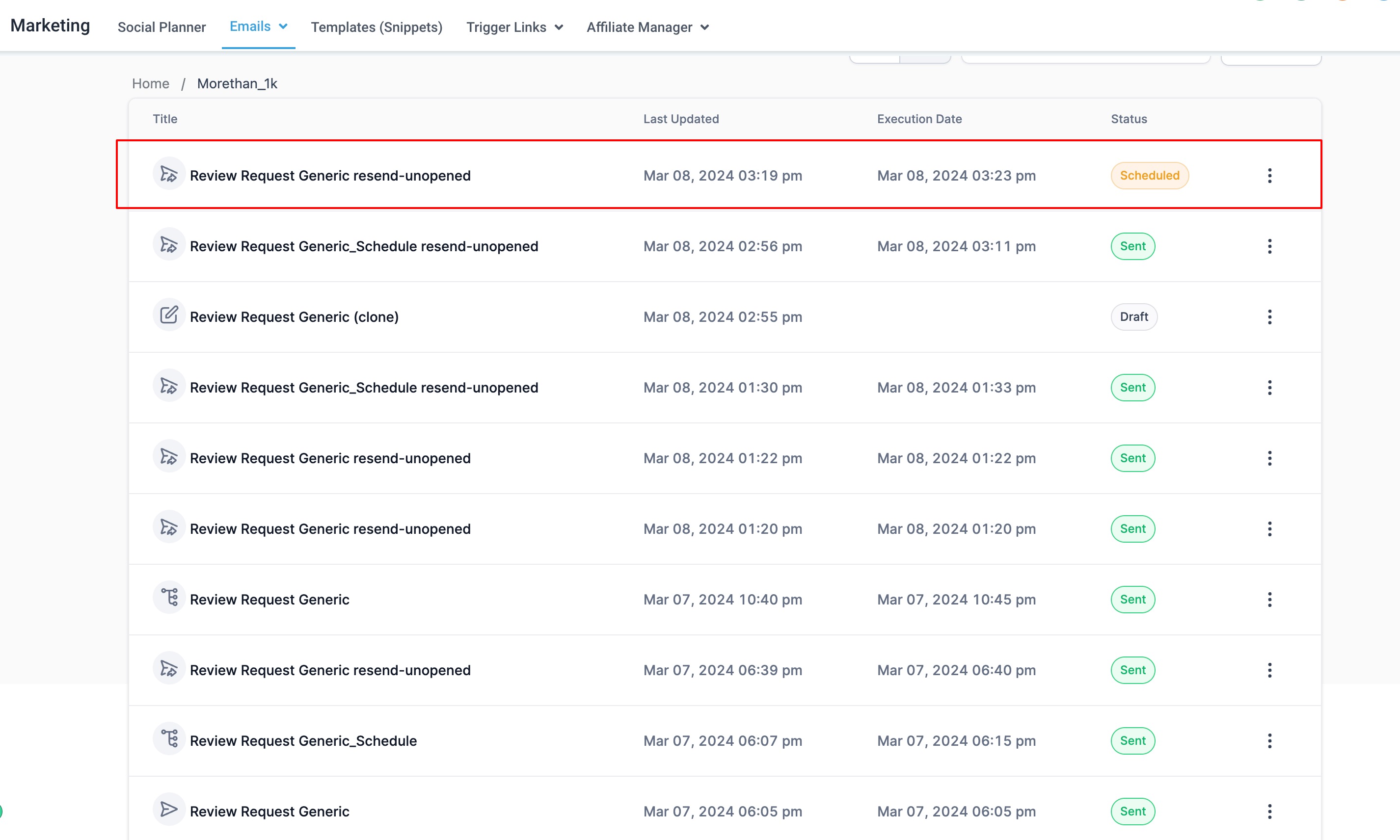
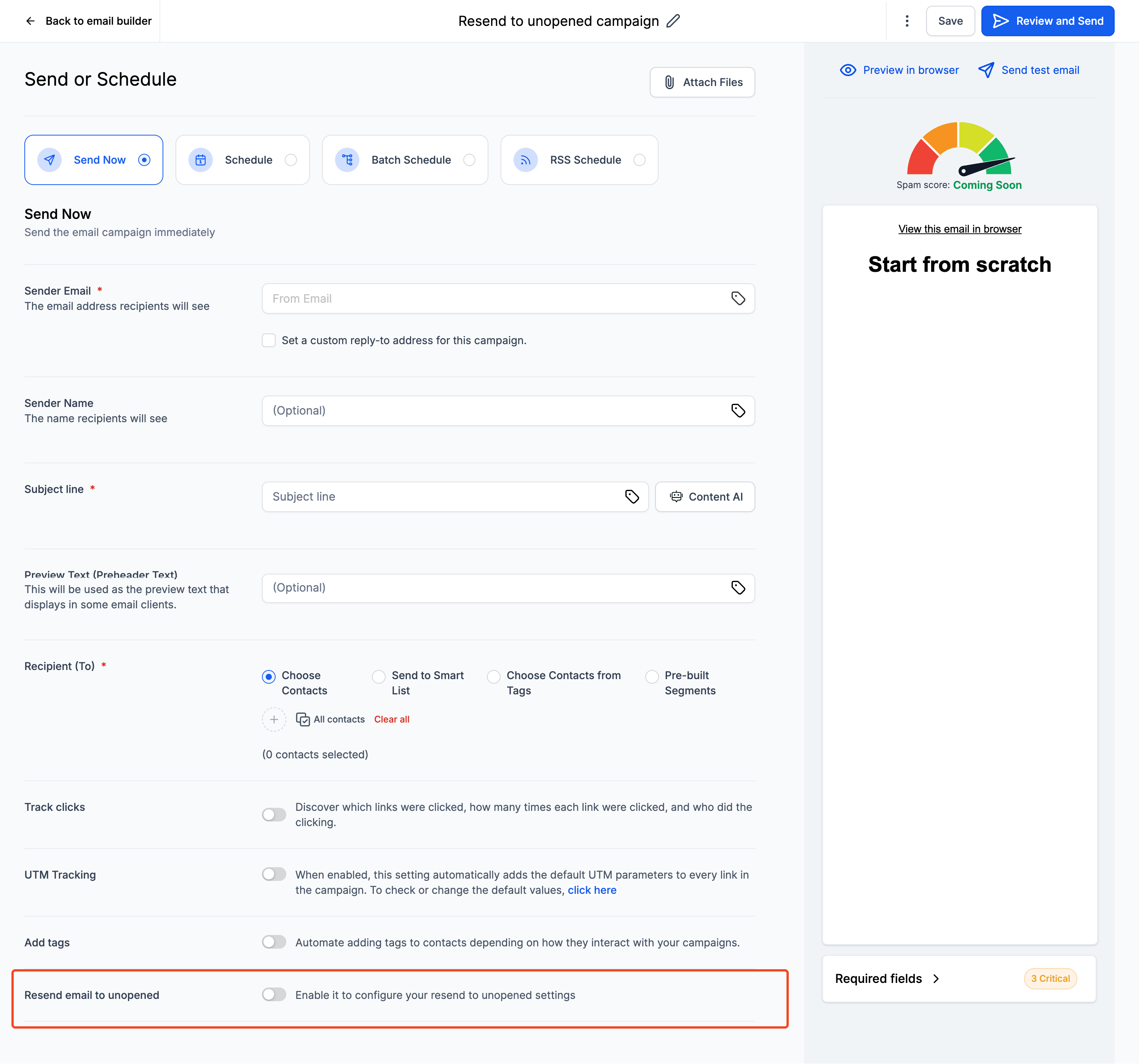
You can also pre-plan a resend at the moment you create a campaign, then track and adjust it from the campaign list. This is helpful when you want to lock in your follow-up strategy up front instead of returning to set it later.
Create or open a campaign. Go to your Email Campaigns dashboard and start a new campaign.
Click Send or Schedule. Set up the message as you normally would.
Enable resend settings. Toggle the option on and choose the duration before the resend (for example, 2 days) and a new subject line for the resend.
Send the campaign. The resend is now scheduled automatically.
Track status. The scheduled resend appears with a Waiting label in the campaign list.
Modify or cancel if needed. Use the three-dot menu to edit the resend duration or cancel the scheduled resend.
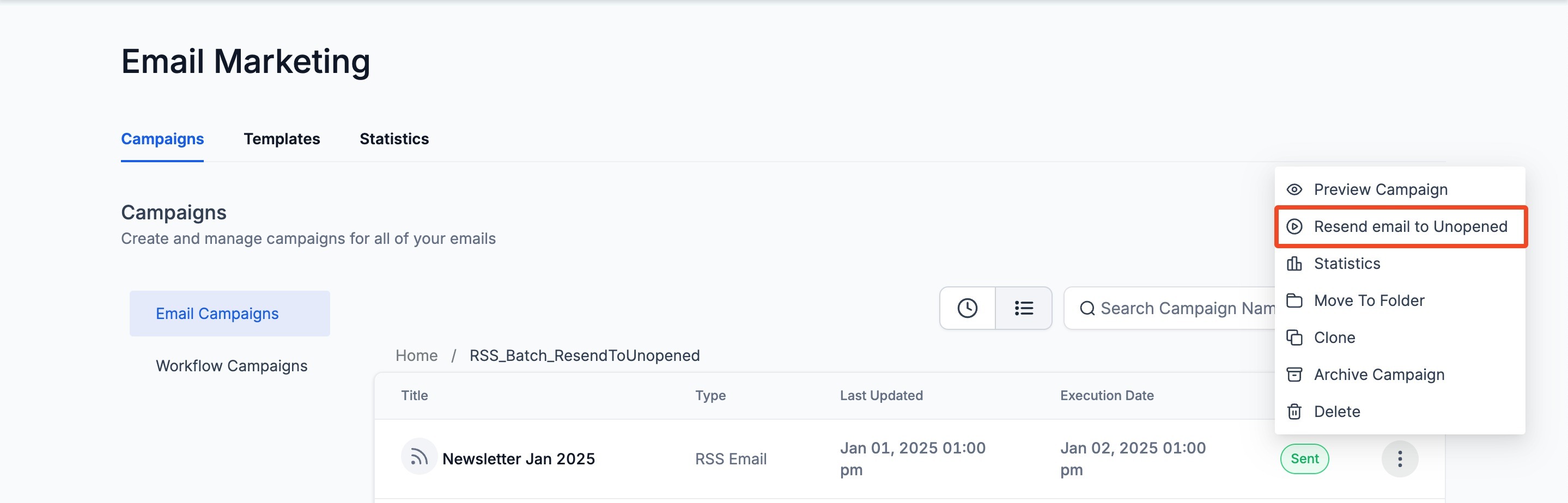
Resend to Unopened also works with RSS campaigns and batch scheduled campaigns, so scheduled email flows like weekly newsletters can re-engage missed recipients without switching campaign types.
Navigate to your sent campaigns. Go to Marketing → Emails → Campaigns and locate your RSS or batch scheduled campaign.
Open the options menu. Click the three dots on the right of the campaign entry.
Select Resend to Unopened from the dropdown.
Customize the resend. Enter a new subject line (recommended) and choose the resend time.
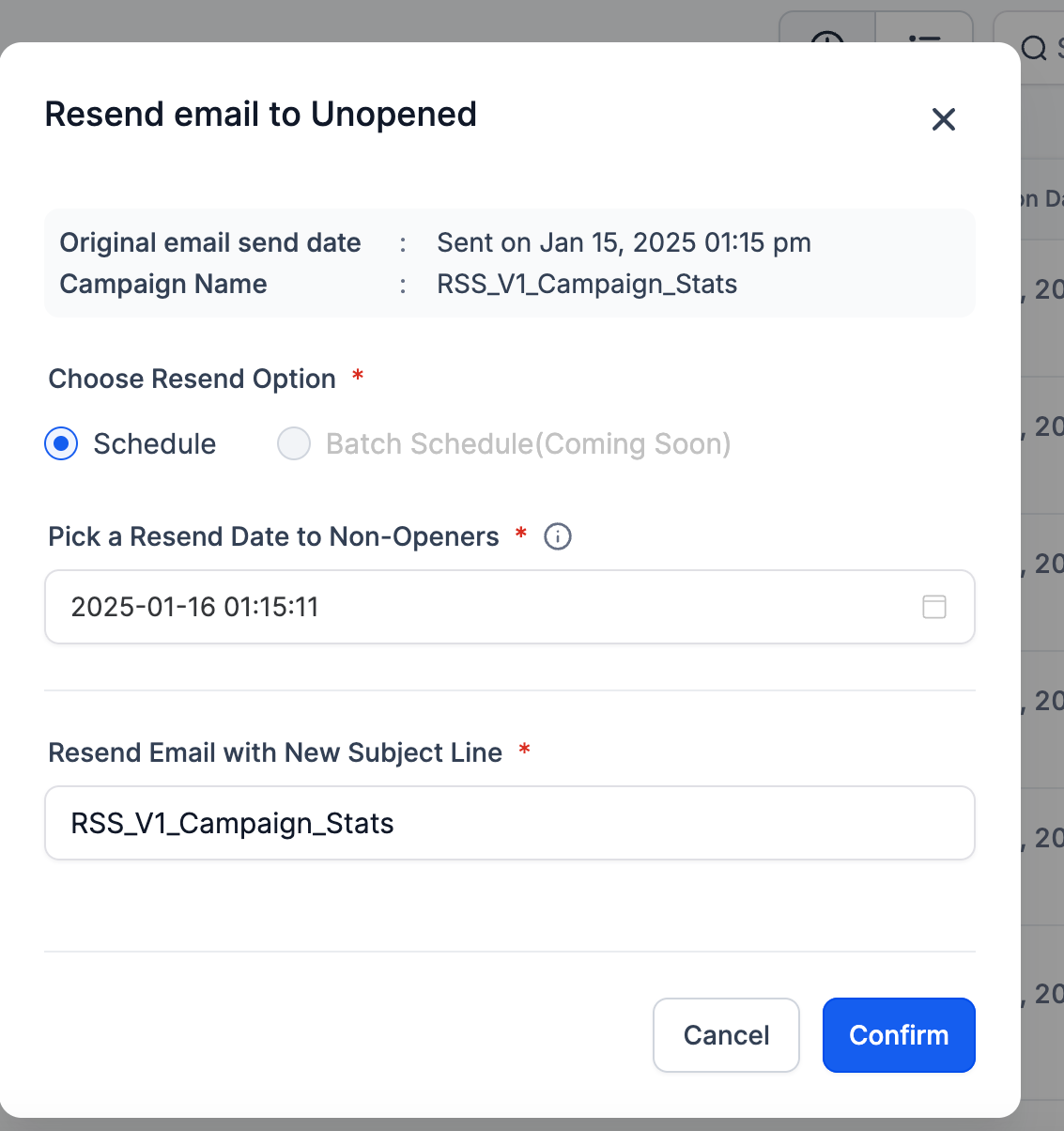
Click Schedule. The system queues the resend only for contacts who did not open the original email.
Rescheduling a resend is not supported. To change the timing, cancel it and schedule the resend again.
If you cancel the original email, the resend will not be sent either.
Resend targets only unopened contacts. For follow-ups based on clicks, use the Workflows area.
After a resend goes out, review the campaign analytics to measure the lift and refine your approach.
Can I change the subject line for the resend? Yes. You can set a custom subject line during resend configuration, and a fresh subject line is recommended to improve open rates.
Where do I see if a resend is pending? Campaigns with a scheduled resend display a Waiting label in the status column of the campaign list.
What happens if I cancel the original email? If the original email is canceled, the scheduled resend will not be sent.
Can I resend to people who clicked but did not book? Resend to Unopened targets only unopened emails. For click-based follow-ups, build an automation in the Workflows area.
How soon should I resend? Send the resend within the supported 12 hour to 10 day window, and avoid resending too soon so your audience has time to open the original.
How many times should I resend a campaign? Once. Repeated resends annoy recipients and can damage your sender reputation.
Can I reschedule a resend after setting it? Rescheduling is not supported. Cancel the scheduled resend and set it up again with the new timing.
Does resending work with A/B test campaigns? Resend supports regular, RSS, and batch scheduled campaigns. Use those campaign types when you plan to resend to unopened contacts.
