Every response to your Aesthetix CRM surveys is stored in the Submissions tab, where you can review, filter, search, download, and delete responses. Survey answers also flow onto the contact record, so intake and satisfaction data lives right alongside the rest of a patient's history. This guide covers both.
Surveys live under Web Tools → Surveys, alongside Forms.
Please note that access to certain components may be limited based on your user permissions.
Go to Web Tools → Surveys.
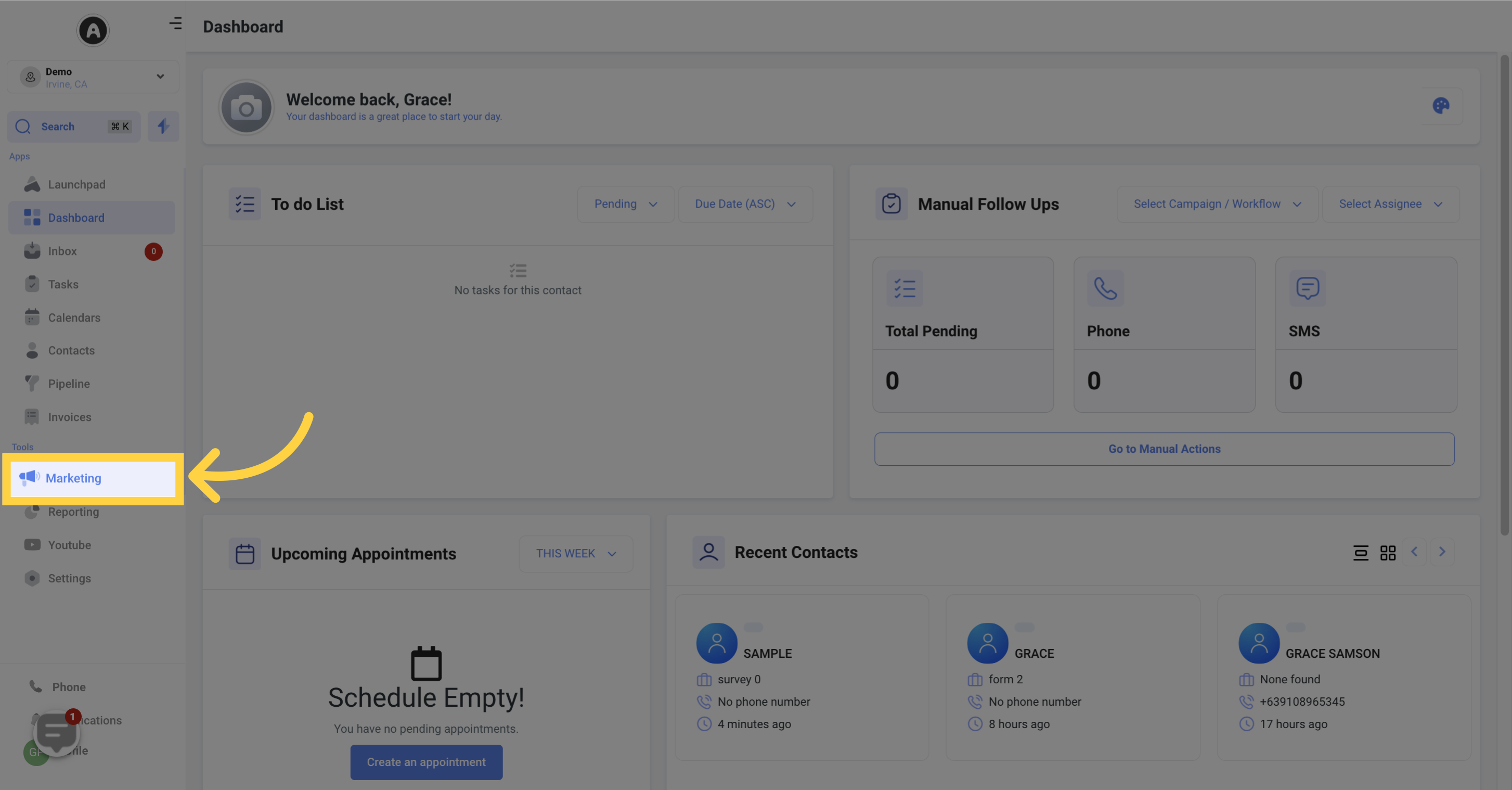
Open Surveys.
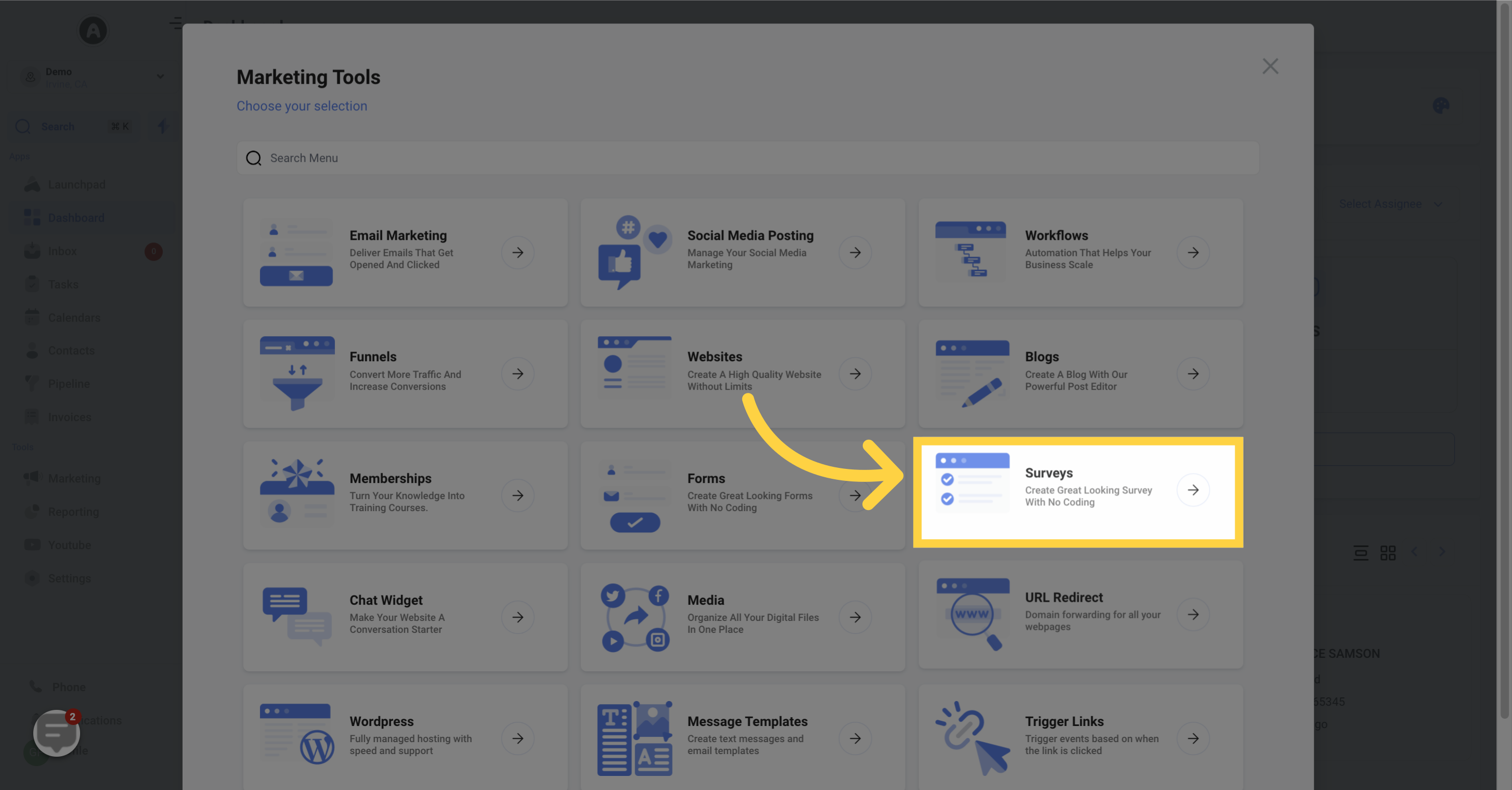
Select the Surveys tab.
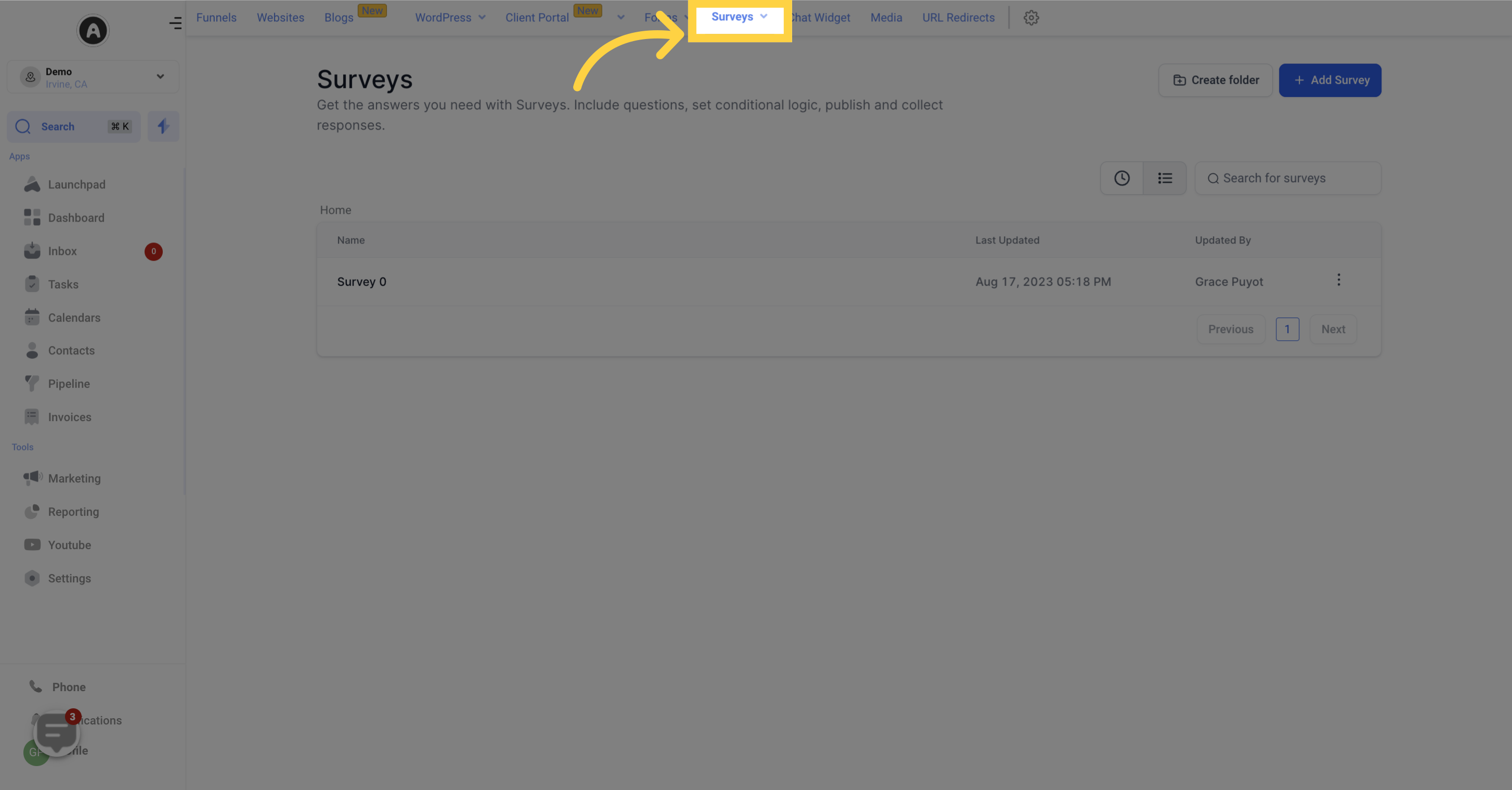
Click Submissions.
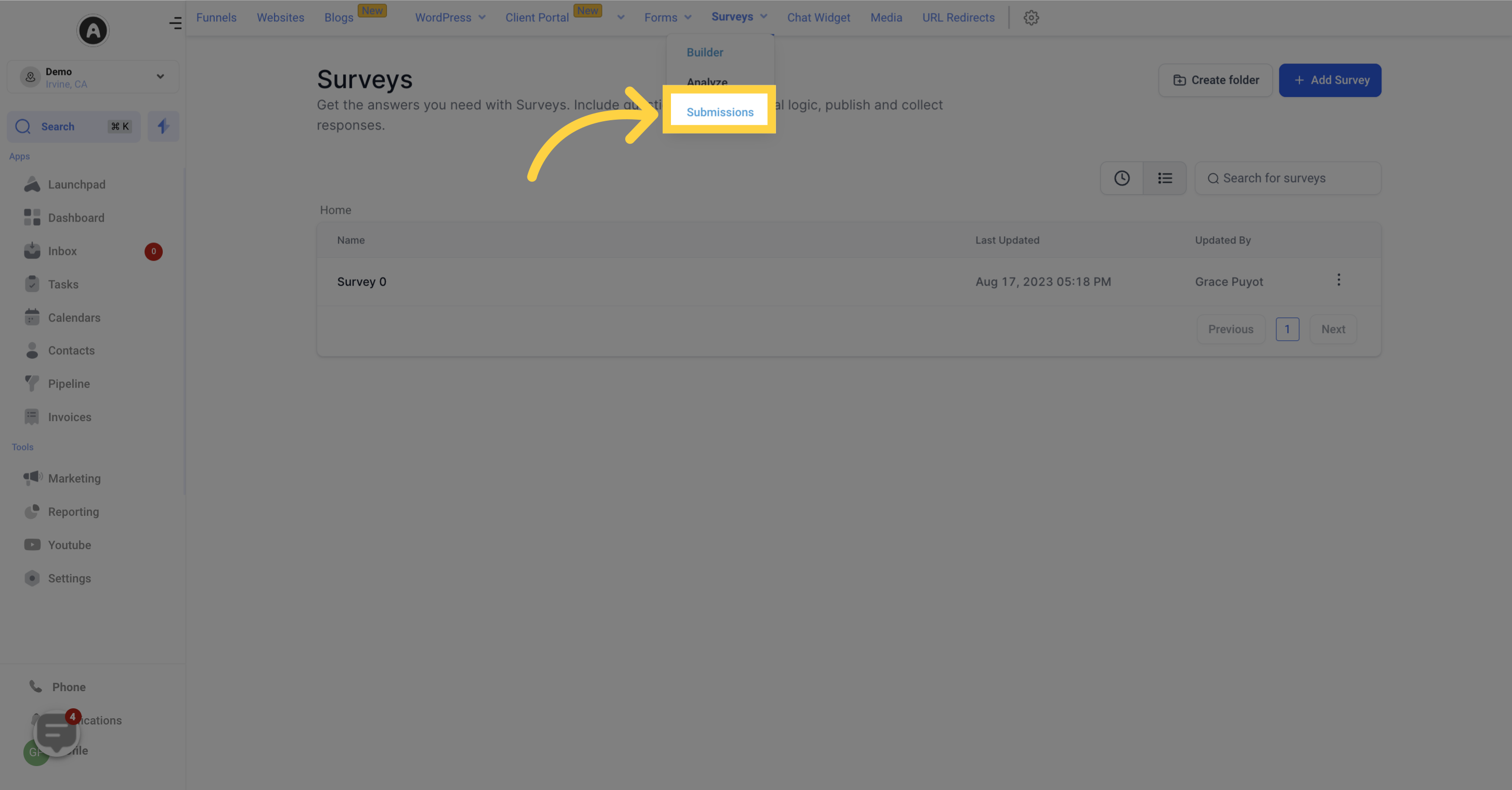
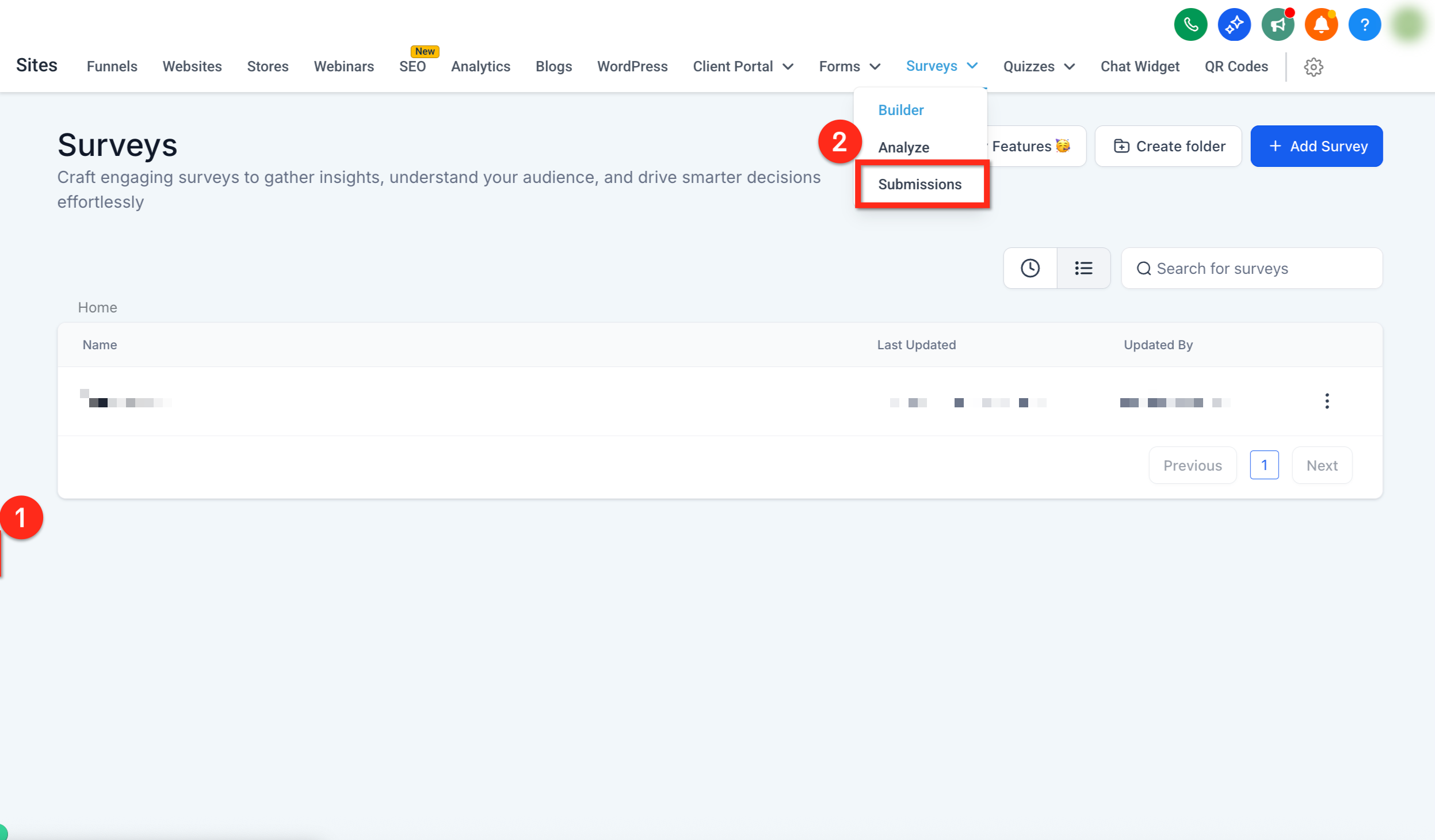
You can also open a survey's submissions without going through this list first. From Web Tools → Surveys → Builder, open the survey you want to review, then click Submissions to see its responses right there. Open any individual submission to view the respondent's complete answers.
Date Range: To view submissions from a specific time frame, click the date bar in the top-right corner of the page. Choose a preset or set a custom range, then click the checkmark to refresh the list.
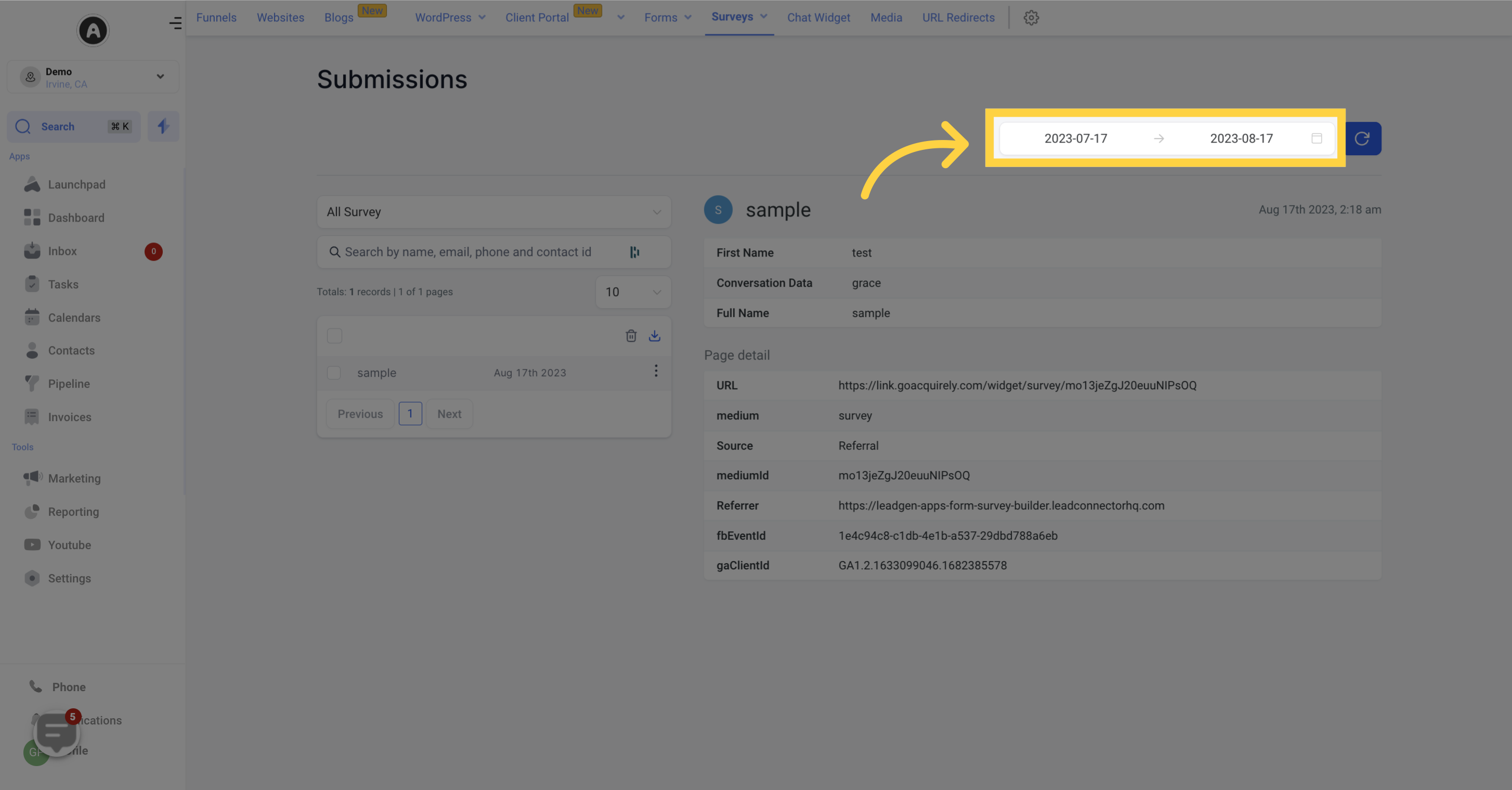
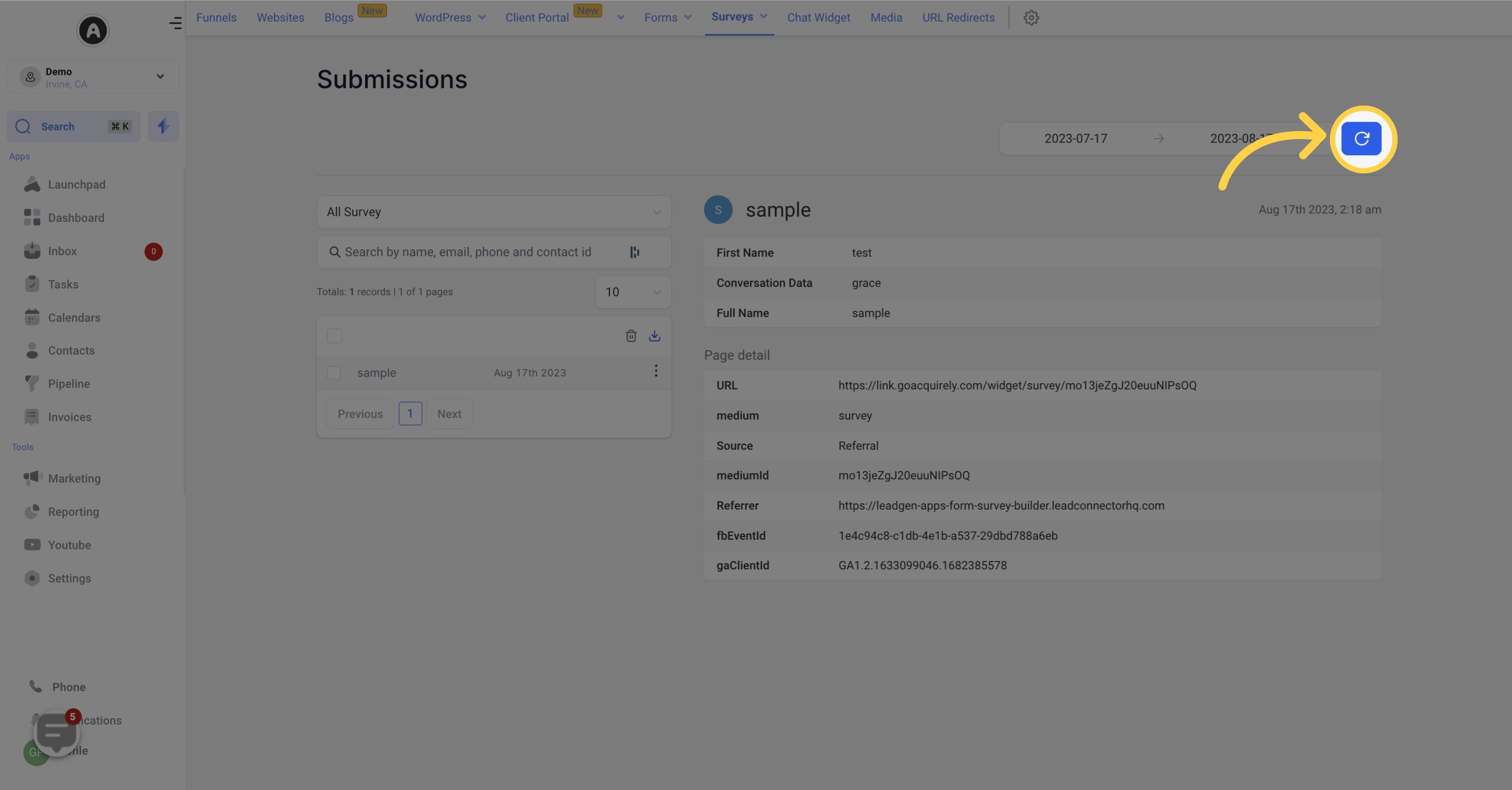
Refresh Submission Data: Update the data at any time by clicking the refresh button next to the date range selector, so you always see the most recent responses.
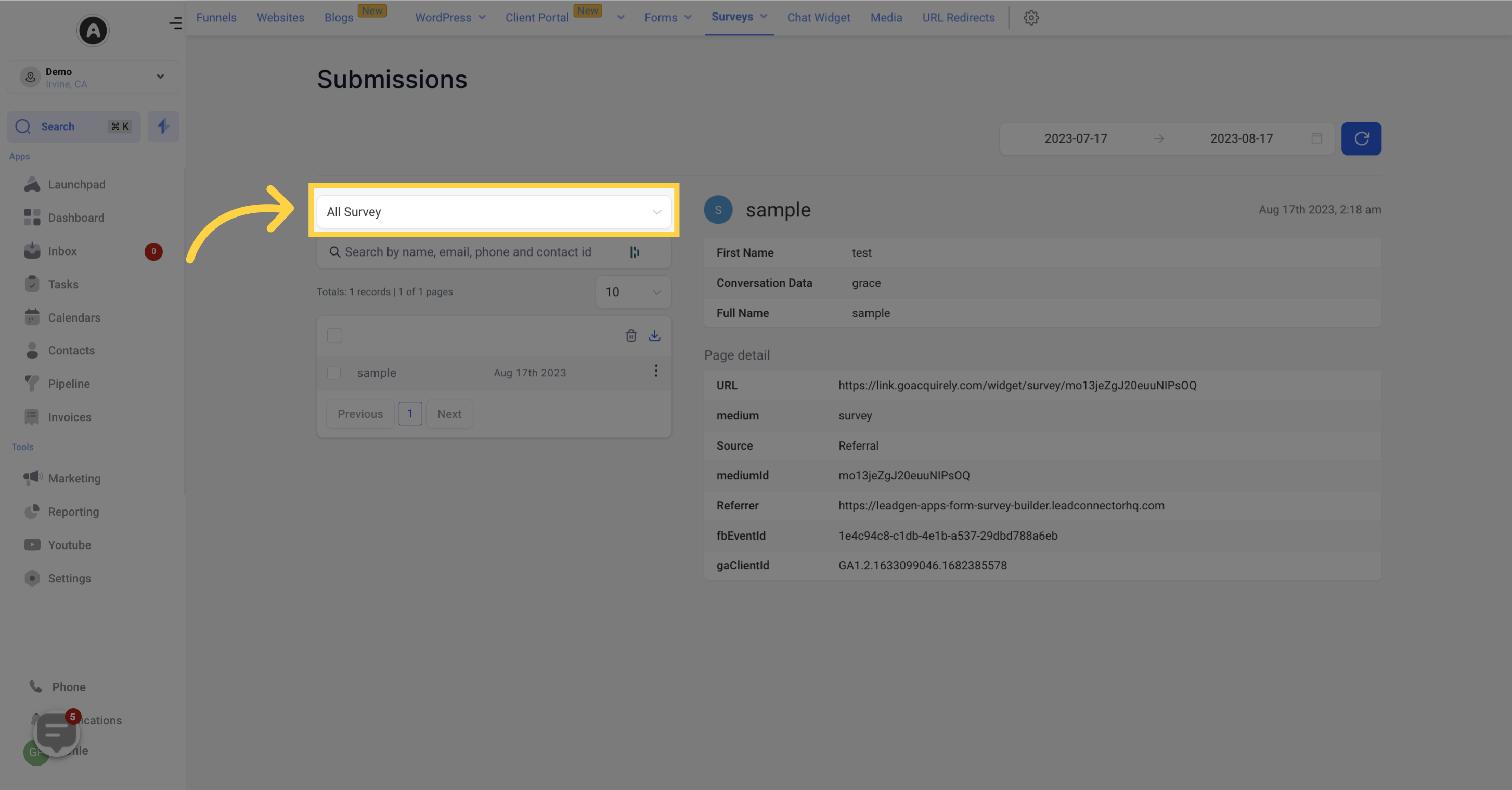
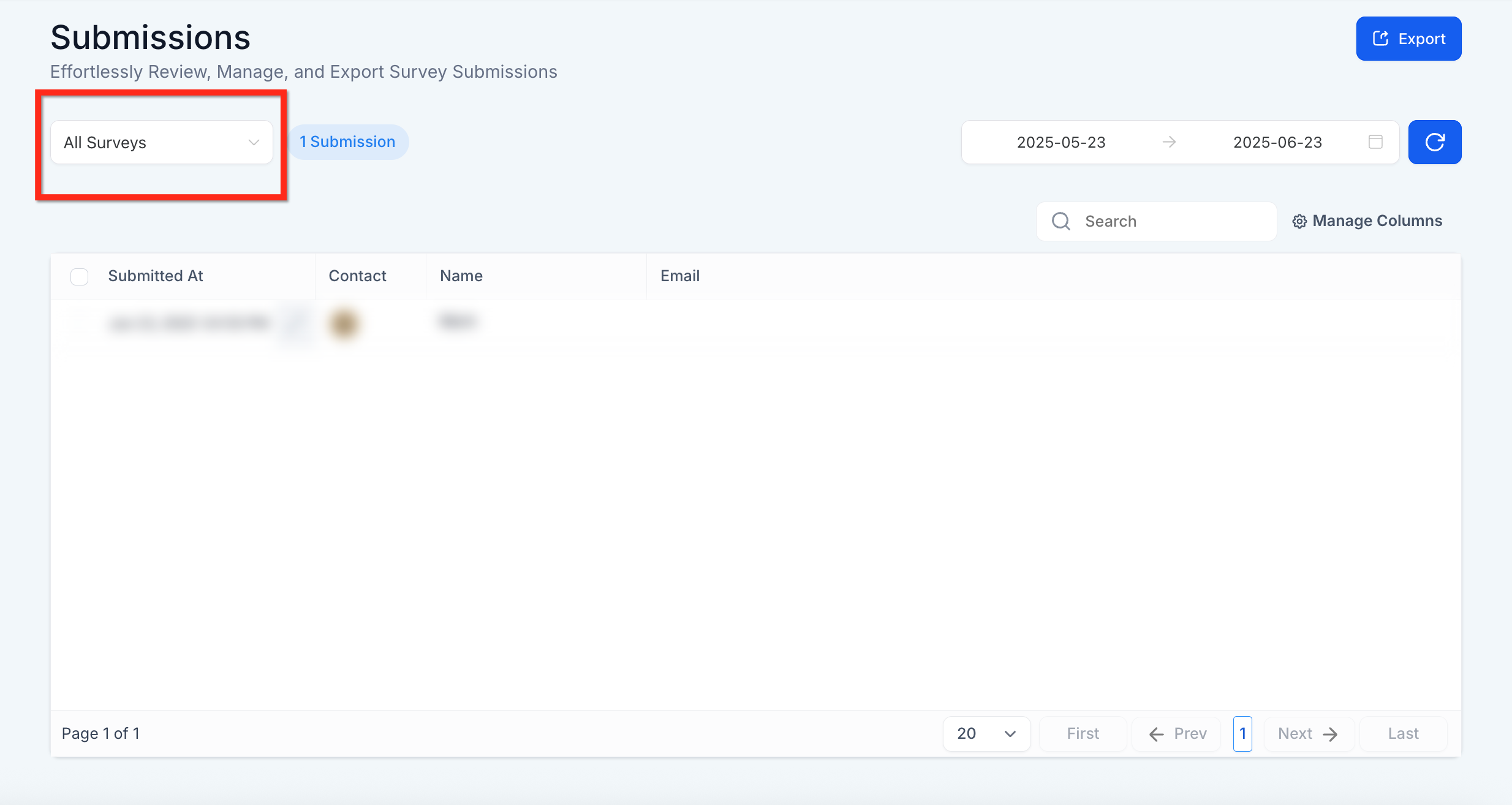
Select Survey: If you run multiple surveys, click the All Survey dropdown and choose a specific one. The list refreshes to show only that survey's submissions.
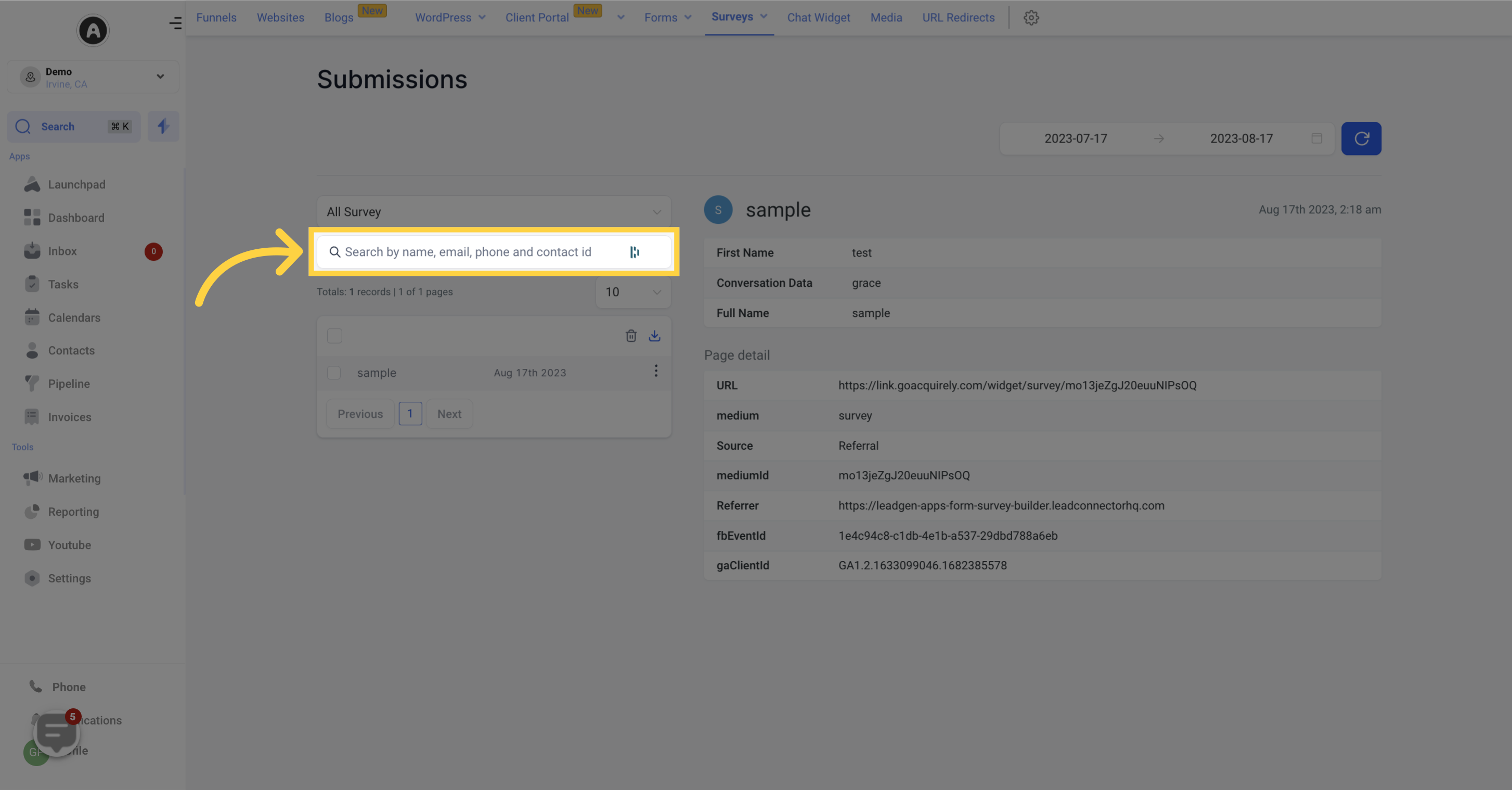
Search Bar: To find a specific submission quickly, type a patient's name, phone number, or email address into the search bar.
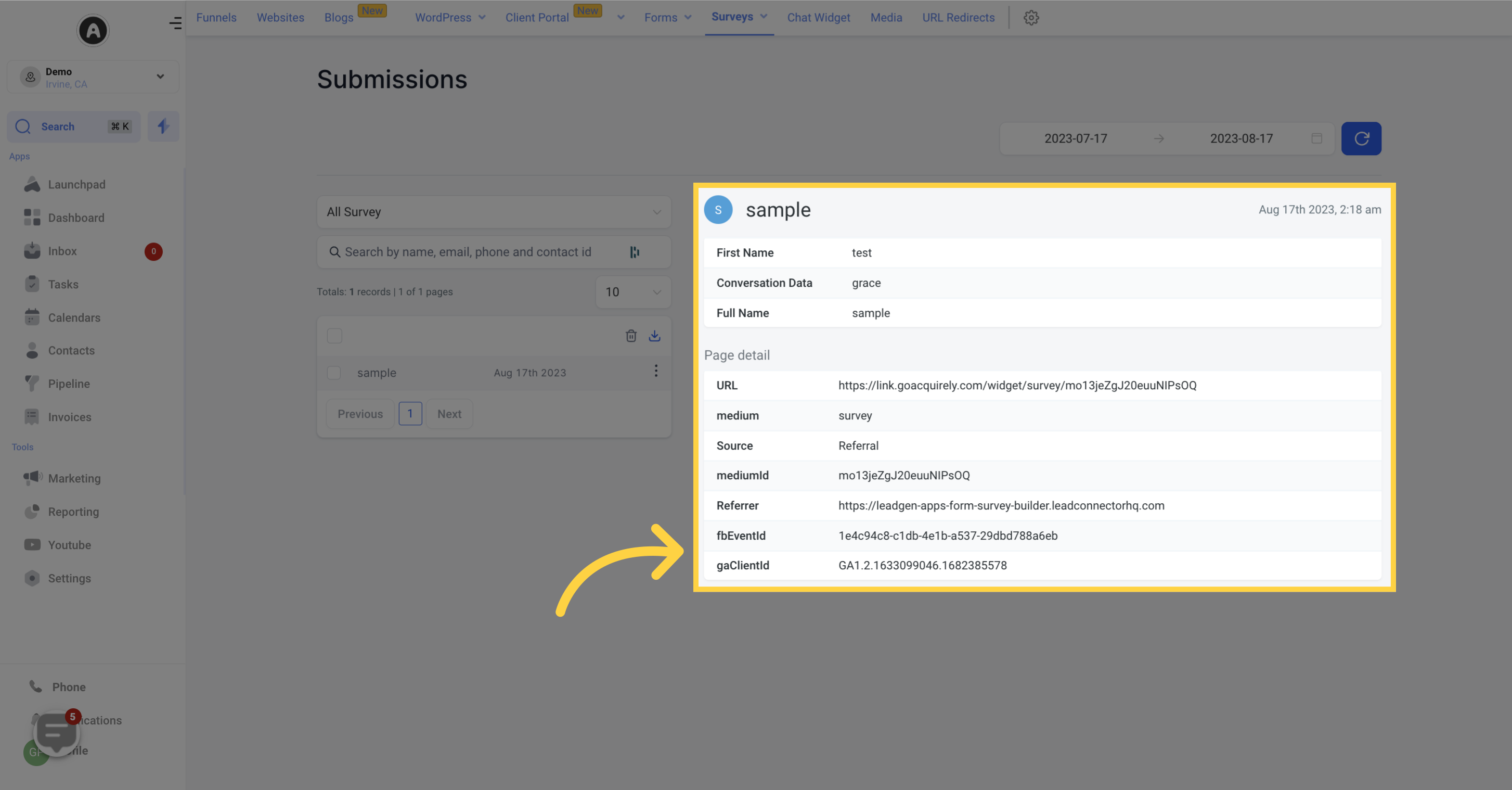
Submission Data: The main view shows each submission with its details.
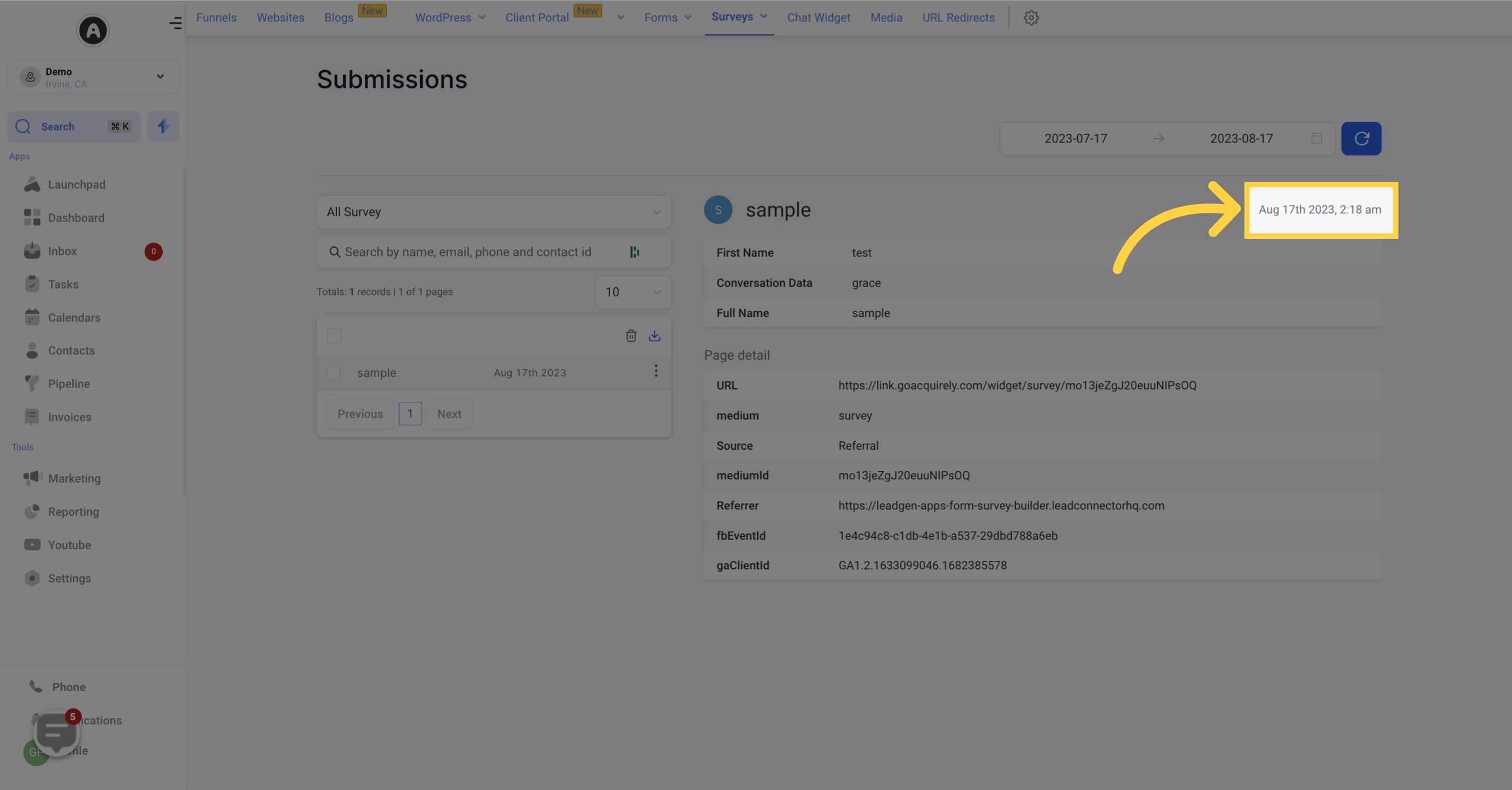
Date Submitted: The date and time of each submission appears in the top-right corner of the entry.
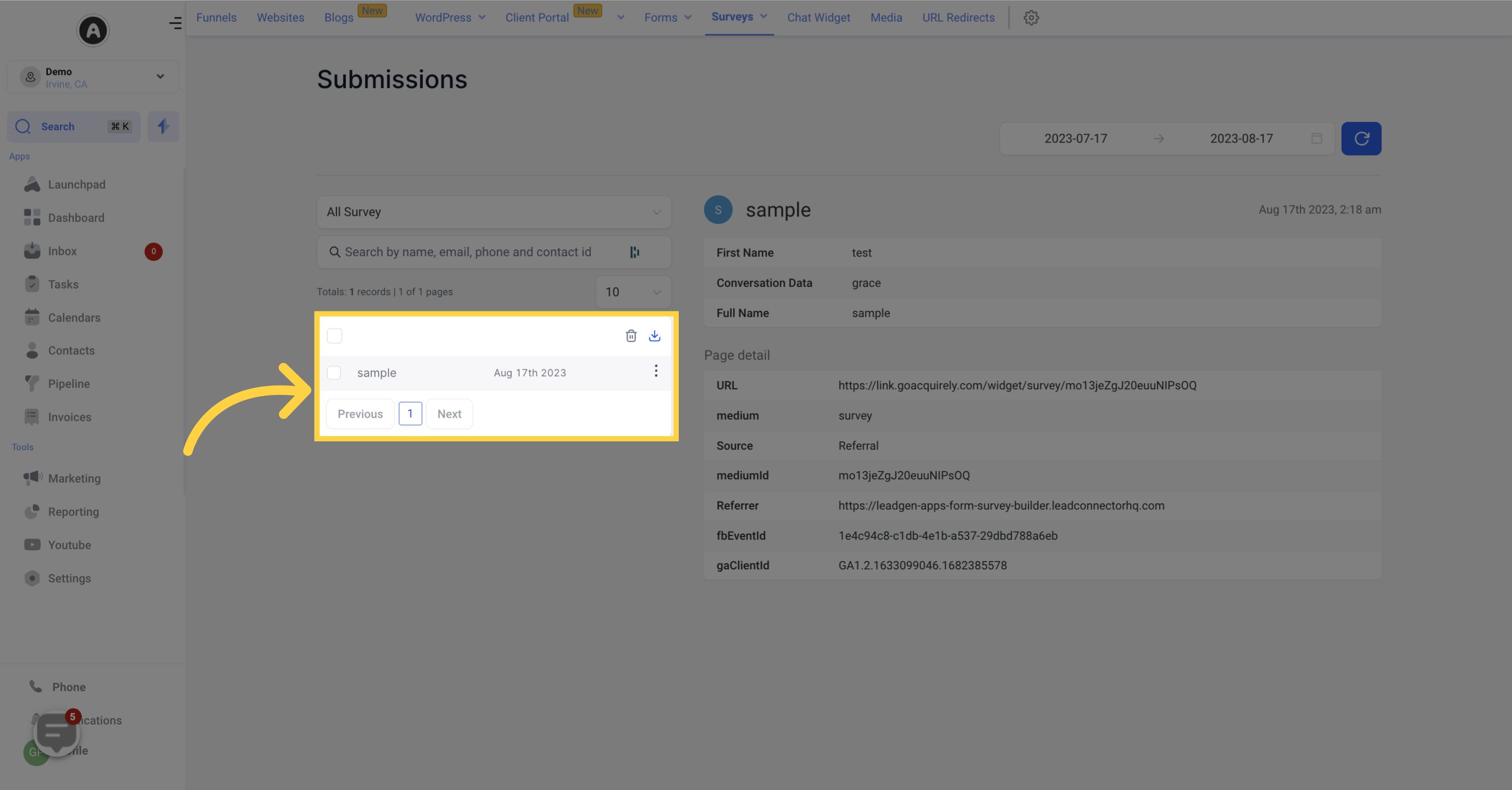
Survey Submission List: This section displays all submissions for the chosen survey, or all surveys if none is selected.
Total Survey Submissions: The total count for the selected survey (or all surveys) is shown here.
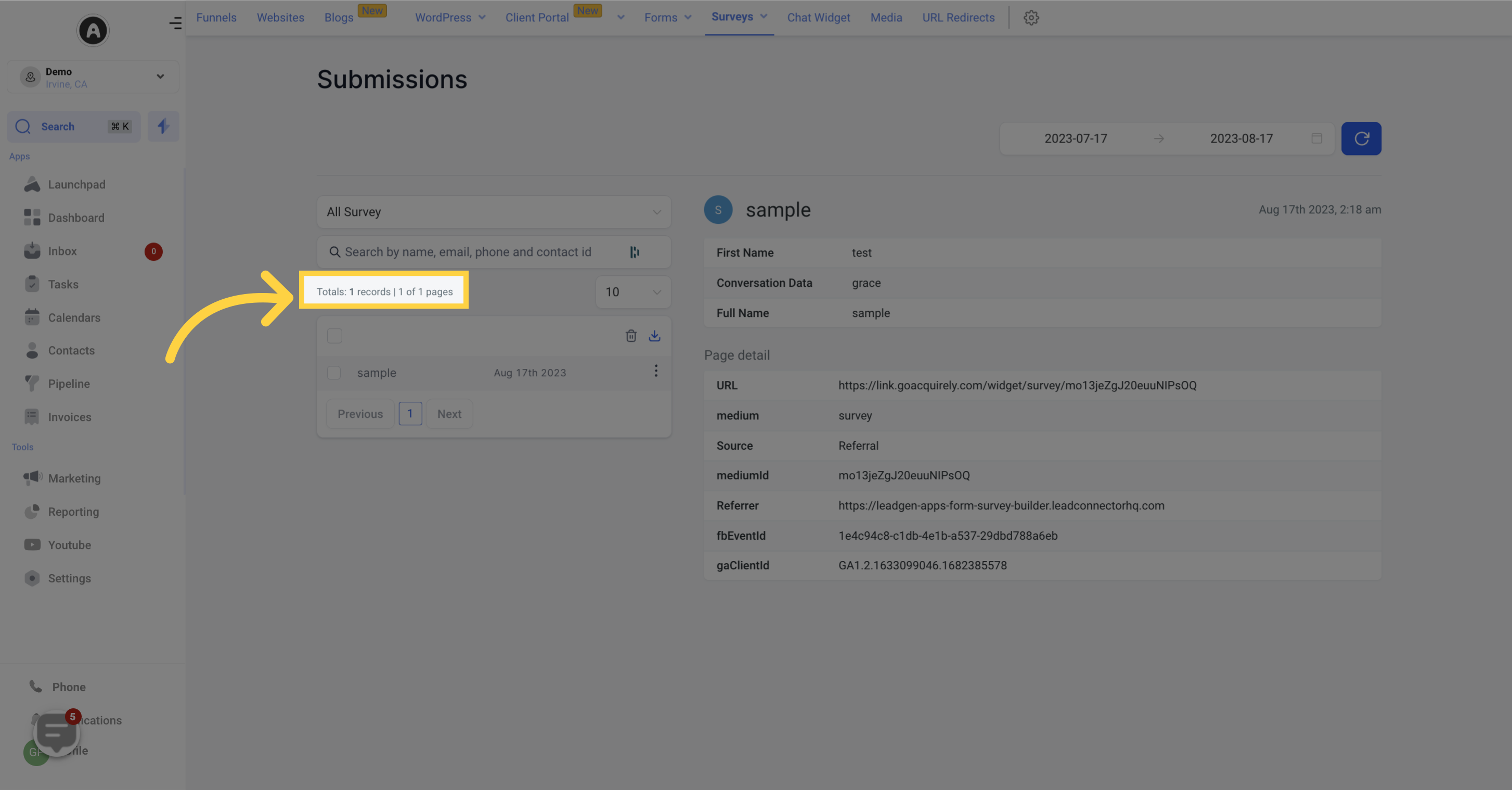
List Results Per Page: Choose how many submissions to display per page from the dropdown.

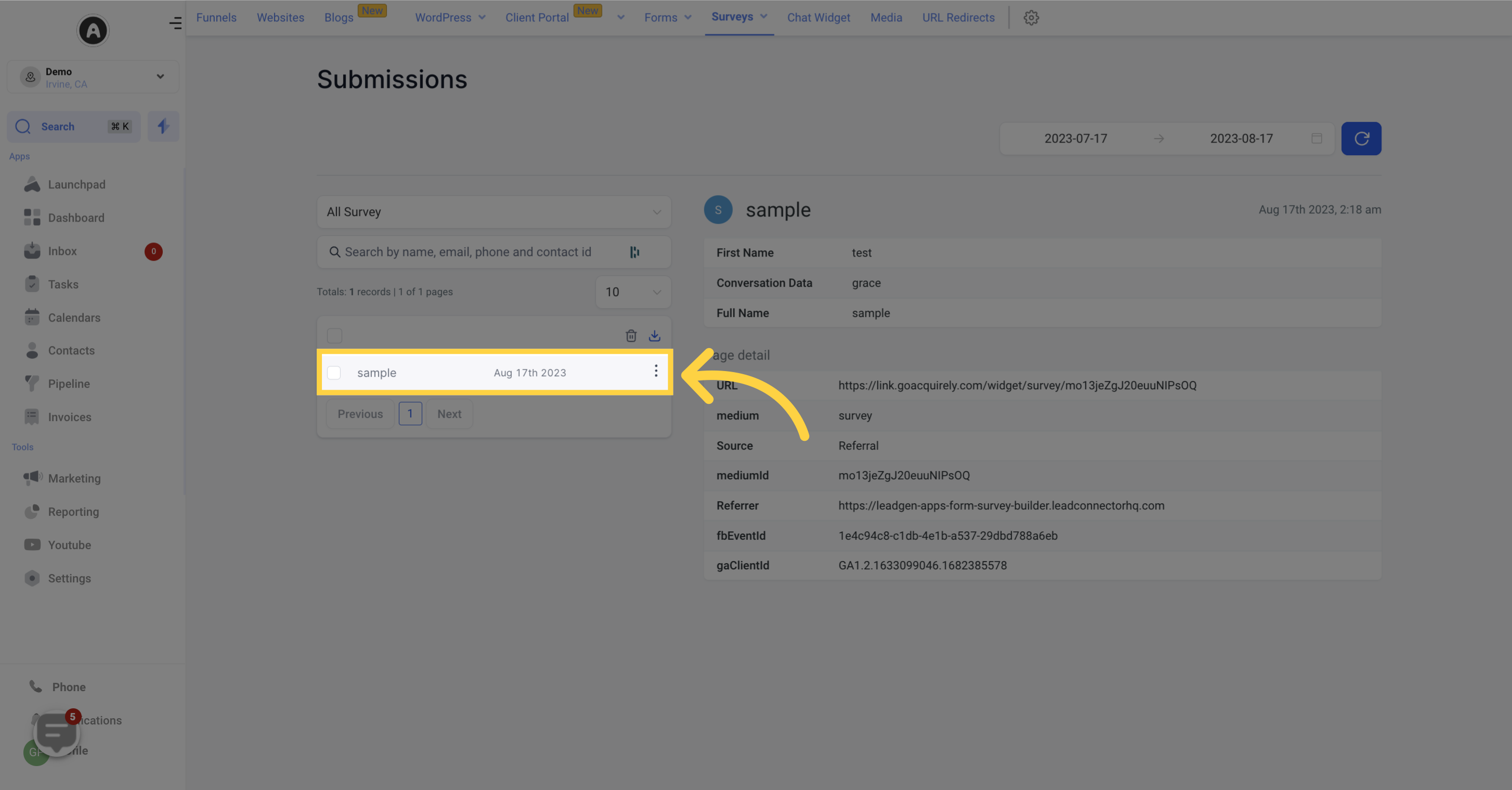
Individual Survey Submission: Each submission lists basic information such as name, email, and date submitted. Select individual or multiple submissions using the checkboxes on the left side of each entry.
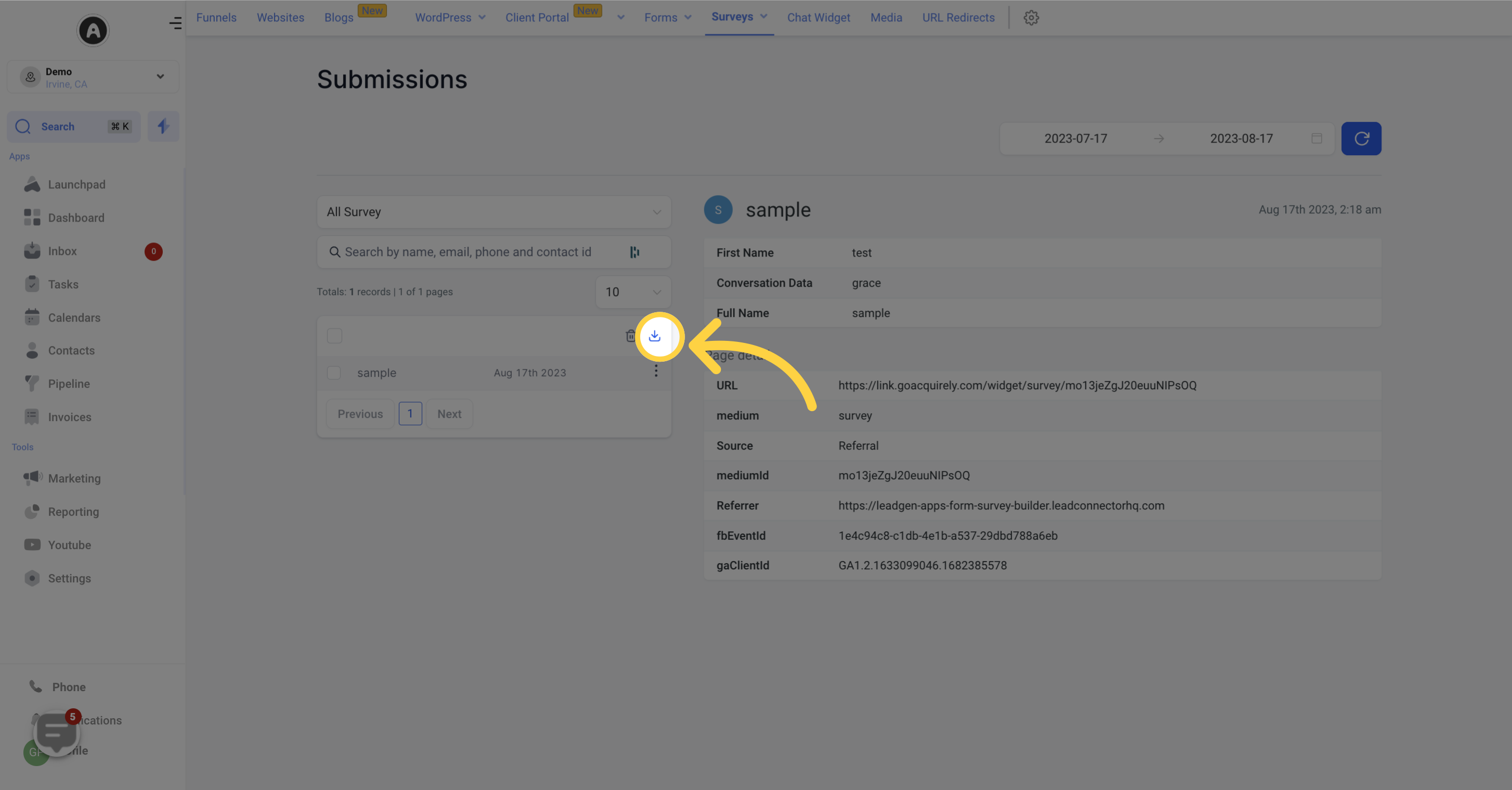
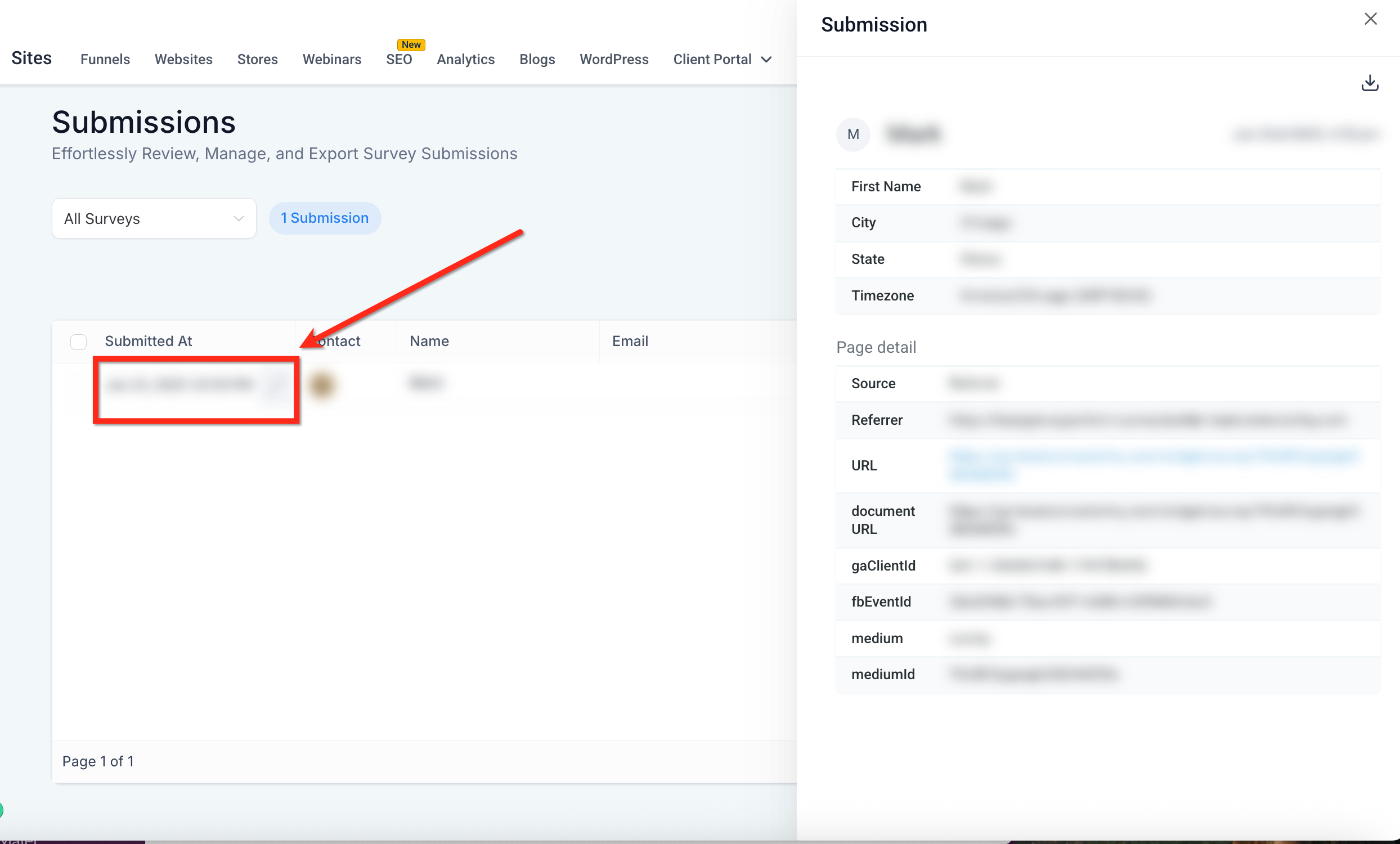
Download an individual submission: Click the download icon to download a single submission.
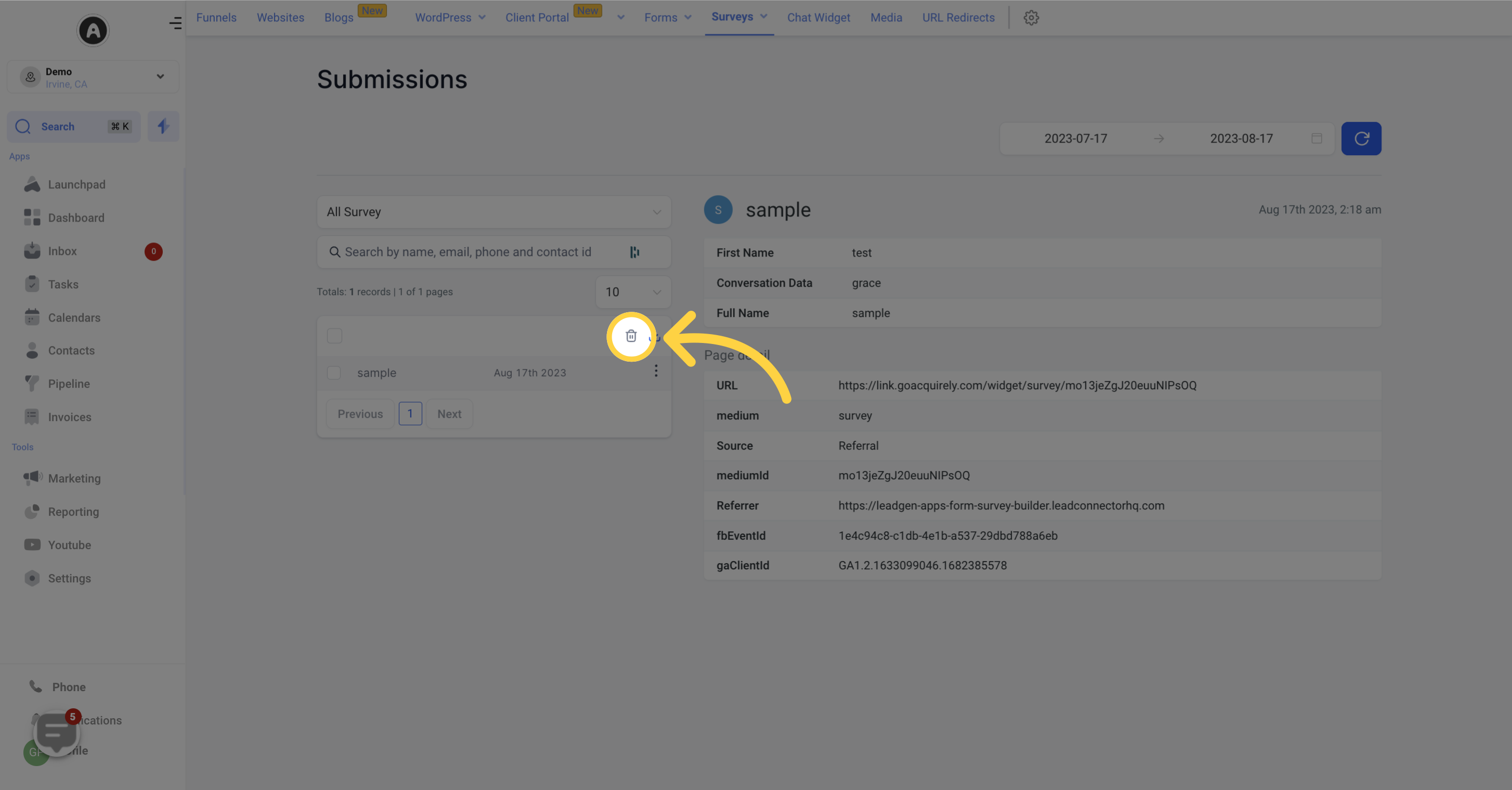
Delete selected submissions: You can delete selected submissions. Once deleted, the data cannot be recovered, so be sure before you confirm.
Click any individual entry to open its detailed submission data, including the contact's details, the timestamp, and every question answered.
Use the survey filter dropdown in the top-left corner to filter the responses table by a specific survey.
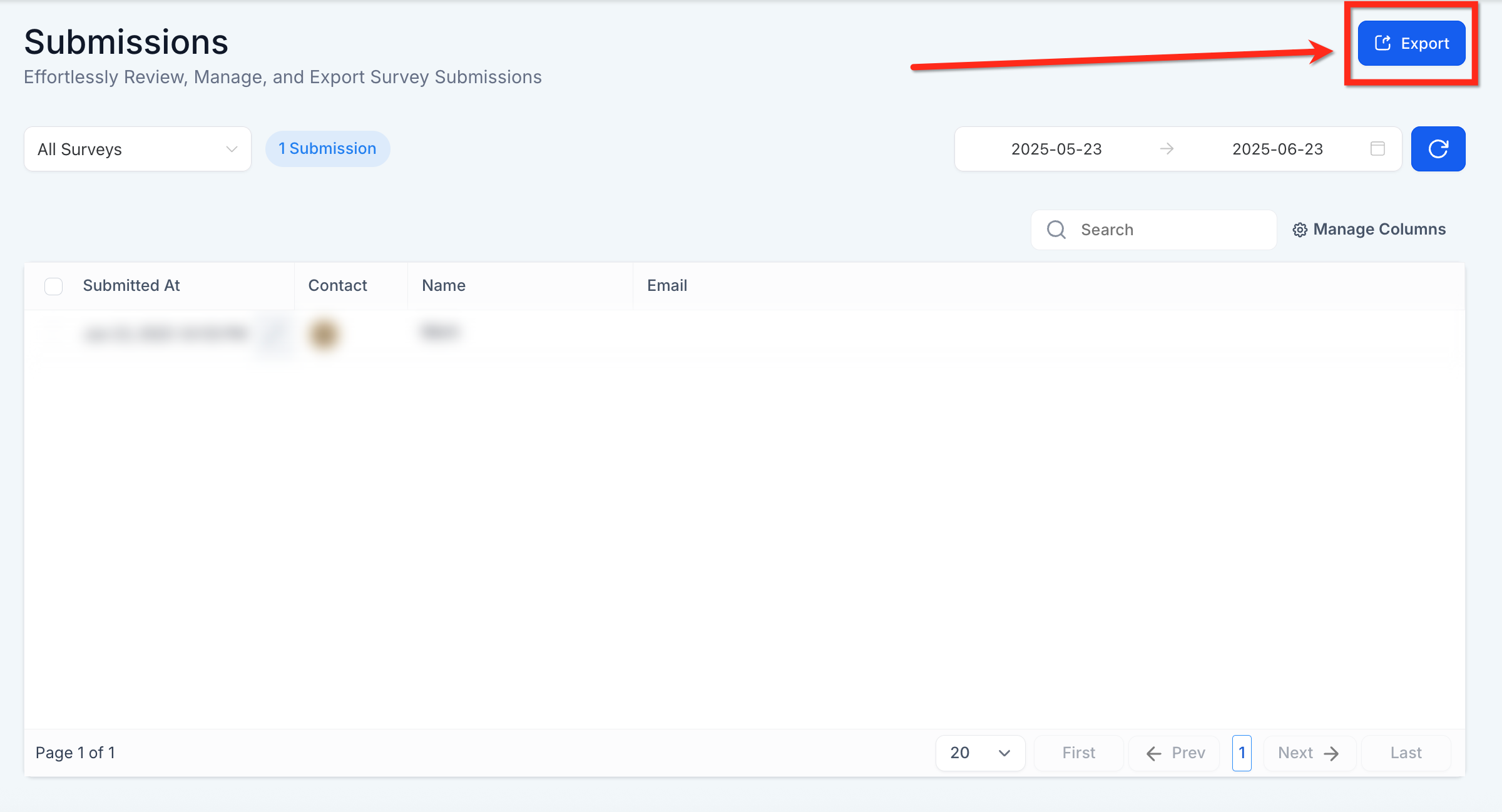
To download every response at once, click the blue Export button at the top right of the submissions view. A download link is emailed to you so you can save the full set of responses for analysis or record-keeping. For a step-by-step walkthrough, including sending responses to Google Sheets, see the Exporting Survey Answers guide.
Survey answers do not stay only in the Submissions tab. They also flow onto the patient's contact profile:
Answers to mapped fields (such as name, email, and phone) automatically populate the contact record.
Other answers appear under the Survey | Survey Name dropdown within the contact's information.
This means a completed intake or satisfaction survey immediately enriches the patient's record, so your front desk and providers see the responses in context without digging through the Submissions tab. Because these responses can include clinical or personal detail, treat them as patient PHI: rely on user permissions to limit who can view or export submissions, and only share responses through channels covered by your practice's BAA.
Where do survey responses go after someone submits? They are stored in the Submissions tab under Web Tools → Surveys → Submissions, and mapped answers also populate the patient's contact record.
Can I trigger automation based on survey answers? Yes. Use the "Survey Submitted" trigger in workflows to start automations, such as sending a follow-up or assigning a task.
Do survey answers show up in the CRM automatically? If the survey includes fields that match contact properties (for example, email), those fields update the contact record automatically. Other answers appear under the Survey dropdown on the contact.
Can multiple submissions from the same contact be tracked? Yes. All submissions are tracked independently, even if a patient submits the same survey more than once. This is useful for recurring feedback or repeat visit check-ins.
Can I tell which survey a response belongs to when I run several? Yes. Each submission record shows the name of the associated survey, and you can filter the list by survey name using the dropdown.
How do I download a single response? Click the download icon on that individual submission in the Submissions list.
Can I delete submissions, and can I get them back? You can delete selected submissions, but deletion is permanent. The data cannot be recovered, so confirm carefully first.
Why can't I see the Submissions tab or certain options? Access to some components depends on your user permissions. If something is missing, ask an administrator to review your permissions.
How do I export all of my submissions at once? Use the Export button in the submissions view to download them in bulk. See the Exporting Survey Answers guide for the full process.
Can I view a survey's submissions without leaving the Builder? Yes. Open Web Tools → Surveys → Builder, open the survey you want to review, then click Submissions to see its responses right there. Open an individual submission to view the respondent's complete answers.
