A clean footer and a clear progress indicator help patients finish your surveys. The footer lets you match a survey's buttons, background, and layout to your practice's branding, and the mobile progress bar shows respondents exactly where they are in a multi-step questionnaire. Together they reduce abandonment on longer intake, consultation, and satisfaction surveys, especially on the phones most patients use.
Surveys live under Web Tools in your Aesthetix CRM account, in the same area as Forms.
The footer is the bar that holds your navigation buttons at the bottom of each slide. You can customize its theme, background, font, height, progress bar, button color, and position so it aligns with your practice's identity. The footer can also stick to each slide as patients progress, keeping the experience smooth and consistent. New surveys have these footer options enabled by default. Older surveys keep the original footer until you toggle the newer options on.
To customize the footer:
Open the Survey Builder and open or create a survey.
Go to the Styles & Options (Style) settings in the builder.
Enable the newer footer options if they are not already on.
The footer customization options include:
Themes: Choose from different themes to change the overall look and feel, including color schemes, fonts, and styles.
Background: Set a background color, image, or pattern for the footer.
Font: Adjust the font style and size used in the footer.
Height: Make the footer taller or shorter to suit your design.
Progress Bar: Customize the progress bar's color, style, and positioning (covered in detail below).
Button Color: Choose the color for footer buttons such as Next or Submit.
Position: Define where the footer sits within the survey.
Stick to Survey: Keep the footer attached to the slide as patients progress, for a seamless, consistent experience.
The mobile progress bar adds a dynamic fill line to multi-step surveys when a patient views them on a phone. It stays hidden on desktop and on single-step surveys, keeping the interface clean while giving mobile users the clarity that helps them finish. Because most patients complete intake and satisfaction surveys from their phones, this is one of the simplest ways to lift your completion rates.
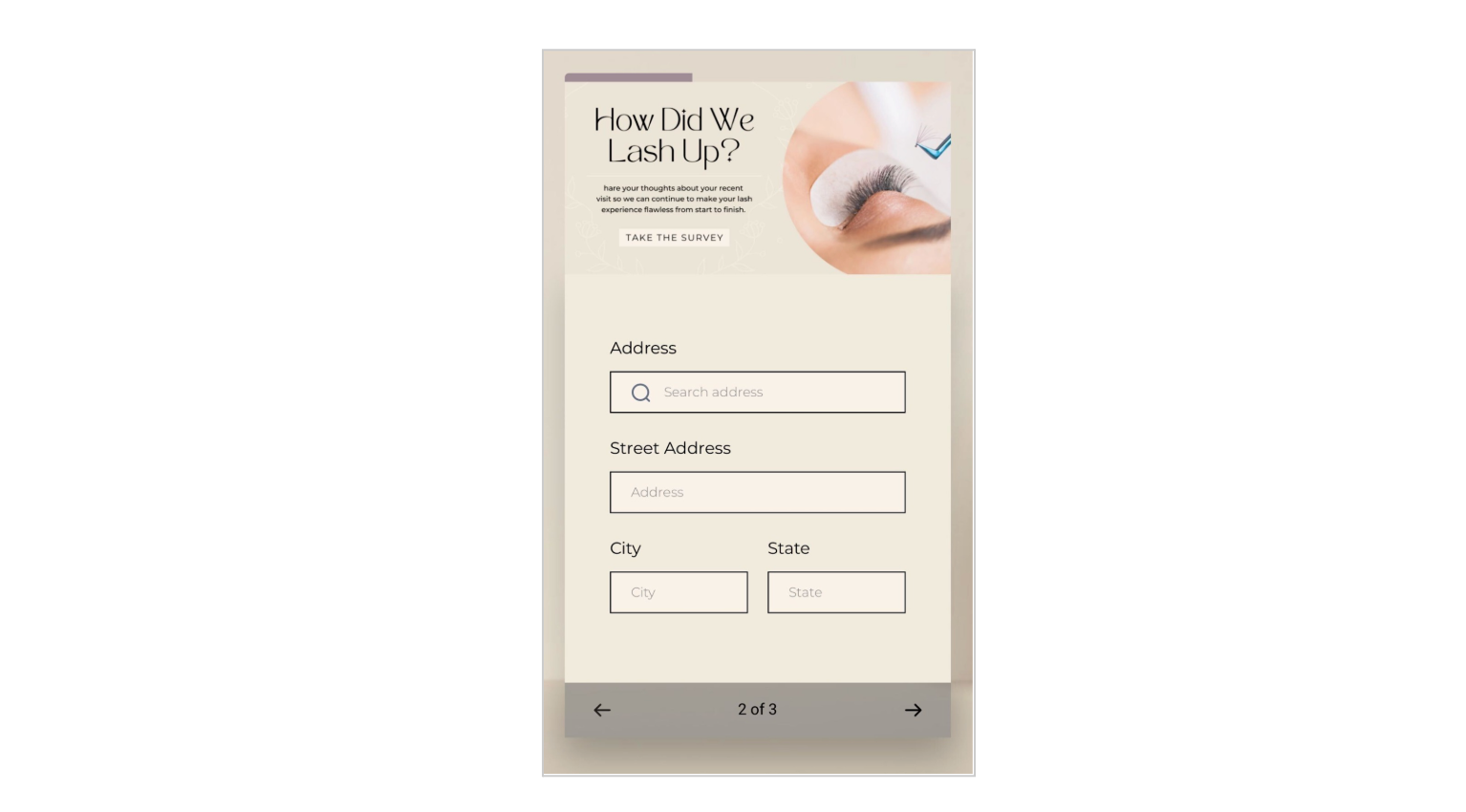
Visual Guidance: Shows respondents how many steps remain, lowering drop-off.
Brand Consistency: Pick custom colors for the step text, progress fill, and inactive segments to match your practice's branding.
Seamless Integration: Works with both Stick to Card and Stick to Page footers.
Higher Completion Rates: Clear progress feedback encourages patients to finish your survey.
Step 1: Open Surveys
Navigate to Web Tools, then select Surveys.
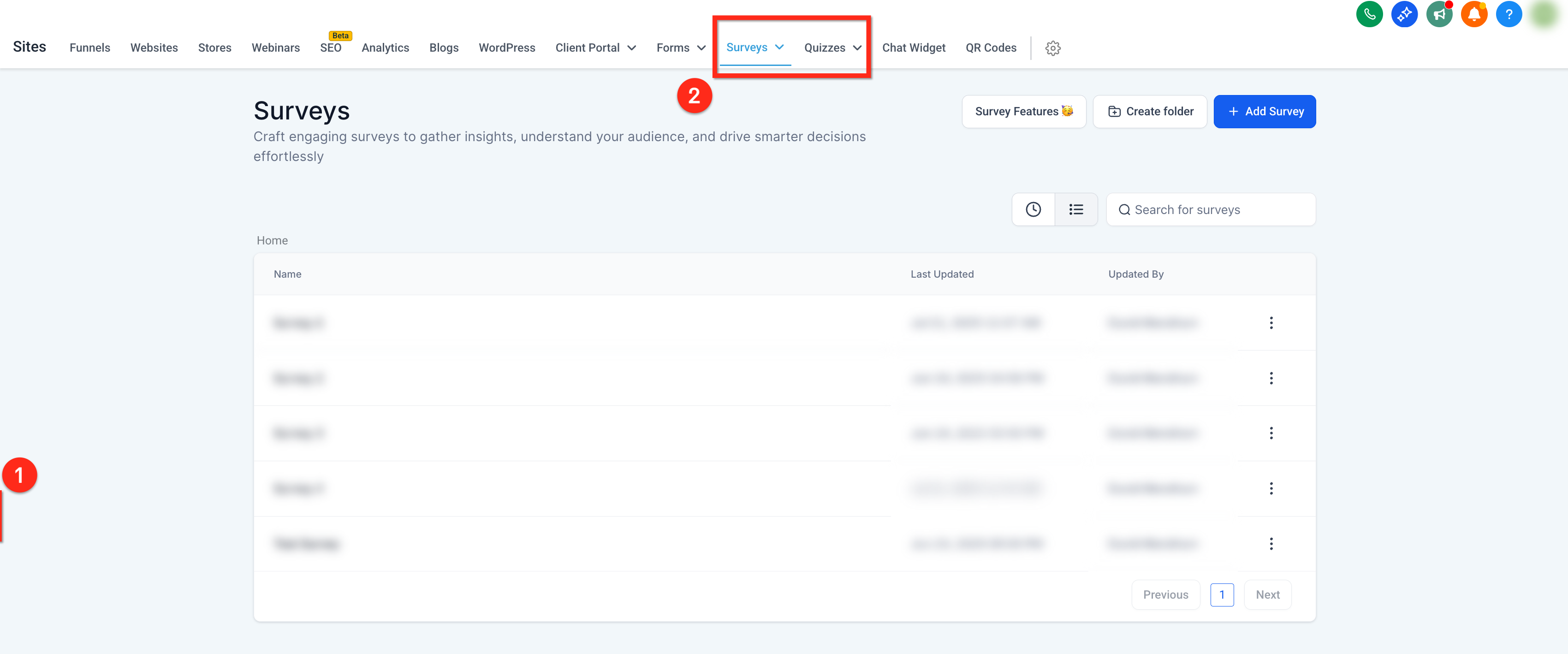
Step 2: Open the Survey
To edit an existing survey, click the three dots icon next to it and choose Edit. To create a new one, click the blue + Add Survey button in the upper right corner.
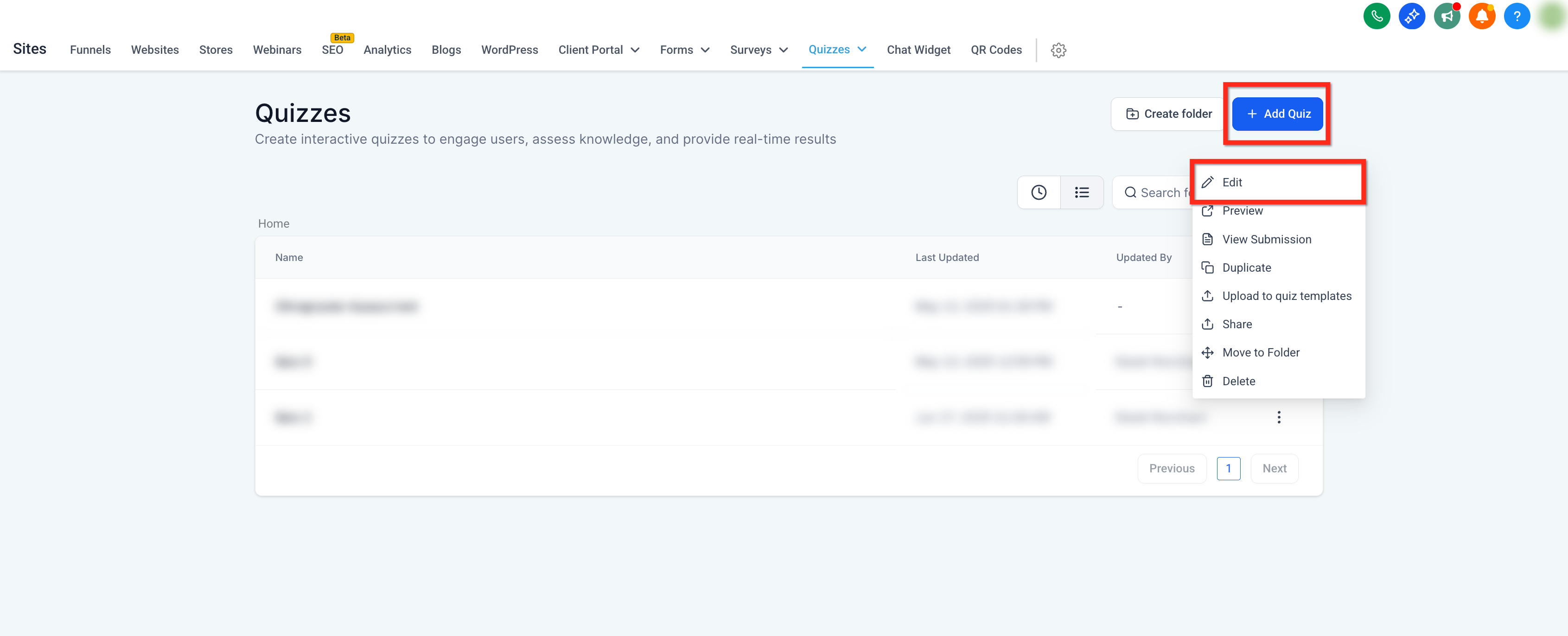
Step 3: Open Styles & Options
Click Styles & Options at the top right of the builder.
Step 4: Toggle On the Progress Bar
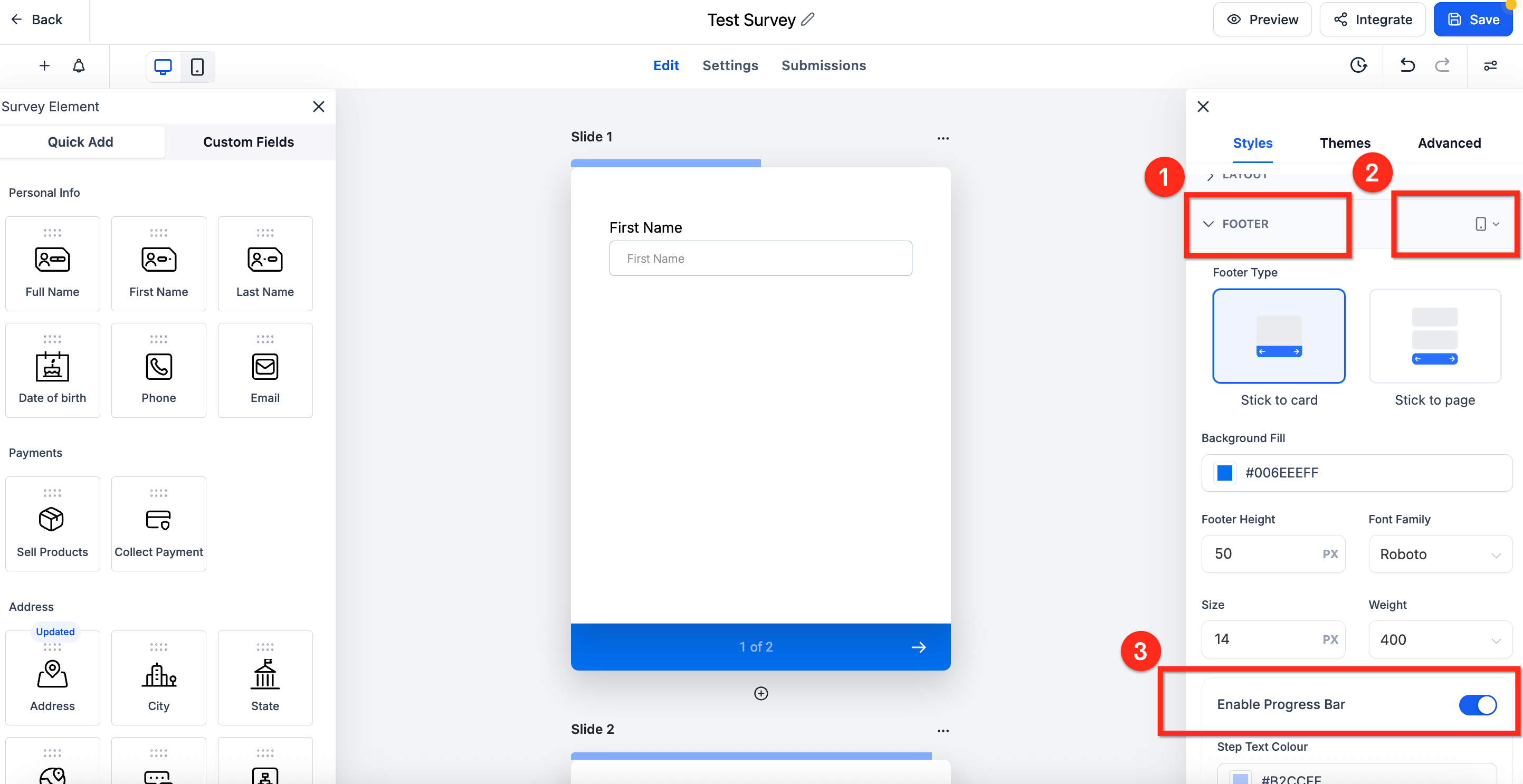
Scroll down to and expand the Footer section. Use the device selector drop-down next to Footer to choose Phone. You cannot enable the progress bar while in desktop mode. Then toggle Enable Progress Bar on.
Step 5: Customize the Colors
Set the Step Text Color, Progress Bar Fill, and Progress Bar Inactive colors to match your brand, then click the blue Save button to keep your changes.
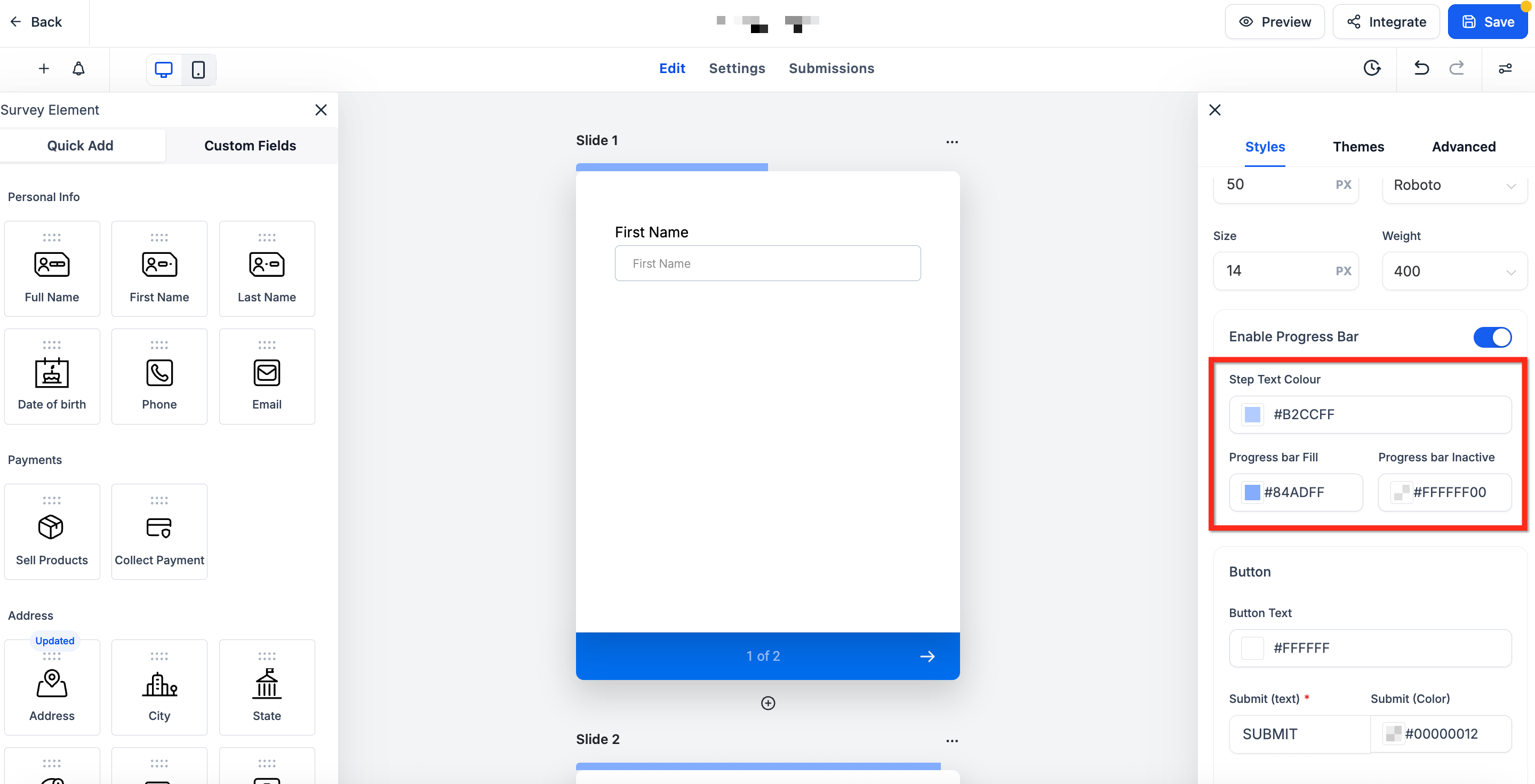
Match the progress bar to your practice using three color pickers, each of which accepts HEX values for precise branding:
Step Text Color: Controls the step number label (for example, "1 of 3").
Progress Bar Fill: Sets the filled portion of the bar.
Progress Bar Inactive: Defines the unfilled segment.
Does the progress bar appear on desktop? No. It is mobile only. Desktop patients see the standard indicators instead.
Why is the Enable Progress Bar toggle grayed out? Switch the builder's device selector to Phone first. While in desktop mode, the toggle is not selectable.
What if my survey has only one step? The progress bar is automatically hidden on single-step surveys because there is no progress to show.
Does the progress bar work with both Stick to Card and Stick to Page footers? Yes. It aligns seamlessly with both footer types.
Will my existing multi-step surveys show the progress bar automatically? No. The feature is off by default and must be turned on individually in each survey.
Can I match the survey footer and progress bar to my practice's colors? Yes. The footer supports theme, background, font, and button color options, and the progress bar offers three HEX color pickers for the step text, fill, and inactive segment.
Do new surveys already have the updated footer options? Yes. New surveys have the footer customization options enabled by default. Older surveys keep the original footer until you toggle the newer options on.
