Conditional logic makes your surveys smarter and more responsive. It lets you show or hide slides, display custom messages, redirect patients, disqualify responses, or jump between slides, all based on how someone answers. For a med spa, that means an intake survey can skip pregnancy screening for patients it does not apply to, a consultation quiz can route Botox-interested prospects to different follow-up questions than filler-interested ones, and a satisfaction survey can surface a personalized message when someone reports a concern.
This article explains what conditional logic does, the actions available, how to set it up, and which fields are supported.
Surveys live under Web Tools in your Aesthetix CRM account. Conditional logic works the same way here as it does in Forms, with a few survey-only extras like slide-to-slide jumps.
Important: Conditional logic is available only for newly created or cloned surveys. Logic rules do not carry over if your account is duplicated from a snapshot, so plan to rebuild rules in those cases.
Conditional logic automates actions inside your survey based on patient input. You can define conditions such as:
If the answer is "No," show a custom message.
If a score is below 5, disqualify the response.
If a date falls within a range, redirect to another page.
Jump patients to a specific slide instead of showing every slide.
This makes your surveys more interactive, relevant, and efficient.
When you open conditional logic, you will see the available action types:
Action | Description |
|---|---|
Show/Hide Fields | Dynamically show or hide questions or slides. |
Display Custom Message | Show personalized instructions or messages. |
Redirect to URL | Send respondents to a custom webpage after submission. |
Disqualify Lead | Automatically mark responses that do not qualify. |
Jump To (Slide) | Skip or branch to another slide based on answers. (Surveys only) |
Rules are executed top to bottom. Later matches override earlier ones when applicable.
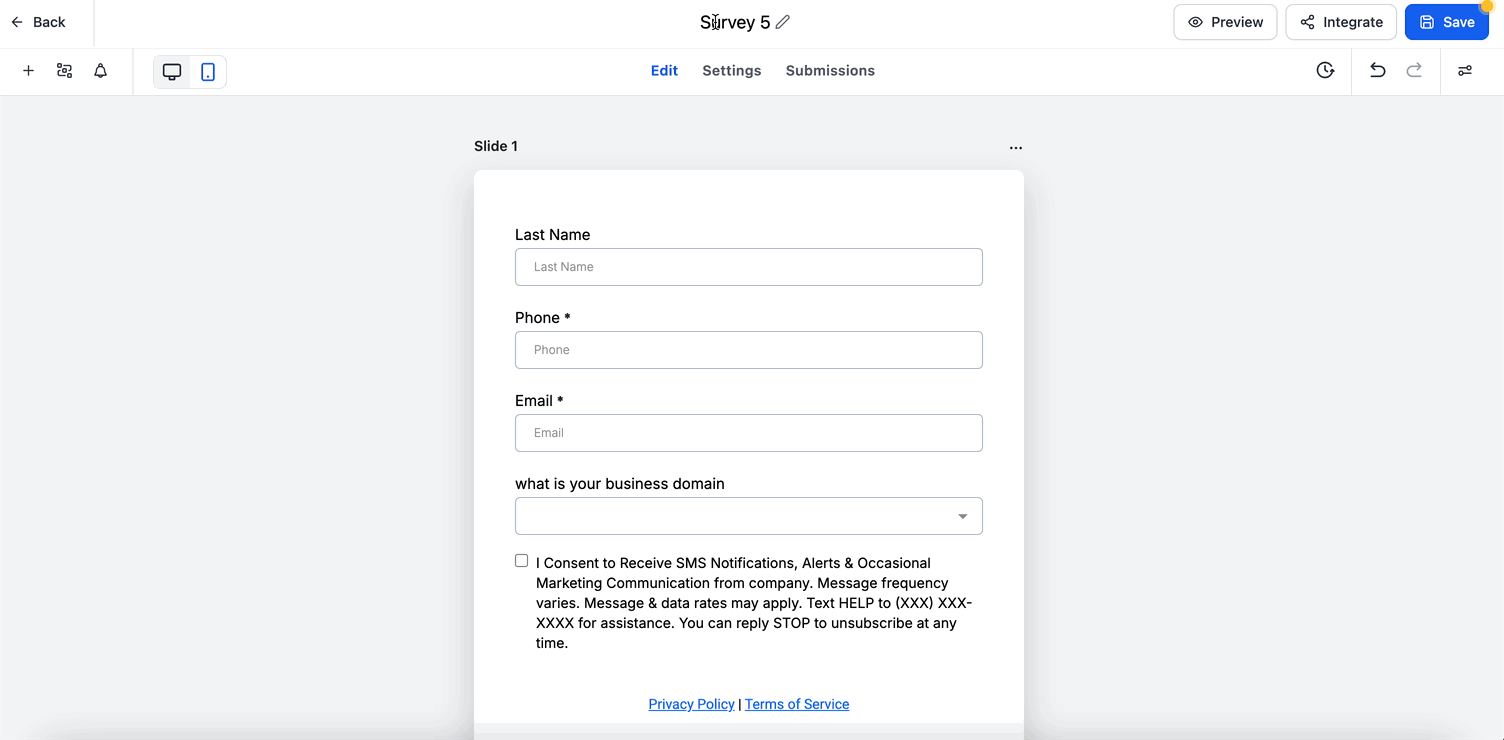
You add and manage rules directly inside the Survey Builder.
In the survey builder, click Conditional Logic in the top bar, or open it from the Conditional Logic link in the right sidebar.
Click Add New Condition, then choose an action (Show/Hide, Message, Redirect, Disqualify, or Jump To). The three-step logic builder opens.
Follow the guided flow:
Select Field: Choose the survey field or slide to base the rule on.
Select State: Pick the operator (for example, is equal to, is empty).
Provide Value: Enter the value (text, number, date, or option).
You can add multiple conditions in the same rule using AND or OR connectors:
AND means all conditions must be true.
OR means any condition can be true.
Switching between AND and OR updates all conditions in the block. Some operators do not require a value (for example, is empty or is checked).
Depending on your selection:
Redirect to URL: Enter a valid link (for example, https://example.com).
Display Message: Add your custom message text.
Show/Hide Fields: Select the fields to display or hide.
Disqualify Lead: Automatically stop the submission.
Jump To (surveys only): Select the target slide or question.
The Save button activates only after all required inputs are filled. The system checks for missing values and prevents looping logic. Rules run top to bottom in the list.
Conditional logic supports a wide range of survey fields.
Survey fields: Single Line, Multi Line, Number, Monetary, Score, Date Picker, Dropdown (Single), Dropdown (Multi), Radio Select, Checkbox, Terms and Conditions (TnC1 / TnC2), File Upload, Signature.
Static elements: Text, HTML, Image.
Note: Calendar fields are not supported in conditional logic.
Field Type | Operators |
|---|---|
Text (single/multi line) | equal to, not equal to, contains, does not contain, starts with, ends with, is empty, is filled |
Number / Score / Monetary | equal to, not equal to, greater than, less than, between, is empty, is filled |
Date | equal to, before, after, between, is empty, is filled |
Dropdown (Single) / Radio | is equal to, is not equal to, is empty, is filled |
Multi Dropdown / Checkbox | is equal to {Option}, is not equal to {Option}, is empty, is filled |
TnC1 / TnC2 | is checked, is not checked |
File Upload / Signature | is empty, is filled |
IF basis: Field or slide.
THEN action: Jump to a slide or question.
When it runs: On click of Next.
Conflict handling: If multiple Jump To rules match, the first one runs.
Protection: Loops are prevented (Slide A to Slide B and back to Slide A).
In surveys, filter rules for easier editing:
By Field: Shows rules linked to a specific field.
By Slide: Shows rules that affect or target a selected slide.
Rules run top to bottom in order.
Redirect, Message, and Disqualify: Only the first matching rule executes.
Show/Hide: Later rules override earlier ones.
Jump To: Evaluated on slide transition (the Next button).
Text matching is case-insensitive and ignores extra spaces.
Date logic uses your account timezone.
Use Between for numeric or date ranges (it is inclusive).
Try quick date presets like Today or This Week.
"Radio Other" appears only if custom input is enabled.
Always preview your survey to verify your logic and Jump To flow before you share it with patients.
Conditional logic often branches on health-related answers, such as a patient reporting a medical condition, pregnancy, or a medication. Those answers are protected health information. Route them only within your CRM, keep any redirect destinations on pages you control, and make sure only authorized staff can view survey submissions.
Can I mix AND and OR in the same rule? No. Each rule must use only one type of connector. If you need both, build separate rules.
Can I have multiple rules in the same survey? Yes. Each rule runs independently.
What happens if more than one condition matches? For Redirect, Message, or Disqualify actions, the first match wins. For Show/Hide, later rules override earlier ones.
Can I create loops in Jump To logic? No. The builder blocks loops and displays a warning if it detects one.
Why can't I select fields in the IF dropdown? Check that each survey field has a unique Query Key, then refresh the panel.
Will conditional logic work on a survey I copied from a snapshot? No. Logic rules do not carry over from a snapshot. Conditional logic is available only for newly created or cloned surveys, so you will need to rebuild the rules.
Are calendar fields supported? No. Calendar fields cannot be used in conditional logic. All other listed survey fields and static elements are supported.
Does the Between operator include the endpoints? Yes. Between is inclusive for both numeric and date ranges.
