Survey elements are the building blocks you drag onto your slides to collect information from patients and prospective patients. This article covers the two main field groups (Quick Add and Custom Fields) and the two ways to publish a finished survey (Embed and Link). Use these elements to build intake questionnaires, pre-consultation health histories, treatment-interest quizzes, and satisfaction surveys.
Surveys live under Web Tools in your Aesthetix CRM account, in the same area as Forms, and they share the same field types.
Navigate to your surveys from the main menu.
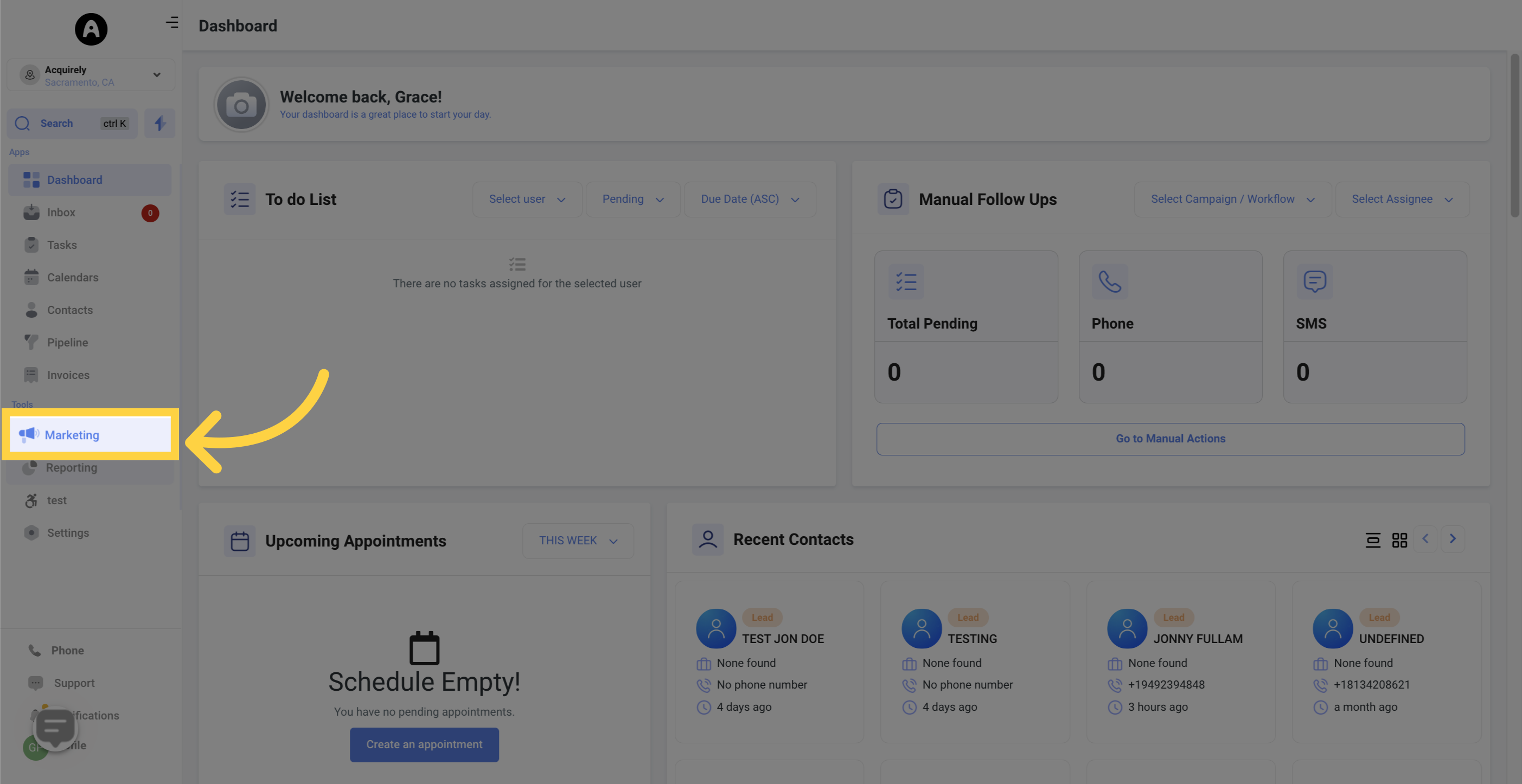
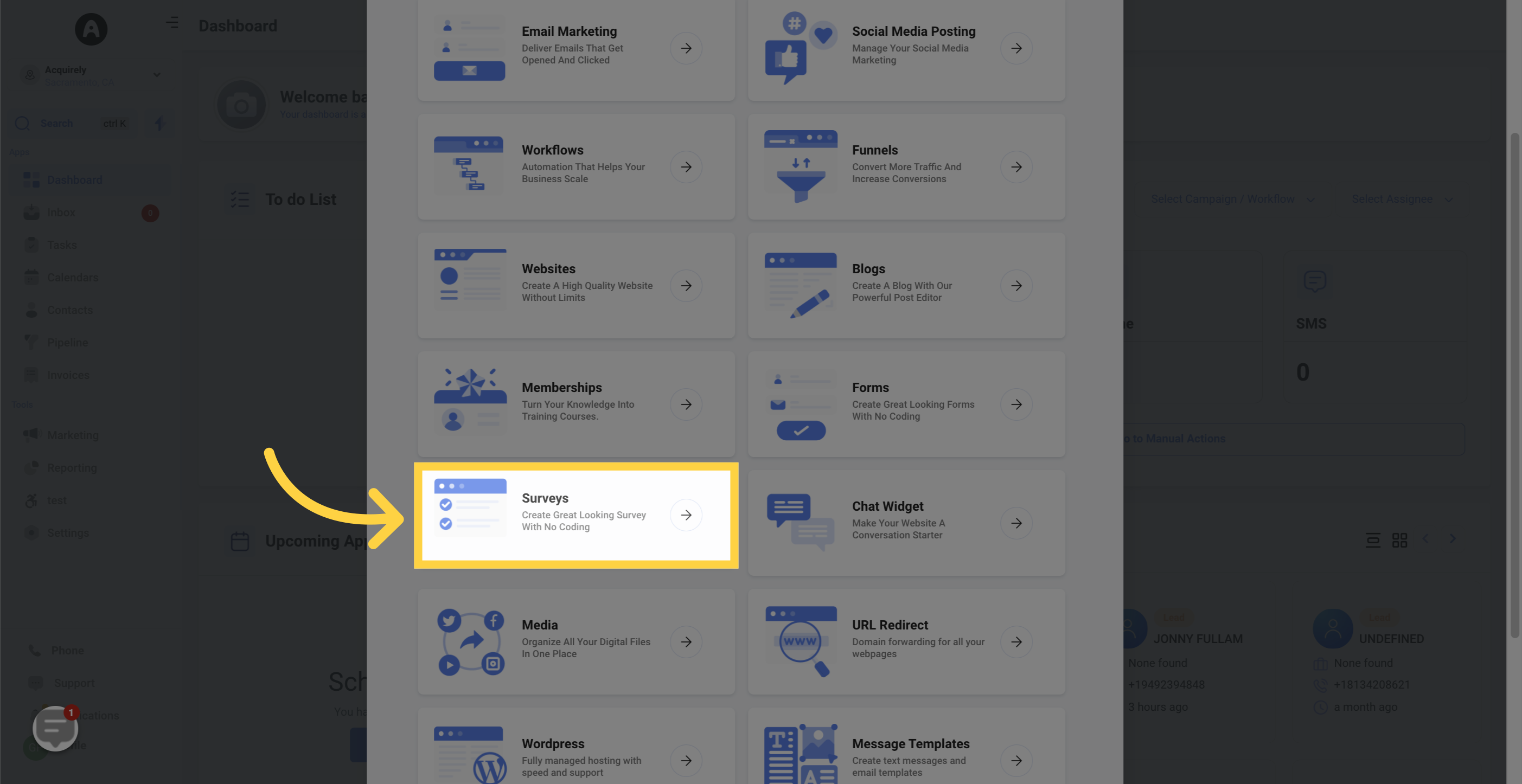
Select Surveys.
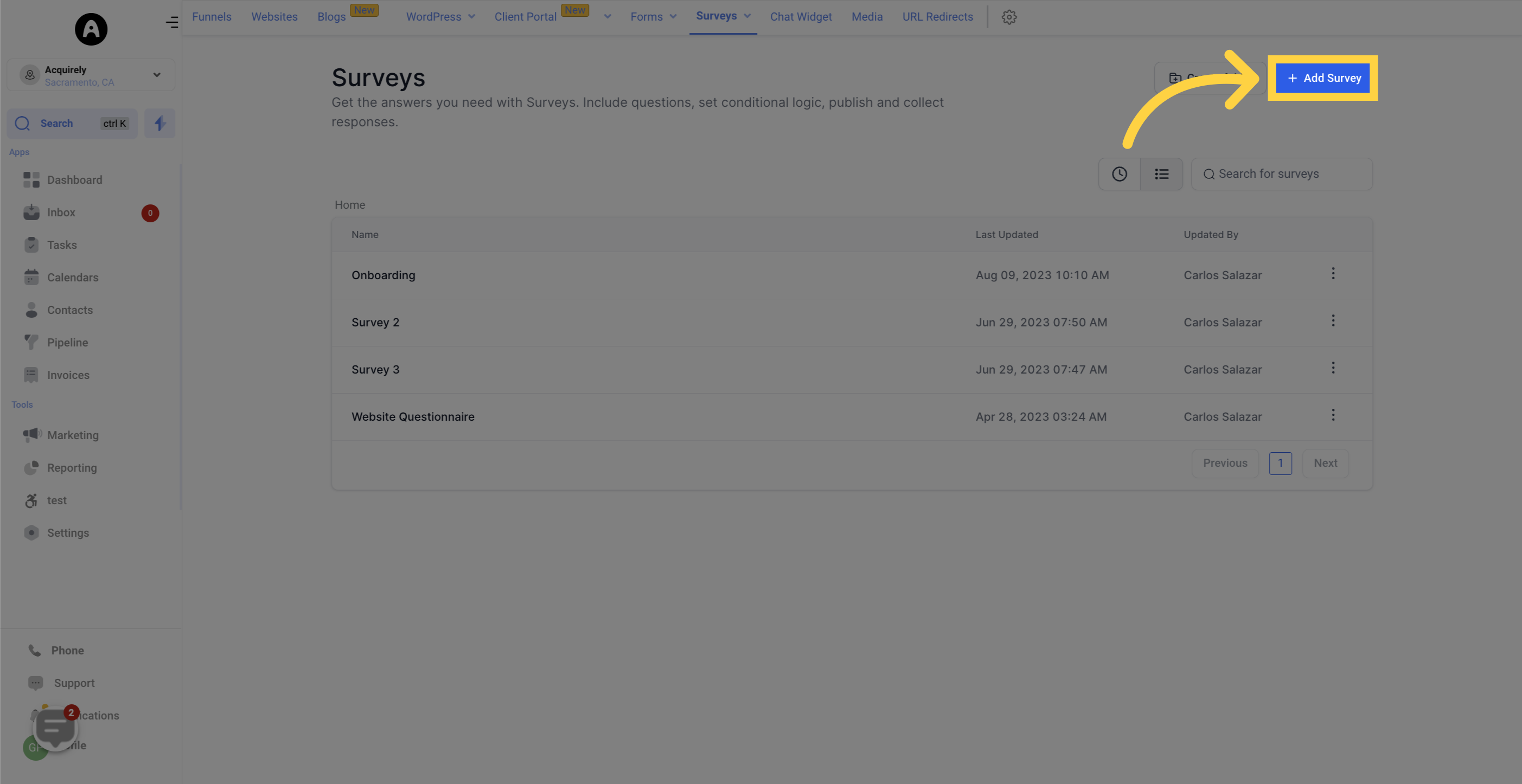
Click Add Survey.
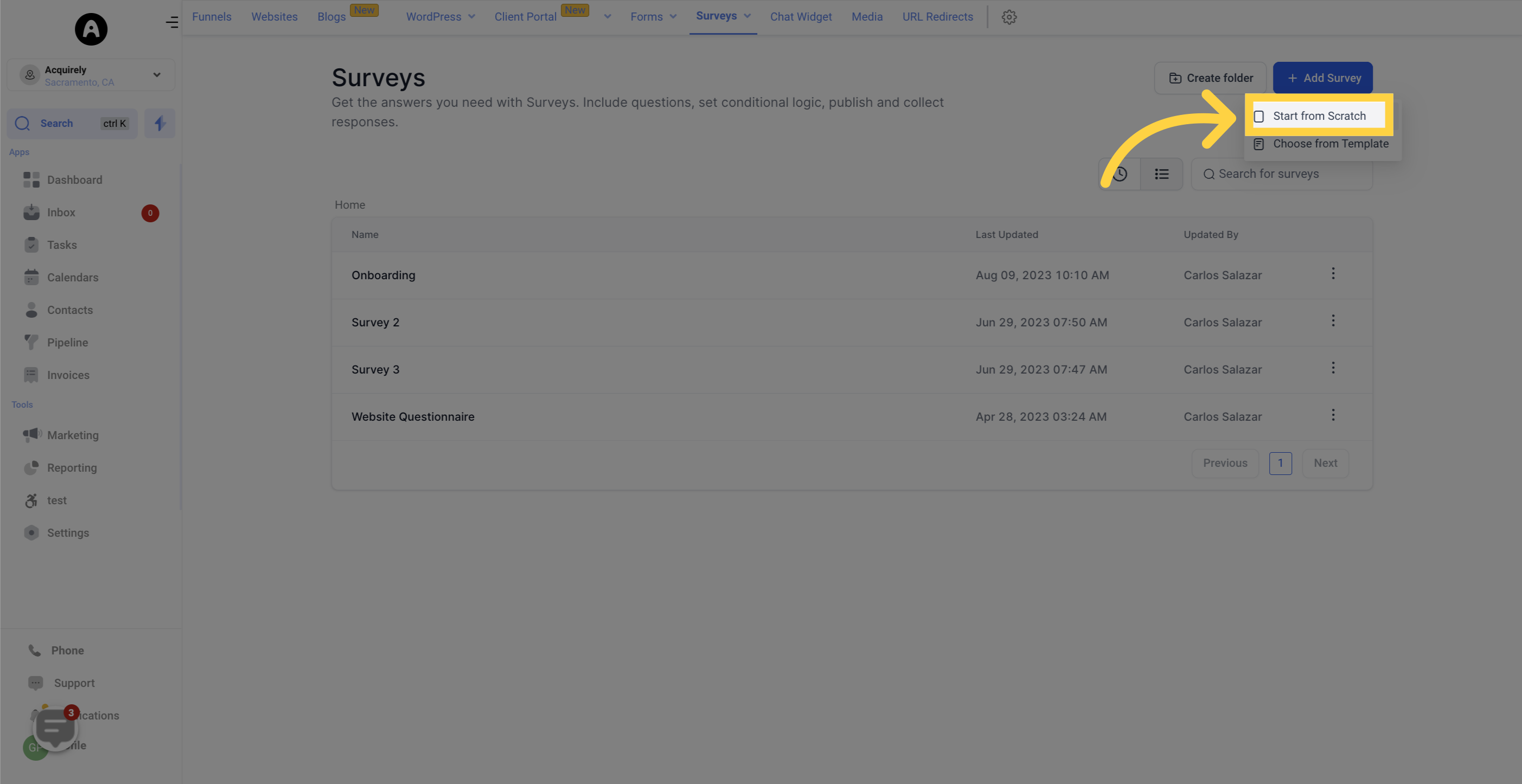
Choose Start from Scratch to open a blank survey you can build element by element.
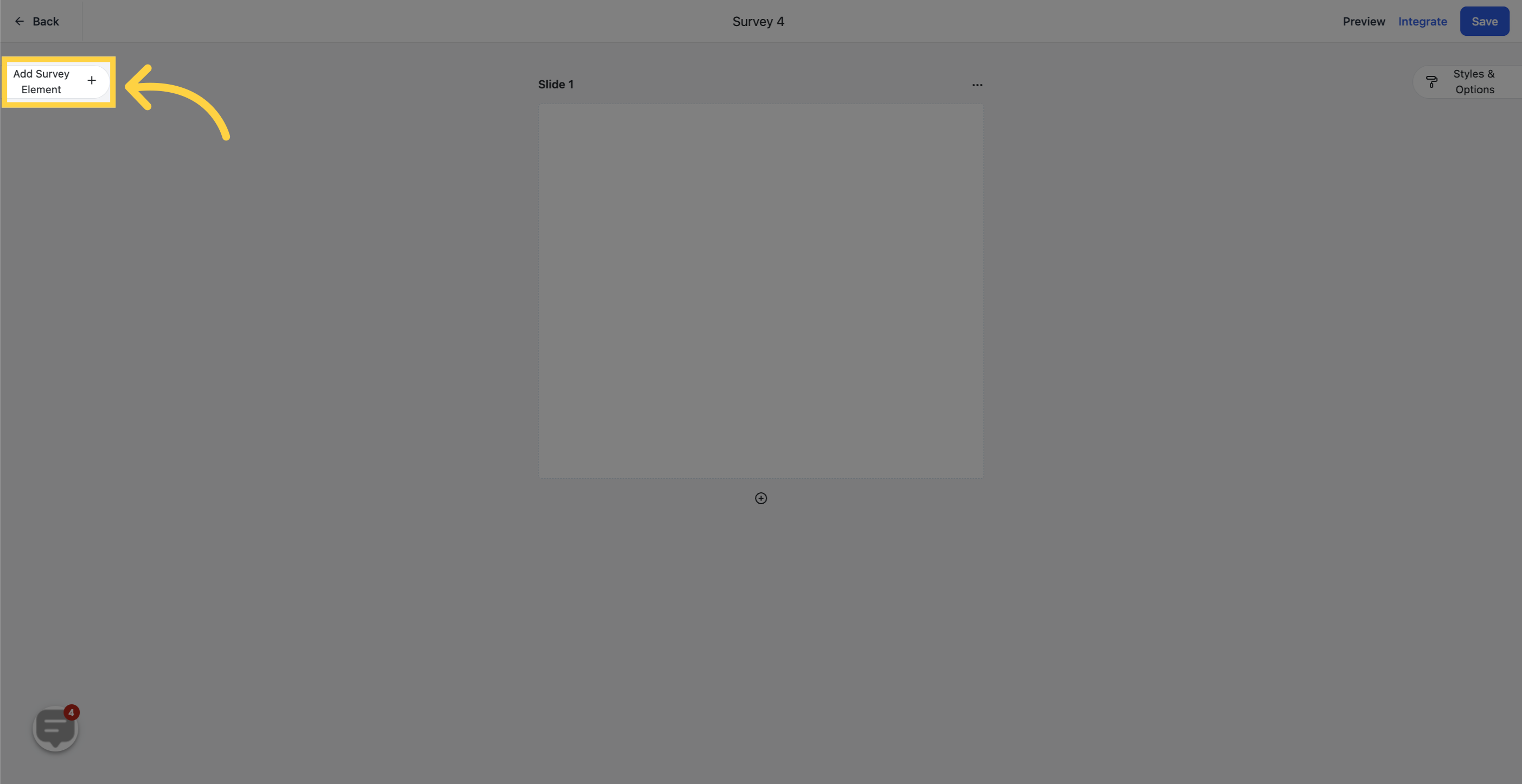
Open Add Survey/Element to reveal the different fields you can use to customize your survey.
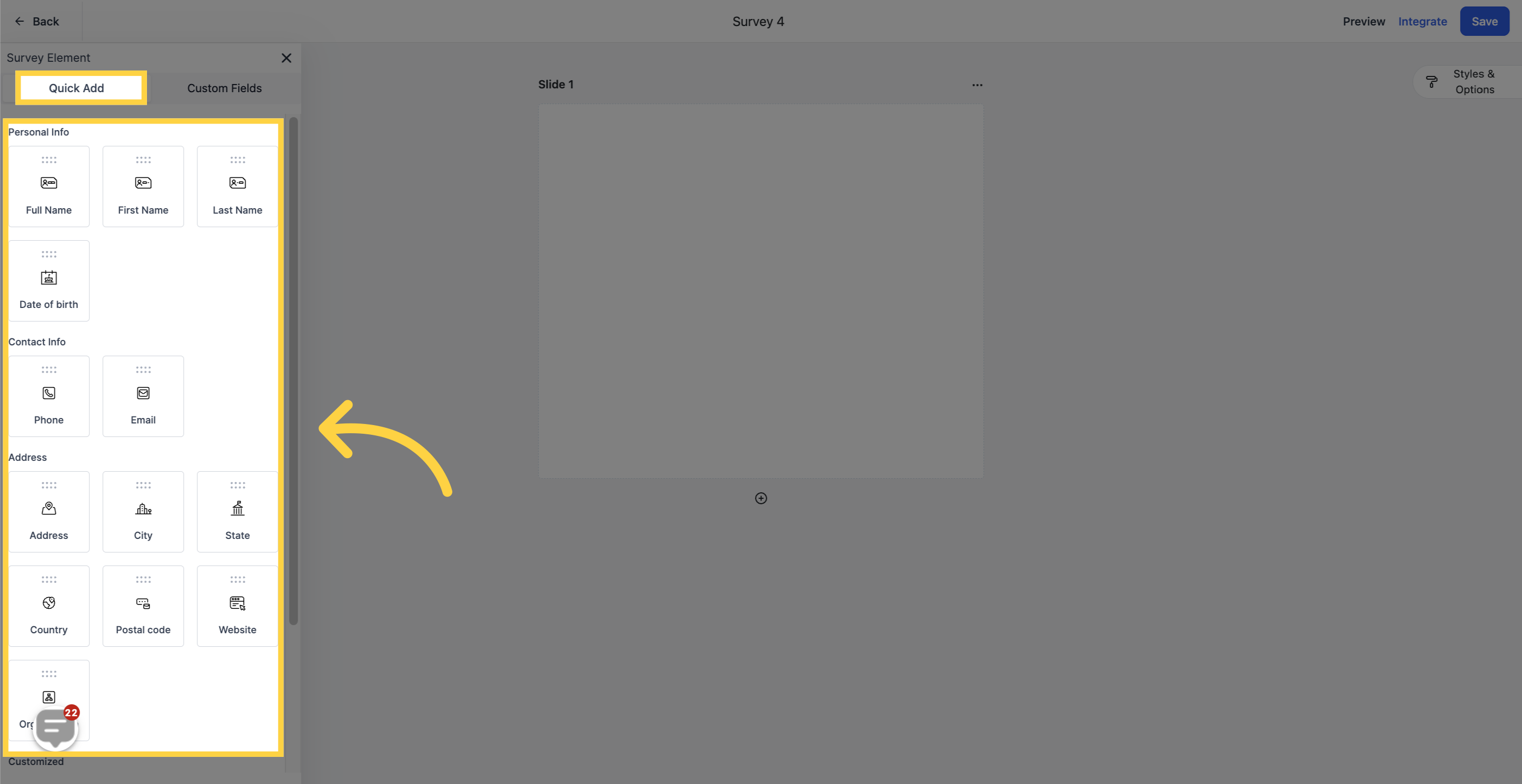
The Quick Add group includes standard contact fields like name, email, and phone number. These are the essentials you will want on almost every intake or lead-capture survey.
To place a field, click and drag it onto the survey slide in the middle of the screen.
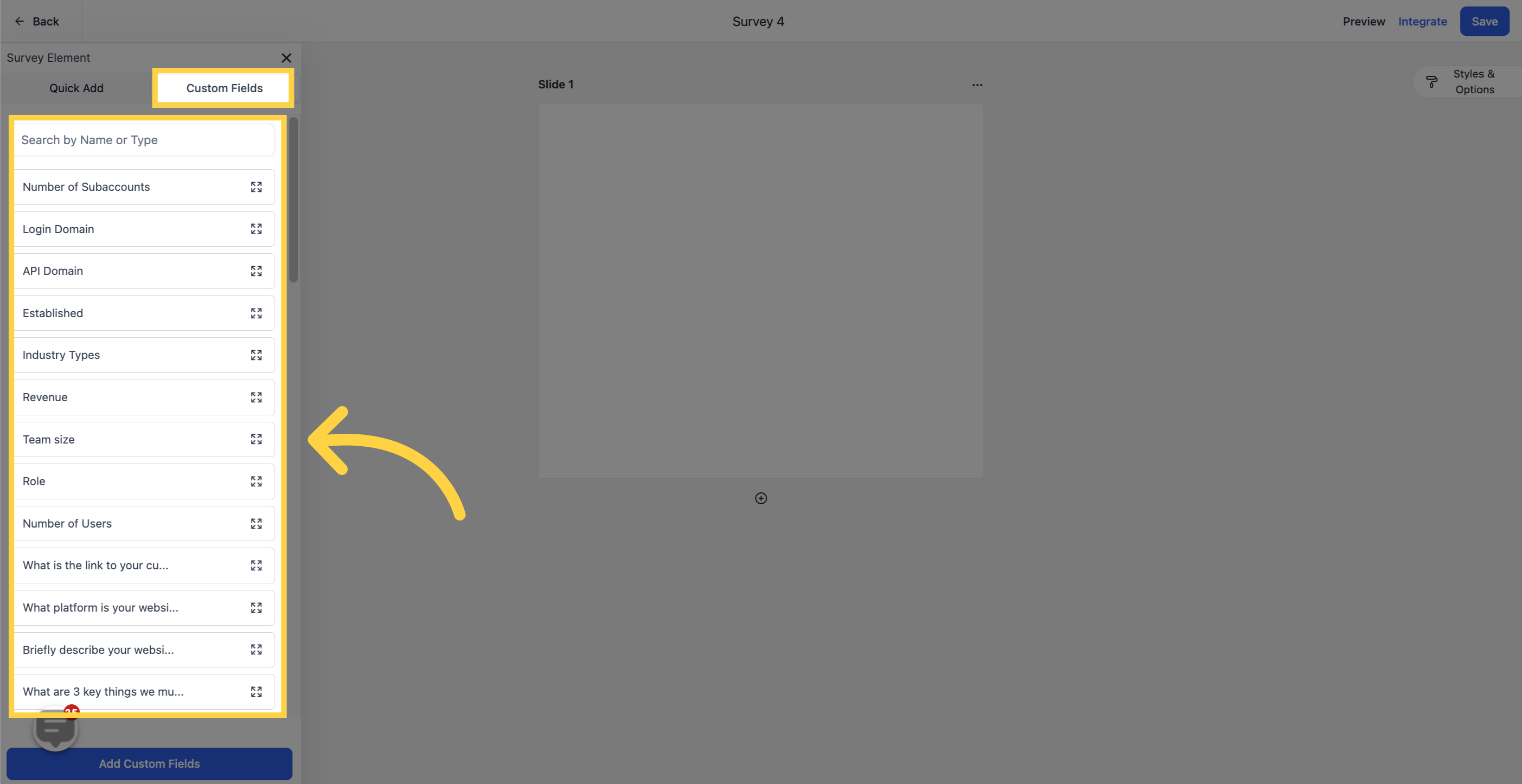
Custom Fields are created by you or your CRM administrator. They give you the flexibility to capture practice-specific details, such as a checkbox list of treatment interests, a long-form box for a patient's health history, or a dropdown of preferred appointment times. Custom fields support checkboxes, long-form answers, and other custom options.
To place a custom field, click and drag it onto the survey slide.
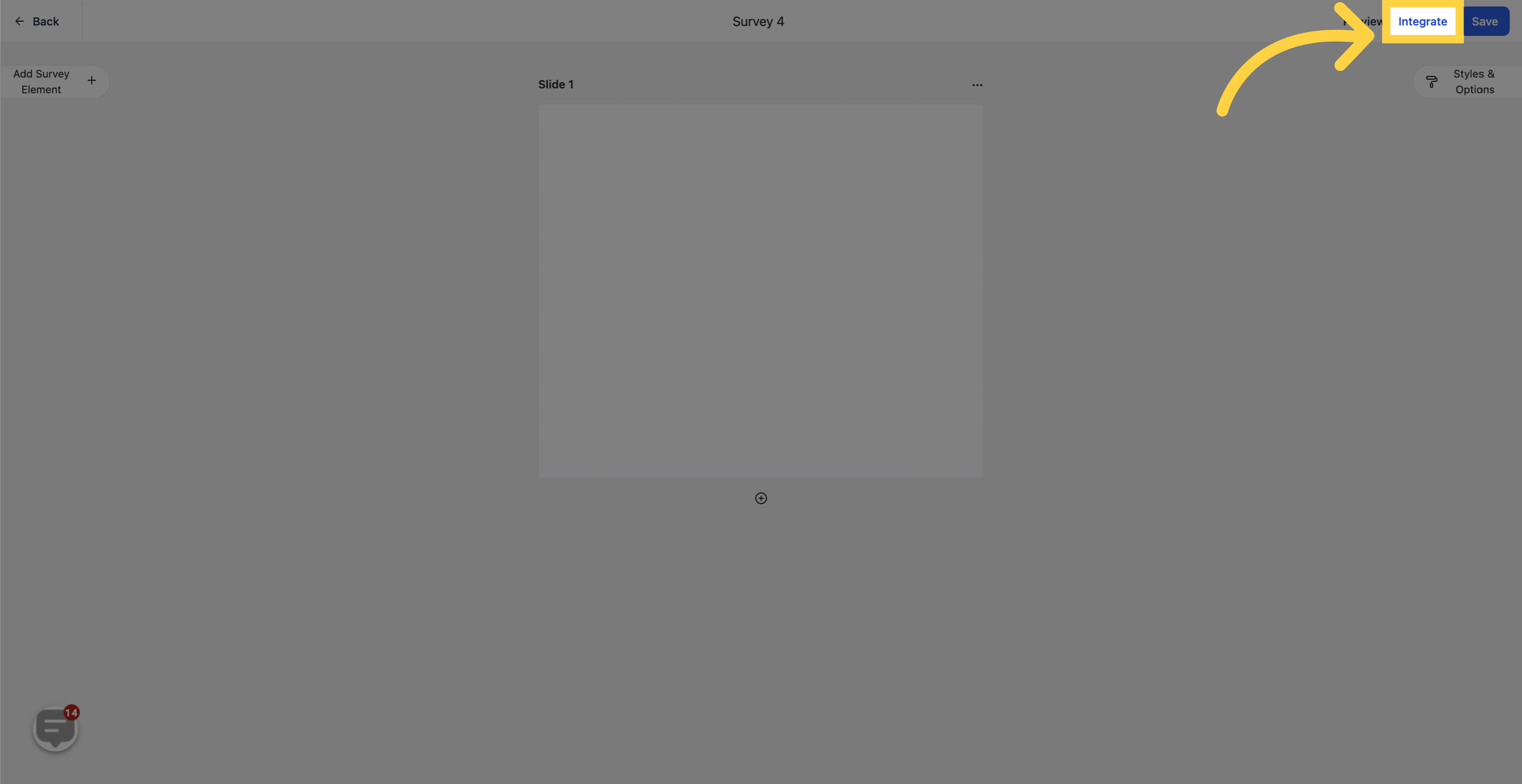
When your survey is ready, open Integrate to see how you can share it with patients.
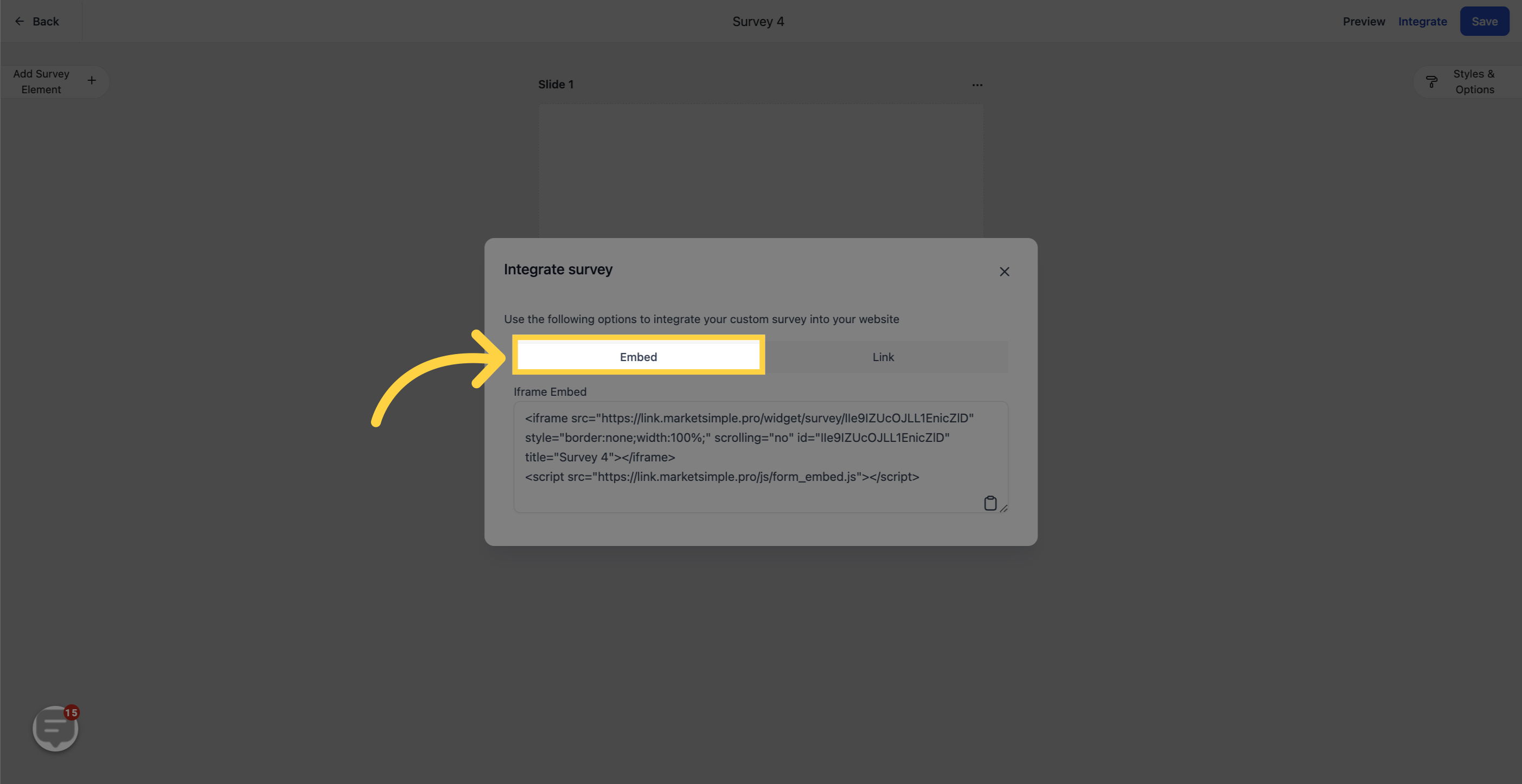
Use Embed to place the survey directly into a website or sales funnel by copying a snippet of code into your webpage. If you are not comfortable editing your site's code, we recommend involving your web developer.
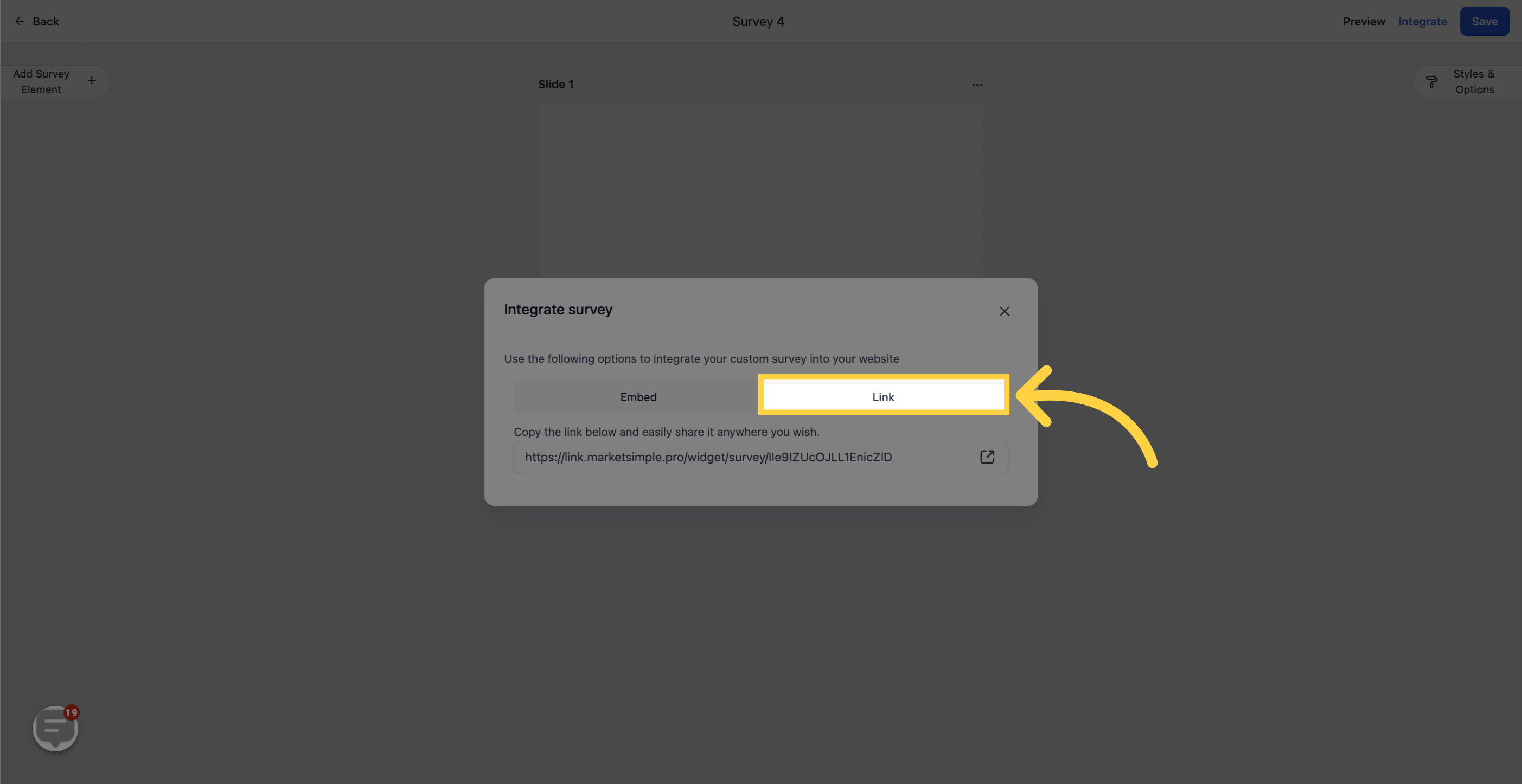
Use Link to generate a custom URL you can share with patients and prospective patients. The link opens a dedicated page with just the survey, keeping the patient focused on filling it out. This is ideal for texting an intake link before an appointment or emailing a satisfaction survey afterward.
Custom fields often capture protected health information, such as medical conditions, medications, and treatment concerns. When you share a survey by link, only send it through channels your patients have consented to, and make sure only authorized staff can view the responses.
What is the difference between Quick Add and Custom Fields? Quick Add contains standard contact fields like name, email, and phone. Custom Fields are ones you or your administrator create to capture practice-specific details, and they support checkboxes, long-form answers, and other options.
How do I add a field to a slide? Click and drag the field from the elements panel onto the survey slide in the center of the screen.
How do I create a custom field? Custom fields are created by you or your CRM administrator. Once created, they appear in the Custom Fields group and can be dragged onto any survey.
What is the difference between Embed and Link? Embed places the survey inside your own website or funnel using a code snippet. Link generates a standalone URL that opens a dedicated page with only the survey on it.
Which sharing method should I use? Use Embed when you want the survey to appear on a page you control, such as a landing page. Use Link when you want to text or email patients a focused survey, such as a pre-visit intake or a post-treatment satisfaction survey.
Do I need a developer to embed a survey? Not necessarily, but if you are not comfortable editing your website's code, we recommend involving your web developer to place the embed snippet correctly.
Are survey responses safe for patient health information? Custom fields can collect protected health information, so only share survey links through consented channels and restrict who can view submissions using user permissions.
