The Survey Builder is where you create and manage every survey your practice uses, from new-patient intake questionnaires and pre-consultation health histories to post-treatment satisfaction surveys. This article walks through opening the builder, creating a survey, organizing surveys into folders, reading the survey list, and using the per-survey actions.
Surveys live under Web Tools in your Aesthetix CRM account, in the same area as Forms. Many of the list and organization tools behave just like they do in the Forms builder.
Note: Your access to certain components may vary based on the user permissions assigned to your account.
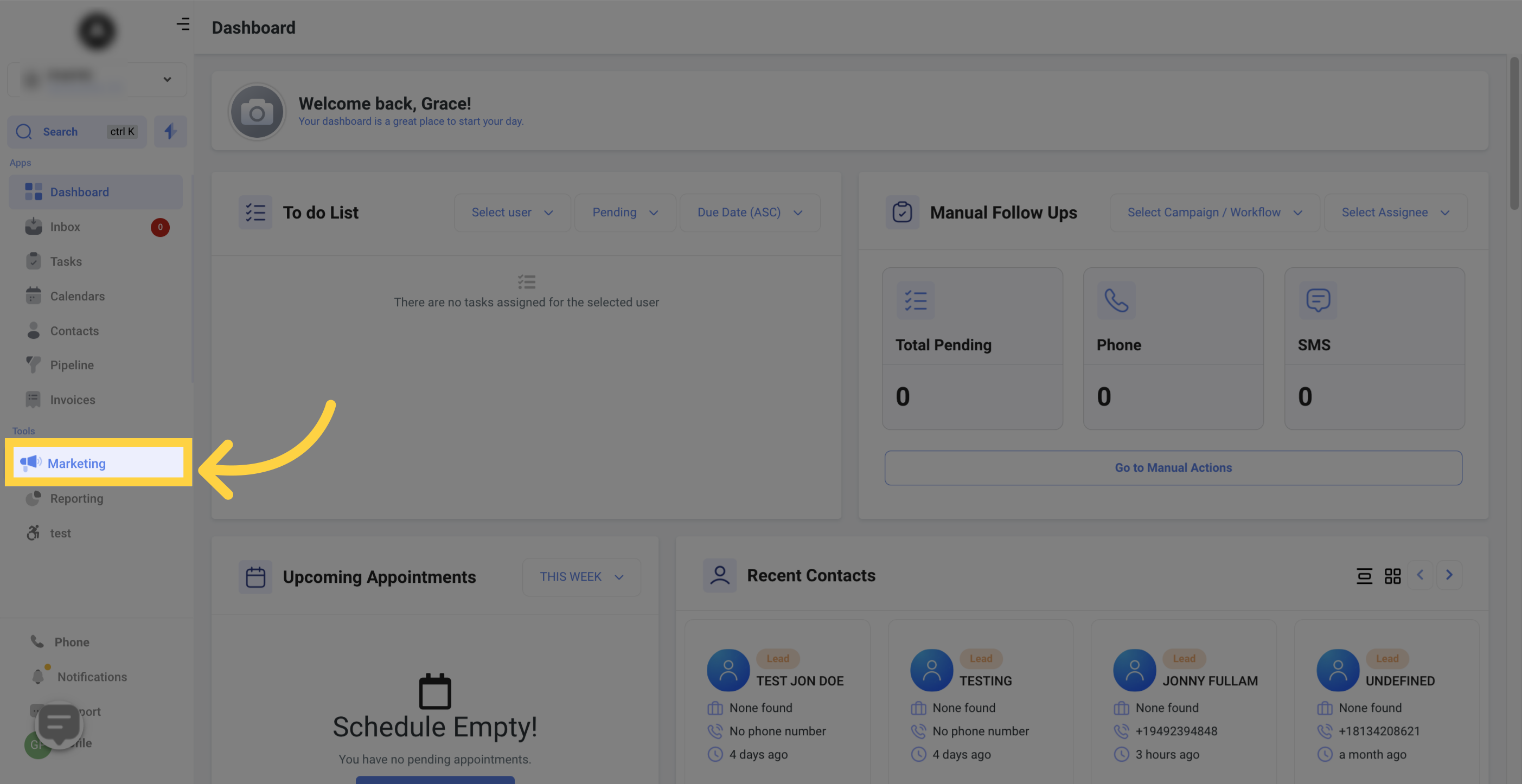
Navigate to your surveys from the main menu.
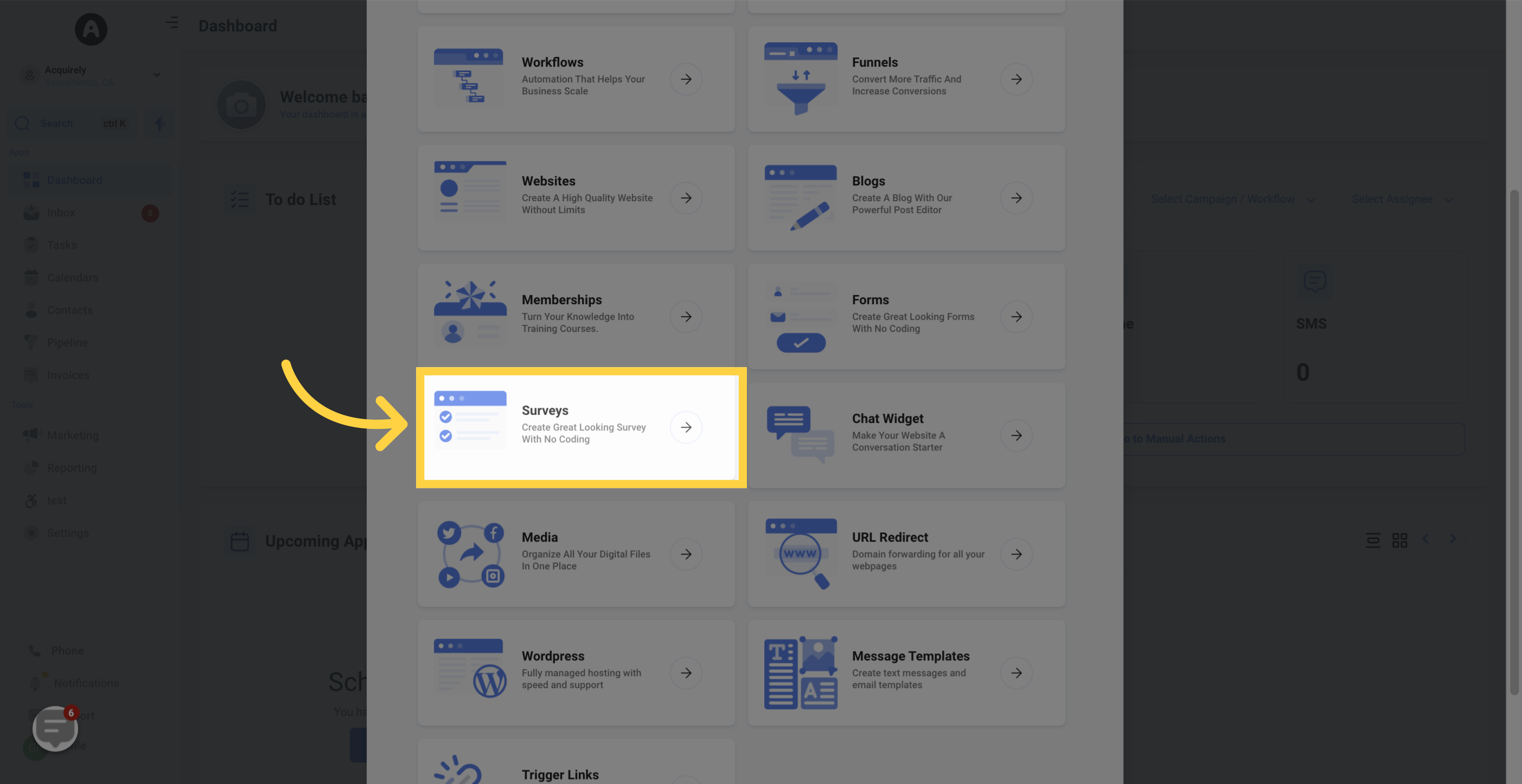
Select Surveys.
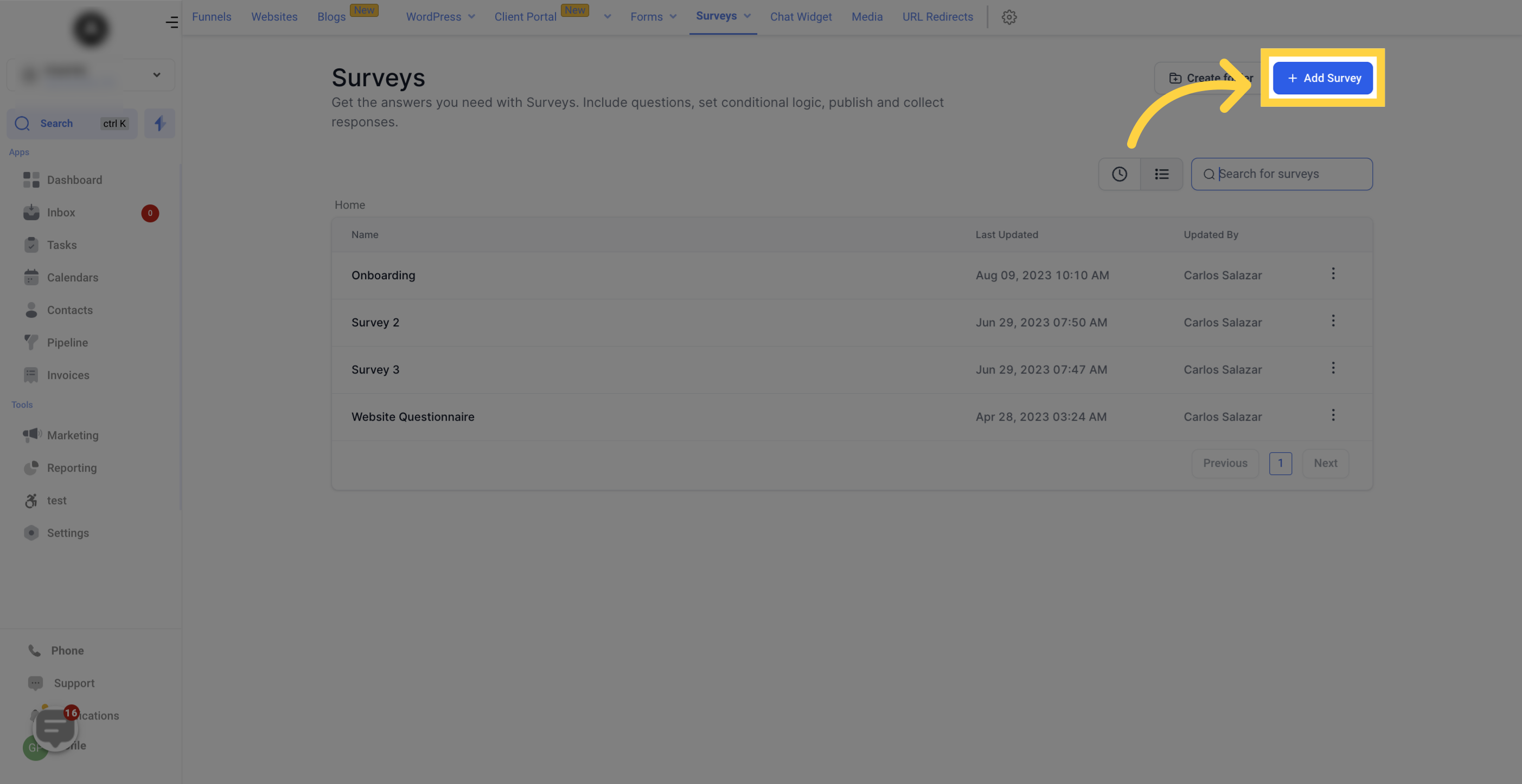
When you are ready to build, click Add Survey. This opens the builder where you design your questions and slides.
If your practice runs many surveys, folders keep them tidy. Click Create Folder, give the folder a name (for example, Intake Forms or Satisfaction Surveys), and click Confirm to save it.

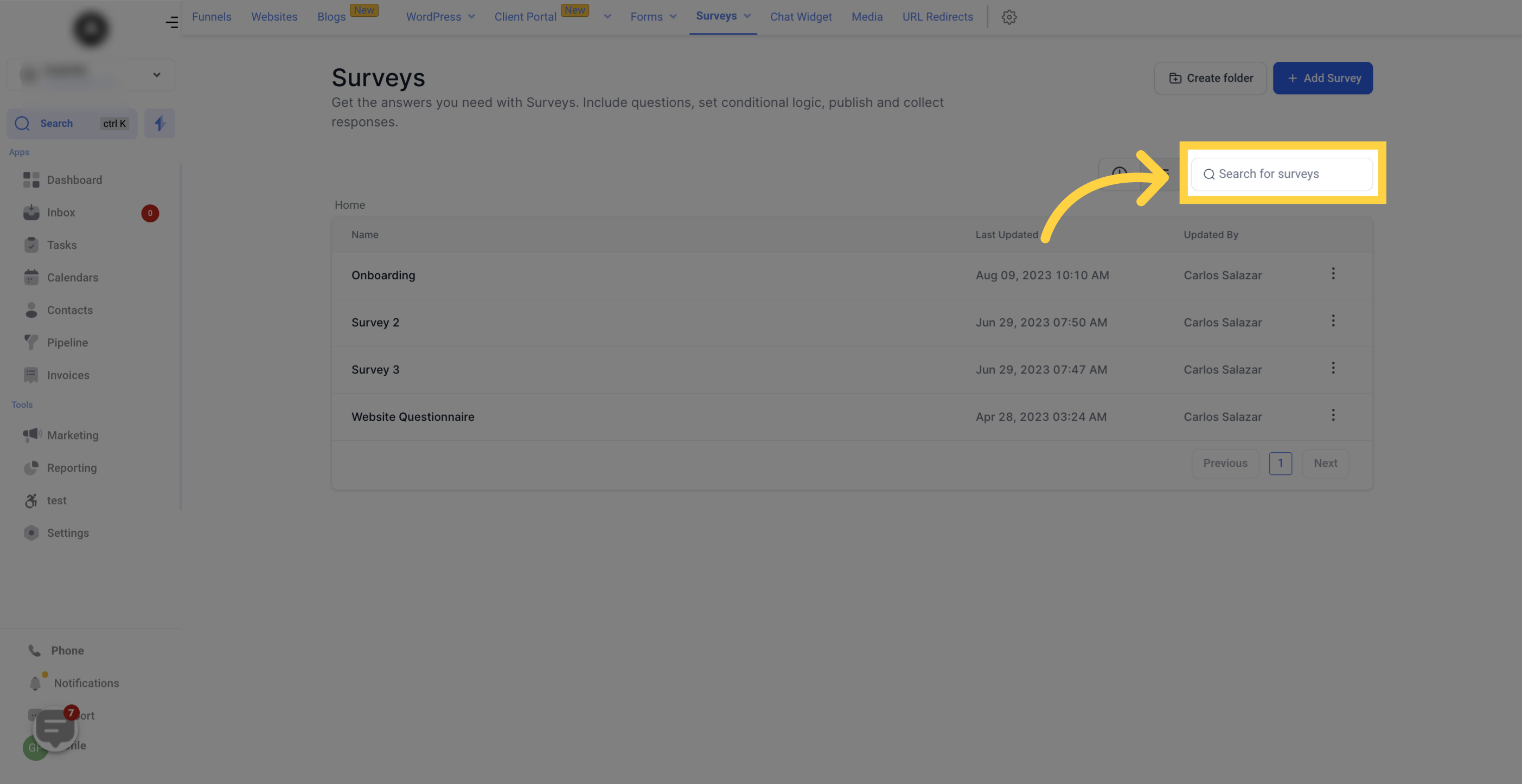
When your list grows long, use the search bar to find a specific survey by typing its name.
The survey list displays every survey you have created along with its recent activity.
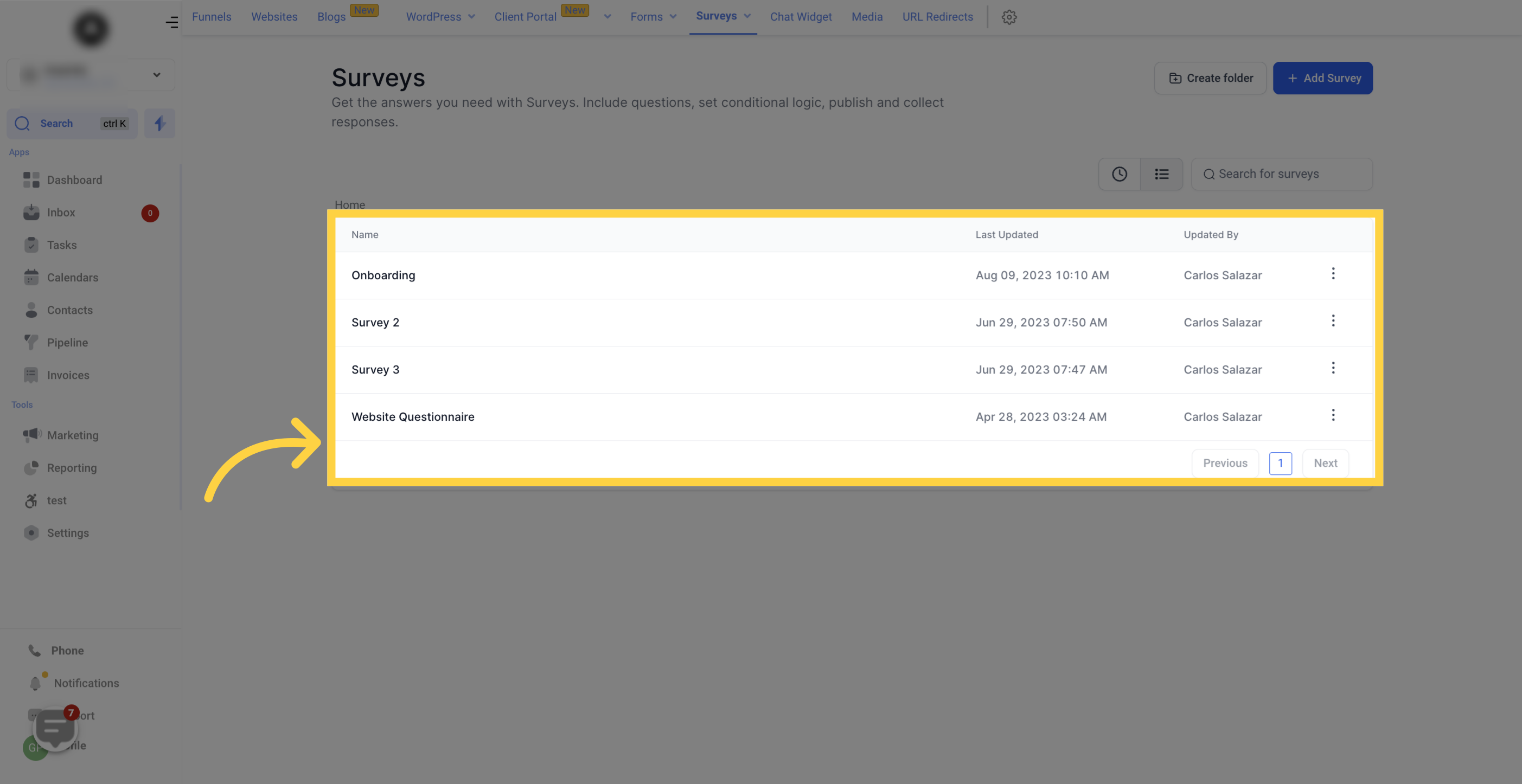
The Name column shows the name of each survey.

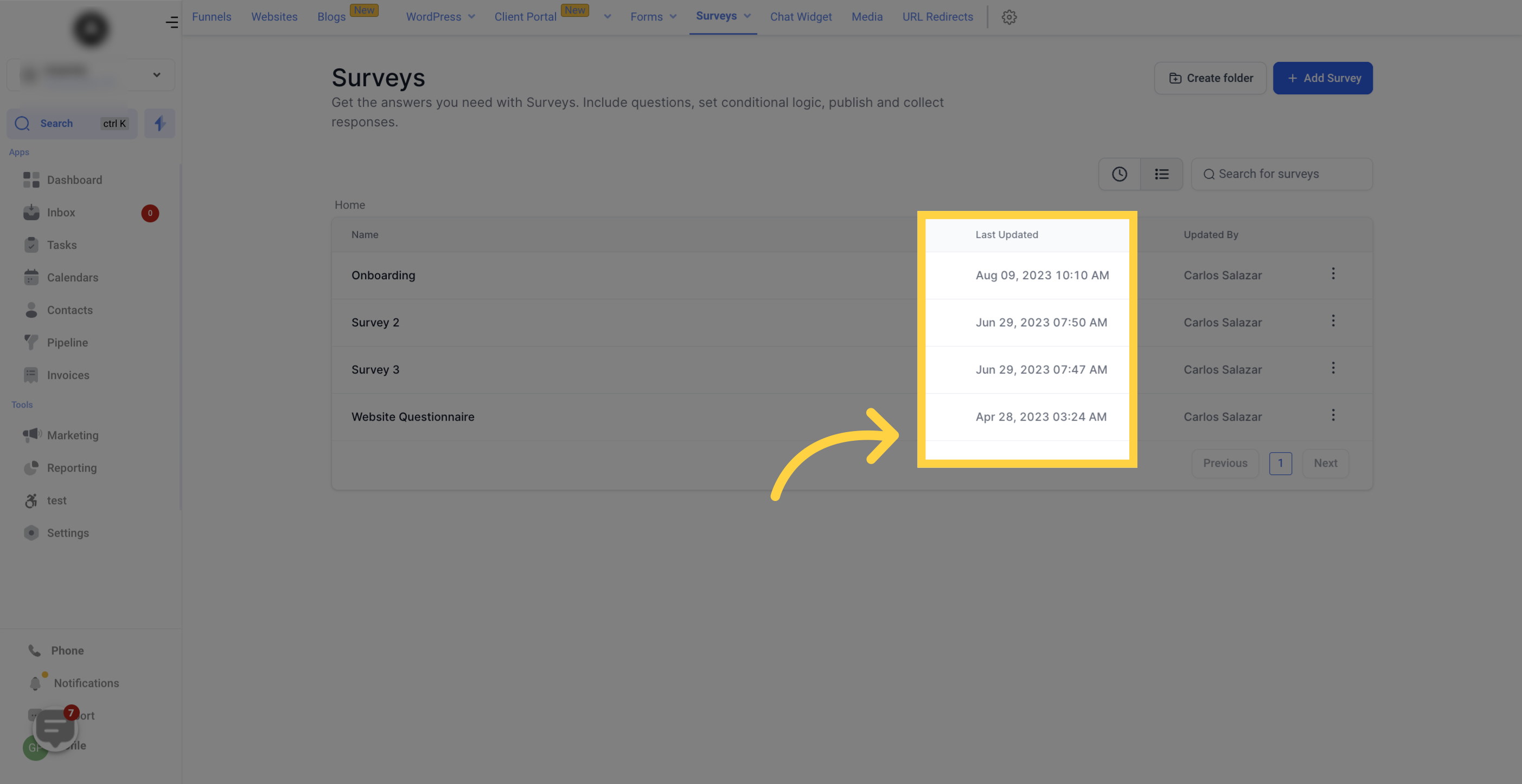
The Last Updated column shows the date and time each survey was last changed.
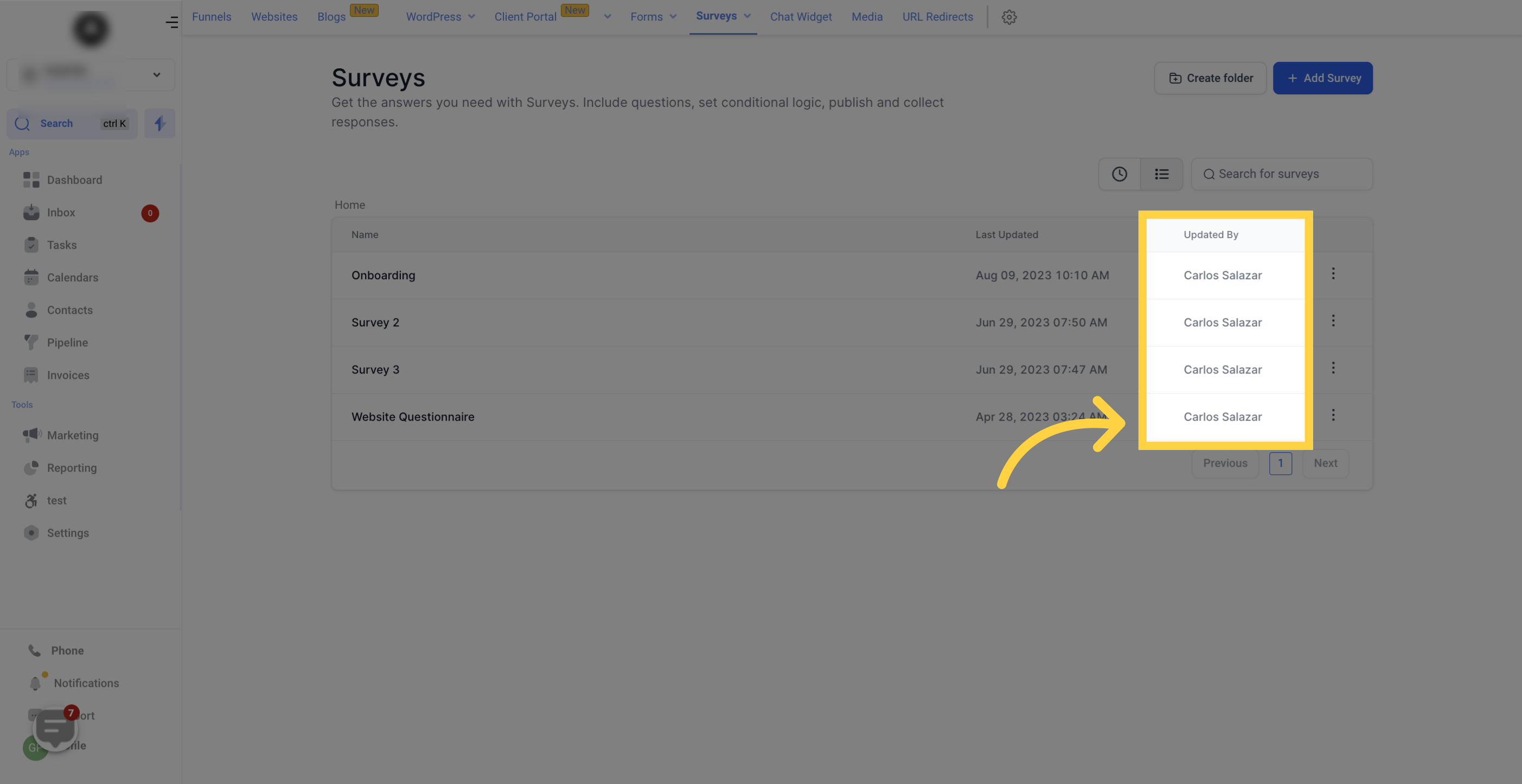
The Updated By column shows which team member made the last change.
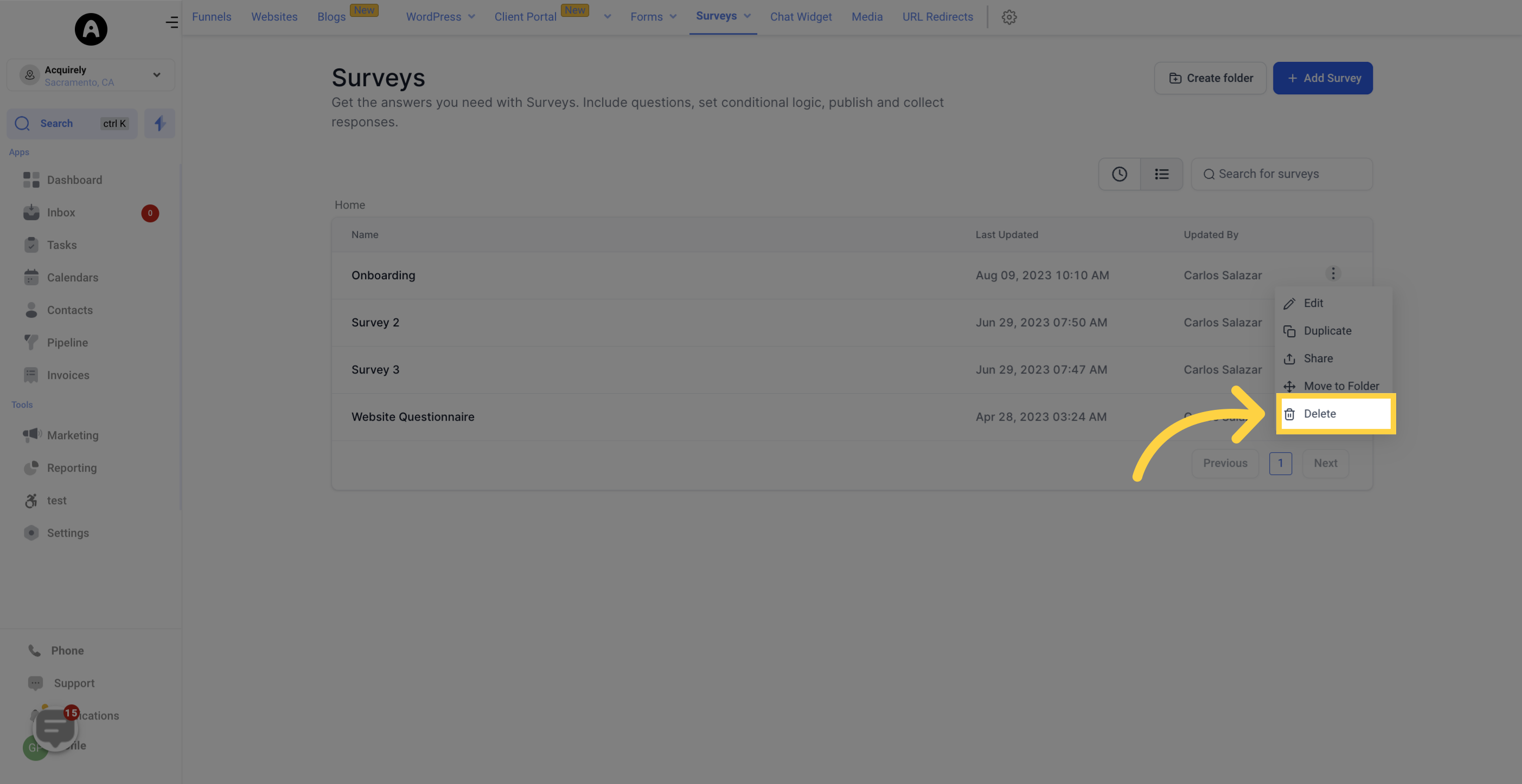
Click the more actions button next to any survey to reveal its options.
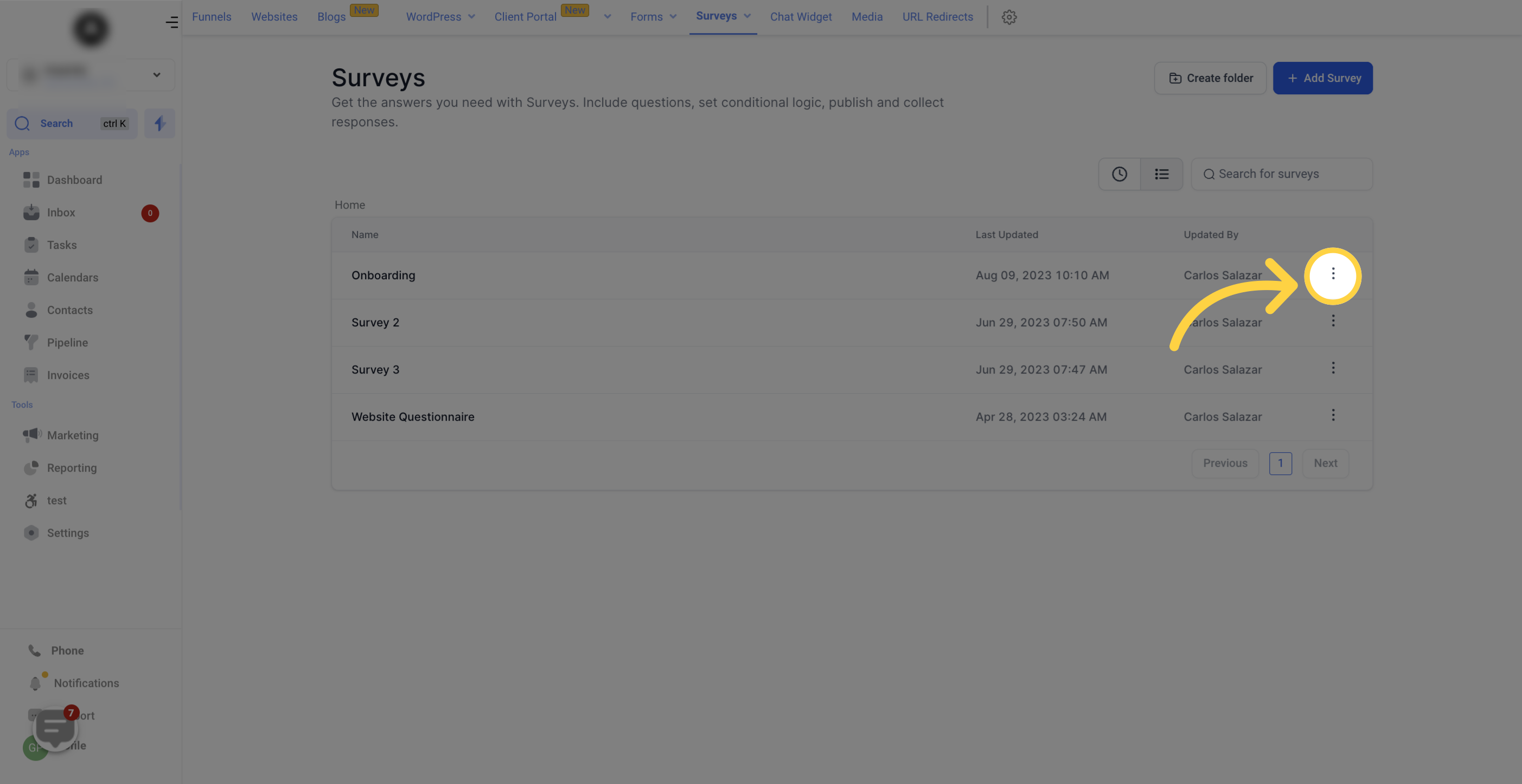
Edit: Open the survey to make changes.
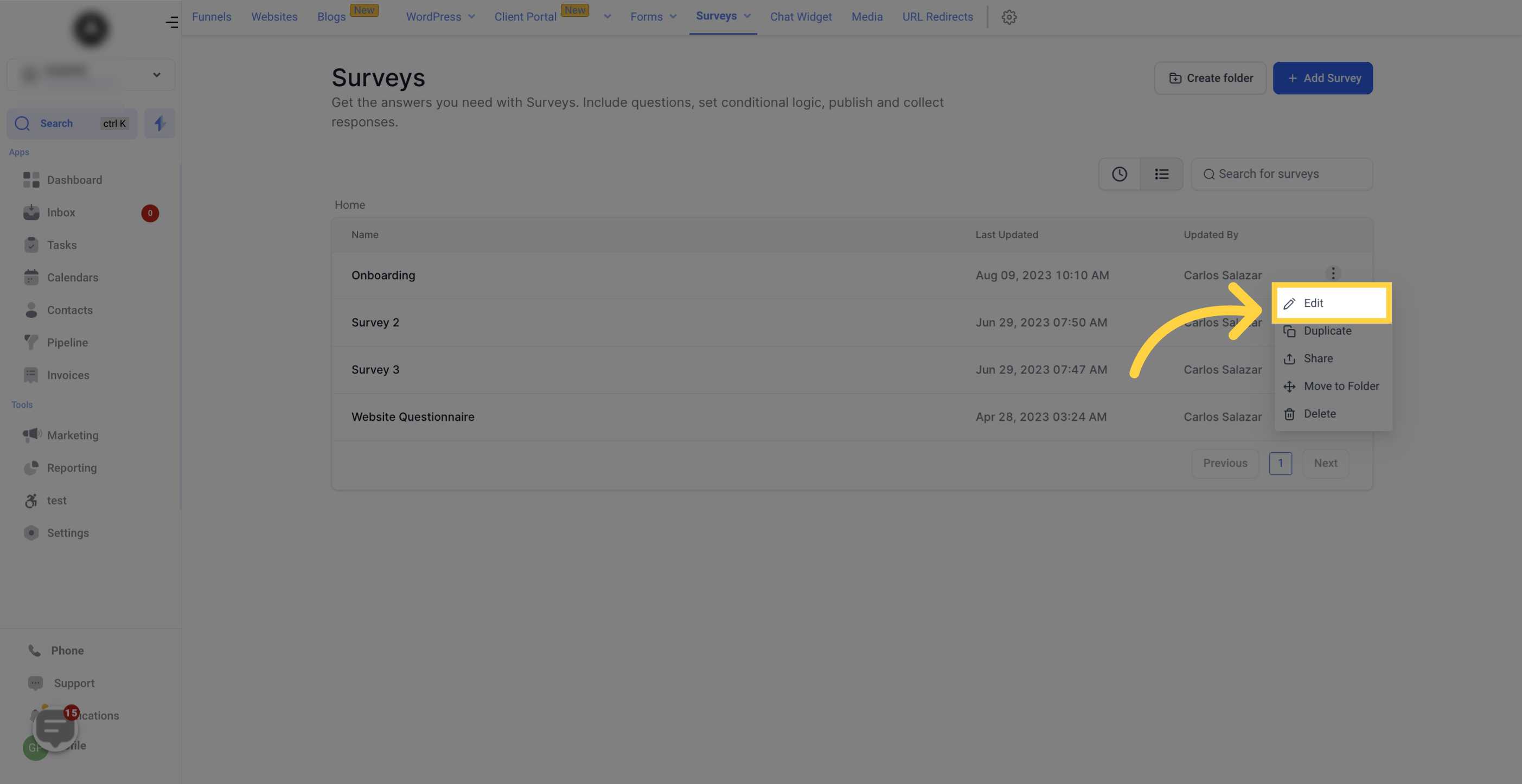
Duplicate: Create a copy of a survey. This is handy when you want to base a new questionnaire on an existing one.
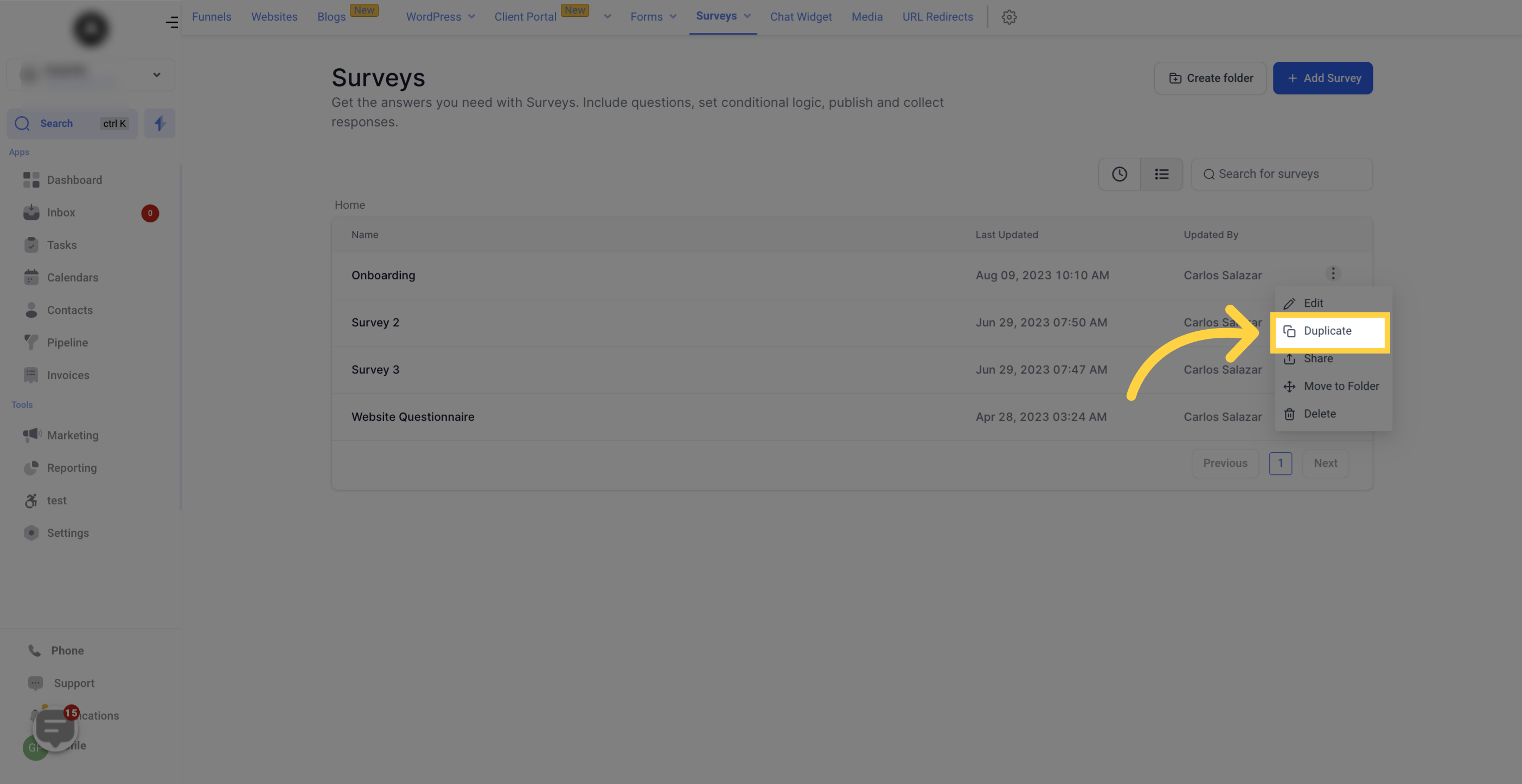
Share: Share a survey to another location within your CRM. Click Share and choose the desired destination.
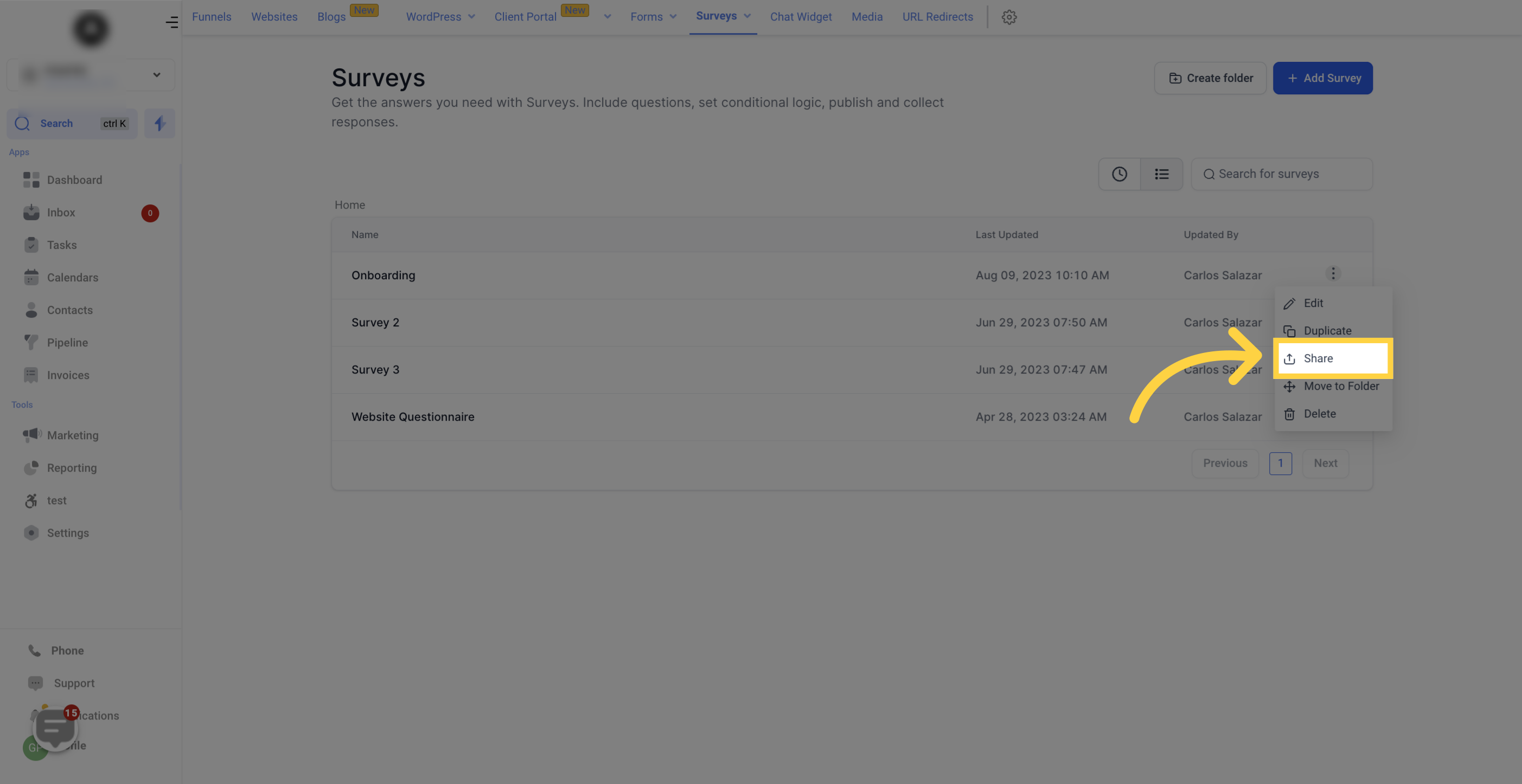
Move to Folder: Keep your surveys organized by moving them between folders. Click this button and select the destination folder.
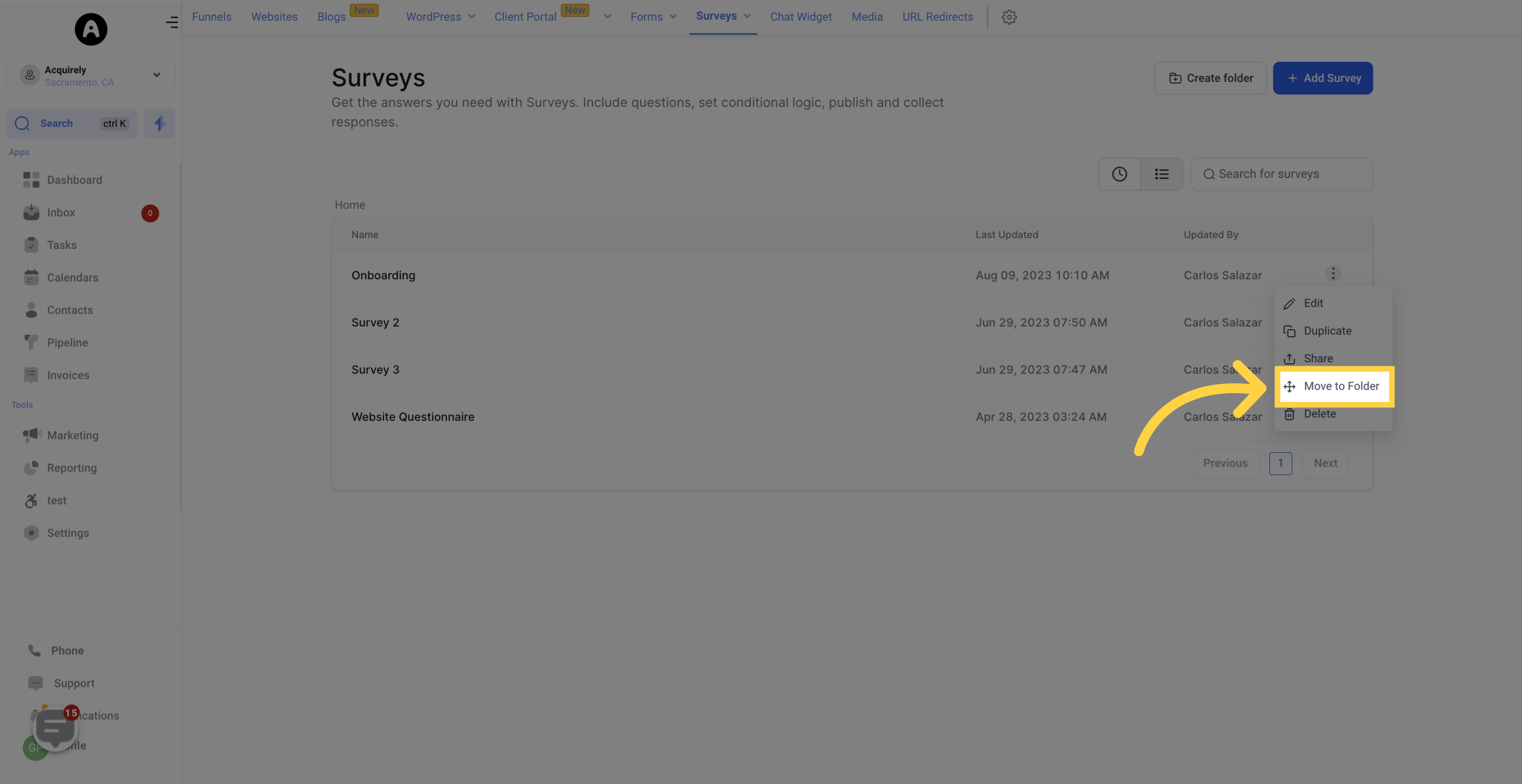
Delete: Permanently remove a survey. Be careful: deleted surveys cannot be recovered.
One Question at a Time is a display setting that shows a single question per screen when a patient fills out your survey. It creates a simpler, more focused experience and is well suited to longer intake or health-history questionnaires where you do not want patients to feel overwhelmed.
When enabled, each survey question appears on its own slide, both for your visitors and in the builder preview. This layout keeps people engaged by showing only one thing at a time.
To turn it on:
Open your survey in the builder.
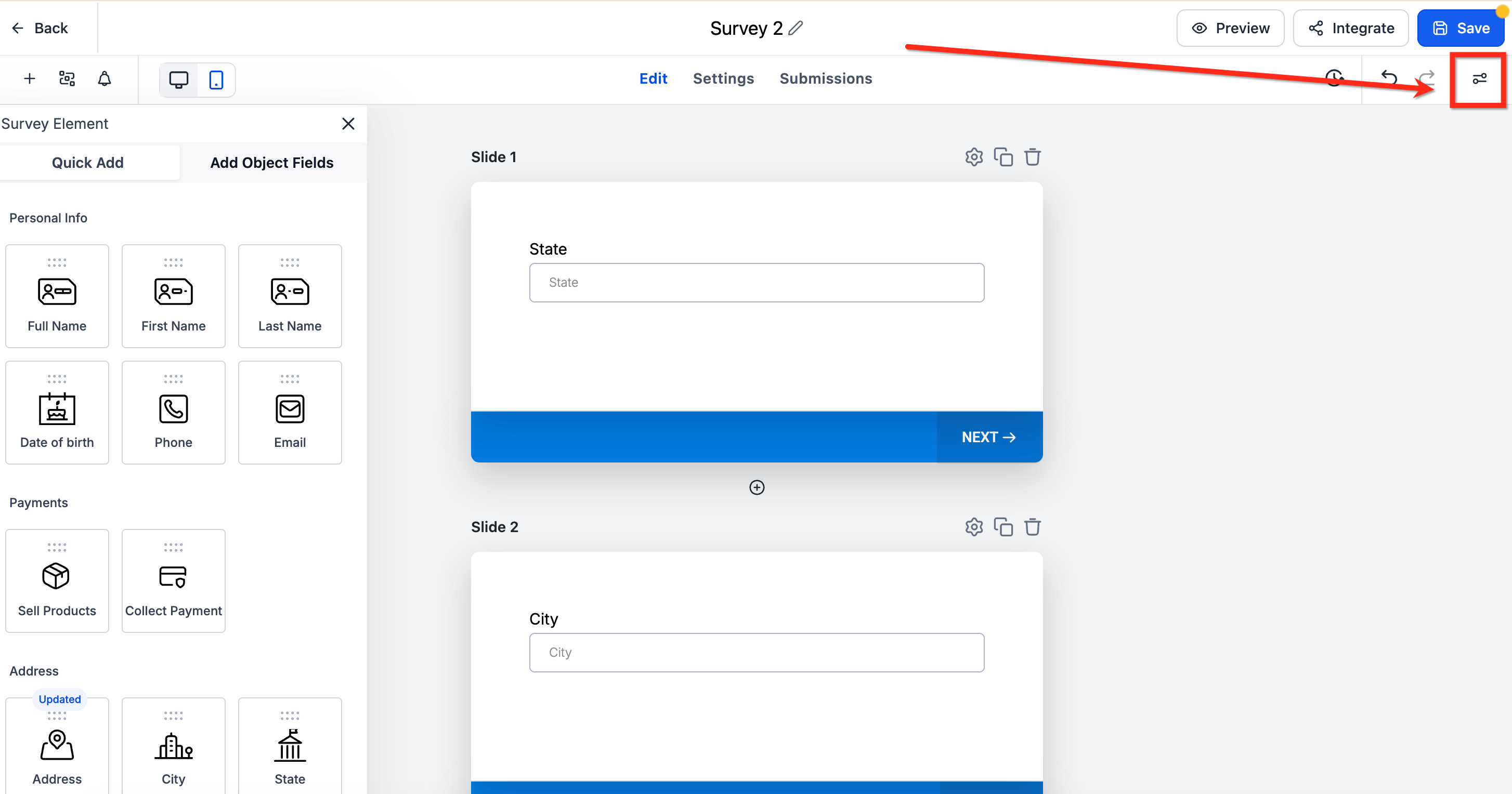
Click the Styles & Options button in the upper right corner.
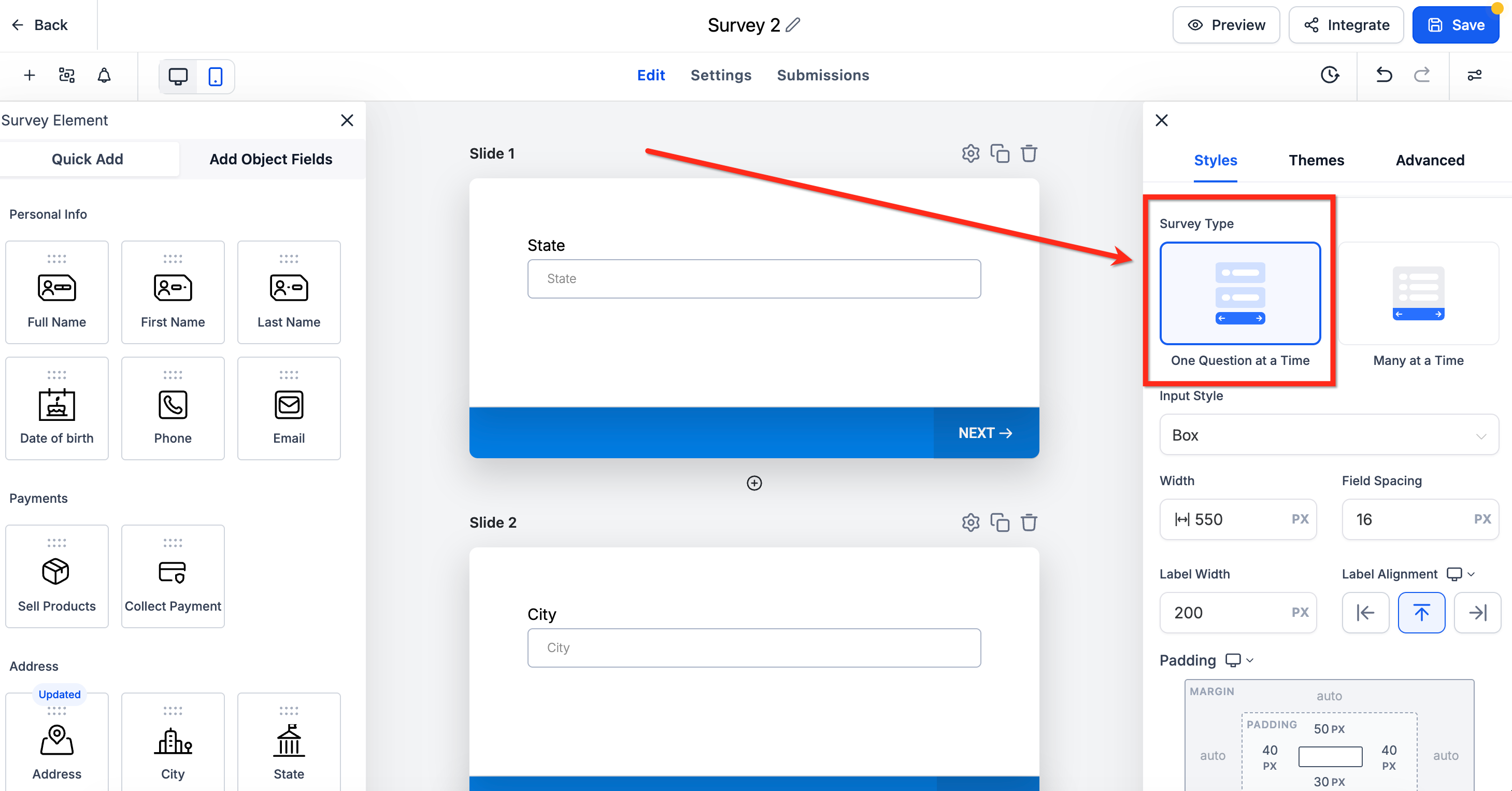
Under Survey Type, select the One Question at a Time option. Once enabled, you will see each field on its own slide while editing, exactly as it appears to patients.
A few things to keep in mind:
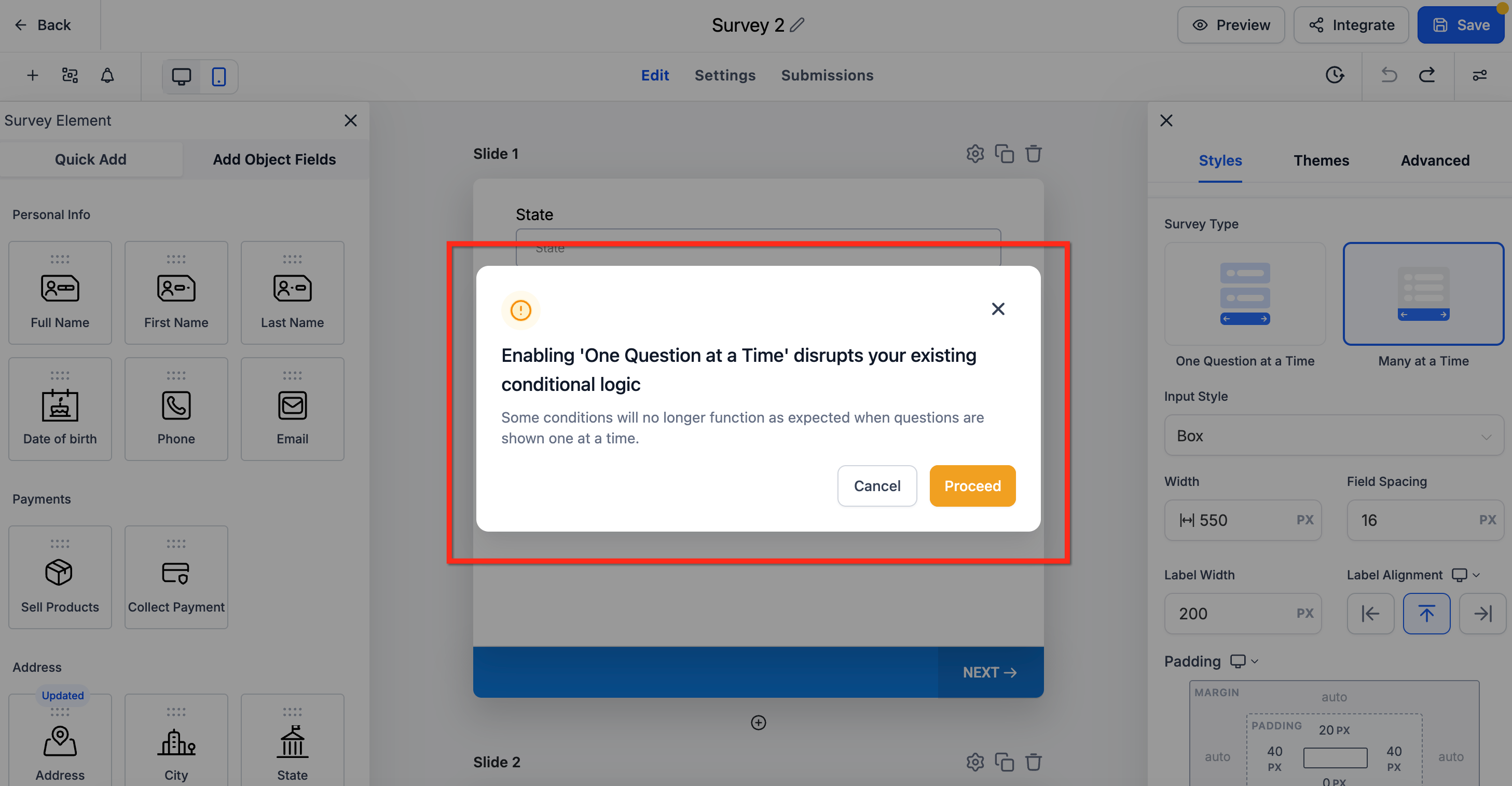
If you are using conditional logic, turning this on may affect how your logic runs. You will see a warning before anything changes.
When One Question at a Time is enabled, object fields you add in bulk still follow the one-question-per-slide layout. Bulk-added fields are split onto separate slides where appropriate, so you do not have to reorganize them by hand.
This setting only changes how the survey is displayed. It does not remove or modify any of your questions.
Where do I find the Survey Builder? It is under Web Tools in your Aesthetix CRM account, in the same area as Forms.
How do I create a new survey? Open Surveys, then click Add Survey to launch the builder.
How do I keep my surveys organized? Use folders. Click Create Folder, name it, and confirm, then use the Move to Folder action to file surveys where they belong. You can also search by name to find a survey quickly.
What does the Duplicate action do? It creates a full copy of an existing survey, which is useful when you want to build a new questionnaire from one you already trust.
Can I recover a survey after I delete it? No. Deleted surveys cannot be recovered, so delete with care. If you might need it later, consider duplicating or archiving instead.
Who can edit my surveys? That depends on user permissions. The Updated By column shows which team member last changed each survey.
What is One Question at a Time? It is a display setting that presents one question per screen, creating a focused experience that works well for longer intake and health-history surveys.
Does One Question at a Time delete any of my questions? No. It only changes how the survey is displayed. All of your questions remain intact.
Will turning on One Question at a Time break my conditional logic? It can change how your logic behaves. The builder shows a warning before applying the change so you can review it first.
Does One Question at a Time work with fields I add in bulk? Yes. Bulk-added object fields still follow the one-question-per-slide layout, splitting onto separate slides where appropriate.
