Google Ad Reporting gives your practice live reporting and big-picture analysis for your Google ad campaigns, so it is easy to understand performance and increase your return on investment. This guide covers the required setup, the UTM tracking template, an optional precautionary script, every reporting metric, and troubleshooting.
For general dashboards and cross-channel reporting across all of your marketing, see the Reporting collection. For connecting your Google ad account, see the Integrations collection.
Under Settings > Integrations, make sure the connected Google account is the one tied to your Google ad account, and that the connected user has the maximum permissions (administrator or Google Ads account manager access). When you connect the account, the OAuth consent screen may reference LeadConnector, our underlying provider. This screen is expected and safe to approve.
MCC stands for My Client Center, also known as the Google Ads Manager Account, which manages multiple Google ad accounts.
The MCC ID is shown in the top right corner of your Google Ads account.
The Client Account ID appears when you click the help section of your Google Ads account.
Select the correct MCC ID and Client Account ID so Aesthetix CRM pulls reporting from the right account.
The UTM tracking template can be added at three levels: Account settings, Campaign settings, or ad group level. We recommend adding it at the account level.
{lpurl}?utm_source=adwords&utm_medium={adname}&utm_campaign={campaignname}&utm_content={adgroupname}&utm_keyword={keyword}&utm_matchtype={matchtype}&campaign_id={campaignid}&ad_group_id={adgroupid}&ad_id={creative}Tracking templates must include a ValueTrack parameter that inserts your final URL, such as {lpurl}. When your ad is clicked, these parameters build the final URL. If you leave out a URL insertion parameter, your landing page URL will break. To add more than one ValueTrack parameter to a single URL, append them with an ampersand (&), for example {lpurl}?matchtype={matchtype}&device={device}.
Final URL: http://example.com
Tracking template:
{lpurl}?utm_source=adwords&utm_medium={adname}&utm_campaign={campaignname}&utm_content={adgroupname}&utm_keyword={keyword}&utm_matchtype={matchtype}&campaign_id={campaignid}&ad_group_id={adgroupid}&ad_id={creative}Landing page URL after clicking the ad:
{lpurl}?utm_source=adwords&utm_medium=spring_filler&utm_campaign=springfiller10&utm_content=consultbanner&utm_keyword=bookconsult&utm_matchtype=e&campaign_id=12345&ad_group_id=2394984903&ad_id=93844980940&gclid=84843ewhfb834nedhj4u49To add the template, go to your Google Ads account > Account Settings > Tracking, then paste the tracking template URL from above into the Tracking template field.
Please note:
After adding the template, run a test. Most campaigns should show that the landing page is found. Fix any errors on active campaigns.
The utm_source=google value was used in the past and is now deprecated. It is the value ad blockers use to identify and strip UTM parameters, so use adwords as shown.
The precautionary script is a fail-safe that captures attribution data if the UTM template fails. It tracks all clicks on a link and sends them to Google Analytics. The only thing you need to change in the script is the tracking page URL, which should match the one used by your website.
Visit your Google Ads account.
Click Tools and Settings > Bulk Actions > Scripts. If you do not see this, switch to advanced view to reveal the Tools and Settings option.
Remove the predefined code and add this script:
function main() {
    var TrackingTemplate = "{lpurl}?utm_source=adwords&utm_medium={AdName}&utm_campaign={CampaignName}&utm_content={AdGroupName}&utm_keyword={keyword}&utm_matchtype={matchtype}&campaign_id={campaignid}&ad_group_id={adgroupid}&ad_id={creative}";

    var _CAMPAIGN_CONTAINS = "";
    var _ADGROUP_CONTAINS = "";
    var STATUS = "ENABLED";

    if (TrackingTemplate.search(/{AdGroupName}|{CampaignName}|{AdName}/g) == -1) {
        Logger.log("Enter at least one of the {CampaignName} or {AdGroupName} or {AdName} parameter in the tracking template");
        return
    }

    if (TrackingTemplate.search("{AdGroupName}") > 0) {
        var adgroupIterator = {
            hasNext: function() {
                return false
            }
        }
        if (_ADGROUP_CONTAINS == "" && _CAMPAIGN_CONTAINS == "") {
            adgroupIterator = AdsApp.adGroups().withCondition("Status = " +  STATUS).get();
        } else if (_ADGROUP_CONTAINS == "" && _CAMPAIGN_CONTAINS !== "") {
            adgroupIterator = AdsApp.adGroups().withCondition("CampaignName contains '" + _CAMPAIGN_CONTAINS + "'").withCondition("Status = " + STATUS).get();
        } else if (_ADGROUP_CONTAINS !== "" && _CAMPAIGN_CONTAINS !== "") {
            adgroupIterator = AdsApp.adGroups().withCondition("CampaignName contains '" + _CAMPAIGN_CONTAINS + "'").withCondition("Name contains '" + _ADGROUP_CONTAINS + "'").withCondition("Status = " + STATUS).get();
        } else if (_ADGROUP_CONTAINS !== "" && _CAMPAIGN_CONTAINS == "") {
            adgroupIterator = AdsApp.adGroups().withCondition("Name contains '" + _ADGROUP_CONTAINS + "'").withCondition("Status = " + STATUS).get();
        }

        if (!adgroupIterator.hasNext()) {
            Logger.log("No Campaigns/Adgroups matched with this condition");
            return
        }
        while (adgroupIterator.hasNext()) {
            var adgroup = adgroupIterator.next();
            var adgrouptemplate = TrackingTemplate.replace(/{AdGroupName}/g, adgroup.getName().replace(/\s/g, '%20'))
            if (TrackingTemplate.search("{CampaignName}") > 0) {
                adgrouptemplate = adgrouptemplate.replace(/{CampaignName}/g, adgroup.getCampaign().getName().replace(/\s/g, '%20'))
            }

            if (TrackingTemplate.search("{AdName}") > 0) {
                var adsIterator = adgroup.ads().get();
                while (adsIterator.hasNext()) {
                  var ad = adsIterator.next();
                  var adType = ad.getType();
                  var headline = "";

                  if (ad.getHeadline()) {
                    headline = ad.getHeadline();
                  } else if(ad.isType().expandedTextAd()) {
                    headline = ad.asType().expandedTextAd().getHeadlinePart1();
                  } else if(ad.isType().gmailImageAd()) {
                    headline = ad.asType().gmailImageAd().getName();
                  } else if(ad.isType().gmailMultiProductAd()) {
                    headline = ad.asType().gmailMultiProductAd().getHeadline();
                  } else if(ad.isType().gmailSinglePromotionAd()) {
                    headline = ad.asType().gmailSinglePromotionAd().getHeadline();
                  } else if(ad.isType().html5Ad()) {
                    headline = ad.asType().html5Ad().getName();
                  } else if(ad.isType().imageAd()) {
                    headline = ad.asType().imageAd().getName();
                  } else if(ad.isType().responsiveDisplayAd()) {
                    headline = ad.asType().responsiveDisplayAd().getShortHeadline();
                  } else if(ad.isType().responsiveSearchAd()) {
                    var headlines = ad.asType().responsiveSearchAd().getHeadlines();
                    if (headlines && headlines[0].text) {
                      headline = headlines[0].text;
                    }
                  }

                  Logger.log("Headline text : " + headline);

                  if (headline) {
                    adgrouptemplate = adgrouptemplate.replace(/{AdName}/g, headline.replace(/\s/g, '%20'))
                  } else {
                    adgrouptemplate = adgrouptemplate.replace(/{AdName}/g, ad.getId())
                  }
                }
            }
            adgroup.urls().setTrackingTemplate(adgrouptemplate);
            Logger.log(adgroup.getCampaign().getName() + " => " + adgroup.getName() + " => " + adgrouptemplate)
        }
    }
}
After closing the editor, rename the script and change the frequency from the list to the Hourly view.
Campaign, ad, and ad group names need to be unique.
Name parameters cannot be changed during the lifetime of the campaign, ad-set, or ad. If a name must change, create a new campaign, ad-set, or ad to avoid issues.
If you rename a campaign, ad-set, or ad without creating a new one, Aesthetix CRM keeps referring to the original name, and Google passes the old name in the parameter, which skews your reporting.
The Objectives dropdown at the top left of the report lets you define the objective your practice had for a campaign when it was created.
Google Ad Reporting summarizes performance using the metrics below.
The number of times your ad is displayed on a search results page or another site within the Google network.
When someone clicks your ad, such as the headline or phone number, Google counts that as a click.
A conversion is any interaction where a user completes an action you have defined as valuable, whether on a website, landing page, app, or another touchpoint. Examples include booking a consultation, viewing a key page, downloading a resource, or signing up for a newsletter. The goal of conversions is to turn visitors into patients.
The total cost of running the ads plus any management or markup fee you add. This value is only visible to users with admin-level permissions. See the "Adding Client/Ad Spend to Reporting" guide to configure a markup fee.
CPC is the average amount paid for each click on your ad. The higher the CPC, the more expensive it is to place that ad. Cost can vary based on many factors, such as:
Your budget
Number of impressions
Location and time of day
Type of ad content
Also known as Cost per Acquisition, this measures the average cost of acquiring one new patient. It is calculated by dividing the total cost of ads by the total number of conversions.
Conversion rate is the number of conversions divided by the number of total trackable ad interactions during the same period. For example, 50 conversions from 1,000 interactions is a 5% conversion rate, since 50 divided by 1,000 equals 5%.
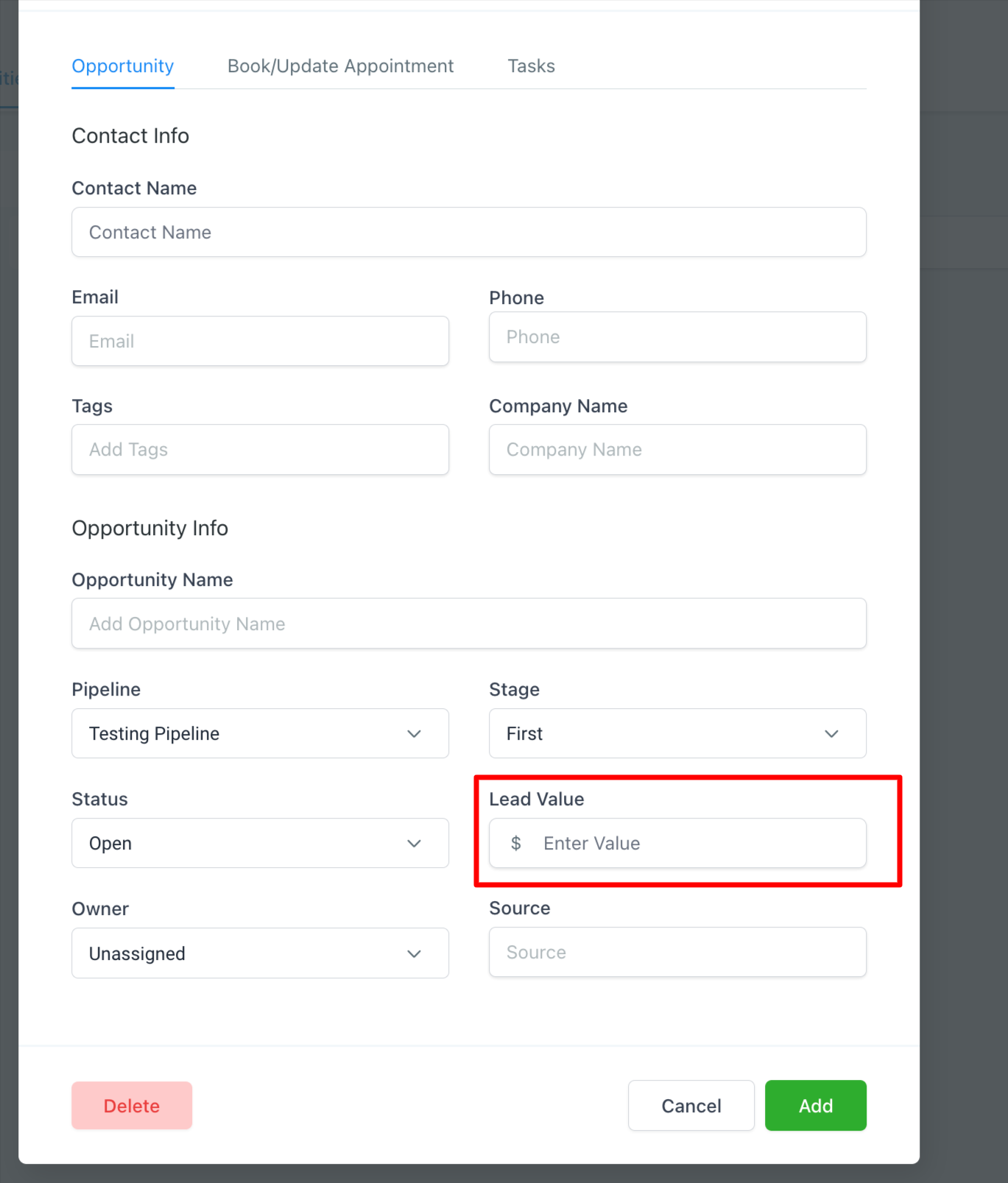
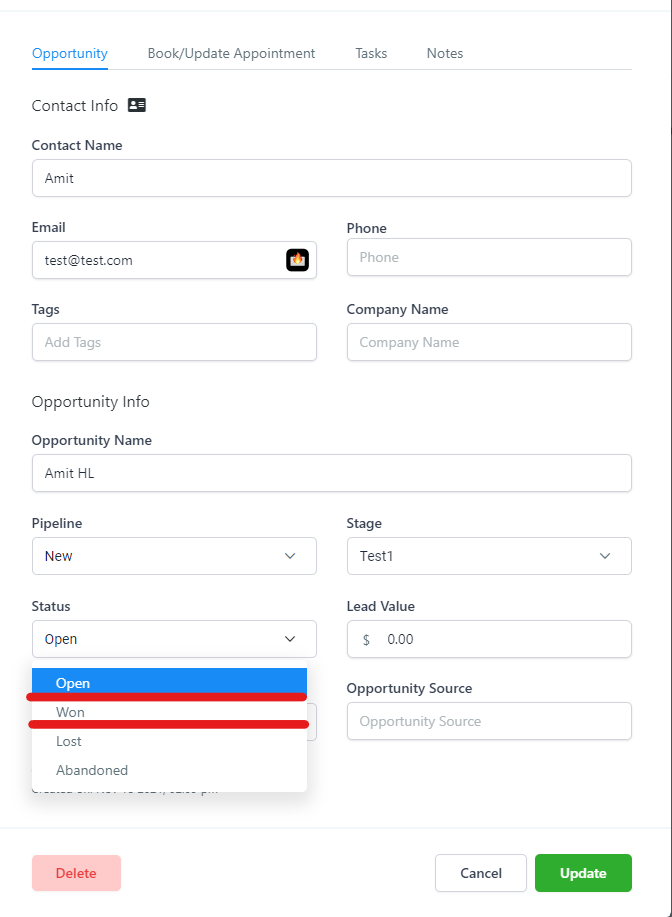
When an opportunity is marked as won, its lead value (a monetary amount) is added to revenue. Revenue is the sum of all opportunities marked as won for a specific Google ad campaign.
Please note: When adding a lead value, use numerical integers only. Do not add a dollar sign, as the currency is already accounted for in the field.
Return On Investment (ROI) is the ratio between the costs incurred during a campaign and the revenue generated from it. ROI can be measured for each individual ad or for the entire page.
The number of leads or opportunities that have been marked as won.
CPS is calculated by dividing the cost of running a specific campaign by the number of opportunities marked as won.
The number of leads or opportunities recorded as open through a form submission, a chat widget response, or a phone call.
CPL is calculated by dividing the cost of running a specific campaign by the number of opportunities in the open stage.
Under Settings > Integrations, make sure the integration is connected and that the connected Google email is the one associated with your Google ad account. That user needs the maximum permissions (admin) in your Google ad account. The connected account must have a User or admin role in the Google ad account, not a manager role.
Add the template at only one level: Account settings, Campaign, or Ad. If it is added in multiple places, it follows the hierarchy Account > Campaign > Ad. UTM tracking is case sensitive, so it must follow the template exactly with no capital letters.
If names are not unique, the same contact can appear as a duplicate under different ad groups or ads in your reporting.
Wrong setup (what not to do):
Level | Name | Ad |
|---|---|---|
Campaign Name | Spring Skincare | |
Campaign id | 12345 | |
Ad Group | HydraFacial 1 | |
Ad | Glow HydraFacial 1 | |
Ad Group | HydraFacial 2 | |
Ad | Glow HydraFacial 1 |
Here "Glow HydraFacial 1" is listed and spelled the exact same way twice, so a single patient could appear in the Leads column under two different ad groups.
Correct setup (what to do):
Level | Name | Ad |
|---|---|---|
Campaign Name | Spring Skincare | |
Campaign id | 12345 | |
Ad Group | HydraFacial 1 North | |
Ad | Glow HydraFacial 1.1 North | |
Ad Group | HydraFacial 2 South | |
Ad | Glow HydraFacial 1.2 South |
If you rename a Google campaign, ad group, or ad, it will not update the existing UTM copy and will keep attributing to the old parameters. We recommend creating a new campaign, ad group, and ad. The list view in Aesthetix CRM will update the name, but the data will stop attributing sales, leads, and ROI because it is still reading the old UTM parameters.
Where should I add the UTM tracking template? We recommend the account level, though it can also be added at the campaign or ad group level. Add it in only one place. If it exists in more than one place, Google applies it in the order Account > Campaign > Ad.
Why did my landing page URL break after adding the template?
Your tracking template must include a URL insertion parameter such as {lpurl}. Without it, the final URL cannot be built and the landing page will break.
Is the UTM template case sensitive? Yes. UTM tracking is case sensitive. Follow the template exactly with no capital letters, and copy and paste it rather than typing it to avoid errors.
What is the precautionary tracking script for? It is an optional fail-safe that captures attribution data if the UTM template fails. It tracks link clicks and sends them to Google Analytics. Set its frequency to Hourly after installing it.
Will the precautionary script interfere with another script I have? Yes, scripts can override each other because they affect UTM parameters. Review the preview before running it; most campaigns should show the landing page is found.
Why does the script need authorization? Authorization is required because the script is implemented on your Google ad account. Check the preview before running it, and confirm that most campaigns show as successful with the landing page found.
My reporting is off after I renamed a campaign. What happened? Renaming a campaign, ad group, or ad does not update the UTM copy, so reporting keeps attributing to the old parameters. Create a new campaign, ad group, or ad instead of renaming.
What connection role does my Google account need? The connected user needs a User or admin role in the Google ad account with the maximum permissions. A manager-only role will not work for reporting.
