Ad Manager lets you create, manage, and edit Google Ads offline conversion actions directly in Aesthetix CRM, so your offline sales, leads, and actions are properly tracked in Google Ads for better optimization and reporting. This guide covers the Conversion Actions table view, creating and editing actions, and an optional precautionary tracking script that protects your attribution data if a standard tracking template fails.
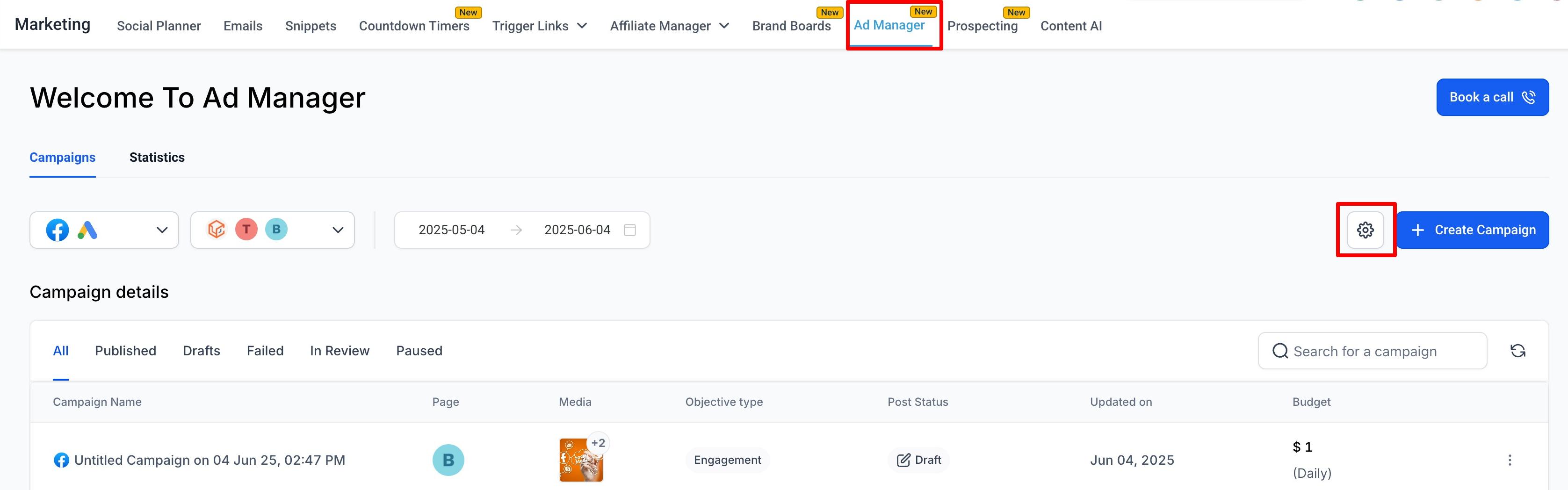
Navigate to Marketing > Ad Manager.
Click Settings (the gear icon).
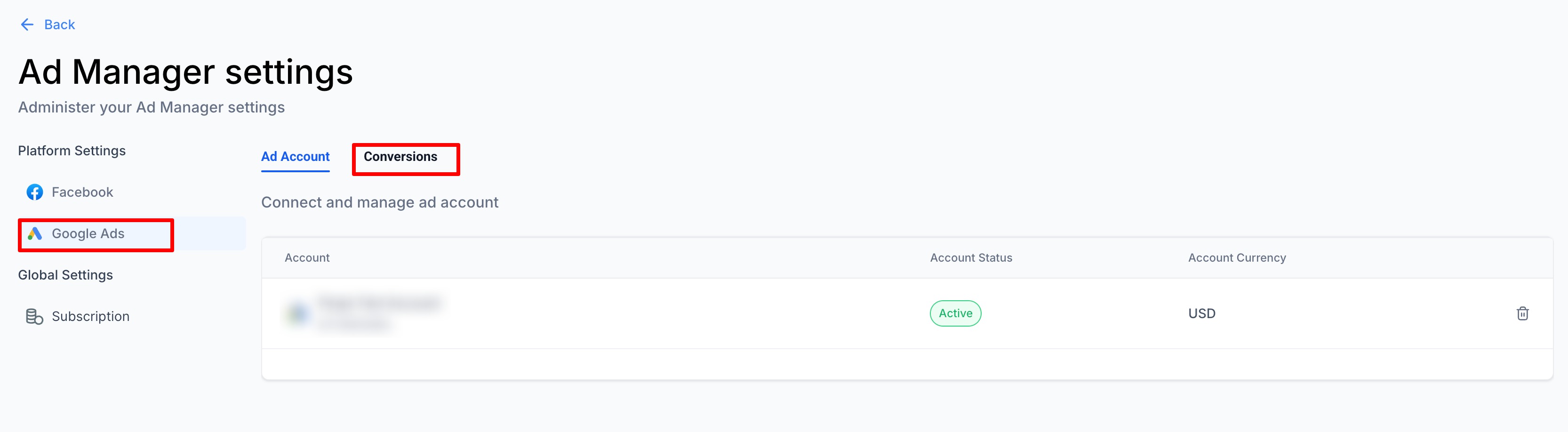
Select Google Ads under Platform Settings.
Click the Conversions tab.
This opens the Conversion Actions table view.
In the Conversions tab you will see a list of all existing conversion actions from your connected Google Ads account, along with any new conversions you create in Ad Manager.
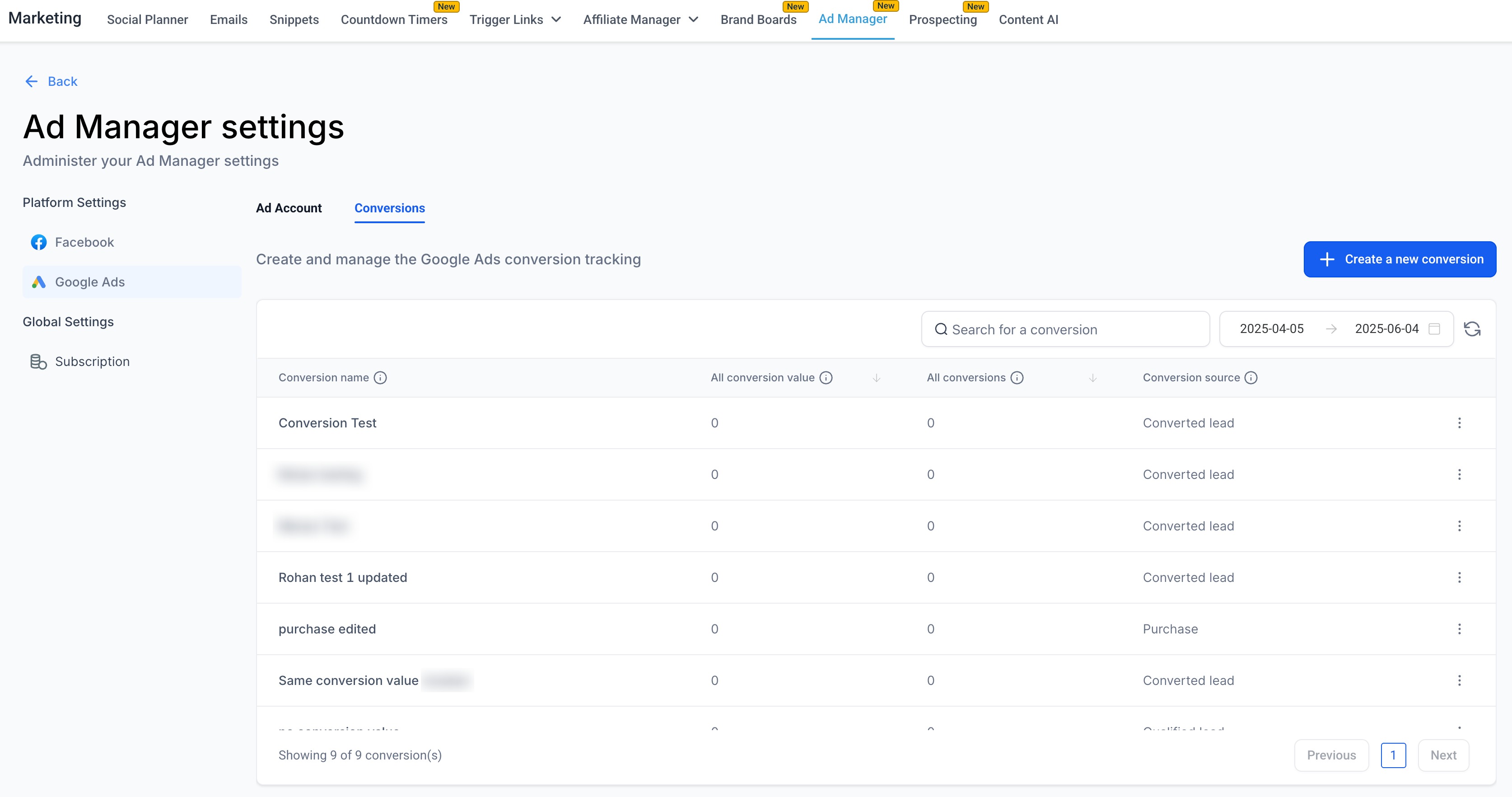
The table includes these columns:
Conversion Name
All Conversion Value
All Conversions
Conversion Source
Use Search to filter conversions by name, and the Date Range filter to view conversions created or updated within a specific time frame.
Click + Create a new conversion.
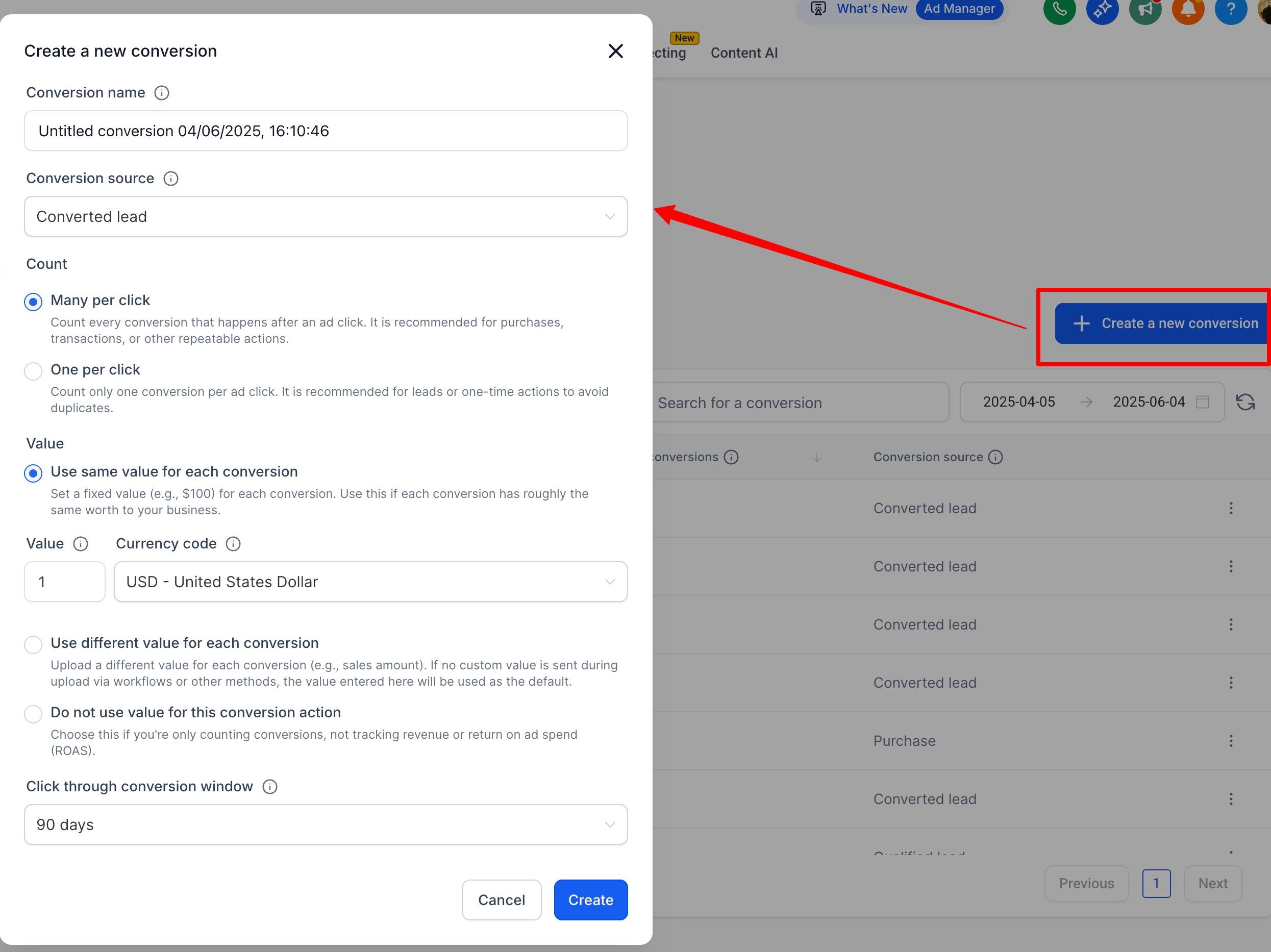
Fill out the form in the Create Conversion modal:
Field | Description |
|---|---|
Conversion Name | A unique name to identify this conversion (for example, "Consultation Booked"). |
Conversion Source | The type of offline action (Converted Lead, Purchase, Signup, Add to Cart, and more). |
Count | Many per click (recommended for purchases) or One per click (recommended for leads). |
Value | Use the same value per conversion, a different value per conversion, or don't use a value. |
Currency | Select your currency. |
Click-through conversion window | Choose the attribution window (1 to 90 days). |
Attribution model | Data-driven (preset for offline conversions). |
Click Create. Aesthetix CRM creates the conversion action in Google Ads via API, so no manual setup is needed in the Google Ads UI.
You can edit or delete any conversion action created in the app:
Click the 3-dot menu next to the conversion.
Choose Edit or Delete.
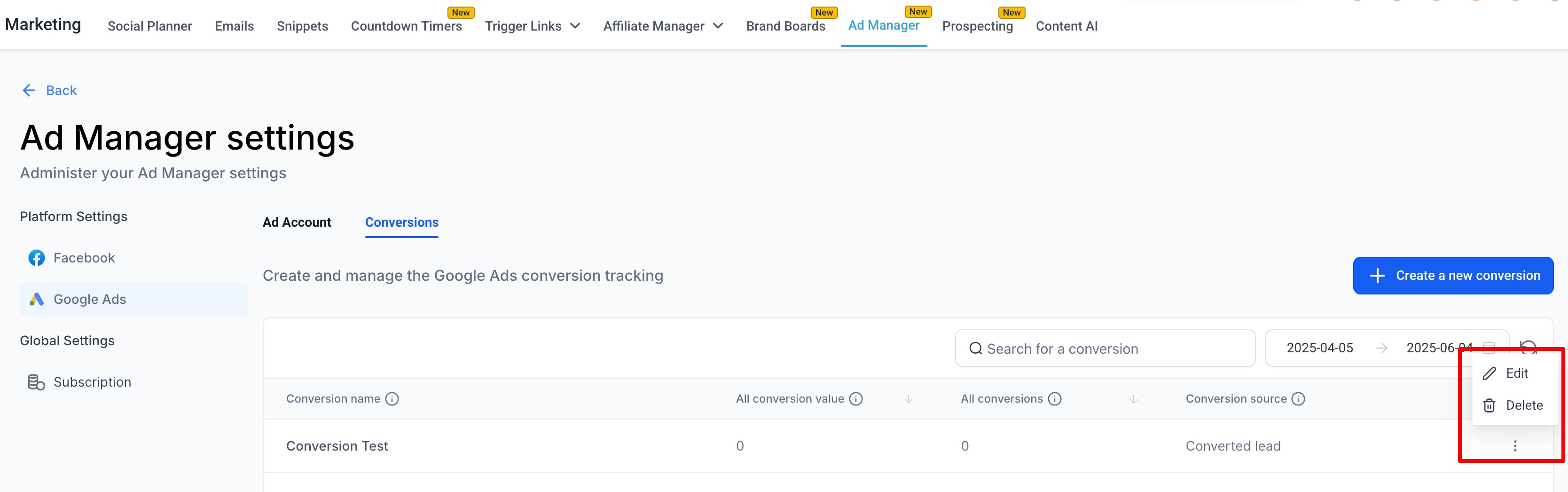
In the edit modal you can update the count settings, value and currency, click-through window, and conversion source.
Note: The attribution model is fixed to Data-driven for offline conversions, per Google Ads guidelines.
This flow is for offline conversion actions, tracking events like leads, sales, and calls that occur outside your website or app.
All conversions created here are automatically available in your Google Ads account and can be used in campaign reporting.
Existing Google Ads conversions are automatically imported into this view.
Aesthetix CRM uploads conversion events to match these conversion actions through Workflows, which is configured separately from this setup. See the Add to Google Ads workflow action in the Workflows documentation.
Future enhancements will add Google Tag Manager (GTM) integration for website conversion actions.
For the full step-by-step of building an offline conversion in Ad Manager and the optional Google platform-side setup, see the Google Ads Offline Conversions guide.
A precautionary tracking script protects your attribution data if your standard tracking template does not apply correctly. It acts as a fallback by automatically applying tracking parameters, keeping your campaign data accurate and reliable.
Instead of relying solely on your primary tracking setup, this script ensures tracking parameters are still applied even if something fails. It helps preserve attribution data, maintain accurate reporting, reduce gaps in campaign tracking, and improve overall data reliability. The script dynamically updates tracking templates using campaign, ad group, and ad-level data for consistency across your campaigns.
Access to your Google Ads account.
Permission to create or edit scripts.
The correct landing page or tracking URL.
Awareness that scripts can affect existing tracking setups.
Always preview and authorize the script before enabling it.
Open the Scripts section. Log in to your Google Ads account, then open Tools and Settings, go to Bulk Actions, and select Scripts. This is where you create and manage tracking scripts.
Add the tracking script. Create a new script or edit an existing one. Remove any placeholder code and paste the following:
function main() { var TrackingTemplate = "{lpurl}?utm_source=adwords&utm_medium={AdName}&utm_campaign={CampaignName}&utm_content={AdGroupName}&utm_keyword={keyword}&utm_matchtype={matchtype}&campaign_id={campaignid}&ad_group_id={adgroupid}&ad_id={creative}"; var _CAMPAIGN_CONTAINS = ""; var _ADGROUP_CONTAINS = ""; var STATUS = "ENABLED"; if (TrackingTemplate.search(/{AdGroupName}|{CampaignName}|{AdName}/g) == -1) { Logger.log("Enter at least one required parameter"); return } var adgroupIterator = AdsApp.adGroups().withCondition("Status = " + STATUS).get(); while (adgroupIterator.hasNext()) { var adgroup = adgroupIterator.next(); var template = TrackingTemplate .replace(/{AdGroupName}/g, adgroup.getName().replace(/\s/g, '%20')) .replace(/{CampaignName}/g, adgroup.getCampaign().getName().replace(/\s/g, '%20')); adgroup.urls().setTrackingTemplate(template); } }Make sure the landing page URL in the script matches your website.
Rename and schedule the script. After saving, give the script a clear name (for example, "Tracking Backup Script") and set the frequency to Hourly. Running it hourly keeps tracking updated and consistent.
Preview, authorize, and enable. Before enabling: run a Preview to verify it detects campaigns correctly, review the logs to ensure no errors appear, complete the Authorization process, then enable the script. Previewing helps prevent issues before applying live changes.
Without a fallback, missing or broken tracking templates can lead to inaccurate data. This script helps protect attribution accuracy, ensure consistent tracking, improve reporting reliability, and reduce manual troubleshooting.
What is a conversion action in Ad Manager? It is a rule that records when a desired offline action occurs, such as a booked consultation or closed treatment package. You create and manage these actions in the Conversions tab under Google Ads settings.
Will conversions I create appear in Google Ads? Yes. Every conversion action you create is synced to your connected Google Ads account via API, and existing Google Ads conversions are imported into this view automatically.
Why can't I change the attribution model? The attribution model is fixed to Data-driven for offline conversions, per Google Ads guidelines, so it cannot be changed when creating or editing an action.
How do conversion events actually get uploaded? Uploading conversion events is handled through Workflows using the Add to Google Ads action, which is configured separately from creating the conversion action. See the Workflows documentation.
Do I need the precautionary tracking script? No, it is optional. It is a backup that applies tracking parameters if your primary tracking template fails. It does not replace your original tracking template.
Will the tracking script affect my existing scripts? Yes, scripts can impact tracking settings. Always review your current setup before enabling, and run a preview first.
Why does the script require authorization? Authorization is necessary because the script makes changes within your Google Ads account. Complete the authorization step before enabling it.
What should I update in the script? Verify that the landing page URL and tracking parameters match your setup. Everything else can stay as provided.
Can I track website conversions here? Not yet. This flow supports offline conversion actions only. Google Tag Manager integration for website conversion actions is planned for a future update.
