Multiple ad groups let you structure a single Google Search campaign into up to 10 separate ad groups, each targeting a specific set of keywords or a specific audience, with up to 3 ads per group. This gives your practice more flexible, granular targeting and clearer performance visibility, all managed inside Ad Manager. For example, one campaign might hold an "Injectables" ad group and a "Laser Treatments" ad group, each with its own keywords and ads.
This structure makes campaign creation modular, testable, and scalable, bringing you close to a native Google Ads experience without leaving Aesthetix CRM.
Note: This guide covers the multiple-ad-group workflow for Google Search campaigns built in Ad Manager. Meta campaign builders use a separate setup flow, covered in their own guides.
Create up to 10 ad groups per campaign to target different services, treatments, or audiences.
Add up to 3 ads per ad group for structured A/B testing.
Set a base URL per ad group to keep consistency while allowing unique display paths.
Generate keyword suggestions and select match types for precise targeting.
Track performance at multiple levels: campaign, ad group, ad, and keyword.
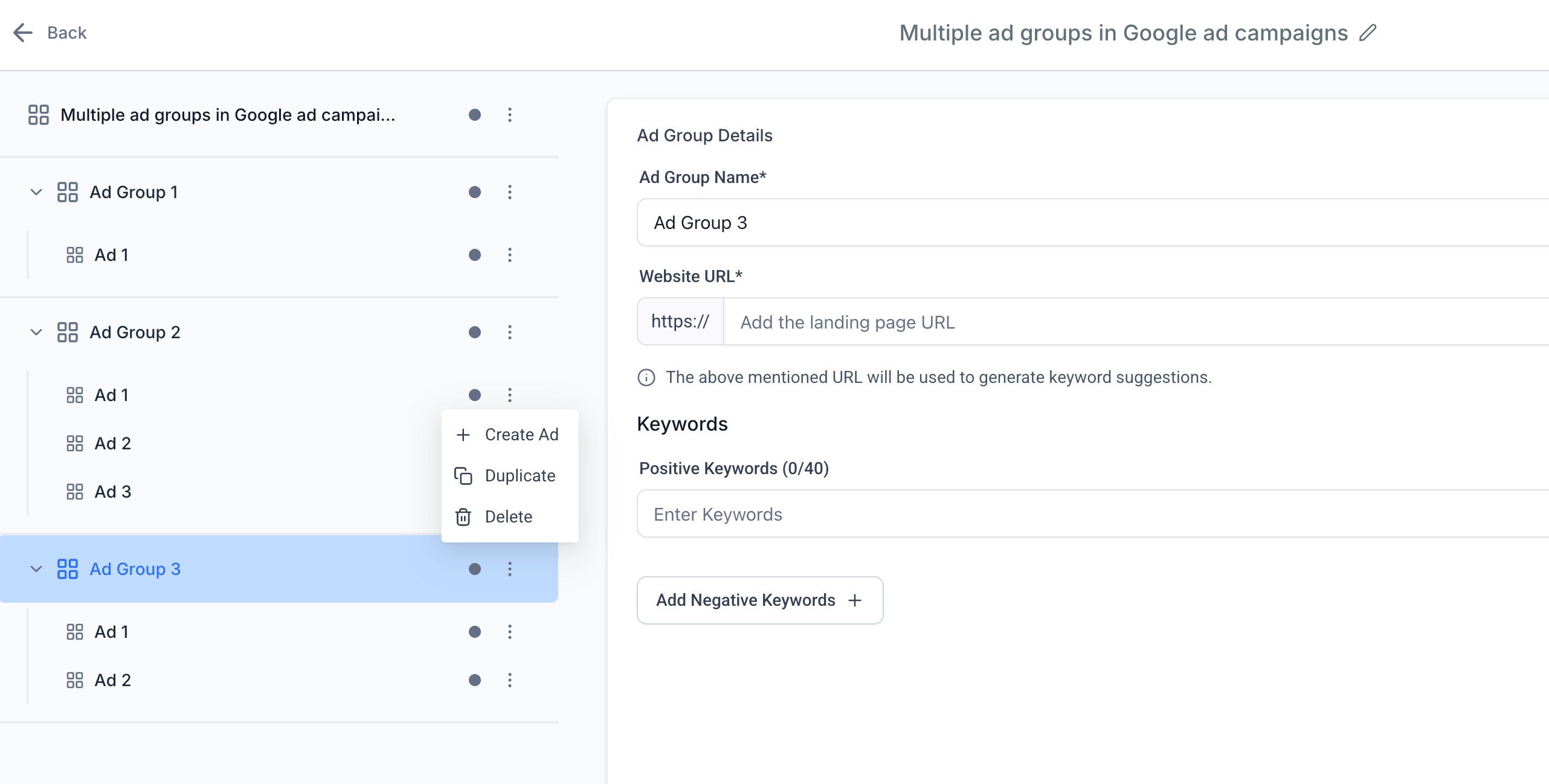
Easily duplicate, delete, or add ad groups and ads using the ellipsis (⋮) menu.
Use the Review screen to preview your full campaign setup before publishing.
The campaign flow is separated into three intuitive levels:
Campaign level. Set the budget, bid strategy, and target audience.
Ad group level. Define keyword targeting and the base URL, and manage the ads within the group.
Ad level. Configure creative elements such as headlines, descriptions, and display path.
This modular approach allows better targeting, easier testing, and more actionable insights, which is especially useful when managing several services or complex advertising strategies.
Here's what each level controls, and the current limits to keep in mind:
Level | What you configure | Current limit or requirement |
|---|---|---|
Campaign | Campaign name, bid strategy, daily budget, dates, and audience controls (location, language, gender, and age). | Up to 10 ad groups per campaign. |
Ad group | Ad group name, base website URL, positive keywords, negative keywords, and match types. | At least 1 ad group is required. Up to 40 positive and 40 negative keywords, up to 80 characters each. |
Ad | Final URL, display paths, headlines, and descriptions. | Up to 3 ads per ad group; at least 1 ad is required in each group. |
A campaign cannot be published without at least one ad group, and at least one ad inside every ad group you include.
Before you begin, connect your Google account and the associated Google Ads account by logging into Google. Ad Manager allows connecting one Google Ads account. See the Connect Google with Ad Manager guide.
A little prep before you start the campaign builder saves you from interruptions partway through:
Confirm the connected Google Ads account has the payment method you want charged for advertising spend.
Prepare one landing page (base URL) for each ad group you plan to create.
Group your positive and negative keywords by product, service, location, or intent so each ad group stays focused on one theme.
Prepare headlines and descriptions for each ad that accurately match the keywords and landing page for that ad group.
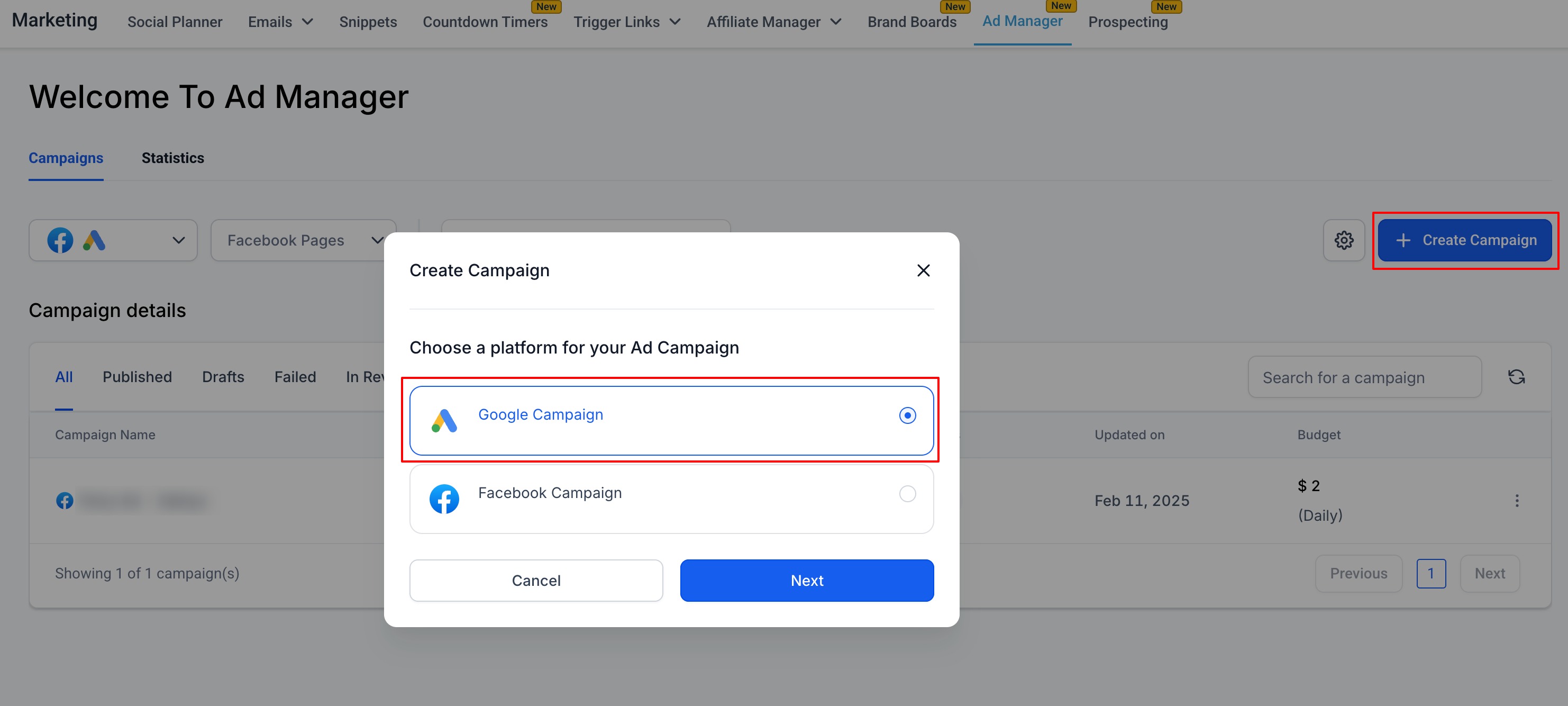
On the Ad Manager home screen, click Create Campaign, then select the platform to publish your campaign, Google.
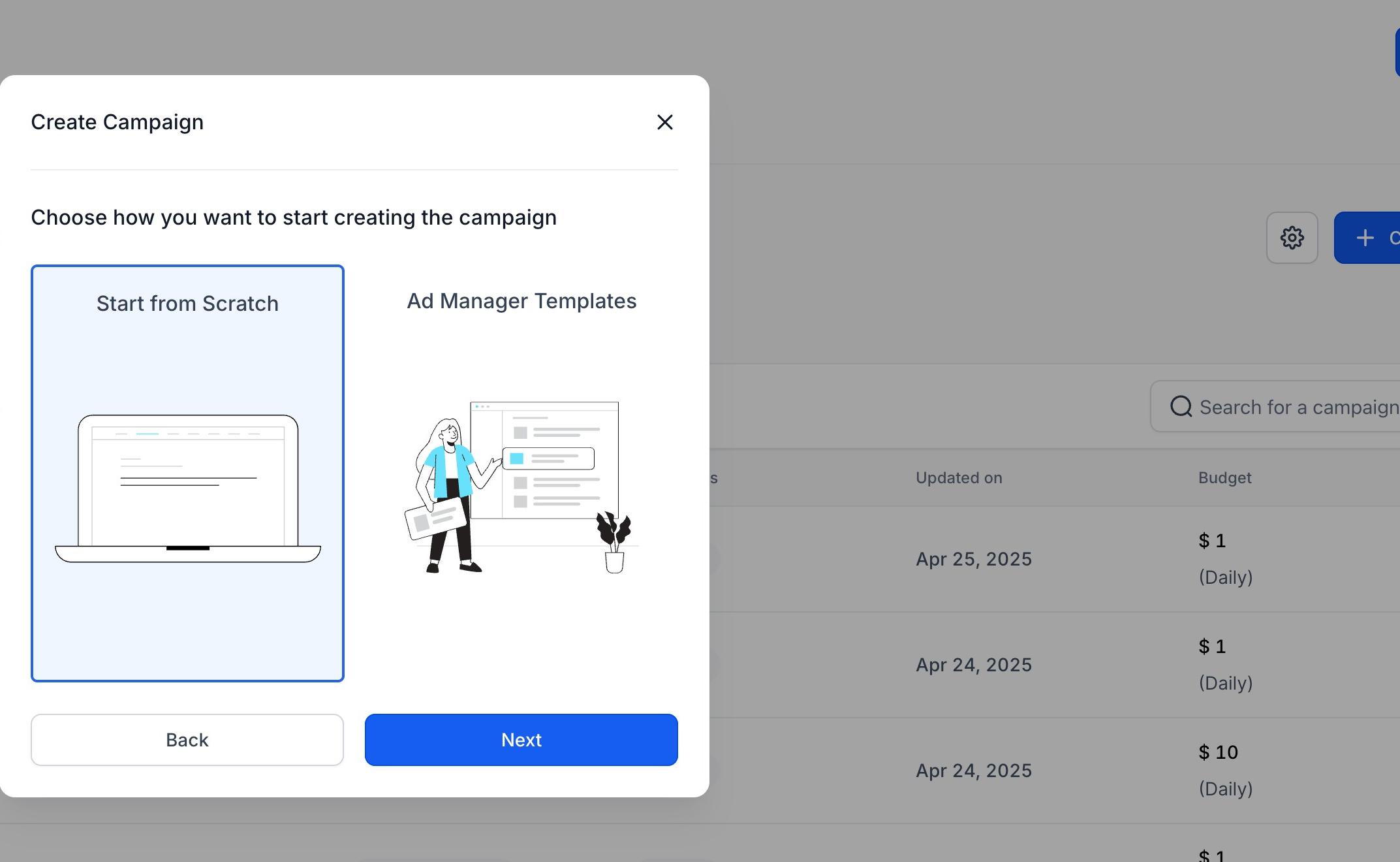
Click Next, then choose to start from scratch or use an Ad Manager template.
Click Next to start defining your campaign.
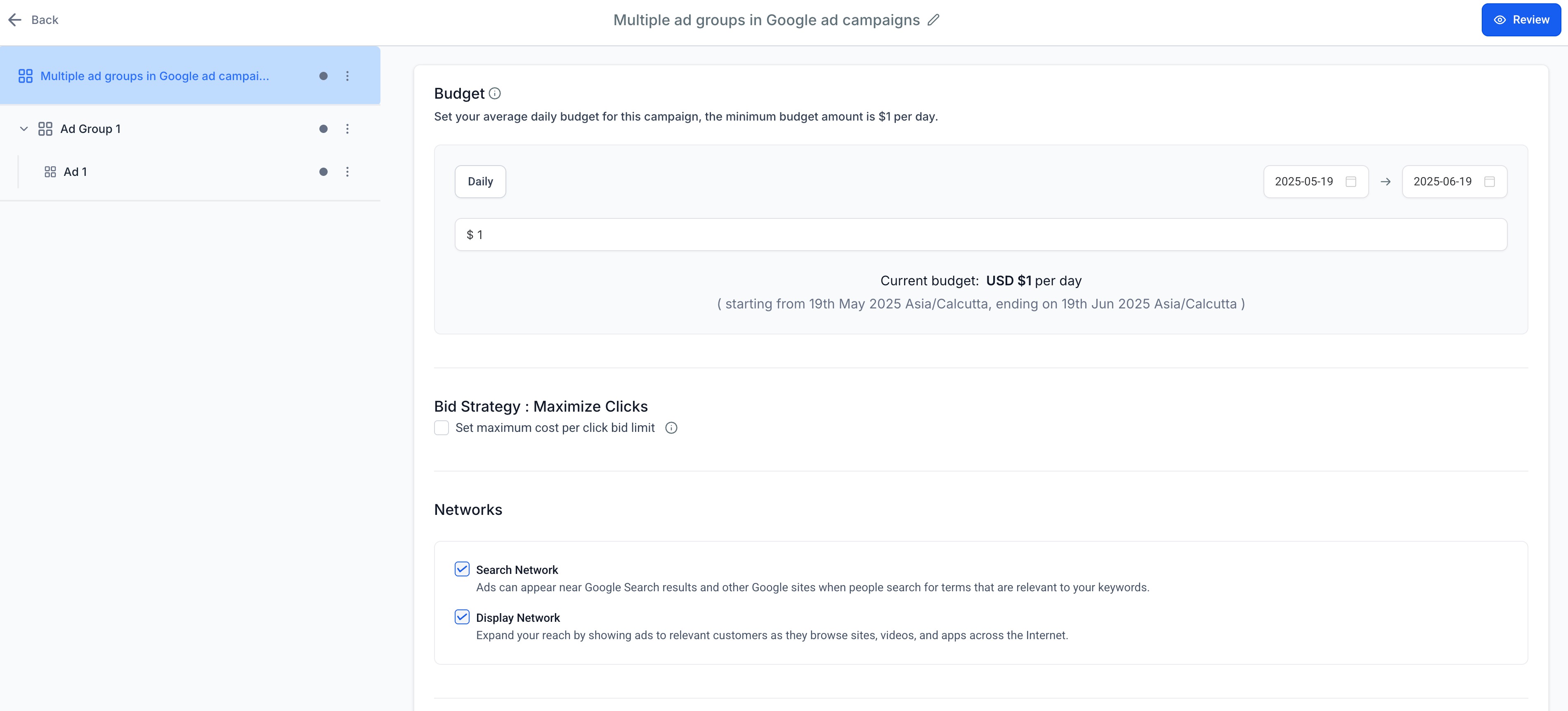
Ad content creation is part of a three-level structure: Campaign Level, Ad Group Level, and Ad Level. Each level has its own configuration.
Define the campaign name.
Choose the bid strategy (for example, Maximise Clicks). A maximum CPC bid limit is an advanced option that lets you control the most you will pay for each click. Use the optional toggle to set a max cost-per-click limit.
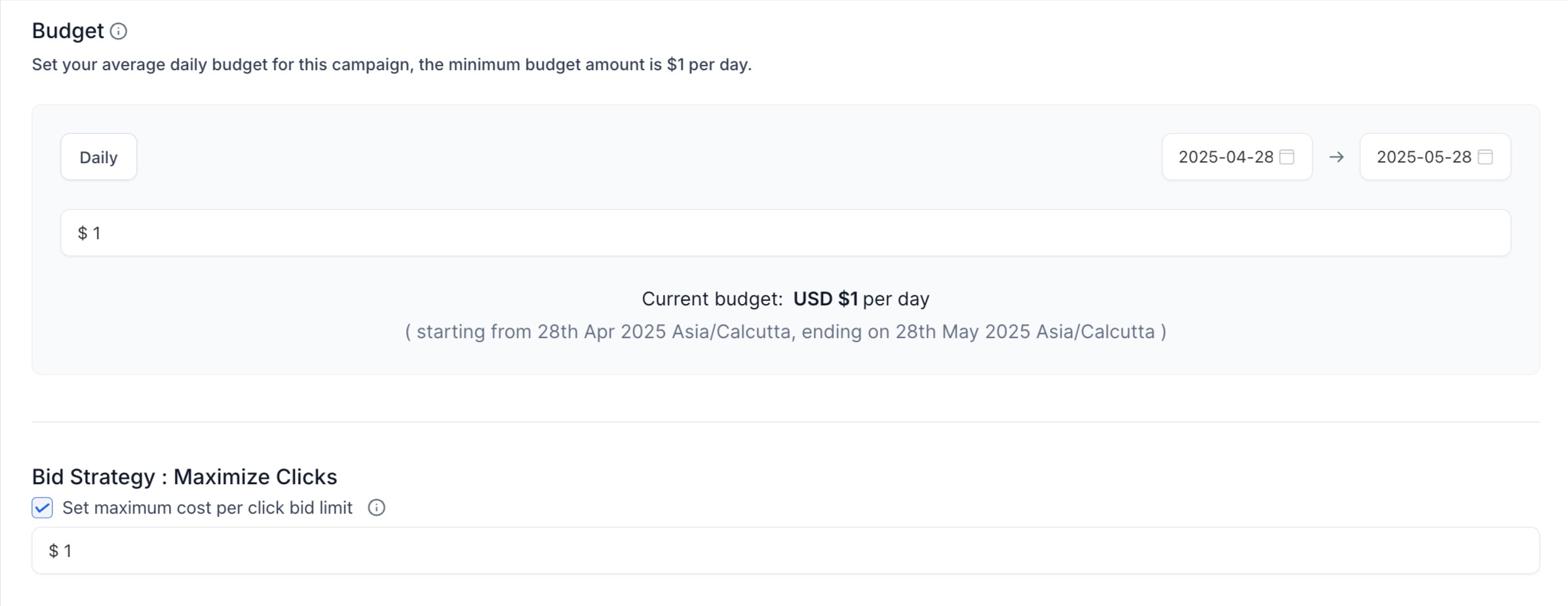
Note: This bid strategy is applied by default for website traffic search campaigns. As Lead objective campaigns are introduced, additional bid strategies will be included.
Set a daily budget. This works like a subscription and is charged to the card associated with your connected Google Ads account. The budget shows each day's spend division with start and end dates, and can be increased or decreased by editing the campaign.
Note: The currency shown is the one set up in your connected Google Ads account, and the start and end date timezone is the timezone you are in while creating the campaign.
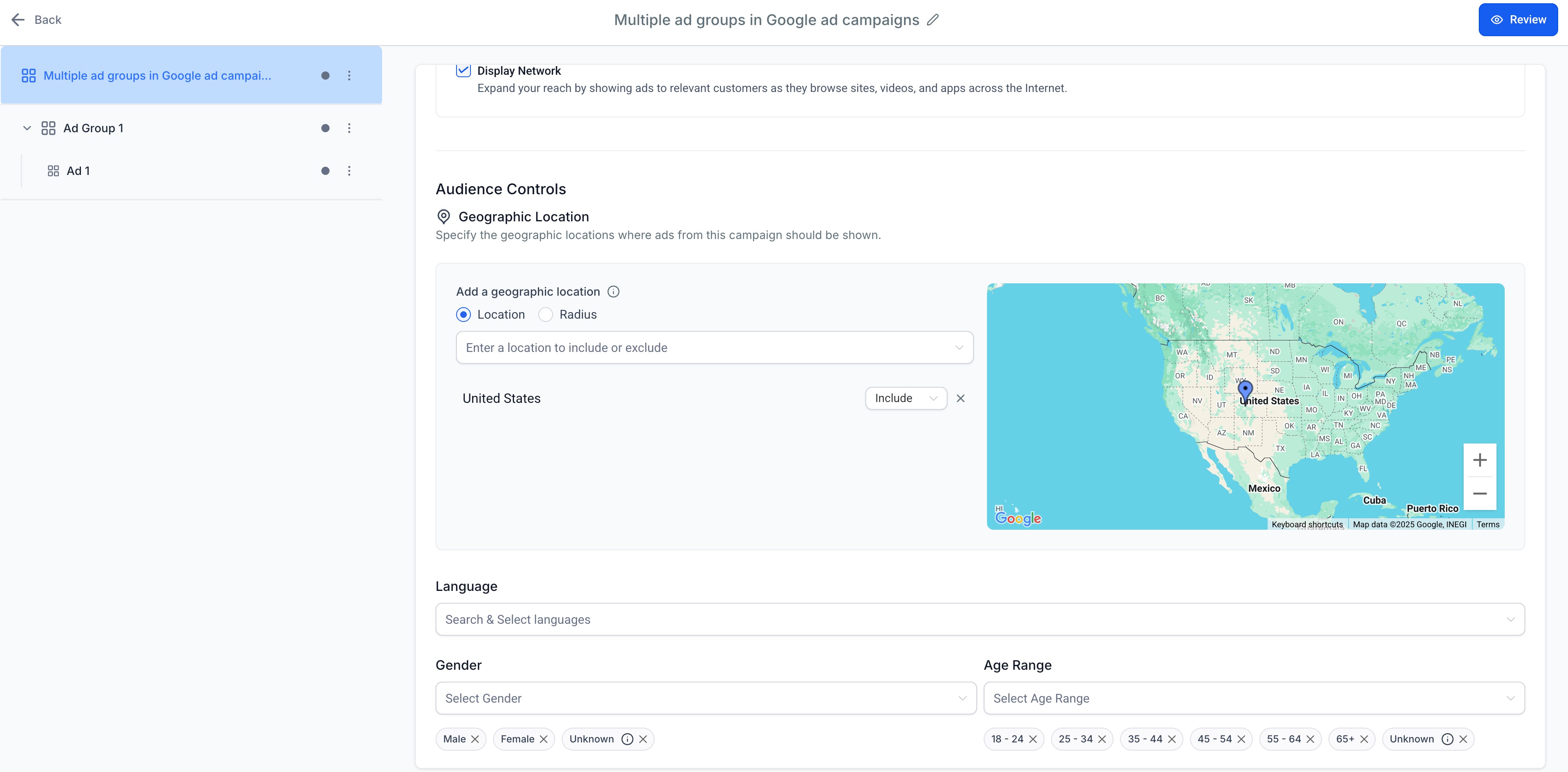
Configure audience controls. This section has two mandatory parts required to publish.
Geographic Location. Adjust the campaign to run for a specific location, or exclude a location within a country or state. Location can be defined at the location or radius level: select the radio button, then search and select the desired country, city, place name, address, or coordinates.
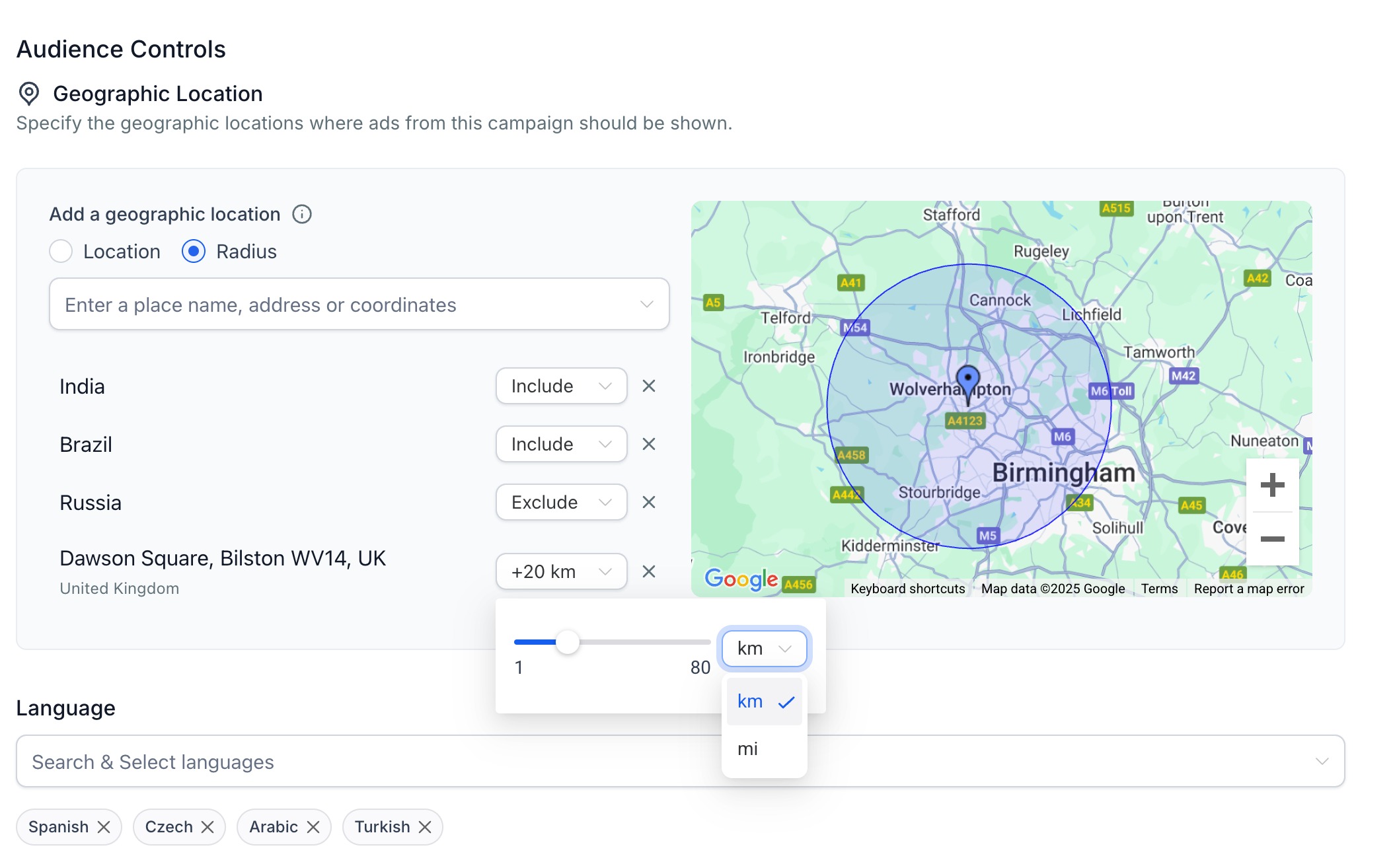
Note: Excluding a geographic location by radius is not supported by Google. When defining a location by radius, you can modify the radius around the specified address to set your audience reach.
Language. Enter any language spoken by the users you want to target. Multiple languages can be searched and selected.
Gender and Age Targeting. Select gender (Male, Female, Unknown) and age ranges (18–24 through 65+, plus Unknown) for precise targeting. The "Unknown" tooltip explains that ads will still reach users whose age or gender is not specified.

Retargeting using an existing or custom audience (built from a contact list or website visitors) is coming soon.
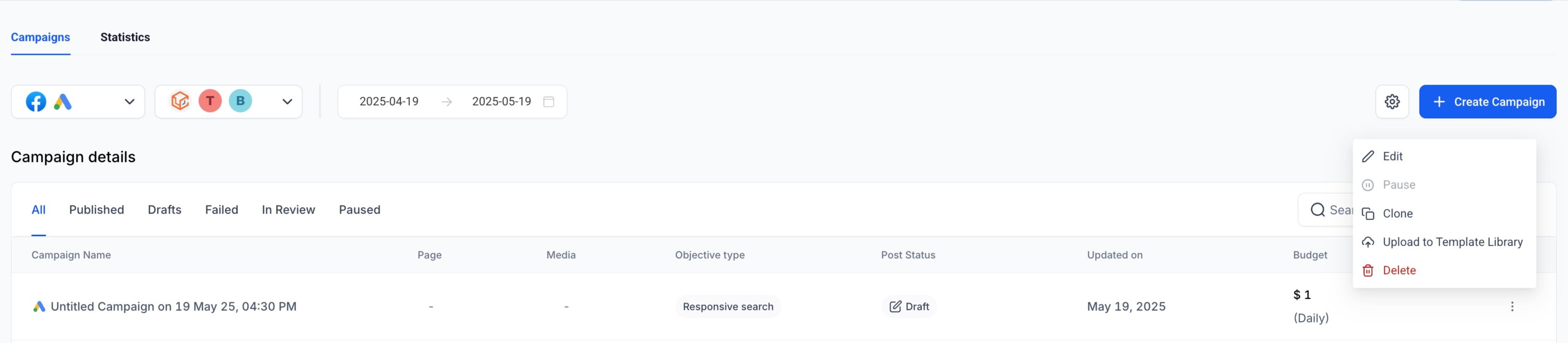
Campaign-level menu options. From the campaign listing page, the ellipsis menu lets you Delete campaign, Clone campaign, Edit campaign settings, and Upload to template library. Inside the campaign builder, the campaign-level ellipsis lets you Create Ad Group.
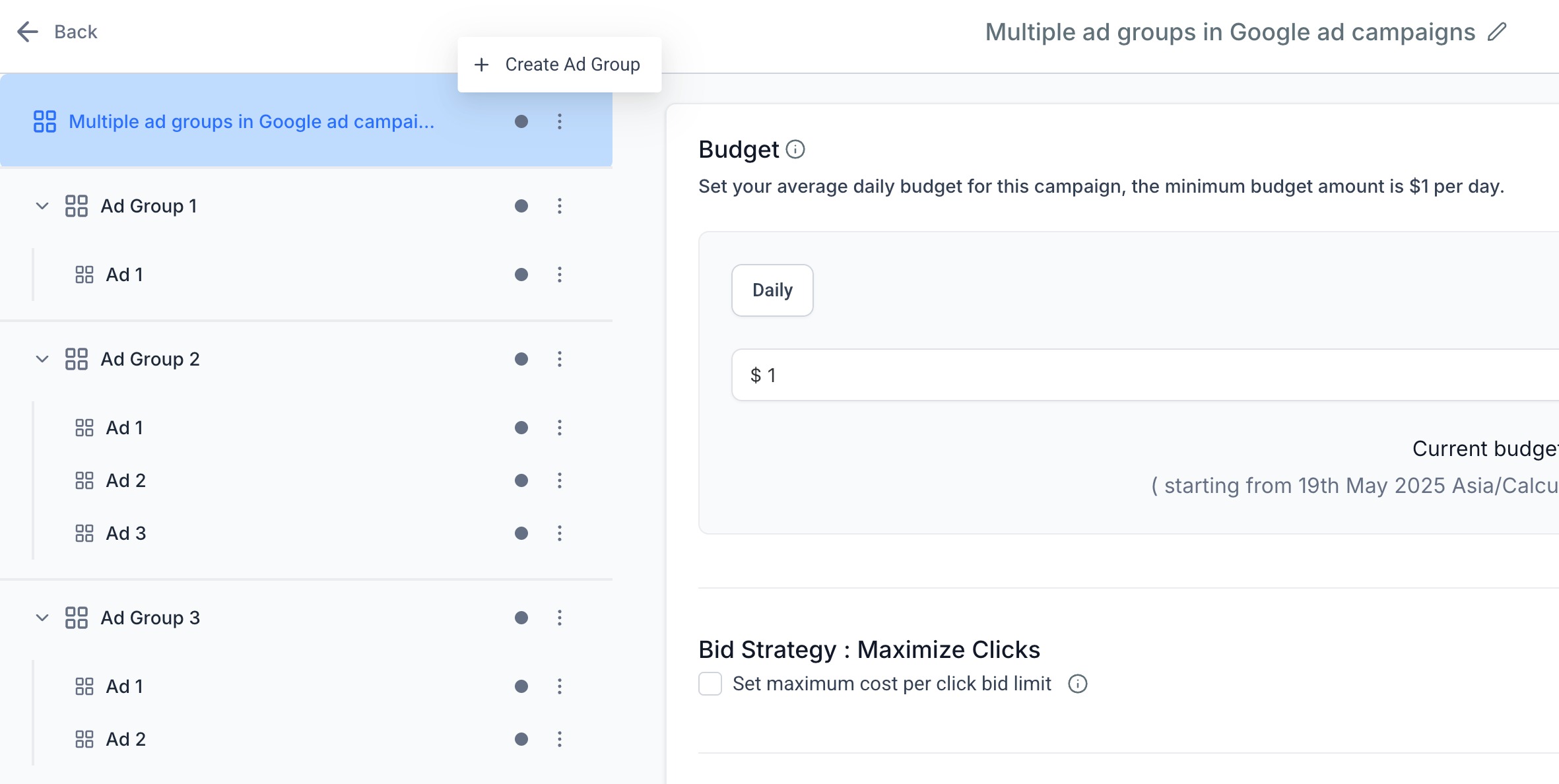
Create and name up to 10 ad groups. For each ad group:
Enter a base website URL. This URL generates keyword suggestions and applies to all ads in the group.
Add keywords manually or select from auto-suggestions.
Define match types: Broad, Phrase, or Exact.
Enter up to 40 positive and 40 negative keywords (80 characters each).
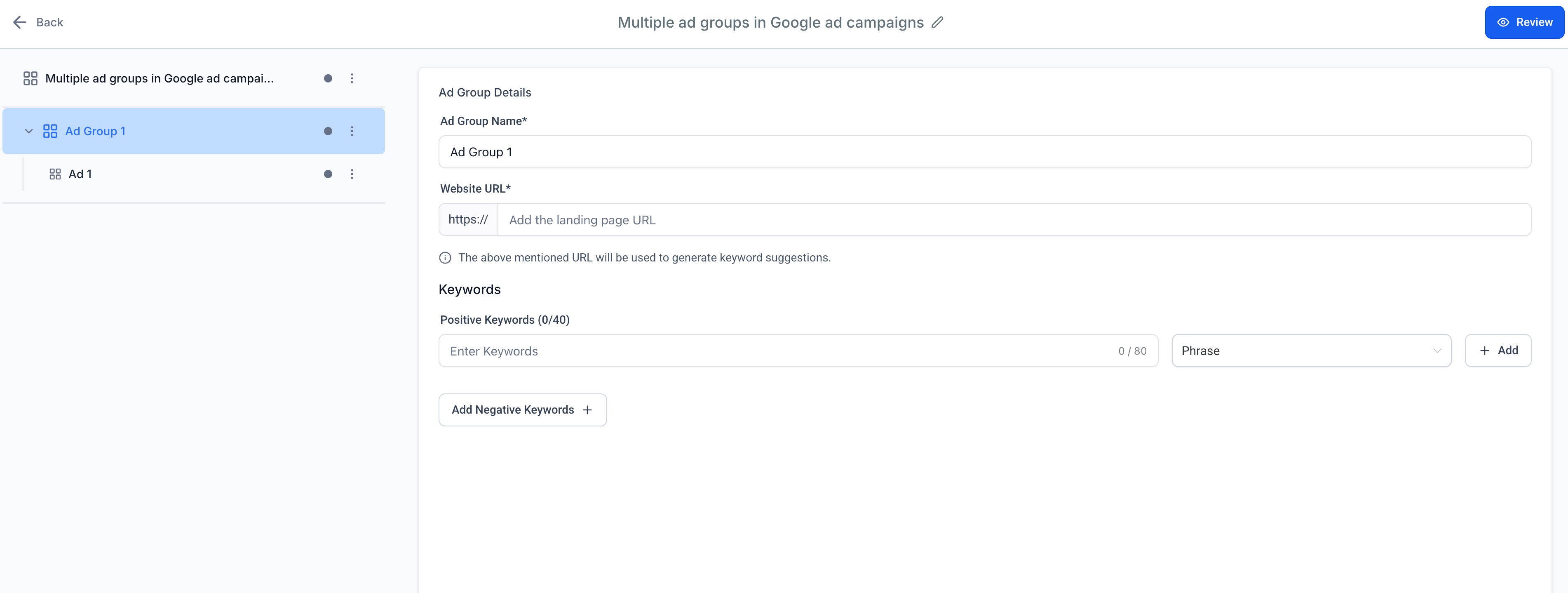
Manage your keywords from the Ad Group section, which has two sub-sections: Positive Keywords and a button that opens Negative Keywords.
Under Keywords, enter relevant words or phrases that match what patients might search for. For each keyword, type a word or phrase, then press Enter to save it, or press Add after choosing a match type. Each keyword has a match type dropdown:
Broad (keyword)
Phrase (default: "keyword")
Exact ([keyword])
Match types apply to both positive and negative keywords (limit 40 each, 80 characters per keyword). Add more phrases to create additional keywords, or click the cross icon to delete one.
Notes:
Each keyword word or phrase can be up to 80 characters.
Up to 40 positive and 40 negative keywords each can be added per campaign.
Suggested keywords are based on the website URL entered.
Click Add Negative Keywords to optionally add words or phrases you do not want your ad matched to. Anyone searching Google with one of these negative keywords will not see your ad.
Ad group menu options. The ellipsis menu at the ad group level lets you Create new ad, Duplicate ad group, and Delete ad group (you cannot delete the group if only one exists).
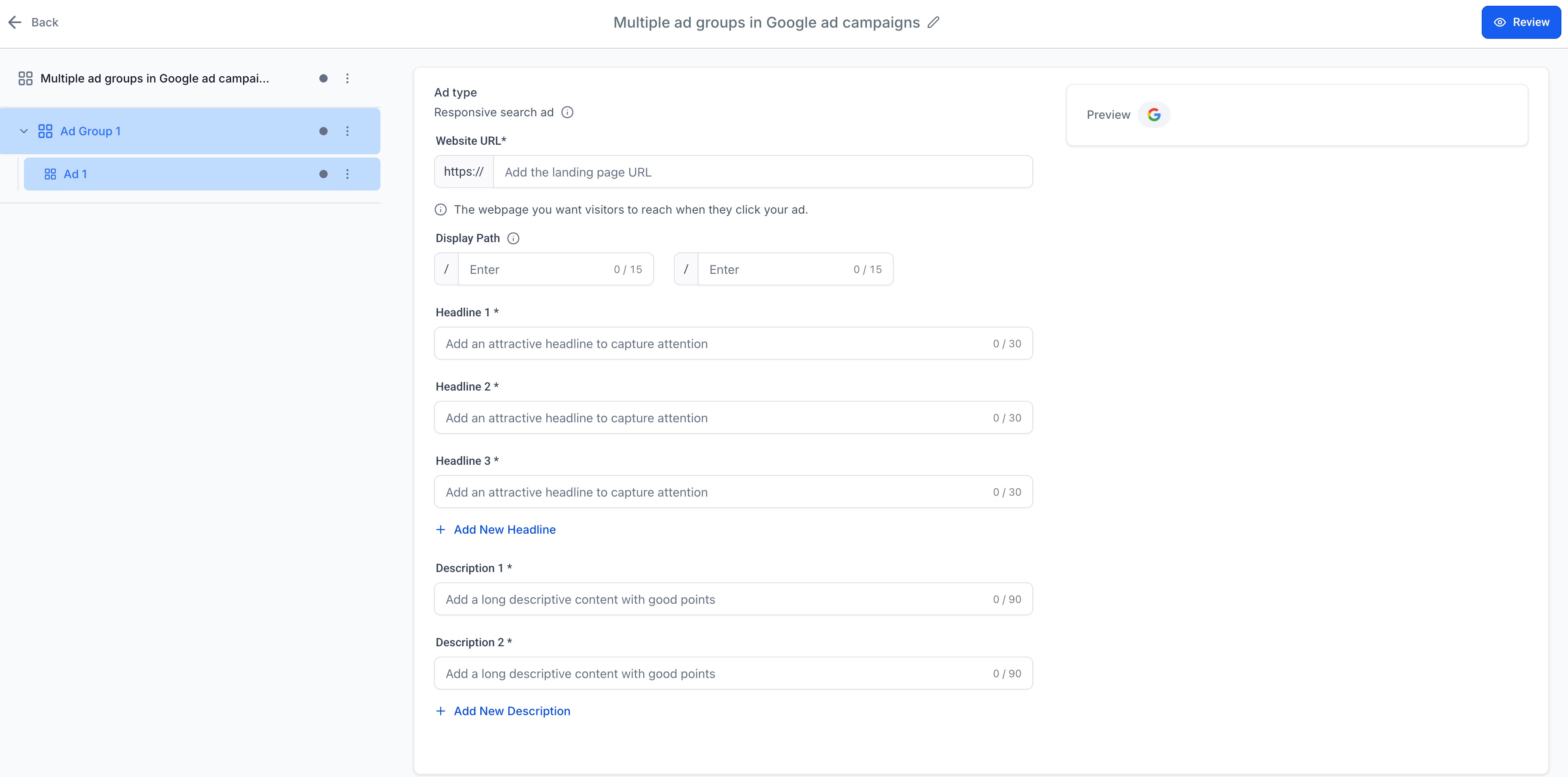
Each ad group can have up to 3 ads. For each ad:
Add up to 15 headlines (30-character limit each). Your headline can be split into three parts separated by a "|" character. Enter the first part under Headline 1, and add more under Headline 2 and Headline 3 if it exceeds 30 characters. A minimum of 3 headlines is required.
Add up to 4 descriptions (90-character limit each). Enter the first under Description 1, and continue under Description 2 if it exceeds 90 characters. A minimum of 3 is recommended.
Provide a final URL and optional display paths (two segments, up to 15 characters each). The display path creates a clean, patient-friendly URL path on the ad.
Note: All ads within a single ad group must share the same base URL, but each ad may use a different display path.
Repeat for Ad 2 and Ad 3. These are optional but a good addition, since more ads give Google more to optimize.
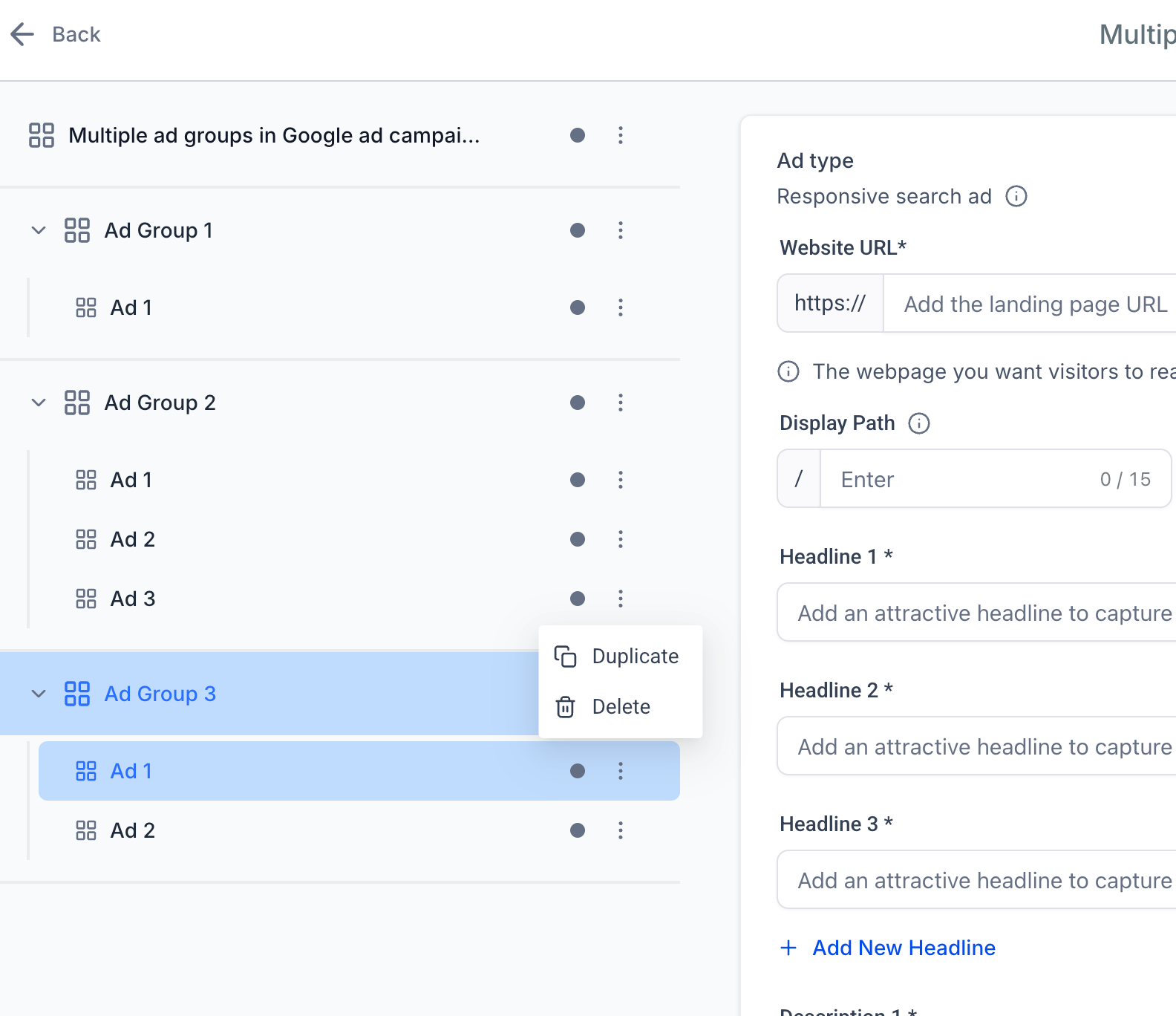
Ad actions. Use the ellipsis menu to Duplicate ad or Delete ad (you must keep at least one ad in the group).
Click the Review button at the top right to see the full campaign configuration and verify all details before going live.
The Review screen lets you toggle between ad groups and view the ads inside each group, confirm that all required elements are in place (at least 1 ad group and 1 ad per ad group), and visualize the campaign's hierarchical structure before publishing.
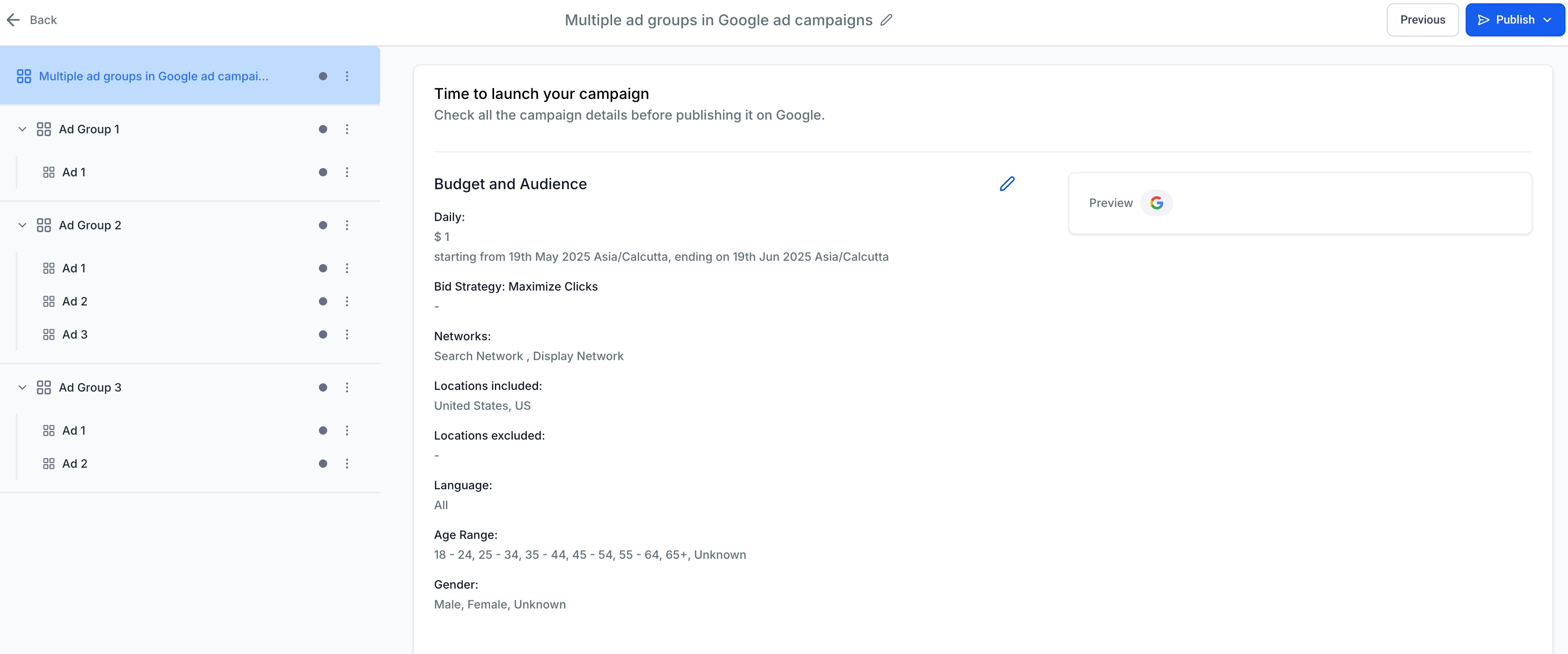
When you publish, the card added to your connected Google Ads account is charged for campaign spend.
Important: Strictly follow Google's ad policies to prevent ad rejections: https://support.google.com/adspolicy/answer/6008942.
After publishing, open the Statistics screen in Ad Manager to view campaign performance. Click a campaign name to drill down and see stats by ad group, ad, and keyword. Use this to pause low-performing ad groups or keywords and shift budget to your best performers. Full reporting detail is covered in the Create a Google Search Ad Campaign guide.
Most issues with multiple ad groups trace back to account access, a missing required field, or a mismatch between an ad group's base URL and an ad's final URL. Check the relevant level before rebuilding the campaign.
Issue | What to check |
|---|---|
Google account is unavailable during campaign creation | Confirm you're connected to the correct Google account and an eligible Google Ads account under Ad Manager, and that you have the required permissions. |
Keyword suggestions do not appear | Confirm a complete, accessible website URL has been entered for the ad group. You can still enter keywords manually. |
An ad's URL is rejected | Confirm the ad uses the same base URL set at the ad group level, and that the final landing page is valid. |
Delete is unavailable or blocked | A campaign must keep at least one ad group, and every ad group must keep at least one ad. Add a replacement before deleting the last one. |
The Review screen shows incomplete information | Open the highlighted campaign, ad group, or ad level and complete every required field before publishing. |
Statistics are empty after publishing | Confirm the campaign and date range, then allow time for Google to deliver the campaign and populate reporting data. |
How many ad groups can I create in a single campaign? You can add up to 10 ad groups per campaign.
How many ads can I create in each ad group? Each ad group can have up to 3 ads for A/B testing.
Can I set a different base URL for each ad? No. All ads within an ad group must share a common base URL, which is set at the ad group level. Ads can still use different display paths.
Can I duplicate an entire ad group? Yes. Use the ellipsis (⋮) menu to duplicate an ad group for faster setup.
Can I see performance by ad group or keyword? Yes. The Statistics screen supports performance breakdowns by campaign, ad group, ad, and keyword.
Can I use different match types within the same ad group? Yes. You can select a different match type (Broad, Phrase, or Exact) for each keyword.
What happens if I only create one ad group? The campaign still works. At least 1 ad group and 1 ad are required for a valid campaign.
Are older campaigns compatible with this feature? Yes. Legacy campaign flows and templates remain supported and compatible.
When should I split a campaign into multiple ad groups? Split when you advertise distinct services or audiences that deserve their own keywords and ad copy, such as separating injectables from laser treatments, so each group's performance and budget can be managed independently.
