LinkedIn Lead Forms let you capture a person's details directly inside a LinkedIn ad, without sending them to a separate landing page. Because LinkedIn pre-fills known profile information, forms are quick to complete and tend to convert well. Ad Manager makes it simple to build these forms, preview them, and map the collected fields into Aesthetix CRM so new leads flow straight into your contacts and workflows.
You use a LinkedIn Lead Form when your campaign objective is Lead Generation. This guide walks through the full form builder step by step. For the surrounding campaign setup (connecting your account, targeting, budget, and publishing), see the "Creating LinkedIn Ad Campaigns" guide.
When creating a LinkedIn campaign in Ad Manager, select Lead Generation as your objective.
At the ad level, you will see the option to Select a Lead Form.
Click Create New to open the Lead Form builder.
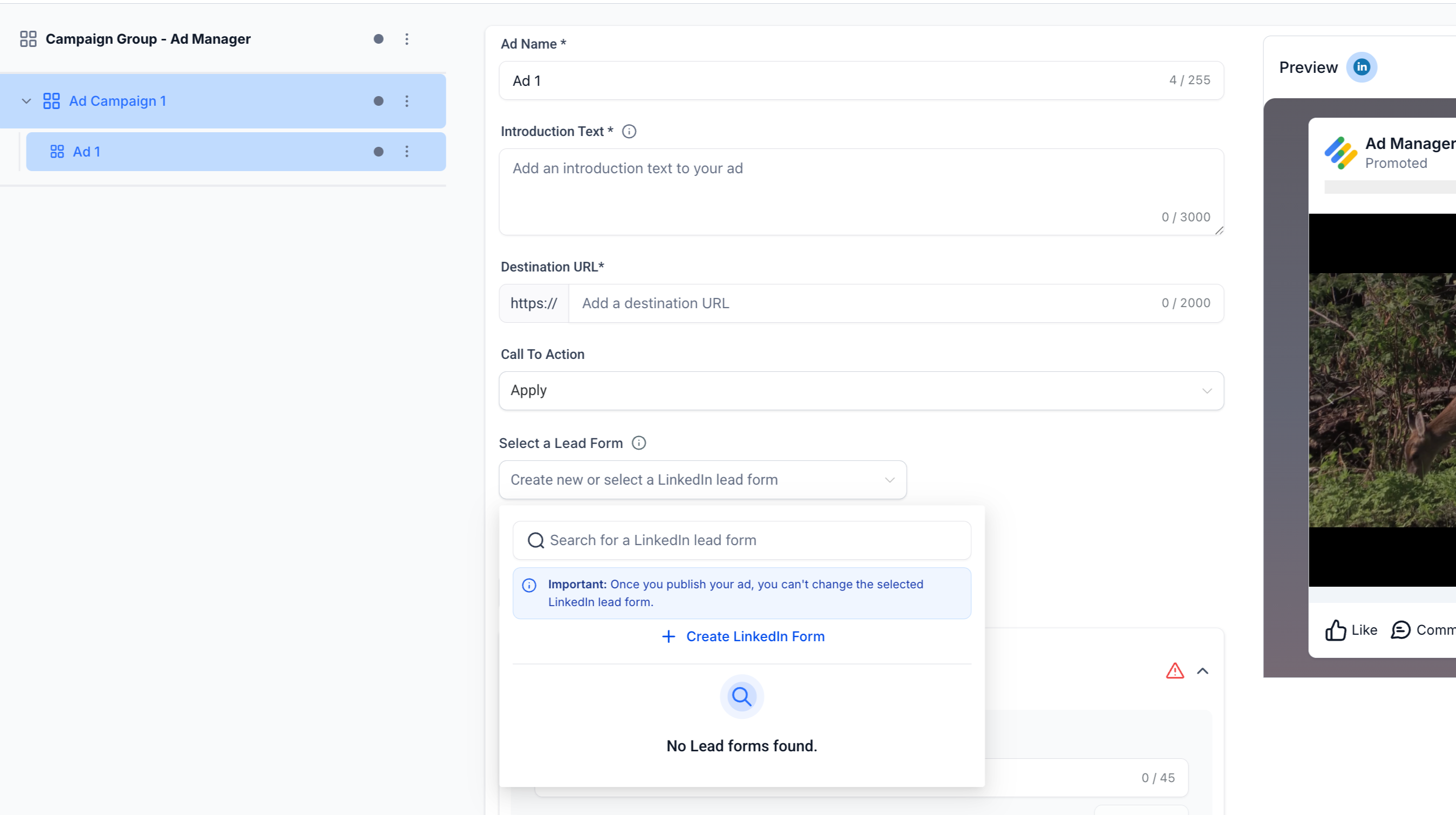
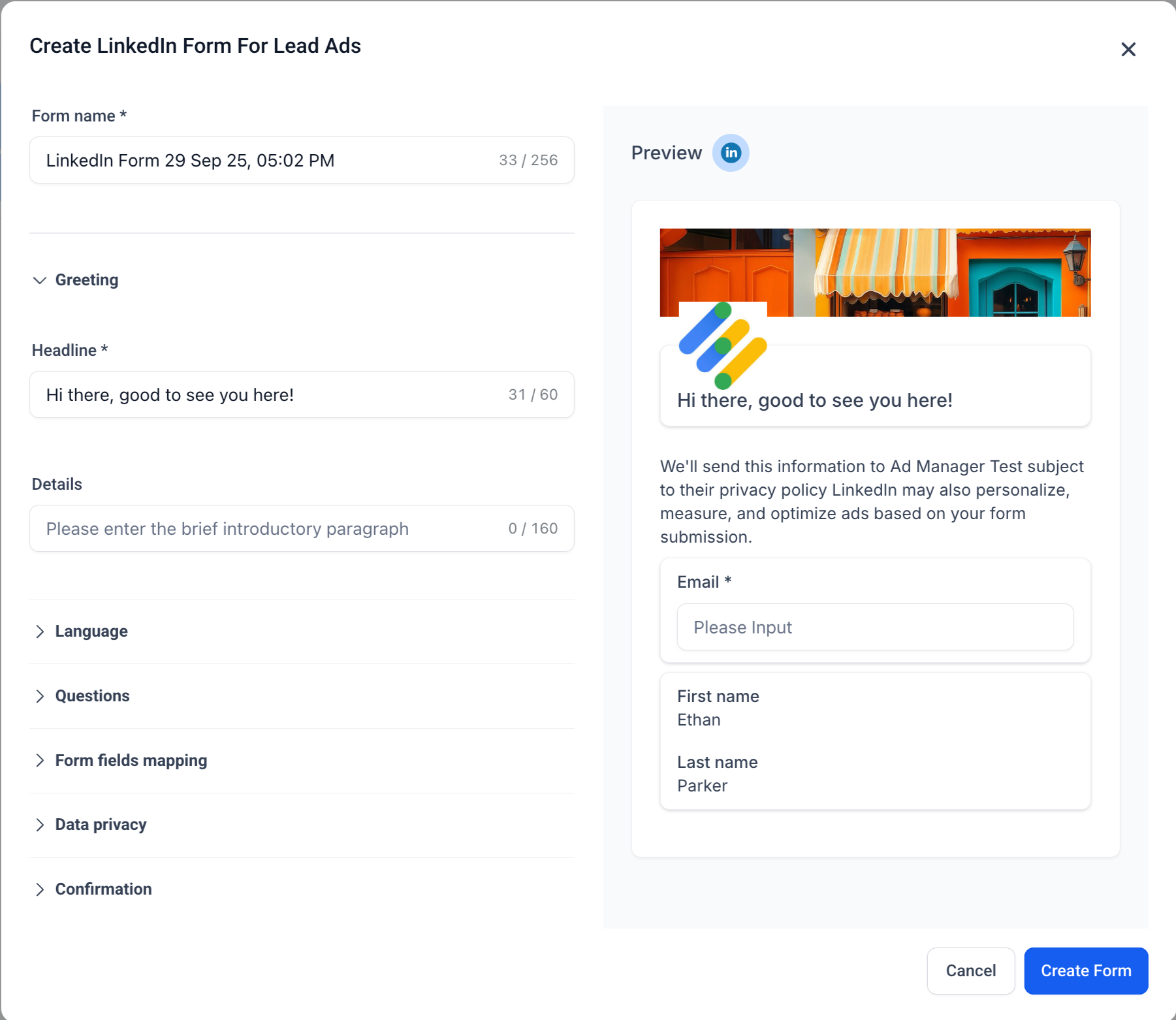
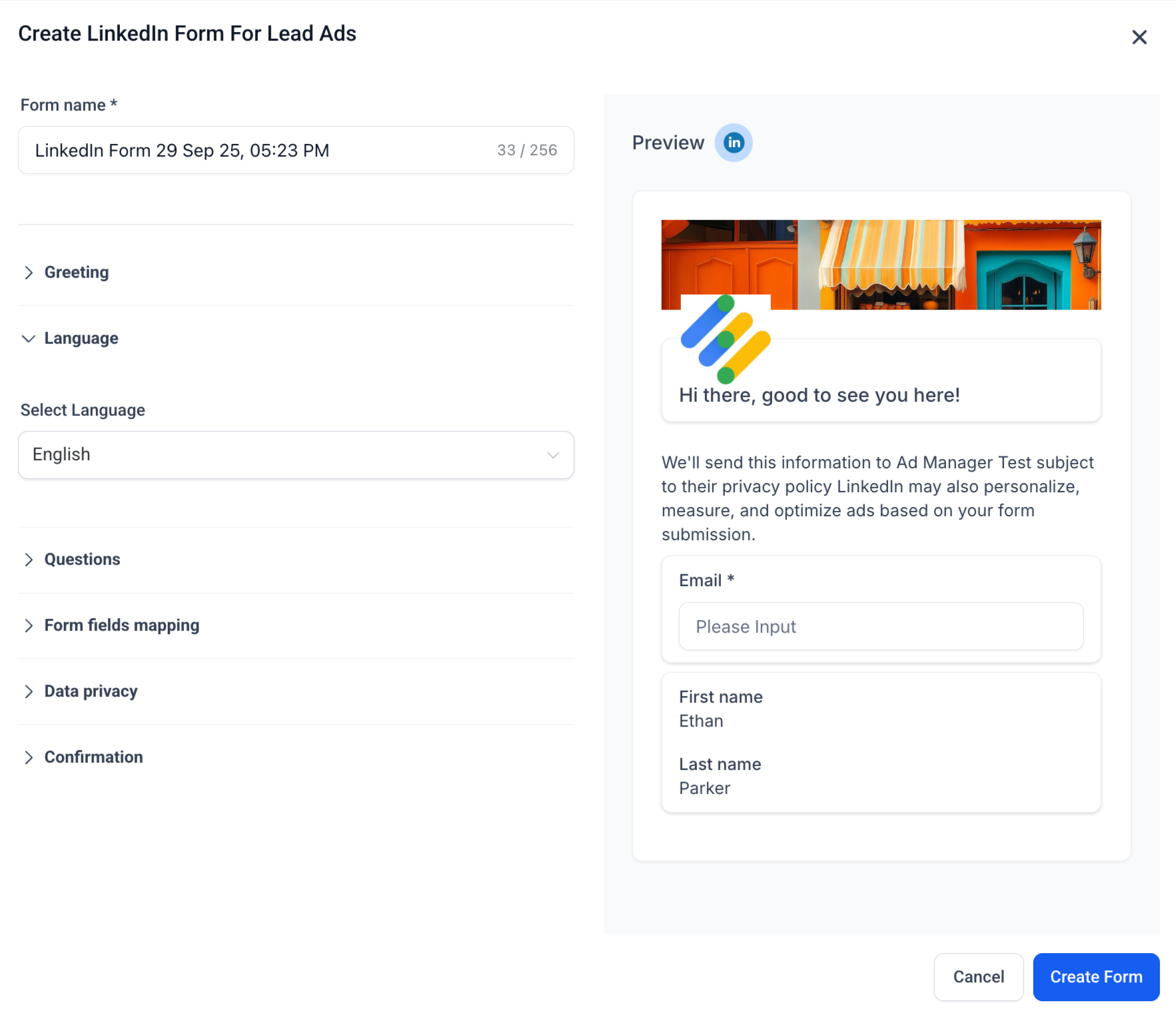
Form name (required)
Auto-generated with a timestamp (for example, "LinkedIn Form 29 Sep 25, 05:02 PM").
Edit it to something more descriptive, such as "Botox Event Signups."
Maximum length: 256 characters.
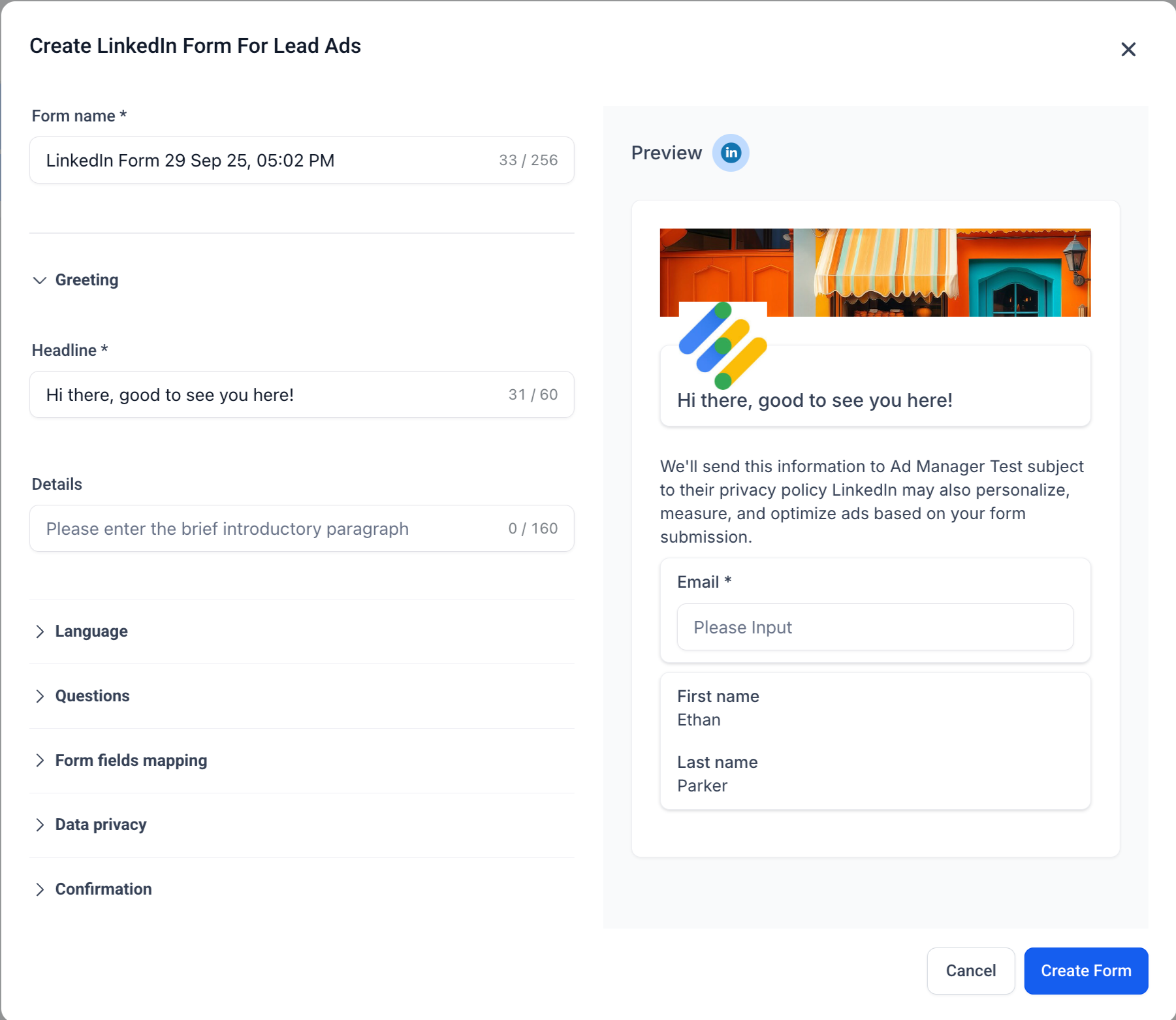
This section controls the form's first impression.
Headline (required)
Up to 60 characters.
Appears prominently at the top of the form.
Example: "Hi there, good to see you here!"
Details (optional)
Up to 160 characters.
A short introductory paragraph that explains your offer.
Example: "Sign up to book a complimentary consultation and receive our seasonal specials."
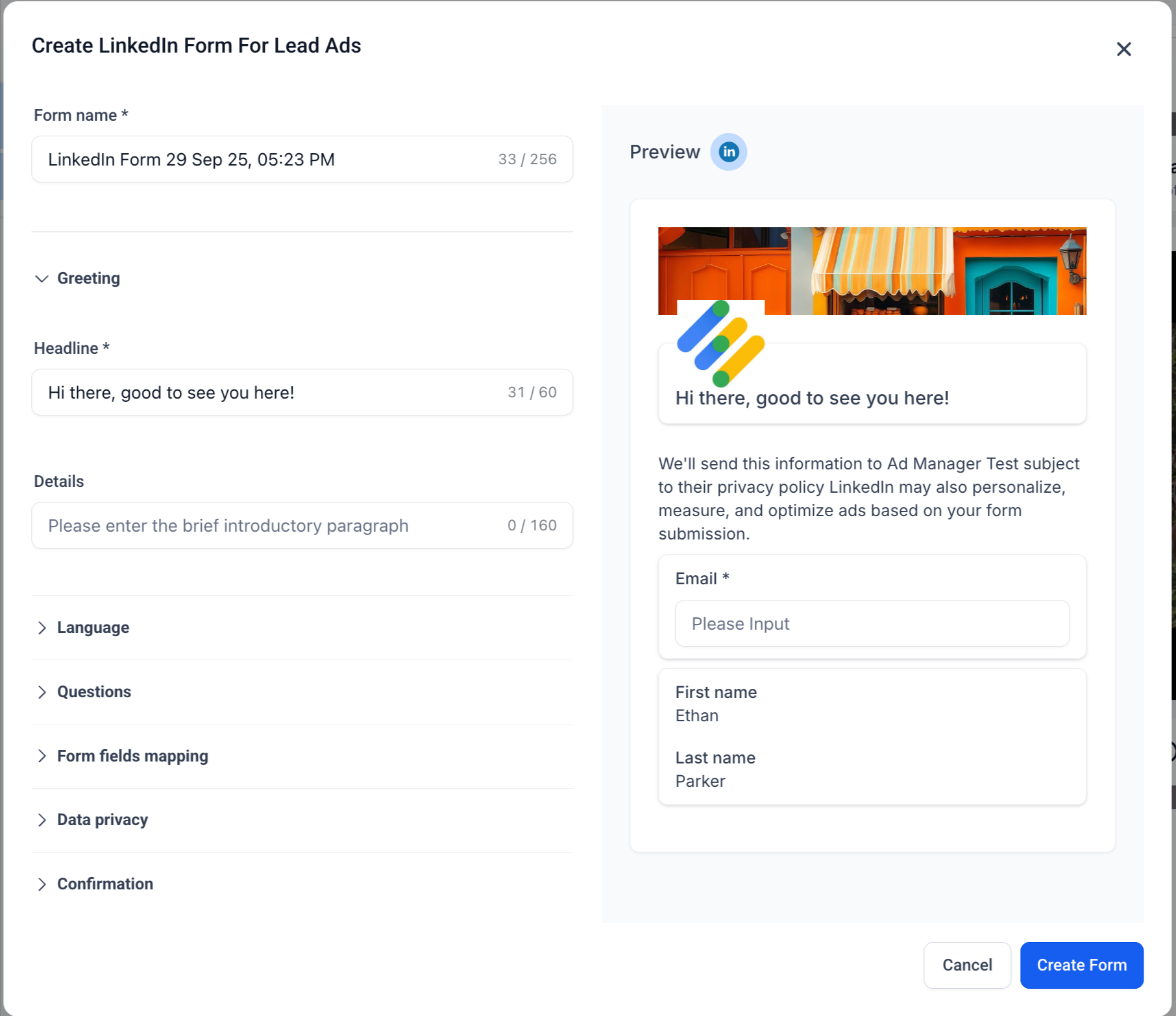
Choose the form's display language.
This gives your audience a localized experience.
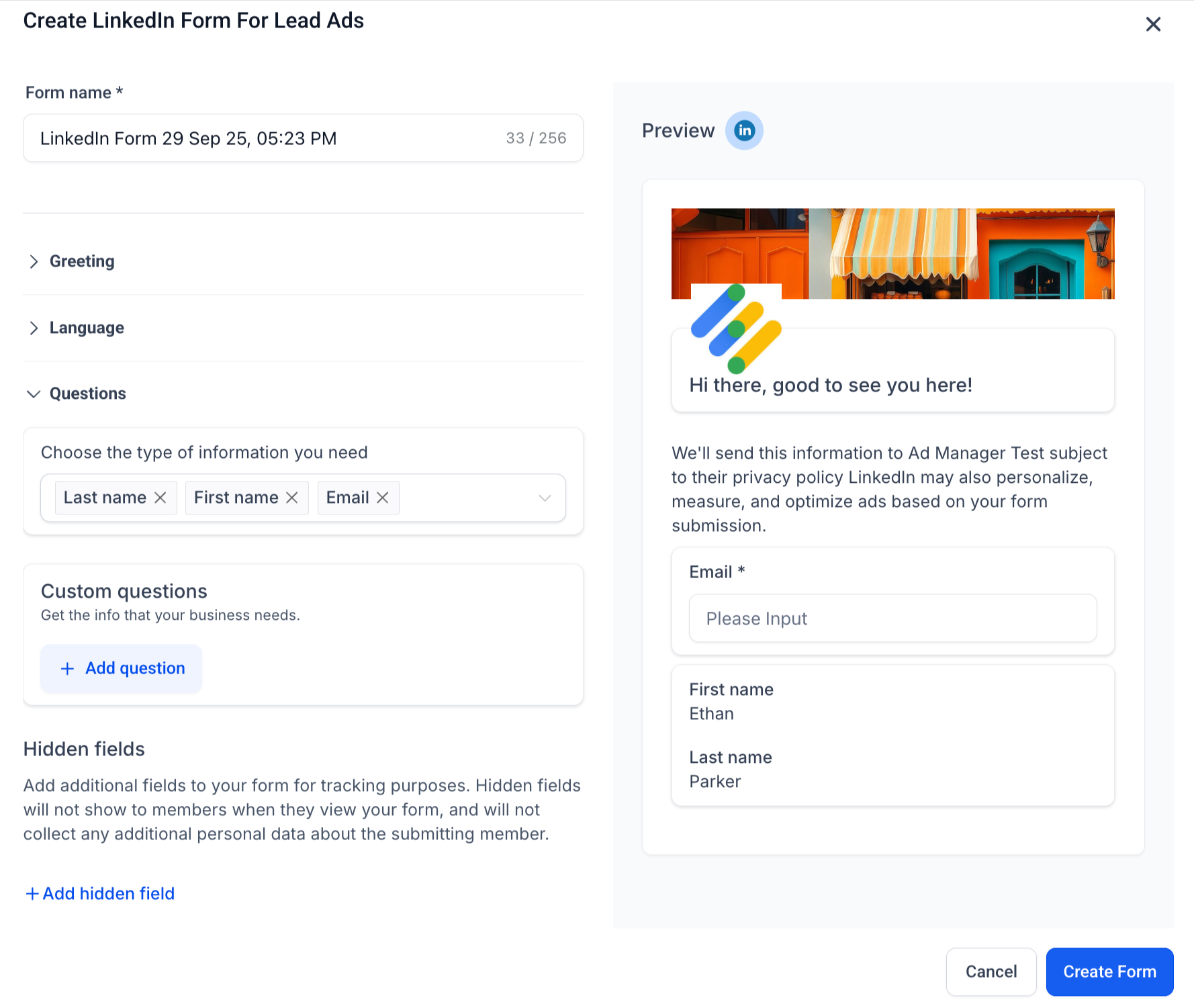
This defines the information you collect.
Pre-filled fields (up to 12)
Standard LinkedIn profile fields: First Name, Last Name, Email, Job Title, Company Name, and others.
Auto-filled by LinkedIn so users can complete the form faster.
Custom questions (up to 3)
Choose Short Answer or Multiple Choice.
Example: "Which treatment are you interested in?" with multiple-choice options.
Hidden fields (up to 20)
Not visible to users, but submitted with the form.
Useful for tracking (for example, campaign ID or UTM tags).
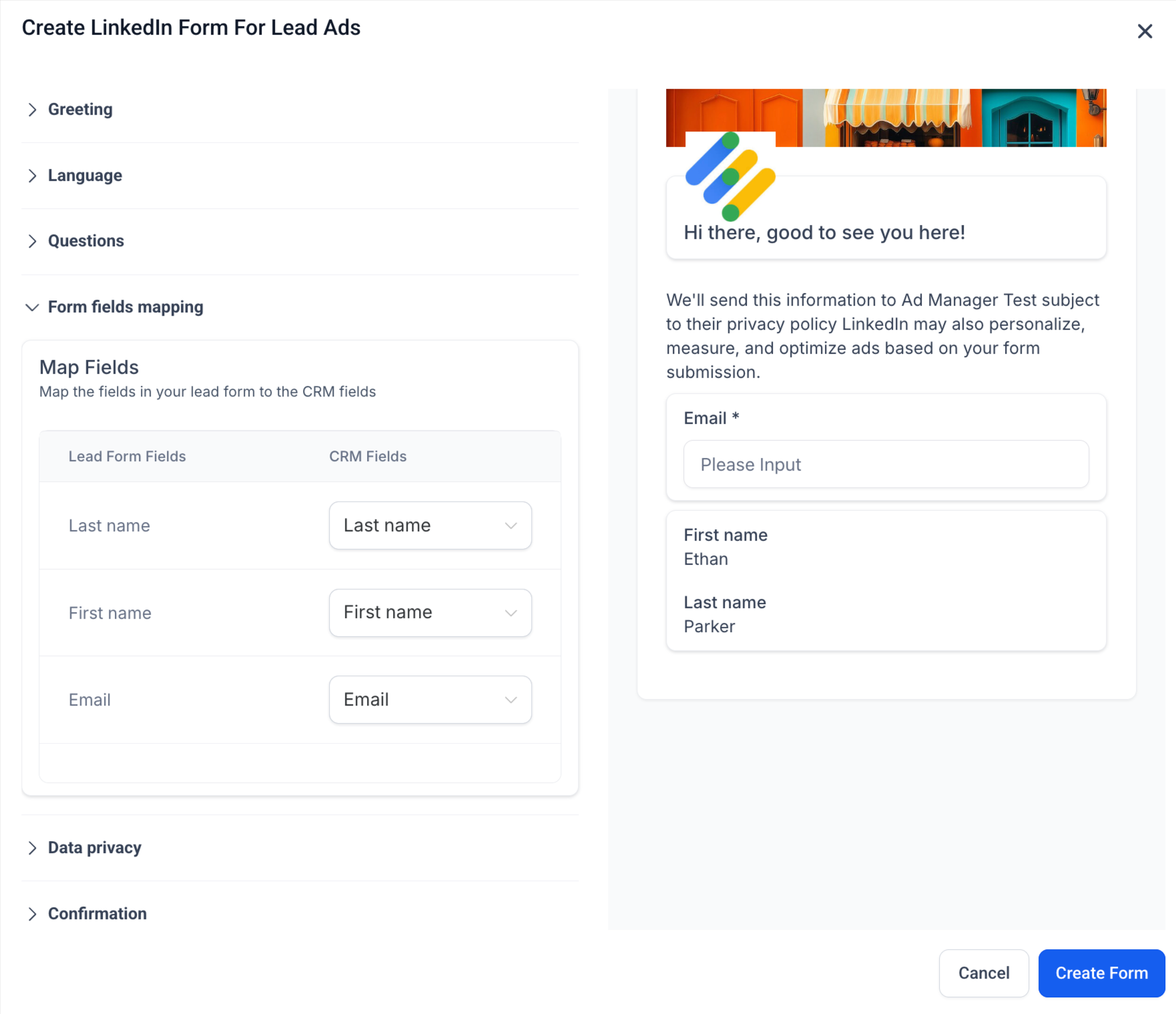
Map each LinkedIn field (pre-filled, custom, or hidden) to the matching contact field in Aesthetix CRM.
This ensures captured leads sync cleanly into your workflows, automations, and pipelines.
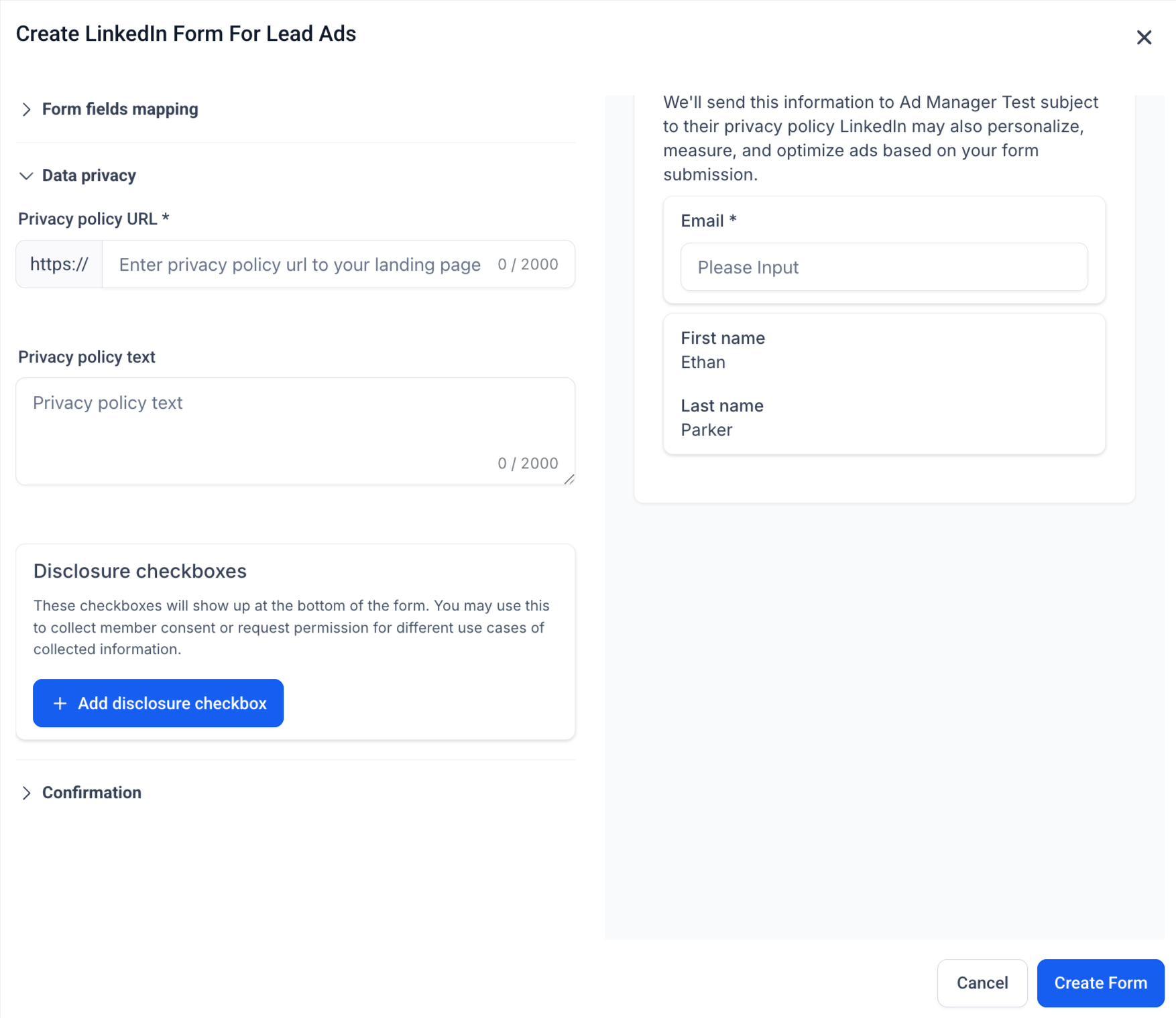
Privacy policy URL (required)
Must link to your practice's privacy page.
Appears as a clickable label on the form.
Privacy text (optional)
Additional disclaimer text.
Consent checkboxes (up to 5)
Support compliance with regulations such as GDPR or CCPA and capture marketing opt-ins.
Example: "I agree to receive marketing emails."
Because your form collects patient contact information, make sure your privacy policy and consent language reflect your practice's HIPAA policies. Collect only what you need, and use a consent checkbox for any marketing follow-up.
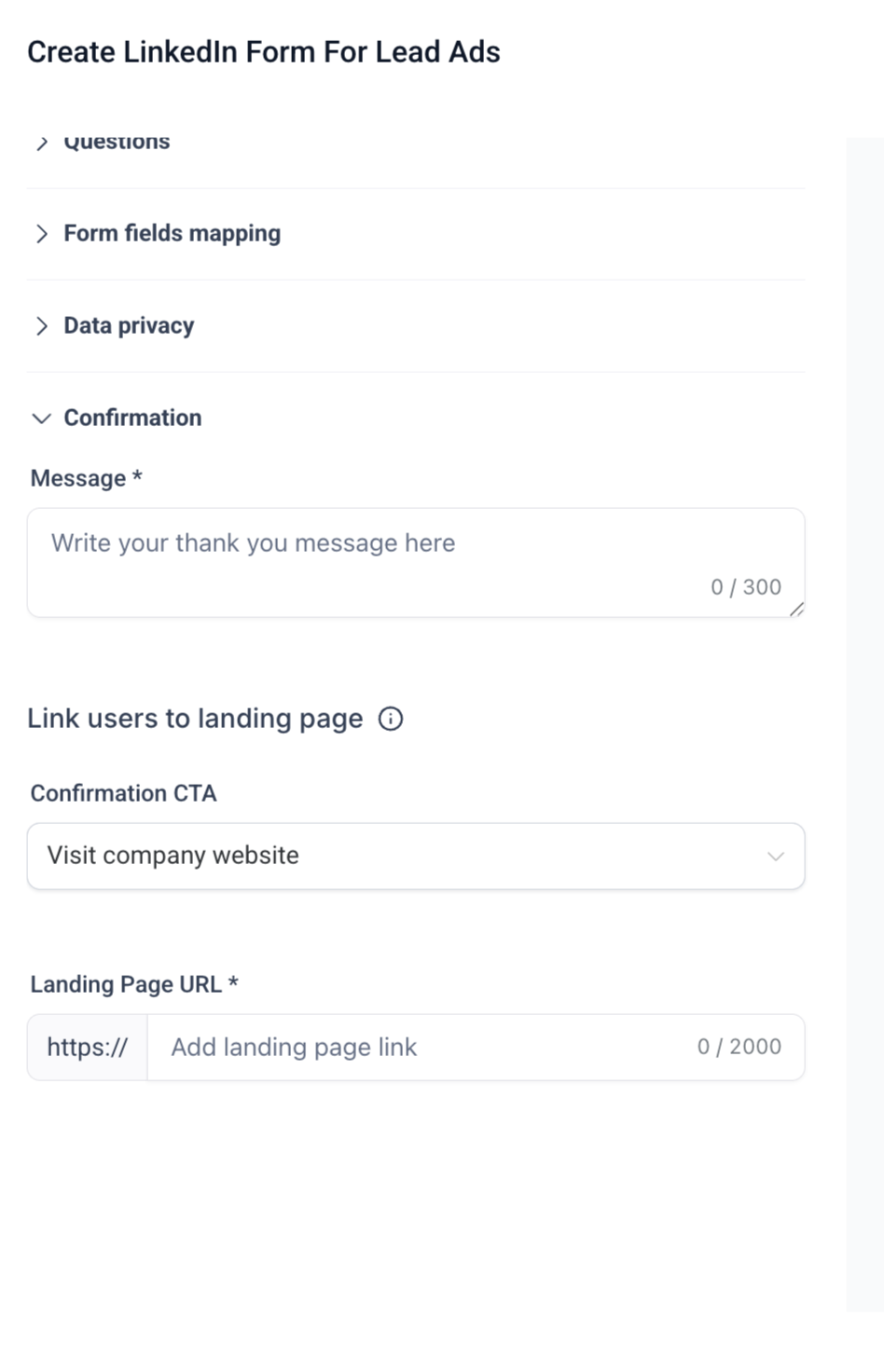
After a user submits the form, they see a thank-you screen.
Headline: A short message, up to 60 characters. Example: "Thanks for signing up!"
Description: A longer confirmation note, up to 300 characters. Example: "We have received your request. Check your inbox for next steps."
CTA options:
Visit Website: Send users to your site.
Download File: Share a resource immediately.
Call Business: Provide a click-to-call option.
Each CTA requires a link and button text.
A live preview panel on the right shows how your form will look on LinkedIn, on both desktop and mobile.
Check that:
The headline and intro text read clearly and concisely.
Fields are clear and mapped correctly.
Privacy details are included.
Click Create Form to save.
Once your form is live, LinkedIn Lead Gen Form submissions sync automatically into Aesthetix CRM and appear under Contacts with the source "LinkedIn Ads," using your field mapping from Step 6. To route new leads into nurtures, notify your team, or trigger follow-up automatically, use the LinkedIn Lead Form Submitted trigger in Workflows.
Keep forms short. Fewer fields improve completion rates.
Always include a compelling headline and description that communicates value.
Add at least one consent checkbox for compliance and transparency.
Use hidden fields for advanced tracking (for example, source = LinkedIn).
Preview and test your form before launch.
When can I use a LinkedIn Lead Form? Lead Forms are available when your LinkedIn campaign objective is Lead Generation. You attach the form at the ad level.
How many fields can I include? Up to 12 pre-filled fields, up to 3 custom questions, and up to 20 hidden fields per form.
What field types can custom questions use? Custom questions can be Short Answer or Multiple Choice.
Do I have to add a privacy policy? Yes. A privacy policy URL is required. You can also add optional privacy text and up to 5 consent checkboxes for marketing opt-ins and compliance.
Where do submitted leads appear in Aesthetix CRM? They appear under Contacts with the source "LinkedIn Ads," mapped to the contact fields you set during field mapping.
Can I edit the form name? Yes. The name is auto-generated with a timestamp, but you can change it to anything up to 256 characters.
How do I follow up with new leads automatically? Use the LinkedIn Lead Form Submitted trigger in Workflows to start a nurture, send notifications, or add the contact to a pipeline.
Can I reuse a form across campaigns? Yes. Once created, a saved form can be selected again when you build future Lead Generation campaigns.
