Ad Manager lets your practice create, launch, and manage LinkedIn ad campaigns without leaving Aesthetix CRM. By connecting your LinkedIn ad account, you can build lead-generation or website-traffic ads, target professional audiences, and monitor performance right alongside your Meta, Google, and TikTok campaigns in one dashboard. LinkedIn advertising is well suited to reaching working professionals, high-income demographics, and local decision-makers, which makes it useful for membership programs, corporate wellness offerings, recruiting providers, and premium aesthetic services.
This guide covers connecting your LinkedIn ad account, the LinkedIn campaign structure, and how to build, target, budget, publish, and track a campaign.
Running LinkedIn ads inside Aesthetix CRM saves time, keeps your reporting in one place, and helps your campaigns reach the right professional audiences.
Unified dashboard: Manage Google, Meta, TikTok, and LinkedIn ads from one screen.
Native lead sync: LinkedIn Lead Gen Form submissions flow automatically into your account as contacts.
Advanced targeting filters: Reach people by job title, seniority, company size, industry, skills, and more.
Real-time previews: Review desktop and mobile layouts before you publish.
Granular reporting: Track CPC, CPM, CPL, conversions, and spend per campaign group, campaign, or ad.
Connecting your LinkedIn ad account lets you publish, manage, and track ads through LinkedIn's Campaign Manager. Once connected, leads, campaigns, and metrics sync automatically with Aesthetix CRM.
Before you connect, confirm that:
Your LinkedIn ad account is active in LinkedIn Campaign Manager.
Your LinkedIn Company Page is linked to that ad account.
You have the right access: Campaign Manager access to the ad account, and admin access to the LinkedIn Company Page.
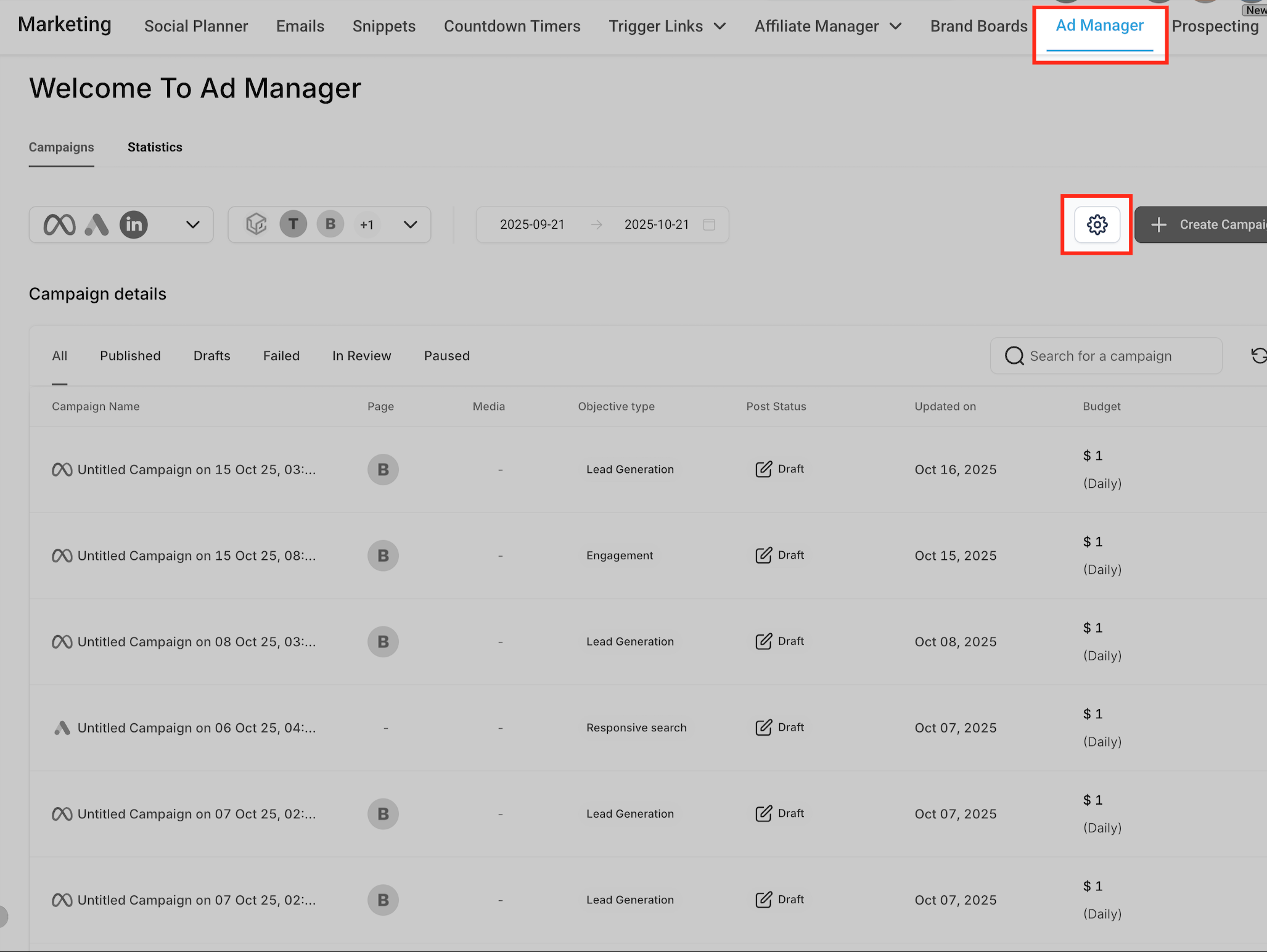
Open Ad Manager settings. Go to Marketing > Ad Manager, then click the settings gear icon in the top right corner of the dashboard. This opens the Ad Manager Settings page, where you can connect ad accounts across supported platforms like Meta, Google, and LinkedIn.
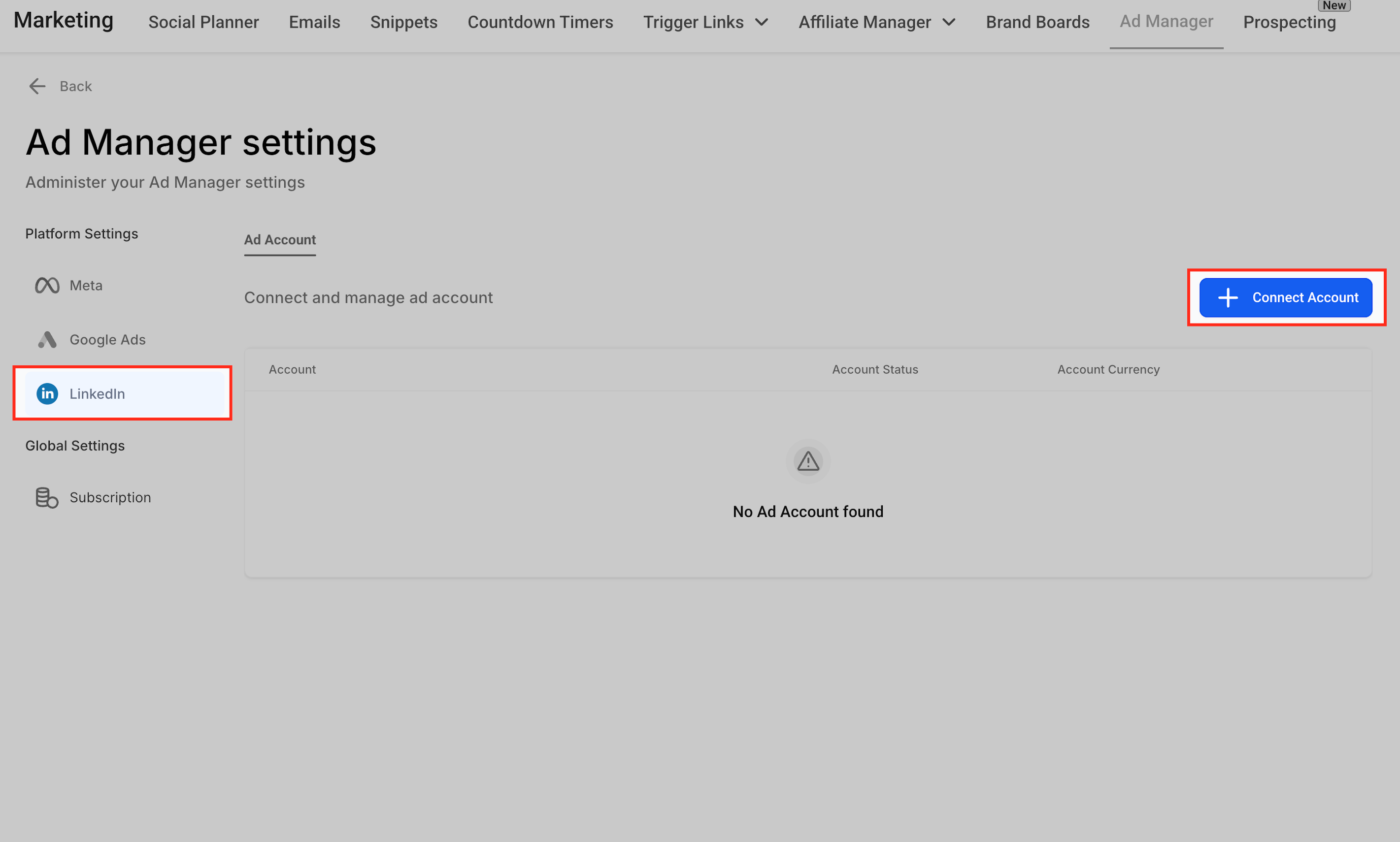
Select the LinkedIn platform. On the left side of the settings page, click LinkedIn under Platform Settings. Then click + Connect Account on the right-hand panel to start linking your LinkedIn ad account.
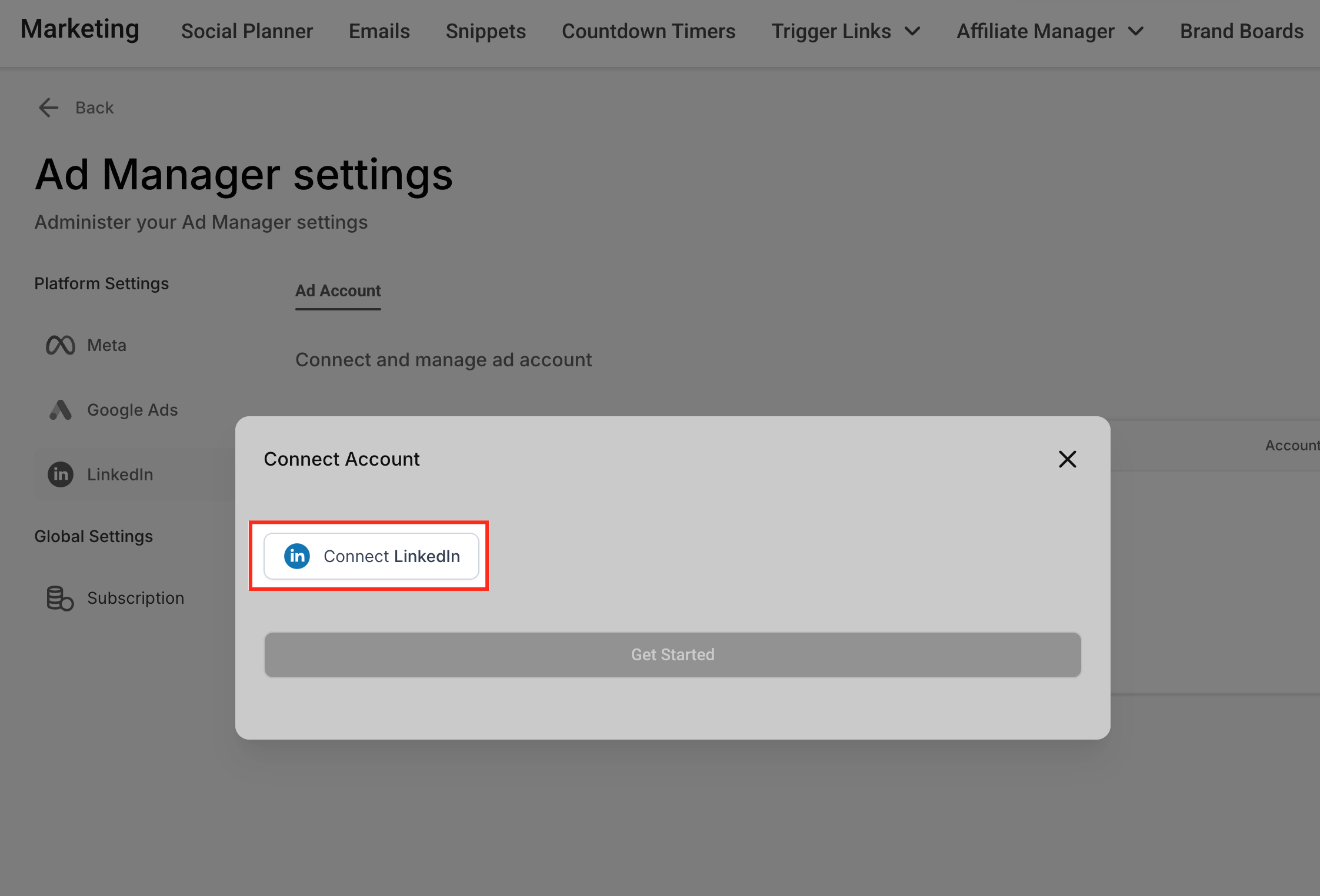
Connect your LinkedIn account. A pop-up window appears. Click Connect LinkedIn to open a secure login window where you sign in and authorize the connection to your LinkedIn ad account.
During this step, LinkedIn's consent screen may display the name LeadConnector. This is expected and safe. LeadConnector is the underlying provider that powers the ad connection between Aesthetix CRM and LinkedIn, so LinkedIn shows that name on the permission screen. Approve all of the permissions to continue.
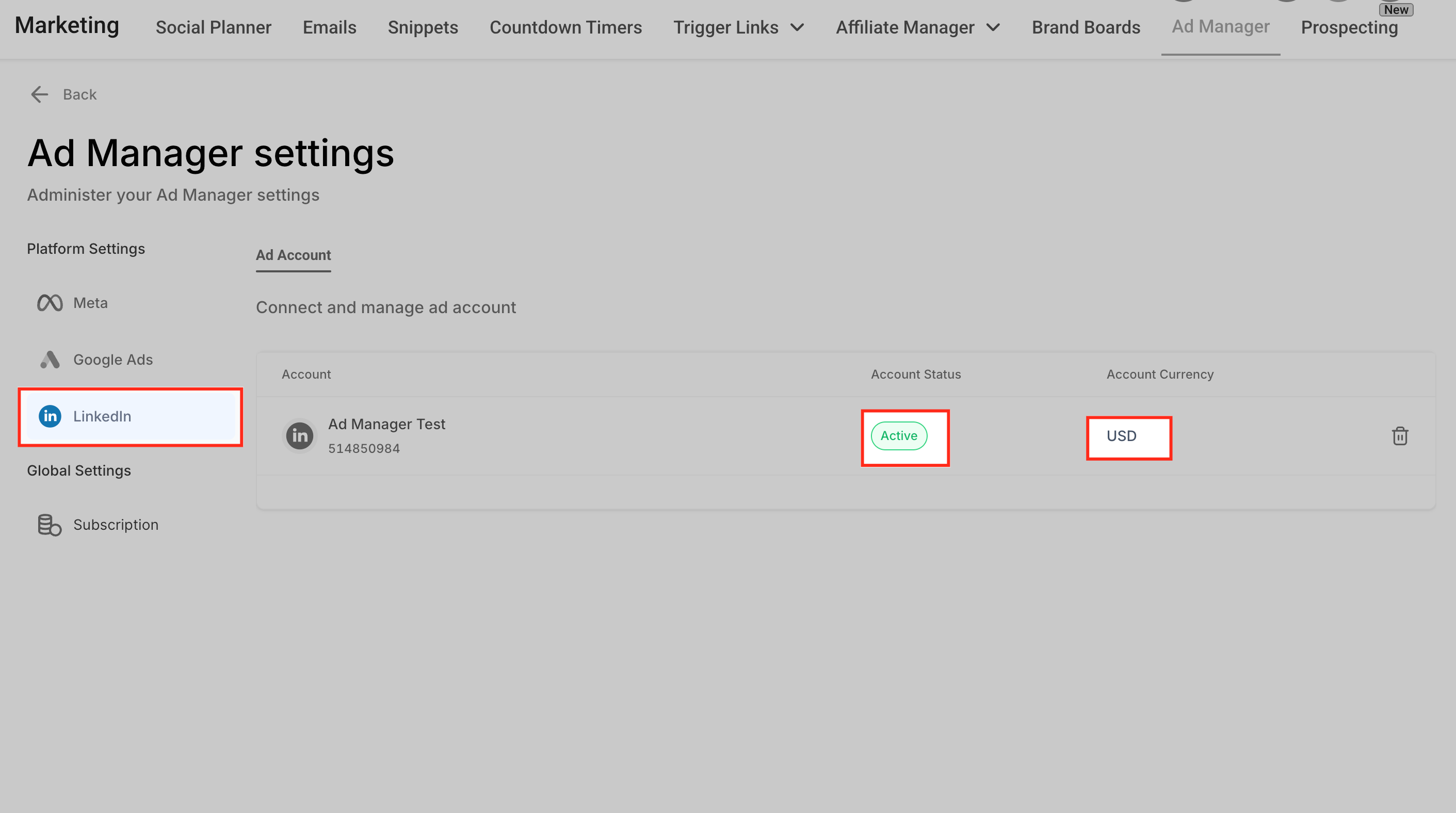
Confirm the connection. After you sign in and grant permissions, your LinkedIn ad account appears in the LinkedIn section under Ad Manager Settings. You will see the account name listed with a green Active status and the associated currency (for example, USD), confirming the account is connected.
Notes and best practices:
If your ad account does not appear, check your admin permissions.
Each LinkedIn ad account must be linked to a Company Page.
To disconnect or reconnect, click the bin icon beside the connected account in settings.
For general help connecting advertising accounts, see the Integrations collection.
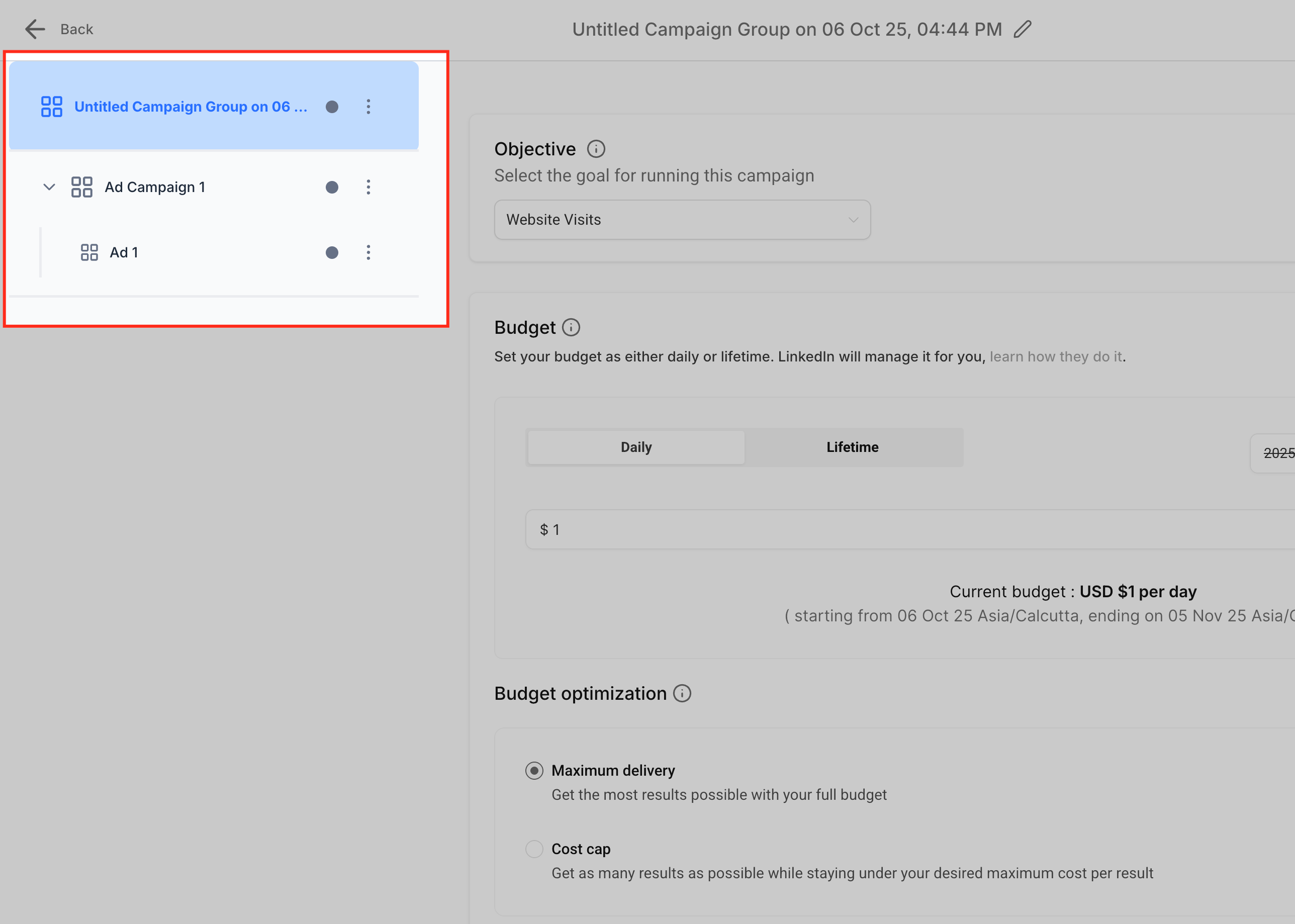
LinkedIn uses a three-tier hierarchy that Ad Manager mirrors. Understanding it helps you organize campaigns for clean tracking and budgeting.
Campaign Group: The top-level budget container.
Campaign: The objective, targeting, and spend layer.
Ad: The creative assets and copy.
Multiple campaigns can live within one group, and each campaign can include multiple ads for A/B testing.
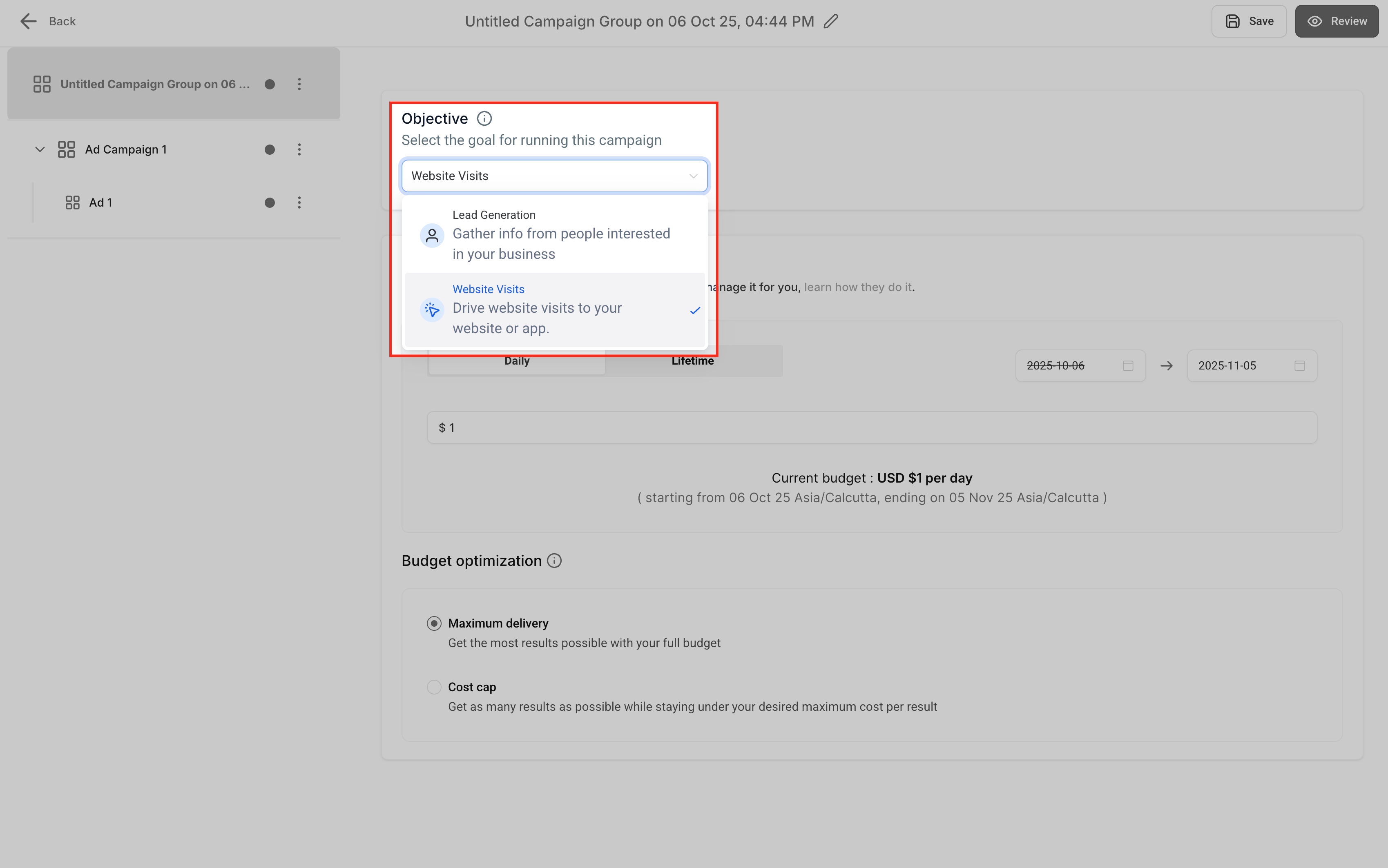
Choosing the right objective ensures LinkedIn optimizes delivery for your goal.
Objective | Purpose |
|---|---|
Lead Generation | Capture qualified leads through LinkedIn Lead Gen Forms that sync automatically into Aesthetix CRM. |
Website Traffic | Drive clicks to your website and validate landing pages before publishing. |
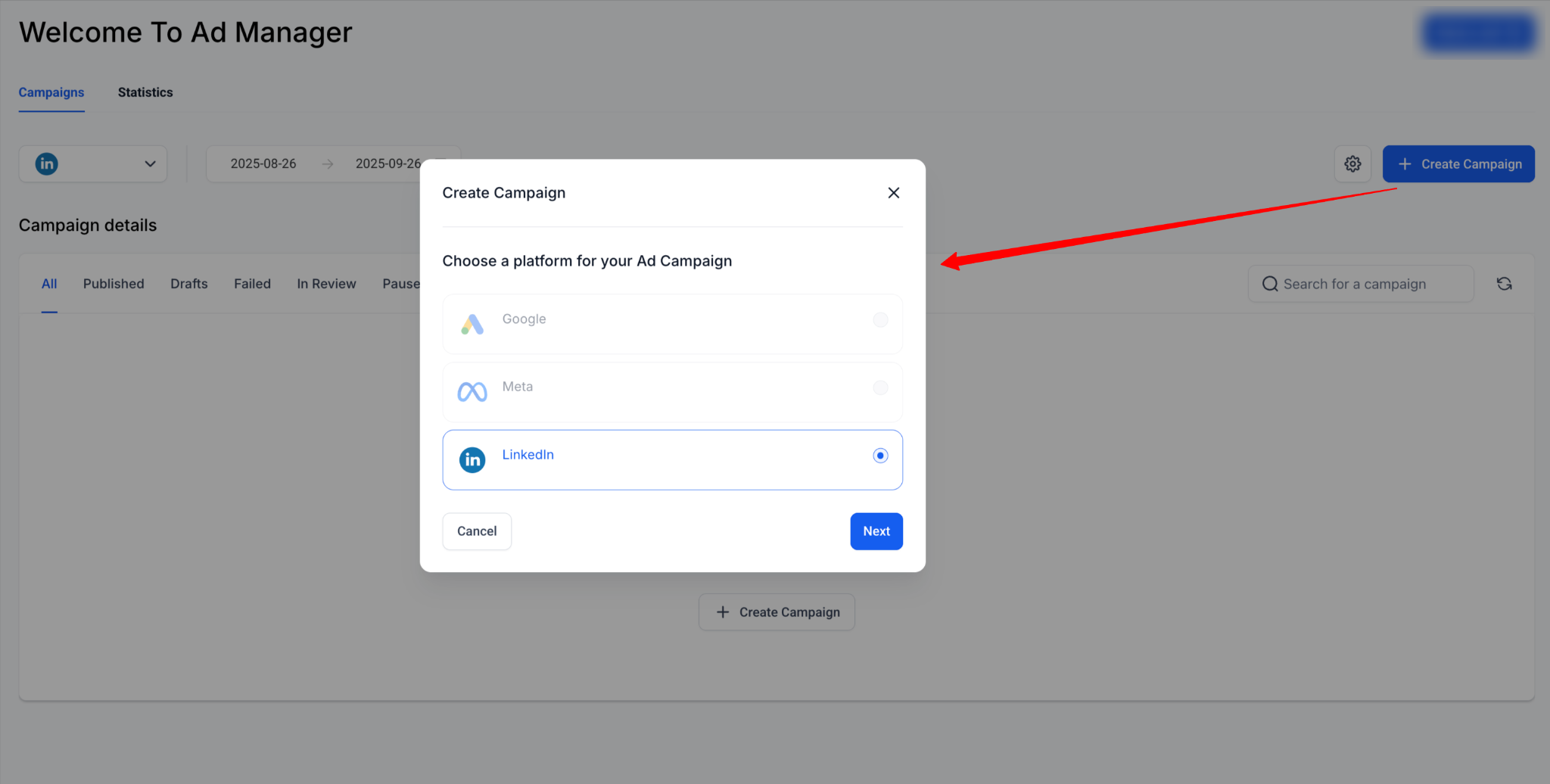
After connecting your account, build a campaign directly from Ad Manager. Go to Marketing > Ad Manager > Settings > LinkedIn and click + Create Campaign, then work through the steps below.
Instead of building a campaign from scratch, you can start from a saved template. Select Ad Manager Templates, choose a LinkedIn template, and review its details. Click Continue to carry the template's supported campaign configurations into your new campaign group, campaign, and ad, then review and adjust the pre-filled settings before publishing.
A campaign group is the top-level container for your LinkedIn campaigns.
Campaign group name: Choose a descriptive name (for example, "Q4 Membership Leads").
Objective: Select Lead Generation (capture leads with LinkedIn forms) or Website Traffic (drive clicks to a landing page).
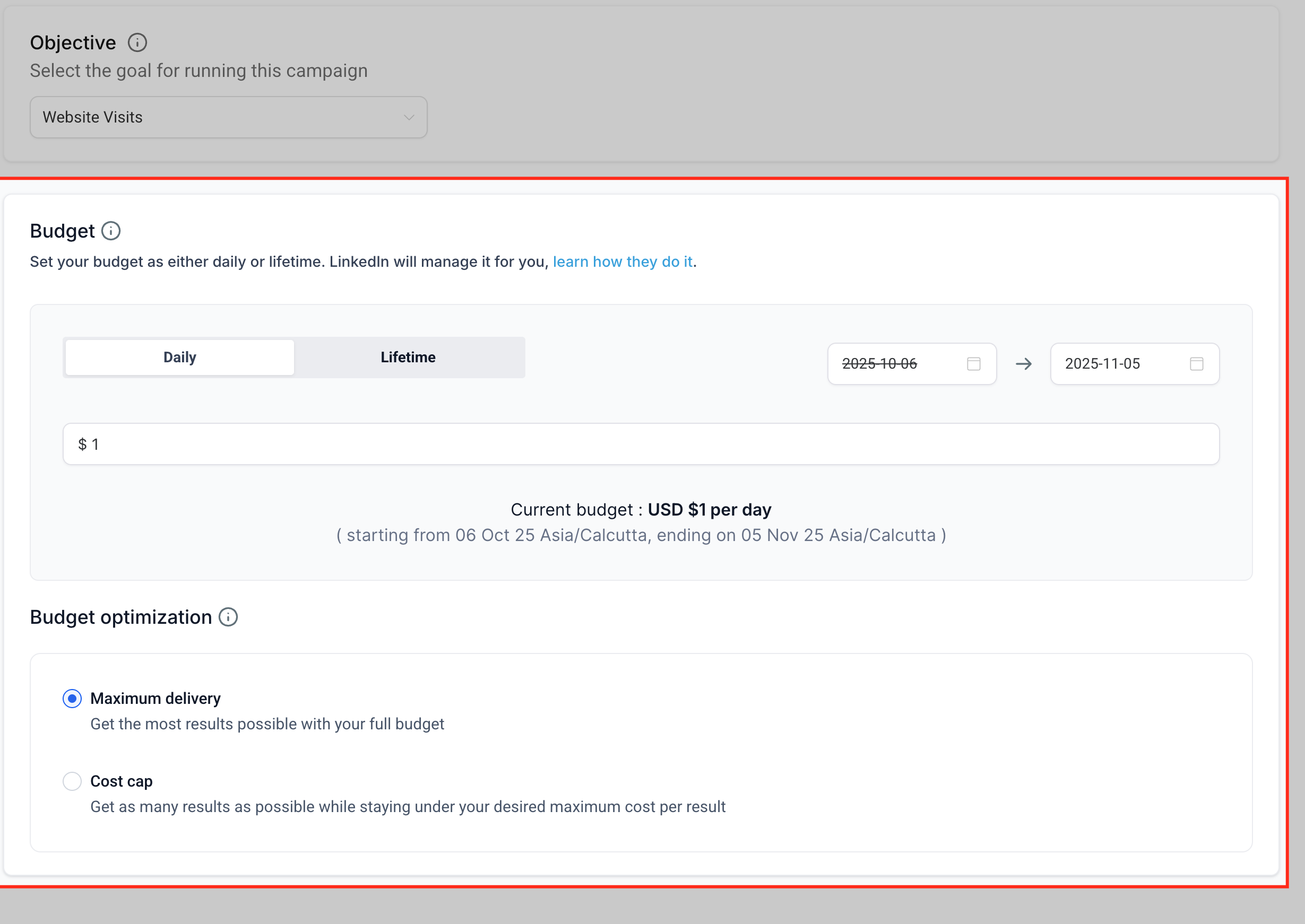
Budget and schedule. Define a daily or lifetime budget for the campaign group, and set start and end dates for the group's run.
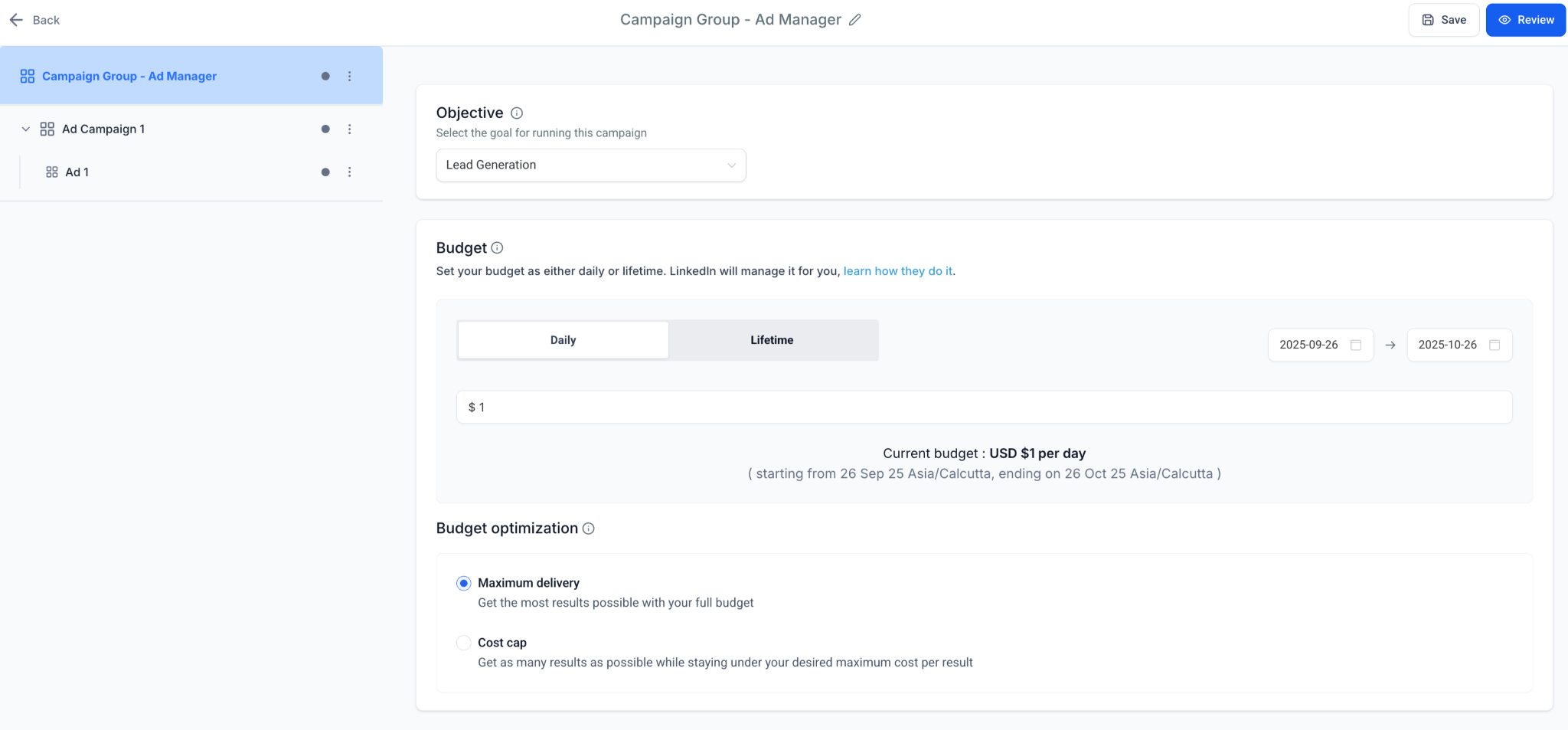
Bidding. Enter a manual bid for Cost Per Lead (Lead Generation) or CPC (Website Traffic). You can also choose an optimization mode such as Maximum Delivery (default) or Cost Cap.
Tip: Campaign groups help you organize campaigns by business goal.
Once the group is created, add one or more campaigns. Fields defined at the campaign level include:
Campaign name: A unique identifier for the campaign.
Media type: Single image, single video, or carousel.
Language.
Geographic location.
Intended audience (optional).
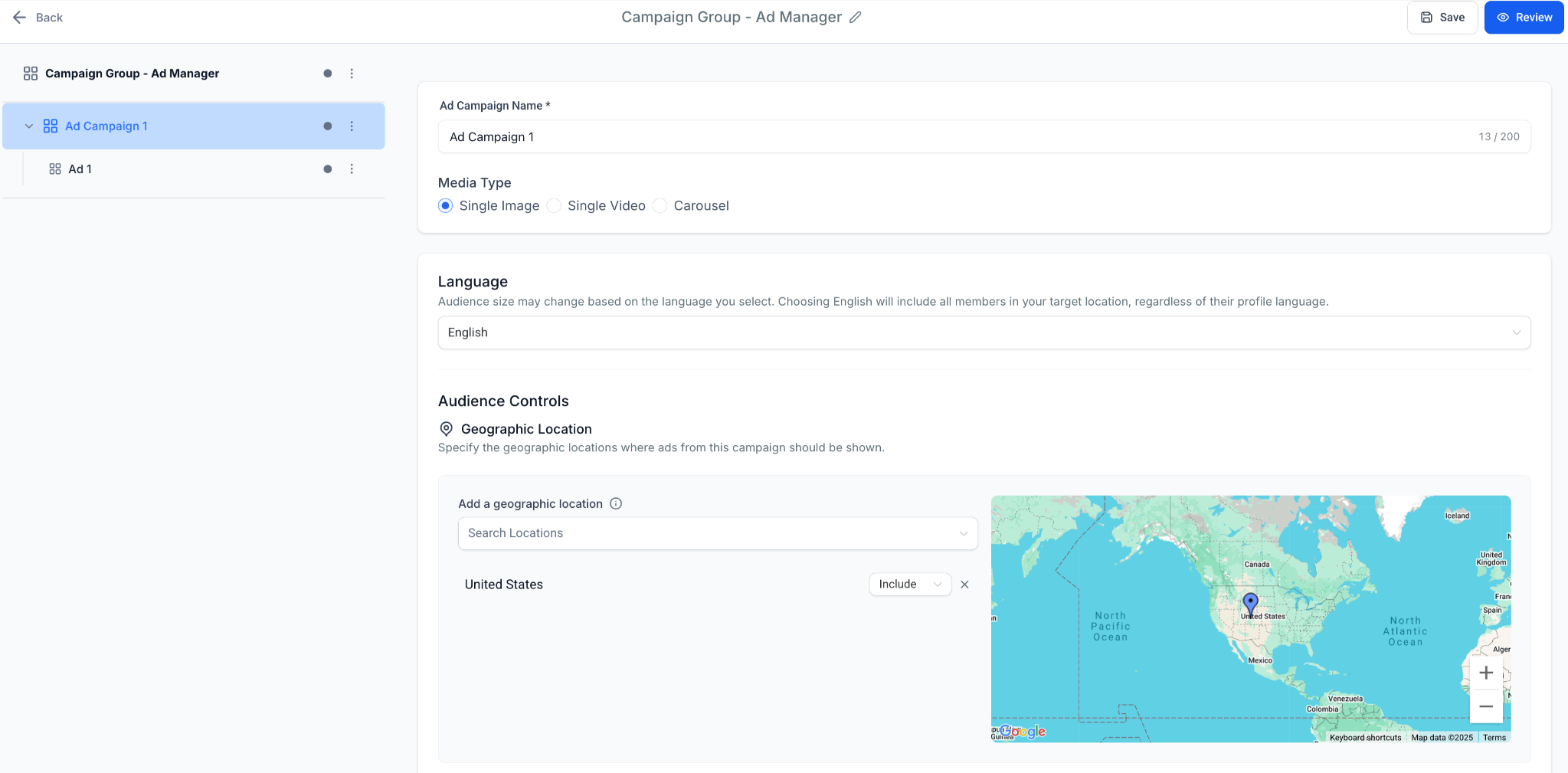
Audience targeting defines who sees your LinkedIn ads. You set a mandatory location, then optionally layer professional attributes with include and exclude rules.
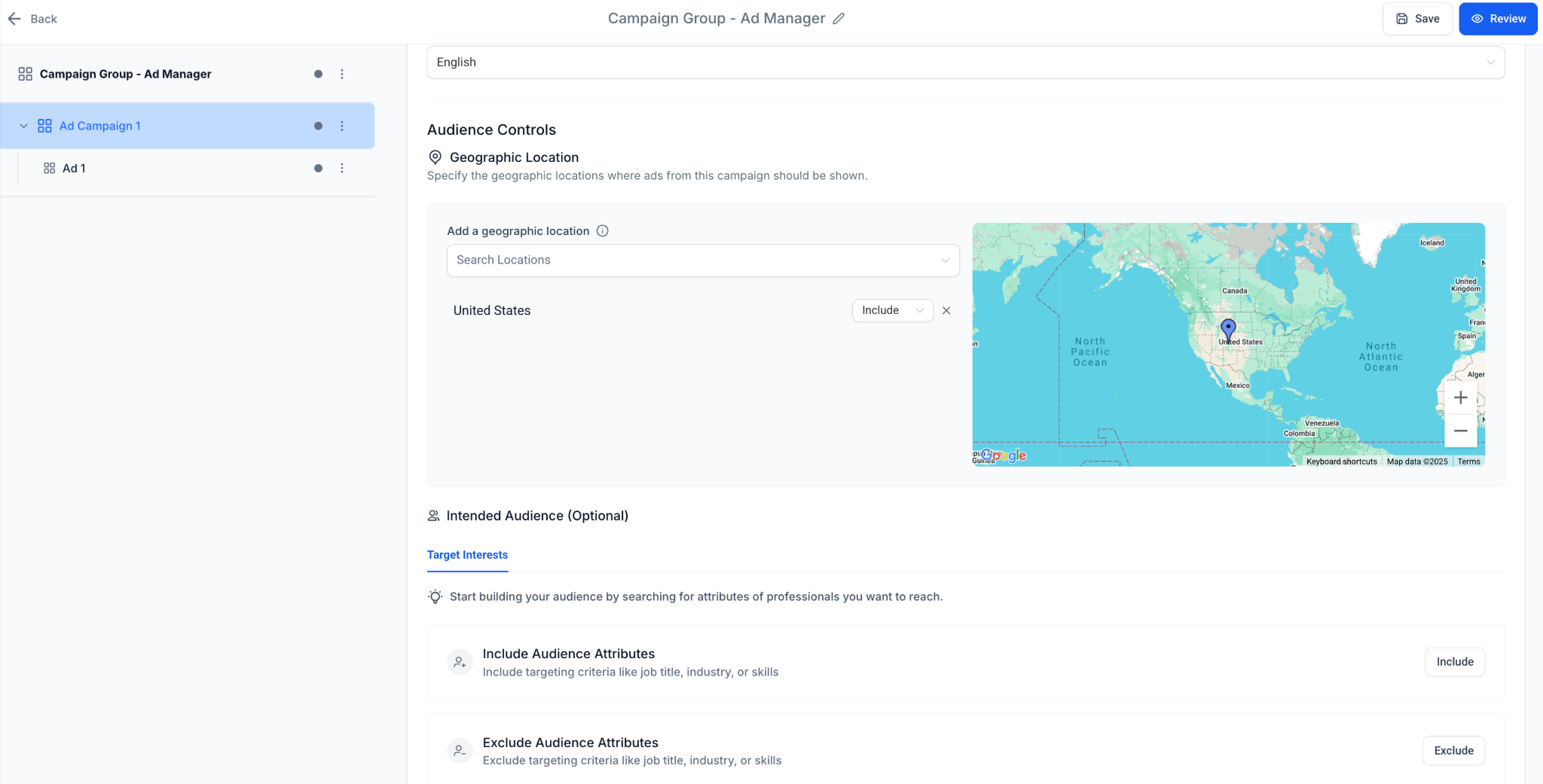
Geographic targeting (mandatory). Every LinkedIn campaign must have at least one geographic location. Search for locations and add them as chips, then use the dropdown next to each chip to toggle Include or Exclude. You can include or exclude countries, states, regions, or cities. Start with broader geographies if your audience pool is small, and narrow down only when you need more precision.
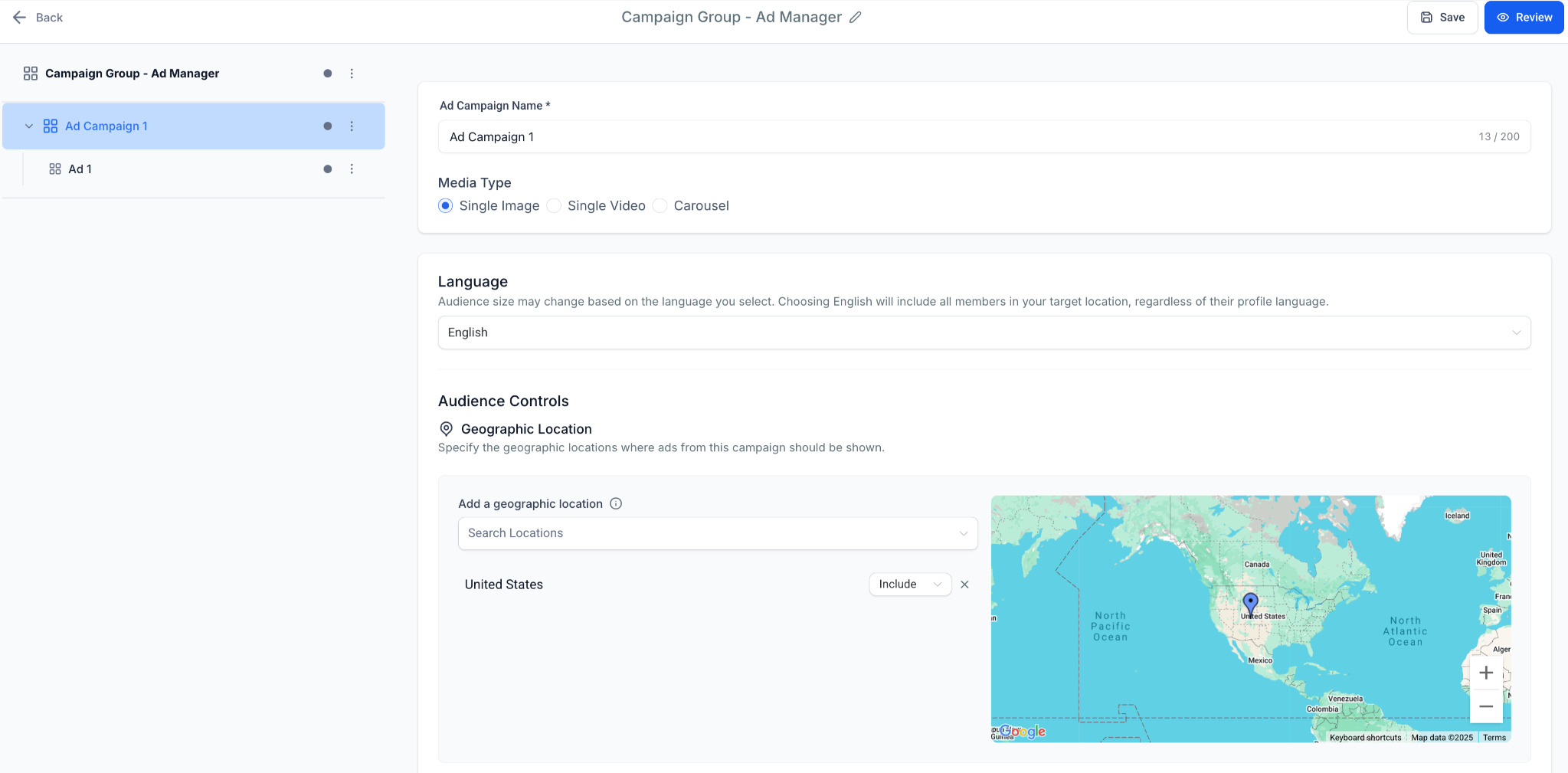
Intended audiences (optional). Beyond location, refine targeting using professional attributes drawn from LinkedIn profiles. Attribute categories include:
Company: Industry, company size, growth lists (for example, Fortune 500).
Demographics: Age, gender (where supported by LinkedIn).
Job experience: Job titles, seniority, job function.
Education: Fields of study, degrees, schools.
Interests and traits: Professional interests and behaviors.
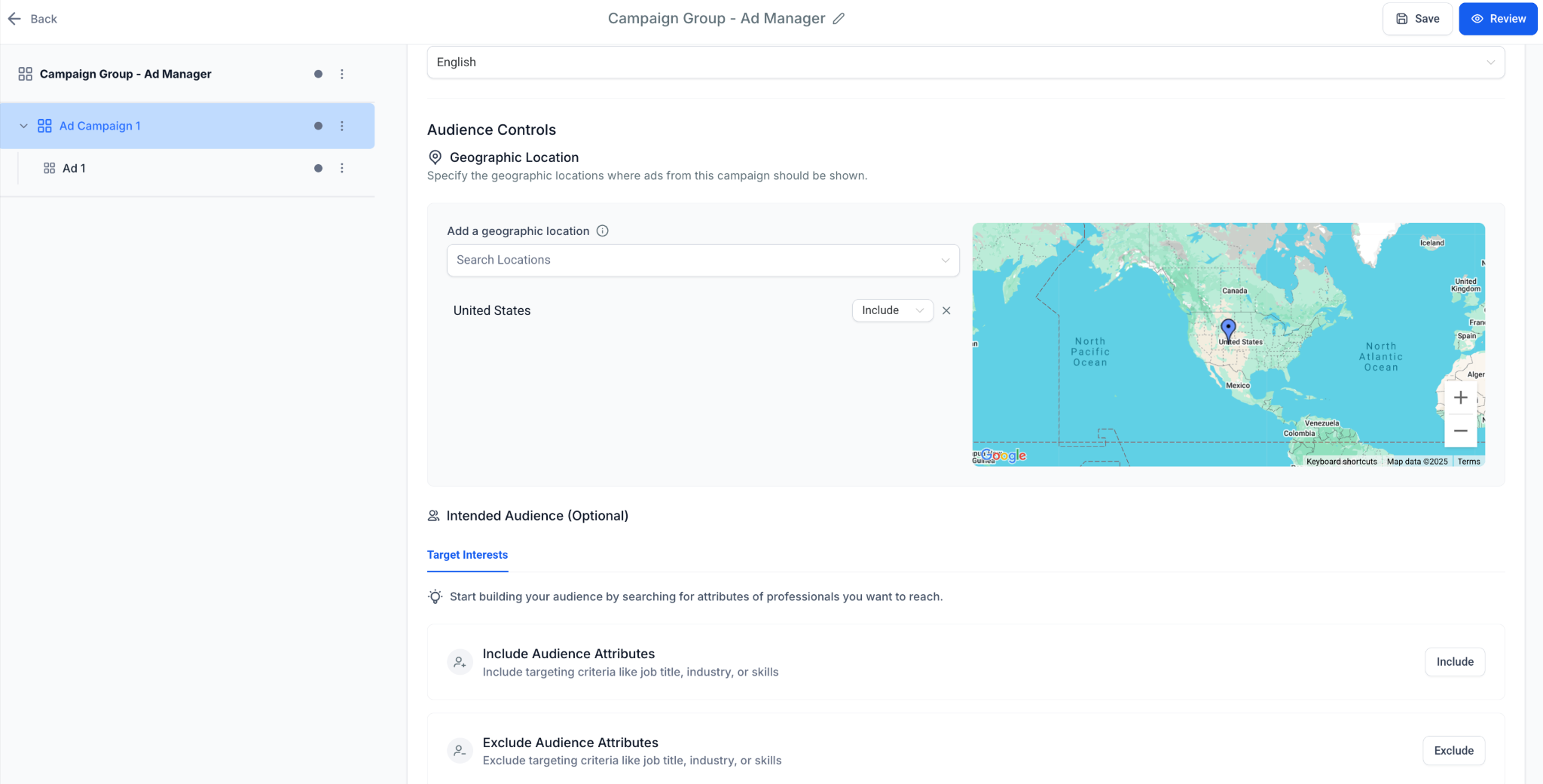
Include and exclude. Each attribute can be included (target these people) or excluded (filter them out). For example, include "Office Managers" in the healthcare industry, and exclude "Interns" or "Students" to refine your reach.
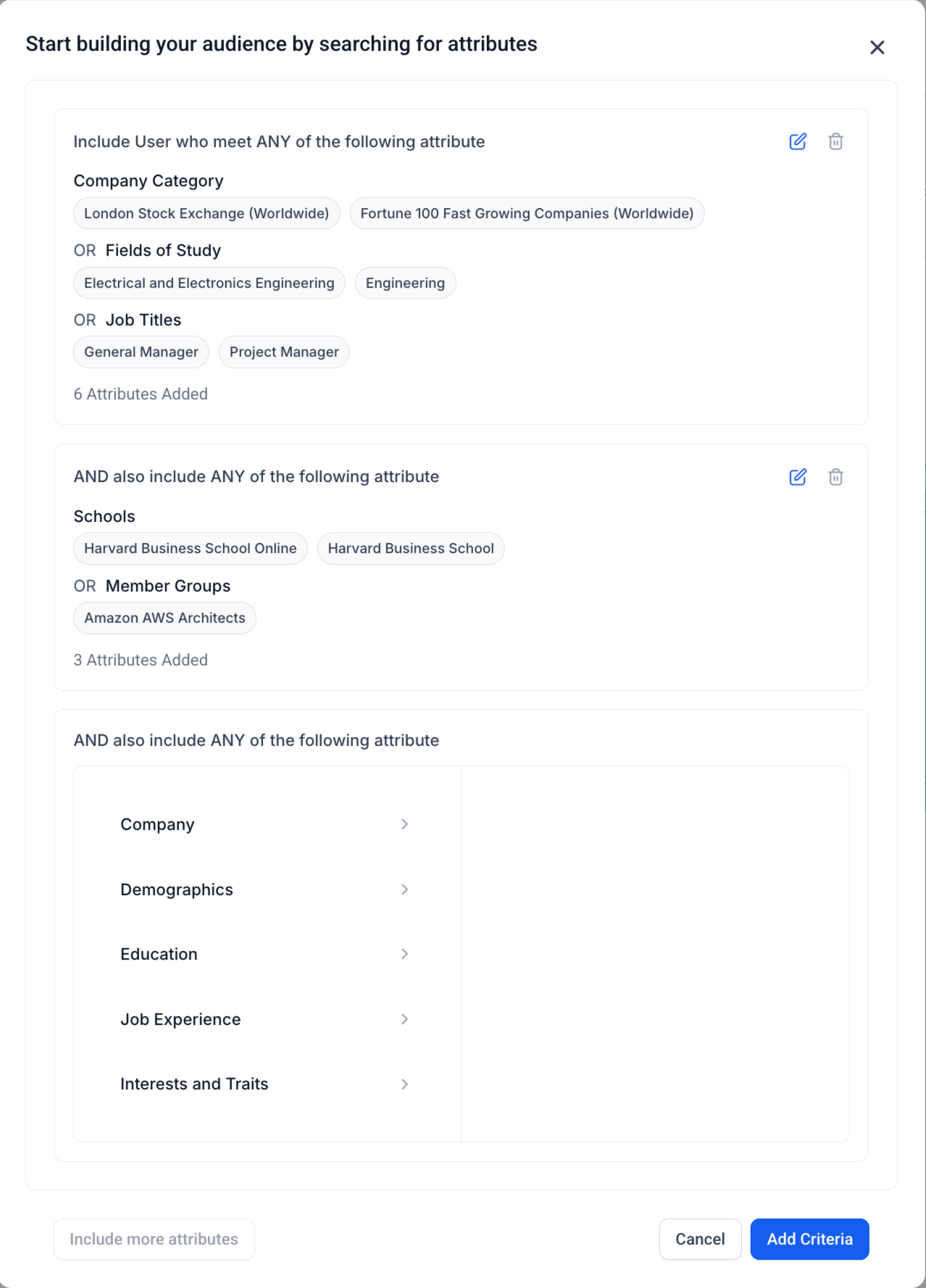
Attribute groups and logic. You can add up to three attribute groups:
Inside a group, attributes use OR logic (for example, Job Title = Office Manager OR Practice Manager).
Between groups, groups use AND logic (for example, (Job Title = Office Manager OR Practice Manager) AND (Industry = Healthcare)).
Include and exclude are both supported.
This lets you layer multiple targeting rules without overcomplicating the setup.
These same audience controls appear as you build the campaign:
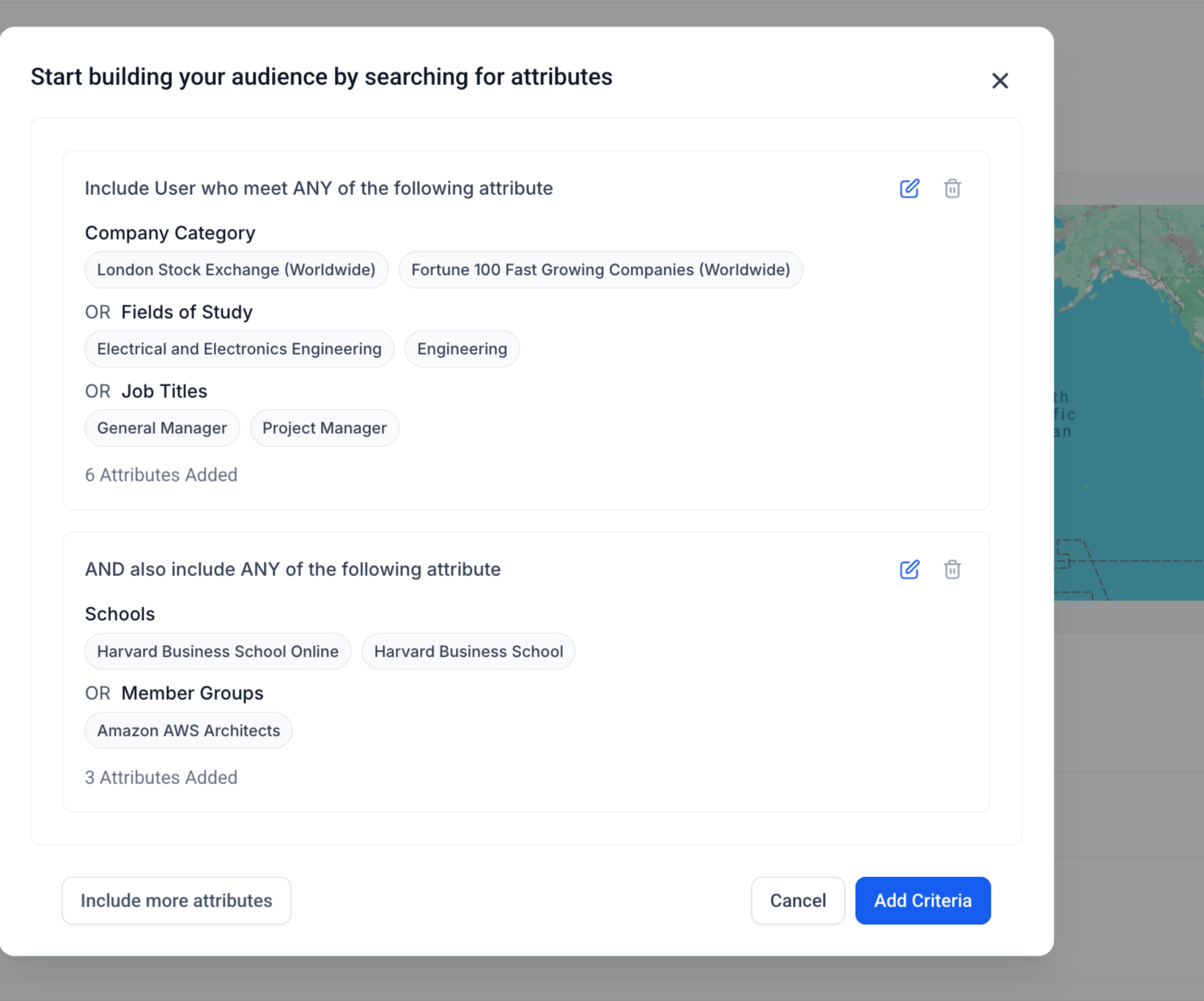
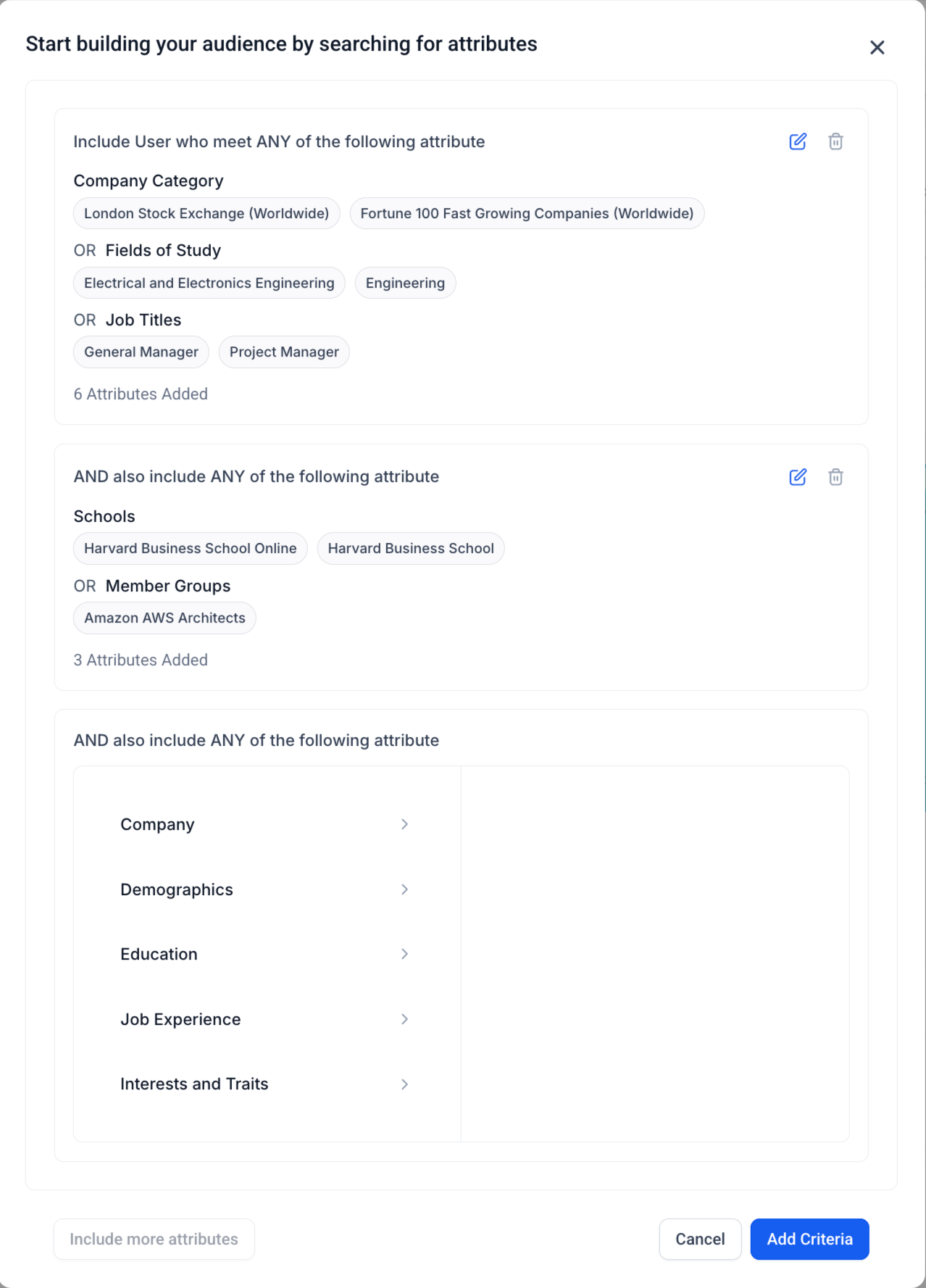
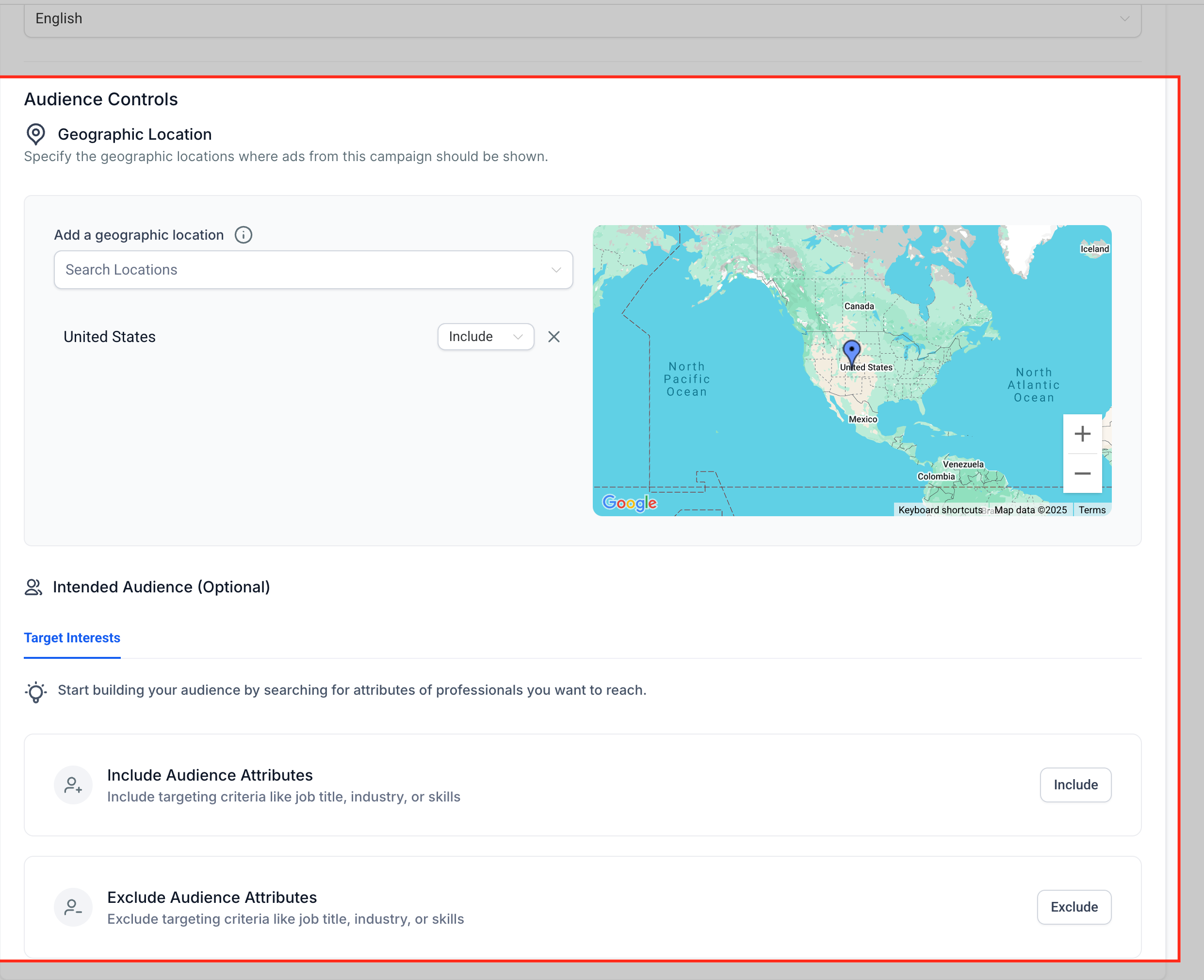
Audience example: Group 1 (include) = Job Title "General Manager" OR "Project Manager" and Field of Study "Business"; Group 2 (include) = School "Local University". Ads reach people who match at least one attribute in Group 1 AND one attribute in Group 2. Aim for an audience of at least 50,000 people for optimal LinkedIn delivery.
Each campaign can contain multiple ads. Choose an ad format and add its creative components. The live preview panel confirms your layout for desktop and mobile before publishing.
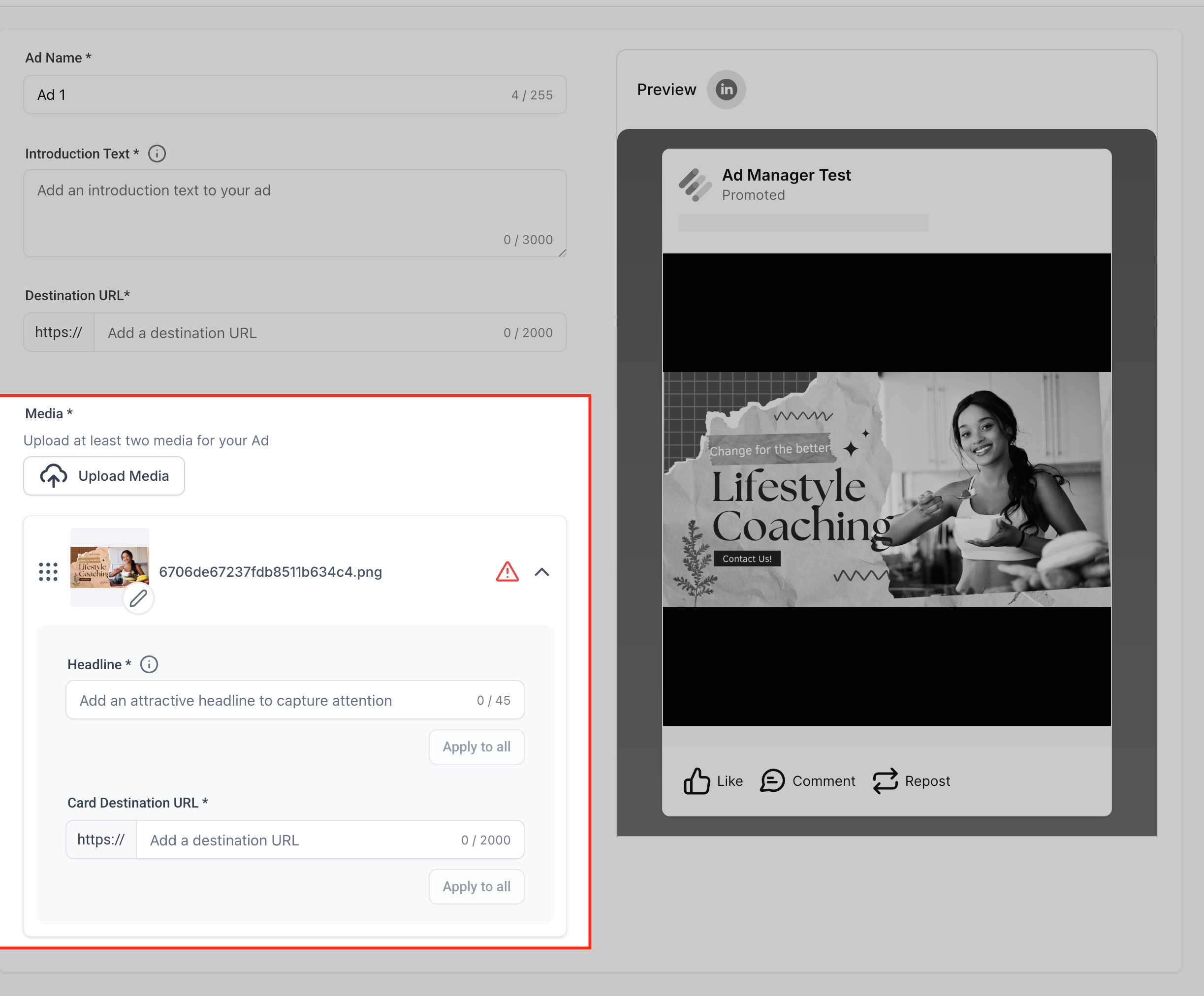
Fields defined at the ad level:
Ad name: An internal identifier.
Media type (chosen at the campaign level):
Single Image Ad: Upload one image.
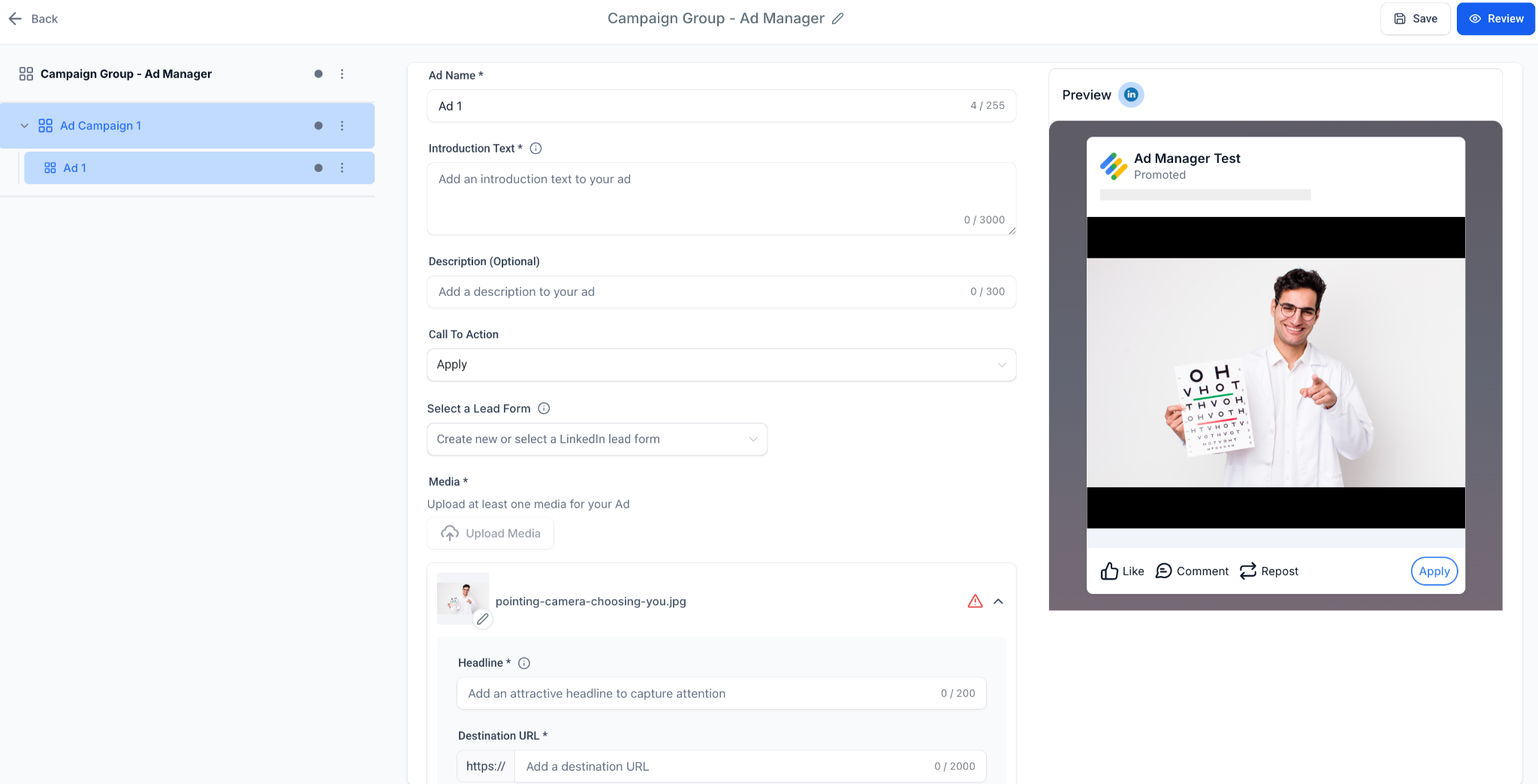
Single Video Ad: Upload a video.
Carousel Ad: Multiple cards, each with its own headline, image or video, and destination URL.
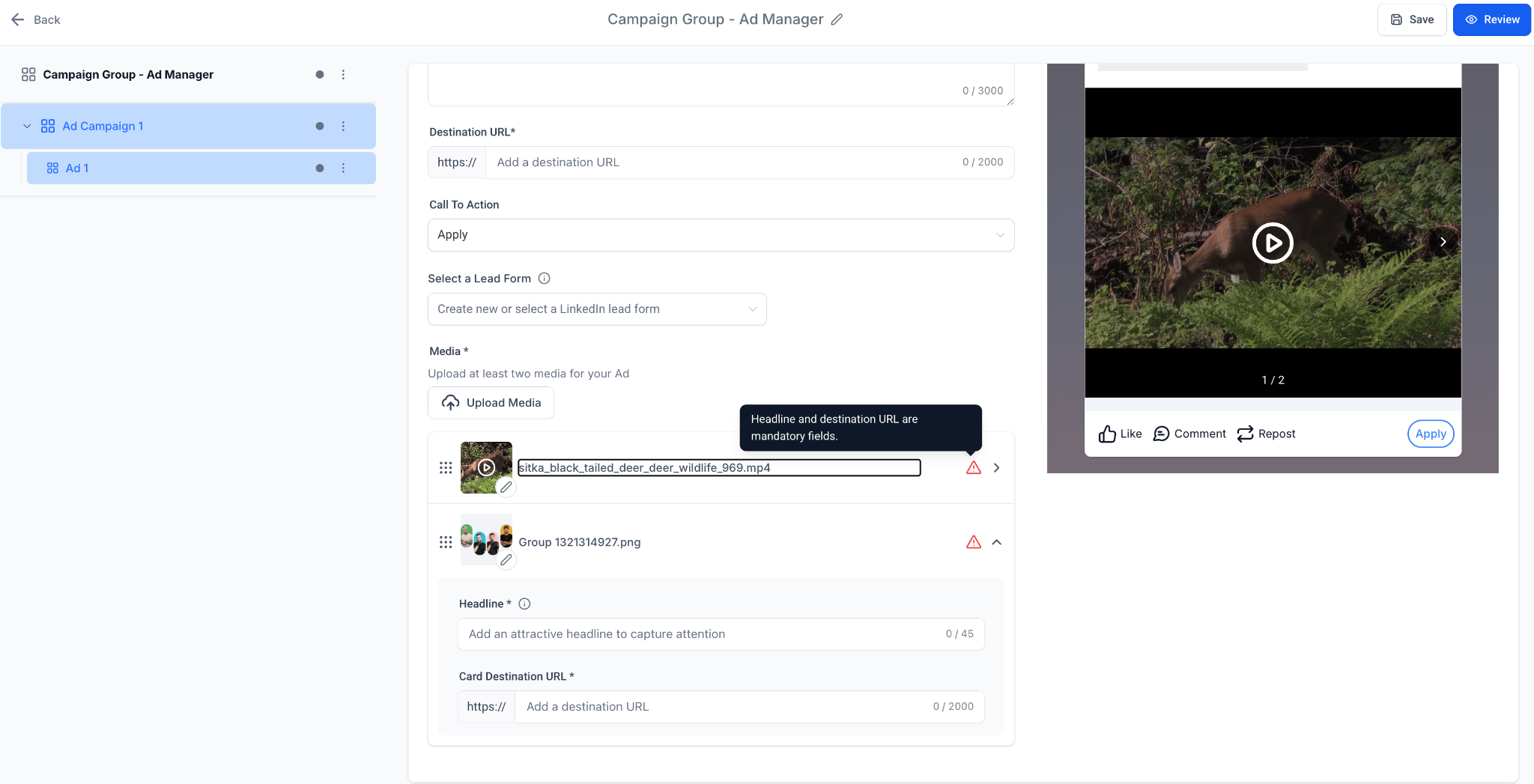
Creative fields:
Introduction text: Up to 3,000 characters.
Headline: Up to 70 characters (required).
Description: Up to 300 characters (optional).
Call to action: Choose from LinkedIn's CTA list (Learn More, Download, Apply, and others).
Destination URL: Required for all ads. Ad Manager automatically prepends https:// if it is missing.
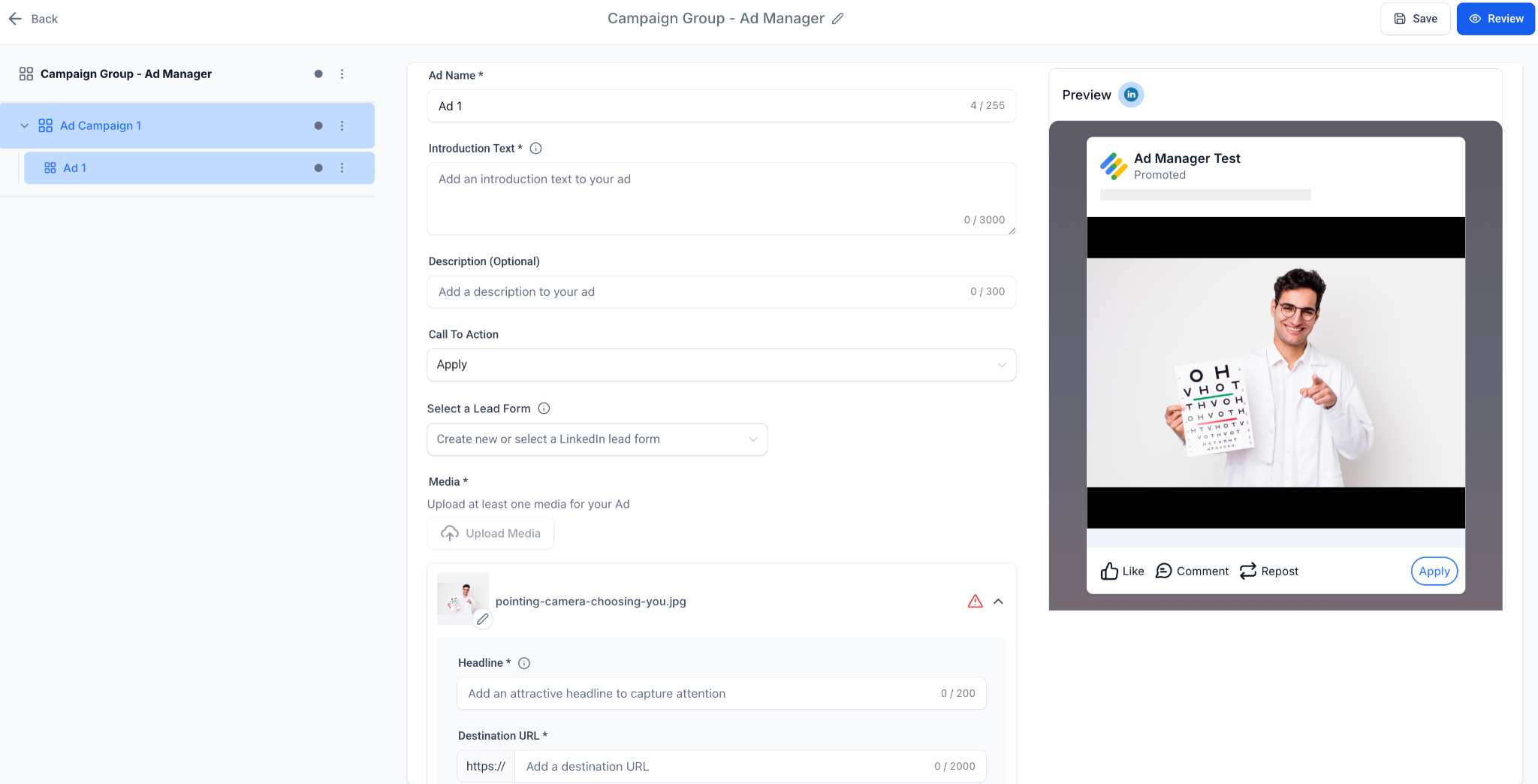
When your objective is Lead Generation, you attach a LinkedIn Lead Gen Form so people can submit their details without leaving LinkedIn. Key settings include:
Form name: Auto-generated and editable.
Headline and description: Shown prominently on the form.
Pre-filled fields: Up to 12 (Name, Email, Job Title, and others).
Custom questions: Up to 3 (short answer or multiple choice).
Hidden fields: Up to 20 (UTM tags, campaign IDs).
Privacy section: A required privacy policy URL plus optional disclosure text.
Consent checkboxes: Up to 5.
Confirmation page: A thank-you message plus an optional CTA (Visit Website, Download, Call).
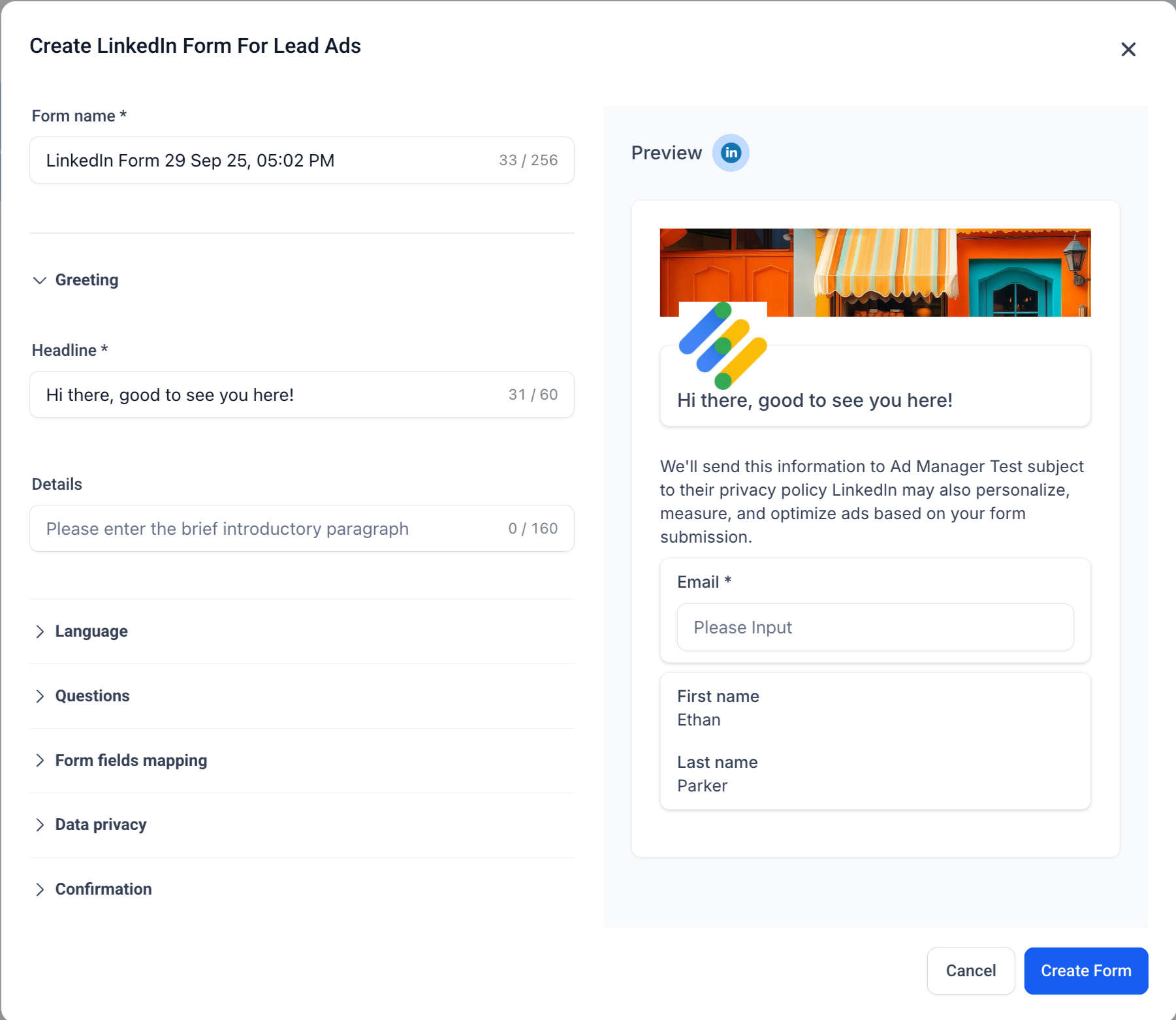
For the full step-by-step form builder, see the "LinkedIn Lead Forms in Ad Manager" guide.
Set and adjust budget and scheduling from Ad Manager to match your financial and timing goals.
Set a daily or lifetime budget at the campaign group level.
Choose an optimization mode: Maximum Delivery (default) or Cost Cap.
Launch immediately, or set specific start and end dates for a scheduled promotion.
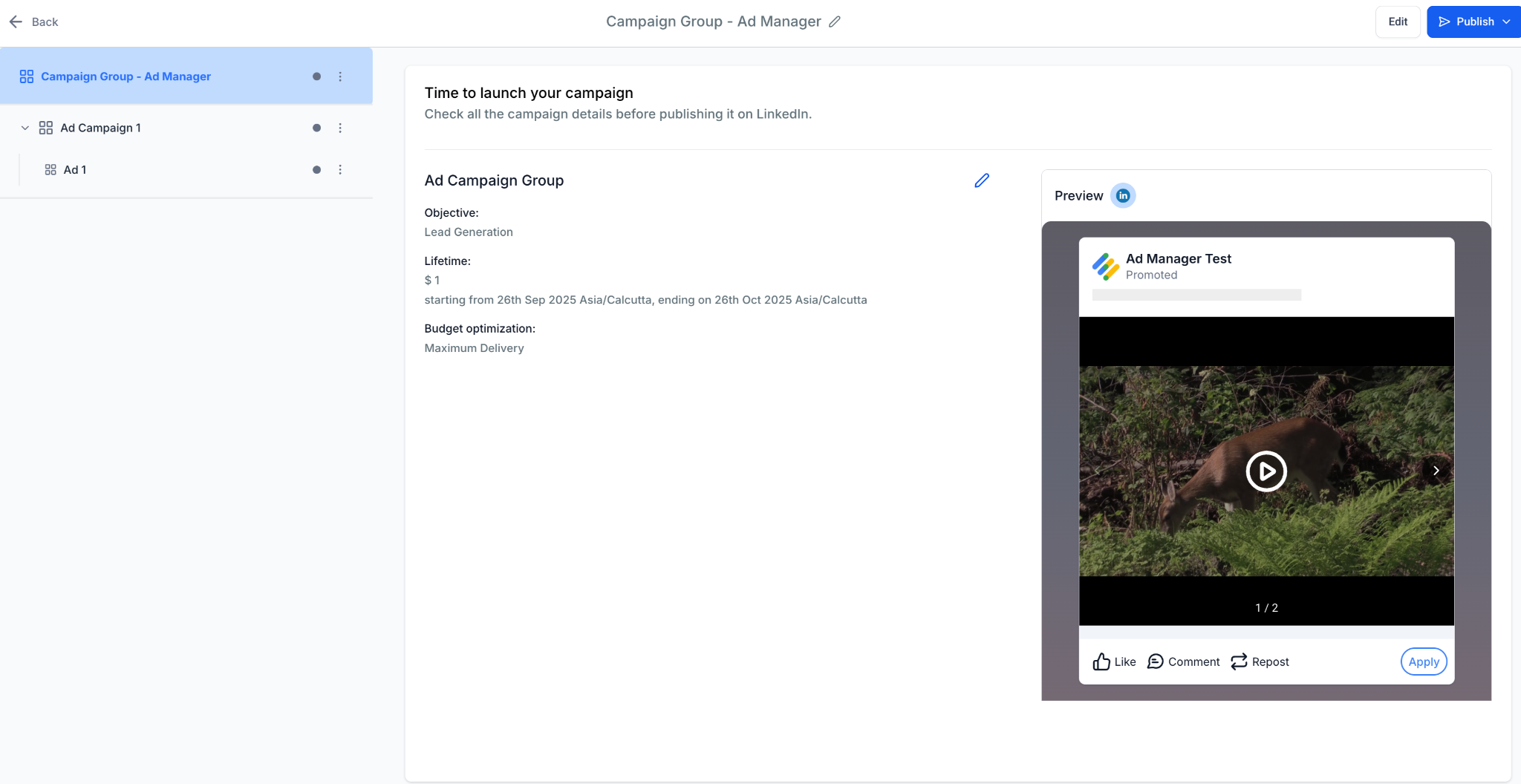
Before launching, you land on the Review and Publish screen, which shows:
Campaign objective, budget, schedule, and optimization mode.
A full creative preview (desktop and mobile).
Validation that confirms URLs are valid, budgets meet LinkedIn's minimums, and required fields are filled.
Click Publish. Ad Manager pushes your campaign to LinkedIn Campaign Manager and begins tracking results.
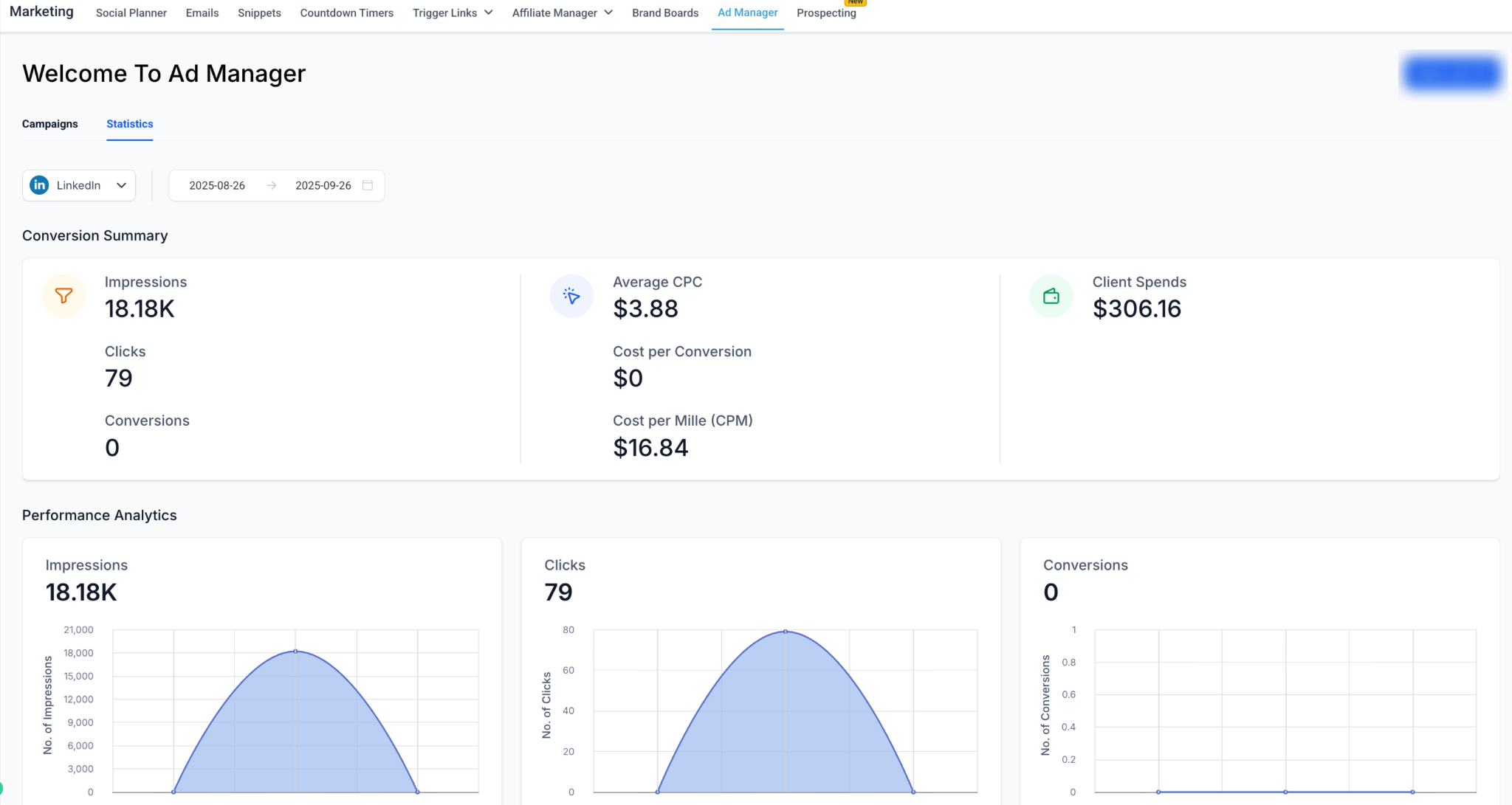
The performance dashboard lets you monitor and manage all active LinkedIn campaigns from one screen. Go to Ad Manager > Statistics > LinkedIn. From there you can:
Track metrics such as Impressions, Clicks, CTR, CPC, CPM, CPL, Leads, Spend, and Conversions.
Drill down from Campaign Group to Campaign to Ad level for deeper insight.
Pause, resume, or edit campaigns directly from the dashboard.
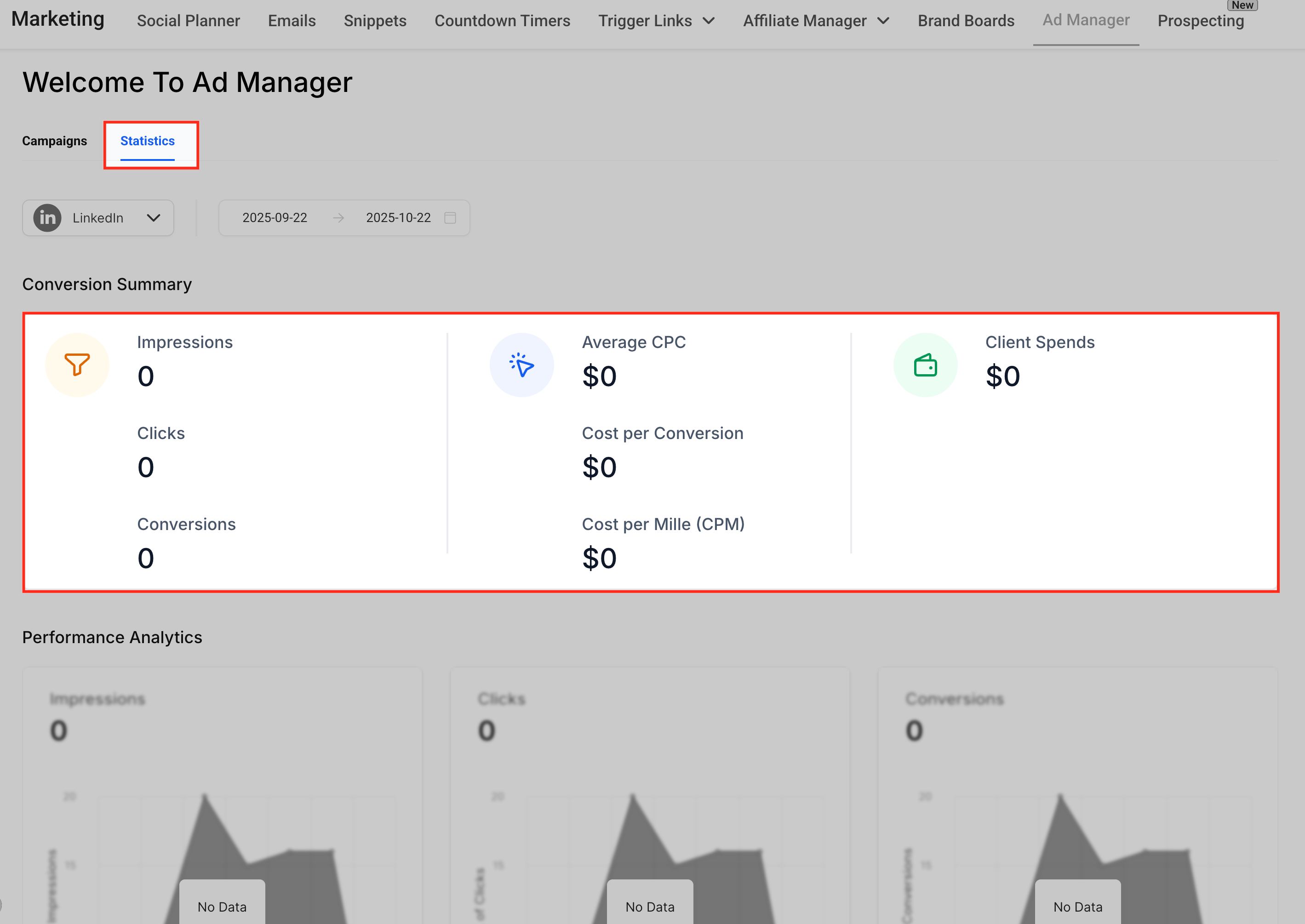
The Statistics tab tracks your LinkedIn performance alongside your Meta and Google campaigns, at every level from campaign groups down to individual ads.
Where to find LinkedIn statistics. Go to Marketing > Ad Manager > Statistics, select LinkedIn from the platform dropdown, then choose a date range for the window you want to analyze.
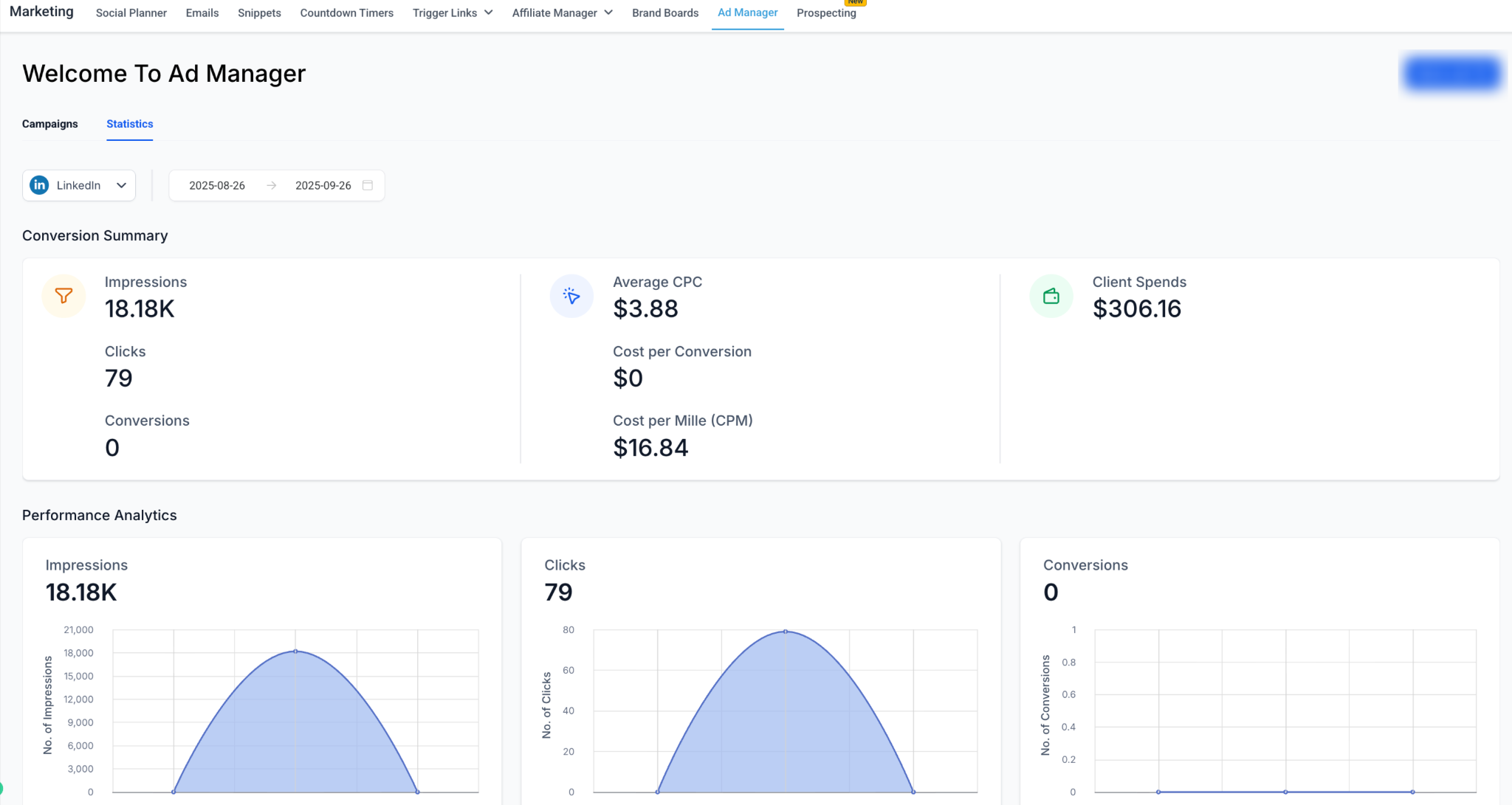
Statistics hierarchy. LinkedIn data mirrors LinkedIn's own campaign structure, so you can drill down Campaign Group > Campaign > Ad:
Campaign Group is equivalent to a Meta campaign or Google campaign.
Campaign is equivalent to a Meta ad set or Google ad group.
Ad is equivalent to a Meta ad or Google ad.
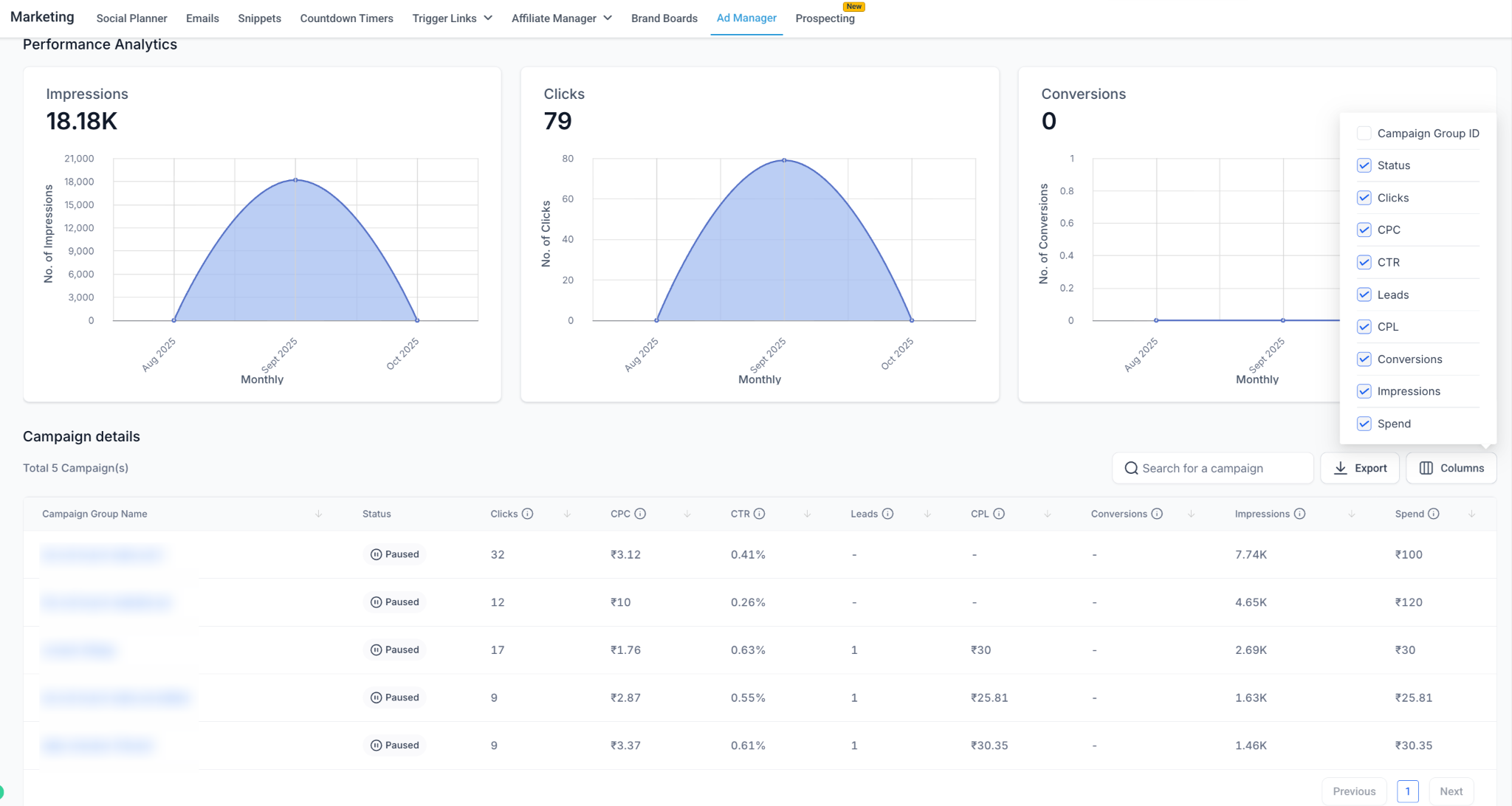
Metrics overview. Across campaign groups you can review:
Impressions: Total times your ads were displayed.
Clicks: Number of ad clicks.
Conversions: Actions taken (form submissions or website goals).
Spend: Total spend in your local currency.
Average CPC: Cost per click.
CPM: Average cost per 1,000 impressions.
Cost per Conversion (where applicable).
Trend graphs visualize impressions (reach), clicks (engagement), and conversions (lead submissions or website goals) over time.
Detailed metrics tables. Each level (Group, Campaign, Ad) includes a detailed table with columns for Status (Active, Paused, In Review), Spend, Impressions, Clicks, CTR (Clicks / Impressions), CPC (Spend / Clicks), CPM (Spend / Impressions x 1,000), Leads (Lead Generation only), CPL (Spend / Leads), Conversions (Website Traffic only), and Cost per Conversion (Spend / Conversions).
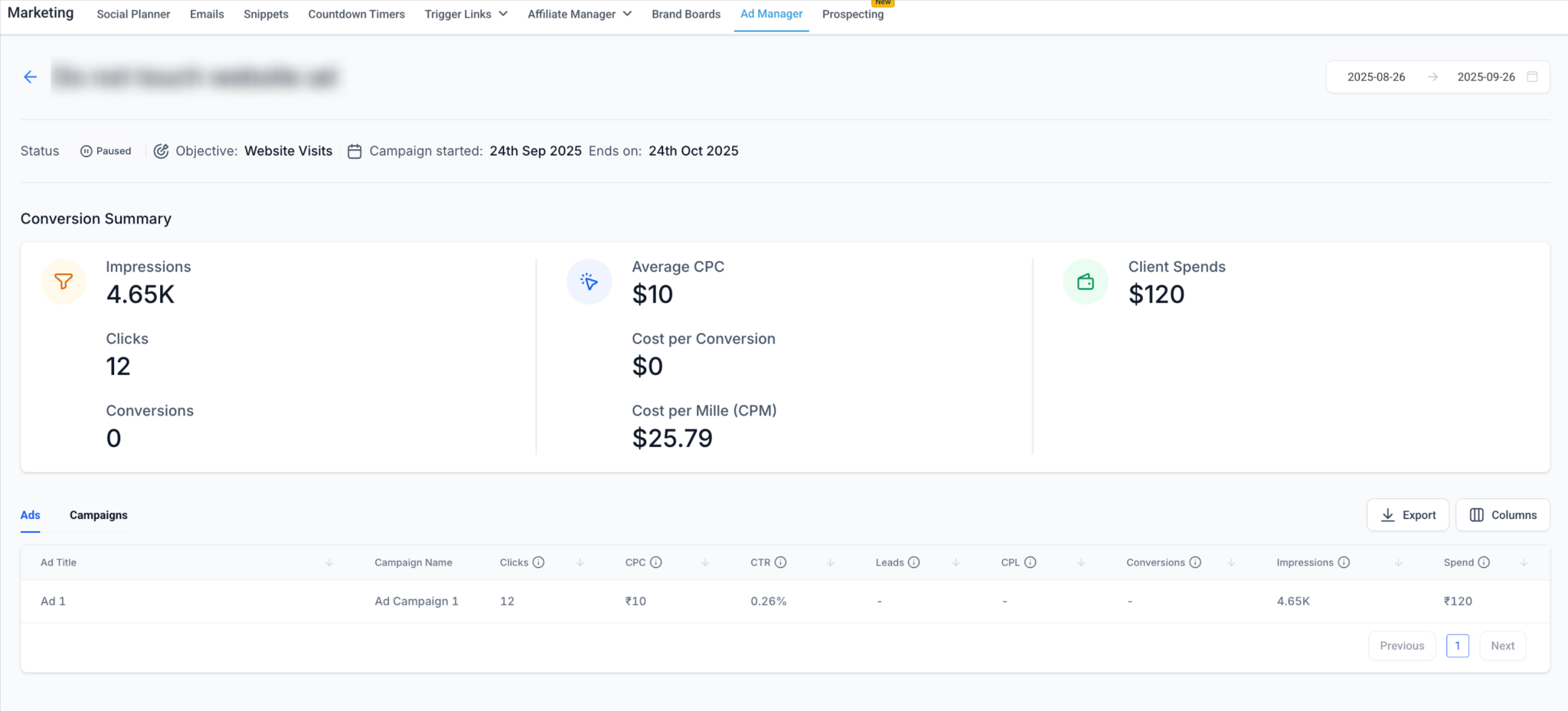
Metrics by objective:
Lead Generation campaigns focus on form submissions: Leads (completed forms), CPL, and Conversion Rate (Leads / Clicks), plus Status, Spend, Impressions, Clicks, CTR, CPC, and CPM.
Website Traffic campaigns focus on website actions: Conversions (post-click actions such as sign-ups or downloads) and Cost per Conversion, plus the same core metrics.
You can also view campaign group performance directly after publishing:
Campaign Group level: Spend, Impressions, Clicks, CTR.
Campaign level: Conversions, audience effectiveness, CPL.
Ad level: Creative performance (CTR, CPC, CPL, Conversions).
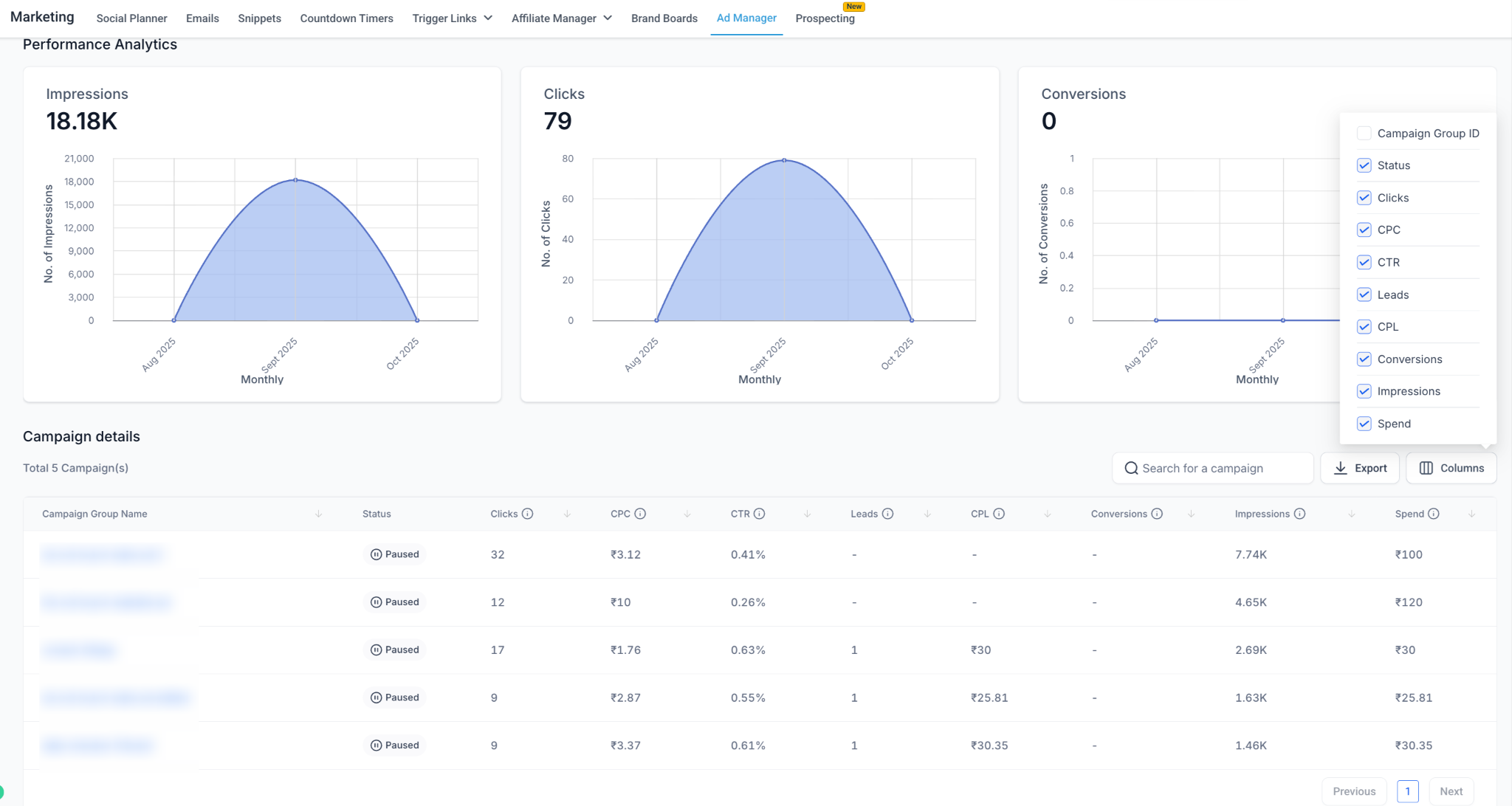
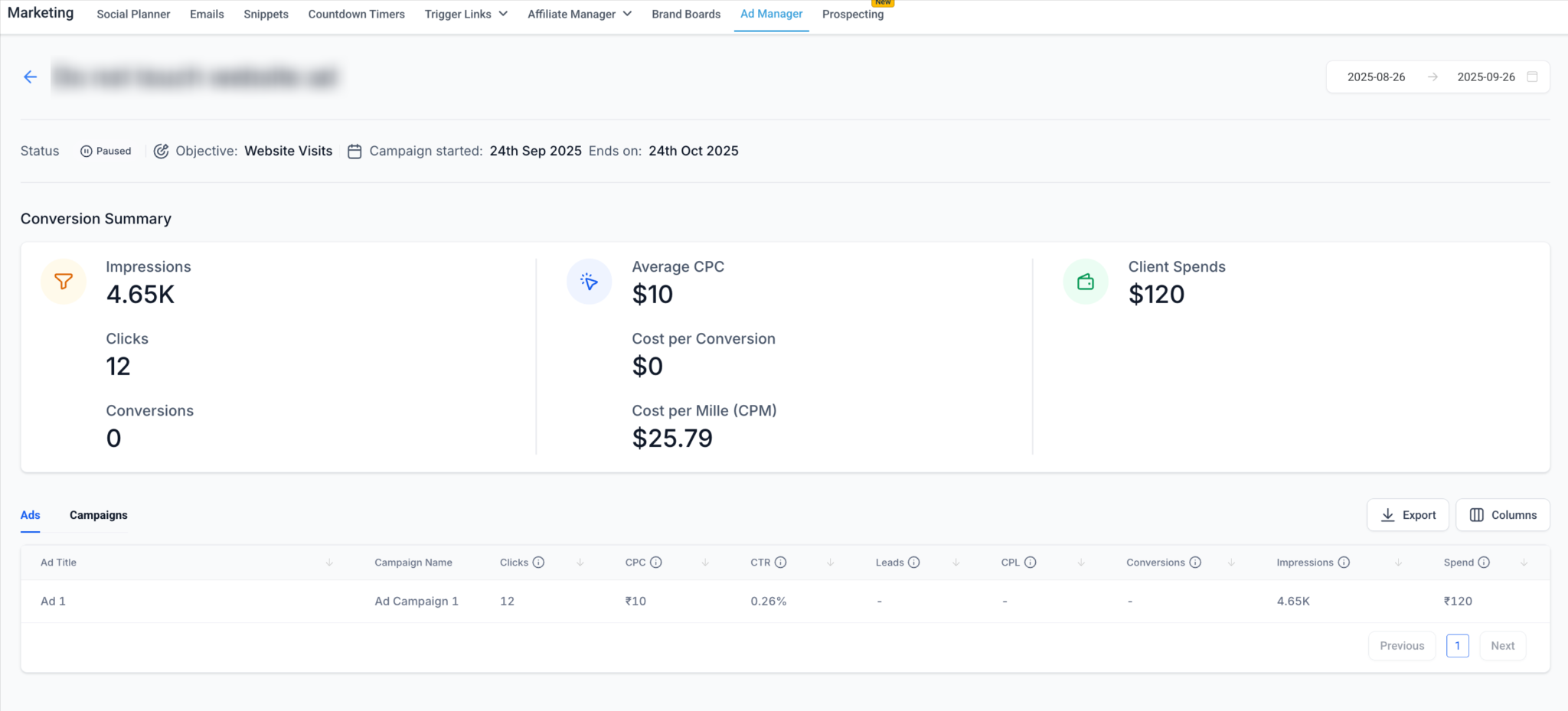
Use the Columns button to add or remove metrics, and the Export button to generate spreadsheets for deeper reporting. Ads in an "In Review" status will not deliver until LinkedIn approves them.
LinkedIn Lead Gen Forms collect contact details directly from LinkedIn users, which is fine. If you ever build a matched or custom audience by uploading a patient contact list, only do so with patient consent and in line with your practice's HIPAA policies. Uploading emails or phone numbers shares those identifiers with LinkedIn, which hashes and uses the data. Never upload treatment details or other protected health information beyond basic contact identifiers.
Organize campaigns by business objective (for example, awareness versus lead gen).
Keep each campaign focused on a single audience definition.
Run multiple ads per campaign to compare creatives.
Start broad, then refine with filters. Avoid overusing Exclude, which can shrink your audience too much.
Use OR within groups for flexibility and AND across groups for precision.
For Lead Generation, shorter forms tend to convert better.
For Website Traffic, always enable UTM tagging so your analytics stay clean.
Aim for an audience of at least 50,000 people for optimal delivery.
Use a campaign template when you want to reuse a proven, pre-filled setup instead of building a campaign from scratch.
To automatically route new LinkedIn leads into nurtures or notify your team, use the LinkedIn Lead Form Submitted trigger in Workflows. TikTok, Google, and Meta campaigns follow the same overall Ad Manager flow; see the "Create an Ad Campaign" guide for the Meta walkthrough.
Do I need admin access on the LinkedIn Page to connect the ad account? Yes. You need Campaign Manager access (or higher) to the ad account, and the Company Page must already be linked to that ad account.
Can I connect multiple LinkedIn ad accounts? Yes. You can connect multiple accounts and switch between them under Ad Manager > Settings > LinkedIn.
Where do LinkedIn leads appear inside Aesthetix CRM? Leads from LinkedIn Lead Gen Forms appear automatically under Contacts with the source "LinkedIn Ads."
Why does the LinkedIn permission screen say LeadConnector? LeadConnector is the underlying provider that powers the connection between Aesthetix CRM and LinkedIn, so LinkedIn shows that name on its consent screen. It is expected and safe. Approve all the permissions to finish connecting.
My LinkedIn account is not appearing. What should I check? Verify that you have admin-level permissions on the ad account and that it is linked to a valid Company Page, then reconnect.
Are carousel ads supported for all objectives? Yes. The carousel format is available for both Lead Generation and Website Traffic campaigns.
What happens if my LinkedIn ad is disapproved? The ad's status shows as "Rejected" in Ad Manager, along with LinkedIn's feedback so you can adjust and resubmit. Ads in "In Review" will not deliver until LinkedIn approves them.
Can I disconnect and reconnect my LinkedIn account? Yes. Click the bin icon under Settings > LinkedIn to remove or reconnect an account.
Can I create a LinkedIn campaign from a template instead of building it from scratch? Yes. Select Ad Manager Templates, choose a LinkedIn template, review its details, and click Continue. The campaign's supported settings are pre-filled from the template, so you can review and adjust them before publishing.
