Google Lead Ads have a native integration with Aesthetix CRM, the same as Facebook, Instagram, TikTok, and LinkedIn lead forms. Once you connect your Google Ads account and map your lead-form fields, every submission from a Google Lead Form becomes a contact in Aesthetix CRM in real time. No manual uploads, no exports, and no third-party automation tools are required.
This matters for a busy practice because Google lead forms let a prospect request a consultation directly inside a Google Ad, without leaving the search results or clicking through to a landing page. When that lead lands in your CRM the moment they hit Submit, a workflow can text or email them back within seconds, while their interest in your Botox promo or laser consult is still fresh.
The integration links your Google Ads account to Aesthetix CRM through a secure, OAuth-based connection. Once it is active:
Leads submitted through an enabled and mapped Google Lead Form are created as contacts in Aesthetix CRM automatically.
Form details are exposed to your automations, so the Google Lead Form Submitted trigger can start a workflow the instant a prospect submits.
You can connect multiple Google Ads accounts under a single Google (Gmail) login and manage all of their campaigns and lead forms in one place.
To connect successfully, you need a Google (Gmail) account that already has access to the Google Ads account you want to link. If your Google login does not have the right permissions on the ad account, the account and its lead forms will not appear during setup. If your practice runs ads through an agency or a separate marketing login, use the Google account that manages those campaigns.
Go to Settings and open Integrations.
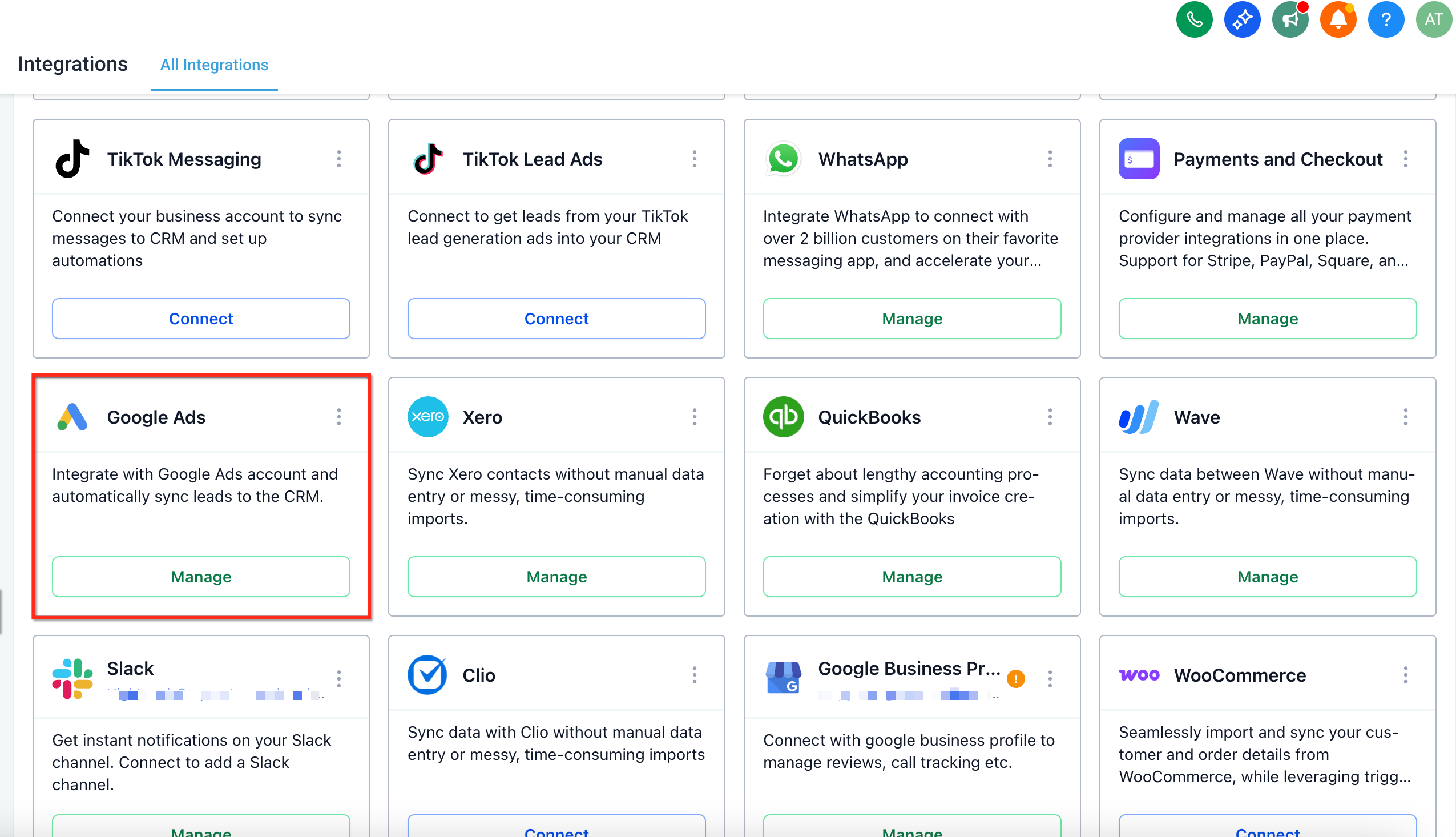
Click Manage under the Google Ads integration. You will be taken to the app description page. Click Install to proceed.
You will be prompted to sign in with your Google account through OAuth authorization. During this step you may see a consent screen that references LeadConnector, our underlying integration provider. This screen is expected and safe to approve. It is the connection Aesthetix CRM uses behind the scenes to sync your Google leads.
After you authenticate, select the Google Ads accounts you want to connect for lead syncing.
Once connected, every lead form tied to your selected ad accounts appears in Aesthetix CRM, along with its campaign name and status. Click the Play icon next to a form to map it and turn on lead syncing.
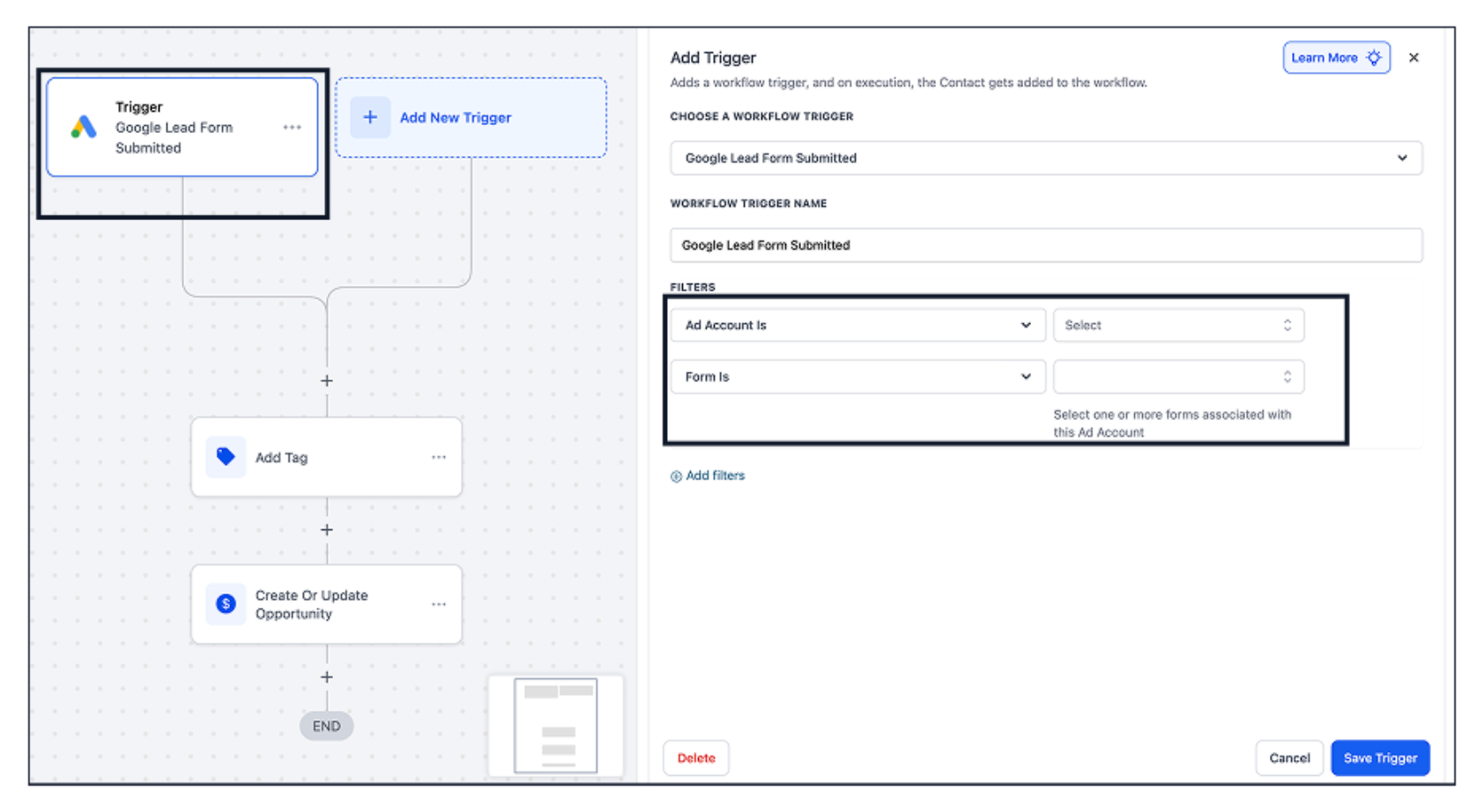
Set up a workflow that uses the Google Lead Form Submitted trigger so your practice responds automatically whenever a new lead comes in. You can send an instant SMS or email, notify your front desk, add the contact to a nurture, or create an opportunity in your pipeline. Triggers, filters, and follow-up actions all live in the Workflows collection.
Mapping tells Aesthetix CRM which Google lead-form answer belongs in which contact field, so captured leads sync cleanly into your contacts, workflows, and pipelines.
Click the Play or Edit icon for the form you want to sync leads from.
Use the Map Fields button to align each Google Ad Form field (for example, Name, Email, Phone, and any custom questions) with the matching Aesthetix CRM contact field.
To stop inbound leads from a form, click the Pause icon. This pauses syncing without removing the form.
When you build your workflow, the Google Lead Form Submitted trigger supports filters such as Ad Account and Lead Form. Use these to route leads from different campaigns into different follow-up paths. For example, you might send leads from a "Botox Event" form into an event-reminder nurture and leads from a "New Patient Consult" form to a coordinator for a callback. Building and filtering these triggers is covered in the Workflows collection.
Before you rely on the integration for live campaigns, send a test submission from Google Ads and confirm the contact appears in Aesthetix CRM.
In your Google Ads Manager, navigate to the campaign you want to sync with Aesthetix CRM.
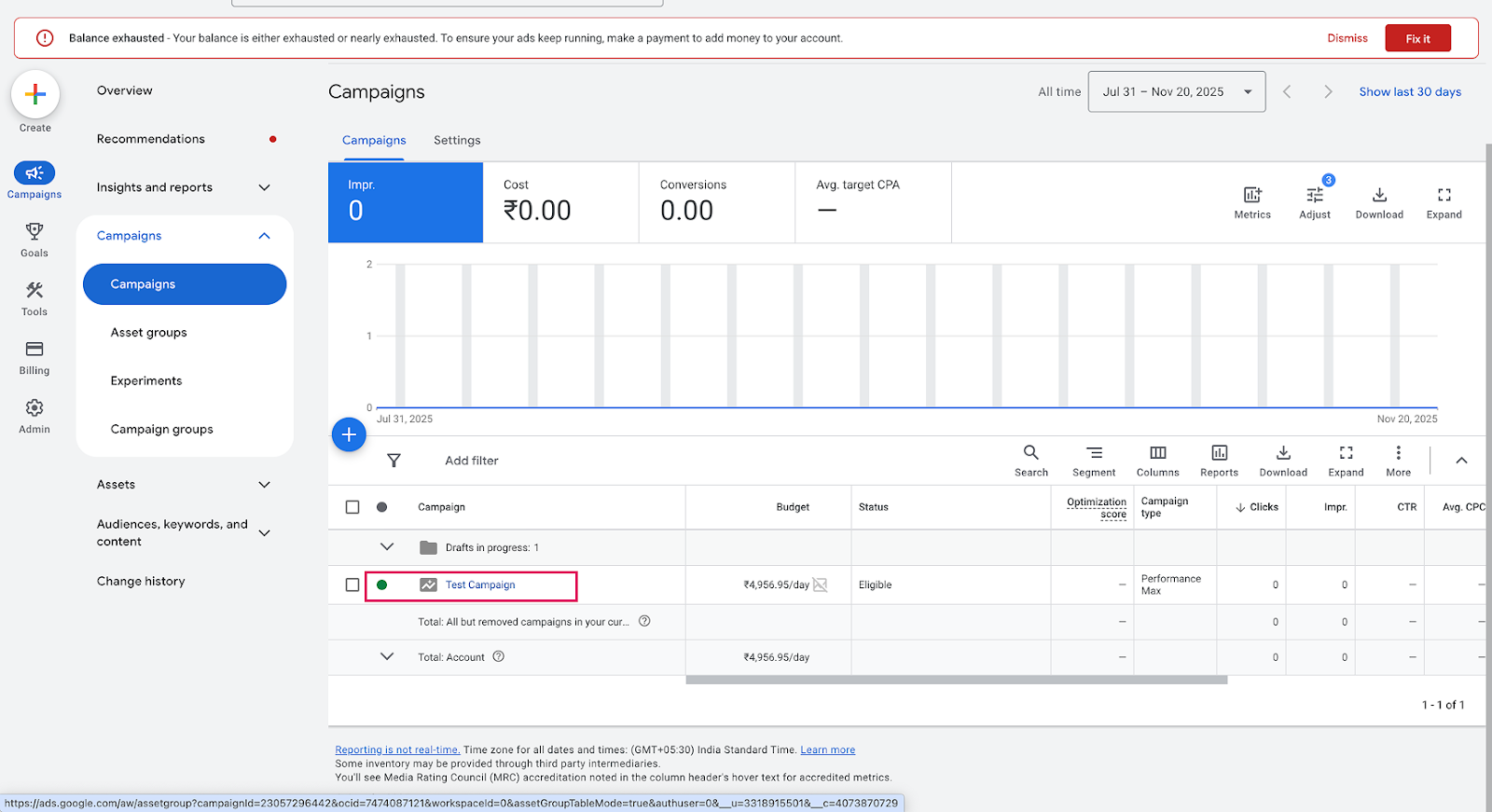
From the campaign list view, click the campaign name to open its details.
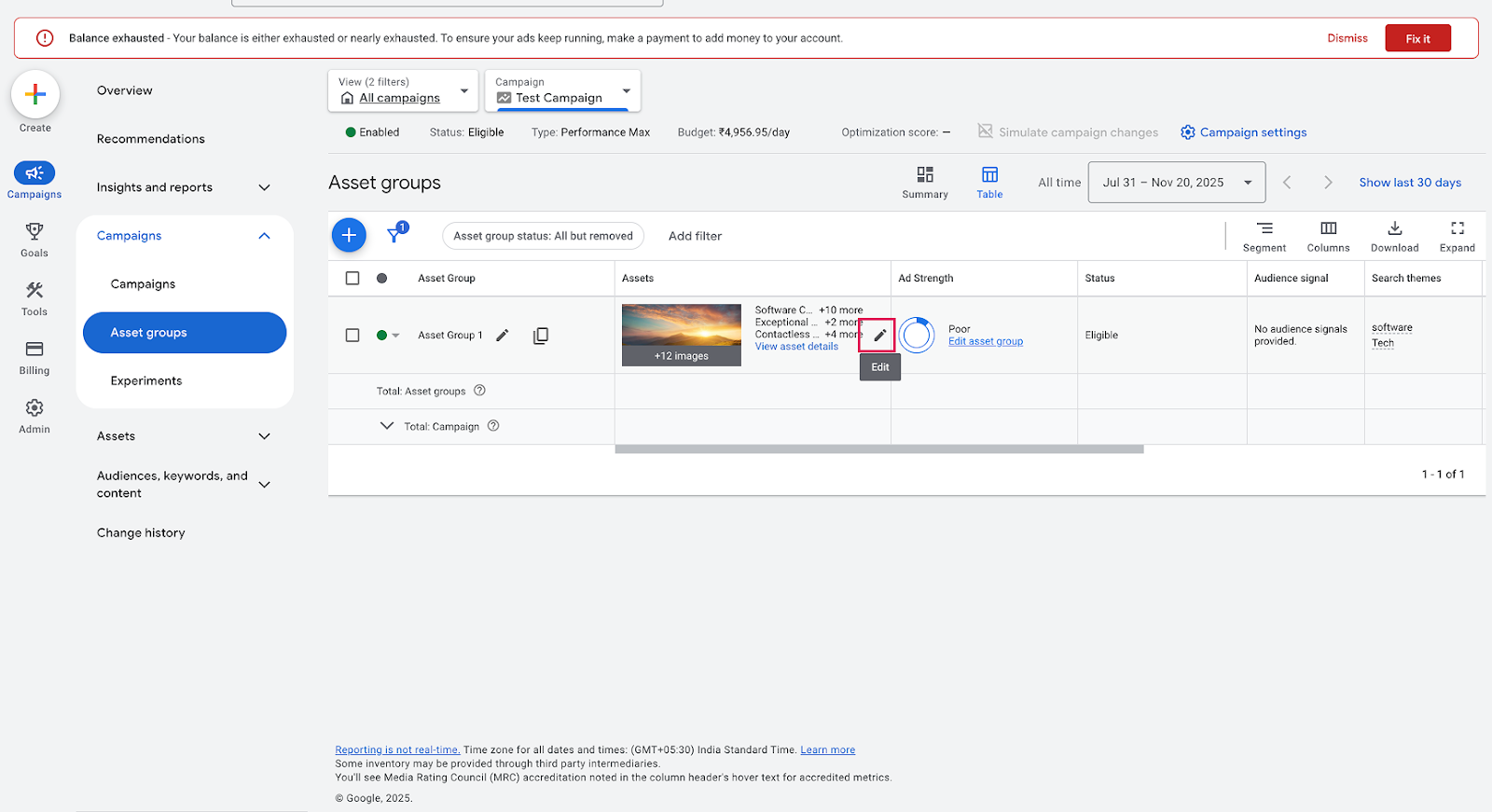
Go to the Lead Form section within the campaign and click Edit.
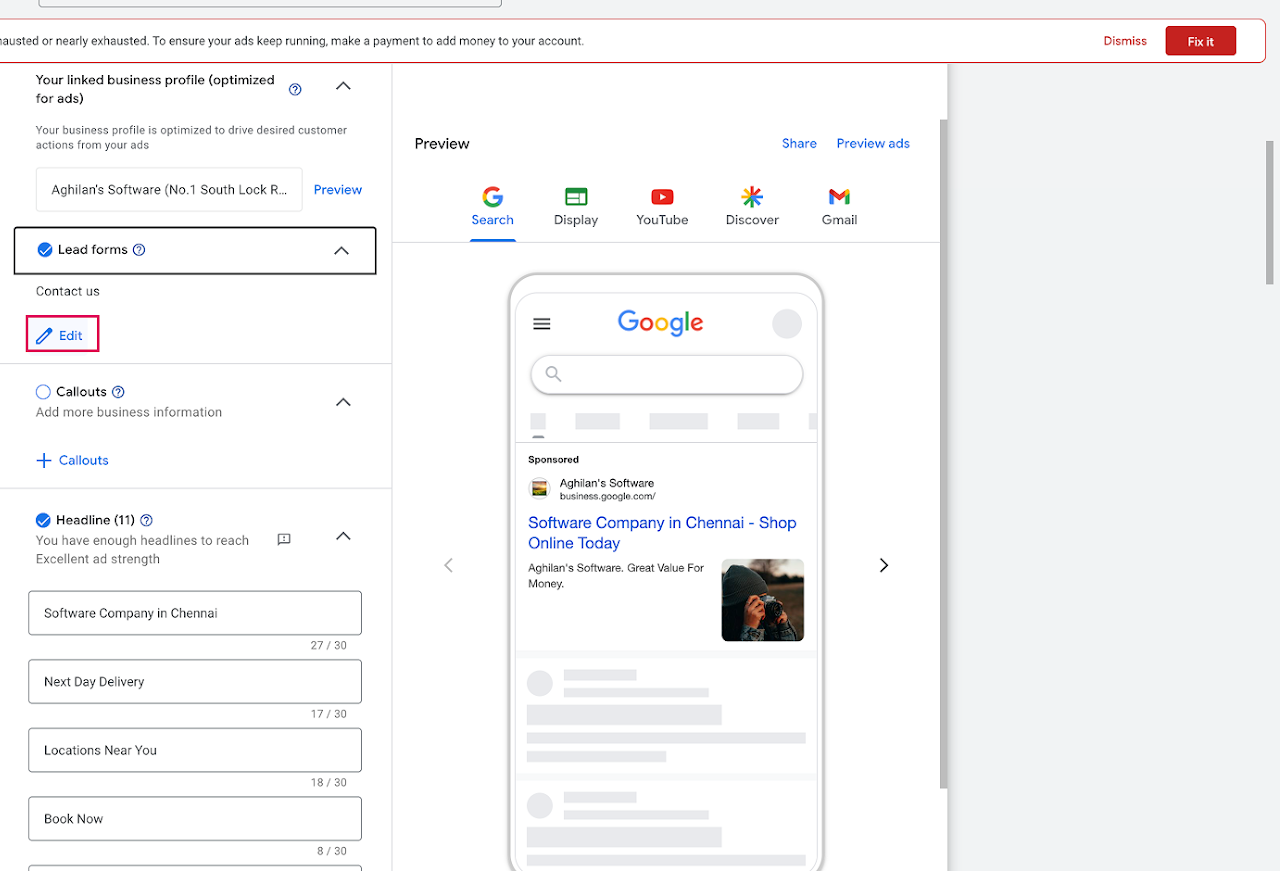
You will be taken to the form linked with your campaign. Click the form name to open it.
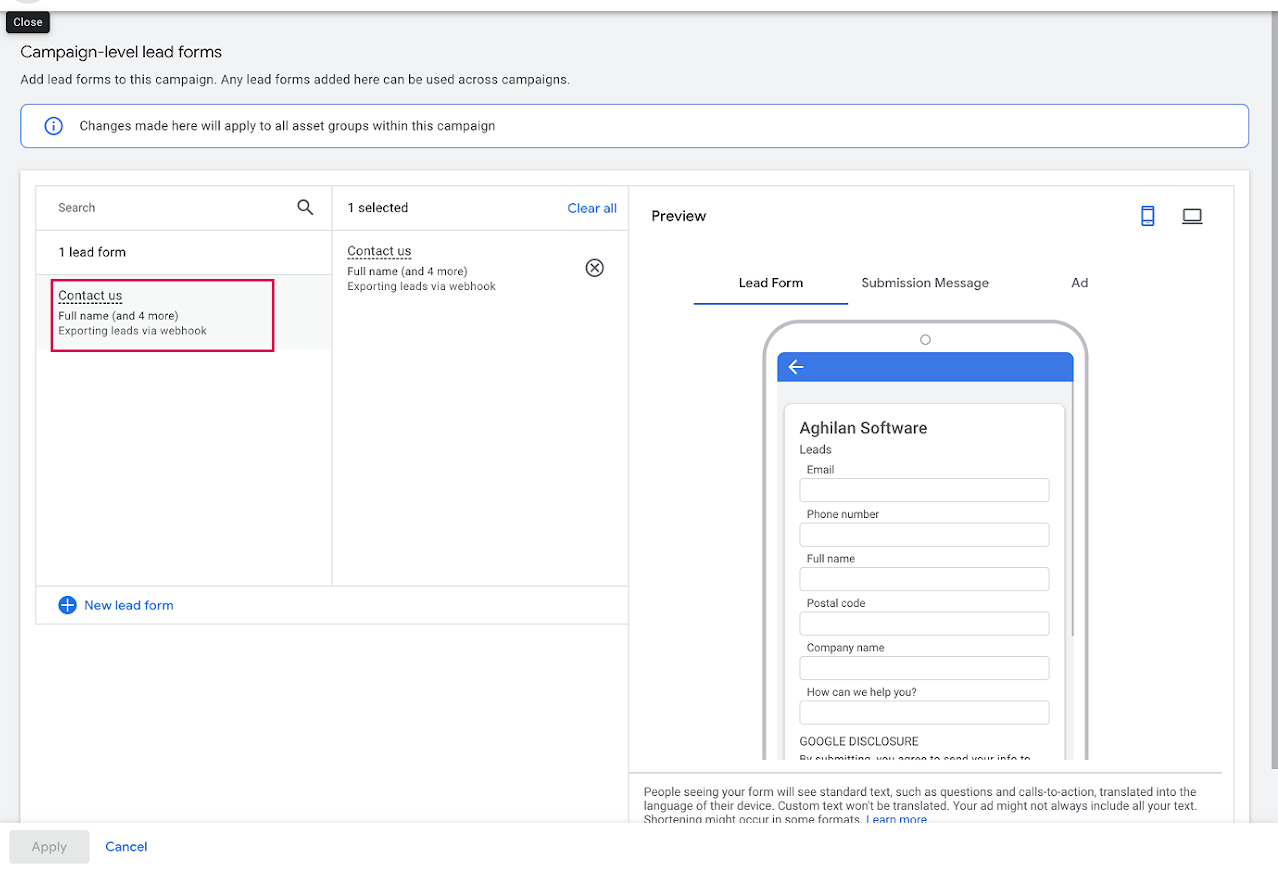
Click Send Data to test the integration. You may see a warning message during this test, which you can safely ignore. Then check Contacts in Aesthetix CRM to confirm the test lead synced through.
When you capture leads for medical-aesthetic services, collect only the contact identifiers you need (name, email, phone), follow your practice's HIPAA policies, and get patient consent before sending marketing texts or emails. Keep the questions on your Google lead forms general rather than tying a specific condition or treatment to a named individual.
Do Google Lead Ads really connect natively to Aesthetix CRM? Yes. Google Lead Ads have a native, OAuth-based integration, the same as Facebook, Instagram, TikTok, and LinkedIn lead forms. Once you connect your Google Ads account and map the form fields, submissions sync into Contacts automatically. You do not need any third-party automation tool.
Do I need admin access to connect to Google Ads? You must use a Google (Gmail) account that has access to the Google Ads account you want to connect. Without the required permissions, the ad account and its lead forms will not appear during setup.
Can I connect more than one Google Ads account? Yes. You can connect multiple Google Ads accounts using a single Google login and manage all of their campaigns and lead forms from one place.
When is a contact created in Aesthetix CRM? A contact is created each time a lead is submitted through a Google lead form that is both enabled and properly mapped in the integration.
What is the LeadConnector screen I see when I sign in with Google? That is the OAuth consent screen for our underlying integration provider. It is expected and safe to approve. It is the secure connection Aesthetix CRM uses to receive your Google leads.
Why are my leads not syncing? Check that the correct Google Ads account is connected, that lead sync is enabled for the campaign or form, that all required form fields are mapped to CRM fields, and that the sync status shows Active.
How do I follow up with new Google leads automatically? Use the Google Lead Form Submitted trigger in Workflows to start a nurture, send an instant text or email, notify your team, or add the contact to a pipeline. You can filter the trigger by Ad Account and Lead Form to send different campaigns down different paths.
How do I pause leads from a specific form? Open the form in the integration and click the Pause icon. This stops inbound syncing from that form without removing it, so you can turn it back on later.
