Ad Manager lets your practice run Google Search campaigns without leaving Aesthetix CRM. You control everything: design your ad content, choose a daily budget, set a specific target audience by geography and language, and structure the campaign with multiple ad groups for cleaner testing and reporting. This guide walks through the full flow, from creating the campaign to reviewing performance.
Search campaigns are built on a three-level structure. You can use up to 10 ad groups, add up to 3 ads per ad group for A/B testing, and configure campaign-level, ad group-level, and ad-level settings independently. That makes campaign creation modular, testable, and scalable, close to a native Google Ads experience inside Aesthetix CRM.
Ad Manager must be enabled for your account so the Ad Manager tab appears under Marketing.
Connect your Google account and the associated Google Ads account first. Ad Manager allows connecting one Google Ads account. See the Connect Google with Ad Manager guide for the connection steps.
Begin by selecting Marketing from the menu.
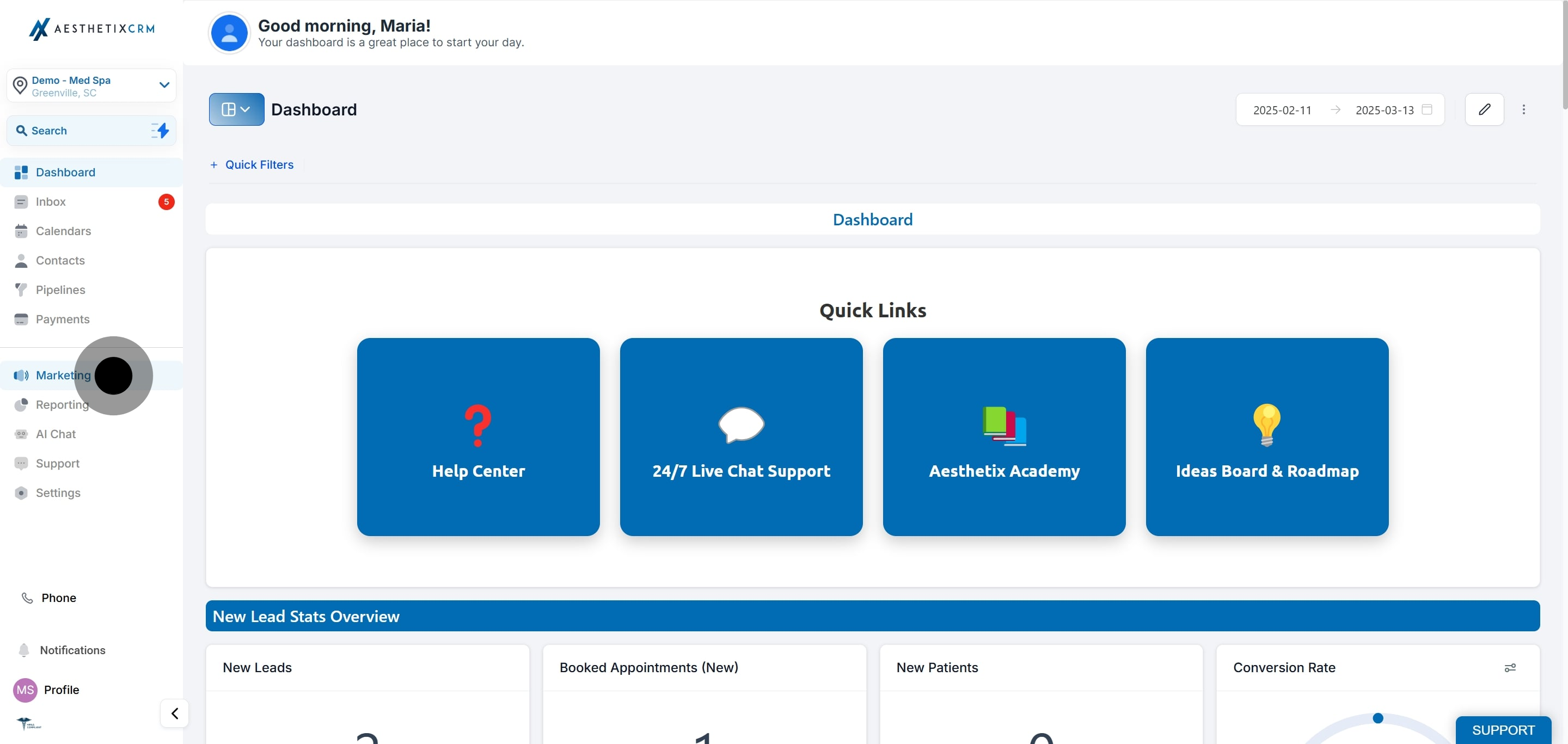
Direct your attention to the Marketing tools.
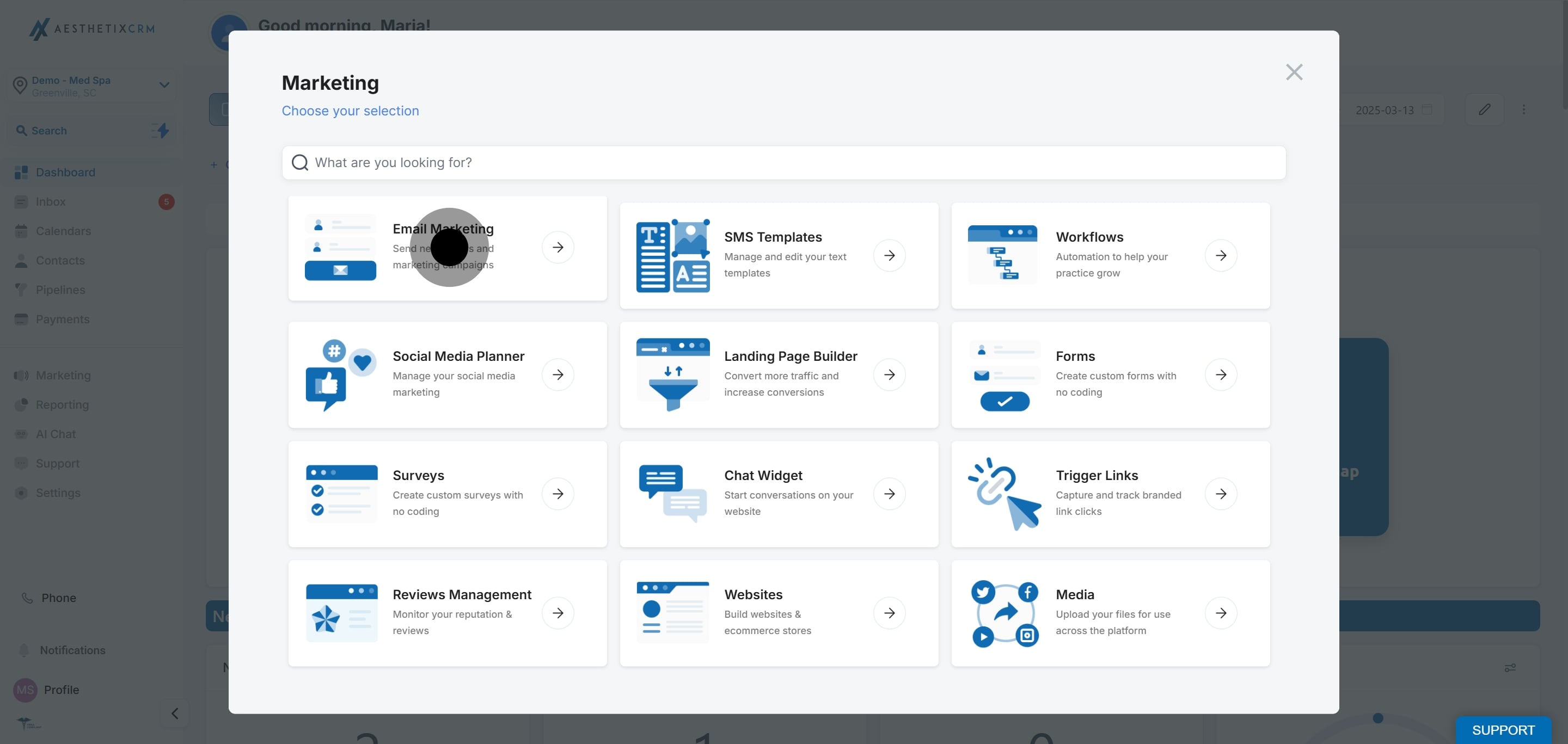
Click on Ad Manager.
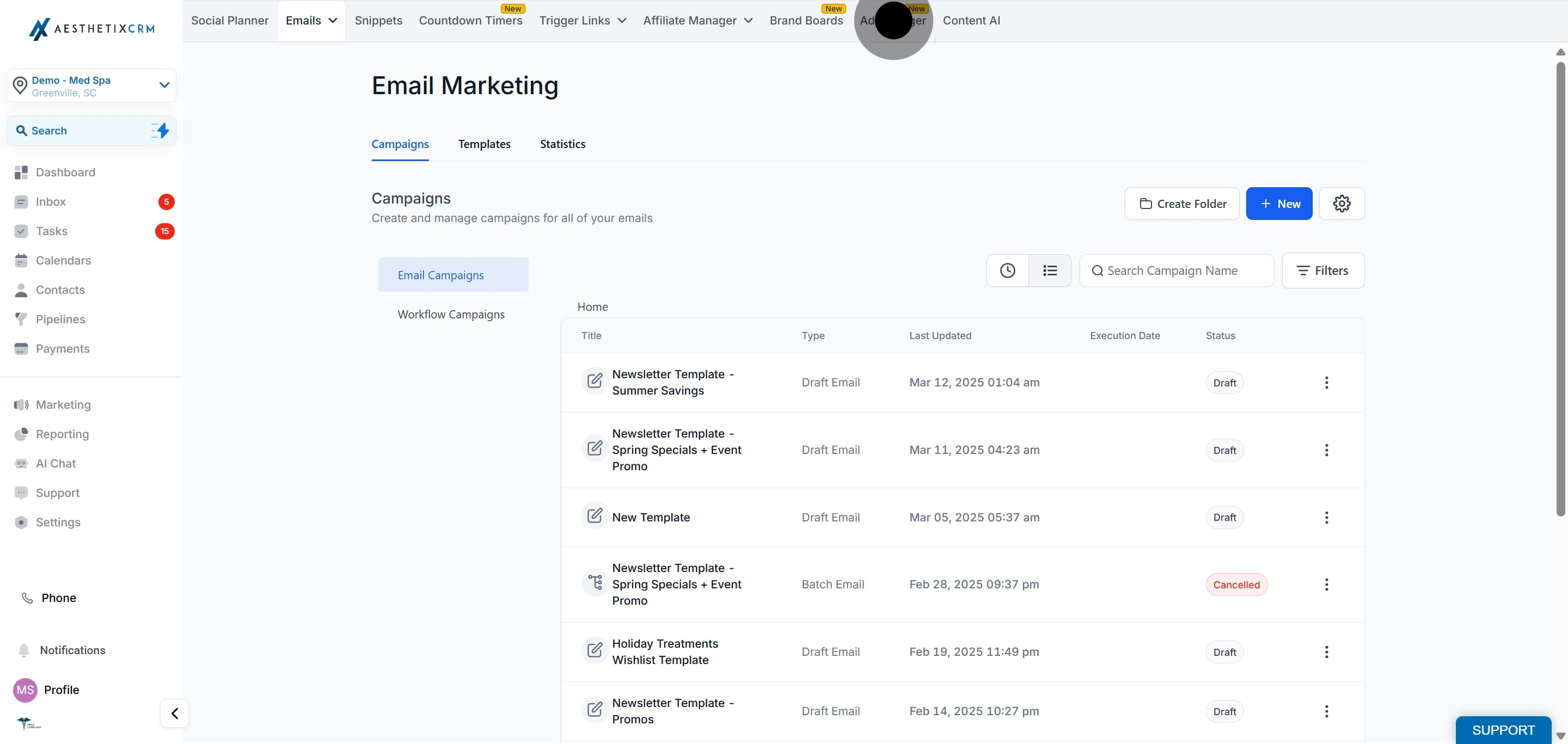
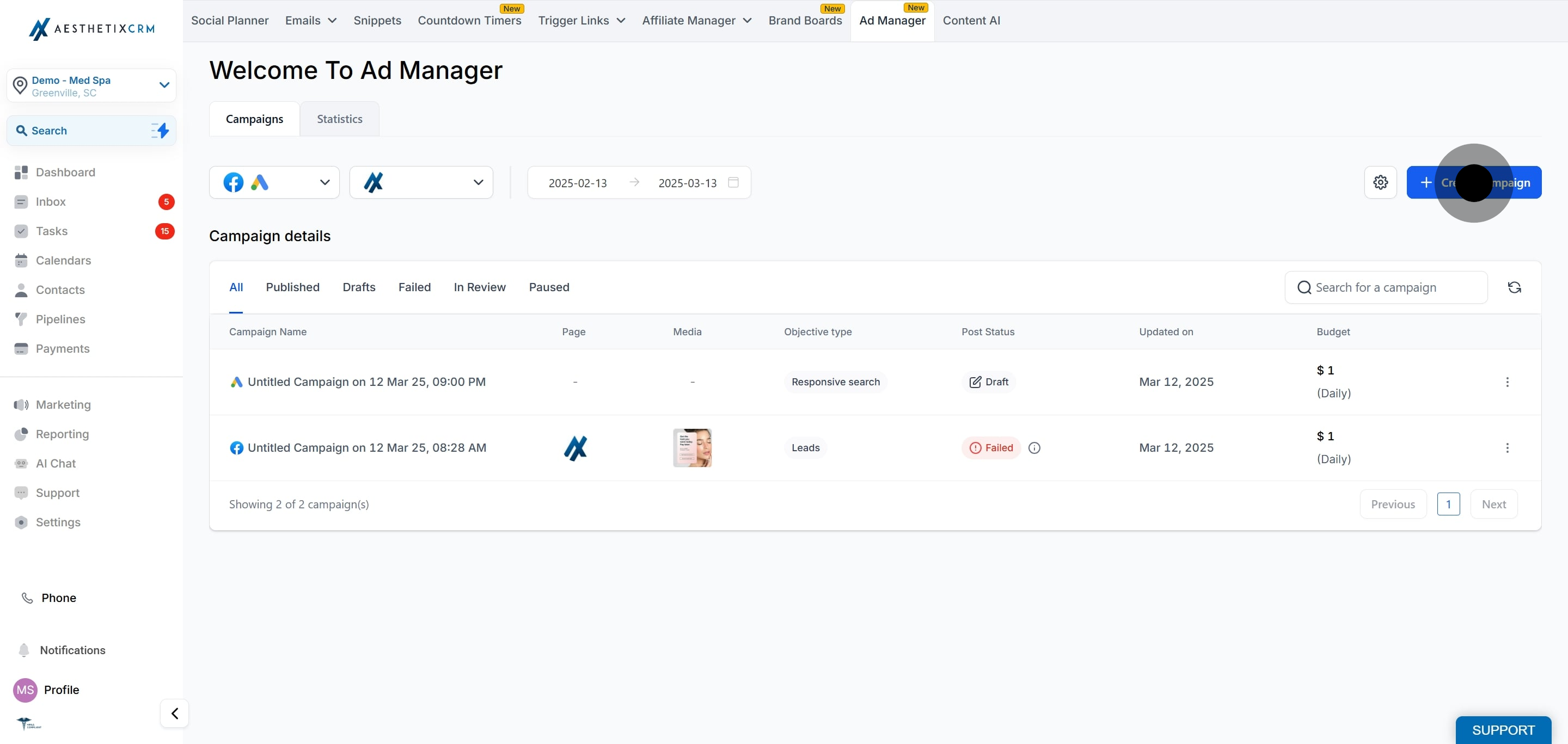
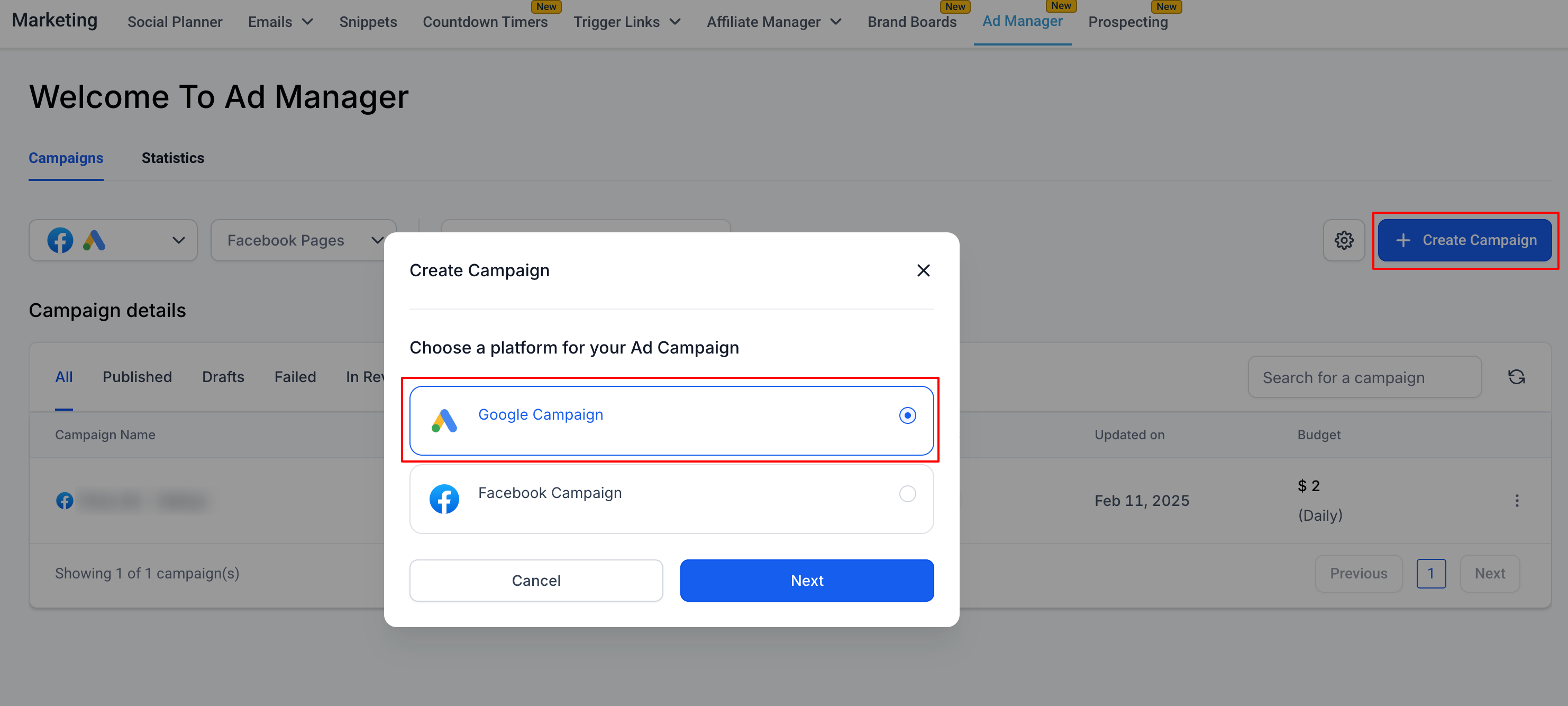
On the Ad Manager home screen, click Create Campaign.
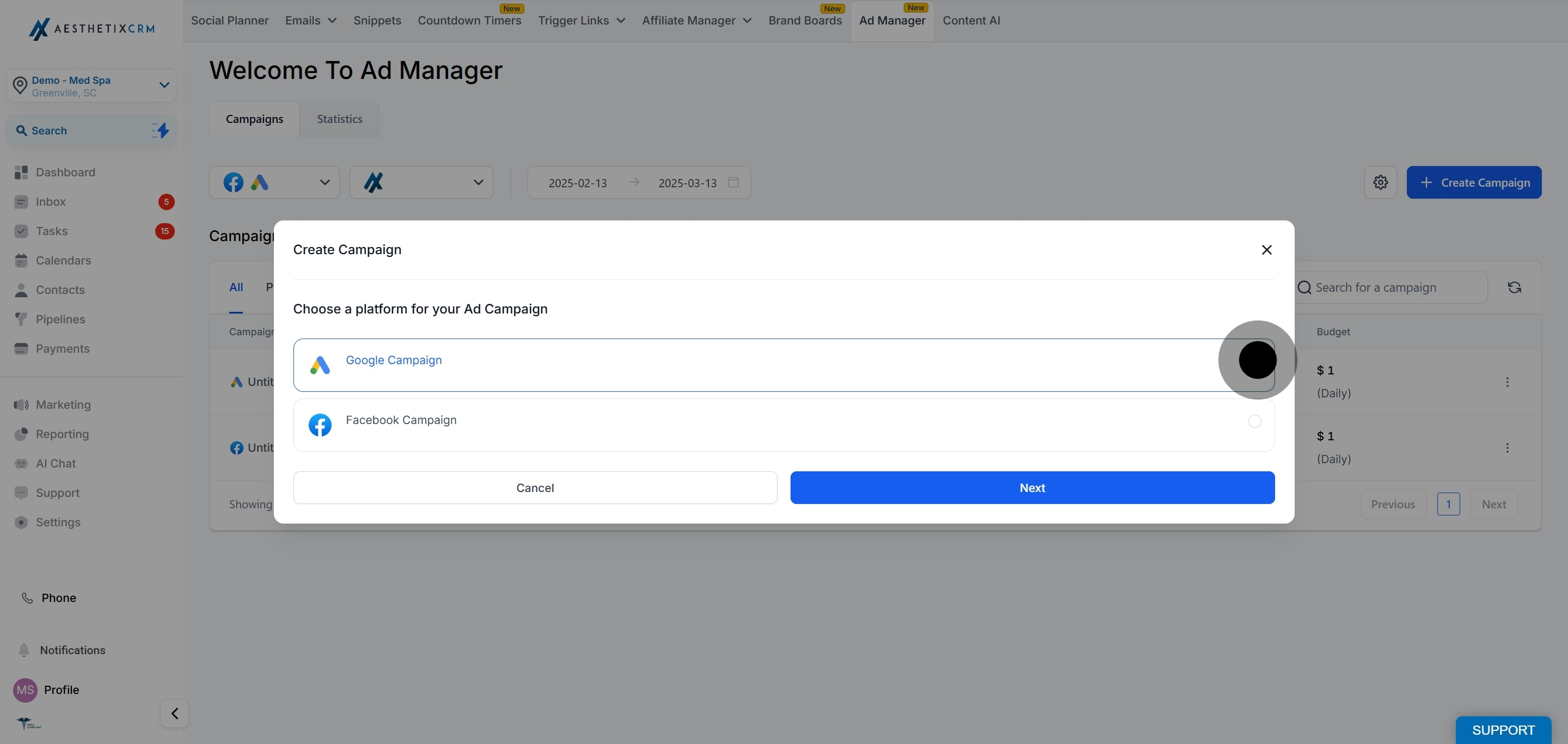
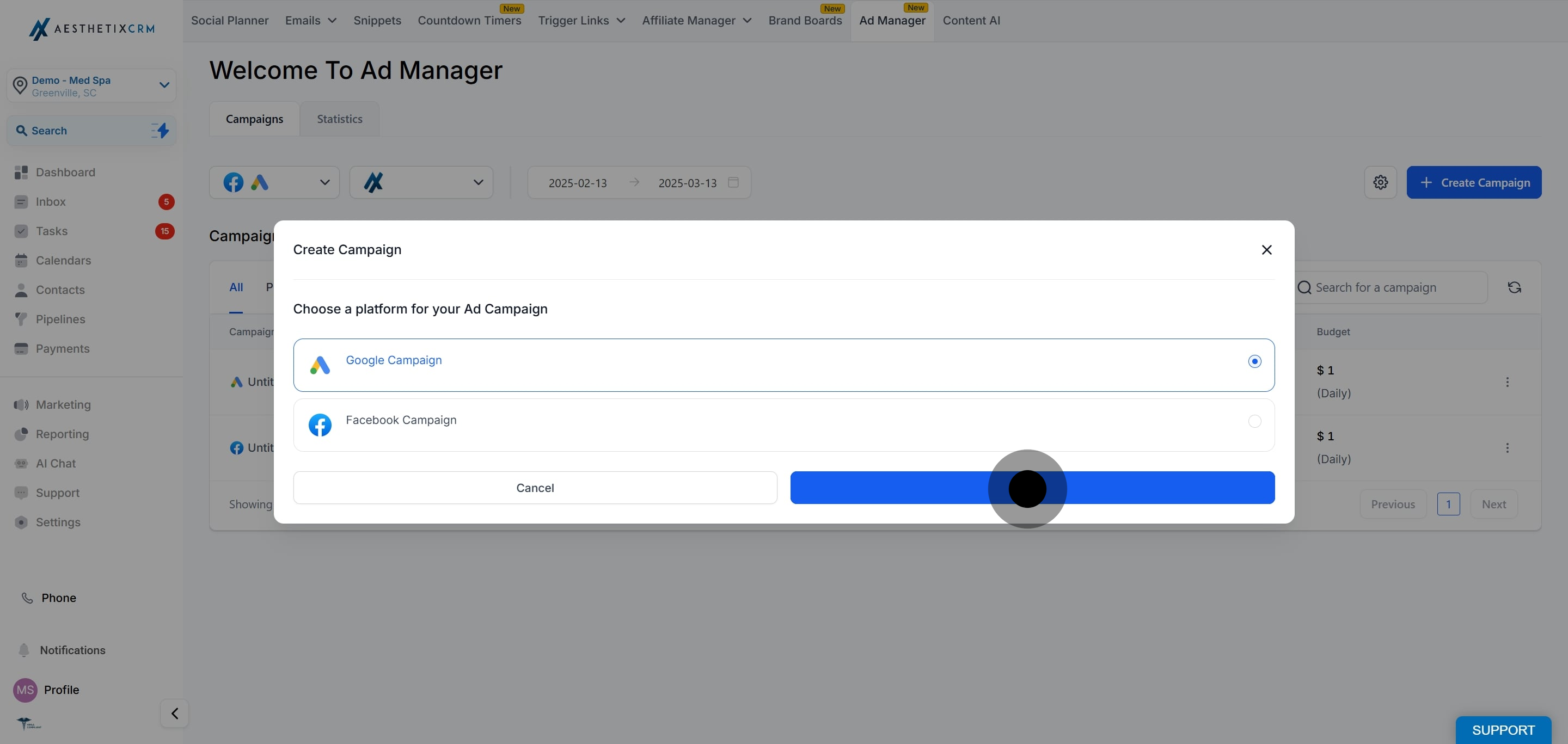
Select Google as the platform to publish your campaign, then click Next.
Click Next to proceed.
Choose your preferred ad creation approach: start from scratch or use an Ad Manager template.
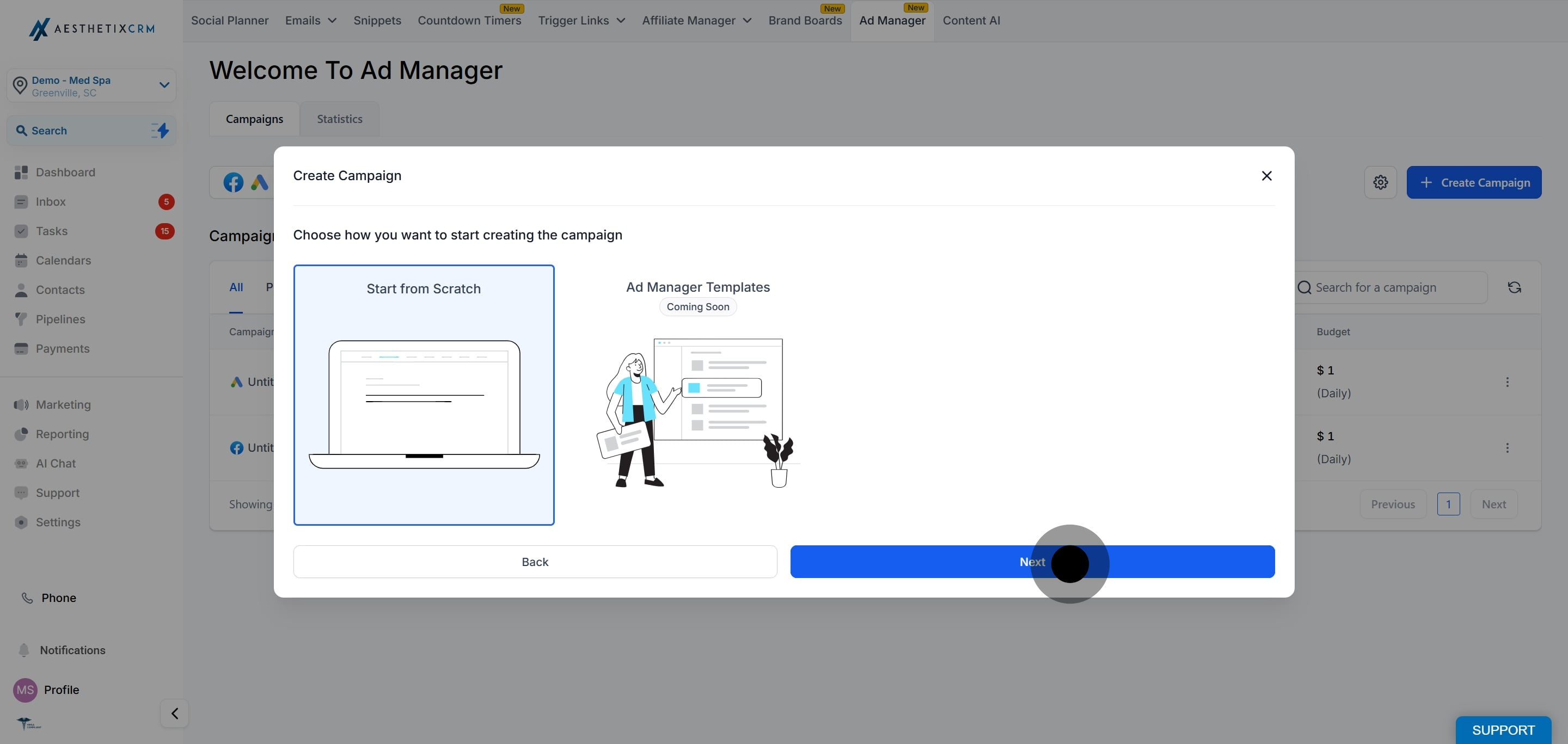
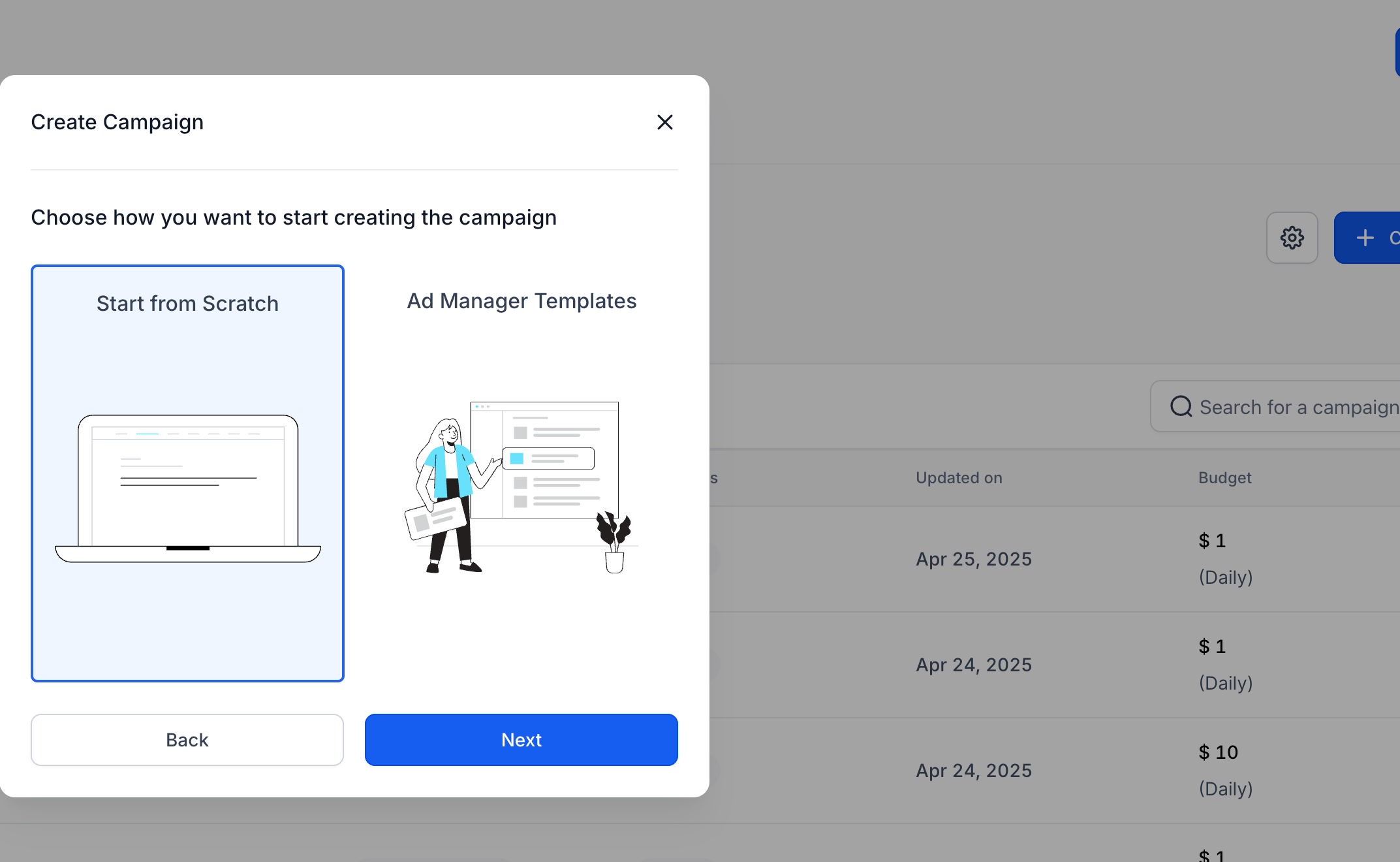
Click Next to start defining your campaign.
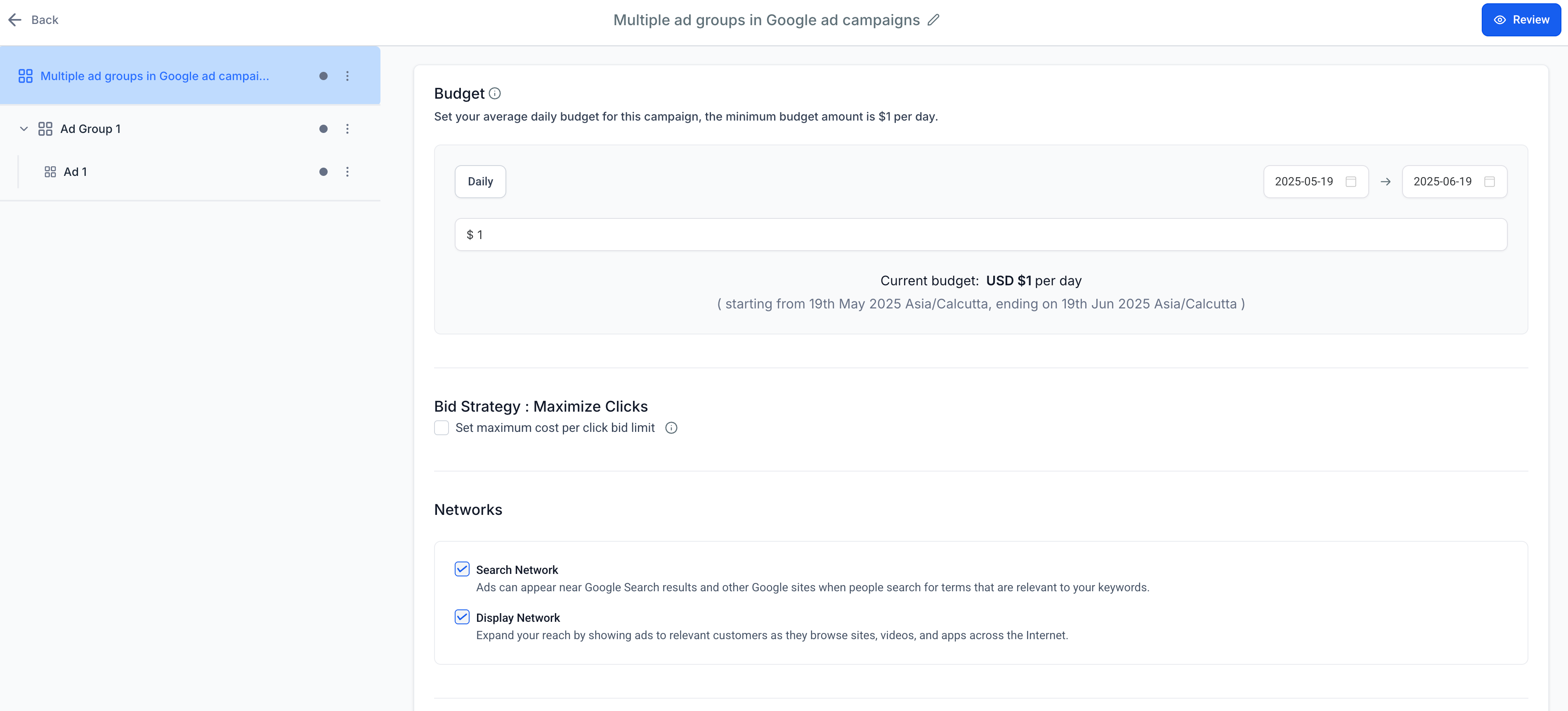
Ad content is organized in a three-level structure, and each level has its own configuration:
Campaign Level
Ad Group Level
Ad Level
1. Campaign name. Give the campaign a clear name, for example "Spring Botox Promo" or "New Patient Consults."
2. Bid strategy. Choose your bid strategy (for example, Maximise Clicks). Maximise Clicks automatically sets bids to get the most clicks within your budget. An optional toggle lets you set a maximum cost-per-click (CPC) limit, an advanced option that controls the most you will pay for each click.
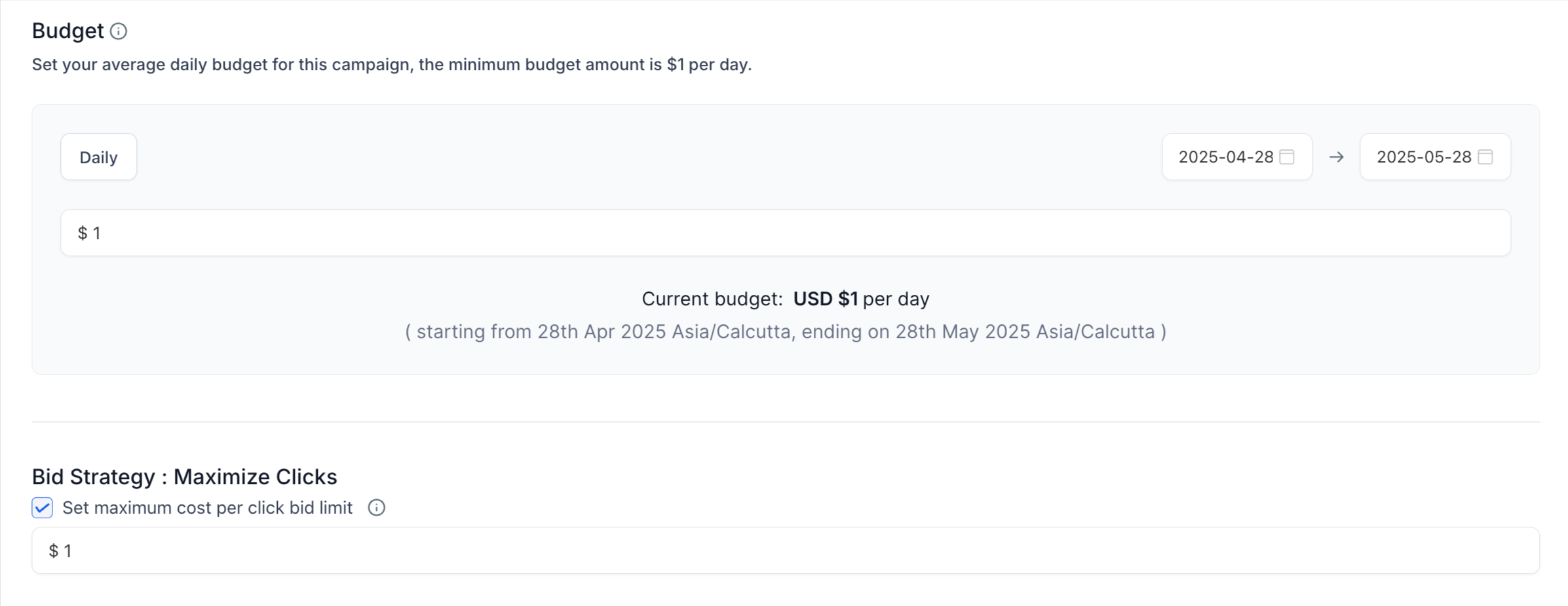
Note: This bid strategy is applied by default for website traffic search campaigns. As Lead objective campaigns are introduced, additional bid strategies will be available.
3. Daily budget. Set a daily budget for the campaign. This works like a subscription and is charged to the card associated with your connected Google Ads account. The budget shows each day's spend division along with the start and end date, and you can increase or decrease it later by editing the campaign.
Note: The currency shown is the one set up in your connected Google Ads account, and the start and end date timezone is the timezone you are in while creating the campaign.
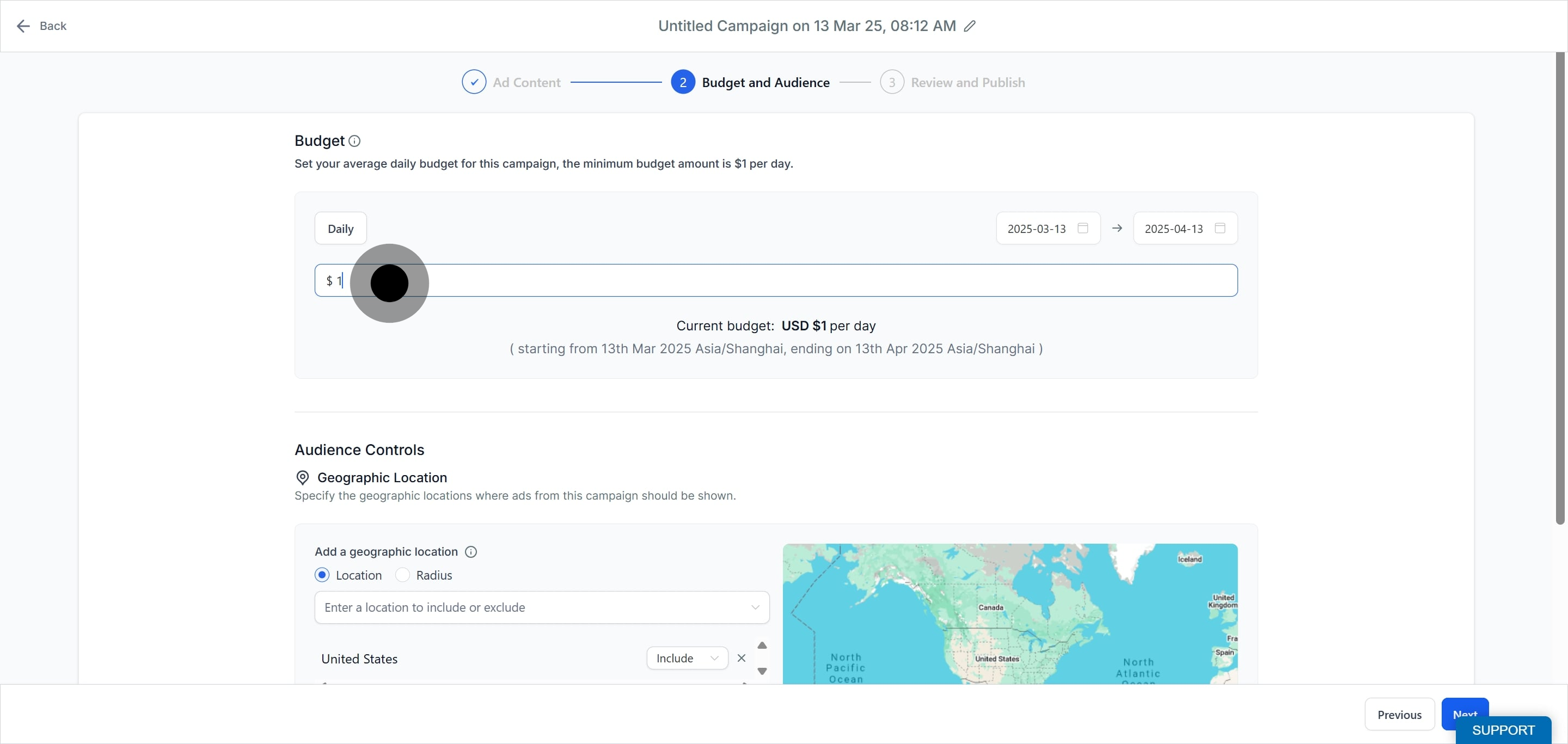
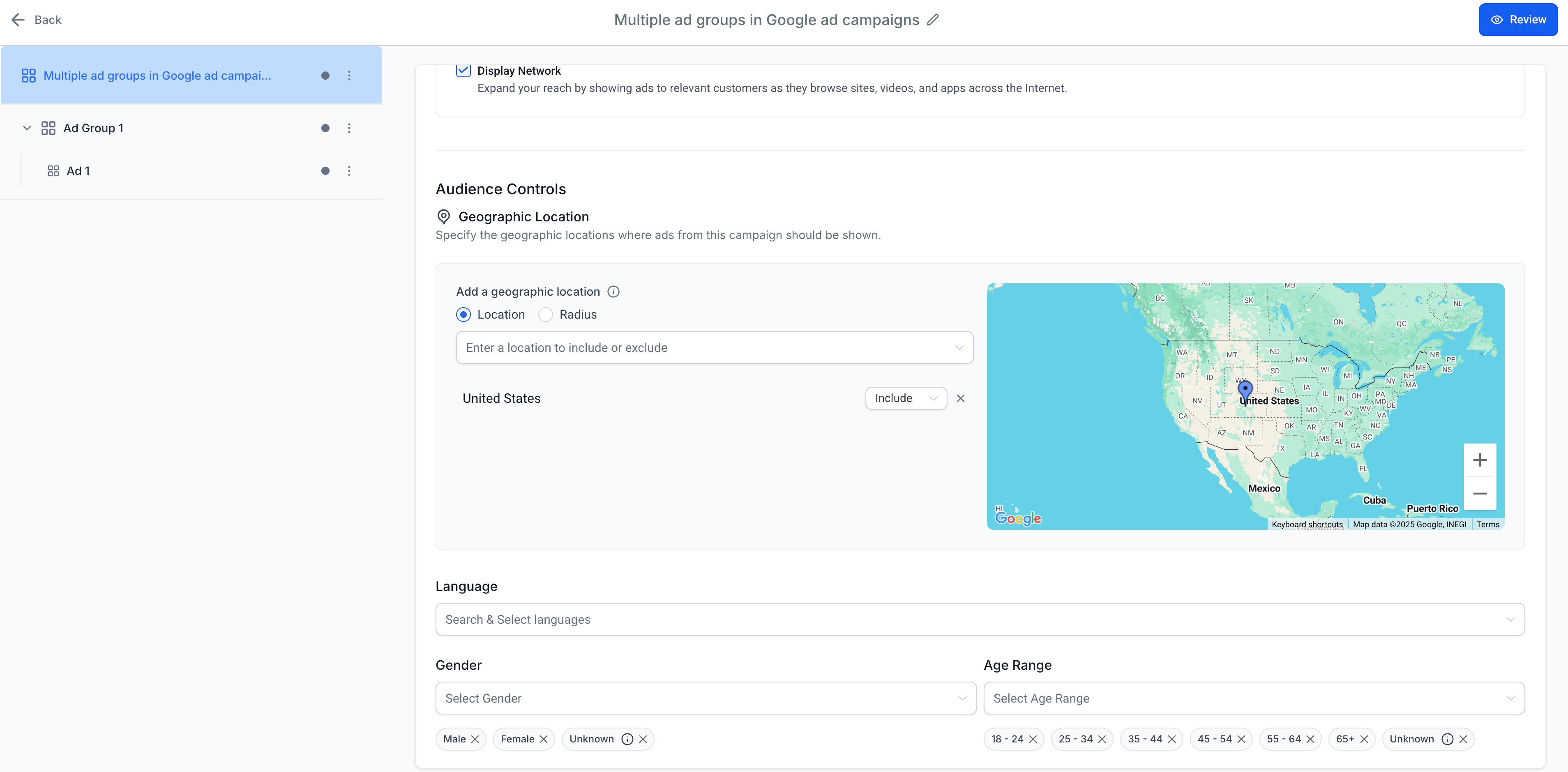
4. Audience controls. The audience control section has two mandatory parts required to publish, plus optional targeting refinements.
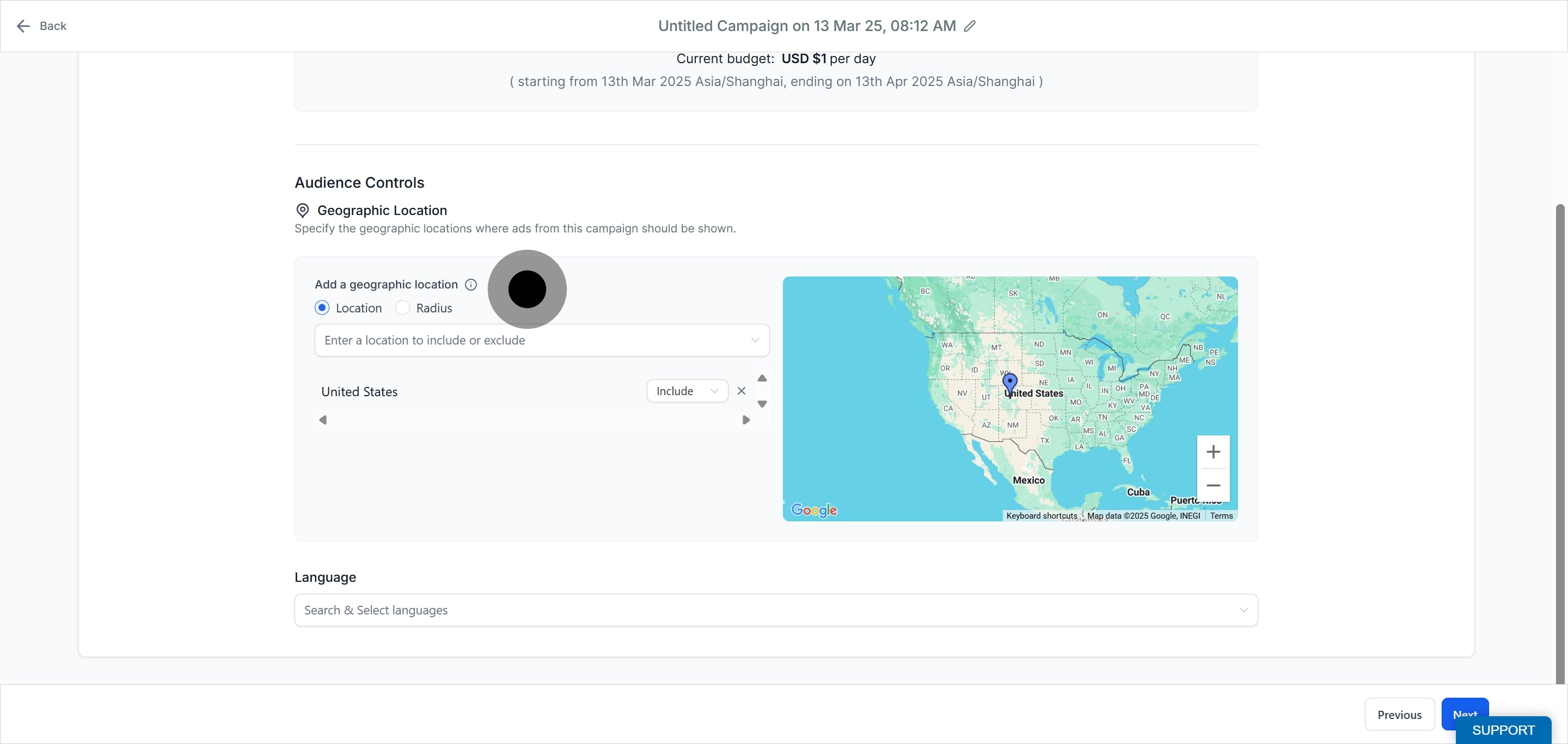
Geographic Location (required). Adjust the campaign to run for a specific location, or exclude a specific location within a country or state. Location can be defined at the location or radius level: select the radio button, then search and select the desired country, city, place name, address, or coordinates.
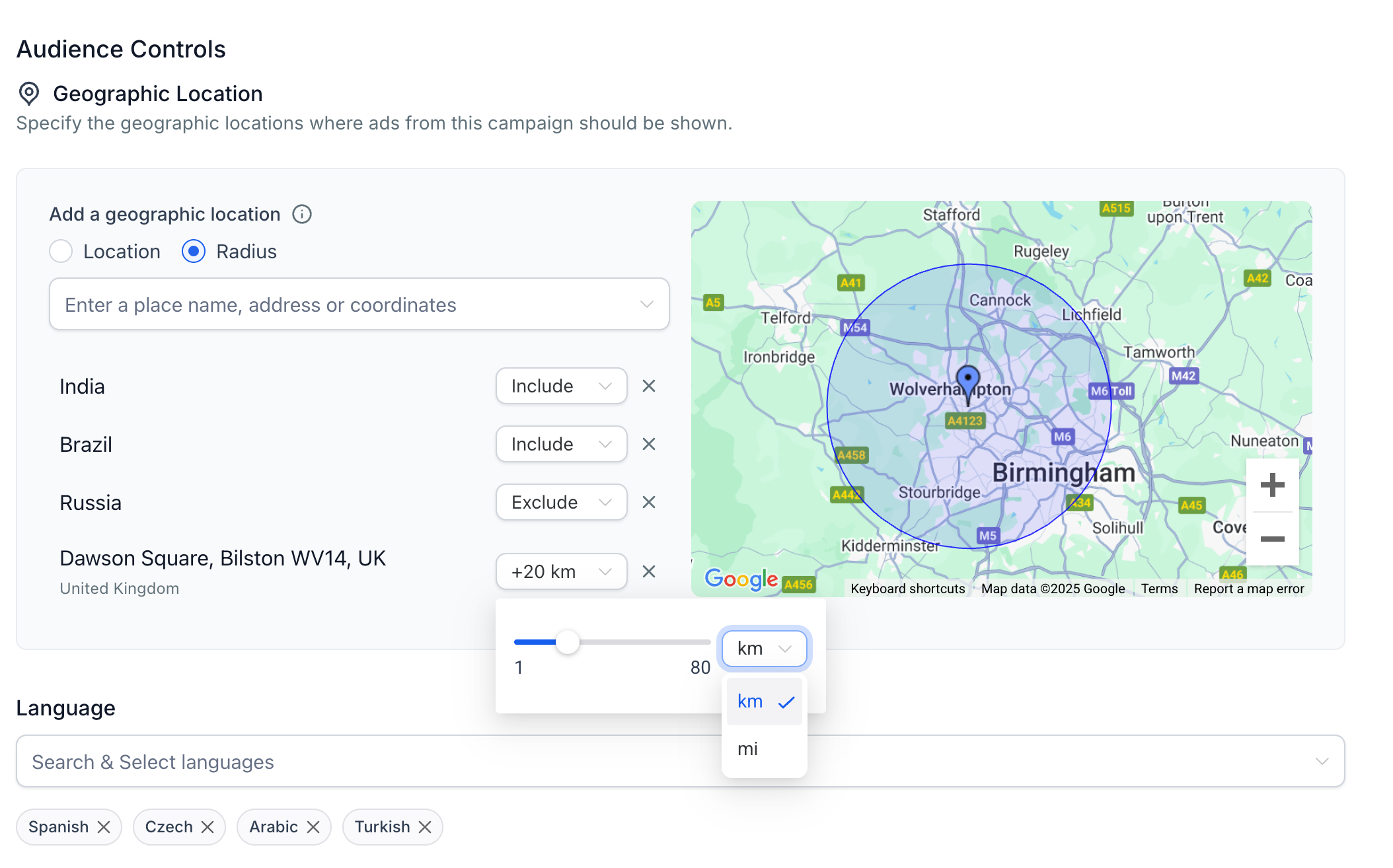
Note: Excluding a geographic location by radius is not supported by Google. When defining a location by radius, you can modify the radius around the specified address to set your audience reach. A radius is especially useful for a practice that draws patients from the surrounding miles around each location.
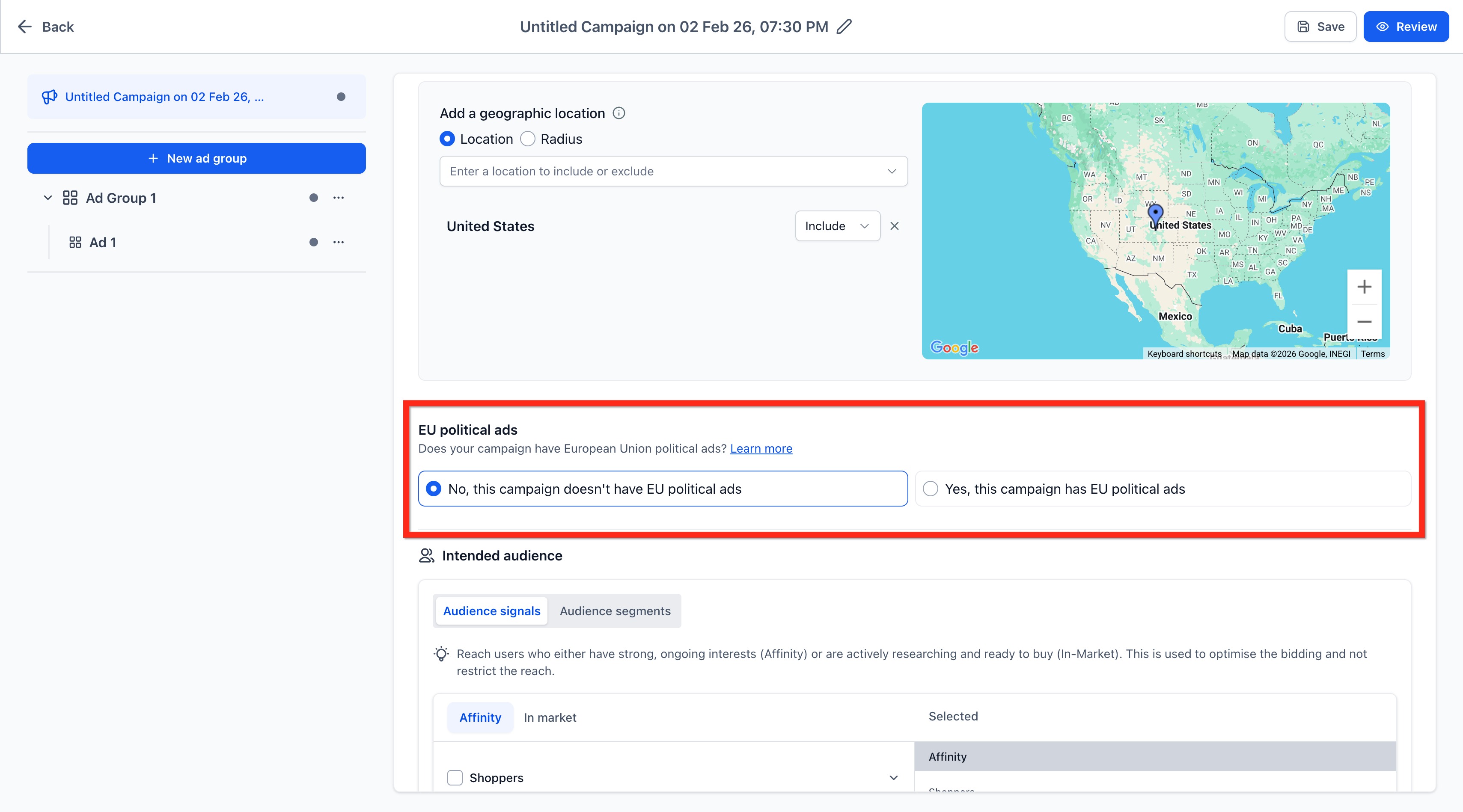
EU Political Ads (required). When creating a Google campaign, you must confirm whether the campaign includes European Union (EU) political ads. You must make a selection to publish. Select Yes if the campaign contains EU political ads, or No if it does not. For a med spa, this is almost always No. Review Google's Political content policy if you are unsure.
Language. Enter any language spoken by the users you want to target. Multiple languages can be searched and selected.
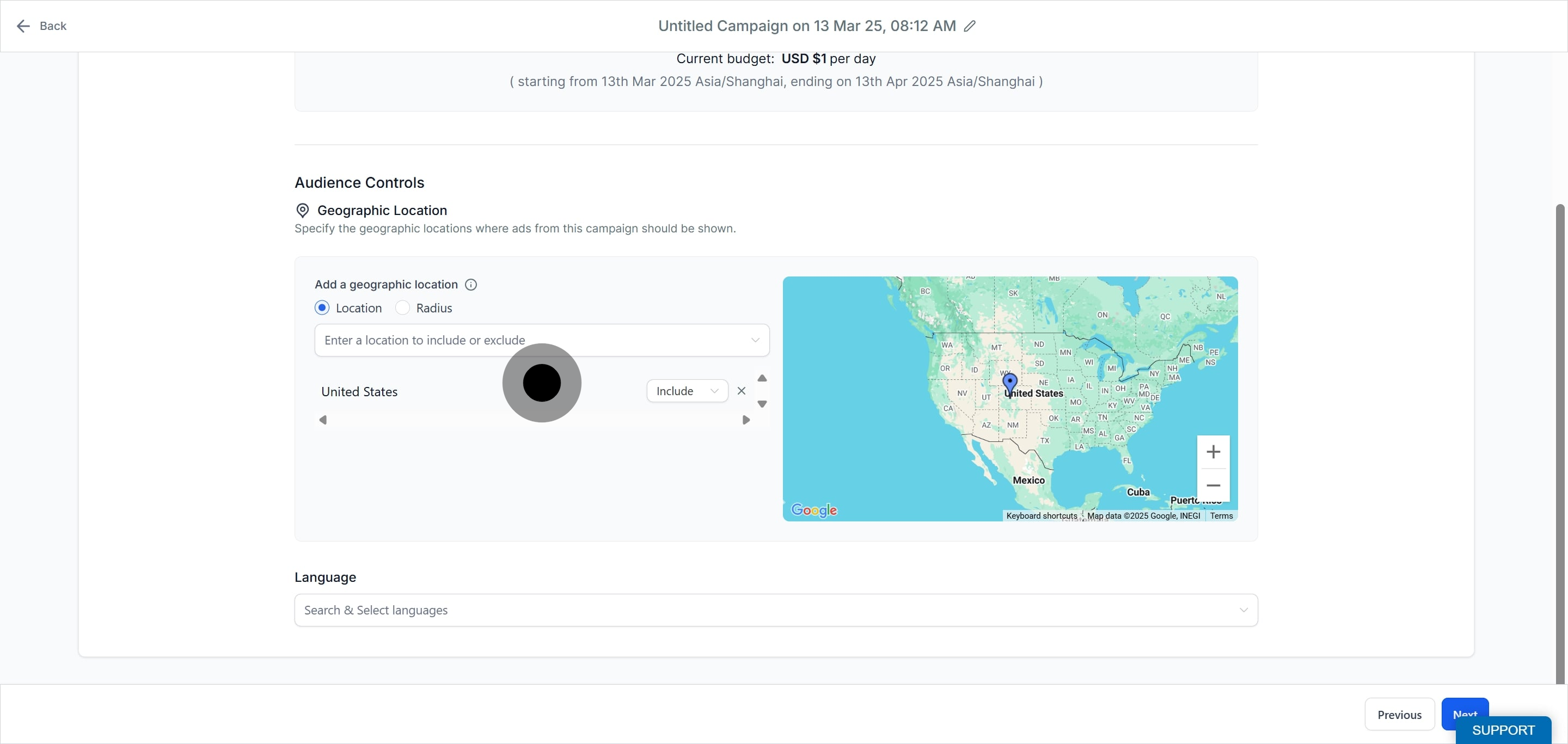
Select your preferred language.
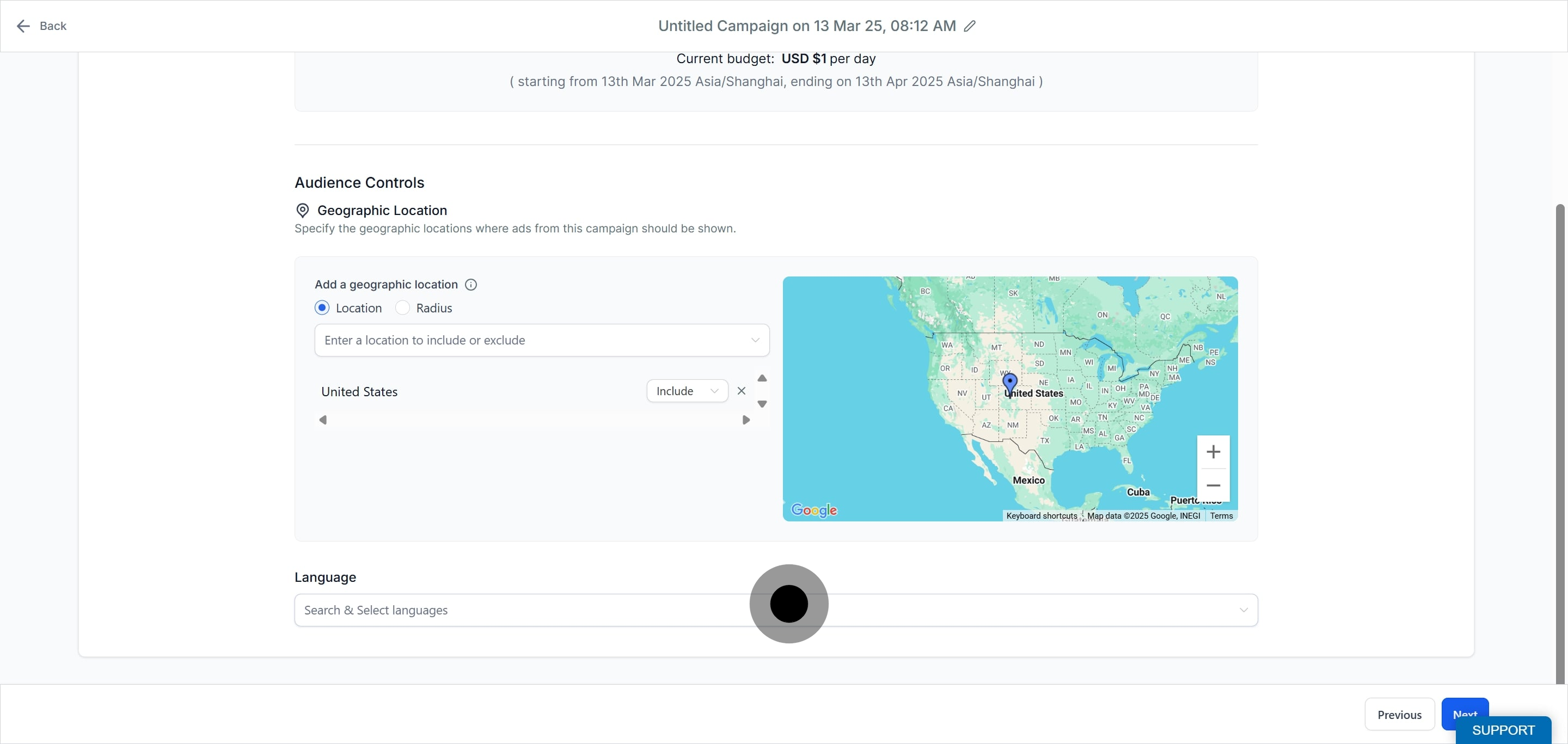
Gender and Age Targeting. Select gender (Male, Female, Unknown) and age ranges (18–24 through 65+, plus Unknown) for precise audience targeting. The "Unknown" tooltip explains that your ads will still reach users whose age or gender is not specified.

Retargeting (coming soon). An optional setting to add retargeting, using an existing or newly created custom audience built from a contact list or website visitors, will be available soon. This is useful for re-engaging past patients or people who visited your booking page.
Audience Segments. You can also apply Google Audience Segments to reach the right people. Segment types and setup are covered in the Audience segments section below.
Click Next to continue.
Additional Assets. At the campaign level you can add Business Logos, Image Assets, Call Extensions, and Sitelinks. These are covered in the Campaign-level additional assets section below.
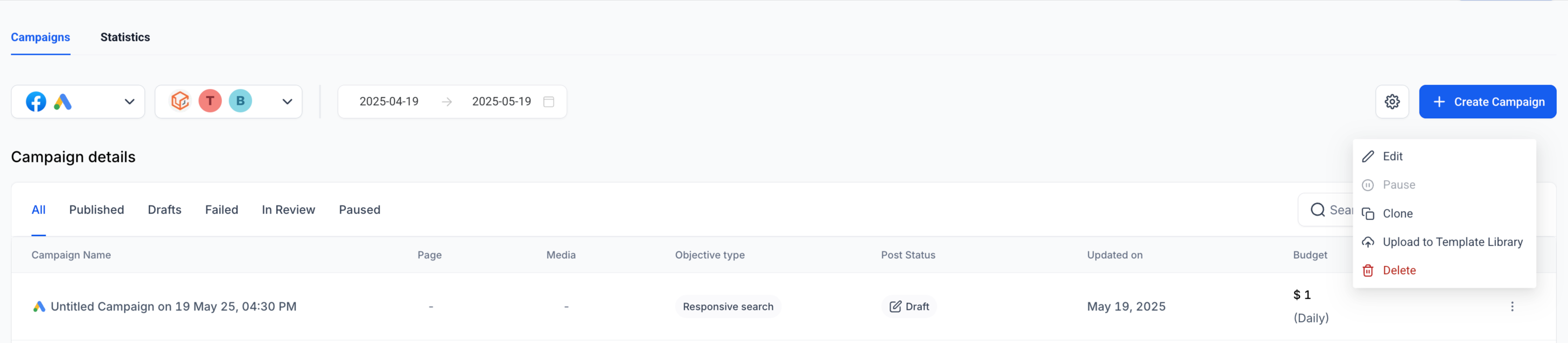
Campaign-level menu options. From the campaign listing page, the ellipsis menu lets you Delete campaign, Clone campaign, Edit campaign settings, and Upload to template library. Inside the campaign builder, the campaign-level ellipsis lets you Create Ad Group.
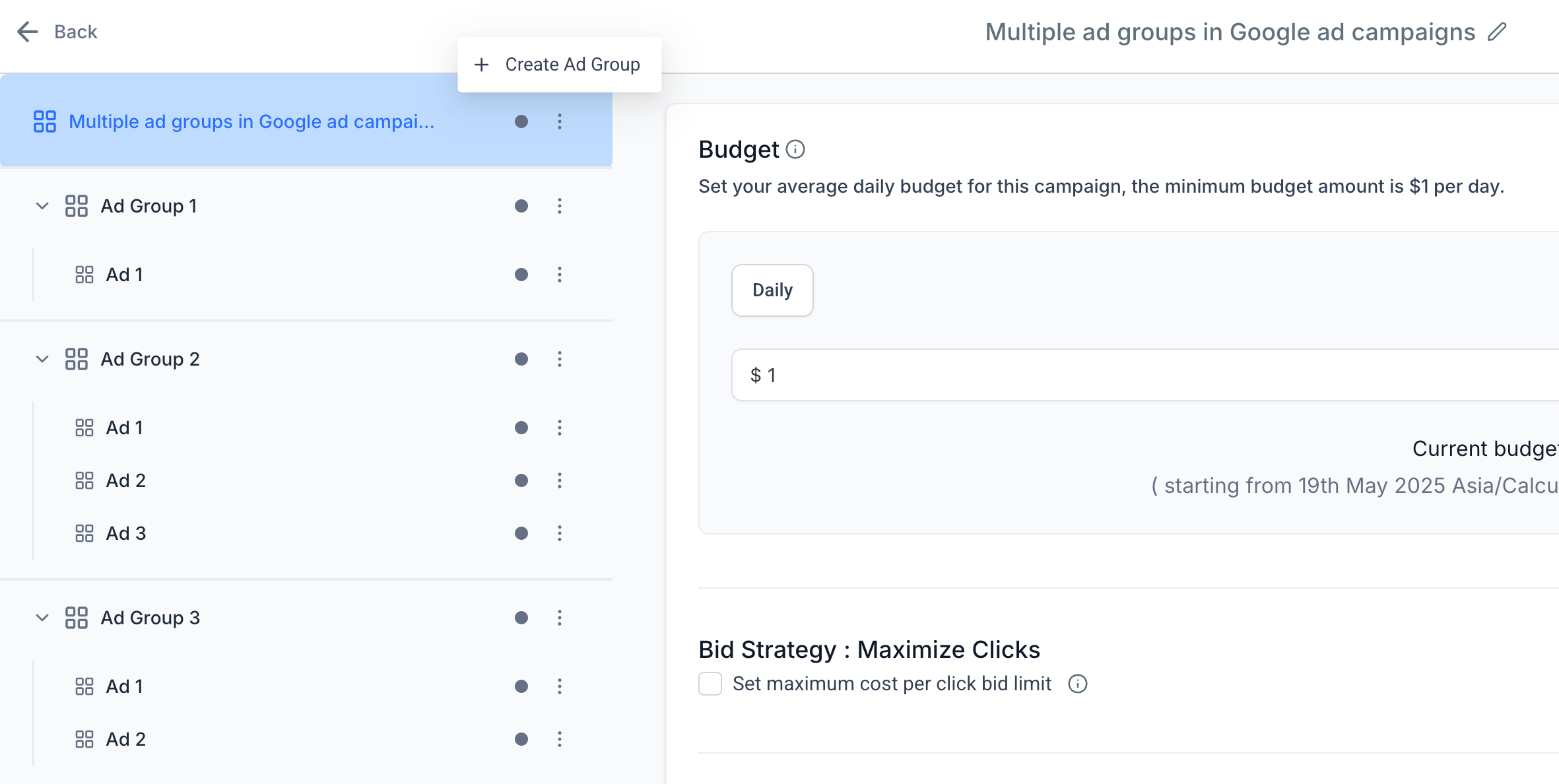
Create and name up to 10 ad groups. Ad groups let you split a campaign by service or audience, for example one ad group for injectables and another for laser treatments. For each ad group:
Enter a base website URL. This URL generates keyword suggestions and is applied to all ads in the group.
Add keywords manually or select from auto-suggestions.
Define match types: Broad, Phrase, or Exact.
Enter up to 40 positive and 40 negative keywords (80 characters each).
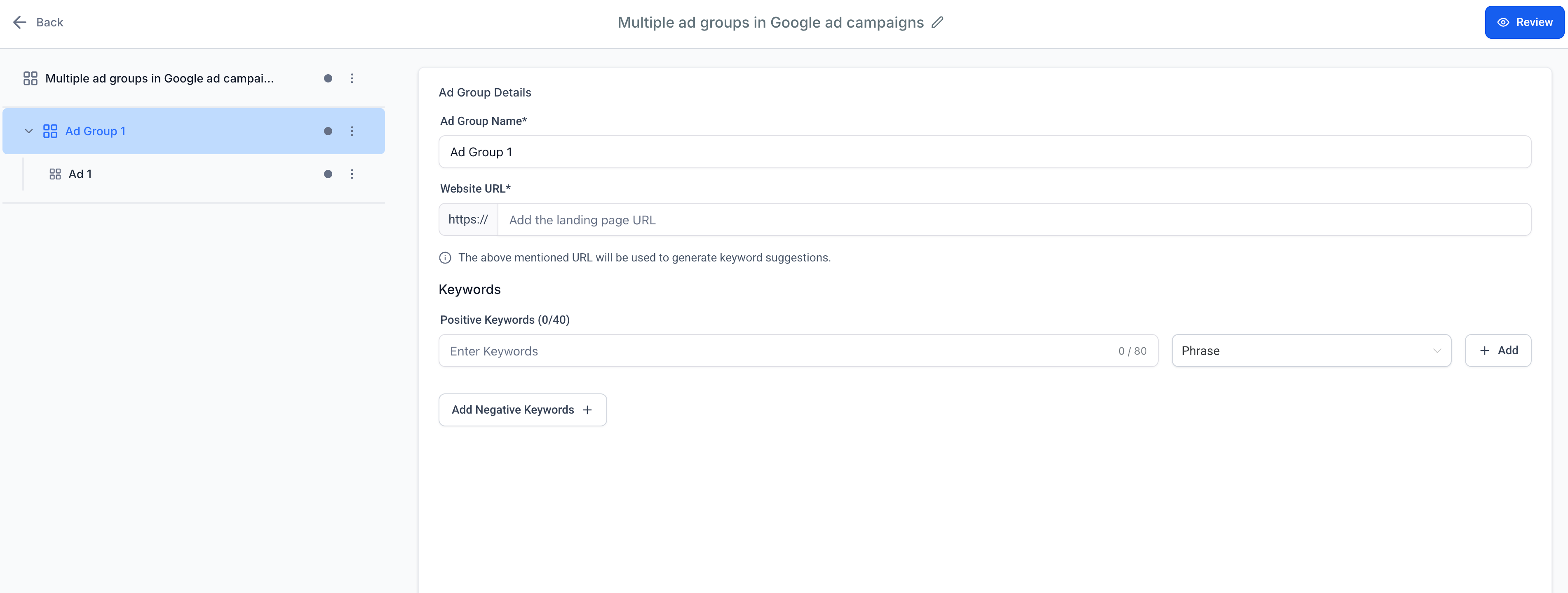
Manage your search keywords from the Ad Group section. There are two sub-sections: Positive Keywords and a button that opens a Negative Keywords section.
Under Keywords, enter any relevant words or phrases that match what patients might search for on Google to find your practice. For each keyword, type a word or phrase, then press Enter to save it, or press Add after choosing a match type. Each keyword has a match type dropdown:
Broad (keyword)
Phrase (default: "keyword")
Exact ([keyword])
Match types apply to both positive and negative keywords (limit 40 each, 80 characters per keyword). Add more phrases in the keyword box to create additional keywords, or click the cross icon on a selected keyword to delete it.
Notes:
Each keyword word or phrase can be up to 80 characters.
Up to 40 positive and 40 negative keywords each can be added per campaign.
Suggested keywords are based on the website URL entered.
Click Add Negative Keywords to optionally add words or phrases you do not want your ad matched to. Anyone who searches Google with one of these negative keywords will not see your ad, which is useful for filtering out terms like "free" or unrelated treatments. For each negative keyword, type a word or phrase, then press Enter or click Add.
Ad group menu options. The ellipsis menu at the ad group level lets you Create new ad, Duplicate ad group, and Delete ad group (you cannot delete the group if only one exists).
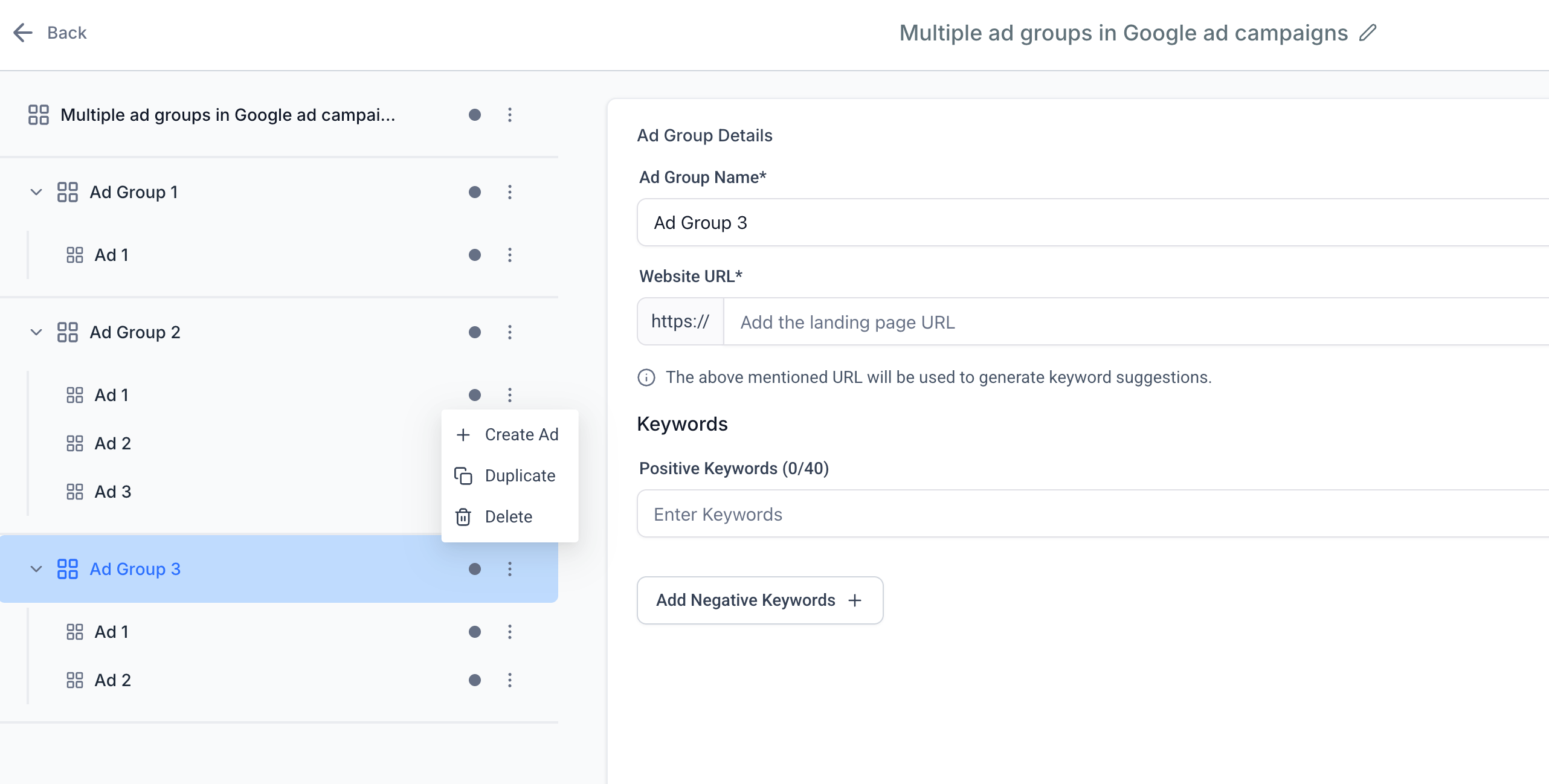
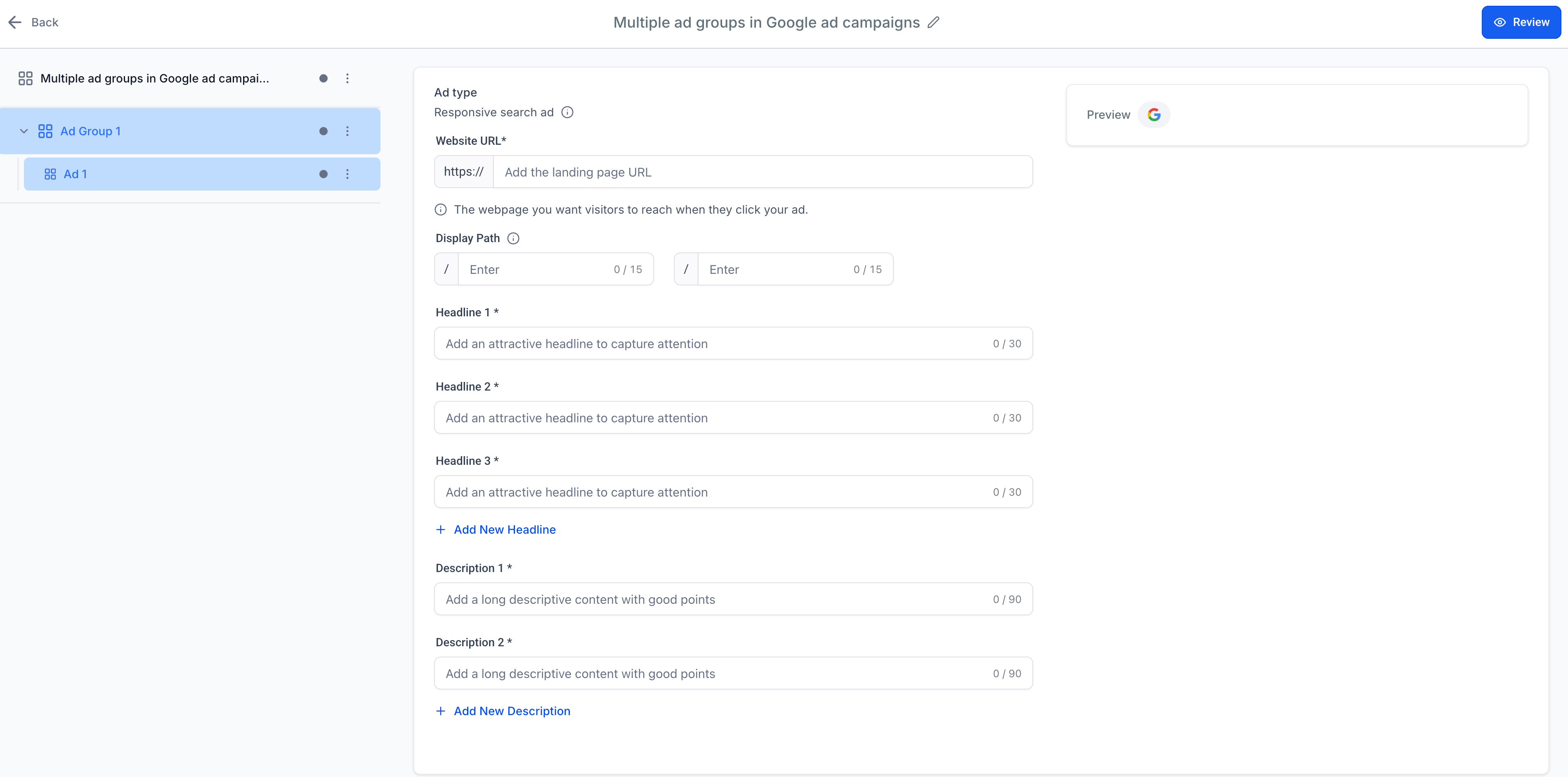
Each ad group can have up to 3 ads. For each ad:
Headlines. Add up to 15 headlines (30-character limit each). Your headline can be split into three parts separated by a "|" character. Enter the first part under Headline 1; if your full headline exceeds 30 characters, add more under Headline 2 and Headline 3. Use the Add New Headline button to add up to 15 headlines. A minimum of 3 headlines is required.
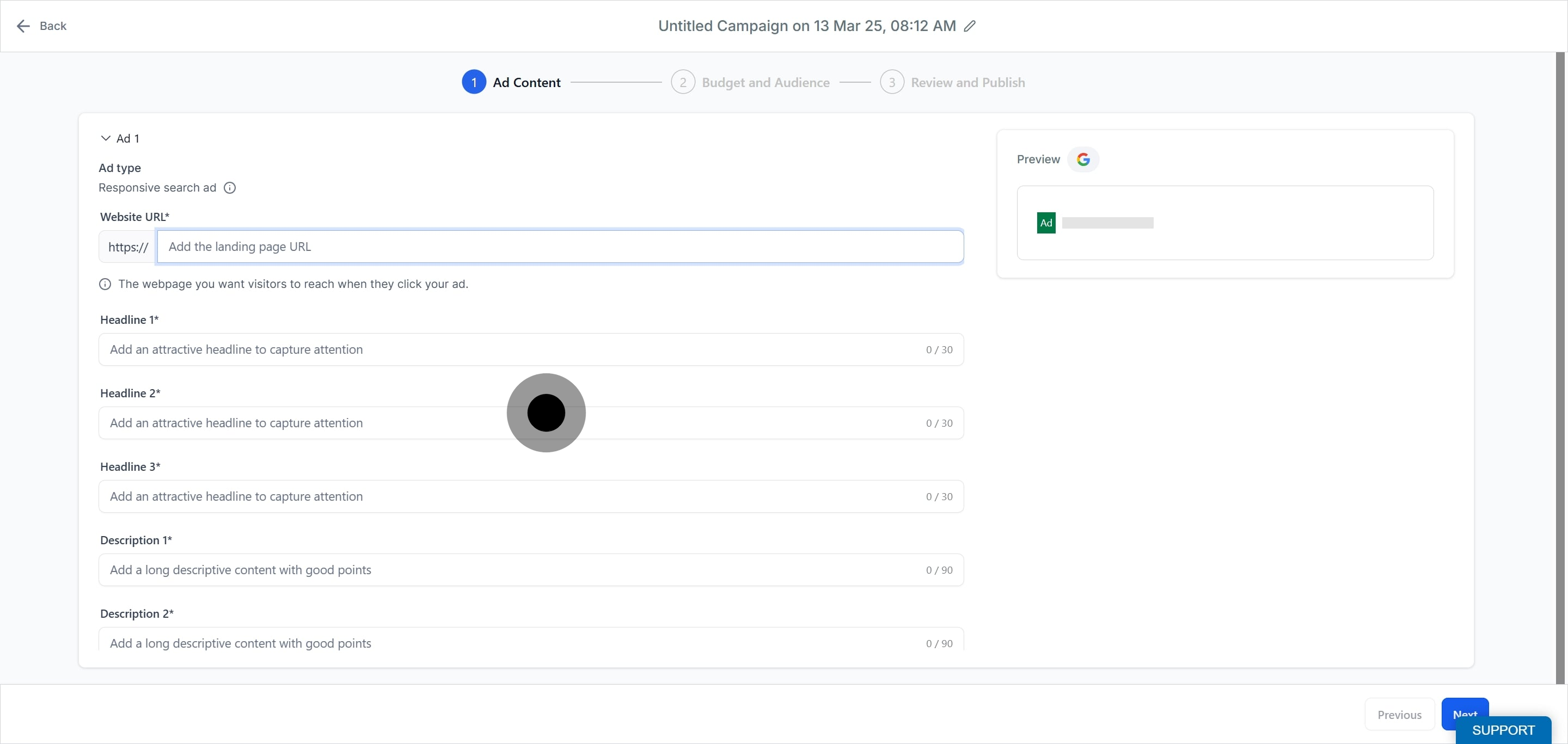
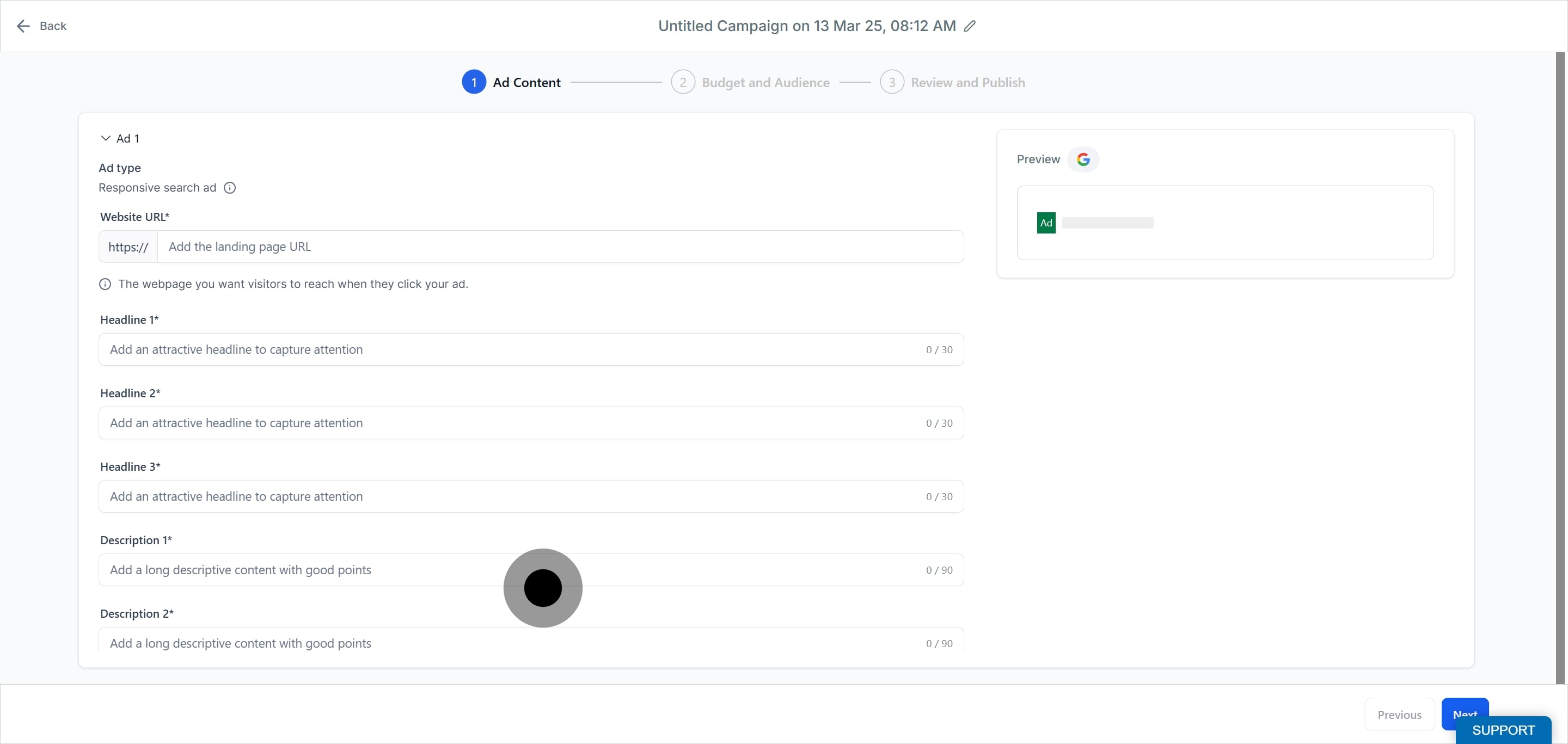
Descriptions. Add up to 4 descriptions (90-character limit each). Enter your first description under Description 1; if it exceeds 90 characters, continue under Description 2. Use the Add New Description button to add more. A minimum of 3 descriptions is recommended.
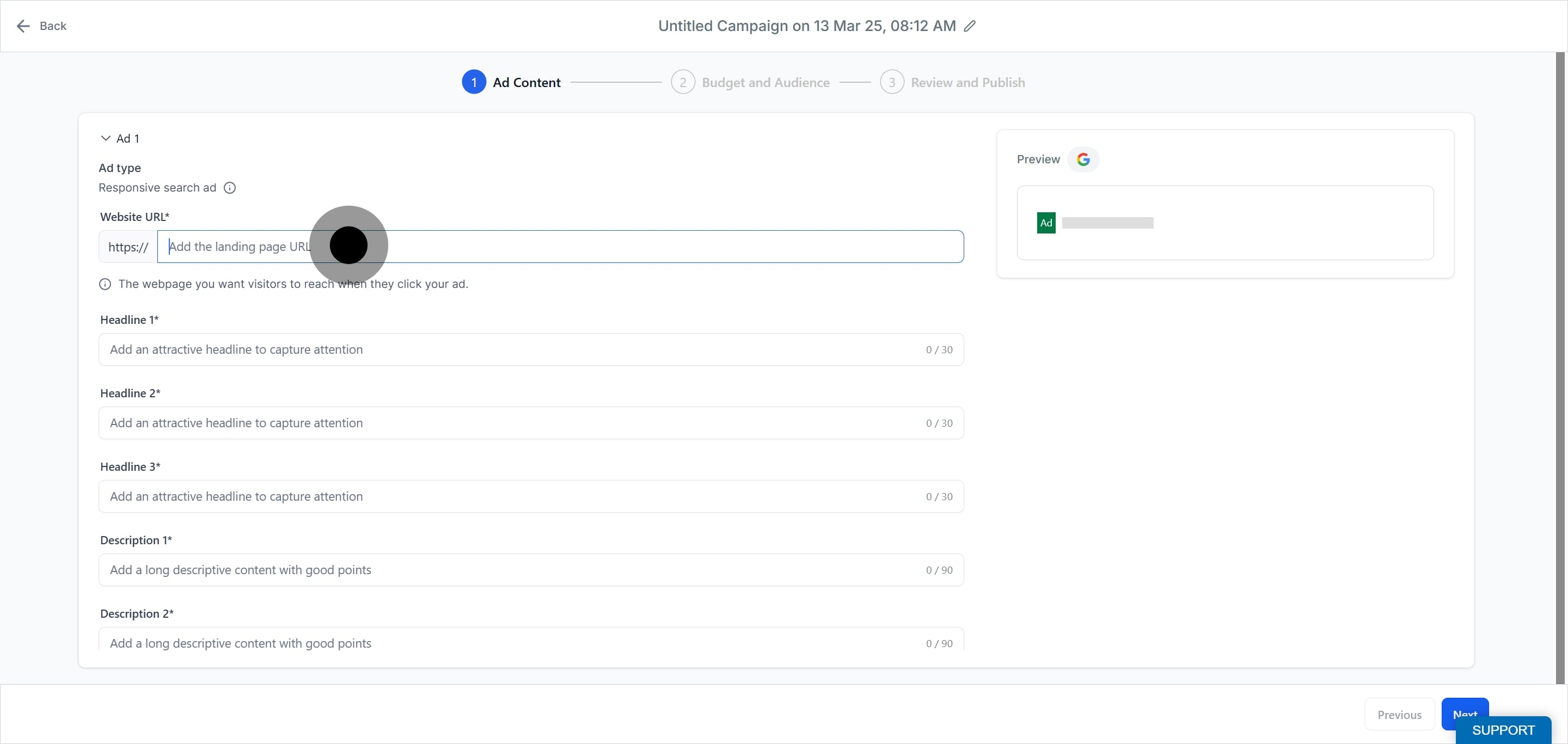
Final URL and display paths. Provide a final URL (the page your ad links to, for example your consultation booking page).
Optionally add display paths, the "Path" fields shown as part of your final URL. They create a clean, patient-friendly display path on the ad. Two segments are supported (up to 15 characters each).
Note: All ads within a single ad group must share the same base URL, but each ad may use a different display path.
Repeat for Ad 2 and Ad 3. These are optional but a good addition, since more ads give Google more to optimize.
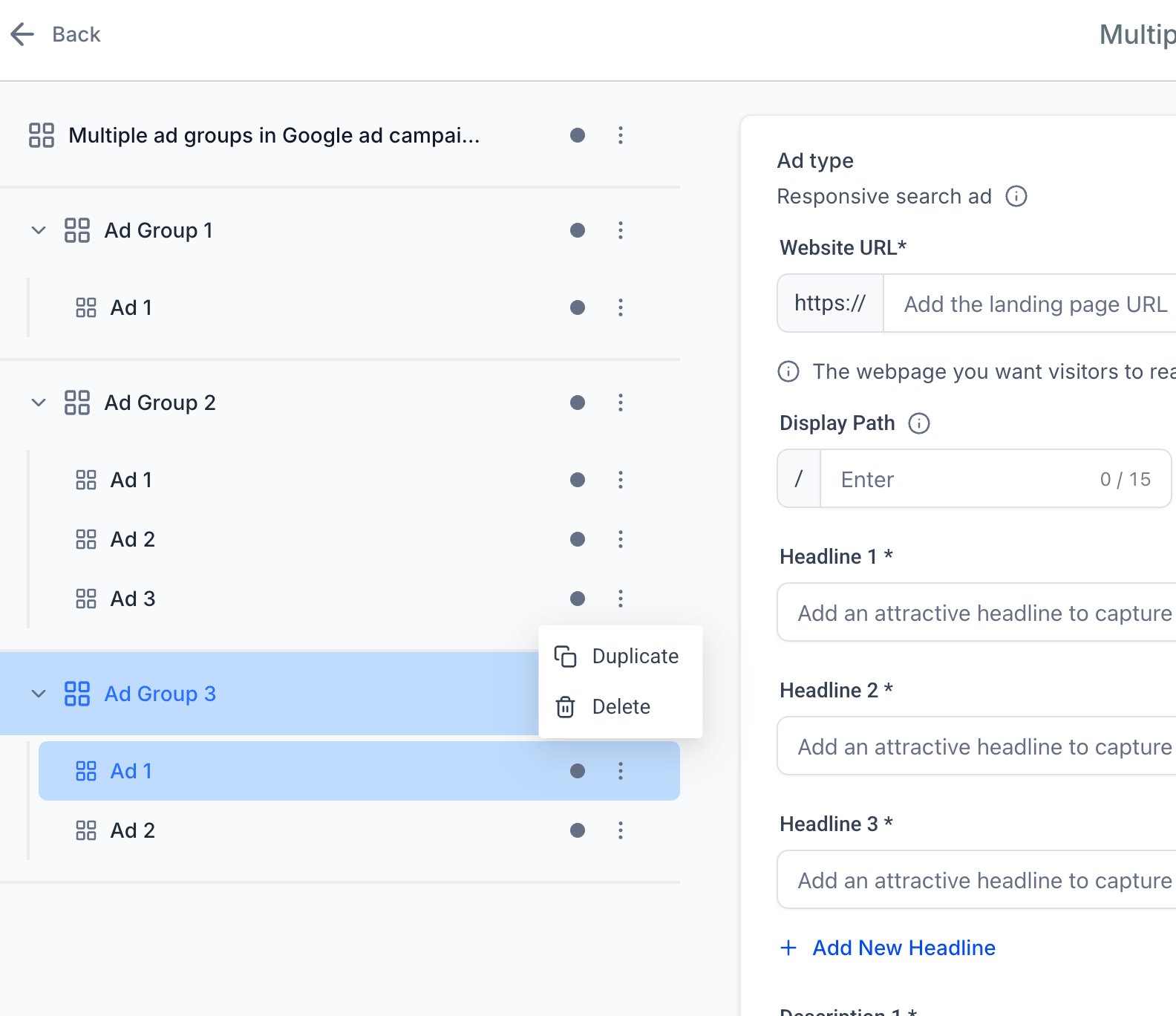
Ad actions. Use the ellipsis menu to Duplicate ad or Delete ad (you must keep at least one ad in the group).
Additional assets are add-ons that enhance your Google ads, such as sitelinks, call buttons, logos, and images. Configured at the campaign level, they apply across all ad groups and ads in that campaign, improving visibility, engagement, and CTR without repeating setup. These assets provide richer formats across Search, Display, and YouTube placements. You can add:
Business Logo
Image Assets
Call Extensions
Sitelinks
Asset Type | Supported Formats | Aspect Ratios | Limits per Campaign | Notes |
|---|---|---|---|---|
Business Logo | JPG, PNG | 1:1 (square) | 1 logo | Used across Search, Display, YouTube |
Image Assets | JPG, PNG | 1:1 (square), 1.91:1 (landscape) | Up to 20 images | Max 5 MB per image. Recommended 2–3 per ratio |
Call Extensions | Phone numbers | N/A | Multiple | Must be Google-approved |
Sitelinks | Text + URL | N/A | 2–20 (recommended 4) | Supports optional descriptions |
Image Assets. In the Additional Assets section, click Upload Images, then choose one or more images from the media library or upload new files. You can add up to 20 images per campaign. Supported formats are JPG and PNG; supported aspect ratios are 1:1 (square) and 1.91:1 (landscape); max file size is 5 MB per image. Add at least 2–3 images per aspect ratio for better coverage. Google automatically selects relevant images for placements across Search, Display, and YouTube. If some images fail checks, your text ads still publish. Avoid low-quality visuals, GIFs, heavy text overlays, watermarks, or misleading content. Uploading an unsupported ratio (for example 4:5) triggers a warning prompting you to crop or resize to 1:1 or 1.91:1, and the rejected image is not published.
Business Logo. Click + Upload Logo, then choose an existing image or upload a new one. Only 1:1 (square) images are eligible. Once uploaded, click the logo to open editing options like cropping. The logo appears across placements.
Call Extensions. Click the Call Extensions dropdown and choose one or more previously added phone numbers, or click + Create a New Call to add a new number. Select the country, add a valid number, and click Create. Call extensions are mobile-friendly and improve CTR by letting patients tap to dial your practice.
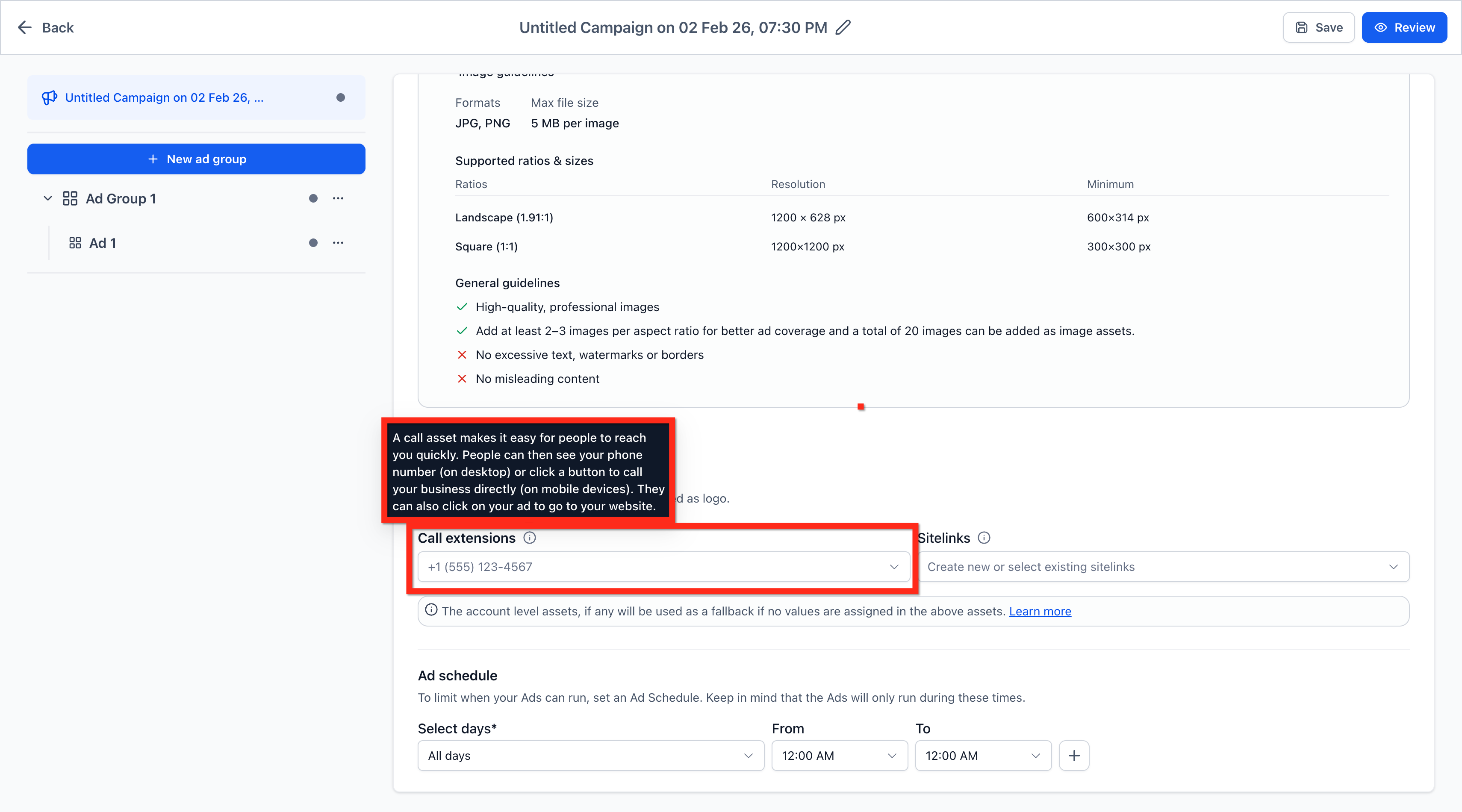
Sitelinks. Click the Sitelinks dropdown and select one or more existing sitelinks, or click + Create a new sitelink and fill in the Sitelink Text (max 25 characters), optional Description Lines 1 and 2, and the Final URL. Click Create. Add a minimum of 2, a maximum of 20, and ideally 4 sitelinks for optimal delivery (for example: Book a Consult, Our Services, Financing, Reviews).
Validation and fallback. The builder shows clear messages for policy, aspect-ratio, or file-size issues; failed assets are skipped while valid assets remain eligible. If no assets are added at the campaign level, the system defaults to account-level assets when available. If neither is present, the ad runs without these enhancements. Campaign-level selections take precedence over account-level assets.
Audience Segments organize people into groups you can target, letting you apply consistent, privacy-aware targeting across campaigns without leaving Aesthetix CRM. There are four segment types:
Type | Purpose | Best For |
|---|---|---|
Customer Match | Uses your uploaded or synced customer data. | Retargeting existing patients, loyalty campaigns. |
Website Visitors | Targets people who visited specific pages or took actions on your site. | Remarketing, recovering abandoned bookings. |
Interest Segments | Reaches users based on search intent or browsing behavior. | Awareness and prospecting campaigns. |
Lookalike Segments | Finds new users similar to your best patients. | New patient acquisition and scaling. |
Go to Marketing > Ad Manager.
Click the Settings (gear) button.
Go to the Google Ads > Audience Segments tab.
Click + Create New Segment.
Choose a segment type (Customer Match, Website Visitors, Interest, or Lookalike) and click Next.
Configure the details for that type (below) and click Create.
Customer Match. Targets people from your own patient or contact lists. Choose Customer Match, upload a CSV or select a Smart List for dynamic syncing, set a Membership Duration (up to 540 days), confirm compliance with Google's Customer Match Policy, then name and create the segment. Use this to re-engage past patients or seed a lookalike audience.
Website Visitors. Retargets people who interacted with your site. Choose Website Visitors, define conditions (for example, "Visited /book"), set the tracking time window (for example, last 30 days), combine multiple rules with AND/OR logic, then name and create. Tip: start with shorter windows (30–60 days) for higher-intent audiences.
Interest Segments. Reaches users based on interests or active searches, ideal for discovery or awareness. Choose Interest Segments, name the segment, then add Interests or Behaviors (keywords or phrases describing your ideal patient), Website URLs your ideal patient might visit, or app Bundle IDs, then create. Note: Interest Segments are not supported for Search campaigns through the API.
Lookalike Segments. Expands reach to people similar to your best audiences, ideal for prospecting. Choose Lookalike Segment, add a name, select up to 10 seed lists, choose target countries, and define reach size: Narrow (2.5%), Balanced (5%), or Broad (10%), then create. Note: Lookalike Segments are not supported for Search campaigns, and the lookalike location must match the campaign location or creation fails.
In the campaign builder, open the Intended Audience section, select the Audience Segments tab, then pick existing segments or click + Create a New Audience Segment to build one inline. Customer Match and Website Visitors can be created inline; Interest and Lookalike segments are created in Settings and then selected during setup.
The Target Interests tab gives you predefined Google audience categories based on long-term interests (Affinity) or immediate purchase intent (In-Market).
Affinity Audiences represent lifestyles, passions, and general interests (for example "Health & Fitness Buffs"). Use them for brand awareness and top-of-funnel reach.
In-Market Audiences identify people actively researching or comparing services like yours, showing strong purchase intent (for example "People researching cosmetic treatments"). Use them for conversion-focused, mid-to-bottom-funnel campaigns.
Combine thoughtfully: use Affinity or Interest Segments to attract new audiences, retarget with Website Visitors or Customer Match, and scale with Lookalike Segments and In-Market Audiences for full-funnel coverage.
HIPAA note. Uploading patient contact lists (emails or phone numbers) to Google for Customer Match or Lookalike audiences shares patient data with Google. Get patient consent, follow your practice's HIPAA policies, and be aware that Google hashes and uses the data for matching. Upload only contact identifiers, never other protected health information.
Common limitations. Lookalike and Interest Segments are not supported for Search campaigns. Audience creation or syncing may take up to 48 hours, minimum size thresholds apply for serving ads, and you must ensure user consent when uploading customer data.
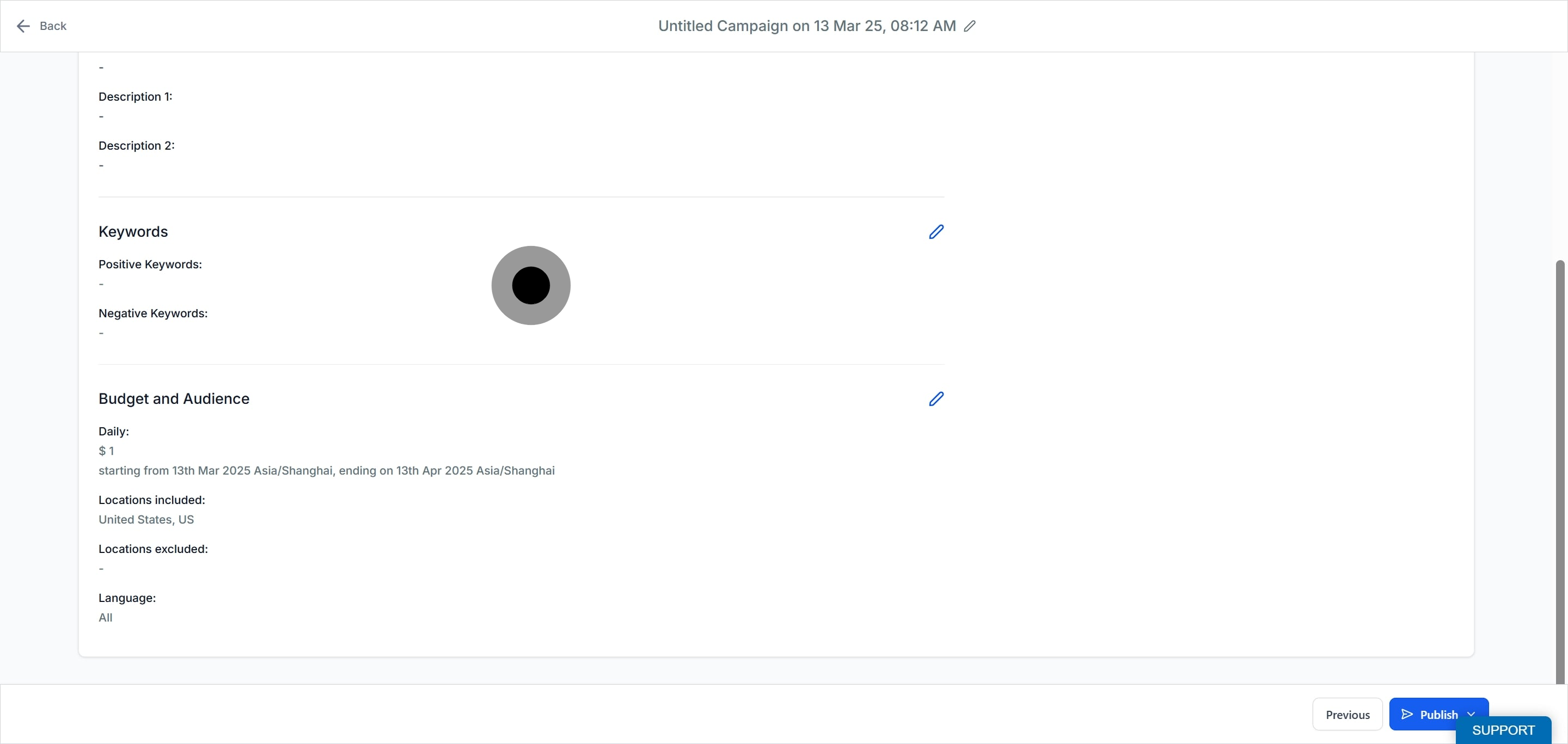
Click the Review button at the top right to see the full campaign configuration. In review, you can verify all details of design, content, budget, and other entries before taking the campaign live.
The Review screen lets you toggle between ad groups and view the ads inside each group, confirm that all required elements are in place (at least 1 ad group and at least 1 ad per ad group), and visualize the campaign's hierarchical structure before publishing.
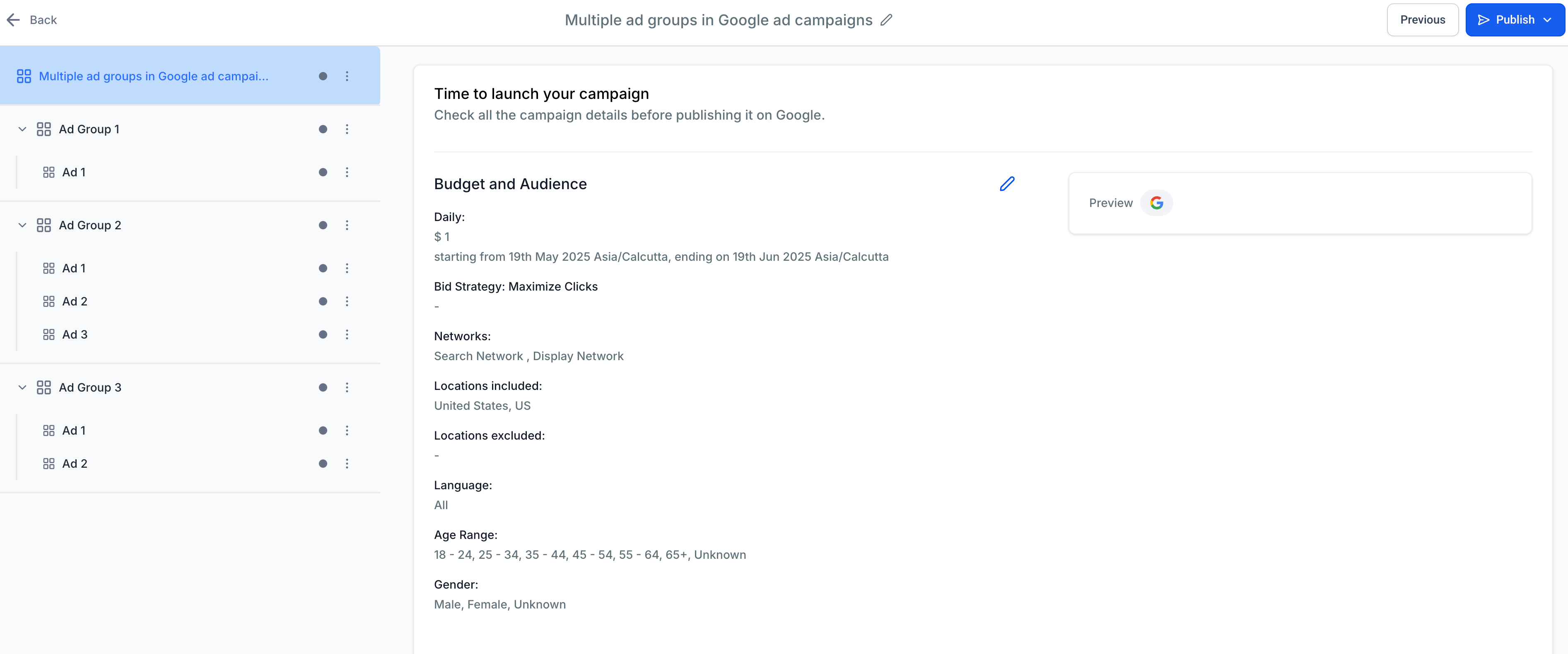
Review and publish your campaign to go live.
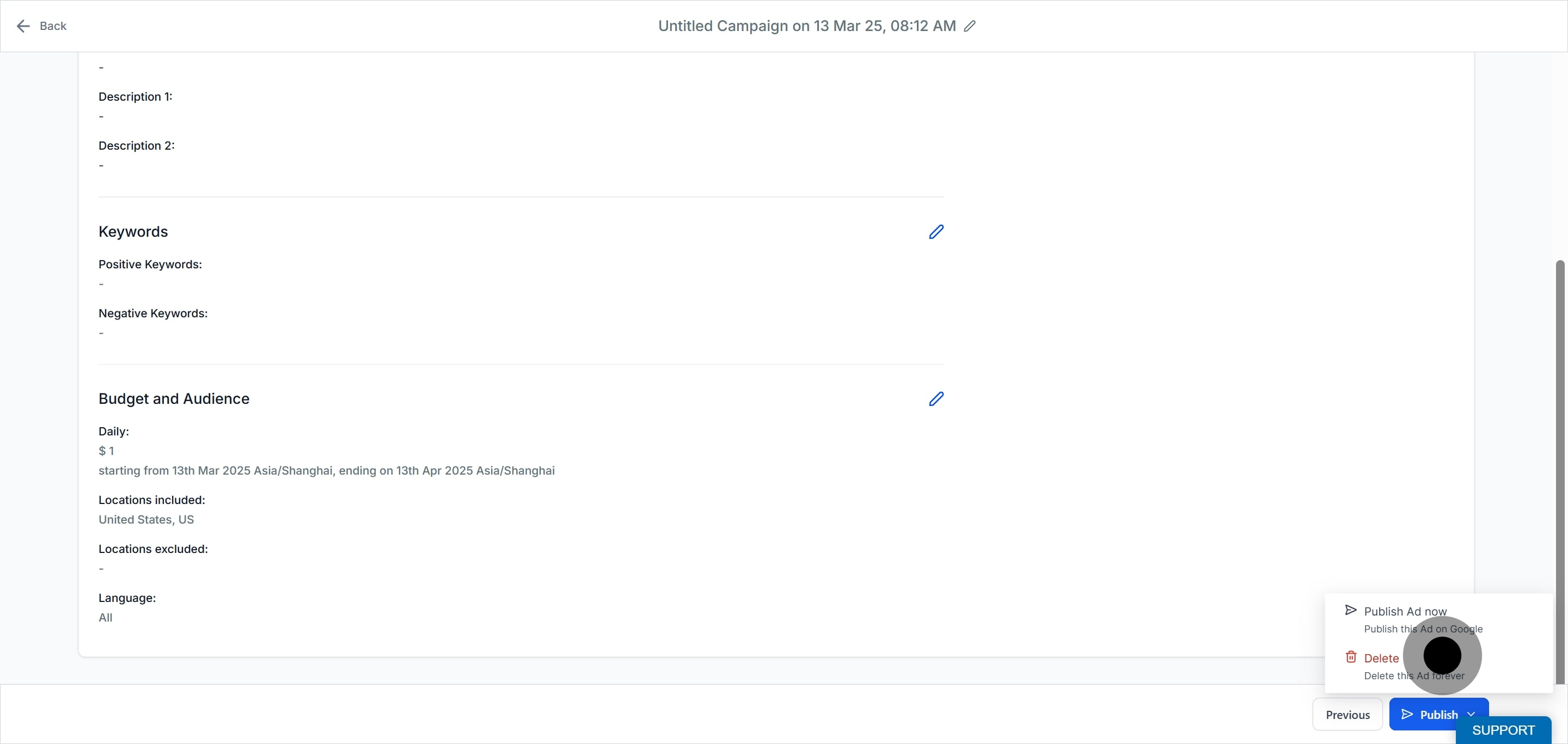
When you publish, the card added to your connected Google Ads account is charged for campaign spend.
Important: Strictly follow Google's ad policies to prevent ad rejections. Google's ad policies are the guiding source of truth: https://support.google.com/adspolicy/answer/6008942. If a landing page hosted on a funnel subdomain is rejected, see the guide on fixing Google Ads rejections caused by funnel URL redirects.
Before your campaign is sent to Google, Ad Manager runs a set of checks against it, looking for problems like missing headlines, missing descriptions, a missing website URL, missing keywords, invalid campaign dates, or missing creative assets. If it finds a problem, publishing pauses and a Fix errors before publishing prompt appears instead of sending an incomplete campaign to Google.
When a campaign has more than one issue, all of them are listed together in one place instead of appearing one at a time. Each item in the list is clickable: selecting an error takes you straight to the field or section that needs attention, which is especially useful on a campaign with several ad groups and ads. Work through the list, correcting each highlighted field, then save your changes and click Publish again. Ad Manager rechecks the campaign, and any issue you already fixed drops off the list.
Passing these checks does not guarantee Google will approve the campaign. Google's own ad policy and platform review still apply after submission, so a campaign can pass every pre-publish check here and still come back rejected. If that happens, review the rejection details returned by Google rather than this checklist.
After publishing, track performance in the Statistics tab. You can review results at the campaign, ad group, ad, and keyword level.
Access the Statistics tab. Navigate to Ad Manager, click the Statistics tab, select Google from the platform dropdown, and choose a date range.
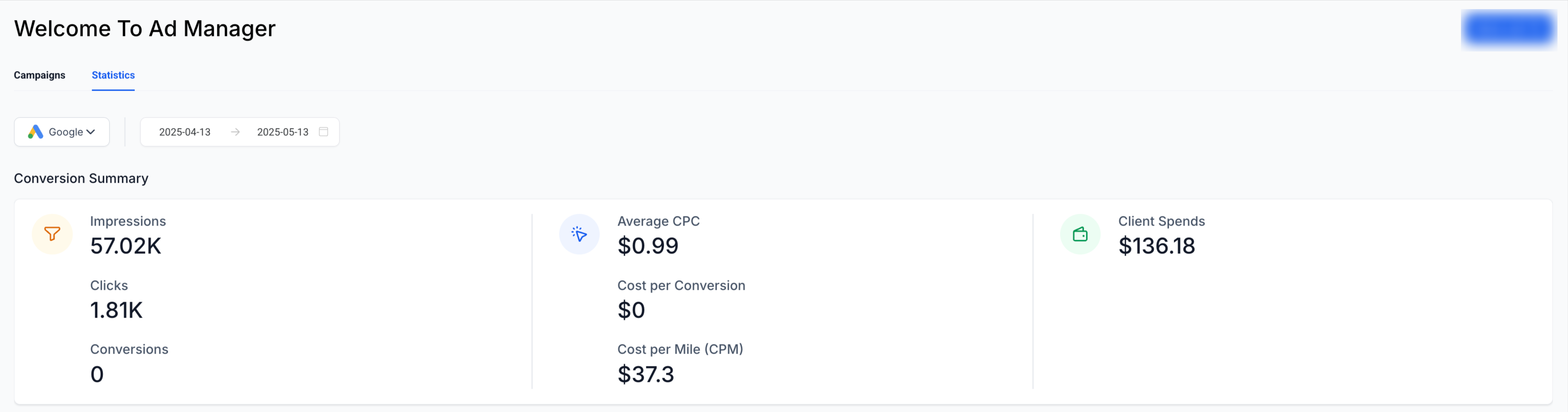
Conversion summary. The top panel shows high-level metrics: Impressions (times your ads were displayed), Clicks, Conversions (completed actions attributed to the campaign), Average CPC, Cost per Conversion, CPM (cost per thousand impressions), and Client Spends (total ad spend).

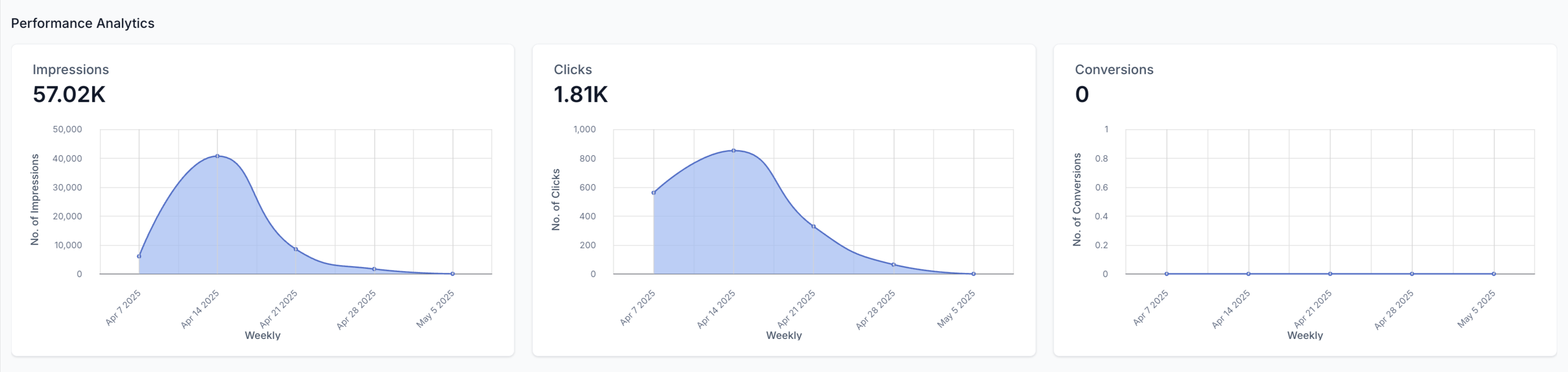
Performance analytics. Below the summary, visual graphs show Impressions (visibility trends), Clicks (engagement volume), and Conversions (conversion trends) so you can spot anomalies or opportunities.
Campaign-level metrics. The Campaign Details table shows Clicks, CTR, CPC, Impressions, Sales, Revenue, ROI%, Leads, Cost per Lead (CPL), and Cost per Sale (CPS). Use the search bar to find a specific campaign, and export or customize columns as needed.

Individual campaign detail. Click a campaign name to open its dashboard with deeper insight at three sub-levels: Ad Group Performance, Ad Performance, and Keyword Performance. Use this to pause low-performing ad groups or keywords, shift budget to high performers, and optimize creatives that show strong engagement.
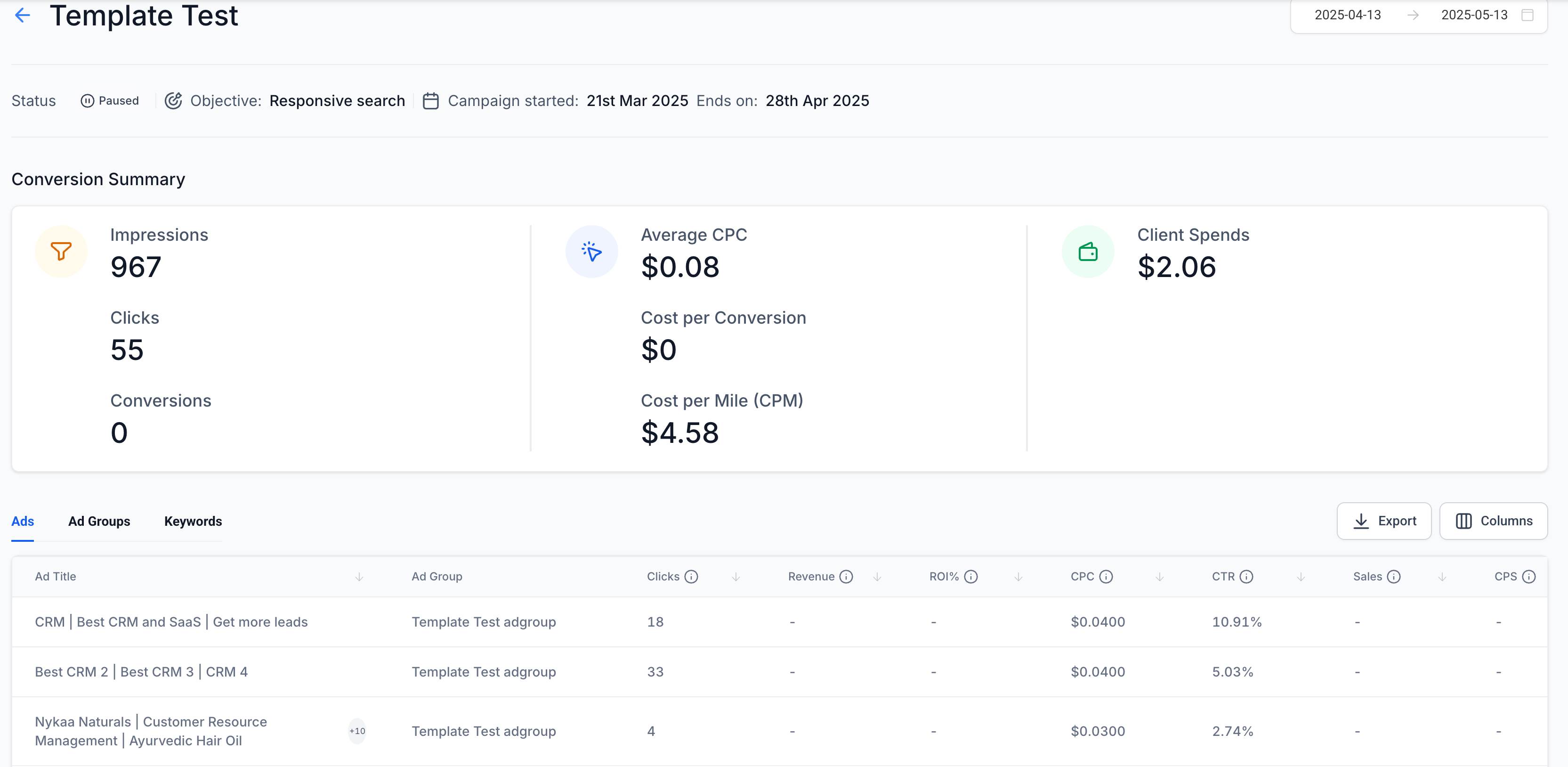
Notes: Data refreshes periodically, so allow time after publishing before metrics populate. Zero conversions may indicate a tracking or landing-page issue. Use consistent date ranges for accurate comparisons. General cross-channel dashboards live in the Reporting collection.
How many ad groups and ads can a Google Search campaign have? You can create up to 10 ad groups per campaign, and each ad group can hold up to 3 ads for A/B testing. At least 1 ad group and 1 ad are required to publish.
Can I set a different base URL for each ad? No. All ads within an ad group must share the same base URL, which is set at the ad group level. Individual ads can still use different display paths.
How many keywords can I add, and what do the match types mean? You can add up to 40 positive and 40 negative keywords per campaign (80 characters each). Broad match reaches related searches, Phrase match requires your phrase in order, and Exact match reaches only the exact term or close variants.
Why do I have to answer the EU political ads question? Google requires every campaign to confirm whether it contains EU political ads before it can publish. For a typical med spa campaign this is No, but you must make a selection to continue.
What are additional assets and do they override my account settings? Additional assets are logos, images, call extensions, and sitelinks added at the campaign level to enrich your ads. Campaign-level selections take precedence over account-level assets; if none are set, account-level assets are used.
Can I retarget past patients or website visitors? Yes, through Audience Segments. Customer Match targets your uploaded contact lists and Website Visitors targets people who visited your pages. Follow HIPAA guidance and obtain consent before uploading patient contact data.
Why are Interest and Lookalike segments unavailable on my Search campaign? Google does not support Interest or Lookalike segments for Search campaigns through the API. Use Customer Match and Website Visitors for Search, and reserve Interest and Lookalike segments for Demand Gen campaigns.
When will I see my campaign statistics? Data refreshes periodically, so allow some time after publishing before metrics appear. If conversions stay at zero, check your conversion tracking setup and landing page. Use absolute date ranges when comparing periods.
How is my ad spend charged? Campaign spend is charged to the card on file in your connected Google Ads account, not through Aesthetix CRM. Your daily budget controls how much is spent each day.
What if my landing page keeps getting rejected? If a funnel hosted on a subdomain is rejected for a redirect or final URL mismatch, add a canonical tag to the funnel step. See the guide on fixing Google Ads rejections caused by funnel URL redirects for the exact steps.
What happens if I try to publish a campaign that's missing required information? Ad Manager stops the publish and shows you a list of the issues it found, such as missing headlines, descriptions, keywords, or a website URL. Click any item in the list to jump straight to the field that needs fixing, correct it, save, and publish again.
Does passing Ad Manager's checks guarantee Google will approve my campaign? No. These checks catch common setup problems before your campaign is submitted, but Google's own ad policy and platform review still apply afterward. A campaign can pass every check here and still be rejected by Google, so review any rejection details Google returns.
