
Before your practice can build and publish Google campaigns, you need to connect a Google account and the Google Ads account you want to use with Ad Manager. This one-time onboarding links your ad account so campaigns you create in Aesthetix CRM publish straight to Google.
Before you connect
Ad Manager must be enabled for your account. Once it is active, you will see the Ad Manager tab under Marketing.
You will connect one Google Ads account. Make sure you have login access to the Google account that owns (or has access to) the Google Ads account you advertise from.
Have your Google email and password ready, and be prepared to approve the permission prompts Google shows during sign-in.
How to connect Google with Ad Manager
1. Click the Connect Google button. You will be taken to Google to select your Google email address and allow permissions. Ensure all permissions are allowed for a seamless connection and secure onboarding.
During sign-in you will see a consent screen that names LeadConnector. This is expected and safe. The Google connection in Ad Manager is powered by our underlying provider, so LeadConnector is the app Google shows on the permission screen. Approve every permission so the connection can complete.
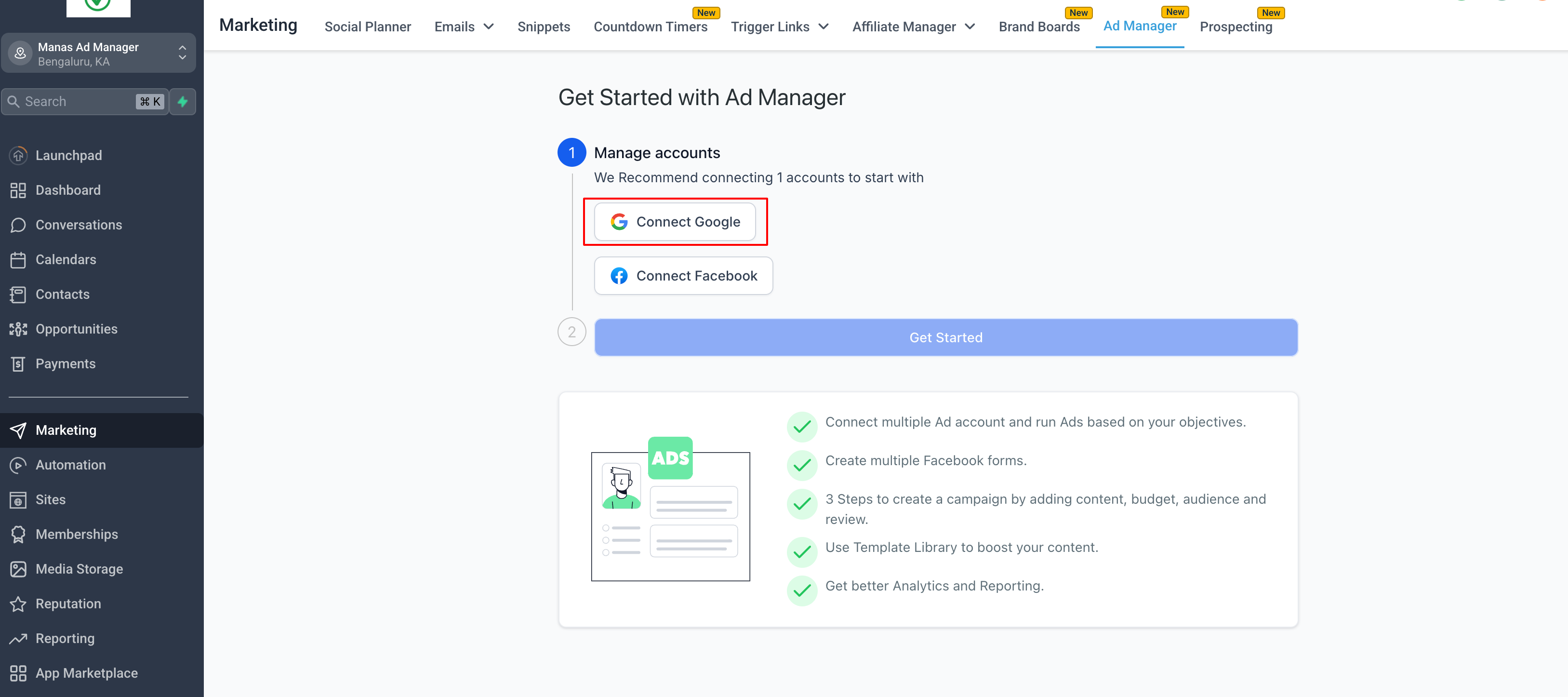
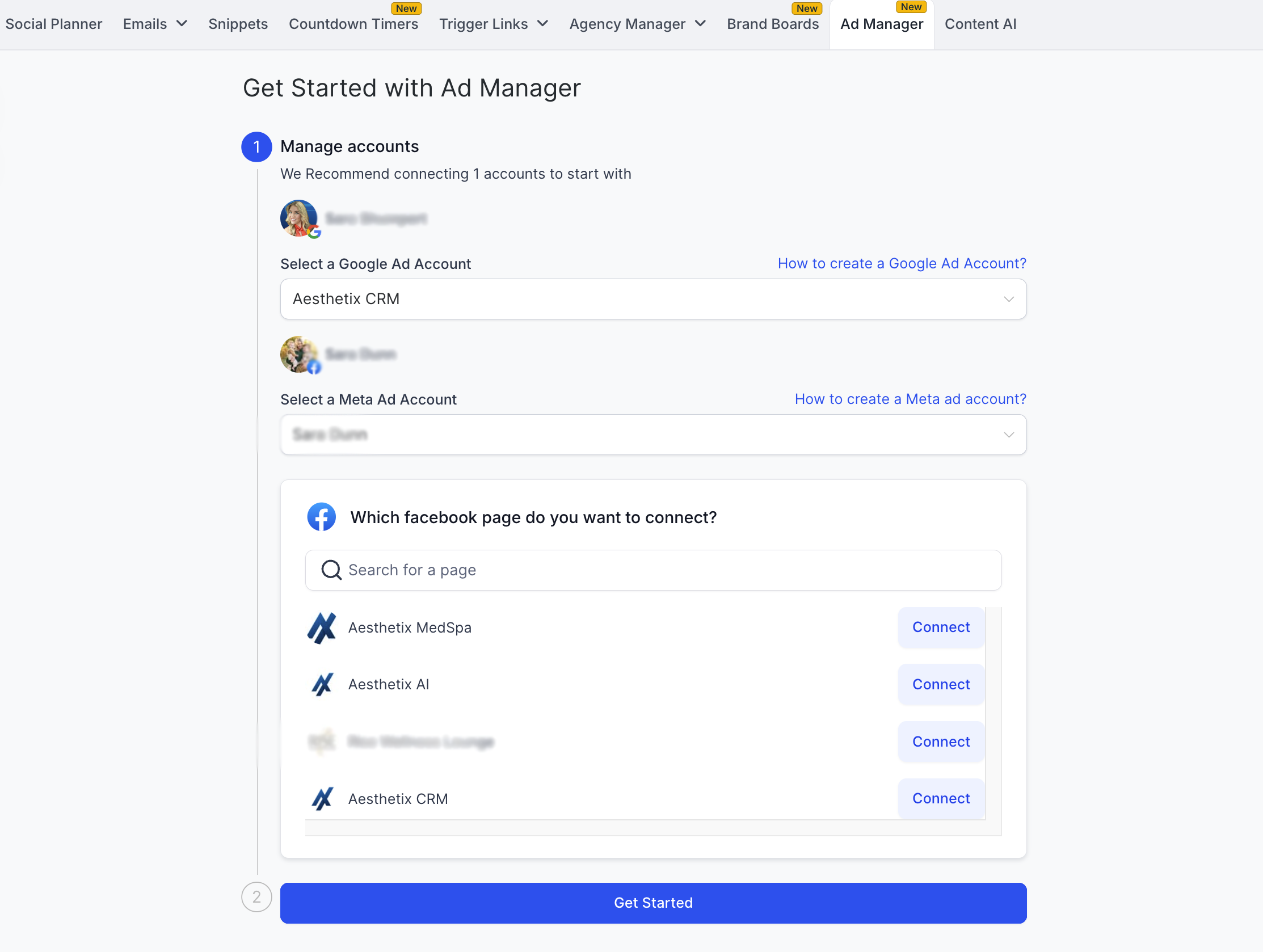
2. Once your Google account is connected and all permissions are granted, every Google Ads account associated with that Google login appears in the Select Ad Account dropdown. Select the one eligible account you want to advertise from.
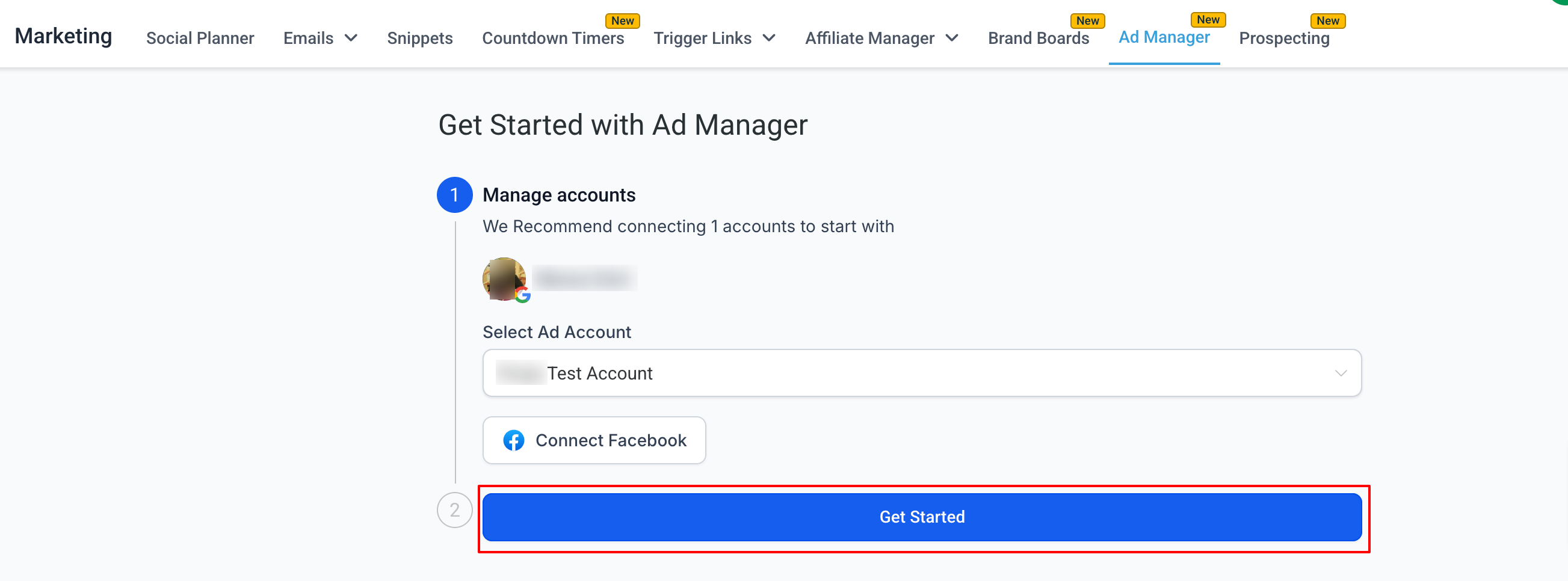
3. You are ready to create Google campaigns. Click Get Started to begin building.
Account connection basics for other channels live in the Integrations documentation. Once Google is connected, follow the create-campaign guide for campaign mechanics.
Frequently Asked Questions
Why does the Google consent screen say "LeadConnector"? The Google connection is powered by our underlying provider, so Google displays LeadConnector as the app requesting access. This screen is expected and safe. Approve all permissions so Ad Manager can publish and report on your Google campaigns.
How many Google Ads accounts can I connect? Ad Manager supports connecting one Google Ads account per Aesthetix CRM account. Choose the account you actively advertise from when you select it from the dropdown.
What if my ad account does not appear in the dropdown? Only Google Ads accounts associated with the Google login you used will appear, and only eligible accounts can be selected. Confirm you signed in with the correct Google account and that it has access to the Google Ads account you want.
Do I need to allow every permission? Yes. If any permission is skipped, the connection may not complete or campaigns and reporting may not work correctly. Allow all requested permissions during sign-in.
Where do I go after connecting? Click Get Started to open the campaign builder, or find Ad Manager any time under Marketing. From there you can create Google Search or Demand Gen campaigns.
Can I change which Google Ads account is connected later? Yes. Reconnect through Ad Manager to switch the linked Google account or ad account. Keep in mind that campaign history and reporting are tied to the connected account.
Is my payment handled through Aesthetix CRM? No. Google campaign spend is charged to the card on file in your connected Google Ads account. Aesthetix CRM does not process your Google ad spend.