Editing a live campaign lets you adapt to real-time performance data, market conditions, and the needs of your practice without pausing and rebuilding from scratch. With this feature you can correct setup errors, optimize based on key performance indicators, respond to feedback by improving creative or targeting, and save time on minor adjustments. Editing was previously limited to budget changes only; you can now edit most fields of a live campaign or one that is still In Review.
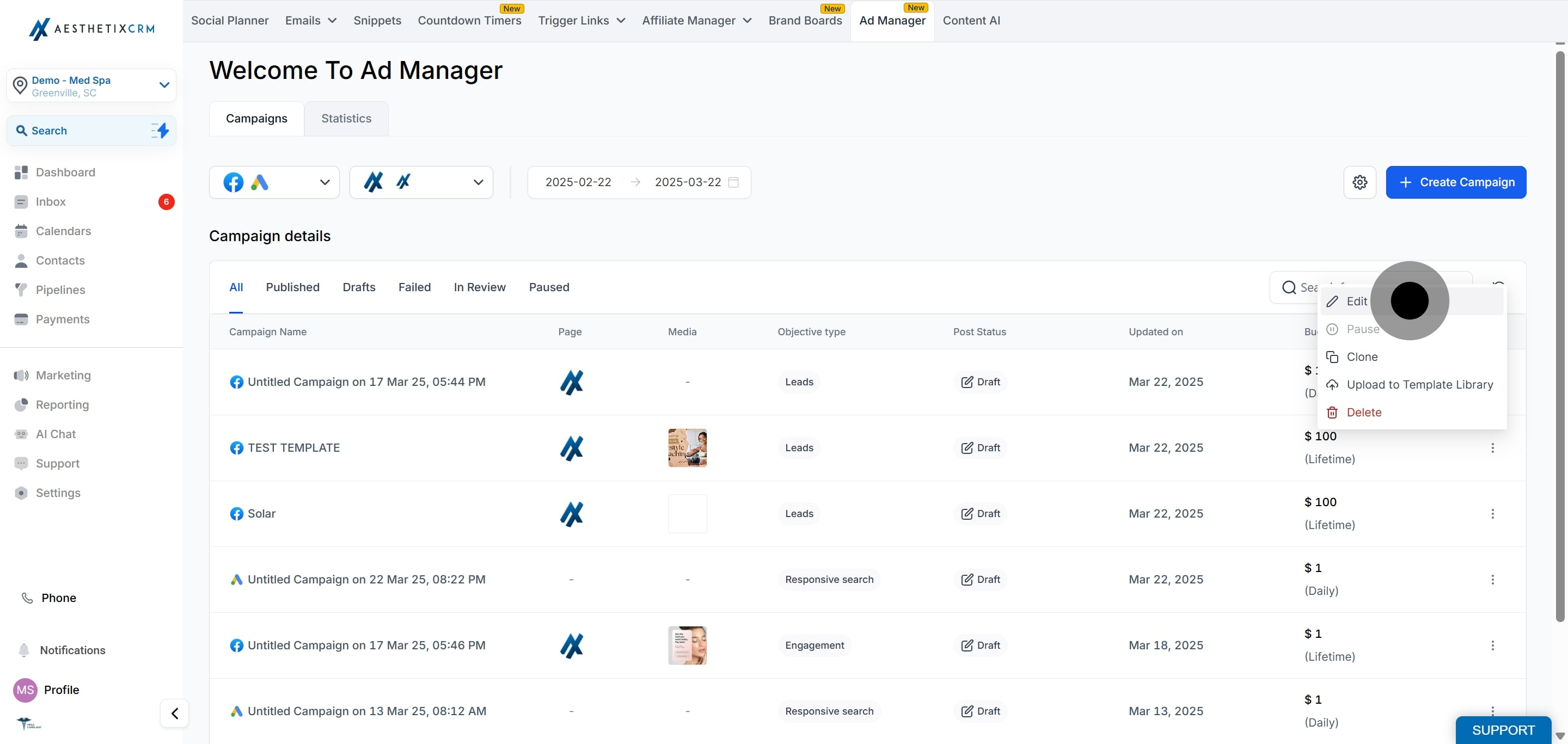
Open Ad Manager, find the campaign, and use its menu to start editing.
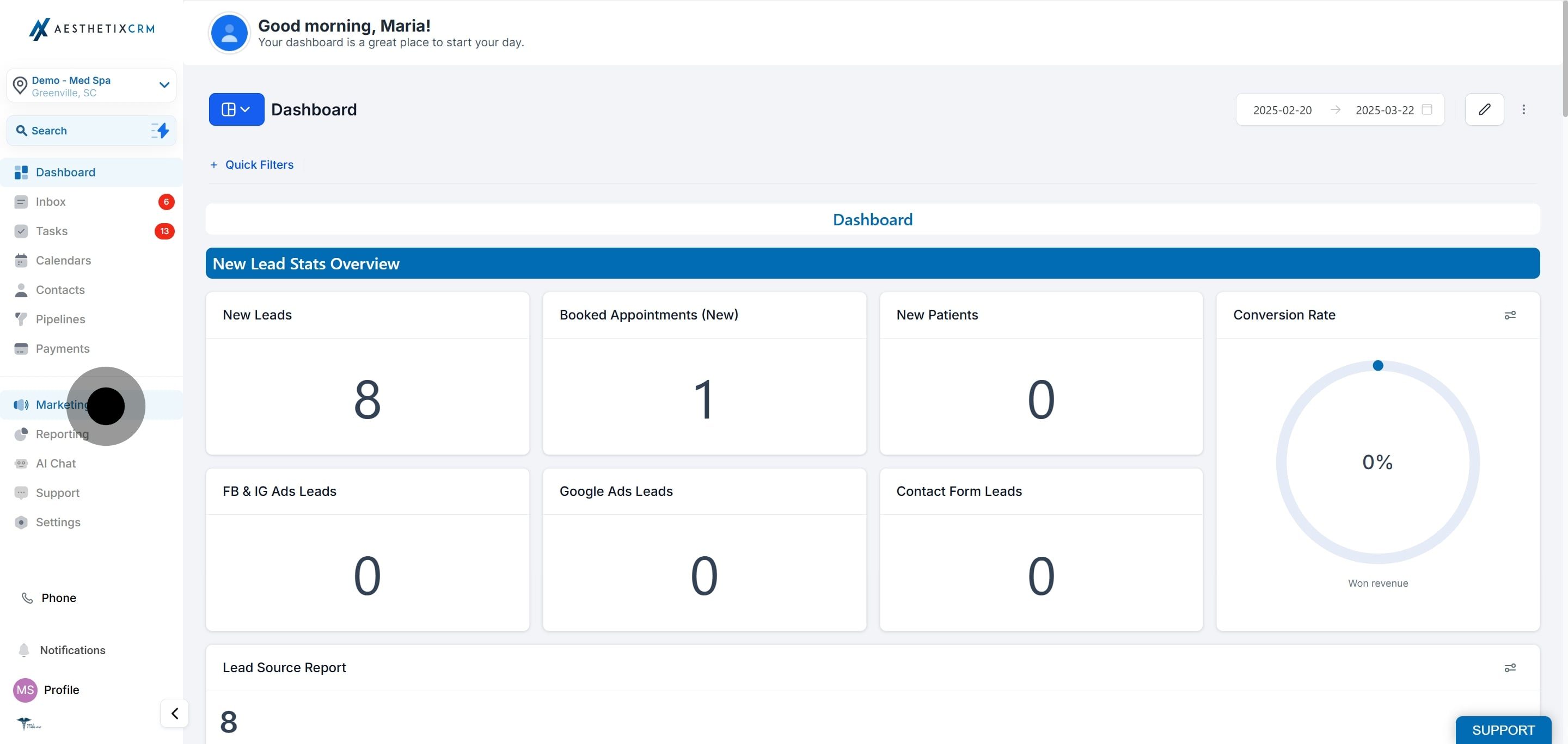
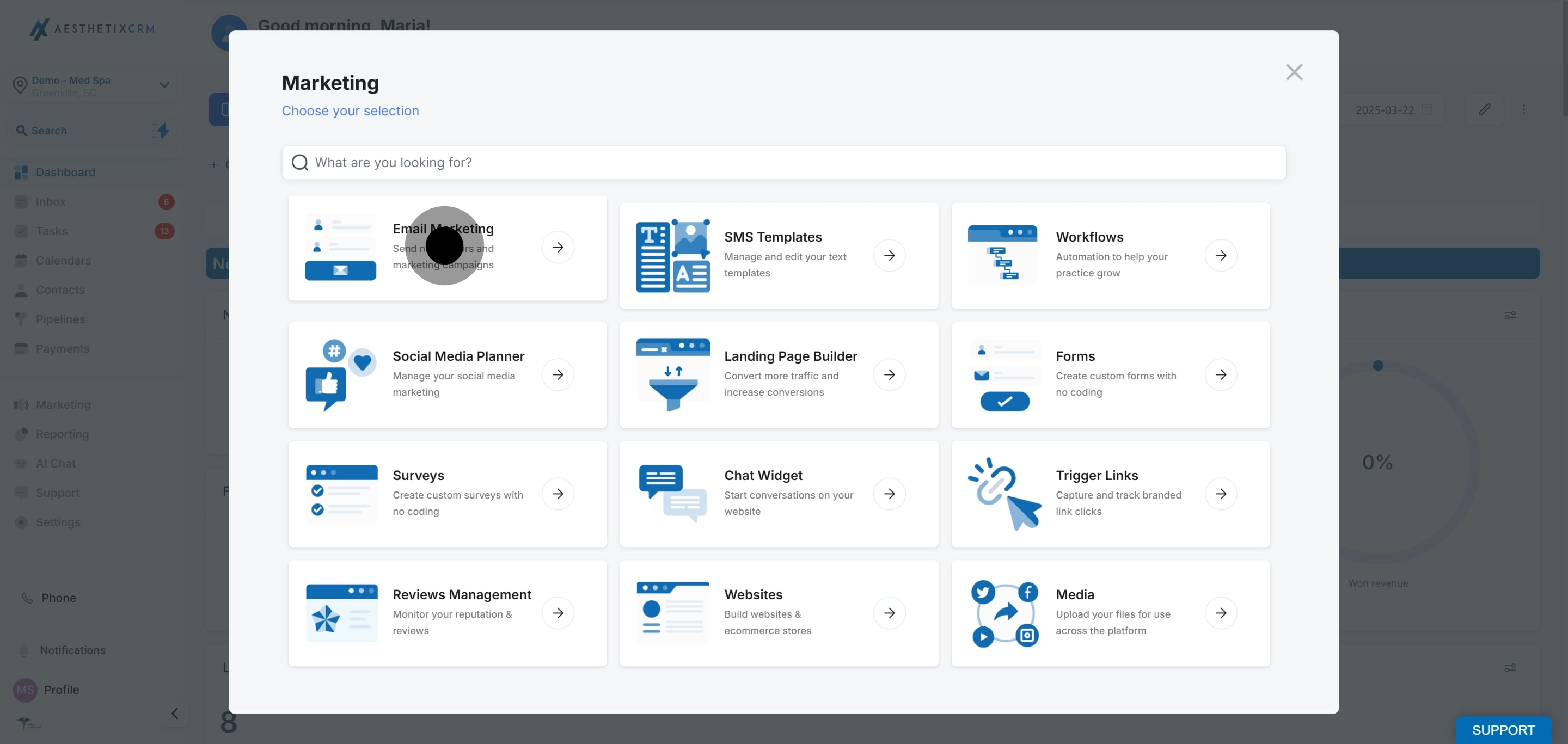
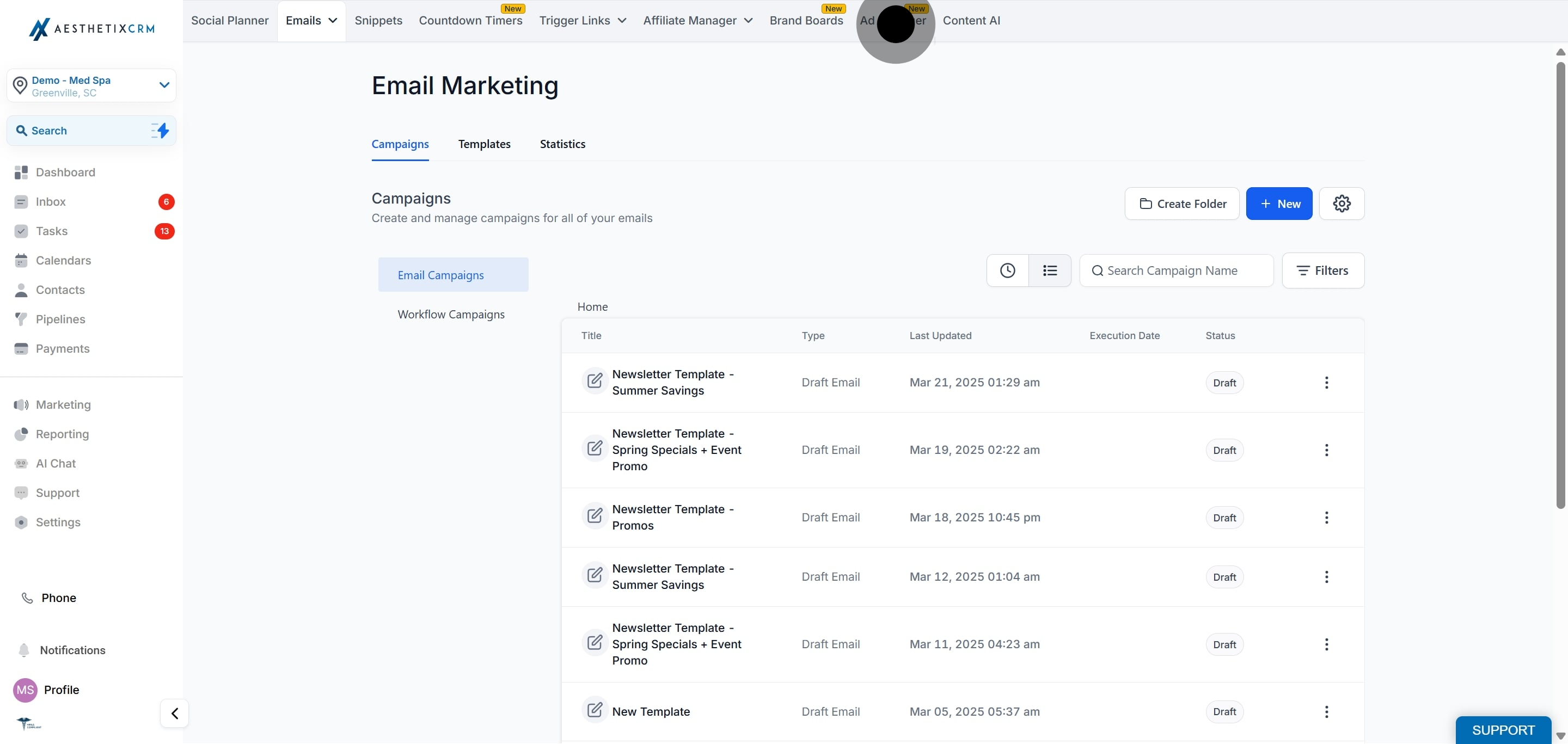
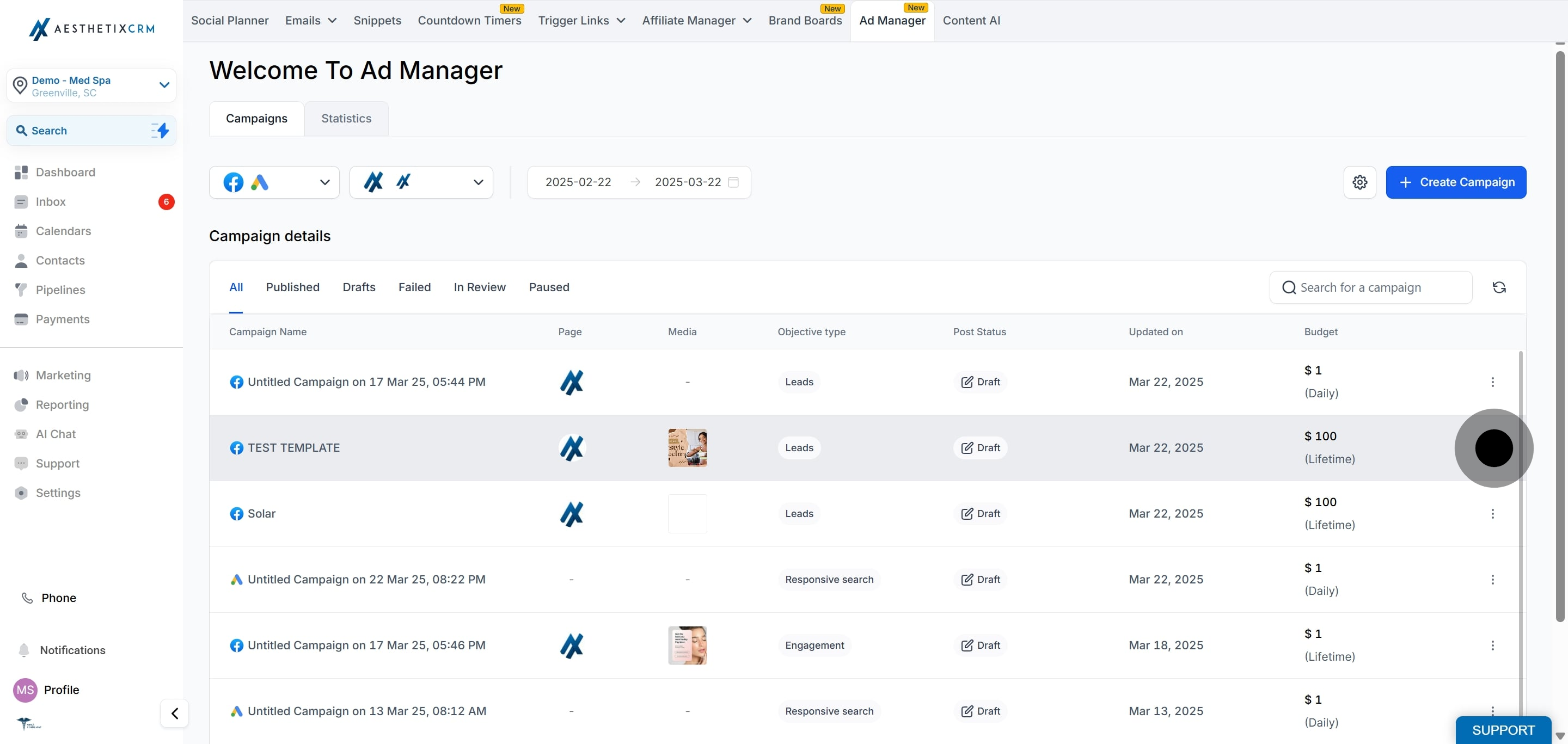
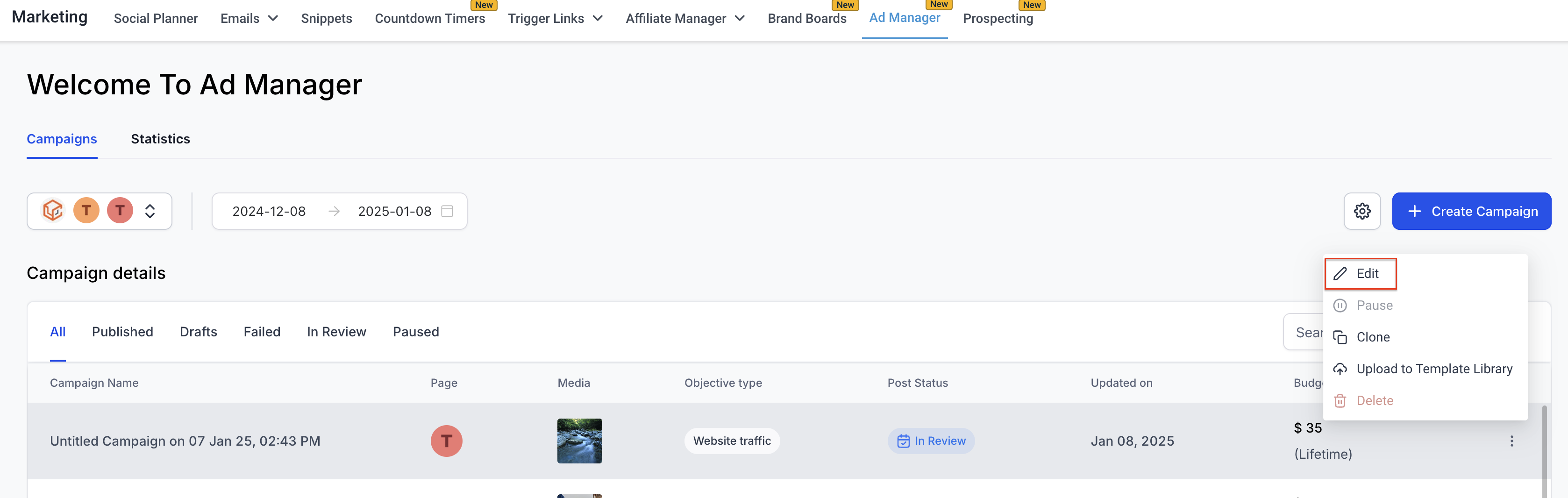
On the Ad Manager home page, locate the live or in-review campaign and open its inline ellipsis menu.
The campaign builder opens so you can change the permitted fields.
Once you make any change, an "Unpublished Changes" tag appears at the top right of the screen.
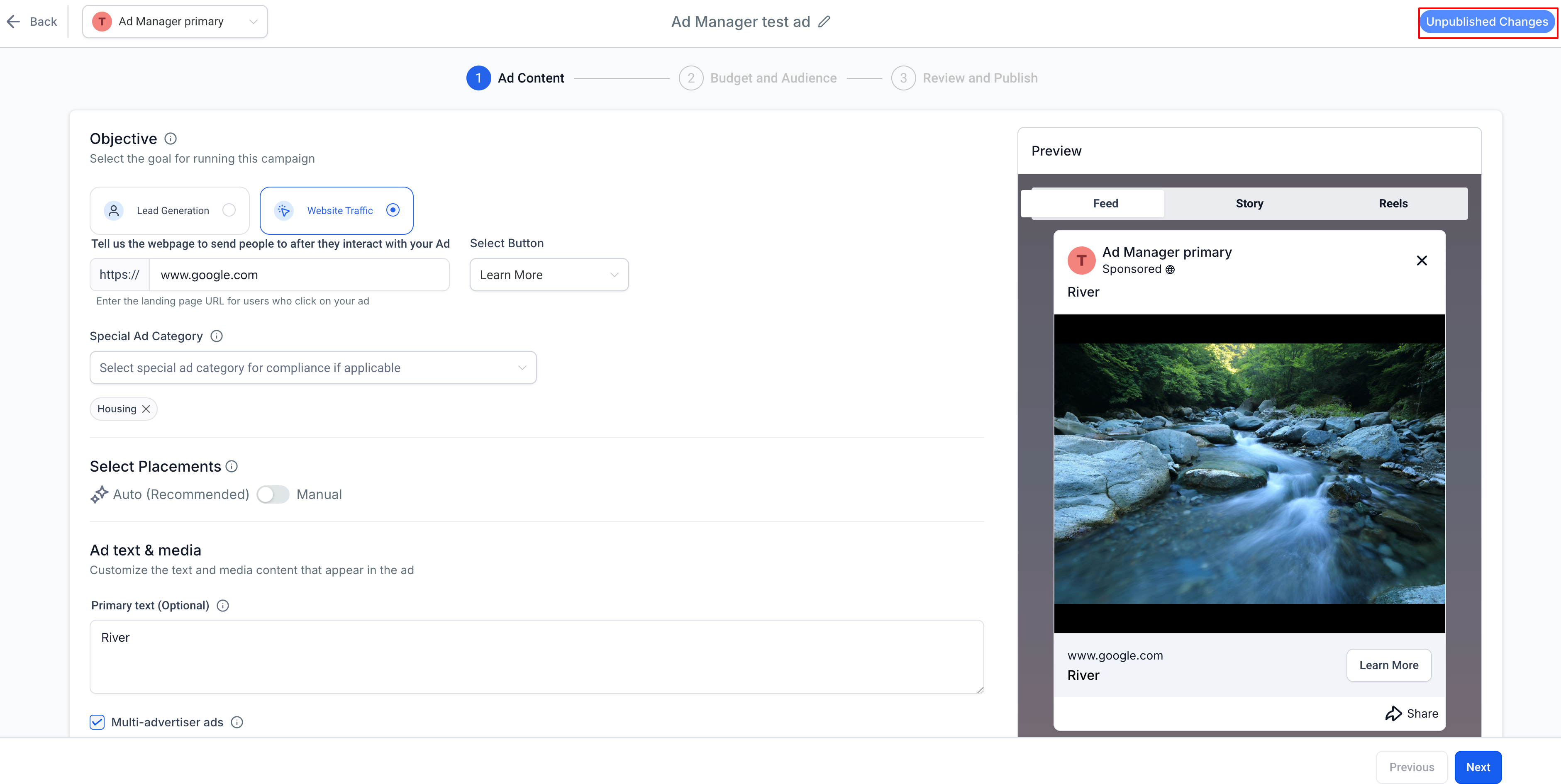
The following fields can be modified on a published campaign:
Campaign Name
CTA Button: change or update the call-to-action button.
Lead Generation Form: if the objective is Lead Generation, switch to another form or create a new one.
Website: change the website URL if the objective is Website Traffic.
Special Ad Category: add or change the category if needed.
Placements: update where your ads appear.
Ad Text and Media: revise the copy and visuals.
Budget: adjust the amount allocated.
Geographic Location: change the targeted locations.
Target Audience: change interests, lookalike, or retargeting parameters.
End Date: update the end date if a lifetime budget is selected.
Certain fields stay locked after a campaign is published:
Campaign Objective
Facebook Page: the page used to publish the campaign.
Start Date
Budget Type: switching between Daily and Lifetime budget is not permitted.
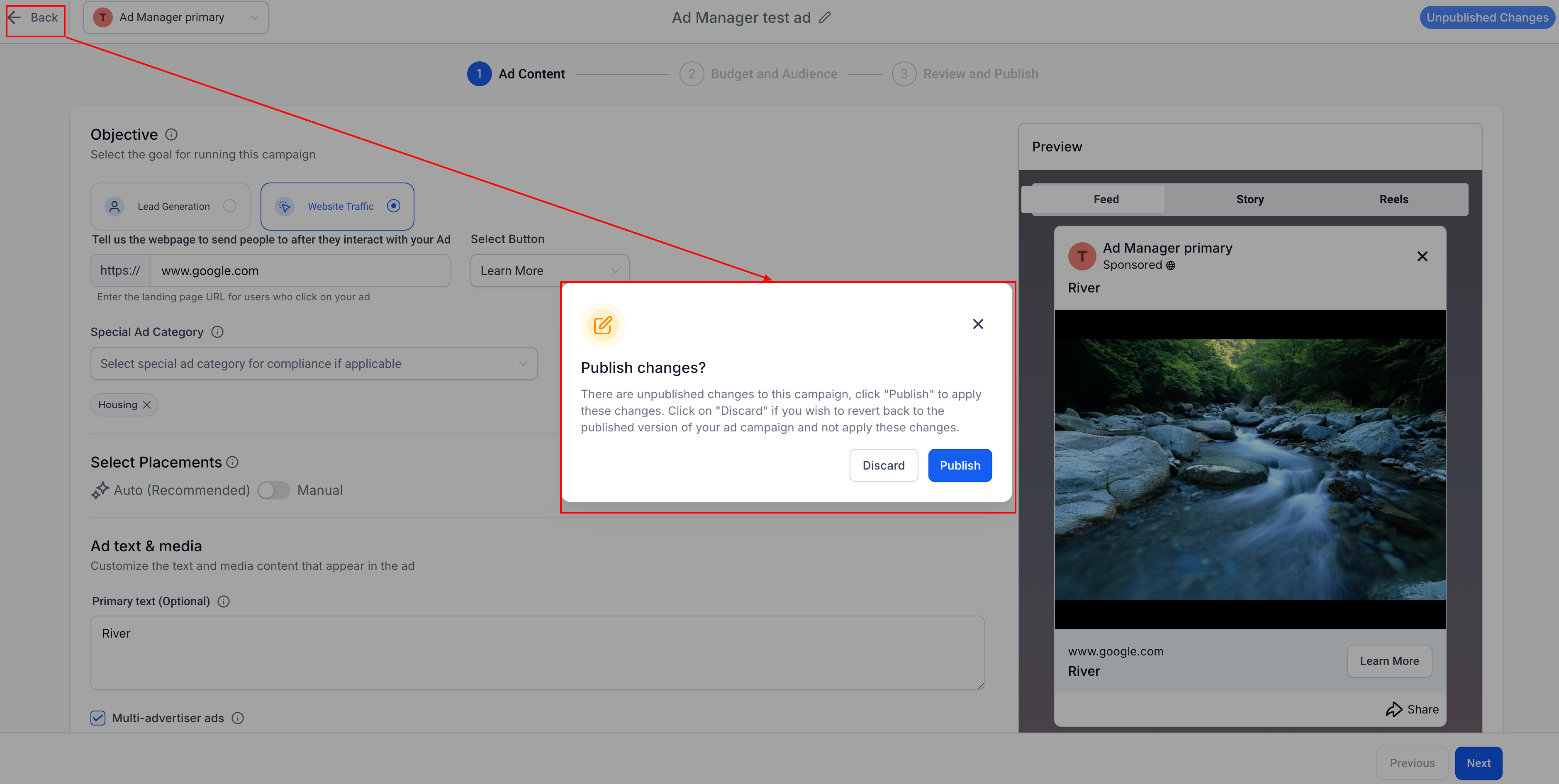
To revert the campaign to its original state without applying edits:
Click the Back button at the top left of the campaign builder.
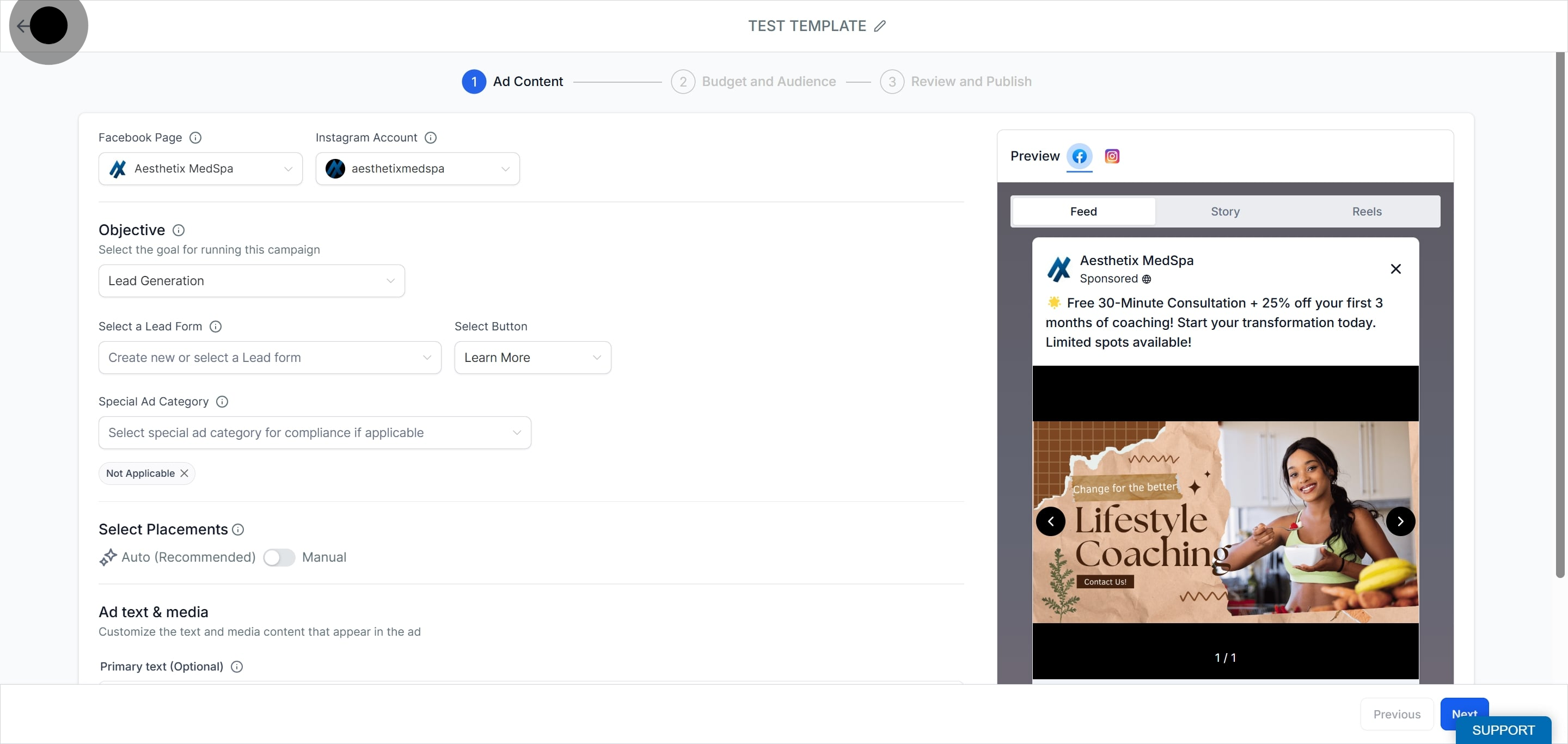
A prompt appears. Select Discard to keep the original campaign intact and ignore your changes.
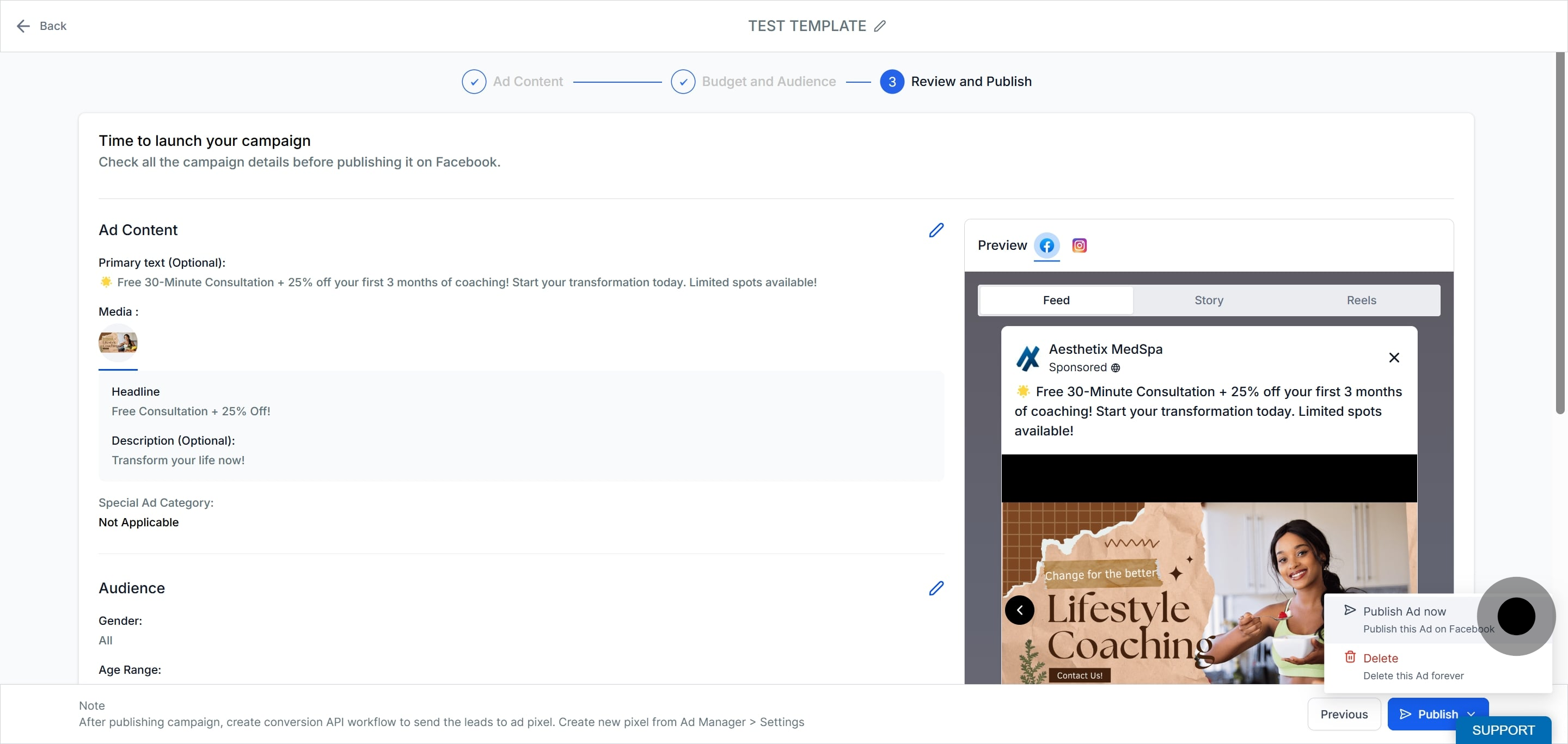
To apply your changes:
After making your edits, click Publish Ad Now on the review page.
A confirmation dialog appears.
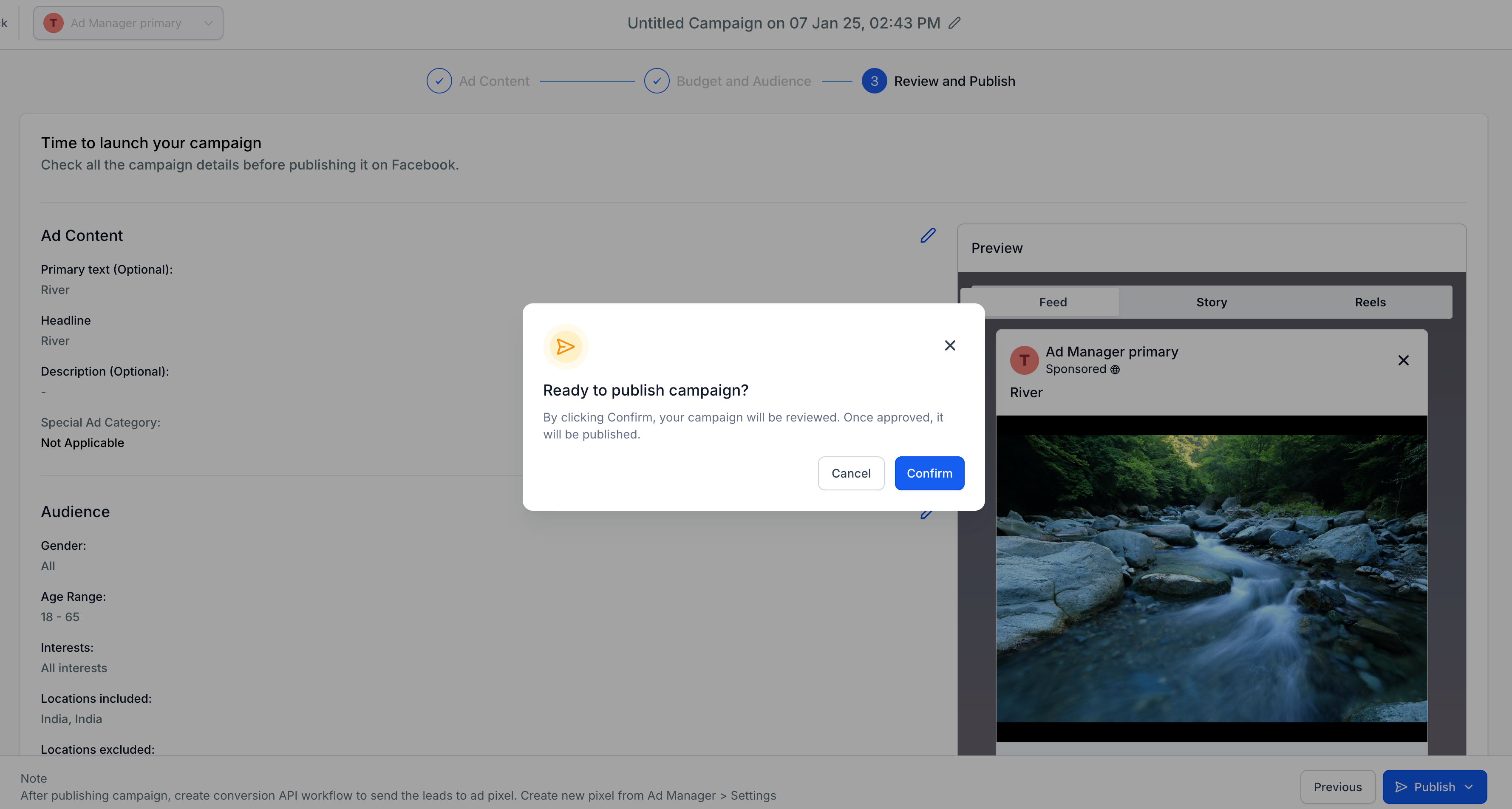
Once you confirm, the campaign moves to the In Review state while Facebook reviews the changes. When approved, the updated campaign goes live. If the edits cause an error, the status changes to Failed, and the reason is shown in the tooltip next to the failed status.
Advanced Preview lets you see how your ad creative renders across different Meta placements before you share it or review performance. Shareable Preview Links let you send a preview of a published ad to teammates or stakeholders.
To open Advanced Preview, go to Marketing and open Ad Manager, open the Meta campaign, go to the Ad Set, and select the Ad you want to preview. In the Preview panel on the right side of the campaign builder, click the Advanced Preview icon.
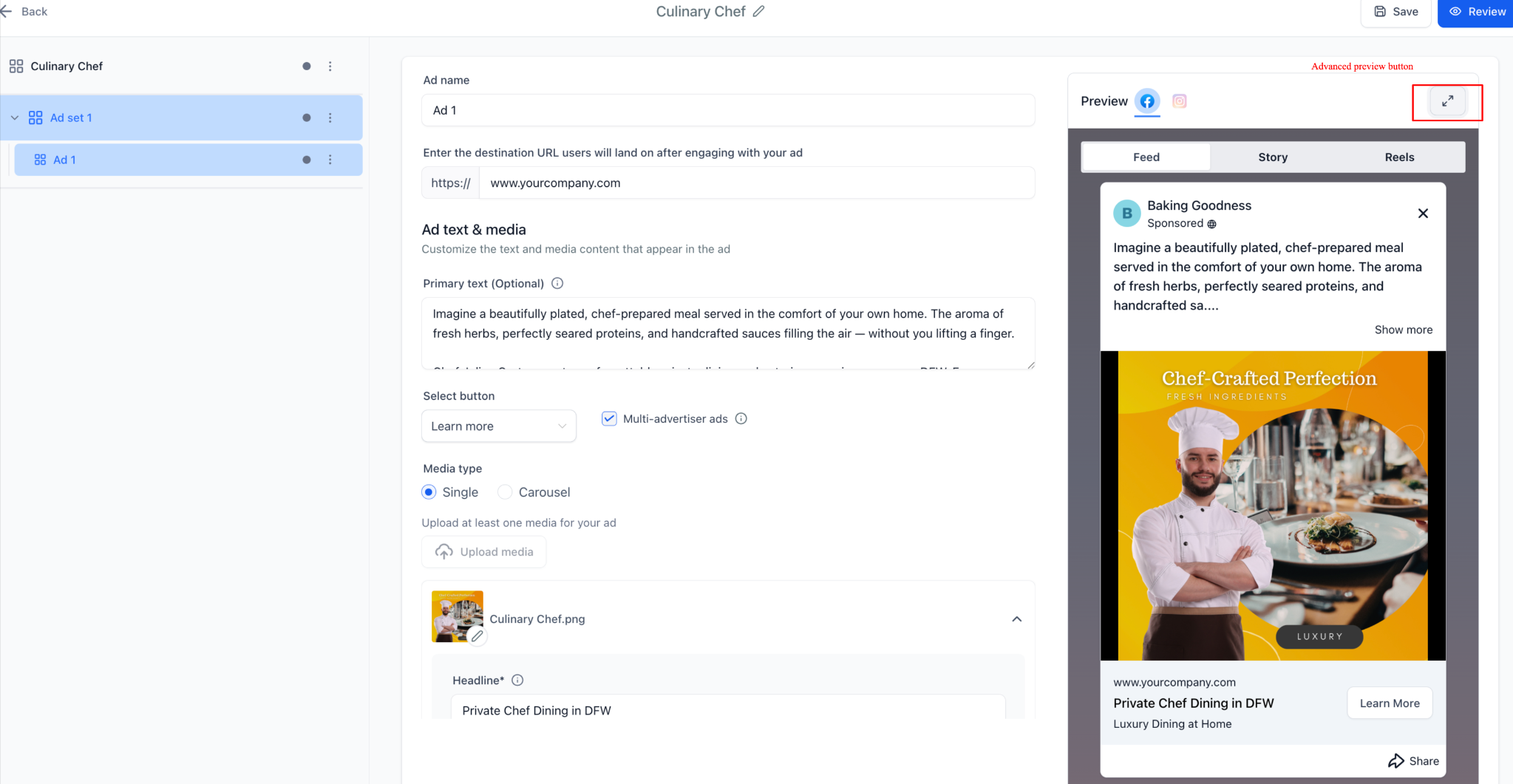
The preview opens in a new tab and loads Meta's preview interface, showing how your ad appears across the placements configured in the campaign. Scroll through the placements to verify the creative renders correctly across the Meta ecosystem.
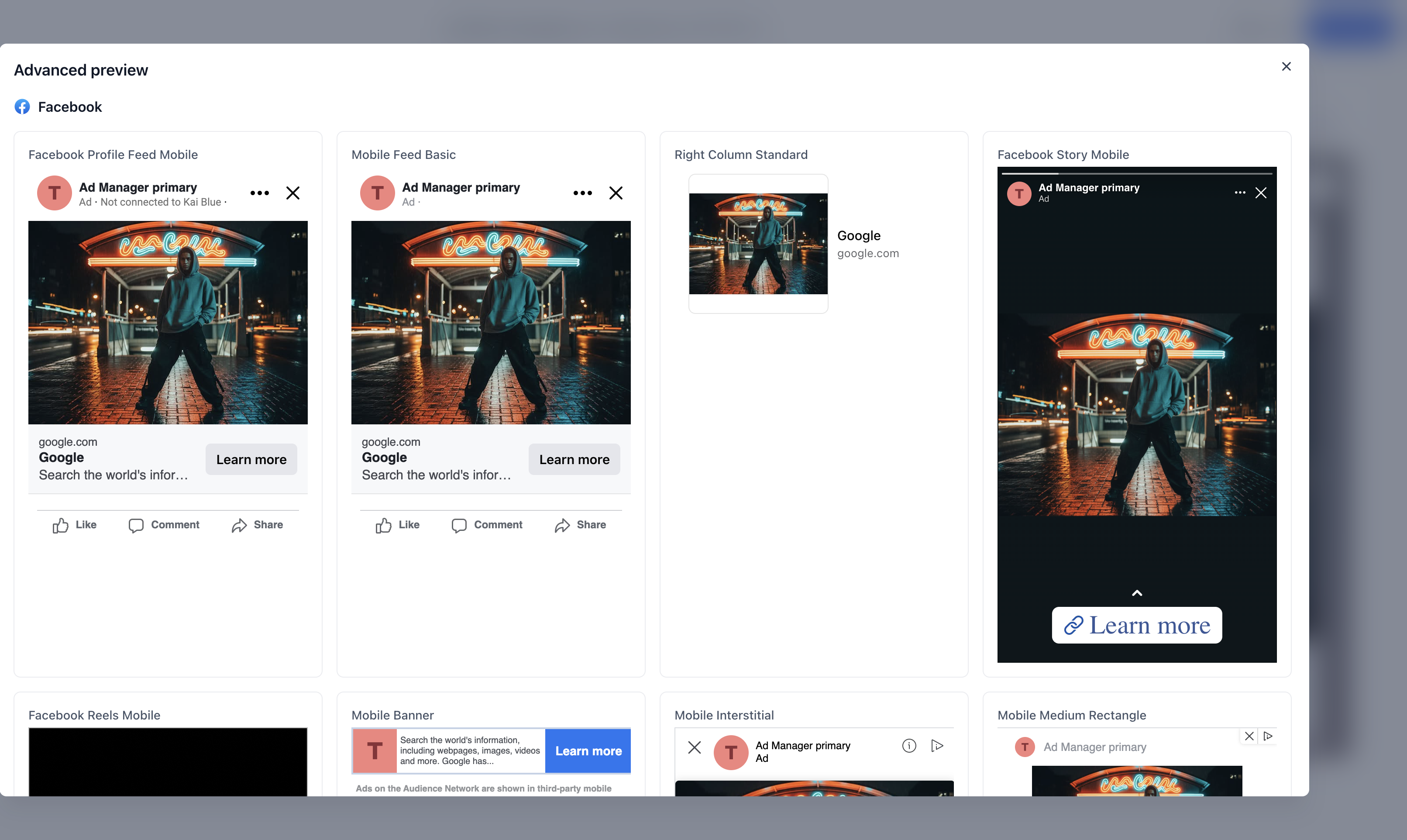
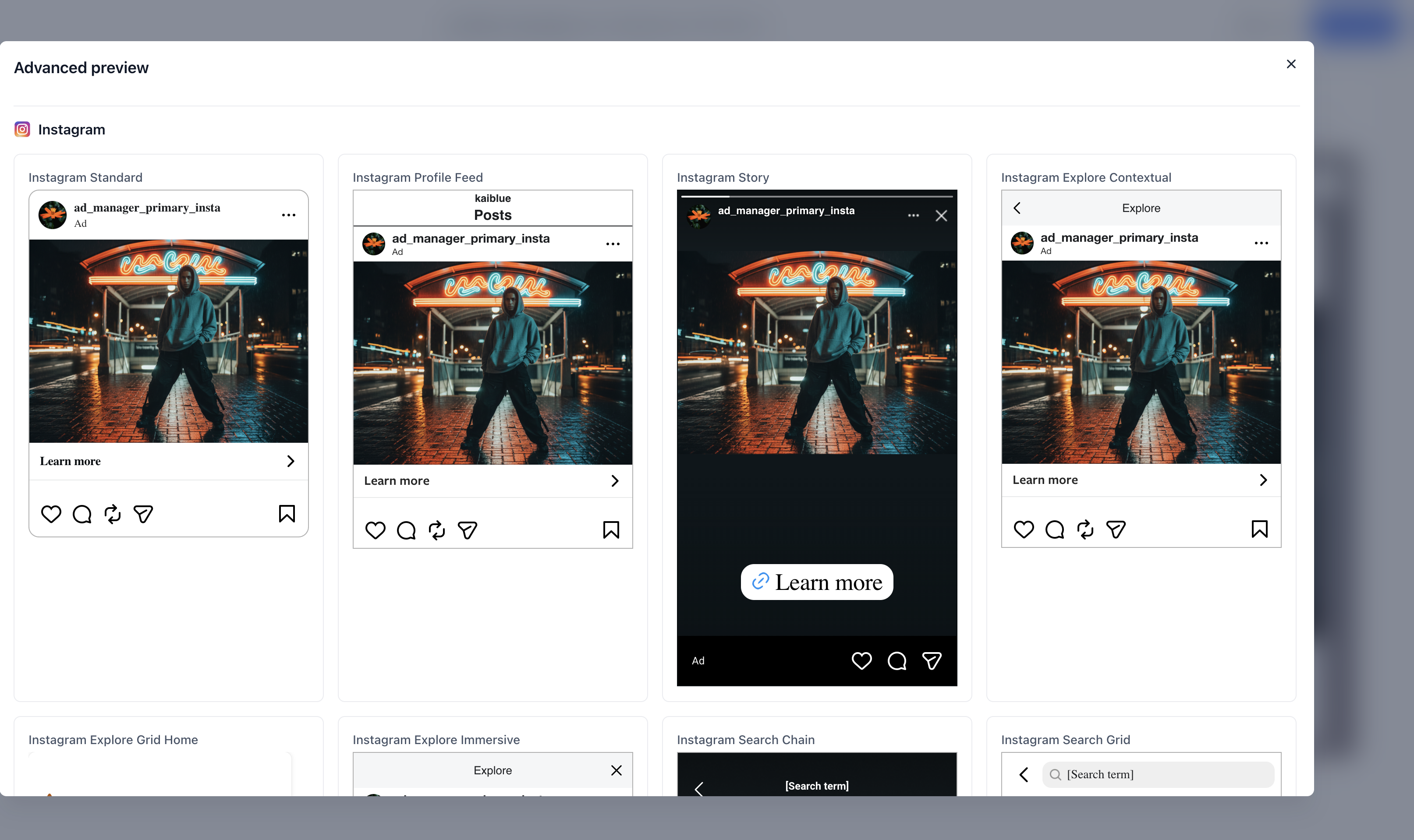
Advanced Preview attempts to display the ad in every configured placement. If a placement does not support the uploaded creative format, the preview shows the error message returned by Meta explaining why the ad cannot render there, which helps you spot compatibility issues without opening Meta Ads Manager.
Ad Manager can also generate a shareable preview link that opens the ad inside Meta's preview environment.
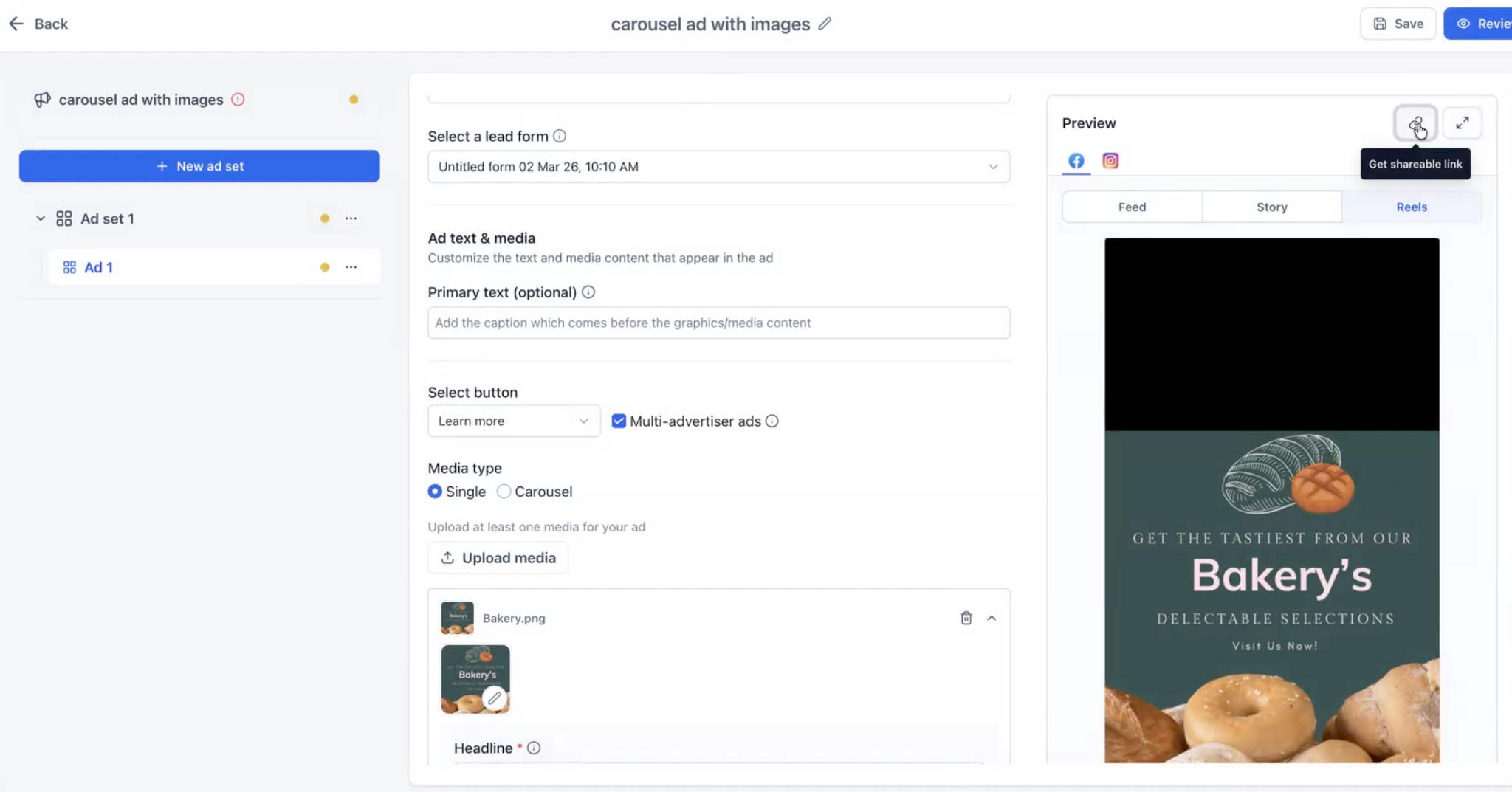
The shareable preview link is available only for published campaigns. It does not appear for ads in Draft or Paused status.
To copy the link, open the published Meta campaign in Ad Manager, navigate to the Ad level, find the Preview panel, and click the link icon next to the Advanced Preview button. The preview link is copied to your clipboard automatically, and you can paste it wherever you need to share the ad preview.
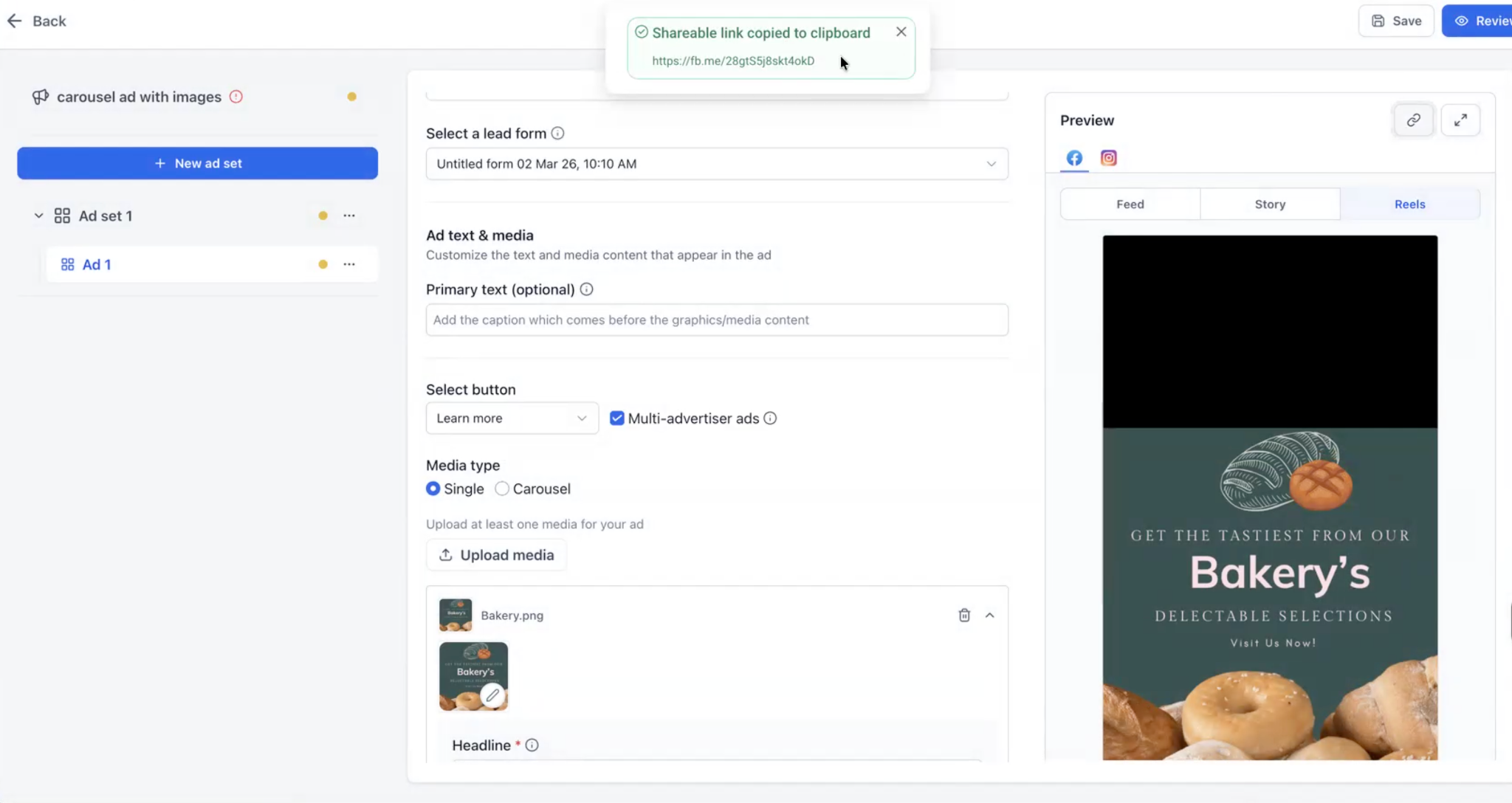
Opening the link loads Meta's hosted ad preview interface, preferably in a new browser tab, showing the creative as it appears across the configured placements.
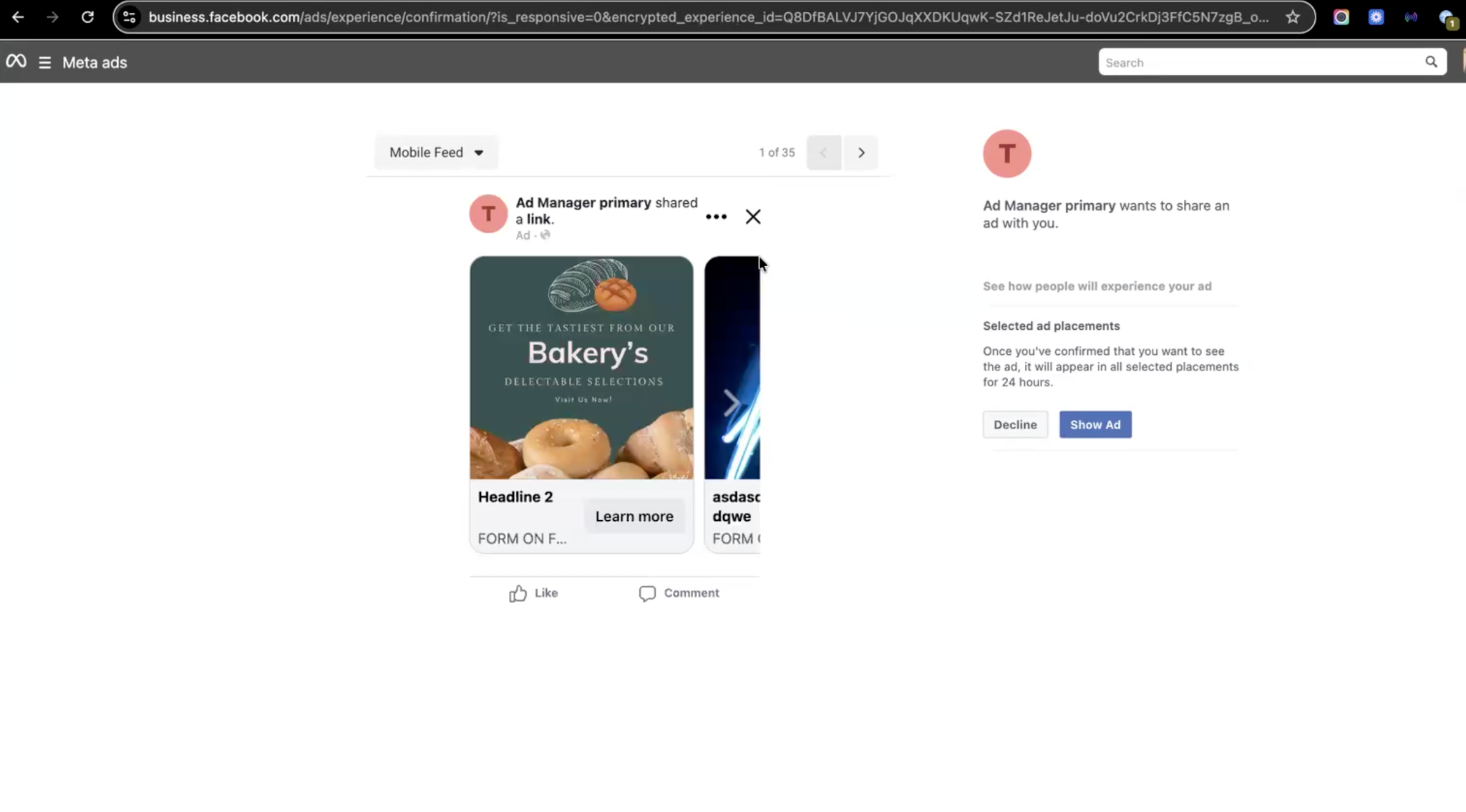
Access to the preview follows Meta's ad account permission model. Only users with appropriate access to the associated ad account can view the preview, which keeps it limited to authorized people while still letting teams review ads through the shared link.
Can I edit a campaign while it is still In Review?
Yes. You can edit live campaigns and campaigns in the In Review state. Editing was previously limited to budget adjustments only, but now covers most fields.
Which fields cannot be changed after publishing?
Campaign Objective, Facebook Page, Start Date, and Budget Type are locked. You cannot switch between a Daily and a Lifetime budget on an existing campaign.
What happens after I publish my edits?
The campaign returns to the In Review state so Facebook can review the changes. Once approved, the updated campaign goes live.
What does the "Unpublished Changes" tag mean?
It appears at the top right once you make any change in the campaign builder, indicating you have edits that have not yet been published.
Why did my edited campaign show a Failed status?
If your edits cause an error, the status changes to Failed and the reason is shown in the tooltip next to the failed status. Fix the flagged issue and republish.
How do I preview how my ad looks across placements?
Open the Ad in the campaign builder and click the Advanced Preview icon in the Preview panel. It loads Meta's preview interface so you can scroll through every configured placement.
Why is the shareable preview link missing on my ad?
The link is available only for published campaigns. It does not appear for ads in Draft or Paused status.
Can I discard edits without affecting the live campaign?
Yes. Click the Back button in the campaign builder and select Discard. The original campaign stays intact and your changes are ignored.
Is Instagram Explore Feed still available as an ad placement?
No. Instagram Explore Feed is no longer available as an ad placement. If a campaign was already published using it, that campaign remains live with no action needed on your part, and delivery continues through the other eligible placements.
