Ad Manager gives you two kinds of Meta forms for capturing interest directly inside your ads. A Facebook Lead Form is used with the Lead Generation objective and collects contact details in a native form that opens without leaving Facebook or Instagram, which is ideal for capturing consultation requests. A Conversation Form is used with the Engagement objective and opens a guided chat with tappable options and automated replies when someone clicks your ad, which is a good fit for answering common questions before booking.
This guide covers building both form types, mapping their fields to your CRM, and reviewing or duplicating existing lead forms.
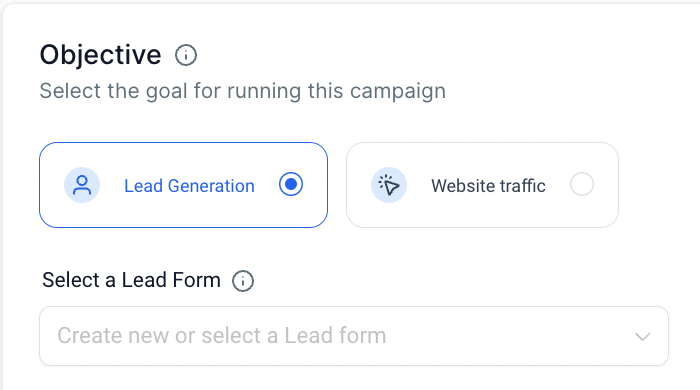
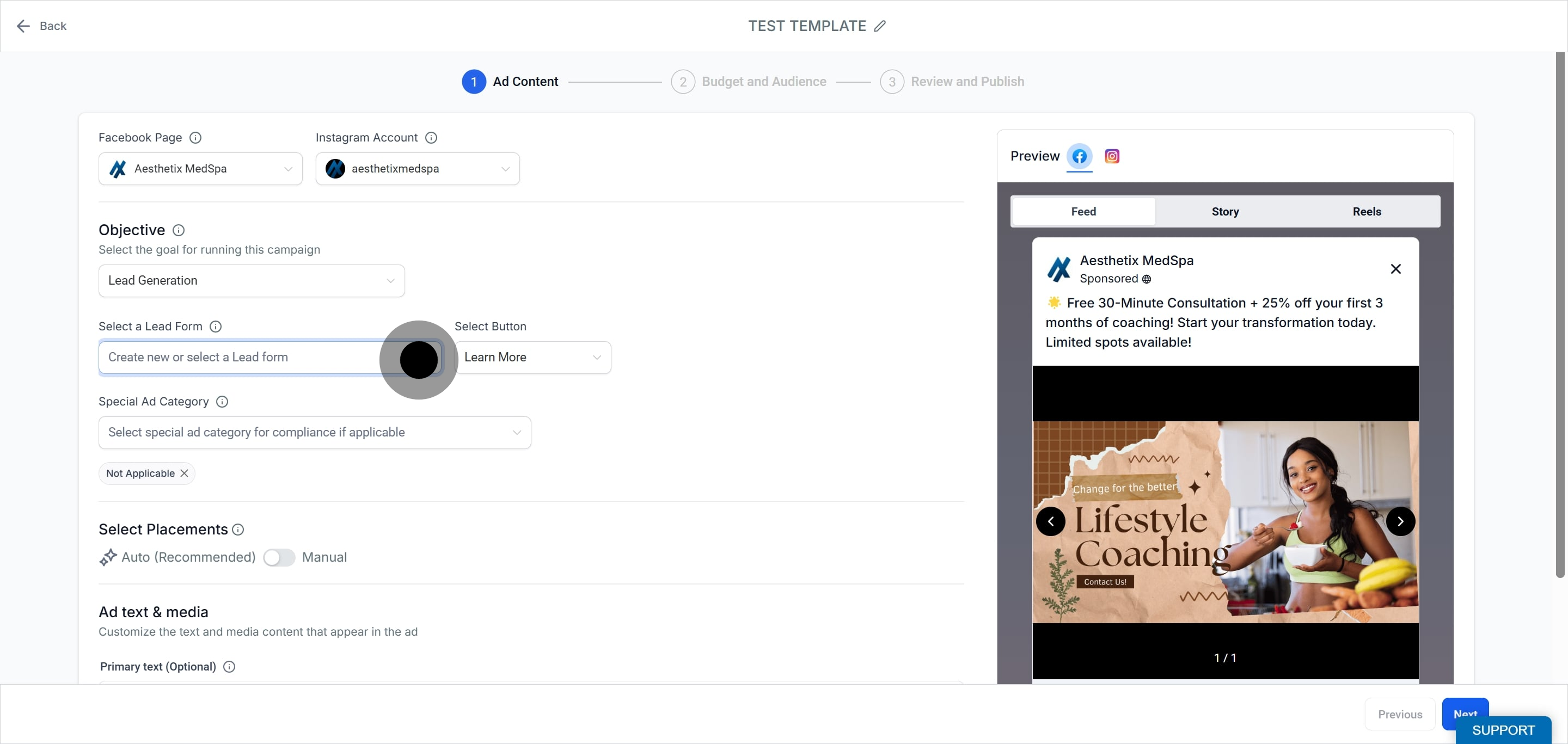
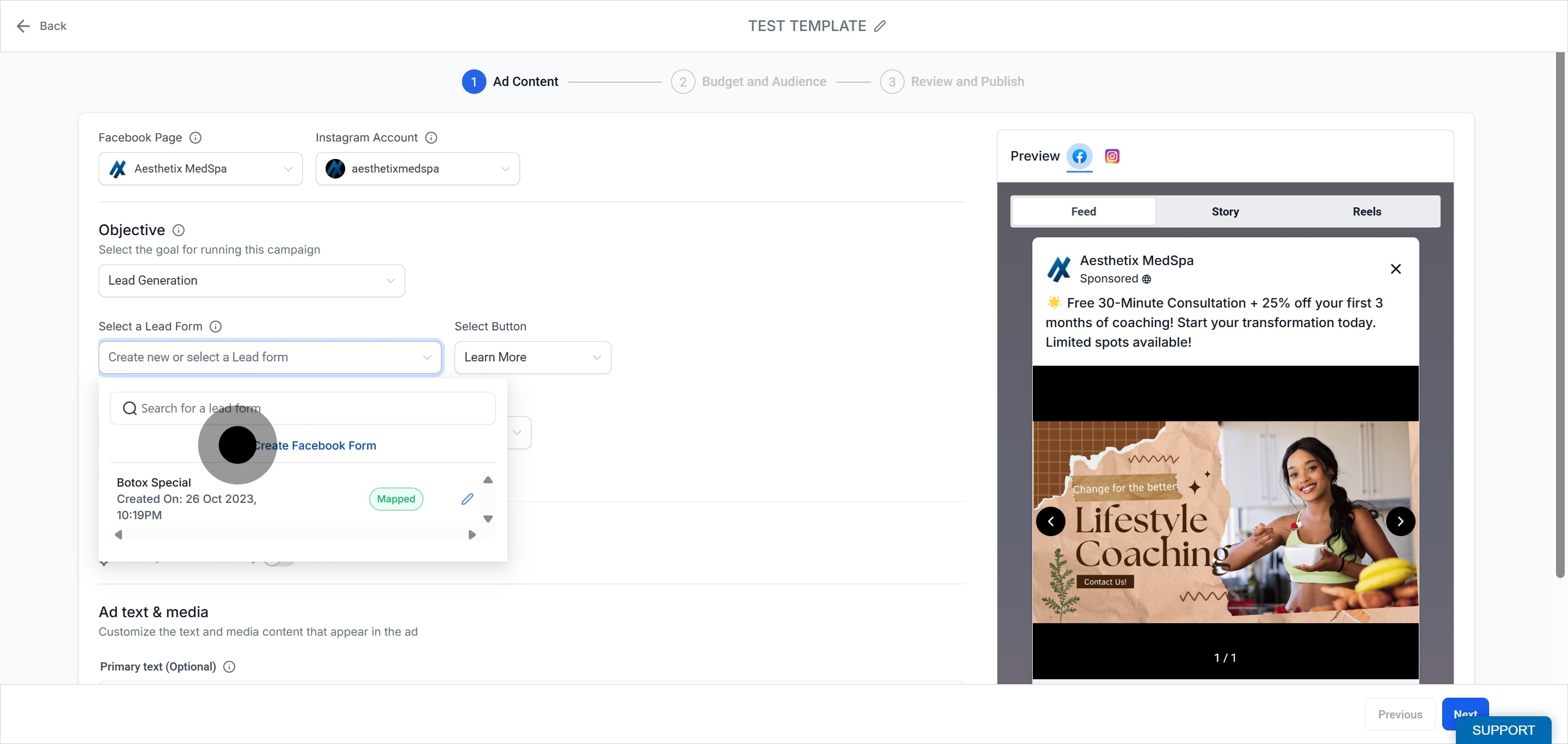
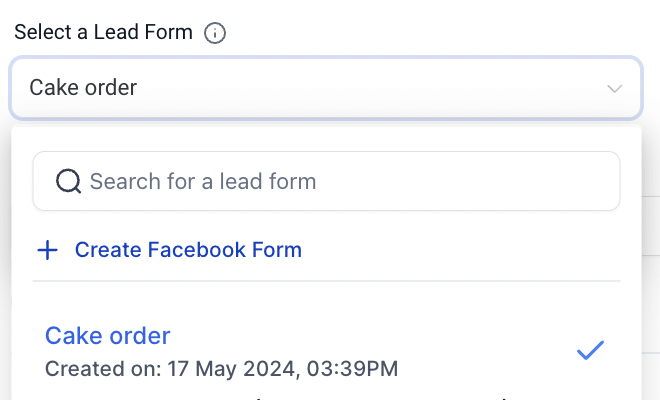
While creating an ad campaign and selecting the Lead Generation objective, you can create a new Facebook Lead Form or select an existing one.
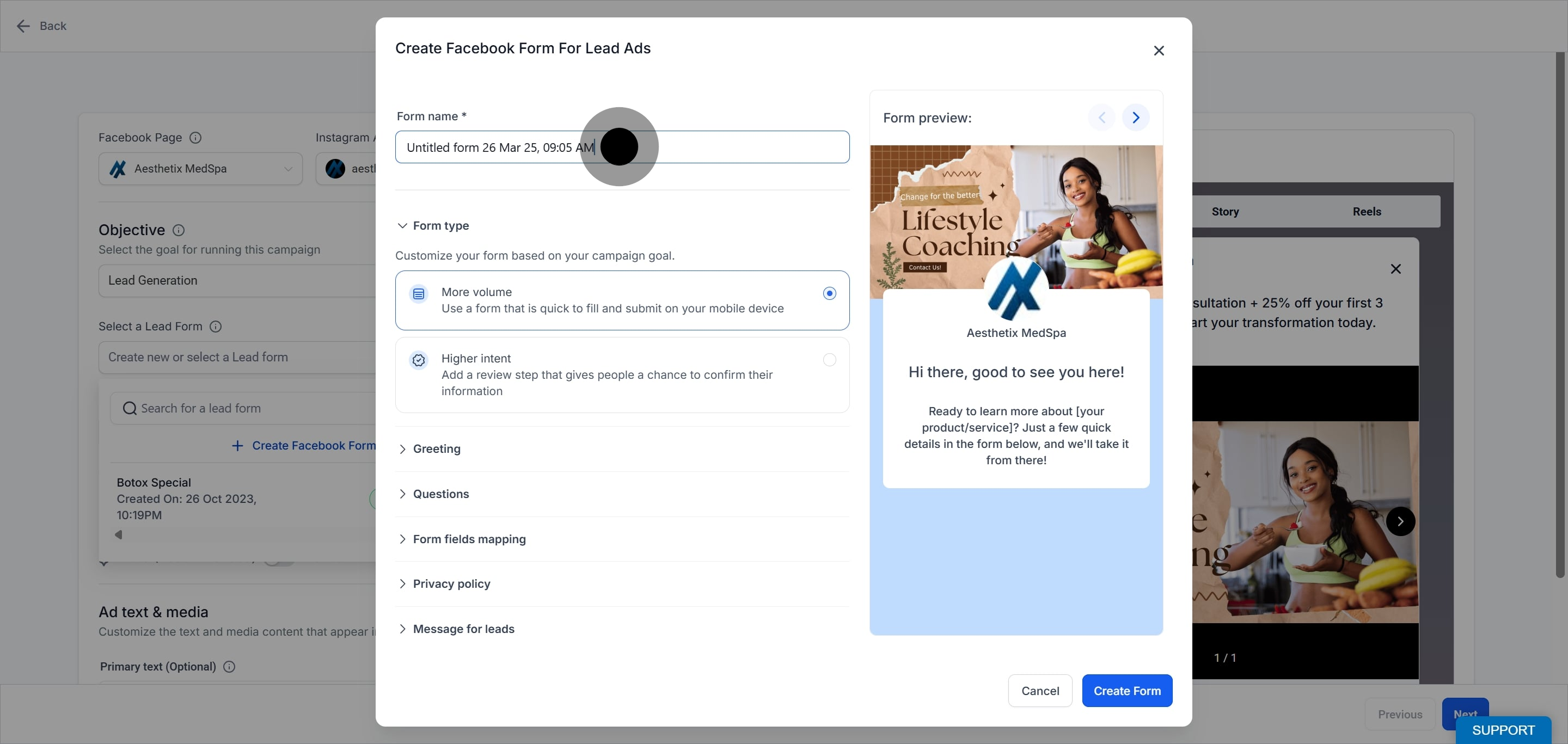
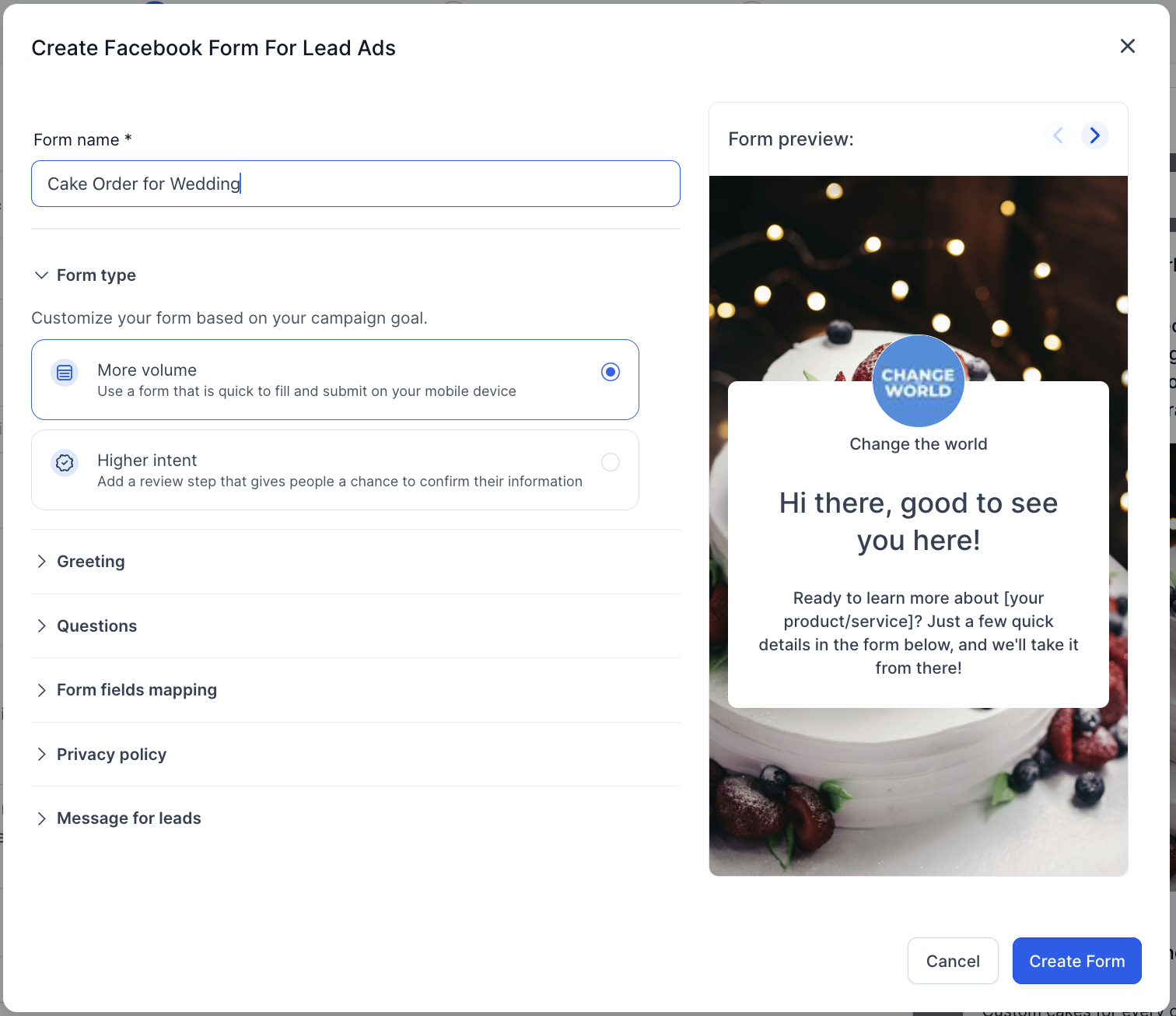
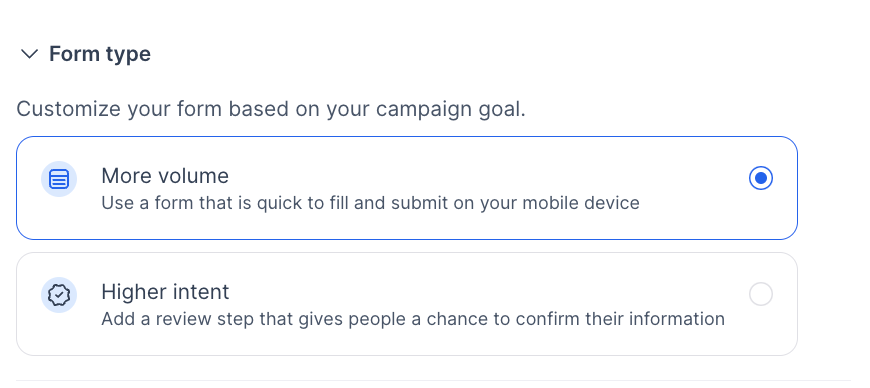
Choose between More Volume and Higher Intent. Higher Intent adds a review step that lets people confirm their information before submitting, which tends to produce fewer but better-qualified leads.
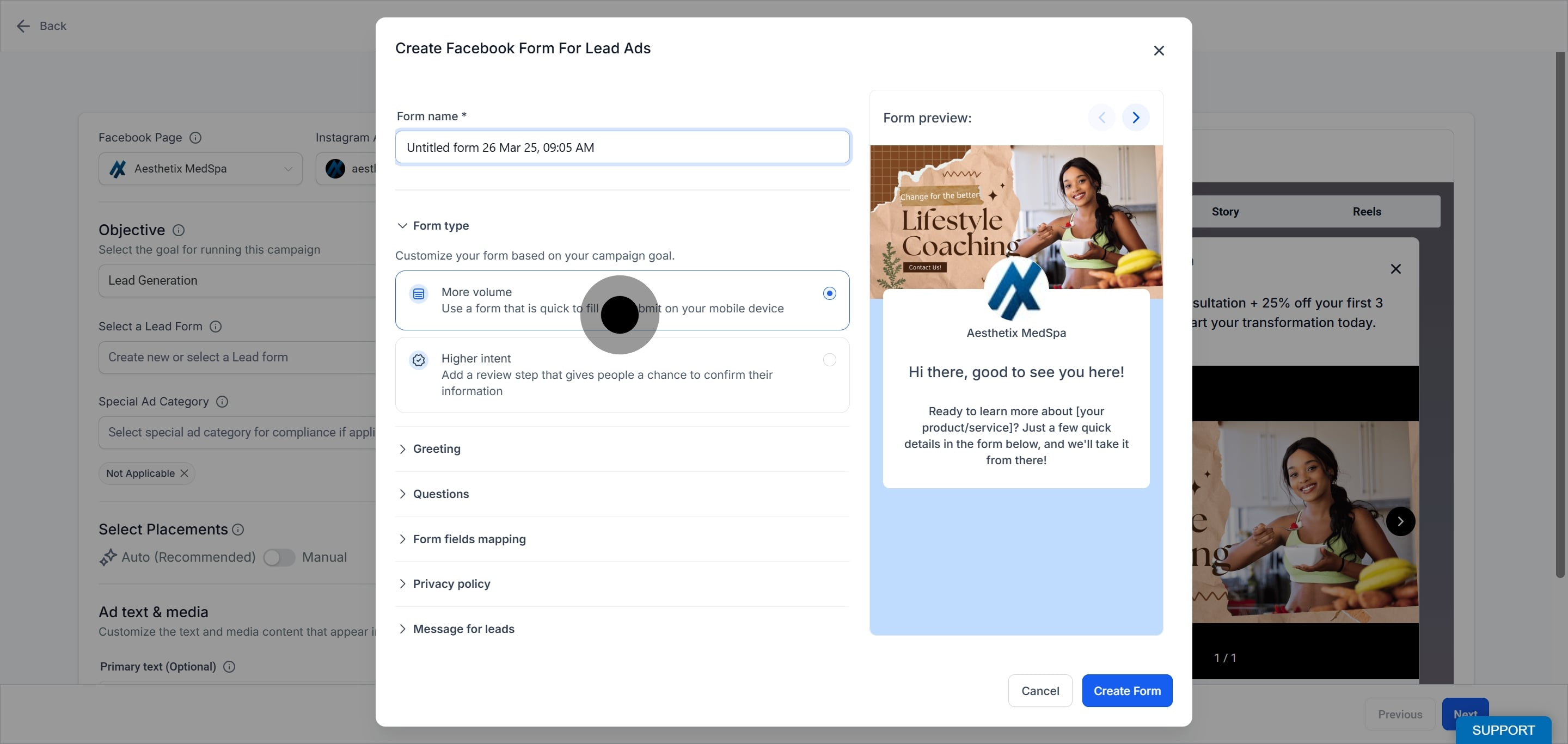
The Greeting section tells people why they should complete your form and shares any relevant details. Add a required Headline, and optionally a paragraph or list.
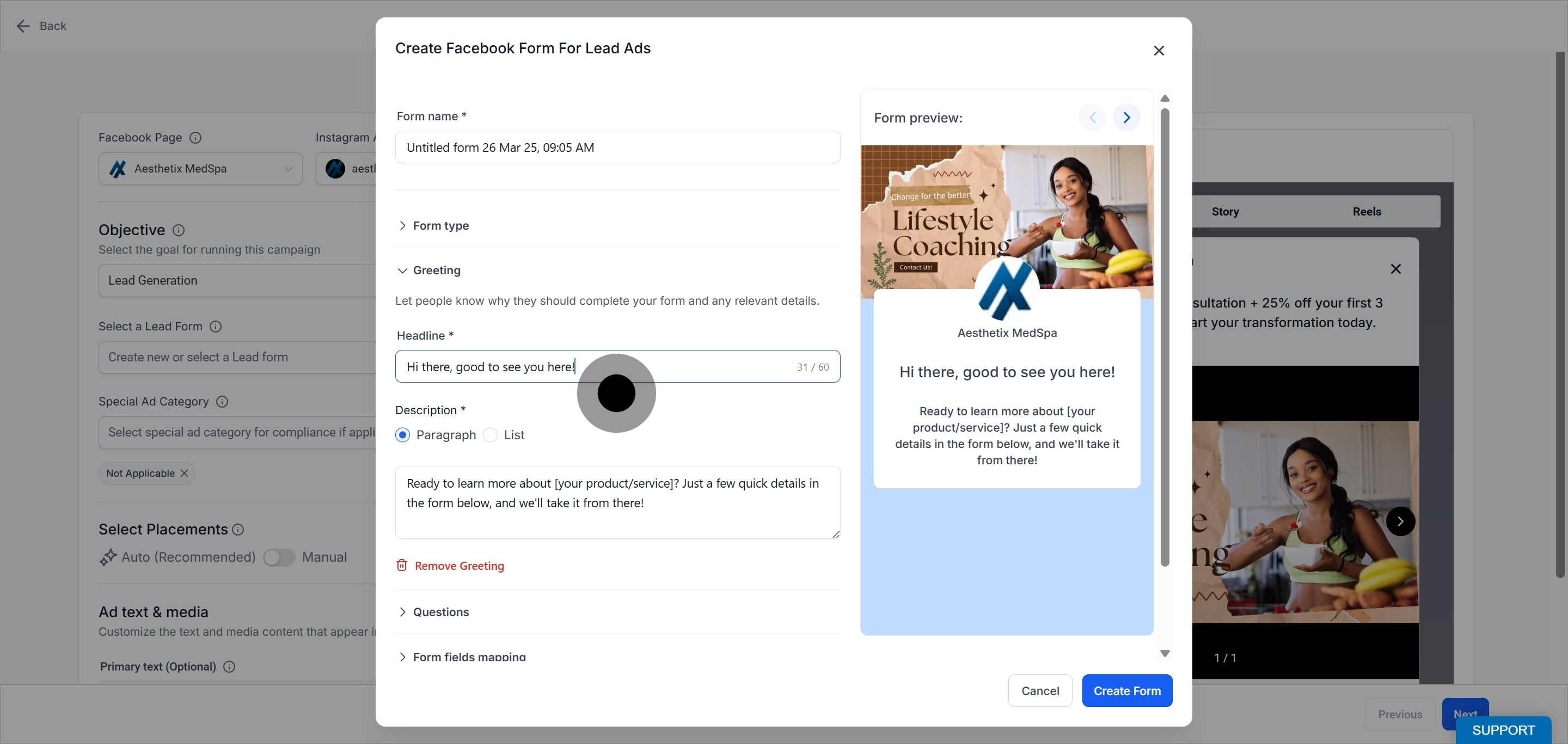
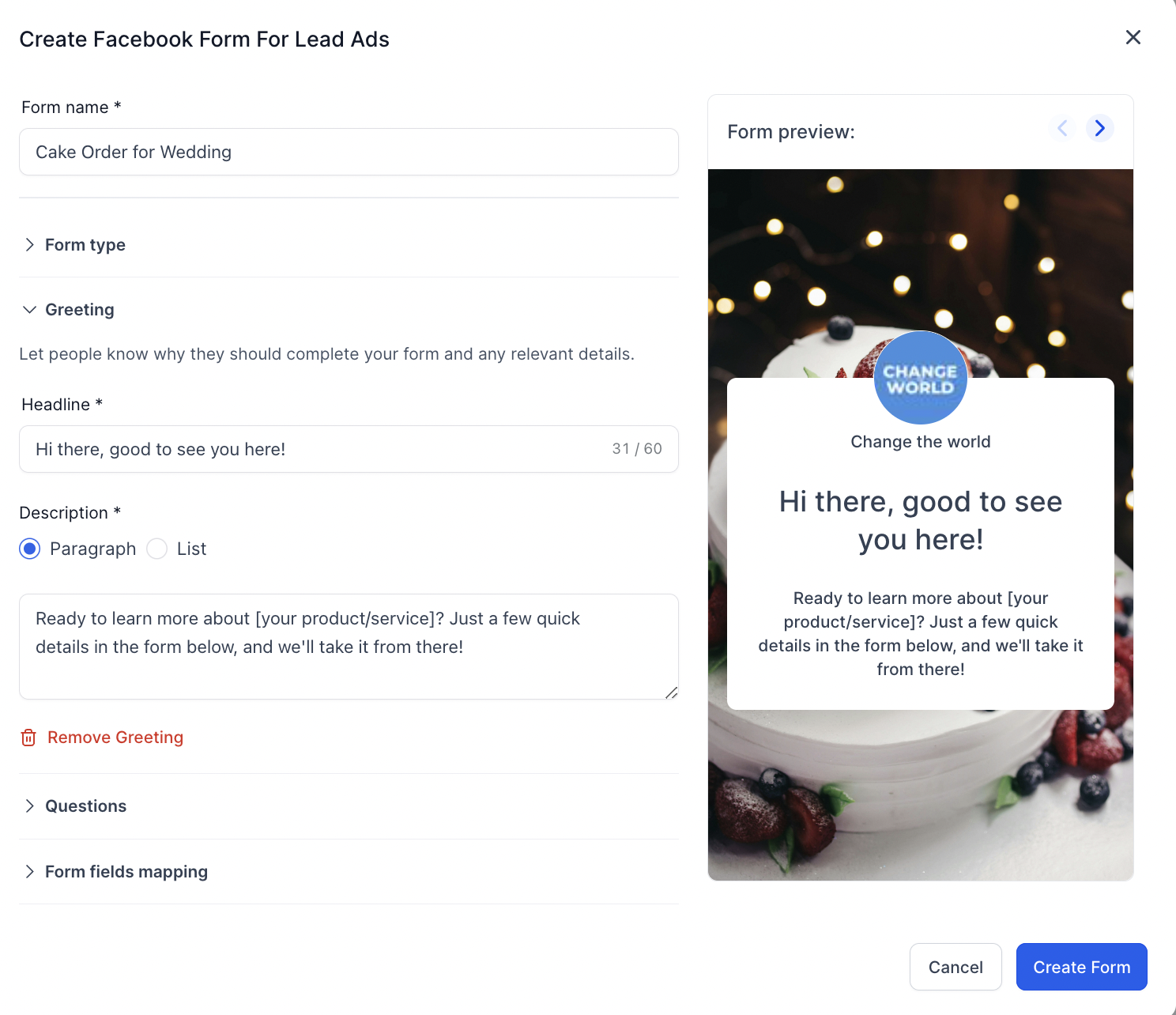
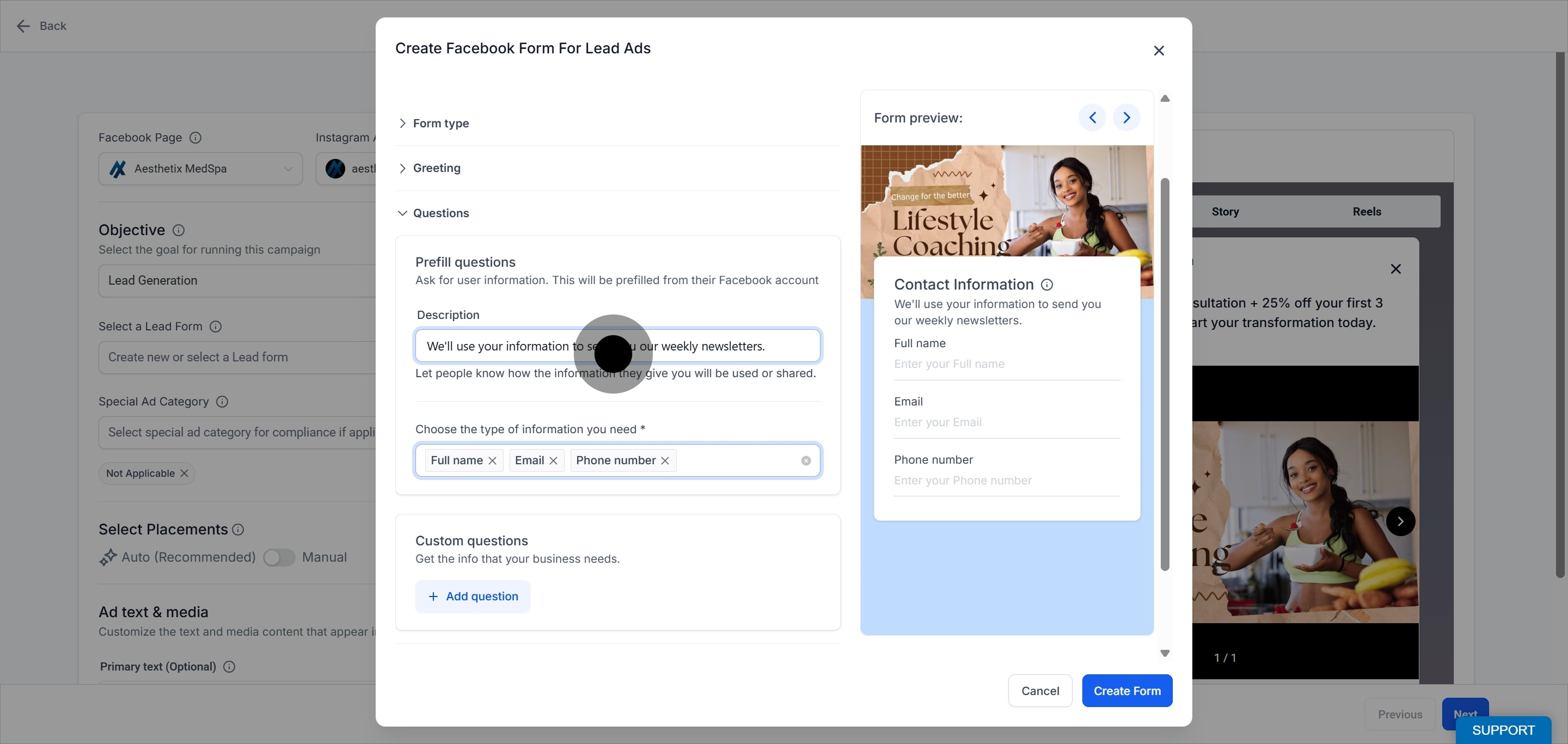
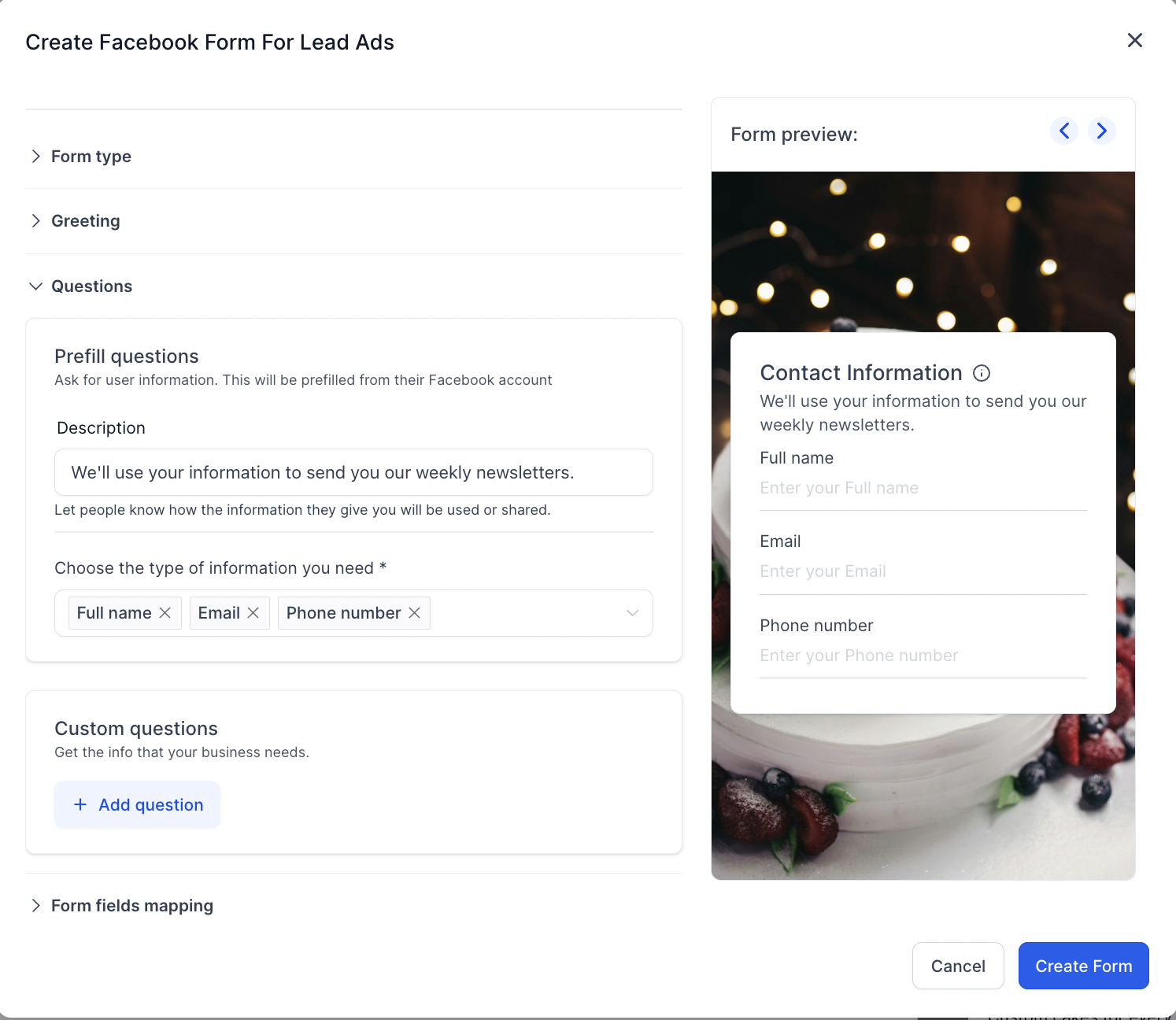
Add an optional description, then select the types of information you want to collect, which helps you judge whether a lead is a good fit. For custom questions, you can add a short description and multiple-choice options to gather details most relevant to your practice.
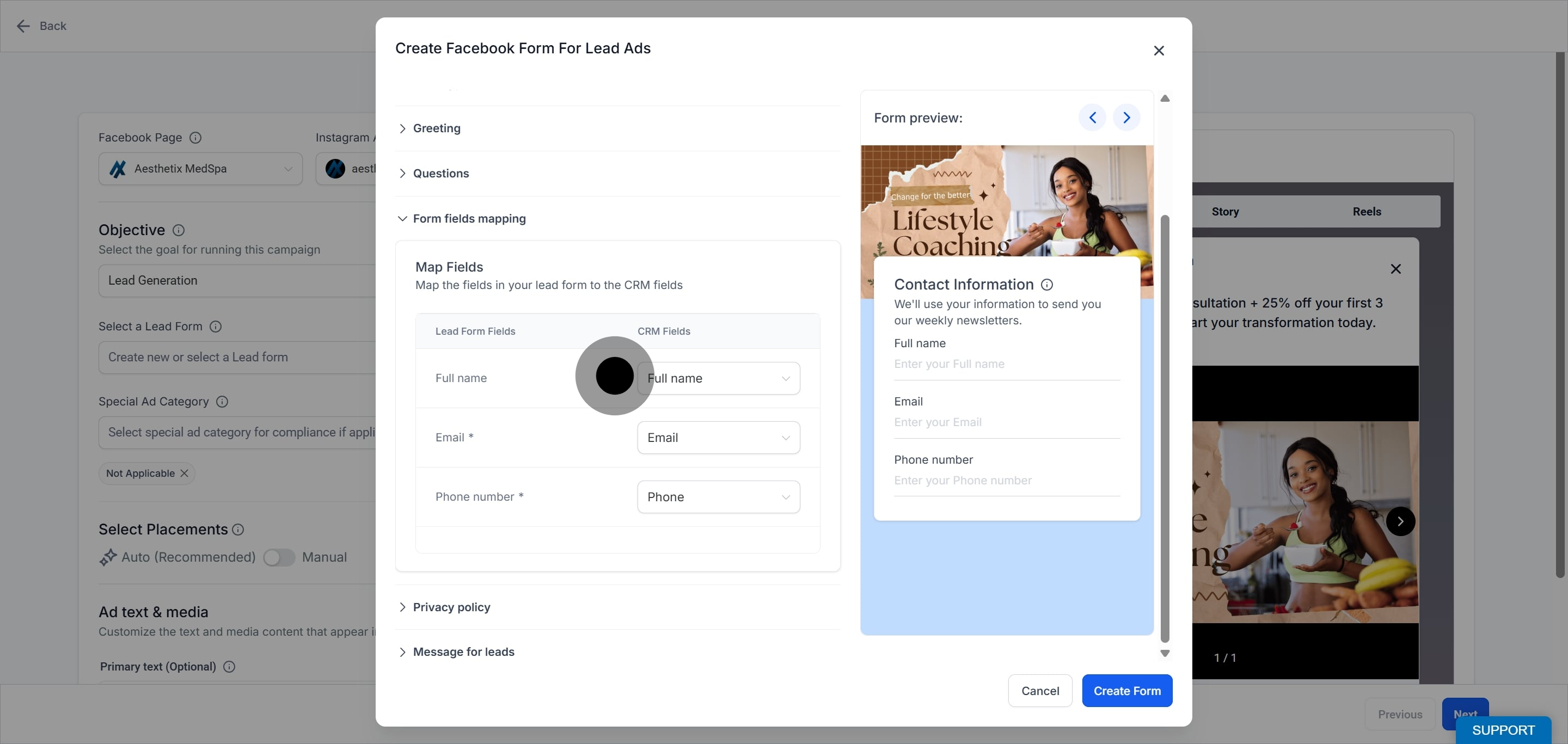
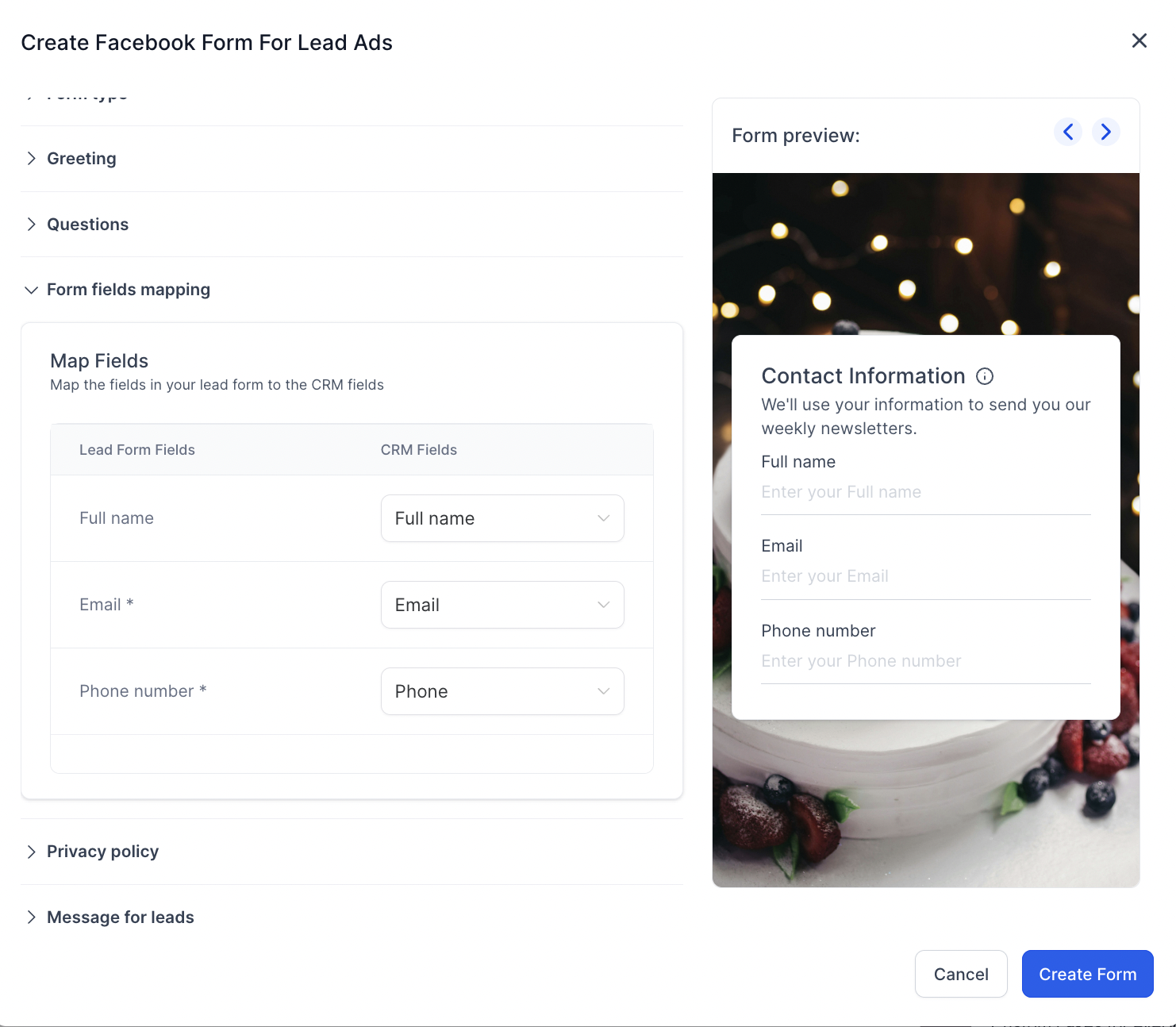
Form Field Mapping links each form field to a contact field in Aesthetix CRM. This ensures each answer is visible on the form submission and populates the correct field on the contact record.
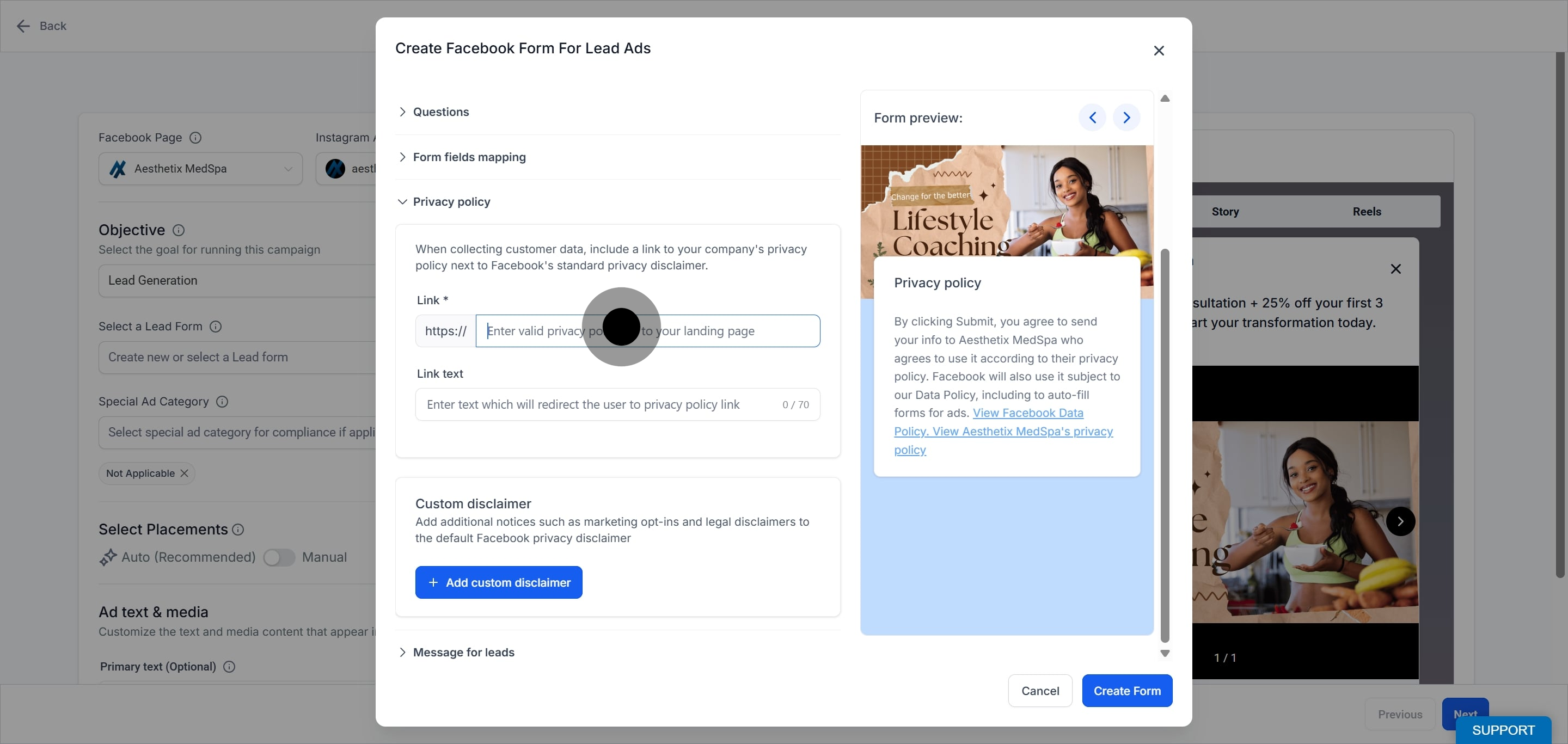
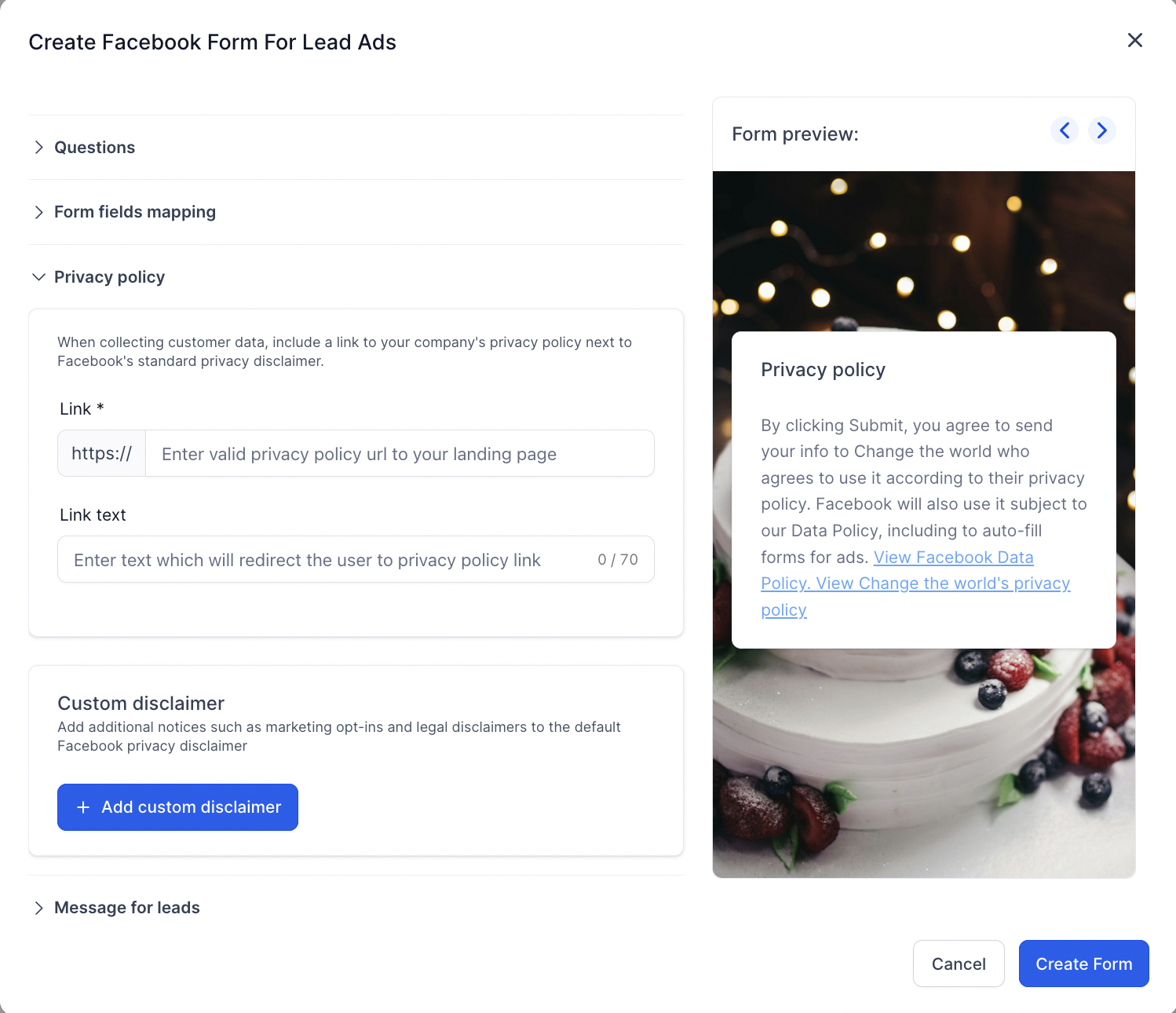
Enter the landing page link to your practice's privacy policy. Meta requires a valid privacy policy URL on lead forms.
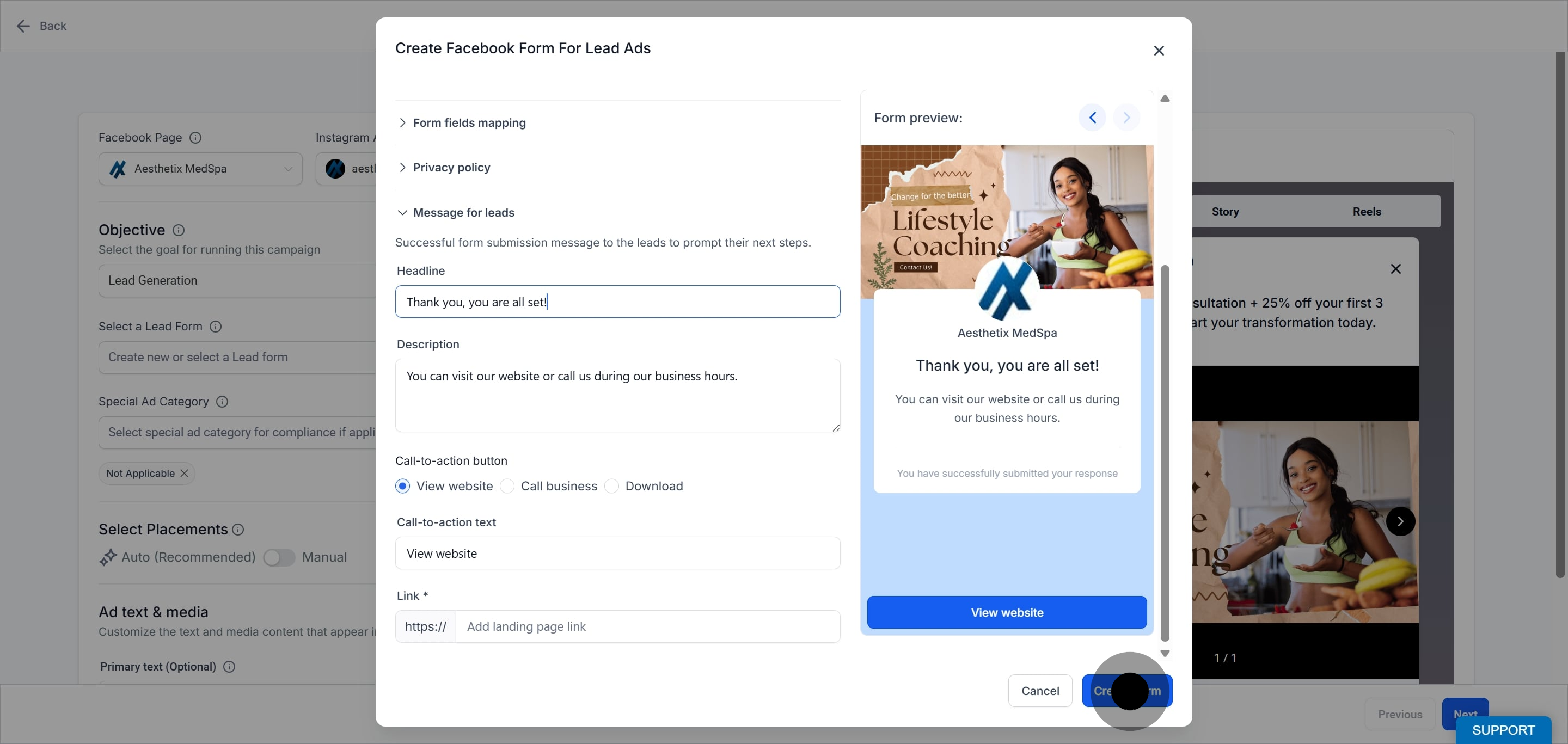
The message for the lead appears after the form is submitted. You can add a headline, description, and a call to action such as visiting a website or calling your practice directly.
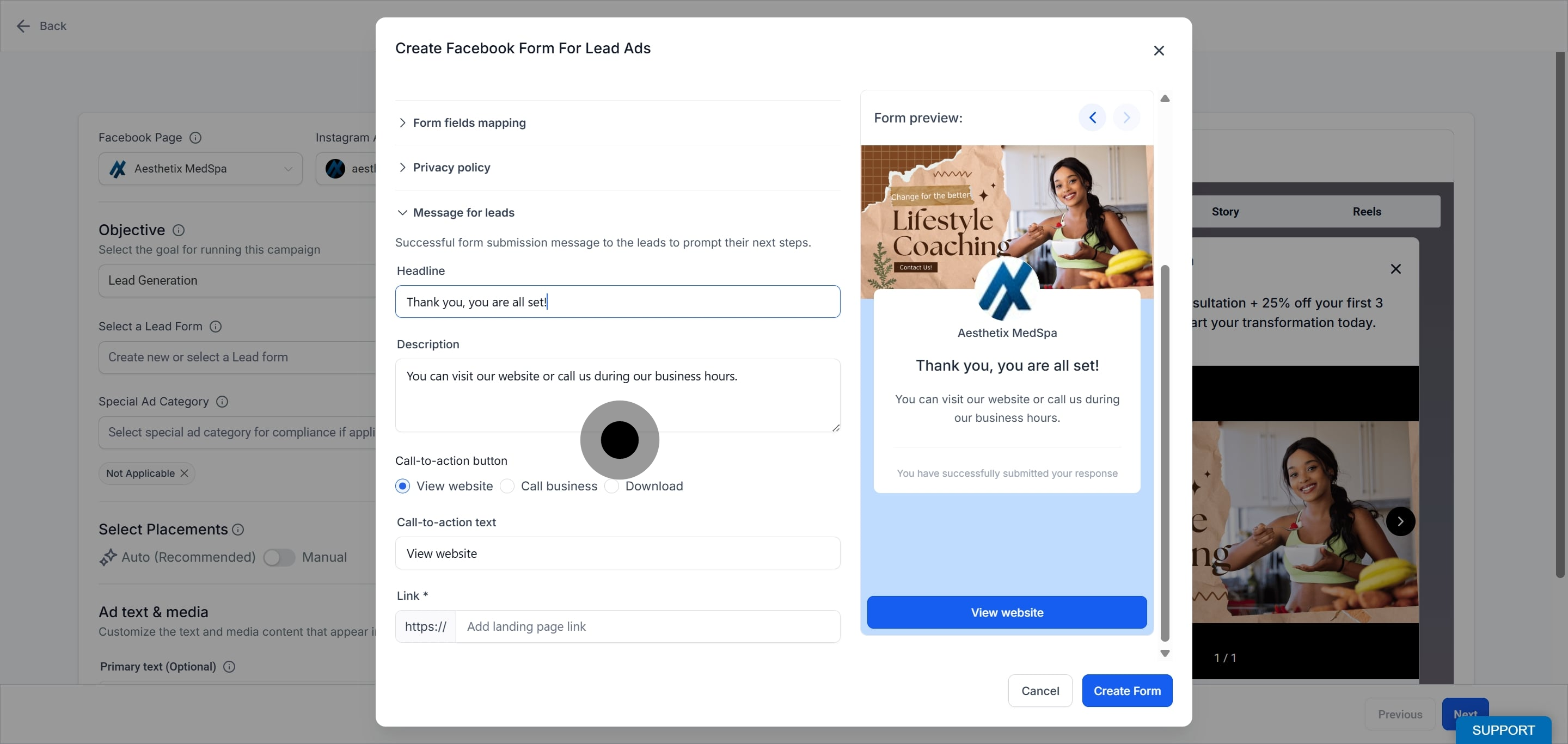
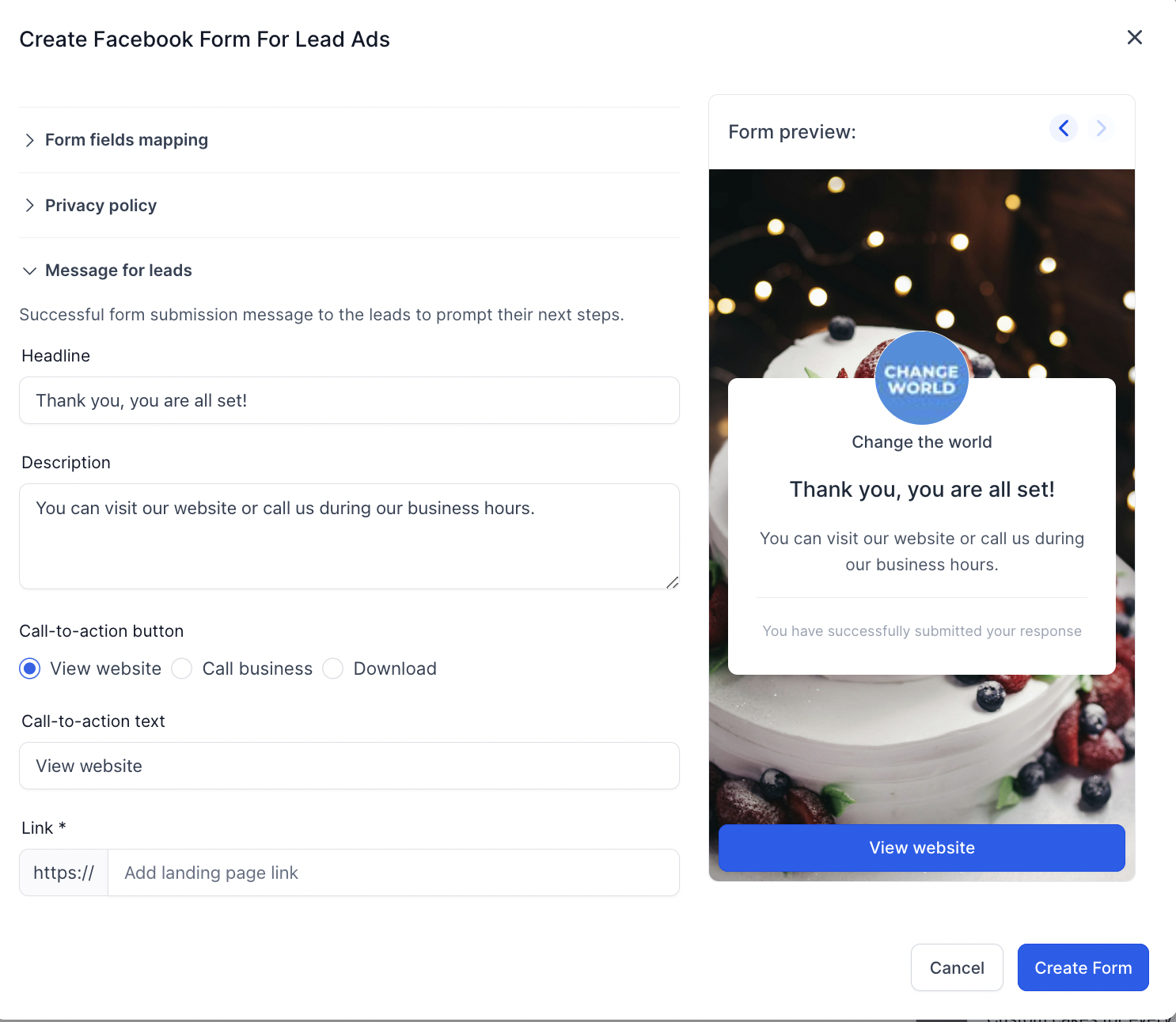
Save the form so it is available to select for the Lead Generation objective.
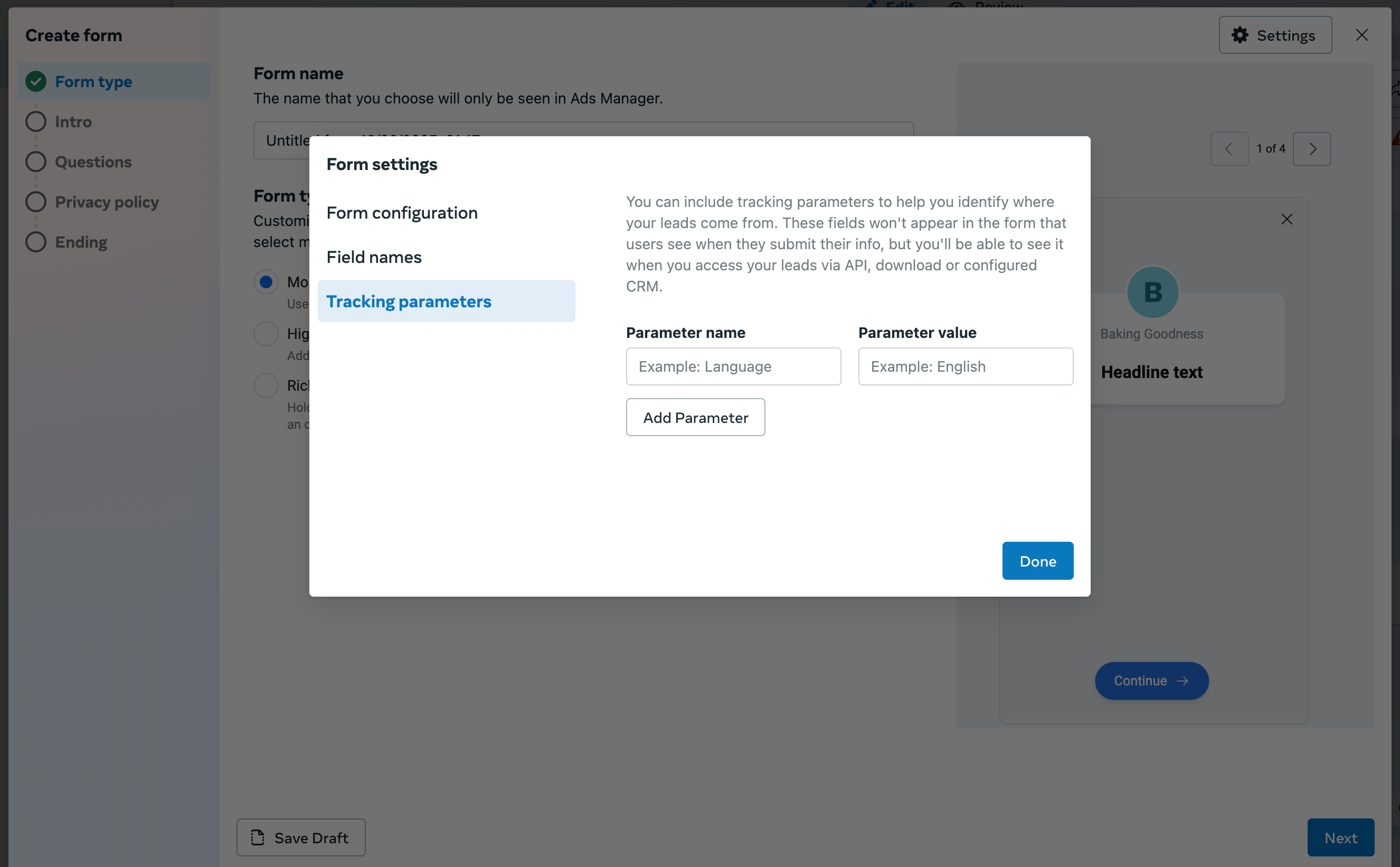
When creating a lead form on Meta, you may also see an option to add Tracking Parameters. These fields are pulled in when a form created on Facebook is used in Ad Manager to build and publish campaigns. To sync these fields with the CRM, complete the form field mapping.
Fields that are custom and not present by default in the form field mapping section can be added as custom fields within Aesthetix CRM, so they appear as CRM fields available for mapping on your lead forms. The short walkthrough below shows how to create a custom field and use it in Ad Manager during form creation and field mapping.
Custom Field creation and use in Ad Manager
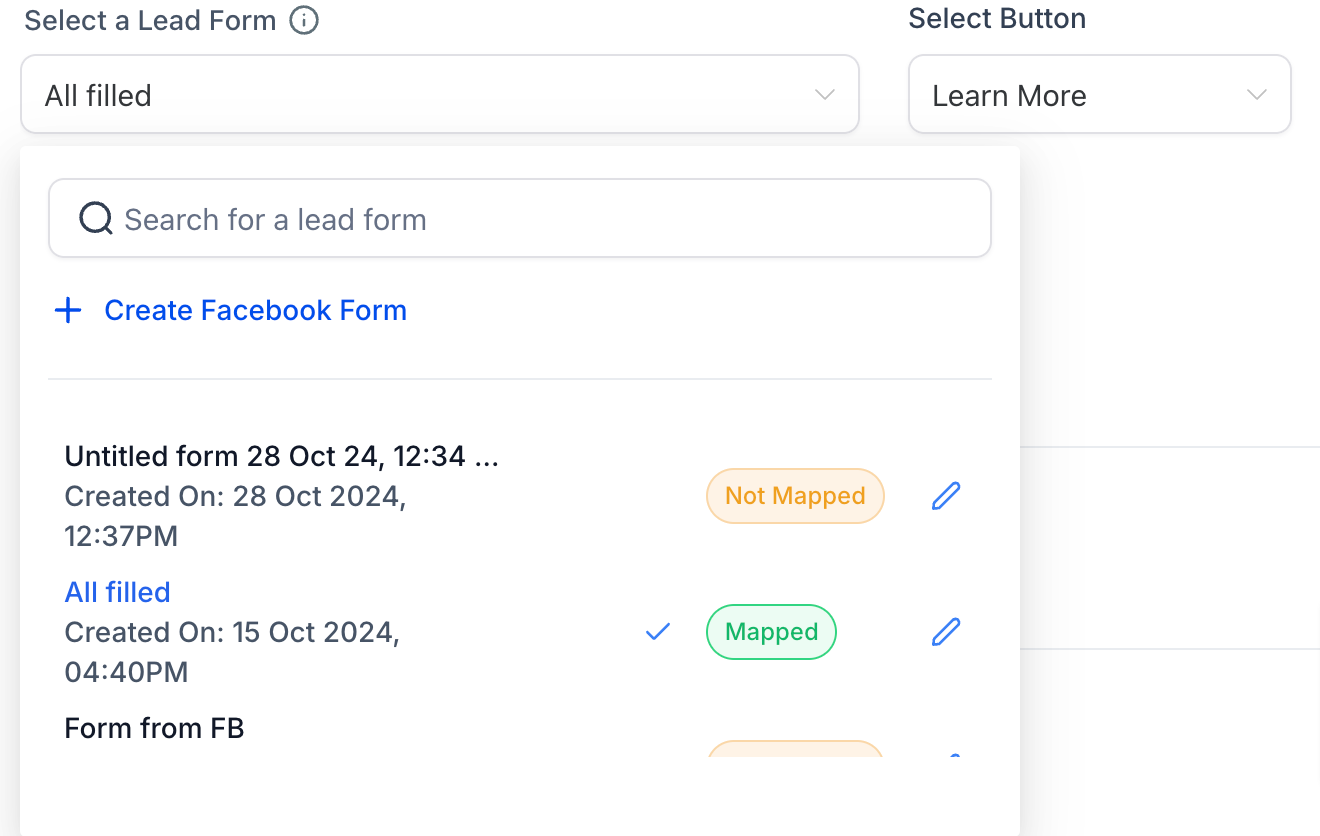
You can review, map, and duplicate existing Facebook Lead Forms directly from the campaign setup.
To access form review and mapping, select a lead form inside the Lead Generation campaign setup and click the pencil or edit icon beside the form name (the hover text reads Map Fields / Duplicate Form).
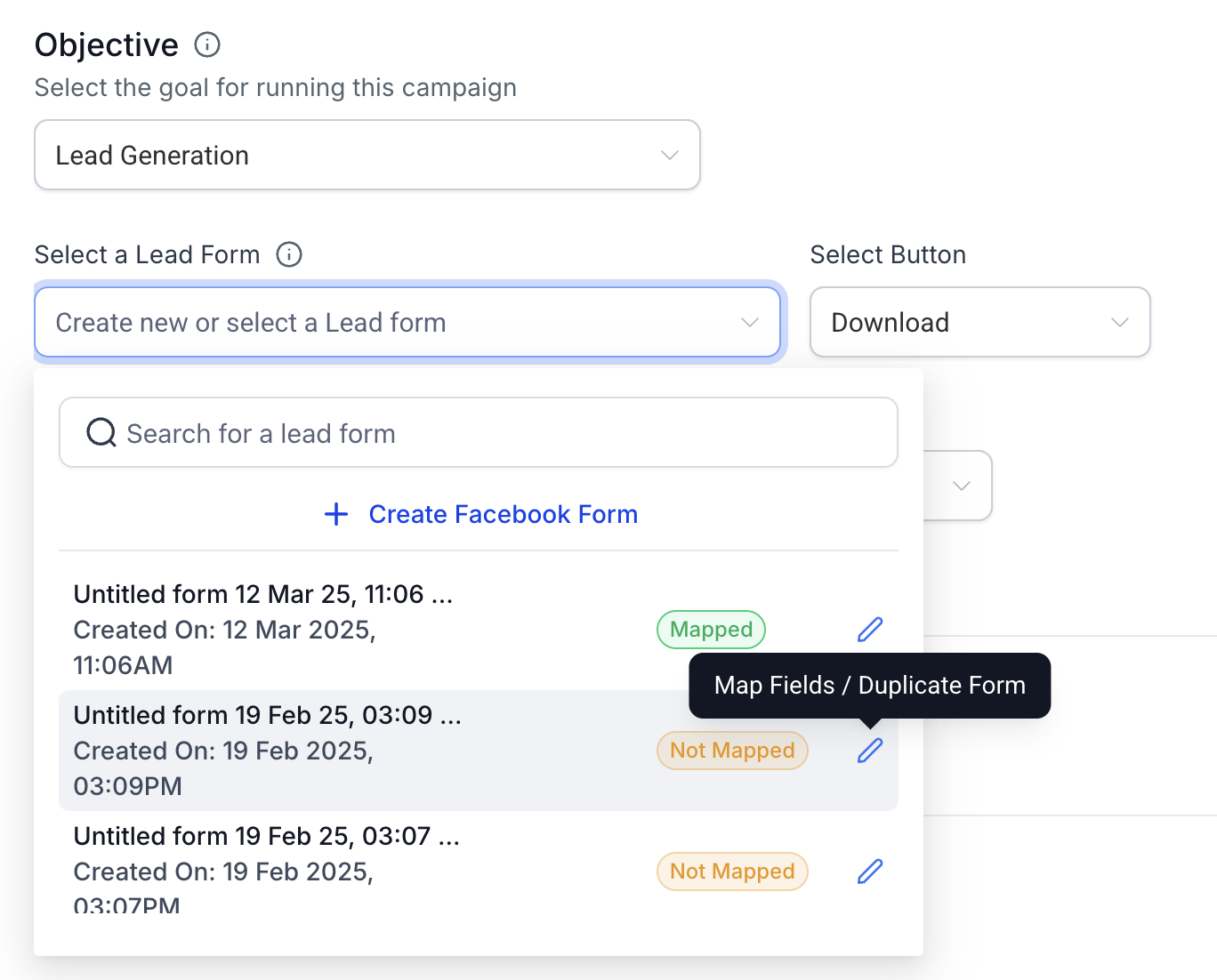
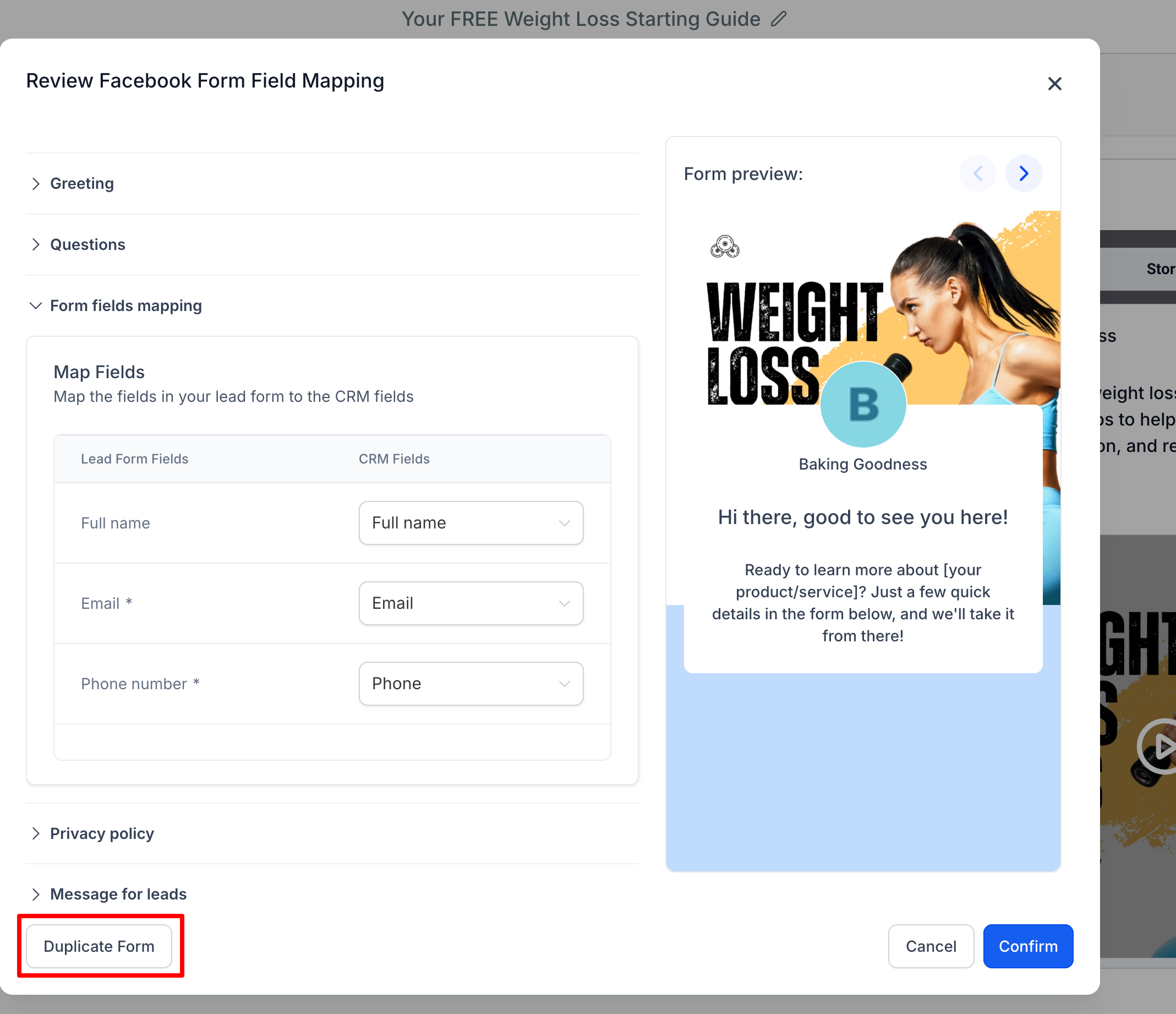
A modal opens that lets you preview the form content, map or update form fields to CRM fields, and confirm lead syncing is accurate and complete.
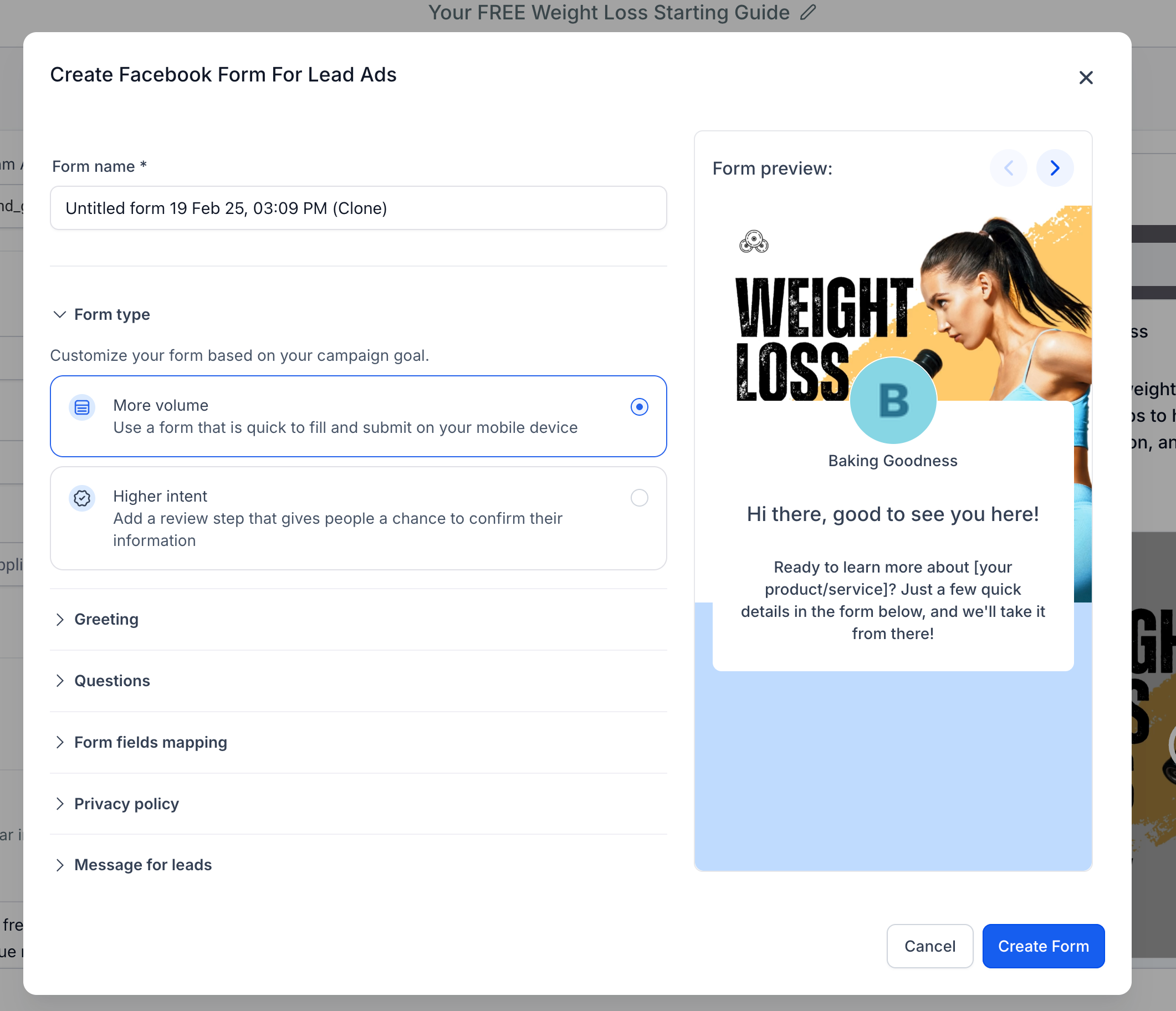
To duplicate a form, use the Duplicate Form button at the bottom left of the same modal. This opens a new view with all fields pre-filled from the original.
Make any edits you want to the cloned version, then click Create Form to save it as a new Lead Form.
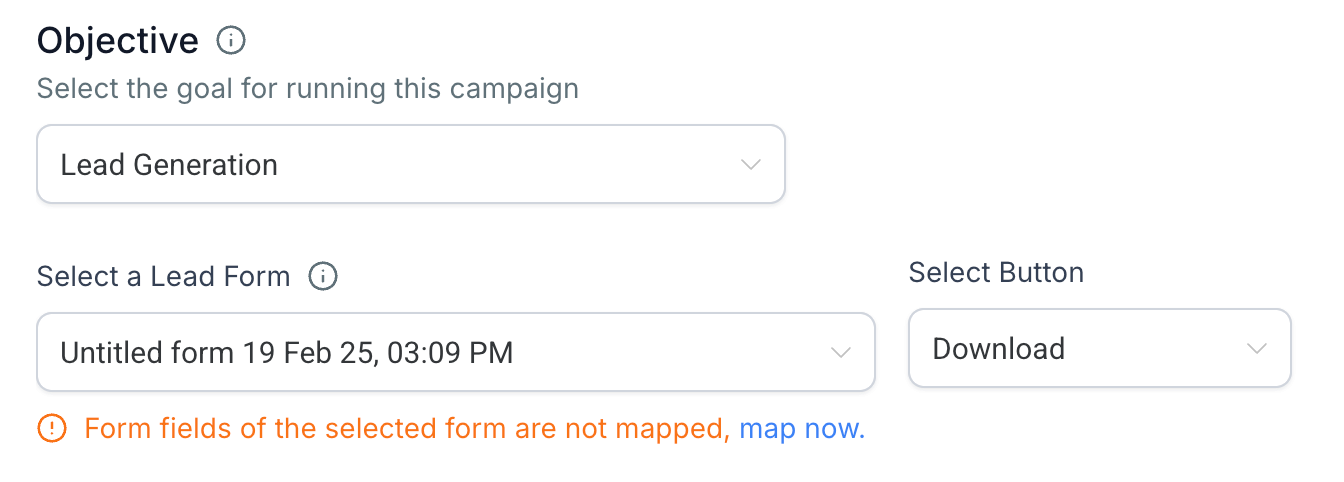
If the selected form has not been mapped yet, a prompt appears just below the form selector reading "Form fields of the selected form are not mapped, map now." Clicking "map now" opens the review modal so you can complete field mapping with your CRM fields.
To route new leads into nurtures or notify your team when a form is submitted, use the Facebook Lead Form Submitted trigger in Workflows.
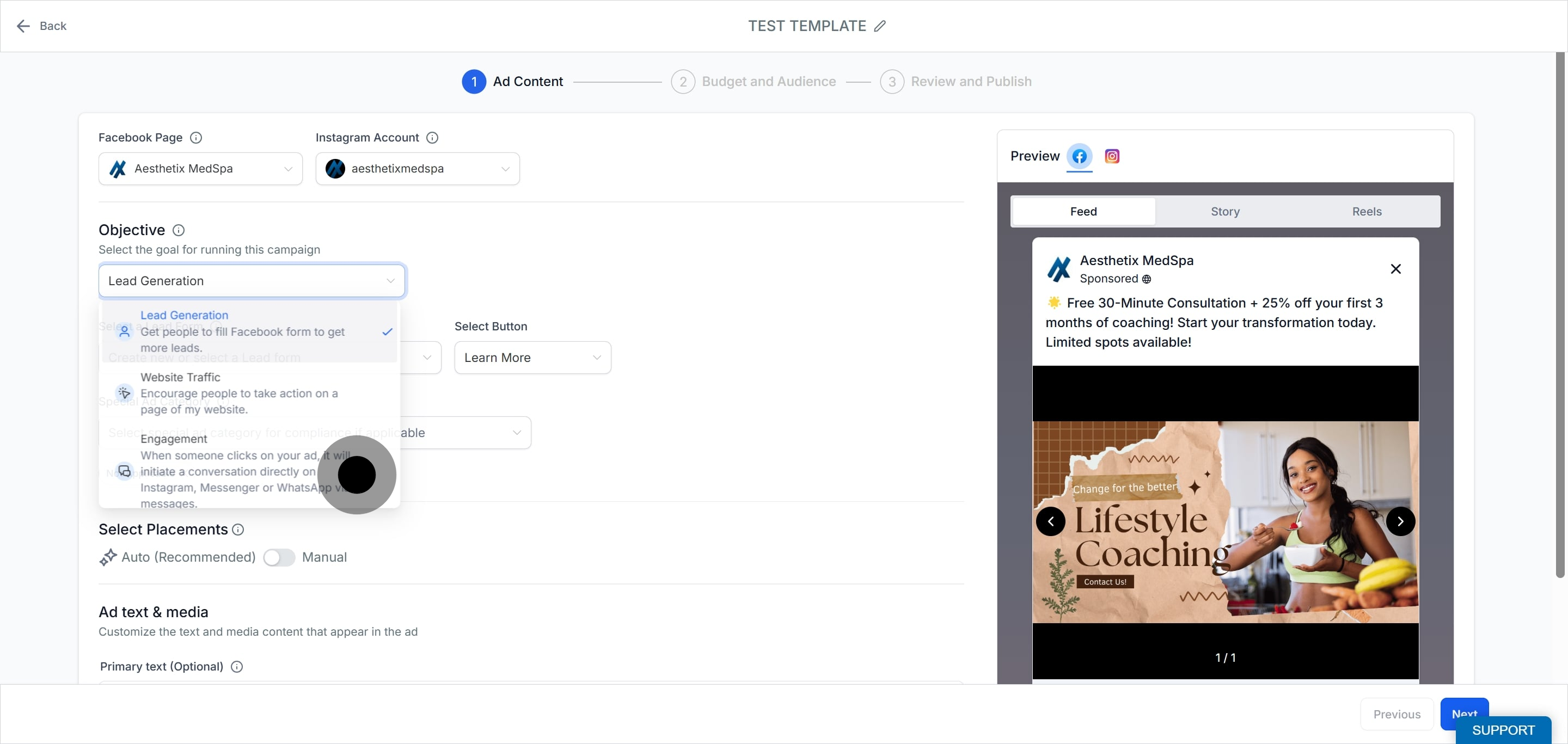
While creating a Meta ad campaign and selecting the Engagement objective, you can create a new Conversation Form or select a pre-created one. A Conversation Form appears when someone clicks your ad and opens a guided chat that improves engagement and lead collection.
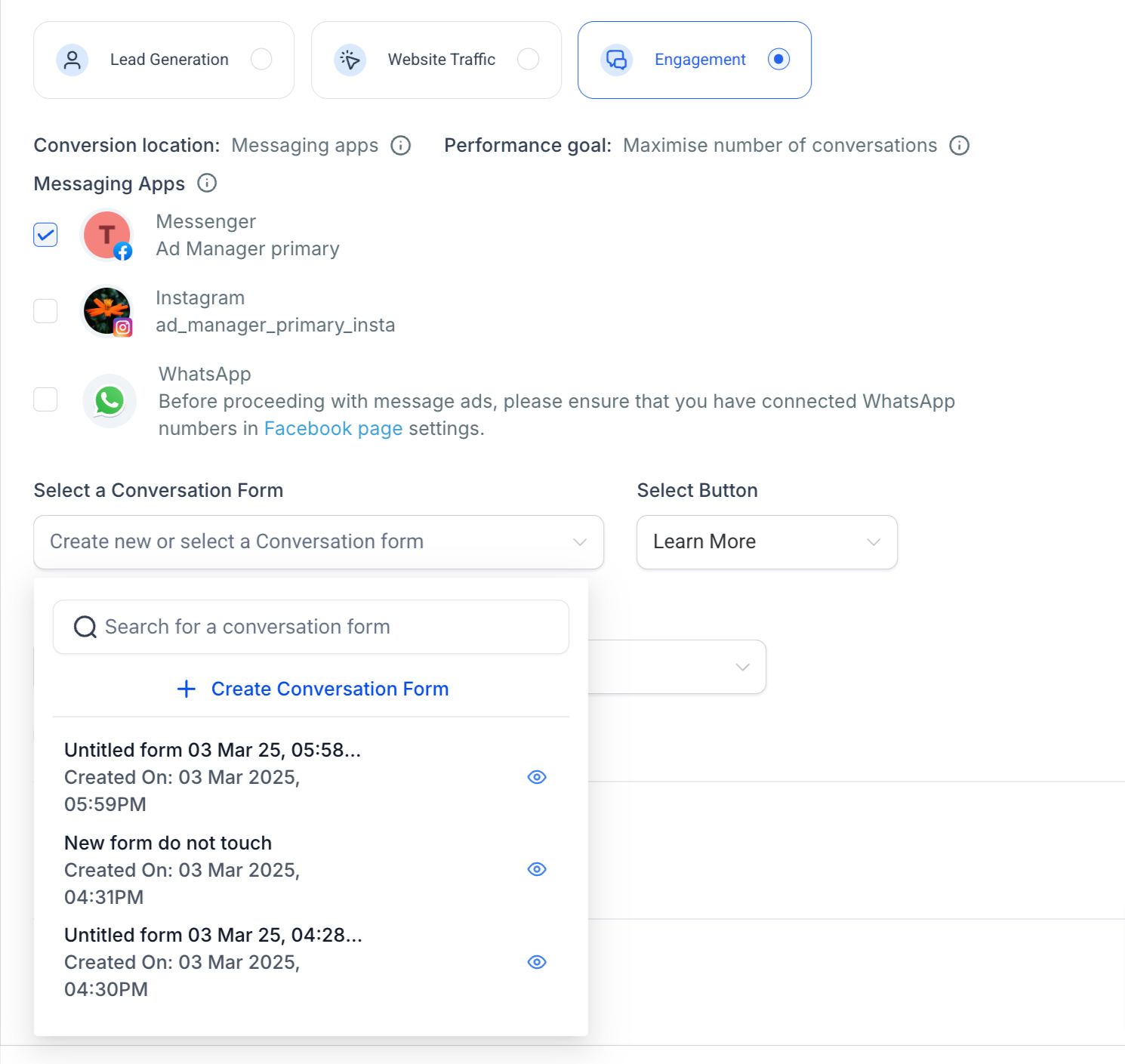
Conversation Forms are created under the Engagement objective. Select it to start building the form.
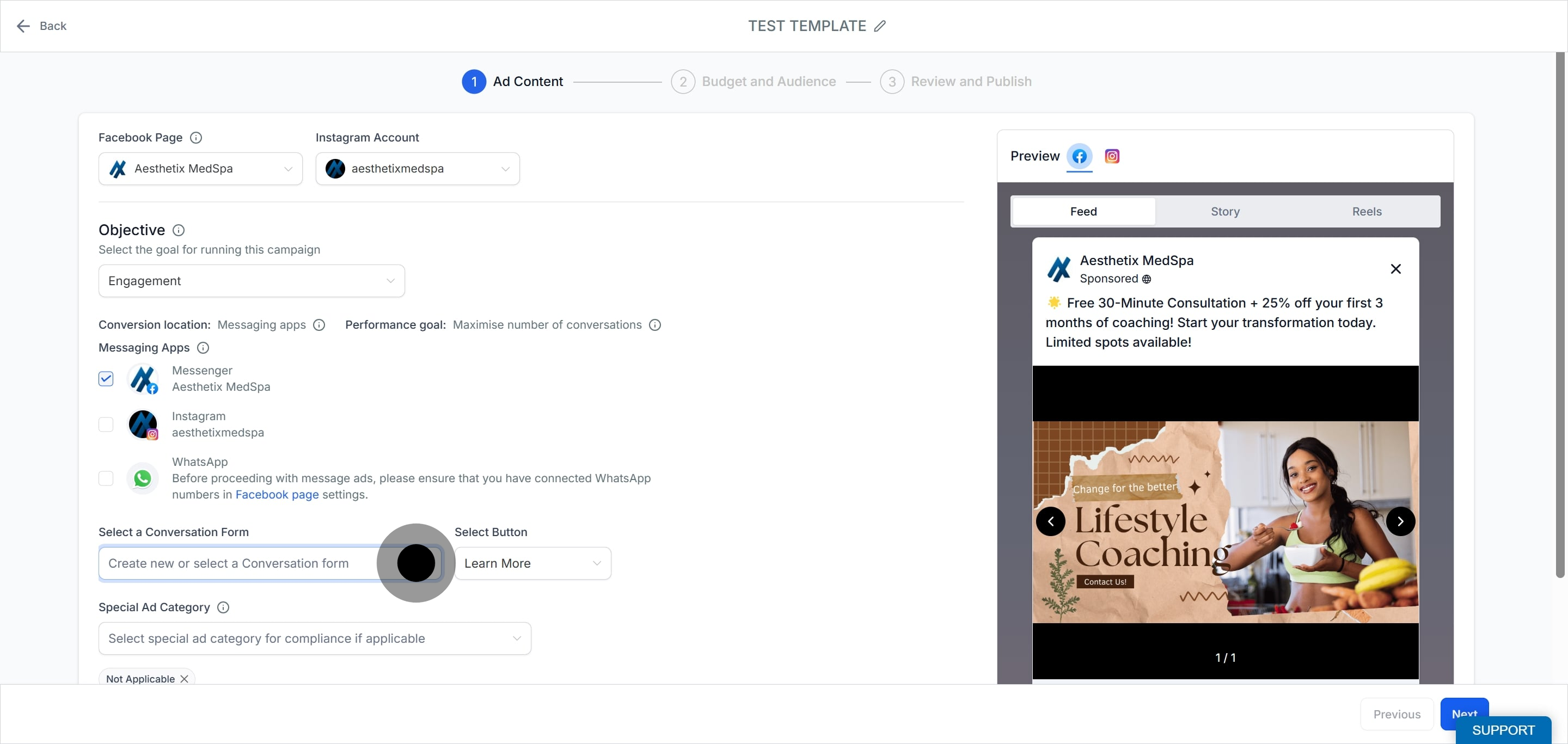
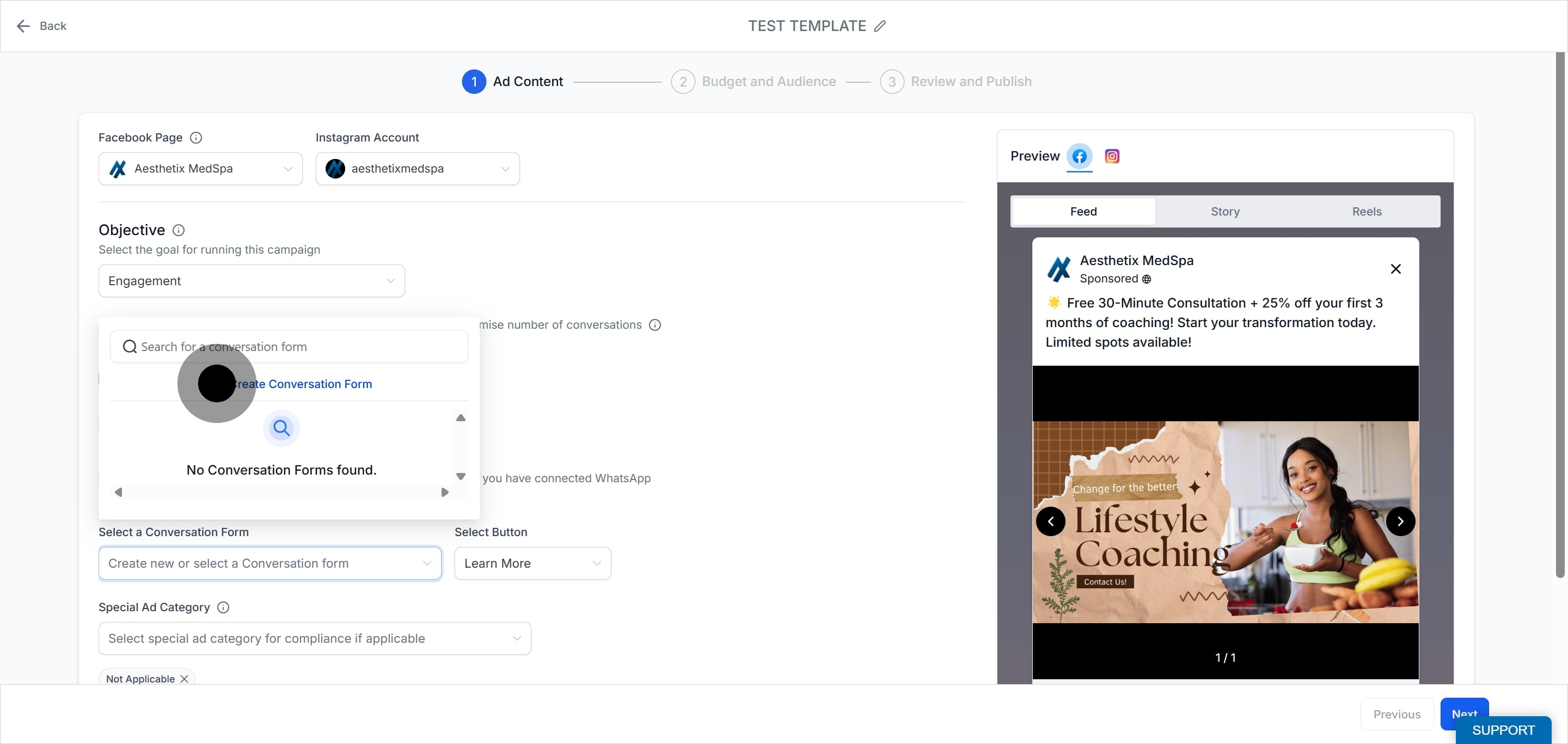
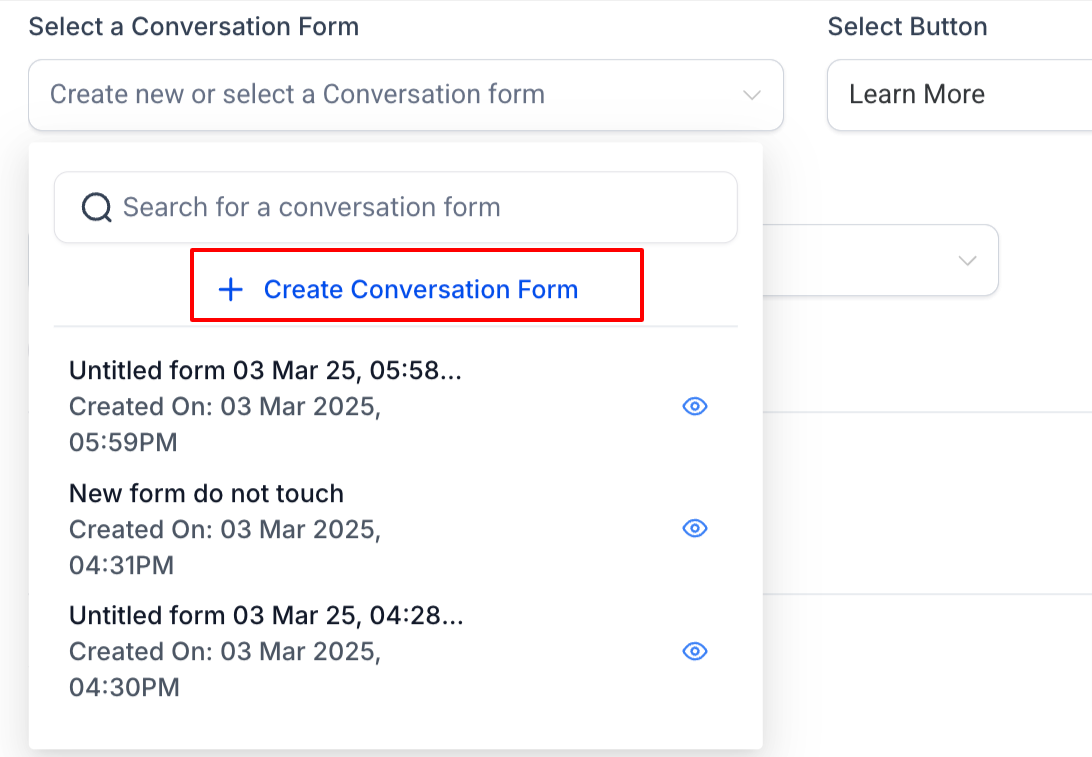
A dialog opens where you enter the form definitions.
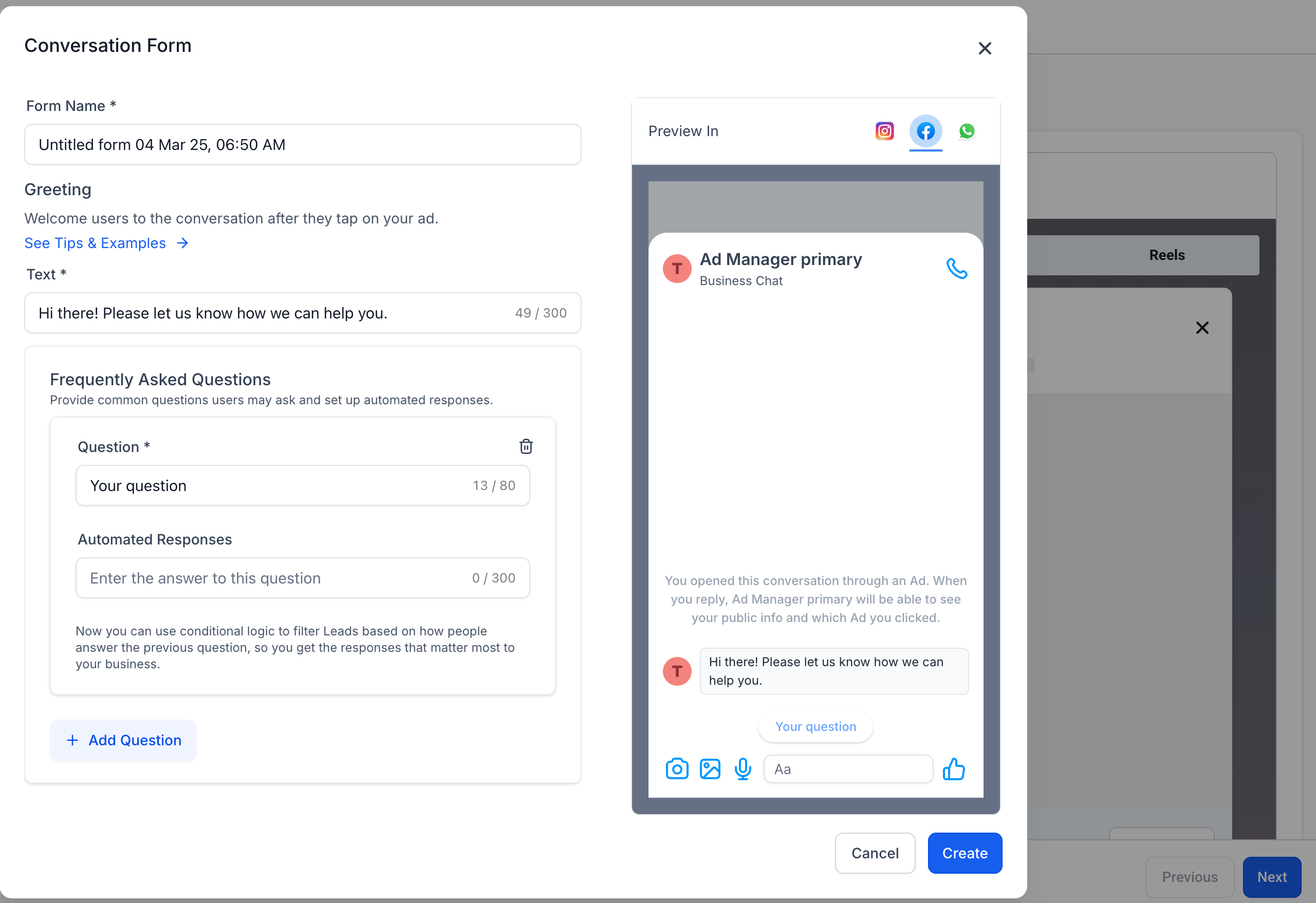
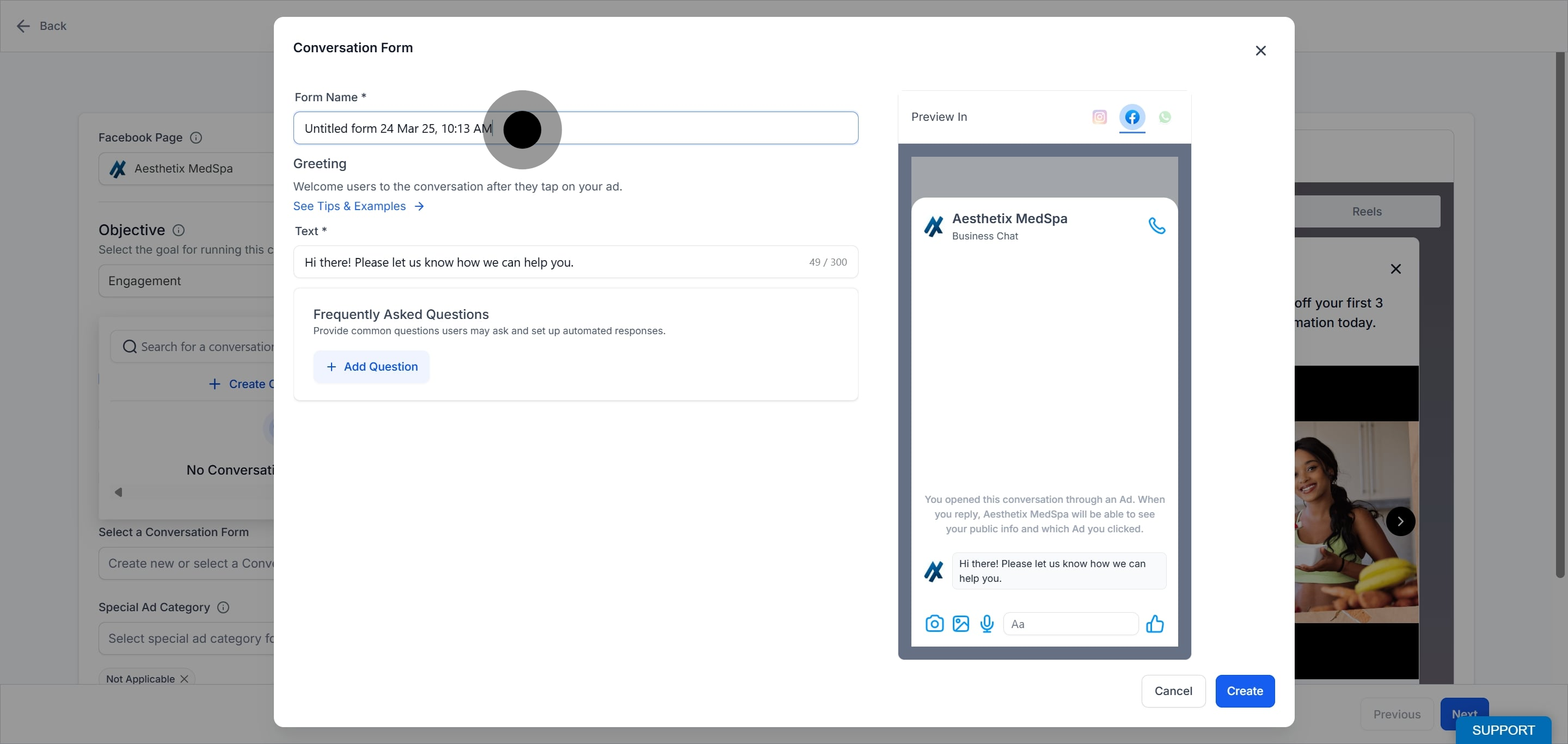
Write a friendly greeting that appears when someone clicks the call to action button, such as "Send Message." For example: "Hi! Thanks for reaching out. How can we help you today?"
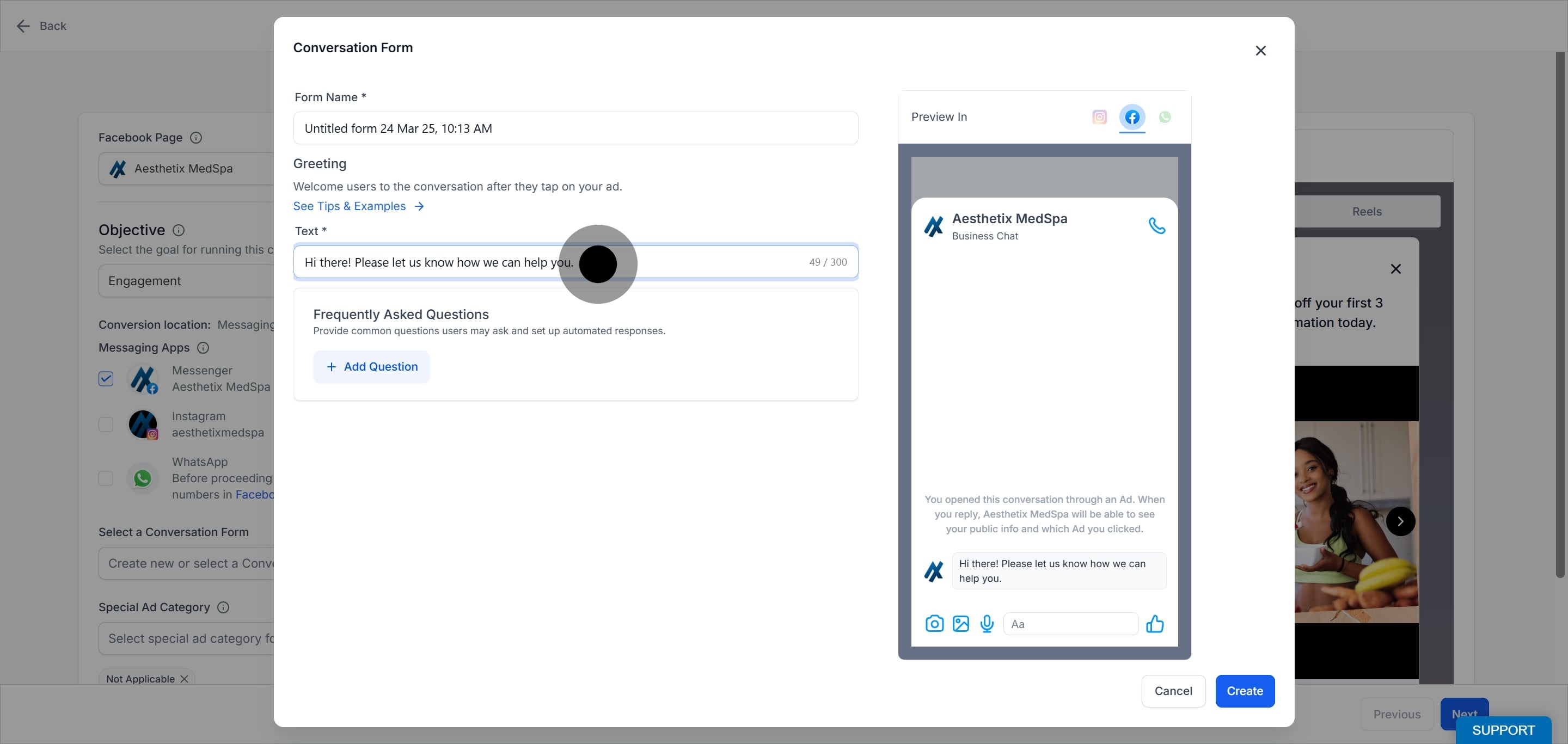
Set up a handful of common questions or options people can tap. For example: "Tell me about your treatments," "Do you offer consultations?," or "How do I book?"
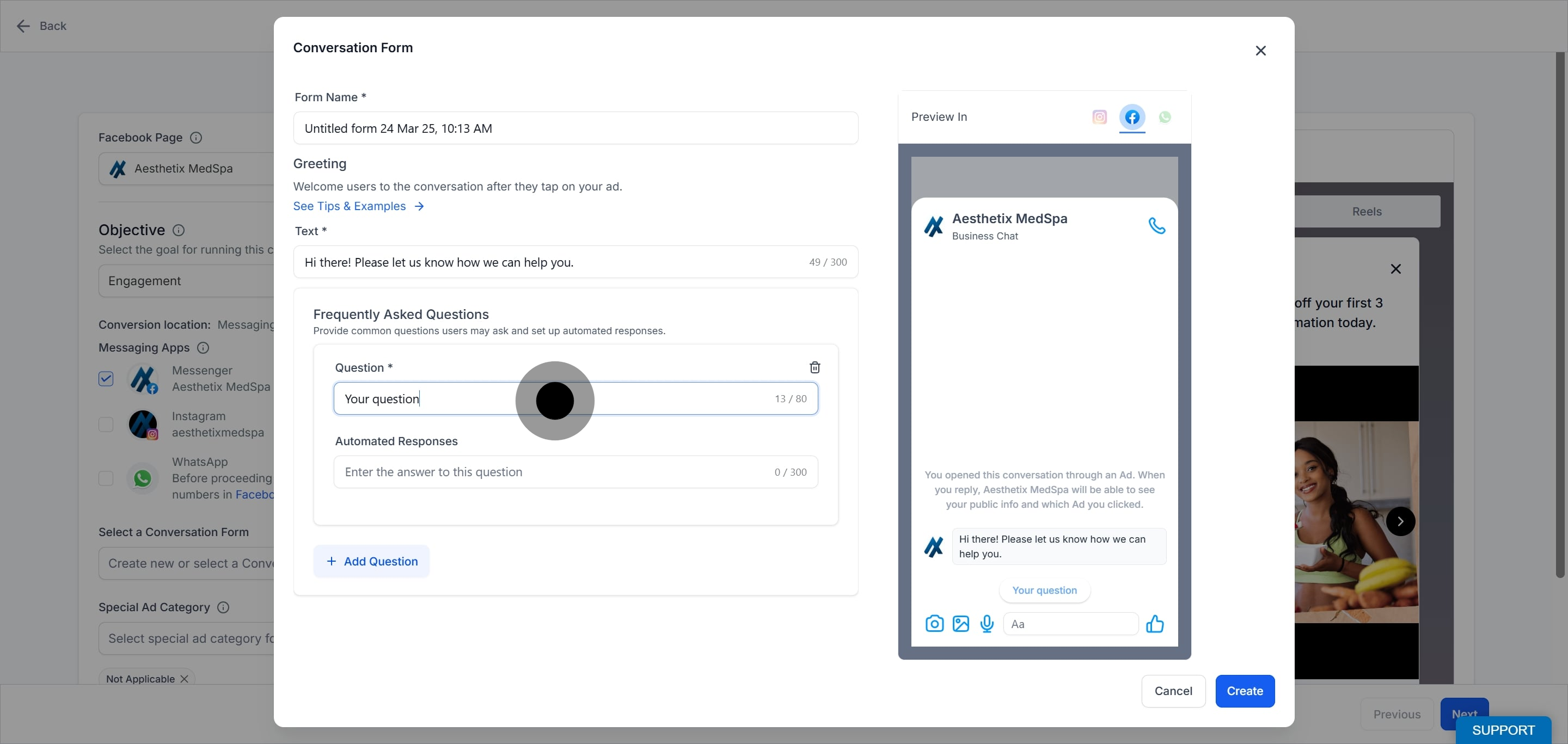
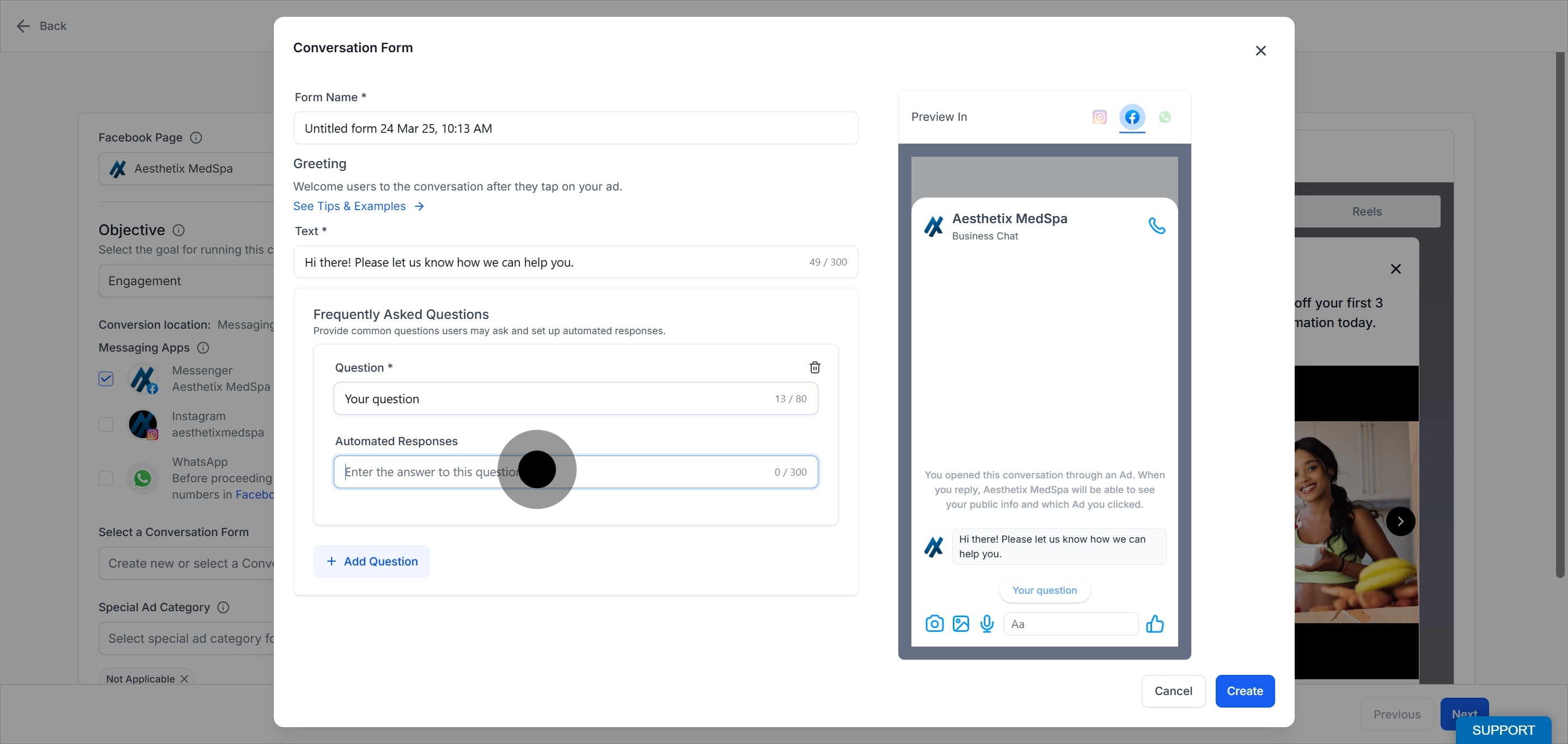
Provide an answer for each option. For example, if someone taps "Tell me about your treatments," an automated reply might say: "We offer a range of treatments including injectables and facials. Would you like to speak with a team member?"
Save the newly created conversation form and make sure it is linked to the ad.
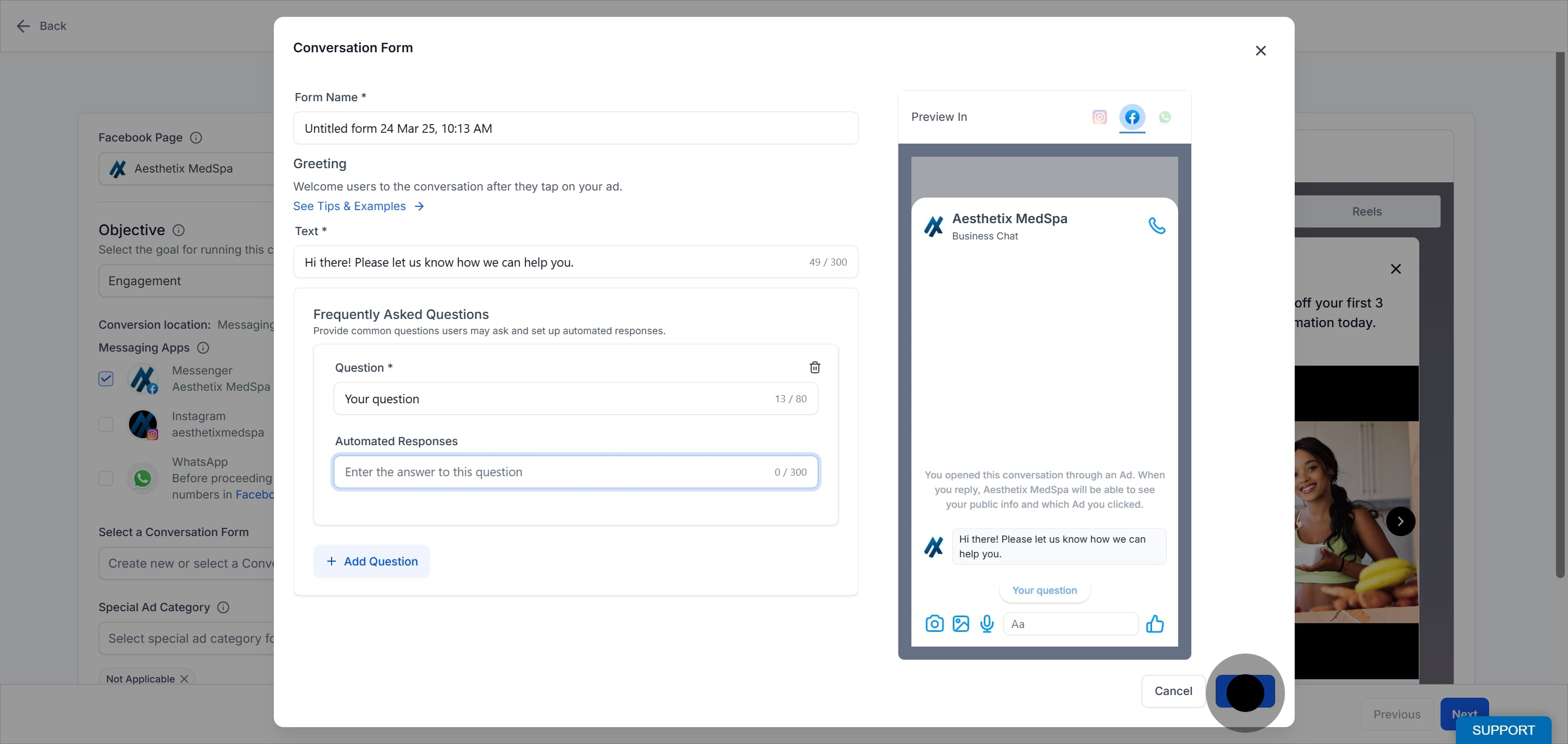
A preview of how your conversation form looks is shown on the form preview screen for each messaging app. The preview section is dynamic and shows only the messaging apps selected for the Engagement ad campaign.
What is the difference between a Lead Form and a Conversation Form?
A Lead Form is a native form used with the Lead Generation objective that collects contact details. A Conversation Form is a guided chat used with the Engagement objective that opens tappable options and automated replies when someone clicks your ad.
What are the two Facebook Lead Form types?
More Volume optimizes for a higher number of submissions, while Higher Intent adds a review step so people confirm their information before submitting, which tends to yield fewer but better-qualified leads.
Why should I map my form fields?
Field mapping links each form answer to a contact field in Aesthetix CRM so leads sync accurately and each answer appears on the contact record. An unmapped form shows a "map now" prompt in campaign setup.
How do I collect information that is not in the default field list?
Create a custom field in Aesthetix CRM first, and it will then appear as a CRM field you can map to in the lead form's field mapping section.
Can I reuse or edit an existing lead form?
Yes. From campaign setup, click the pencil icon next to the form name to preview, remap fields, or duplicate the form. The duplicate opens pre-filled so you can edit and save it as a new form.
Does a Facebook Lead Form require a privacy policy?
Yes. Meta requires a valid privacy policy URL, so enter the landing page link to your practice's privacy policy when building the form.
Should I rename fields inside the Facebook form settings?
Avoid renaming fields in the Facebook form settings, since changed names can break the mapping to your CRM fields.
How many quick-reply options should a Conversation Form have?
Set up 3 to 5 tappable options covering your most common questions, each paired with an automated response to guide people toward booking.
