Meta engagement ads, also called Click-to-Message or CTX ads, let your practice start conversations with potential patients through messaging apps like Facebook Messenger, Instagram Direct, and WhatsApp. Instead of sending people to a landing page, the ad opens a chat so a prospective patient can ask about a treatment or request a consult directly. This guide walks through creating a Click-to-Message engagement ad, including the exceptions that apply when only some messaging apps are available, plus a shortcut for launching one straight from WhatsApp or the Social Planner.
This campaign type uses these settings:
Ad objective: Engagement
Conversion location: Messaging Apps
Performance goal: Maximize the number of conversations
With these settings, Meta optimizes delivery to encourage people to start chats with your practice.
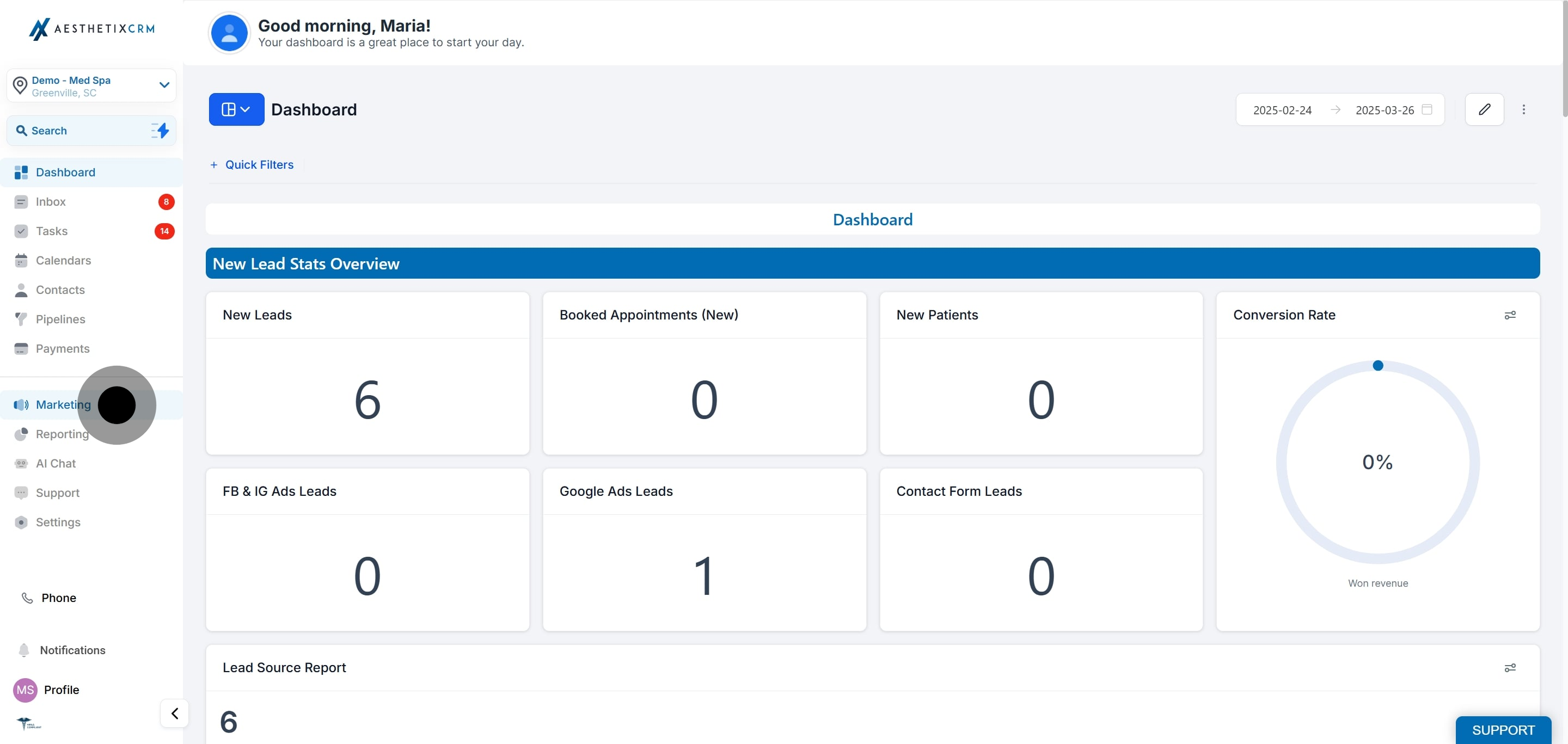
Select Marketing.
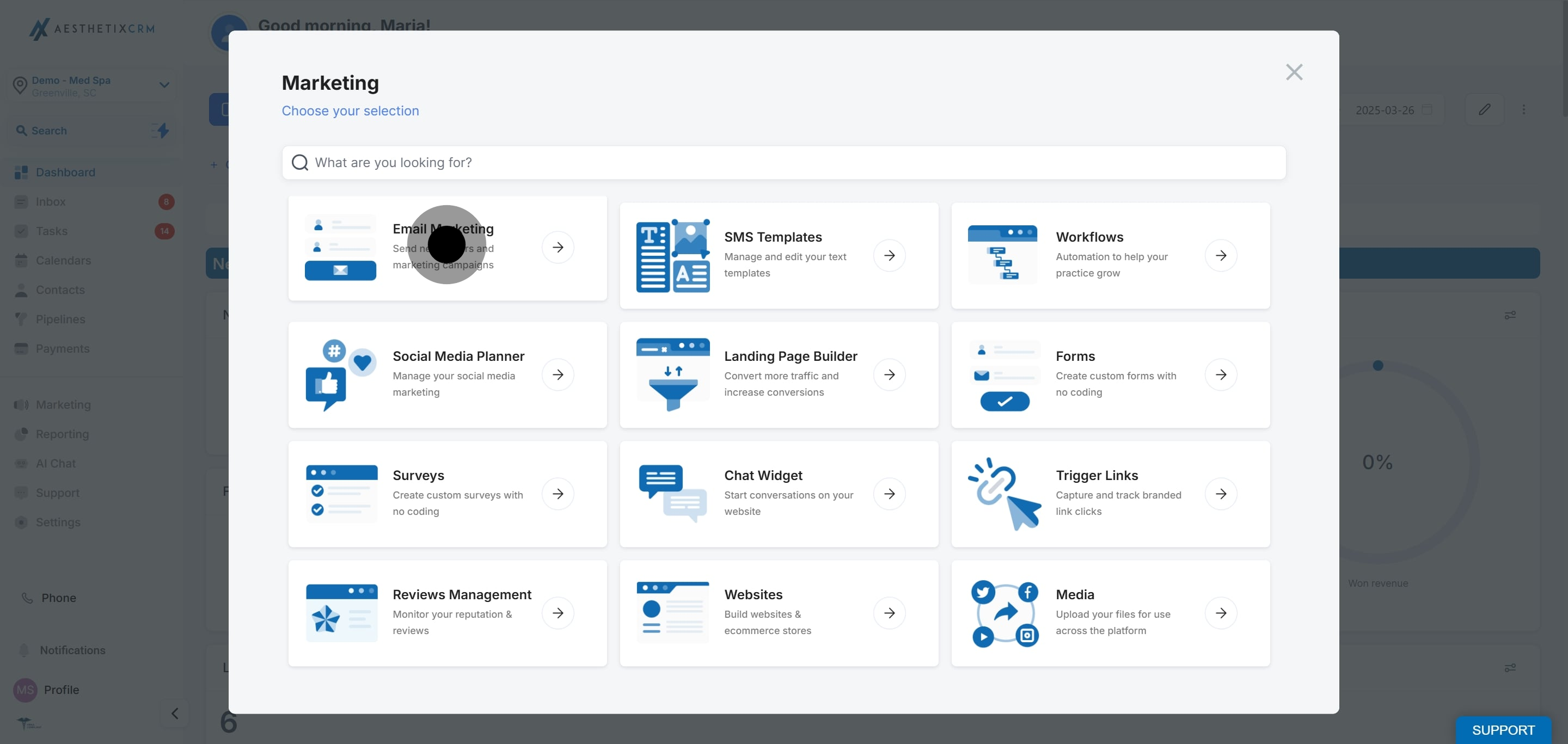
Open the Email Marketing area.
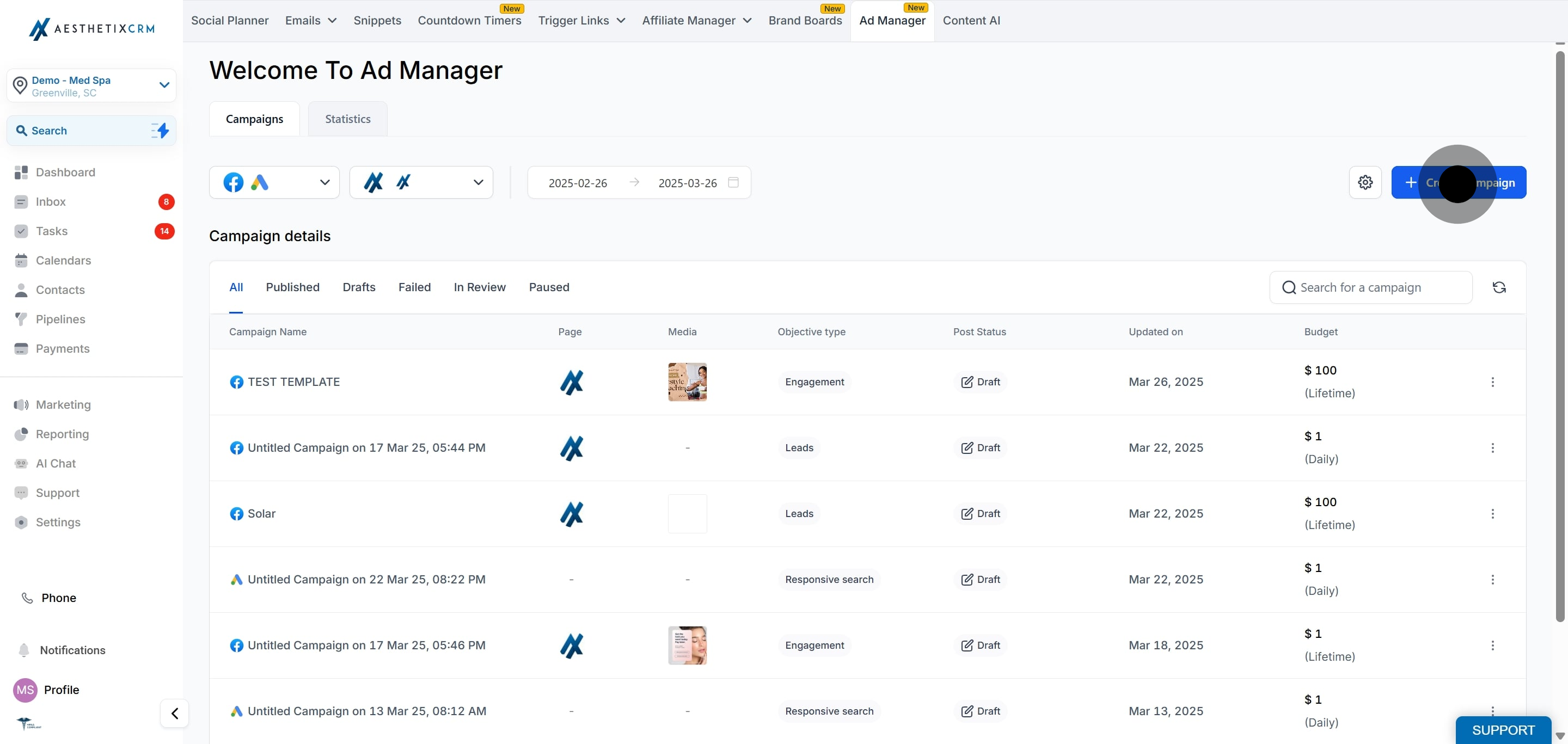
Click Ad Manager.

Click Create Campaign to start a new campaign.
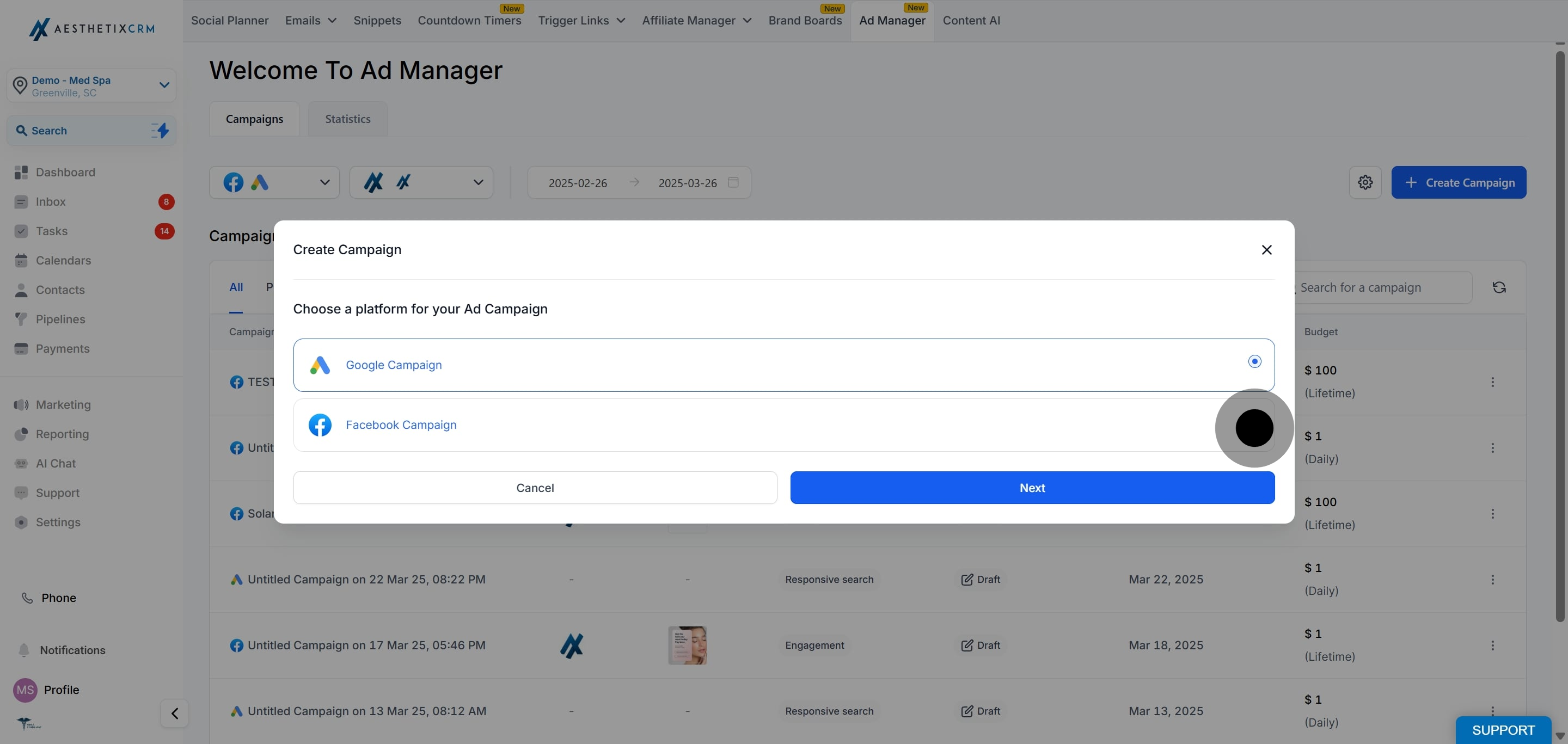
Choose Facebook Campaign and start from scratch.
Select the Facebook Page you want the ad to represent your practice.
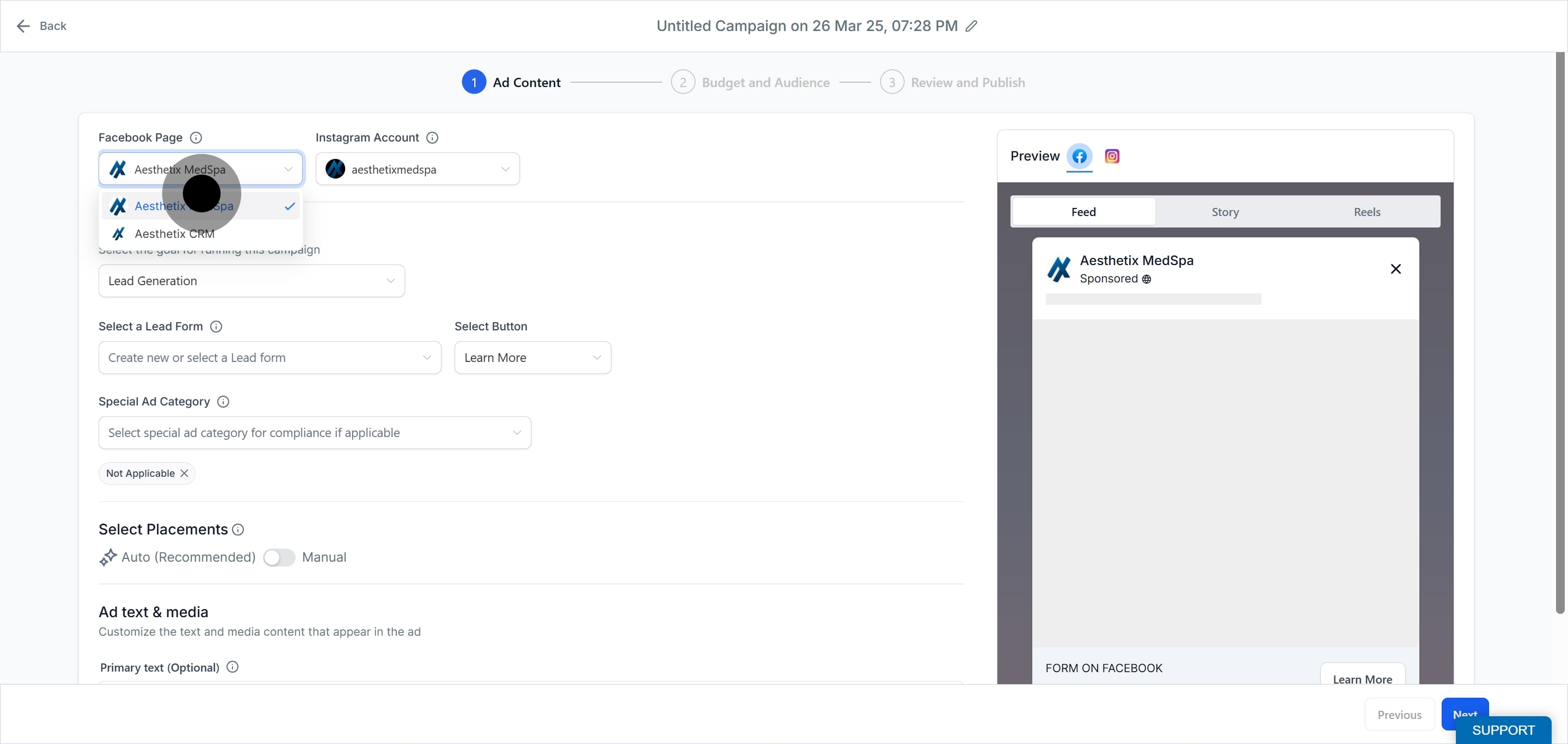
Either select an Instagram account connected to that Page, or use the Facebook Page itself to show your ad on Instagram. See the guide on connecting Instagram for details on linking an Instagram account to a Facebook Page.
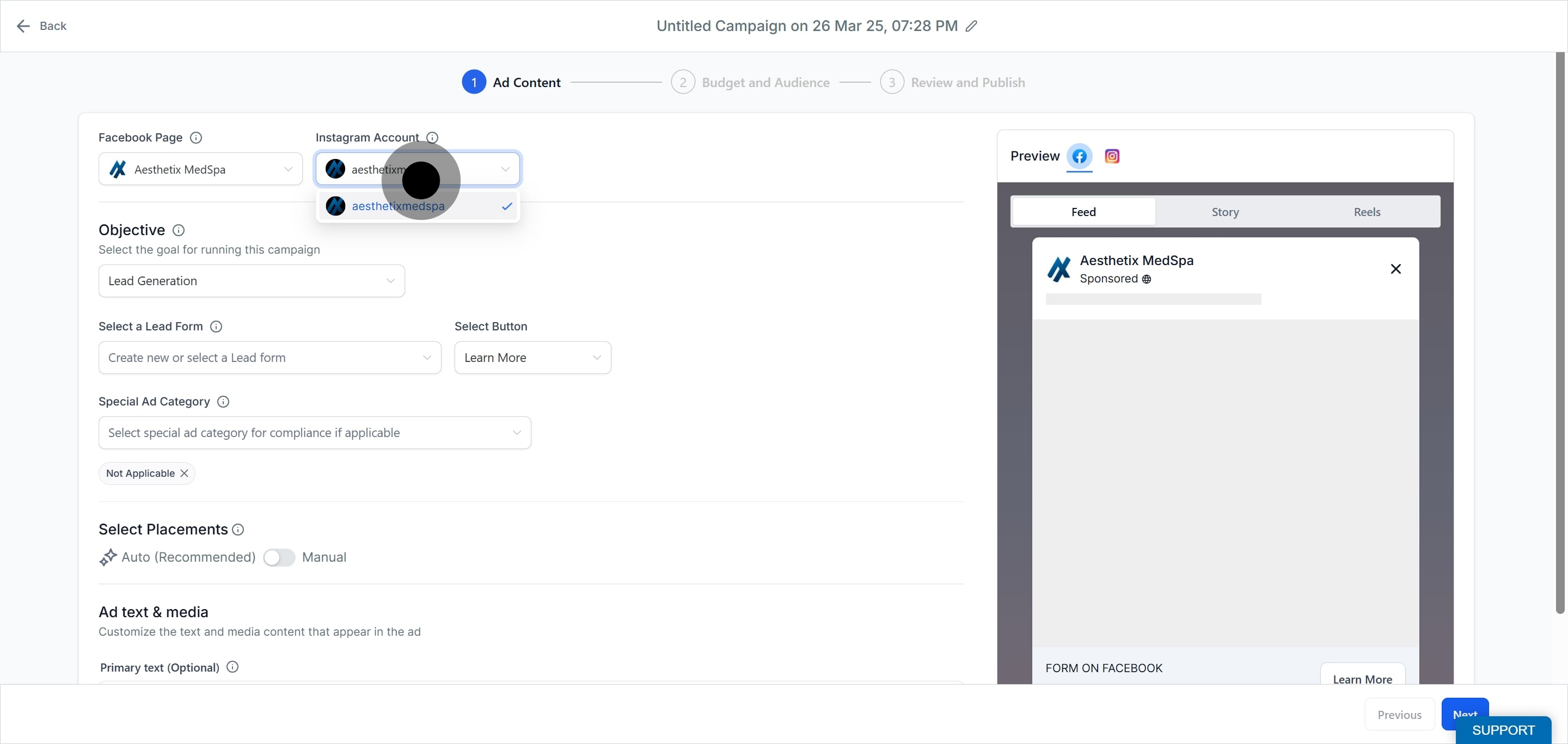
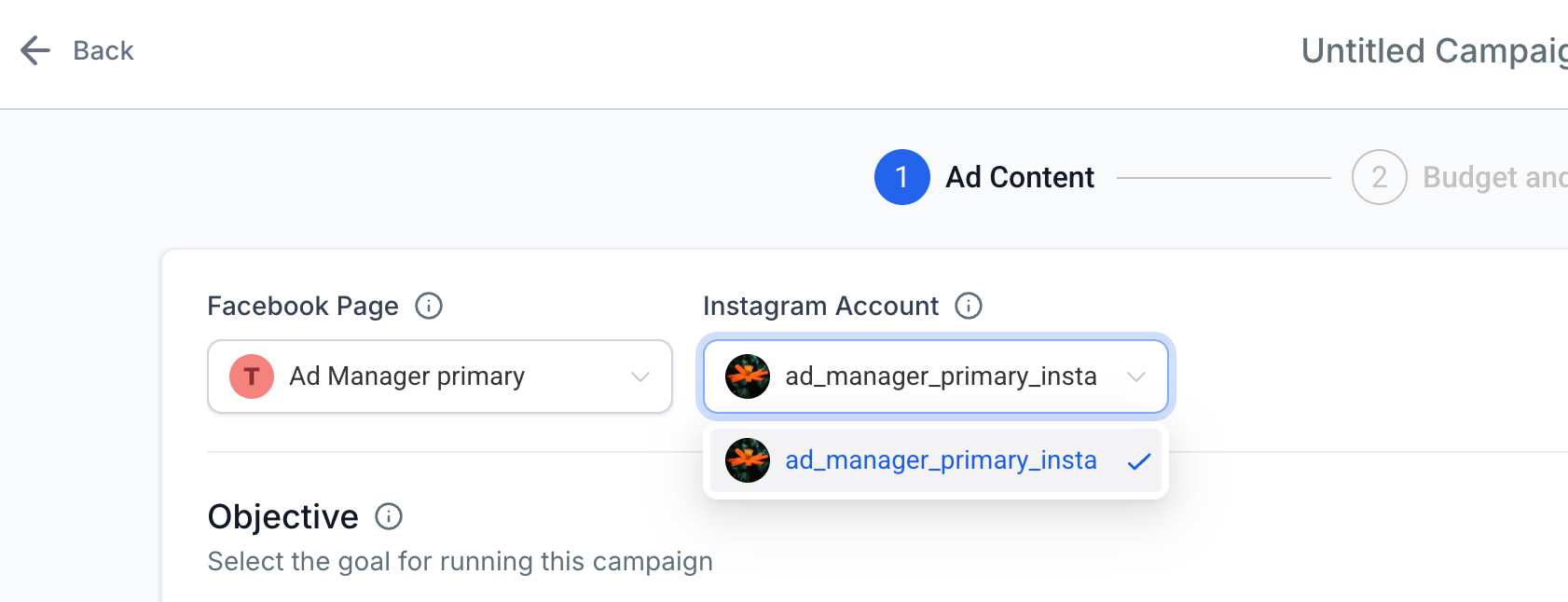
Note: Instagram Direct is not eligible for Click-to-Message ads unless an Instagram account is connected to the selected Page.
Select Engagement as the objective.
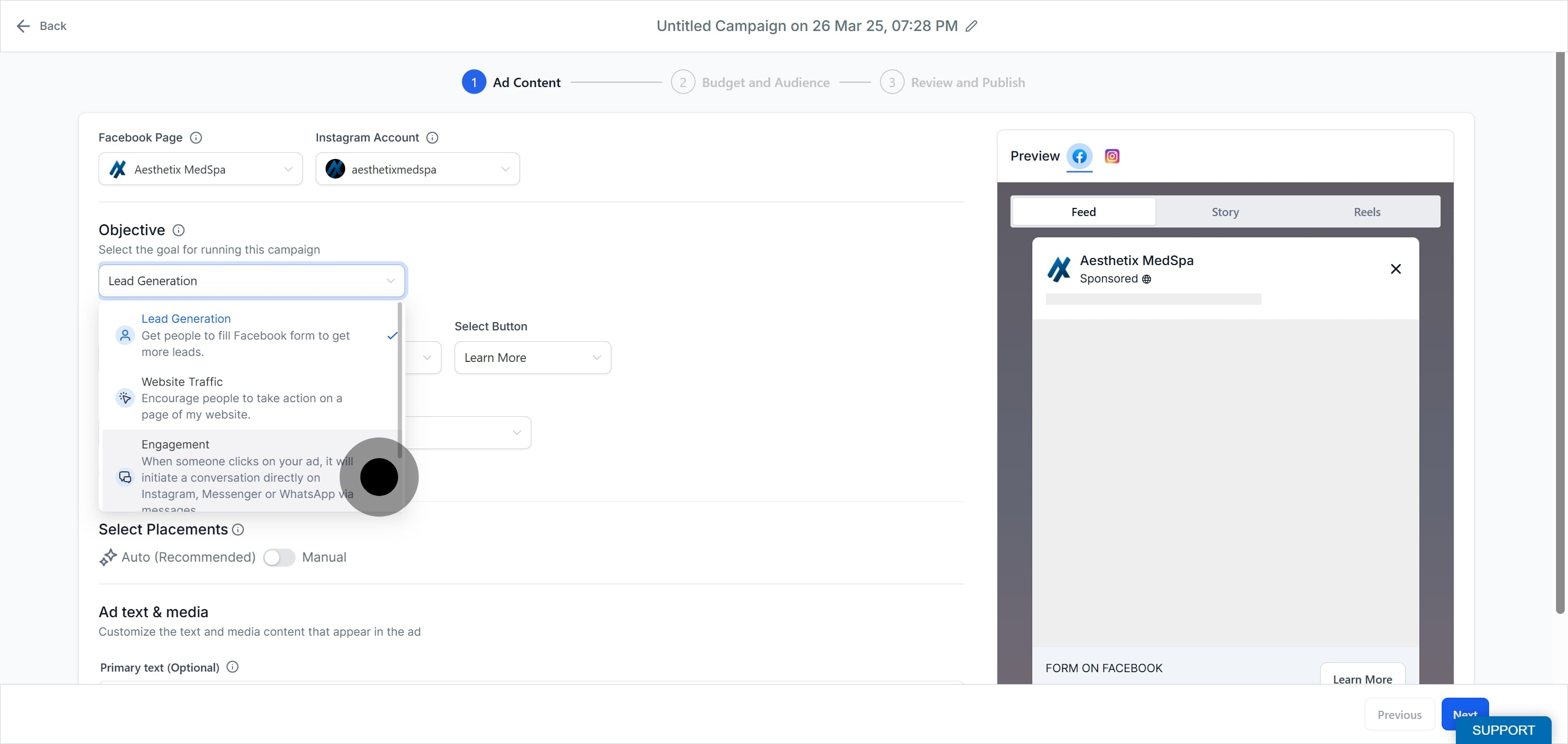
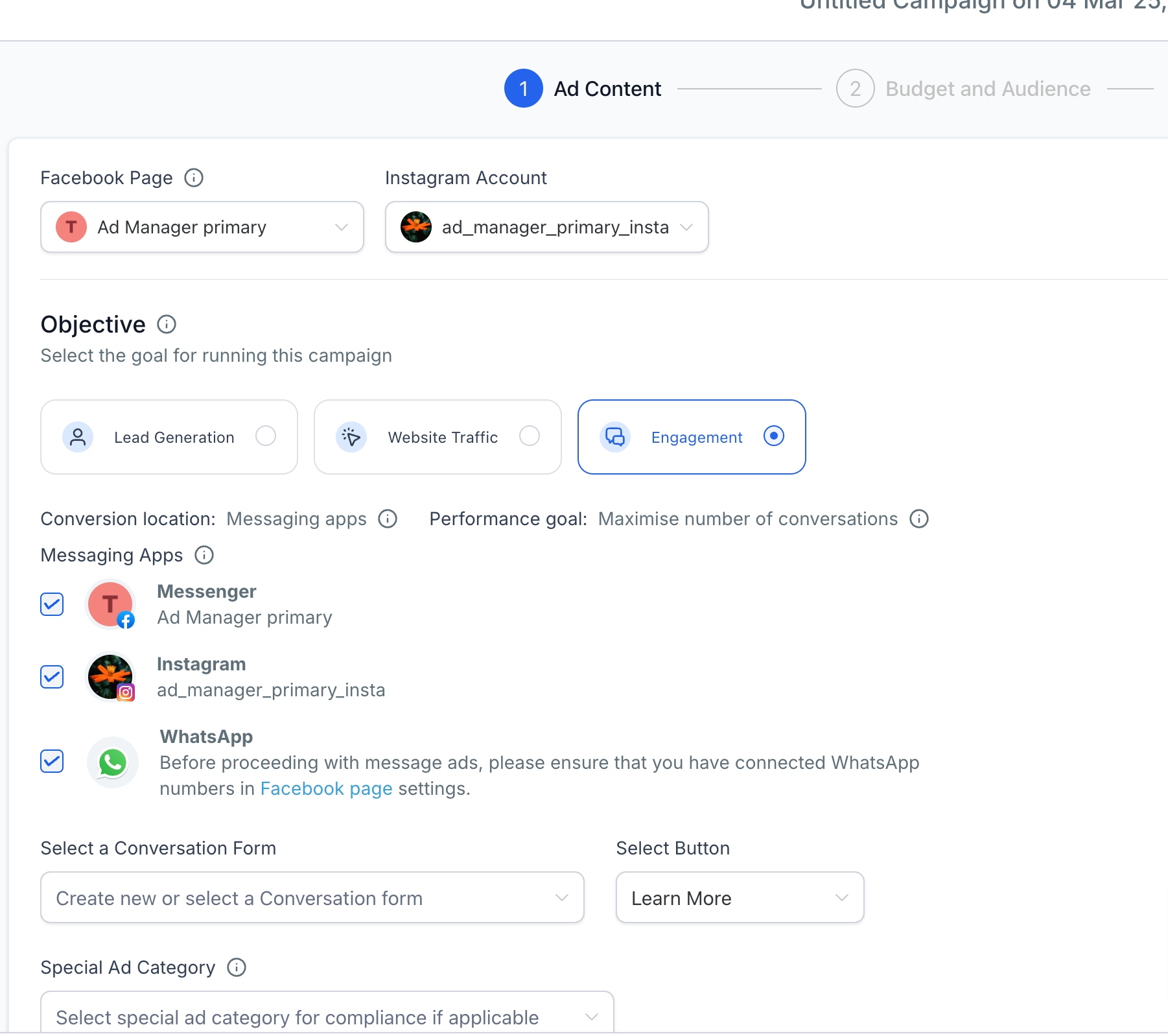
The Conversion Location defaults to Messaging Apps.
The Performance goal defaults to Maximize number of conversations, so Meta optimizes delivery to encourage users to start chats with your practice.
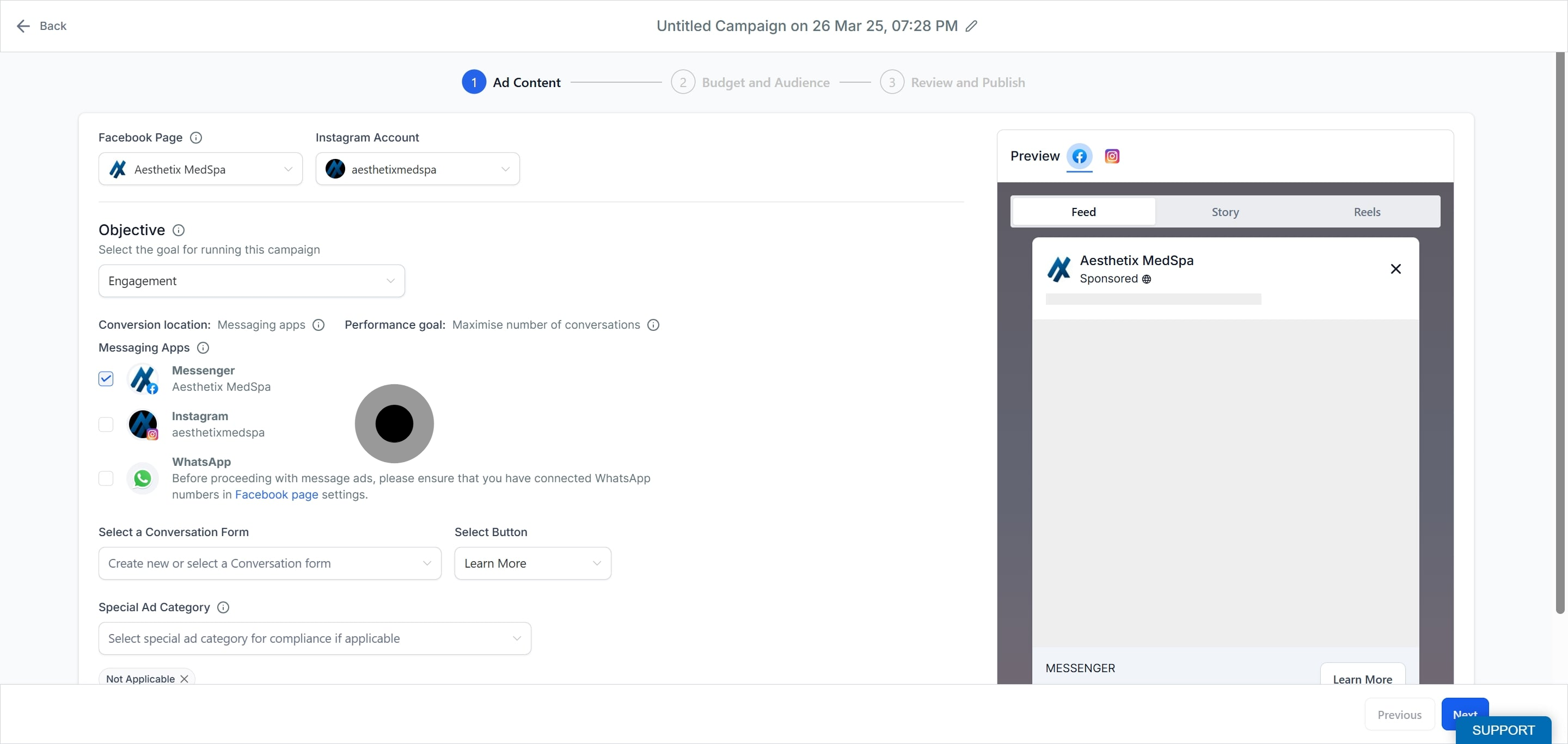
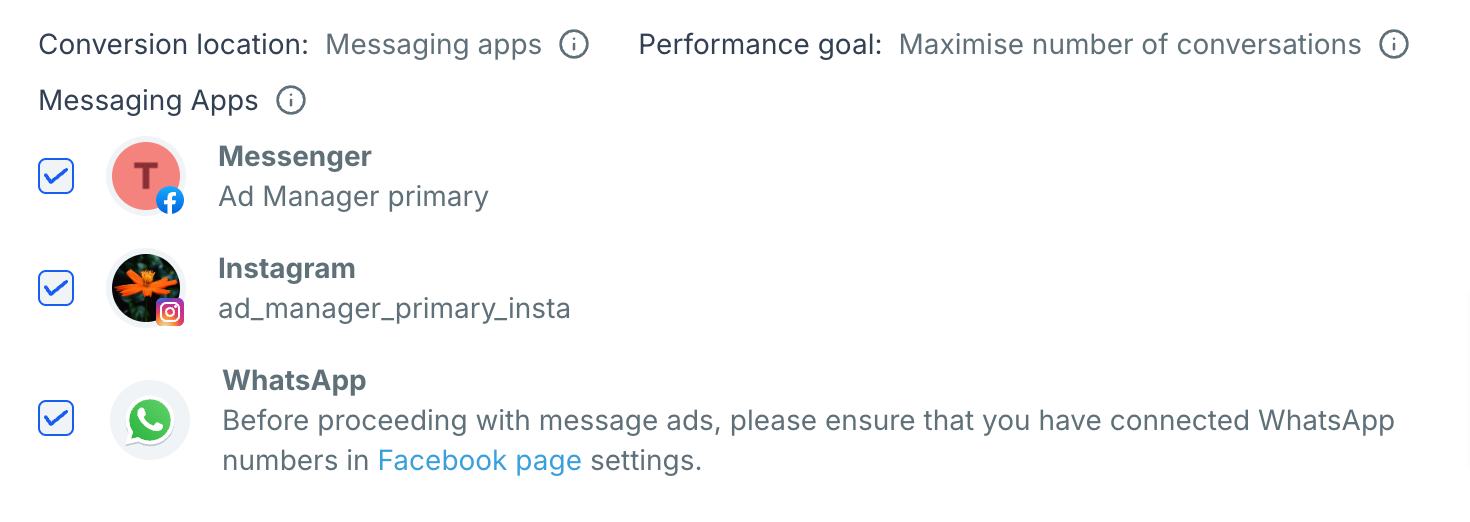
Under the Messaging Apps section, select one or more platforms where you want to receive messages:
Facebook Messenger
Instagram Direct: active only if the selected Facebook Page has an Instagram account connected.
WhatsApp: available only if you have WhatsApp numbers added to the selected Facebook Page.
Scenario | Impact |
|---|---|
All three apps are available (Messenger, Instagram, WhatsApp) | The ad is shown across all platforms, and Meta's algorithm decides which app is best to reach the user. |
Only Messenger and Instagram Direct are available | WhatsApp is not an option. Users can message you via Messenger or Instagram Direct. |
Only WhatsApp is available | Users are directed only to WhatsApp. The ad will not run on Messenger or Instagram. |
Only one app is available | The ad campaign is shown across all platforms, but users can only reach you via that one messaging platform. |
None of the messaging apps are available | The ad cannot be created under this objective. Choose another objective such as Traffic or Leads. |
Create a new conversation form or select one you already built. The conversation form collects information from the person who messages you. Leads captured this way can be routed and followed up automatically in Workflows.

Automatic Placements (recommended): Meta distributes the ad where it is most likely to generate conversations.
Manual Placements: you choose specific placements such as Facebook Feed, Instagram Feed, and Stories.

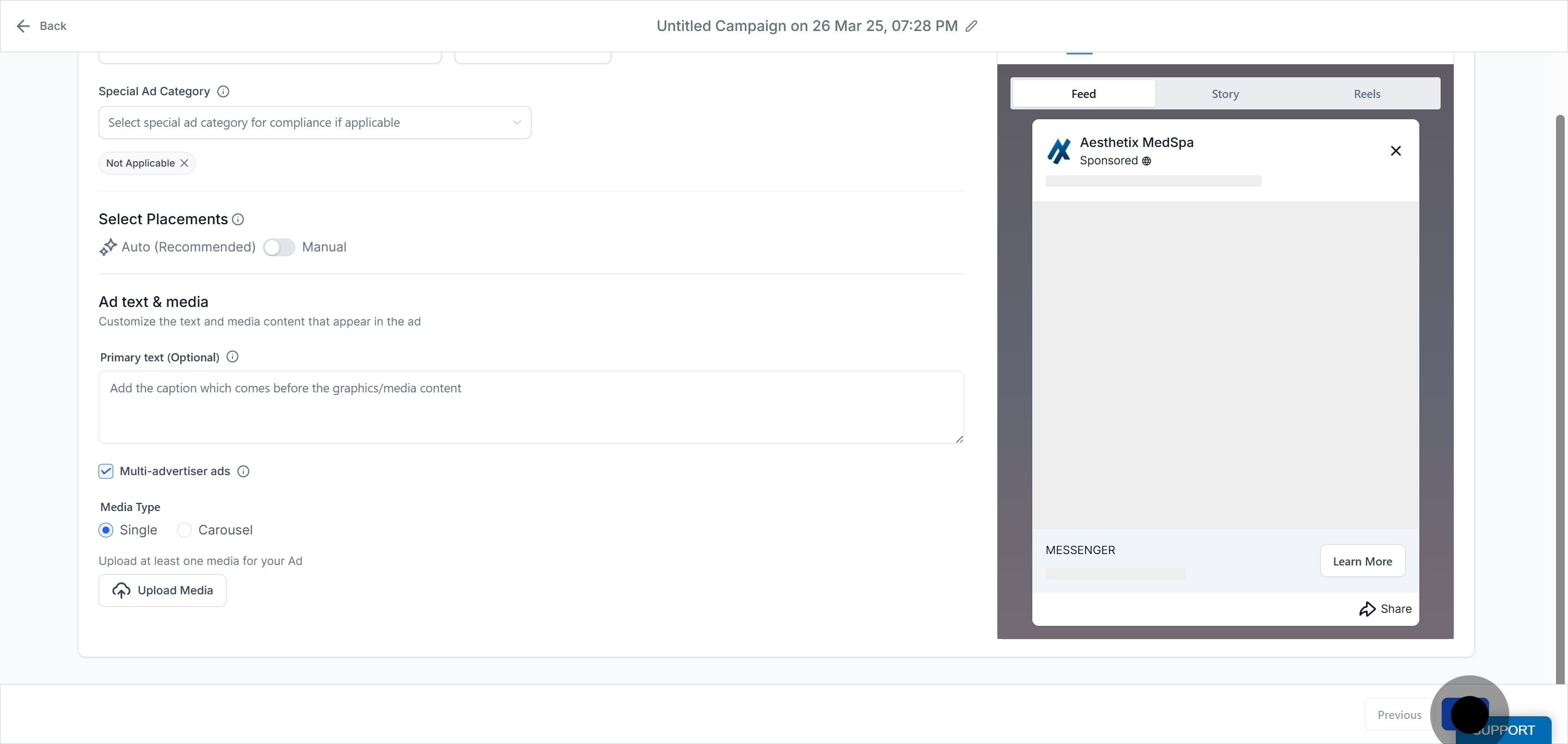
Design your ad media and format.
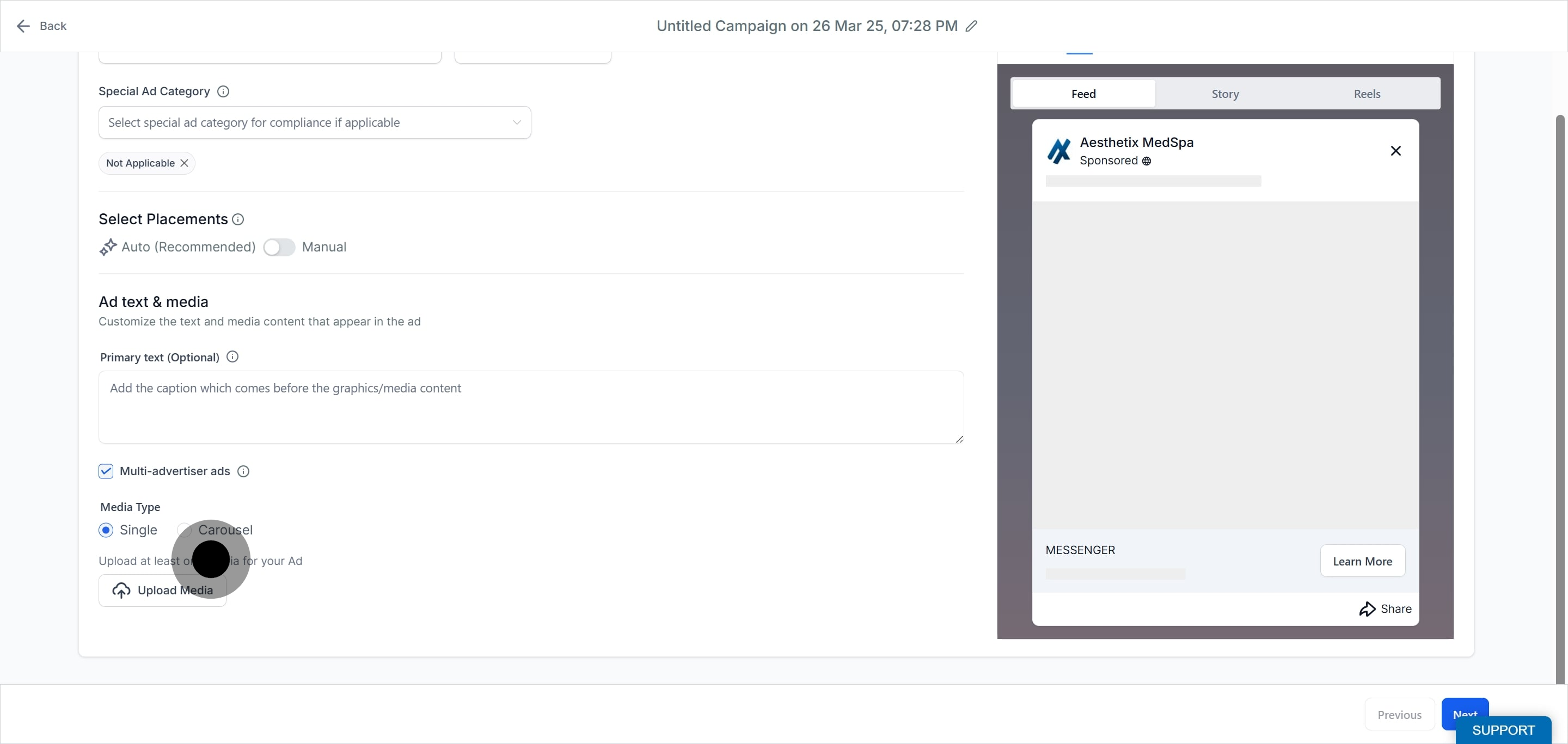
Choose an ad format:
Single Image or Video: a simple ad with one visual.
Carousel: multiple images or videos users can scroll through.
Write engaging ad copy. Keep it short and compelling, and include a strong call to action such as "Message Us Now." Set up the call to action as Send Message. If multiple messaging apps are selected, Meta optimizes the best platform for the user to message you.
When your ad is configured, click Next to continue.
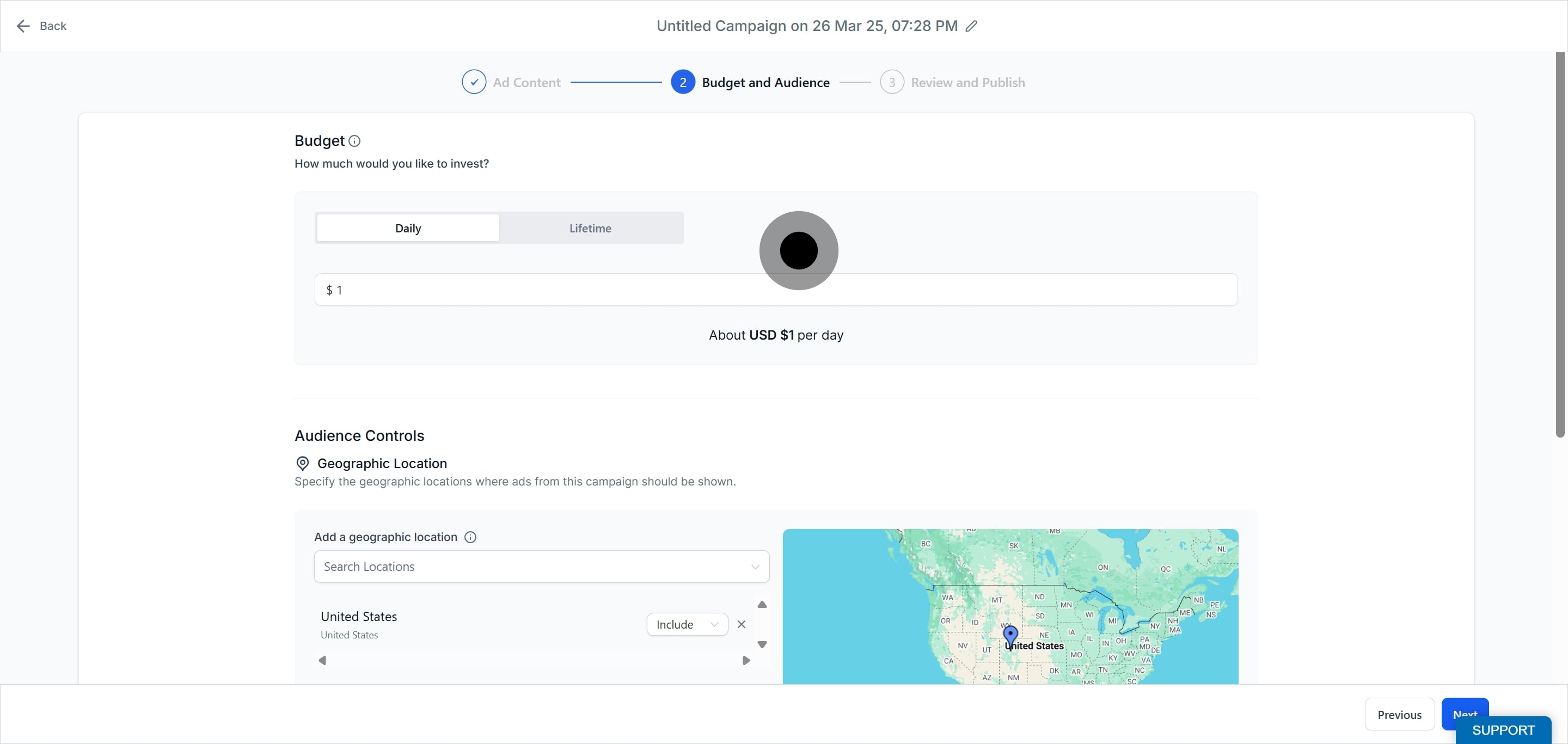
Set a Daily Budget or a Lifetime Budget, choose a start and end date if needed, and make sure the budget aligns with your goals. See the campaign budget guide for full details on how each budget type works.
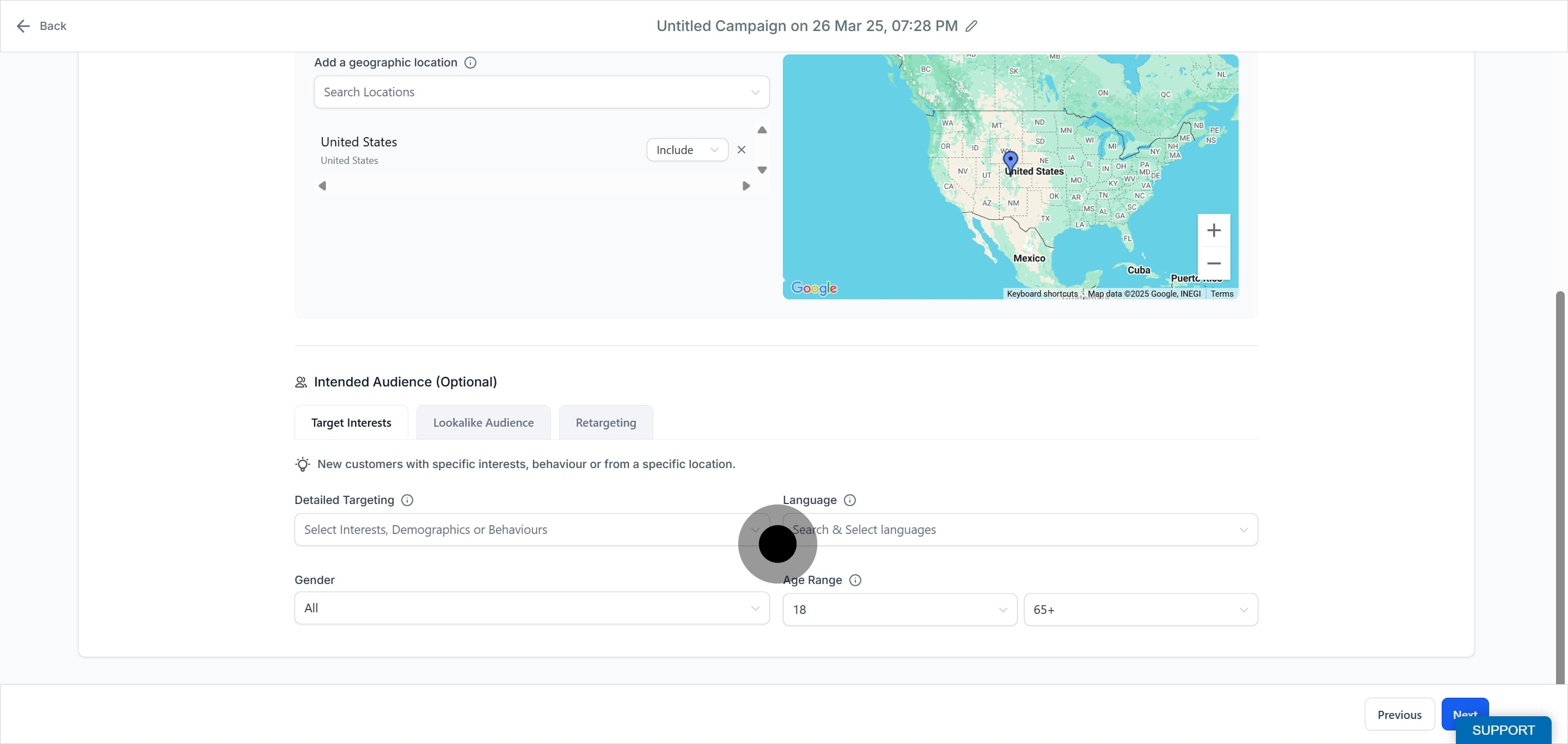
Define your audience by location, age, gender, and detailed targeting. Use Custom Audiences to reach existing patients, or lookalike audiences to find new prospects similar to them.
Note on patient data: Building a custom or lookalike audience from an uploaded contact list shares those contact identifiers (emails and phone numbers) with Meta, which hashes and uses them for matching. Only do this with patient consent and in line with your practice's HIPAA policies, and never upload protected health information beyond basic contact identifiers.
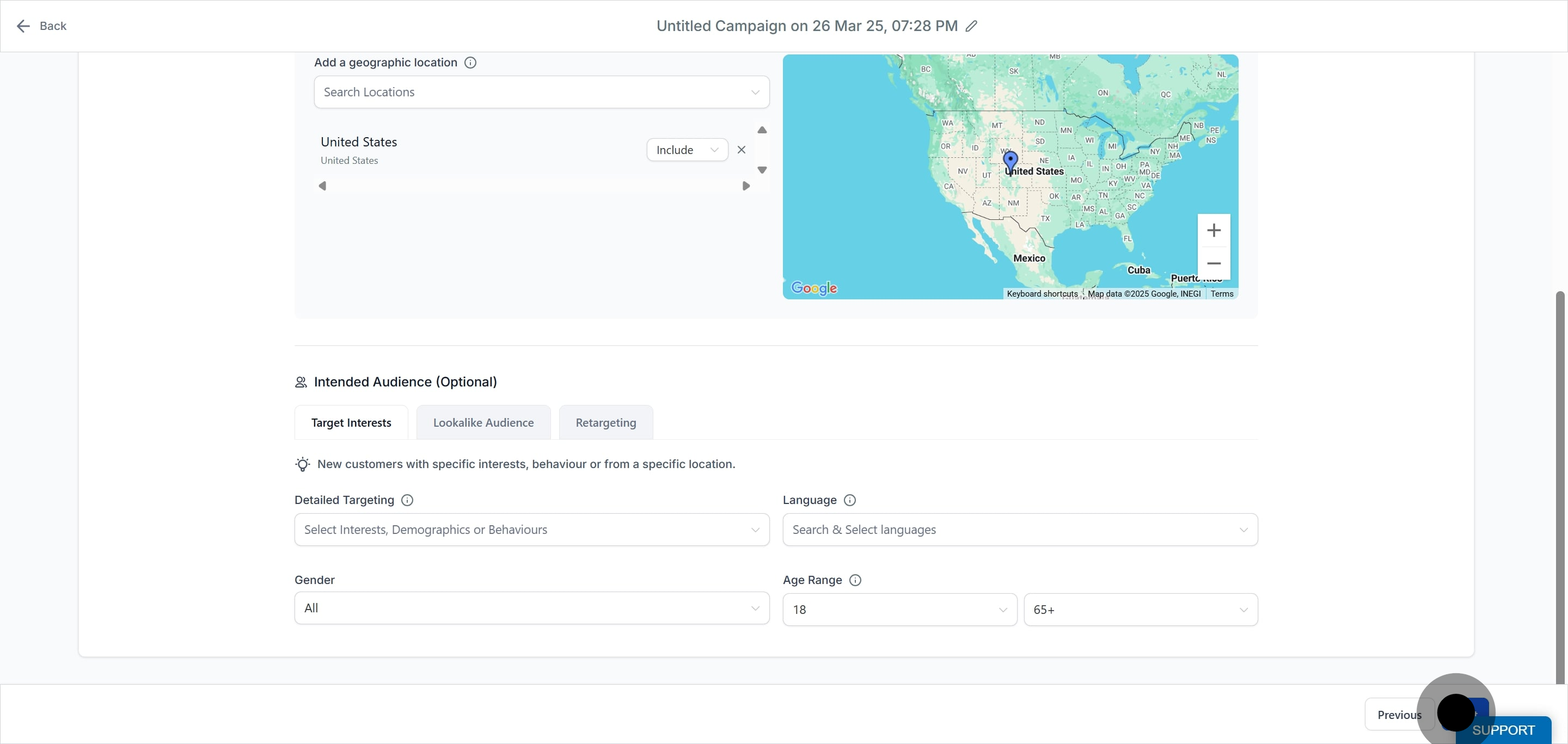
Double-check all settings, then click Publish to launch your ad. Monitor performance in Ad Manager statistics.
Use the Meta Pixel to track user interactions.
Create a Conversions API (CAPI) action to send conversation events back to Meta for more accurate tracking. The Facebook Conversions API action is configured in Workflows.
Test different creatives and audience segments, and adjust budget and placements based on performance.
Incoming conversations from these ads land in your Inbox, and you can automate follow-up (routing, replies, tagging) in Workflows.
You can start an engagement ad in one click from two places, with the objective and content preloaded so you skip several setup steps.
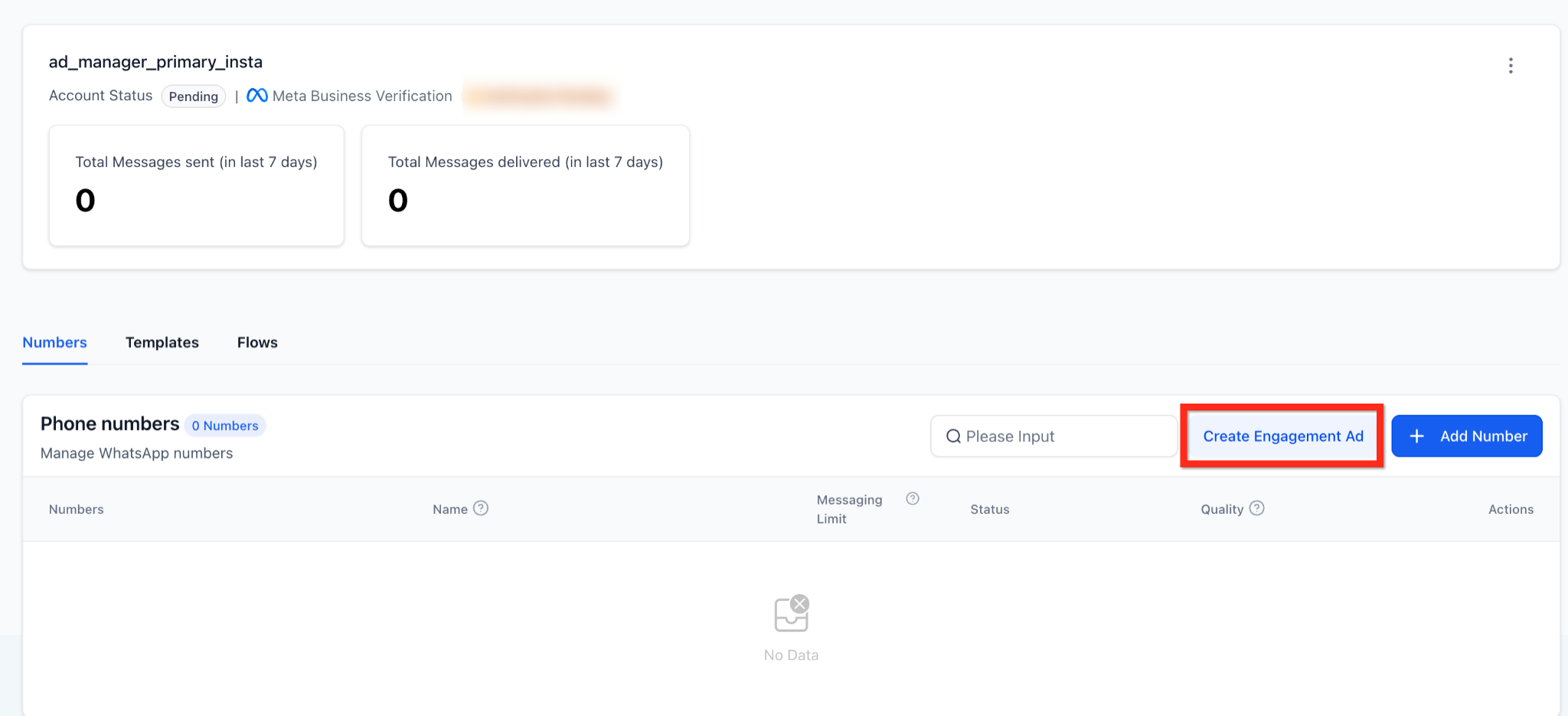
Turn a WhatsApp number into an engagement campaign quickly.
Button location: Settings > WhatsApp > Numbers tab, next to Add Number.
Auto-filled in Ad Manager: objective set to Engagement and destination set to WhatsApp. Budget, audience, and creative remain editable.
If you do not have Ad Manager set up yet, you will see a benefits modal with a Connect Ad Manager option. If you have Ad Manager but no connected ad account, you will see a Connect Account button.
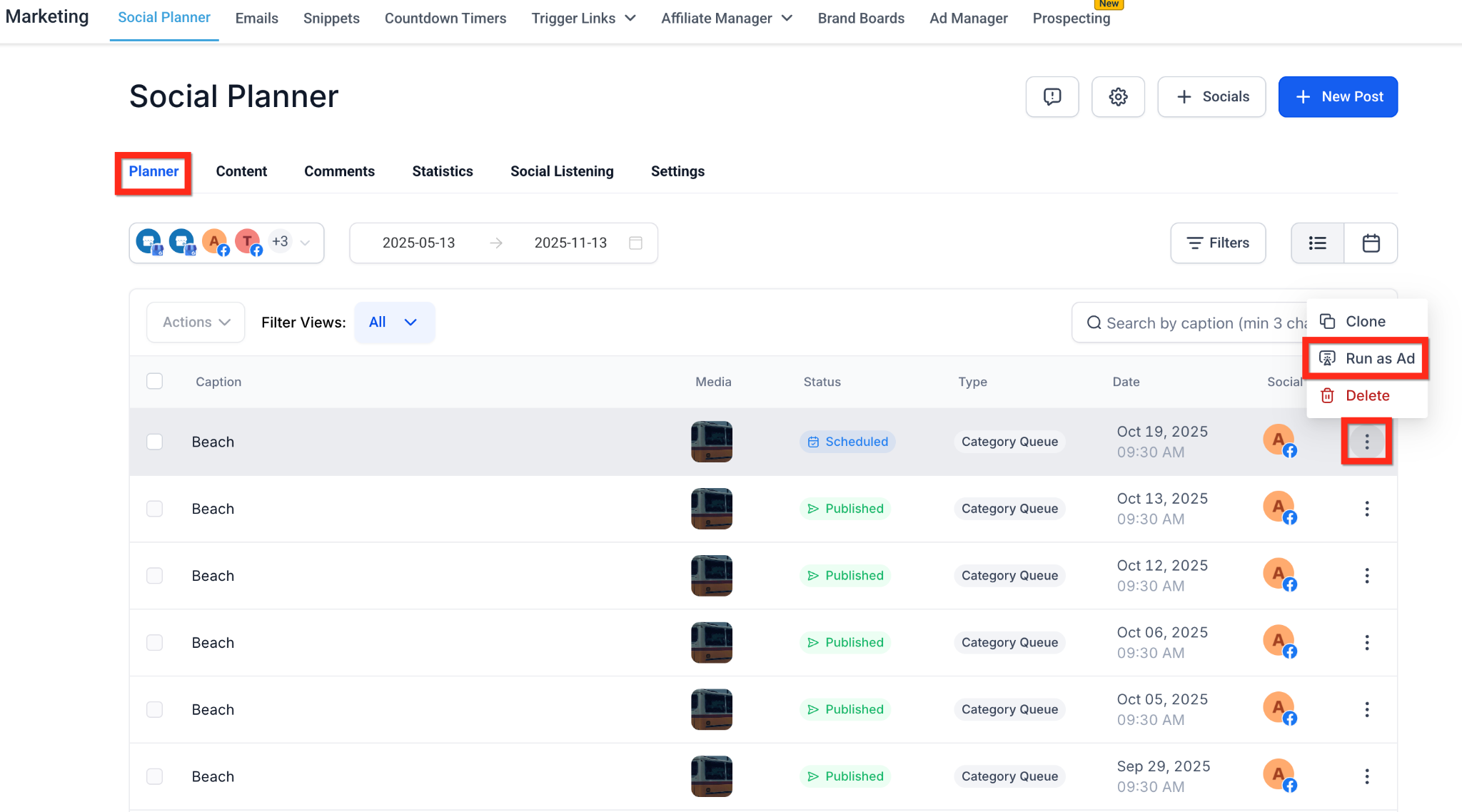
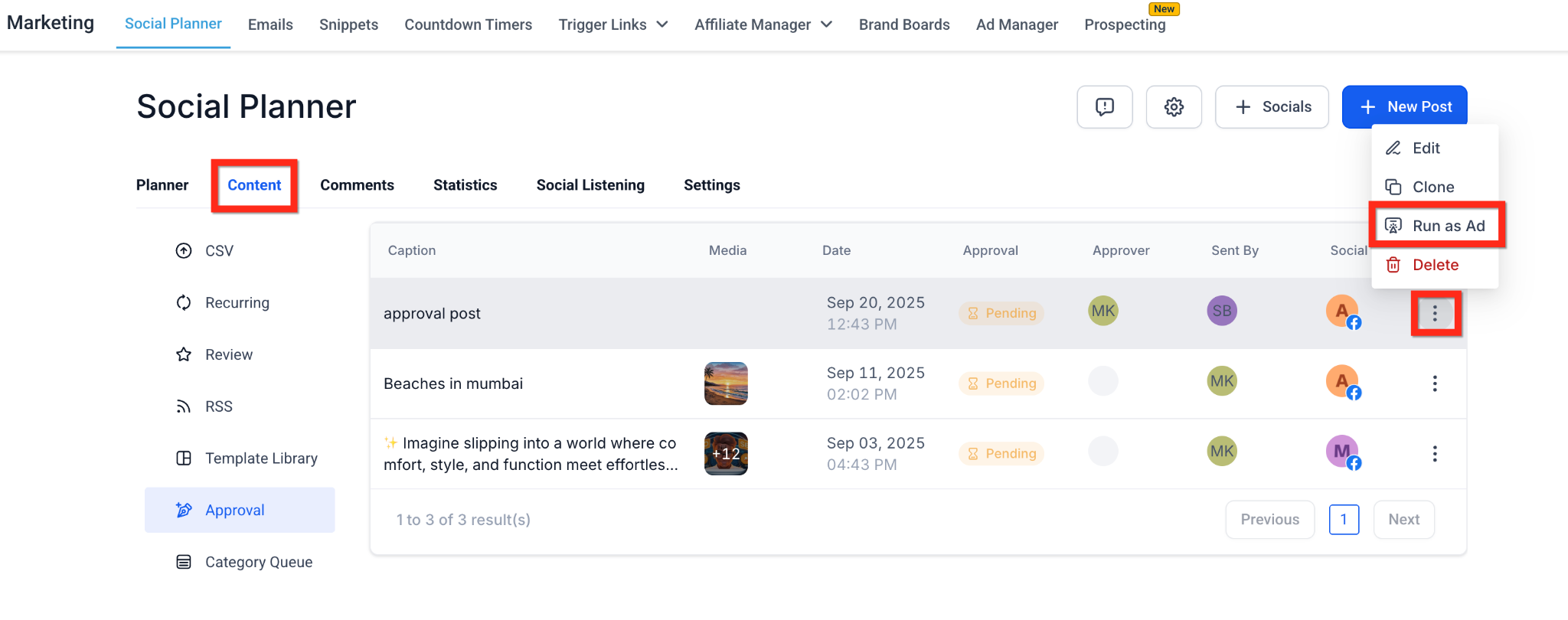
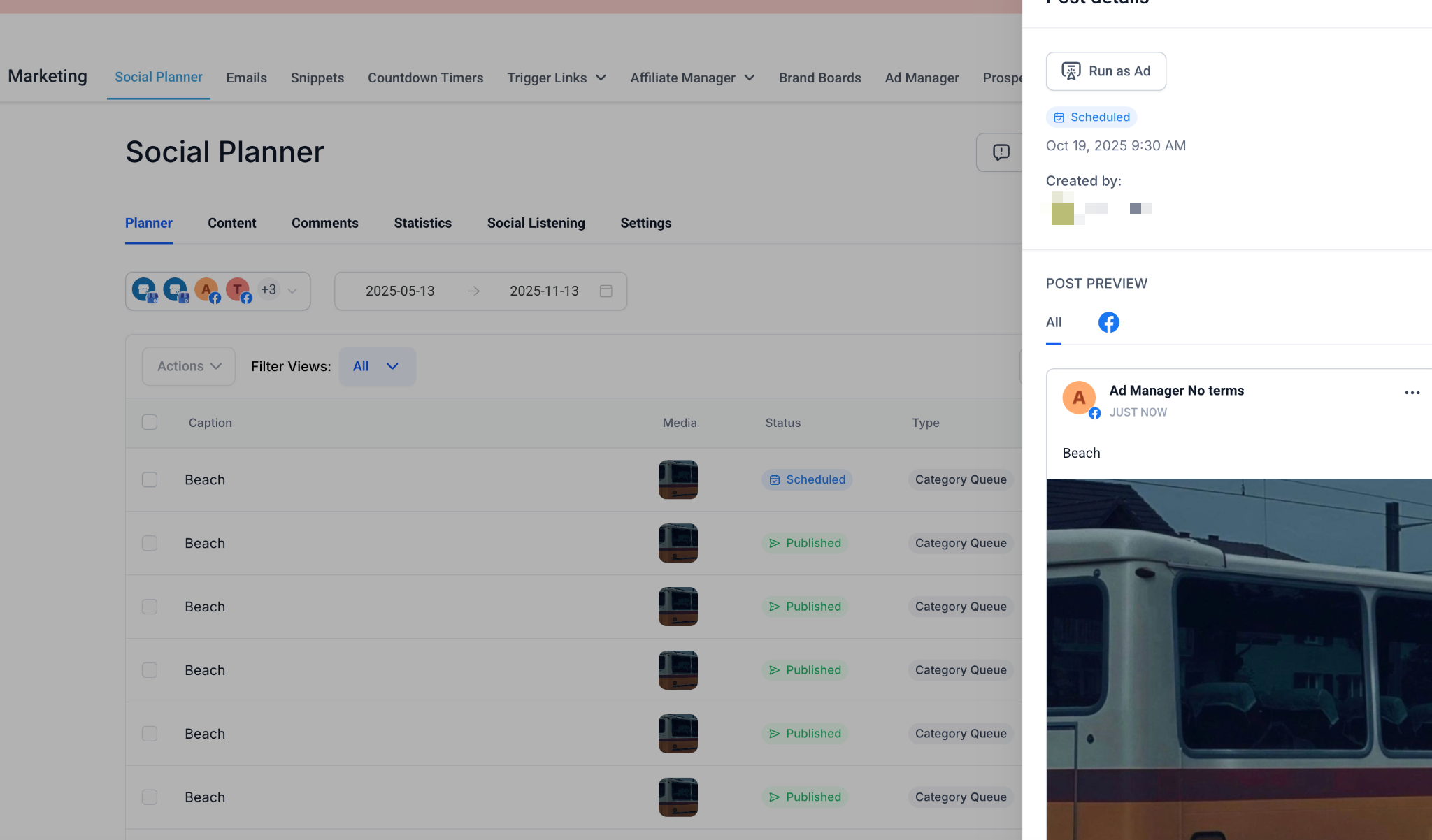
Promote a published or scheduled Facebook or Instagram post without re-uploading assets.
Where you will see Run as Ad: in Marketing > Social Planner on the Planner tab (3-dot menu on a list row), on the Content tab's Approval view (3-dot menu), and in the post detail sidebar.
Supported post statuses: Published, Scheduled, and In Review. Draft and Recurring posts are not supported.
Flow: click Run as Ad, confirm in the modal, and Ad Manager opens with the campaign pre-filled with the post's media and caption. Choose Google or Meta. Text-only posts remain editable.
Scheduling and publishing the organic posts themselves is done in the Social Media Planner. Run as Ad simply promotes one of those posts as a paid ad.
What is a Click-to-Message (CTX) engagement ad? It is a Meta ad with the Engagement objective and Messaging Apps as the conversion location. Instead of a landing page, it opens a chat in Messenger, Instagram Direct, or WhatsApp so people can message your practice directly.
Which messaging apps can I use? Facebook Messenger, Instagram Direct, and WhatsApp. Instagram Direct requires an Instagram account connected to the selected Page, and WhatsApp requires a WhatsApp number added to that Page.
What happens if none of the messaging apps are available? The ad cannot be created under the Engagement objective. Choose a different objective such as Traffic or Leads.
Where do conversations from these ads go? Incoming messages arrive in your Inbox, where you can reply and, if you want, automate routing and follow-up through Workflows.
Can I promote an existing social post as an engagement ad? Yes. Use Run as Ad in the Social Planner to promote a Published, Scheduled, or In Review Facebook or Instagram post. The media and caption are carried into Ad Manager.
Does the WhatsApp or Social Planner shortcut cost extra? No. Ad Manager is included with your Aesthetix CRM plan at no extra charge, so there is no Ad Manager subscription to buy. You only pay the ad platform directly for the ad spend.
Can I use Run as Ad for TikTok or LinkedIn posts? Not yet. Run as Ad currently supports Facebook and Instagram posts only.
What happens if I edit a post after turning it into an ad? Changes made in the Social Planner do not sync to the live ad. Edit the creative directly inside Ad Manager instead.
Why don't I see the Create Engagement Ad button in WhatsApp? Confirm you are on the Numbers tab and that your account has WhatsApp enabled. Standard user permissions also apply.
Is my patient data shared when I build a custom audience? Yes. Uploading a contact list to build a custom or lookalike audience shares those contact identifiers with Meta, which hashes them for matching. Only do this with patient consent, follow your HIPAA policies, and never upload protected health information beyond contact identifiers.
