Before your practice can publish Facebook or Instagram ads from Ad Manager, you need to connect your Facebook Business account, choose an eligible Meta ad account, and link the Facebook Page you want to advertise from. This guide walks through the full connection flow and how to fix the most common issue: a Page that does not show up because a permission is missing.
Make sure the following are in place first:
A Facebook Page for your practice. If you do not have one yet, create it in Facebook before you begin.
Admin access to that Page. You must be an admin of the Page you want to advertise from. If the Page is owned by a different Meta Business Manager, an admin of that Business Manager will need to grant you access.
A Meta Business Manager with an eligible ad account. The ad account you connect must be in an eligible status (see the status list below). If you do not have a Business Manager and ad account yet, see the separate guide on creating a Meta Business Manager and ad account.
Go to Marketing > Ad Manager.
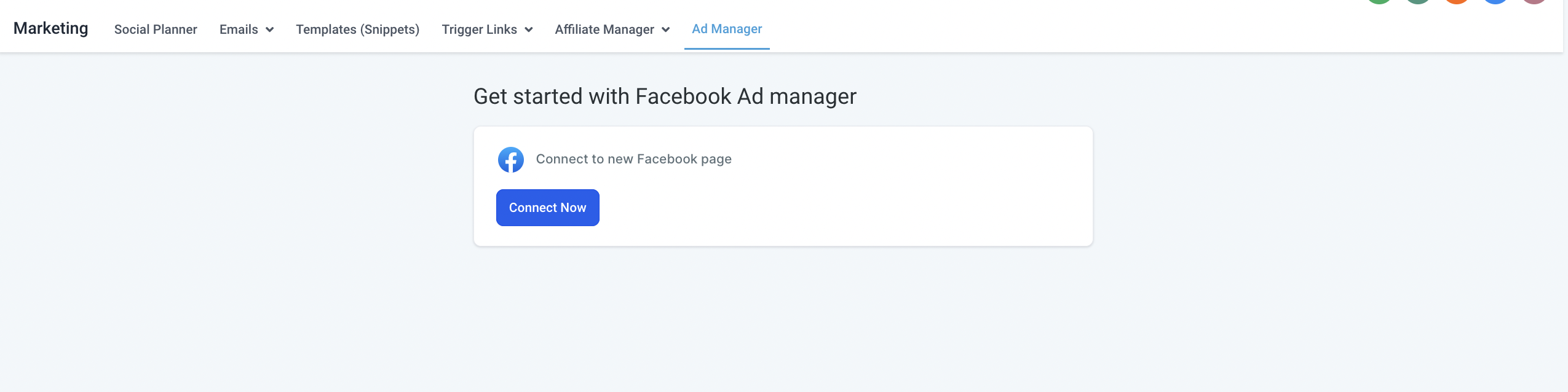
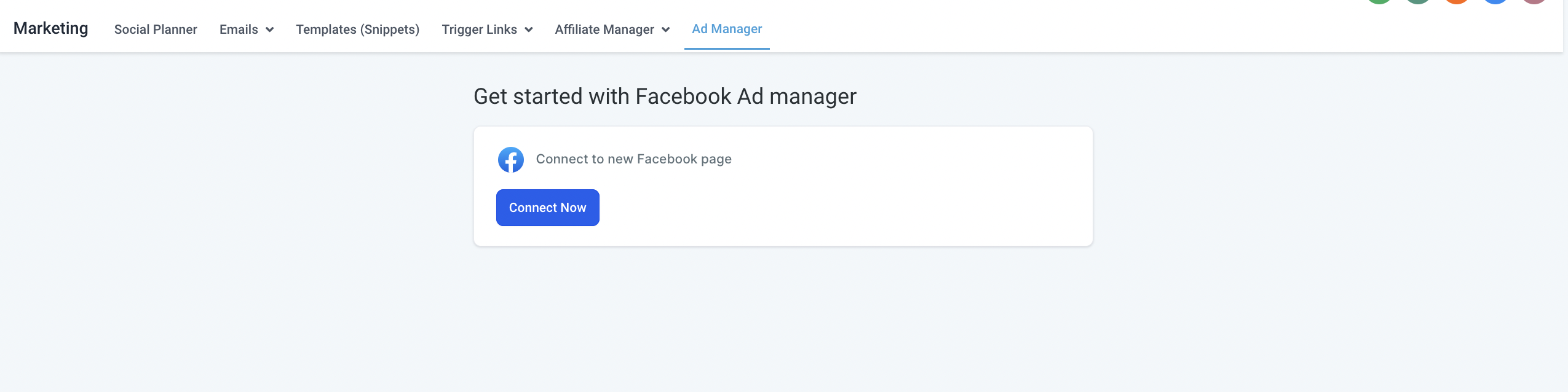
Click Connect Now (or Connect Facebook). If you have already connected the account under your account's Integrations settings, Ad Manager will show all the Pages where you are an admin.
You will be taken to Facebook to enter your username and password and grant permissions. Make sure every toggle is enabled and every checkbox is selected, including the permission to access your Business Manager.
During this step, Facebook's consent screen may display the name LeadConnector. This is expected and safe. LeadConnector is the underlying provider that powers the ad connection between Aesthetix CRM and Facebook, so Facebook shows that name on the permission screen. Approve all of the permissions to continue.
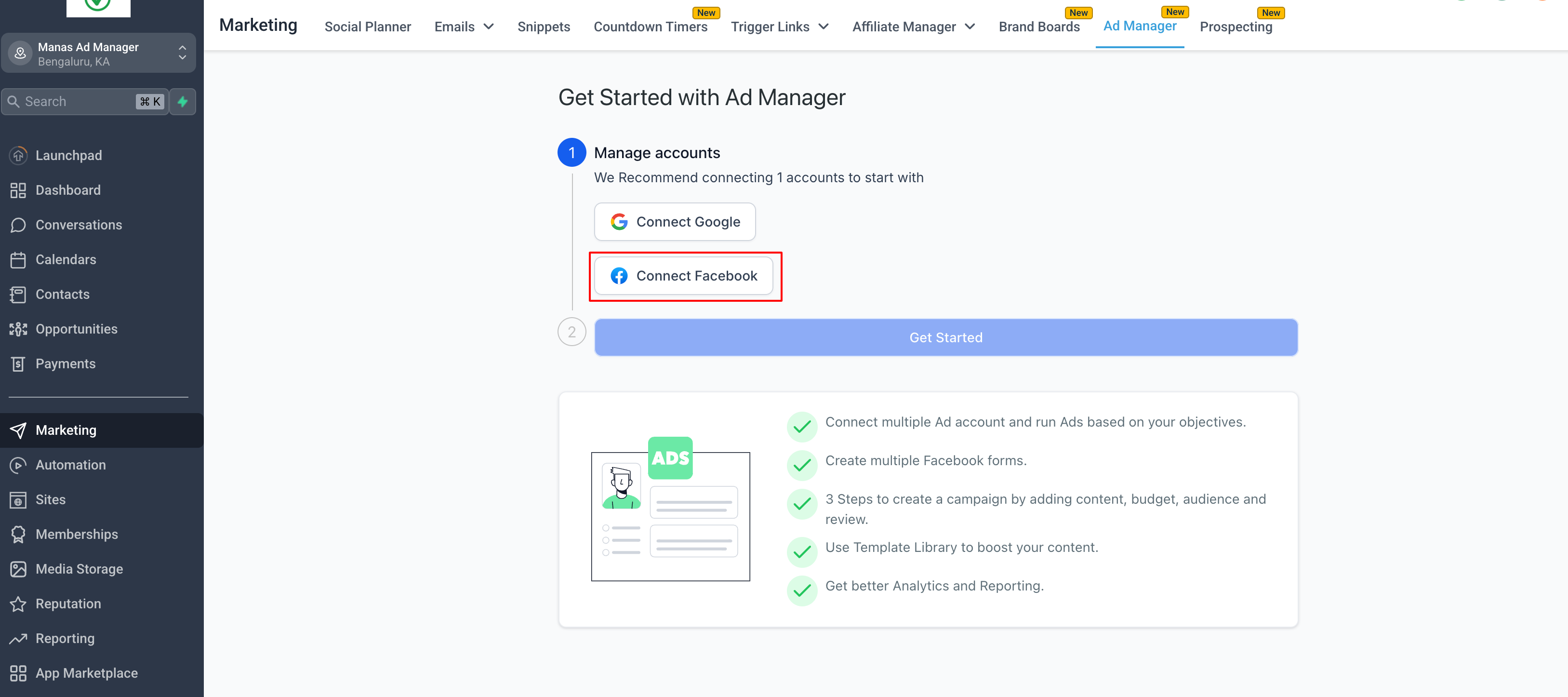
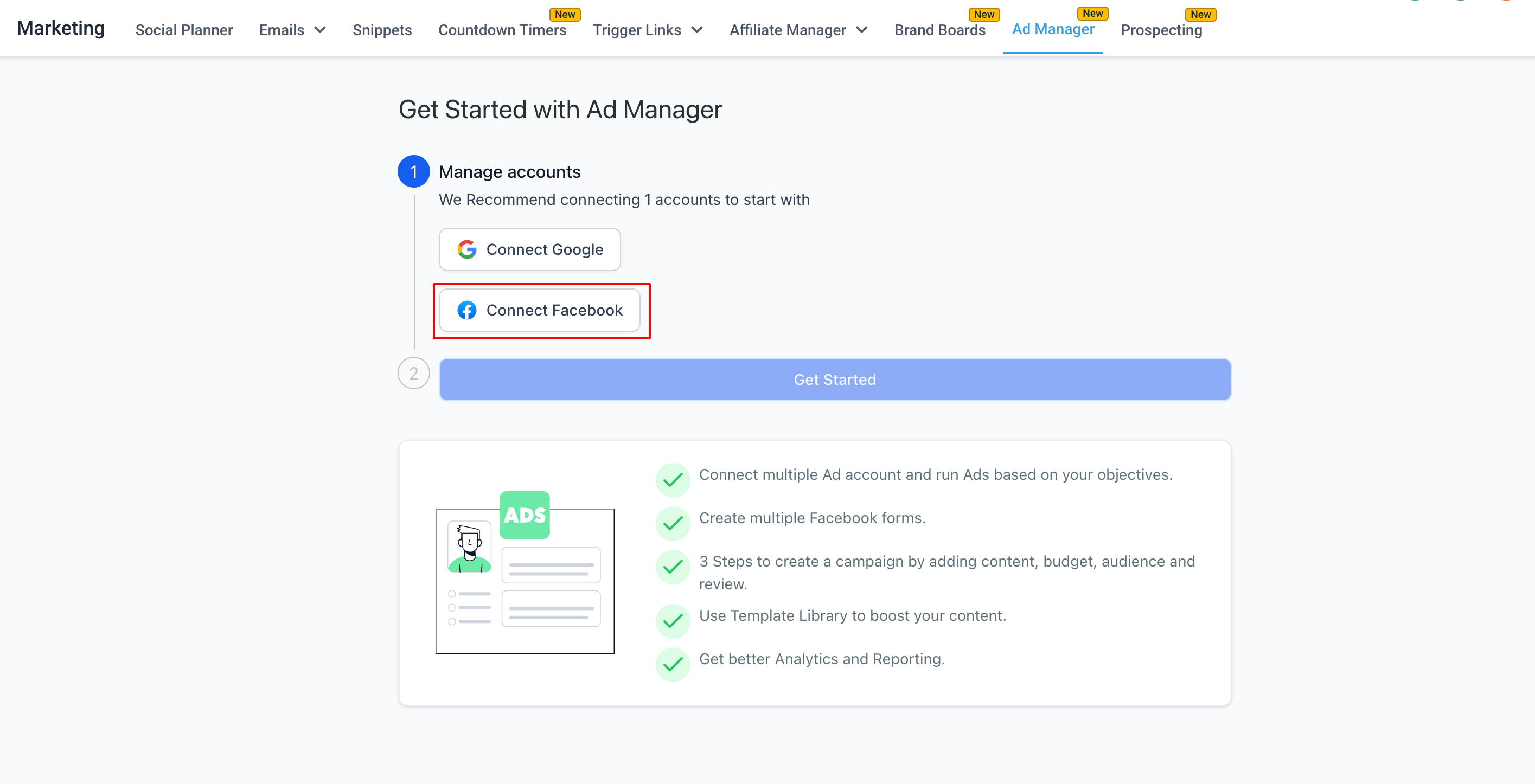
Once your Facebook account is connected and all permissions are granted, every Meta ad account associated with the connected Business Manager appears in the Select Ad Account dropdown. Choose an eligible one.
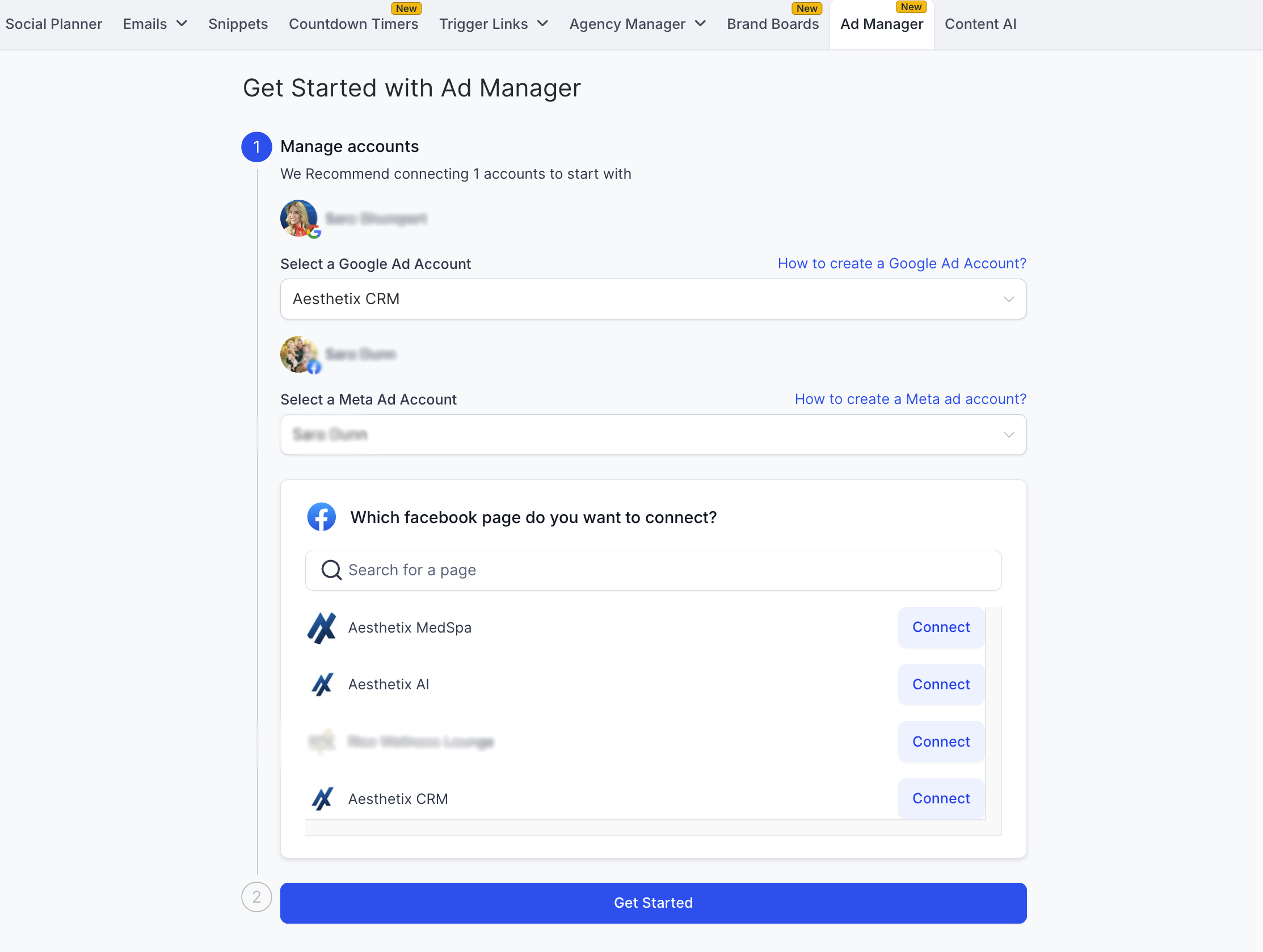
An ad account's eligibility depends on its status:
Active: Fully operational. You can create and run ads without restriction. Suitable to connect.
Disabled: The ad account is disabled and you cannot create or run new ads. This usually happens when Facebook detects a policy violation or suspicious activity. Cannot be connected.
Unsettled: You have unsettled billing with Facebook that needs to be paid. Suitable to connect.
Pending risk review: The account is under review by Facebook, typically after a change to your account information or billing details. You may have limited ability to create or edit ads during this period. Suitable to connect.
Pending closure: The account is scheduled for permanent closure, often after repeated or severe policy violations. Suitable to connect.
Closed: The account has been permanently closed by Facebook and cannot run ads. Cannot be connected.
Next, select the Facebook Page you want to advertise from. Only Pages associated with the connected Business Manager are eligible. Click Connect next to the Page you want to link, then identify any additional Pages if you manage several.
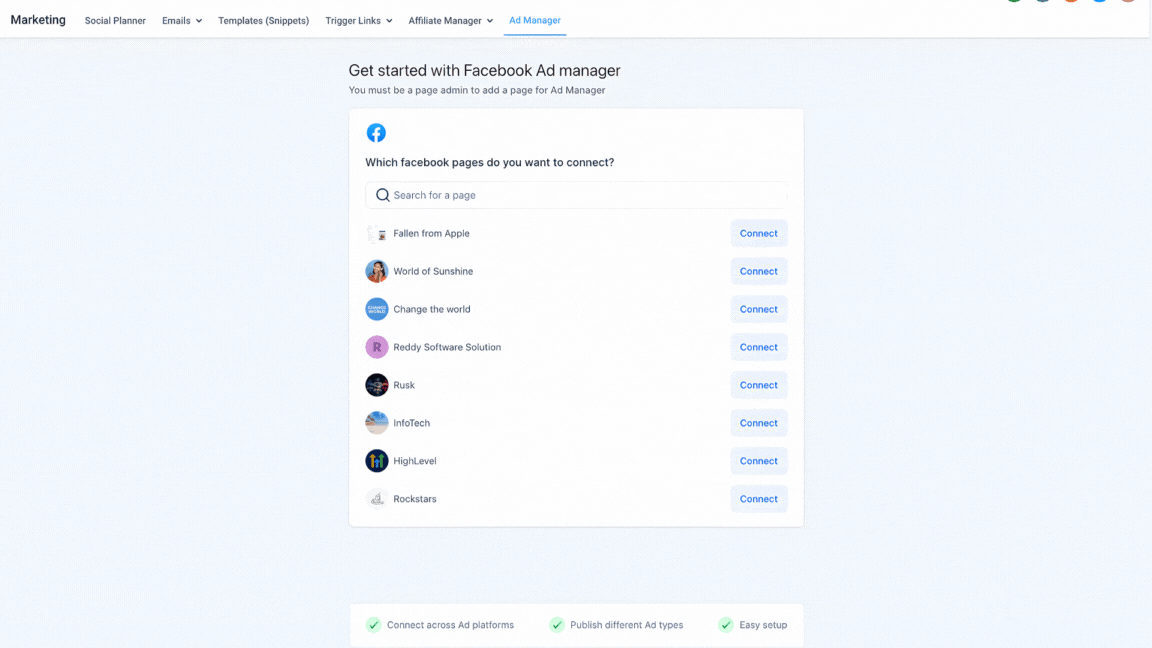
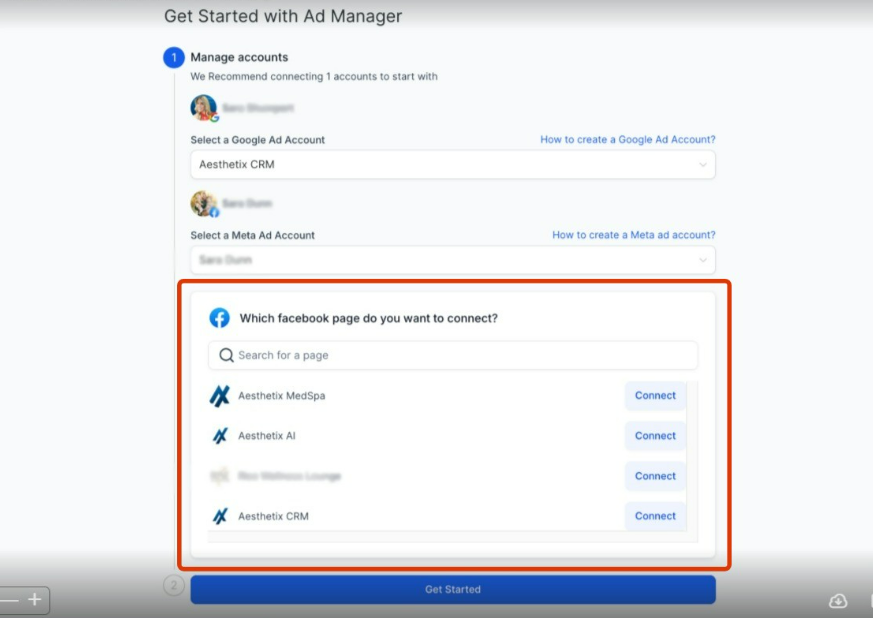
Once the Page is connected, you are ready to build a campaign by clicking Get Started.
Note: You can connect one Facebook Page during this onboarding flow. To connect more, go to Ad Manager settings > Pages and click Connect Facebook page(s).
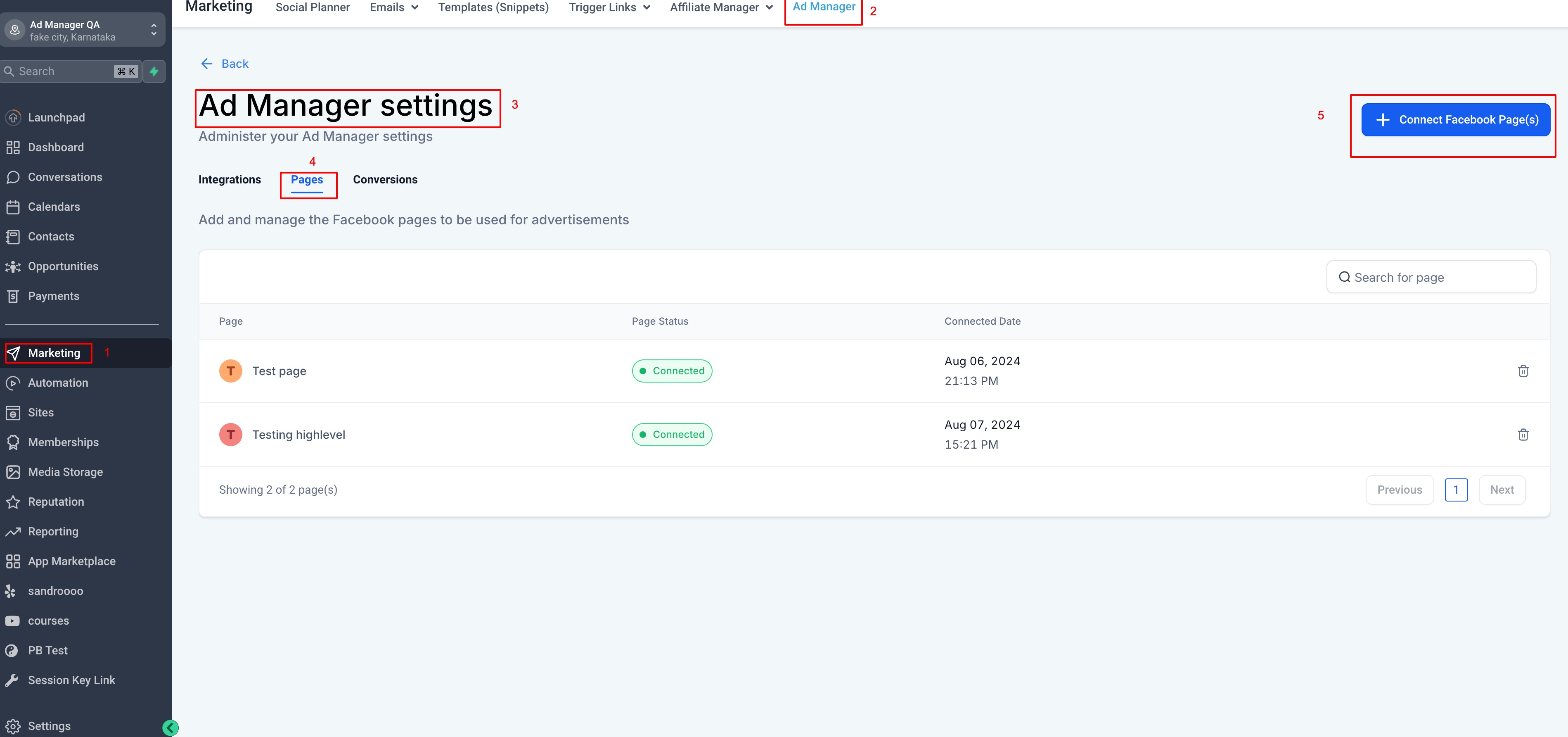
Note: If you ever remove a mandatory permission, your Facebook account will be disconnected. You must reconnect before editing or starting a new campaign. Any live ad campaigns will keep running as usual.
When you set up a campaign, Ad Manager needs permission for the Facebook Page you want to run ads from. If the Page does not appear during connection, a permission is missing or you are not an admin of that Page. Work through the checklist below.
You need admin privileges on the Page you want to connect.
Admin privileges are managed in the Page Setup of your Facebook Page's professional dashboard menu.
If your Page is part of a Meta Business Portfolio, admin privileges are managed under Settings > Accounts > Pages in Meta Business Suite.
If the Page is owned by a different Meta Business Manager, reach out to an admin of that Business Manager account.
When you connect your Facebook Page, allow all permissions so Ad Manager can operate without interruption. To review or adjust these permissions from your Facebook account:
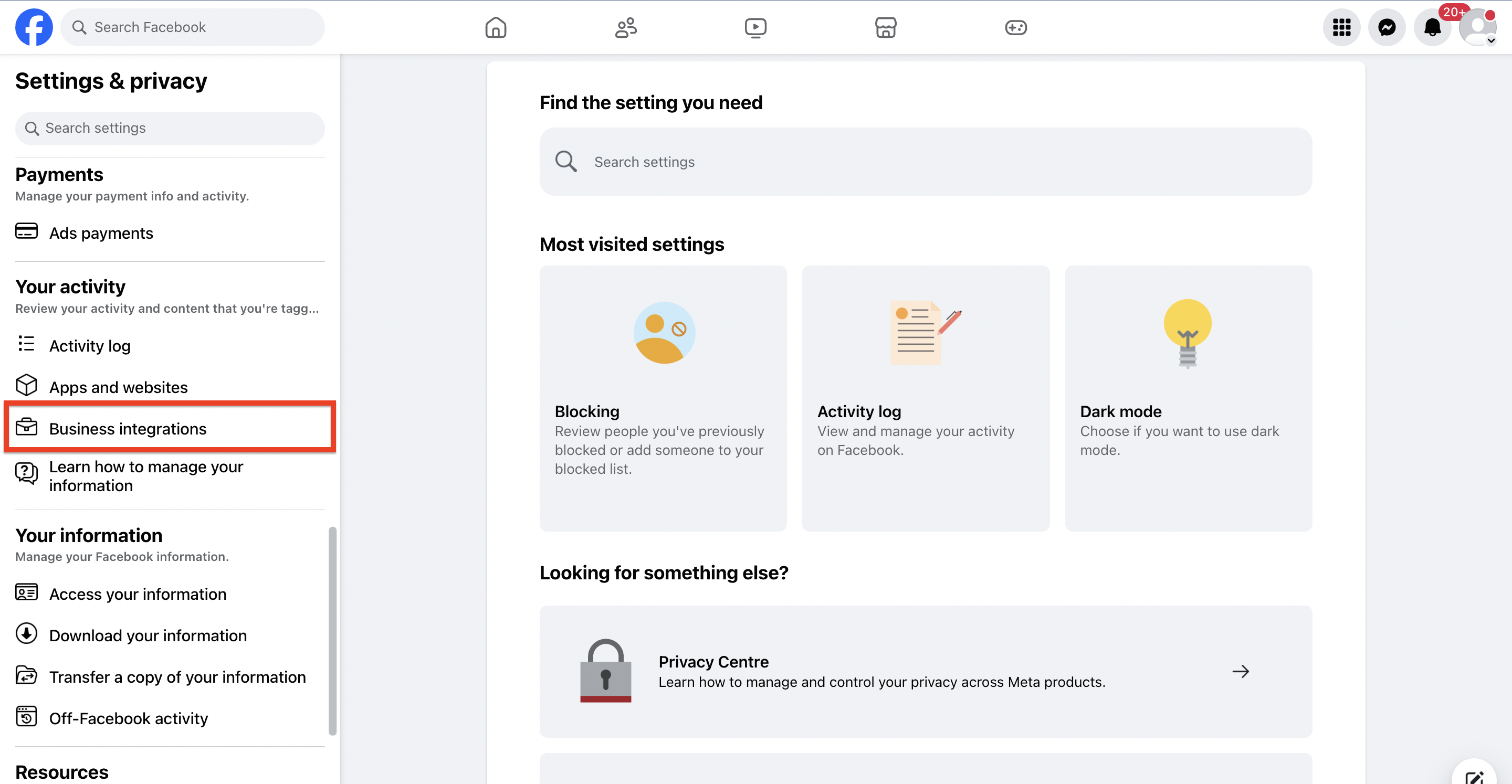
Sign in to the Facebook account where you created the Pages.
Click the dropdown arrow in the top bar on the right.
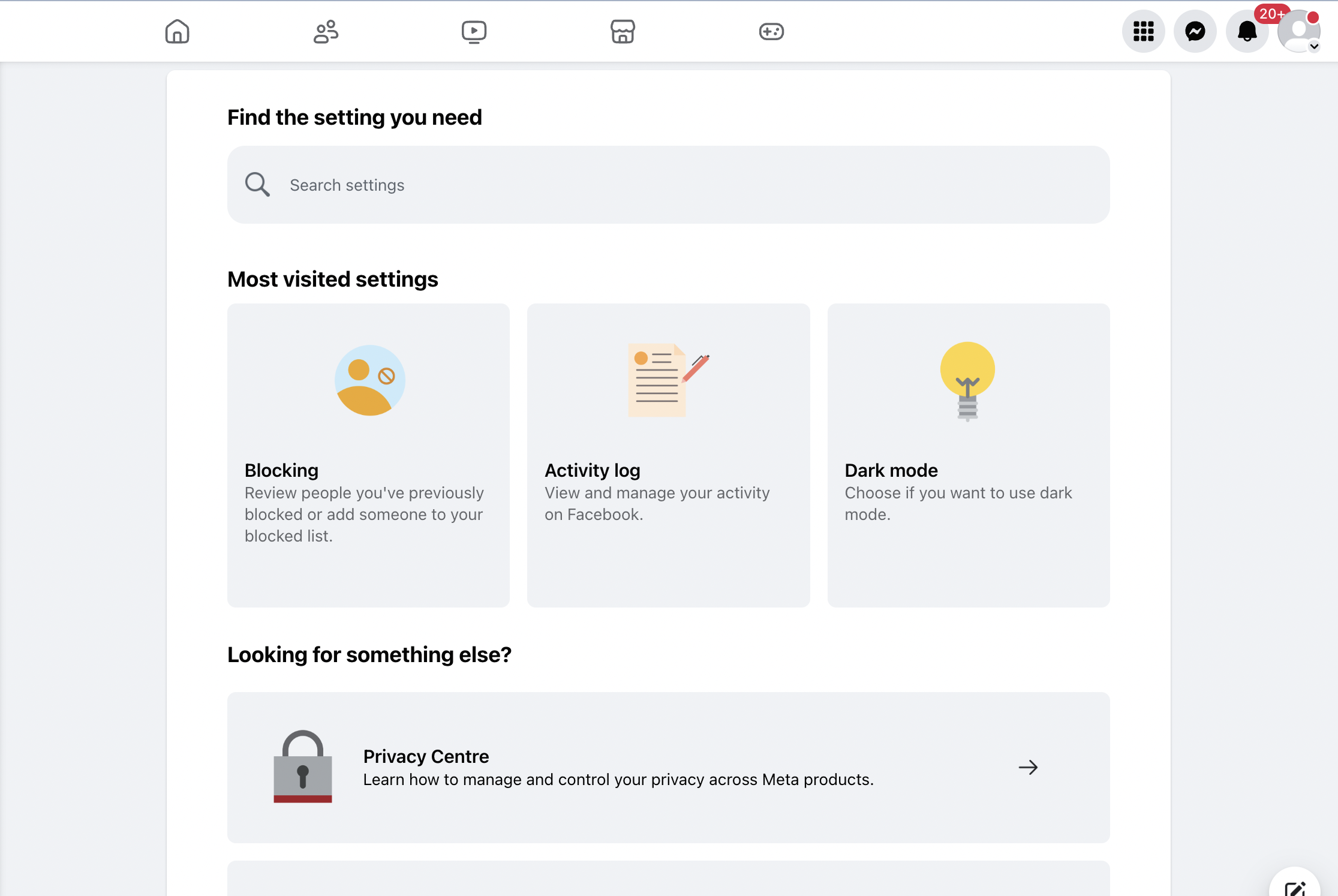
Click Settings & Privacy.
Click Settings.
Click Business Integrations on the left.
Note: The Business Integrations tab lives under your Facebook profile settings, not in your Facebook Page settings.
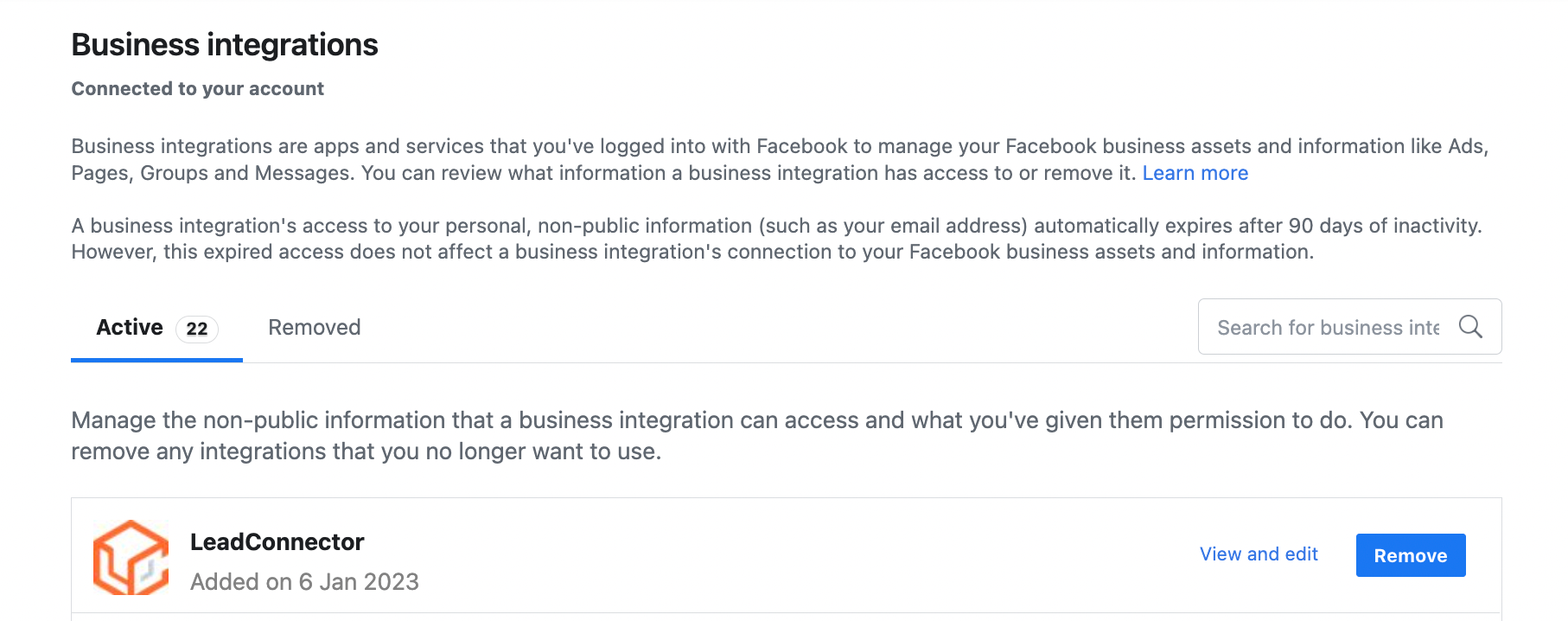
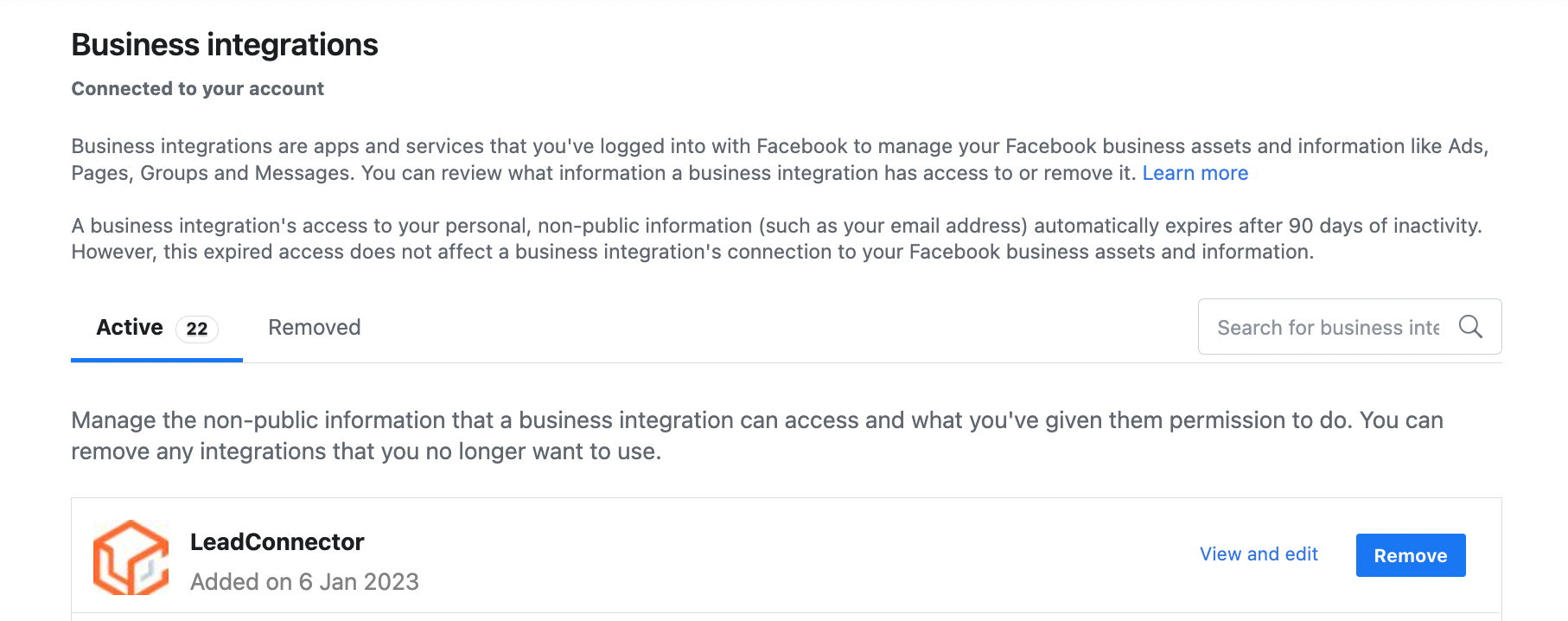
Select the Active or Removed tab at the top to search for the LeadConnector business integration. This is the same underlying provider named on the Facebook consent screen during connection, so it is expected to appear here.
Click View and edit next to the LeadConnector permission.
Turn on every permission so Ad Manager works seamlessly. The permissions required for Ad Manager are:
Manage your business should be toggled ON.
Access leads for your Pages should be toggled ON.
Show a list of the Pages you manage should be toggled ON.
Manage ads for ad accounts that you have access to should be toggled ON.
When you are finished, click Save.
To set up and launch an ad campaign, you must be an admin of the Facebook Page. To add or confirm a Page role:
Sign in to the relevant Facebook account.
From your News Feed, click Pages in the left menu.
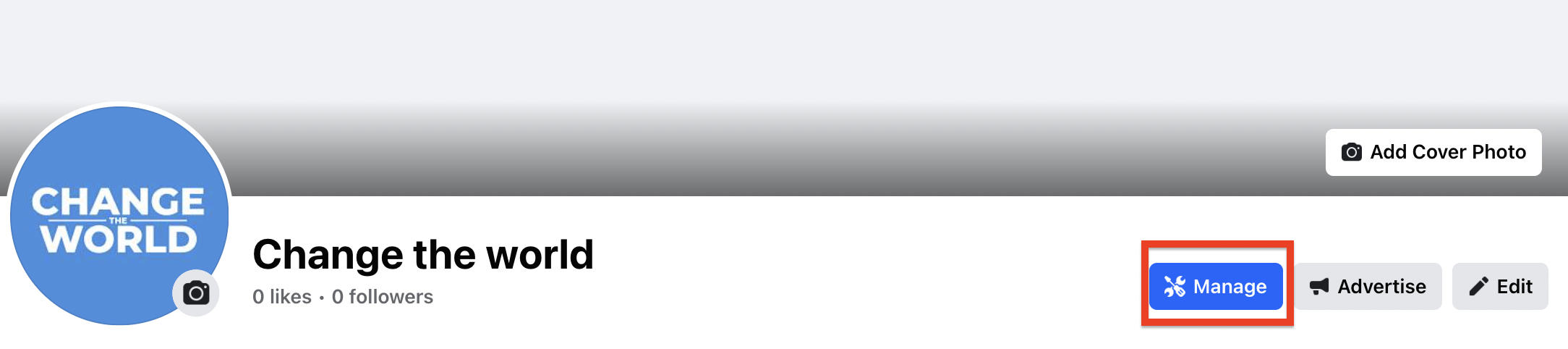
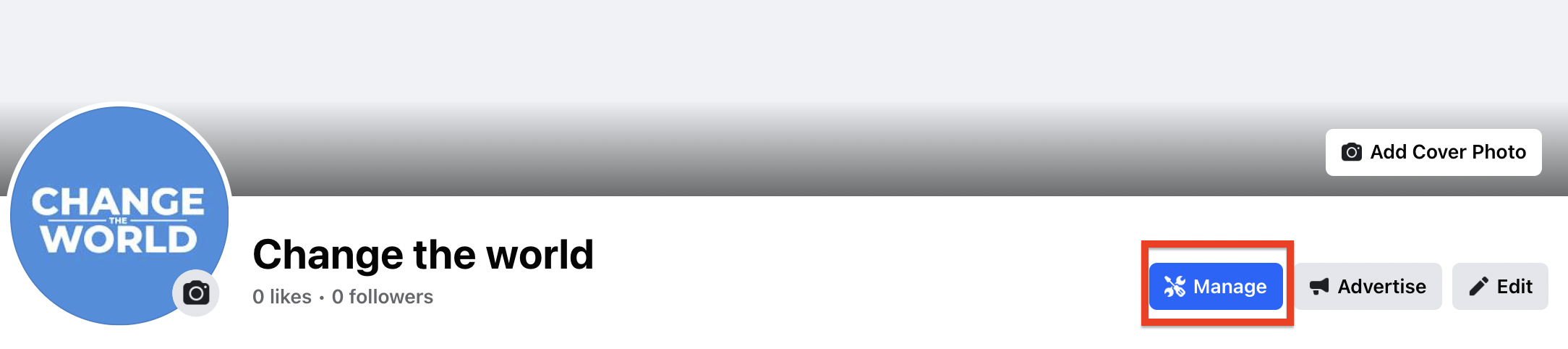
Go to your Facebook Page and click Manage.
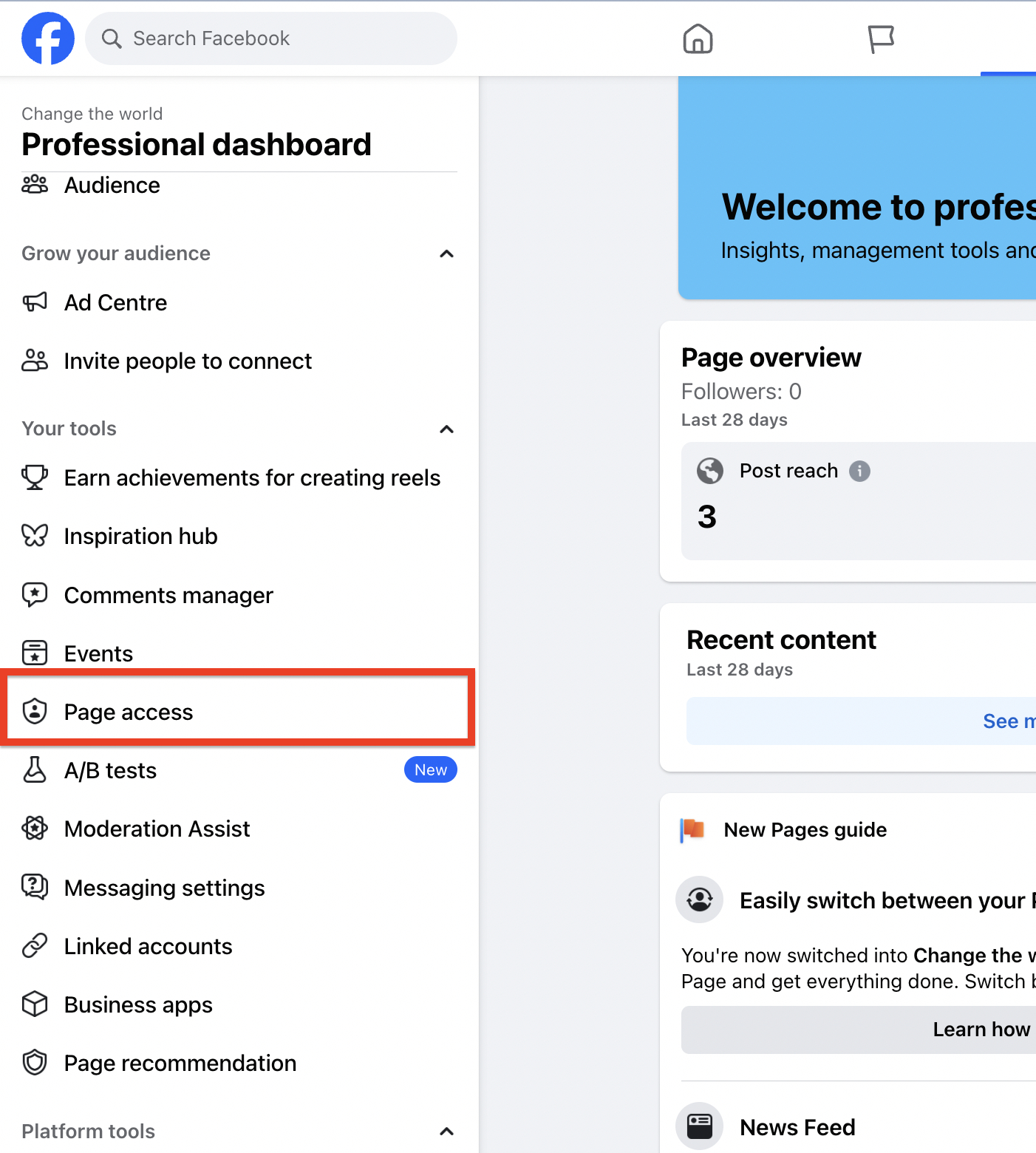
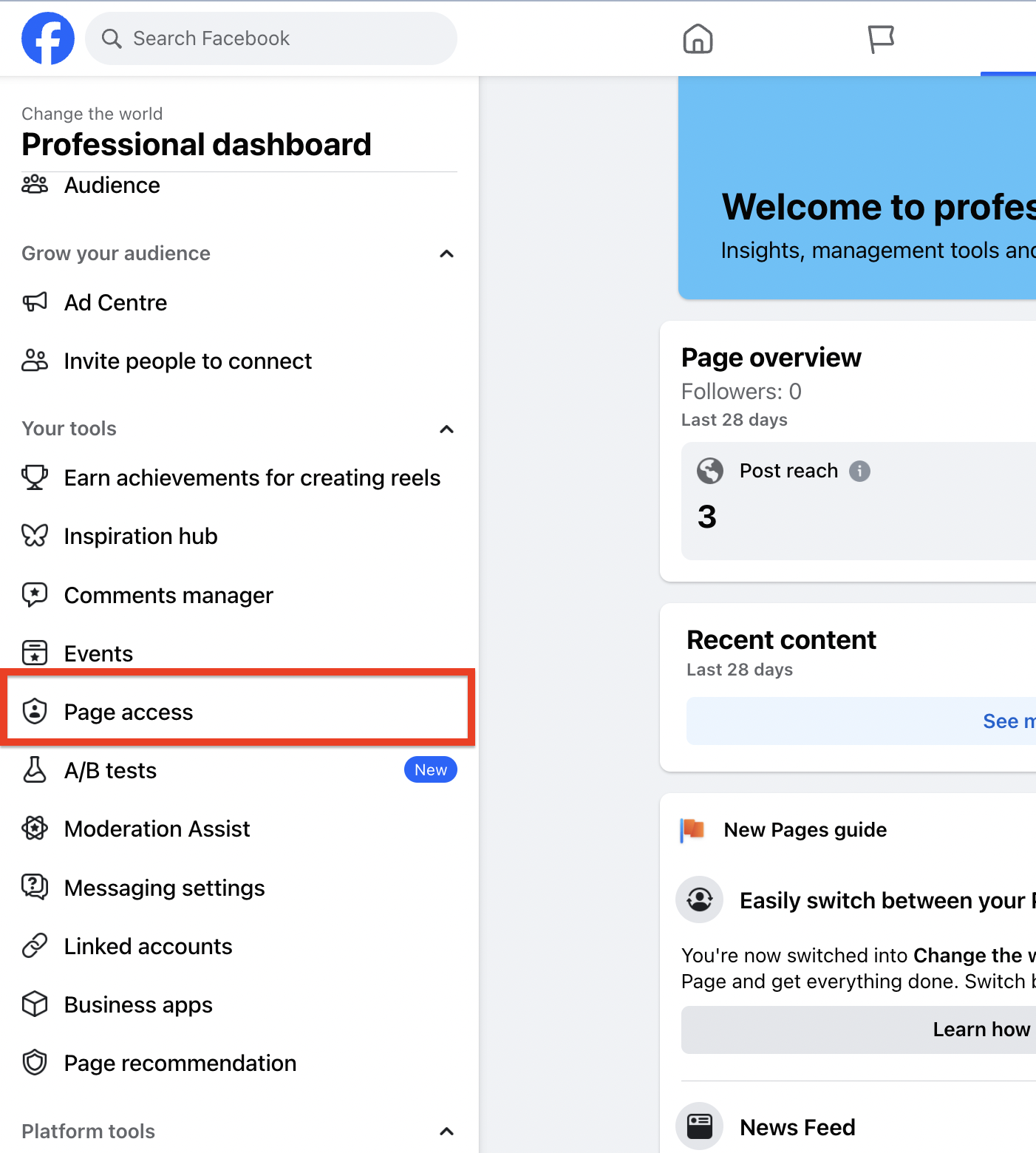
Go to Page Access in the left panel.
Begin typing a name or email and select the person.
Choose a role from the dropdown (for example Editor) and click Add.
Enter your password to confirm the new permission.
Note: If you are not Facebook friends with the person you are adding, they must accept your invite before they can manage the Page.
Do I have to connect Facebook before I can run any ads? Yes. Connecting your Facebook Business account, an eligible ad account, and a Page is required before you can create and publish any Meta campaign from Ad Manager.
Why is my Facebook Page missing from the connection screen? The most common reasons are that you are not an admin of the Page or that a required permission was not granted to the integration. Work through the permissions checklist above, confirm your admin role on the Page, then reconnect.
Why does the Facebook permission screen say LeadConnector instead of Aesthetix CRM? LeadConnector is the underlying provider that powers the connection between Aesthetix CRM and Facebook. Seeing that name on Facebook's consent screen and in your Business Integrations list is expected and safe. Approve all the permissions to finish connecting.
Which ad account statuses can I connect? Active, Unsettled, Pending risk review, and Pending closure accounts can be connected. Disabled and Closed accounts cannot.
Can I connect more than one Facebook Page? Yes. You connect one Page during onboarding, then add more under Ad Manager settings > Pages using Connect Facebook page(s).
What happens to my live ads if I remove a permission or disconnect? Removing a mandatory permission disconnects your Facebook account, and you must reconnect before editing or creating campaigns. Any campaigns that are already live keep running as usual.
The Page is owned by someone else's Business Manager. What do I do? Contact an admin of that Business Manager and ask them to grant you admin access to the Page, then return to Ad Manager and reconnect.
Is my patient data shared when I connect? Connecting your Facebook account does not upload any patient data. Patient information is only shared with Meta if you later upload a contact list to build a custom or lookalike audience, which should follow your practice's HIPAA policies and patient consent requirements.
