Audience controls are how you decide who sees your ads and where. They live in the Budget and Audience step of the campaign creation flow and have two parts: geographic location, which defines the area your ads reach, and intended audience, which defines the type of people you target. For a med spa, this is where you draw a radius around your location and then choose whether to reach new prospects by interest, people similar to your patients, or past visitors you want to bring back.
The second step of campaign creation is Budget and Audience, which has two parts:
Budget, which sets your spend for the campaign.
Audience Controls, made up of:
Geographic location, the first part, which helps estimate audience size by defining where your target audience is located.
Intended Audience, which defines the type of people you want to reach for better performance and conversions.
Under the geographic location section there is a Search Locations field. Use it to add or remove locations for your audience.
Enter and select your desired location. Type a city, town, state, country, or specific address, then choose the result you want from the dropdown. The location appears on the map next to the field.
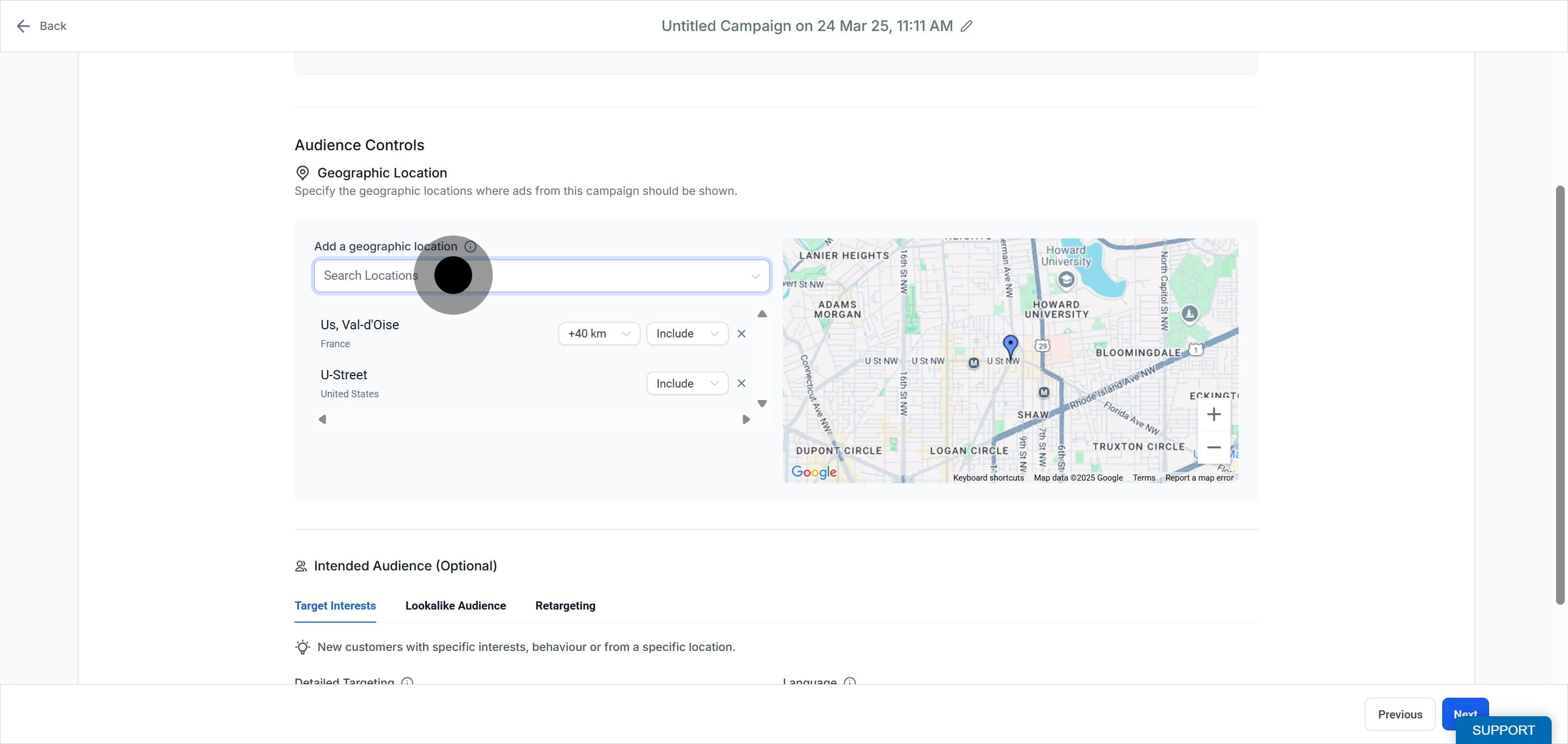
Confirm that the displayed location is correct.
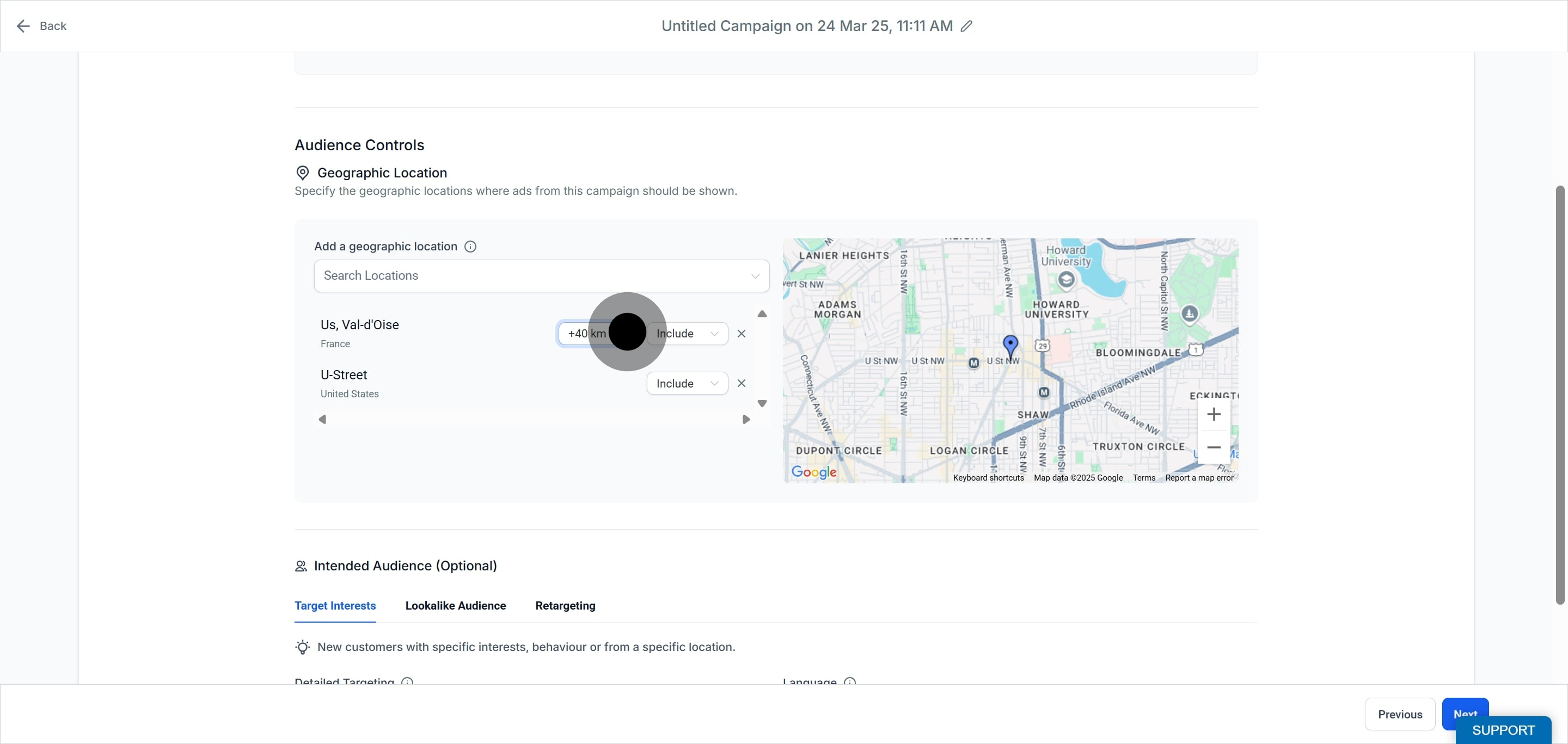
Adjust the radius around your selected location using the slider to define how wide your audience reaches around that point.
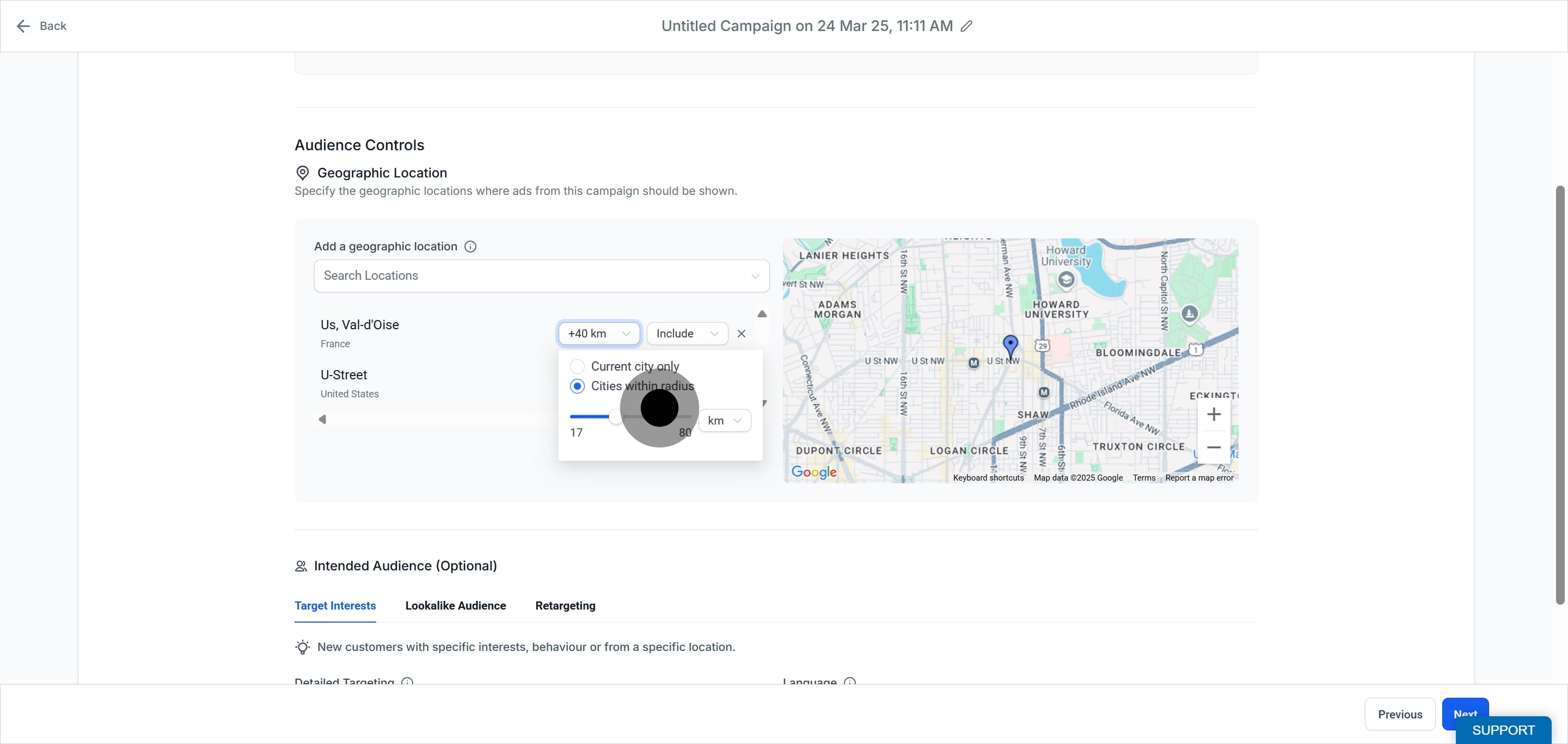
Note: The radius option is available only for addresses, neighborhoods, alleyways, and other similar specific locations. It is not available for cities, countries, and other large areas.
Choose from the additional options linked with your location.
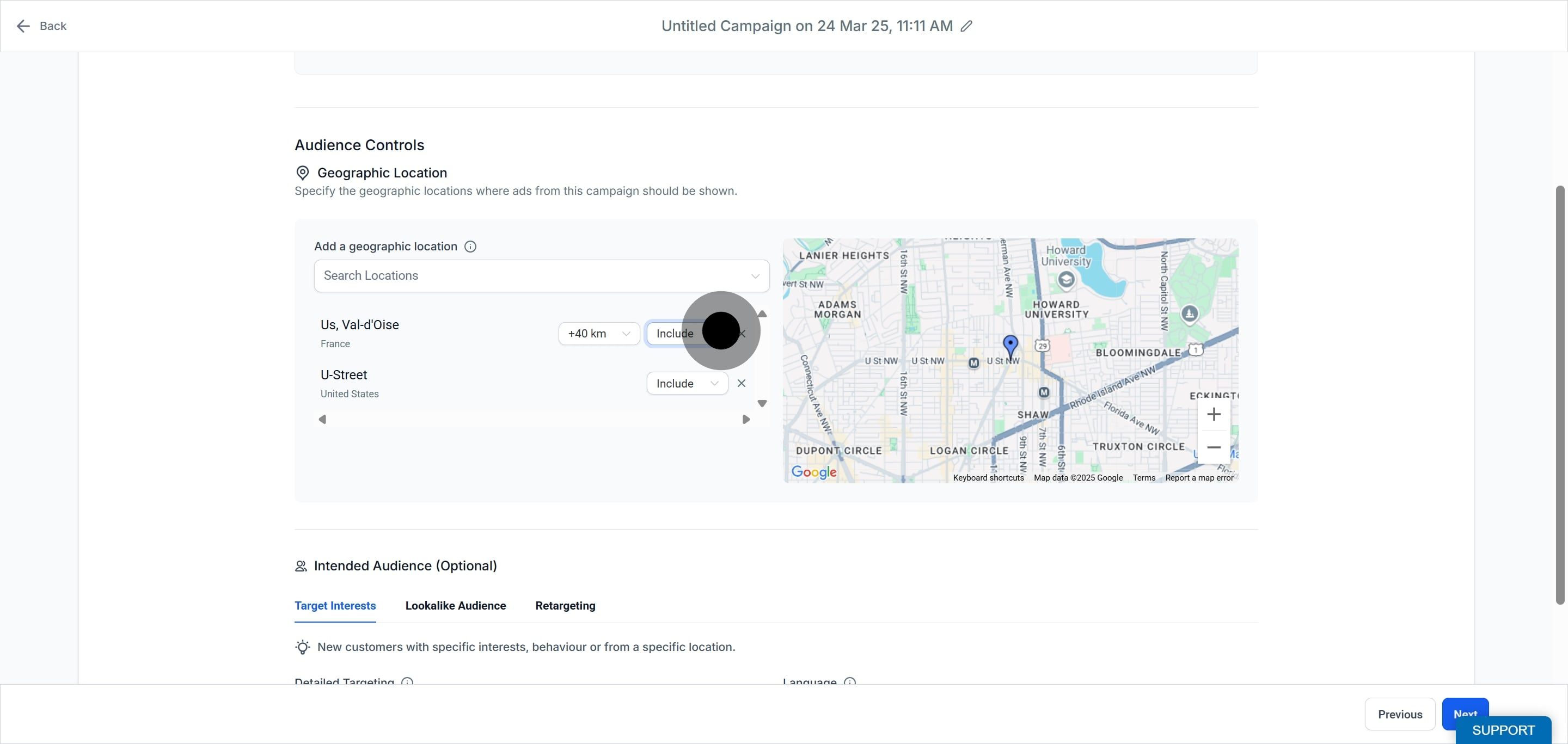
Decide whether to Include or Exclude the audience in the selected area. If you choose Include, people in that location (and radius, if set) are treated as target audience. If you choose Exclude, people in that area are ignored and not targeted, and the location turns red on the map.
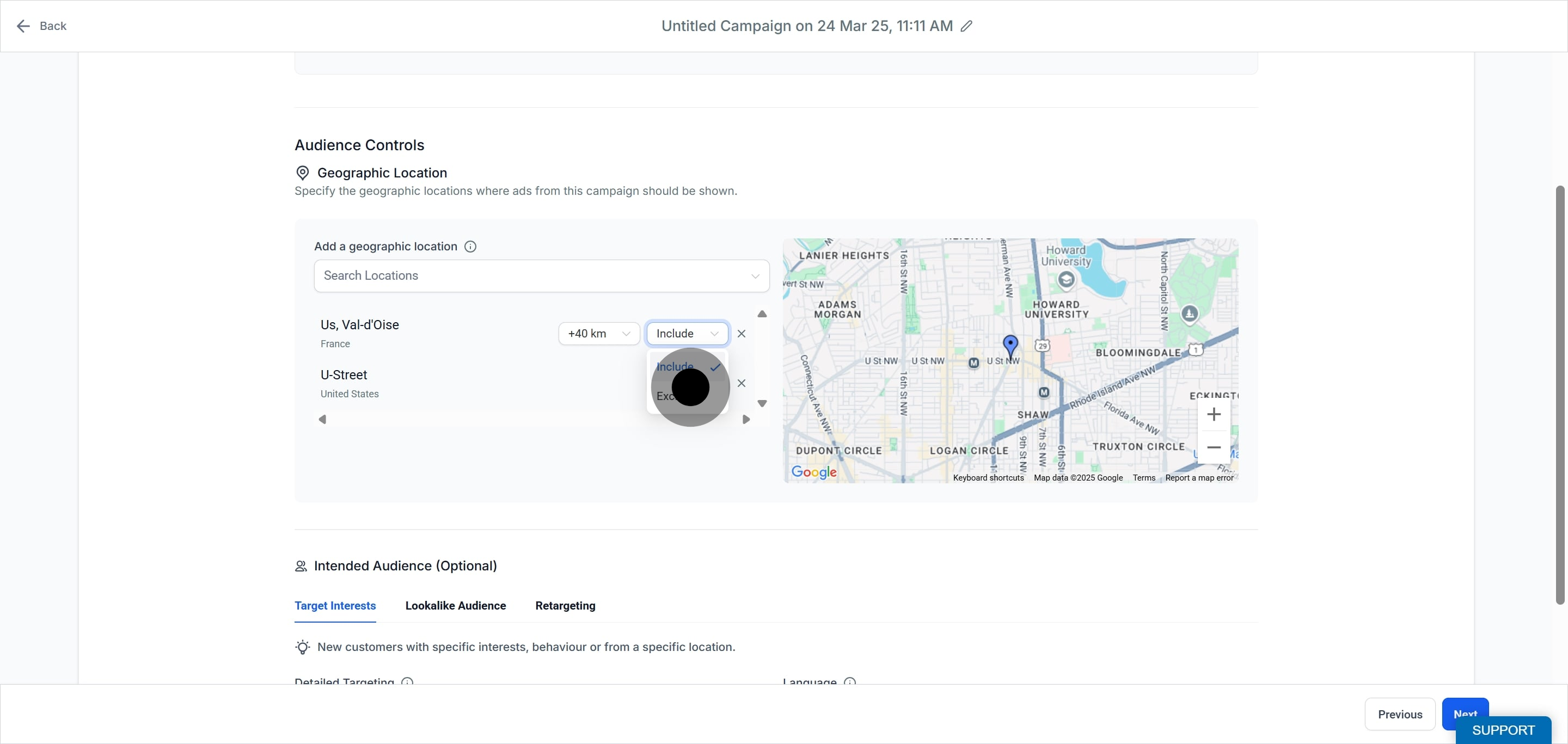
To remove a location, click the cross icon in line with it. You can add multiple locations, including and excluding different areas to shape exactly where your ads run.
There are three types of intended audience. You can use one, or combine them, though combining several tends to shrink your reach.
1. Target Interests. Reaches new people based on specific interests, language, gender, or age range. Select interests from the dropdown to target people who align with a particular niche, such as skincare or cosmetic treatments. You can select multiple interests. This is a good fit when you want to reach new prospects who have not interacted with your practice yet.
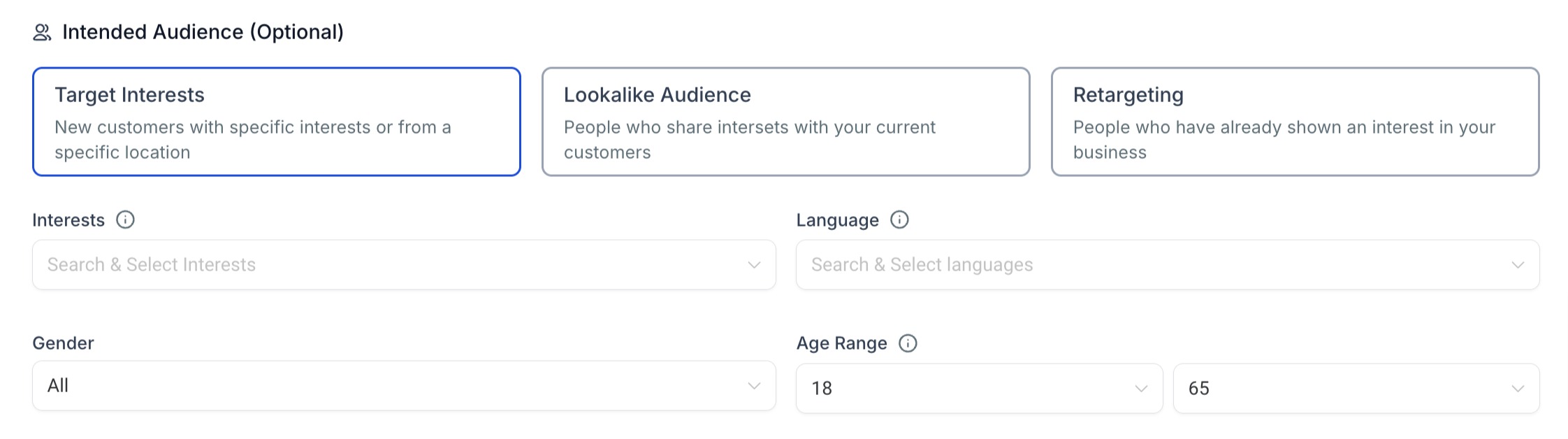
2. Lookalike audiences. Reaches a new group of people who resemble your current patient base. A lookalike audience uses an existing custom audience as its source, and your ad is delivered to people who are similar to the patients in that source.
Note: Lookalike audience support is limited or unavailable for Special Ad categories.
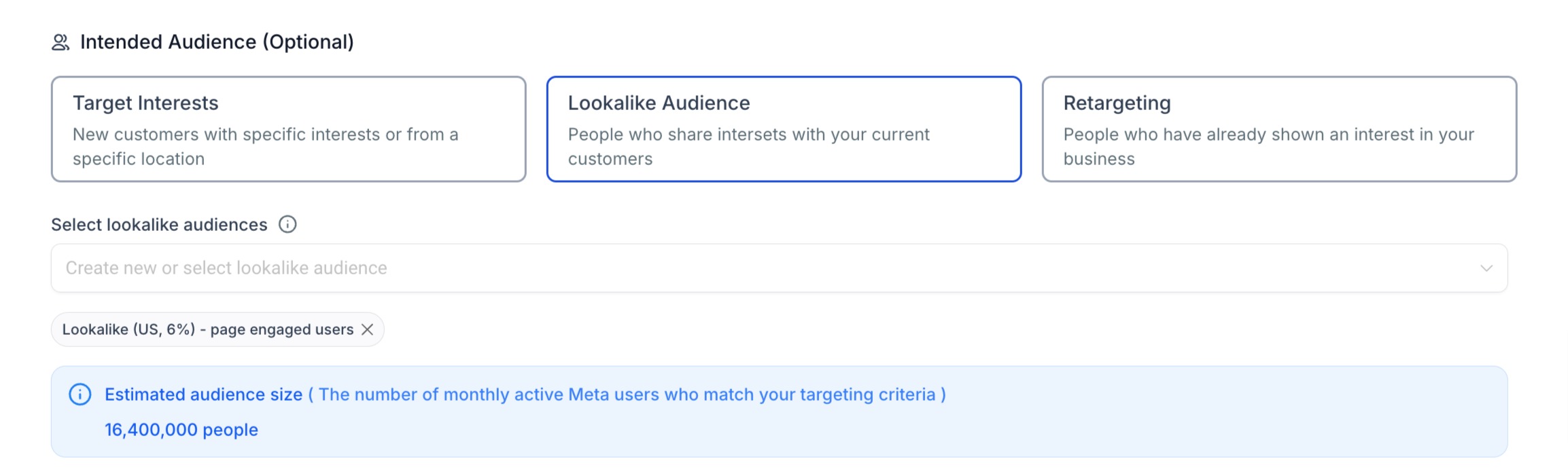
An estimated audience size is calculated based on the lookalike source and the geographic location you selected.
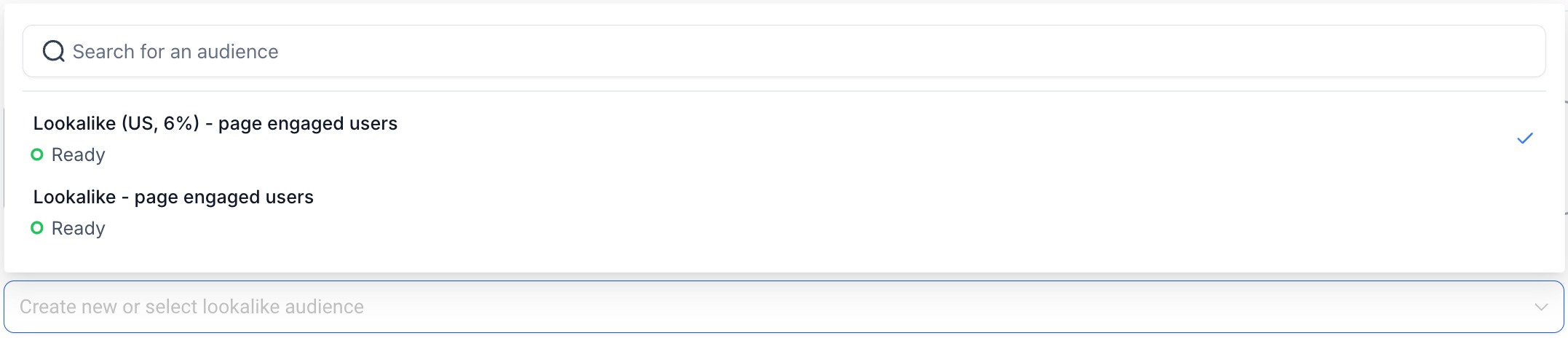
When you select a lookalike audience, a dropdown appears listing the lookalike audiences imported from your connected ad account. See the Lookalike Audiences guide to create one.
3. Retargeting. Reaches people who already know your practice and have interacted with it at some point on a Meta platform, such as past website visitors or people who engaged with your page. Retargeting uses a custom audience built specifically to reach these people with the goal of a conversion.
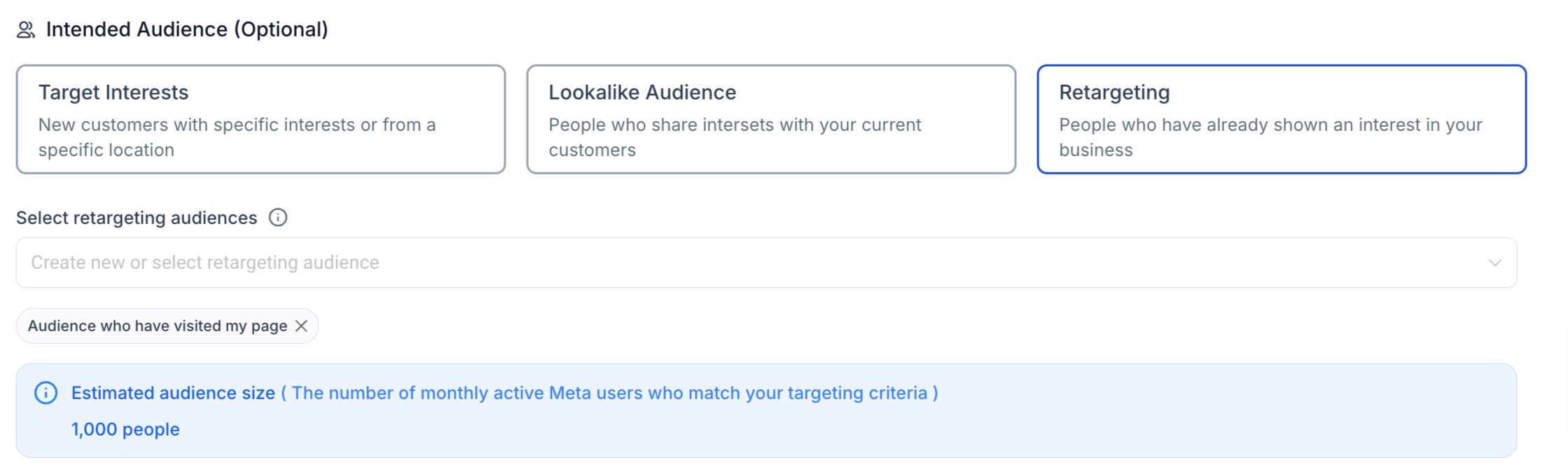
When you select Retargeting, a dropdown appears listing the retargeting audiences created from custom audiences or imported from your connected ad account. See the Custom Audiences guide to create one.
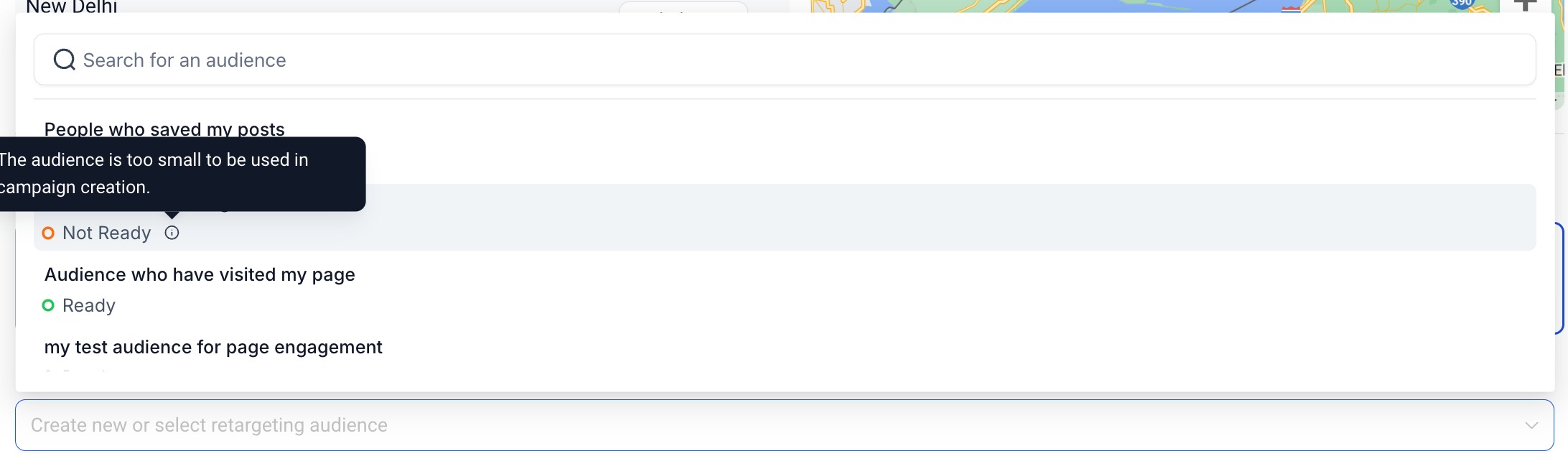
You can select up to 15 lookalike audiences and 15 retargeting audiences from their respective dropdowns.
Each audience in the dropdown shows a Ready or Not Ready state, which reflects whether it is eligible to draw enough traction for the campaign. A Ready audience can be selected. A Not Ready audience cannot be selected (this is set by Facebook), and a tooltip next to it explains why.
You can combine all three intended audience types, or any two, for a single campaign, but this is not advised. Combining them narrows the audience size considerably and can produce poor results.
What is the difference between geographic location and intended audience? Geographic location defines the area where your ads run. Intended audience defines the type of people within that area you want to reach, whether by interest, similarity to your patients, or past interaction.
Why can I not set a radius on a city or country? The radius slider is only available for specific locations such as addresses and neighborhoods. Cities, countries, and other large areas already cover a wide area, so no radius is offered.
What happens when I exclude a location? People in an excluded area are removed from your target audience and will not see your ads. The excluded location turns red on the map so you can see it at a glance.
When should I use Target Interests versus Retargeting? Use Target Interests to reach new prospects who match a niche such as skincare. Use Retargeting to reach people who already know your practice and are more likely to convert.
Can I combine more than one intended audience type? Yes, you can combine any two or all three, but it usually shrinks your reach and hurts results, so it is not recommended.
Why is one of my audiences marked "Not Ready"? A Not Ready audience is not yet eligible to drive enough traction for a campaign, so Facebook blocks its selection. Hover over the tooltip next to it to see the specific reason.
How many audiences can I add to a campaign? You can select up to 15 lookalike audiences and up to 15 retargeting audiences from their dropdowns.
Can I target several different locations in one campaign? Yes. Add as many locations as you need, including some and excluding others, to shape exactly where your ads run.
