A custom audience is a group of people who are already familiar with your practice and have interacted with it at some point on a Meta platform. For a med spa, that might be past patients who visited your website, people who engaged with your Instagram page, or leads who opened a Botox promo lead form. You build a custom audience once, then use it to retarget those people with your ad campaigns. Custom audiences also serve as the source for lookalike audiences, which reach new people similar to your existing patients.
You can create a custom audience in two places.
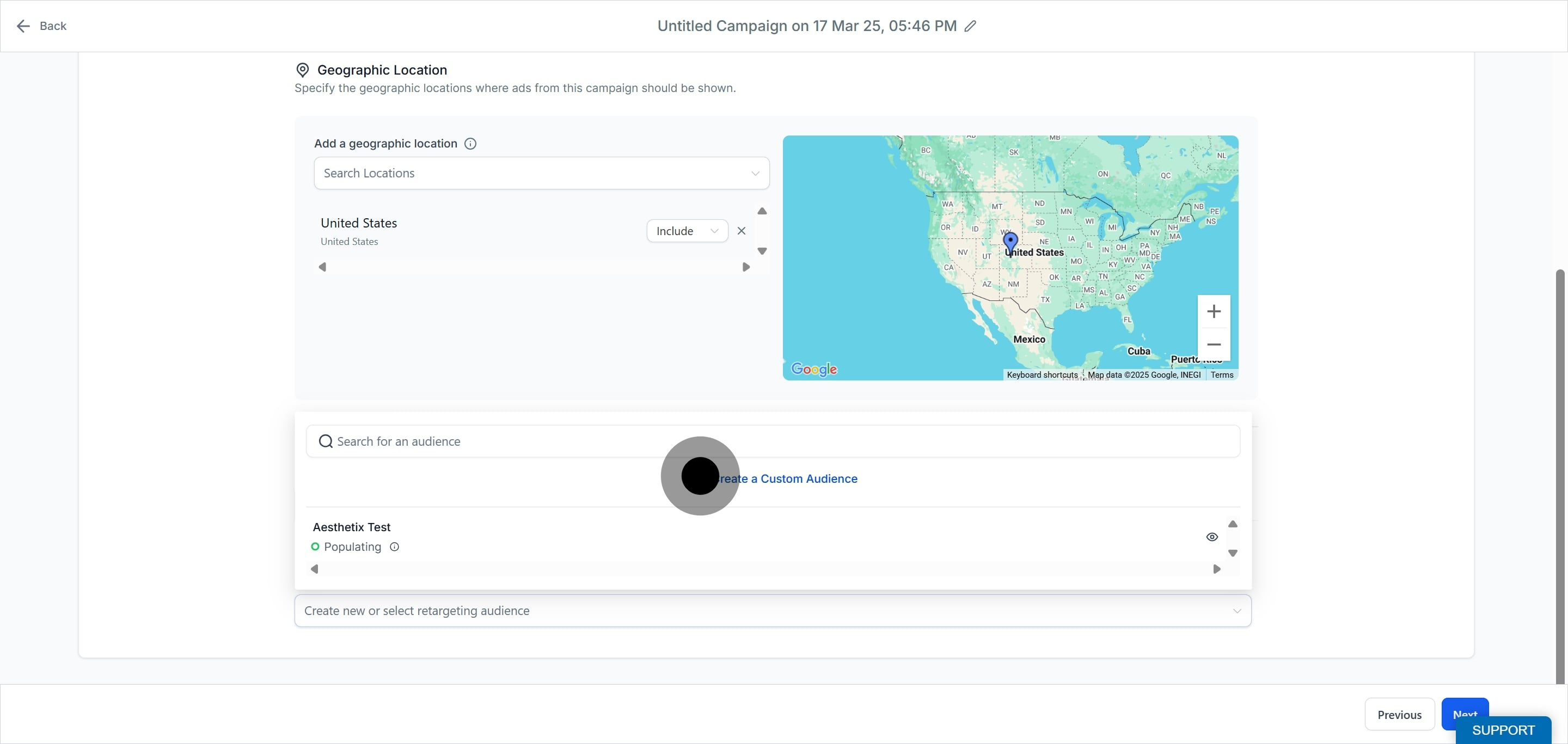
During campaign creation. The second step of the campaign flow is Budget and Audience. Under the Audience Controls section you will find the Intended Audience area.
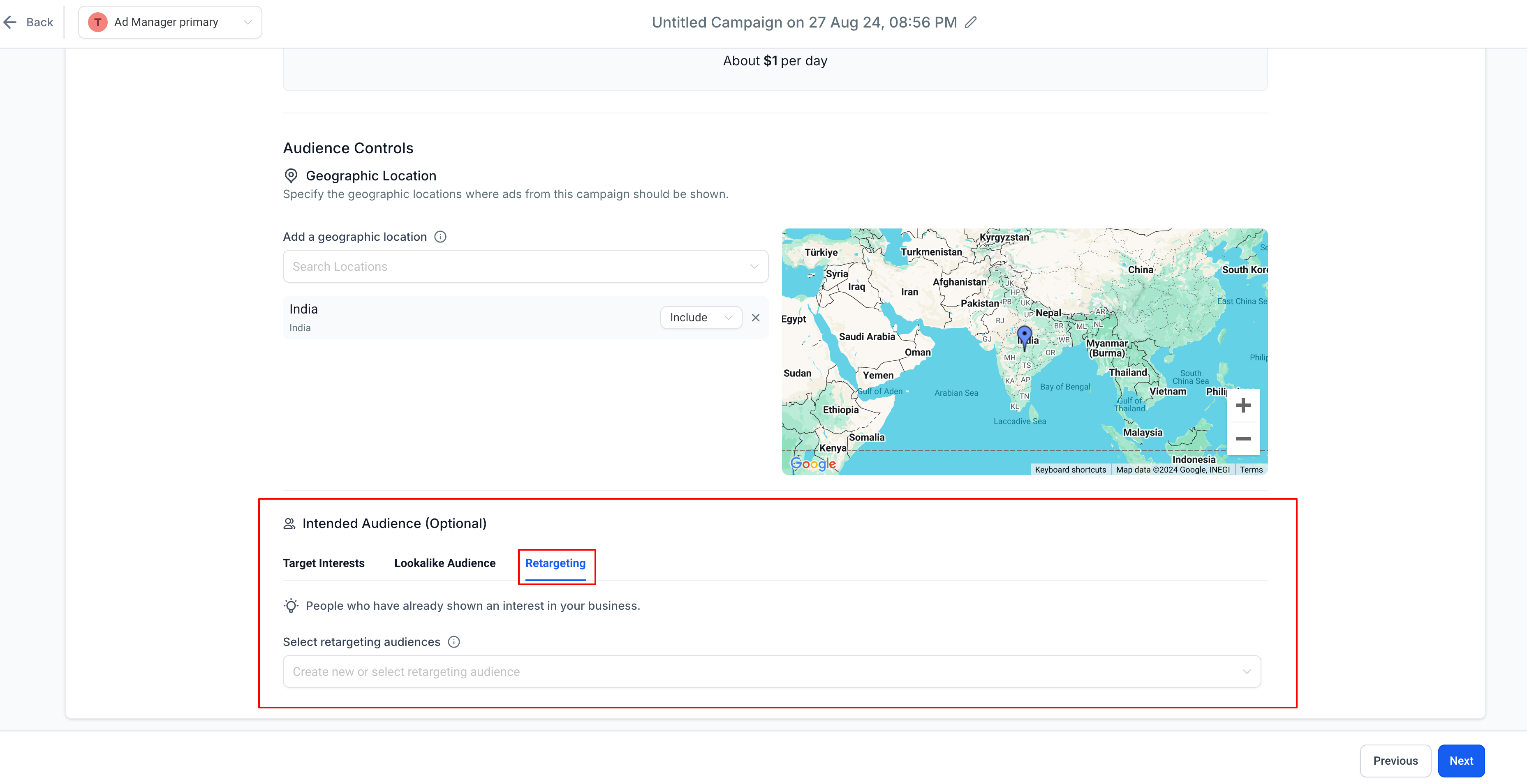
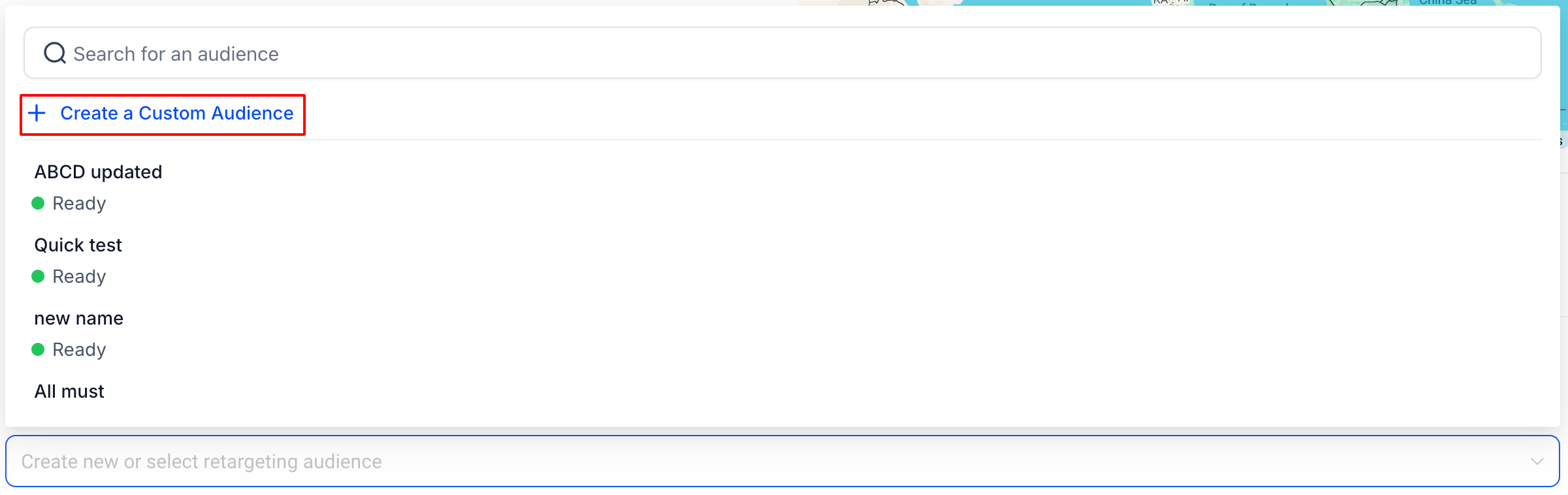
Under the Retargeting tab, click the dropdown to Create new or select retargeting audience. The first option in the list is Create a Custom Audience.
From Ad Manager settings. You can also create audiences ahead of time from Ad Manager Settings > Audiences so they are ready for future campaigns.
Creating a custom audience is a two step process.
Enter the campaign creation area.
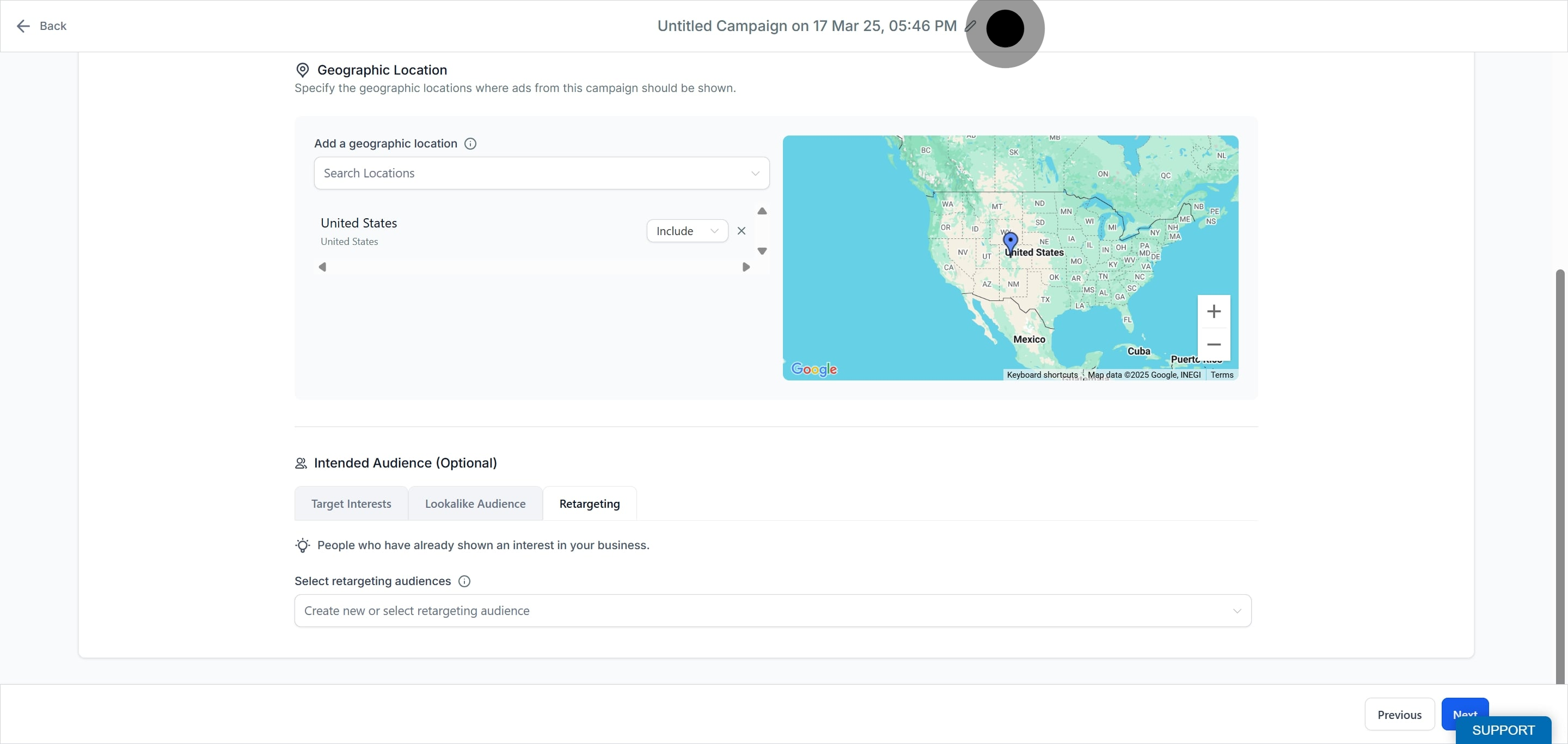
Select the Retargeting tab.
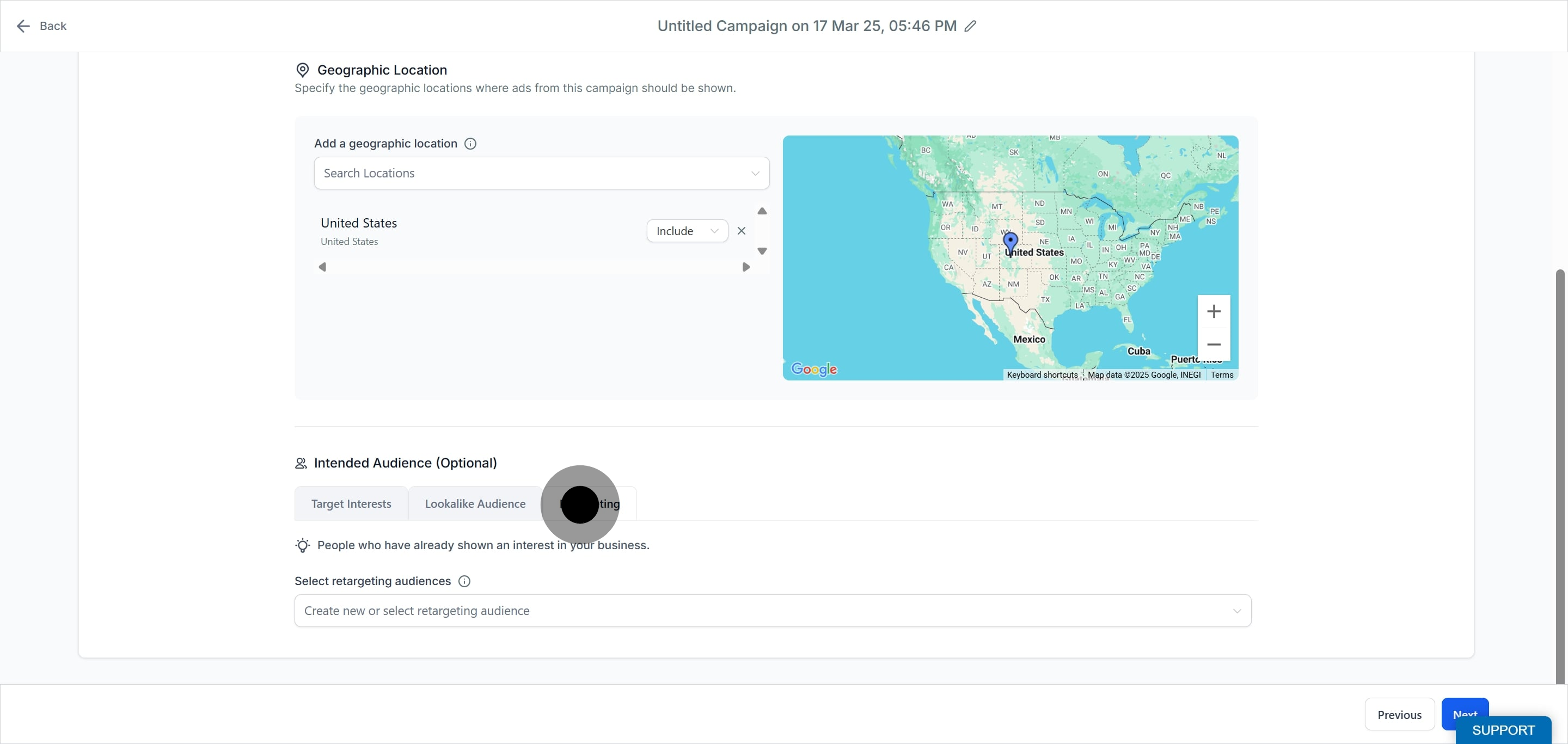
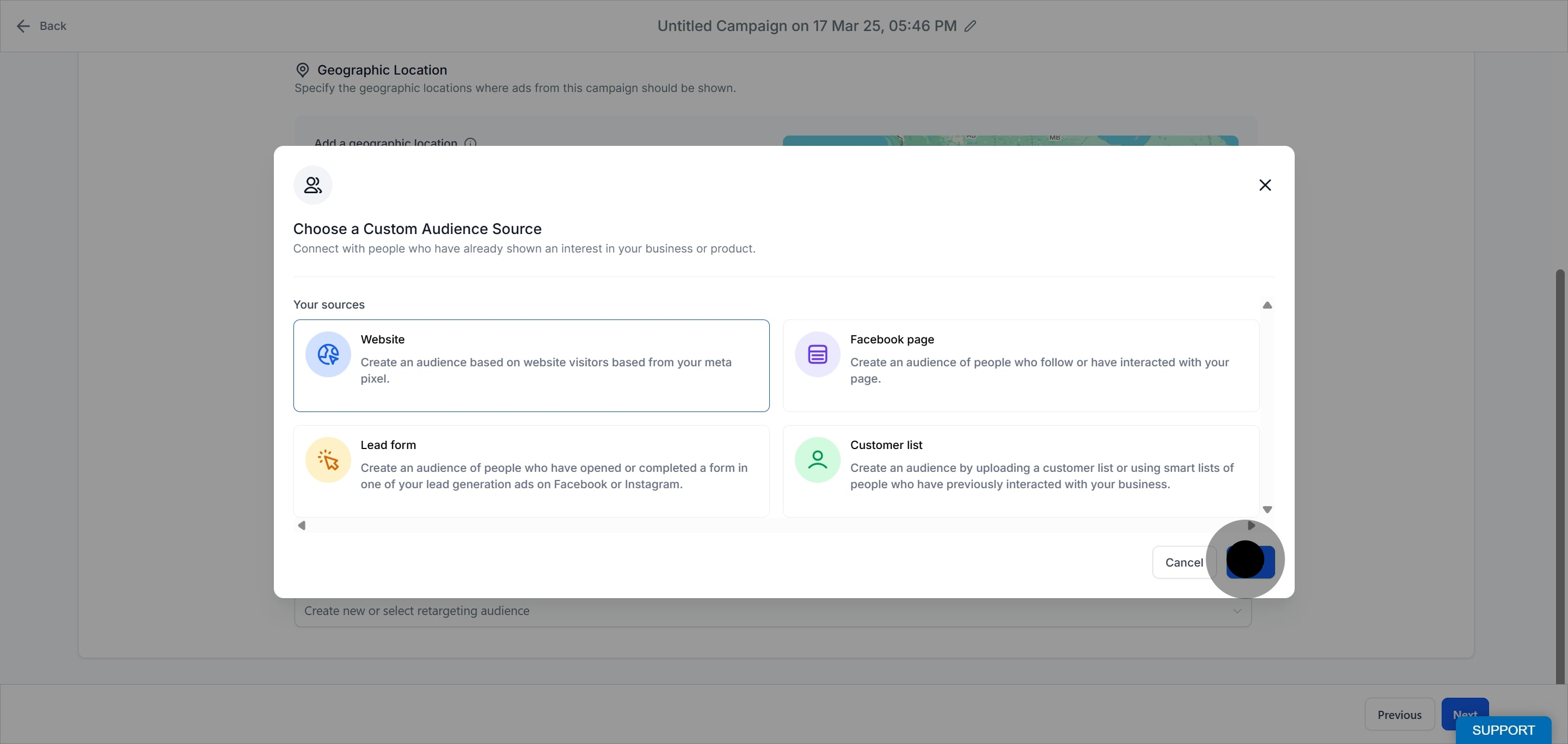
Click to Create a Custom Audience. A modal opens so you can choose the source that will be used to build the audience.
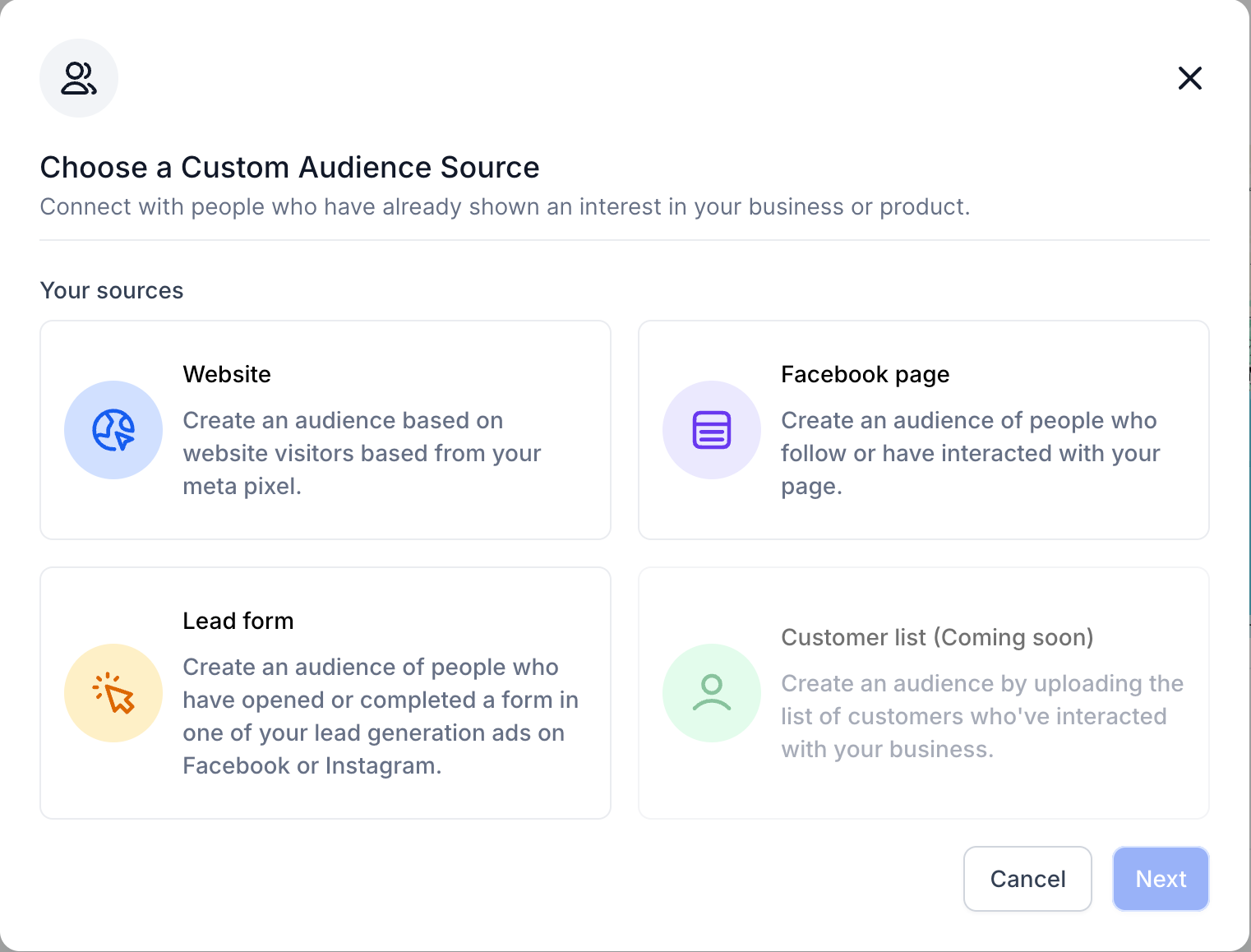
Choose your audience source.
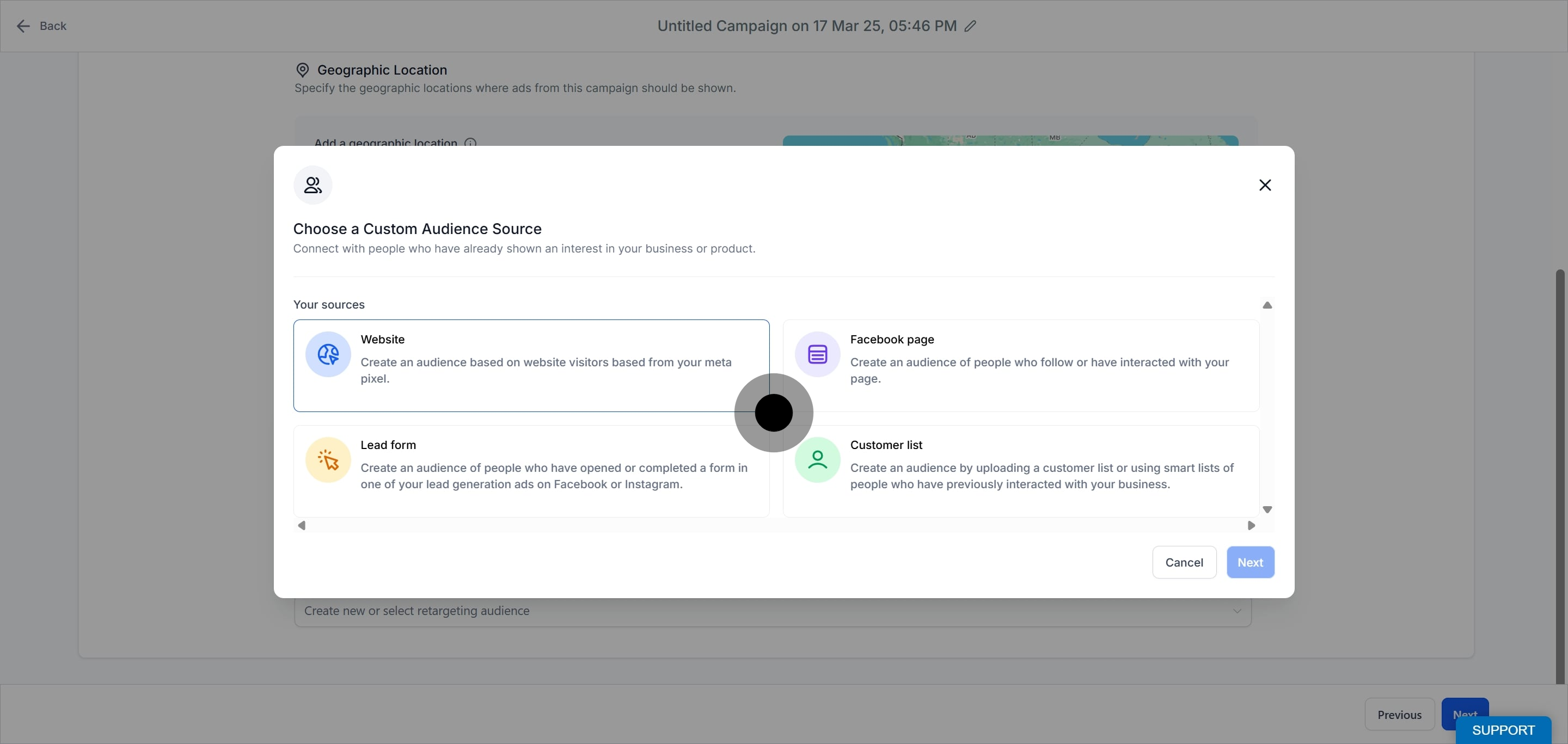
Once a source is chosen and you click Next, you move to the second step, where the fields shown depend on the source you selected.
The four sources are covered below.
Reaches people who have visited or interacted with your website.
Select Website as the source.
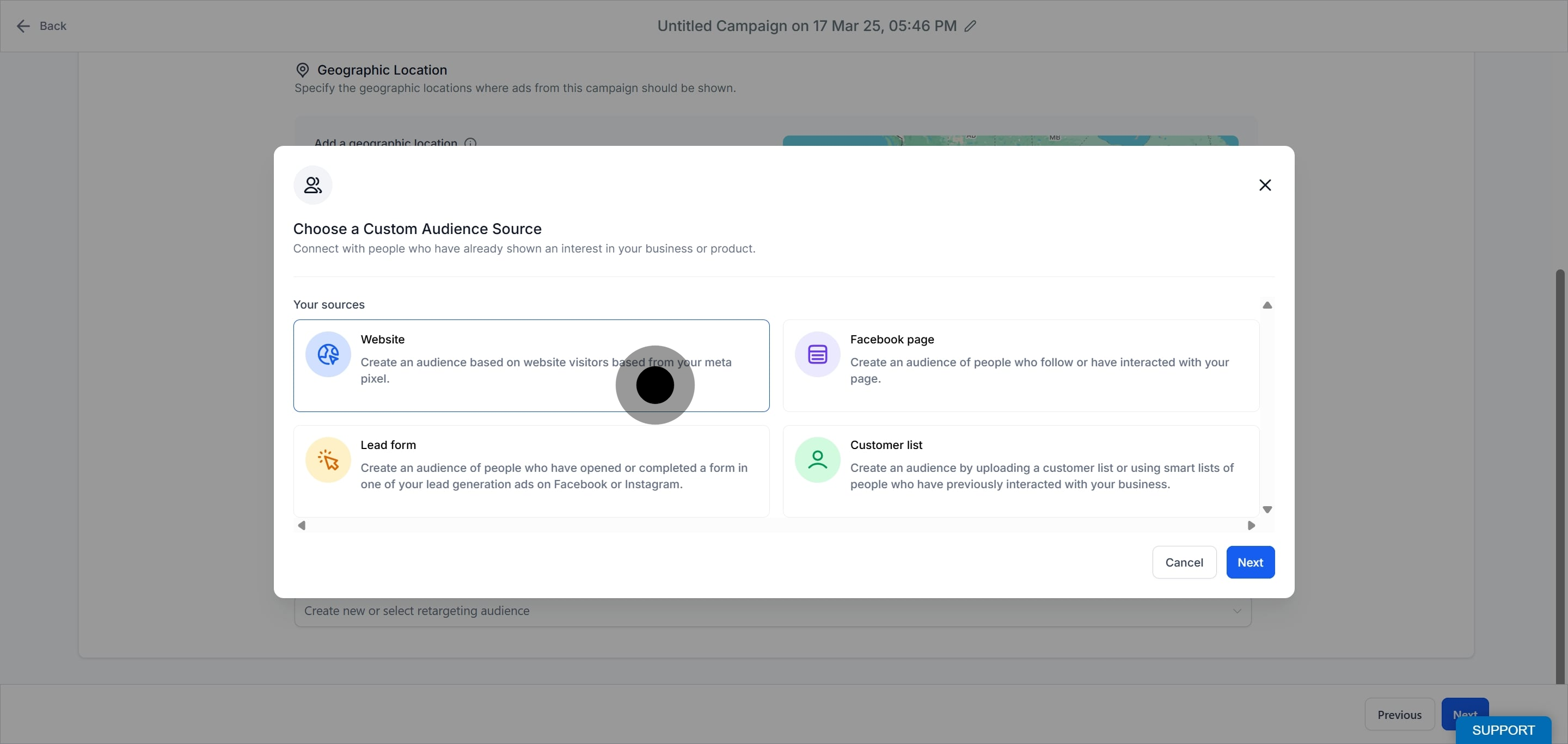
Click Next.
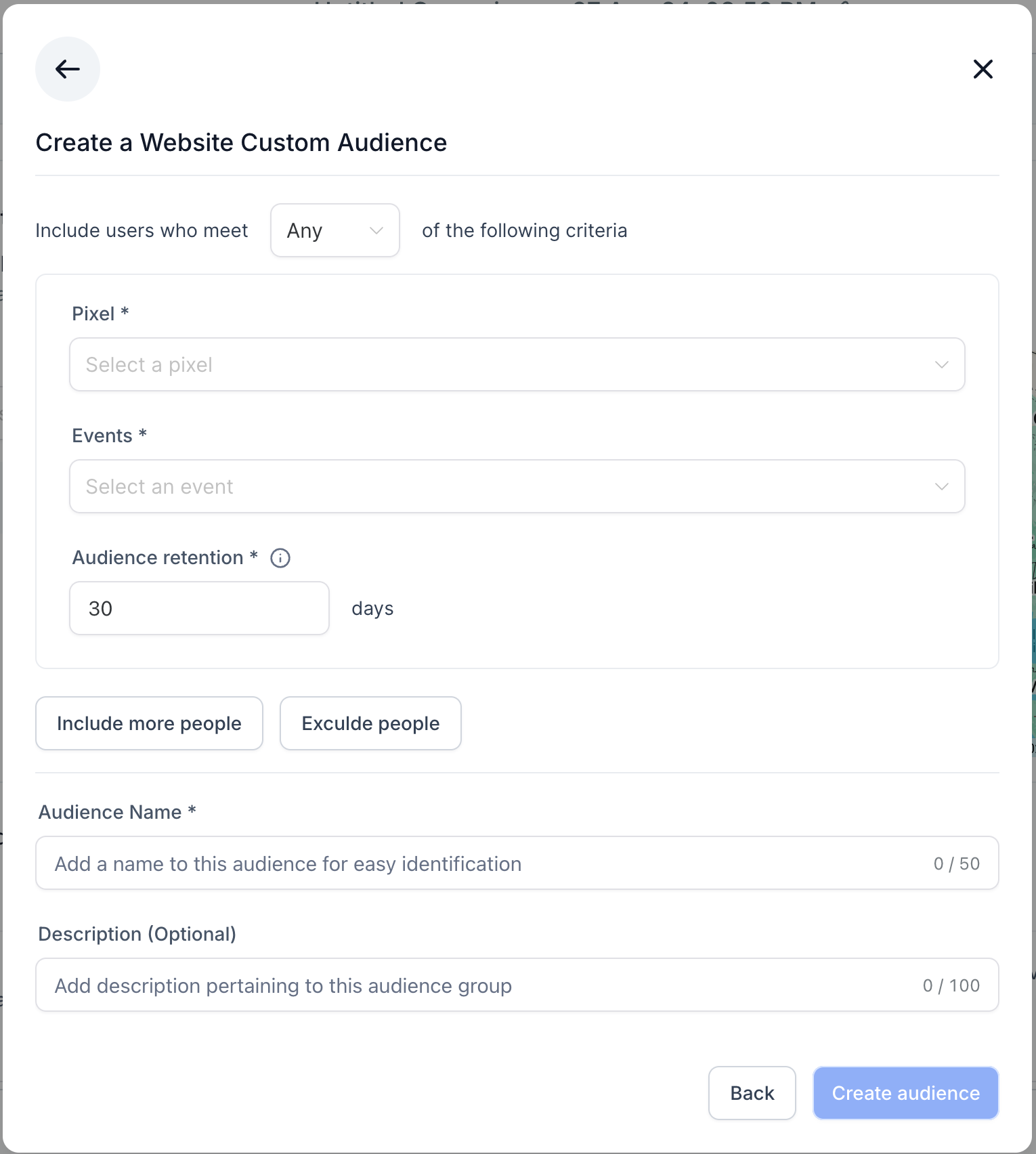
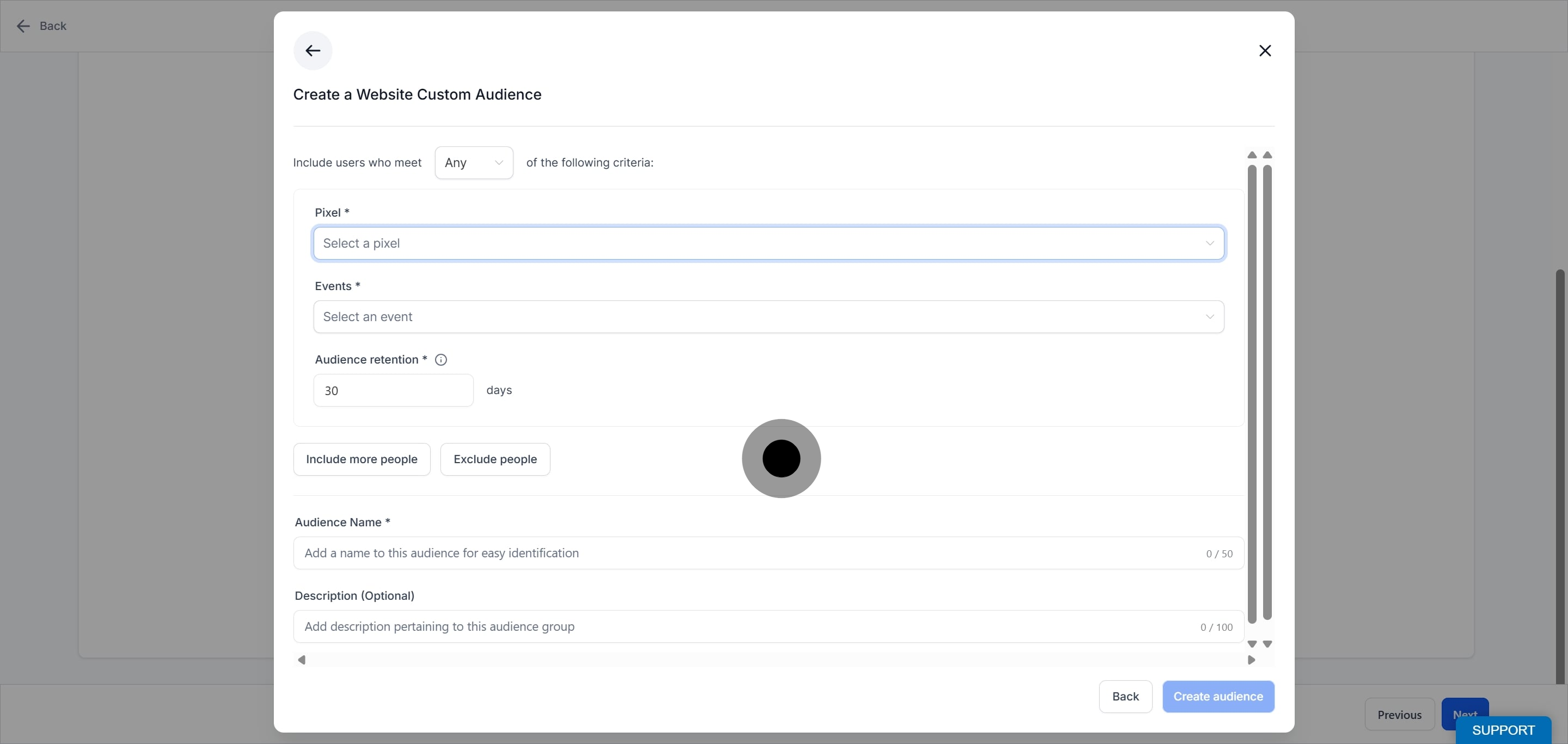
Define the audience:
Pixel: The dropdown lists all the pixels that exist within Ad Manager. Select one.
Events: Choose the event that pivots your audience. There are two options:
All website visitors includes everyone who has visited or interacted with your website.
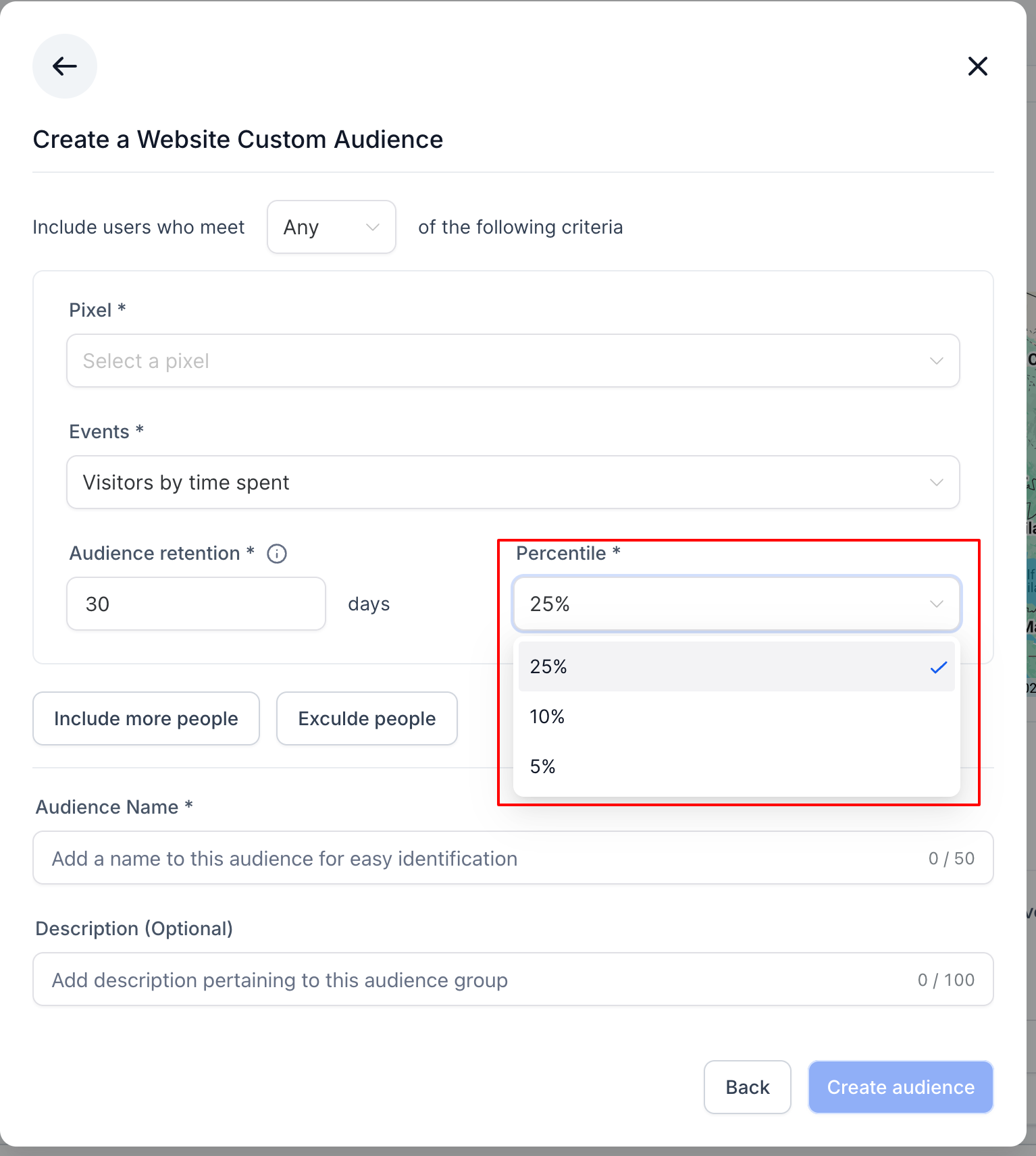
Visitors by time spent includes the people who spent the most time on your site, and can be narrowed by percentile. For example, selecting 10% means the audience includes visitors who were in the top 10% of time spent on your website.
Audience retention: The number of days people stay in your audience after interacting with your content. For a Website audience, 30 days is the maximum.
Note: You can add up to four more clauses like the one above, choosing to include them alongside the default clause (Include more people) or to exclude them (Exclude people).
Add an audience name and description for easy distinction.
Reaches people who follow or have interacted with your Facebook Page.
Select Facebook Page as the source.
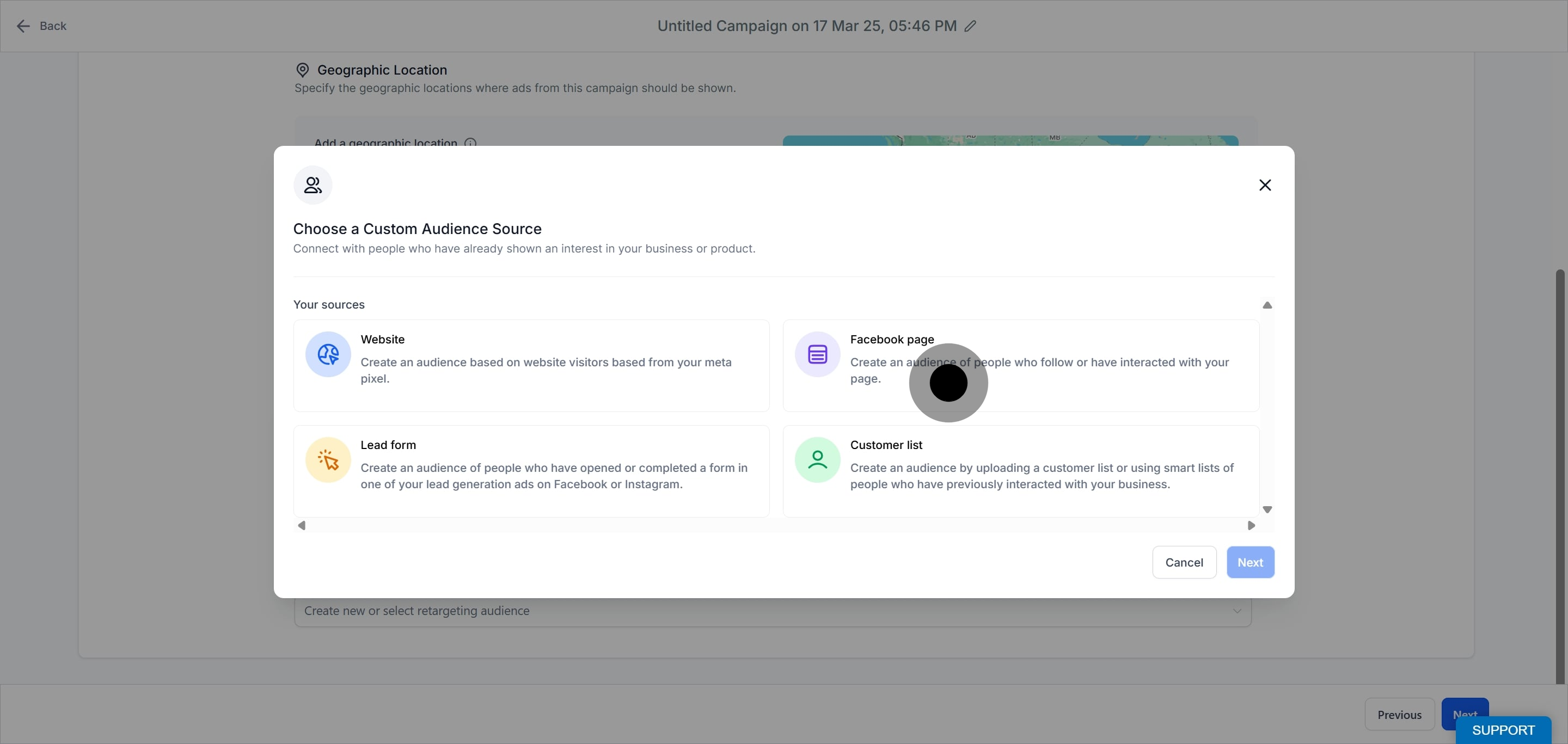
Click Next.
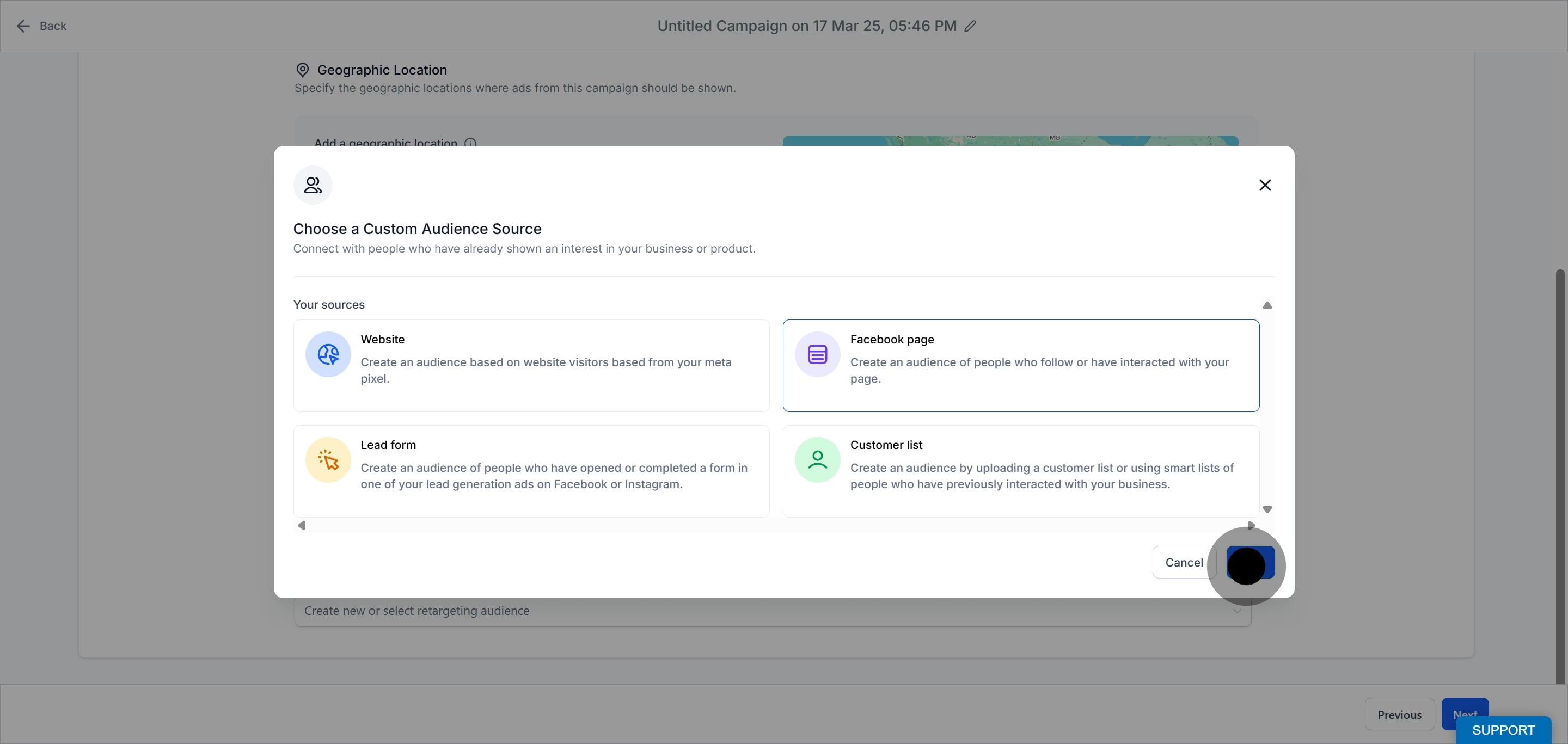
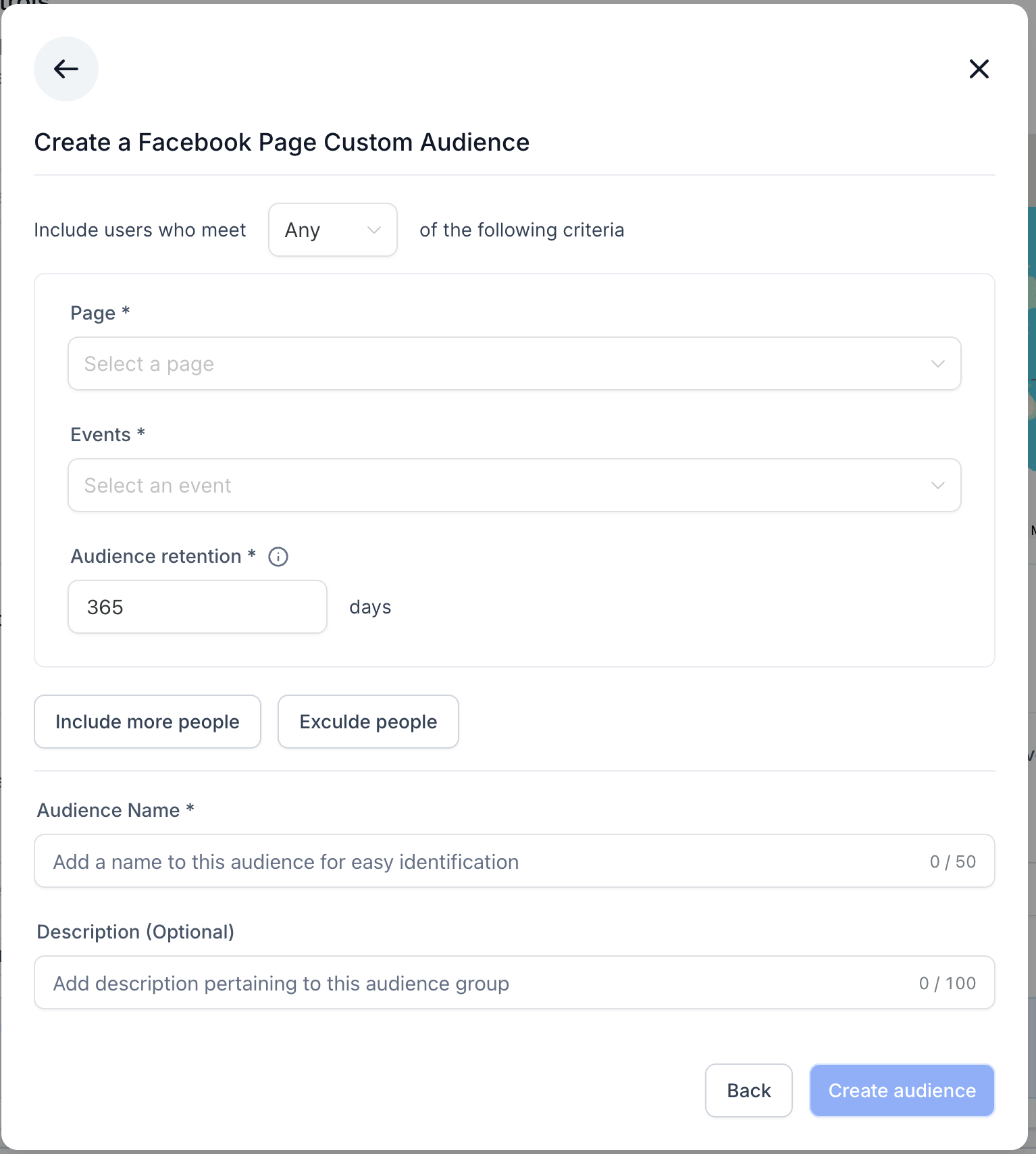
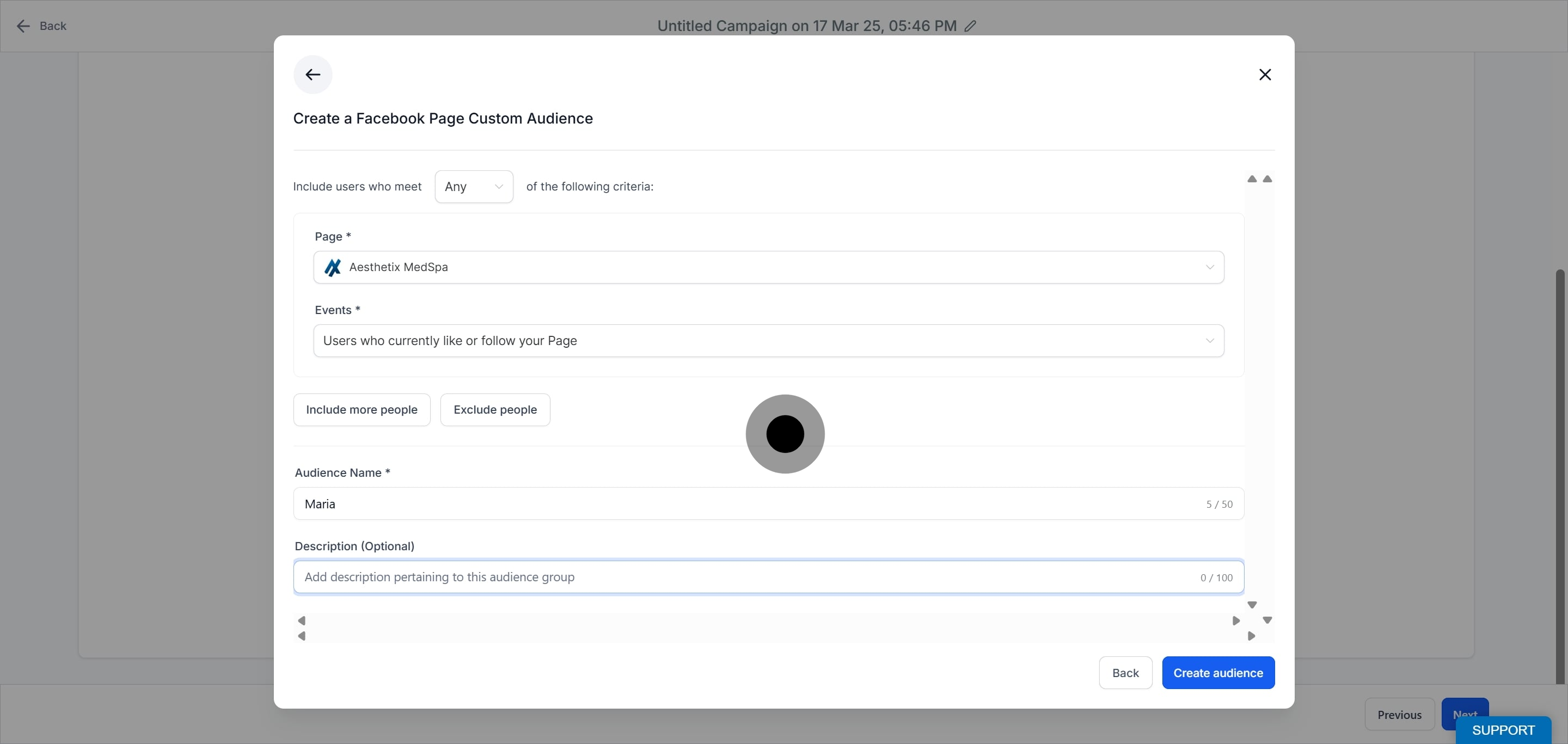
Define the audience:
Page: The dropdown lists all pages integrated with Ad Manager. Select one.
Events: Choose the event that pivots your audience. There are 7 options in the dropdown; select one.
Audience retention: For a Facebook Page audience, 365 days is the maximum.
Note: You can add up to four more clauses, choosing to include or exclude them as described above.
Add an audience name and description for easy distinction.
Reaches people who opened or completed a form in one of your lead generation ads on Facebook or Instagram, such as a consult request form.
Select Lead Form as the source.
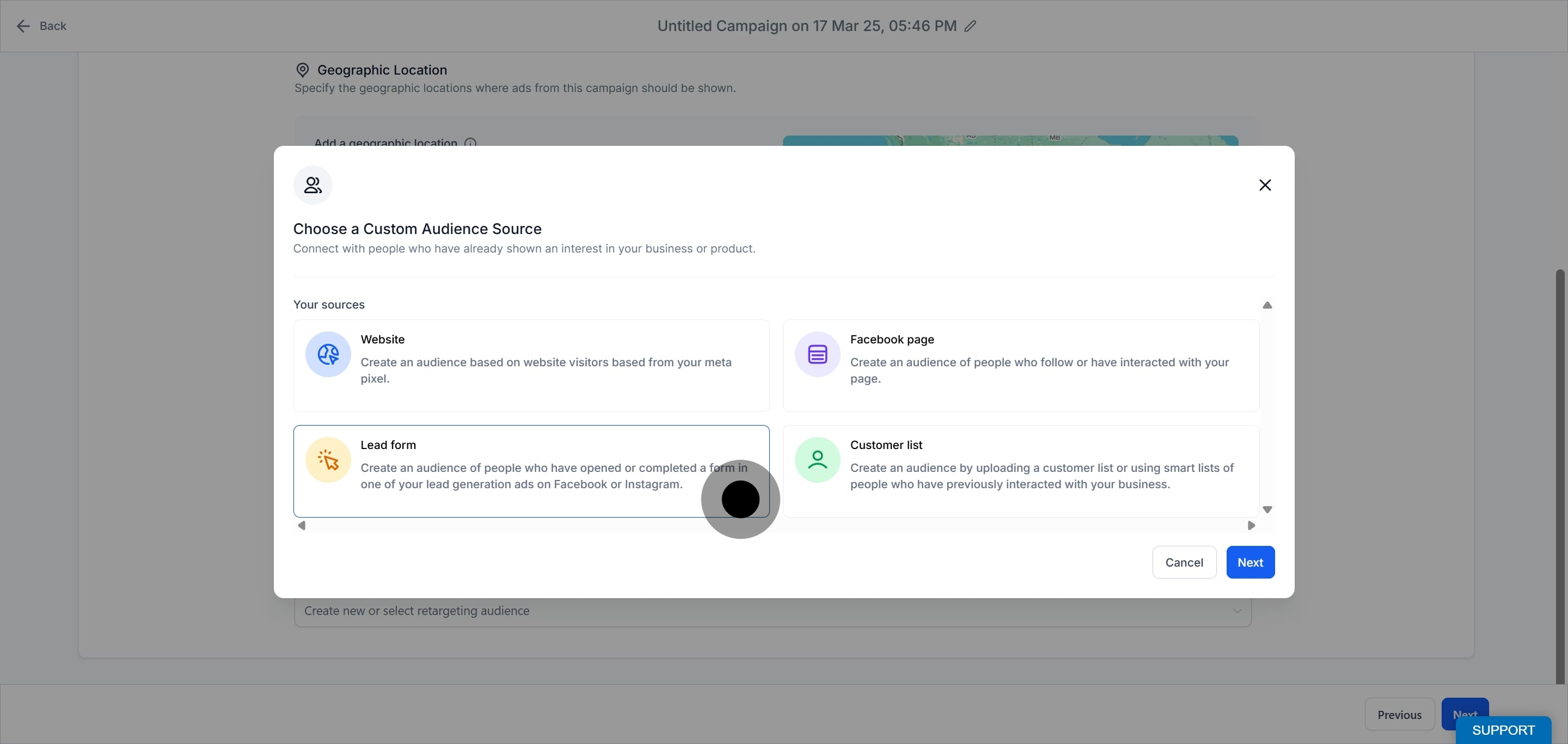
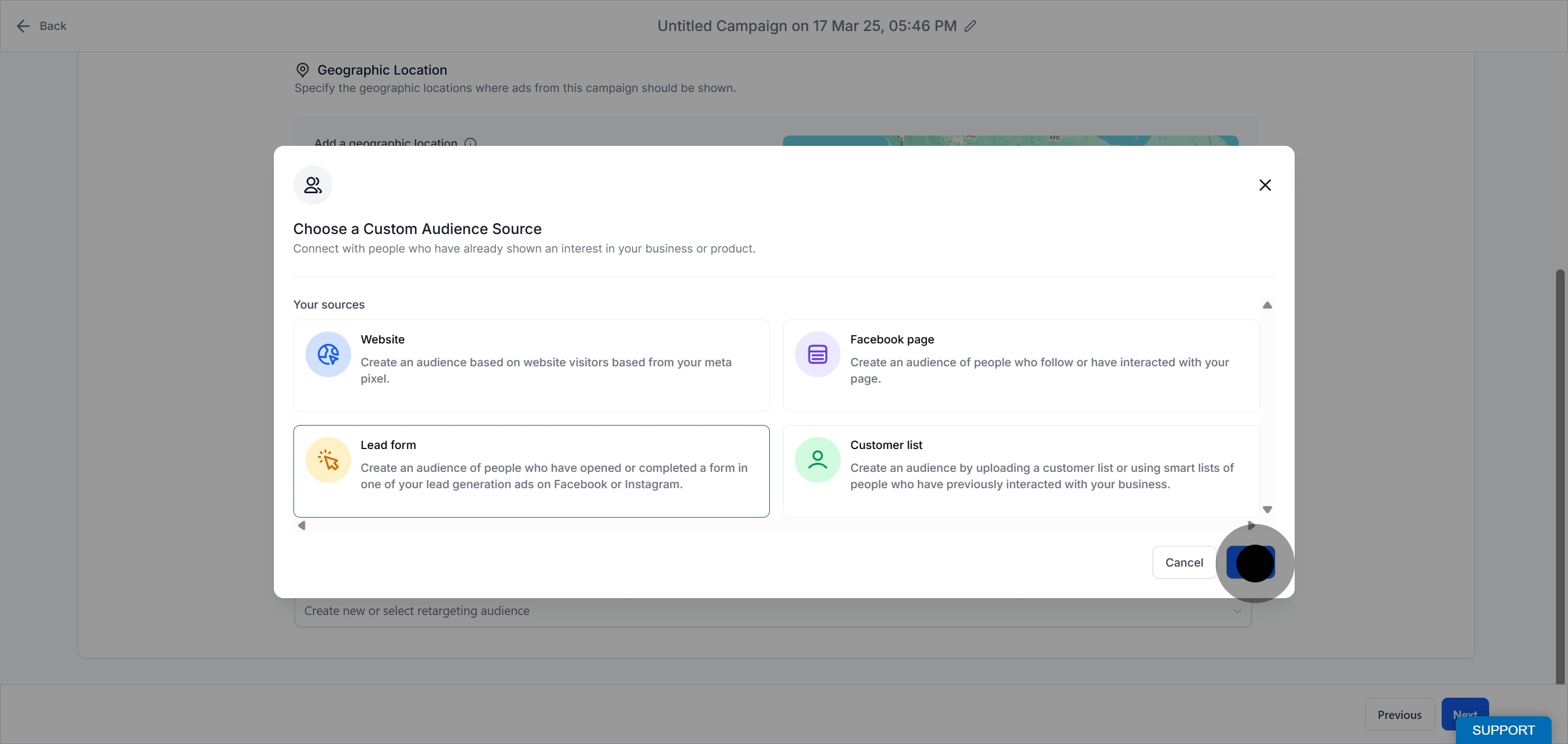
Click Next.
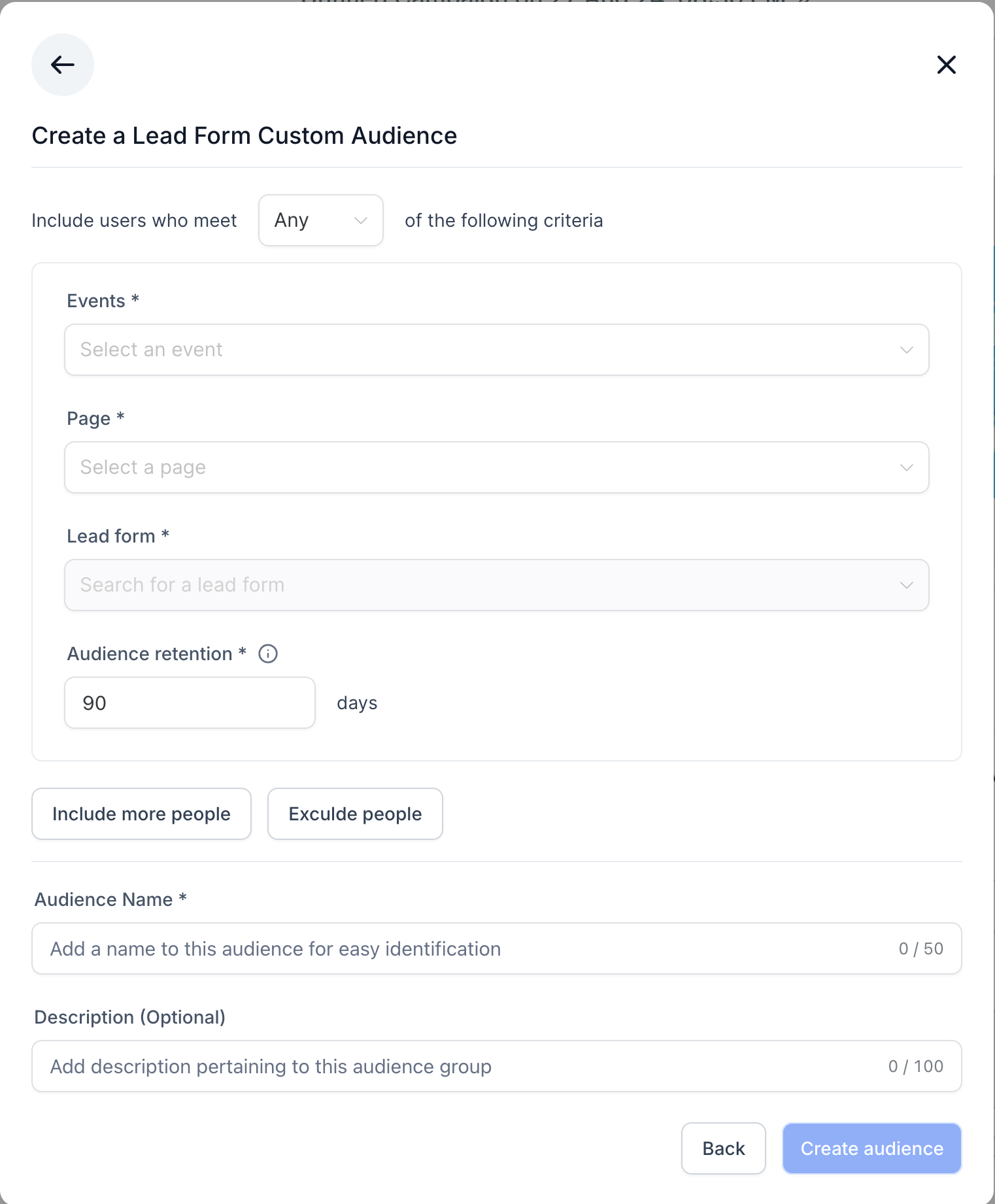
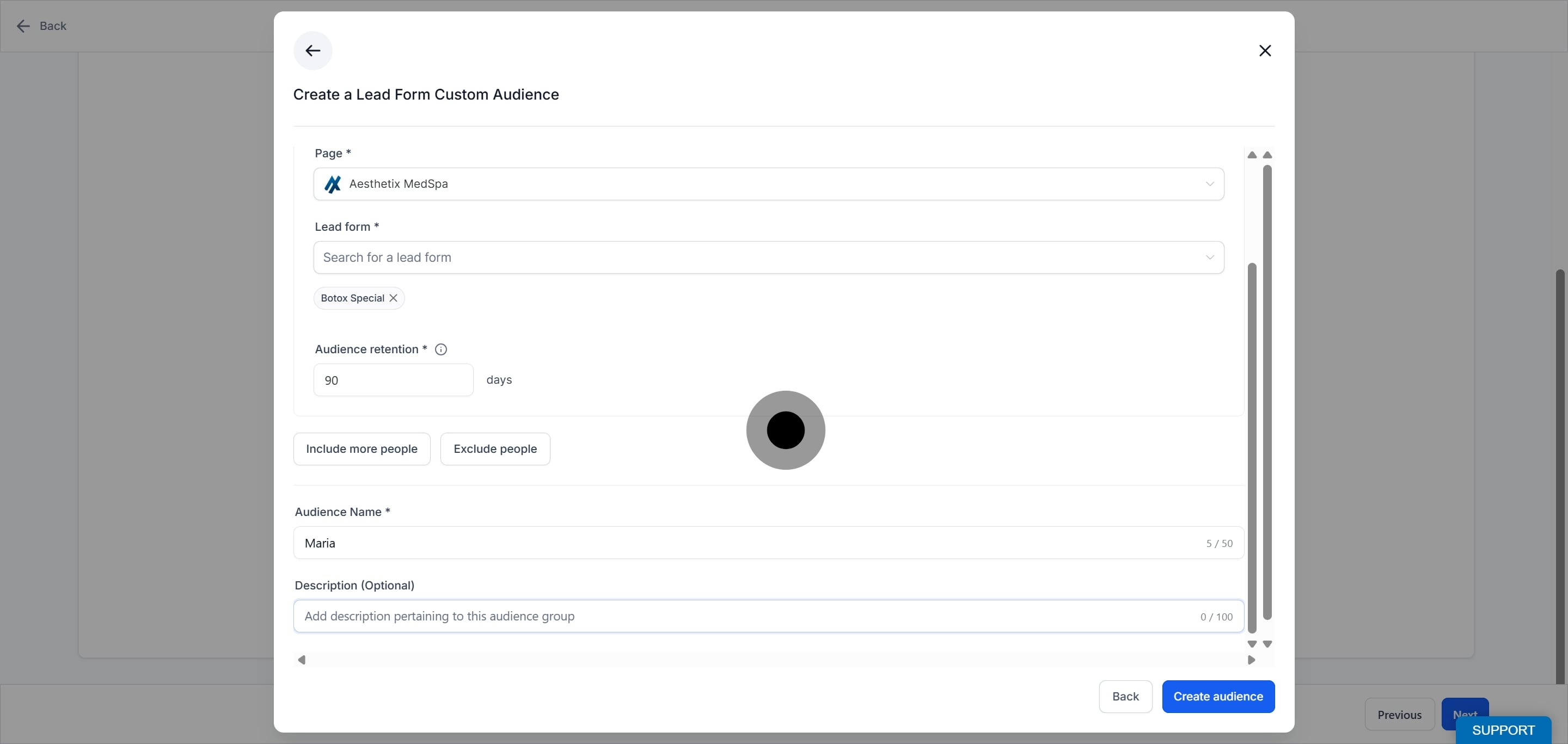
Define the audience:
Events: Choose the event that pivots your audience. There are 3 options; select one:
Users who opened and submitted the form
Users who opened but did not submit the form
Anyone who opened the form
Page: The dropdown lists all pages integrated with Ad Manager. Select one.
Lead form: Based on the page you selected, all lead forms associated with that page appear in the dropdown. Select the form whose interactions you want to build the audience from.
Audience retention: For a Lead Form audience, 90 days is the maximum.
Note: You can add up to four more clauses, choosing to include or exclude them as described above.
Add an audience name and description for easy distinction.
Reaches specific people using your own patient contact data, such as emails and phone numbers, matched to Facebook and Instagram profiles.
Select Customer List as the source.
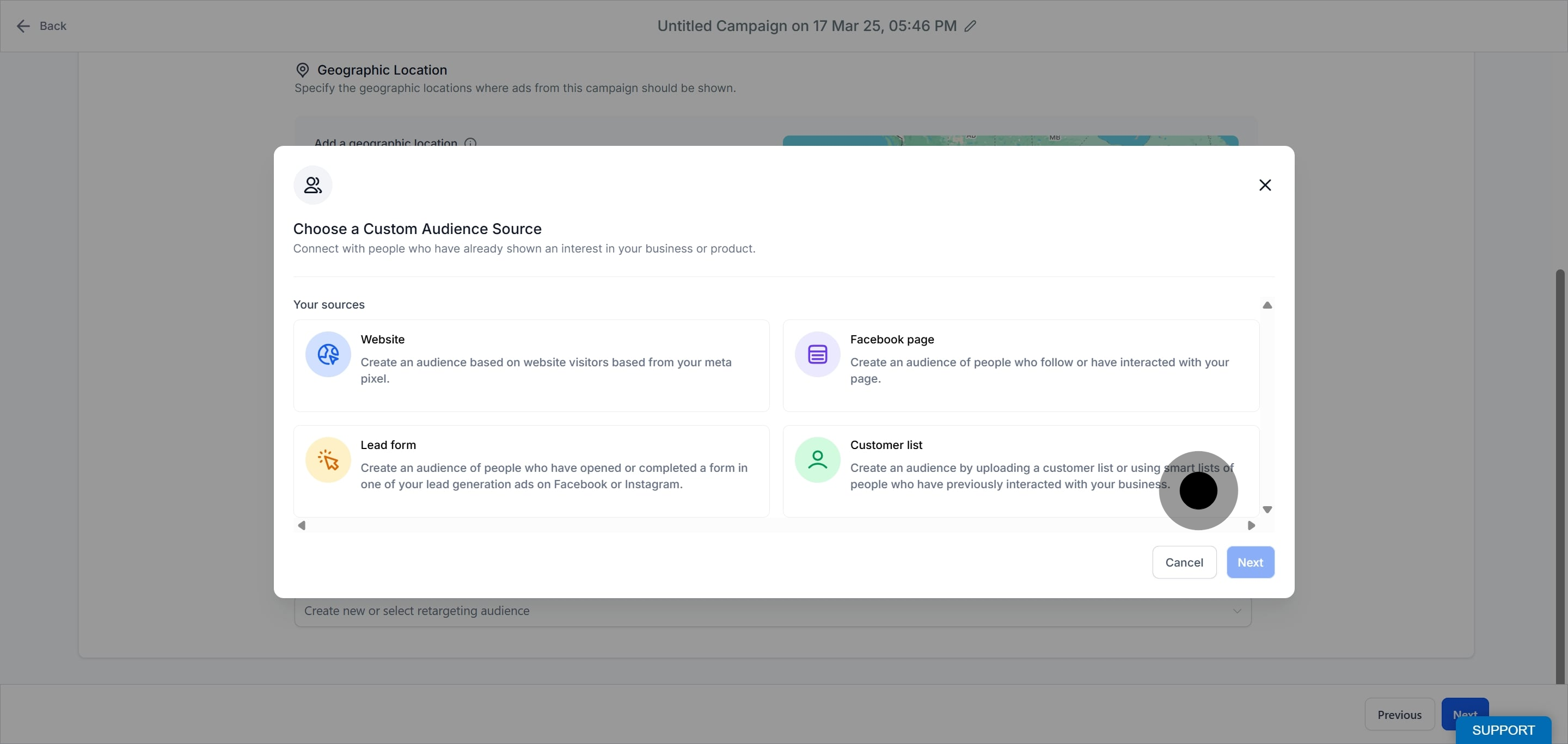
Click Next.
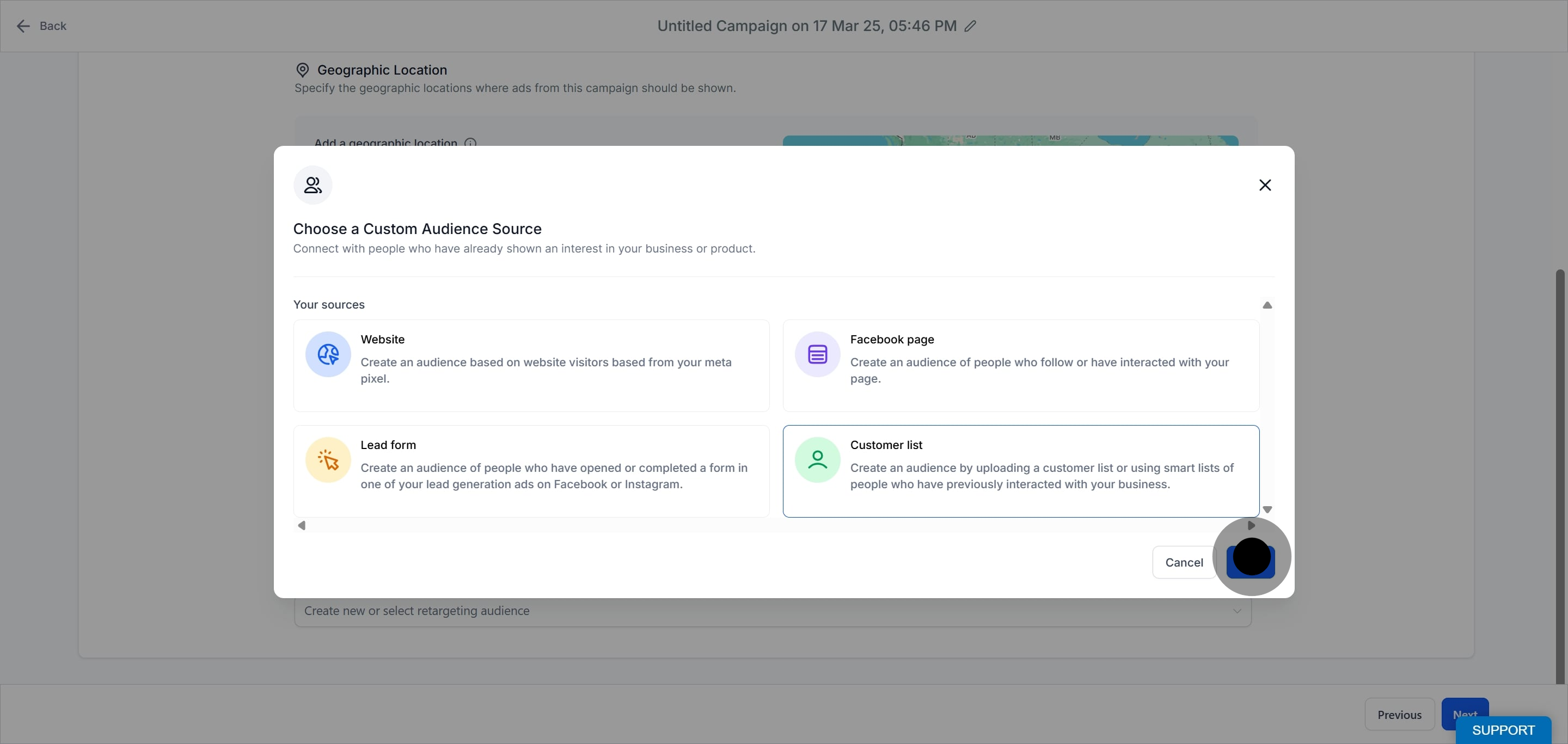
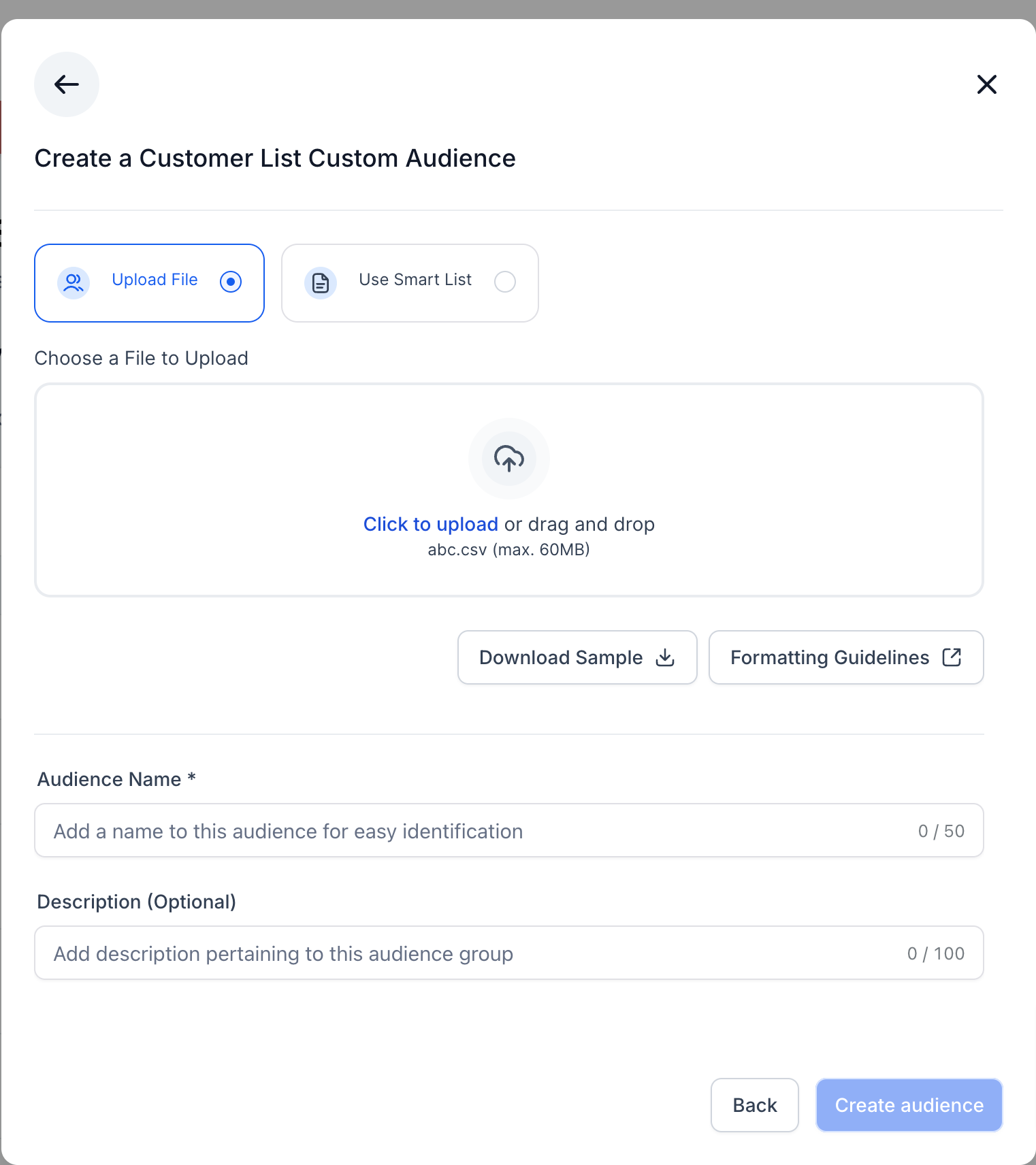
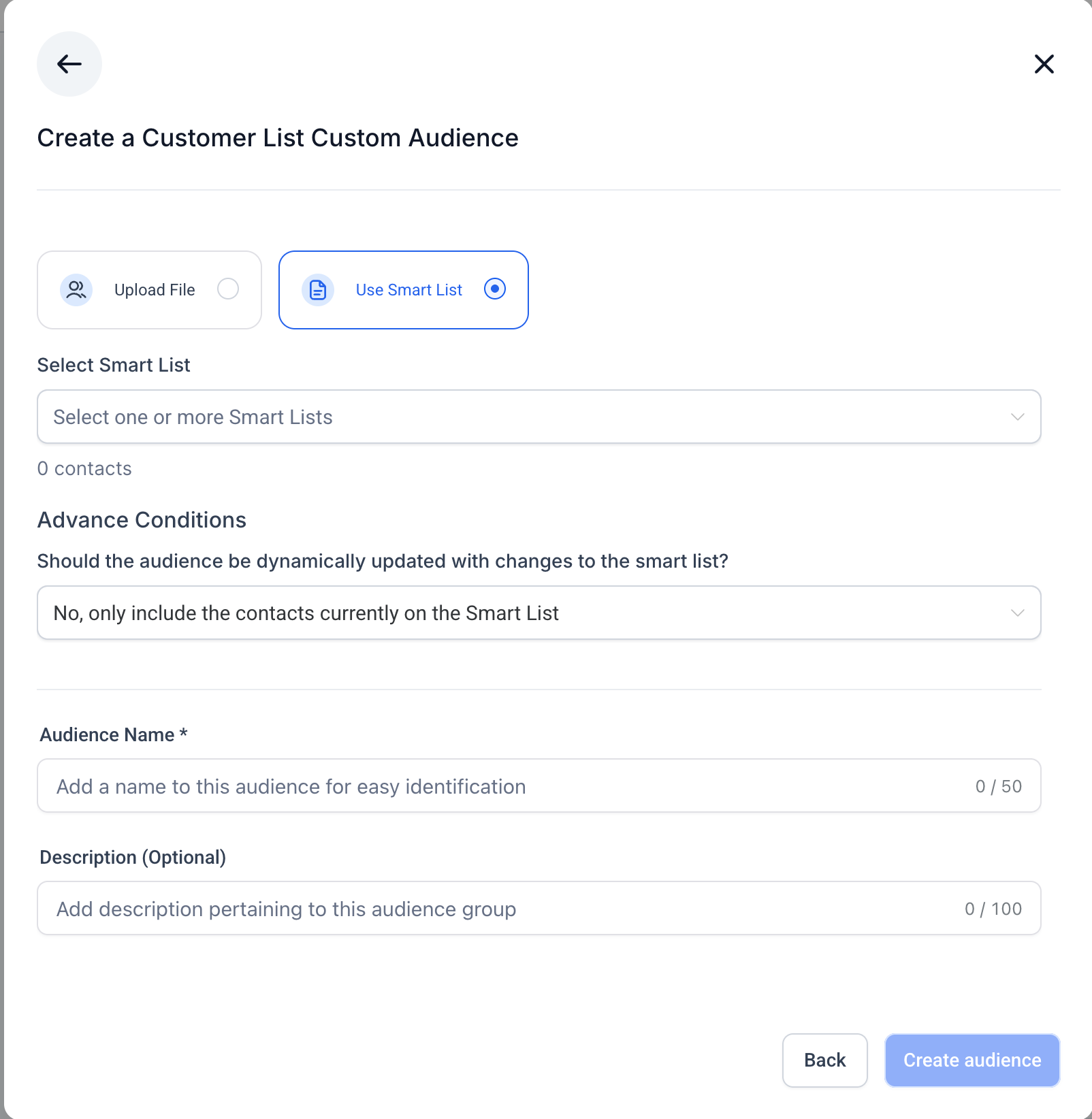
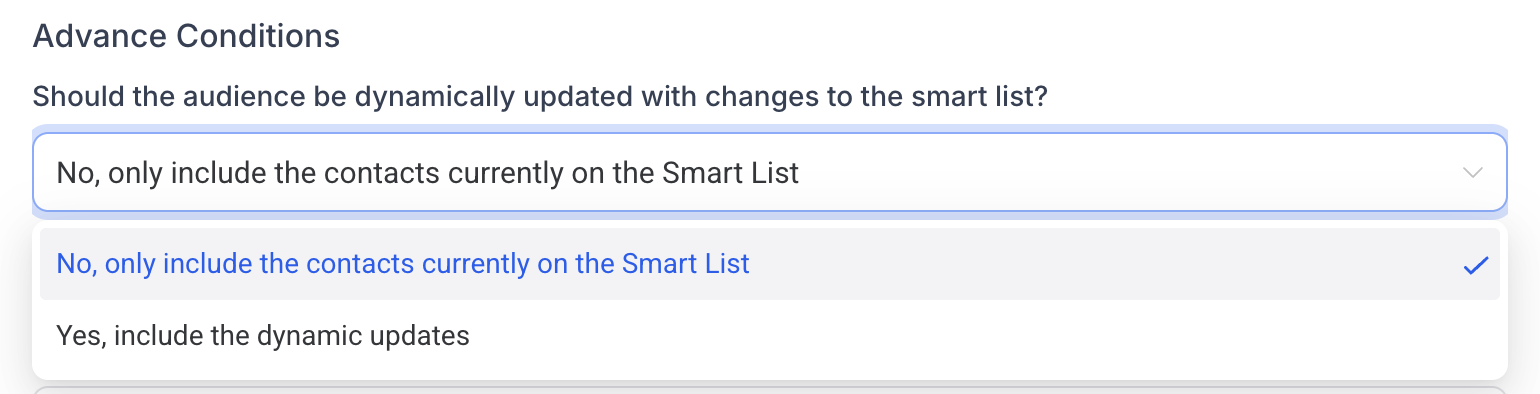
Choose one of two methods to add customers:
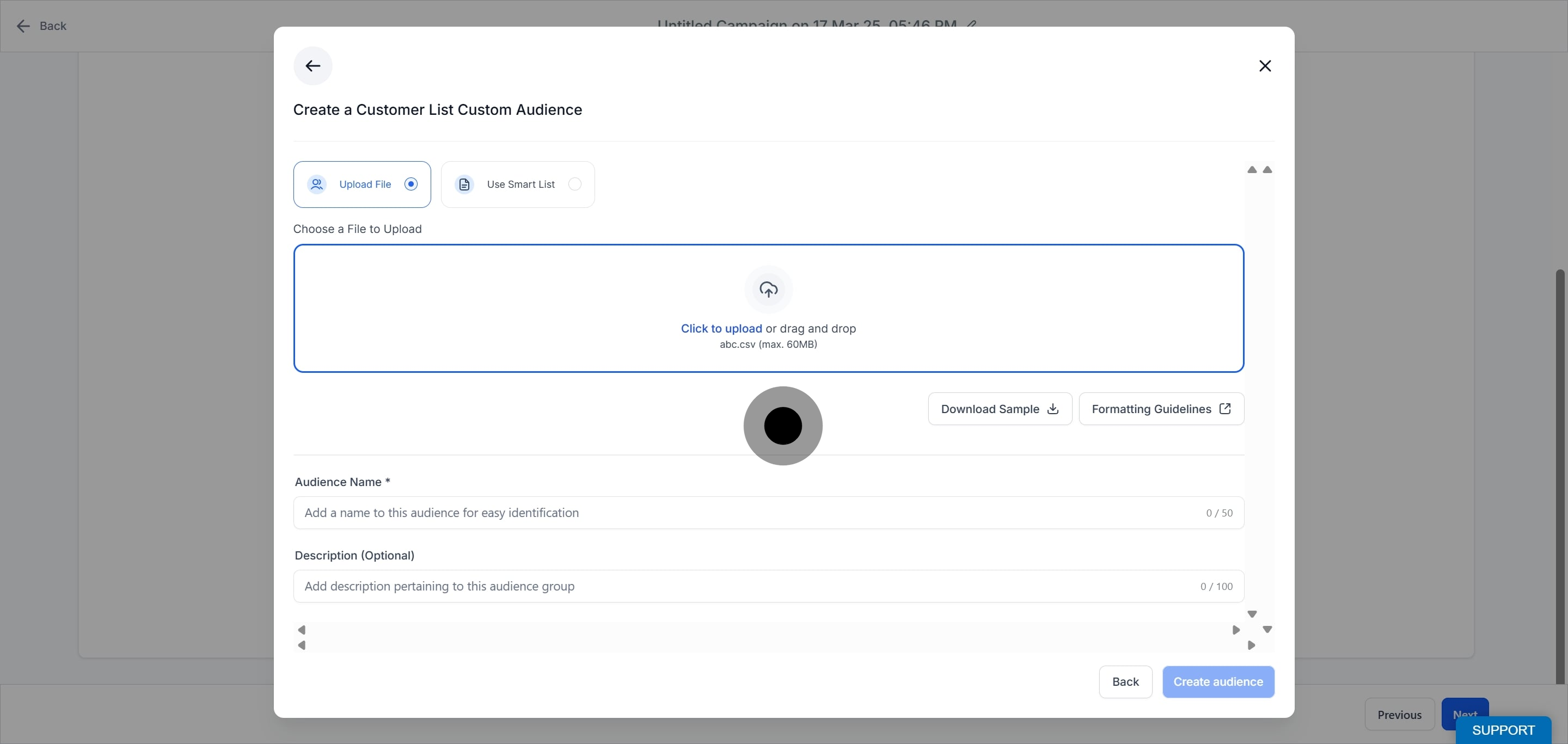
Method | How it works | Key notes |
|---|---|---|
Upload File | Upload a CSV file with customer identifiers such as emails and phone numbers to create the audience. | Must follow Meta's formatting guidelines; the upload fails if headers or values are invalid. |
Use Smart Lists (Static) | Create the audience from an existing Smart List and freeze it at creation time. | Includes only contacts present at creation; does not update later. |
Use Smart Lists (Dynamic) | Link to a Smart List that updates automatically as the list changes. | Adds and removes contacts as the Smart List updates. |
HIPAA and patient consent: Uploading a customer list shares your patients' contact identifiers with Meta, where the data is hashed and matched to user profiles. Before you upload, get the appropriate patient consent and follow your practice's HIPAA policies. Upload only basic contact identifiers such as name, email, and phone number. Never include protected health information such as procedures, diagnoses, treatment history, or clinical notes. See the dedicated Customer List Custom Audience guide for full details.
Important notes for Customer List audiences:
If the uploaded file is not formatted correctly, the upload fails with an error message.
Only the contacts in the selected Smart Lists at the time of audience creation are included in a static audience.
Before an audience is created, you must accept Meta's Customer List Custom Audience Terms of Service. If you have not accepted them, a message appears when you click Create Audience.
Meta enforces restrictions on custom audiences that suggest information not permitted under its terms. For a medical-aesthetics practice this is especially important: any custom audience (or custom conversion) that implies a specific health condition, such as a skin disorder or a weight-related condition, can be flagged and blocked from use in new and ongoing campaigns.
Flagged custom audiences stop accepting new users, and existing campaigns using them may see reduced delivery over time until resolved.
To resolve a flagged custom audience, remove any non-permitted information or create a new audience that does not include it. For a flagged lookalike audience, fix the underlying source (seed) audience or create a new lookalike.
If you believe an audience was flagged in error, you can request a review in Meta's Ads Manager or Audience Manager.
Keep your audience names and definitions focused on behavior and interests rather than any condition, and you will avoid most of these flags.
Once a custom audience is successfully created, it appears in the Retargeting Audience dropdown and can be used in a campaign once its status shows Ready.
What is the difference between a custom audience and a lookalike audience? A custom audience is built from people who already know your practice. A lookalike audience uses a custom audience as its source to find new people who resemble them. See the Lookalike Audiences guide.
Which custom audience source should I use? It depends on the behavior you want to retarget. Use Website for site visitors, Facebook Page for social engagers, Lead Form for people who interacted with a lead ad, and Customer List for your own patient contacts.
Why can I only keep people for 30 days on a website audience? Retention limits are set by Meta and vary by source: 30 days for Website, 90 days for Lead Form, and 365 days for Facebook Page.
Can I combine include and exclude conditions? Yes. You can add up to four more clauses beyond the default, choosing to include or exclude each so you can narrow the audience precisely.
When can I use my new audience in a campaign? As soon as its status shows Ready in the Retargeting Audience dropdown. Freshly created audiences may take a short time to populate first.
Why was my custom audience flagged or blocked? Meta blocks audiences that suggest a health condition or other non-permitted information. Remove that information or rebuild the audience around behavior and interests, then request a review if you believe it was flagged in error.
Do I need to set up the pixel before building a website audience? Yes. A website custom audience relies on a pixel to record visitor activity, so the pixel must be selected from the dropdown. Pixel setup for funnels is covered in the Funnels collection.
Can I create custom audiences without starting a campaign? Yes. Go to Ad Manager Settings > Audiences to build them in advance so they are ready when you launch.
