Audiences are the saved groups of people your practice targets when you run Meta (Facebook and Instagram) campaigns in Ad Manager. The Audiences tab is where every custom and lookalike audience you build lives, along with any audiences already created in Meta and pulled in from your connected ad account. From here you can review your full list, create new audiences ahead of a campaign, rename them, and remove ones you no longer need.
You can reach the Audiences tab from the Ad Manager settings.
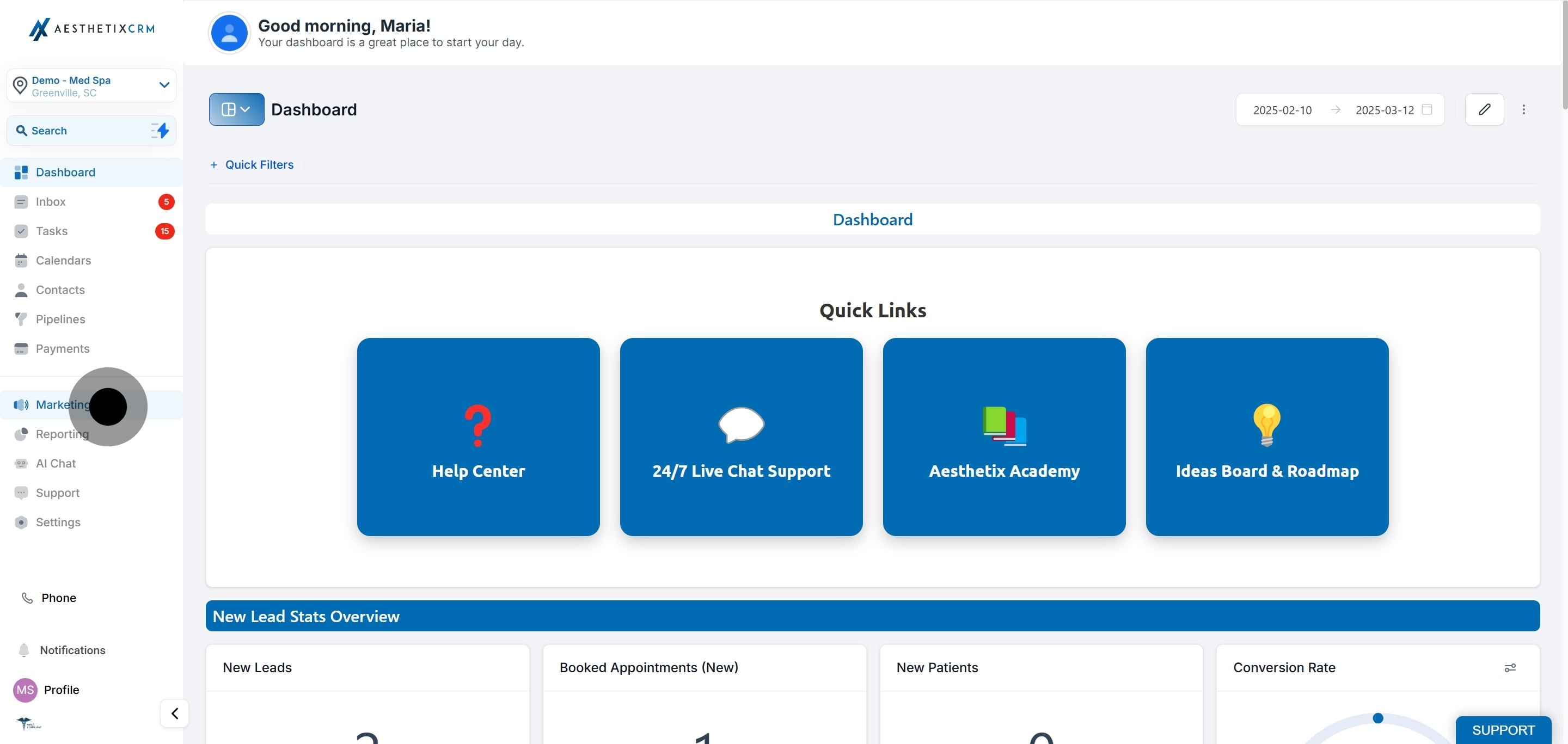
Select Marketing from the main menu.
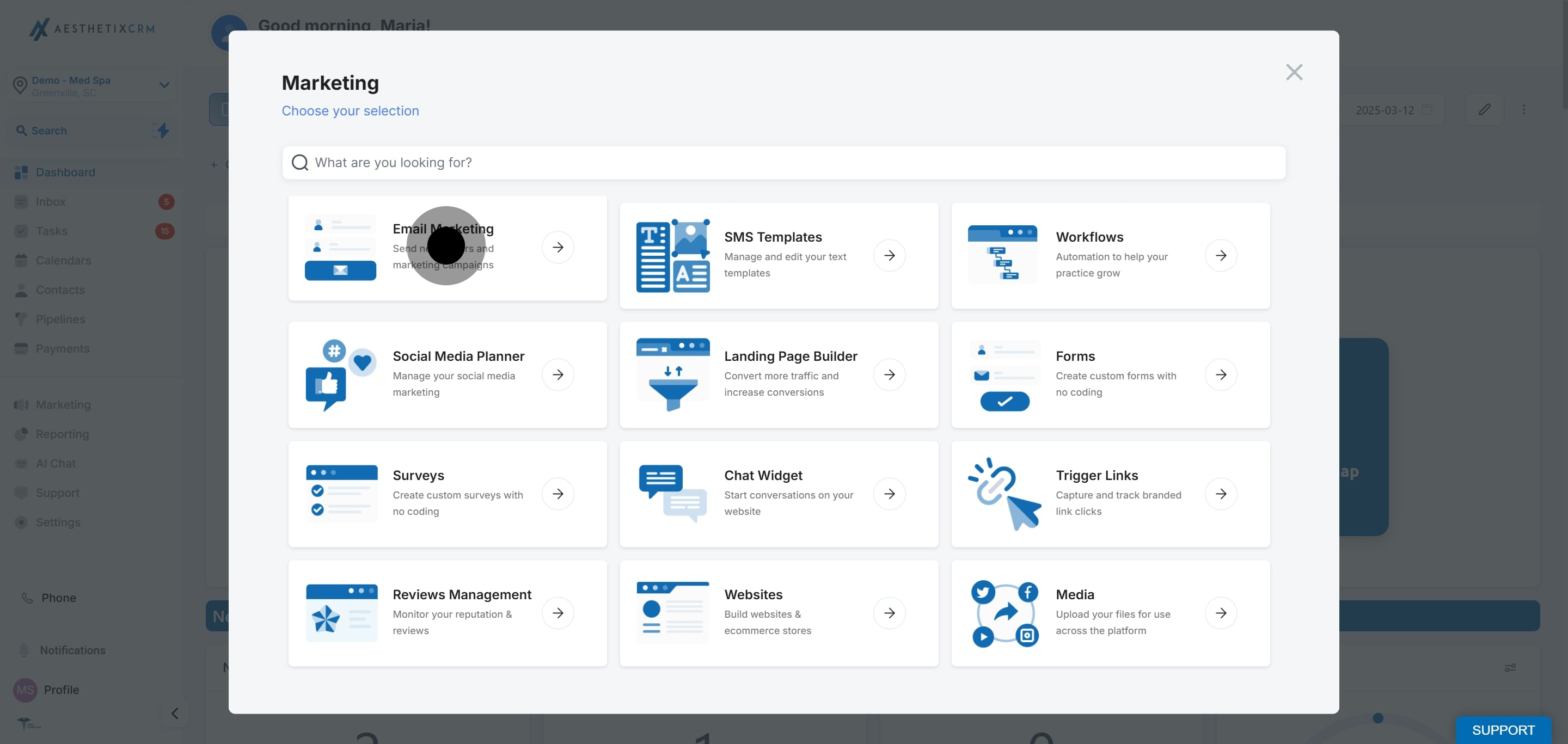
Choose Email Marketing to proceed.
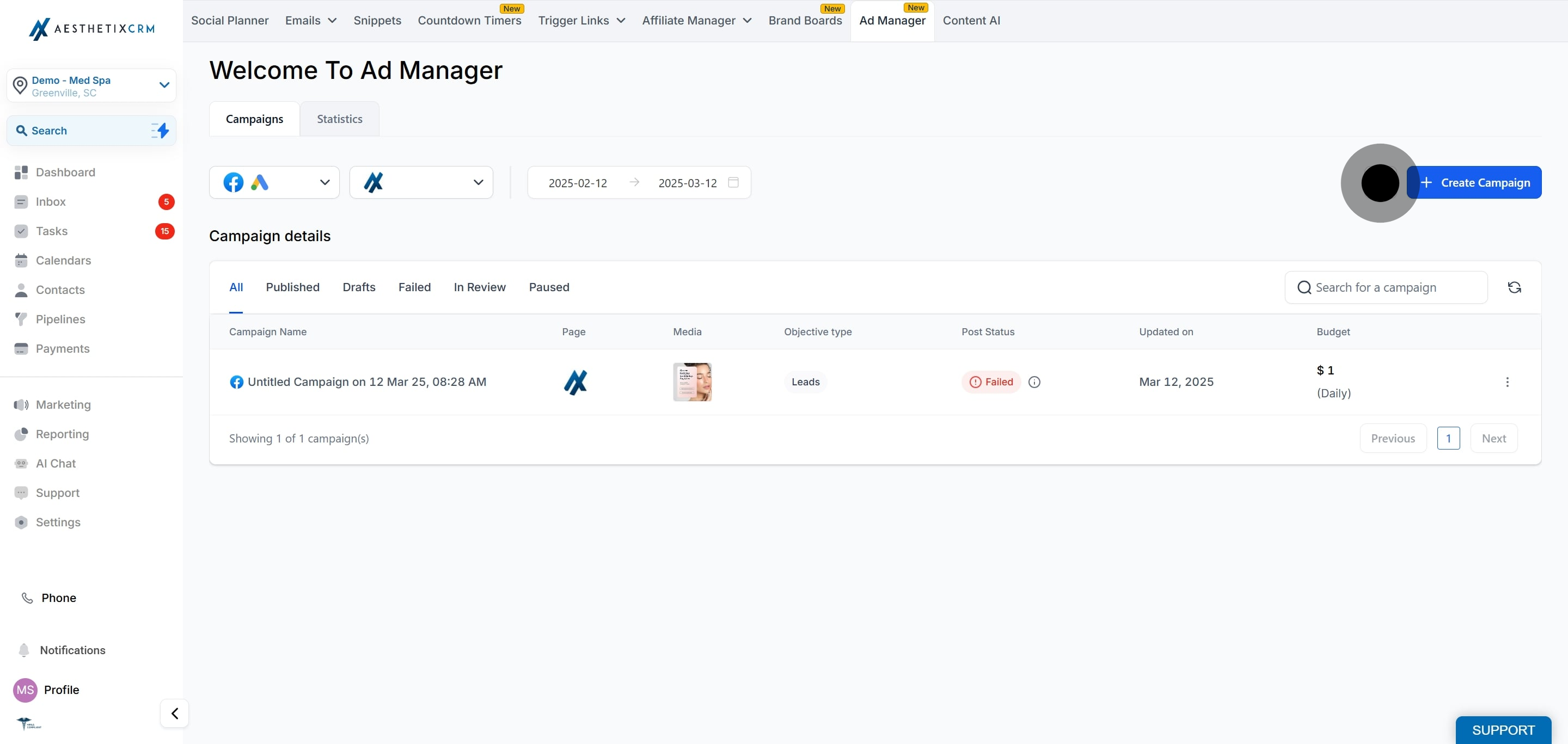
Click Ad Manager.

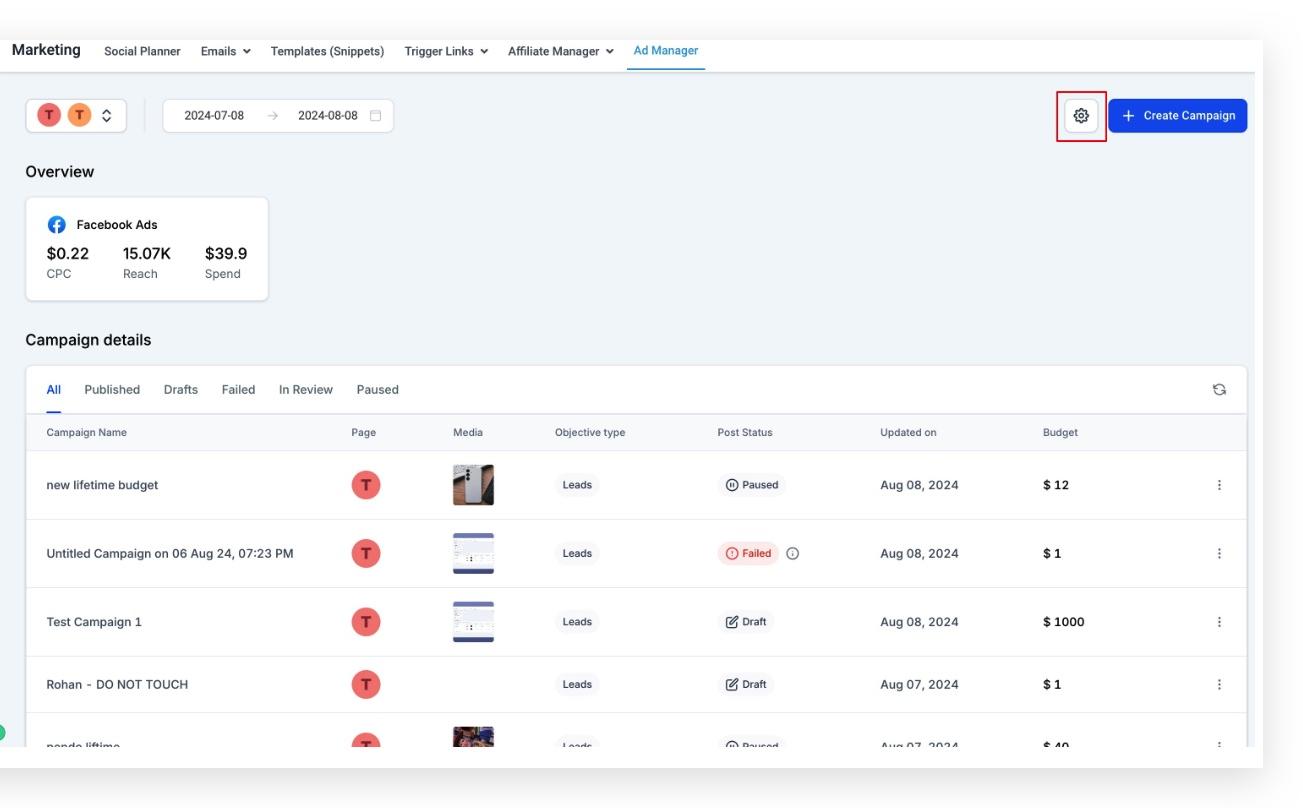
Open Settings by clicking the settings icon on the Ad Manager home page.
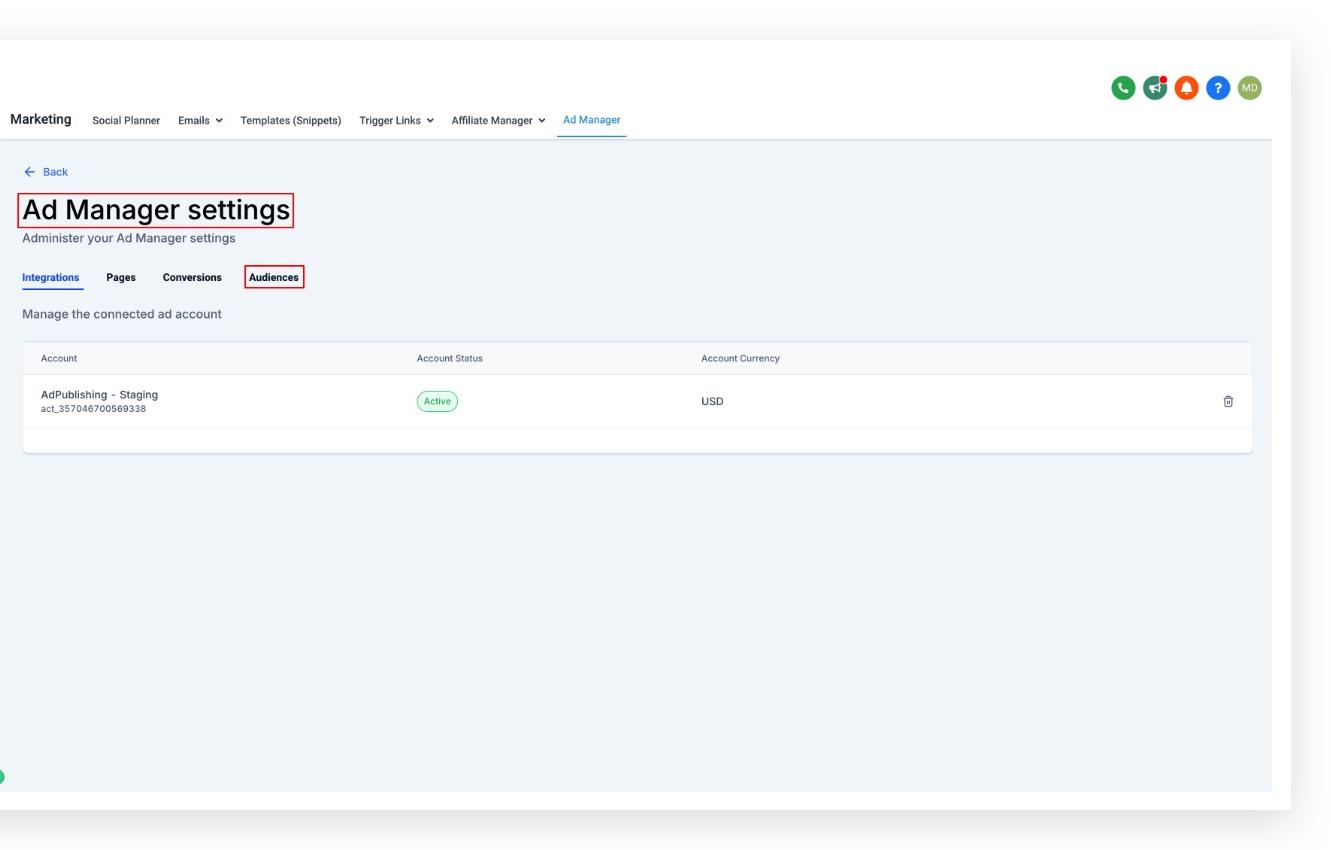
Click Audiences.
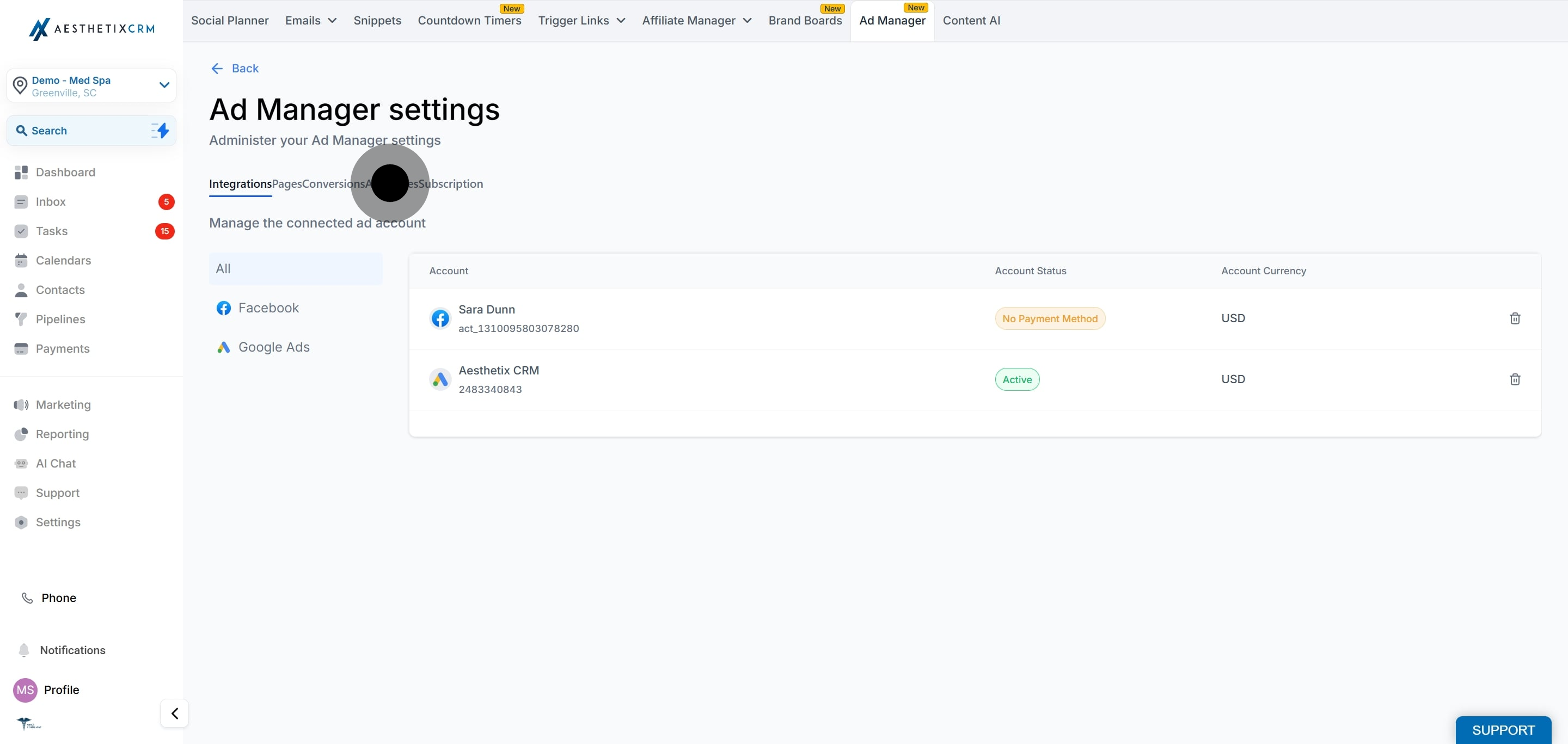
There are four tabs under Ad Manager settings: Integrations, Pages, Conversions, and Audiences, each holding a specific function or set of information. This article focuses on the Audiences tab.
Once you open the Audiences tab, you can see the list of all audiences created within Ad Manager as well as the audiences already created in Meta and pulled in from your connected ad account.
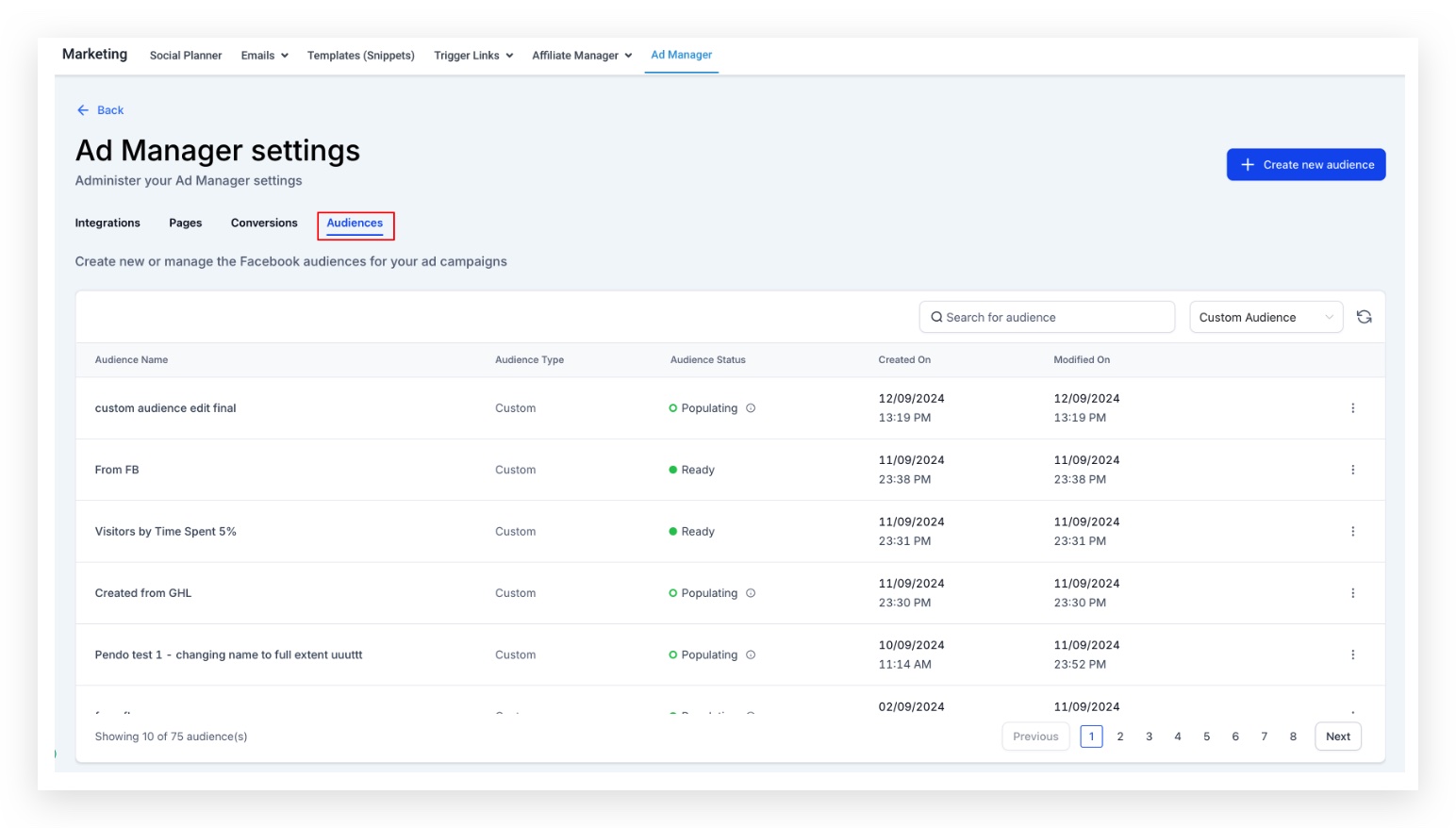
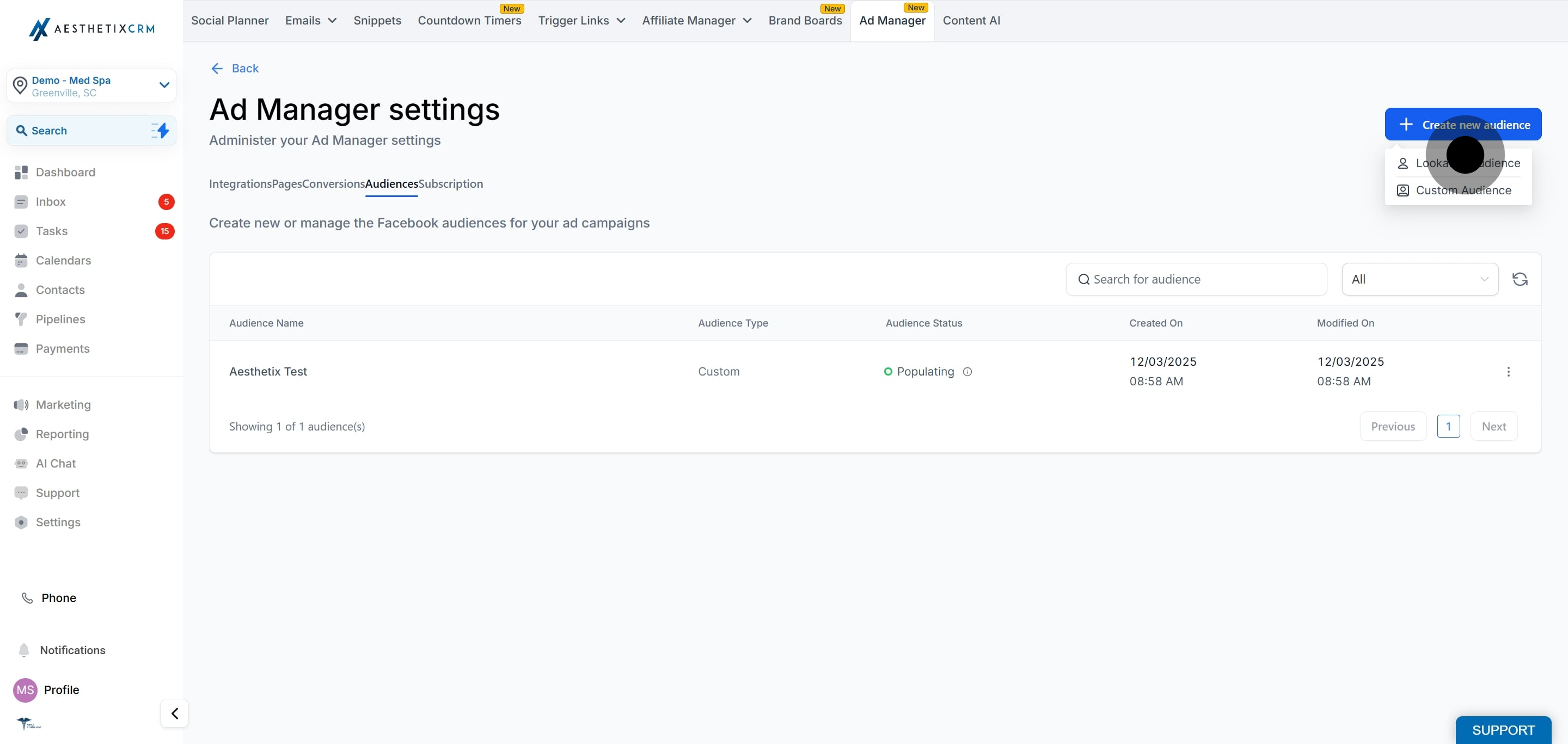
There are two ways to create a new audience (both custom and lookalike):
During campaign creation. Both custom and lookalike audiences can be built inside the campaign creation flow. See the Custom Audiences and Lookalike Audiences guides for detailed steps.
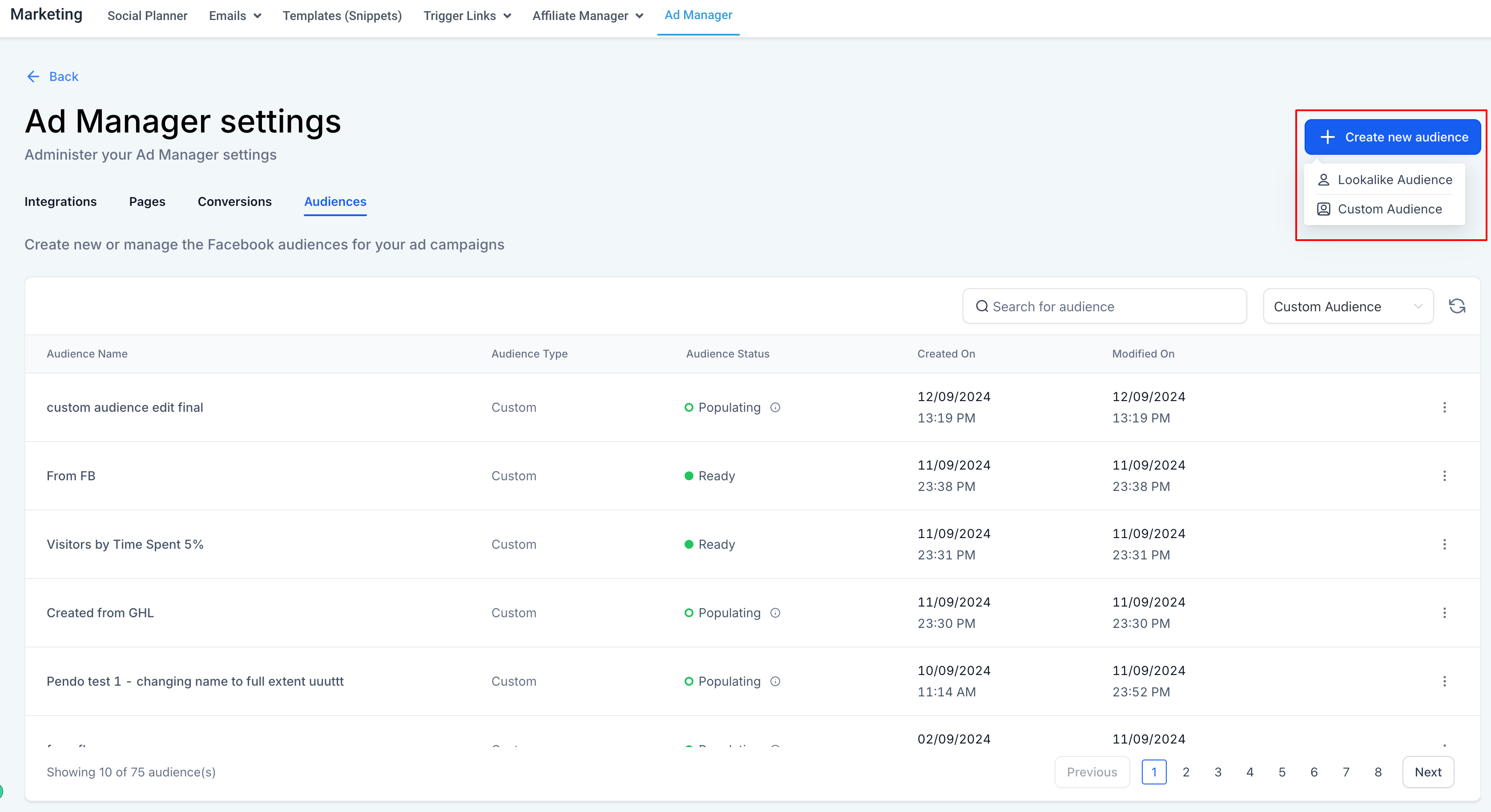
From the Audiences tab. Click the Create new audience button, which opens two options: Lookalike and Custom Audience. Selecting either starts the matching creation flow, and the finished audience begins showing up in the list below.
Along with creating new audiences, you can manage the ones already in your list.
Search. Click the Search for audience box and type the name of the audience you want to find.
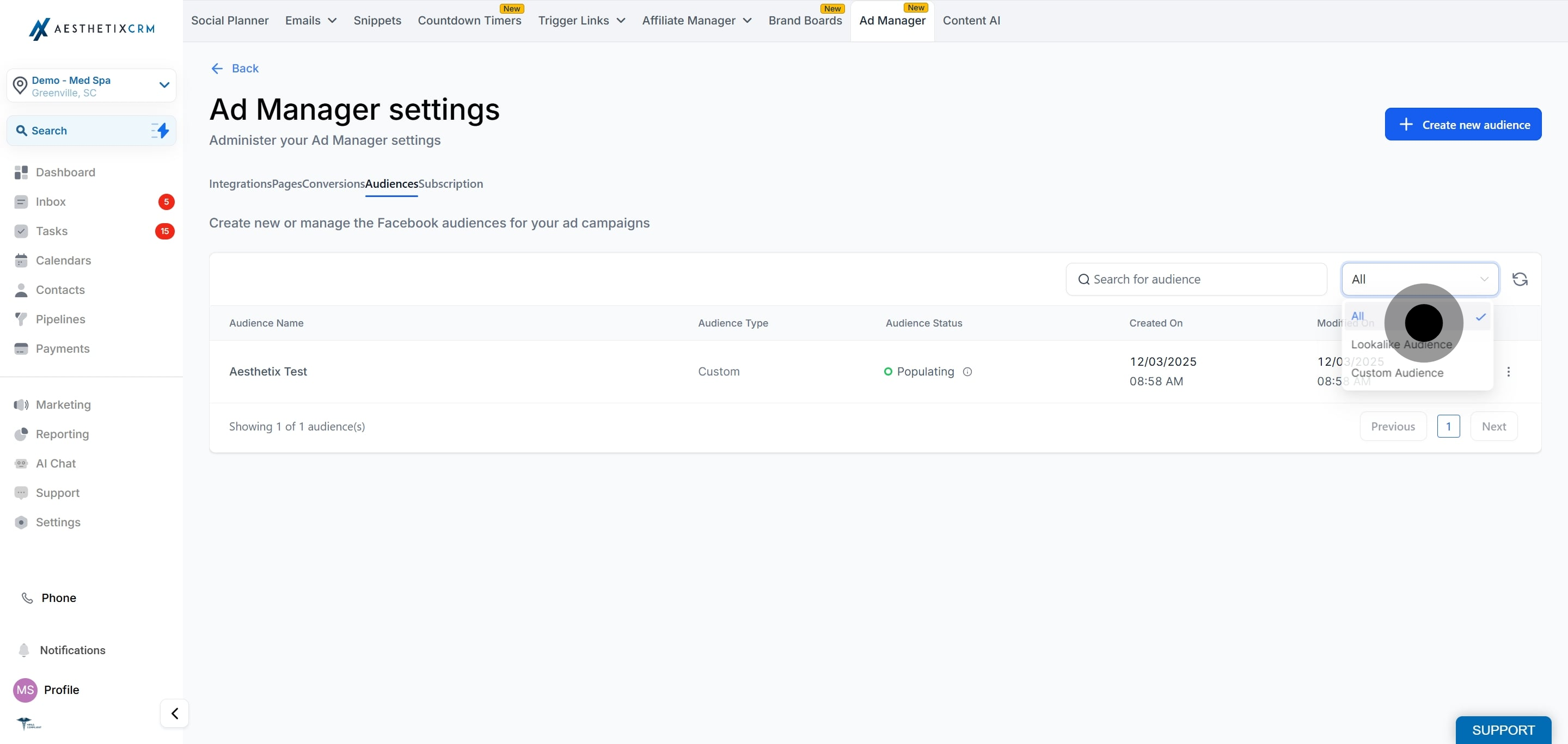
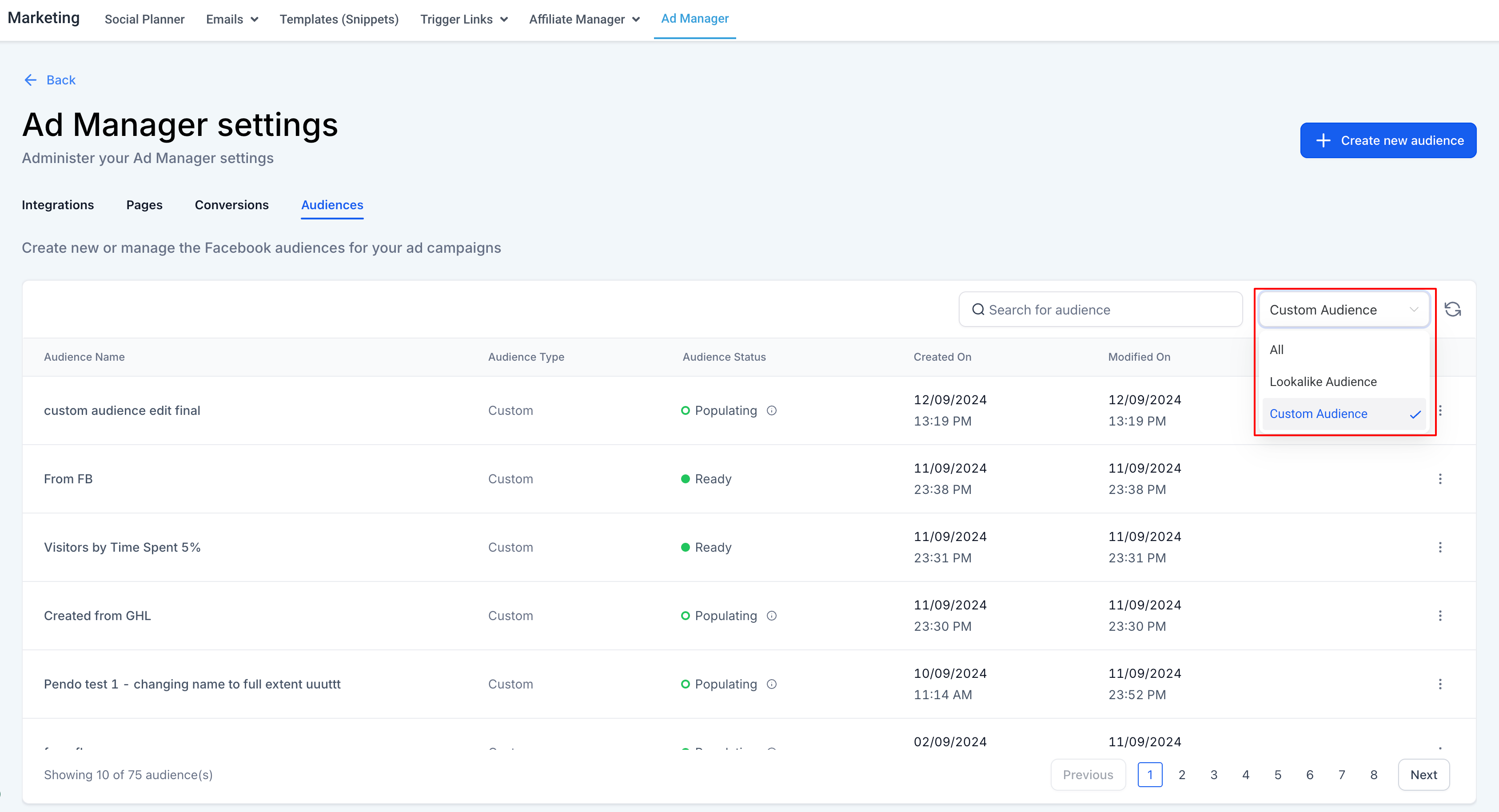
Filter by type. A selection box next to the search box lets you show All, Custom, or Lookalike audiences:
All shows every audience regardless of type.
Custom Audience shows only the custom audiences in Ad Manager.
Lookalike Audience shows only the lookalike audiences in Ad Manager.
You can edit the name and description of any existing audience.
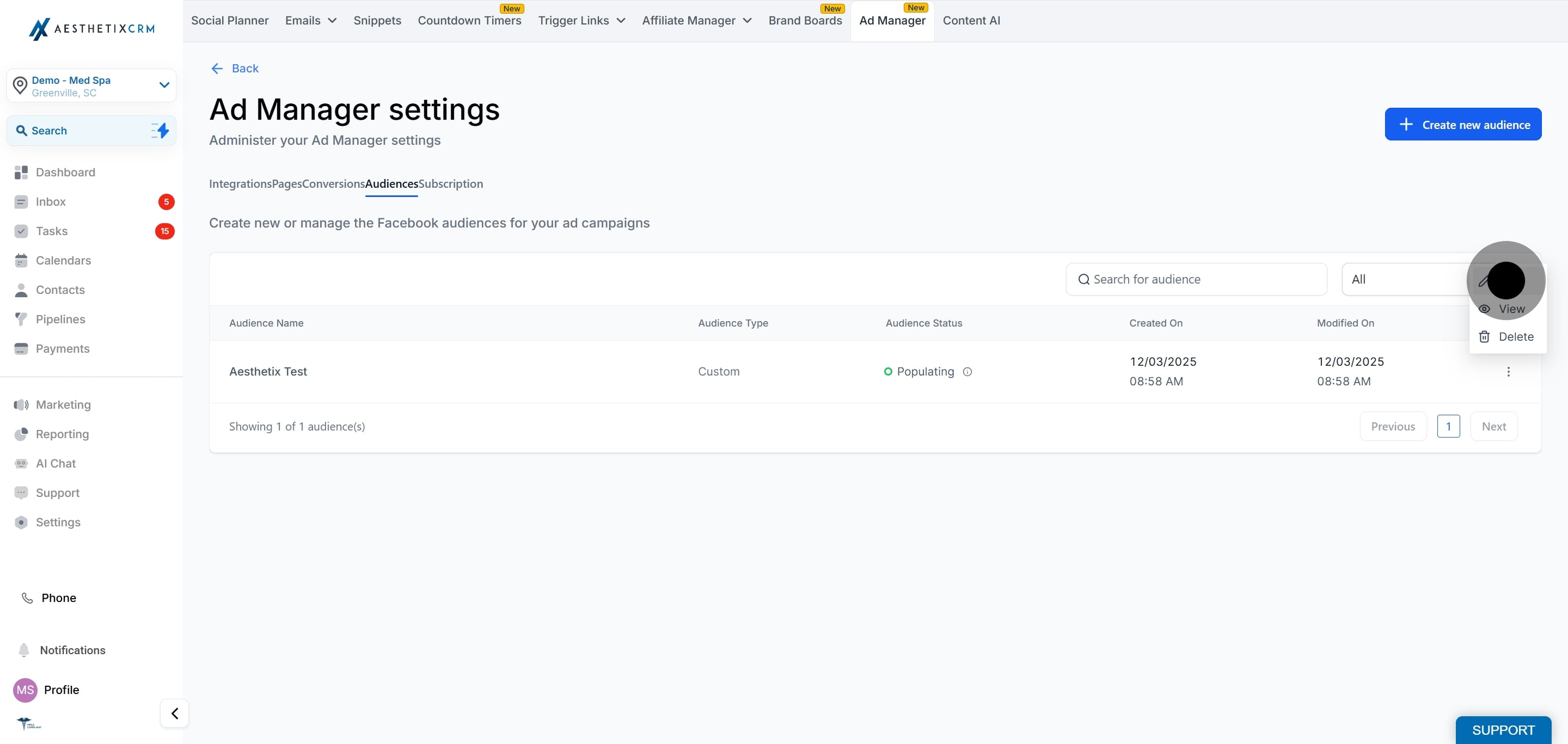
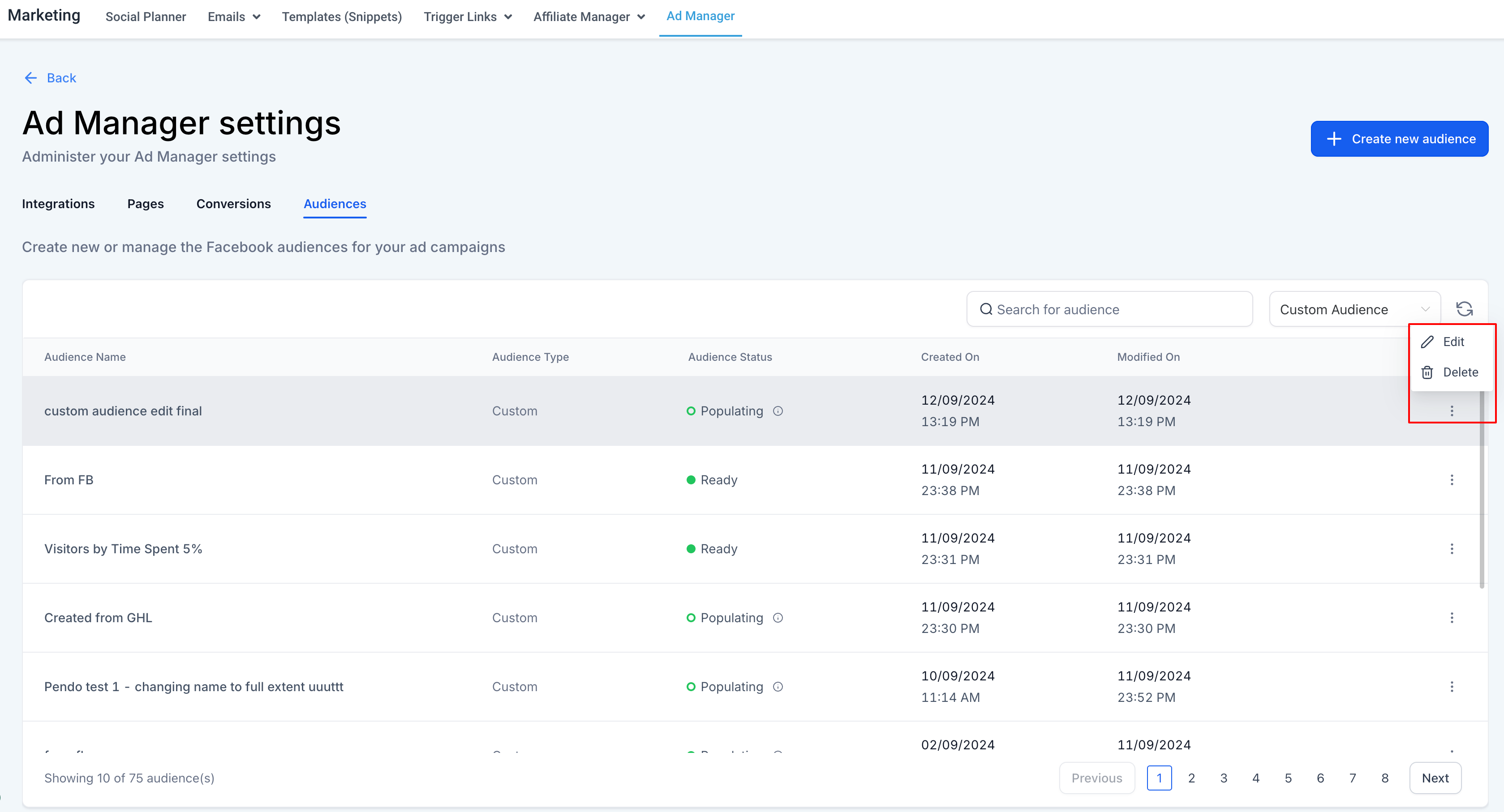
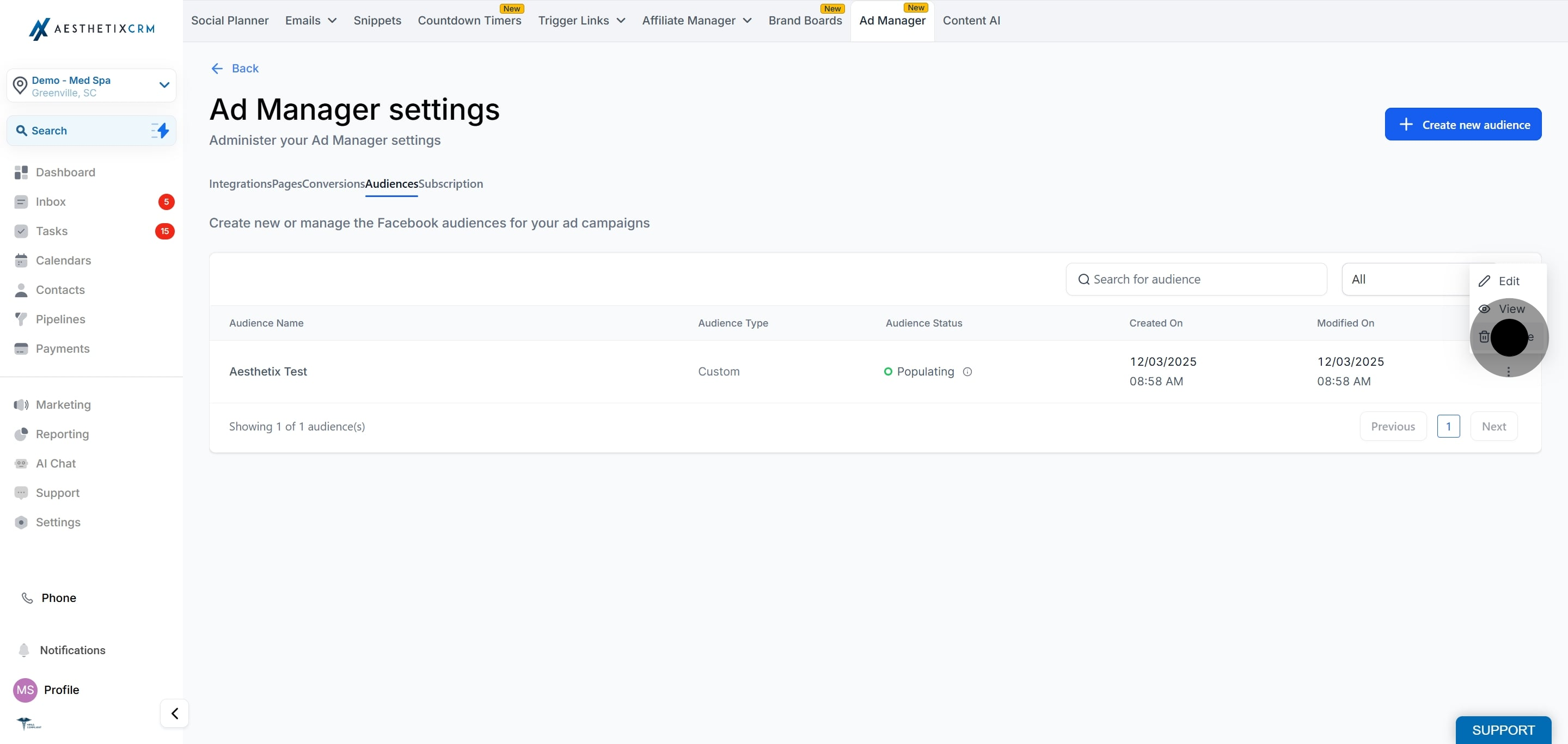
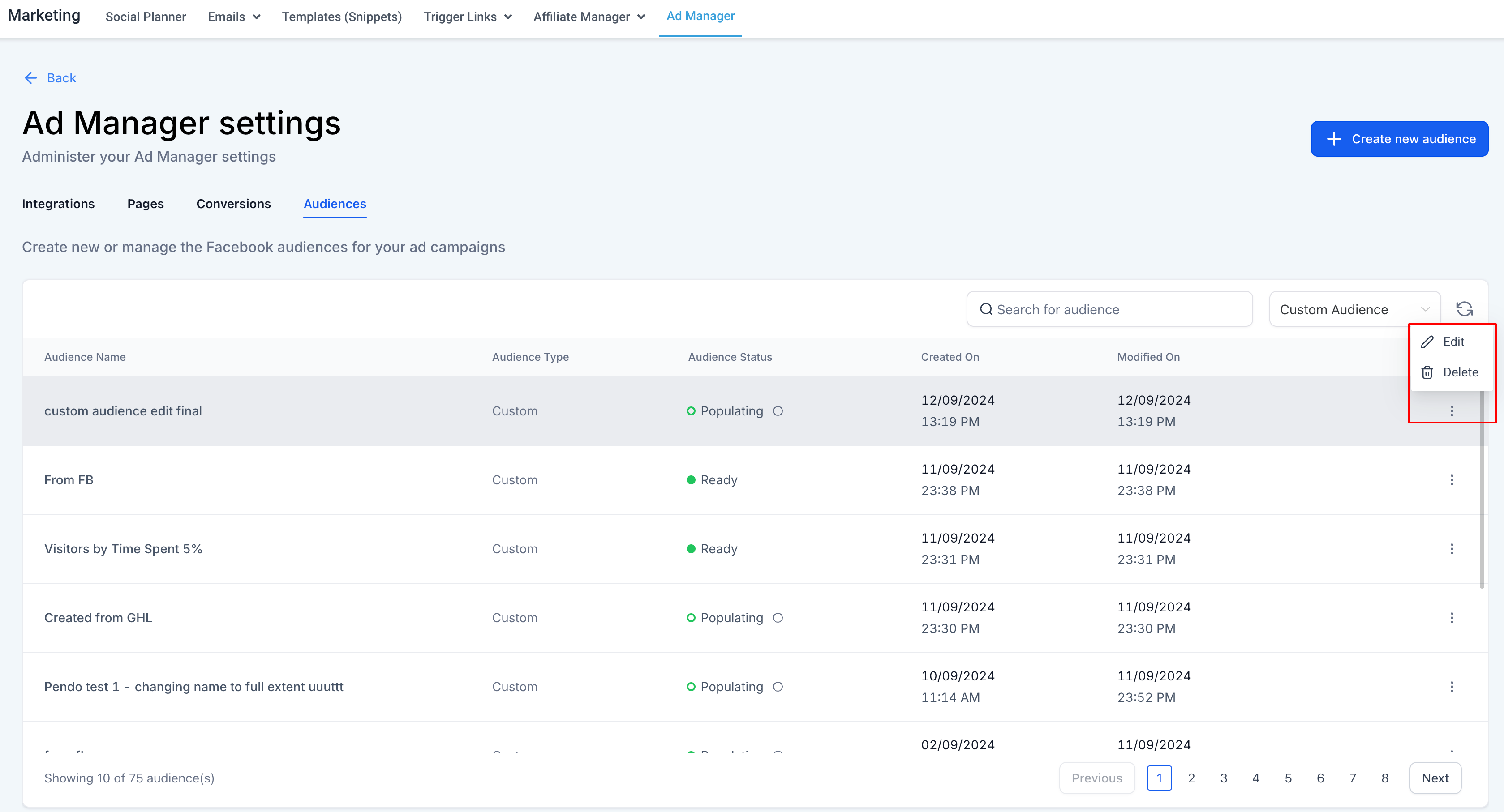
Click the ellipsis (the three dots) in line with the audience.
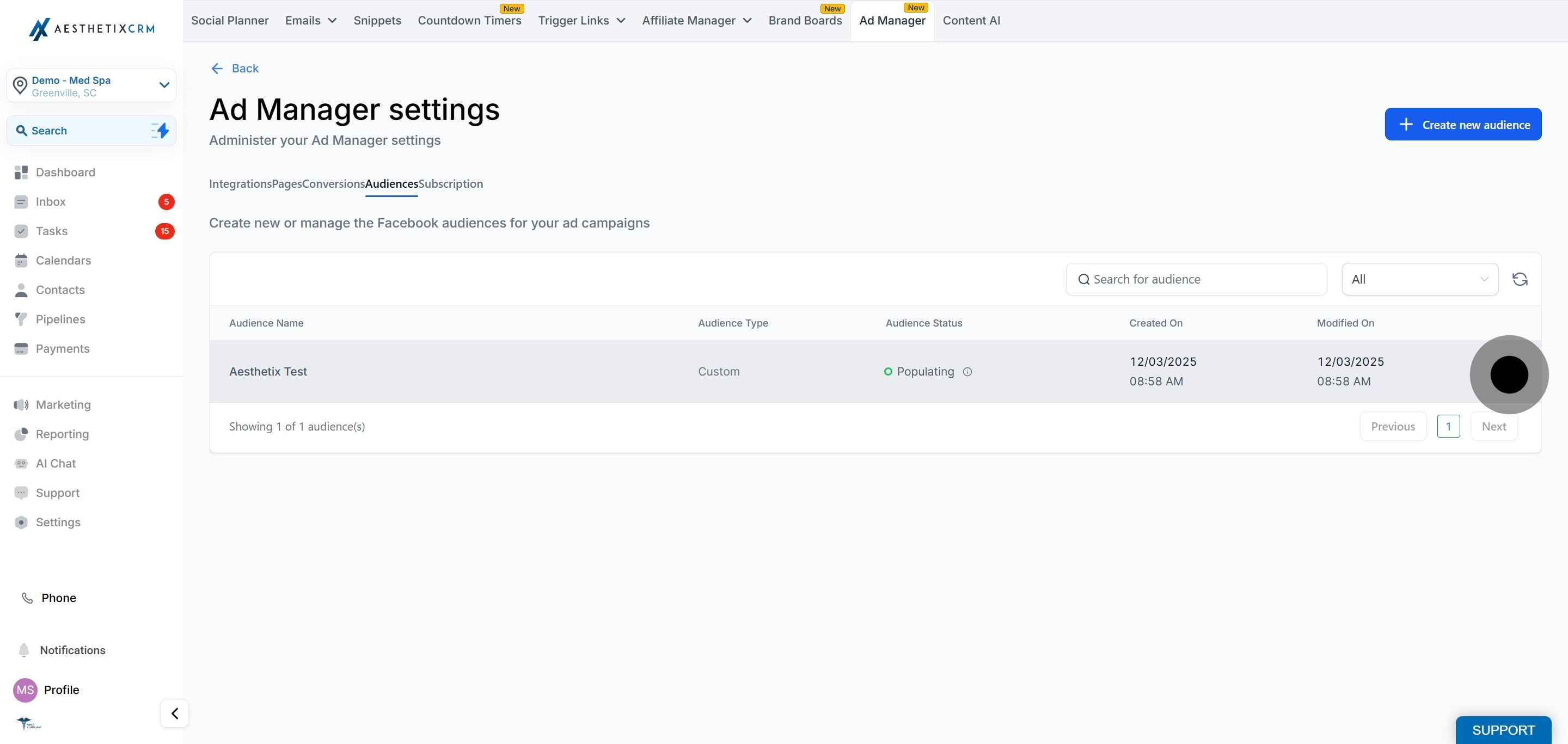
Click Edit.
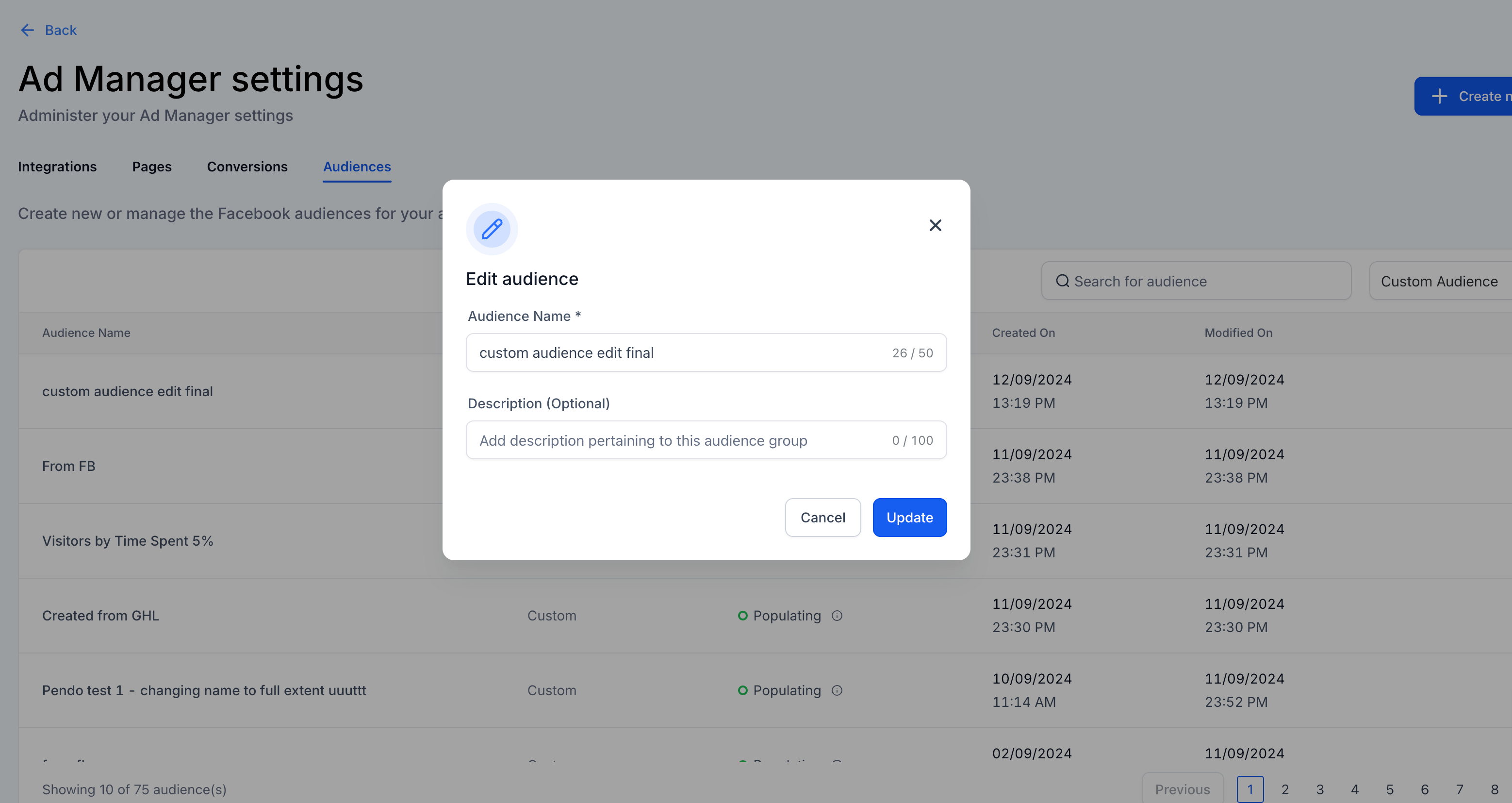
A dialog box appears where you can edit the name and description of the selected audience.
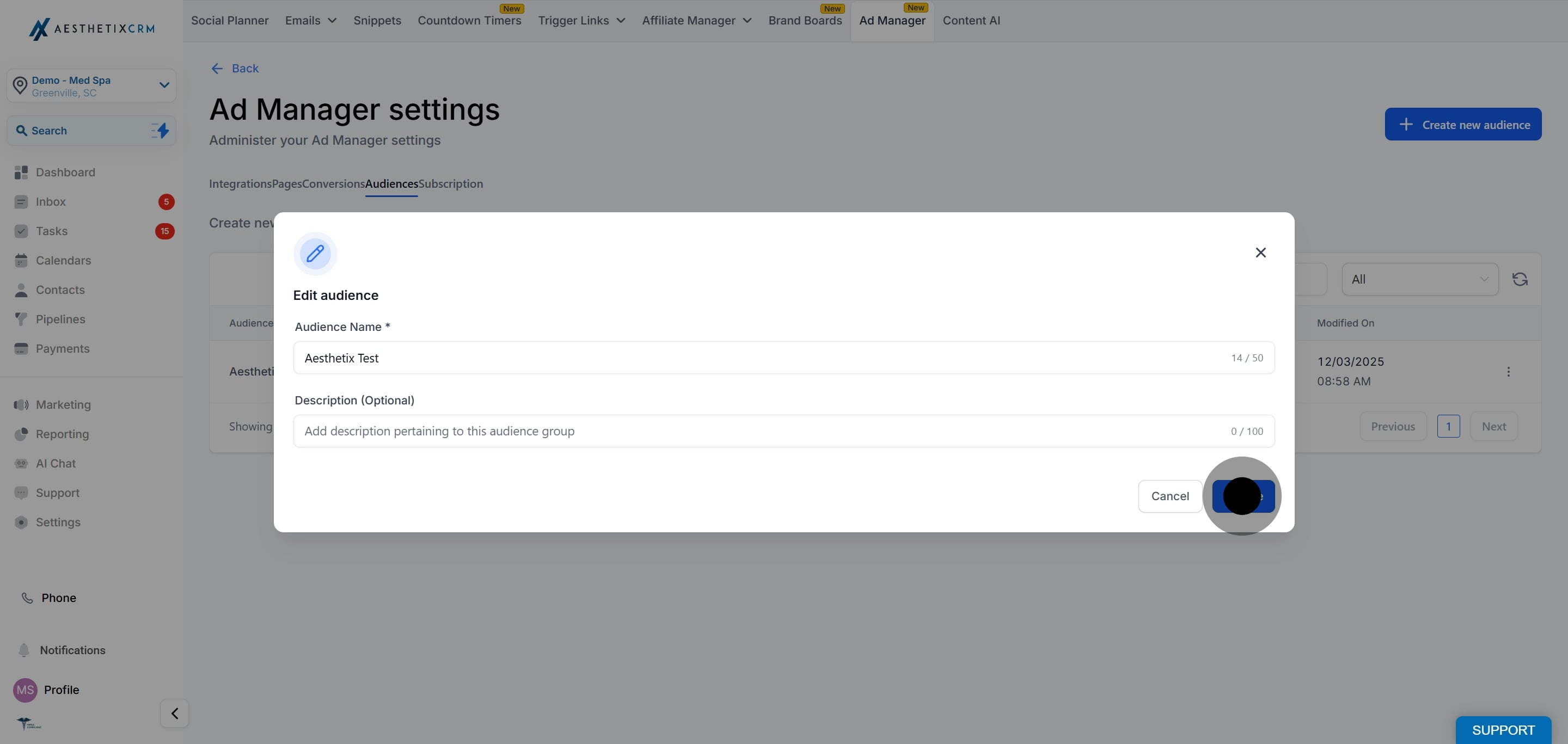
Click Update to save your changes.
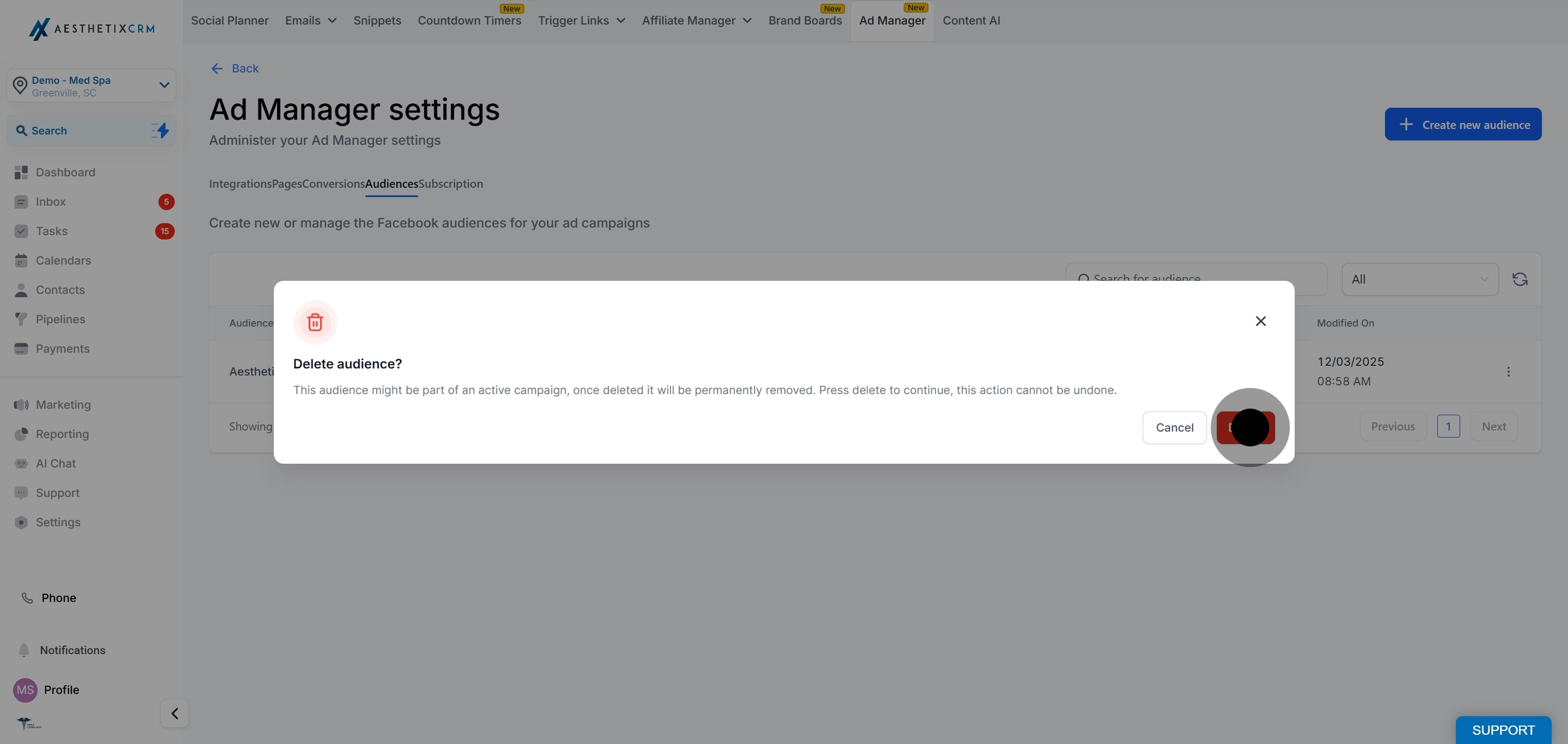
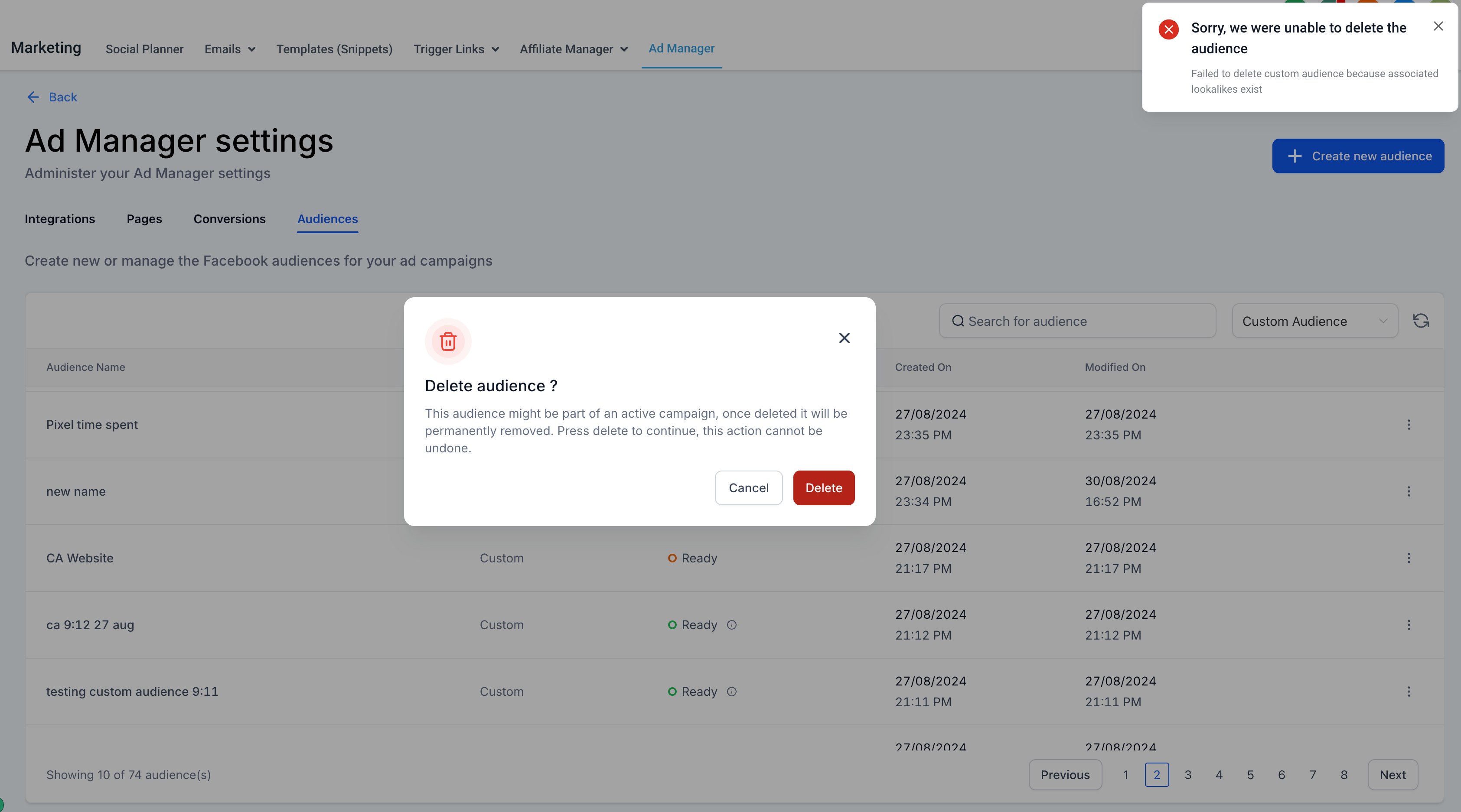
The Delete option is also found under the ellipsis in line with each audience. Clicking it removes the audience from all draft and paused campaigns, provided the audience is not tied to any active campaign.
Open the ellipsis and choose the delete option.
Confirm by selecting Delete.
Two rules apply when deleting:
If you try to delete an audience that is tied to one or more active campaigns, a validation message appears telling you the audience cannot be deleted because it is part of an active campaign. To delete it, pause all active campaigns associated with the audience first.
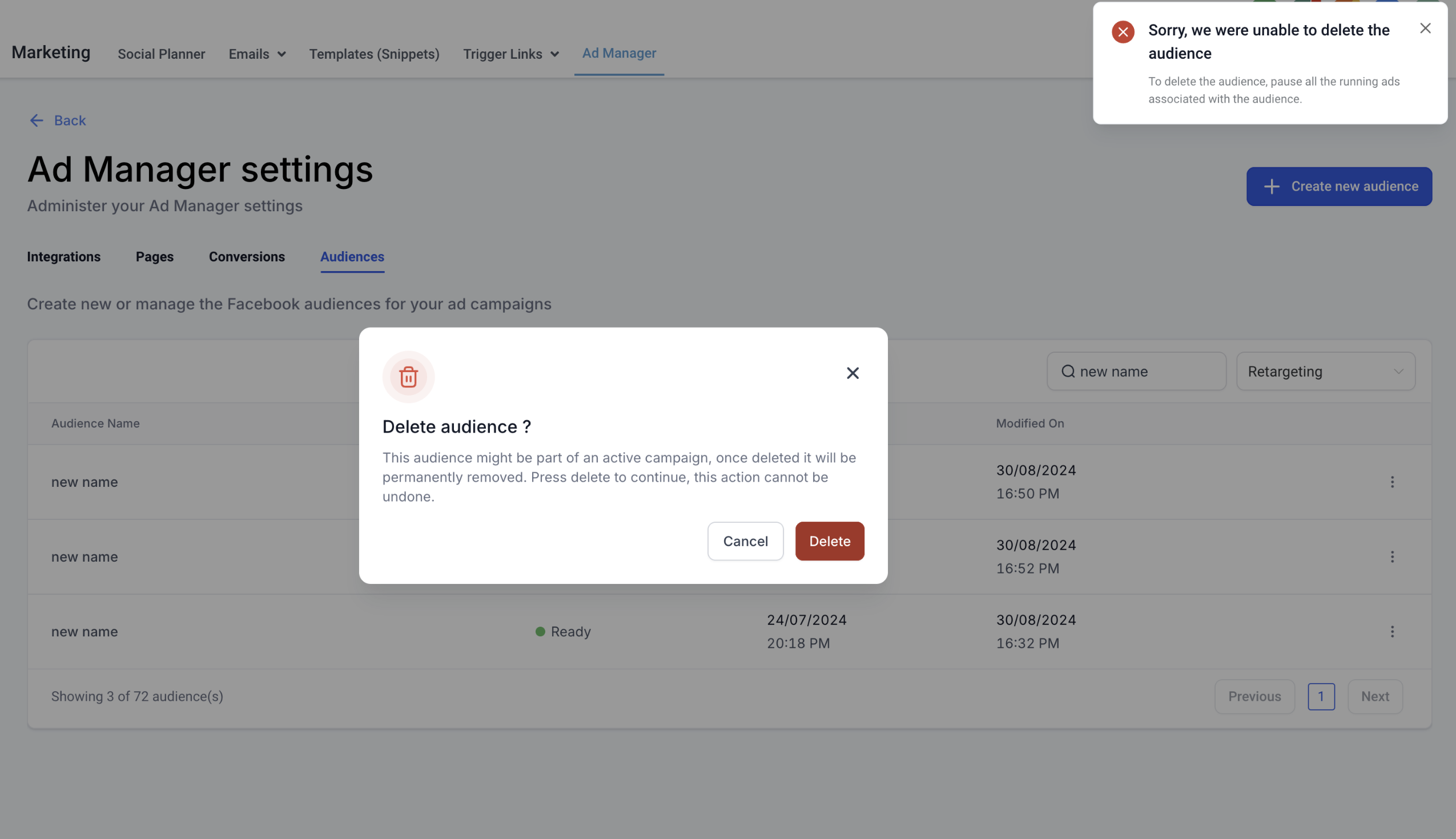
If you try to delete a custom audience that was used to create a lookalike audience, an error message appears telling you the deletion cannot proceed until the associated lookalike audience is removed first.
Is there a limit to the number of audiences I can create? There is no specific limit, but it is best to keep your audience list organized so it stays easy to manage. Too many overlapping audiences can complicate your campaign strategy.
How often can I update the criteria for my audiences? You can update your audiences as often as you need. Keep in mind that frequent changes may affect the performance and consistency of your targeting.
What happens to an audience if I delete it? Once an audience is deleted it cannot be recovered, and any campaigns that relied on it will be affected. Confirm the deletion carefully before proceeding.
Can I use multiple audiences in a single ad campaign? Yes. Using more than one audience allows for more targeted strategies, but monitor performance across them so you can see which is driving results.
Where do the audiences already in my list come from? Your list includes audiences you built in Ad Manager plus any audiences already created in Meta and pulled in from your connected ad account.
Why can I only see my custom or lookalike audiences? The filter box next to the search bar controls which type is shown. Set it back to All to see every audience regardless of type.
Can I create audiences before I am ready to launch a campaign? Yes. Use the Create new audience button in the Audiences tab to build custom or lookalike audiences in advance so they are ready when you launch.
