The Ad Manager Template Library lets you launch high-performing ad campaigns quickly using pre-built templates, and save your own best campaigns as templates to reuse later. For a busy practice, this means you can start a new consultation or promotion campaign in minutes instead of building everything from scratch.
This guide covers creating a campaign from a template and saving an existing campaign as a template.
Save time and effort: Pre-designed templates let you launch ads in minutes instead of starting from a blank campaign.
High-quality designs: Templates come with quality stock imagery and content for a polished, professional look.
Stay on-brand: Keep messaging and design consistent across all your campaigns.
Easy to customize: Tweak the text, images, URLs, colors, and targeting while keeping the proven structure.
Cost-effective: Templates are a lower-cost alternative to custom design work, which is helpful when you do not have a large design budget.
Work better as a team: Templates simplify the process when multiple team members or locations are managing campaigns.
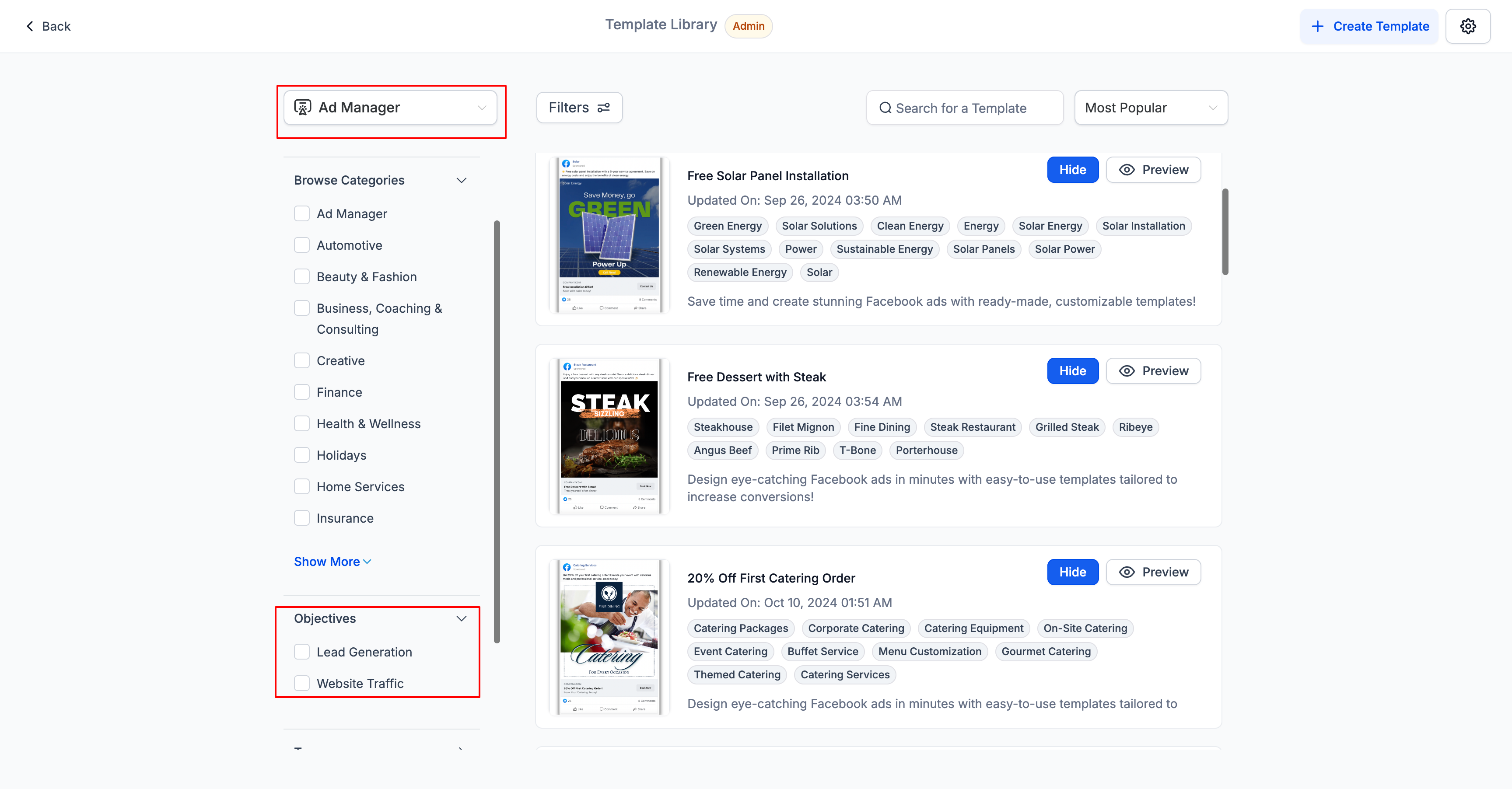
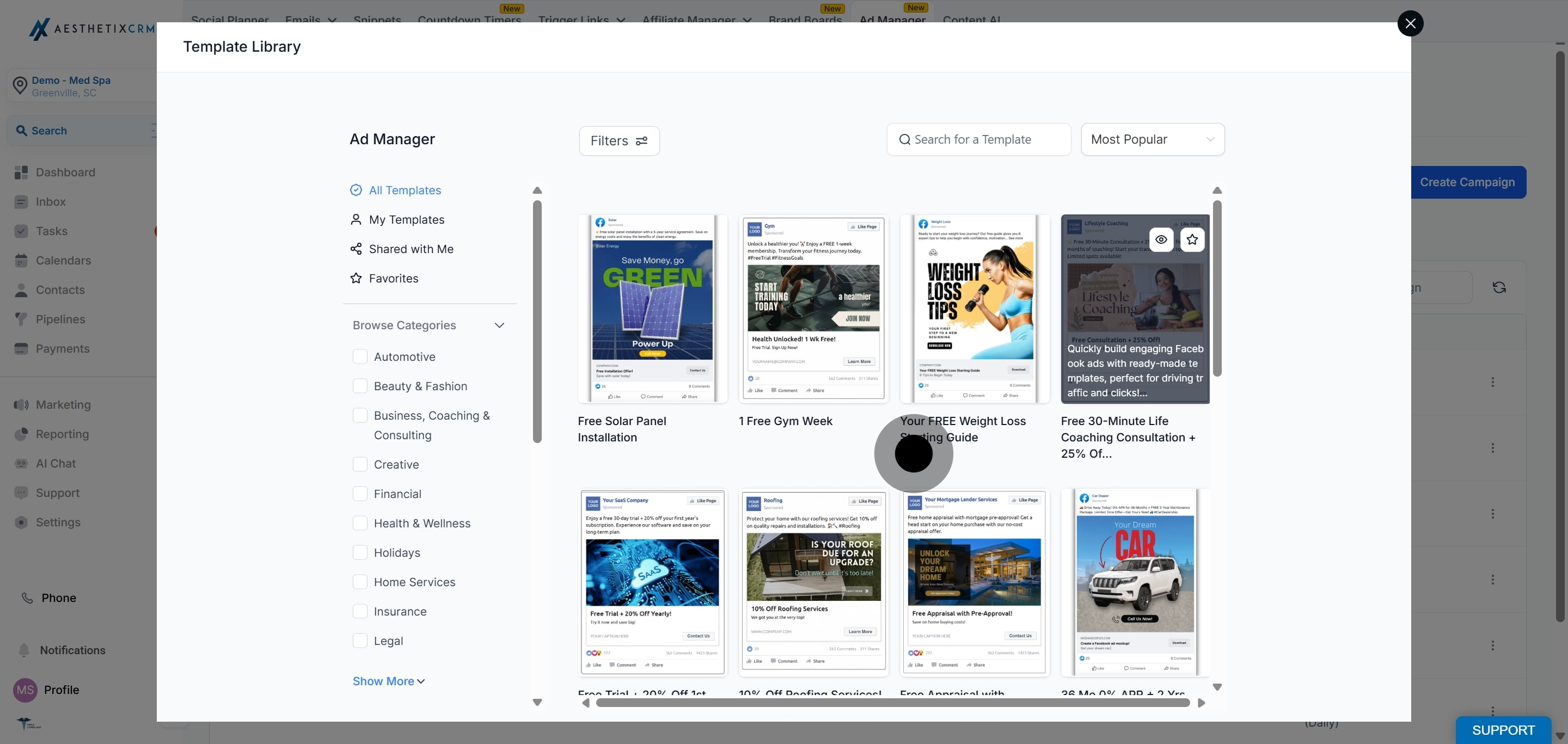
Templates specific to Ad Manager are grouped together in the Template Library. You can filter them by campaign objective, such as Lead Generation and Website Traffic, and additional objectives appear as filters as they are added to the campaign creation flow. When browsing, you can also filter by category (for example, a business category), by objective (Engagement, Lead Generation, Sales, Web Traffic), and by tags, and you can mark templates as favorites for quick access.
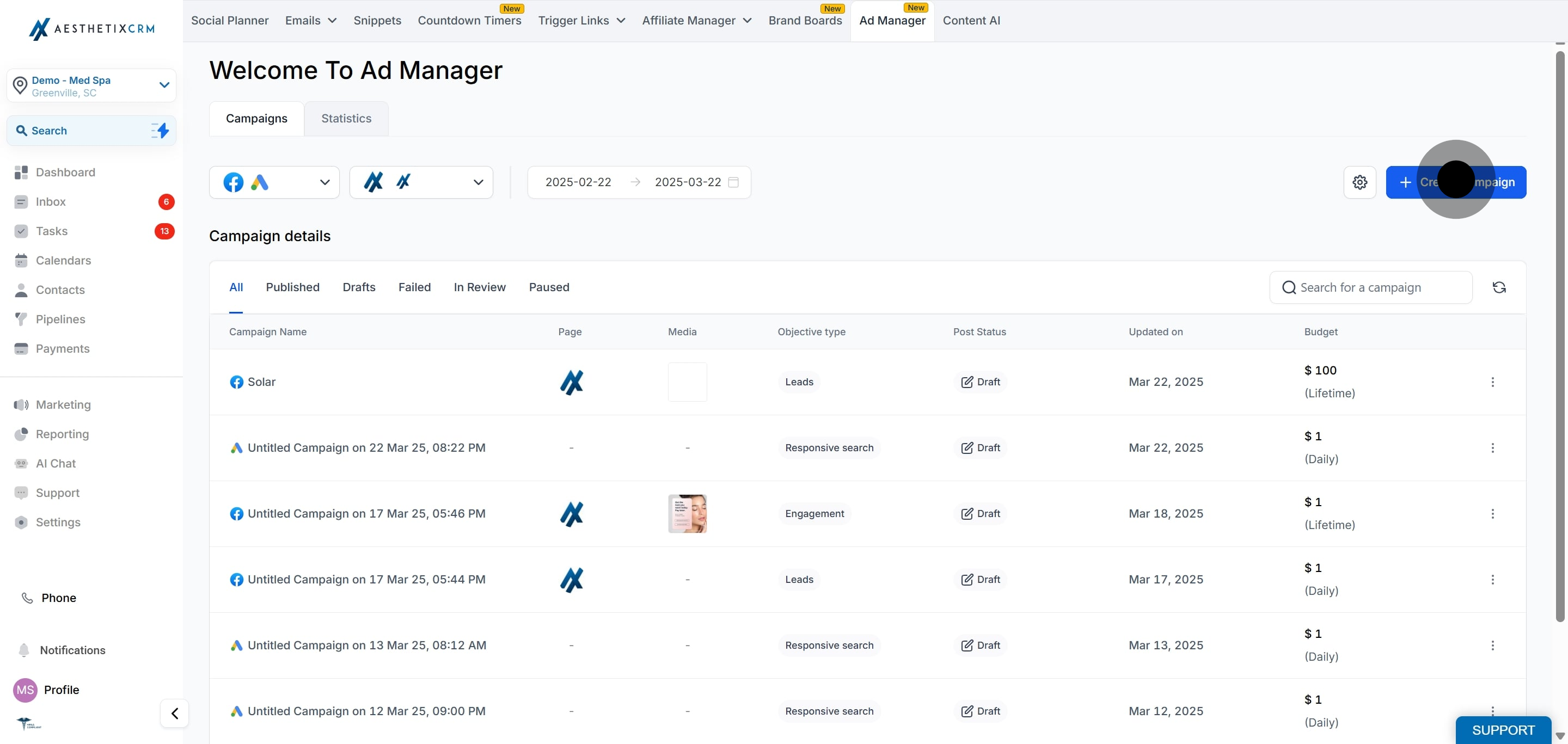
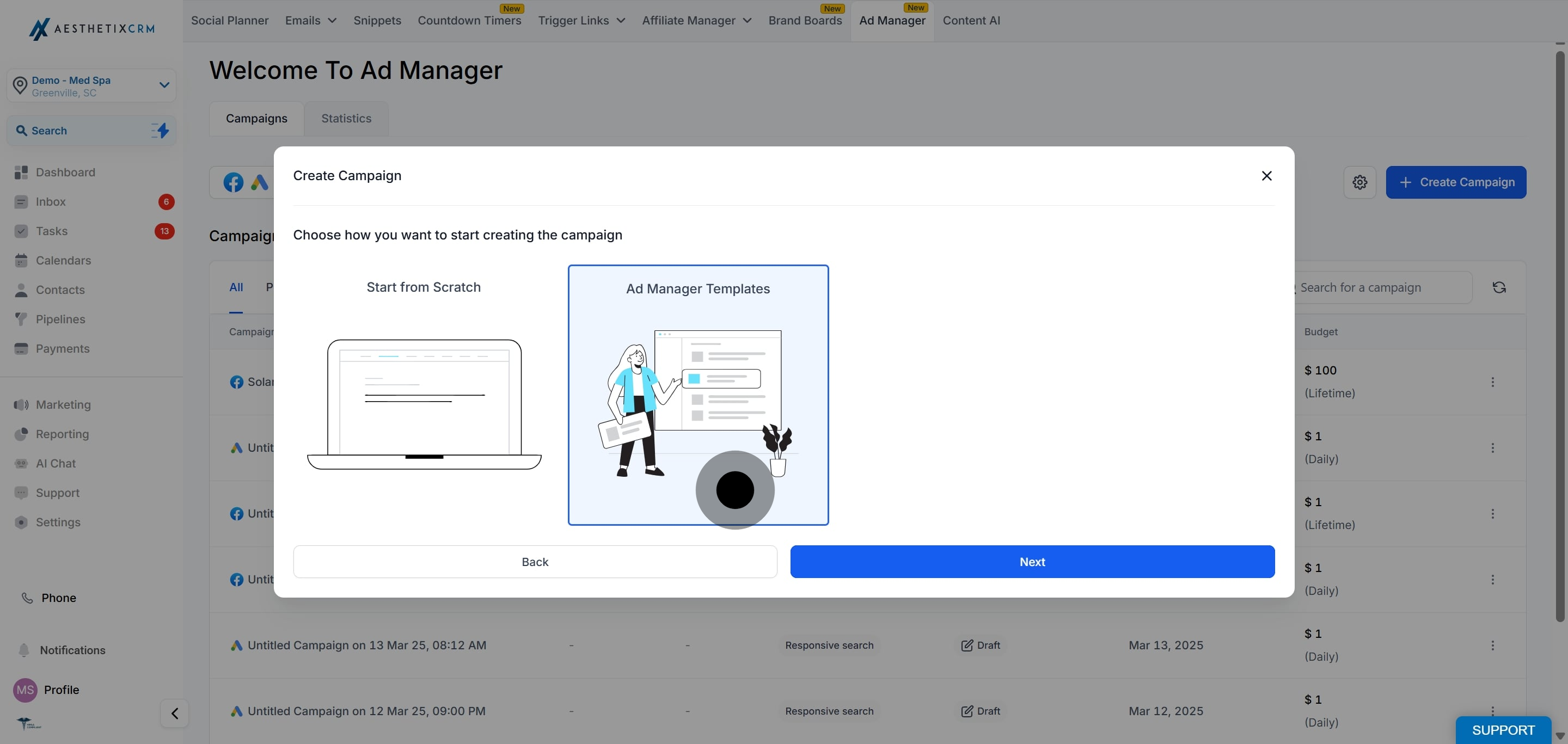
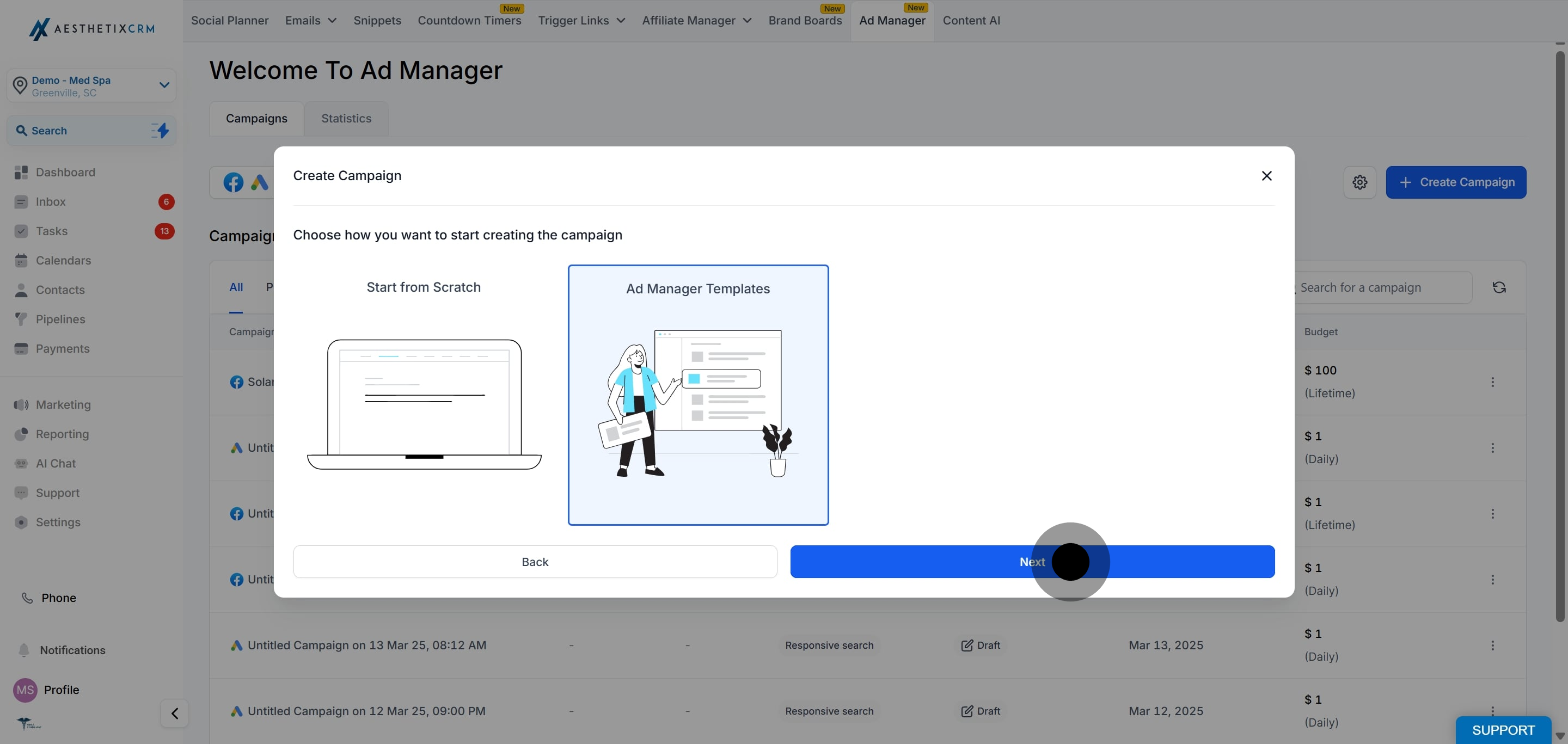
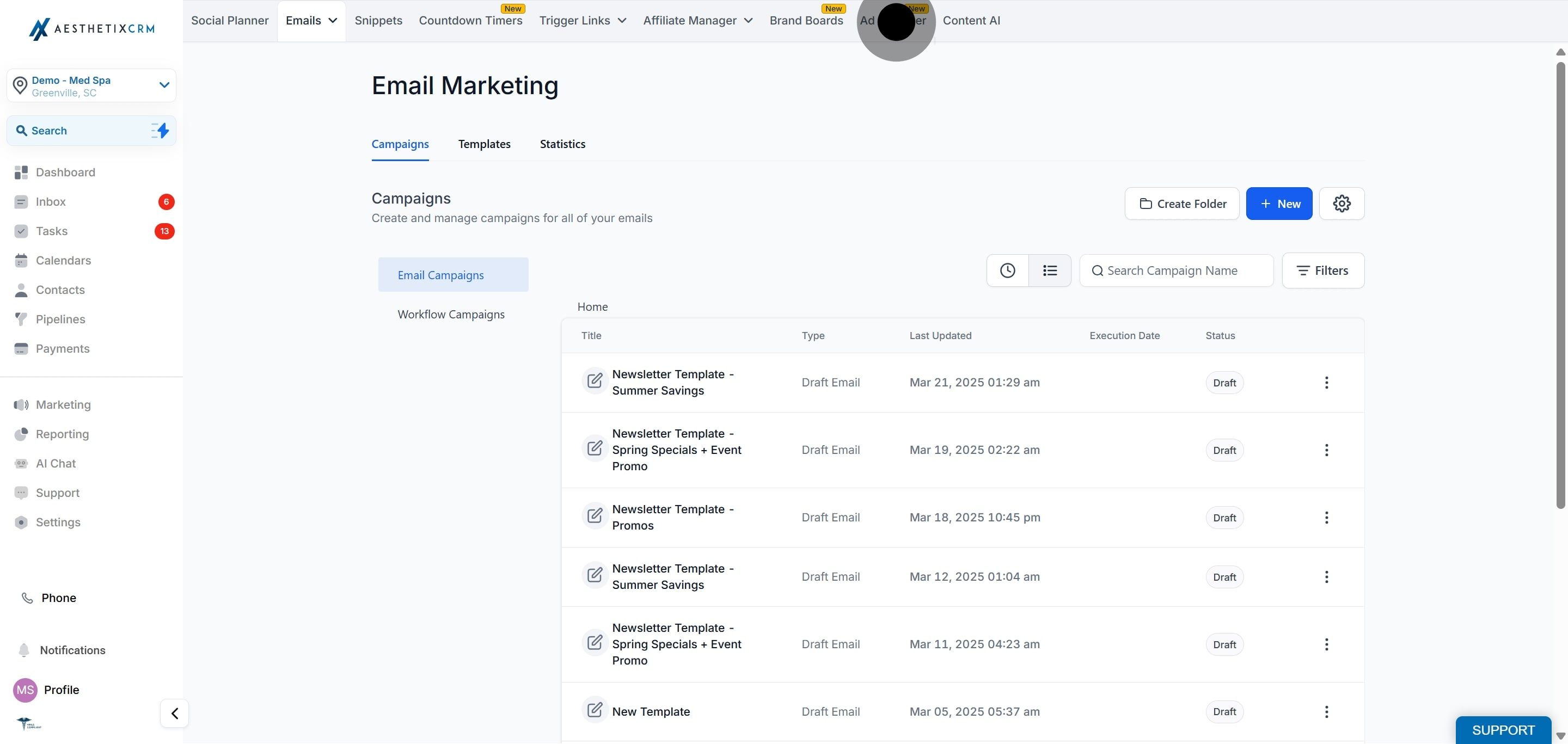
On the Ad Manager home screen, the Create Campaign button includes two options: Start from Scratch and Ad Manager Templates. Choosing Ad Manager Templates opens the template picker.
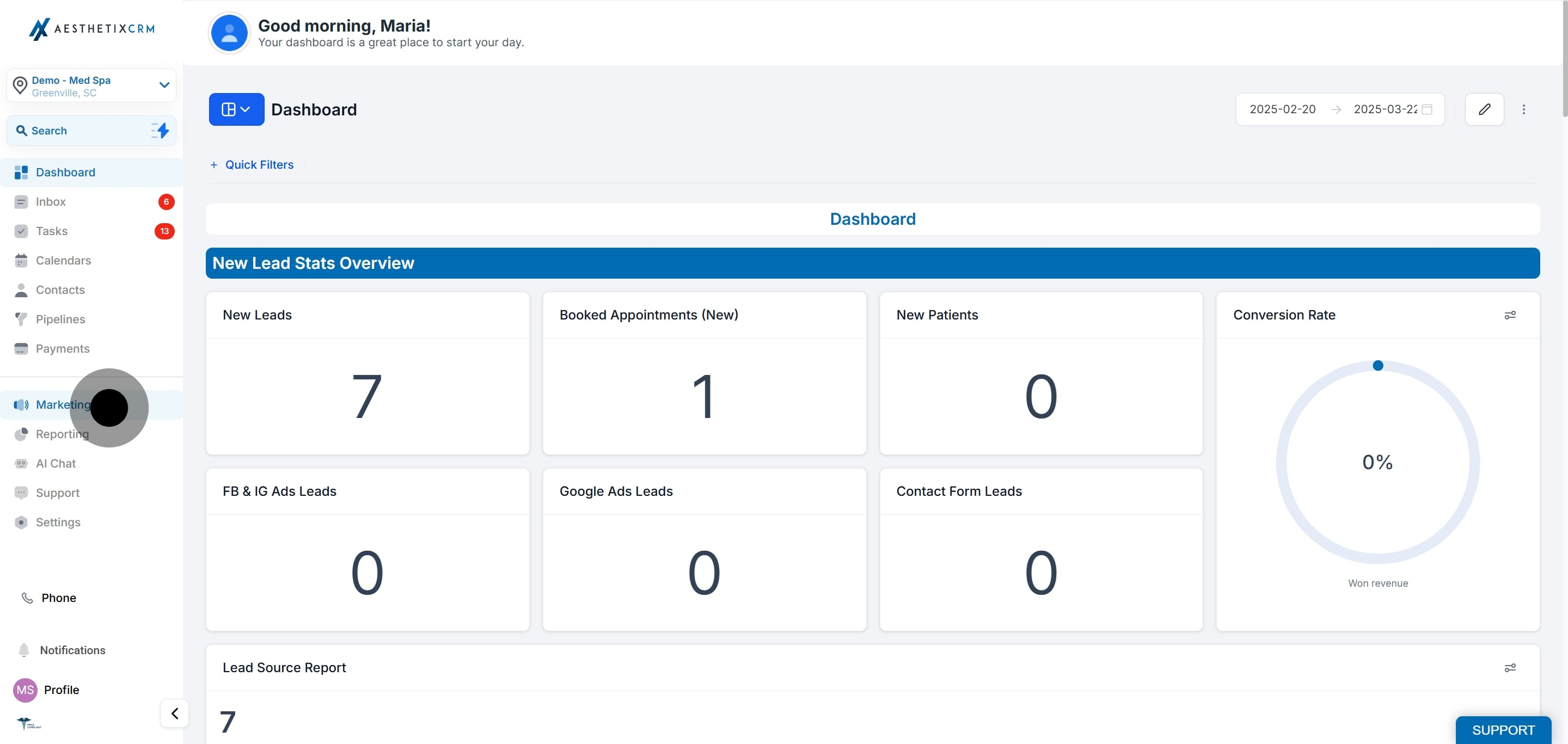
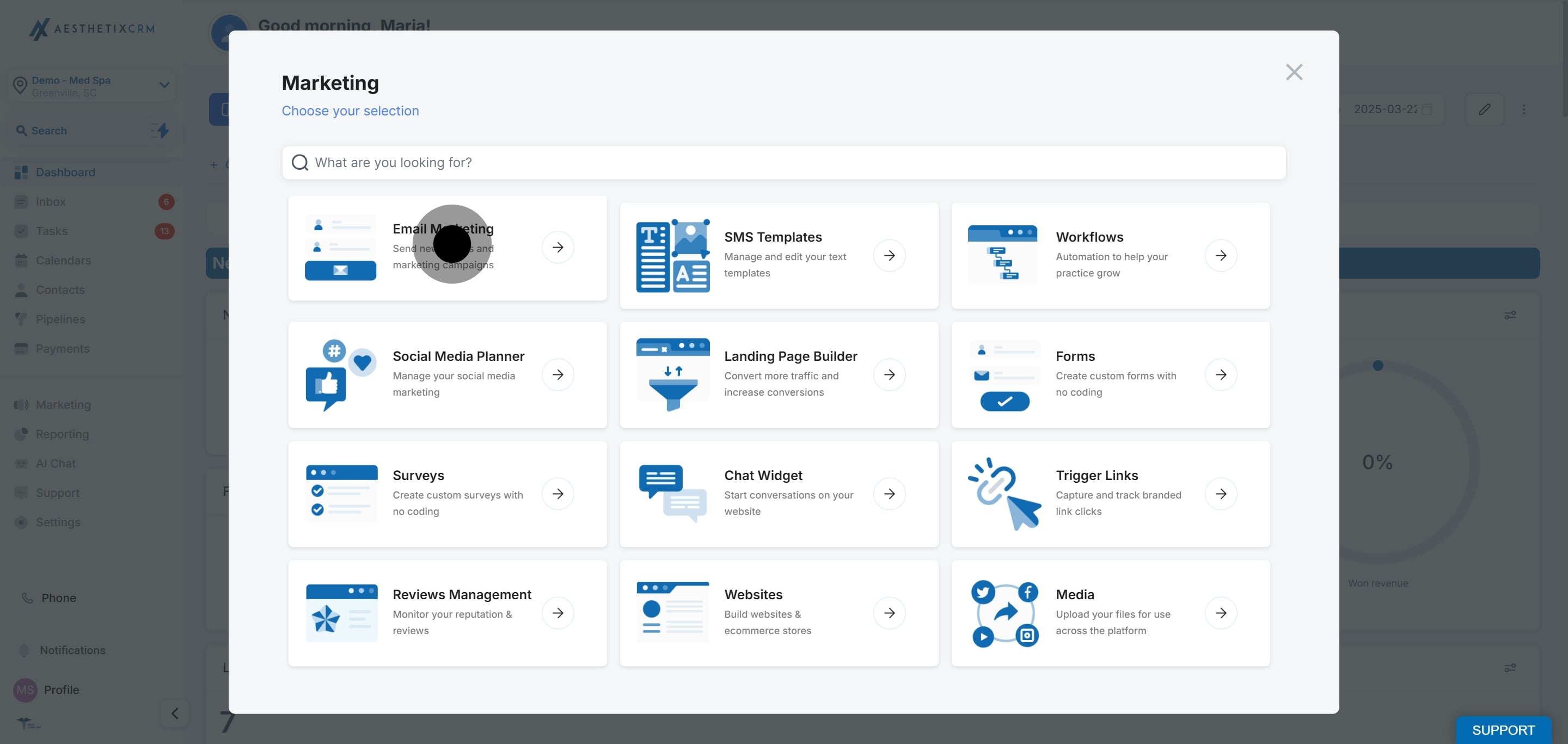
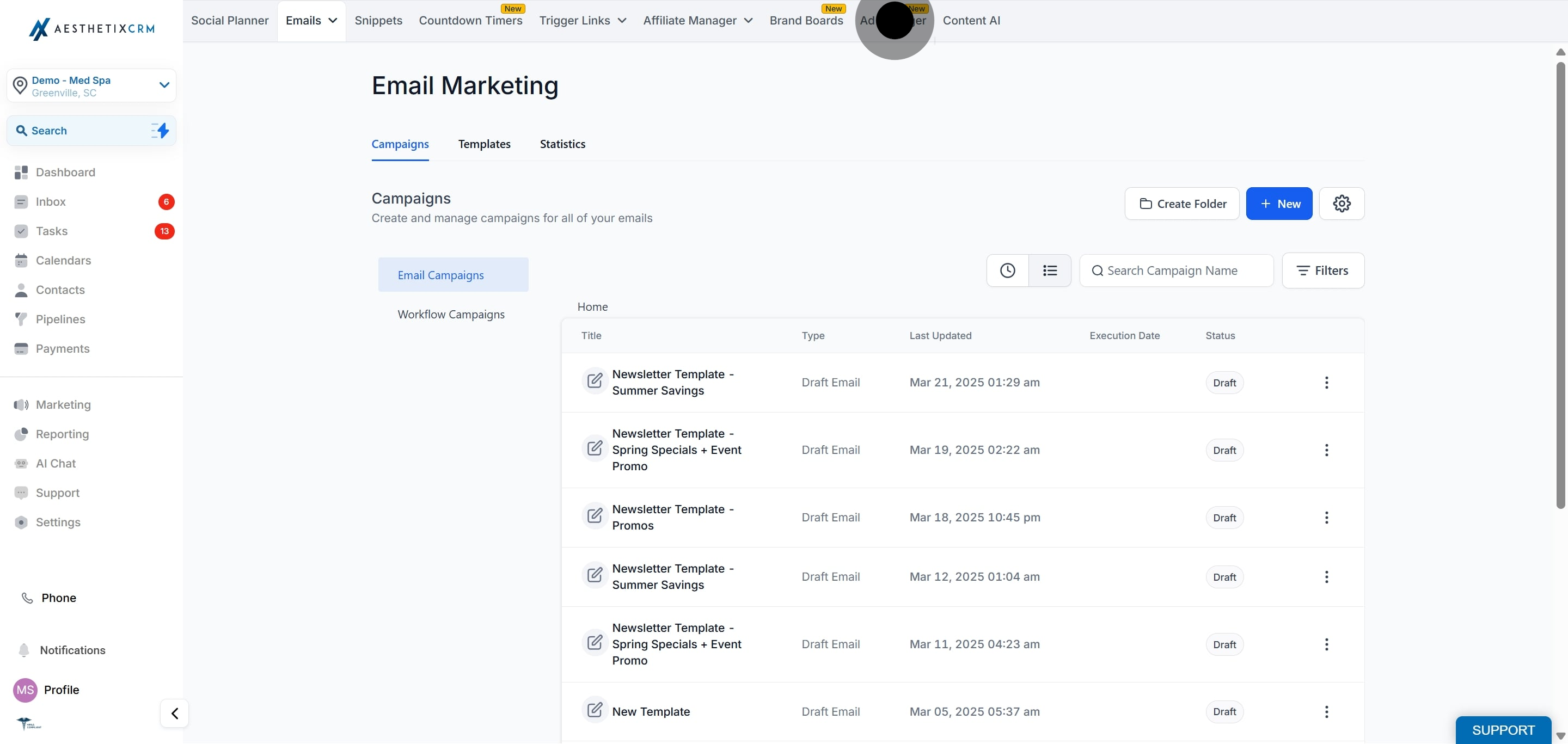
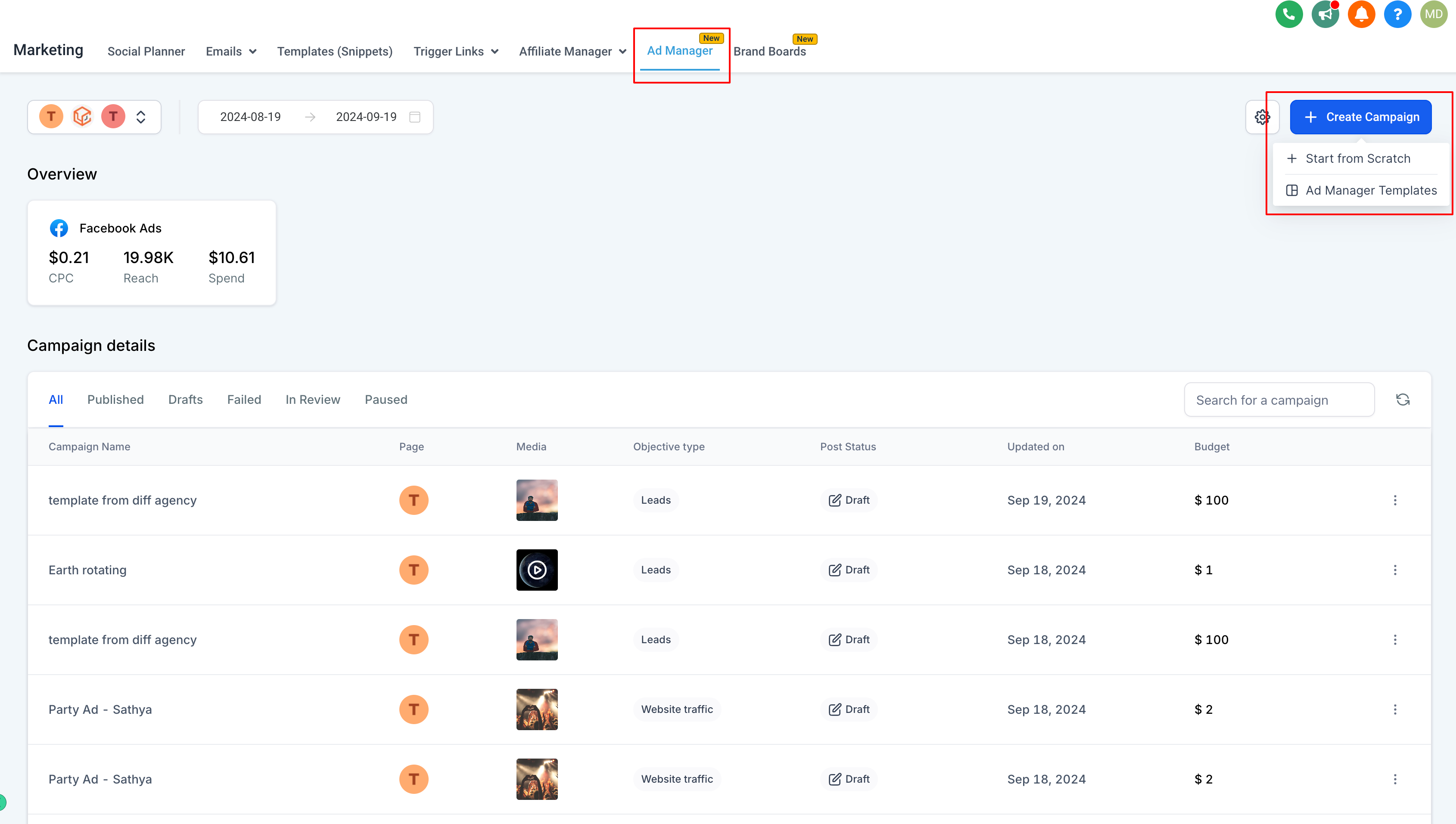
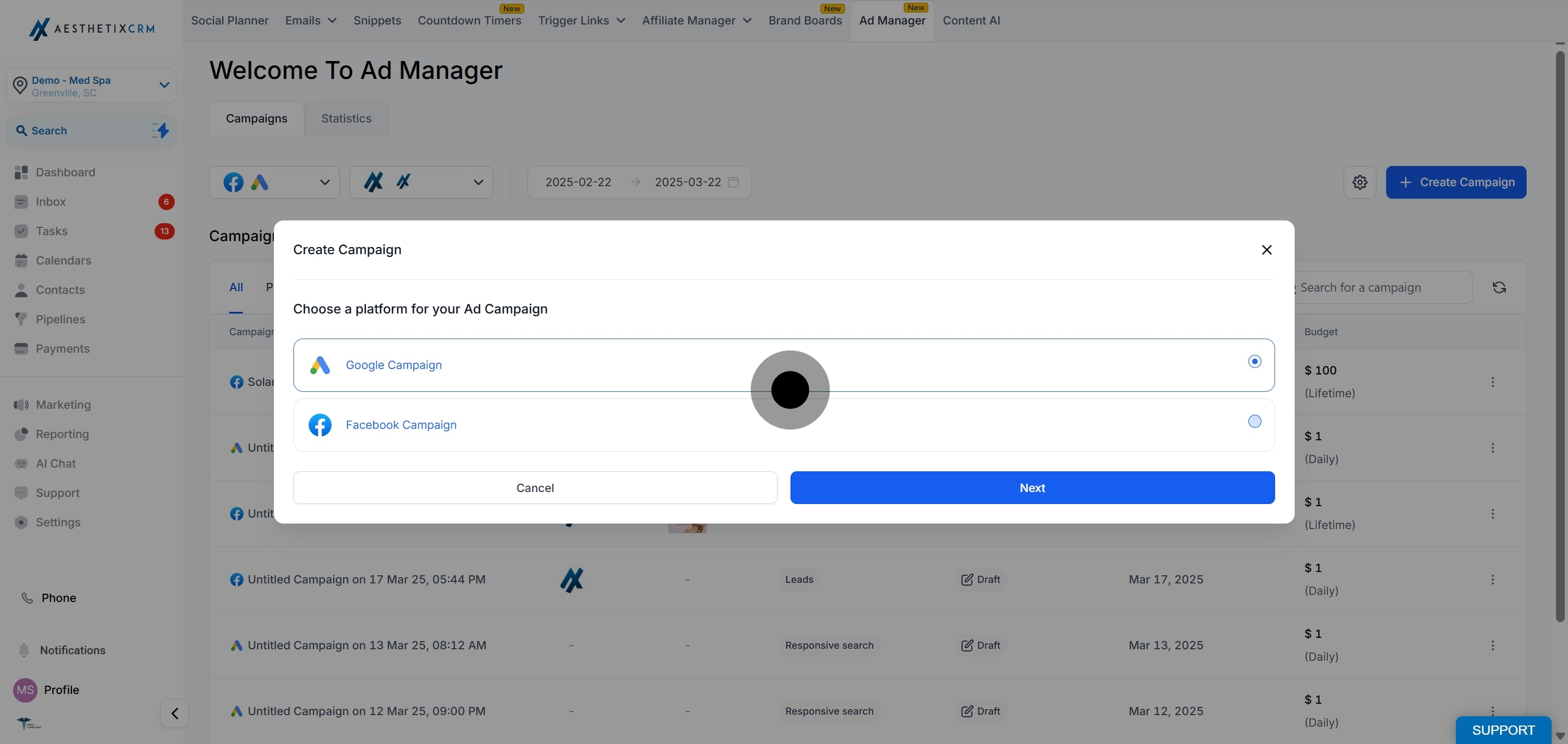
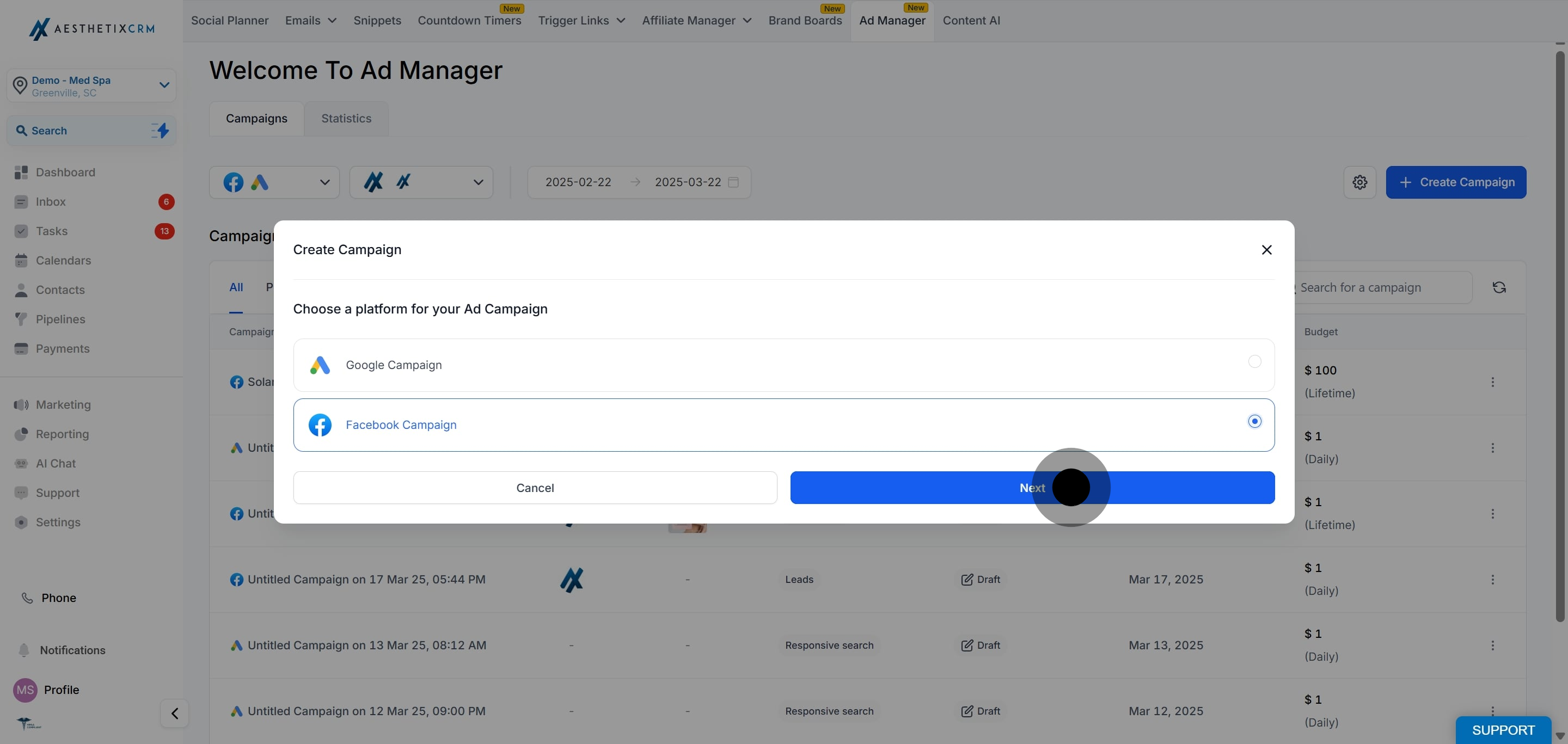
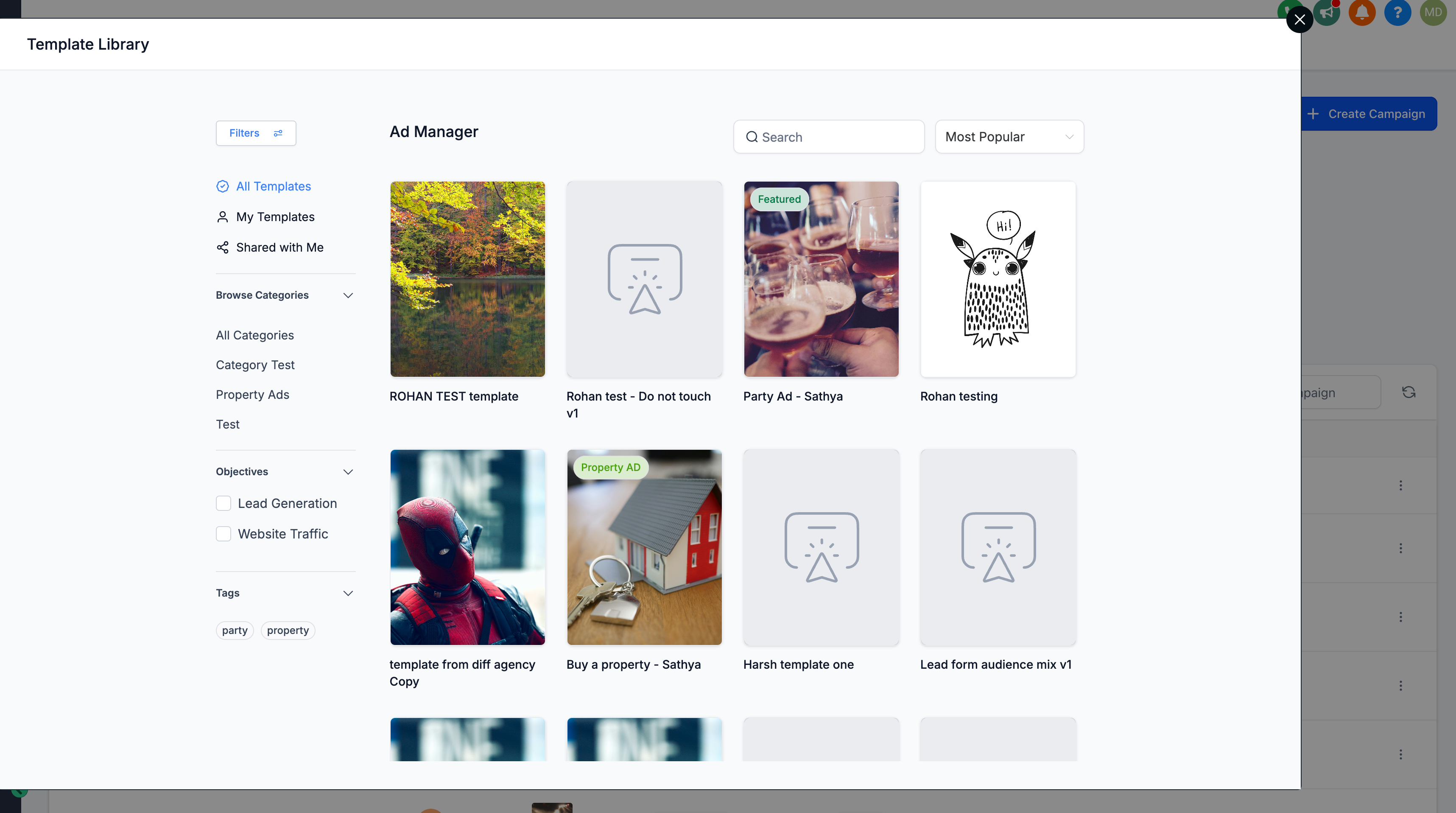
Browse and choose a template that fits your campaign. Use the filters to narrow by category, objective, or tags. Click the eye icon to preview how a template looks across different placements, or click the template itself to preview it and see its details.
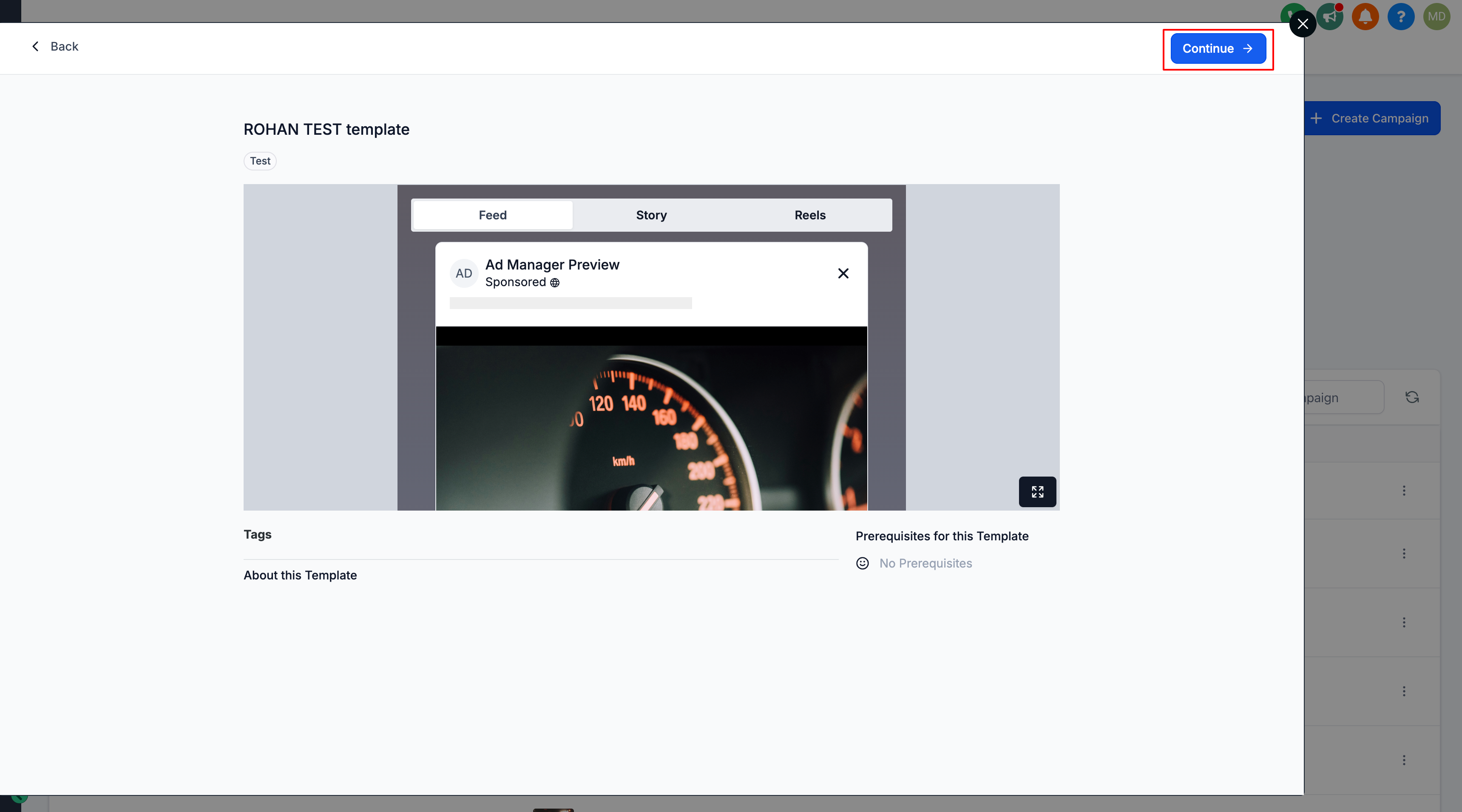
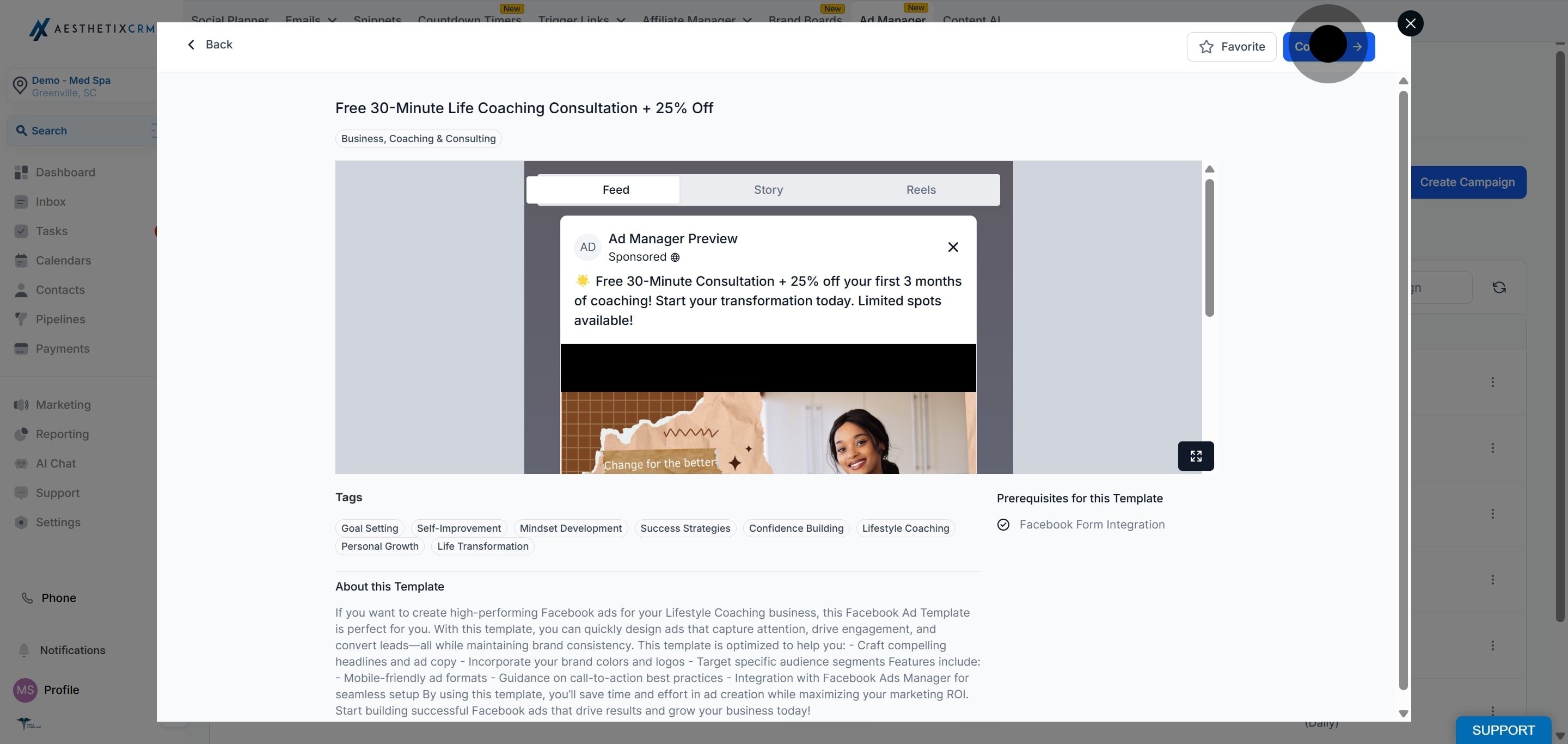
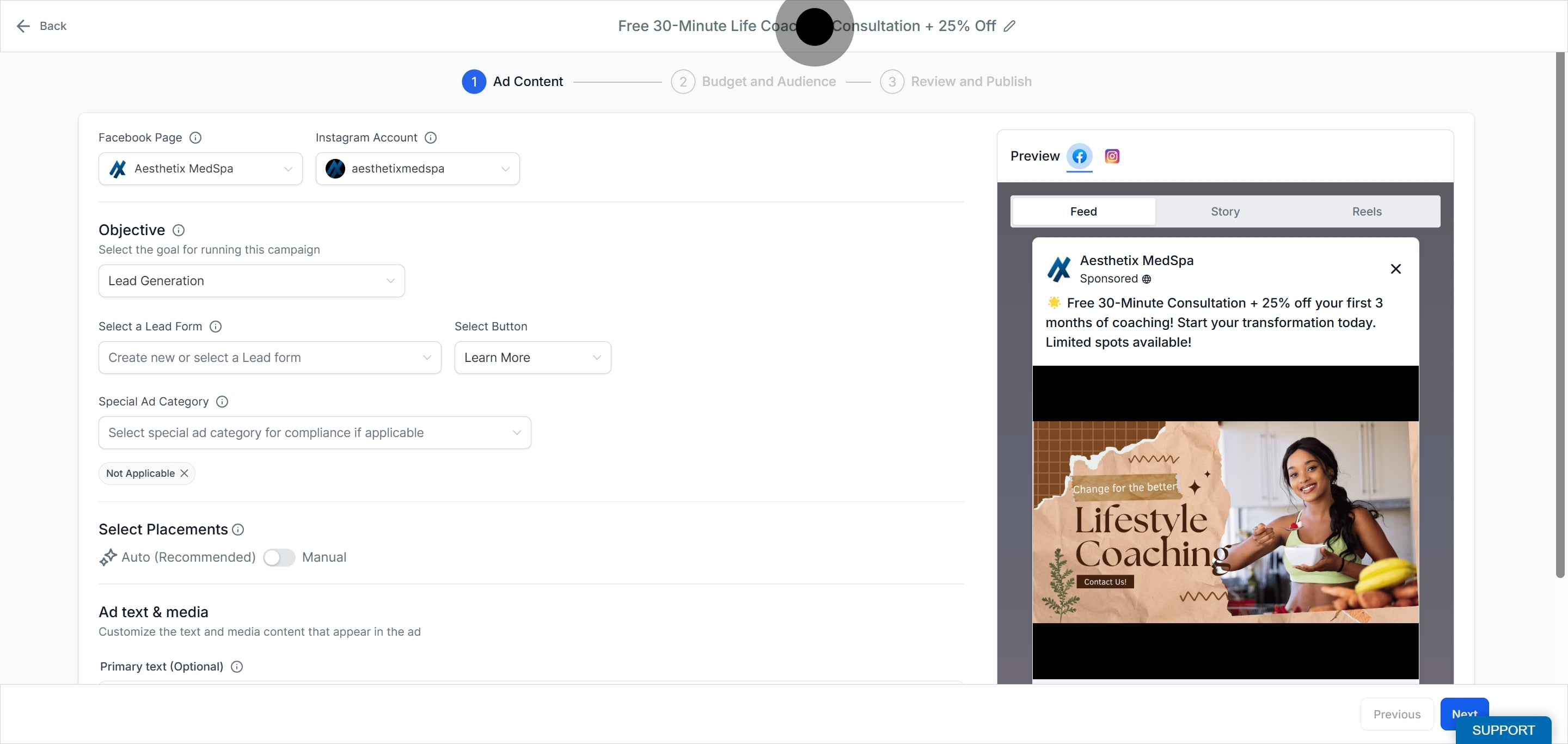
A campaign is created with the template details pre-filled. Edit the ad copy, images, URLs, and settings as needed.
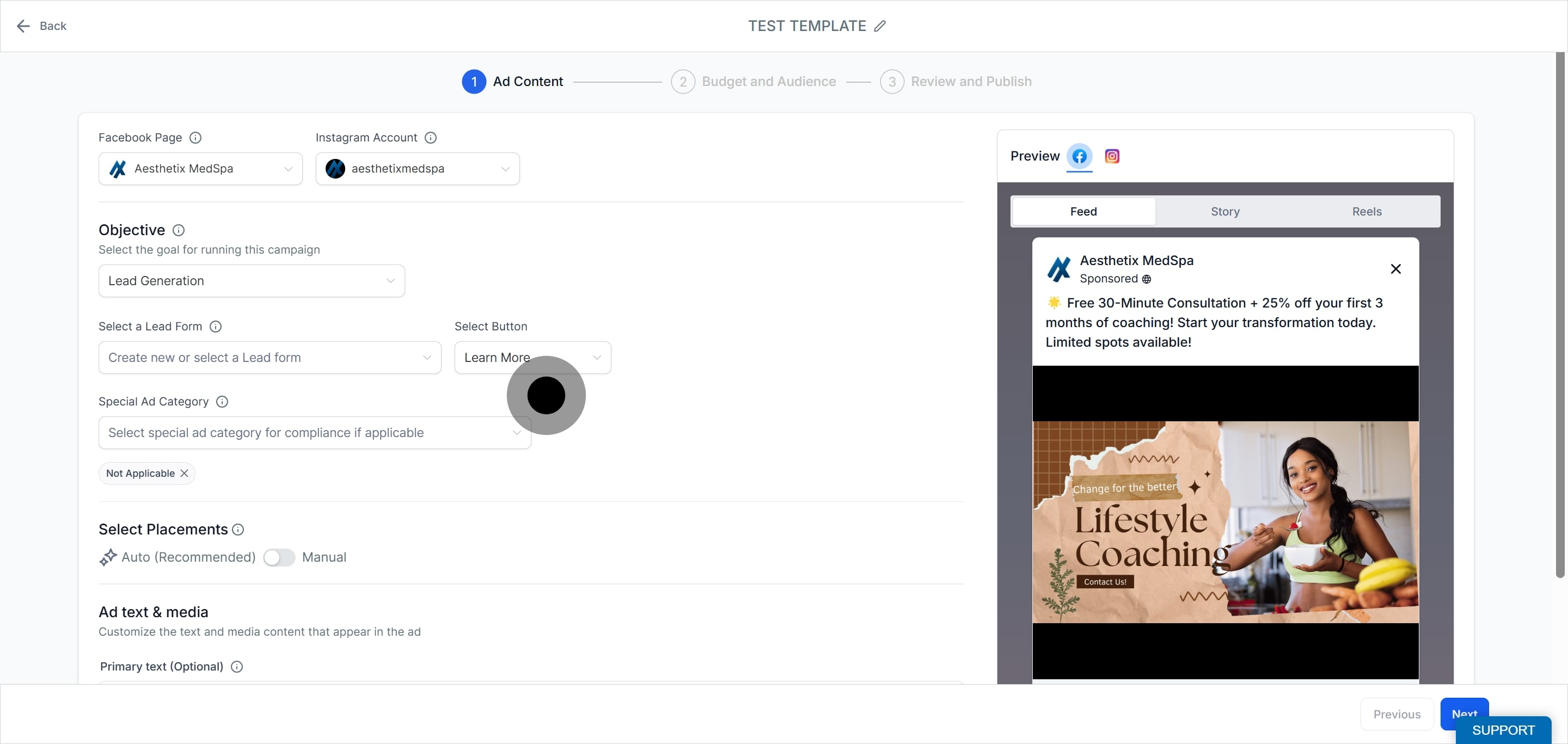
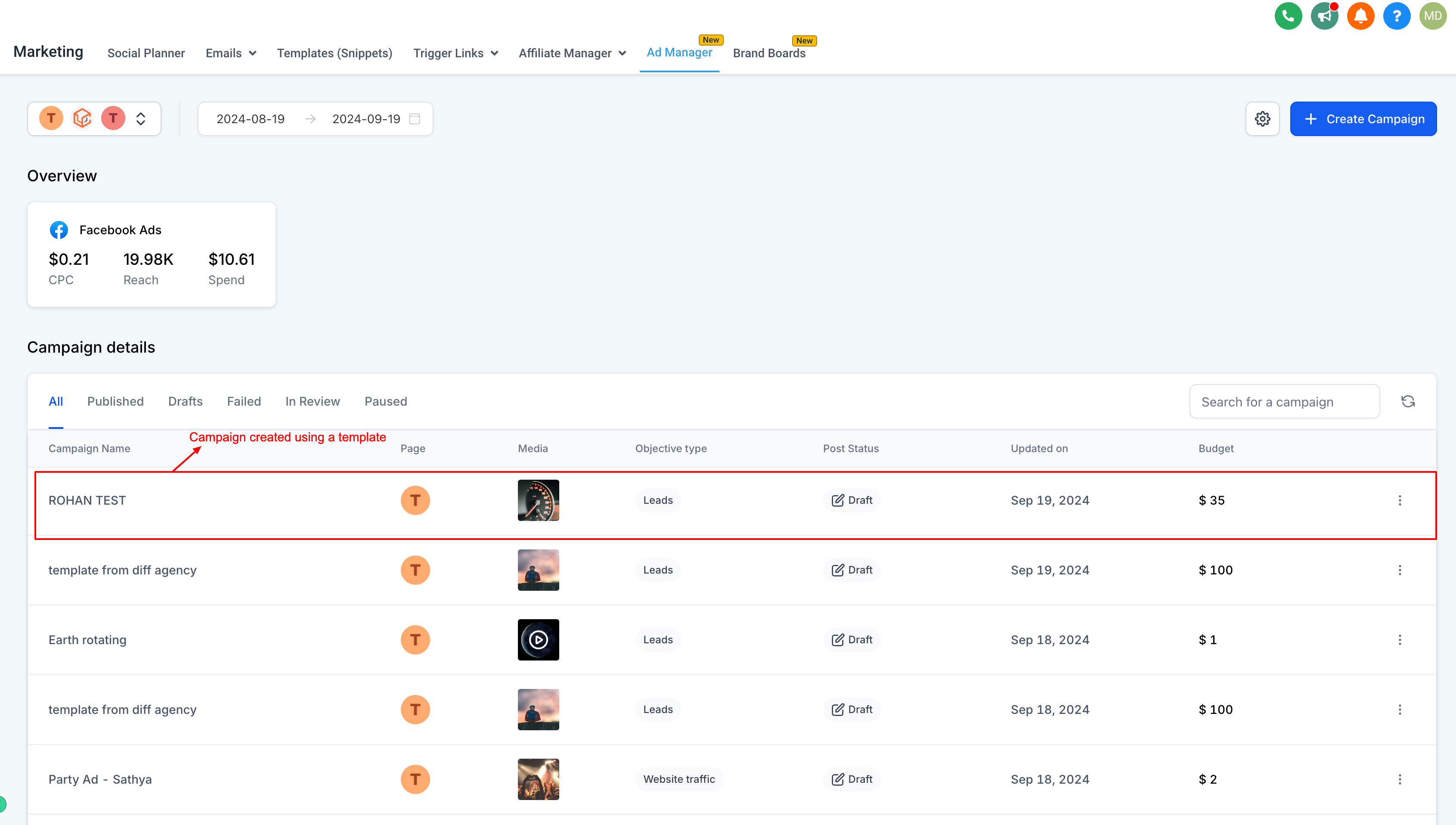
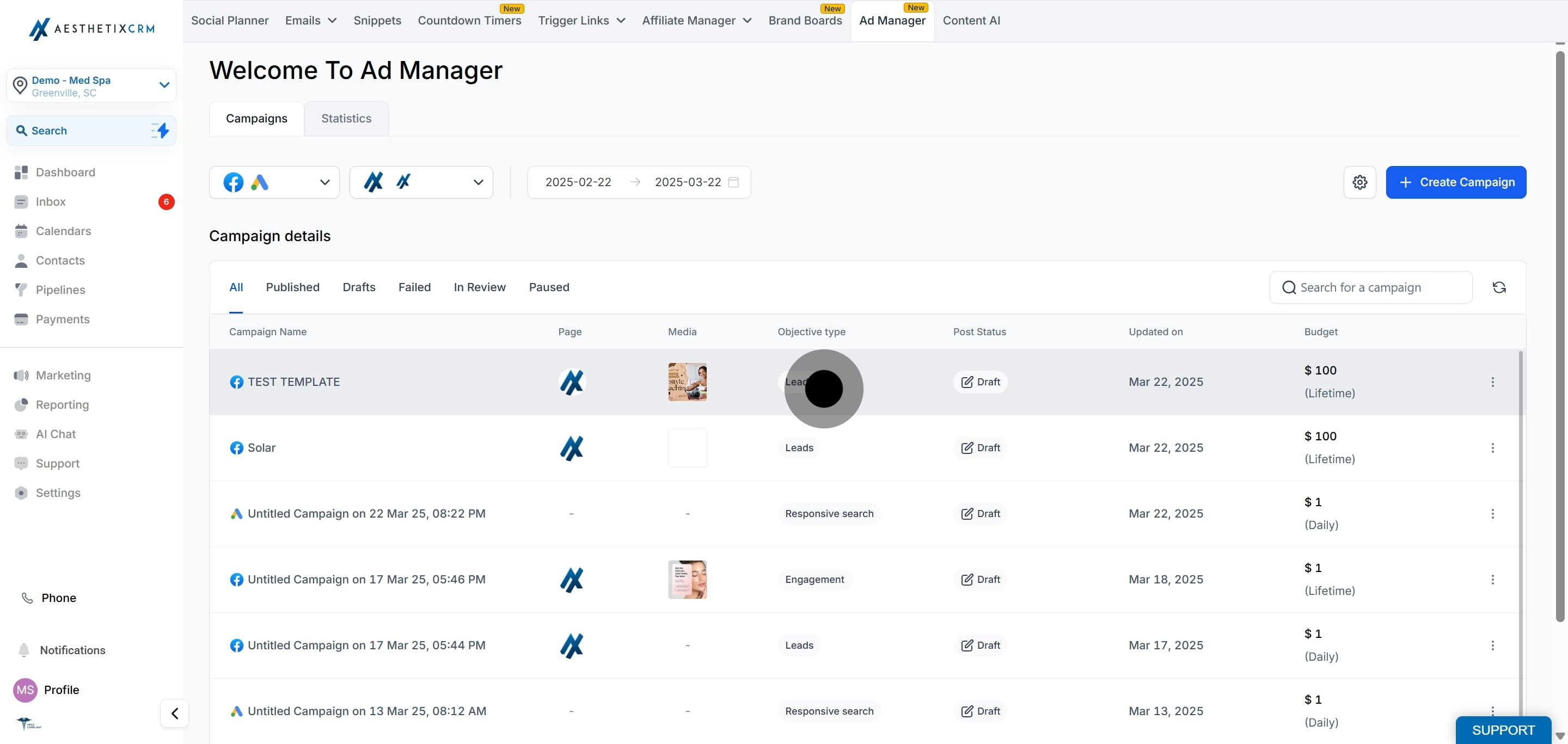
Note: When a campaign is created from a template, some items are not carried over and must be set manually before you publish:
No page is associated with the new campaign. When you click Edit Campaign, your default page is assigned, which you can change if you want.
Because no page is assigned yet, if the objective is Lead Generation you must select the Facebook form to use.
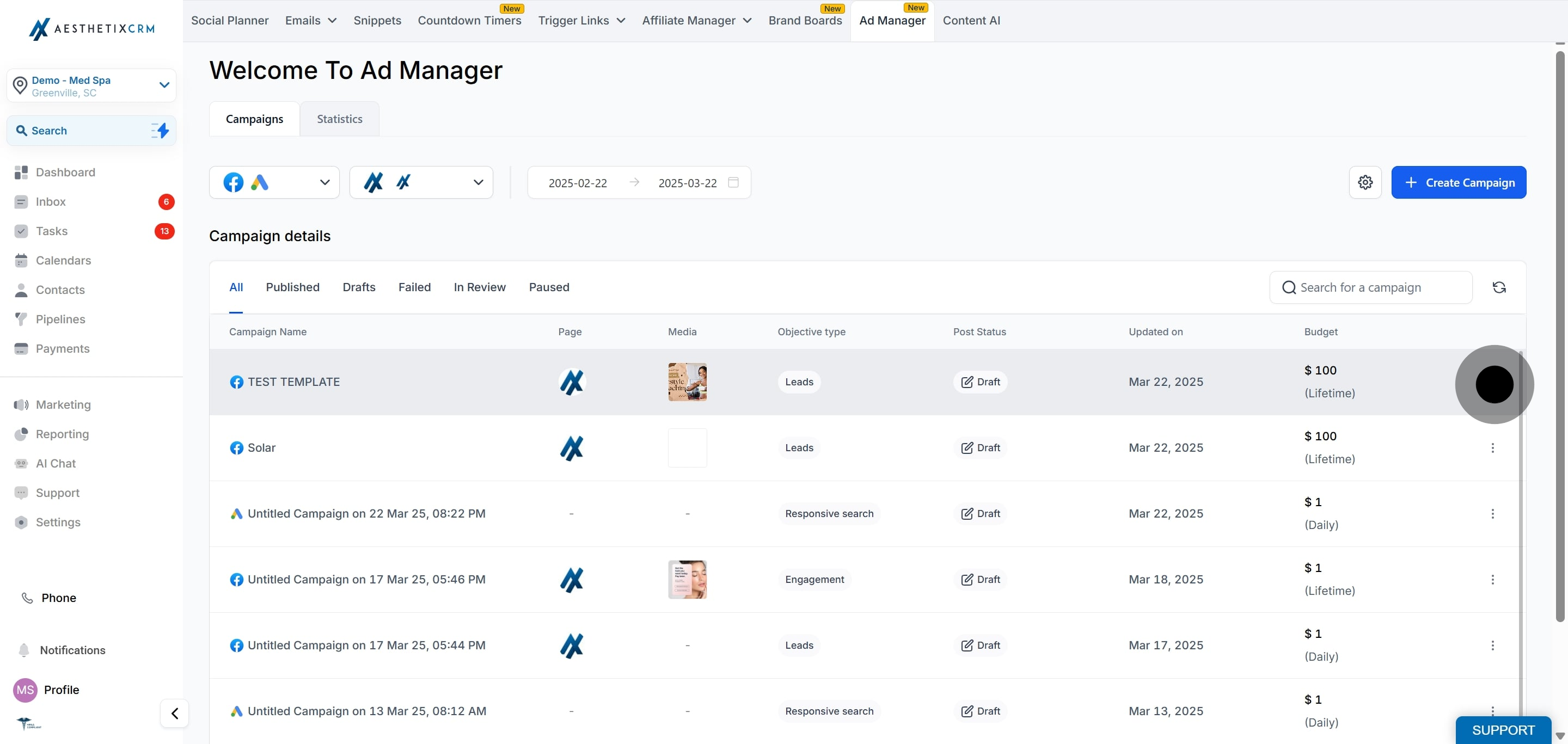
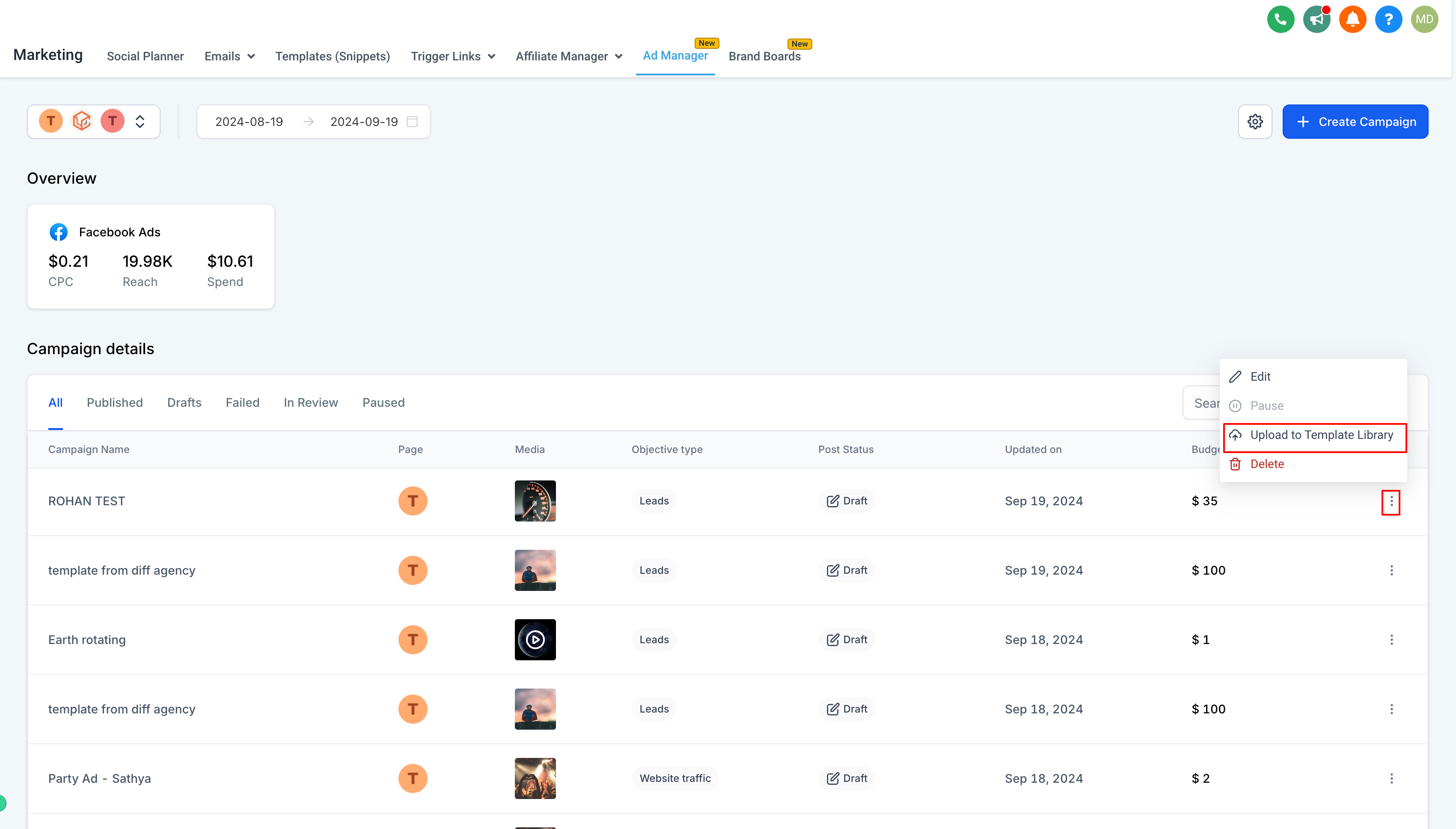
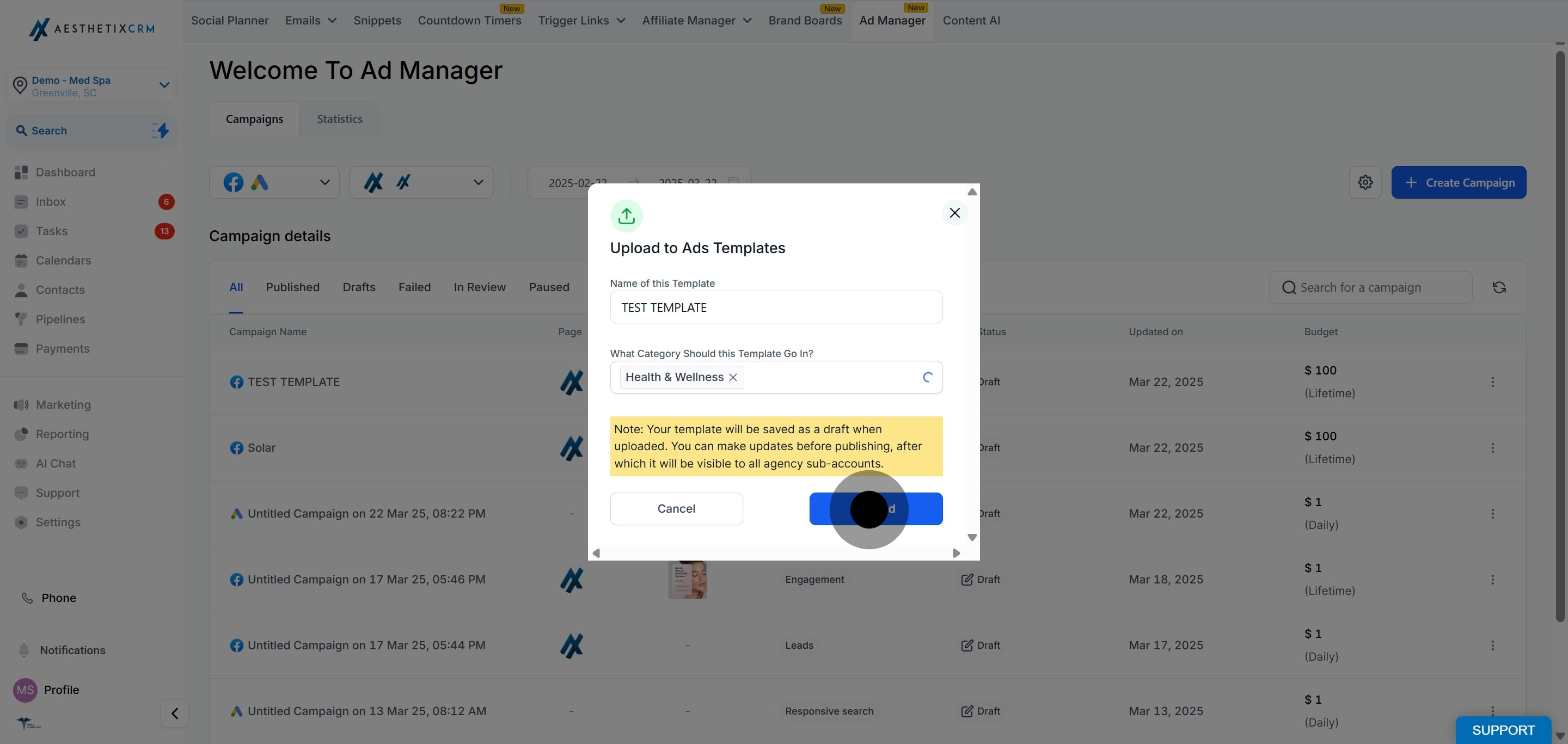
If a campaign has performed especially well, you can save it as a template to reuse for future campaigns or share the format across your team. Open Ad Manager, find the campaign, and upload it to the Template Library from its ellipsis menu.
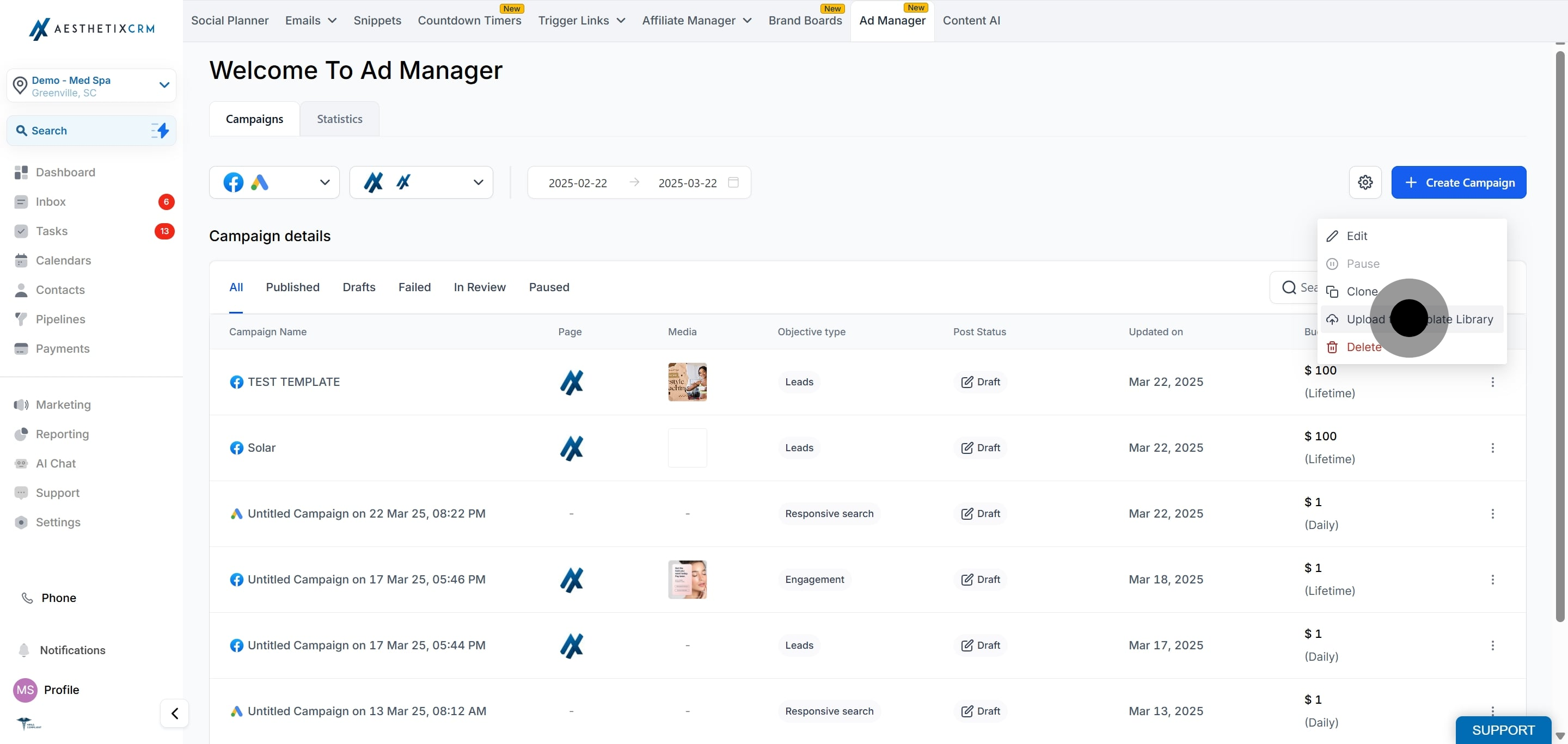
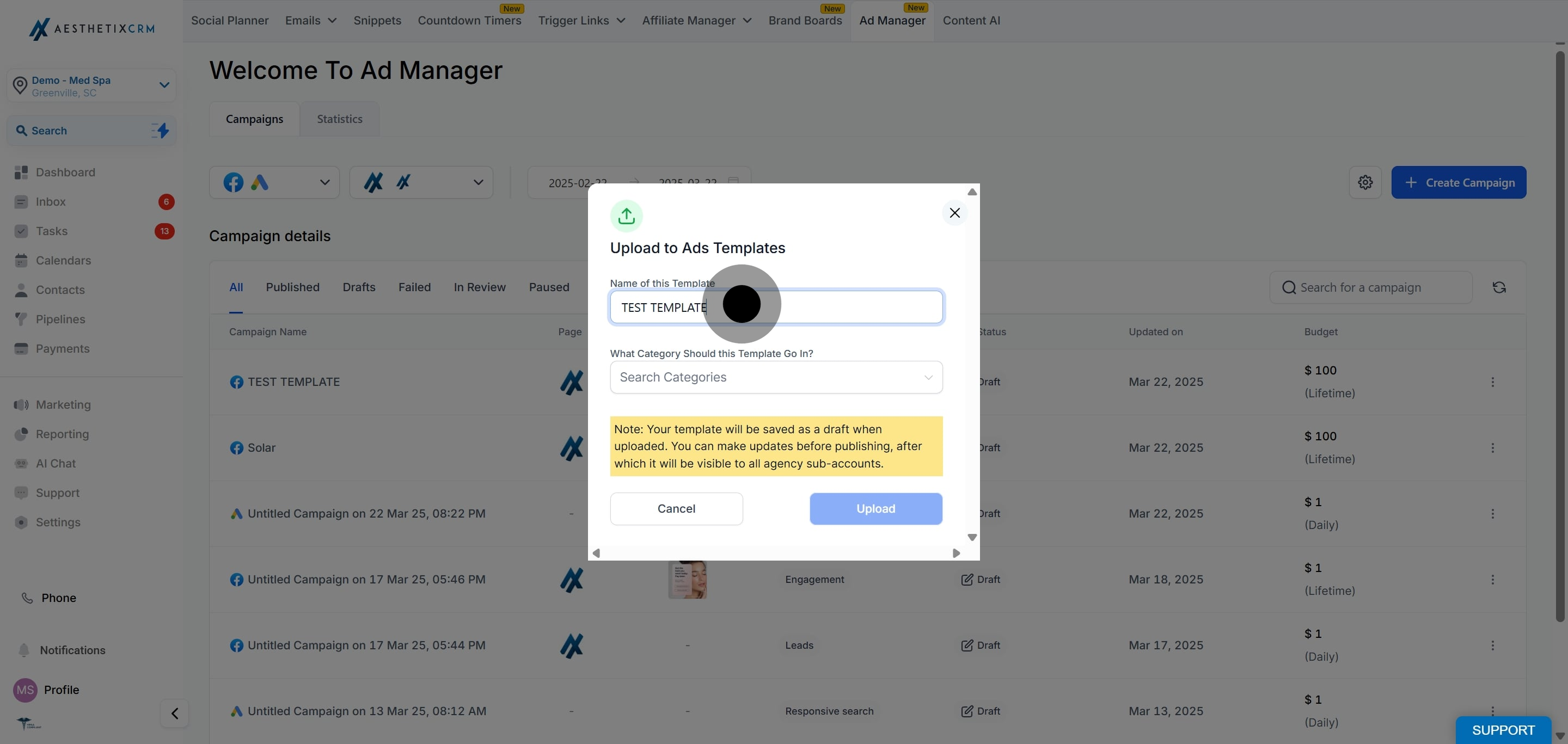
Categories keep templates organized and easy to find. If the category you need does not exist yet, you can create one in Template Library settings.
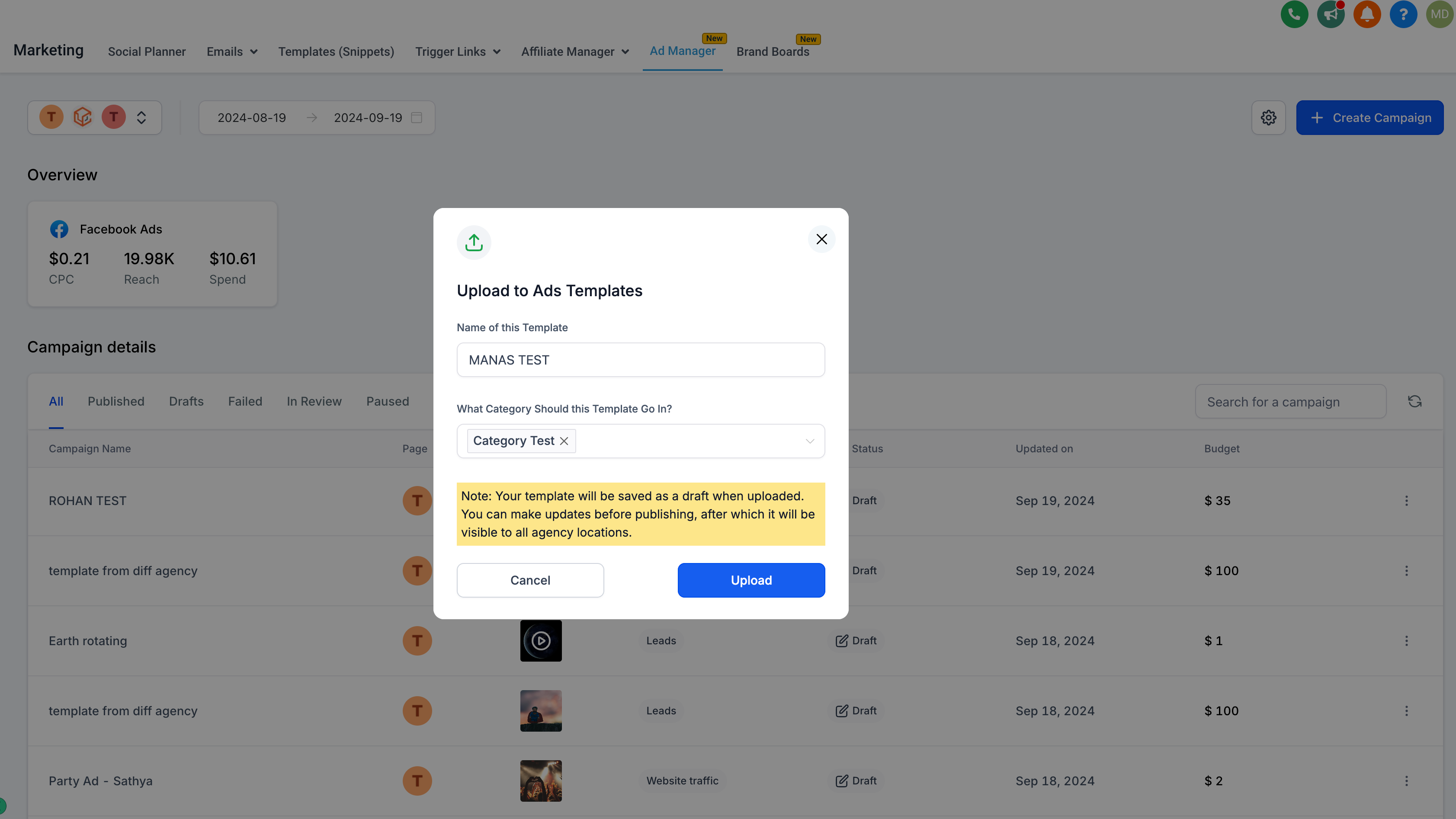
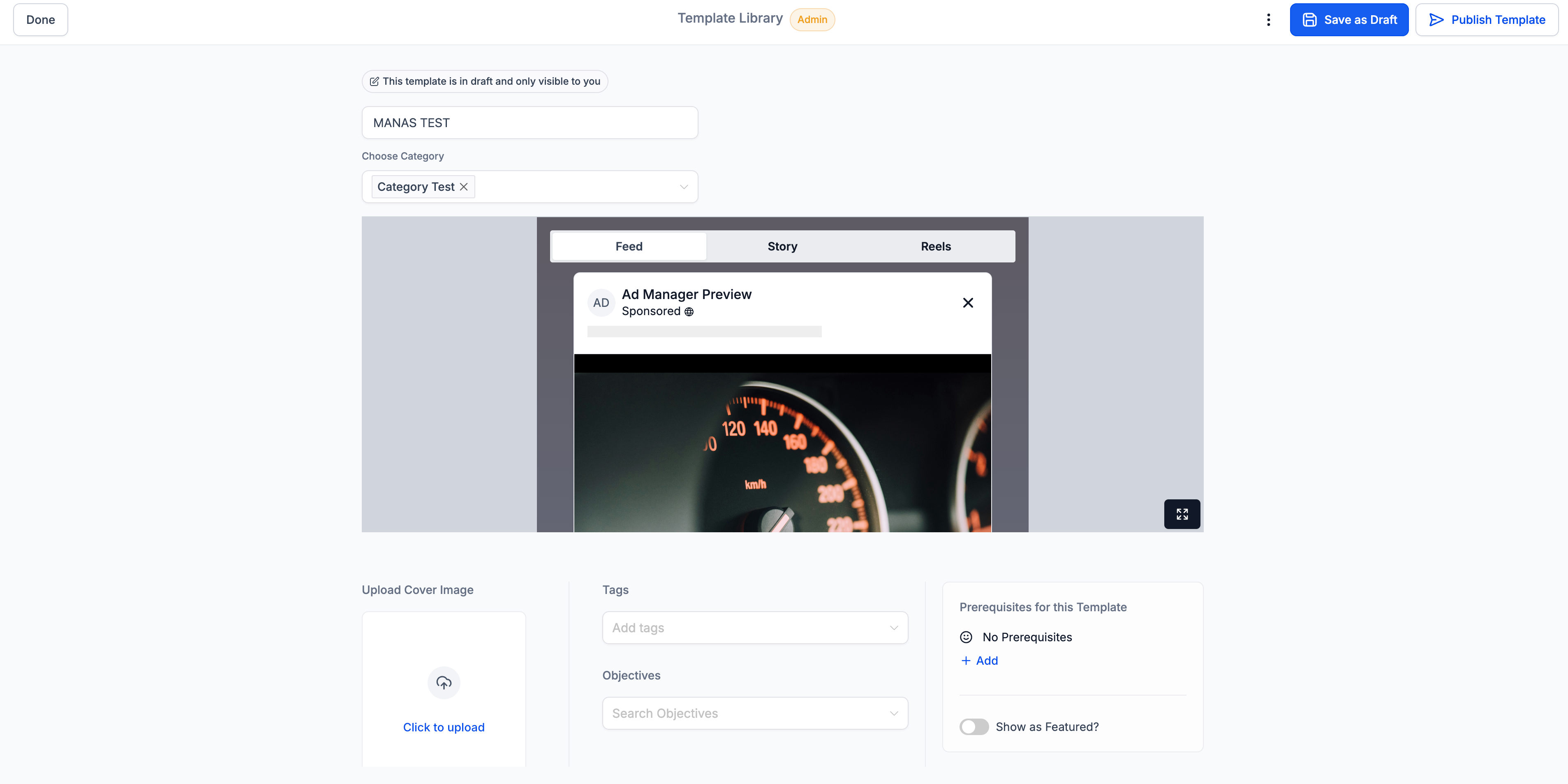
The campaign is saved as a draft template. A screen showing the draft opens where you can make changes, save it as a draft, or publish it as a template.
Can I use the same template for both Facebook and Google ads?
No. Templates in the library are linked to a specific platform, so choose one built for the network you plan to advertise on.
Can I mark a template as a favorite?
Yes. You can mark templates as favorites for quick access.
How do I filter the template library?
You can filter by category, by objective (such as Engagement, Lead Generation, Sales, or Web Traffic), and by tags, and preview any template before selecting it.
Do templates carry over my page and lead form?
No. A campaign created from a template has no page assigned until you edit it (which applies your default page), and for Lead Generation you must select the Facebook form manually before publishing.
Can I still customize a template after applying it?
Yes. Edit the ad copy, images, URLs, targeting, and other settings as needed before you publish.
How do I create a new template category?
If the category you need does not exist, create it under Template Library settings, then assign it when uploading your campaign as a template.
What happens right after I upload a campaign as a template?
It is saved as a draft template, and a screen opens where you can adjust it and either keep it as a draft or publish it for use.
