The LinkedIn Lead Ads integration pulls the leads you collect from LinkedIn Lead Gen forms directly into Aesthetix CRM. When someone submits one of your LinkedIn lead forms, for example a request for information about a wellness or aesthetics program, their details become a contact in the CRM without anyone rekeying them from a spreadsheet. From there you can text or email them right away, assign them to a coordinator, and start a nurture sequence.
This guide covers connecting your LinkedIn ad accounts, mapping form fields, testing the connection, and automating follow up. Building the LinkedIn campaign itself happens in Ad Manager, and the automation that fires when a lead comes in lives in Workflows. Both are cross referenced below so this guide stays focused on the integration.
Automatic lead capture: New LinkedIn Lead Gen form submissions become contacts in Aesthetix CRM with no manual data entry.
Accurate field mapping: Each LinkedIn form field lands in the matching Aesthetix CRM contact field.
Sync control: Choose to pull in recent past leads or only new leads going forward.
Multiple ad accounts: Connect as many ad accounts as you need to a single Aesthetix CRM account.
You need a LinkedIn account with access to the ad accounts you want to connect.
Each ad account you connect must have a linked LinkedIn Page. Without a linked Page, the connection will not succeed.
Have at least one published LinkedIn Lead Gen form so there is something to map and test.
Go to Settings > Integrations.
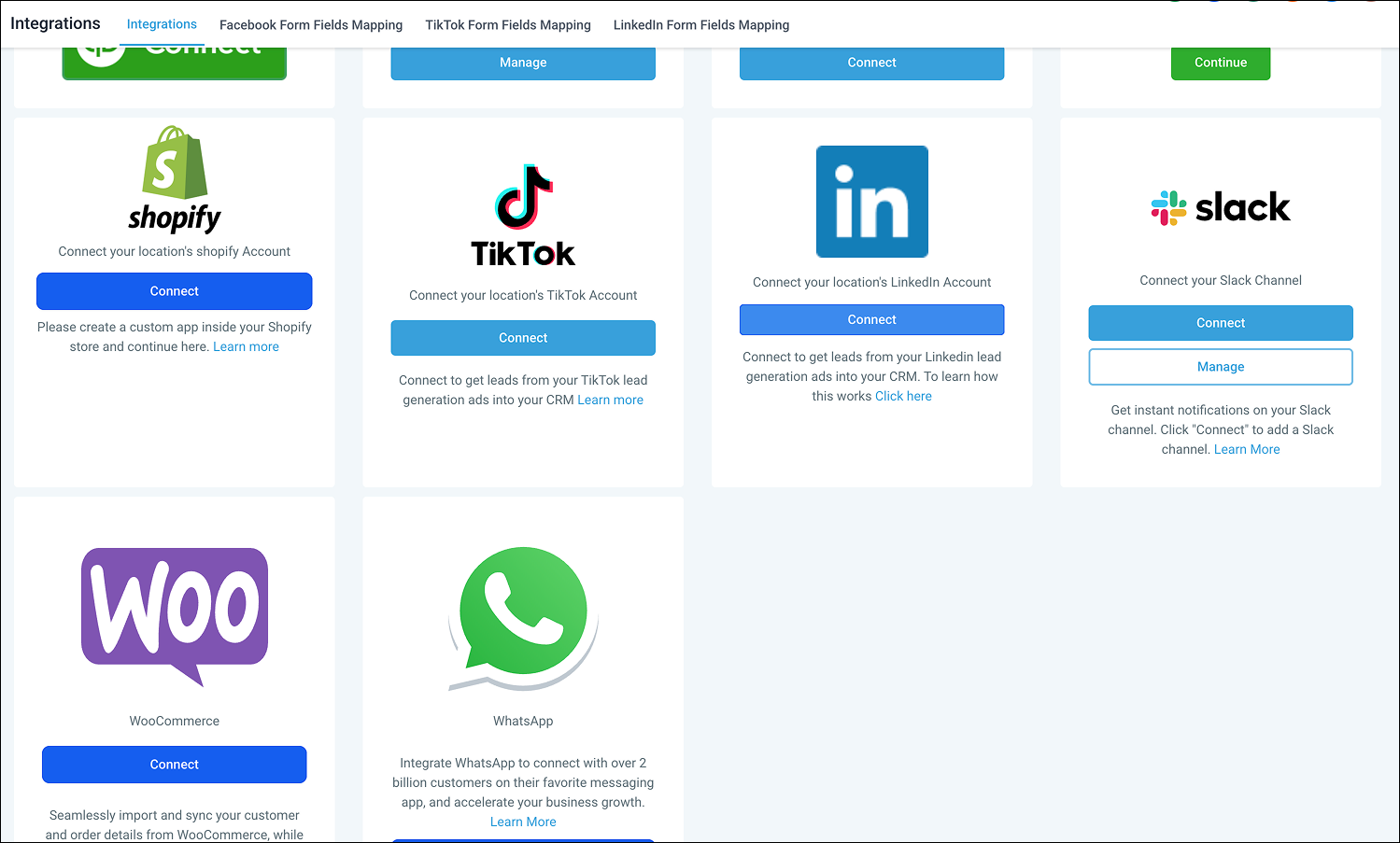
Find the LinkedIn integration and click Connect to start.
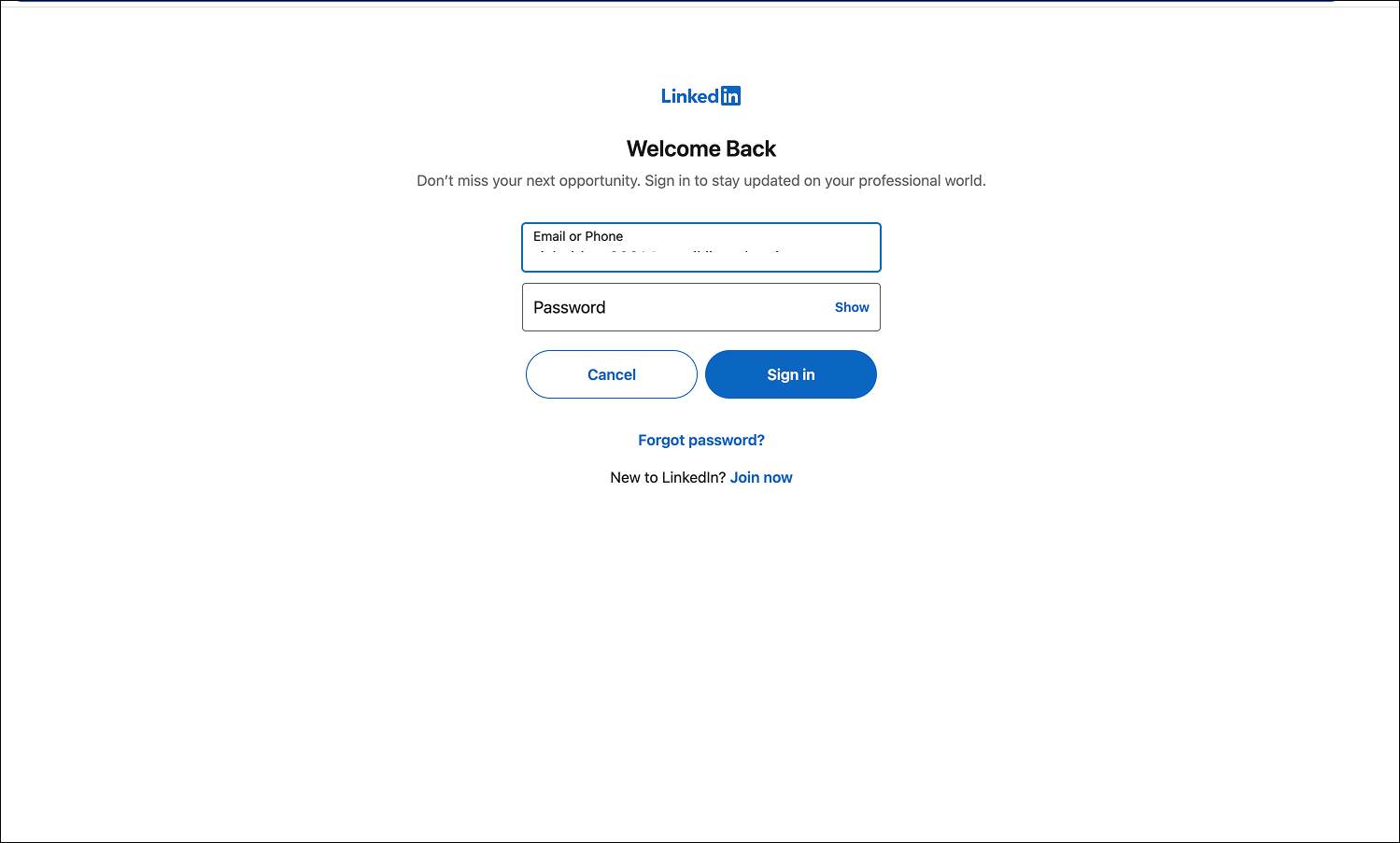
When prompted, log in to LinkedIn and grant all requested permissions. The connection is powered by our underlying provider, so this authorization screen is expected and safe to approve.
After a successful login, choose one or more ad accounts to connect to your Aesthetix CRM account. There is no limit to how many you can connect. Make sure each ad account has a linked LinkedIn Page.
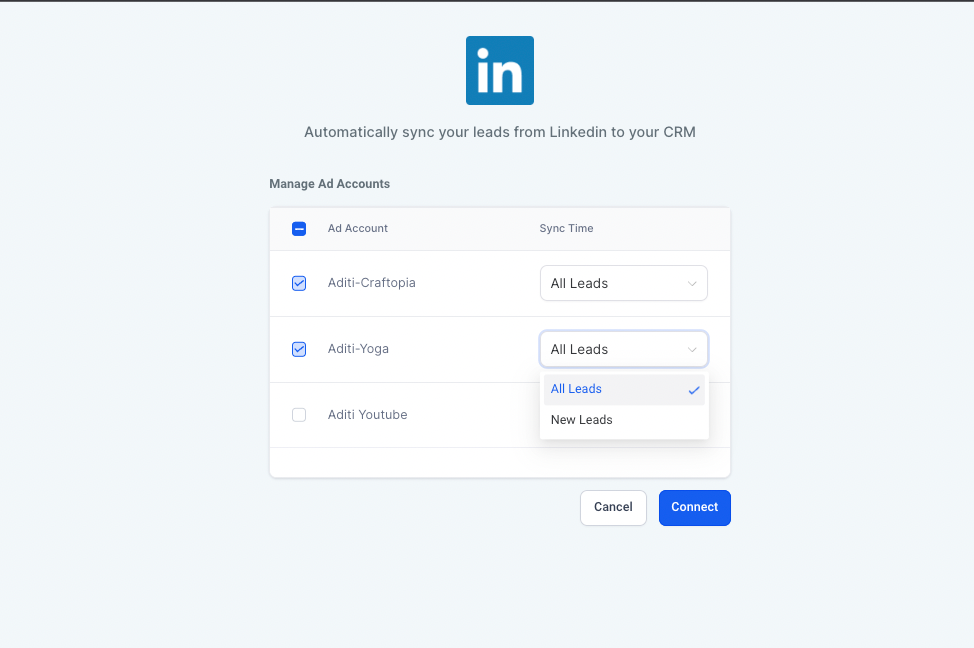
For each ad account, set its sync time:
All leads: Sync all leads from the past 90 days plus all new leads.
New leads: Sync only new leads going forward.
Click Connect to finish.
Mapping tells Aesthetix CRM where each LinkedIn form answer should go, so map your fields before you rely on a campaign to capture patients.
Click Configure form field mapping, or open the LinkedIn form field mapping tab at the top of the Integrations screen.
Use the Map Fields button to align each LinkedIn form field with the matching Aesthetix CRM field, for example mapping the LinkedIn email field to the Email field in the CRM.
Click Confirm to save and complete the integration.
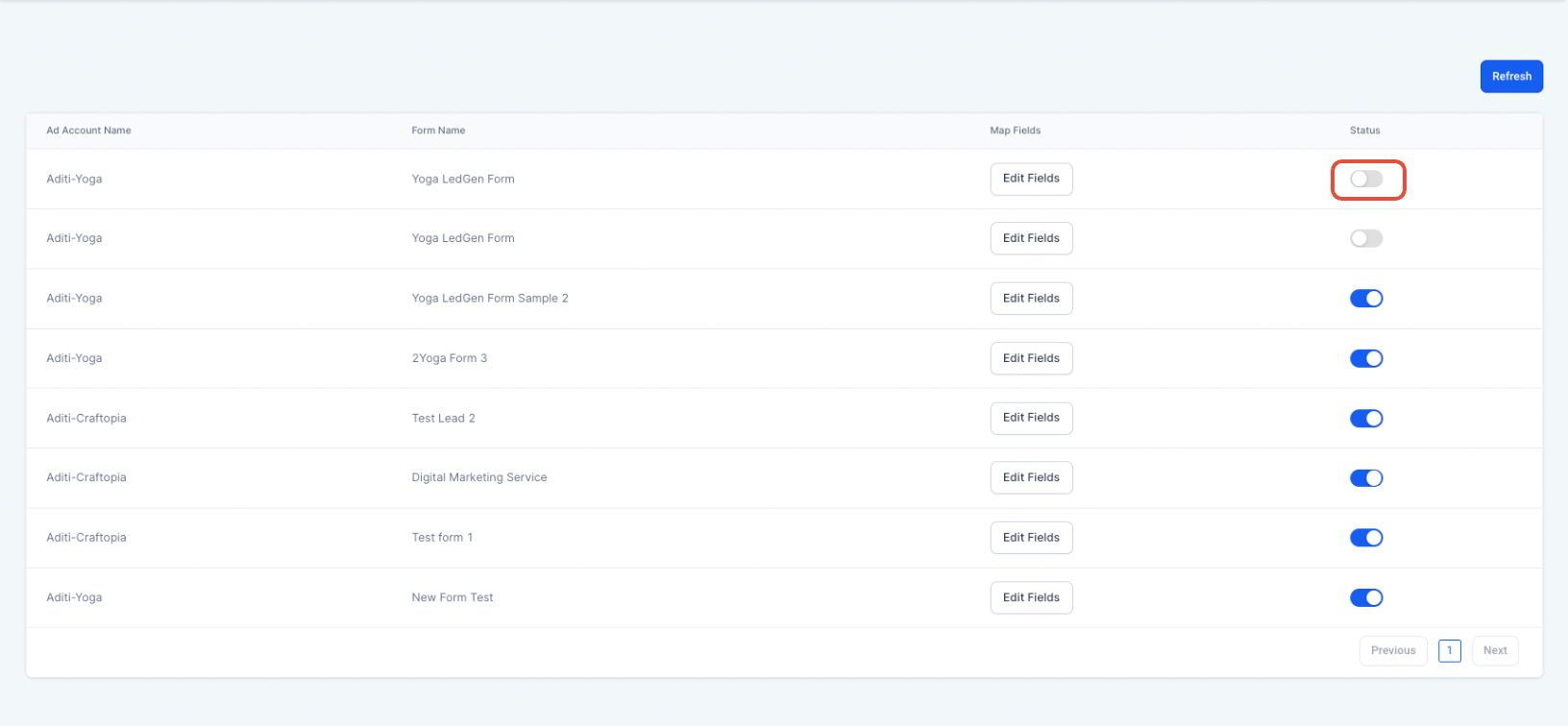
To stop inbound leads from a particular form, toggle that form's status off.
Before you rely on the integration, send a test lead and confirm it arrives.
In LinkedIn, click Advertise.

Select the ad account you want to test.
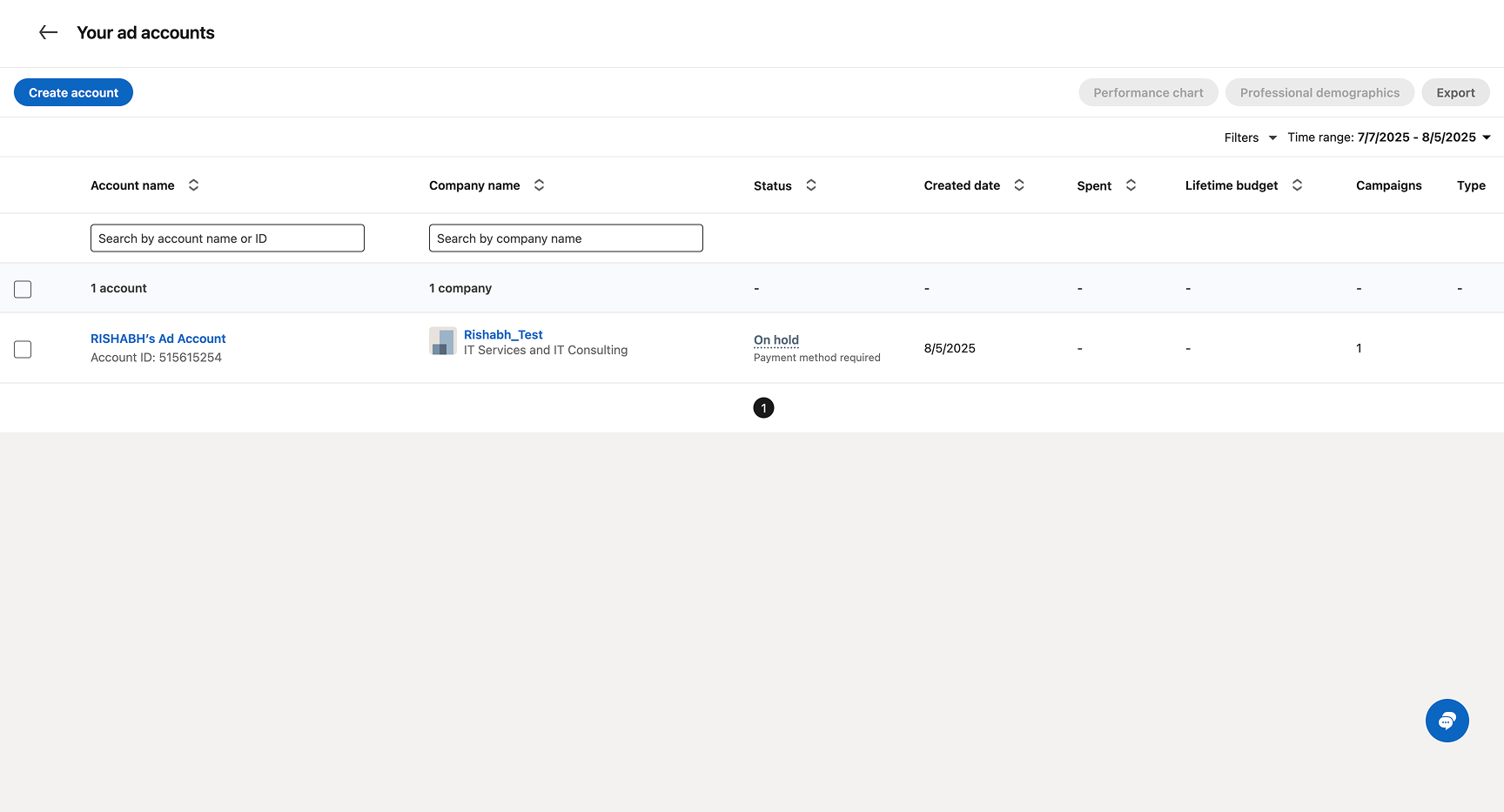
Select the campaign group and ad you want to send a test lead for.
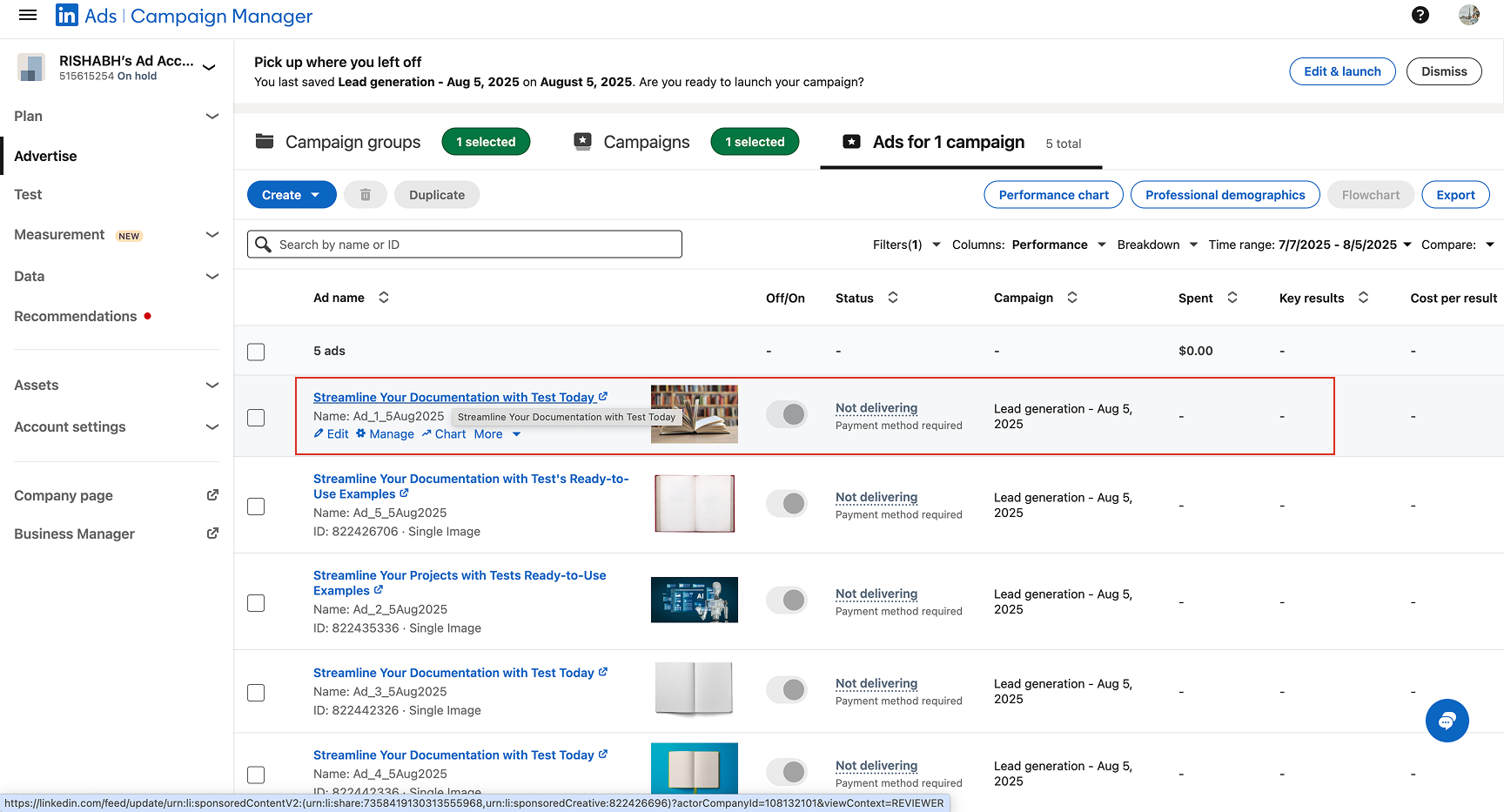
Click the ad name to open the lead post, then send a test lead to Aesthetix CRM. Make sure the form is enabled and mapped.
Confirm the lead appears on the contact page in Aesthetix CRM.
Creating the LinkedIn Lead Gen campaign itself, including the ad, audience, and lead form, is done in Ad Manager. For the full campaign build, see the Ads Manager collection.
To act on new leads the moment they arrive, use the LinkedIn Lead Form Submitted workflow trigger. It enrolls a contact into a workflow immediately after they submit a connected LinkedIn form, so you can send an instant text or email, assign the lead to a coordinator, create an opportunity, or start a nurture sequence. You can scope enrollment to a specific LinkedIn Page using the Page filter. For the full trigger setup, filters, and recommended actions, see the Workflows collection.
No leads are arriving. Confirm the ad account has a linked LinkedIn Page, that the form is enabled and mapped in the LinkedIn form field mapping tab, and that the correct form is the one running in your campaign.
Some fields are blank on the contact. Review your field mapping. A LinkedIn form field that is not mapped to an Aesthetix CRM field will not transfer. If a form field was renamed after mapping, re-open the mapping and re-save it.
A lead updated an existing contact instead of creating a new one. Aesthetix CRM matches on identifiers like email and phone. When a match exists, the existing contact is updated rather than duplicated. Use unique contact details when sending a test lead so a new record is created.
How many ad accounts can I connect?
There is no limit. You can connect as many LinkedIn ad accounts to your Aesthetix CRM account as you need, as long as each one has a linked LinkedIn Page.
Why did my connection fail?
The most common cause is an ad account without a linked LinkedIn Page. Confirm the ad account is tied to a Page, then reconnect.
Can I pull in leads from before I connected?
Yes. When you set an ad account's sync time to All leads, the integration pulls leads from the past 90 days along with all new leads. Choose New leads to sync only going forward.
Do I have to map fields before running a campaign?
Yes. Map each LinkedIn form field to the matching Aesthetix CRM field and confirm the mapping first. Without it, lead data may not sync correctly.
How fast do leads appear in Aesthetix CRM?
Leads typically sync shortly after submission. Allow a brief delay when testing and check the contact page to confirm.
How are duplicate submissions handled?
Aesthetix CRM attempts to match on identifiers like email and phone. If a match is found, the existing contact is updated instead of creating a duplicate.
How do I stop leads from a specific form?
In the LinkedIn form field mapping tab, toggle that form's status off. The rest of your connected forms continue to sync.
How do I follow up automatically when a lead comes in?
Use the LinkedIn Lead Form Submitted workflow trigger to send an instant message, assign the lead, or start a nurture sequence. See the Workflows collection for setup.
