Connecting Zoom to Aesthetix CRM lets your practice run virtual consultations without any manual scheduling. Once Zoom is linked and set as the meeting location on a calendar, the CRM automatically creates a unique Zoom meeting for every booking and embeds the link in the appointment. When a prospective patient books a virtual skin consult or a follow-up review, they receive their own private meeting link, and your provider sees the same appointment inside Aesthetix CRM. This removes the back and forth of generating links by hand and keeps every virtual visit organized in one place.
This guide covers what the integration does, how to connect Zoom, how to turn on dynamic links for a calendar, how to include the link in patient reminders, and how to troubleshoot common Zoom issues. For setting up the calendars and appointment types themselves, see the Calendars collection.
Automatic meeting links: A unique Zoom link is generated for each new booking when Zoom is the meeting location, so no two appointments share a link.
Added security: Because every meeting has its own link, there is far less chance of an uninvited person joining a consultation.
Centralized management: Scheduling, rescheduling, and cancellations happen inside Aesthetix CRM and are reflected in Zoom, which helps prevent double booking.
Automated notifications: The dynamic link can be dropped into confirmation and reminder messages so patients always have the correct link.
Any user can connect Zoom for their own calendars. Each provider connects their own Zoom account to their profile, and a unique link is generated for every booking on the calendars they are assigned to.
Dynamic Zoom links are supported on Personal, Round Robin, and Collective calendars.
Dynamic links are only created when the connected Zoom account is selected as the meeting location on the calendar.
You can connect the same Zoom account across multiple users and locations, but a single user can connect only one Zoom account per location.
You must be logged in as the user whose profile you are connecting. If you do not see the Profile or Integrations option, you have not been added as a user on that account. Ask an admin to add you.
You can connect Zoom from any of three places. All three open the same Zoom sign in flow.
User profile integrations: Go to your User Profile > Integrations > Zoom > Connect.
Default meeting location: Go to your User Profile > Default Meeting Location > Zoom > Connect. After connecting, select Zoom from the dropdown and click Save. You will be asked whether existing meeting locations on your other calendars should also default to Zoom.
Calendar settings: Go to Settings > Calendar Settings > User > Meeting Location, then connect and select Zoom so bookings on that calendar include a Zoom link.
In the dialog that appears:
Click Connect to Zoom if you are not already connected.
Enter your Zoom login credentials and click Sign in.
When prompted to grant Zoom access, click Allow.
You are returned to Aesthetix CRM, where Zoom now appears under your profile integrations.
Once installed, an admin can also select the connected Zoom account as the default meeting location for a user under Team Management. Each user must connect their own Zoom account, but an admin can complete the step on a user's behalf using the login as user feature.
Dynamic links are only generated when Zoom is the selected meeting location. On each Personal, Round Robin, or Collective calendar that should generate virtual consultation links, open the calendar's meeting location setting and choose the connected Zoom account. From that point forward, every booking on that calendar creates a fresh Zoom meeting and embeds the unique link in the appointment. For the full walkthrough of building and assigning calendars, see the Calendars collection.
You can connect the same Zoom account in more than one location, and multiple users can connect and use the same Zoom account. The connection is tied to a unique user ID in the background rather than the email address, so treat the user ID as the identifier for the connection.
To manage, remove, or switch the connected Zoom account:
Go to Calendars > Settings > Connections > Video Conferencing.
Remove the existing Zoom connection or connect a different Zoom account.
Confirm the meeting location setting on any calendars that should generate dynamic Zoom links.
To make sure patients always receive their meeting link, include the dynamic link in your appointment confirmation and reminder messages. This is done with a workflow that reacts to the appointment and inserts the Zoom link merge field. The steps below cover the Zoom specific parts. For the full workflow builder walkthrough, triggers, and action options, see the Workflows collection.
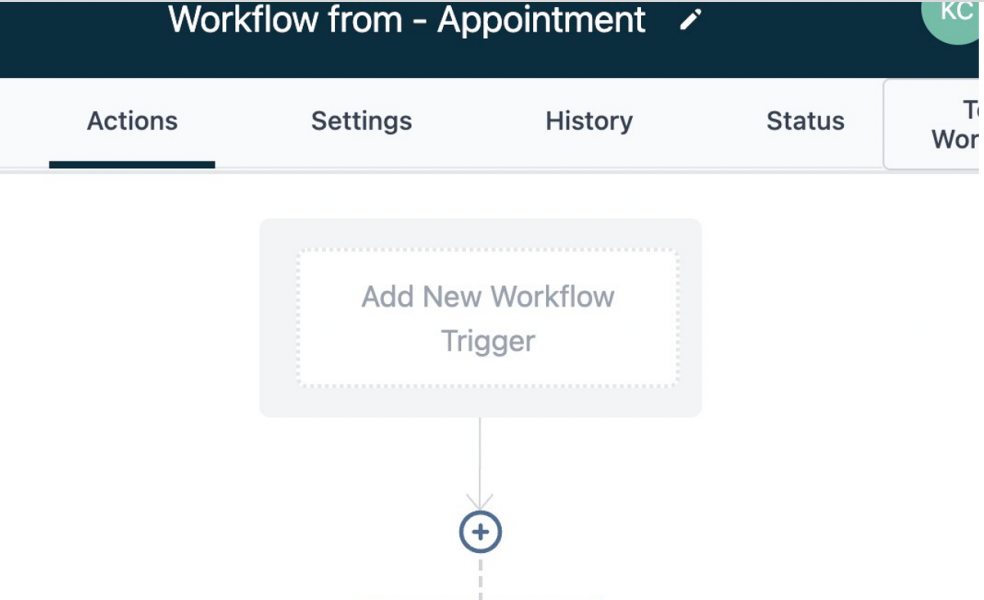
Create a new workflow and click Add New Workflow Trigger.
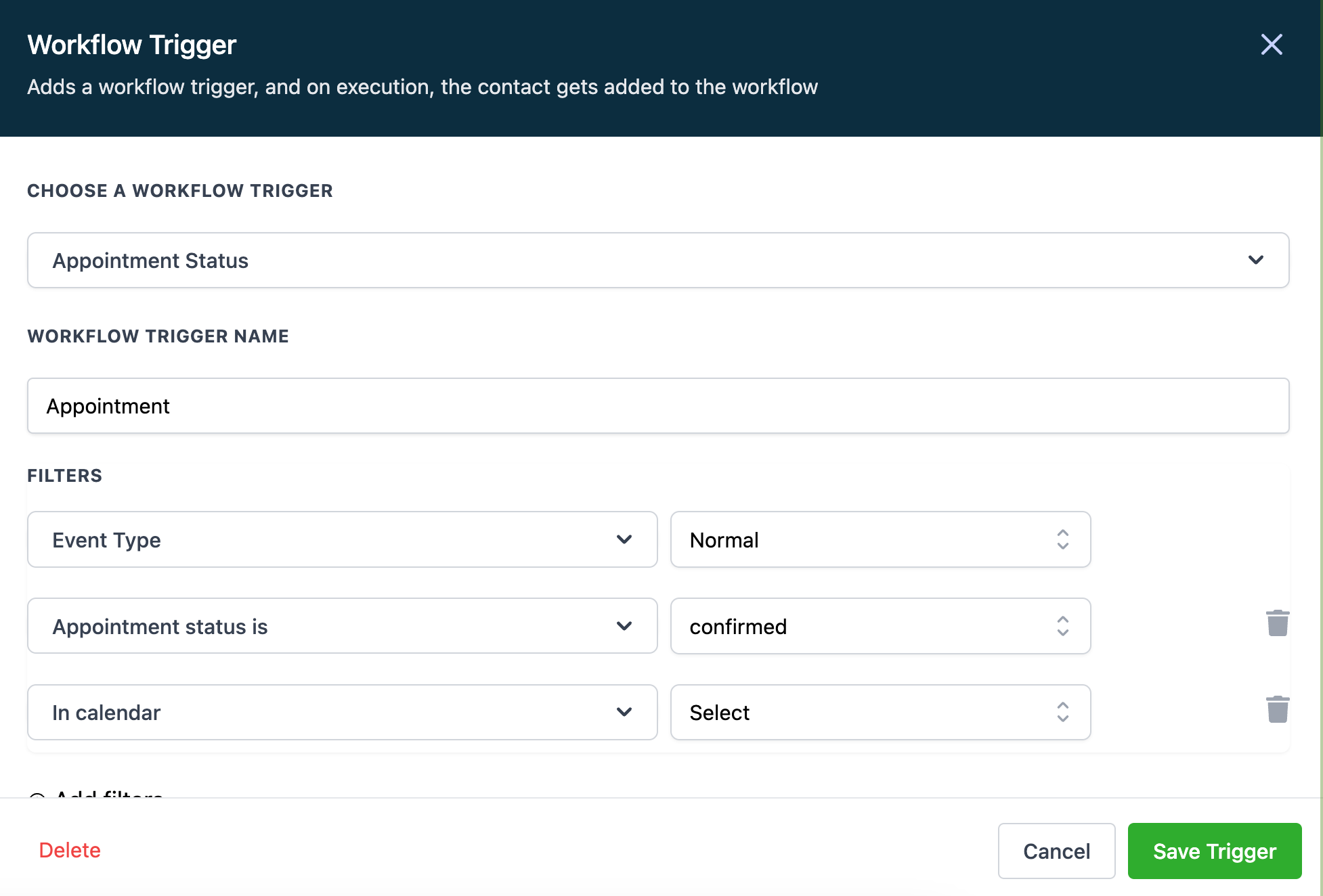
Select Appointment Status as the trigger and set your filters, such as the event type, an appointment status (auto confirming appointments ensures every booking passes the filter), and optionally a specific calendar.
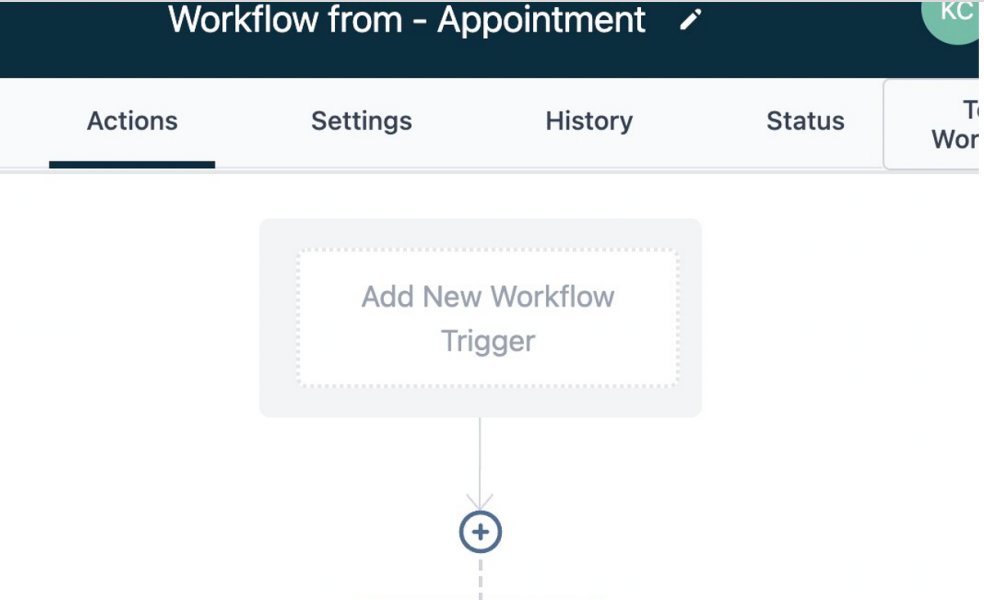
Click Add your first Action.
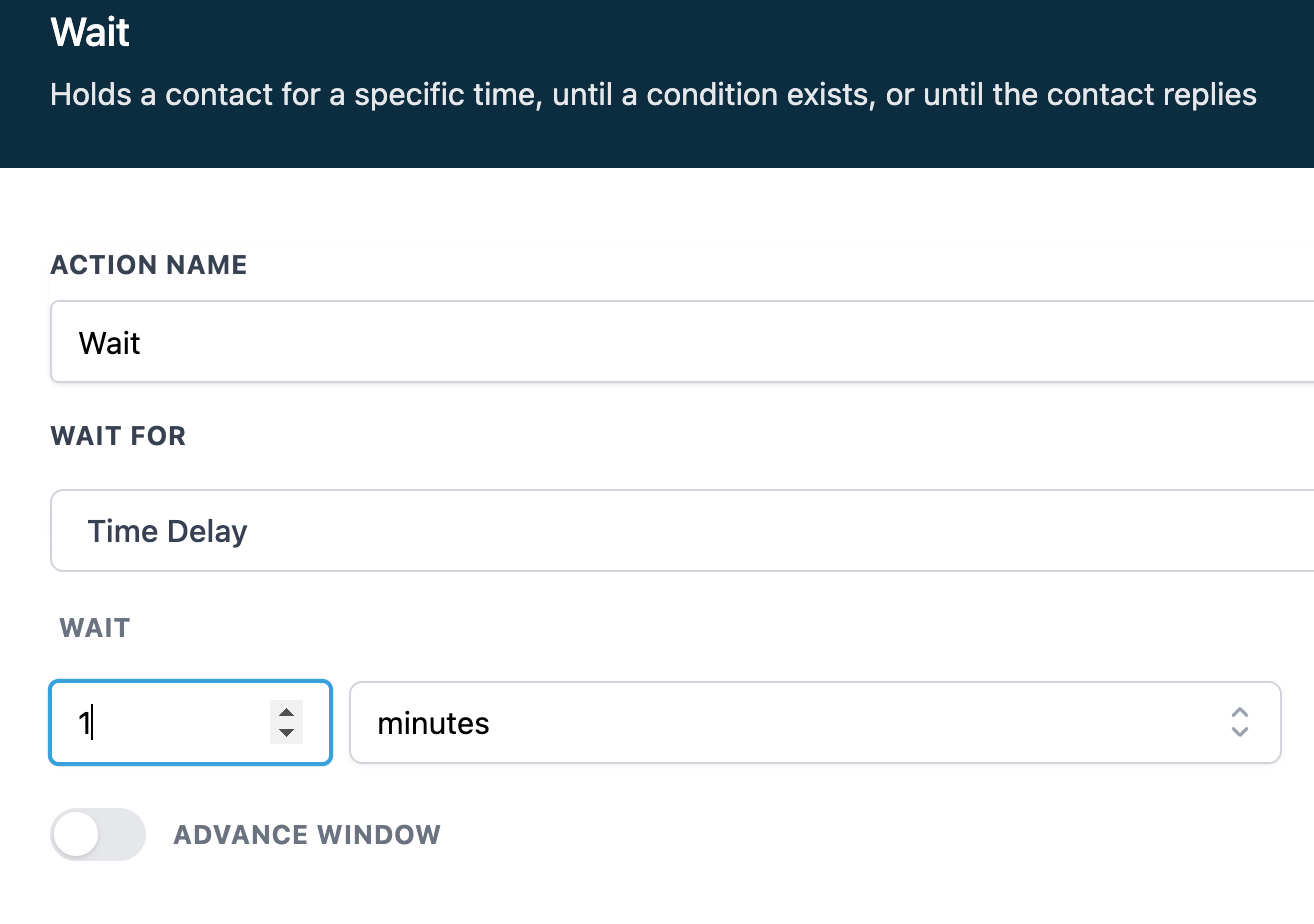
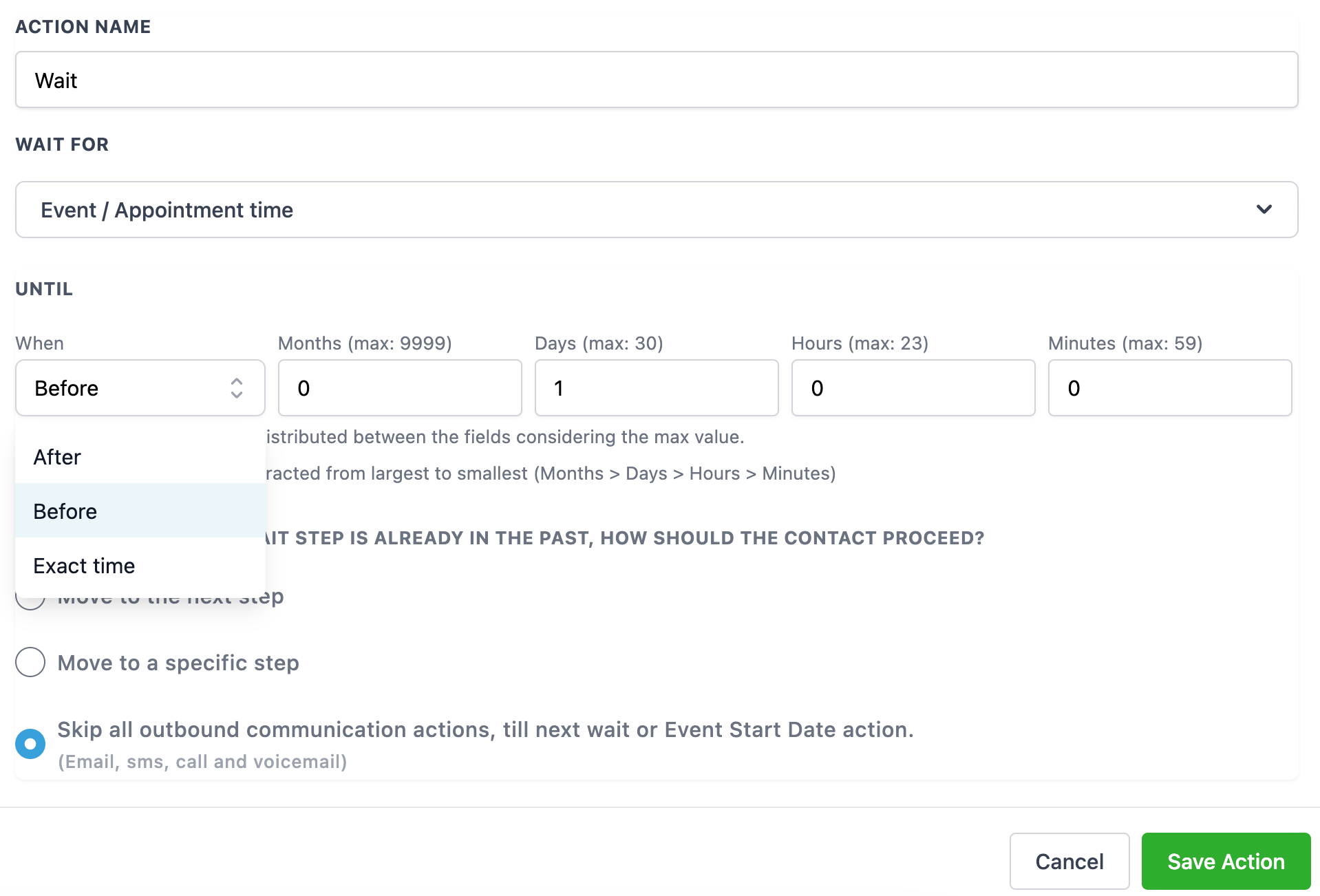
Add a one minute Wait step first. This short delay ensures the meeting location value has been populated before the message is sent.
Add a Send Email or Send SMS action to notify the patient. Include the custom value {{appointment.meeting_location}} in your message so the patient receives their dynamic Zoom link.
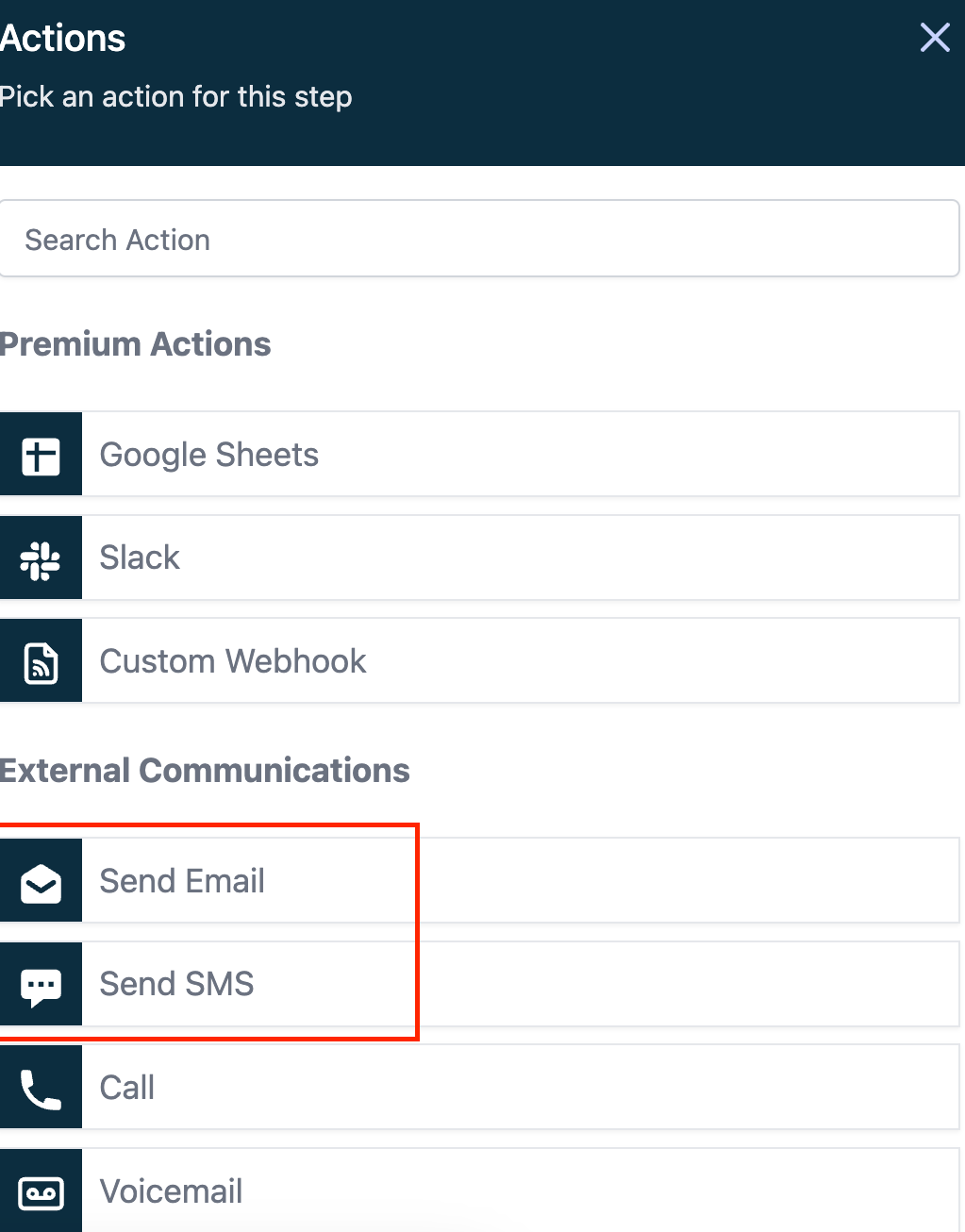
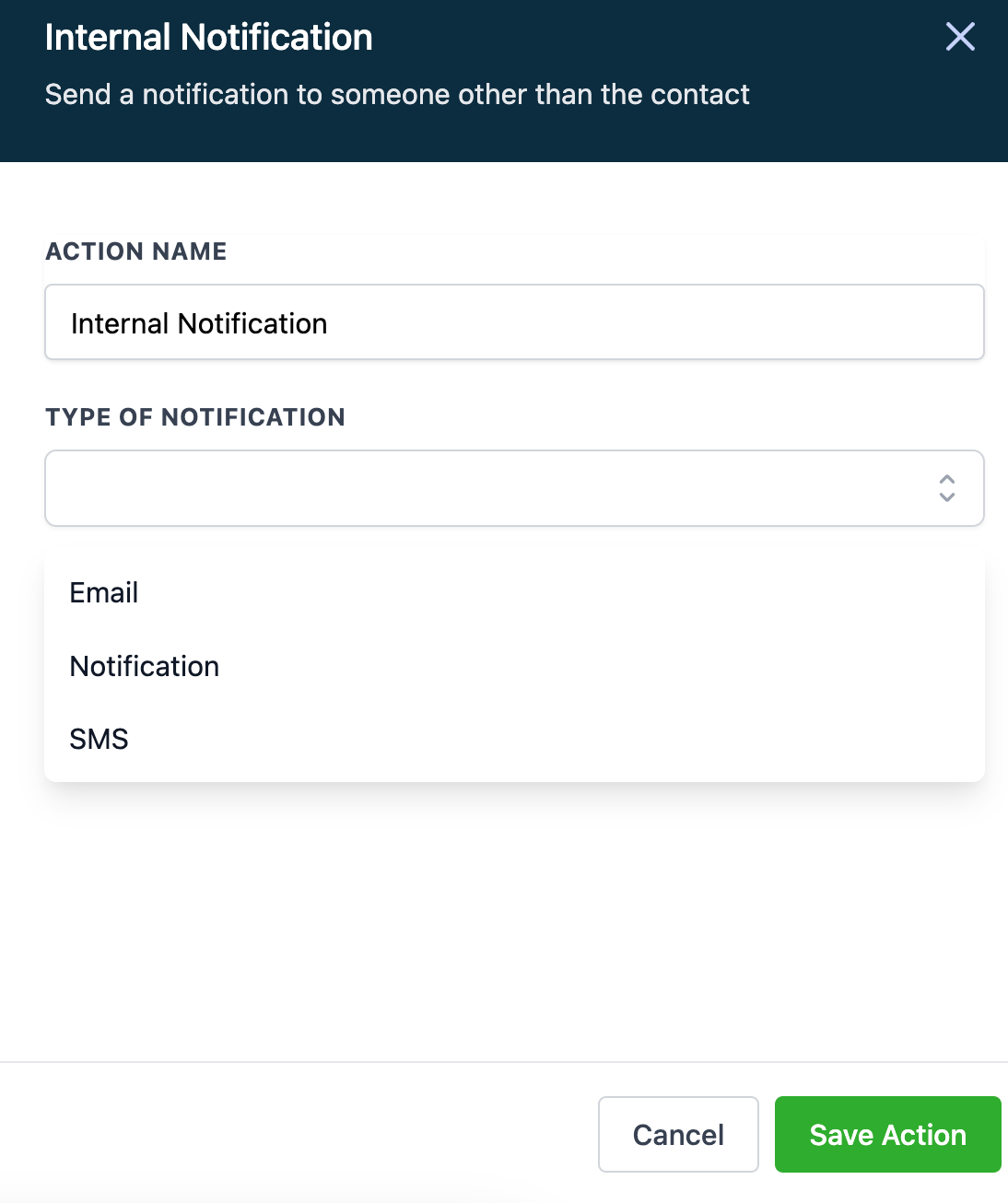
Optionally add an Internal Notification action to alert the assigned provider or coordinator by email, SMS, or in app message.
Use an Event / Appointment Time wait step to control the cadence of reminders, for example waiting until 24 hours before the appointment before sending the next reminder.
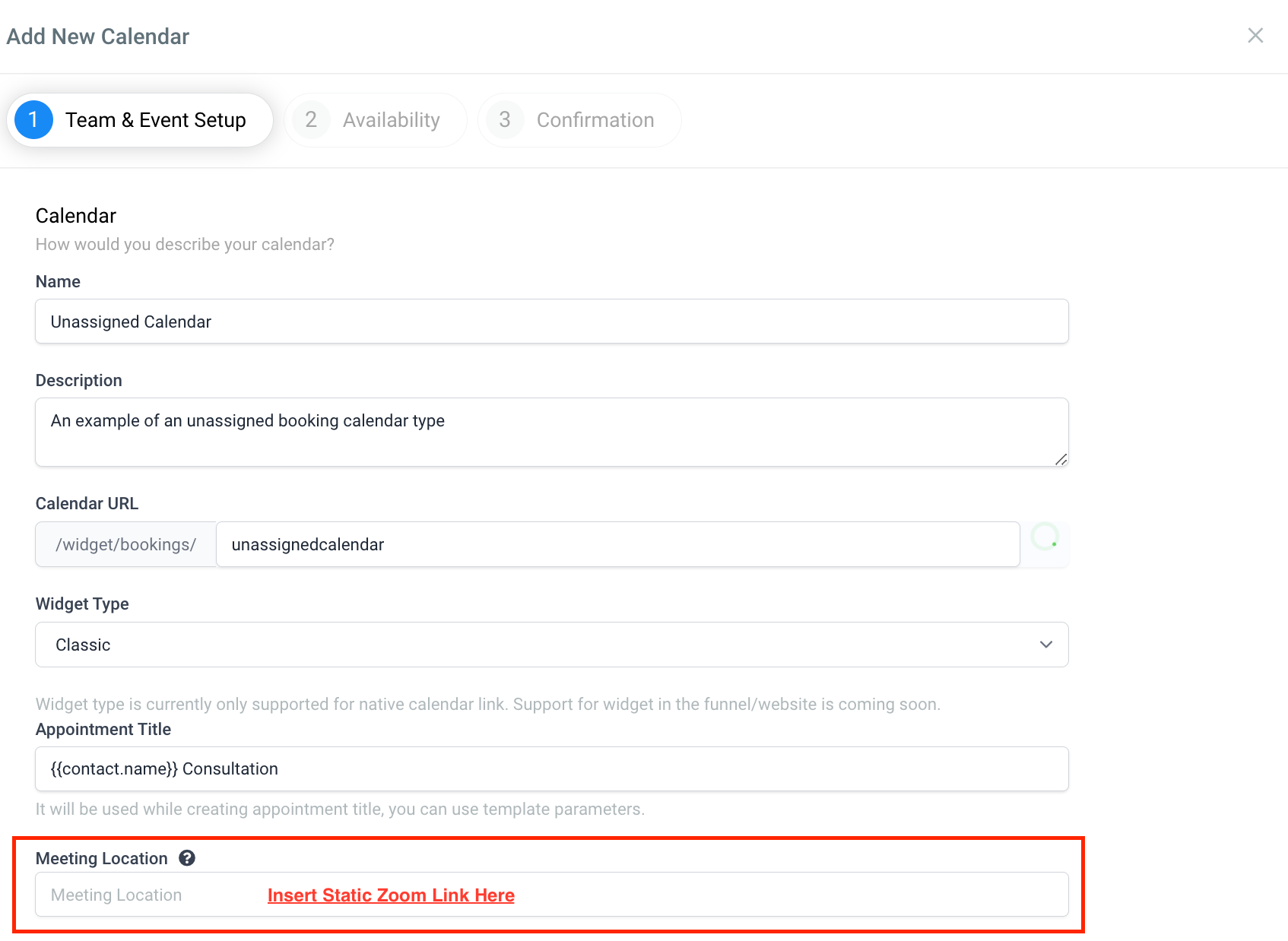
Unassigned booking calendars do not generate dynamic links. To use Zoom on one of these, manually add a static or pre generated Zoom link in the meeting location setting under the calendar's team and event setup.
A meeting is edited but the time is unchanged: The Zoom link generated earlier continues to work as expected.
A meeting is canceled or deleted: The Zoom link is dropped permanently, unless another meeting exists in the same time slot using the same link.
A meeting is rescheduled to a new time: A new link is generated, unless another appointment already occupies the new time slot, in which case the earlier link is reused.
Multiple appointments in the same slot: If your calendar allows multiple appointments per slot, the same Zoom link is reused across those meetings.
Existing Zoom events are not appearing: The integration does not pull events in from Zoom, and it does not use links from meetings created directly in Zoom. Links are only generated for bookings made through Aesthetix CRM.
Daily limit: A single user can make up to 100 requests per day (UTC) to create, update, or delete meetings. This window resets at 00:00 UTC, not in your local time zone.
You do not see a Profile or Integrations tab: You have not been added as a user on that account. Ask an admin to add you as a user so you can connect your own Zoom account.
If you have audio, video, or screen sharing problems during a consultation, try the steps below.
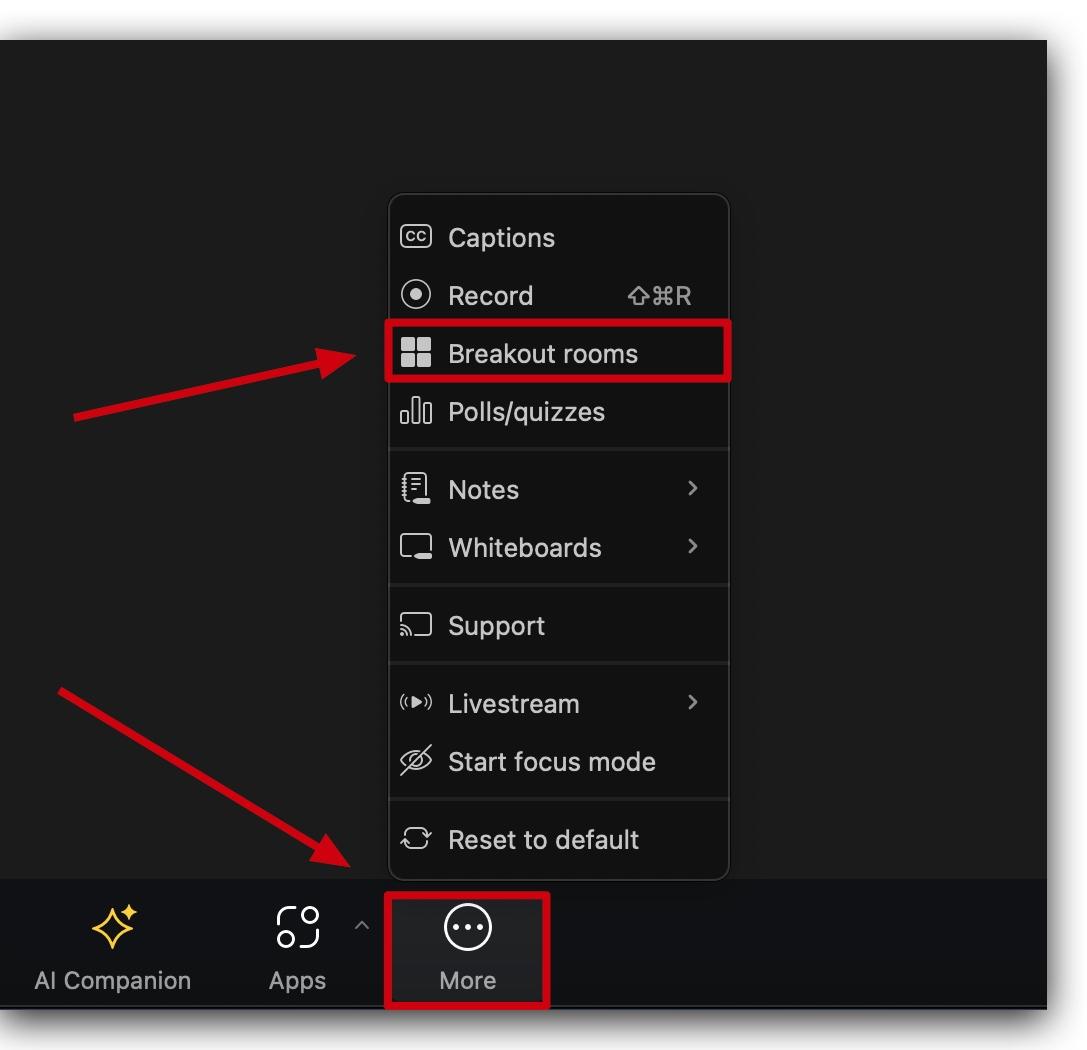
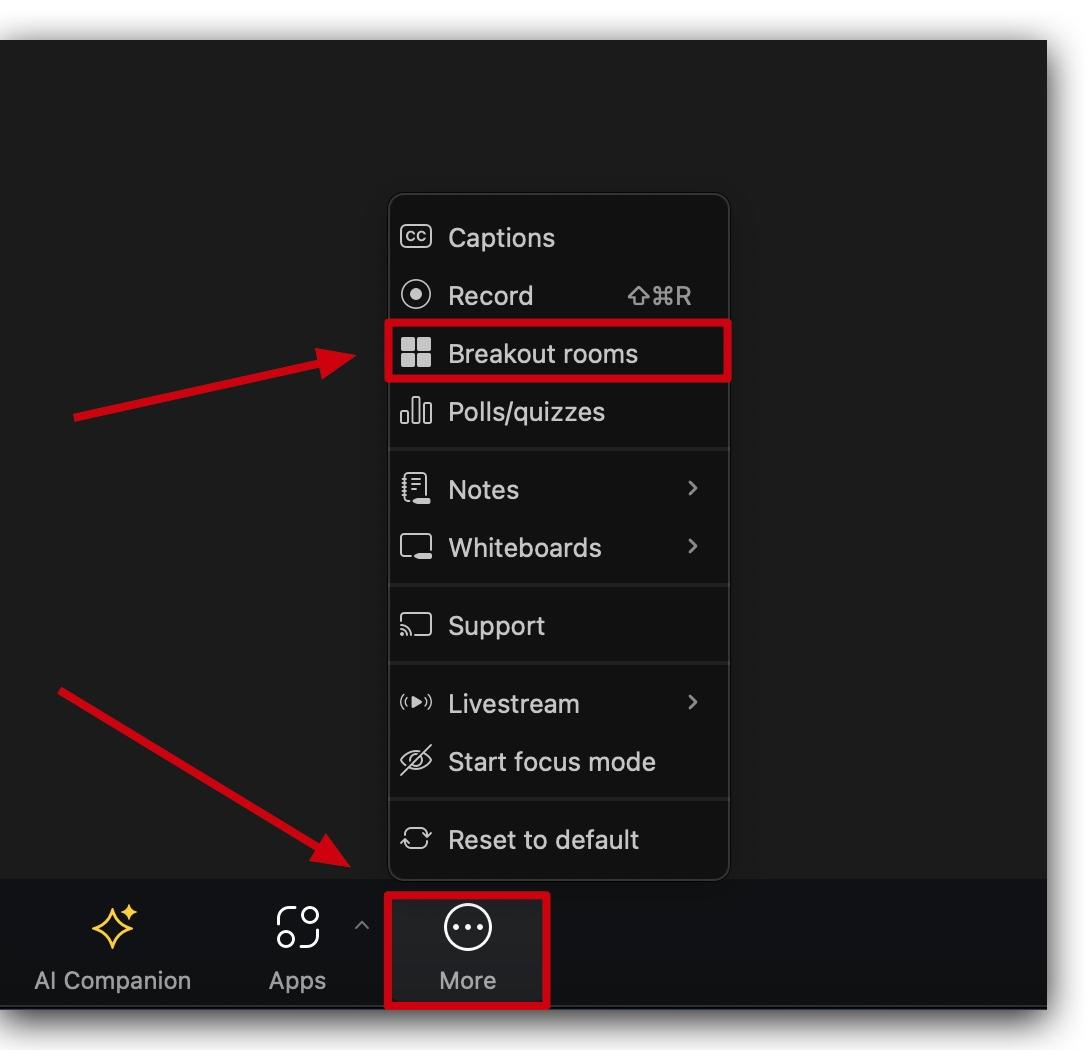
Move to a breakout room and back. Leaving the main room for a breakout room and rejoining forces Zoom to refresh your session and often resets audio and video.
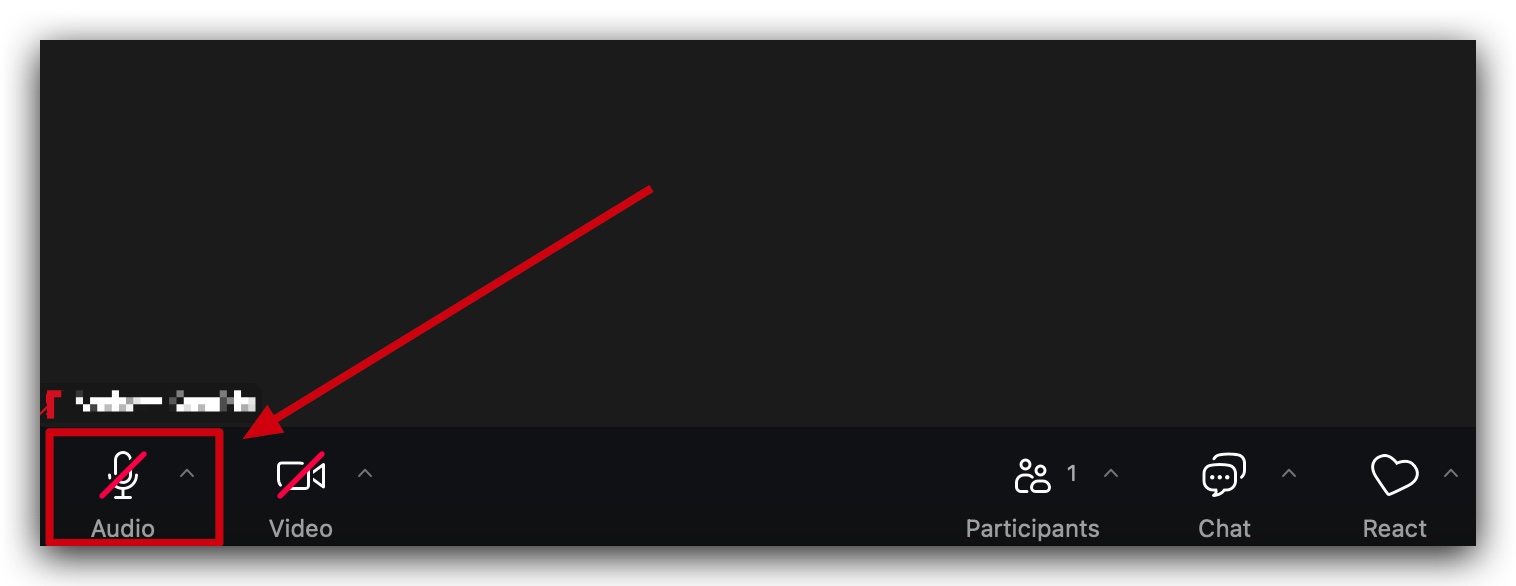
Check your microphone and speaker. Click the microphone icon at the bottom left. If it is muted, click to unmute. Use the up arrow next to it to confirm the correct microphone and speaker are selected.
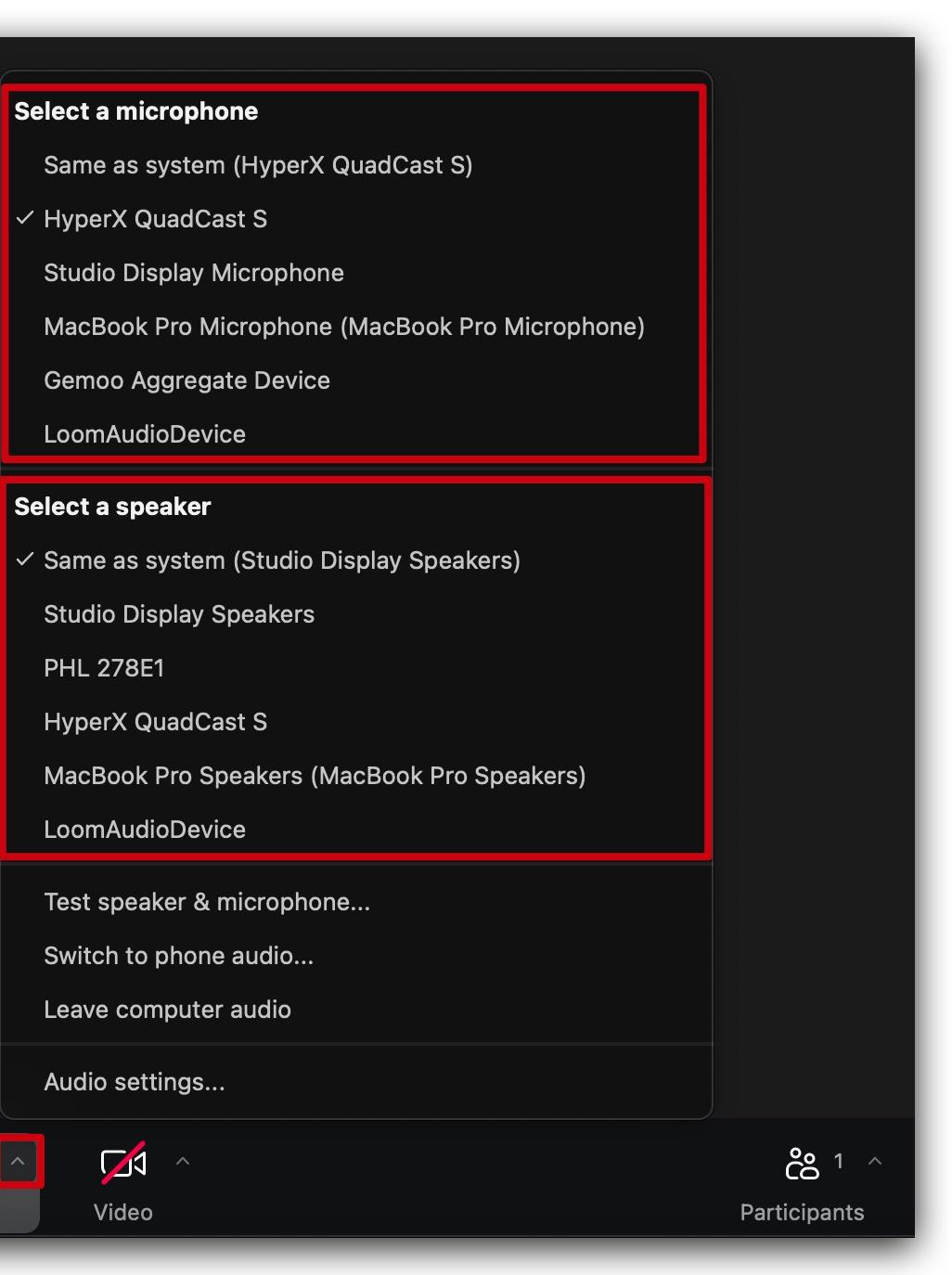
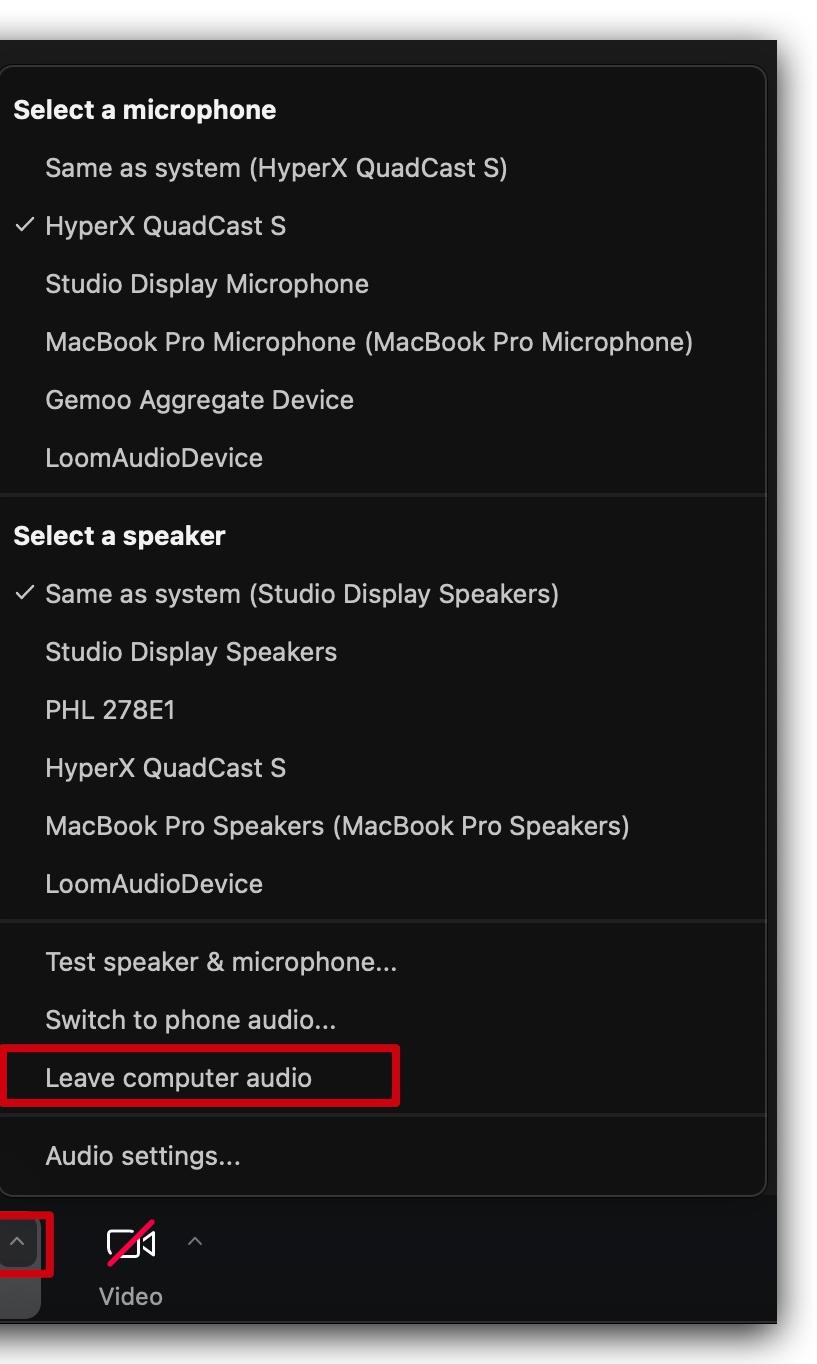
Disconnect and reconnect audio. Click the up arrow next to the microphone, choose Leave Computer Audio, then click Join Audio again.
Test your devices. In Audio Settings, use Test Mic and Test Speaker to confirm both are working.
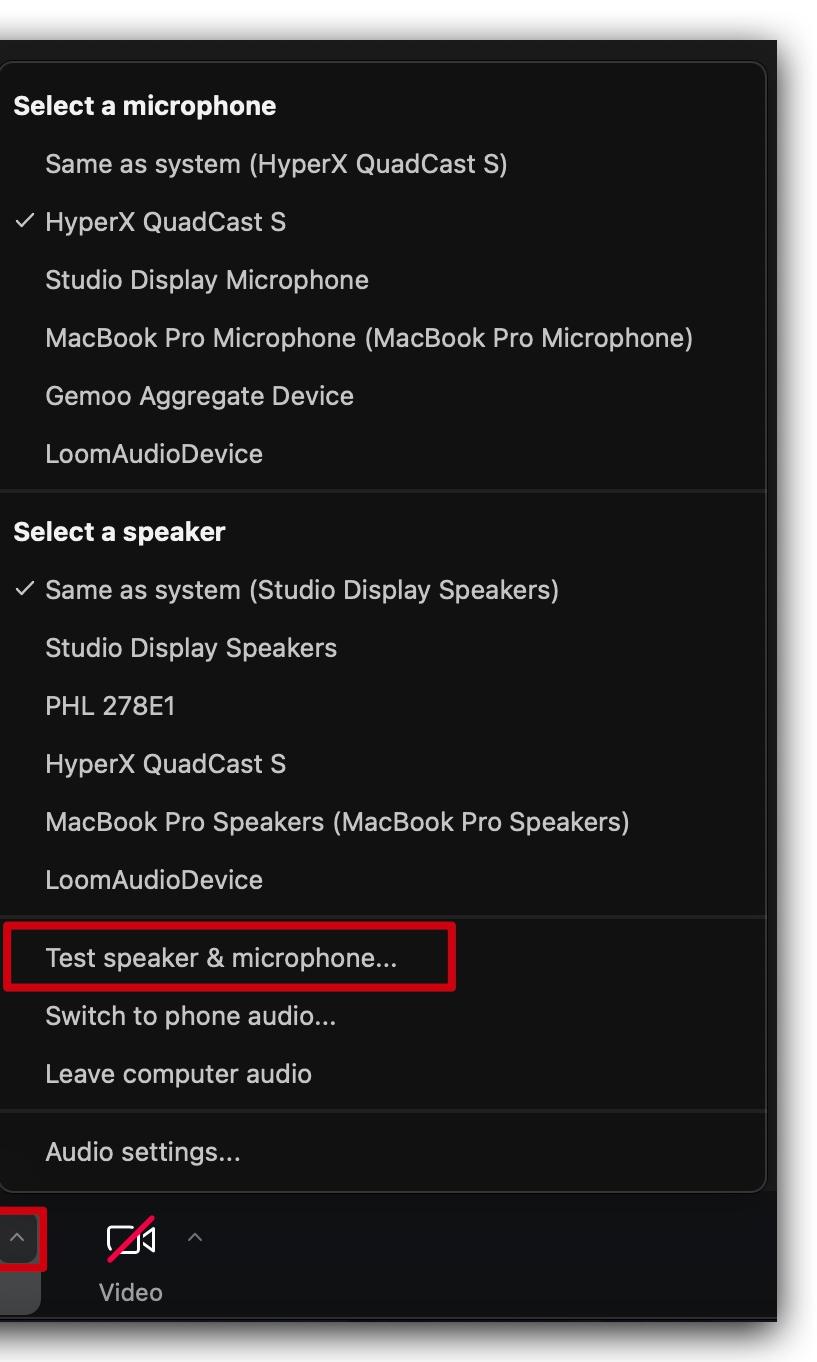
Verify device connections and make sure your microphone or speakers are not routed to another device, such as Bluetooth headphones.
Restart Zoom to clear temporary glitches, and use Zoom's test page at zoom.us/test to confirm your setup.
Move to a breakout room and back to refresh your session.
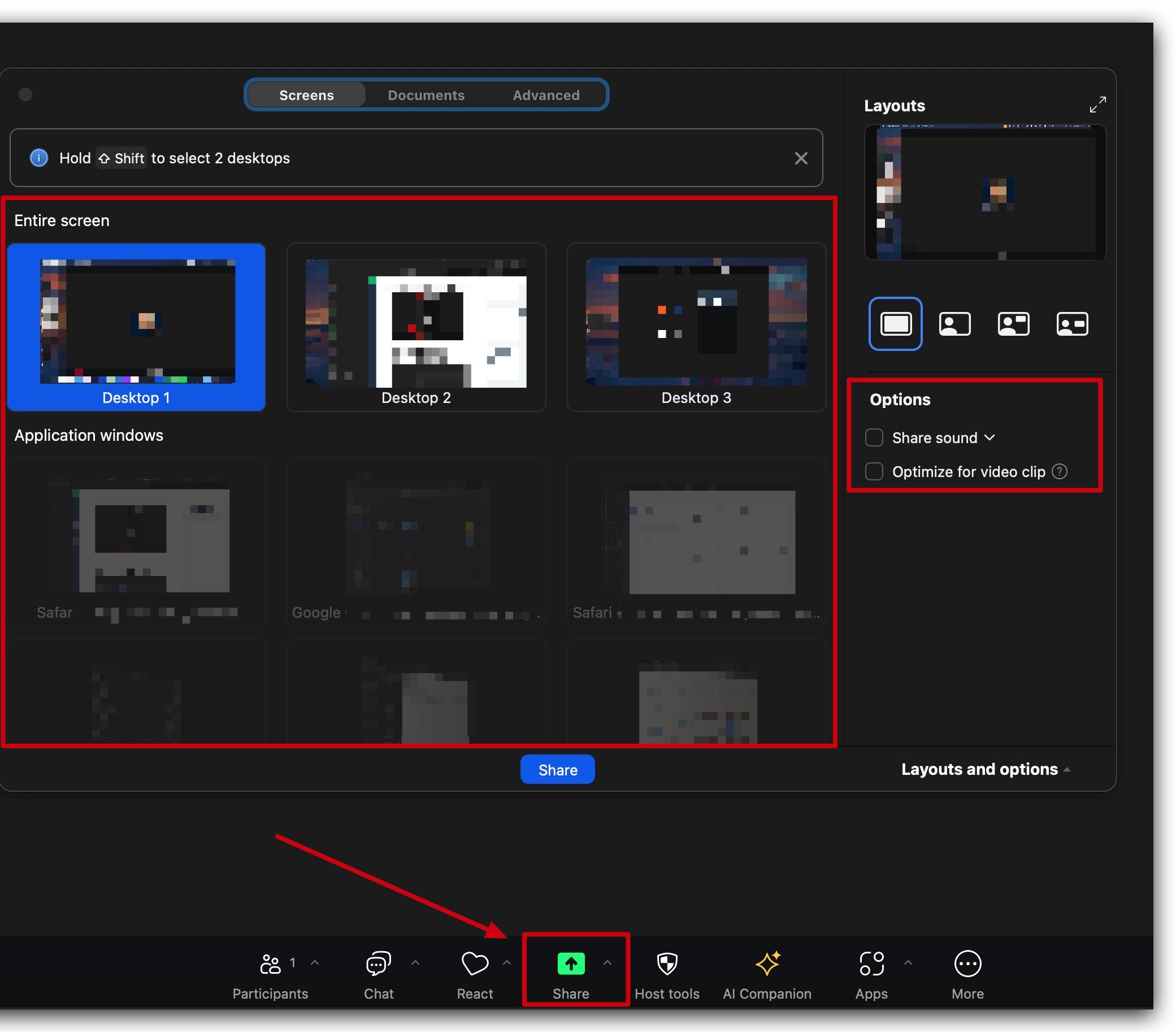
Verify your screen sharing selection. Click Share Screen and confirm you selected the correct screen or window.
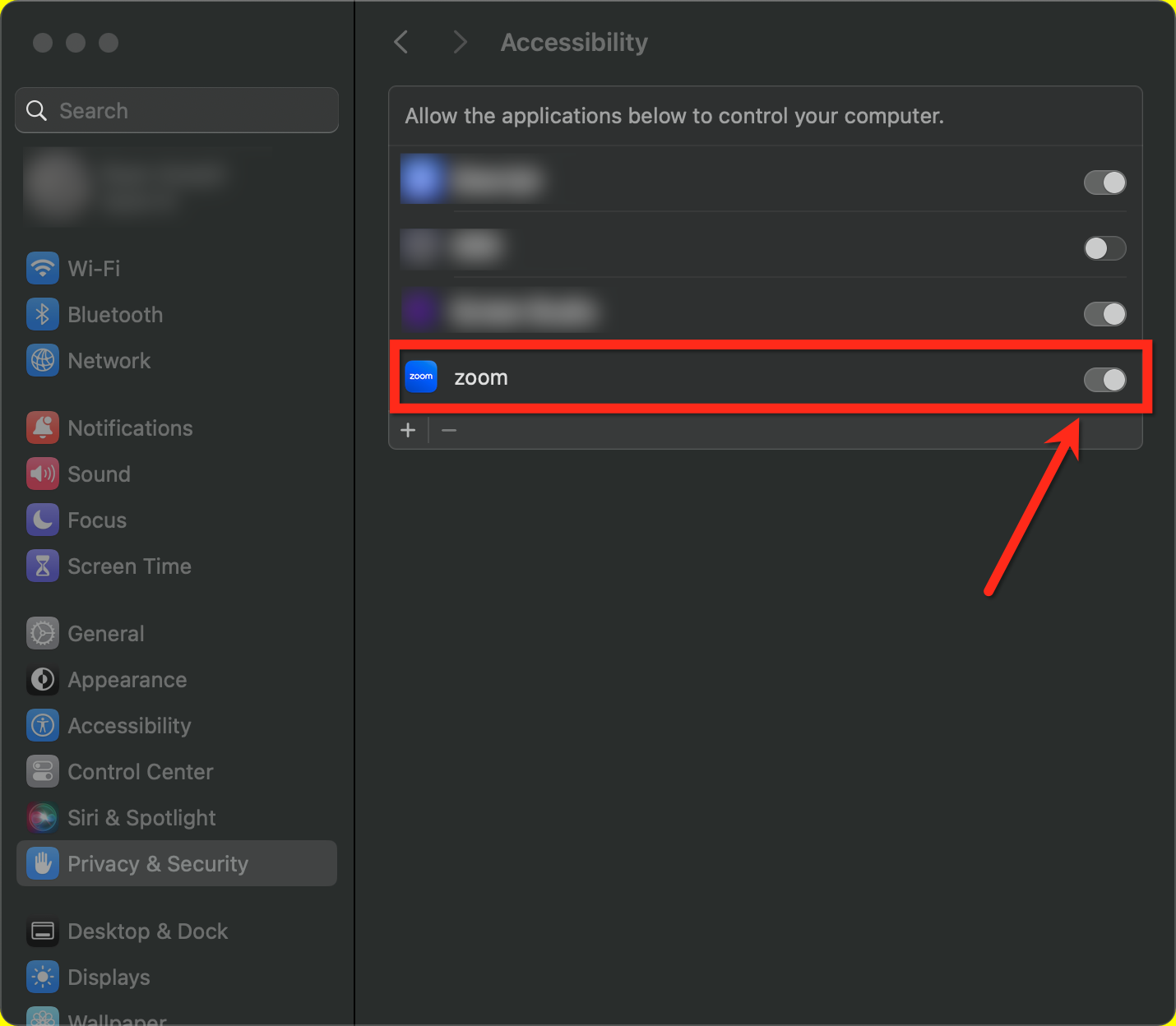
Check permissions. On Mac, go to System Preferences > Privacy & Security > Accessibility and enable Zoom. On Windows, make sure Zoom has permission to record and share your screen.
Enable TCP connection. In Settings > Share Screen > Advanced, enable the TCP connection to improve stability.
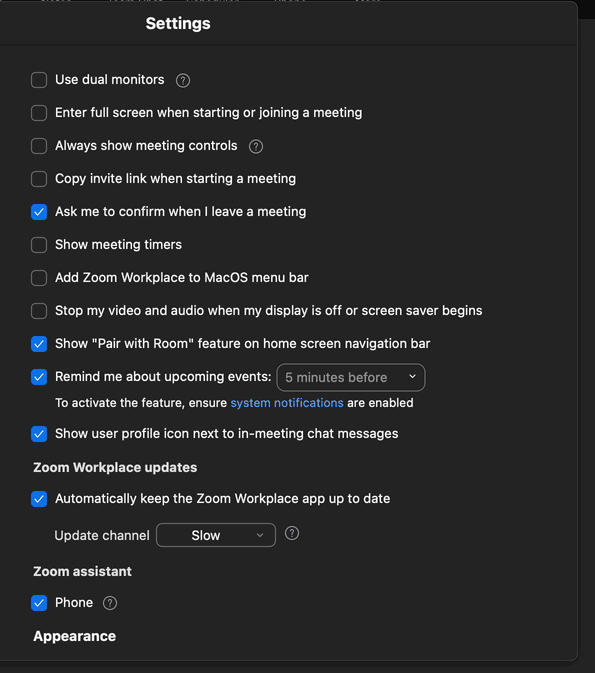
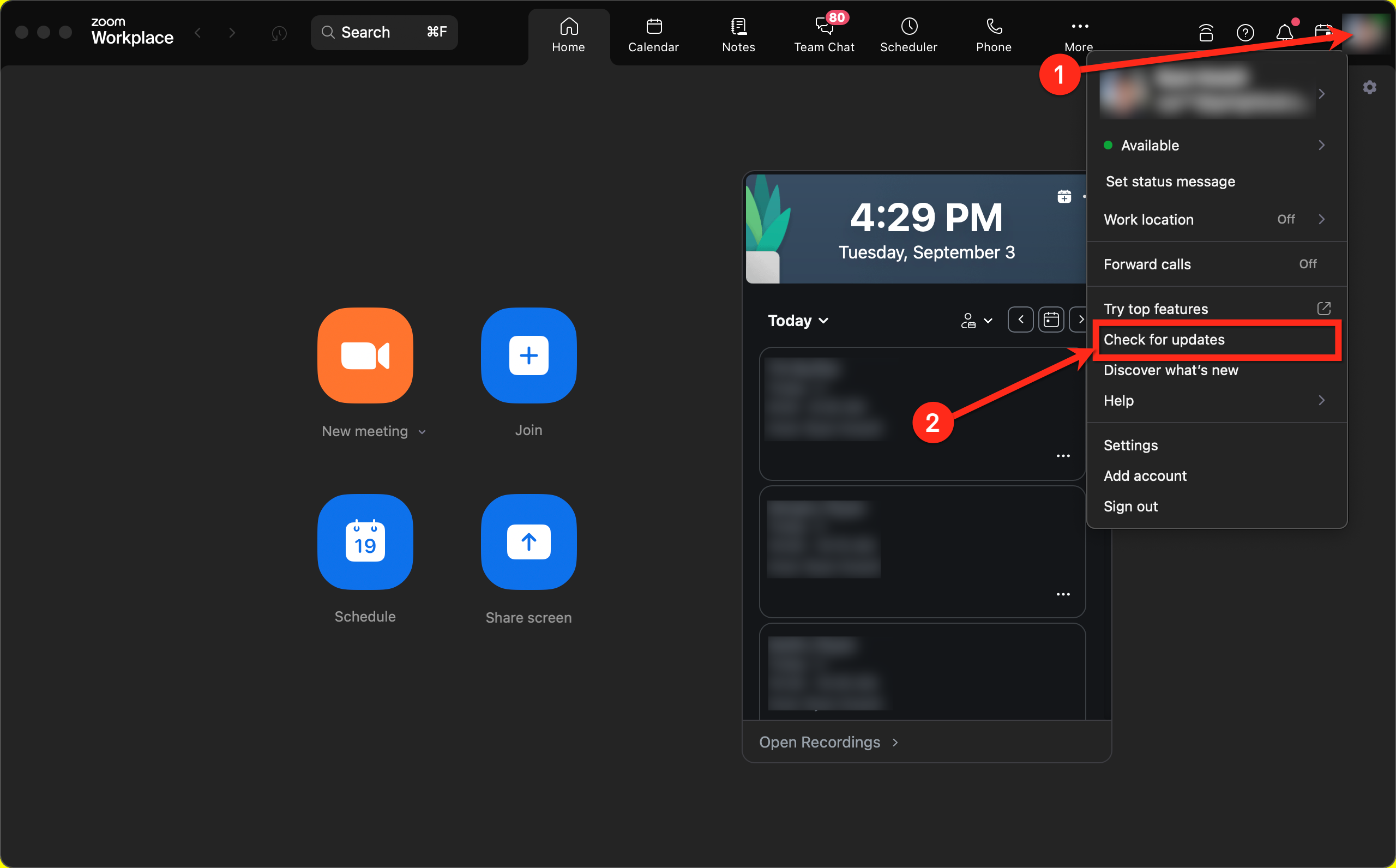
Check your network. A stable connection of at least 50 Mbps helps prevent lag, and keeping Zoom up to date avoids known bugs.
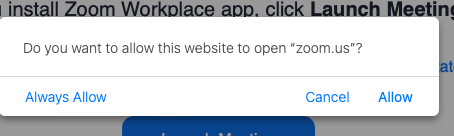
The annotate tool is only supported in the Zoom desktop app. When you join, select Allow to open the desktop app.
If annotations do not work in the browser, download the desktop app at zoom.us/download and rejoin the meeting through the app.
Which calendar types support automatic Zoom links?
Dynamic Zoom links are supported on Personal, Round Robin, and Collective calendars when the connected Zoom account is set as the meeting location. Unassigned calendars can use a static link added manually.
Do I connect Zoom once for the whole practice?
Each provider connects their own Zoom account to their profile. You can, however, use the same Zoom account across multiple users and locations. A single user can connect only one Zoom account per location.
How does the patient get their meeting link?
When Zoom is the meeting location, a unique link is embedded in the appointment automatically. To make sure the patient receives it, include the {{appointment.meeting_location}} merge field in your confirmation and reminder messages.
What happens to the link if an appointment is rescheduled or canceled?
Rescheduling to a new time generates a new link. Canceling or deleting the appointment drops the link permanently, unless another meeting uses the same time slot.
Why are my meetings created in Zoom not showing in Aesthetix CRM?
The integration only generates links for appointments booked through Aesthetix CRM. It does not import events from Zoom or reuse links from meetings created directly in Zoom.
Can an admin set up Zoom for another provider?
Each user must connect their own Zoom account, but an admin can complete the step on the user's behalf using the login as user feature, then set the connected account as that user's default meeting location.
Is there a limit on how many meetings I can create?
Yes. A single user can make up to 100 requests per day (UTC) to create, update, or delete meetings, and the window resets at 00:00 UTC.
How do I switch to a different Zoom account?
Go to Calendars > Settings > Connections > Video Conferencing, remove the current connection or connect a different account, then confirm the meeting location on any calendars that should generate links.
