Connecting WooCommerce lets your practice import and sync your online store data into Aesthetix CRM. Once connected, you can bring in contacts, orders, transactions, and products, keep new purchases in sync, and use order-related events to trigger automated follow-up such as order confirmations, post-purchase education, and replenishment reminders.
Aesthetix CRM supports several store sources side by side, including its native Store, Shopify, and WooCommerce. This guide covers the WooCommerce connection specifically.
Import your existing WooCommerce contacts, orders, transactions, and products into Aesthetix CRM
Continuously sync new WooCommerce activity going forward, including guest checkouts
Trigger workflows from order-related events using the Order Submitted and Payment Received triggers
Give you selective control over which data types to import initially and which to keep syncing
Keep WooCommerce as the source of truth, with automatic reconnection support if an authentication error occurs
Proper setup ensures historical data imports correctly and new orders continue to sync into your account.
Go to Settings > Integrations > WooCommerce.
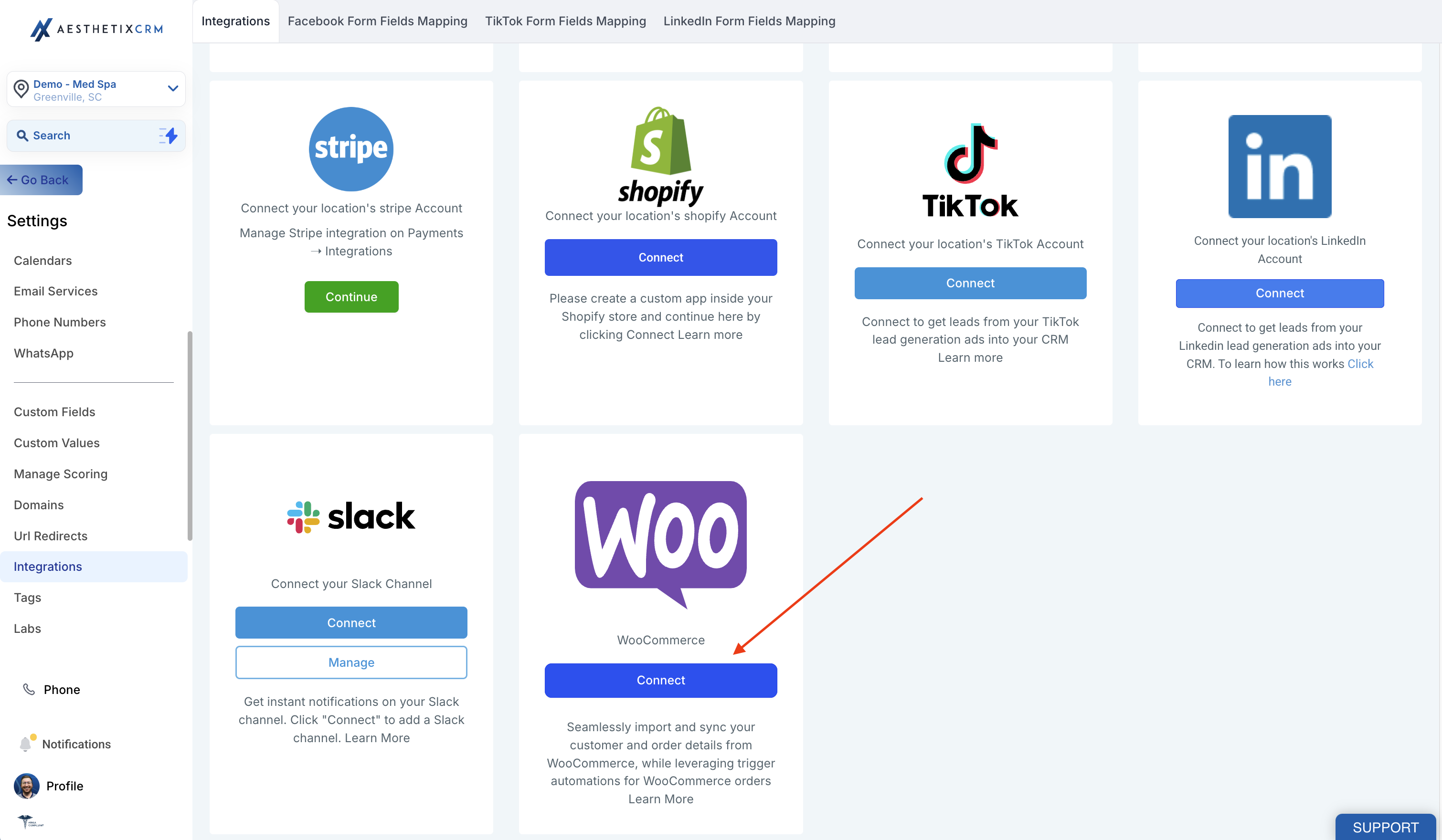
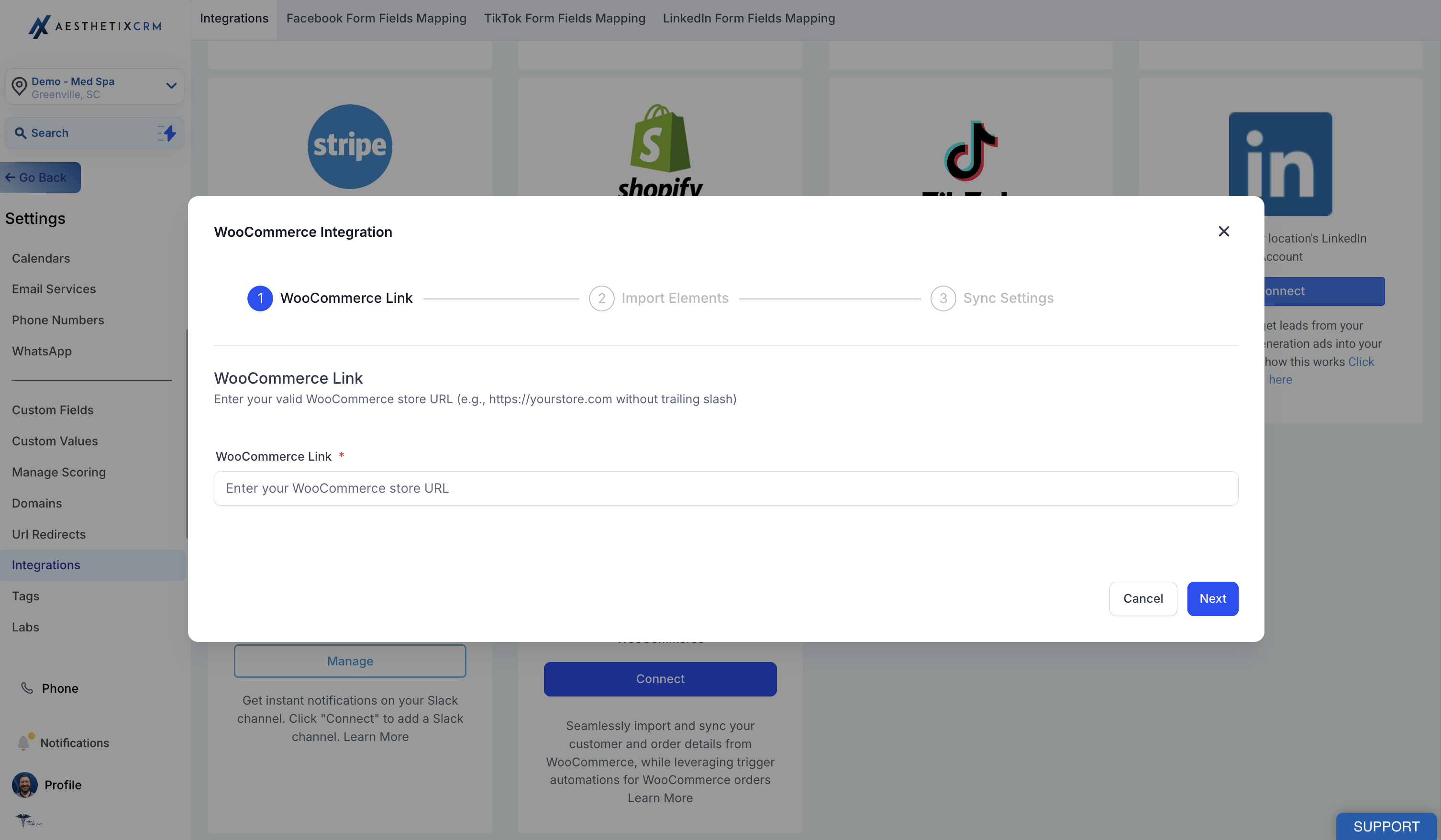
Click Connect. In the modal that appears, enter a valid WooCommerce store URL (for example, https://yourstore.com) without a trailing slash, then approve the connection.
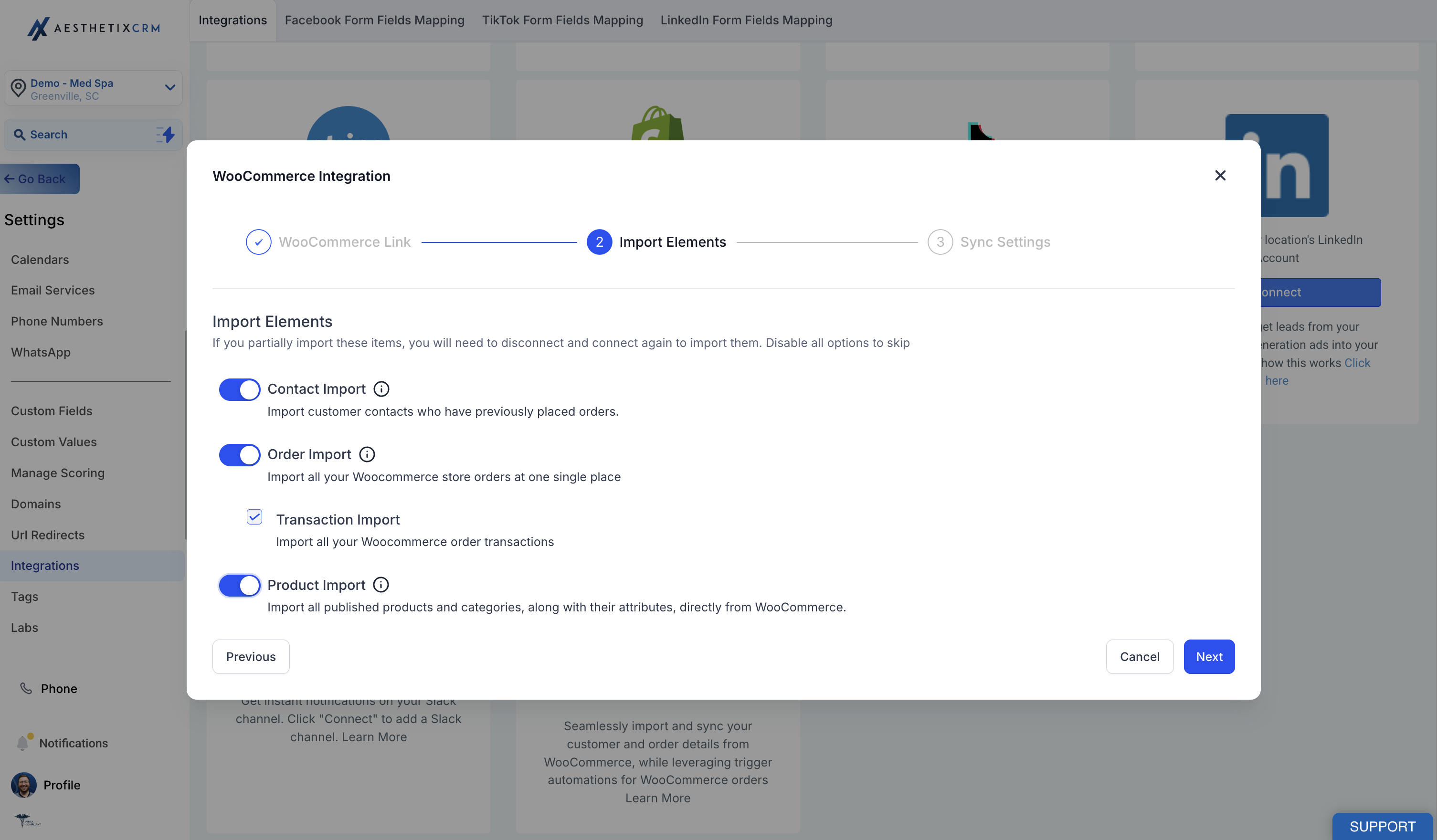
On the Import Elements screen, select the data to import as a one-time historical import:
Contact Import: Only customer contacts who have placed an order in the past are imported.
Order Import: Enables order import, which also allows transaction import and the order received and payment received triggers.
Transaction Import: Imports all your WooCommerce order transactions.
Product Import: All published products imported from WooCommerce are automatically included in your online store by default.
Click Next to reach the Sync Settings screen. Choose which data and triggers to keep syncing from WooCommerce going forward:
Contact Sync: Only customer contacts who place an order in the future are synced.
Order Sync: Syncs all your future WooCommerce orders. Enabling order sync also allows transaction sync and the order received and payment received triggers.
Order Received Trigger: Lets you build automations that fire when an order is received in WooCommerce.
Transaction Sync: Syncs all your WooCommerce order transactions.
Payment Received Trigger: Lets you build automations that fire when a payment is received in WooCommerce.
Product Sync: Syncs all published products and categories, including their attributes, directly from WooCommerce. Updates made in WooCommerce reflect here, but changes made here do not sync back to WooCommerce.
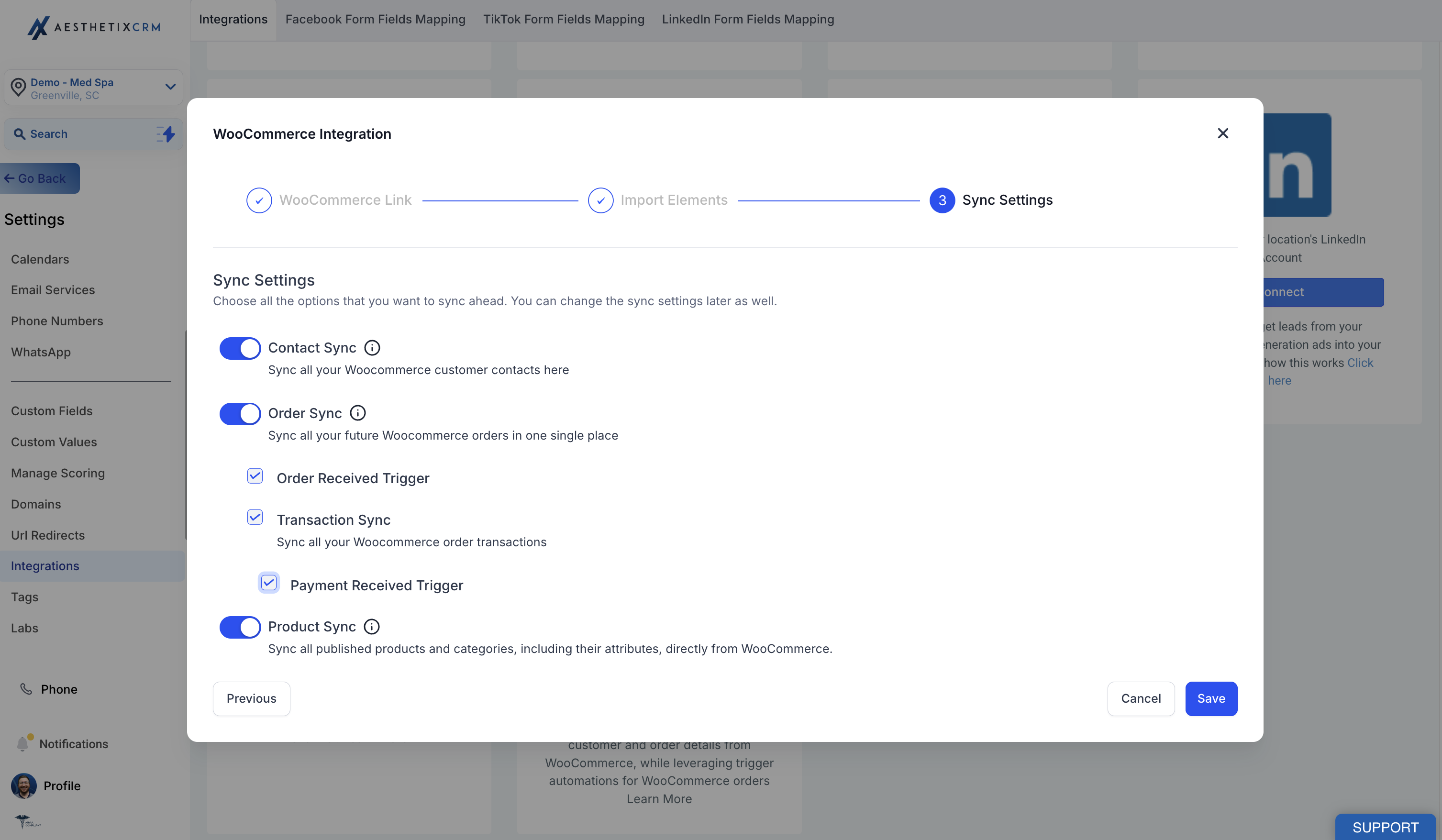
After selecting the elements to import and sync, click Save. The import and sync process may take some time to complete depending on how much data is in your store.
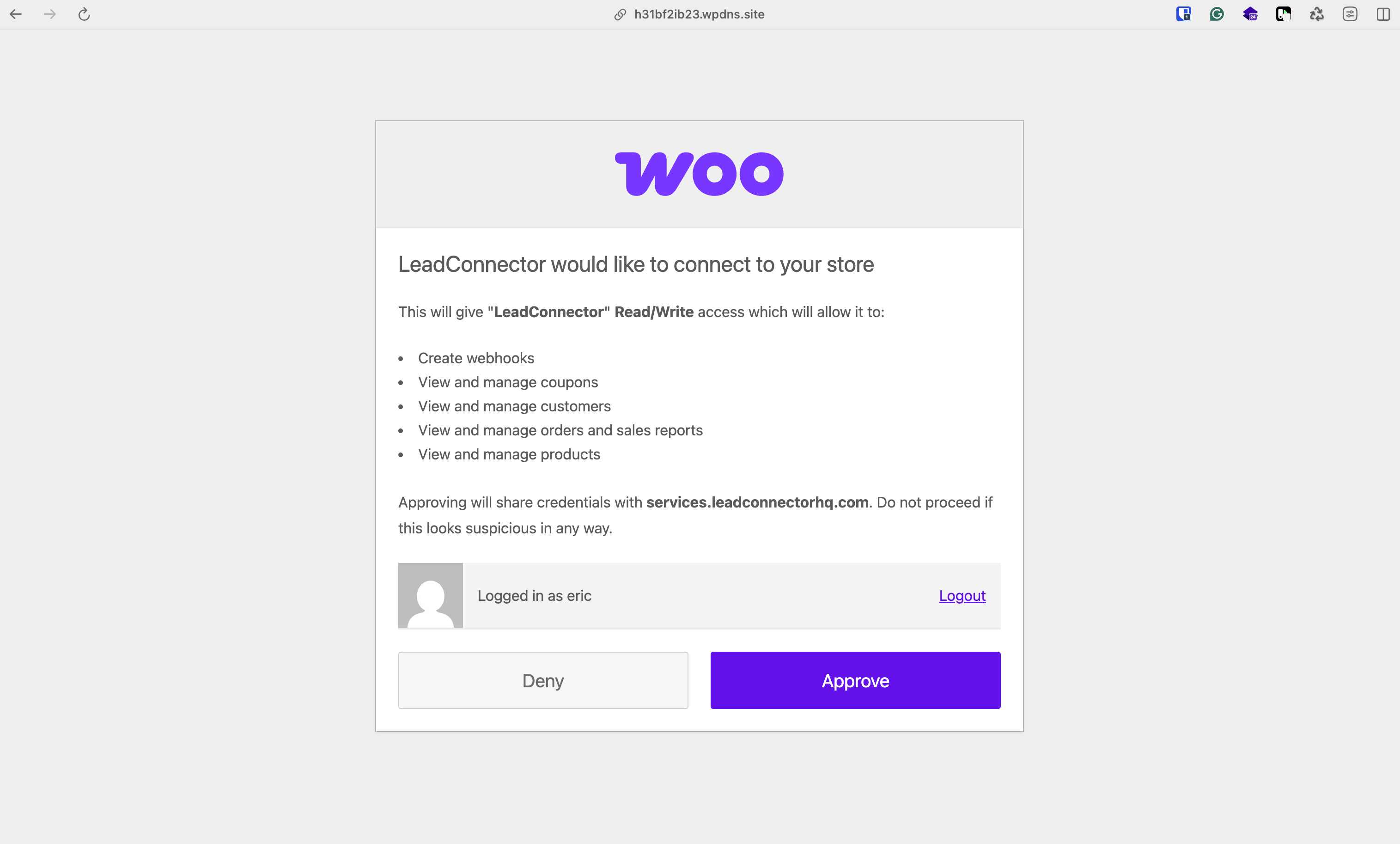
Once the integration is connected, you can enable or disable the elements you want to sync for future orders at any time from Settings > Integrations > WooCommerce.
To reimport data, disconnect and reconnect the integration, then select the elements you want to import again. This lets you pull any data you may have missed during the initial import.
Keep these criteria in mind when importing your catalog:
Only Simple and Variable products are imported. Other product types are excluded.
Products with a $0 price or no variants are not imported.
The Include in Online Store toggle is enabled only for published products.
WooCommerce remains the source of truth for product information.
Only categories linked to products are imported. Unlinked categories are ignored.
Product and category deletions in WooCommerce do not sync into Aesthetix CRM.
Orders with linked products and images are fully imported.
If an authentication error occurs (401 Unauthorized, 403 Forbidden, or 404 Not Found), the integration switches to reconnect mode and account admins receive an email with steps to restore the connection.
Customer types imported: Customers with the roles Customers and Subscribers are imported.
Contacts created even with Contact Sync off: If Contact Sync is disabled but Order Sync is enabled, contacts are still created from orders.
Guest checkout handling: Guest checkout buyers are created as contacts, but no updates or future syncs occur for those guest accounts.
Order status mappings from WooCommerce to Aesthetix CRM:
Completed or Refunded in WooCommerce becomes Completed
Cancelled or Failed in WooCommerce becomes Cancelled
All other statuses in WooCommerce become Pending
WooCommerce order activity can drive workflows in Aesthetix CRM using the Order Submitted and Payment Received triggers. Because these triggers also fire for other store sources (native Store, Shopify), you scope them to WooCommerce with filters.
Go to Automations > Workflows.
Create a new workflow or edit an existing one.
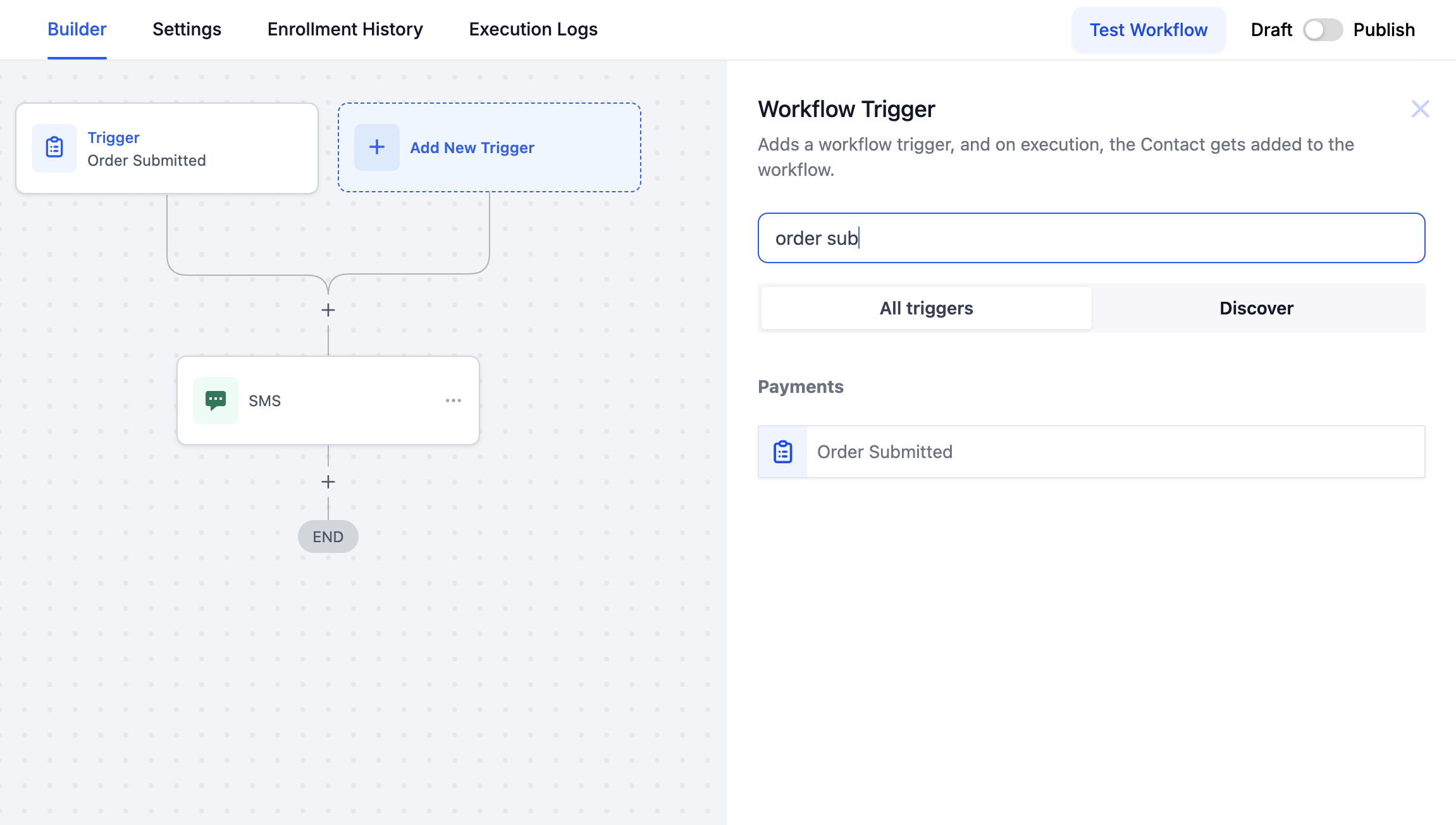
Click + Add New Trigger.
Search for and select the Order Submitted trigger.
Click + Add Filter and select Order Source > is > External.
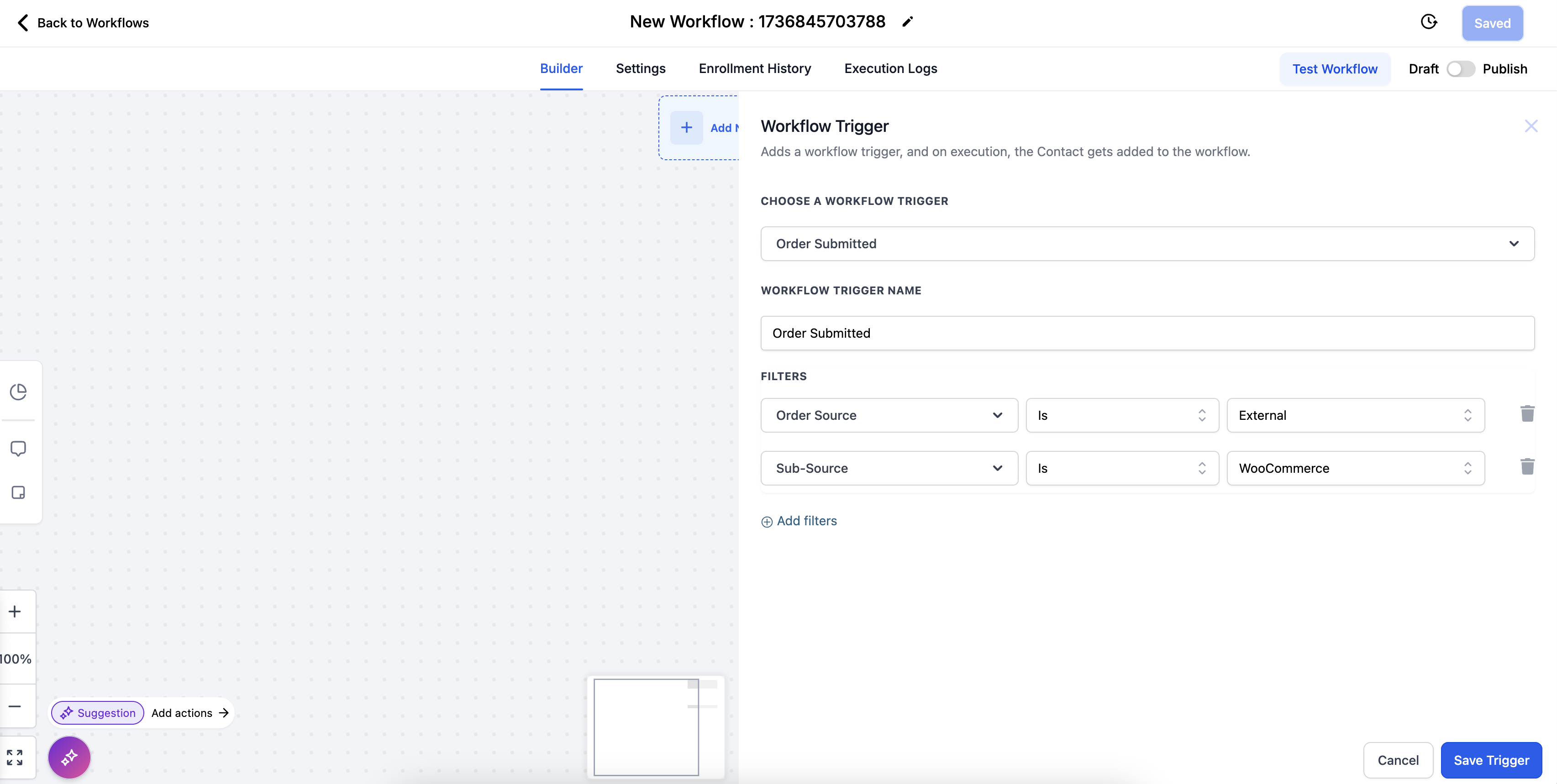
Add a second filter: Sub-Source > is > WooCommerce, then click Save.
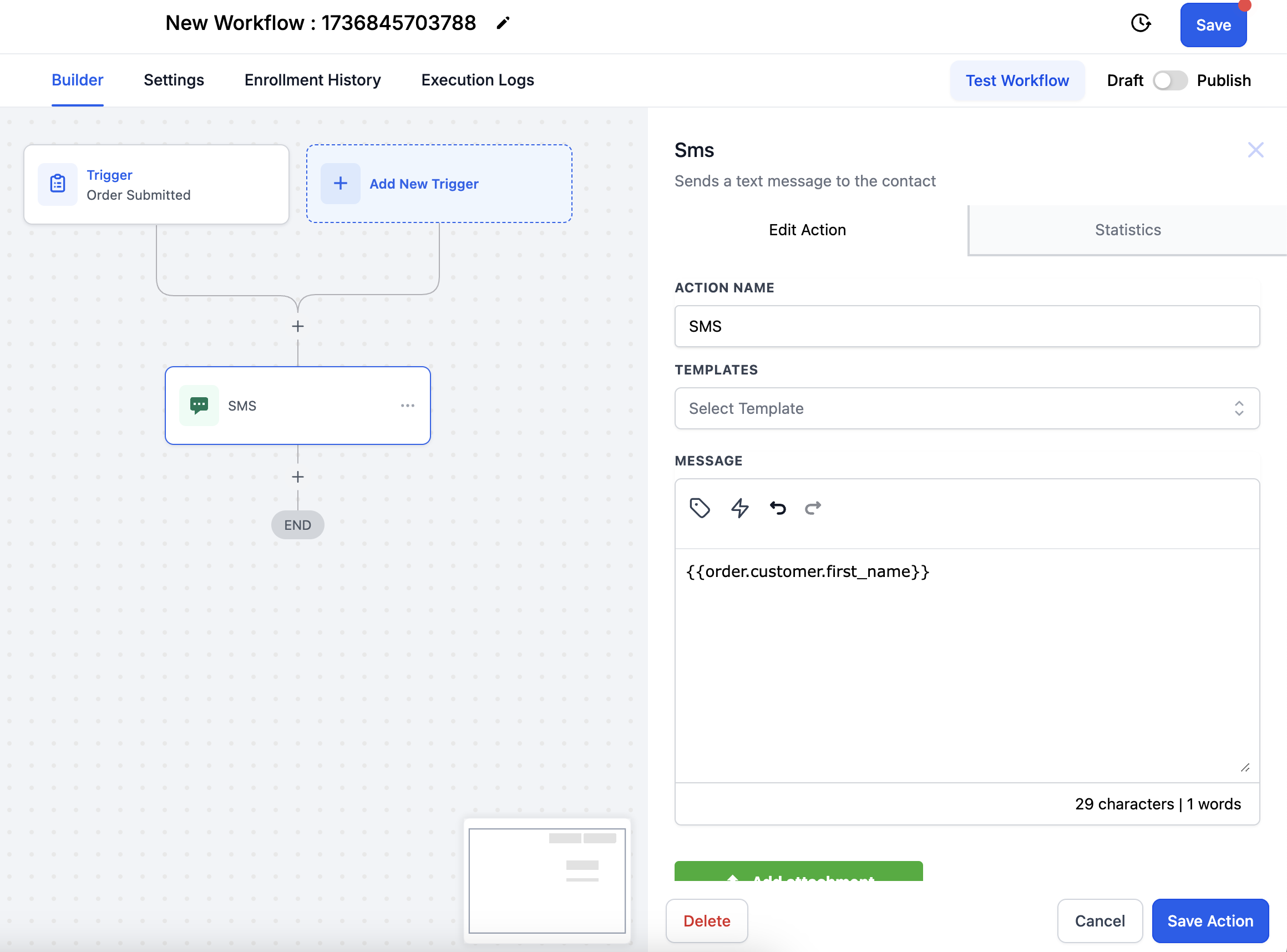
Add any action such as send SMS, email, or invoice after the trigger as needed.
Go to Automations > Workflows.
Create a new workflow or edit an existing one.
Click + Add New Trigger.
Search for and select the Payment Received trigger.
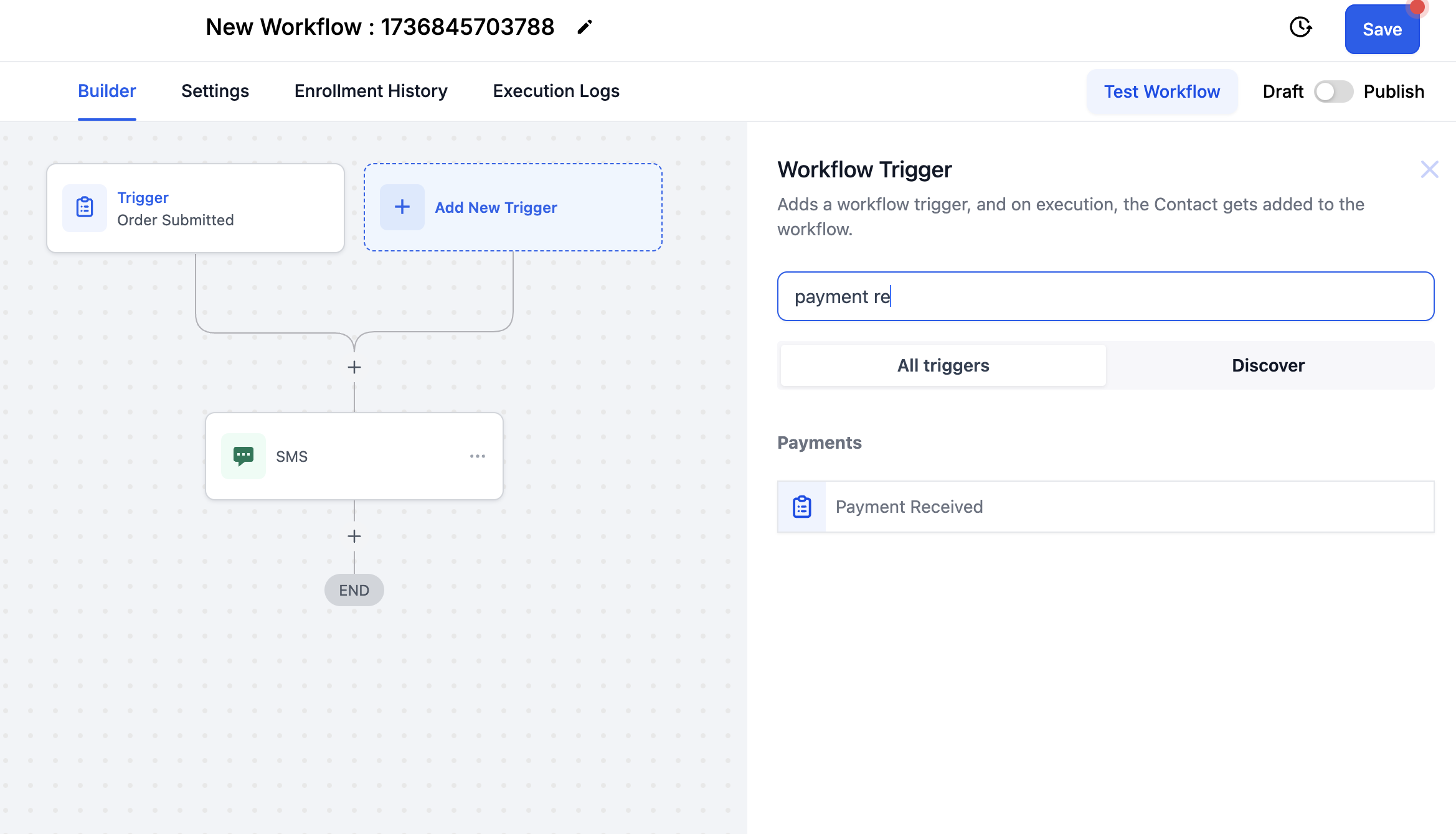
Click + Add Filter and select Source > is > External.
Add a second filter: Sub-Source > is > WooCommerce, then click Save.
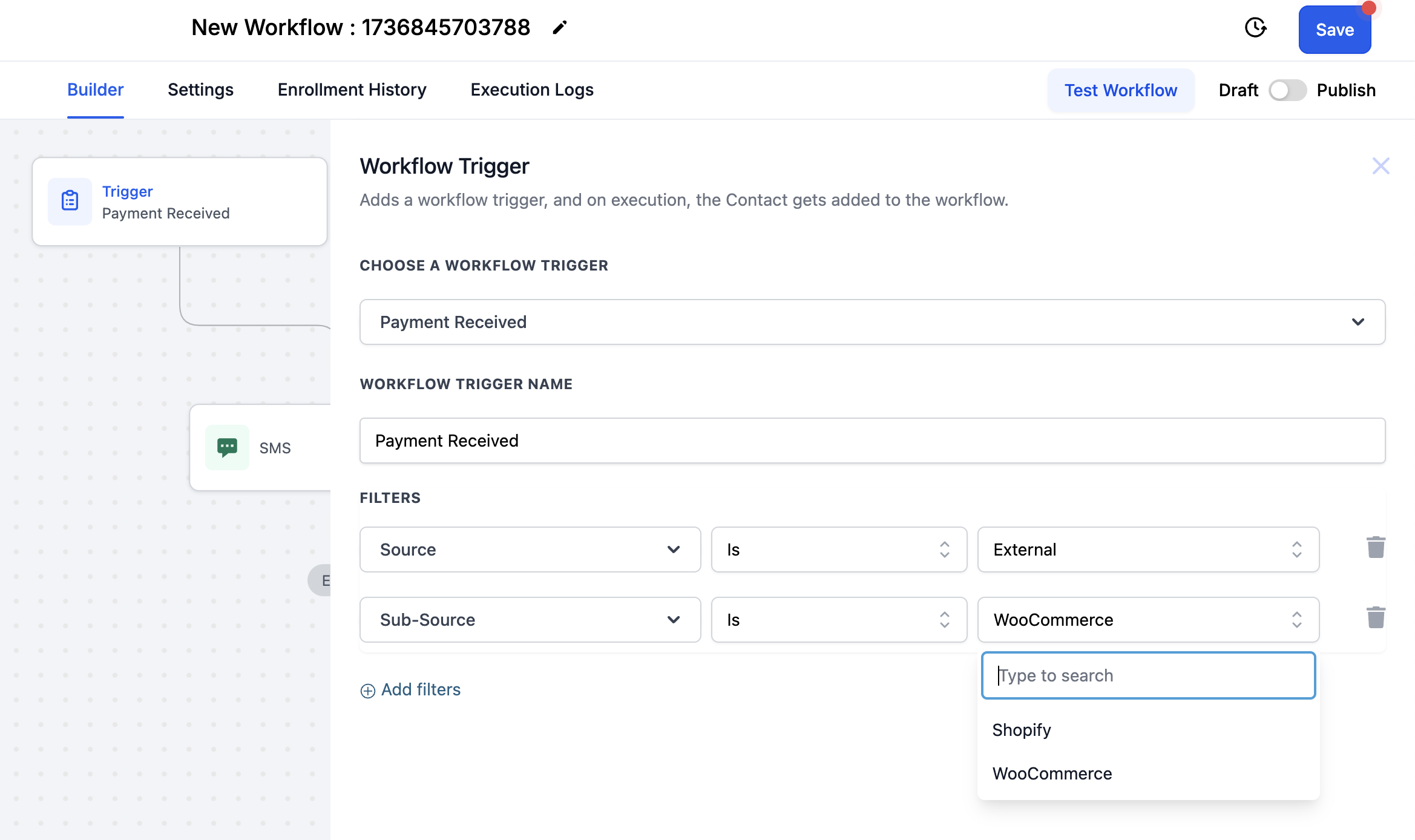
Add any action such as send SMS, email, or invoice after the trigger as needed.
Retail product follow-up: Trigger a workflow when a patient orders a skincare product, then send application tips and refill timing.
Replenishment reminders: Use the Payment Received trigger to start a timer that reminds patients when a product is likely running low.
Treatment cross-sell: When a patient buys a product tied to a service, offer the corresponding in-office treatment.
Order confirmations: Send automated SMS or email receipts the moment an order is submitted.
Setting up your online store pages, checkout, product catalog, and fulfillment lives in the E-commerce collection. For payment processing and checkout providers, see the Payments collection. If you are choosing a processor, Aesthetix CRM offers AX Pay, which typically provides better processing rates than Stripe.
Which WooCommerce customer types are imported as contacts?
Customers with the roles Customers and Subscribers are imported.
Will contacts be created if Contact Sync is disabled?
Yes. If Order Sync is enabled, contacts are created from orders even when Contact Sync is off.
How are guest checkout orders handled?
Guest checkout buyers are created as contacts, but no updates or future syncs occur for those guest accounts.
How do WooCommerce order statuses map to Aesthetix CRM?
Completed or Refunded in WooCommerce becomes Completed. Cancelled or Failed becomes Cancelled. All other statuses become Pending.
Can I import all types of WooCommerce products?
No. Only Simple and Variable products are imported. Products with a $0 price or no variants are excluded, and only categories linked to products are imported.
Will product deletions sync into Aesthetix CRM?
No. Product and category deletions in WooCommerce are not reflected in Aesthetix CRM. WooCommerce remains the source of truth for product data.
Do I need to include a trailing slash in my store URL?
No. Enter the store URL without a trailing slash, for example https://yourstore.com.
How often does data sync between WooCommerce and Aesthetix CRM?
The sync process runs continuously based on the settings configured in the integration panel.
How can I reimport data if something was missed?
Disconnect and reconnect the integration, then select the elements you want to reimport.
What should I do if my WooCommerce connection fails?
If an authentication error occurs, the integration switches to reconnect mode and an admin email provides steps to restore the connection.
