Connecting Shopify gives your practice a single view of patient activity across both your CRM and your retail store. Once your store is connected, Aesthetix CRM can import your existing Shopify data, keep new activity in sync, and use orders and payments to trigger automated follow-up. This is ideal for retail commerce such as skincare lines, supplements, and retail aesthetics products.
Aesthetix CRM supports several store sources side by side, including its native Store, Shopify, and WooCommerce. This guide covers the Shopify connection specifically.
Once connected, the integration can:
Import your existing Shopify contacts (patients and customers), orders, transactions, products, and collections into Aesthetix CRM
Continuously sync new Shopify activity going forward so the data stays current
Trigger automated workflows when a patient places an order or completes a payment, so you can send purchase confirmations, post-purchase education, refill reminders, restock alerts, or cross-sell campaigns
Make product, order, and transaction data available in workflows, custom values, and email and SMS templates for personalized patient communication
Power If/Else logic in workflows based on what a patient purchased, how much they spent, or whether their order was completed or cancelled
Automatically enrich each synced contact with Shopify purchase history, such as lifetime spend, order count, and last order date, with no extra setup required
This integration is designed for product and retail commerce and is not intended to store or move PHI. See the HIPAA section below for important guidance.
Shopify has changed which data its API exposes based on your Shopify plan. This directly affects what the integration can sync:
Shopify Plan | Products & Collections | Contacts, Orders, Transactions |
|---|---|---|
Basic | Supported | Not supported |
Advanced | Supported | Supported |
Plus | Supported | Supported |
If you are on the Shopify Basic plan, the integration can still import and sync your products and collections, but Shopify's API will not return customer PII (names, emails, phone numbers, addresses) to third-party apps. This means contacts, orders, and transactions cannot sync until you upgrade to a higher Shopify plan such as Grow, Advanced, or Plus. This is a Shopify-side restriction, not an Aesthetix CRM limitation.
For background, see Shopify's community post on the PII change: https://community.shopify.com/c/shopify-discussions/no-more-customer-pii-in-custom-app-integrations-for-shopify/m-p/2496209
If you are unsure which plan you are on, log in to your Shopify admin and check your billing settings.
Shopify has updated how new integrations authenticate, and the connection process is now OAuth-based. Setup is a one-click install from your Shopify store. There is no custom app creation, no API tokens, and no manual configuration in Shopify's developer settings.
If you previously connected your Shopify store to Aesthetix CRM using a custom app and an Admin API access token, your existing integration is unaffected and will continue to work as is. No action is required, and there is no need to disconnect and reconnect. The OAuth method is for new connections going forward.
In your account, go to Settings > Integrations > Shopify.
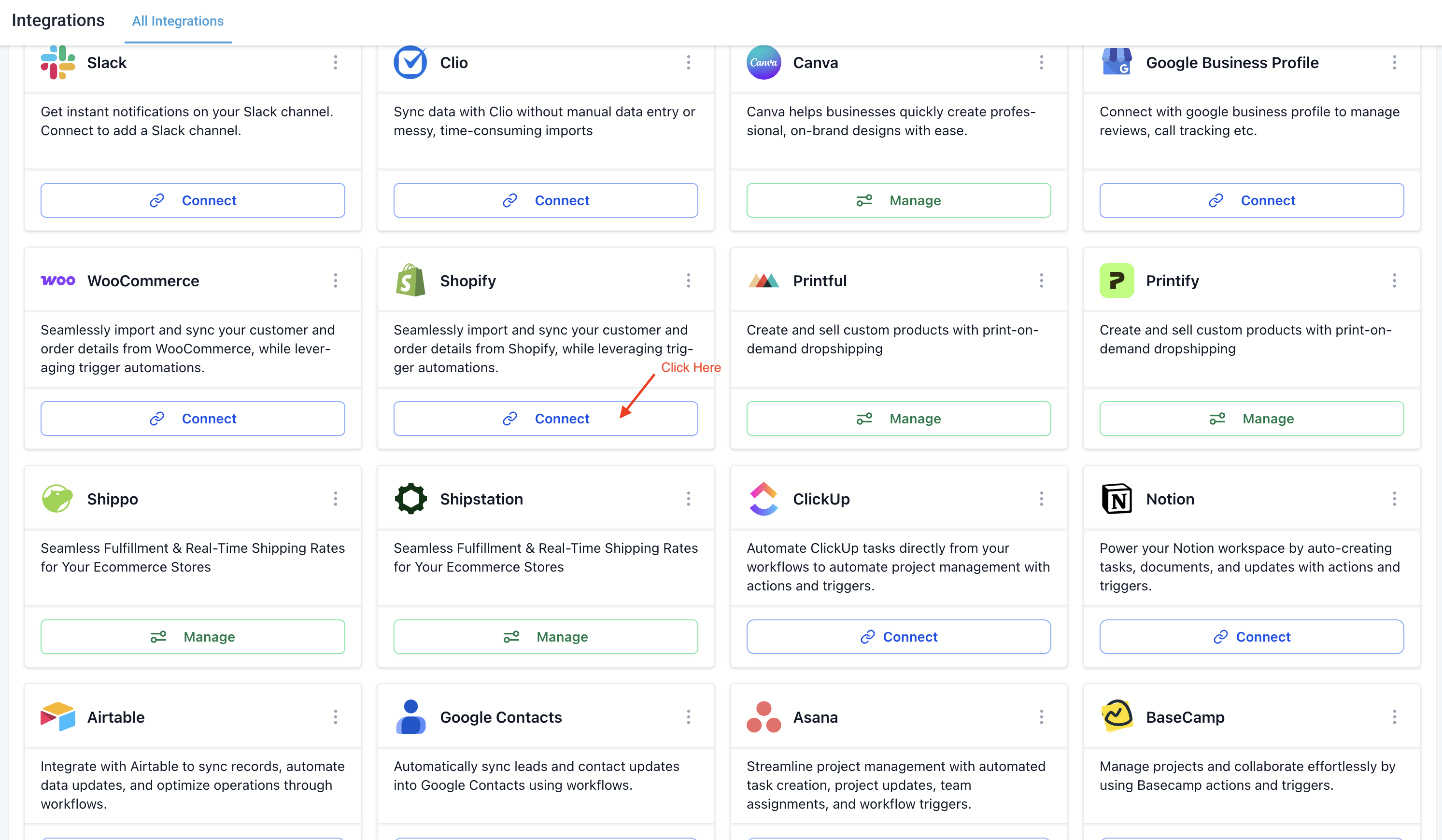
Click Connect.
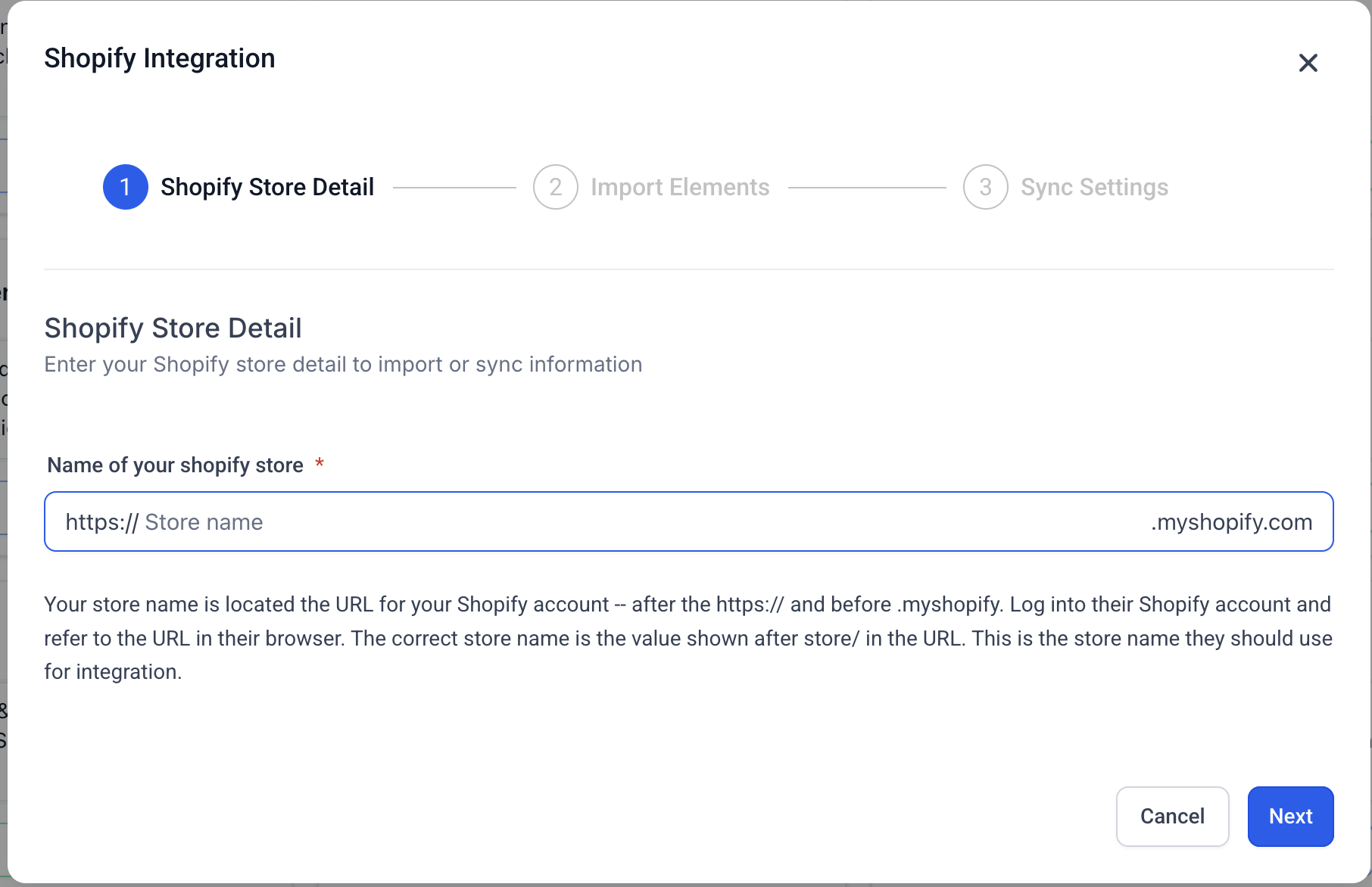
On the Shopify Store Detail screen, enter the name of your Shopify store and click Next. Your store name is the value shown after store/ in the URL of your Shopify admin. For example, in admin.shopify.com/store/ef760-ef, the store name is ef760-ef.
On the Import Elements screen, choose the data you want to import from Shopify as a one-time historical import. The available options are:
Contact Import (requires Shopify Advanced or Plus)
Order Import (requires Shopify Advanced or Plus)
Transaction Import (requires Shopify Advanced or Plus)
Product Import
Collection Import
If you do not want to import a particular data type, toggle it off, then click Next.
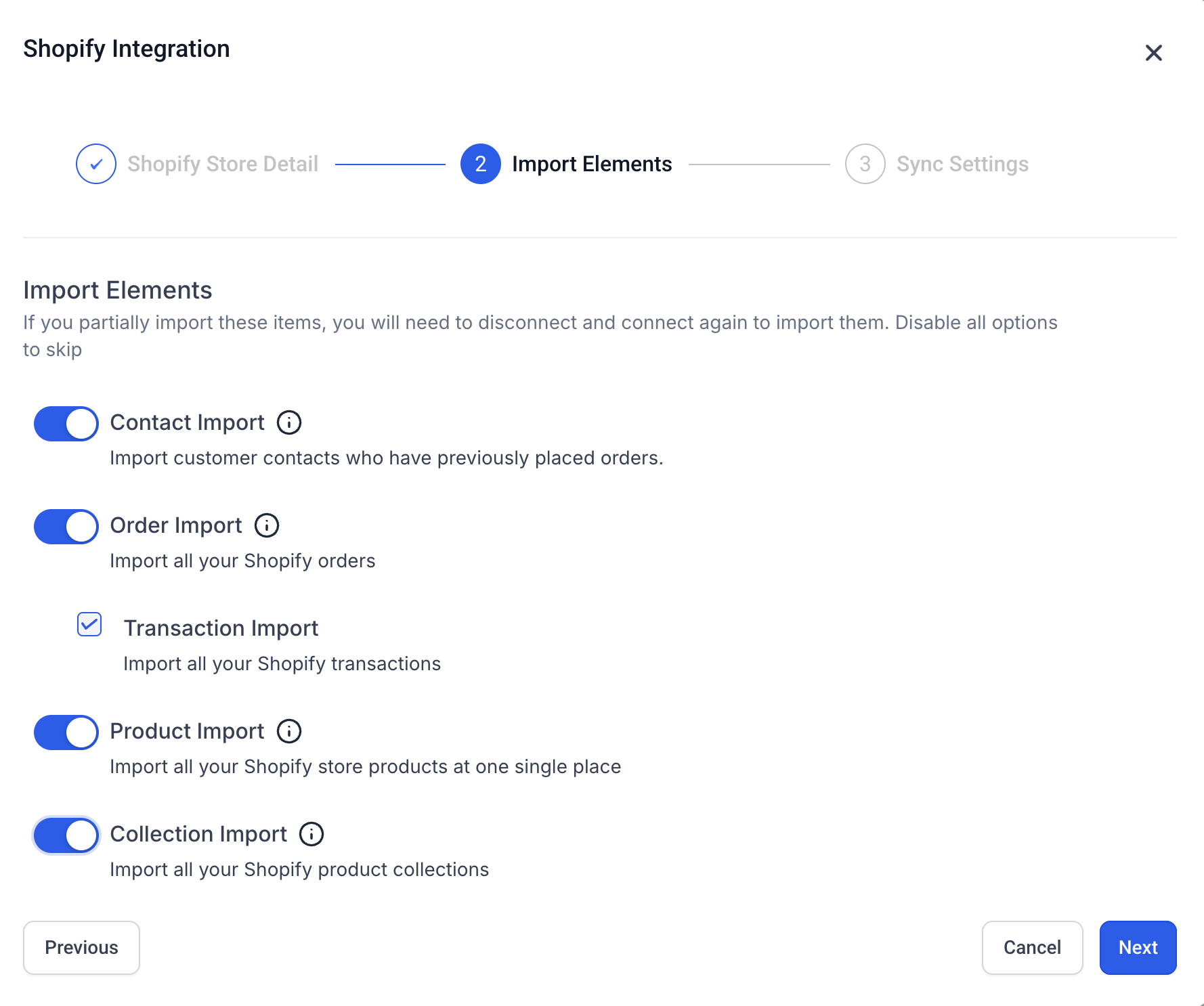
Note: Contact import includes Shopify customers who have placed an order in the past. Customers who have never placed an order may not be included. If you partially import these items, you will need to disconnect and reconnect later to import the rest, so it is usually easier to import everything you might want now.
On the Sync Settings screen, choose which data and workflow triggers you want to keep syncing from Shopify going forward. The available options are:
Contact Sync
Order Sync
Order Received Trigger
Transaction Sync
Payment Received Trigger
Product Sync
Collection Sync
For a full Shopify store migration, enable all available options unless your migration plan calls for only specific data types.
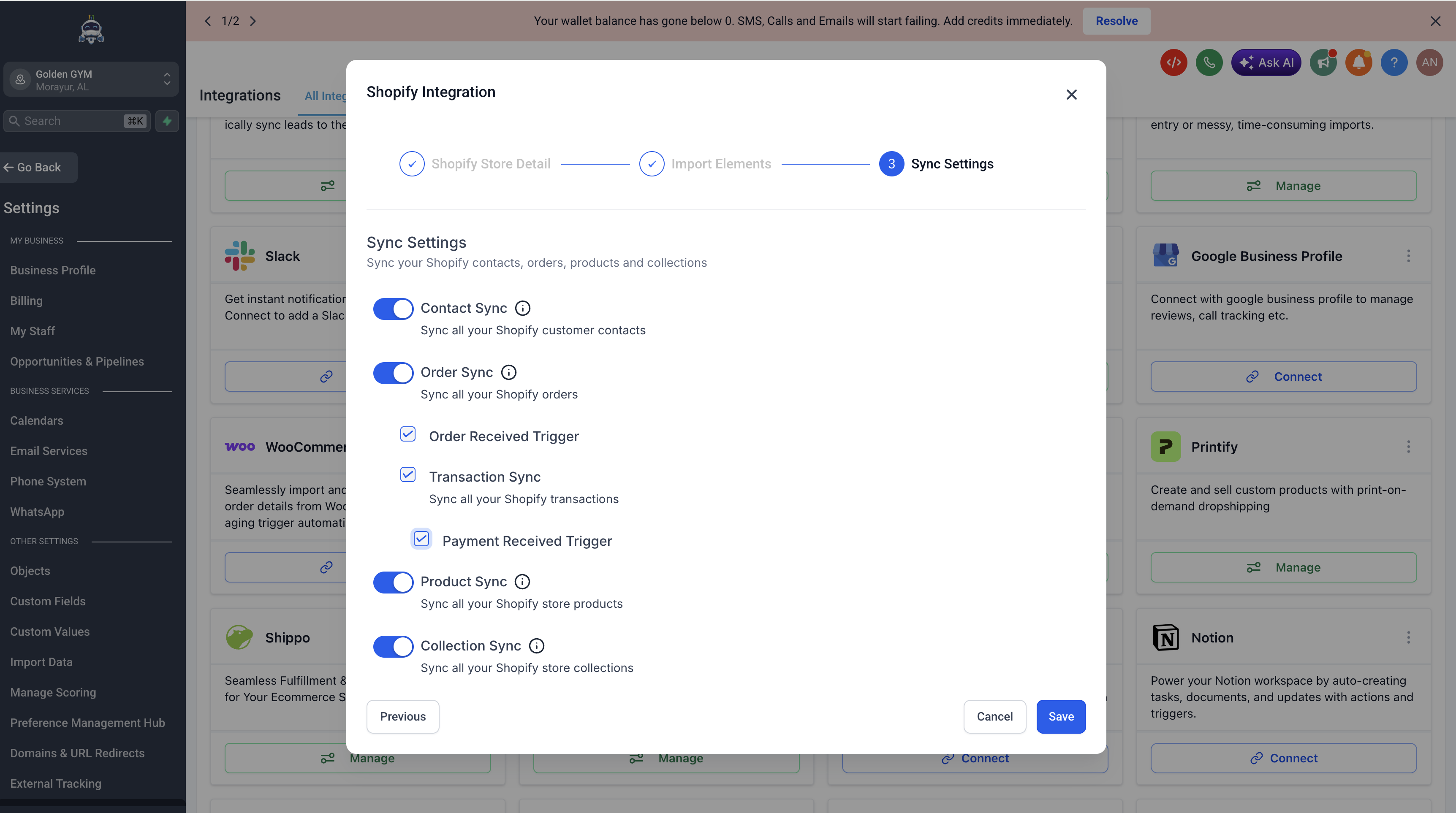
Click Save. This initiates the OAuth authorization flow and redirects you to Shopify.
On Shopify's Install app screen, review the permissions the app is requesting and click Install. The Shopify install screen will display LeadConnector as the name of the app requesting access. LeadConnector is the underlying integration service that powers the Aesthetix CRM Shopify connection. This screen is expected and safe to allow.
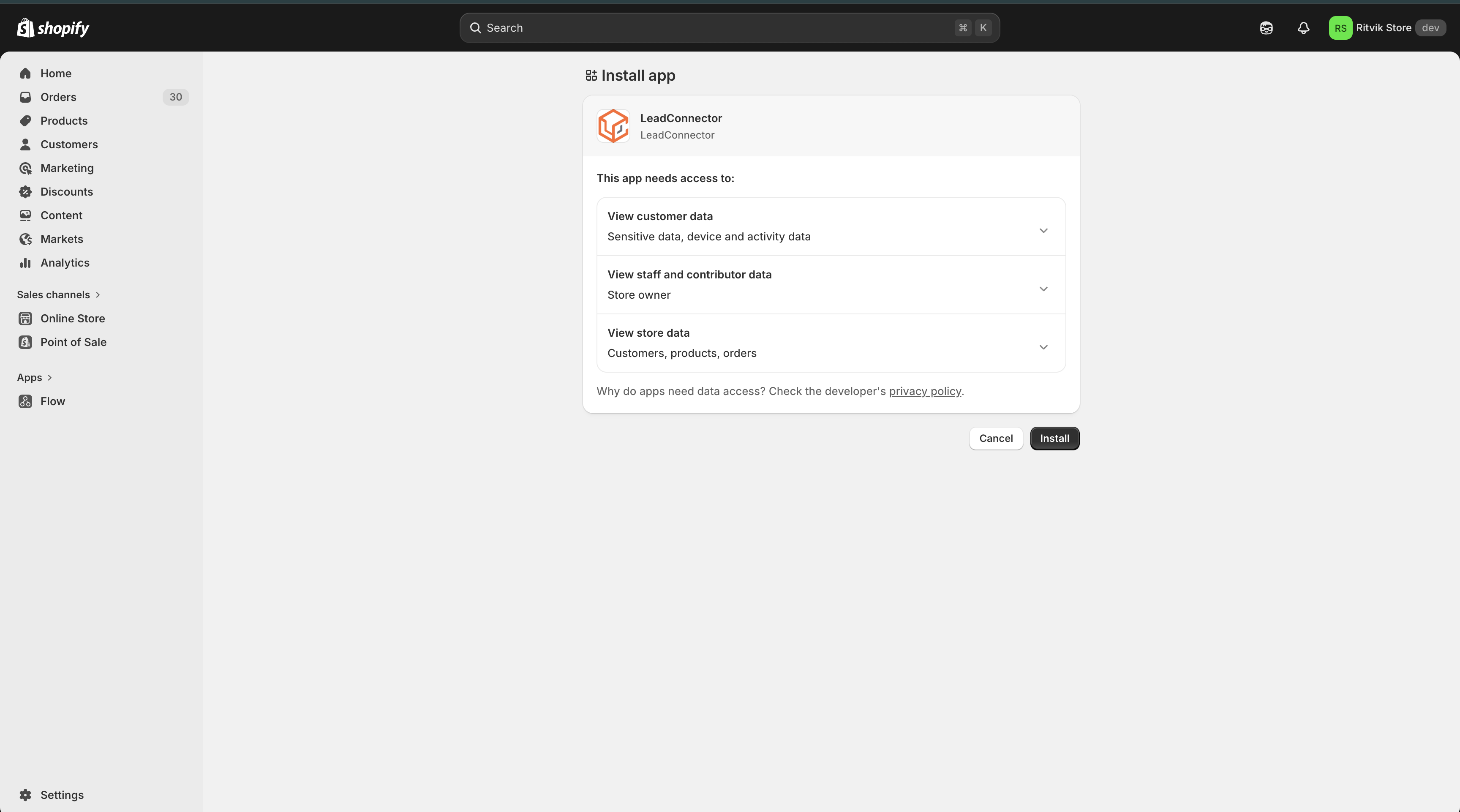
Once you approve the install in Shopify, you will be redirected back to Aesthetix CRM and your store will be connected. The initial import and sync may take some time depending on how much data is in your Shopify store.
After Shopify is connected, you can return to Settings > Integrations > Shopify at any time to enable or disable individual sync elements without disconnecting the integration. Turning off a sync option stops future syncing for that data type but does not remove records that were already imported.
If you need to reimport historical data later, disconnect and reconnect the integration to run the import wizard again.
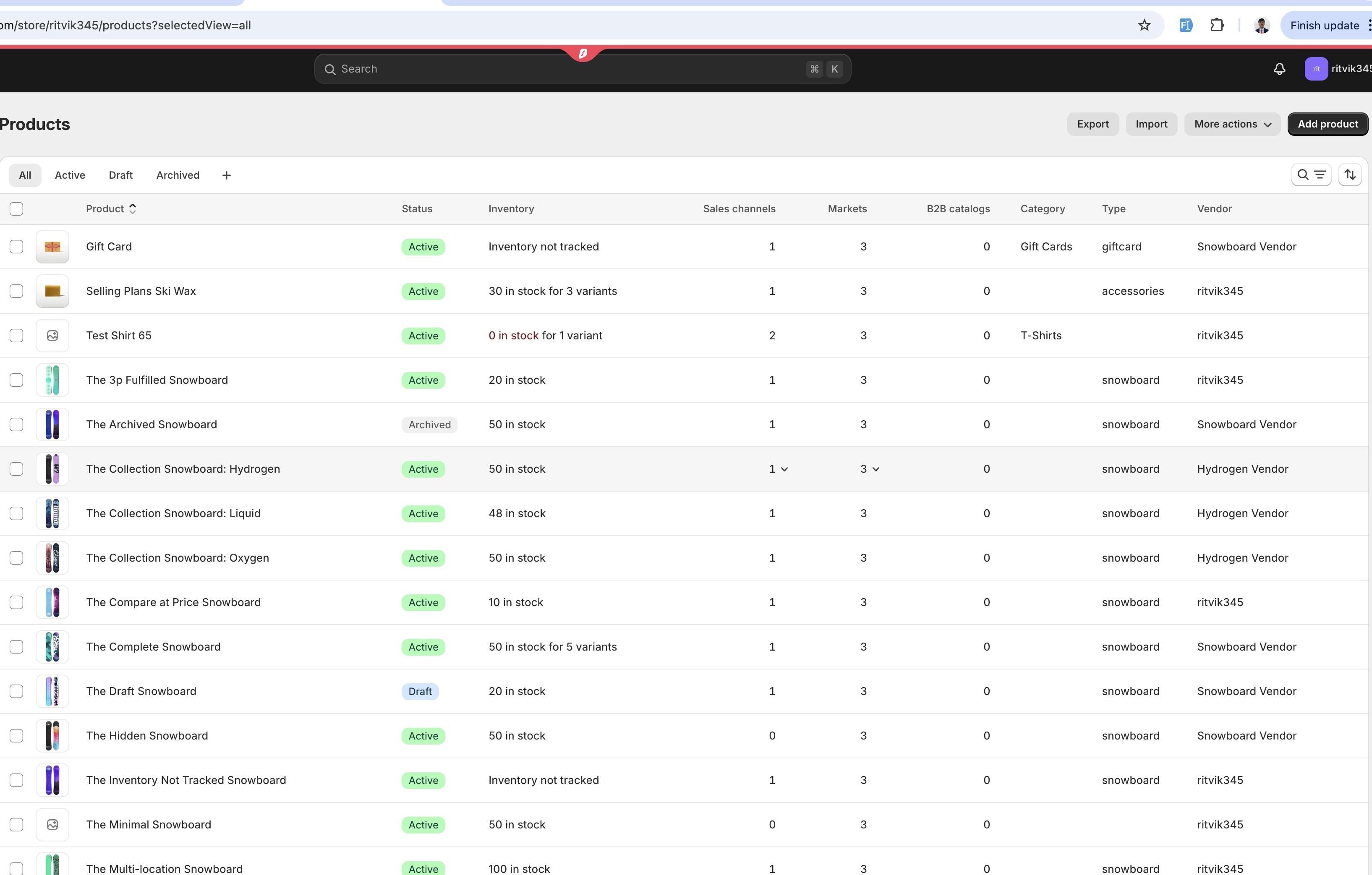
Products and collections determine how your retail catalog is organized in Aesthetix CRM. After the import completes, confirm everything came over correctly:
Review imported products under Payments > Products > Products.
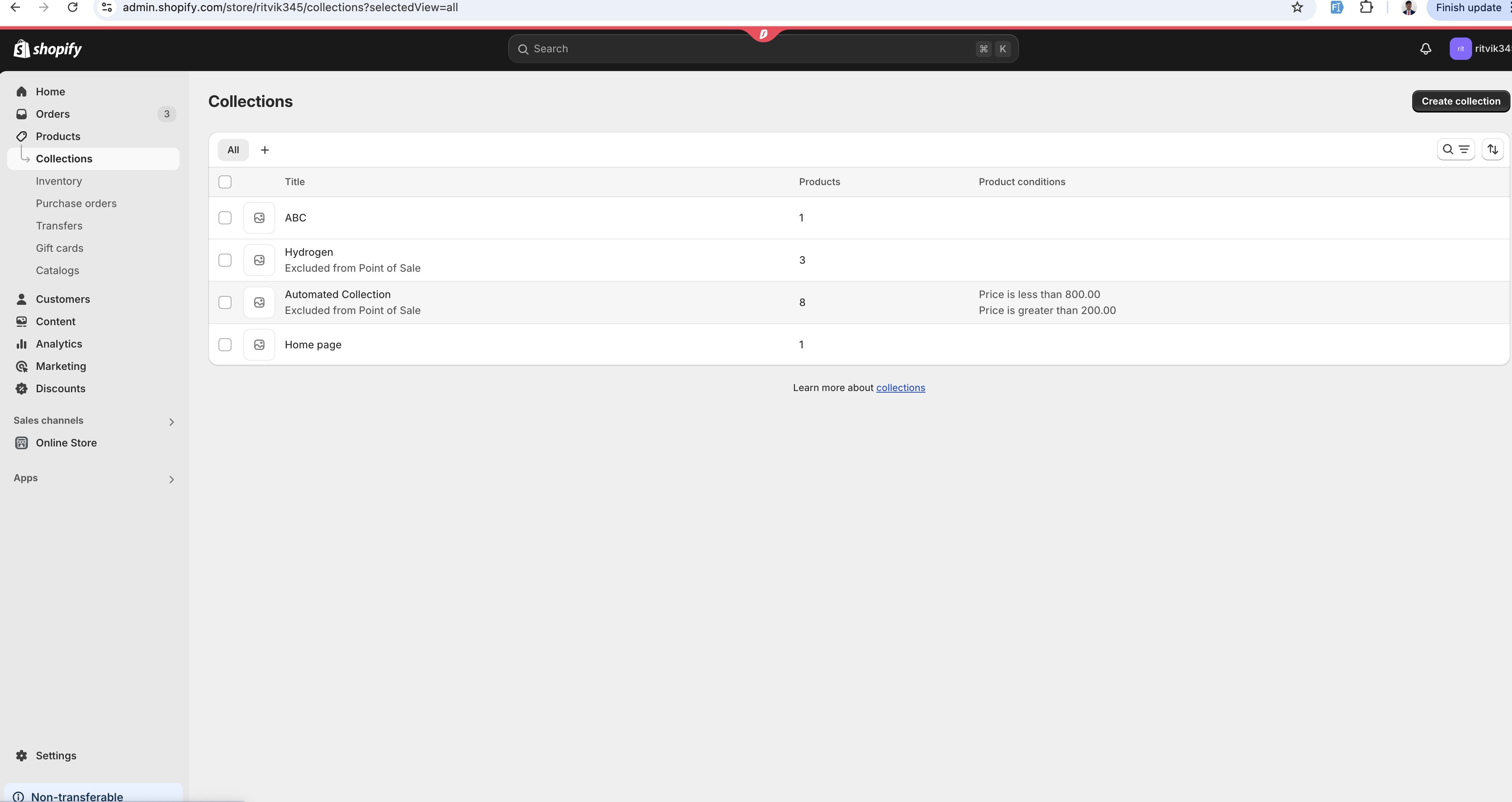
Review imported collections under Payments > Products > Product Collections.
Confirm product names, descriptions, images, prices, and inventory details.
Confirm products are assigned to the expected collections.
Check whether SEO fields imported as expected, and update any details that need manual cleanup.
Products imported from Shopify:
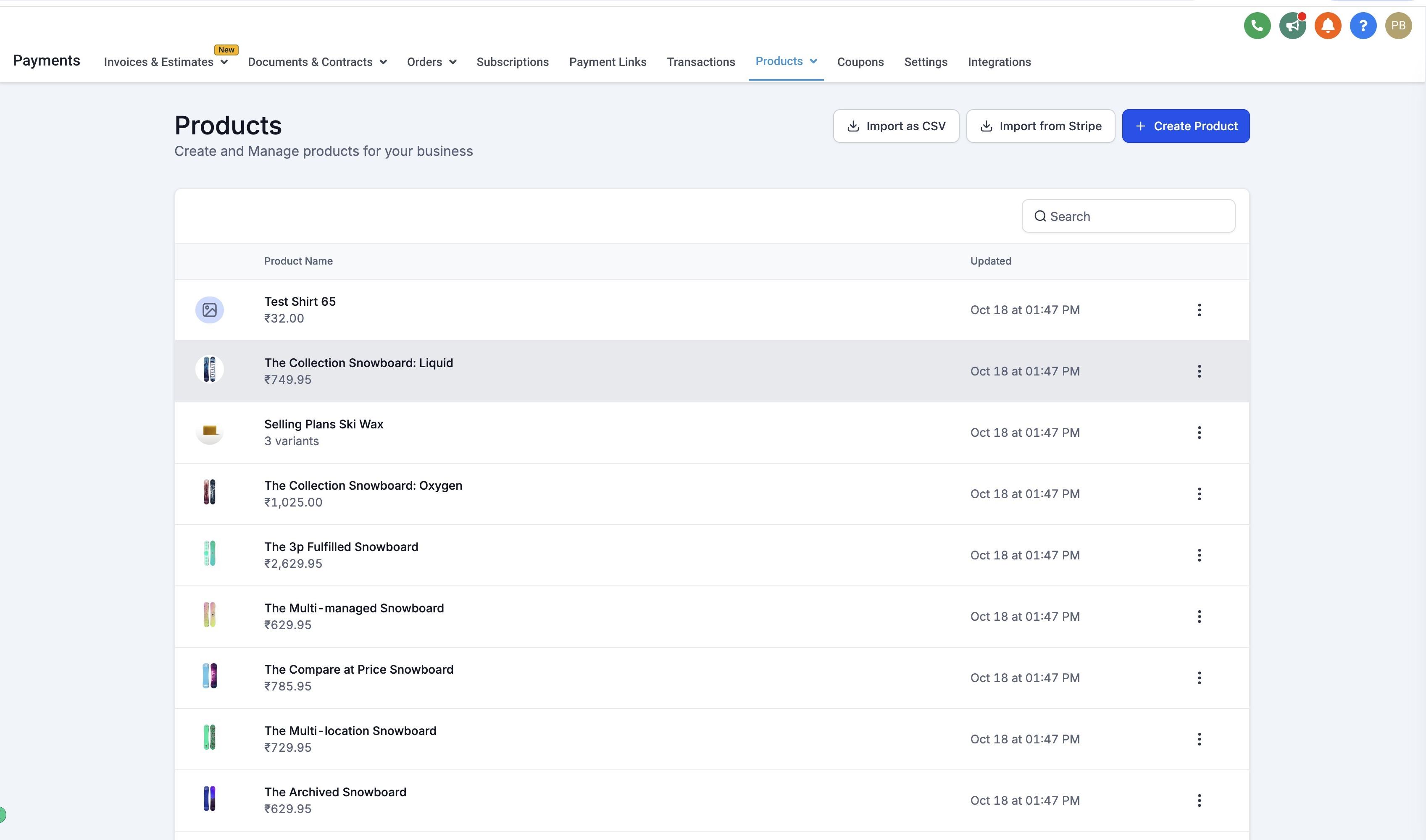
Collections imported from Shopify:
Once the integration is live, Shopify activity becomes available in several places throughout the platform.
You can build automated workflows that fire when Shopify activity occurs. When building a workflow, add the Order Submitted trigger (fires when a patient places an order) or the Payment Received trigger (fires when a Shopify order is successfully paid). To scope a trigger to Shopify, add filters for order source so the workflow only runs on Shopify orders.
These are useful for order confirmations, shipping updates, post-purchase product education, replenishment reminders, and cross-sell campaigns for related treatments or products.
Inside workflow actions, you can use If/Else logic to branch communication based on Shopify data such as order total, products purchased, order status, or transaction details. For example, you can send a different post-purchase sequence to a patient who bought a premium skincare bundle than to one who bought a single retinol cream.
Shopify fields are available as custom values that you can drop into SMS messages, emails, and workflow actions. This lets you personalize patient communication with specifics like the product name, order total, or order status.
Shopify data is also accessible inside the Email Marketing builder, so you can reference order details directly in your email templates for receipts, shipping notifications, and post-purchase follow-up.
When a contact is imported or synced from a connected Shopify store, the integration automatically creates and keeps a set of fields updated on that contact's record. These fields update on their own after the initial sync, so there is no per-field setup required.
These map to fields that already exist on every Aesthetix CRM contact. Shopify only fills them in if they are currently empty; it never overwrites a value you or another source already set.
Field | Filled from Shopify |
|---|---|
First name / Last name | Customer's name on Shopify |
Customer's default email (used to match the Shopify customer to the contact; never overwritten) | |
Phone | Customer's default phone number |
Address | Customer's default address |
Field | Shows | Updates when |
|---|---|---|
Shopify Customer ID | Internal Shopify customer reference | Once, when the contact is first created |
Shopify Store Name | Which connected Shopify store the contact came from | Once, when the store is connected |
Shopify Lifetime Value | Total amount the customer has spent in that Shopify store | After each completed (paid) order |
Shopify Order Count | Total number of completed orders | After each completed (paid) order |
Shopify Last Order Date | Date of the customer's most recent completed order | After each completed order |
Shopify Last Order Value | Value of the customer's most recent completed order | After each completed order |
Shopify First Order Date | Date of the customer's first completed order | Once, after their first completed order |
Shopify Tax Exempt | Whether Shopify has this customer marked as tax exempt (a common signal for wholesale or B2B buyers) | Whenever the customer's Shopify record is updated |
Shopify Email Consent (coming soon) | The customer's email marketing consent status on Shopify | Whenever consent changes in Shopify |
Shopify SMS Consent (coming soon) | The customer's SMS marketing consent status on Shopify | Whenever consent changes in Shopify |
Shopify customer tags are synced to the existing tag field on the contact record. Use these fields to filter contact lists (for example, patients who last ordered more than 90 days ago) or as conditions in Workflows to branch messaging by purchase behavior.
Retail skincare follow-up: Trigger a workflow when a patient orders a skincare product, then send education on application, refill timing, and complementary products.
Replenishment reminders: Use the Payment Received trigger to start a 60- or 90-day timer that reminds the patient when their product is likely running low.
Treatment cross-sell: When a patient buys a retail product associated with a specific treatment (for example, post-laser balm), trigger an offer for the corresponding in-office service.
Membership and supplement programs: Sync orders to track which patients are on recurring supplement or skincare subscriptions.
Win-back campaigns: Identify patients who have not placed a Shopify order in six or more months and route them into a re-engagement workflow.
The following are documented Shopify integration behaviors. Knowing them up front will save you a support ticket later.
Taxes are not mapped in Products during import or sync.
One transaction per order. For each Shopify order, only one transaction record is created in Aesthetix CRM, even if the order contains multiple payment events.
Order statuses sync as Completed or Cancelled. Intermediate Shopify statuses such as partially fulfilled or pending are not reflected as separate states.
Merged contacts. If you merge contacts inside Shopify, the primary contact will be updated inside Aesthetix CRM to match.
SEO defaults sync as null. If you have not set custom SEO details in Shopify, those fields will arrive as null in Aesthetix CRM.
Shopify Basic plan blocks contact, order, and transaction sync (see plan requirements above).
Partial imports require reconnect. If you toggle off an item during the initial Import Elements step, you will need to disconnect and reconnect the integration later to import that data.
One store per account. The integration supports one Shopify store per Aesthetix CRM account.
Contact field sync cannot be turned off. All Shopify contact fields sync automatically once a store is connected, and there is currently no option to opt out of individual fields. If you already had Shopify connected before these fields were introduced, updating your integration settings will sync them in.
Refunds do not reduce order count. A refund or cancelled order does not reduce Shopify Order Count, since the order was still placed. Shopify Lifetime Value updates automatically to reflect the refund.
Draft orders do not affect contact fields. A draft order in Shopify, such as a manual quote, does not update any contact field. Only a completed, paid order does.
Shopify Lifetime Value reflects Shopify purchases only. It does not include revenue from your native Store, WooCommerce, or other payment sources.
Shopify is a commerce platform, not a HIPAA-covered service, and there is no Business Associate Agreement available between your practice and Shopify. The Shopify integration is appropriate for retail commerce data (product purchases, order totals, transactions) but is not appropriate for transmitting PHI.
In practice, this means:
Safe to flow through this integration: product names, order totals, transaction status, customer contact information for fulfillment, and retail purchase history.
Do not flow through Shopify: clinical notes, treatment plans, diagnoses, medical history, before and after photos, or any data tied to a specific medical service or condition.
Patient and customer overlap is fine, but treat the Shopify side as your retail relationship with that person, not their patient chart. Keep clinical data inside your EMR and the CRM fields tied to your EMR integration.
Setting up your online store pages, checkout, product catalog, and fulfillment lives in the E-commerce collection. For payment processing and checkout providers, see the Payments collection. If you are choosing a processor, Aesthetix CRM offers AX Pay, which typically provides better processing rates than Stripe.
Why aren't my contacts syncing from Shopify?
This is almost always a Shopify plan issue. Shopify's API no longer provides customer PII (names, emails, phone numbers, addresses) to third-party apps on the Basic plan. Without that data, the integration cannot create contacts in Aesthetix CRM. To sync contacts, orders, and transactions, upgrade to a higher Shopify plan such as Grow, Advanced, or Plus.
What Shopify data can sync on the Basic plan?
On the Basic plan you can still import and sync Products and Collections, but not Contacts, Orders, or Transactions.
It used to work before. Why did it stop?
Shopify previously exposed customer PII through an older API that has since been deprecated. As Shopify has migrated to its new API, the PII restrictions on Basic plans now apply across the board, including to webhook callbacks that previously returned customer data. This is a Shopify-side policy change, not a change on our end.
Why does the Shopify install screen show "LeadConnector" instead of Aesthetix CRM?
LeadConnector is the underlying integration service that powers our Shopify connection, so the Shopify install screen will always display LeadConnector as the app requesting access. This is expected and safe to allow, and it does not affect how the integration appears or behaves inside Aesthetix CRM.
I already connected Shopify with a custom app and an API token. Do I need to switch to OAuth?
No. Your existing custom app connection will continue to work without any changes. The OAuth method is only required for new connections.
Where can I find my Shopify store name?
Log in to Shopify and look at the URL at the top of your browser. Your store name is the segment immediately to the right of store/. For example, if the URL reads admin.shopify.com/store/ef760-ef, your store name is ef760-ef.
Can I reimport data I missed during the first import?
Yes. Disconnect the Shopify integration and reconnect it, then run through the import wizard again to pull historical data based on the elements you select.
Will Shopify orders create new contacts in Aesthetix CRM automatically?
Yes, as long as you are on a supported Shopify plan and you have enabled Contact Sync. New Shopify customers will appear as contacts, and future orders from existing contacts will attach to that contact's record.
Can I trigger SMS or email to patients when they order a Shopify product?
Yes. Use the Order Submitted or Payment Received workflow triggers to send automated SMS, email, or other actions. Standard consent rules still apply, so the patient must be opted in to receive messaging from your practice.
What happens if a Shopify order is refunded or cancelled?
The order status in Aesthetix CRM syncs as Cancelled. Partial refunds are reflected at the order level, not as separate transactions, because each Shopify order produces only one transaction record.
Can I connect more than one Shopify store to one account?
The integration supports one Shopify store per Aesthetix CRM account. If you operate multiple Shopify stores, contact our support team to discuss the best configuration for your setup.
What contact fields get added when I connect Shopify?
The integration automatically creates fields for lifetime spend, order count, last and first order date and value, tax-exempt status, and email and SMS marketing consent (coming soon). See "Contact Fields Added from Shopify" above for the full list.
Can I choose which Shopify fields sync to the contact record?
No. All fields sync automatically for a connected store, and there is not a field-by-field opt-in or opt-out in the current version.
Does the Shopify Lifetime Value field include revenue from other sources?
No. Shopify Lifetime Value reflects only purchases made through the connected Shopify store and is kept separate from other revenue figures on the contact.
