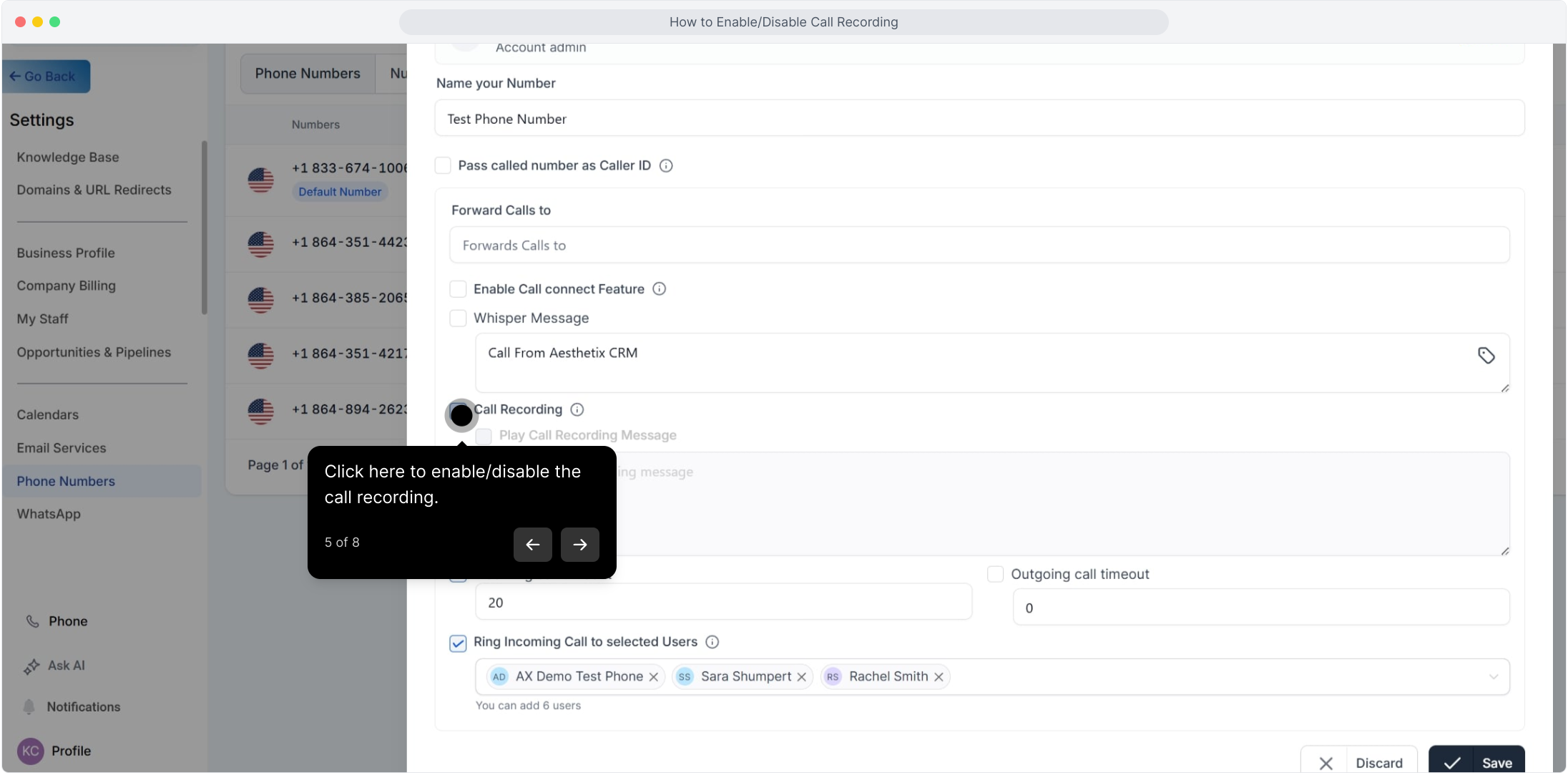
Call recording lets your practice capture inbound and outbound phone calls on your Aesthetix CRM numbers. Recorded consult calls, scheduling calls, and follow-ups are saved to the contact's conversation history, so your team can revisit what was discussed, confirm quoted pricing on a treatment, or train new front-desk staff.
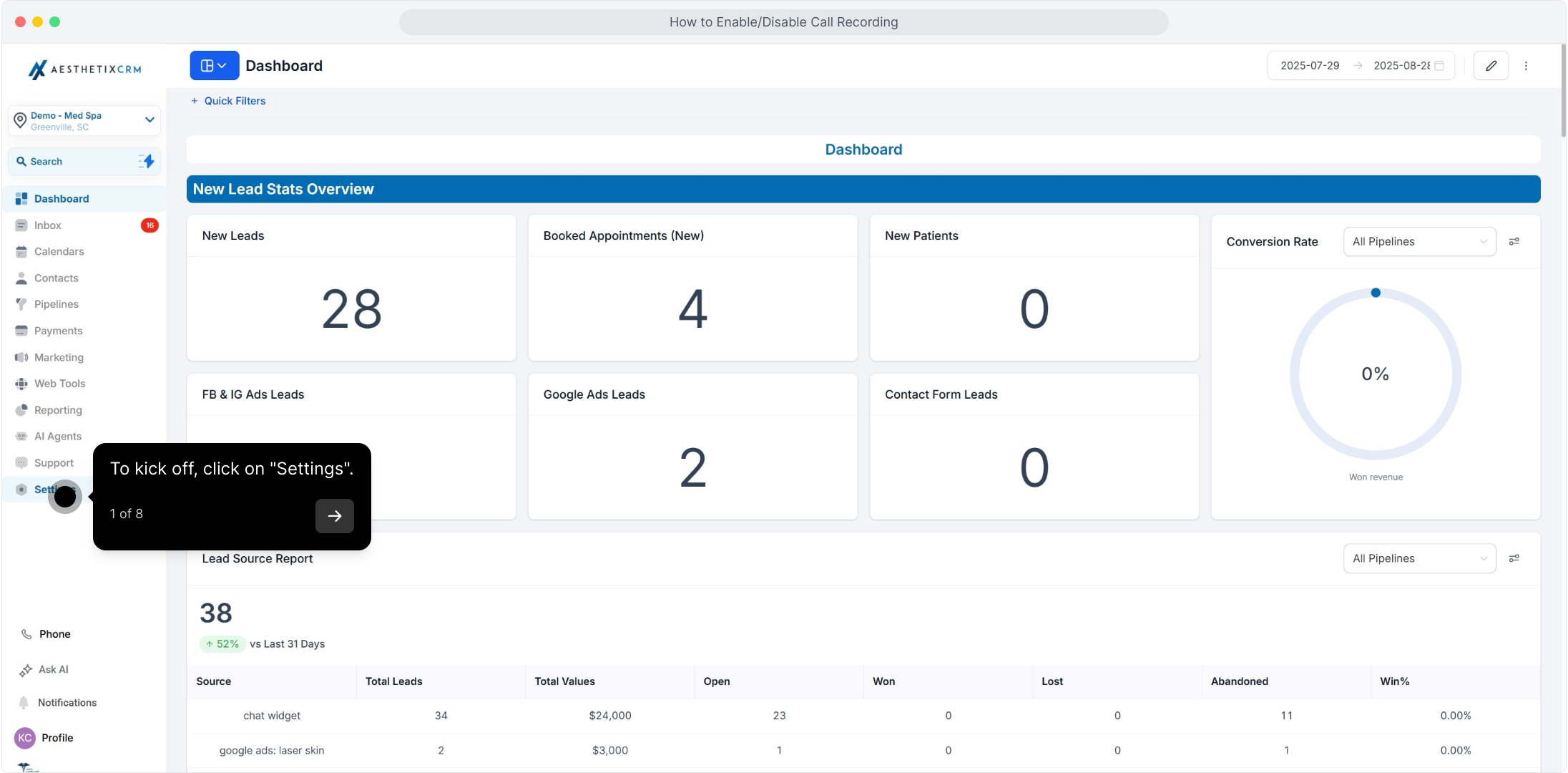
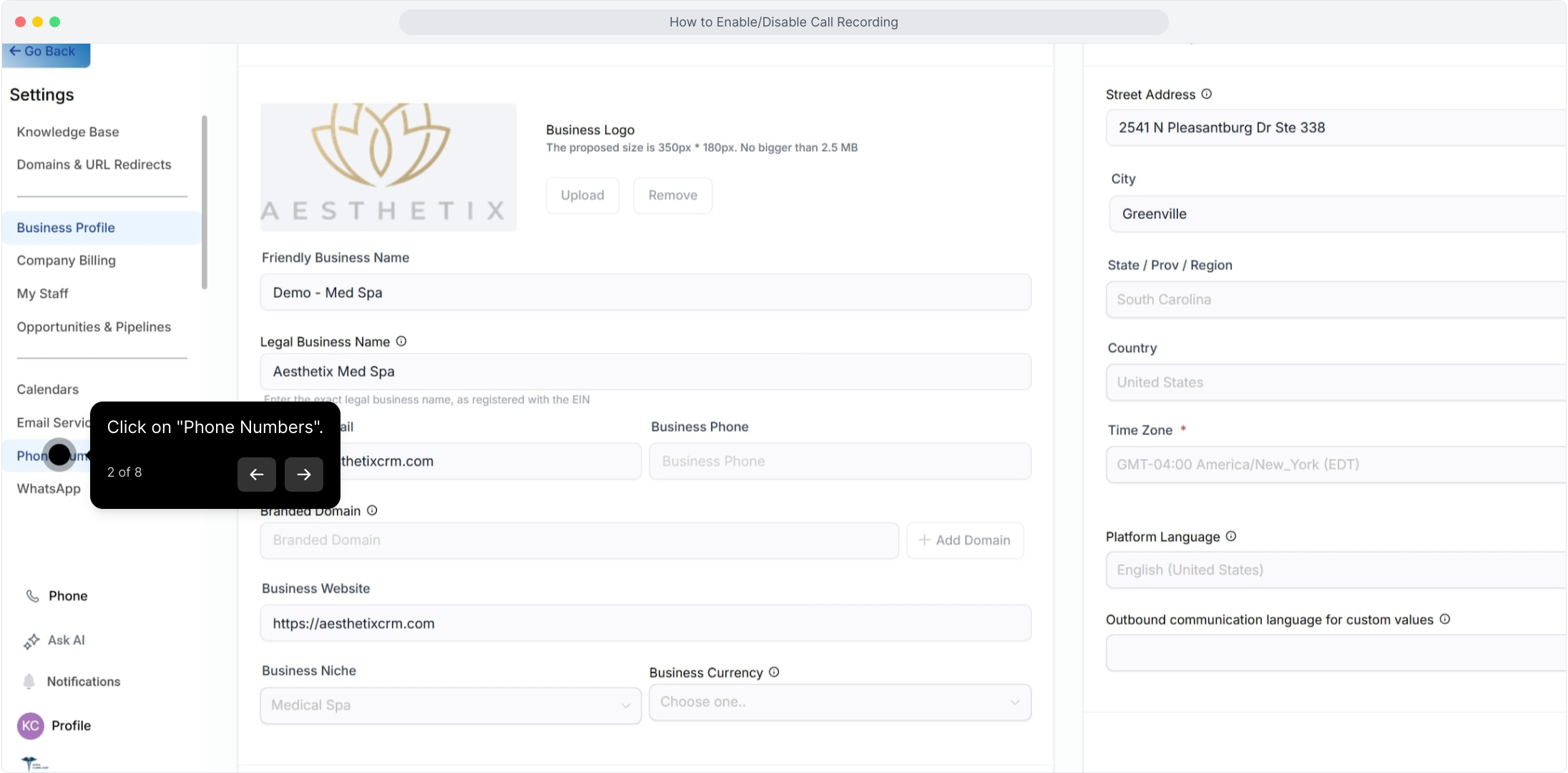
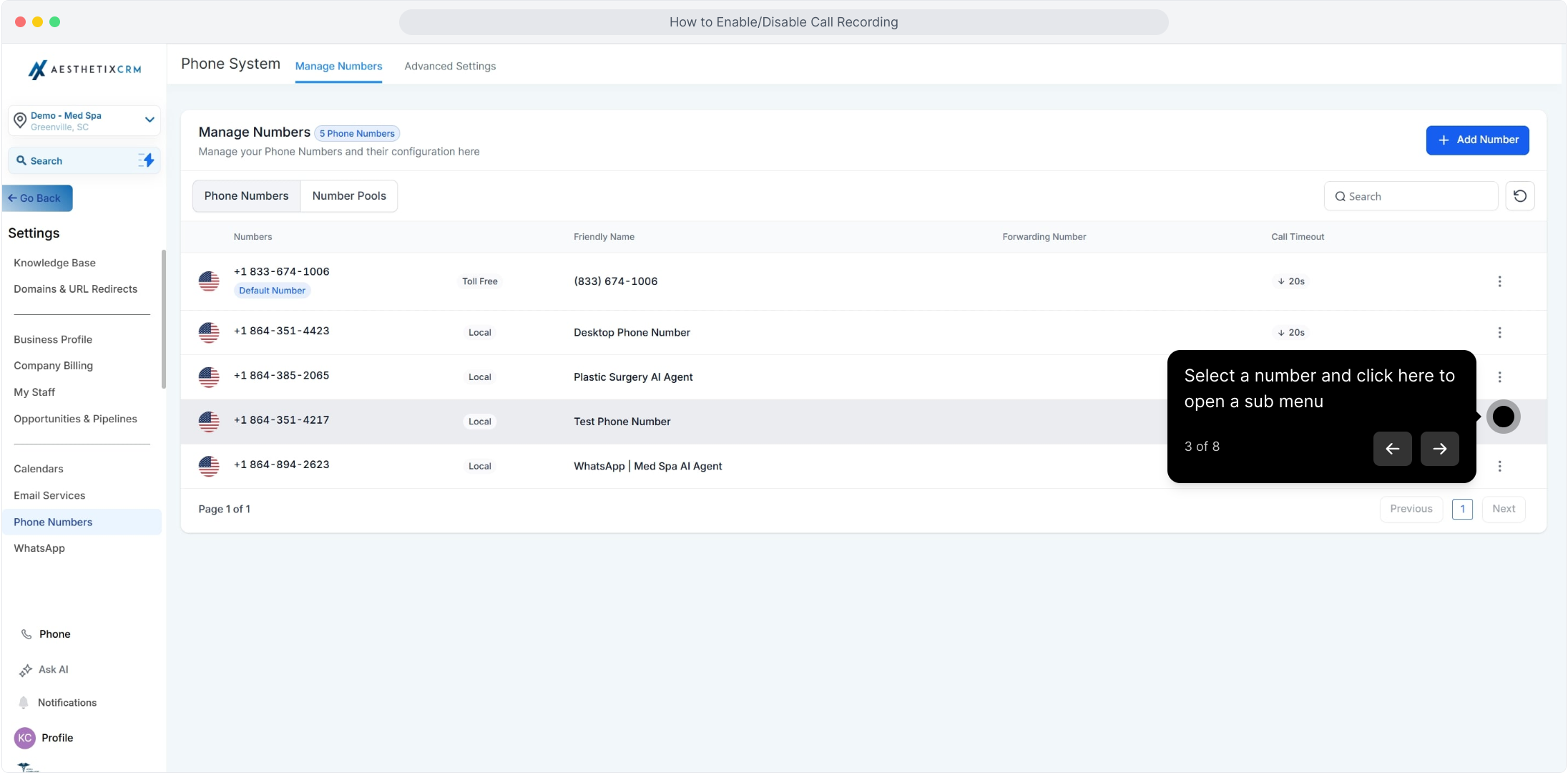
Recording is managed entirely inside the Aesthetix CRM app under Settings > Phone Numbers. You control it per phone number, so you can record on your main practice line and leave a private extension unrecorded. This guide covers turning recording on or off, setting the recording prompt patients hear, and configuring your call timeouts.
Recorded calls often contain protected health information (PHI), such as a patient's name, treatments, and appointment details. Handle and store recordings according to your practice's HIPAA policies, and limit access to staff who need it.
Many states and regions require that callers be informed a call may be recorded. Use the recording prompt (see the steps below) to disclose recording at the start of the call, and follow the consent laws that apply to your practice's location and your patients' locations.
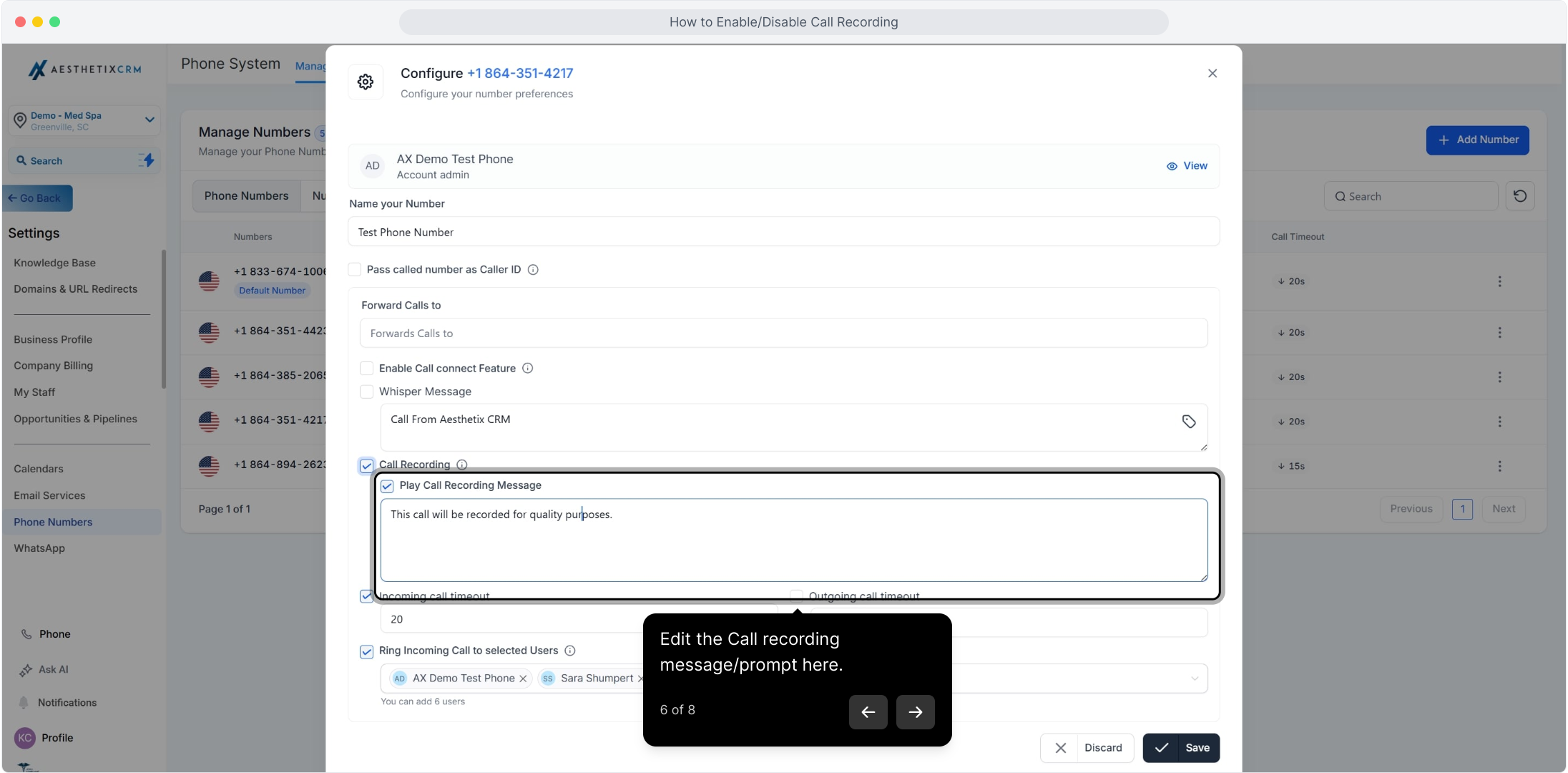
This is the message a caller hears at the start of the call. Use it to let patients know the call may be recorded, in line with the consent laws that apply to your practice.
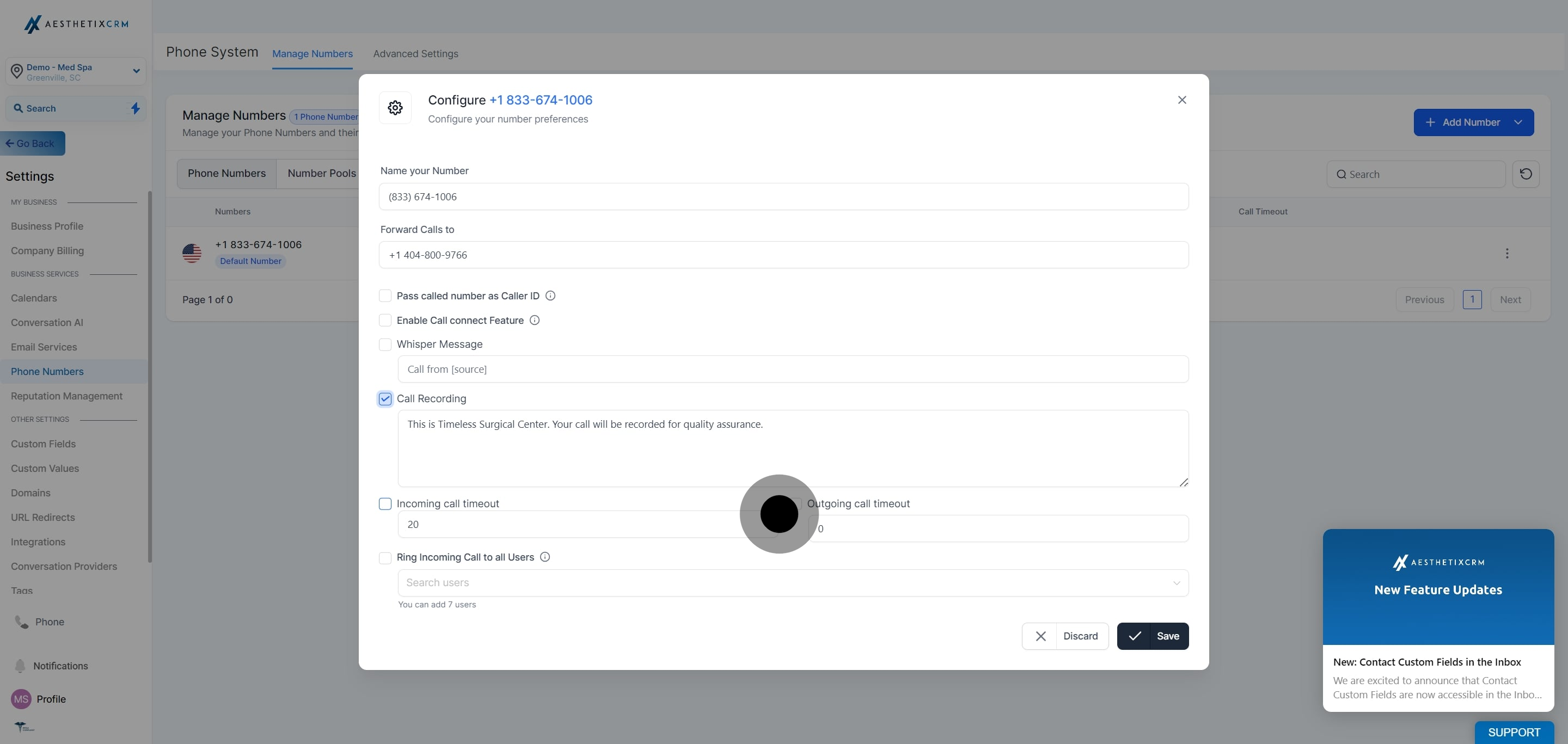
The timeout controls how long a call rings before it routes to voicemail. Setting both keeps inbound and outbound calls behaving consistently on this number.
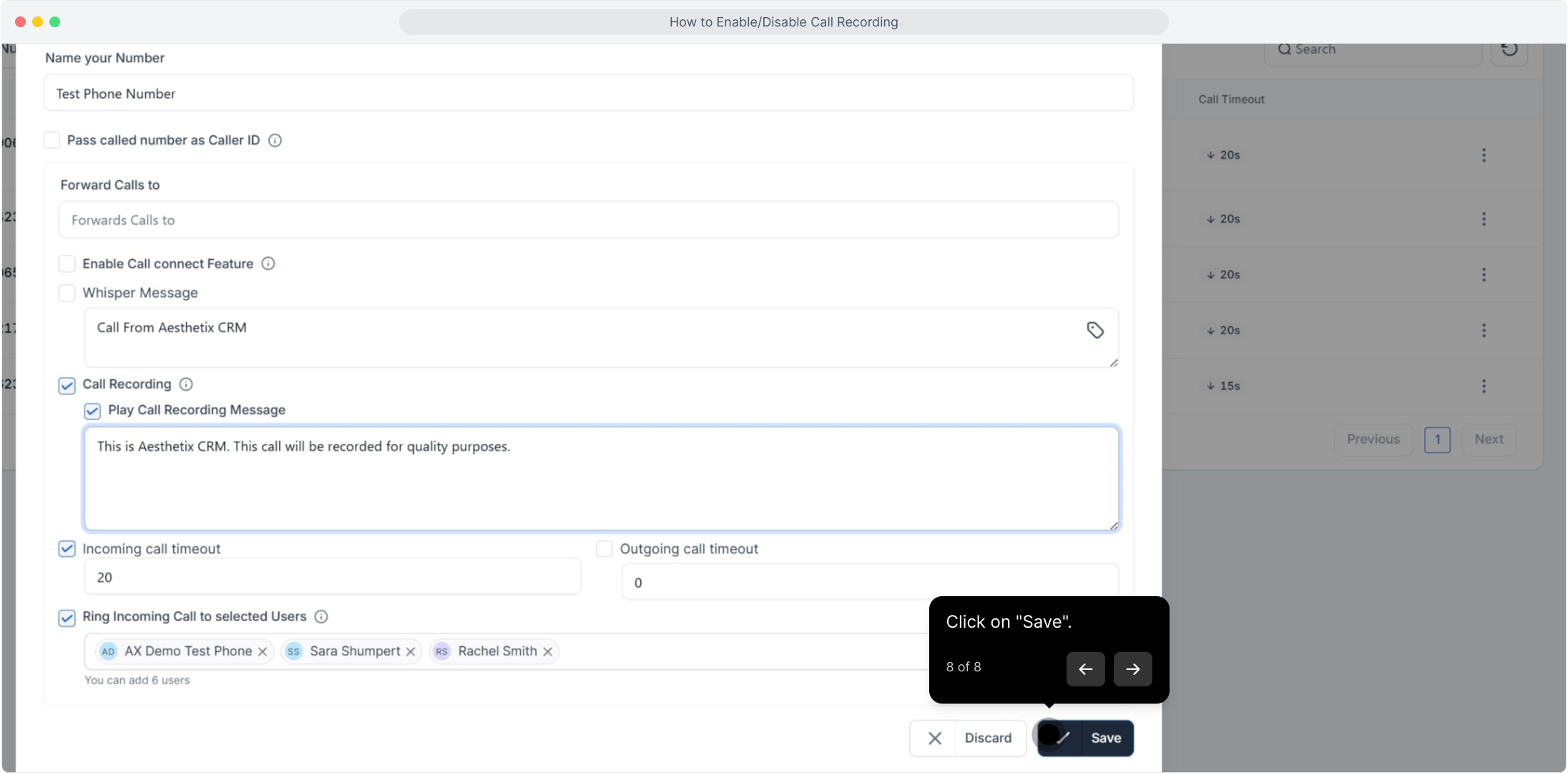
Once recording is enabled, calls placed to or from that number are attached to the contact's conversation thread. Open the contact in your Inbox to play back the recording alongside the rest of that patient's call, text, and email history.
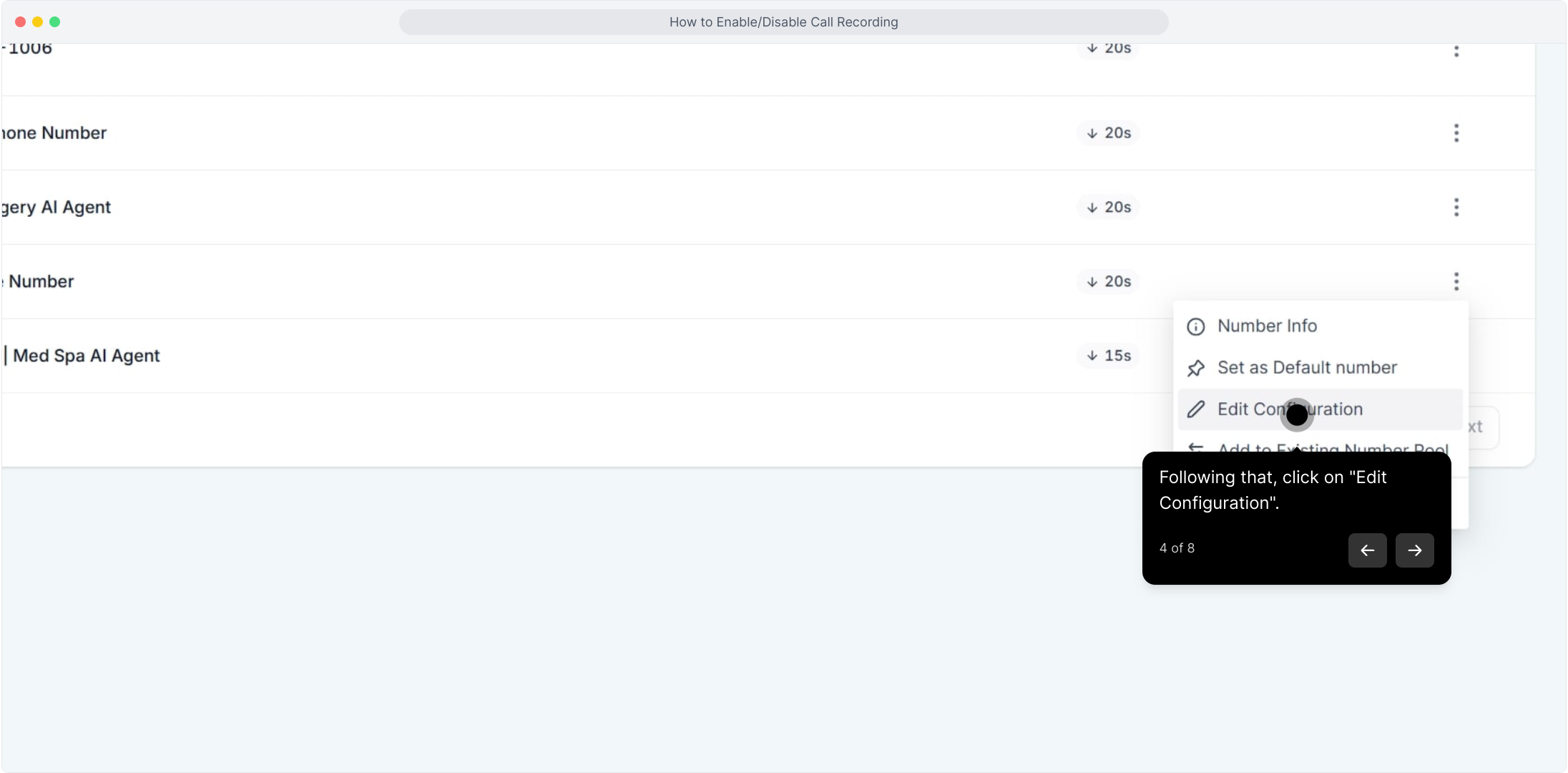
Where do I turn call recording on or off? Go to Settings > Phone Numbers, click the three dots next to the number, choose Edit Configuration, check or uncheck the call recording box, then Save. Recording is set per phone number.
Can I record some numbers but not others? Yes. Recording is configured on each phone number individually, so you can record your main practice line while leaving a private or personal extension unrecorded.
Do I need to tell patients their call is being recorded? In most cases, yes. Many states and regions require callers to be informed a call may be recorded. Use the recording prompt in Step 6 to disclose recording, and follow the consent laws that apply to your practice and your patients.
Where can I listen to a recorded call? Recorded calls are saved to the contact's conversation thread. Open the patient in your Inbox and play the recording from their message history.
Are recorded calls covered by HIPAA? Treat them as if they are. Recorded calls can contain PHI such as names, treatments, and appointment details, so store them and restrict access according to your practice's HIPAA policies.
Does enabling recording affect my call timeouts? No. Recording and the Incoming or Outgoing Call Timeout are separate settings on the same configuration screen. You can adjust one without changing the other.
Will turning off recording delete calls I already recorded? Disabling recording stops new calls from being recorded going forward. It does not remove recordings already saved to your contacts' conversation threads.
Can I change the message patients hear before the call is recorded? Yes. Edit the call recording message or prompt in Step 6, then Save. This is the greeting callers hear at the start of the call.
I need something that is not available in these settings. What should I do? Aesthetix CRM fully manages your phone service, so anything outside the in-app Phone Numbers settings is handled by our team. Contact Aesthetix CRM support for help.
