Apple Pay and Google Pay let your patients check out with a saved digital wallet instead of typing card details, which speeds up payment and reduces abandoned checkouts. In Aesthetix CRM, these wallets appear on Version 2 order forms and are powered through Stripe. This guide covers how to enable them, what patients need to see them, and how to troubleshoot when they do not appear.
Tip: Aesthetix CRM offers AX Pay, our own payment processing with rates better than Stripe. If you are setting up card and wallet payments, we recommend starting with AX Pay. See AX Pay Overview and Setup Guide.
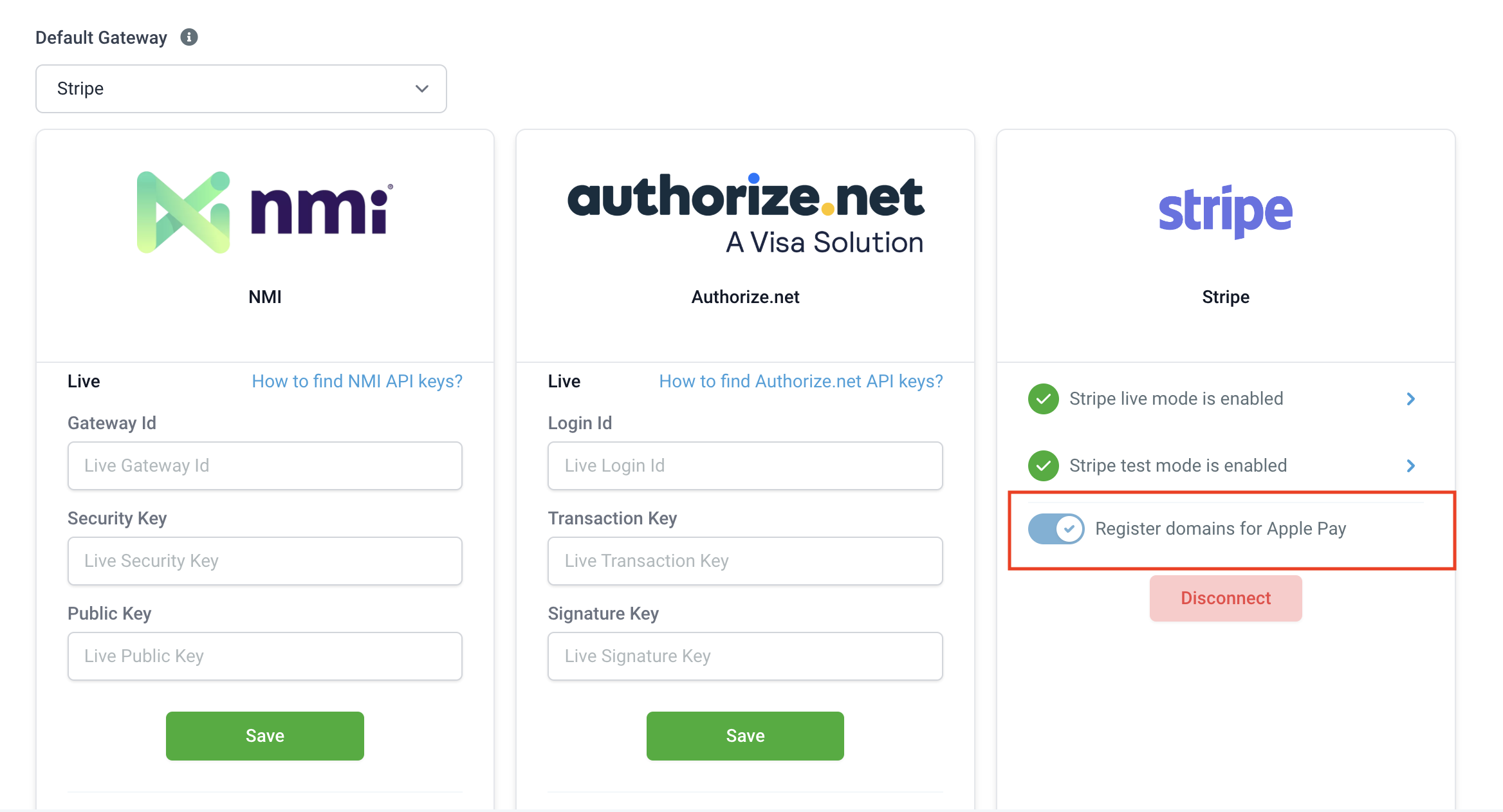
Stripe displays Google Pay by default alongside the credit card option. To also display Apple Pay, you turn on a toggle on the Integrations page, which completes the extra step of registering your domains with Stripe.
Once enabled, Google Pay and Apple Pay appear alongside the credit card option on your order forms. Recurring payments and upsells are both supported with Apple Pay and Google Pay.
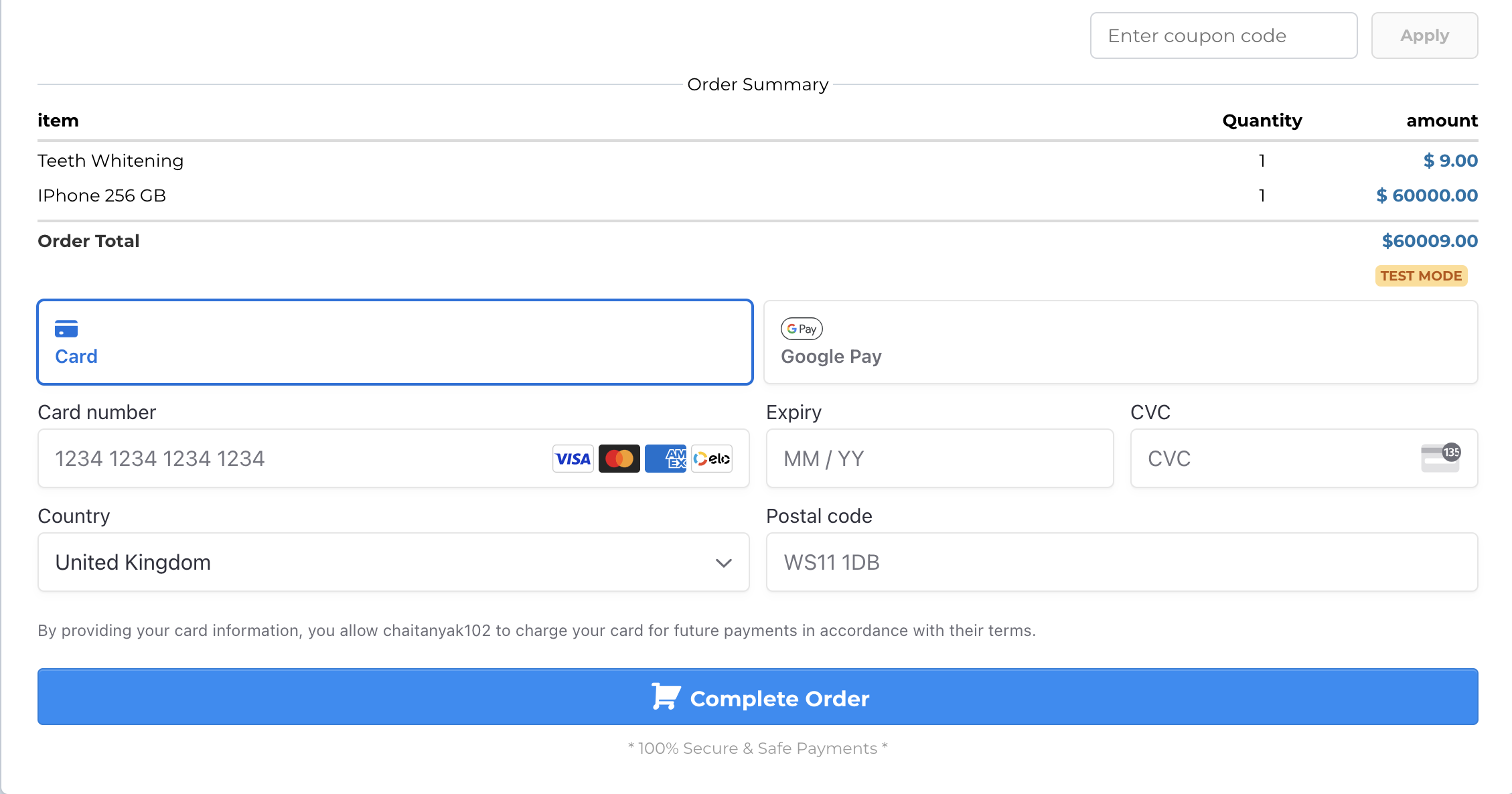
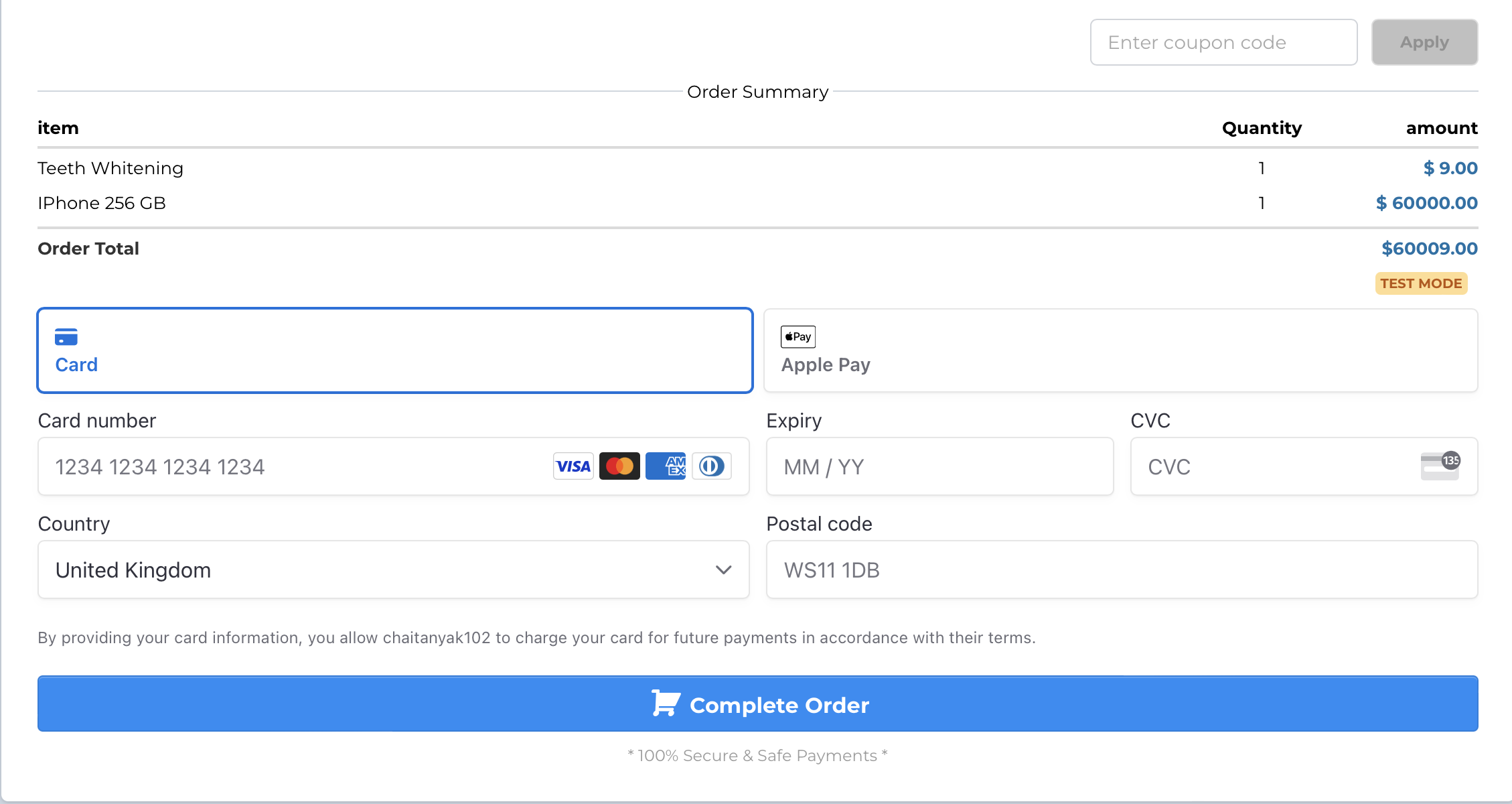
PayPal only shows up if PayPal is enabled under Payments and then Integrations.
Your patients see Apple Pay and Google Pay based on their geographic location and their web browser. They can use a wallet only if they have a payment method saved to their Apple or Google account. When both conditions are met, the wallet appears alongside the default credit card option at checkout.
Currently supported browsers include Chrome Desktop, Chrome for Android, macOS Safari, iOS Safari, and Microsoft Edge for Windows.
If a patient's browser is out of date, their country is not supported, or no card is saved to their Apple or Google account, no wallet option appears. In that case the patient can still pay with the standard credit card option.
This capability works only with Version 2 funnels. If you are still on Version 1, upgrade your funnels before enabling wallet payments.
The main requirement is a connected Stripe account through Stripe Connect on the Payments and then Integrations page. If you connect to Stripe using Stripe APIs, use Stripe Connect so this feature works.
Once your Stripe account is connected under Payments and then Integrations, a toggle appears to enable Apple Pay and Google Pay on your order forms. Turn it on to display both wallets.
If Apple Pay does not appear, work through these checks:
Confirm the Apple Pay and Google Pay toggle is turned on while Stripe is connected to your account.
Ensure the domain hosting your funnel is registered with Stripe. This is an extra requirement for Apple Pay and should register automatically when you turn the toggle on.
Open your Stripe dashboard and check the Apple Pay settings to see if the domain is listed under Web Domains.
If the domain is not listed, you can add it manually by clicking Add New Domain. This is only a quick fix. If the domain does not register automatically when you turn on the toggle, raise a ticket with us.
If the domain appears registered, confirm the domain association file is hosted. A file should download when you visit https://example.com/.well-known/apple-developer-merchantid-domain-association (using your own domain in place of example.com). See Stripe's domain verification guide for more detail.
Confirm the patient's device and browser meet Apple's requirements: the patient is on the web in Safari, on iOS 10 or macOS Sierra or later.
If Google Pay does not appear, check the following:
Confirm the Apple Pay and Google Pay toggle is turned on while Stripe is connected to your account.
Make sure Google Pay is available in your country.
Confirm the patient is using Google Chrome or Safari.
Confirm the patient has a valid card saved to Google Pay.
Which payment provider powers Apple Pay and Google Pay?
Stripe. Both wallets are displayed through your connected Stripe account, so you need Stripe connected via Stripe Connect to offer them.
Do Apple Pay and Google Pay work on Version 1 funnels?
No. This capability works only with Version 2 funnels. Upgrade your funnels to Version 2 first.
Why don't my patients see Apple Pay or Google Pay at checkout?
A wallet appears only when the patient's browser and country support it and they have a card saved to their Apple or Google account. If any condition is not met, the wallet is hidden and the credit card option is shown instead.
Do I have to register my domain for Apple Pay?
Yes, but it usually happens automatically when you turn on the toggle. If the domain does not appear in your Stripe dashboard's Web Domains list, add it manually as a quick fix and raise a ticket with us.
Are recurring payments and upsells supported with these wallets?
Yes. Both recurring payments and one-click upsells are supported with Apple Pay and Google Pay.
Does PayPal show up automatically?
No. PayPal only appears at checkout if you enable it under Payments and then Integrations.
Which browsers are supported?
Chrome Desktop, Chrome for Android, macOS Safari, iOS Safari, and Microsoft Edge for Windows.
